
How to use LM Studio with Ozeki AI Gateway
This guide demonstrates how to download an LLM model in LM Studio, start the local API server, and configure it as a provider in Ozeki AI Gateway. By connecting LM Studio to Ozeki AI Gateway, you can serve locally running AI models through a centralized gateway with access control and usage monitoring.
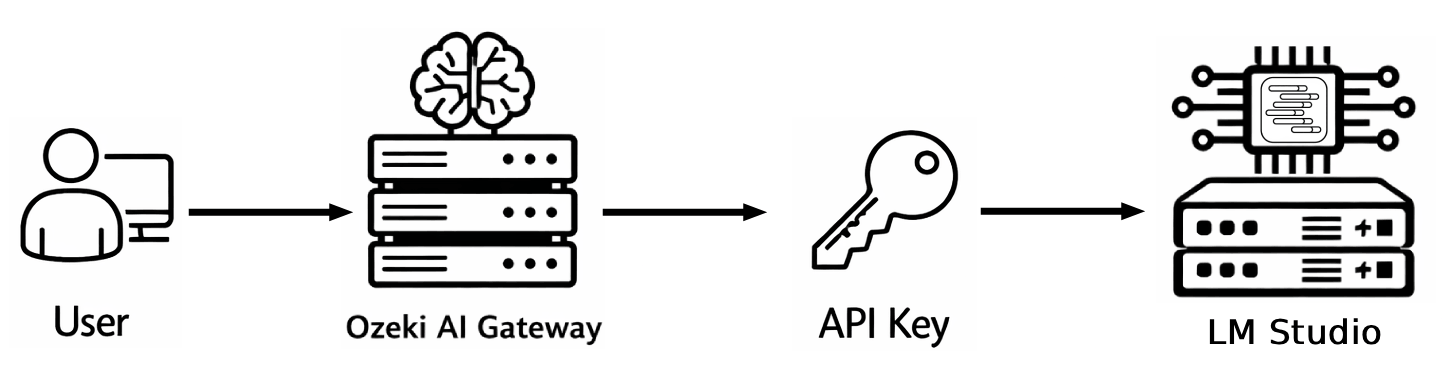
Steps to follow
We assume Ozeki AI Gateway is already installed on your system. You can install it on Linux, Windows or Mac. LM Studio must also be installed on your system: if you have not installed it yet, refer to the How to download and install LM Studio on Windows guide before proceeding.
- Download an LLM model in LM Studio
- Load the model and start the server
- Configure LM Studio as a provider in Ozeki AI Gateway
- Test the LM Studio provider
Quick reference commands
# LM Studio local API server URL
http://127.0.0.1:1234/v1
How to install an LLM and use LM Studio in Ozeki AI Gateway video
The following video shows how to download a model in LM Studio, start the local server, and configure it as a provider in Ozeki AI Gateway step-by-step.
Step 1 - Download an LLM model in LM Studio
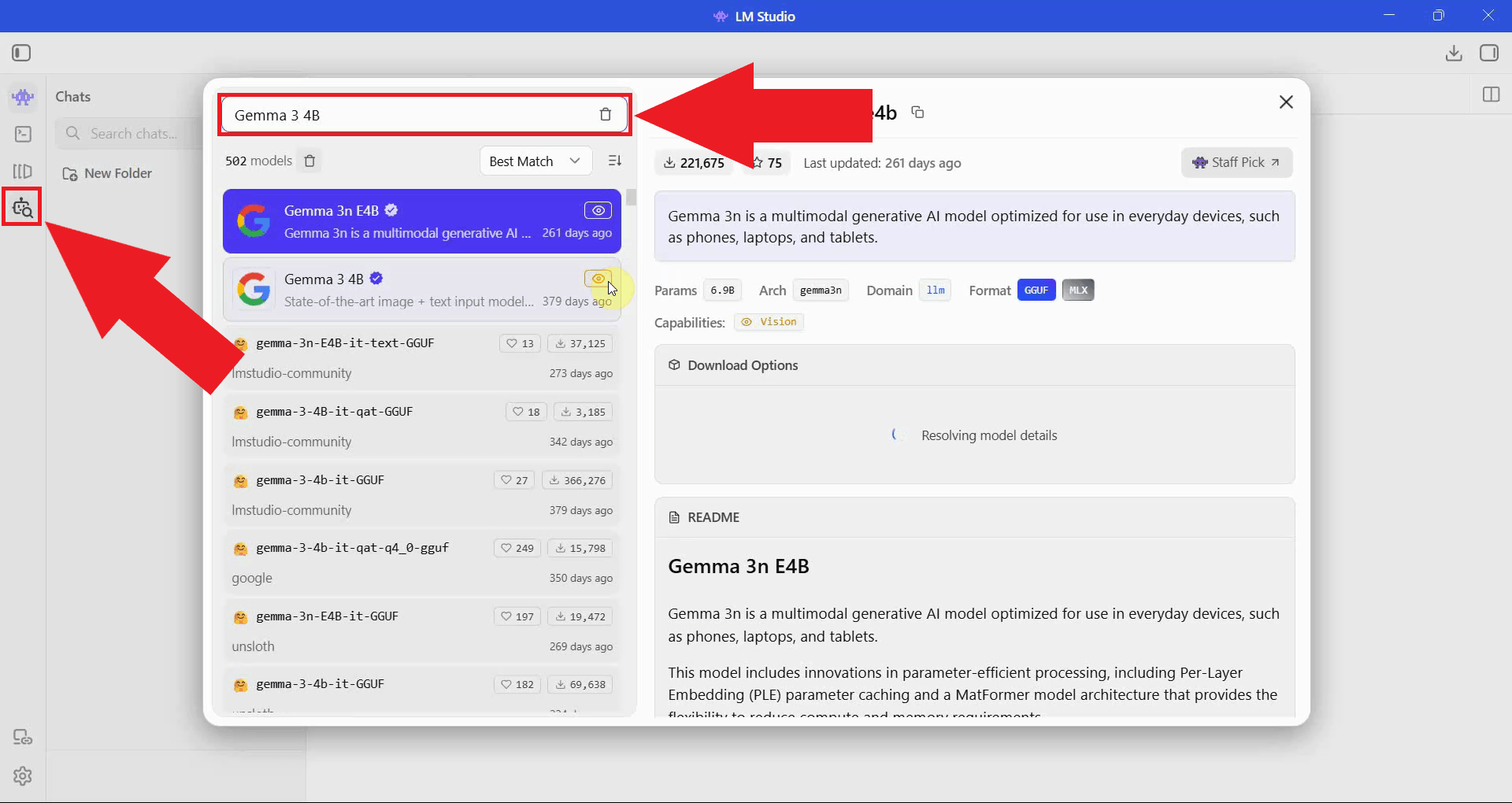
Open LM Studio and navigate to the model search section. Use the search bar to find a model you want to download and run locally. LM Studio searches Hugging Face and displays available models with information about their size and hardware requirements (Figure 1).
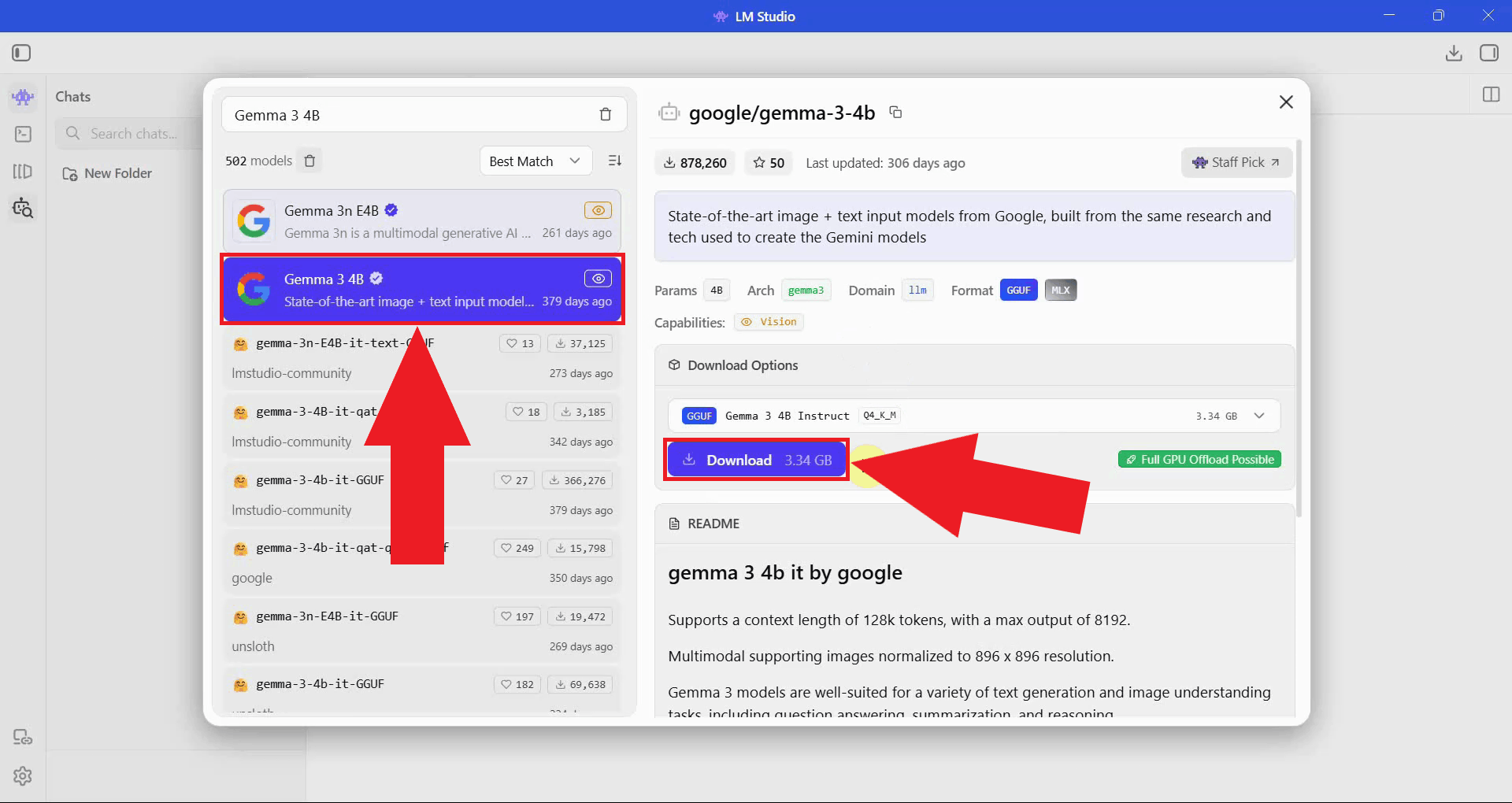
Select the model you want to use and click the download button next to your preferred quantization variant. Smaller quantizations require less VRAM and disk space, while larger ones offer better output quality (Figure 2).
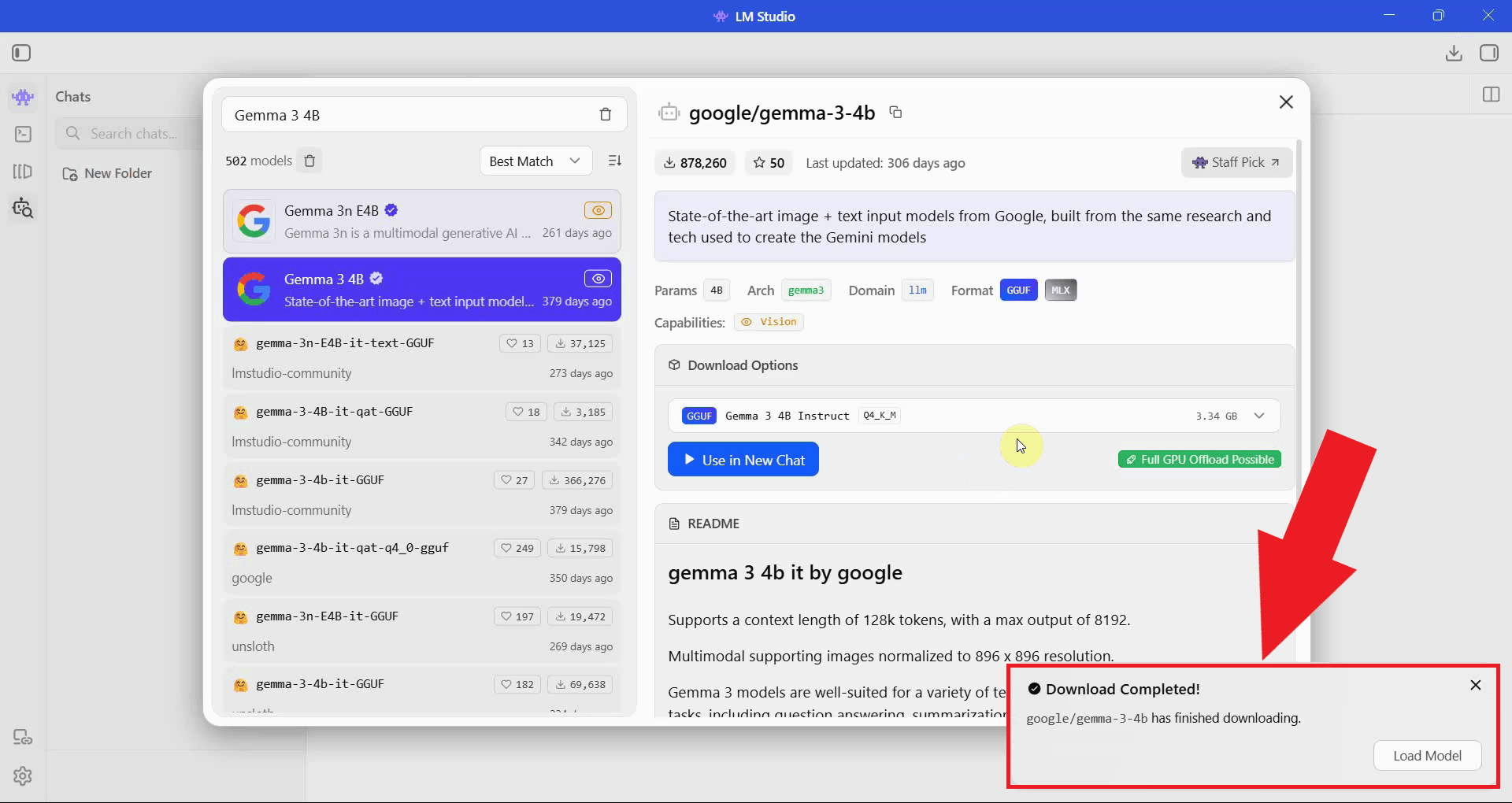
Wait for the model download to complete. The progress bar shows how much of the model file has been downloaded. Download time will vary depending on the model size and your internet connection speed (Figure 3).
Step 2 - Load the model and start the server
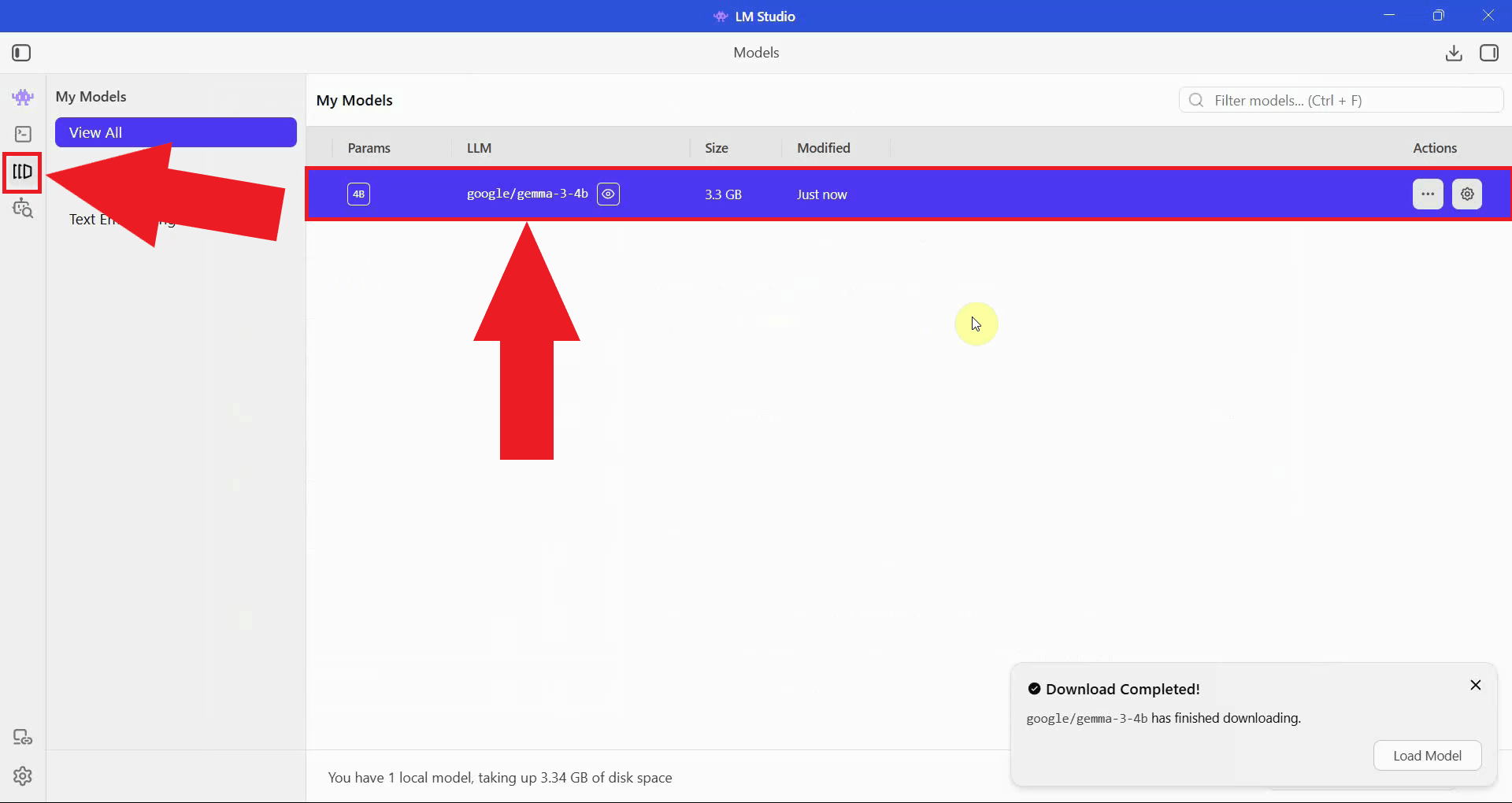
Navigate to the My Models section and locate the model you just downloaded. This page lists all models available on your system that are ready to be loaded (Figure 4).
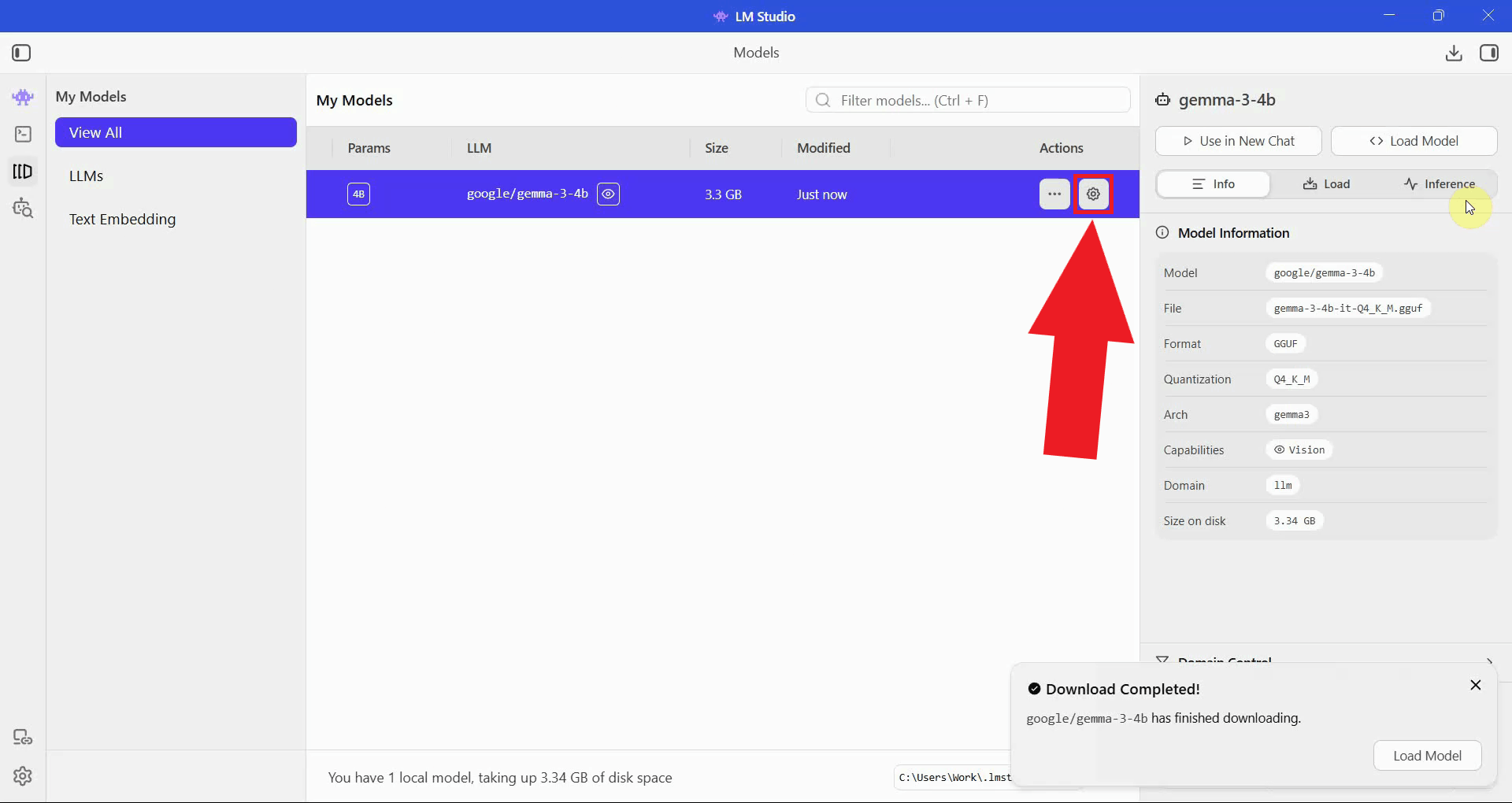
Click the Edit model default config button to open the configuration editor. Here you can review and adjust inference parameters such as context length and GPU offloading before loading the model into memory (Figure 5).
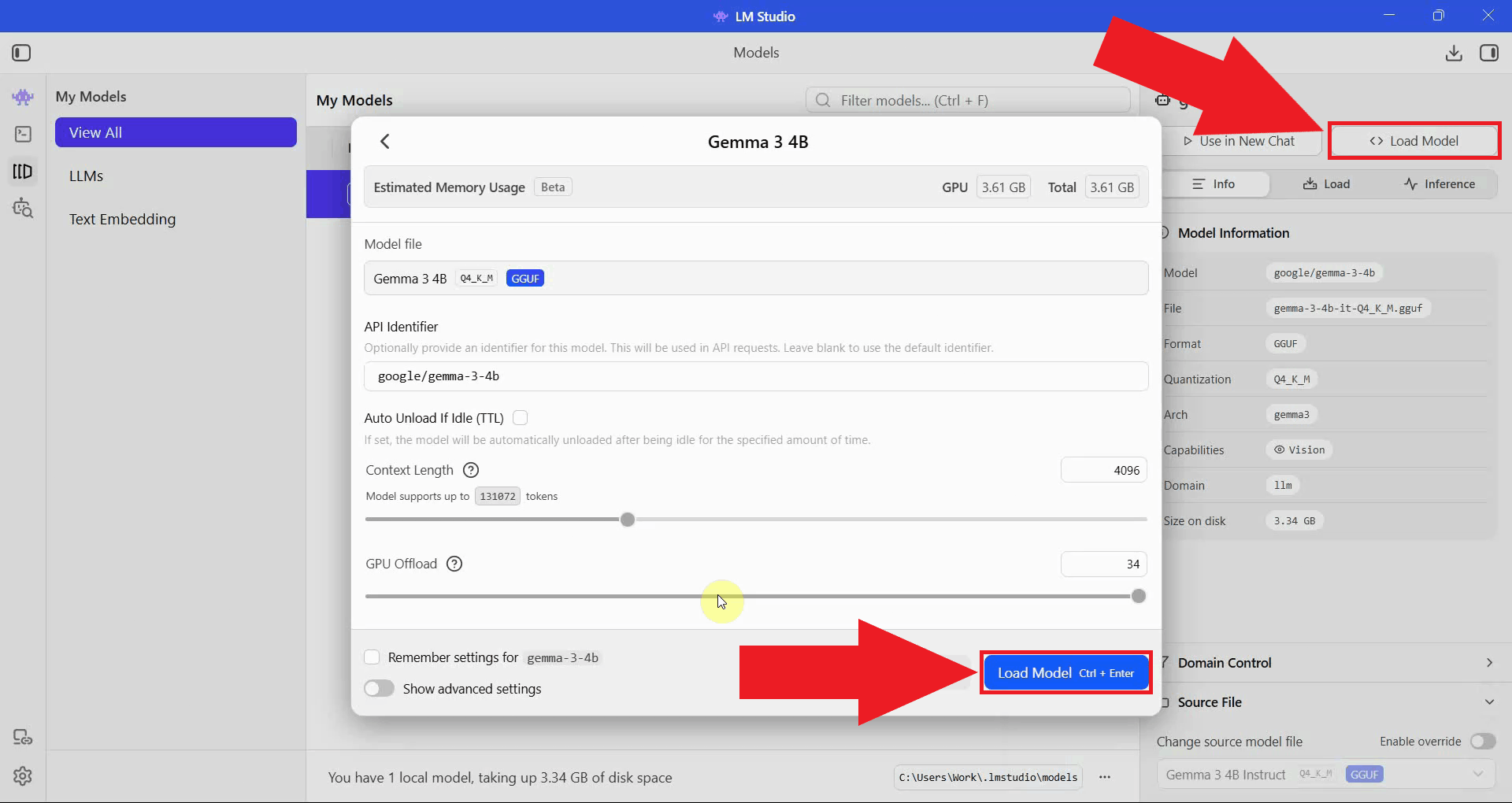
Clicking the Load Model opens a dialog window, select Load Model in the window to load the model into memory. LM Studio will allocate the required VRAM and system memory. Wait for the loading process to complete before proceeding (Figure 6).
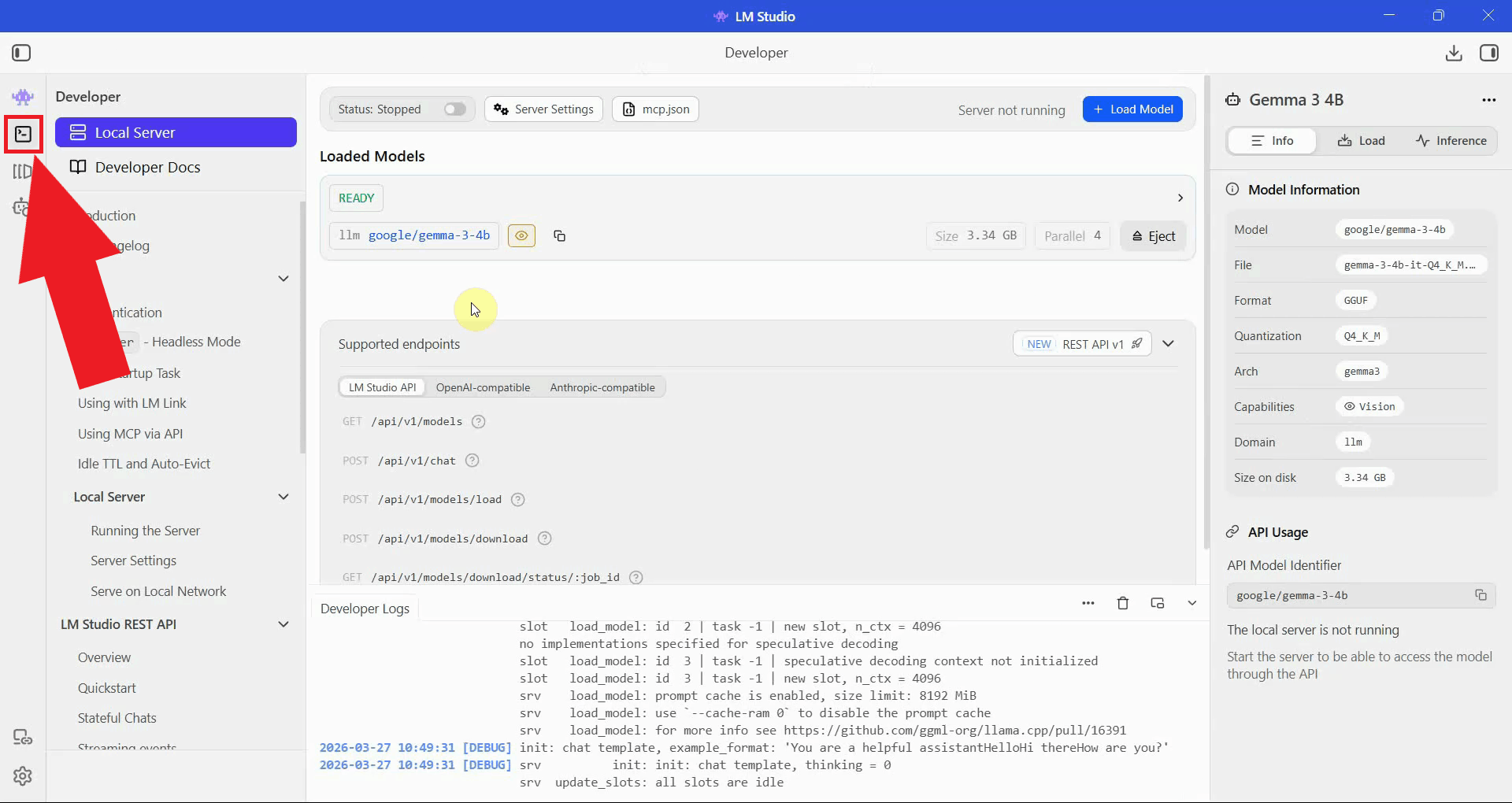
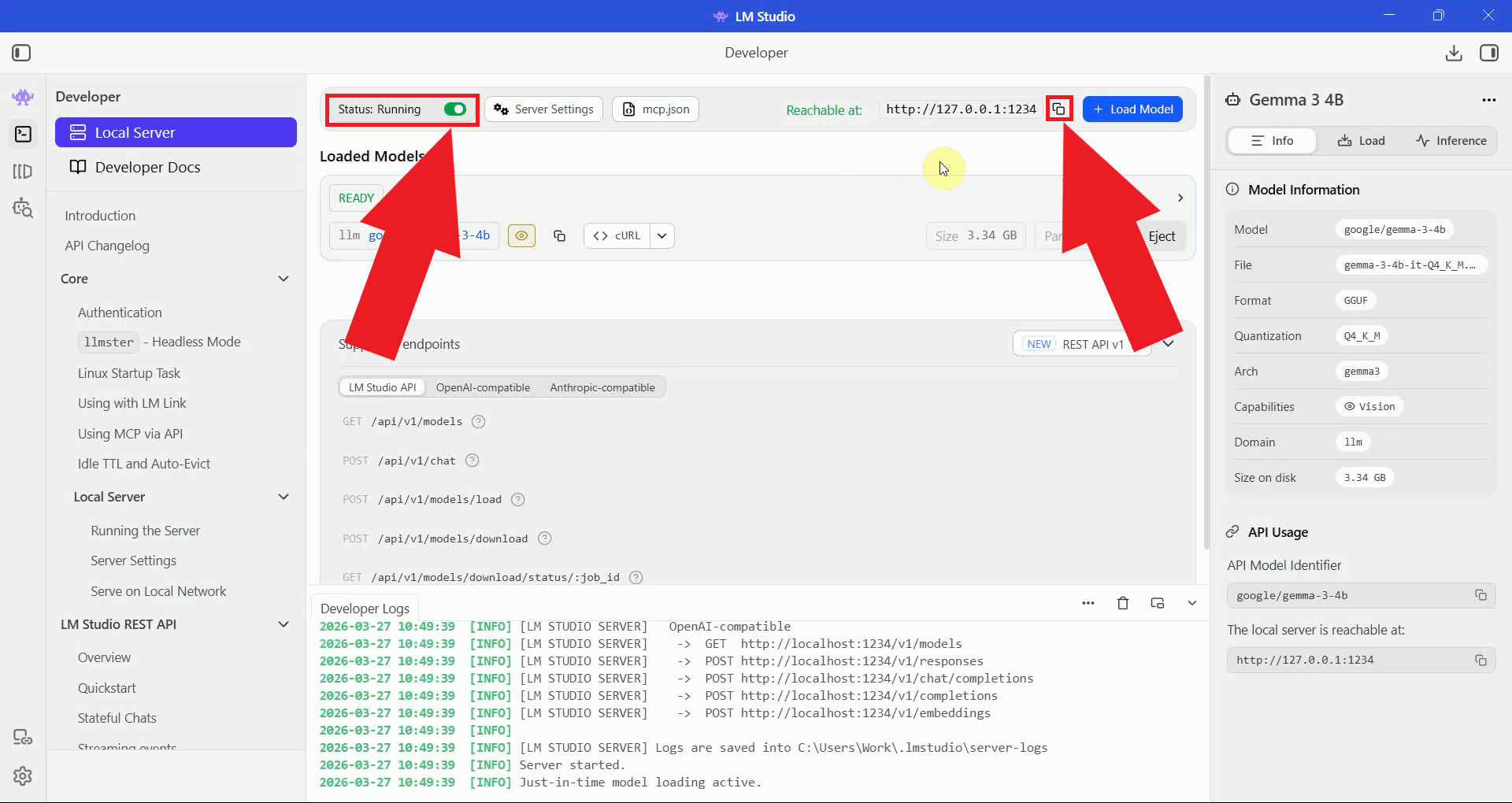
Navigate to the Developer section in LM Studio. This is where the local API server is managed and where you can find the server URL to use in Ozeki AI Gateway (Figure 7).
Click the Start Server toggle to launch the local API server. Once running, copy the
server URL, you will need it when configuring the provider in Ozeki AI Gateway.
The server listens on http://127.0.0.1:1234/v1 by default (Figure 8).
Step 3 - Configure LM Studio as a provider in Ozeki AI Gateway
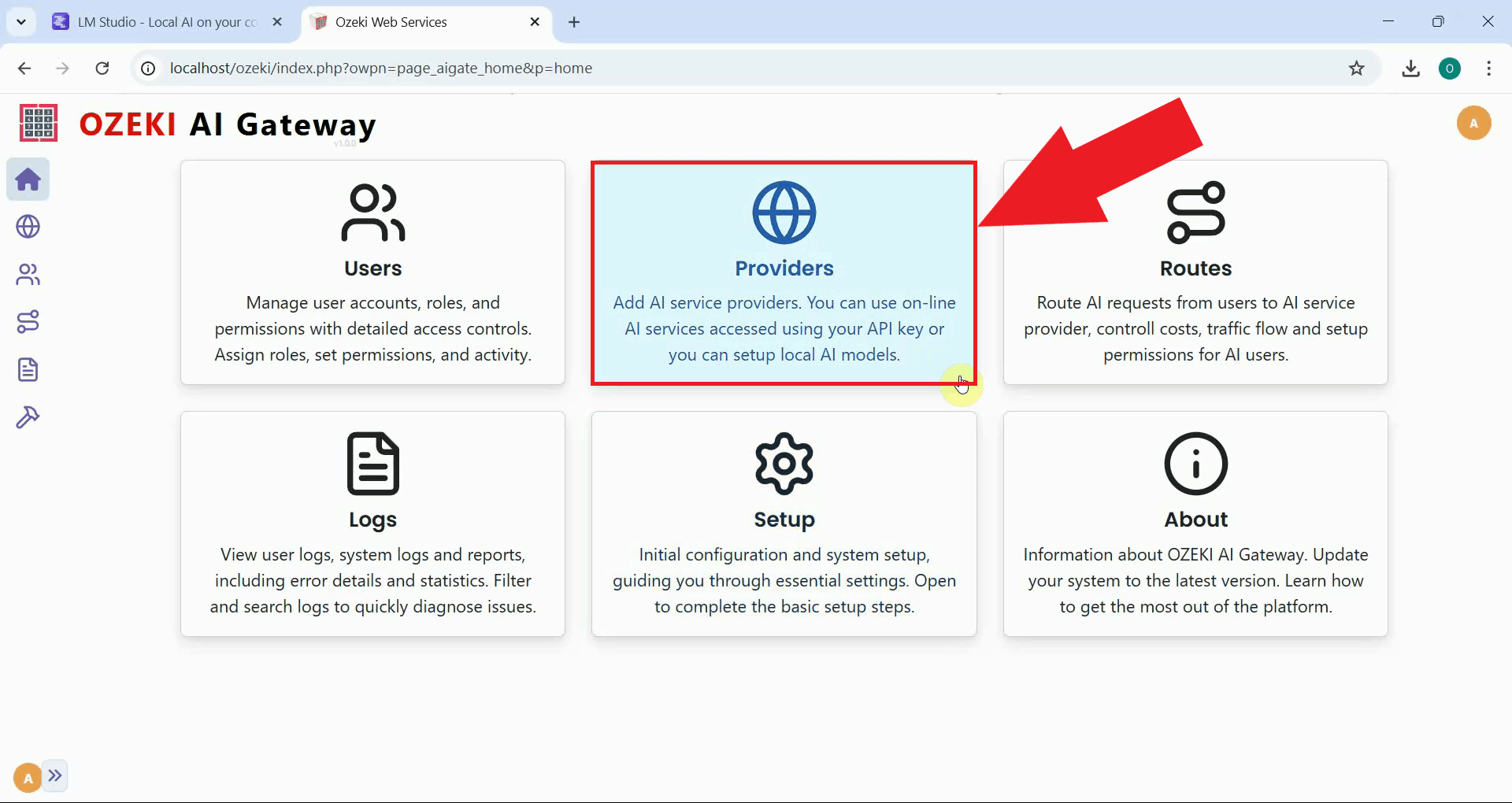
Open the Ozeki AI Gateway web interface and navigate to the Providers page. This is where you will add LM Studio as a new provider using the server URL you copied in the previous step (Figure 9).
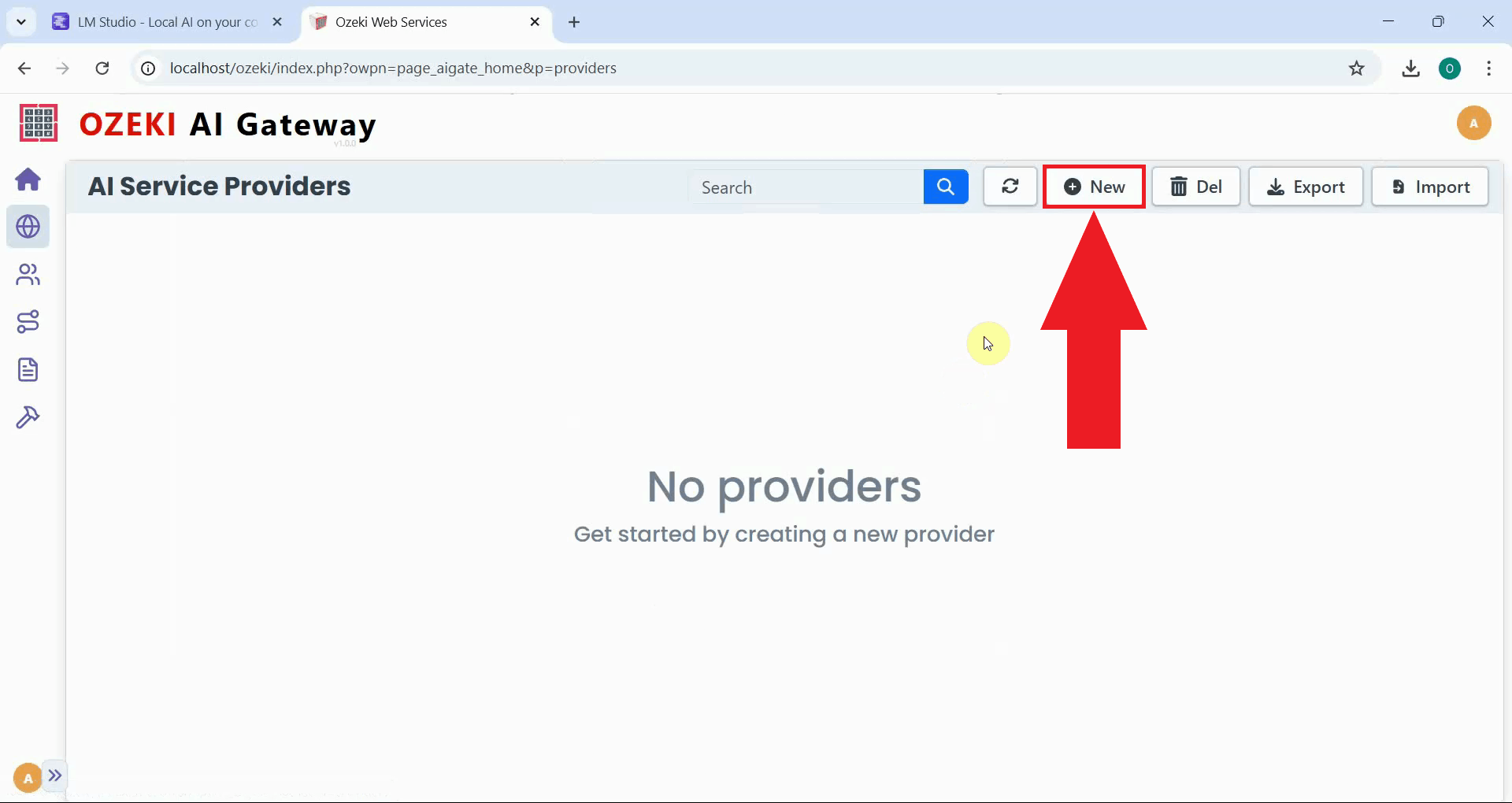
Click the New button to begin the provider creation process. This opens the form where you will enter the connection details for your local LM Studio server (Figure 10).
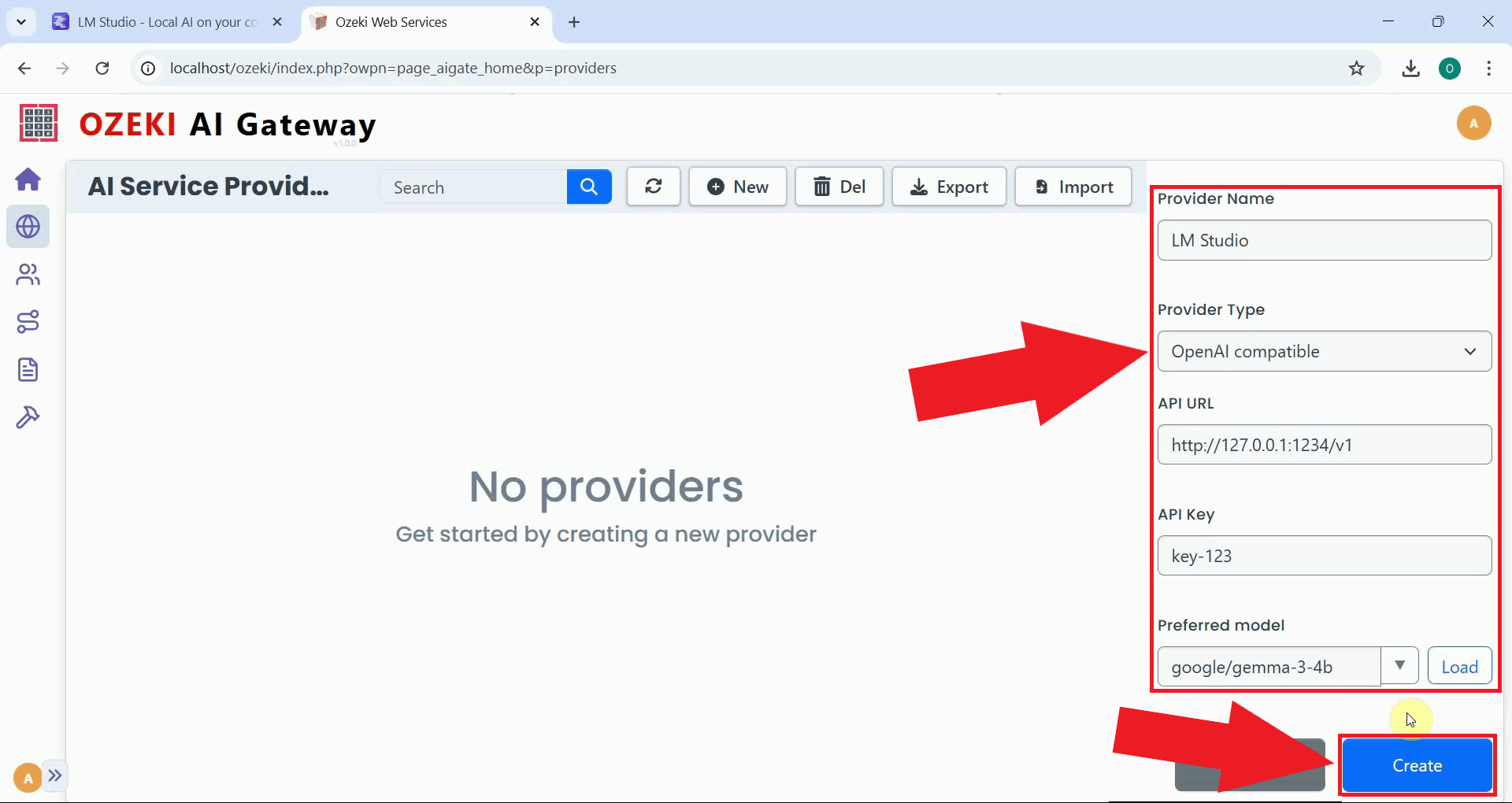
Fill in the provider configuration form. Enter a descriptive provider name, select OpenAI compatible as the provider type, and paste the LM Studio server URL into the API endpoint field. LM Studio does not require an API key by default, so you can enter any value. Select the model you loaded from the dropdown list, then click Create to save the configuration (Figure 11).
http://127.0.0.1:1234/v1
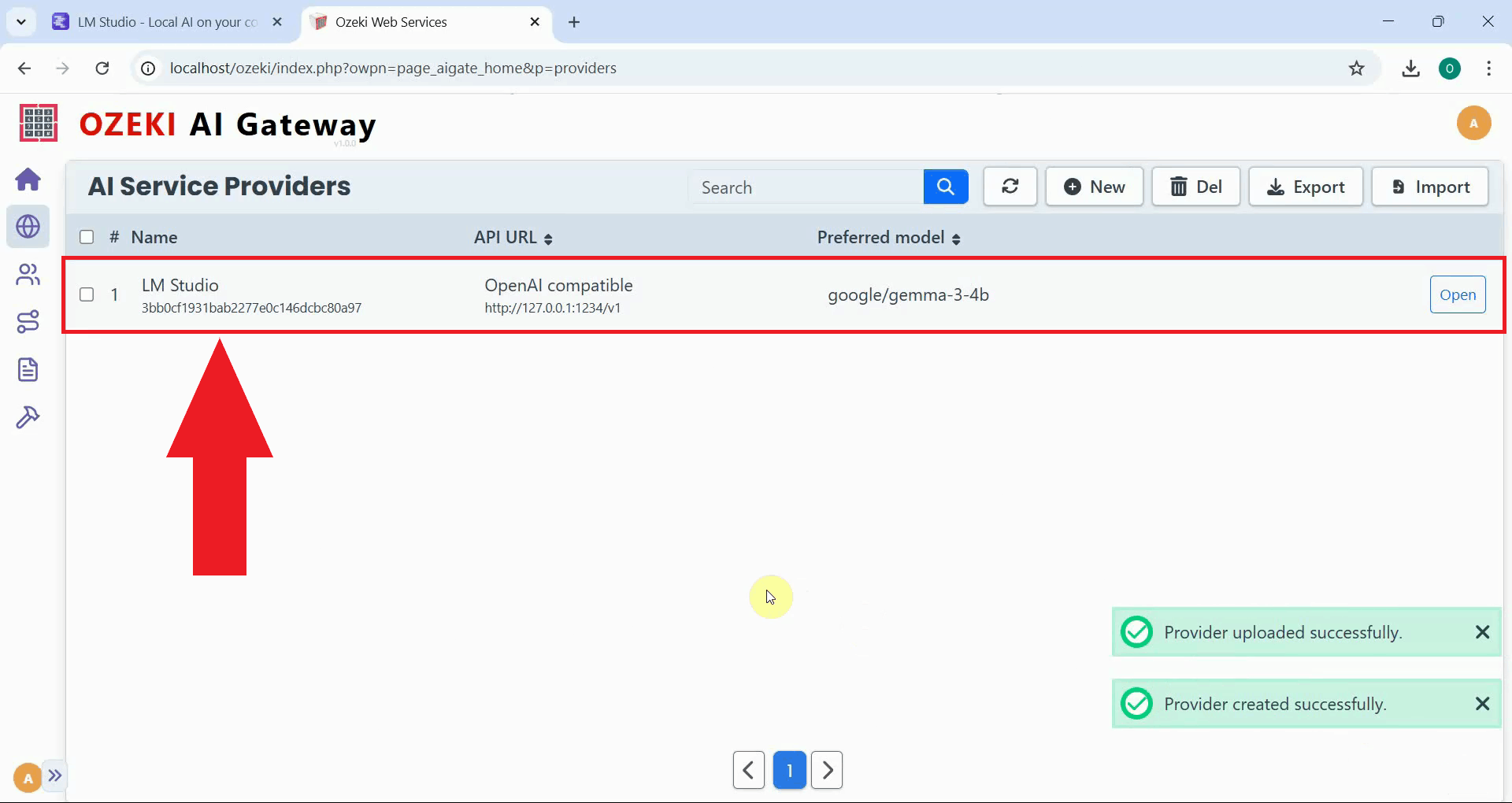
The LM Studio provider now appears in the providers list, confirming that Ozeki AI Gateway can route requests to your locally running model. You can now create routes that allow users to access the model through the gateway (Figure 12).
Step 4 - Test the LM Studio provider
The following video demonstrates how to test the LM Studio provider by sending a test prompt through Ozeki AI Gateway and verifying the response.
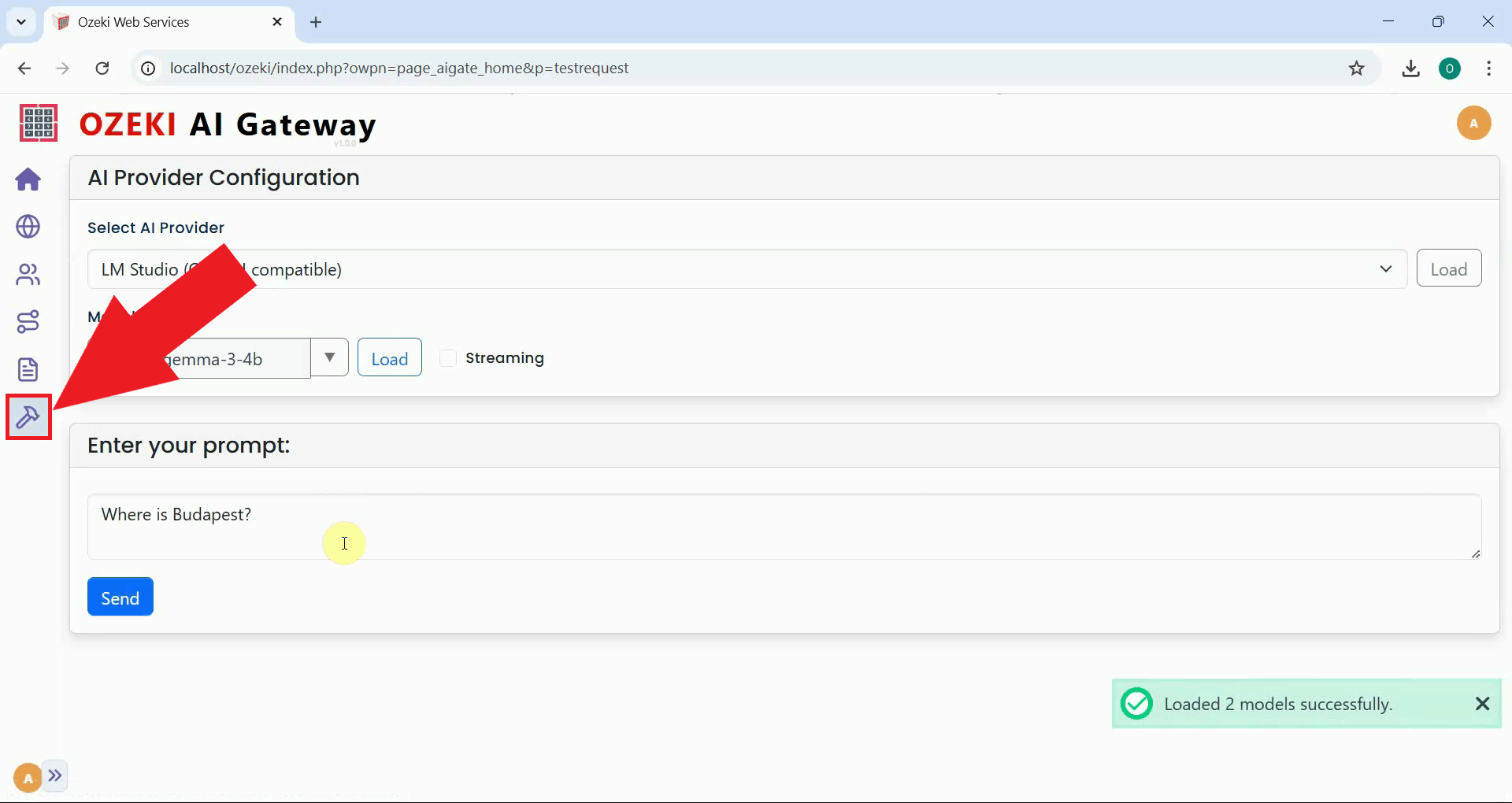
Navigate to the provider testing page in Ozeki AI Gateway and select your LM Studio provider from the list. This page allows you to send a prompt directly to the provider to verify the connection (Figure 13).
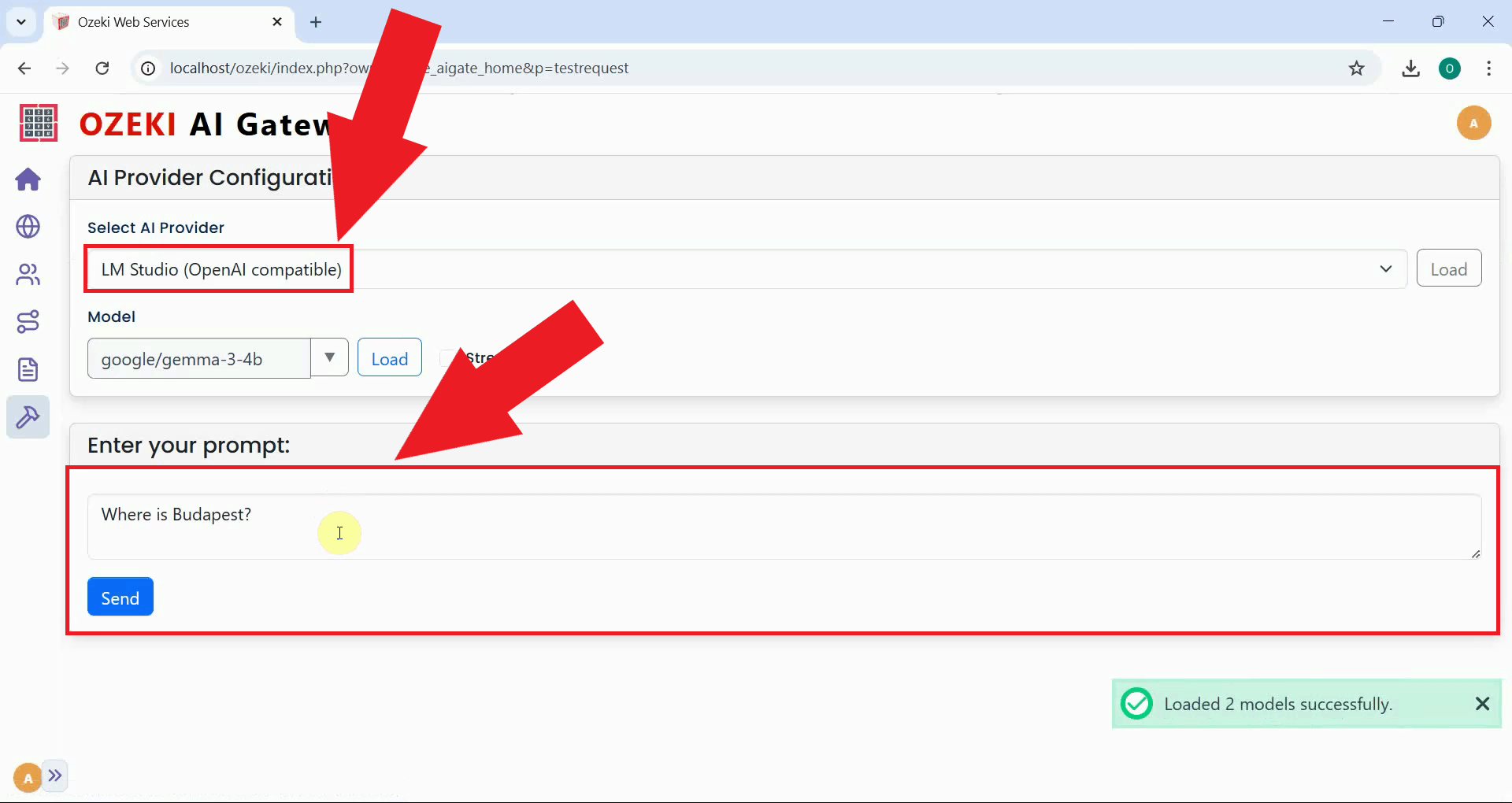
Enter a test prompt and submit it to the LM Studio provider. A simple question is sufficient to confirm that the gateway can reach the local server and that the model is responding correctly (Figure 14).
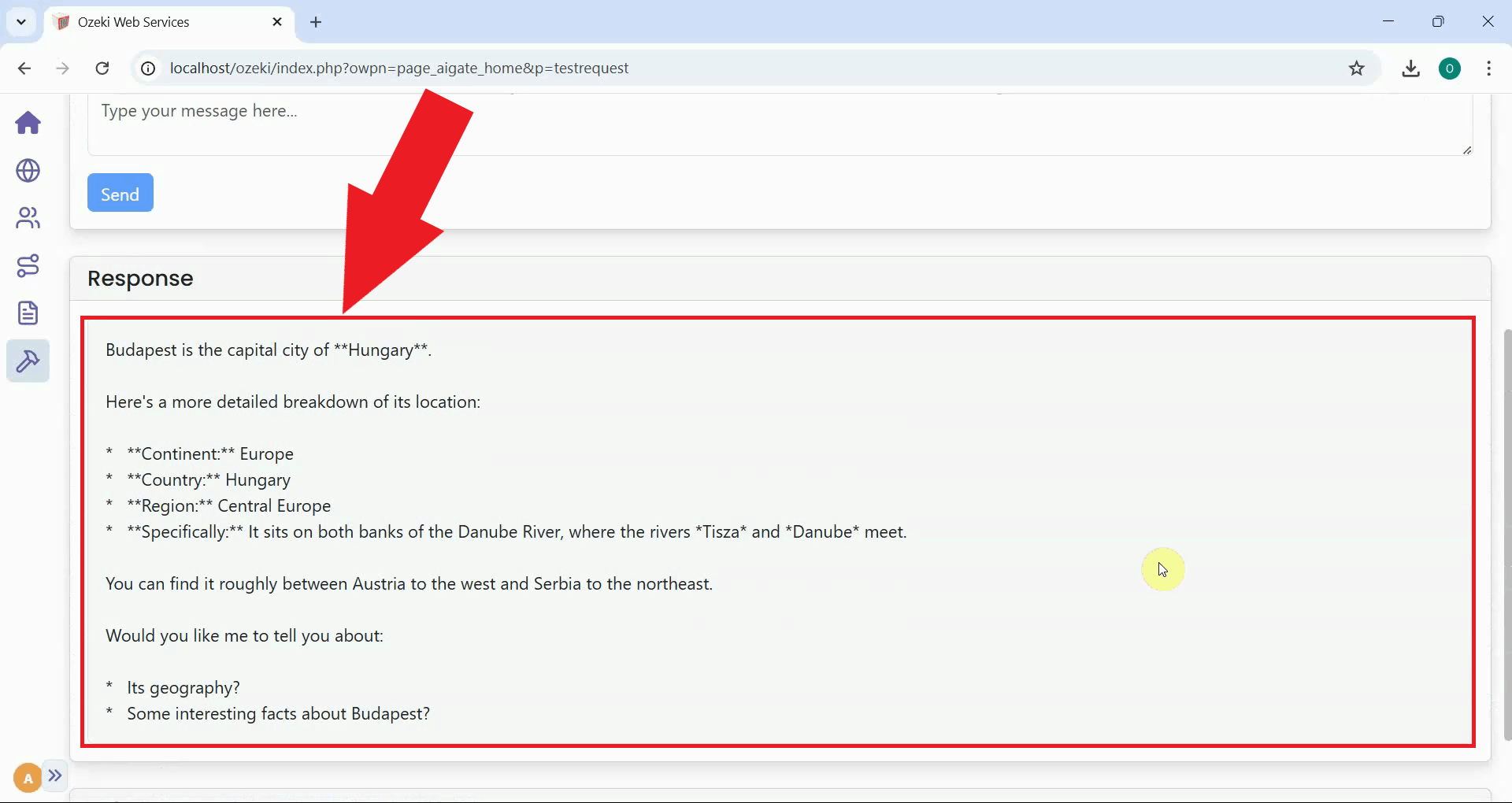
A successful response from the LM Studio provider confirms that the connection is working correctly and that Ozeki AI Gateway is successfully routing requests to your locally hosted model (Figure 15).
To sum it up
You have successfully downloaded a model in LM Studio, started the local API server, and configured it as a provider in Ozeki AI Gateway. Your gateway can now route requests to your locally running model, giving you the privacy and cost benefits of local inference combined with the centralized access control and monitoring of Ozeki AI Gateway.