
How to route AI API requests
This guide demonstrates how to create routes in Ozeki AI Gateway that connect users to AI providers. You'll learn how to navigate to the Routes section and configure the necessary mappings between users, API keys, and providers.
What is a route?
A route in Ozeki AI Gateway defines the connection between a user's API key and an AI provider. Routes enable centralized access control, determining which users can access which providers and models through your gateway infrastructure.
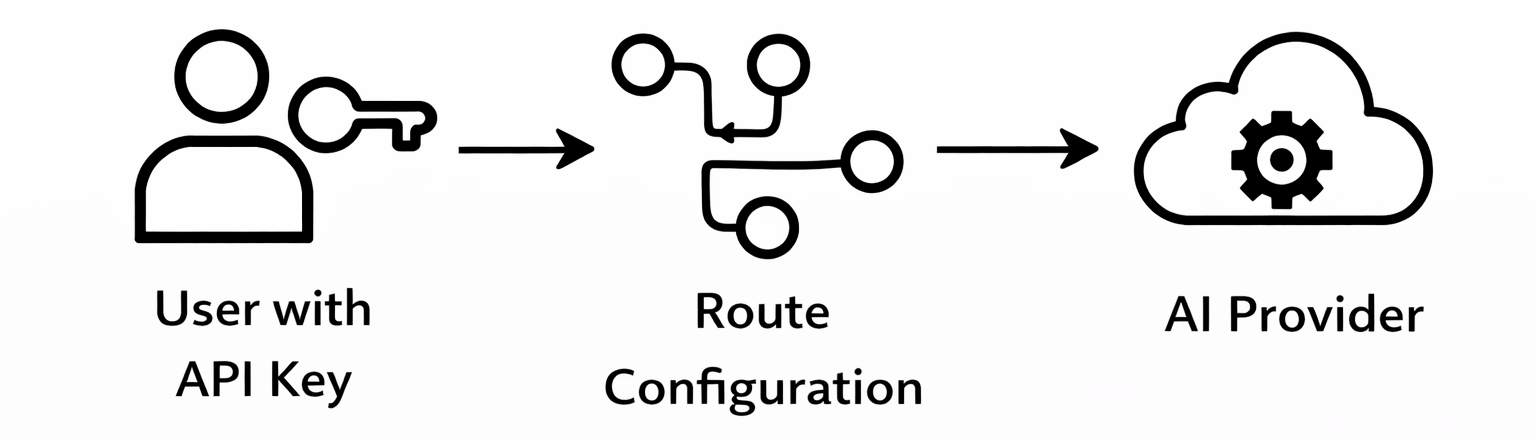
Steps to follow
We assume Ozeki AI Gateway is already installed on your system. You can install it on Linux, Windows or Mac.
How to create a route video
The following video demonstrates how to create routes in Ozeki AI Gateway step-by-step. The video covers navigating to the Routes page, providing route details including user and provider selection, and completing the route creation process.
Step 0 - Prerequisites
Create user account
Before creating a route, you need at least one user account configured in Ozeki AI Gateway. Routes connect users to providers, so a user account must exist first. If you haven't created a user account yet, follow our Create a user Account guide to set up user accounts.
Configure AI provider
You also need at least one AI provider configured in Ozeki AI Gateway. Routes specify which provider handles the user's requests, so a provider must be set up before creating routes. If you haven't configured a provider yet, follow our Connect to an AI Service guide to add AI providers to your gateway.
Step 1 - Add new route
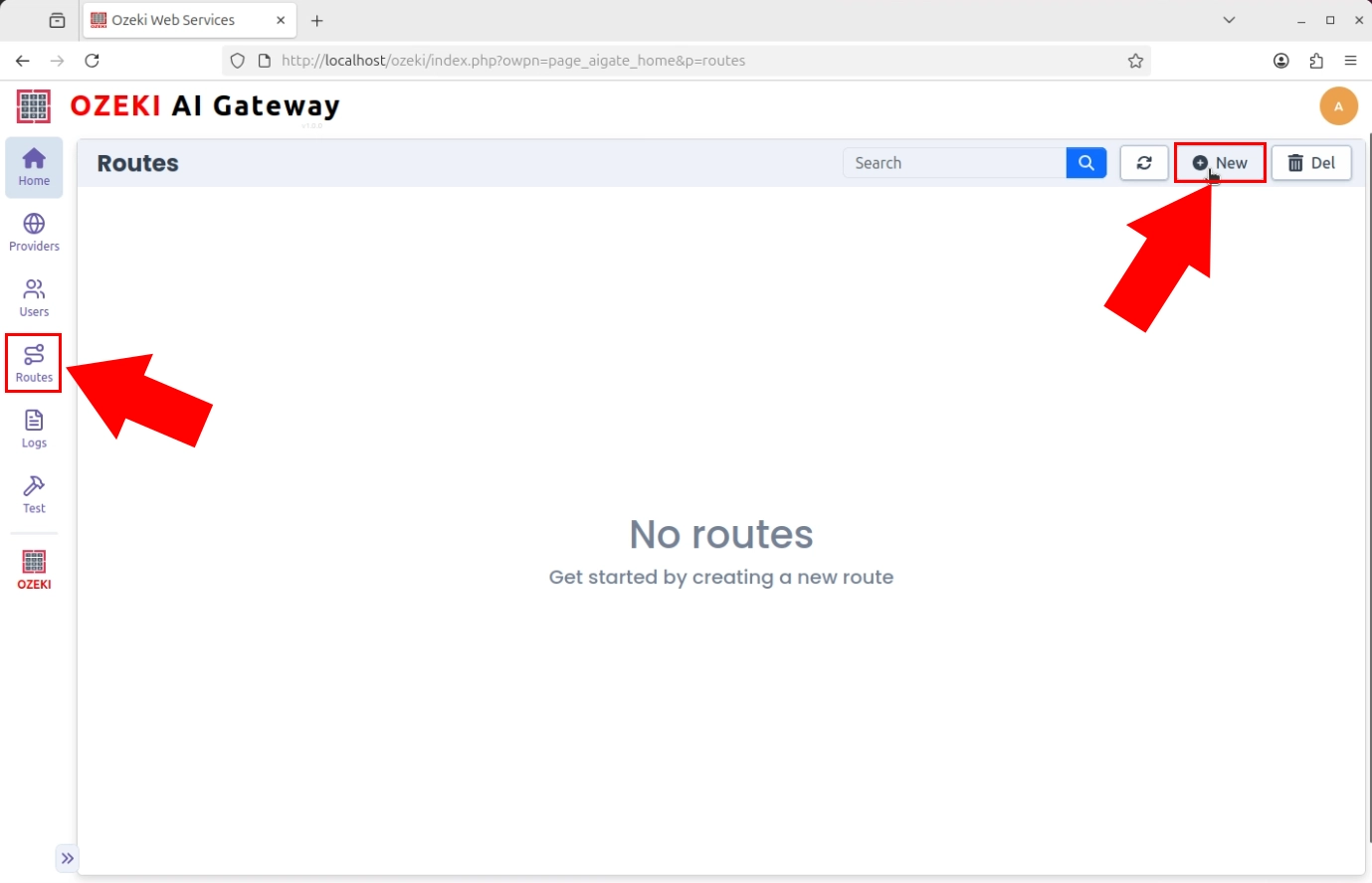
Open the Ozeki AI Gateway web interface and navigate to the Routes section from the left sidebar. Click the "New" button to open the route configuration form (Figure 1).
Step 2 - Provide route details
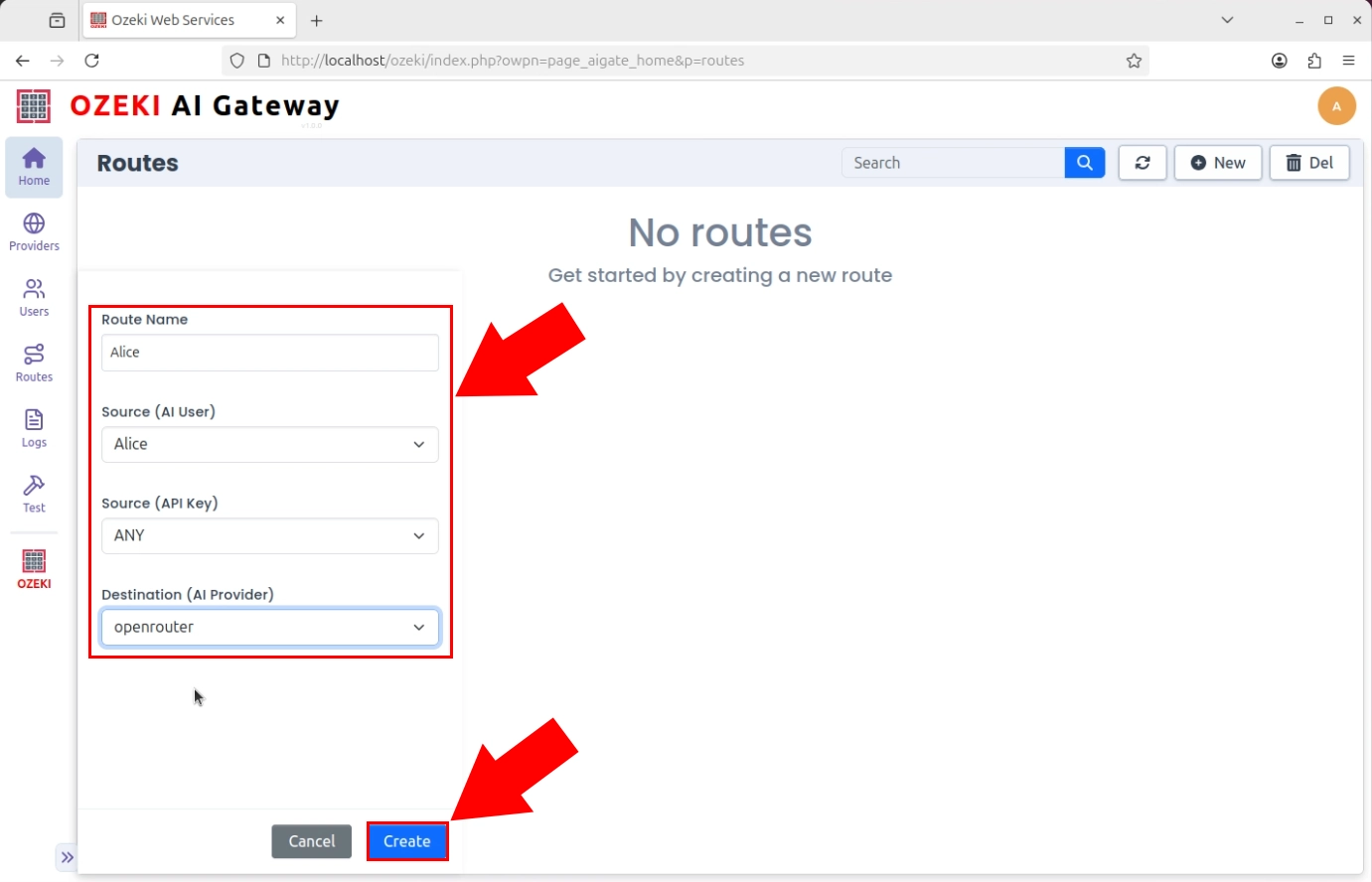
In the route configuration form, enter a descriptive route name to identify this connection. Select the source user account, then choose the specific API key that this route will use for authentication. Finally, select the destination AI provider that will handle this user's requests. The route establishes the access policy connecting a specific user's API key to a provider. Click "Create" to save the route configuration (Figure 2).
Step 3 - Route created
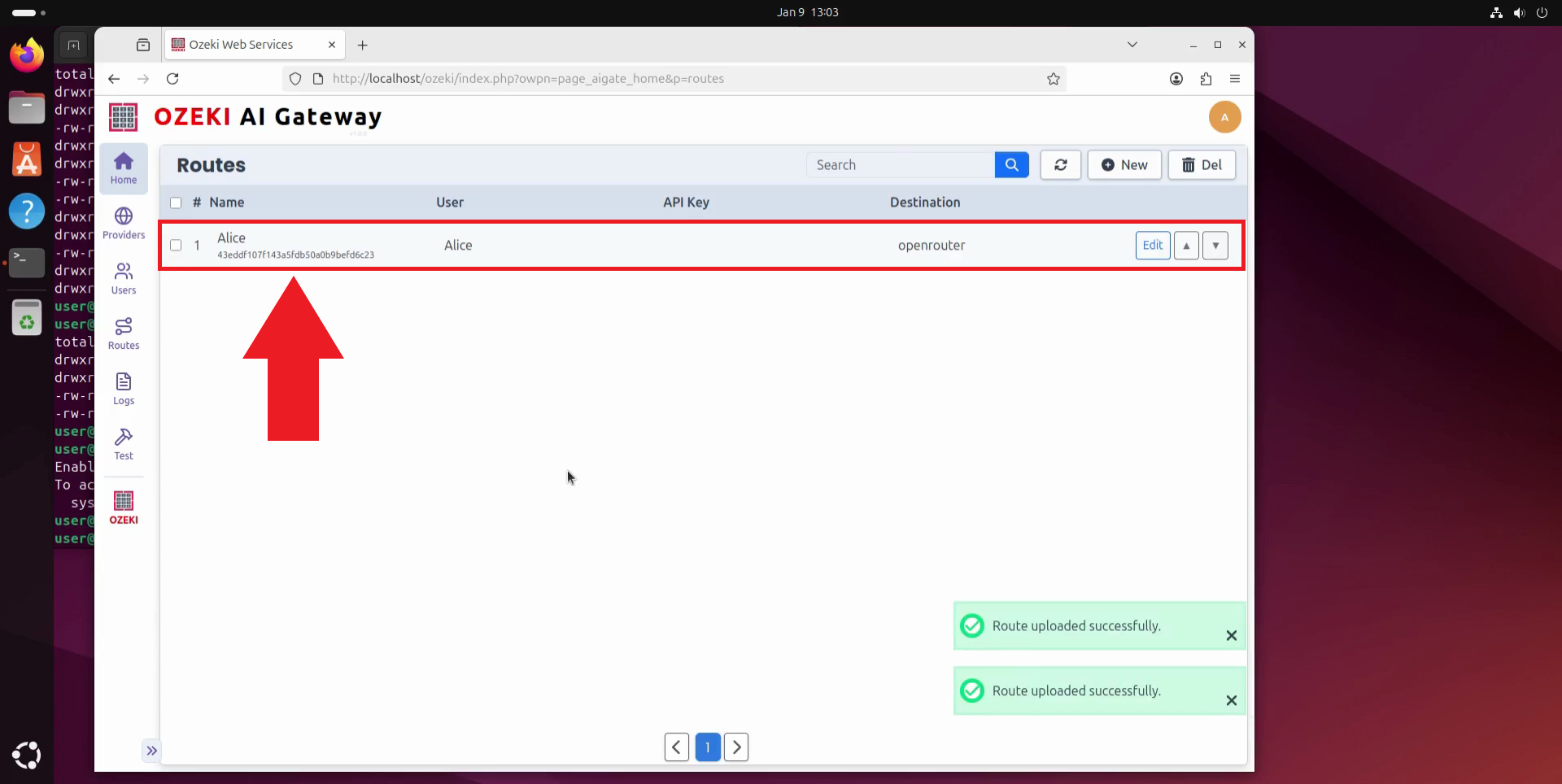
After clicking "Create", the route is added to Ozeki AI Gateway. The route now appears in the routes list, confirming that the specified user can access AI models through the configured provider. The user can now authenticate with their API key and make requests to the AI models available through this route (Figure 3).
Conclusion
You have successfully created a route in Ozeki AI Gateway that connects a user to an AI provider. The user can now authenticate with their API key and access the configured AI models through your gateway. Multiple routes can be configured to give users access to different providers and models based on their organizational needs and usage requirements.