
How to create an AI ML API key to use in Ozeki AI Gateway
This guide demonstrates how to create an AI/ML API key and configure it in Ozeki AI Gateway. You'll learn how to access the AI/ML API platform, generate a new API key, and set up AI/ML as a provider in your gateway. By following these steps, you can connect your Ozeki AI Gateway to AI/ML's diverse collection of AI models and services.
API URL: https://api.aimlapi.com/v1
Example API Key: abc123...
Default model: openai/gpt-5-2
What is an AI/ML API key?
An AI/ML API key is a unique authentication credential that allows applications to access a wide variety of AI models through the AI/ML API platform. AI/ML provides unified access to models from multiple providers including OpenAI, Anthropic, Google, and others through a single interface. When configuring AI/ML as a provider in Ozeki AI Gateway, you need this API key to establish the connection between your gateway and AI/ML's services.
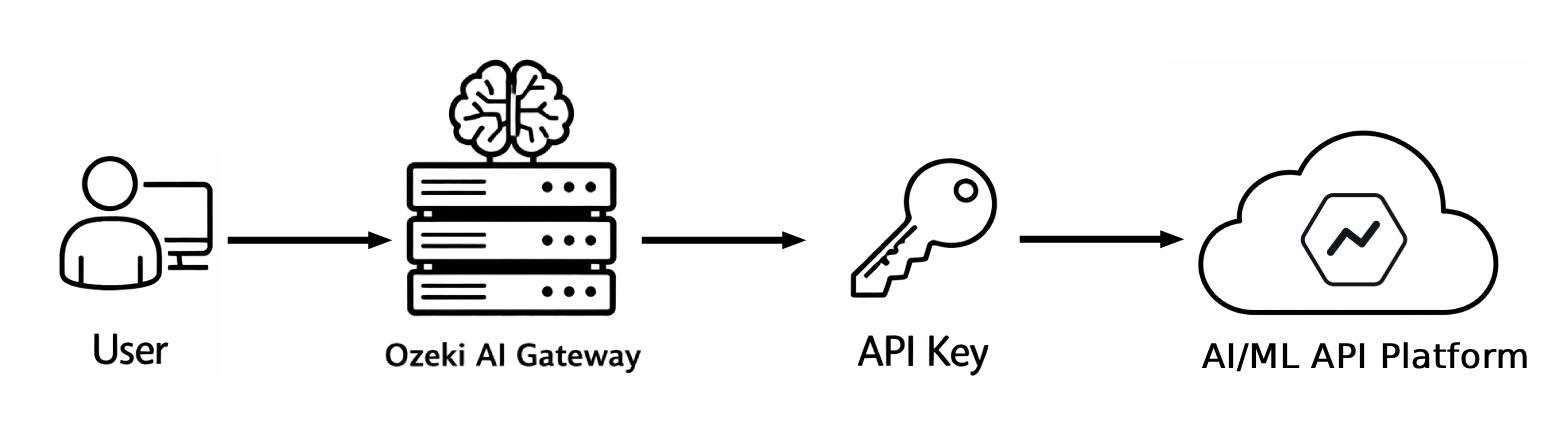
Steps to follow
We assume Ozeki AI Gateway is already installed on your system. You can install it on Linux, Windows or Mac.
- Open AI/ML API page
- Begin key creation
- Enter key details
- Create key
- Copy API key
- Open Providers page in Ozeki AI Gateway
- Create provider
How to Create an AI/ML API key video
The following video shows how to create an AI/ML API key and configure it in Ozeki AI Gateway step-by-step. The video covers accessing the AI/ML platform, generating a new API key, and setting up AI/ML as a provider in your gateway.
Step 1 - Open AI/ML API page
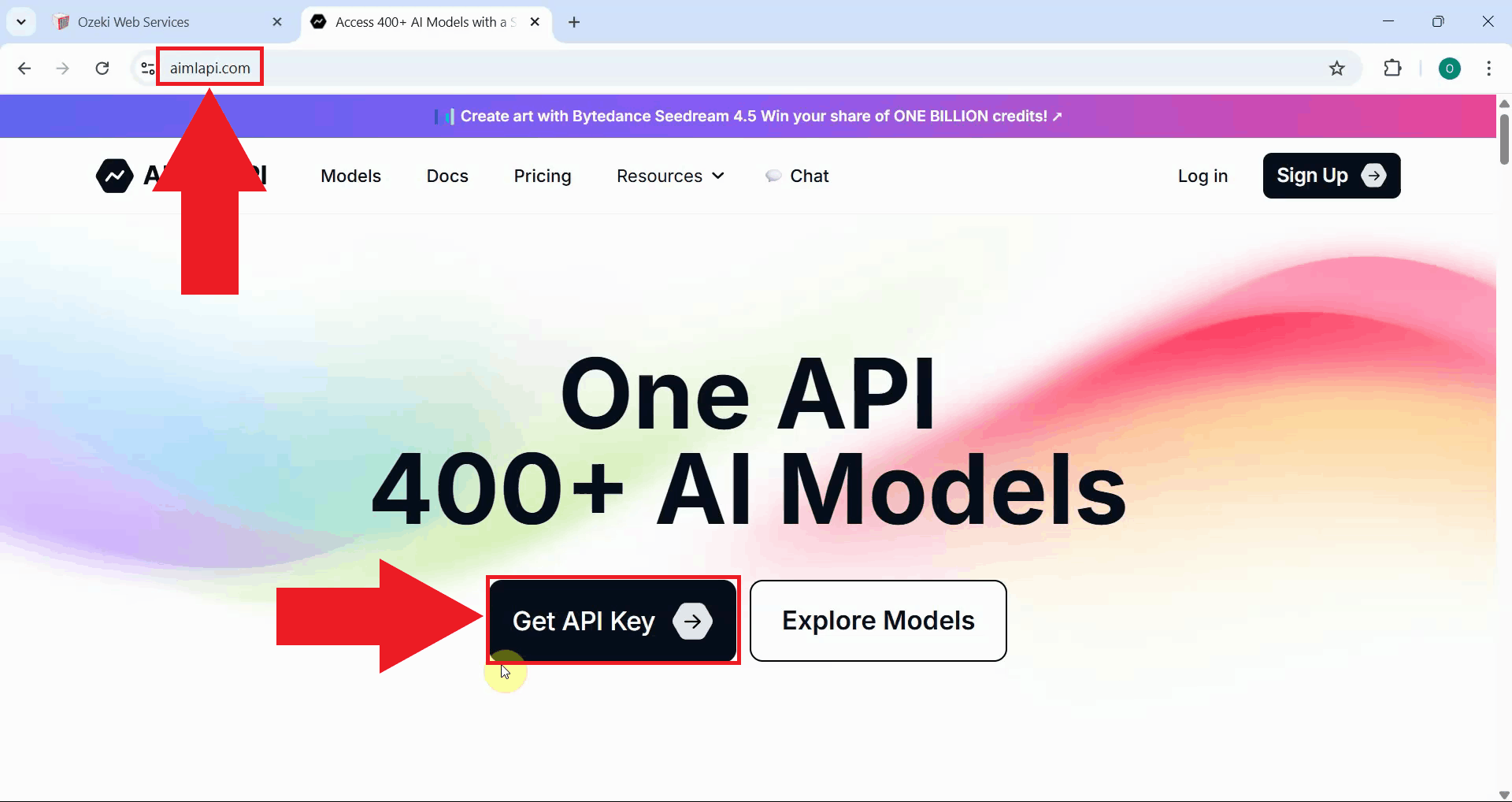
Open your web browser and navigate to the AI/ML API website. Sign in with your account credentials or create a new account if you don't have one. Navigate to the API keys section in your dashboard where you can create and manage your authentication credentials (Figure 1).
Step 2 - Begin key creation
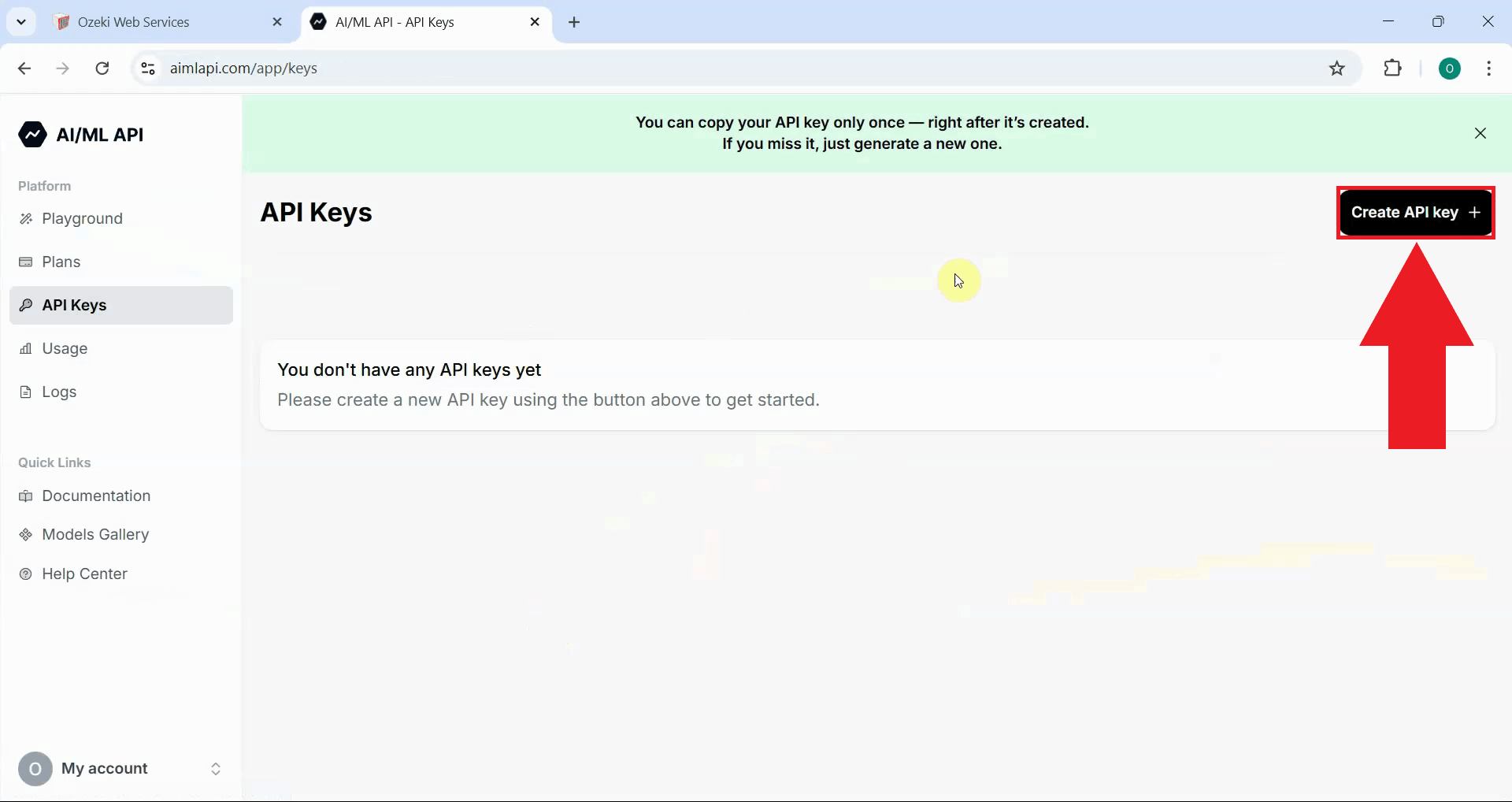
On the API keys page, locate and click the button to create a new API key. This initiates the key generation workflow where you'll configure the key with a name and any required permissions (Figure 2).
Step 3 - Enter key details
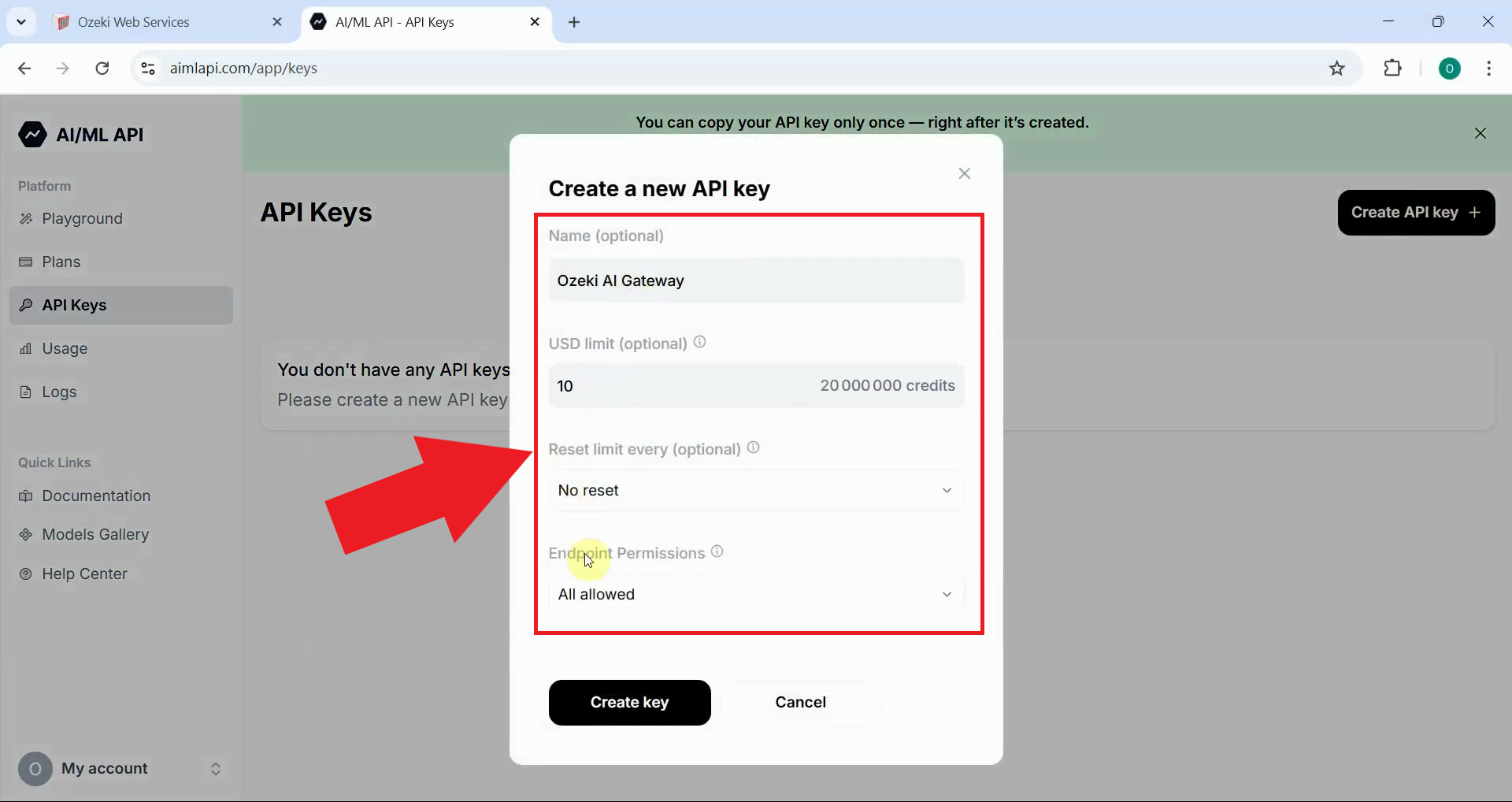
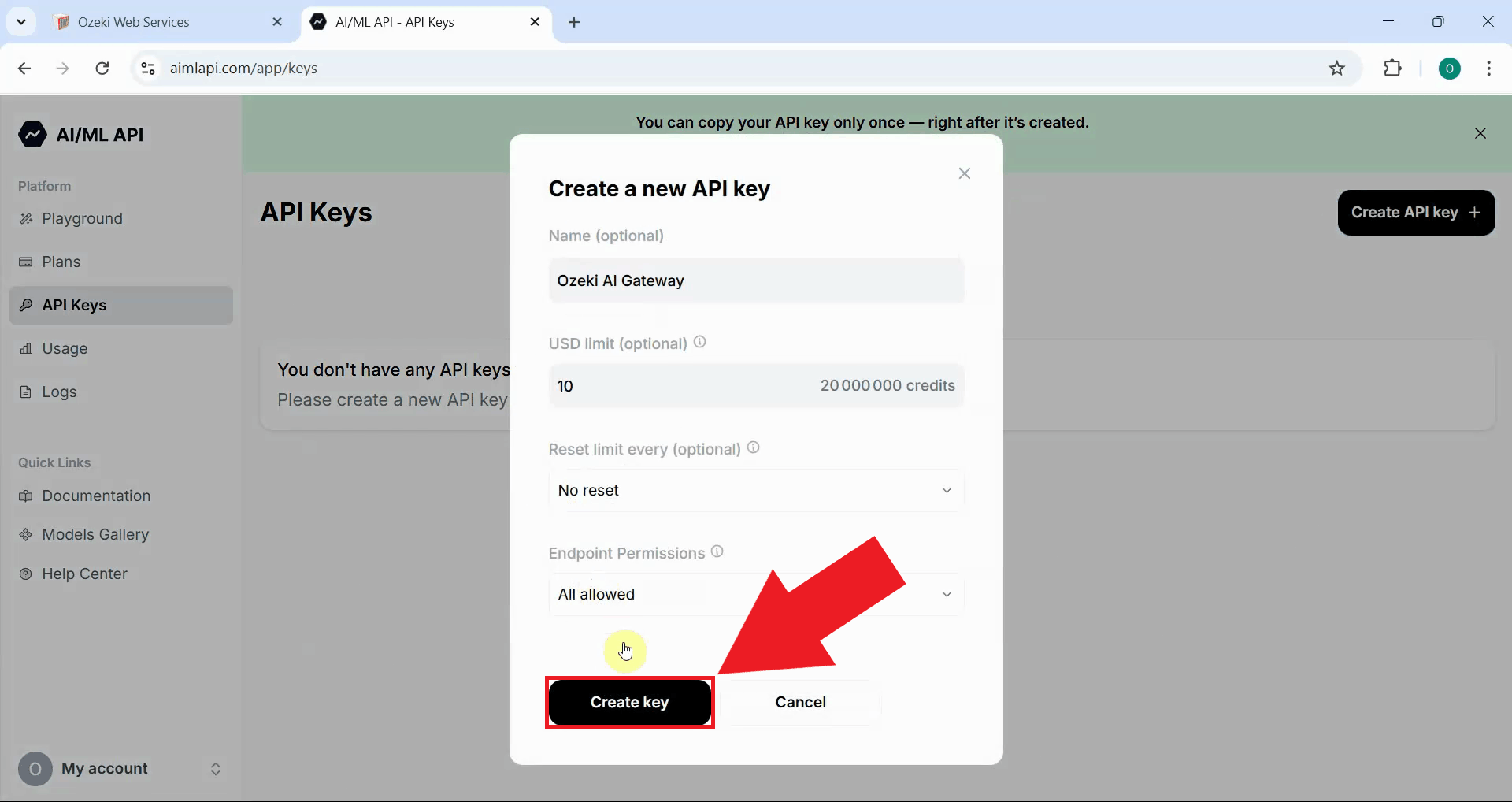
Enter a descriptive name for your API key that identifies its purpose, such as "Ozeki AI Gateway". Configure any additional settings such as spending limit, reset limit and permissions if needed. A clear naming scheme helps you identify which keys are used by which applications or services (Figure 3).
Step 4 - Create key
After entering the key details, click the "Create key" button to create your new AI/ML API key. The system will generate a unique authentication credential that you'll use to connect Ozeki AI Gateway to AI/ML's services (Figure 4).
Step 5 - Copy API key
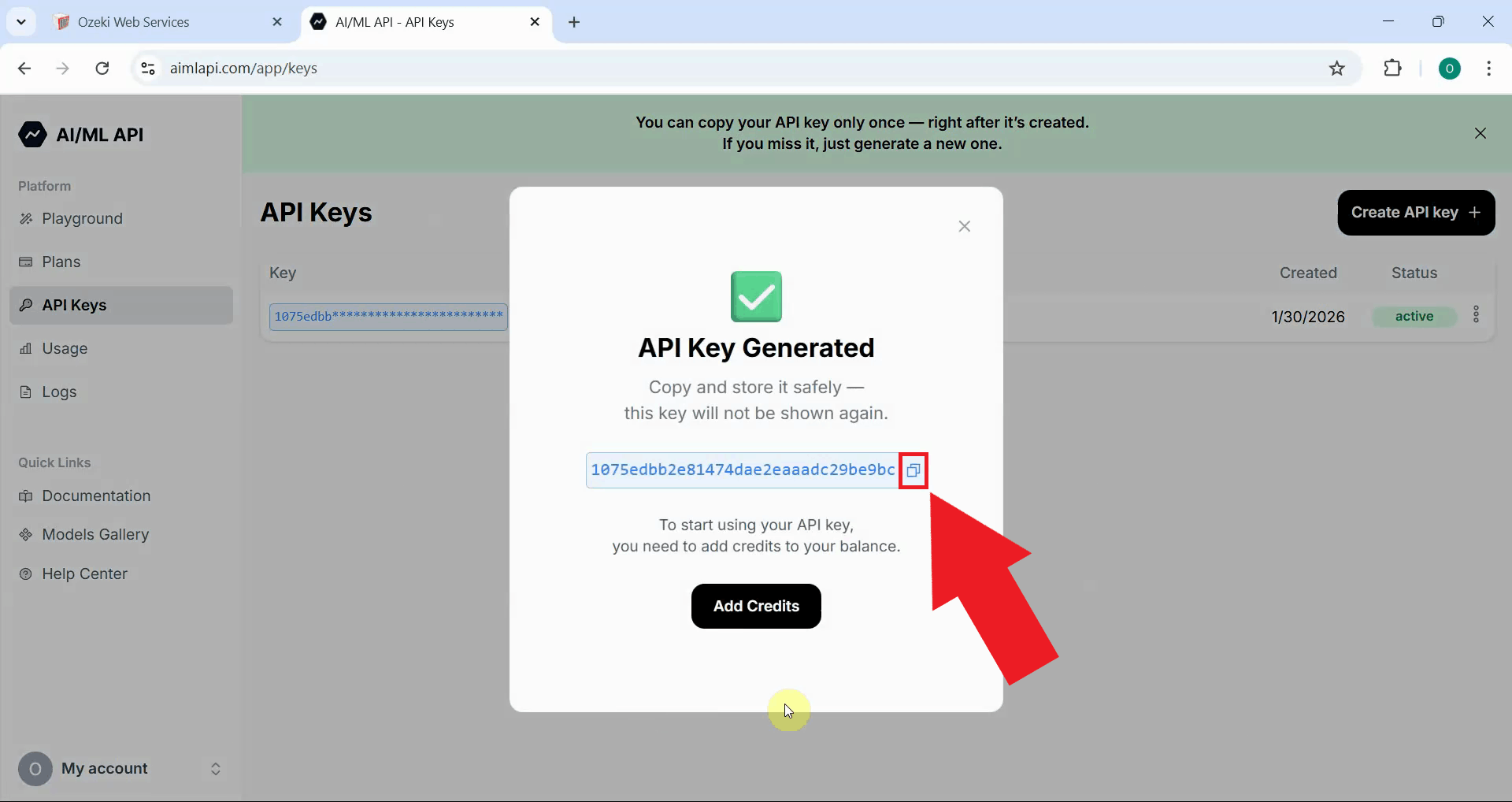
After the API key is generated, AI/ML displays the complete key value. Click the copy button to copy the API key to your clipboard. Store this key securely as it provides access to your AI/ML account and available models (Figure 5).
The API key is only shown once during creation. Make sure to copy and securely store the key before closing this window.
Step 6 - Open Providers page in Ozeki AI Gateway
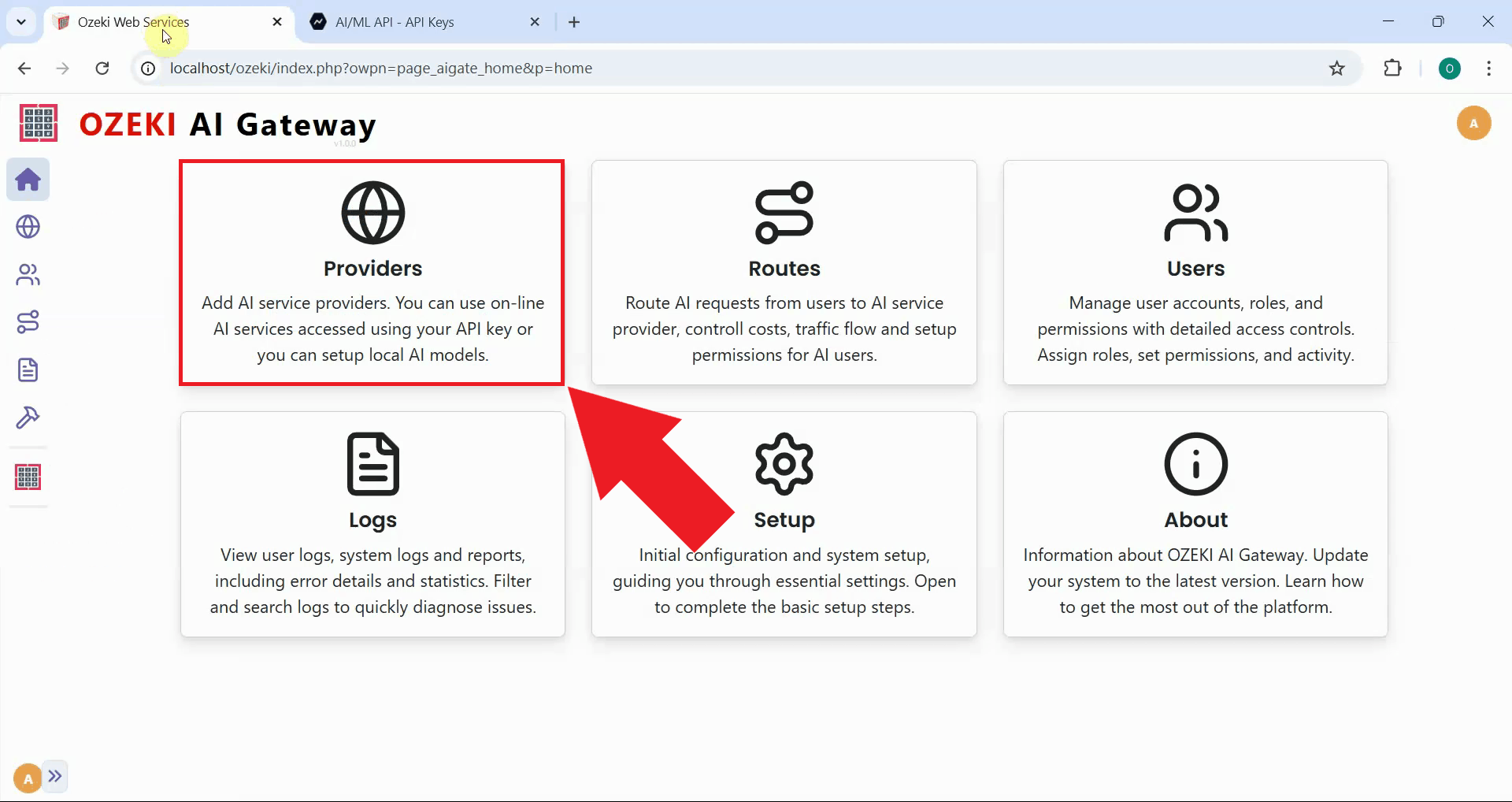
Open the Ozeki AI Gateway web interface and navigate to the Providers page. This is where you'll configure AI/ML as a new provider using the API key you just created (Figure 6).
Step 7 - Create provider
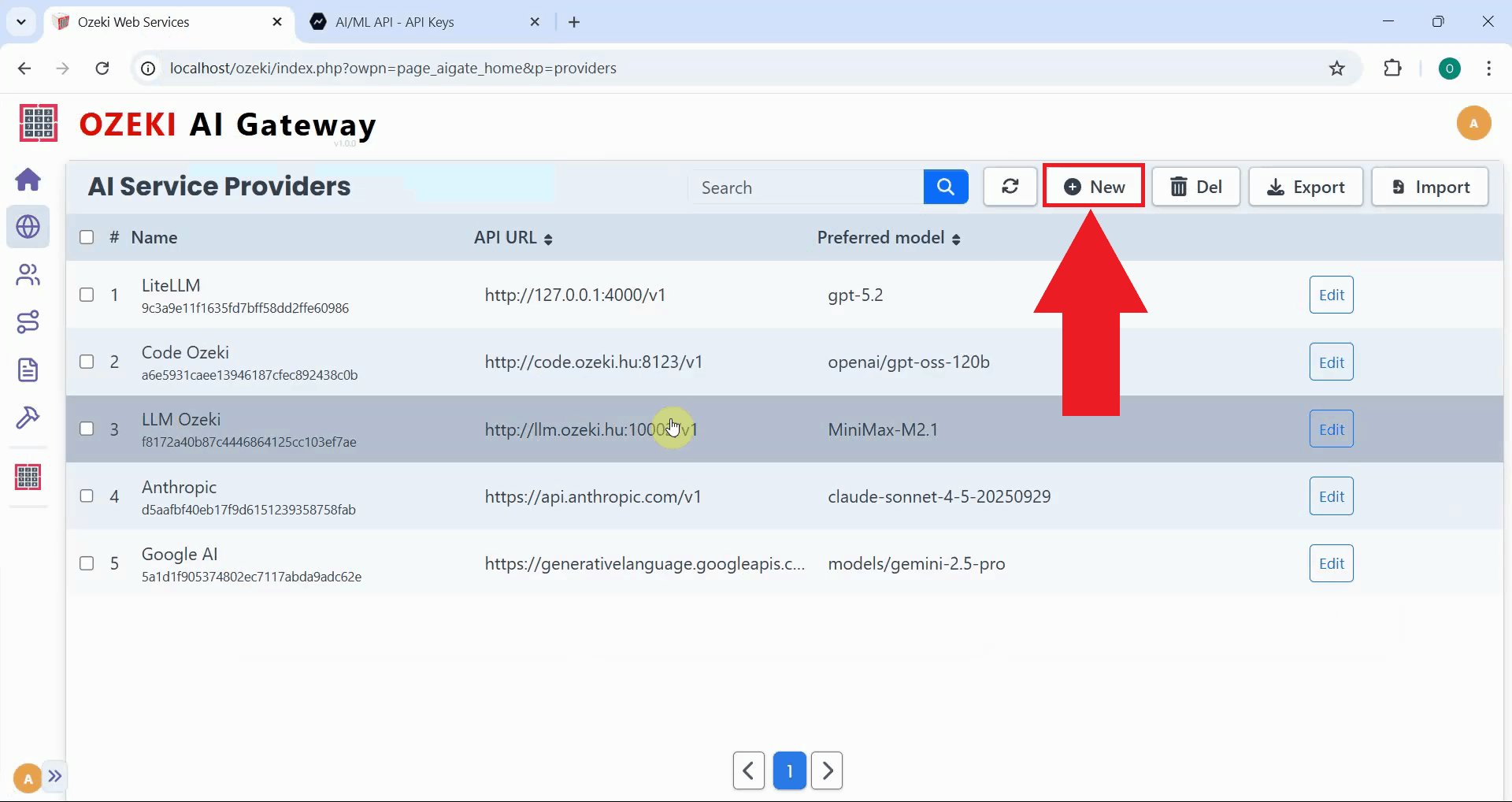
Click the "New" button to begin the provider creation process. This opens a form where you'll enter the connection details for AI/ML (Figure 7).
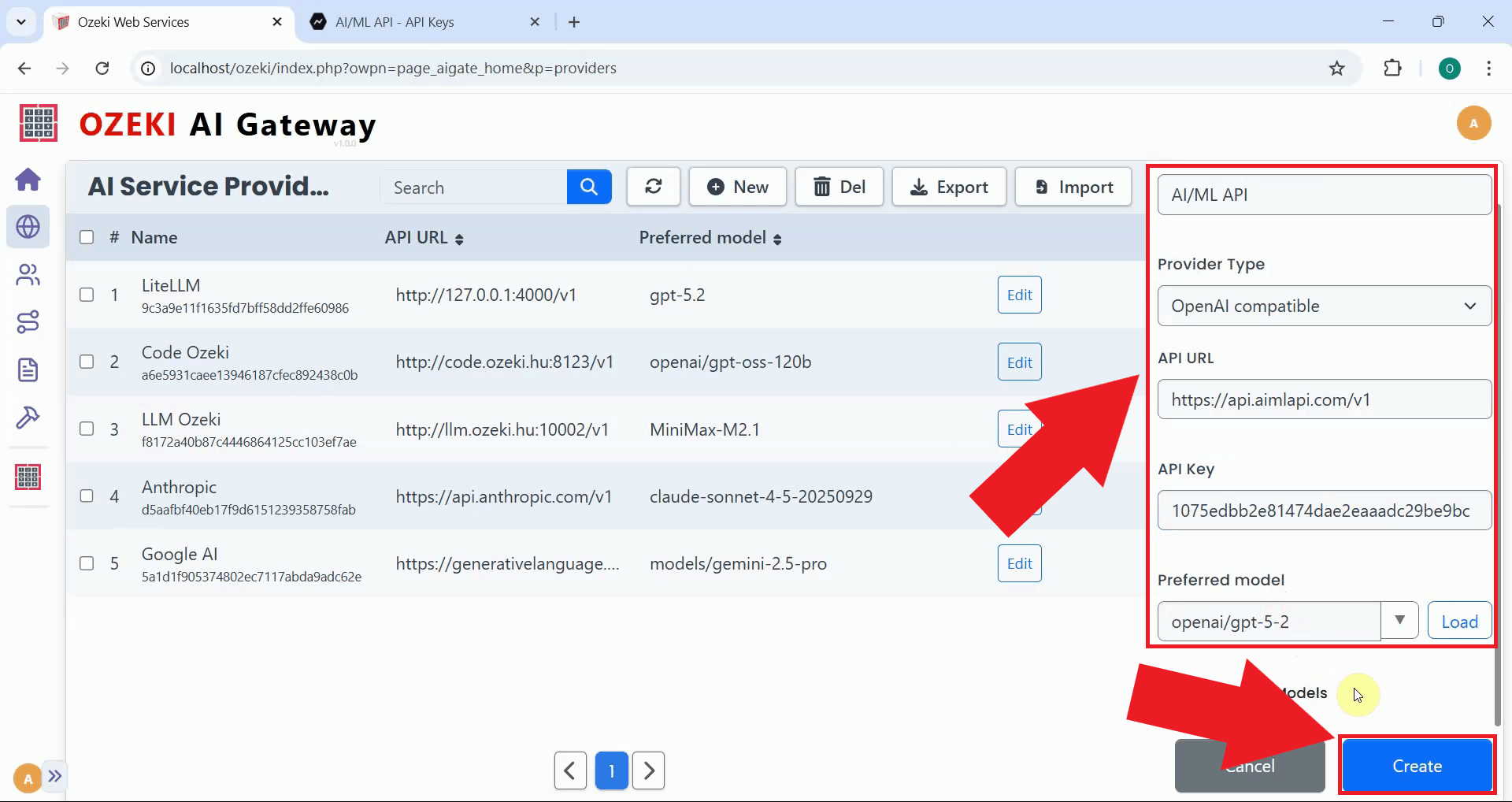
Fill in the provider configuration form with your AI/ML details. Enter the provider name, select "OpenAI compatible" as the provider type, paste the AI/ML API endpoint URL (https://api.aimlapi.com/v1), and paste your API key. Select your preferred model from the dropdown list, then click "Create" to save the configuration (Figure 8).
https://api.aimlapi.com/v1
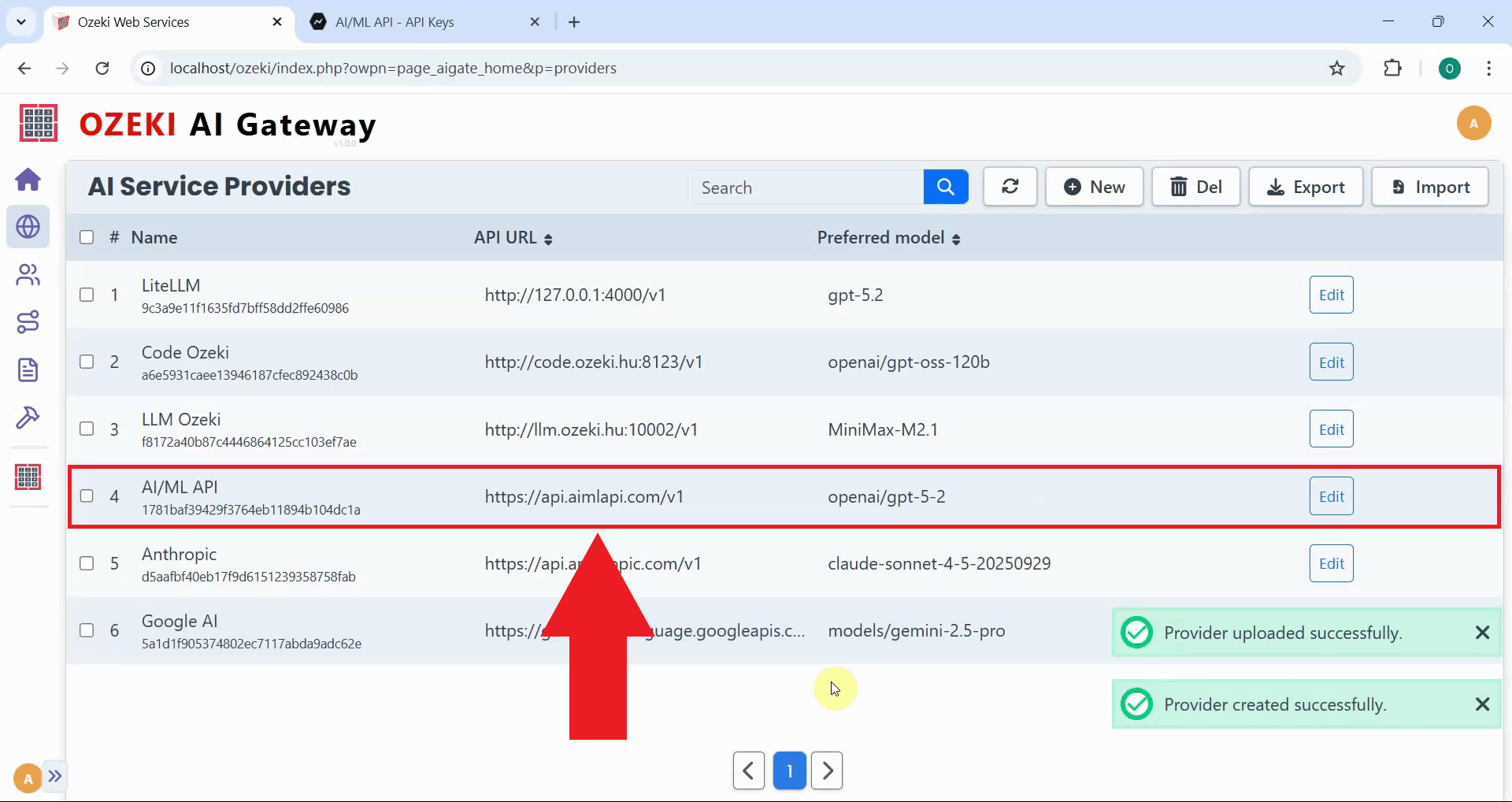
After clicking "Create", AI/ML is added to Ozeki AI Gateway. The provider now appears in the list, confirming that your gateway can route requests to AI/ML services. You can now create routes that allow users to access AI/ML models through your gateway (Figure 9).
To sum it up
You have successfully created an AI/ML API key and configured it as a provider in Ozeki AI Gateway. Your gateway can now communicate with AI/ML's platform and access a diverse collection of AI models from multiple providers through a unified interface. This setup allows you to manage AI/ML access for multiple users and applications from a single point.