
How to create a HuggingFace API key to use in Ozeki AI Gateway
This guide demonstrates how to create a HuggingFace API key and configure it in Ozeki AI Gateway. You'll learn how to access the HuggingFace platform, generate a new access token, and set up HuggingFace as a provider in your gateway. By following these steps, you can connect your Ozeki AI Gateway to HuggingFace's extensive collection of open-source AI models and inference services.
API URL: https://router.huggingface.co/v1
Example API Key: hf_abcde...
Default model: openai/gpt-oss-120b
What is a HuggingFace API key?
A HuggingFace API key (also called an access token) is a unique authentication credential that allows applications to access AI models through the HuggingFace platform. HuggingFace hosts several open-source models and provides inference services for various AI tasks. When configuring HuggingFace as a provider in Ozeki AI Gateway, you need this access token to establish the connection between your gateway and HuggingFace's services.
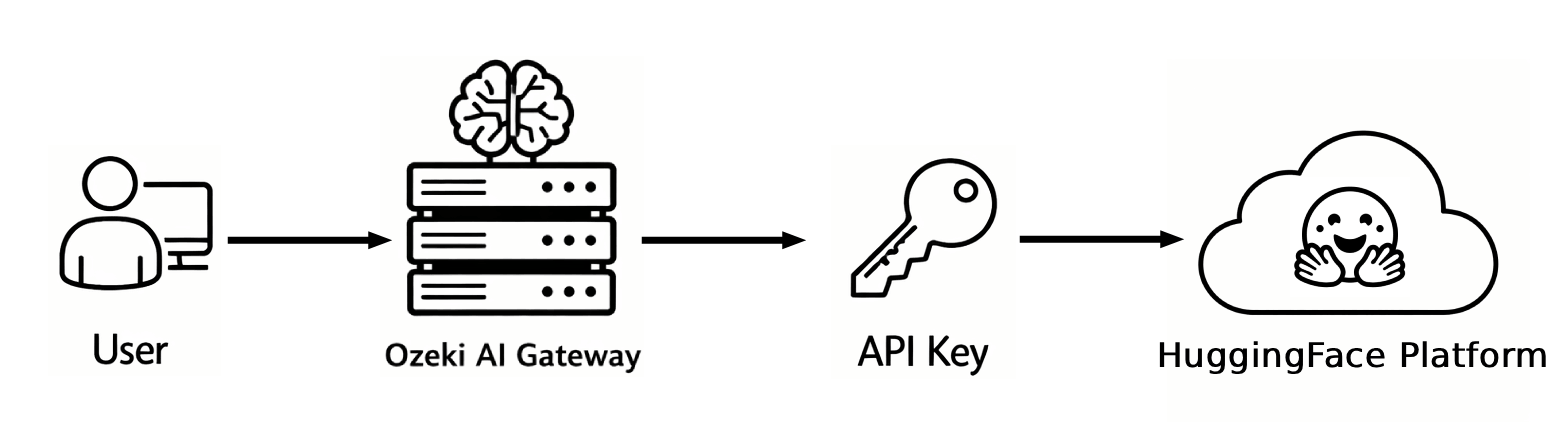
Steps to follow
We assume Ozeki AI Gateway is already installed on your system. You can install it on Linux, Windows or Mac.
- Open HuggingFace website
- Expand profile menu
- Open Access Tokens page
- Create new token
- Copy token
- Open Providers page in Ozeki AI Gateway
- Create provider
How to create a HuggingFace API key video
The following video shows how to create a HuggingFace access token and configure it in Ozeki AI Gateway step-by-step. The video covers accessing the HuggingFace platform, generating credentials, and setting up the provider in your gateway.
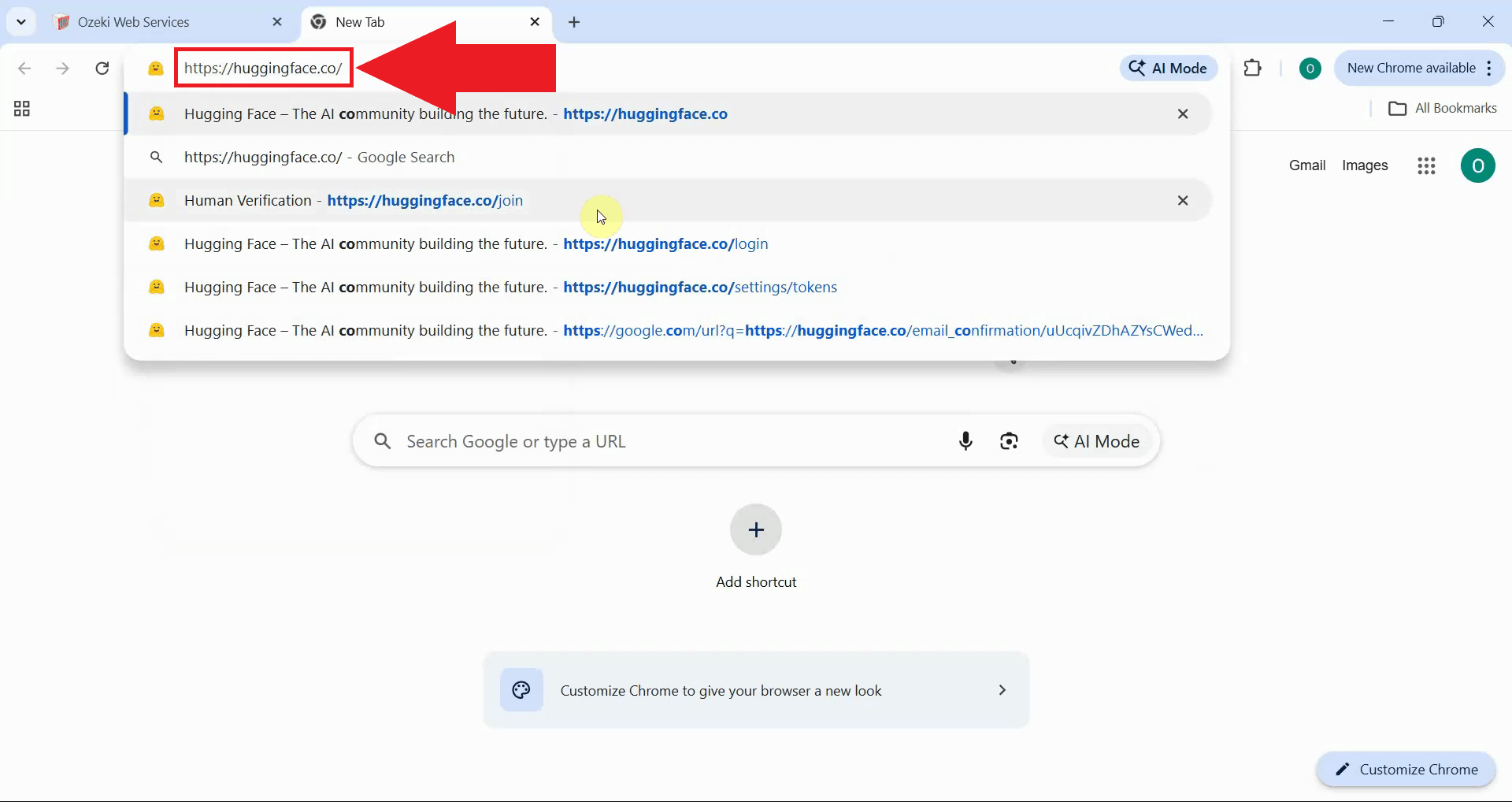
Step 1 - Open HuggingFace website
Open your web browser and navigate to the HuggingFace platform. Sign in with your account credentials or create a new account if needed. The HuggingFace platform provides access to thousands of AI models, datasets, and tools for machine learning applications (Figure 1).
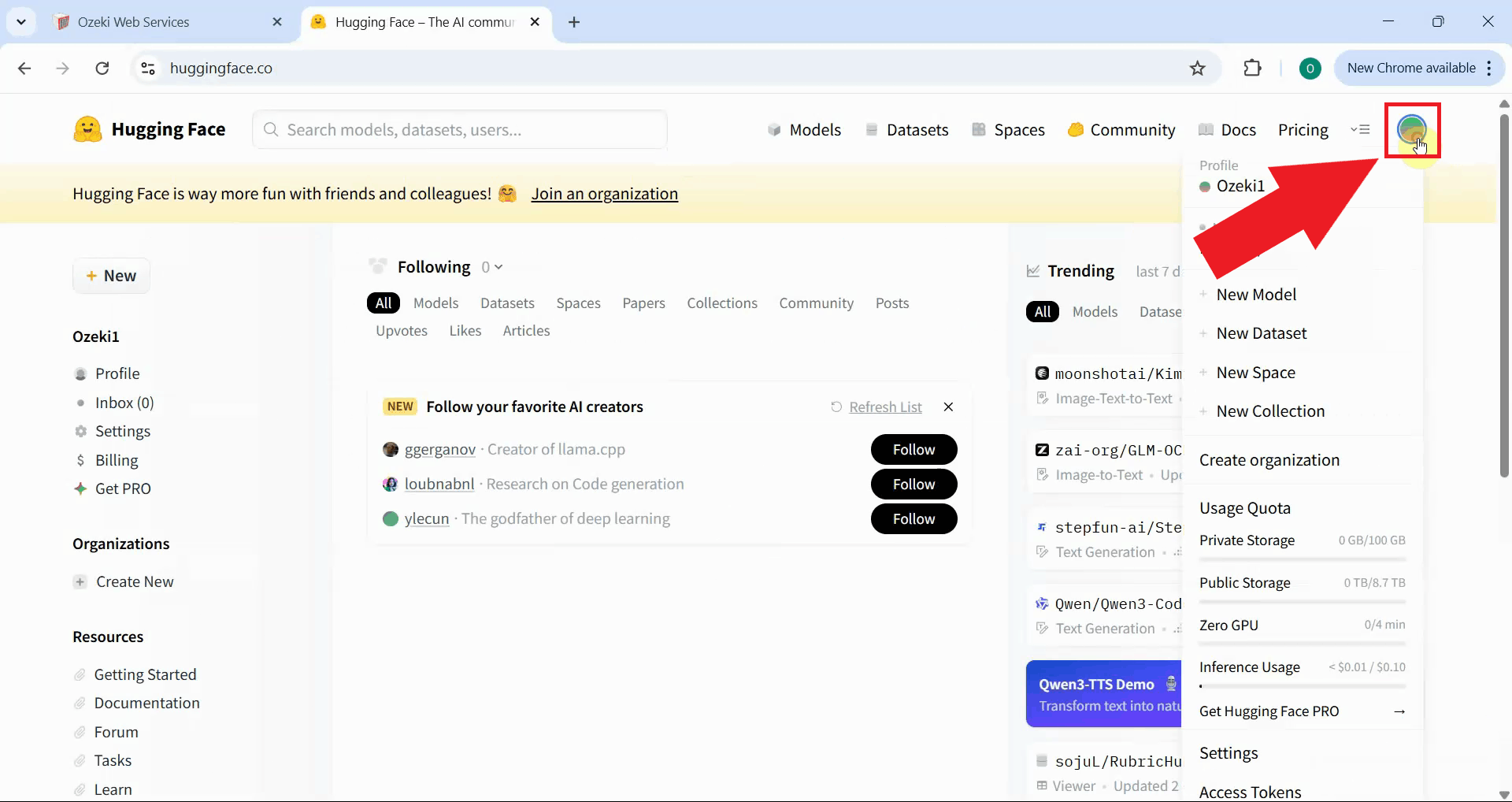
Step 2 - Expand profile menu
Click on your profile picture or avatar in the top-right corner of the HuggingFace homepage. This opens a dropdown menu with various account management options including settings, preferences, and access token management (Figure 2).
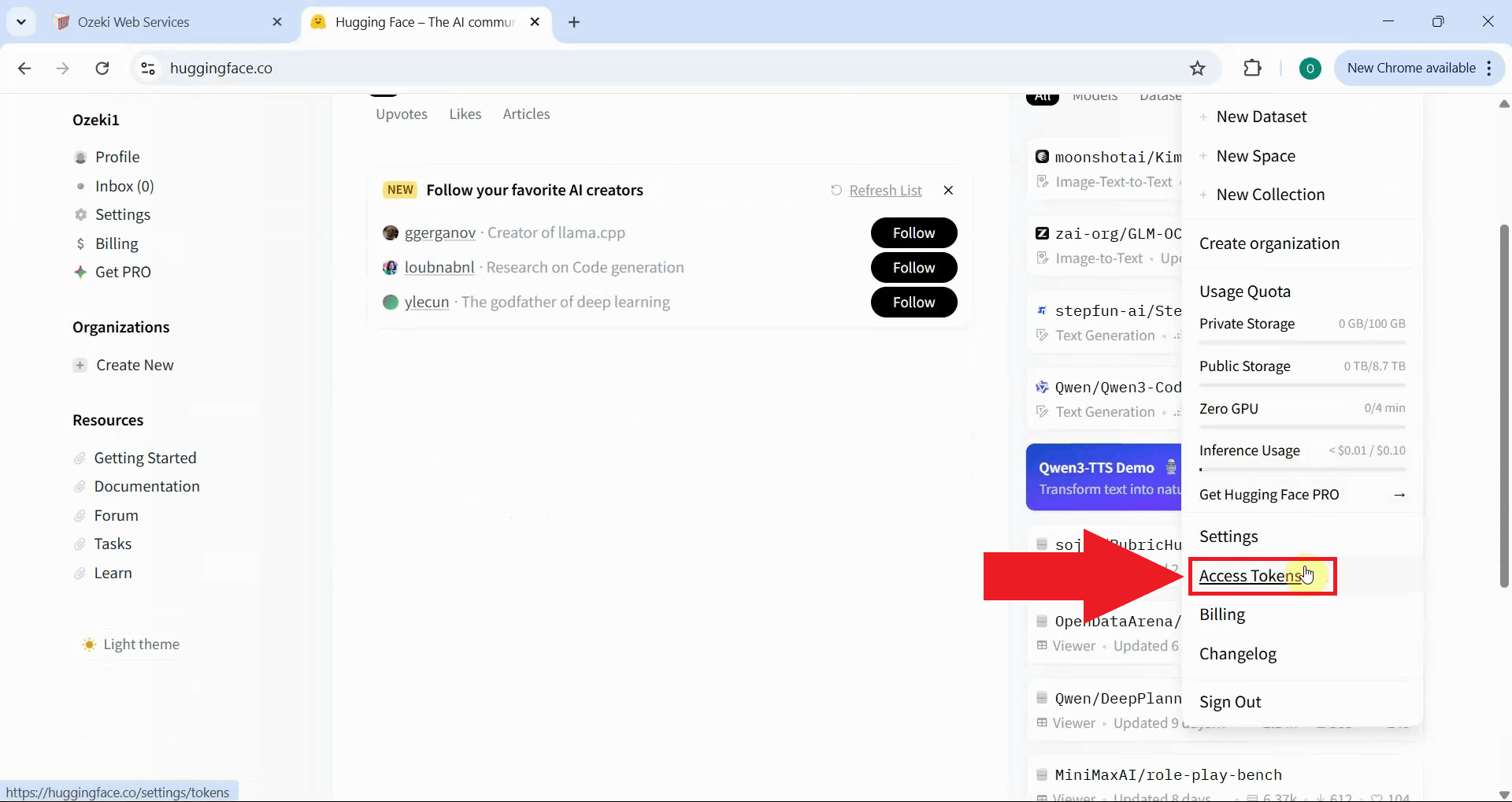
Step 3 - Open Access Tokens page
In the profile dropdown menu, scroll down and locate the "Access Tokens" option. Click on it to navigate to the token management page where you can create and manage your authentication credentials for API access (Figure 3).
Step 4 - Create new token
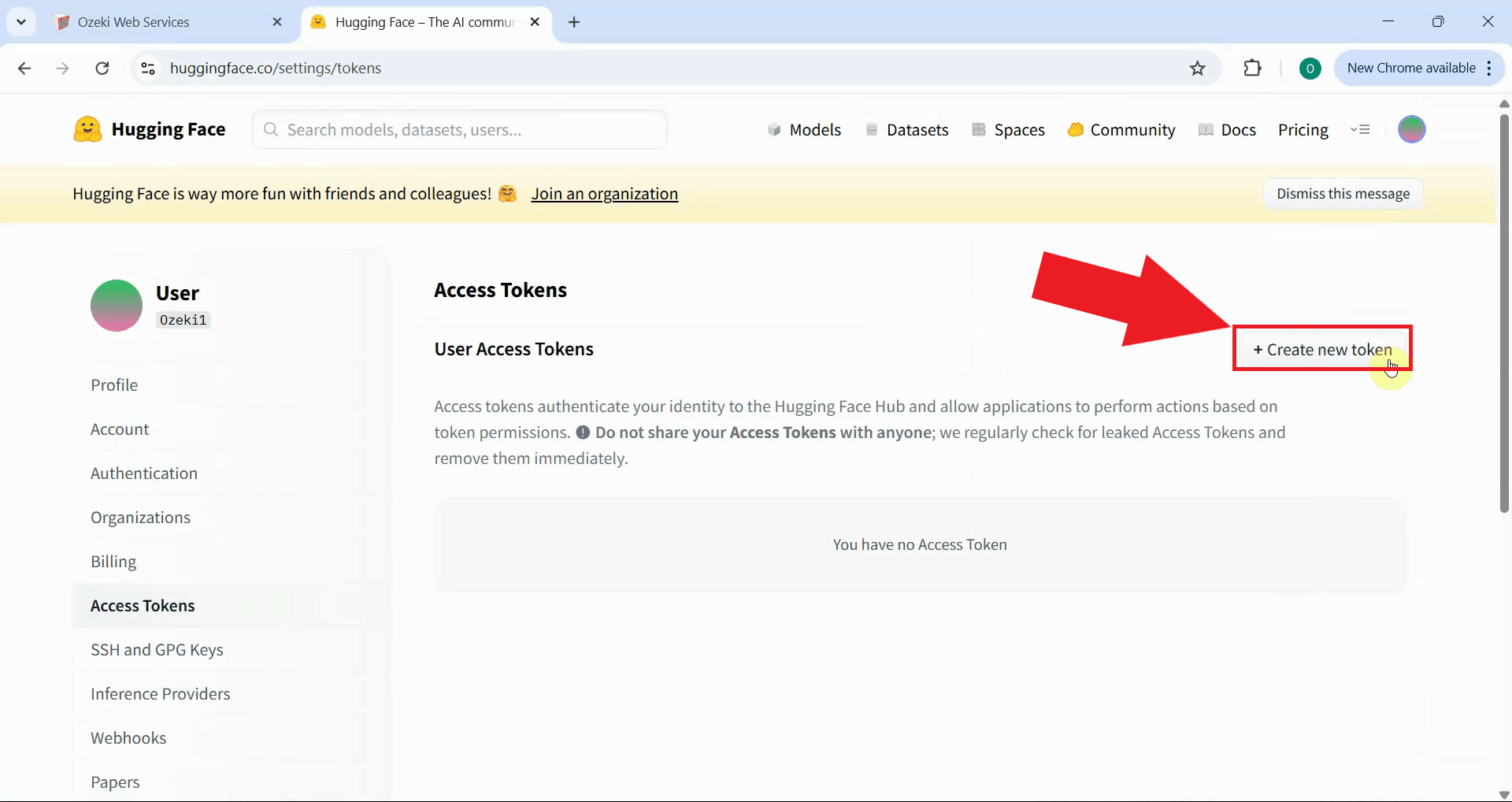
On the Access Tokens management page, click the "Create new token" button to begin the token creation process. This opens a form where you'll configure the token settings and permissions (Figure 4).
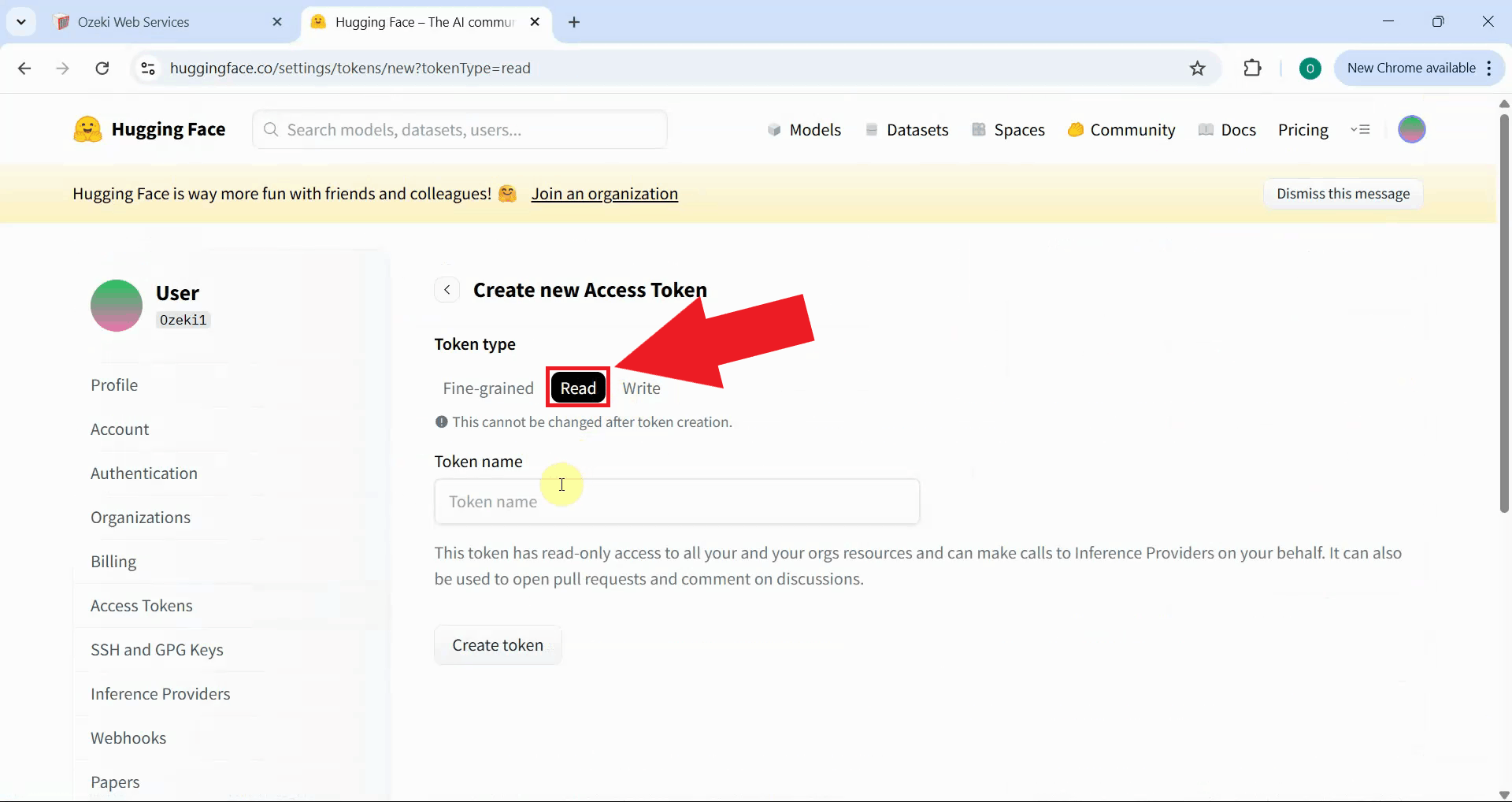
HuggingFace offers different token types with varying permission levels. Select "Read" as the token type if you only need to access models and inference services. The Read token type provides sufficient permissions for using HuggingFace models through Ozeki AI Gateway without granting write access to your account (Figure 5).
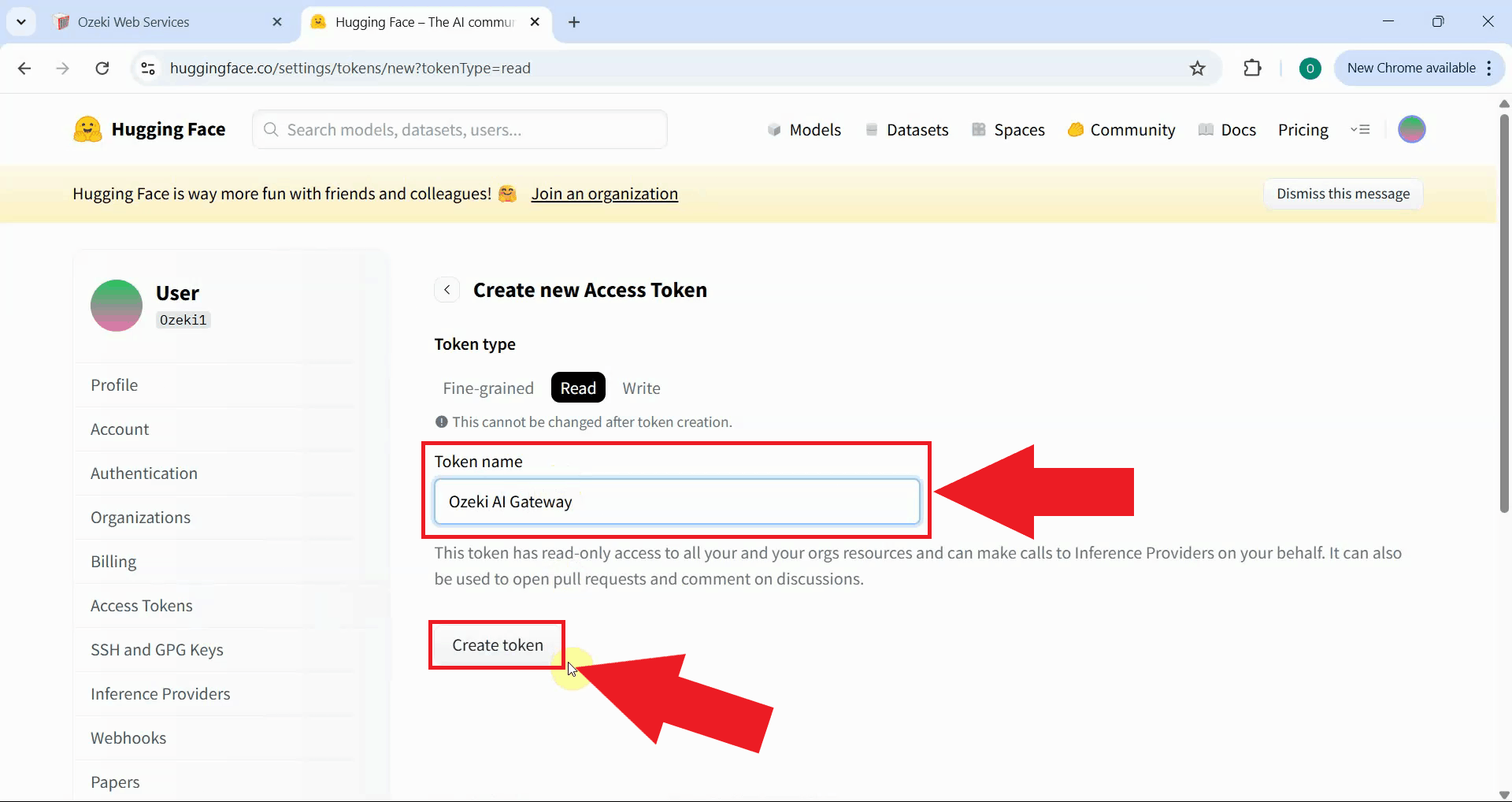
Enter a descriptive name for your access token, such as "Ozeki AI Gateway". A clear naming convention helps identify which tokens are used by which applications or services. After configuring the token settings, click the "Create token" button to generate your authentication credential (Figure 6).
Step 5 - Copy token
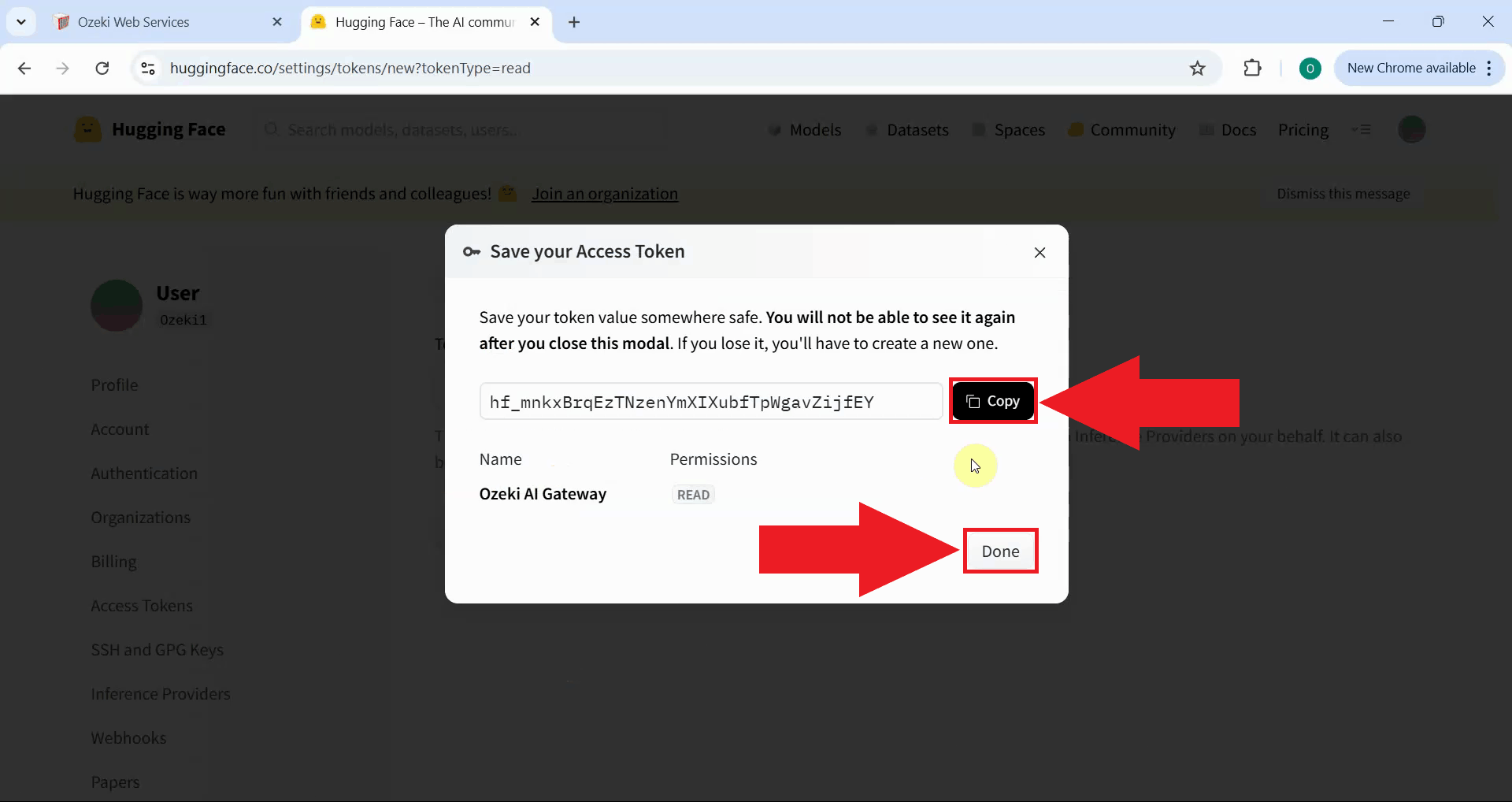
After generation, HuggingFace displays the complete access token value. Click the copy button to transfer it to your clipboard. Store this token securely as it provides access to your HuggingFace account and AI models (Figure 7).
The API key is only shown once during creation. Make sure to copy and securely store the key before closing this window.
Step 6 - Open Providers page in Ozeki AI Gateway
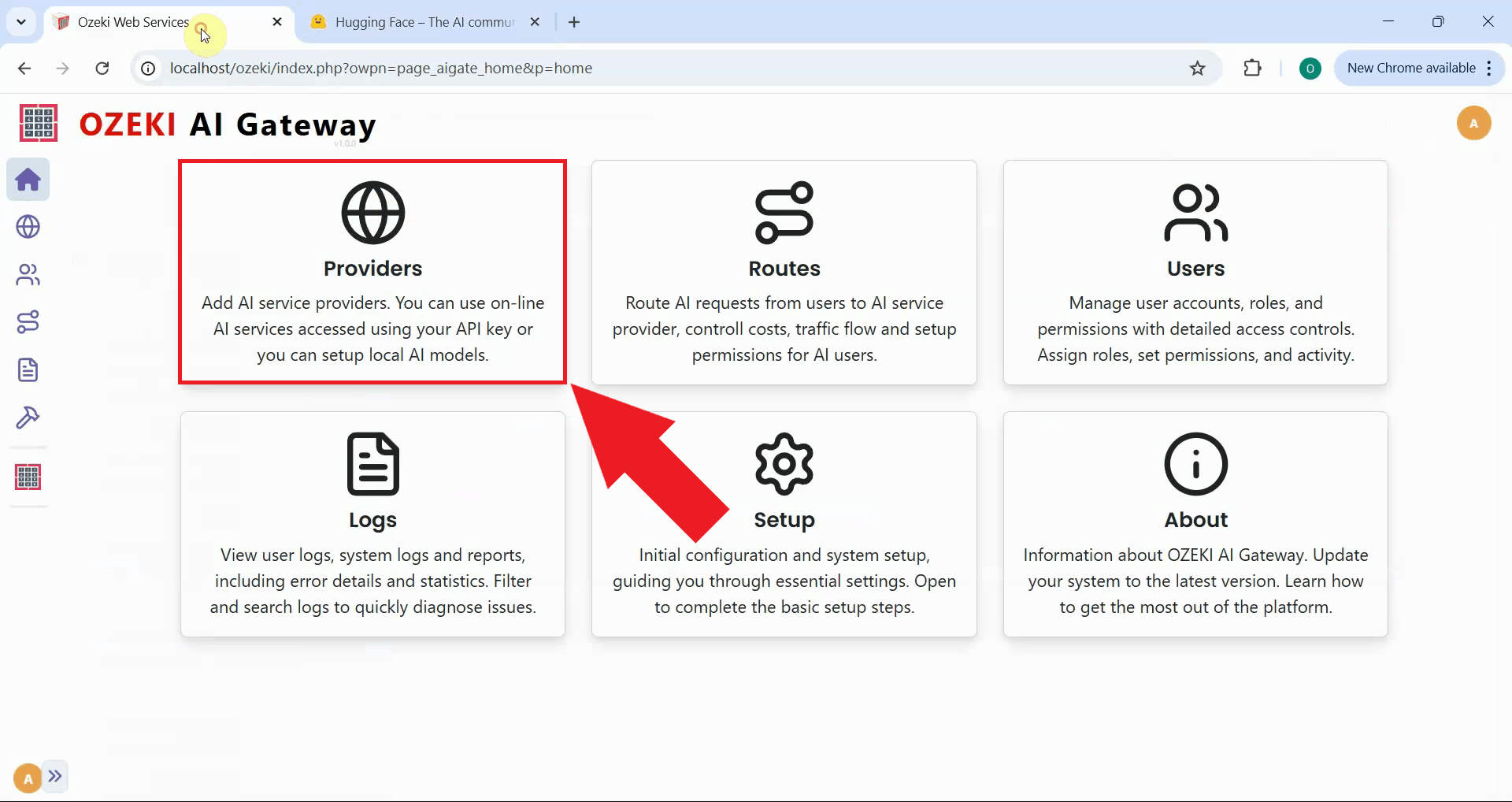
Open the Ozeki AI Gateway web interface and navigate to the Providers page. The Providers page displays all configured AI model connections and allows you to add new providers (Figure 8).
Step 7 - Create provider
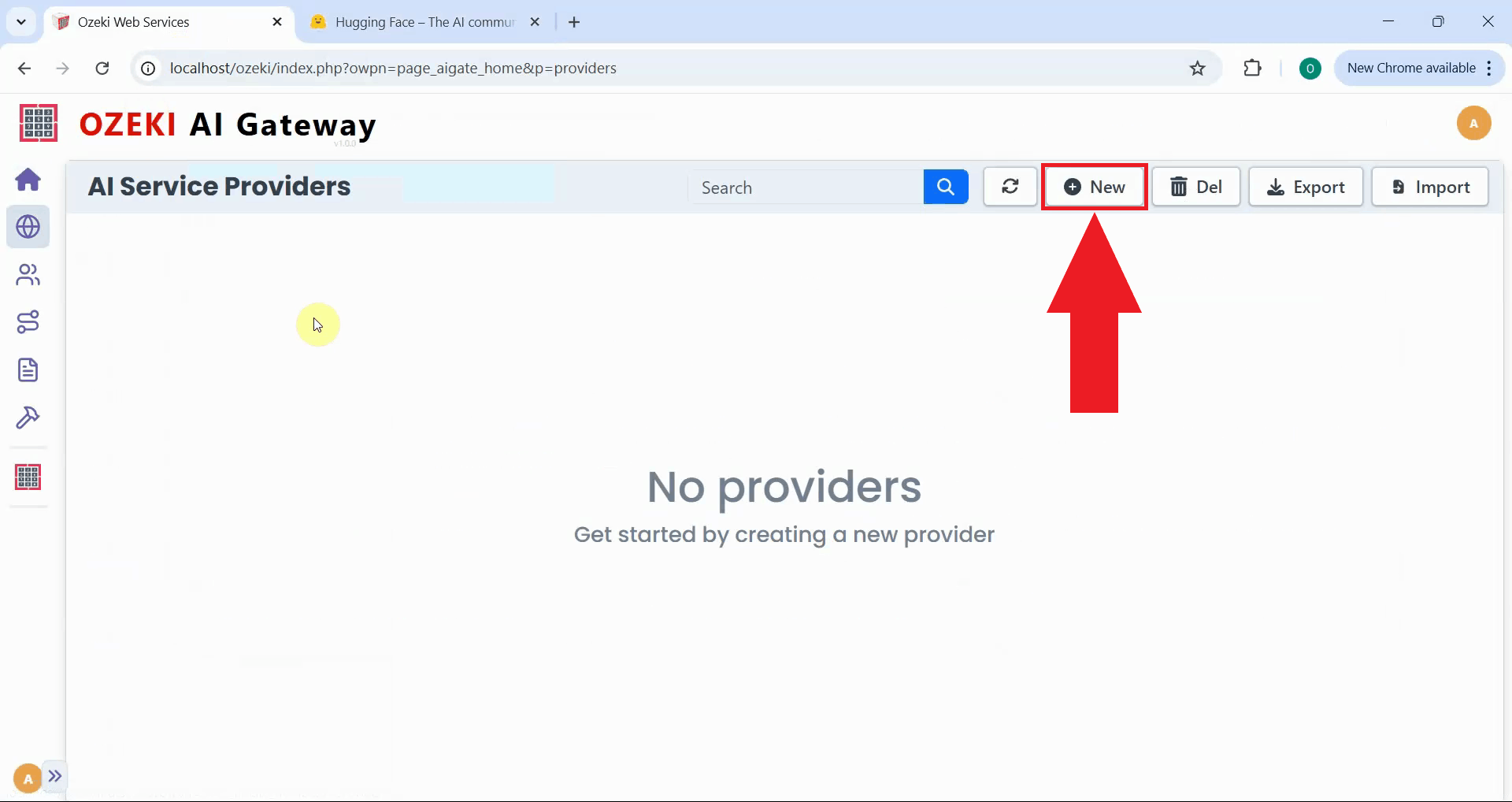
Click the "New" button on the Providers page to begin creating a provider configuration. This opens a form where you'll specify the connection details for HuggingFace (Figure 9).
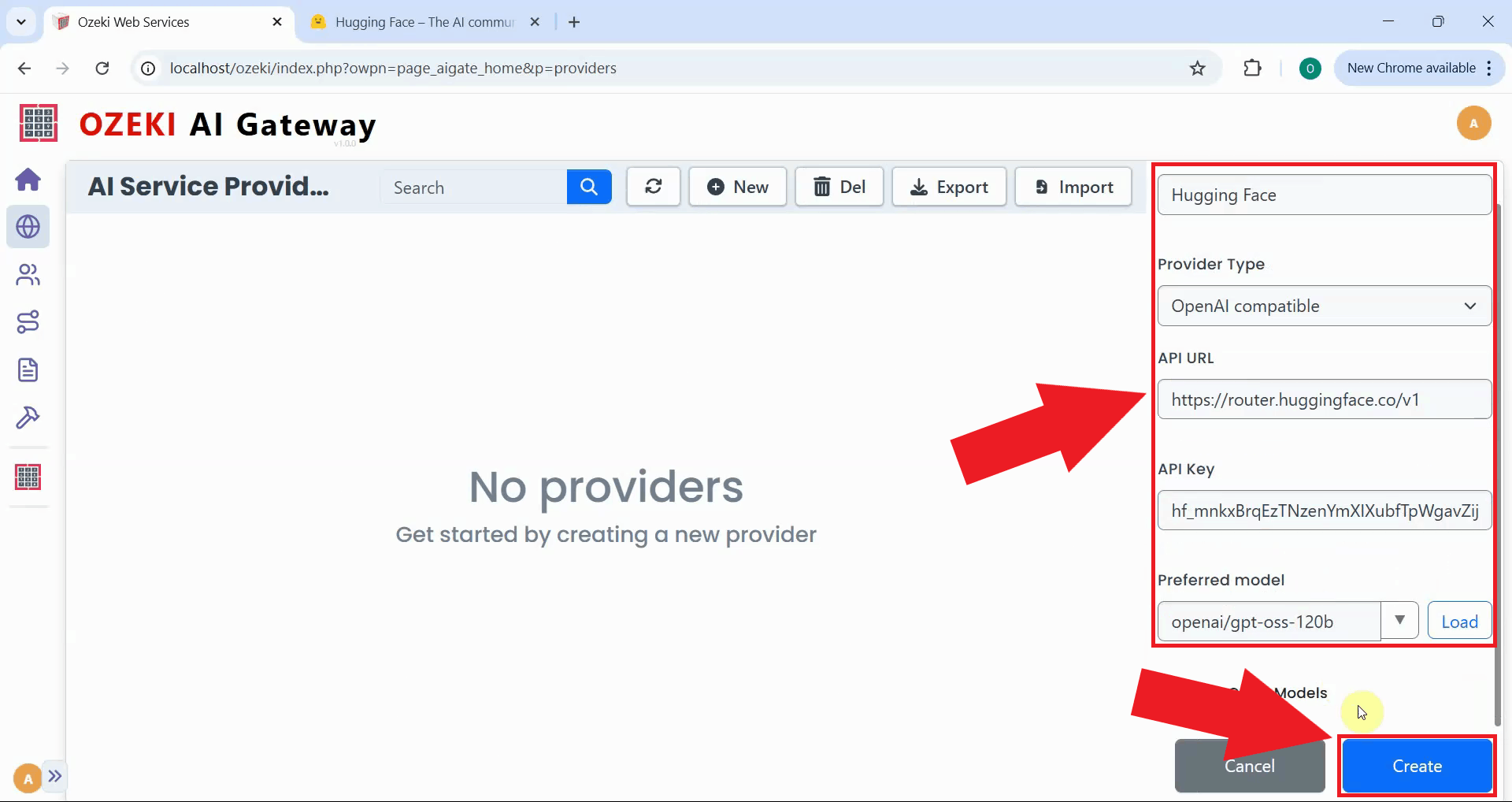
Fill in the configuration form with your HuggingFace information. Enter the provider name, select "OpenAI compatible" as the type, paste the endpoint URL (https://router.huggingface.co/v1), and add your access token. Select your preferred model from the dropdown list, then click "Create" to save the configuration (Figure 10).
https://router.huggingface.co/v1
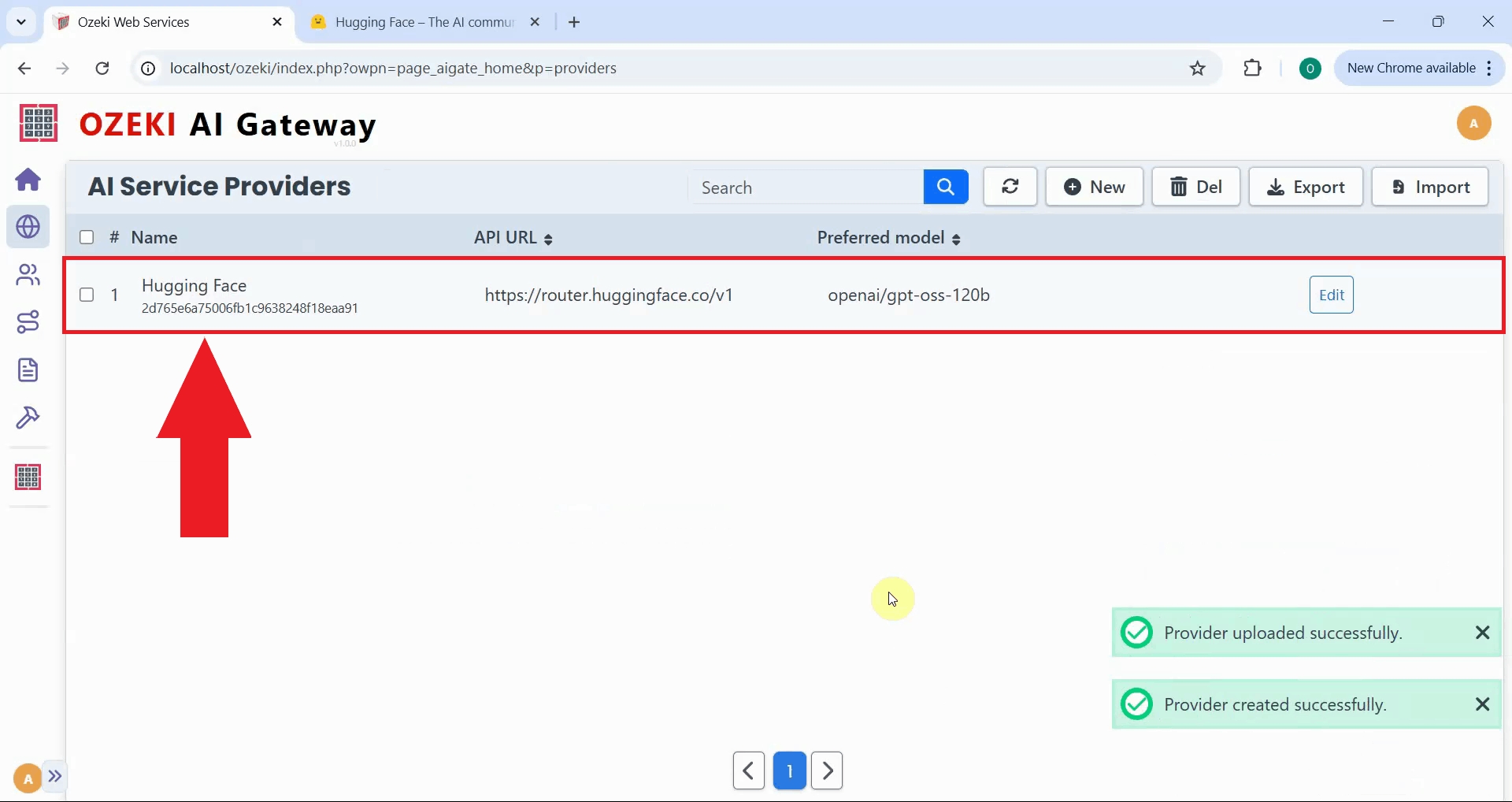
After creation, HuggingFace is added to Ozeki AI Gateway. The provider now appears in the list, confirming that your gateway can route requests to HuggingFace services. You can now create routes that allow users to access HuggingFace's extensive collection of AI models through your gateway (Figure 11).
Final thoughts
You have successfully created a HuggingFace access token and configured it as a provider in Ozeki AI Gateway. Your gateway can now communicate with HuggingFace's platform and access several open-source AI models for various tasks including text generation. This setup allows you to manage HuggingFace model access for multiple users and applications from a centralized point while leveraging HuggingFace's extensive model ecosystem.