
How to install Ozeki AI Gateway on Linux
This guide demonstrates how to install Ozeki AI Gateway on Linux systems. You'll learn how to add the official Ozeki repository, install the gateway package, and configure Apache web server to handle API requests. By following these step-by-step instructions, you'll have Ozeki AI Gateway installed and accessible through your web browser within minutes.
What is Ozeki AI Gateway?
Ozeki AI Gateway is a software solution that enables seamless integration with multiple AI providers and models. It acts as a unified interface for connecting applications to various AI services, providing centralized API management, user authentication, and request routing. The gateway runs on Linux systems and integrates with Apache web server to handle incoming API requests. Installation involves adding a trusted repository, installing the package, and configuring web server routing to properly direct API calls to the gateway application.
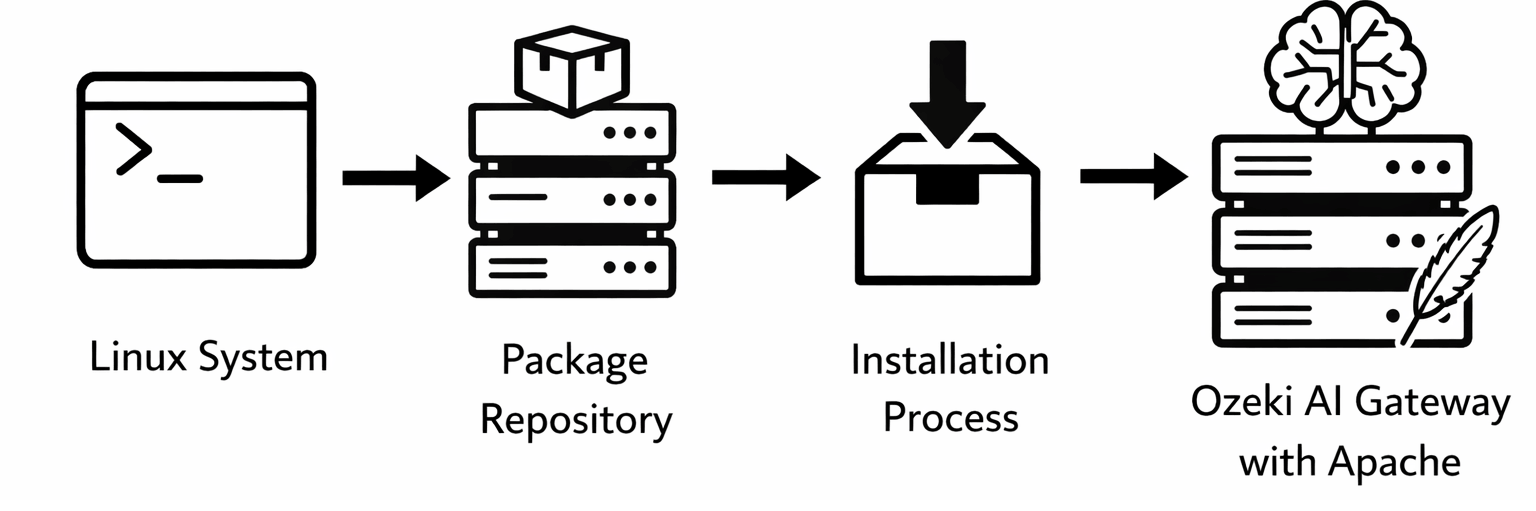
Steps to follow
- Add GPG key for package verification
- Add Ozeki repository to package sources
- Update package list
- Install Ozeki AI Gateway package
- Configure Apache virtual host
- Add rewrite rules for API routing
- Enable Apache rewrite module
- Restart Apache service
- Open AI Gateway in browser
- Create admin account
Installation Commands
For quick reference, here are all the commands needed to install Ozeki AI Gateway on Linux:
sudo curl -fsSL https://repo.ozeki.hu/ozekiaigateway.gpg.key | sudo gpg --dearmor -o /etc/apt/trusted.gpg.d/ozekiaigateway.gpg
sudo echo "deb [arch=all] https://repo.ozeki.hu/ noble main" | sudo tee /etc/apt/sources.list.d/ozekiaigateway.list
sudo apt update
sudo apt install ozekiaigateway
Install Ozeki AI Gateway video
The following video shows how to install Ozeki AI Gateway on Linux step-by-step. The video covers adding the repository, installing the package, configuring Apache, and accessing the web interface.
Step 1 - Add GPG key for package verification
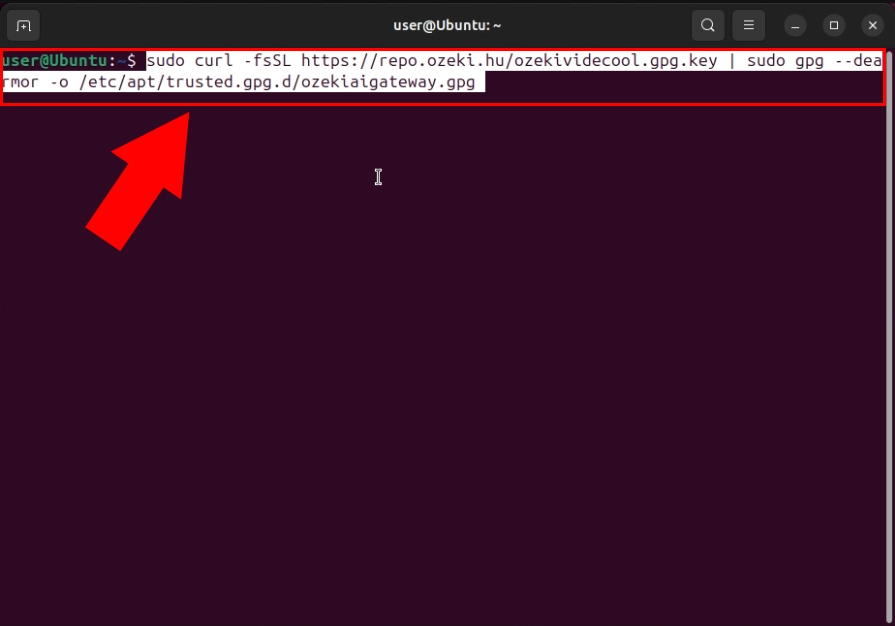
The first step is to download and add the GPG key to your system for package verification. Execute the command sudo curl -fsSL https://repo.ozeki.hu/ozekiaigateway.gpg.key | sudo gpg --dearmor -o /etc/apt/trusted.gpg.d/ozekiaigateway.gpg to securely retrieve the official GPG key from the Ozeki repository. This key ensures that all package installations are authenticated and come from a trusted source (Figure 1).
sudo curl -fsSL https://repo.ozeki.hu/ozekiaigateway.gpg.key | sudo gpg --dearmor -o /etc/apt/trusted.gpg.d/ozekiaigateway.gpg
Step 2 - Add Ozeki repository to package sources
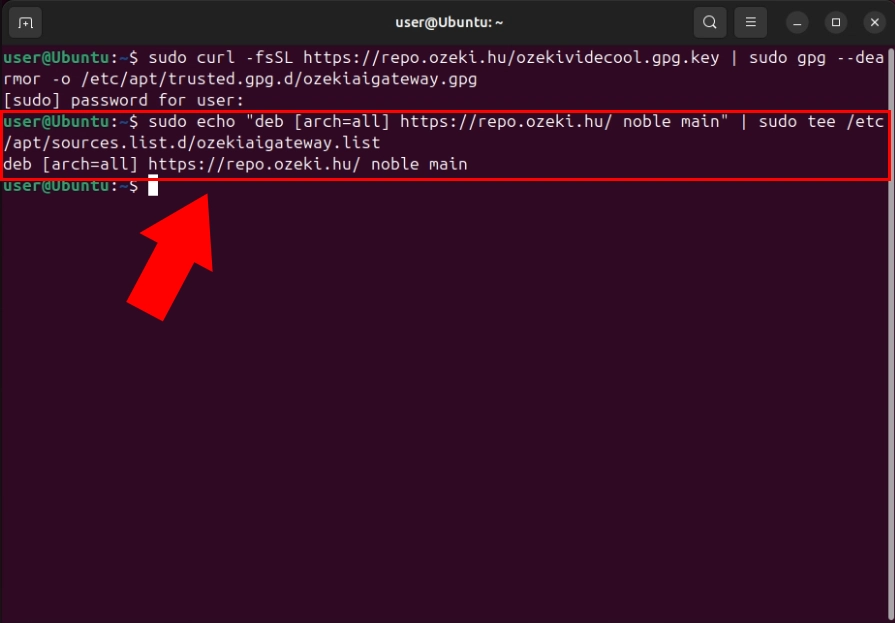
After installing the GPG key, add the official Ozeki repository to your system's package sources. Use the command sudo echo "deb [arch=all] https://repo.ozeki.hu/ noble main" | sudo tee /etc/apt/sources.list.d/ozekiaigateway.list to register the Ozeki repository for the Ubuntu Noble release. This command creates a new source list file that points to the official Ozeki package repository, allowing your package manager to access and install the Ozeki AI Gateway software (Figure 2).
sudo echo "deb [arch=all] https://repo.ozeki.hu/ noble main" | sudo tee /etc/apt/sources.list.d/ozekiaigateway.list
Step 3 - Update package list
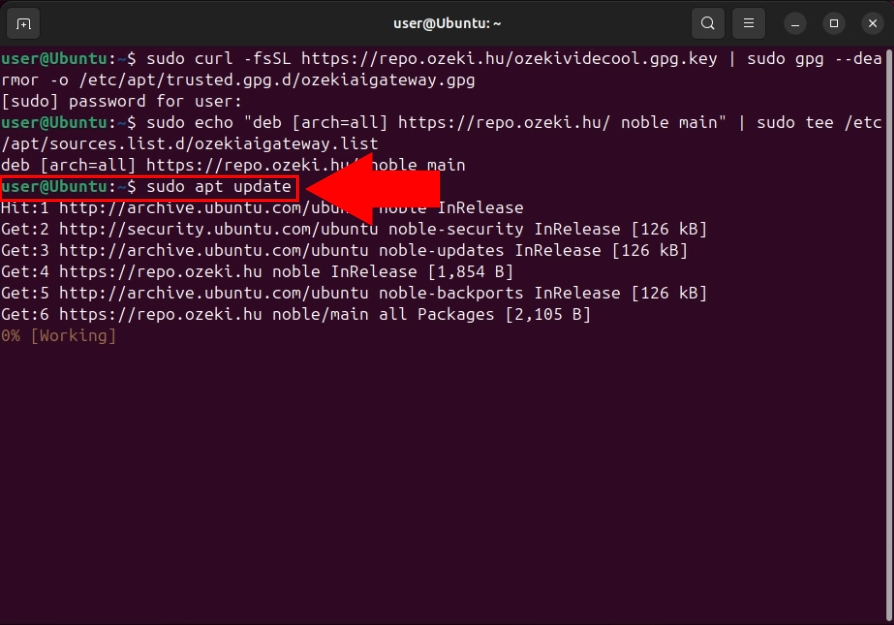
Once the repository has been added, refresh your package list to include the newly available packages from the Ozeki repository. This command synchronizes your local package cache with all available repositories, ensuring your system is aware of the Ozeki AI Gateway package (Figure 3). This step is mandatory before attempting to install any new packages.
sudo apt update
Step 4 - Install Ozeki AI Gateway package
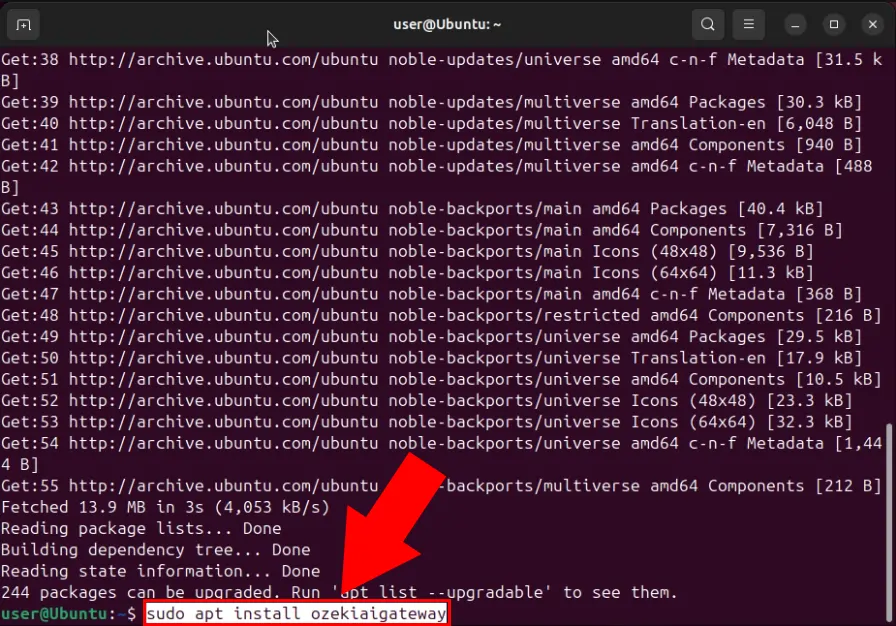
With the repository configured and package list updated, install the Ozeki AI Gateway package. Execute the command sudo apt install ozekiaigateway to download and install the complete Ozeki AI Gateway application from the repository. The package manager will automatically resolve and install all required dependencies (Figure 4).
sudo apt install ozekiaigateway
Step 5 - Configure Apache virtual host
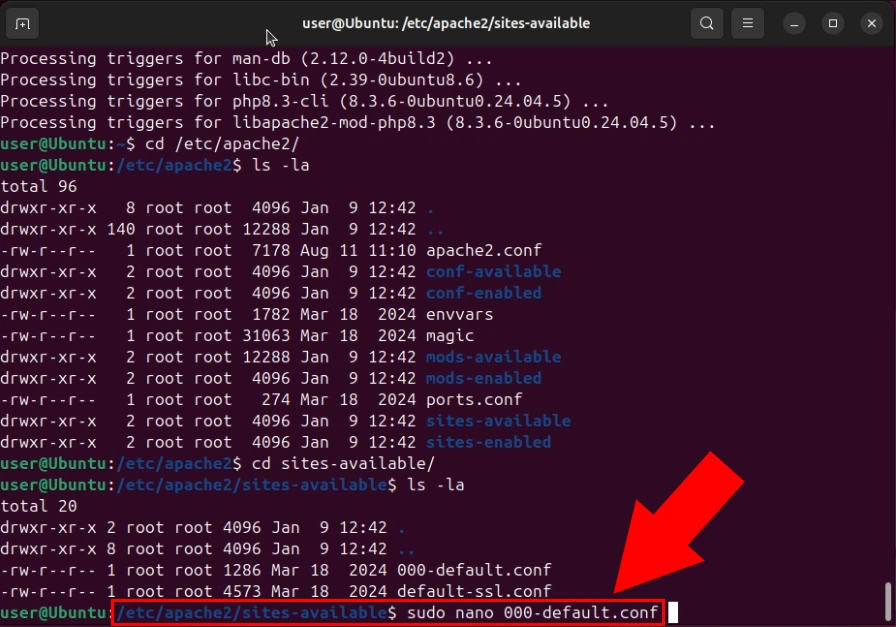
After installing Ozeki AI Gateway, configure Apache web server to route requests to the gateway application. Open the default Apache virtual host configuration file using the sudo nano /etc/apache2/sites-available/000-default.conf command. You will add rewrite rules that direct API requests starting with /v1/ to the Ozeki AI Gateway handler (Figure 5).
sudo nano /etc/apache2/sites-available/000-default.conf
Step 6 - Add rewrite rules for API routing
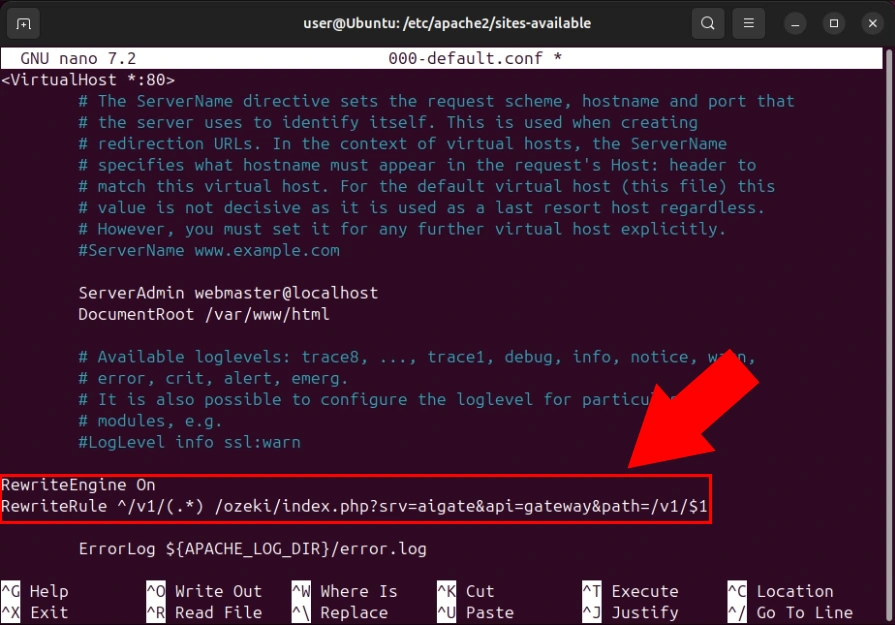
Add Apache rewrite rules to direct incoming API requests to the Ozeki AI Gateway handler. These rules enable Apache's rewriting module and capture any request to paths beginning with /v1/, redirecting them to the Ozeki AI Gateway PHP handler. This routing ensures all AI Gateway API calls are processed correctly (Figure 6).
RewriteEngine On
RewriteRule ^/v1/?(.*)$ /ozeki/index.php?srv=aigate&api=gateway&path=/v1/$1 [L,QSA]
Step 7 - Enable Apache rewrite module
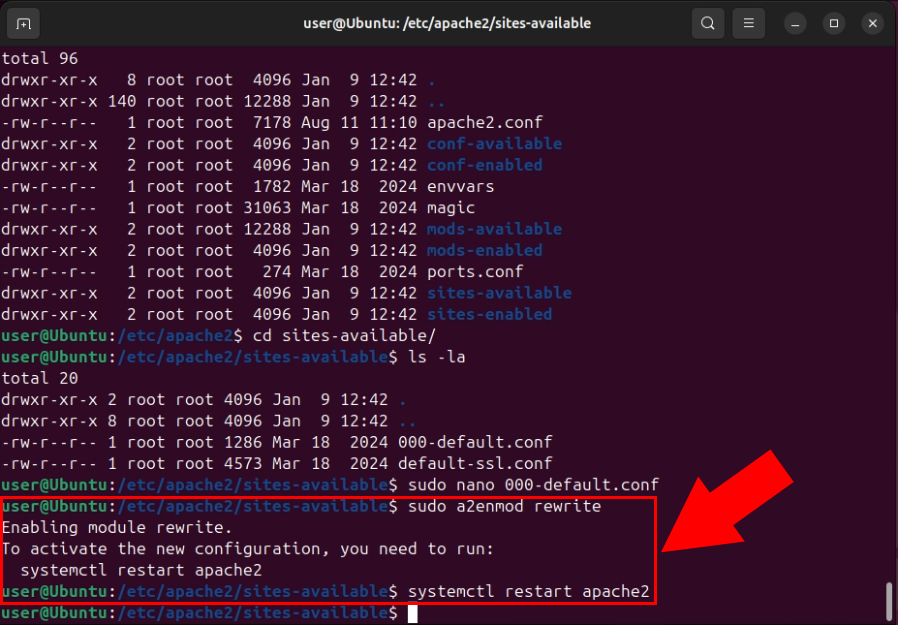
Enable the Apache rewrite module and restart the service to apply the configuration changes. Run sudo a2enmod rewrite to enable the rewrite module, then run sudo systemctl restart apache2 to restart Apache with the new configuration. After these commands complete, Apache is ready to handle API requests and route them to Ozeki AI Gateway (Figure 7).
sudo a2enmod rewrite
sudo systemctl restart apache2
Step 8 - Restart Apache service
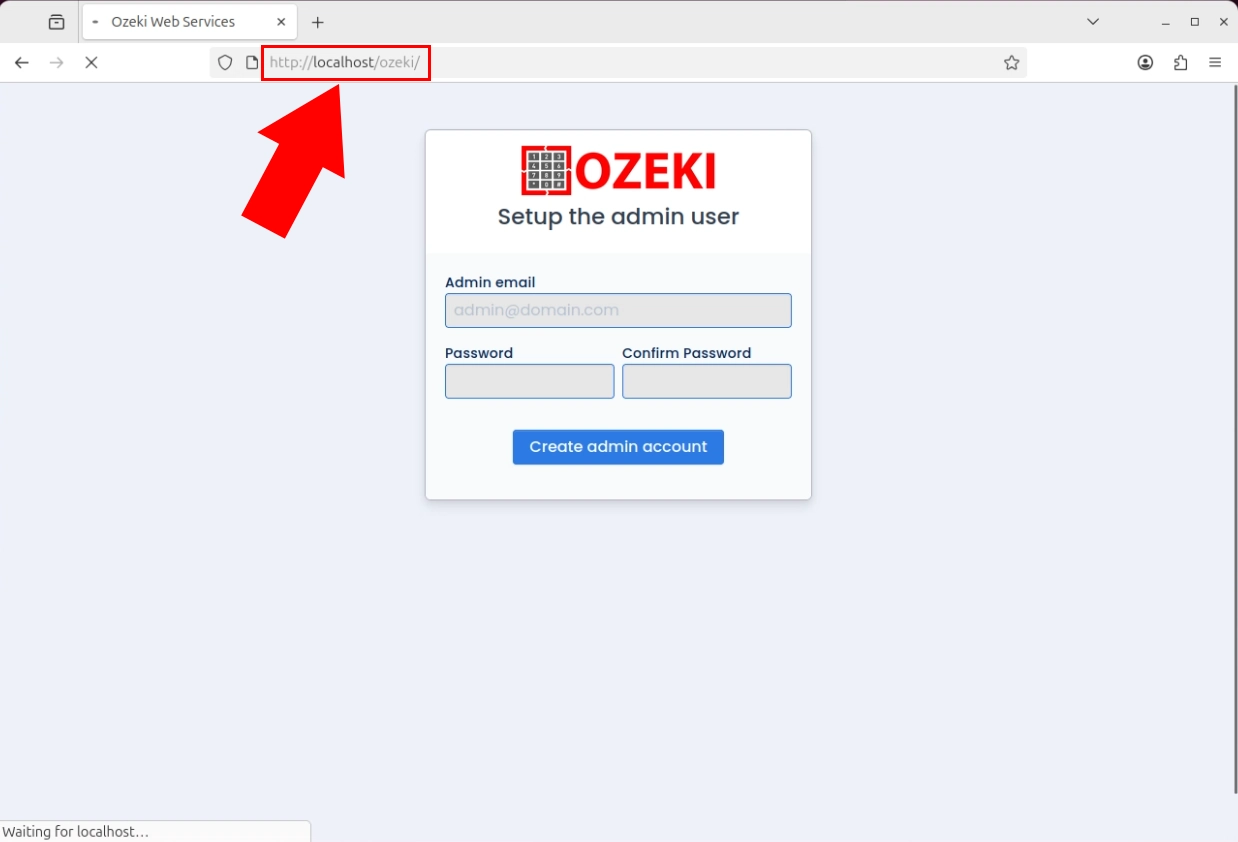
Once Apache is configured and running, access the Ozeki AI Gateway web interface by opening your browser and navigating to http://localhost/ozeki/. The browser displays the Ozeki AI Gateway interface, which serves as the administrative dashboard for managing your AI provider configurations, user accounts, and API routes. This interface is the central control point where you perform all management tasks for the gateway (Figure 8).
Step 9 - Open AI Gateway in browser
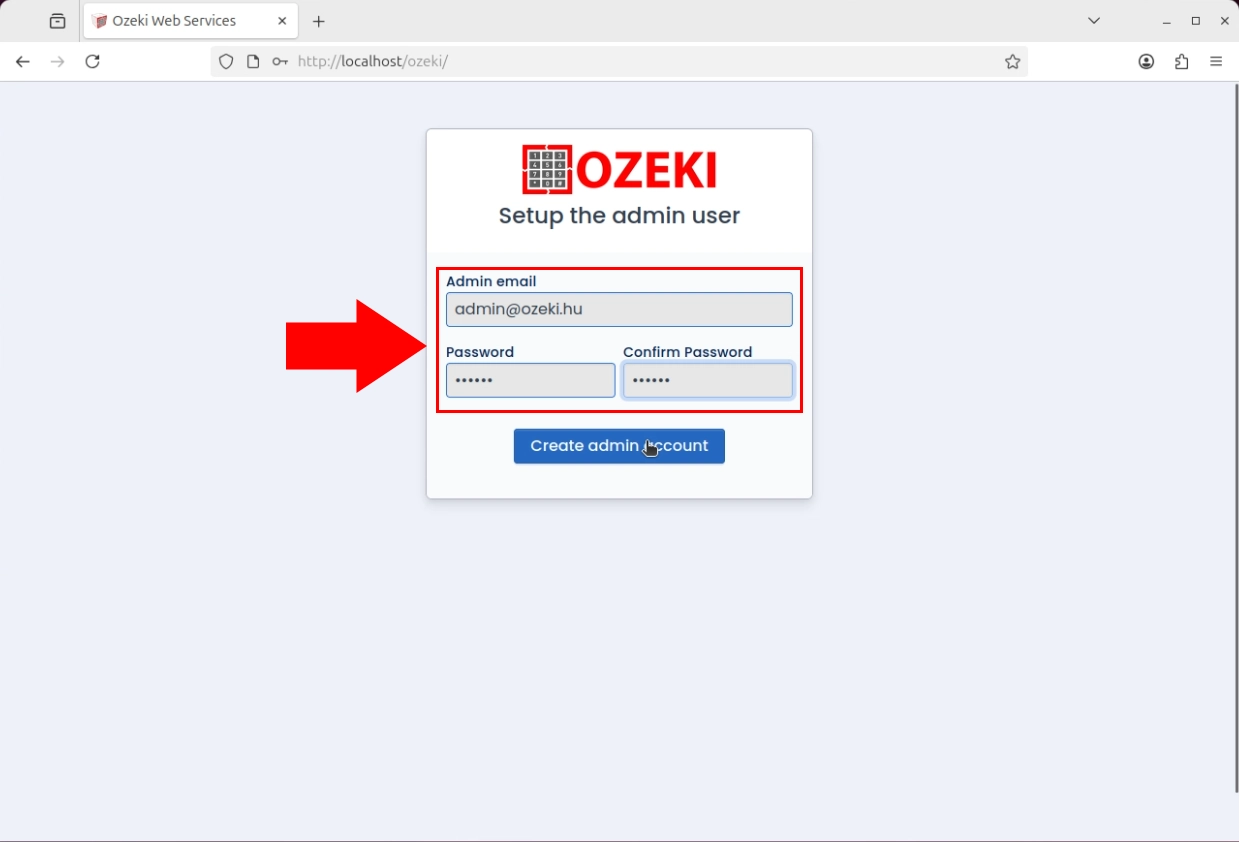
Upon first access to the Ozeki AI Gateway web interface, you are prompted to create an administrative account. Enter a username and password for the primary administrator. This admin account grants full access to all gateway features, including provider management, user creation, and API configuration (Figure 9).
Step 10 - Create admin account
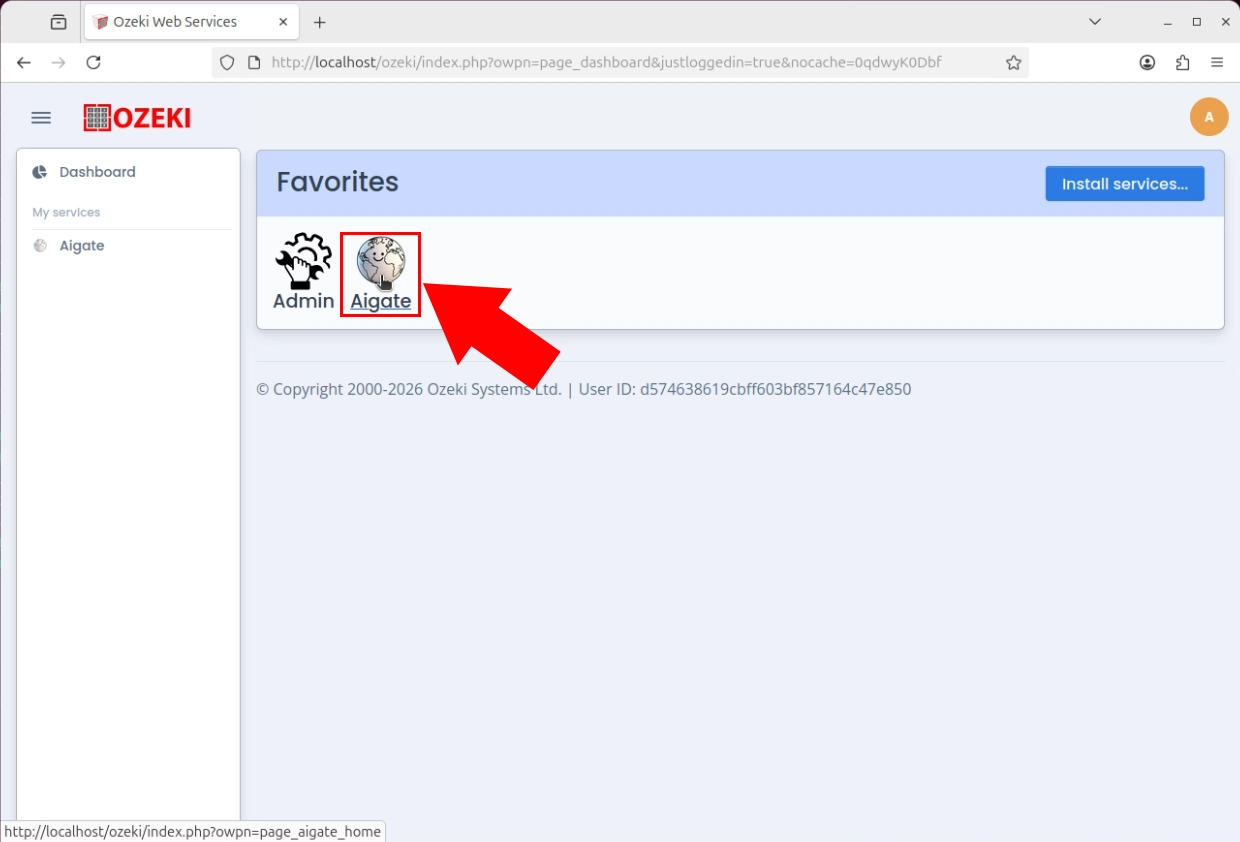
After creating the admin account, you can access the Ozeki AI Gateway service dashboard. The interface displays the main service section where you can view and configure gateway settings, manage providers, create users, and establish API routes. The gateway is now installed and ready for configuration (Figure 10).
Set up AI service providers
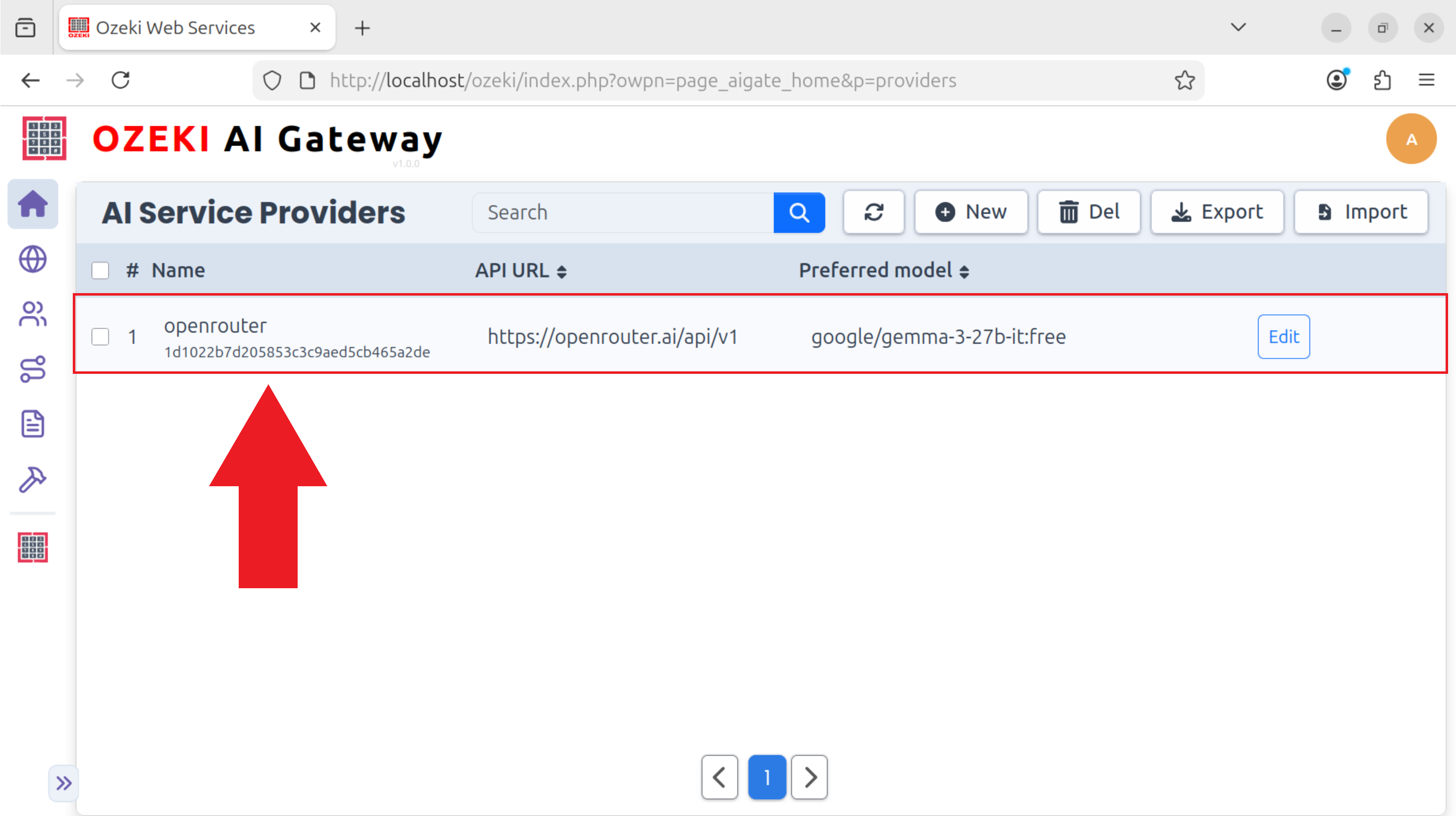
After installing Ozeki AI Gateway, the next step is to configure AI service providers that will handle your AI requests. Providers are the connection points to external AI services like OpenAI, Anthropic, or OpenRouter. Navigate to the Providers section in the Ozeki AI Gateway interface and add at least one AI provider by entering the provider's API endpoint and authentication credentials. For detailed instructions on connecting to AI services, see our Connect to an AI service guide.
Create users and API keys
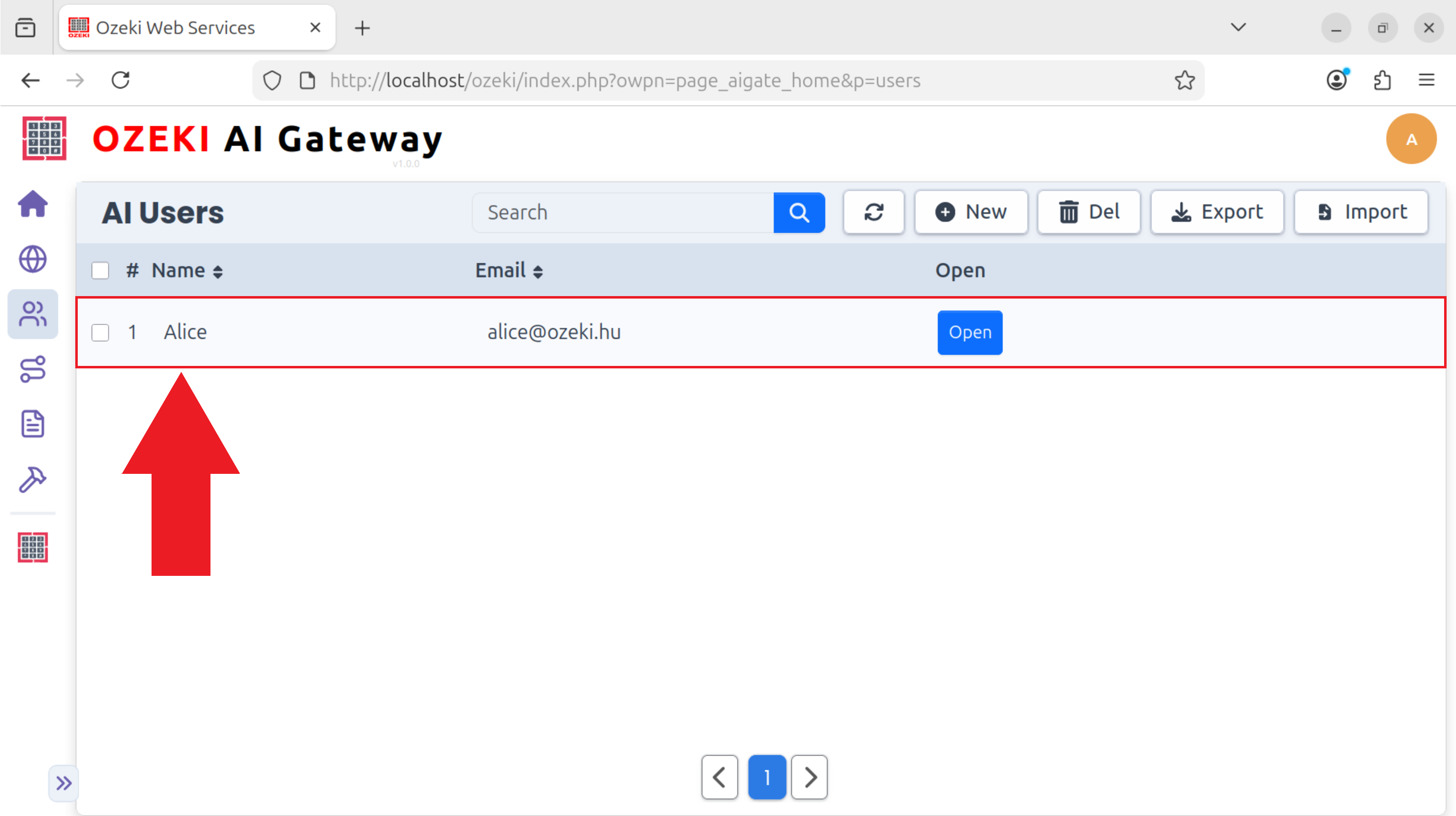
Once you have configured AI providers, you need to create user accounts that will access the gateway. Each user requires an API key for authentication when making requests to Ozeki AI Gateway. Navigate to the Users section and create a new user account, then generate an API key for that user. This API key will be used by applications to authenticate with your gateway. For step-by-step instructions on creating user accounts, see our Create a user account guide.
Create routes to connect users and providers
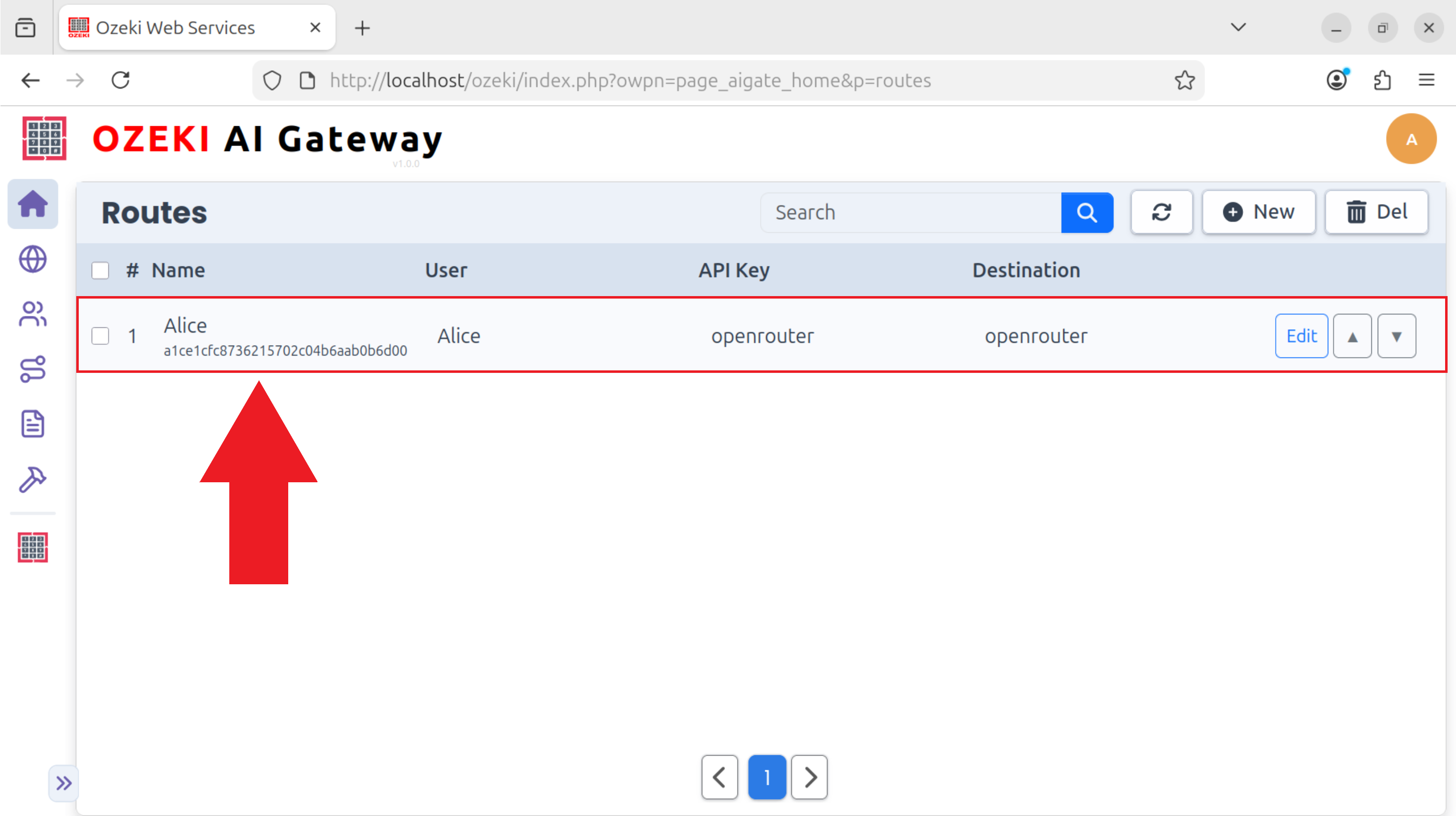
The final configuration step is to create routes that connect your users to AI service providers. Routes determine which users can access which AI models through which providers. Navigate to the Routes section and create a route by selecting a user, a provider, and optionally specifying which models that user can access. For detailed instructions on creating routes, see our Create a route guide.
To sum it up
You have successfully installed Ozeki AI Gateway on your Linux system. The gateway is now running with Apache web server properly configured to handle API requests. You can now proceed to configure AI providers, create user accounts, and set up API routes to connect your applications to various AI services. The admin account you created provides full access to all configuration and management features of the gateway.