
How to connect to an AI service provider
This guide demonstrates how to configure AI service provider connections in Ozeki AI Gateway. Providers are the connection points to external AI services like OpenAI or Anthropic. You'll learn how to add a new provider, configure connection details, and test the provider to ensure it's working correctly.
What is an AI service provider?
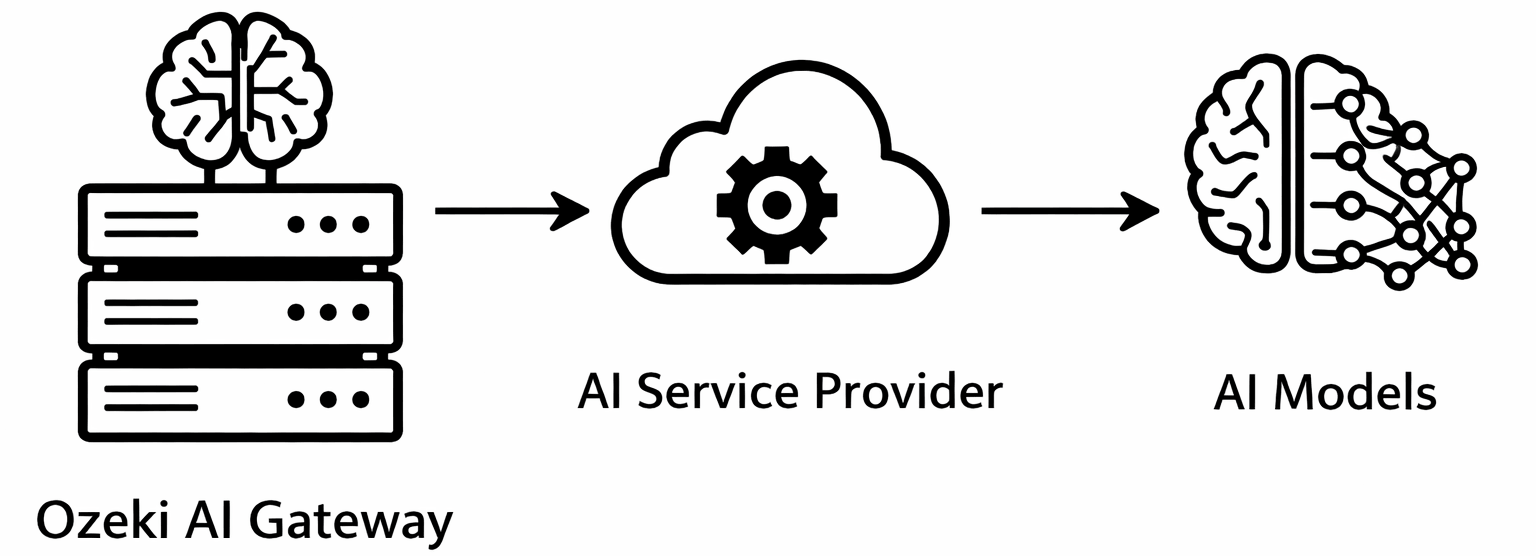
An AI service provider in Ozeki AI Gateway represents a connection to an external AI service that hosts AI models. Providers define the API endpoint, authentication credentials, and available models for a specific AI service. The gateway requires at least one configured provider to process AI requests.
Steps to follow
We assume Ozeki AI Gateway is already installed on your system. You can install it on Linux, Windows or Mac.
How to connect to an AI service provider video
The following video shows how to connect to an AI service provider in Ozeki AI Gateway step-by-step. The video covers navigating to the Providers page, adding a new provider, entering connection details, and testing the provider to verify it's working correctly.
Step 1 - Navigate to Providers page in Ozeki AI Gateway
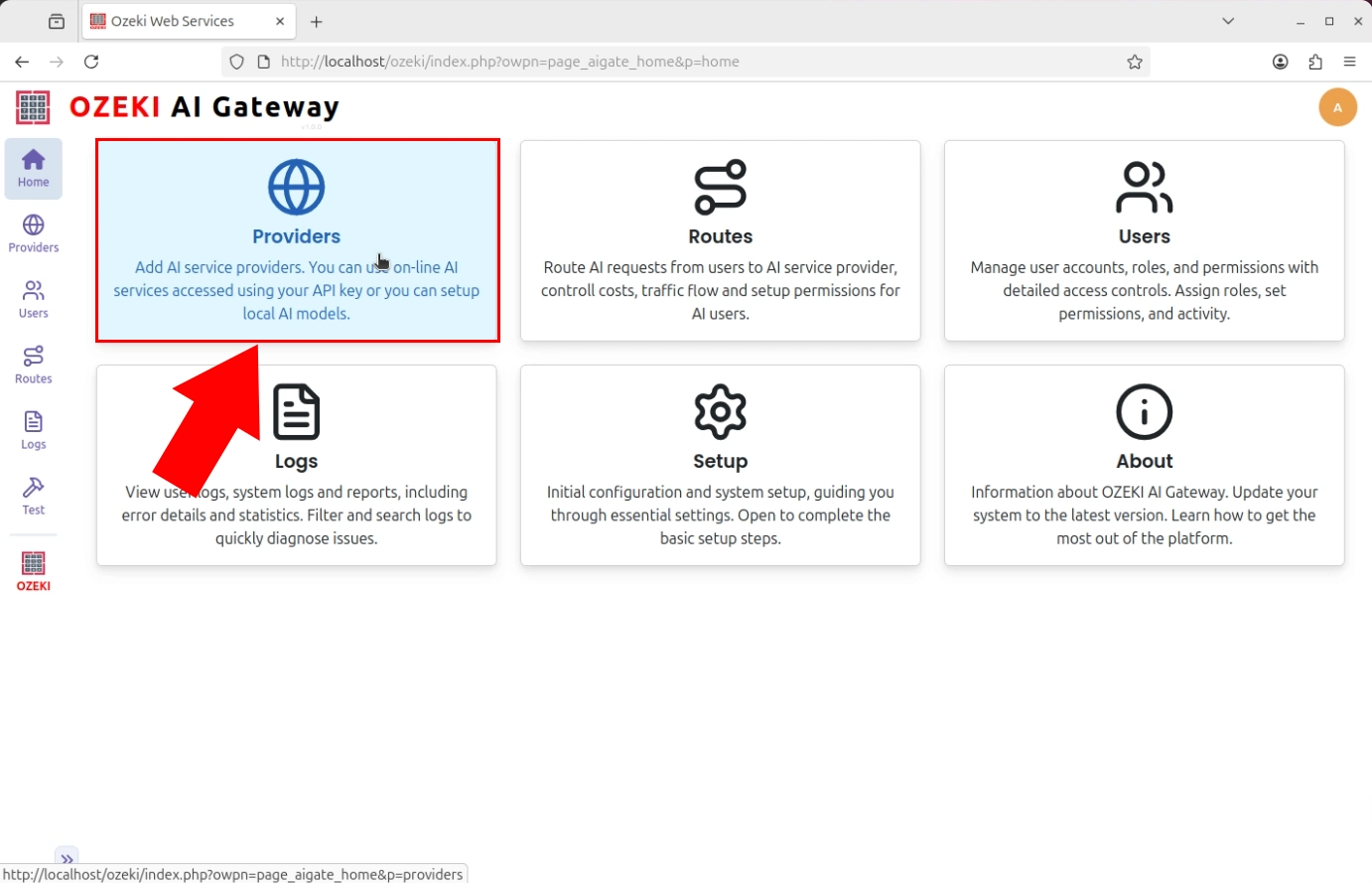
Open the Ozeki AI Gateway web interface and navigate to the Providers section from the left sidebar. The Providers page displays a list of currently configured AI providers. For a new installation, this list will be empty (Figure 1).
Step 2 - Create new provider
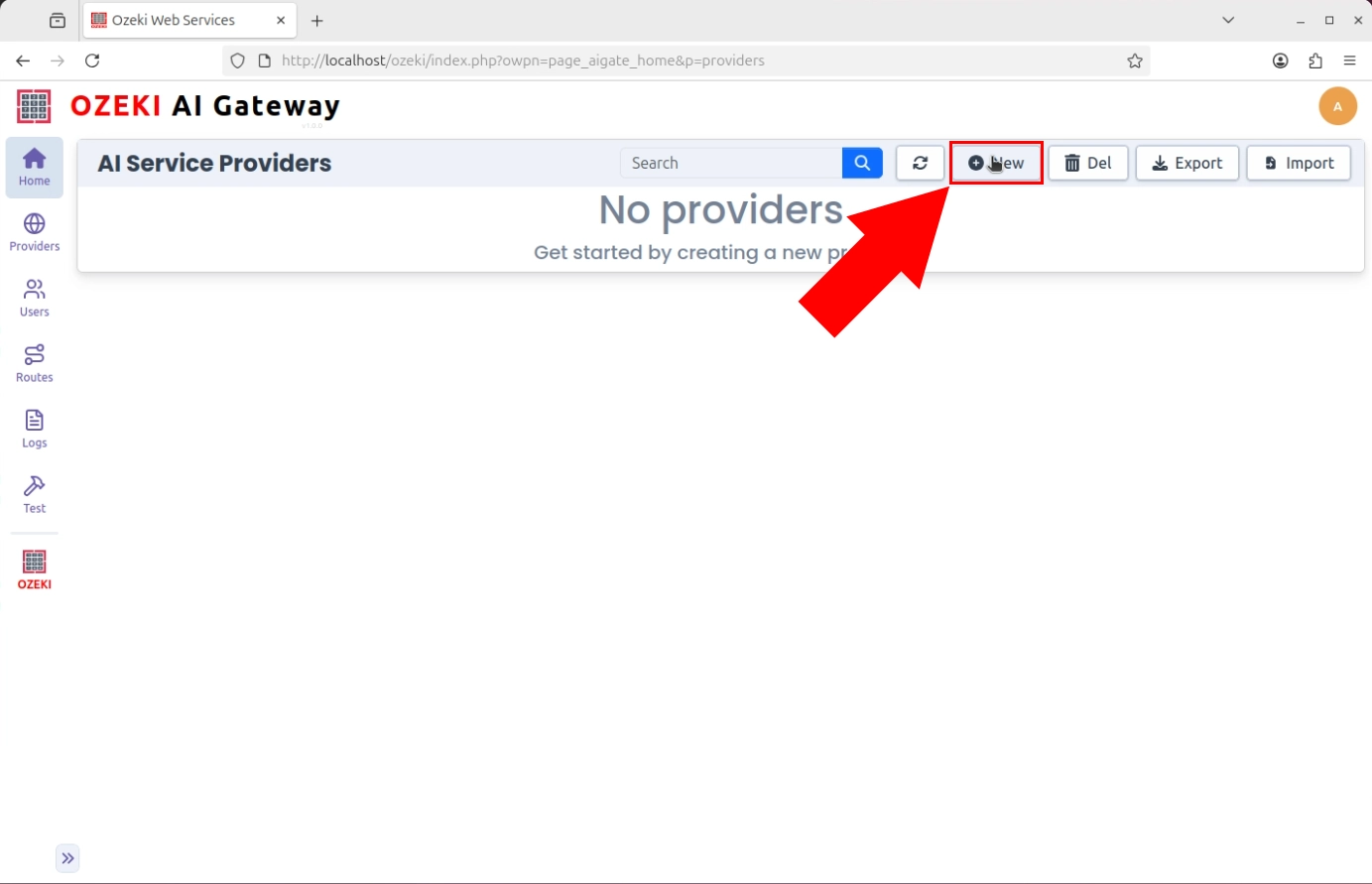
Click the "New" button to begin the provider creation process. This opens a form where you'll enter the connection details for your AI service provider (Figure 2).
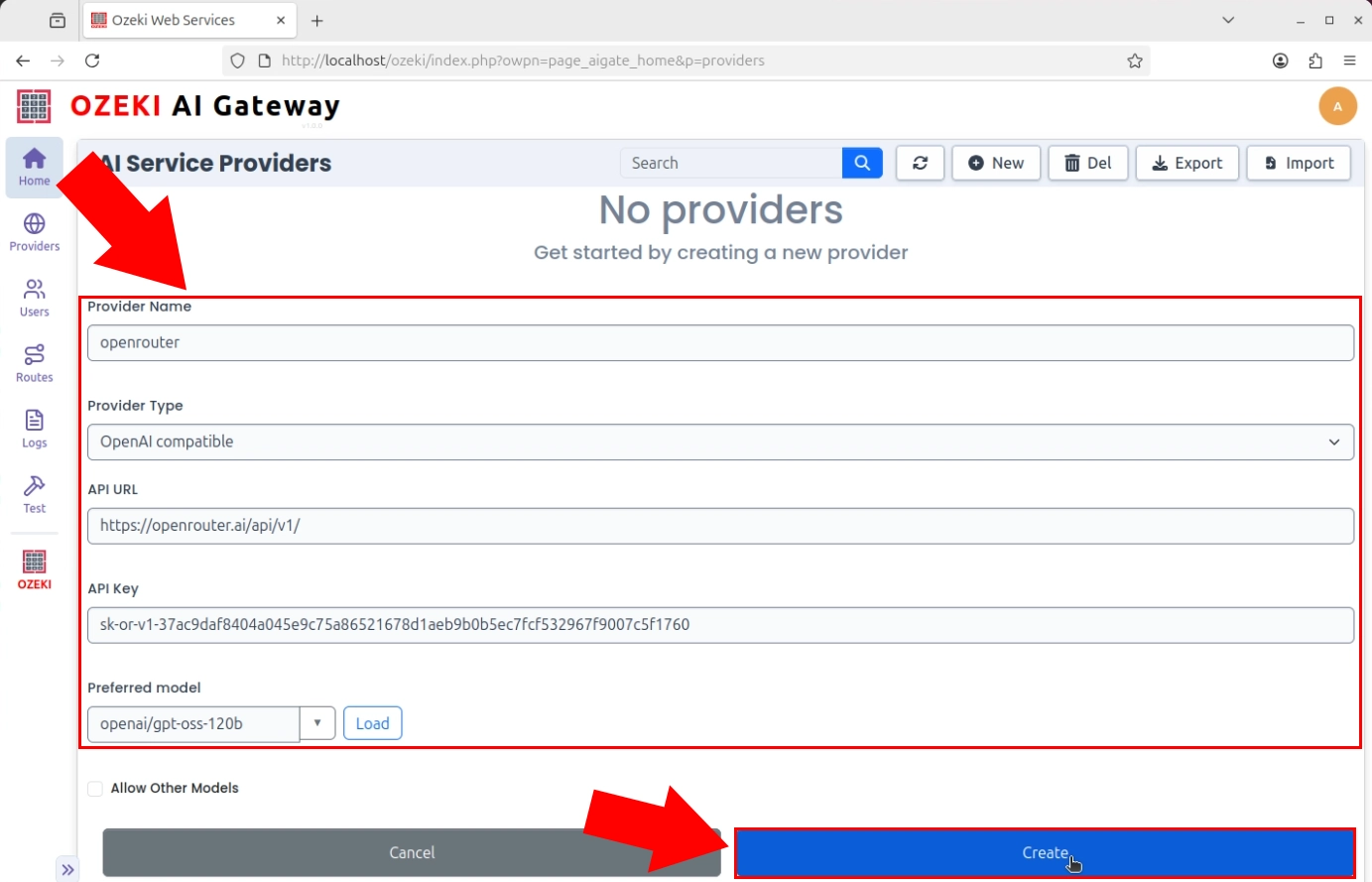
Fill in the provider configuration form with the required information. Enter a descriptive name for the provider, select the provider type, specify the API endpoint URL, and enter your API key then press "Create". These settings enable the gateway to communicate with the AI service (Figure 3).
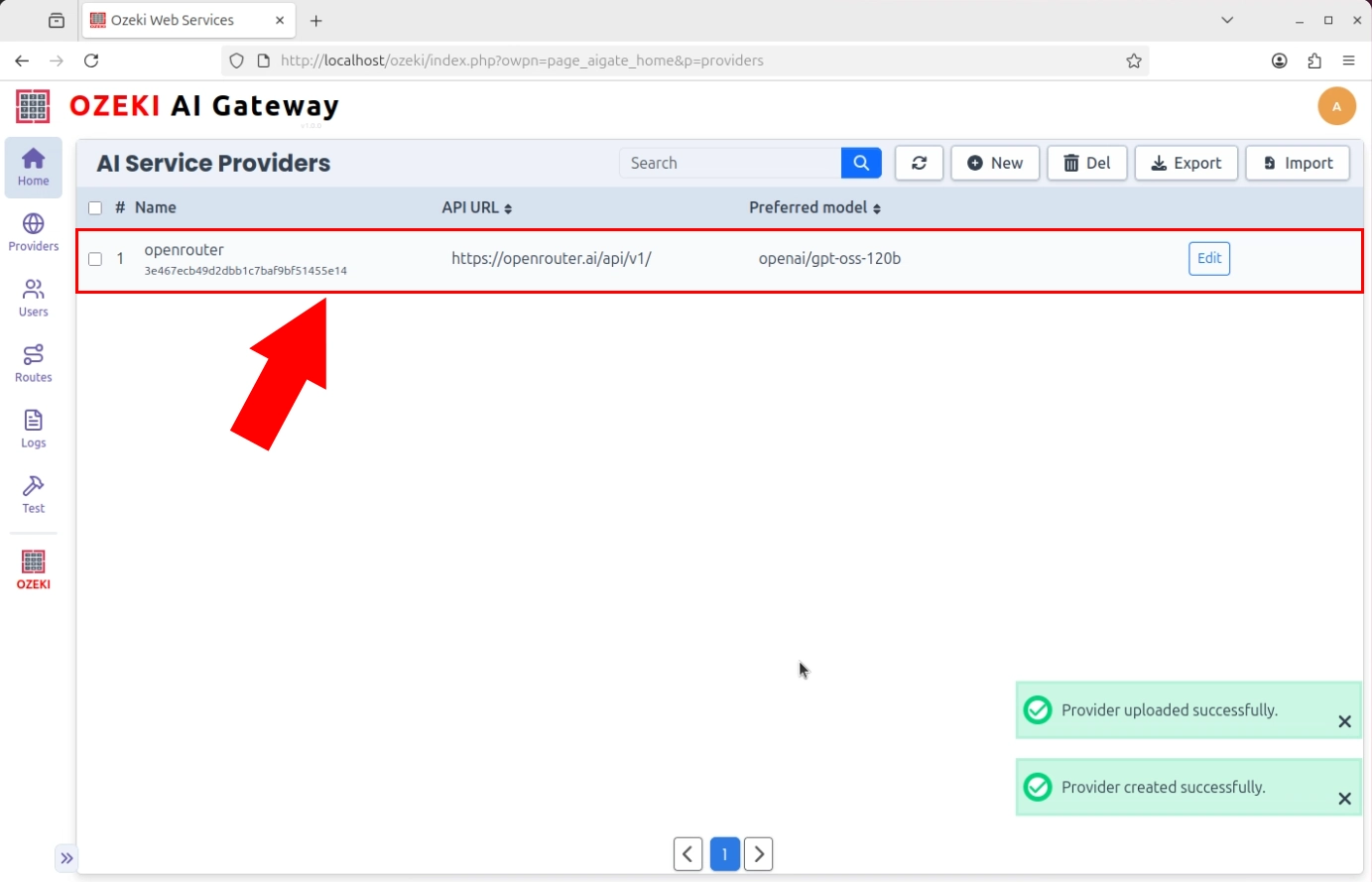
After clicking "Create", the provider is added to Ozeki AI Gateway. The provider now appears in the providers list with its configuration details visible. This confirms that the gateway recognizes the provider as a valid connection option and can route requests to it (Figure 4).
Step 3 - Test provider
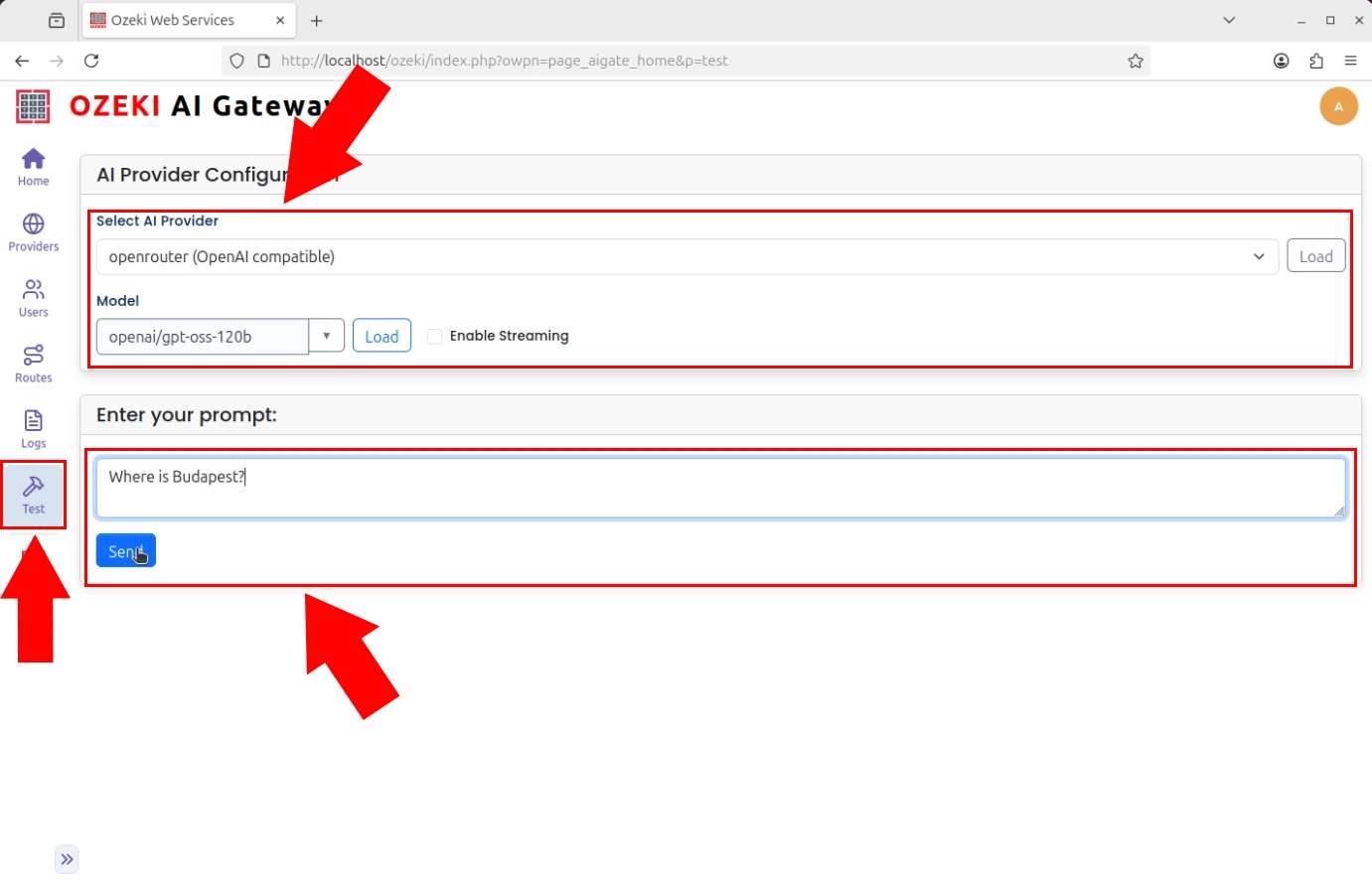
To verify the provider connection is working correctly, open the Testing tool from the left sidebar. Select the provider and model you want to test, then enter a test prompt. Click "Send" to submit the request to the AI service. This test ensures your API credentials are valid and the provider can process requests (Figure 5).
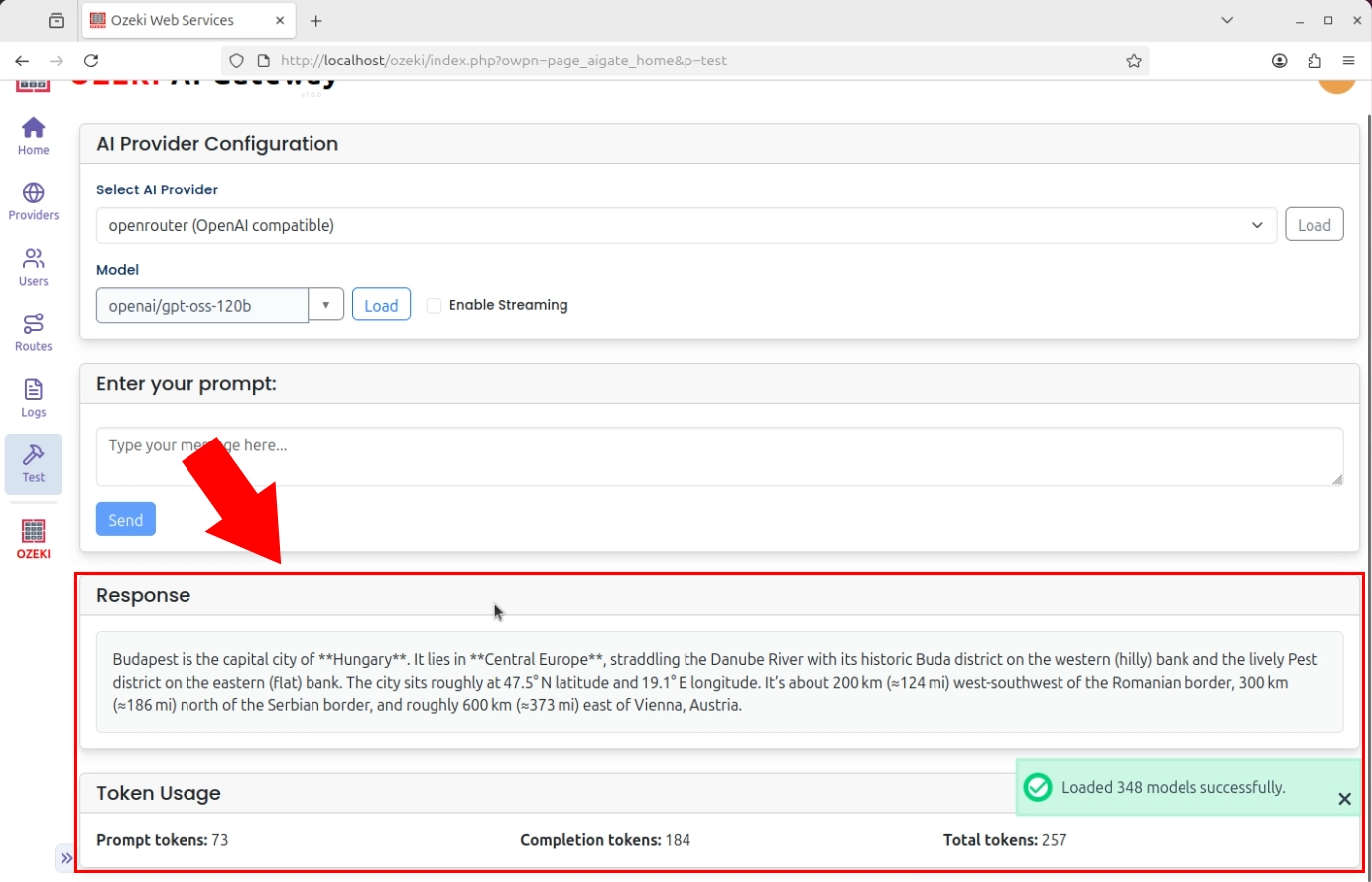
After submitting the test prompt, the AI model's response is displayed on the page. A successful response confirms that the complete communication chain is working: the gateway connected to the provider, transmitted your prompt, and received a valid response (Figure 6).
Conclusion
You have successfully configured and tested an AI service provider in Ozeki AI Gateway. The provider is now ready to process AI requests from your users. The next step is to create user accounts and establish routes that connect users to this provider, enabling them to access the AI models through your gateway.