
Ozeki AI Gateway Quick Start Guide for Linux users
The Ozeki AI Gateway Quick Start Guide for Linux users provides a complete roadmap for deploying and configuring Ozeki AI Gateway on Linux systems, enabling seamless integration with multiple AI providers and models. This guide progresses through three essential phases: installing the gateway software and configuring Apache, setting up AI provider connections, and creating user accounts with API access routes. By following these step-by-step instructions with visual demonstrations, you will have a fully operational AI gateway that connects applications to AI services.
Install Ozeki AI Gateway on Windows or Mac
If you are using a different operating system, you can find the appropriate Quick Start Guide for your platform below. Visit the Windows Quick Start Guide for installation instructions on Windows systems, or the Mac Quick Start Guide for macOS-specific setup steps.
Install Ozeki AI Gateway on Ubuntu:
sudo curl -fsSL https://repo.ozeki.hu/ozekiaigateway.gpg.key | sudo gpg --dearmor -o /etc/apt/trusted.gpg.d/ozekiaigateway.gpg
sudo echo "deb [arch=all] https://repo.ozeki.hu/ noble main" | sudo tee /etc/apt/sources.list.d/ozekiaigateway.list
sudo apt update
sudo apt install ozekiaigateway
After installation navigate to:
Browser: http://localhost/ozeki
Steps to follow
- Install Ozeki AI Gateway
- Configure Apache web server
- Access gateway and create admin account
- Setup AI provider
- Test provider connection
- Create new user
- Generate API key for user
- Create route
- Send API request
- Verify API response
How to install Ozeki AI Gateway video
The following video shows how to install Ozeki AI Gateway on Linux step-by-step. The video covers adding the repository, installing the package, configuring Apache, and accessing the web interface.
Step 1 - Install Ozeki AI Gateway
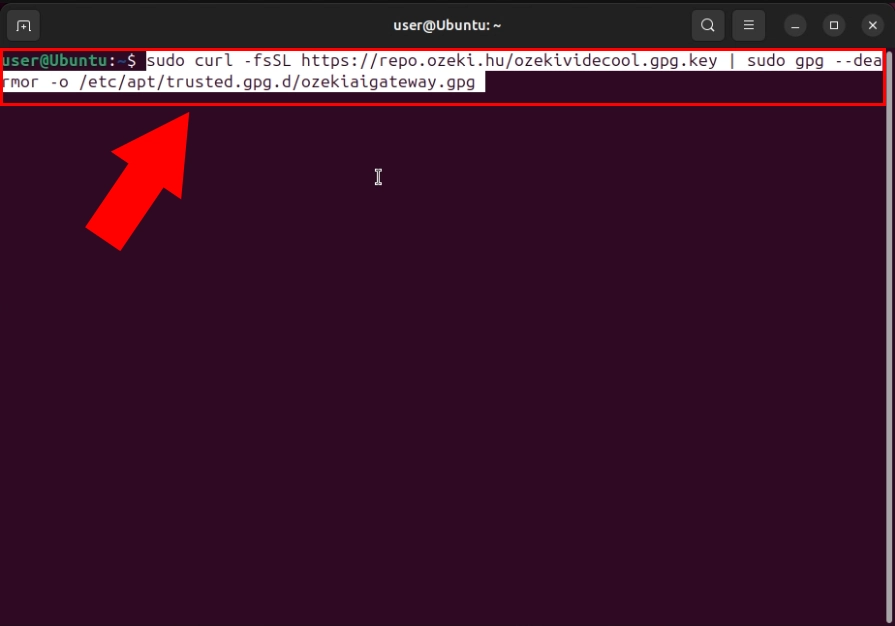
Execute the sudo curl -fsSL https://repo.ozeki.hu/ozekiaigateway.gpg.key | sudo gpg --dearmor -o /etc/apt/trusted.gpg.d/ozekiaigateway.gpg command to download and add the official GPG key from the Ozeki repository. This key ensures that all subsequent package installations are authenticated and come from a trusted source (Figure 1).
sudo curl -fsSL https://repo.ozeki.hu/ozekiaigateway.gpg.key | sudo gpg --dearmor -o /etc/apt/trusted.gpg.d/ozekiaigateway.gpg
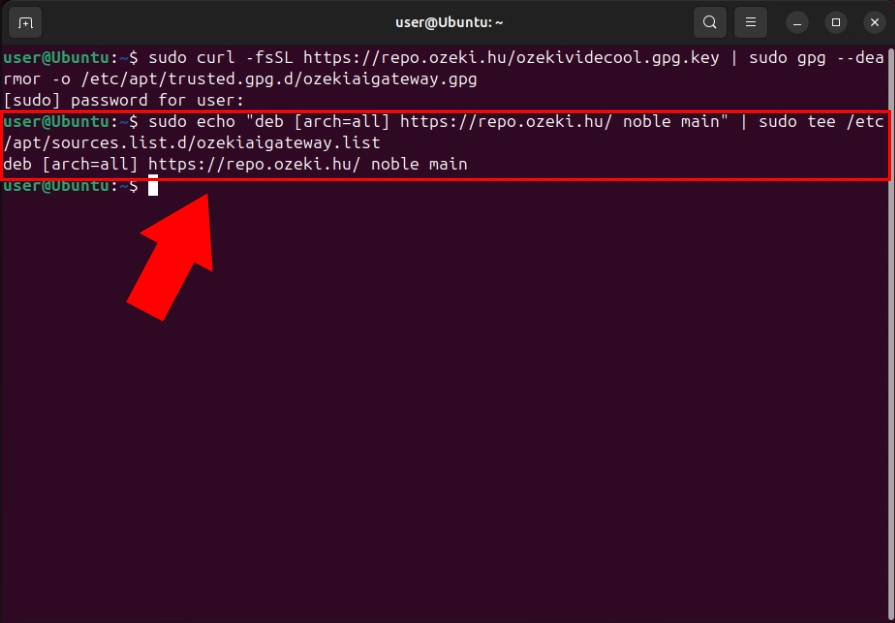
Use the command sudo echo "deb [arch=all] https://repo.ozeki.hu/ noble main" | sudo tee /etc/apt/sources.list.d/ozekiaigateway.list to register the Ozeki repository for the Ubuntu Noble release. This creates a new source list file that points to the official Ozeki package repository, allowing your package manager to access and install the latest Ozeki AI Gateway software (Figure 2).
sudo echo "deb [arch=all] https://repo.ozeki.hu/ noble main" | sudo tee /etc/apt/sources.list.d/ozekiaigateway.list
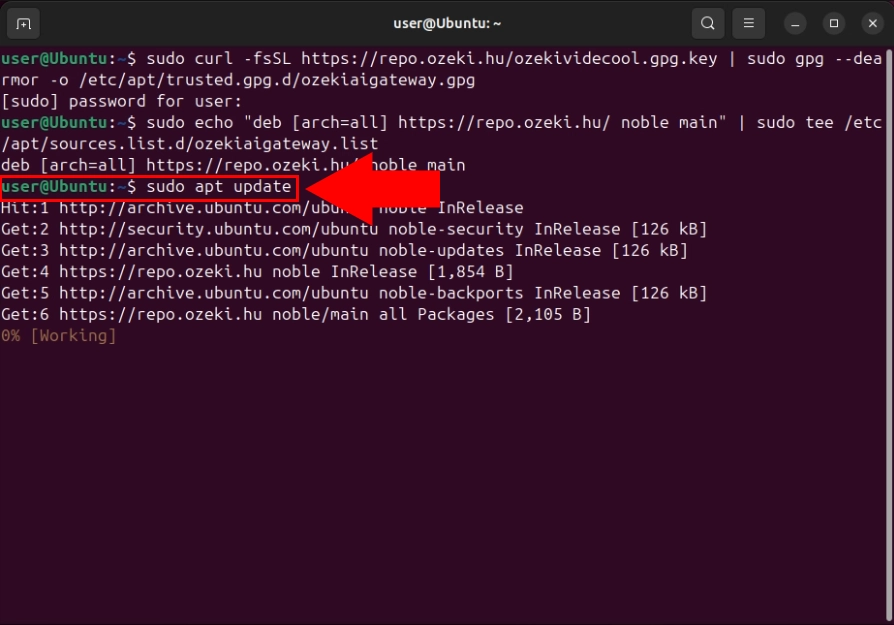
Once the repository has been added to your system, you must refresh your package list to include the newly available packages from the Ozeki repository. Execute sudo apt update to synchronize your local package cache. The terminal displays repositories being accessed and packages being indexed. This step ensures your system is aware of all available software versions before installation (Figure 3).
sudo apt update
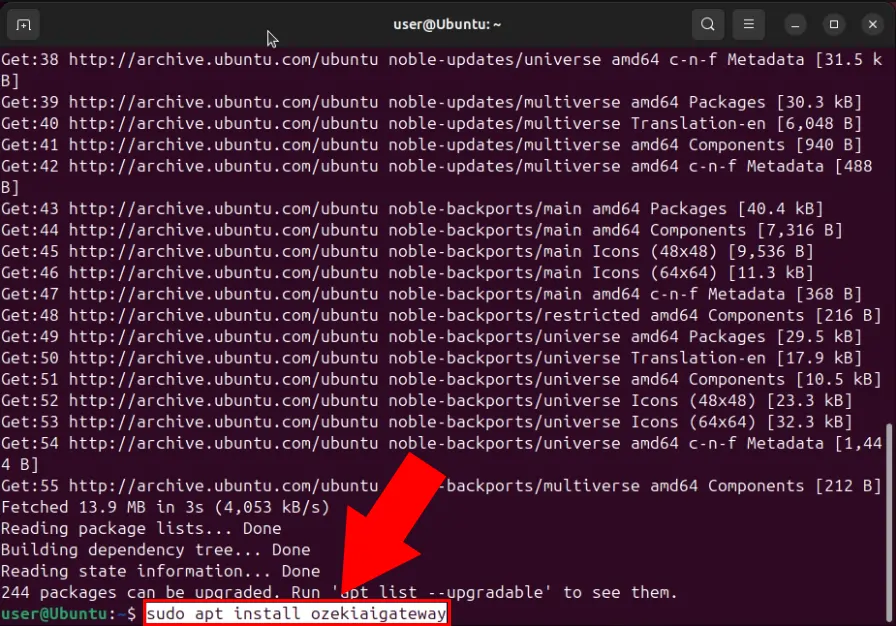
Execute sudo apt install ozekiaigateway to download and install the complete Ozeki AI Gateway application from the repository. The package manager will automatically resolve and install all dependencies required by Ozeki AI Gateway. The installation process displays progress information and confirms successful installation when complete (Figure 4).
sudo apt install ozekiaigateway
Step 2 - Configure Apache web server
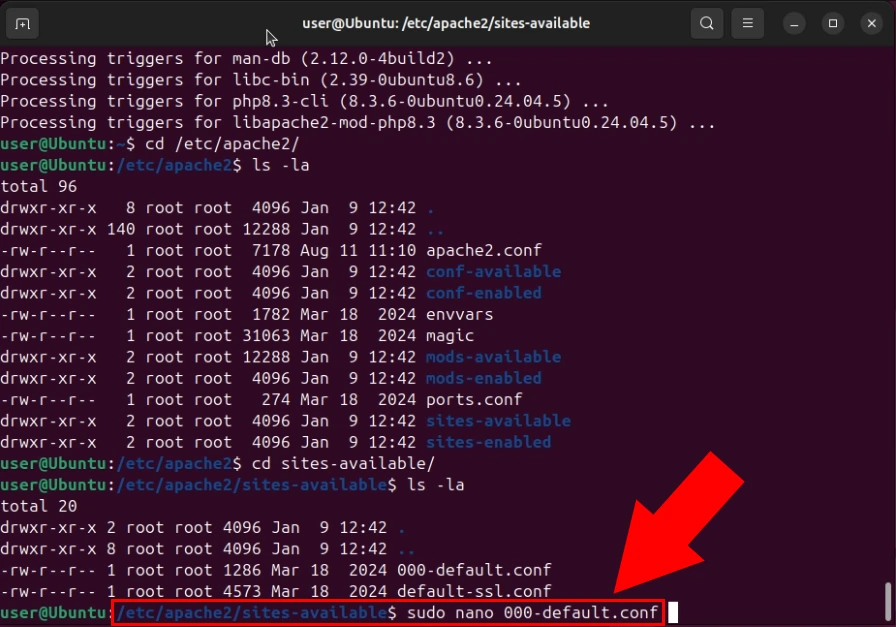
After installing Ozeki AI Gateway, configure the Apache web server to properly route requests to the gateway application. Use the sudo nano /etc/apache2/sites-available/000-default.conf command to open the default Apache virtual host configuration file (Figure 5).
sudo nano /etc/apache2/sites-available/000-default.conf
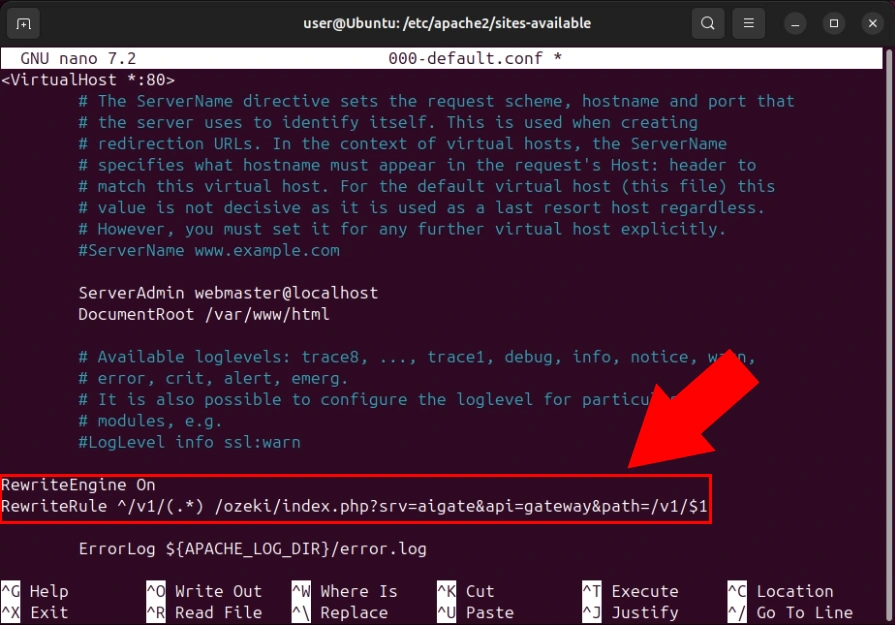
Add Apache rewrite rules to direct incoming API requests to the Ozeki AI Gateway handler. Add RewriteEngine On to enable the rewriting module, followed by the RewriteRule that captures requests to paths beginning with /v1/ and redirects them to the gateway PHP handler (Figure 6).
RewriteEngine On
RewriteRule ^/v1/?(.*)$ /ozeki/index.php?srv=aigate&api=gateway&path=/v1/$1 [L,QSA]
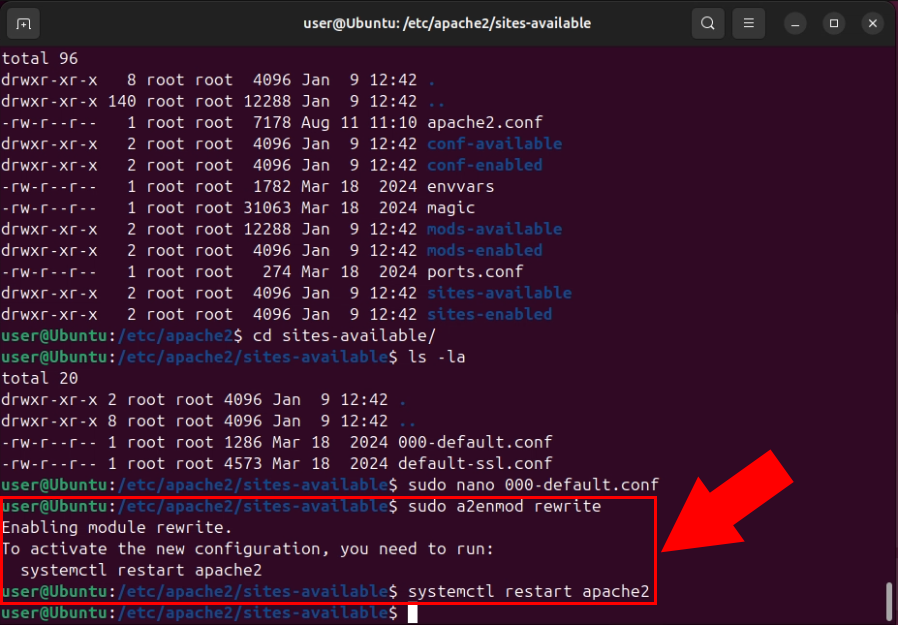
Execute the sudo a2enmod rewrite and sudo systemctl restart apache2 commands to enable the Apache rewrite module and restart the Apache service with the new configuration. After completion, Apache is ready to handle API requests and route them through Ozeki AI Gateway (Figure 7).
sudo a2enmod rewrite
sudo systemctl restart apache2
Step 3 - Access gateway and create admin account
Once Apache is configured, access the Ozeki AI Gateway web interface by opening your browser and navigating to http://localhost/ozeki/ (from the server) or http://<server-ip>/ozeki/ (from another system). Successful access confirms that Apache and Ozeki AI Gateway are functioning correctly (Figure 8).
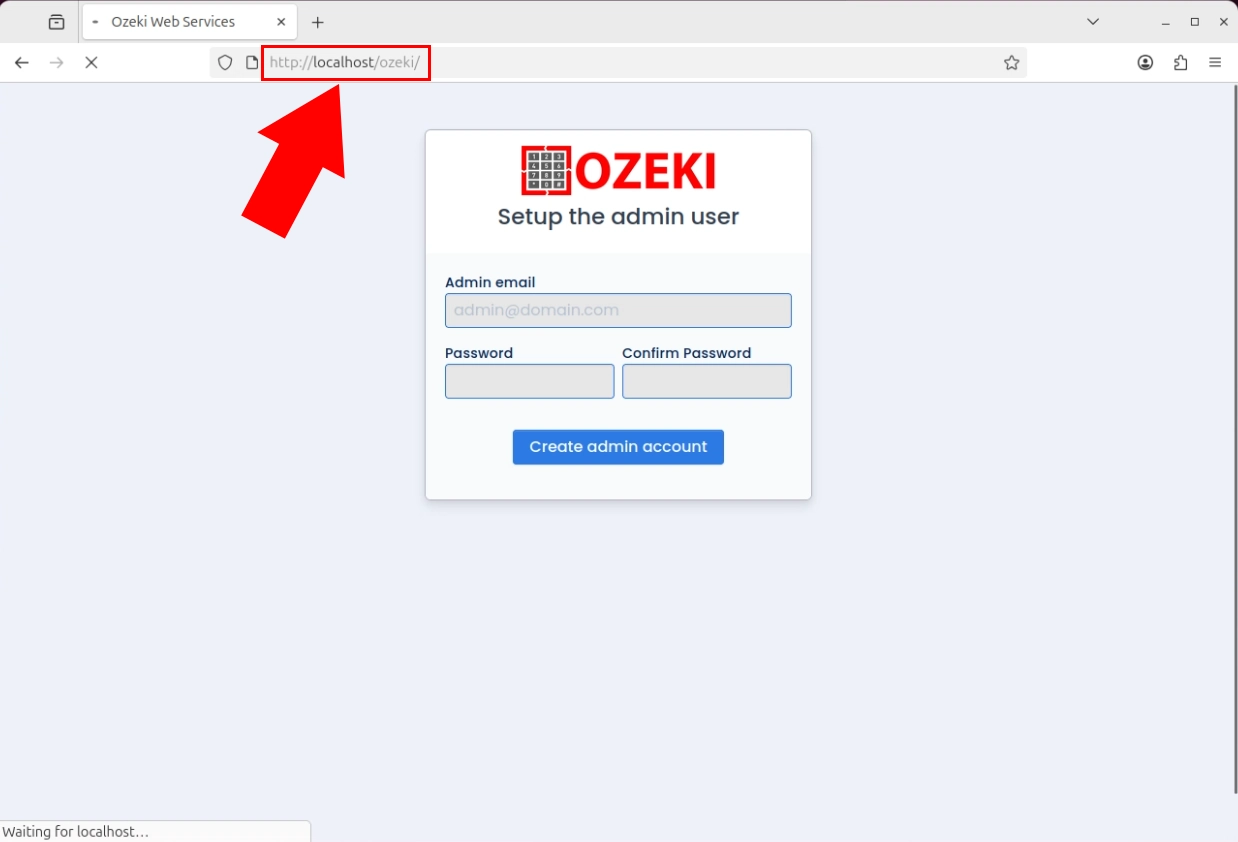
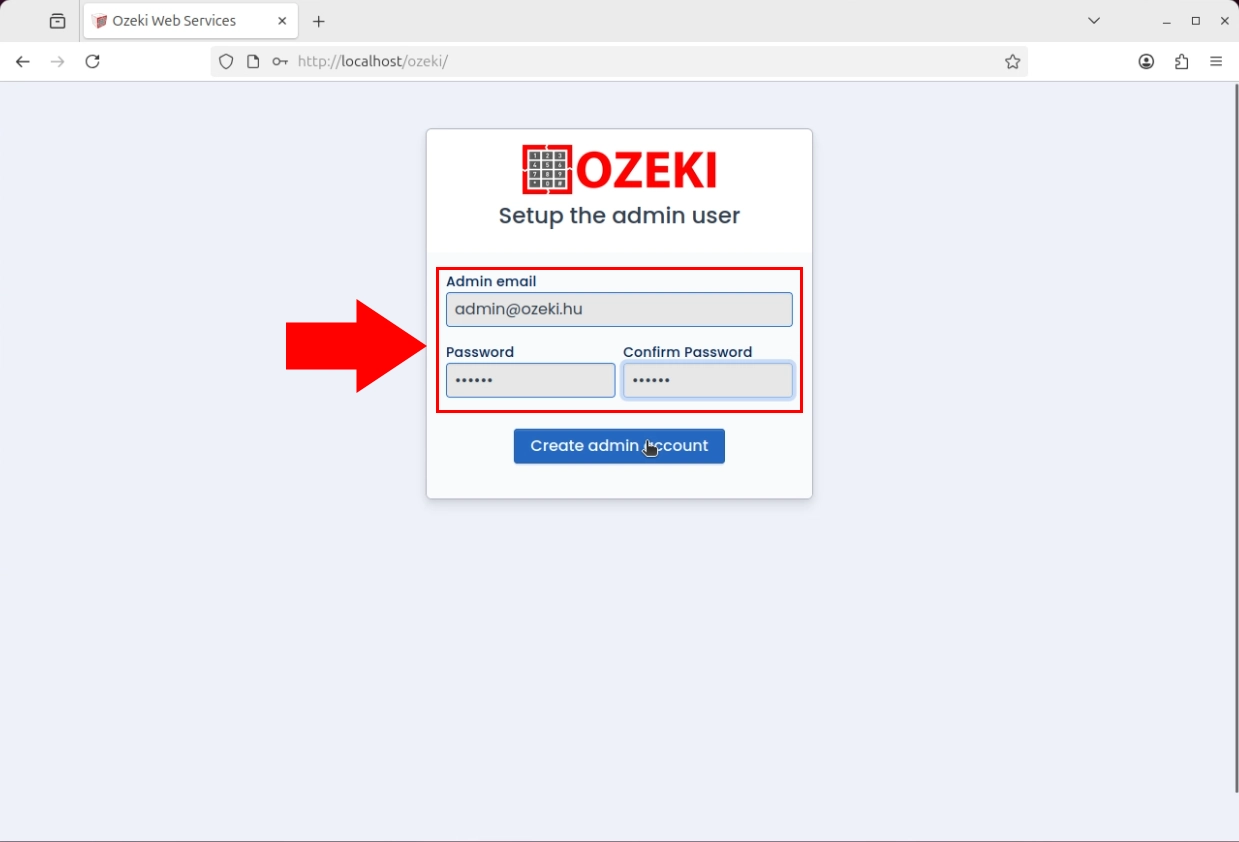
Upon first access, you are prompted to create an administrative account. Enter credentials for the primary administrator, including email and password fields. Once the admin account is created, you gain access to the complete gateway management interface (Figure 9).
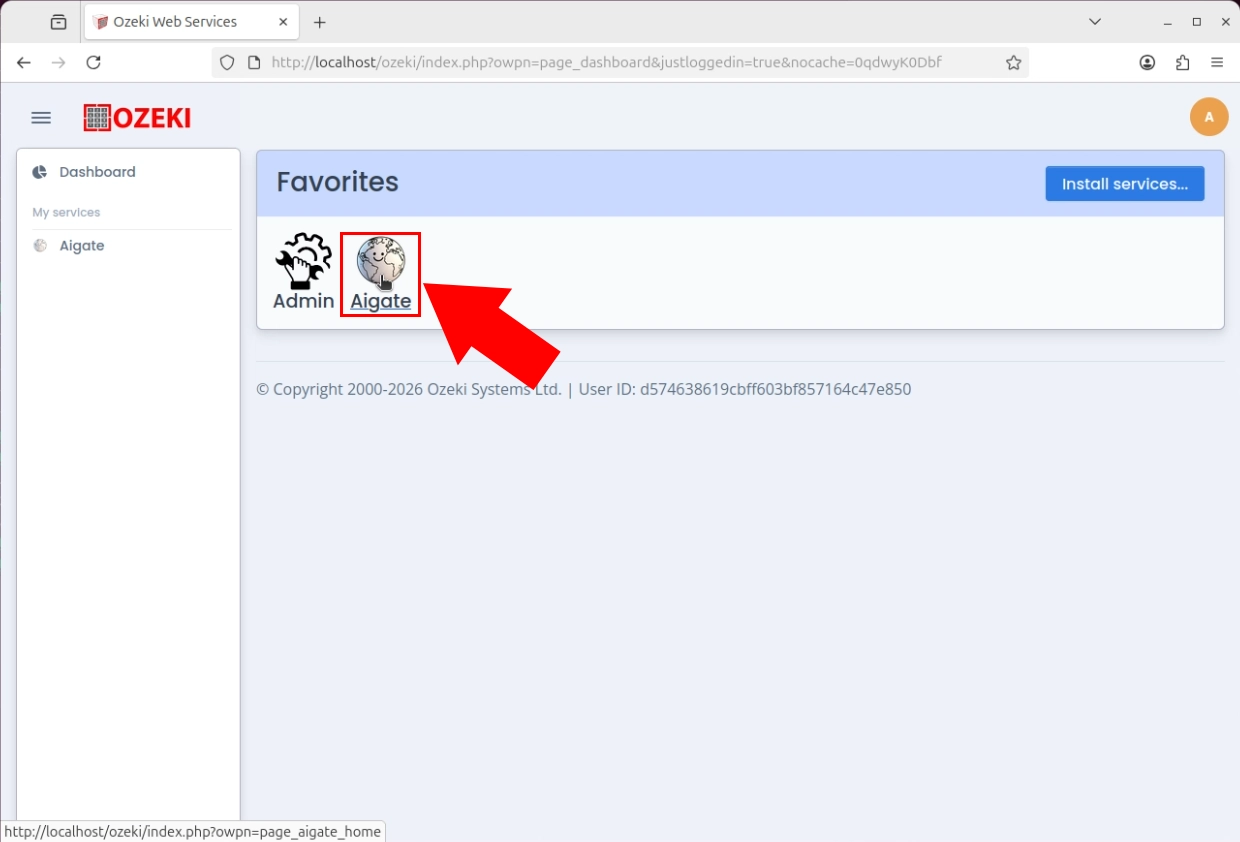
After creating the admin account, explore the main service dashboard. The interface displays the primary service section where you can view and configure core gateway settings, including API endpoint configuration and service status. This dashboard provides an overview of the gateway's operational status and allows access to various management sections (Figure 10).
Step 4 - Setup AI provider
The following video shows how to setup an AI provider in Ozeki AI Gateway step-by-step. The video covers adding a new provider, entering connection details, and testing the provider connection.
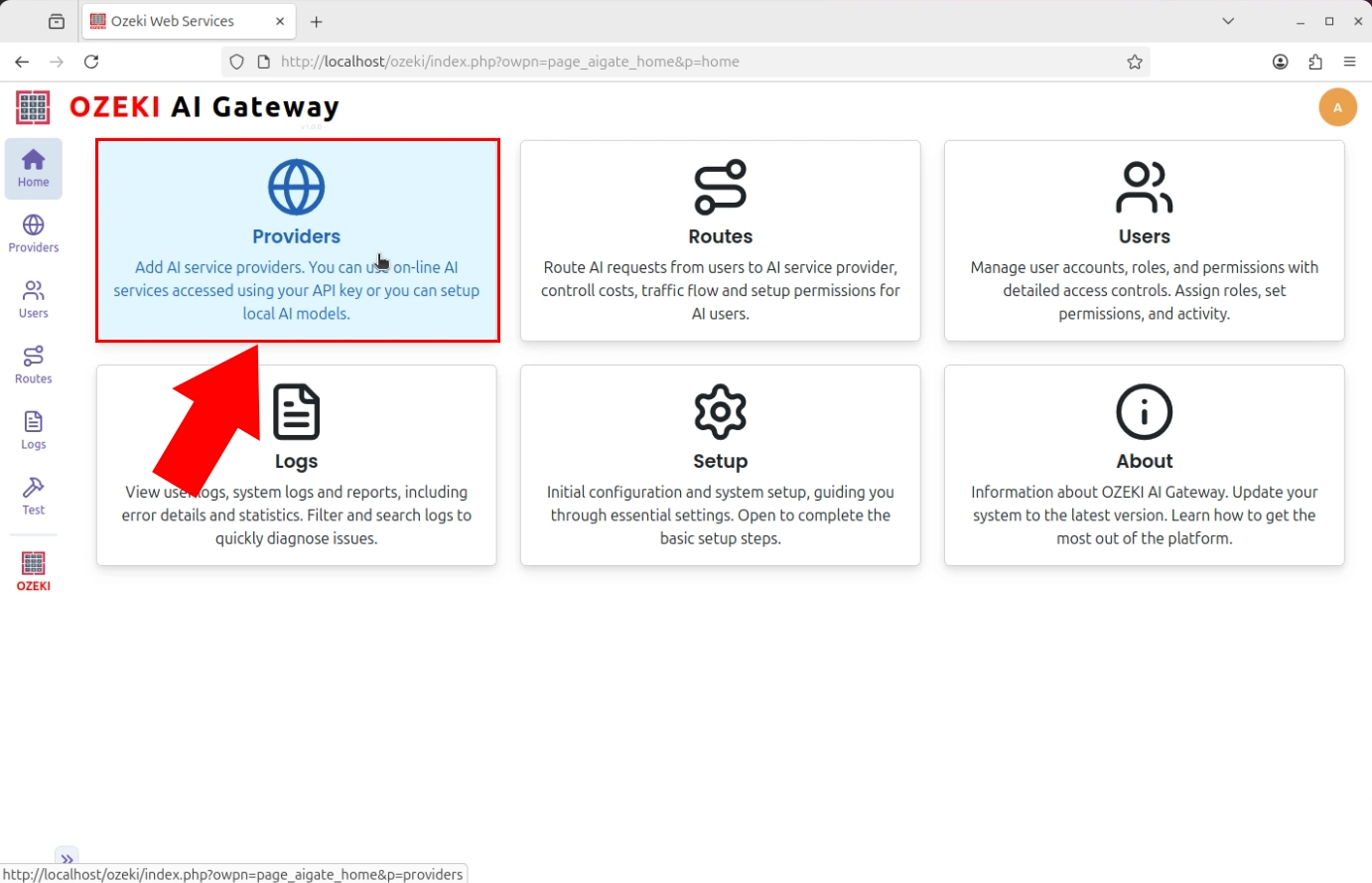
Navigate to the Providers page from the main gateway interface. This page displays a list of currently configured AI providers. The gateway requires at least one configured provider to process AI requests (Figure 11).
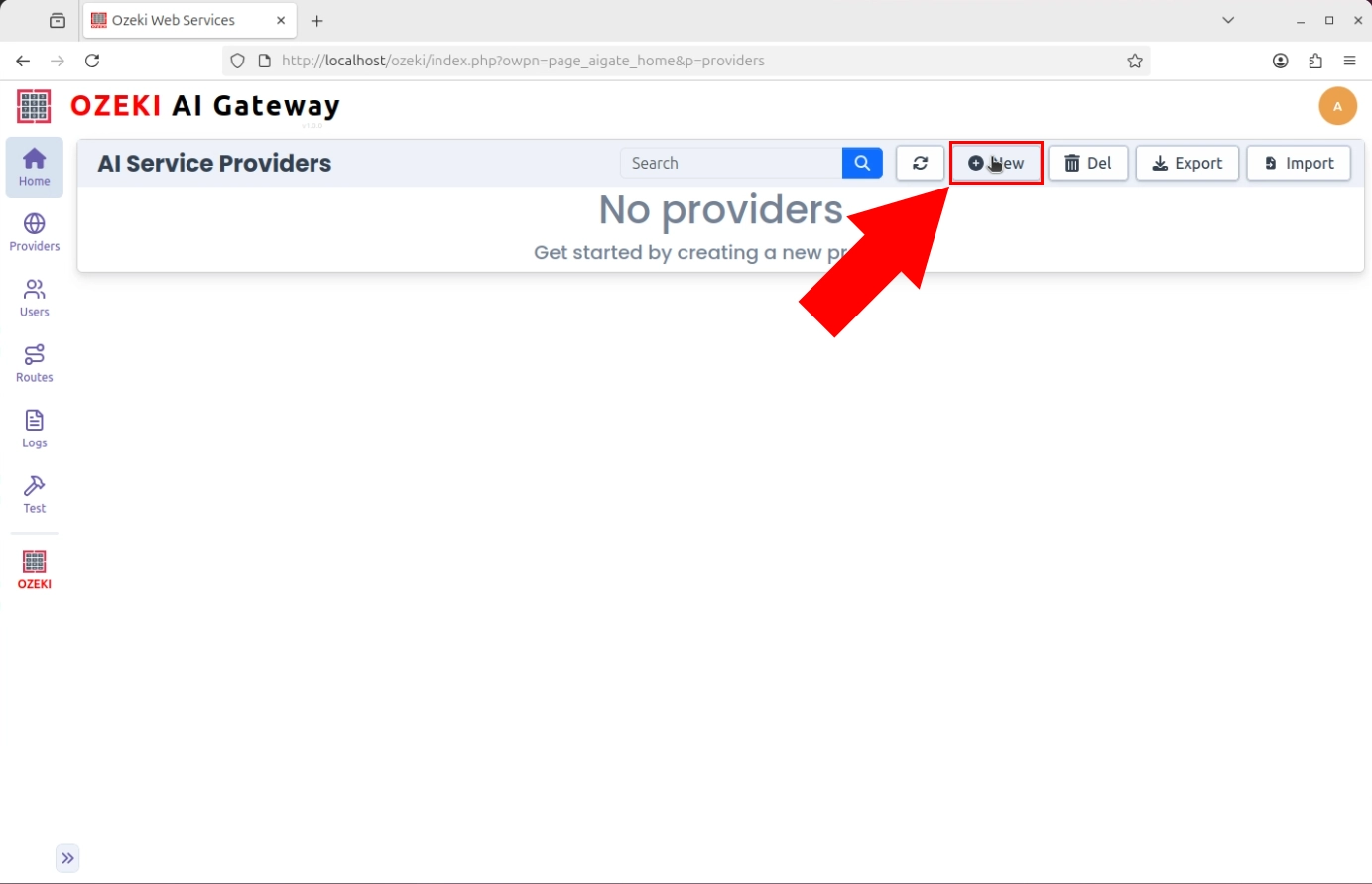
Click the "New" button to initiate the provider creation workflow, opening a form where you specify the connection details. The form requires entering the provider's name, type, API endpoint URL, and preferred default AI model. This configuration allows the gateway to communicate with the specific AI service (Figure 12).
Fill in all required fields including the provider name, provider type, and API connection details. The form validates your entries and confirms that the API endpoint is accessible. Upon successful submission, the gateway registers the new provider and establishes the connection parameters for communicating with that AI service (Figure 13).
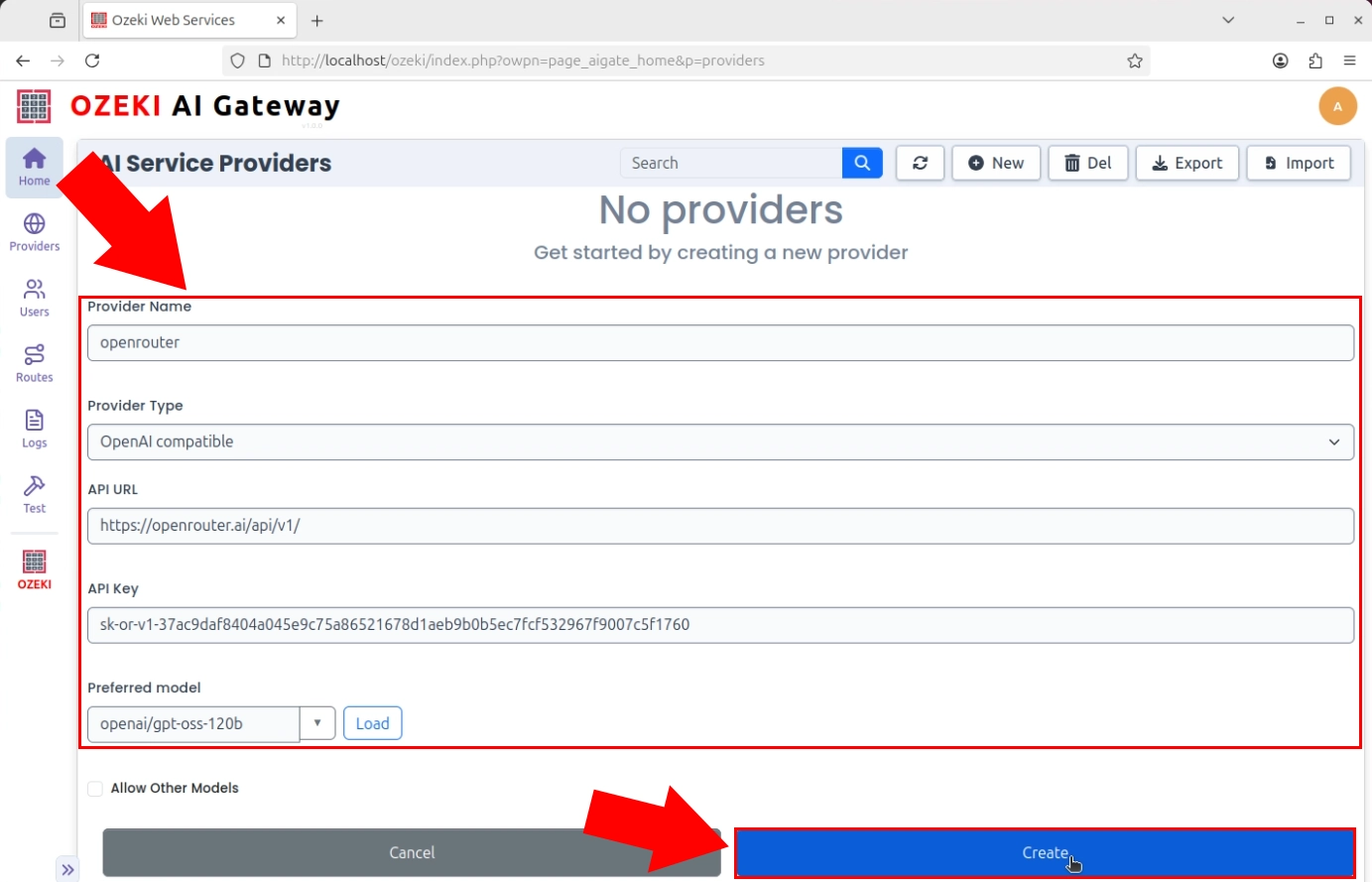
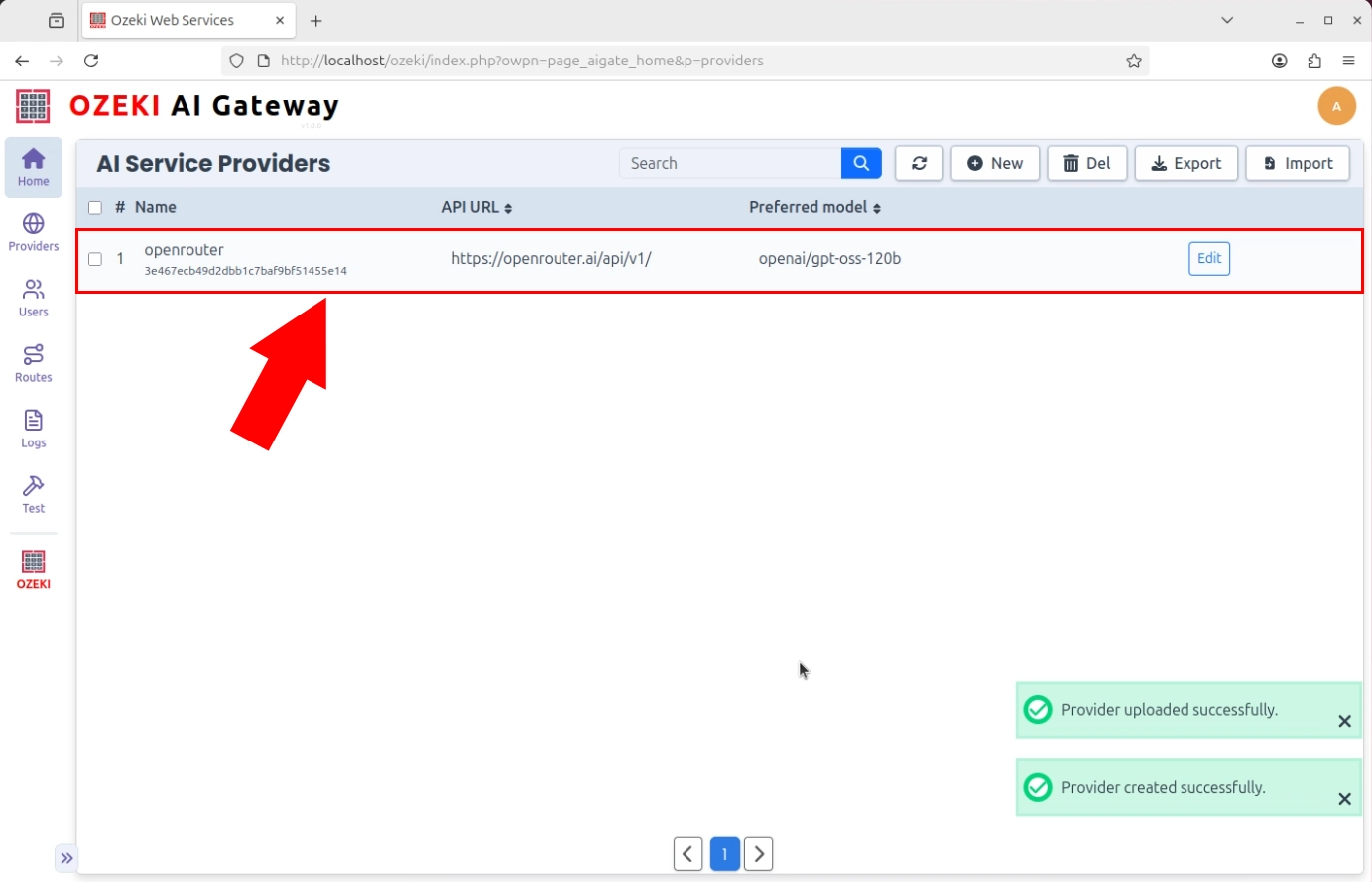
The Providers page displays confirmation that the new provider has been registered and is ready for use. The provider appears in the list with its configuration details visible, indicating that the gateway recognizes it as a valid connection option (Figure 14).
Step 5 - Test provider connection
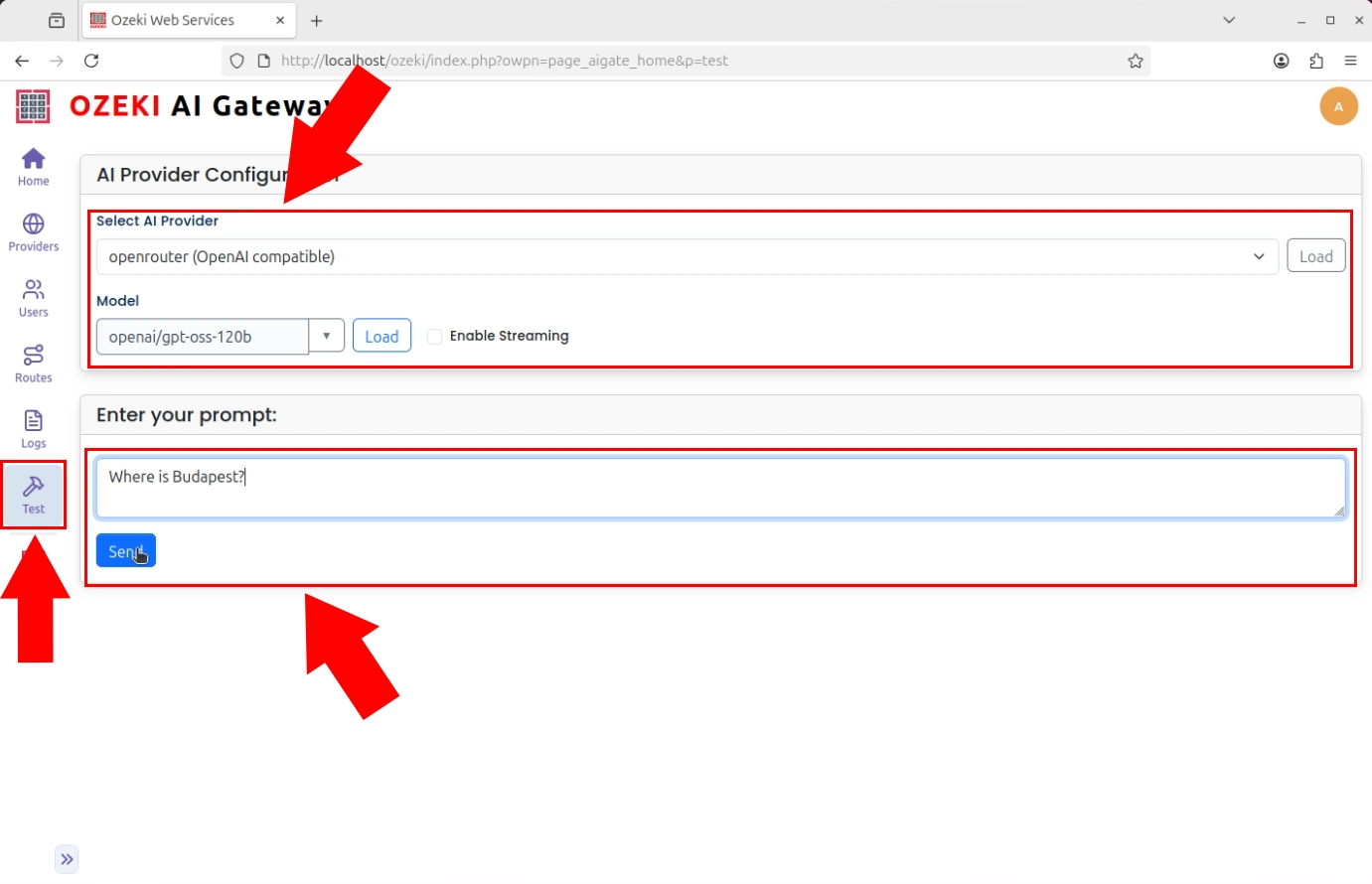
Navigate to the testing interface to verify that your provider connection is working correctly. Select the AI provider, choose a specific model, enter a test prompt, and submit the request. Testing ensures that your API credentials are valid, the endpoint is accessible, and the provider can process requests successfully (Figure 15).
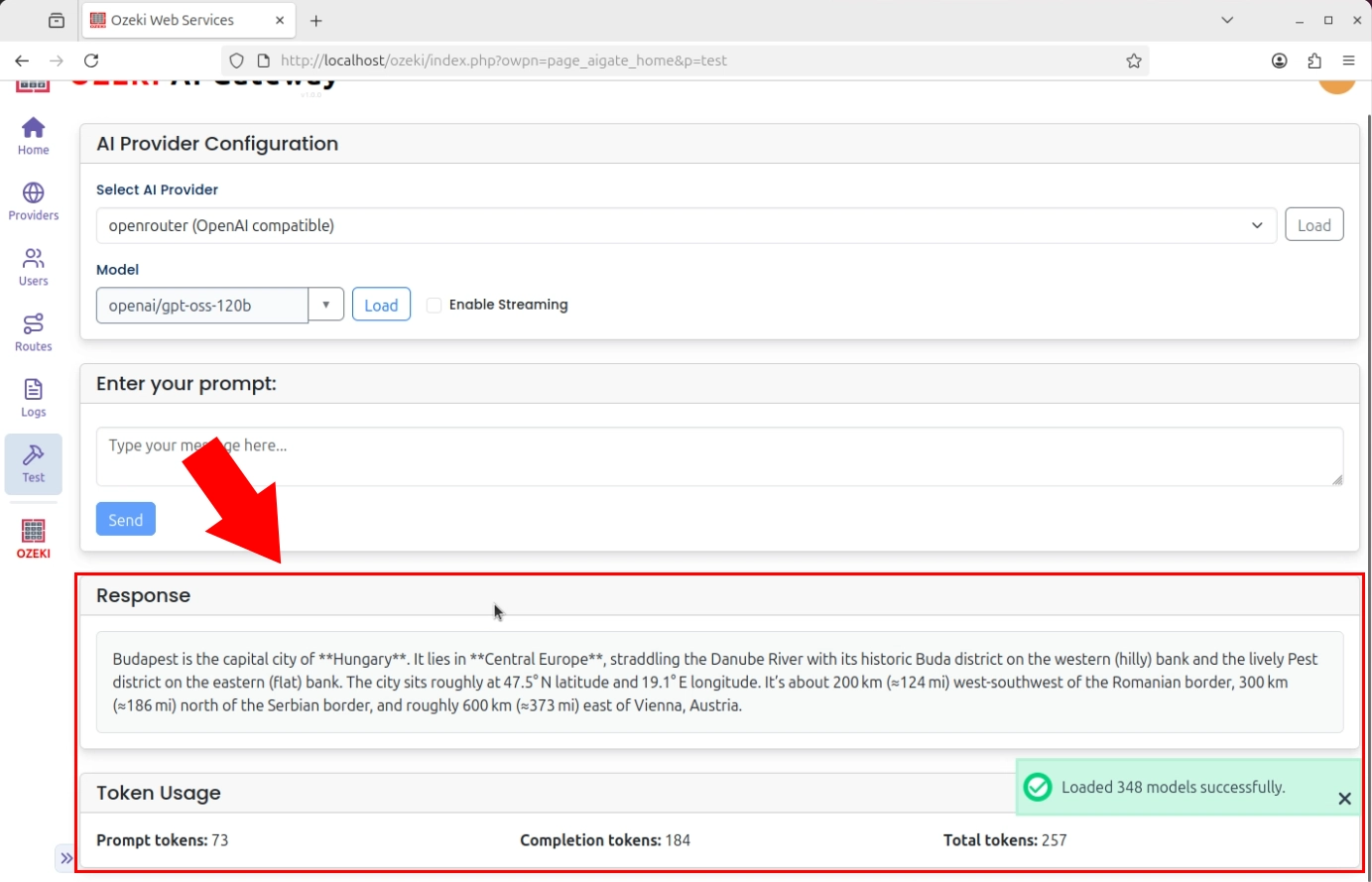
The test interface displays the AI model's response, confirming that the communication chain is functioning correctly. The gateway successfully connected to the provider, transmitted your prompt, and received a valid response. If the response is incorrect or absent, adjust your provider configuration and retry. A successful response confirms your provider is ready for production use (Figure 16).
Step 6 - Create new user
The following video shows how to create a user and route in Ozeki AI Gateway step-by-step. The video covers creating a user account, generating an API key, and establishing a route that connects the user to an AI provider.
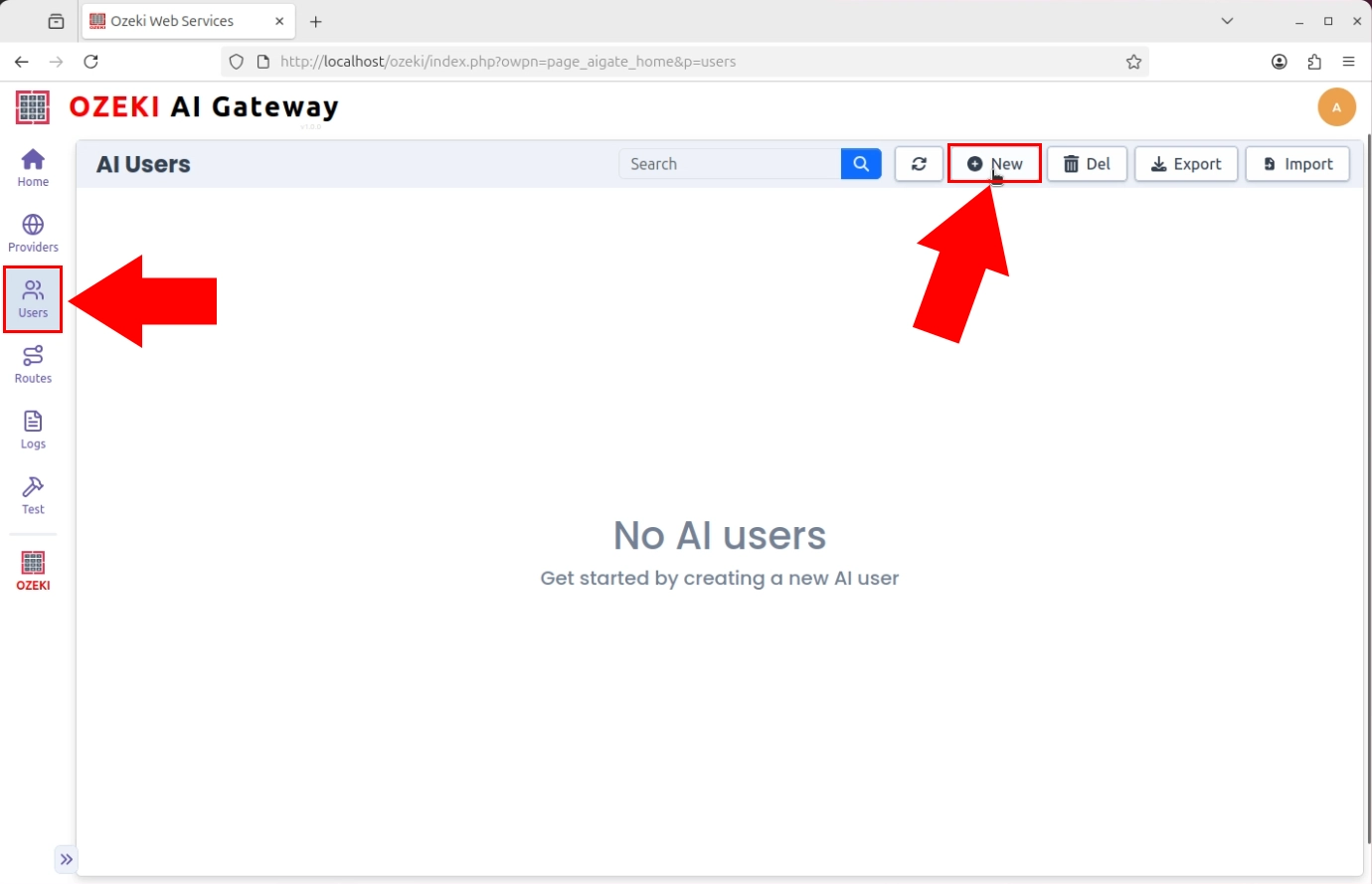
With at least one provider configured, navigate to the Users section to create user accounts. Creating distinct user accounts allows you to control who can access your gateway and manage API request quotas on a per-user basis. Click the "New" button to open the user creation form (Figure 17). Users represent the clients or applications that will authenticate with your gateway to send AI requests.
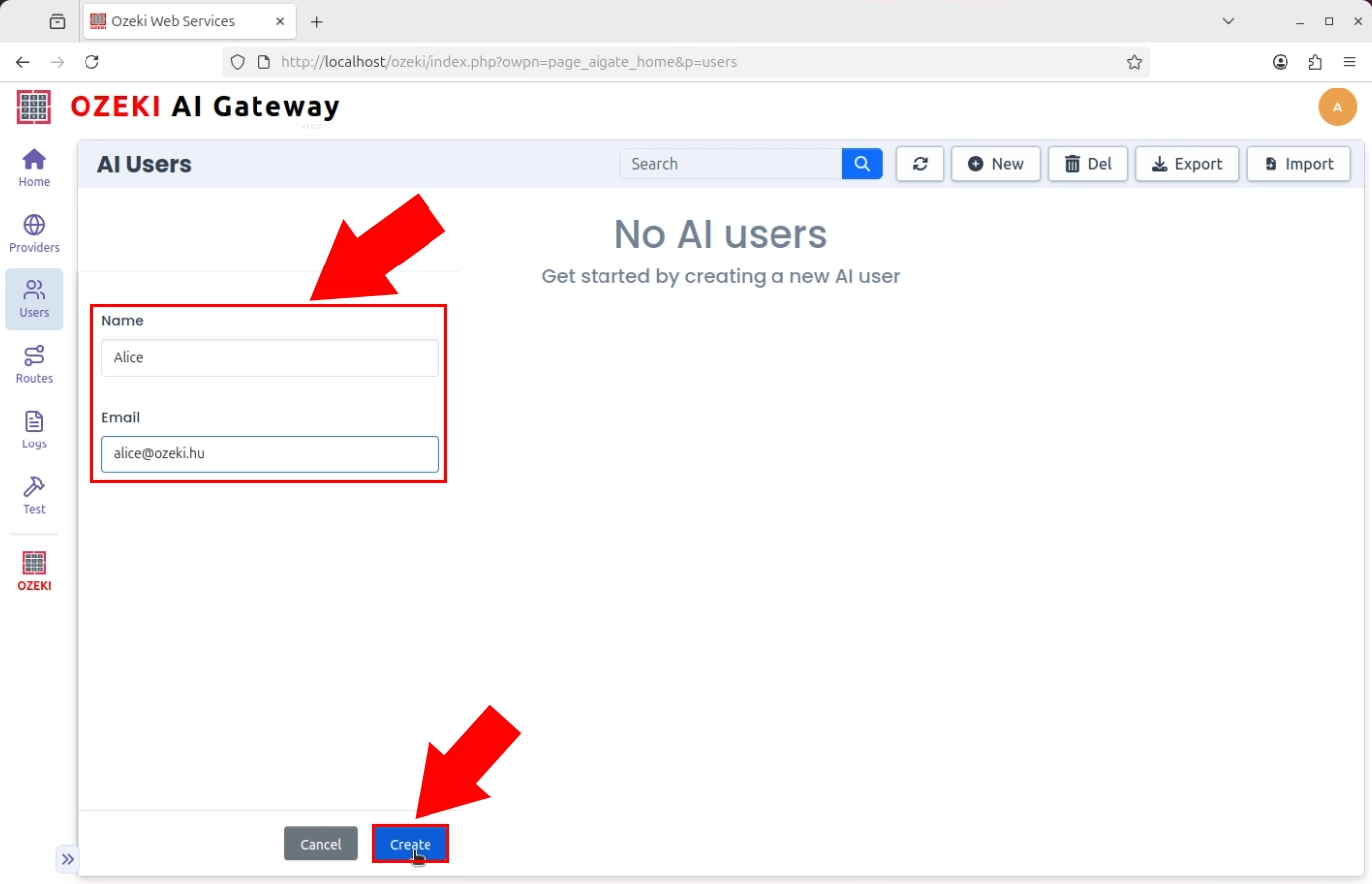
Enter identifying information such as the name and email address. These details establish the user's identity within the gateway system (Figure 18).
Step 7 - Generate API key for user
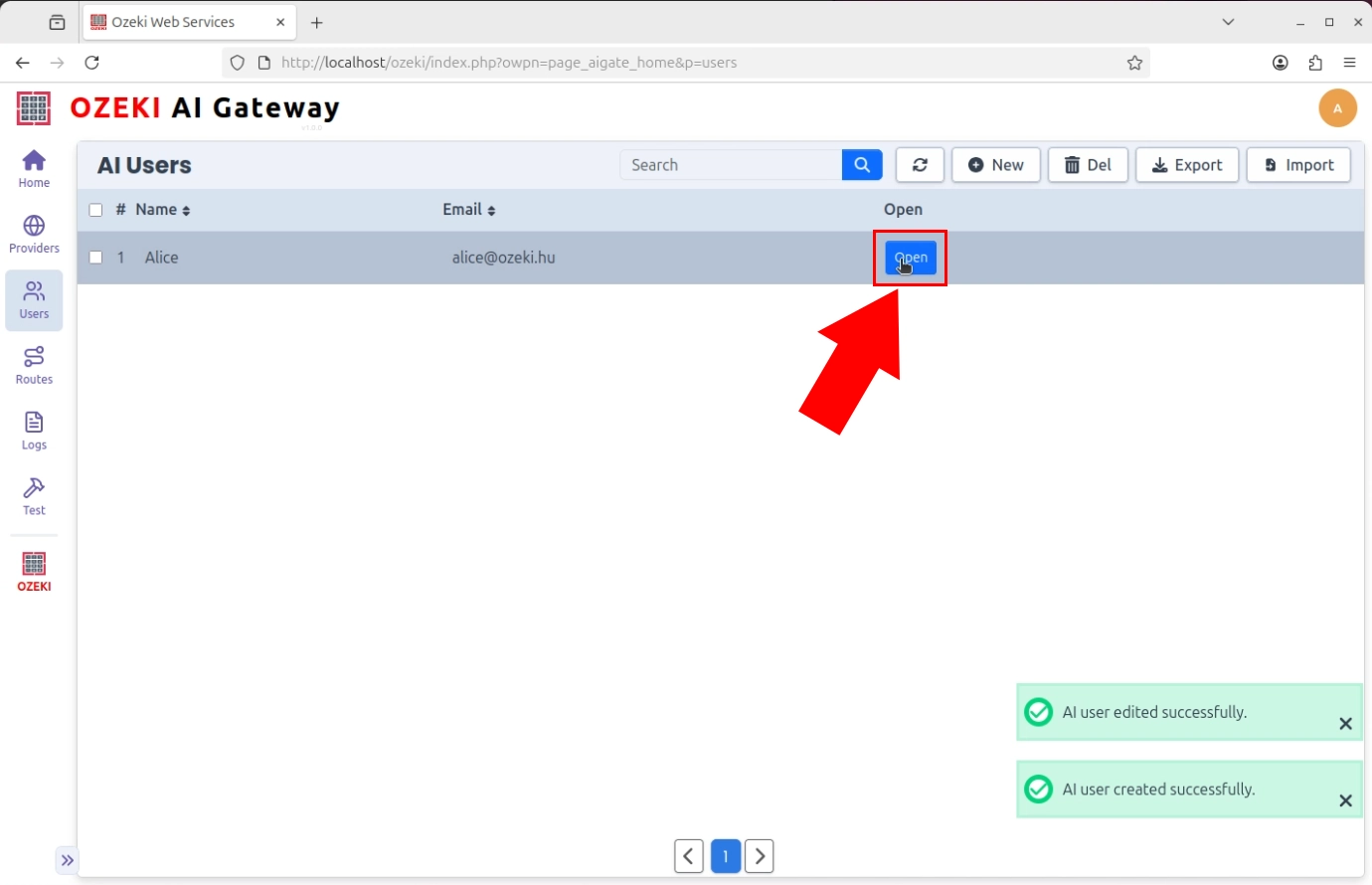
After creating a user account, click the "Open" button next to that user to navigate to their API key management page. This page allows you to create and manage the user's authentication credentials. From here, you can generate new API keys, view existing keys, and control the user's access tokens for authenticating with the gateway (Figure 19).
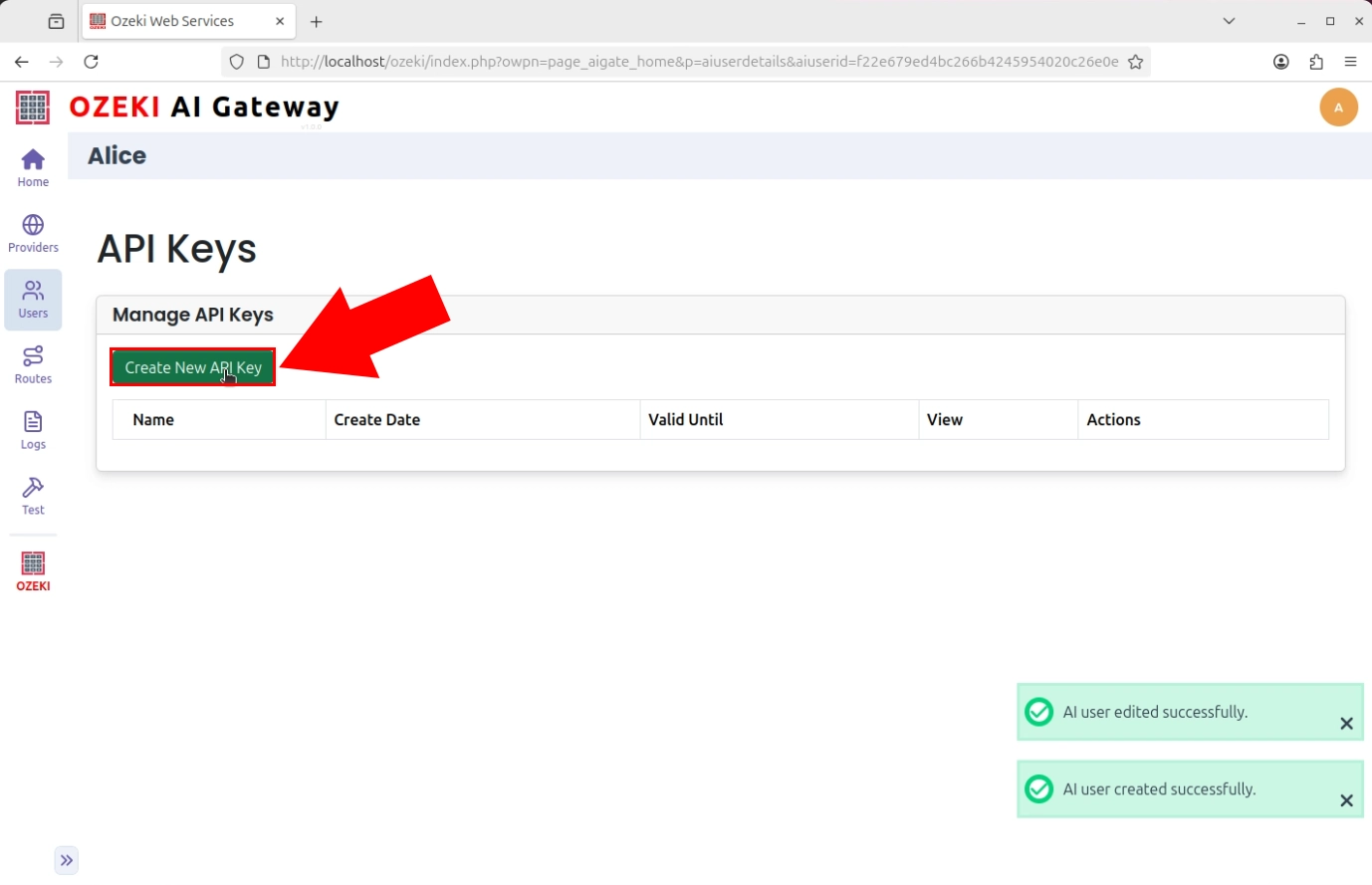
Each user requires at least one API key to authenticate with the gateway when making API requests. The user details page includes functionality to generate new API keys, which serve as secure authentication tokens. Multiple API keys can be created for a single user, allowing for key rotation or segregation of different applications (Figure 20).
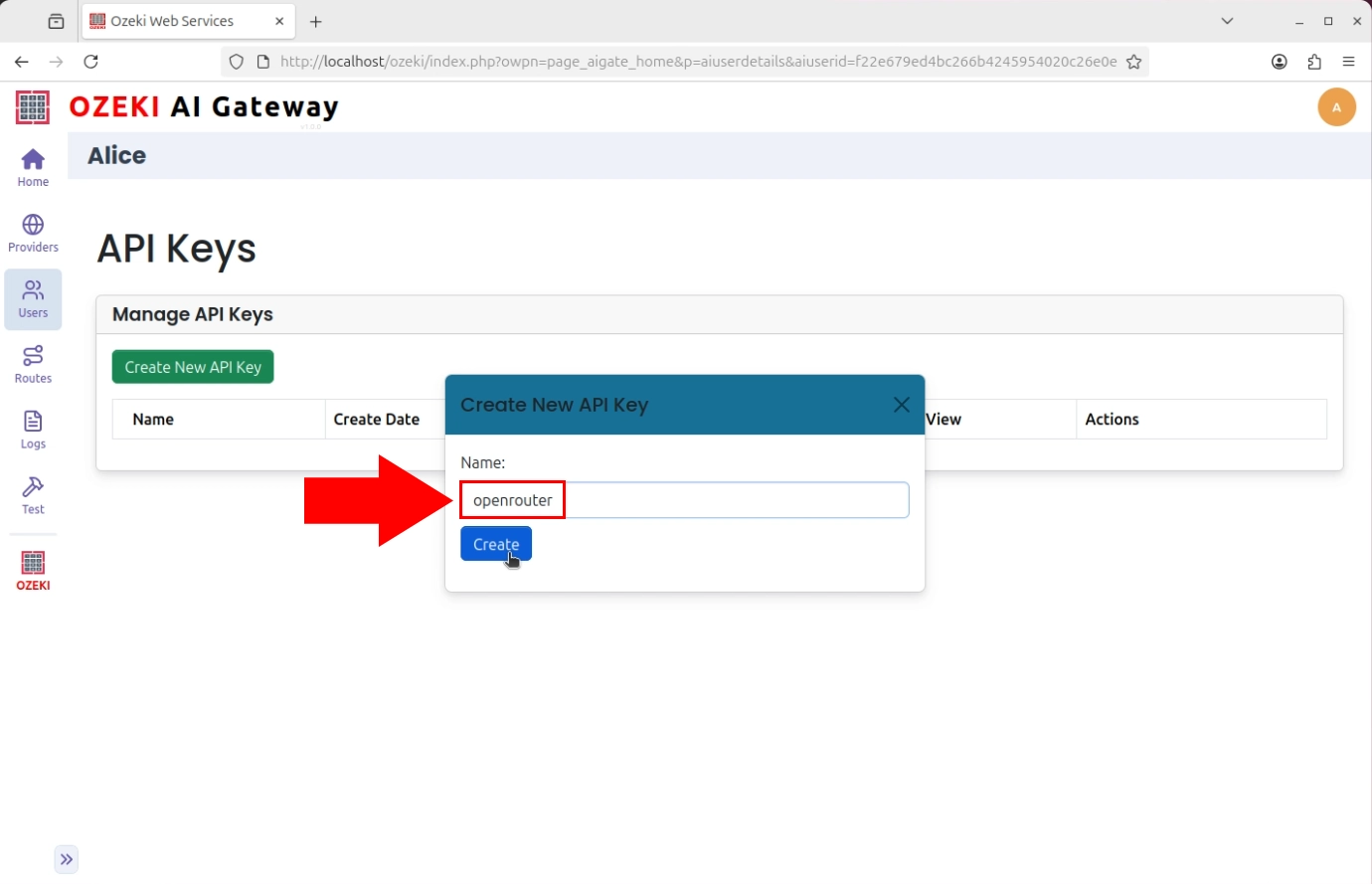
Assign a descriptive name to the key that identifies its purpose or associated application (Figure 21). A clear naming scheme helps identify which keys are in use and which can be retired when applications are decommissioned. The named API key is then generated by the gateway and made available for use in authentication requests.
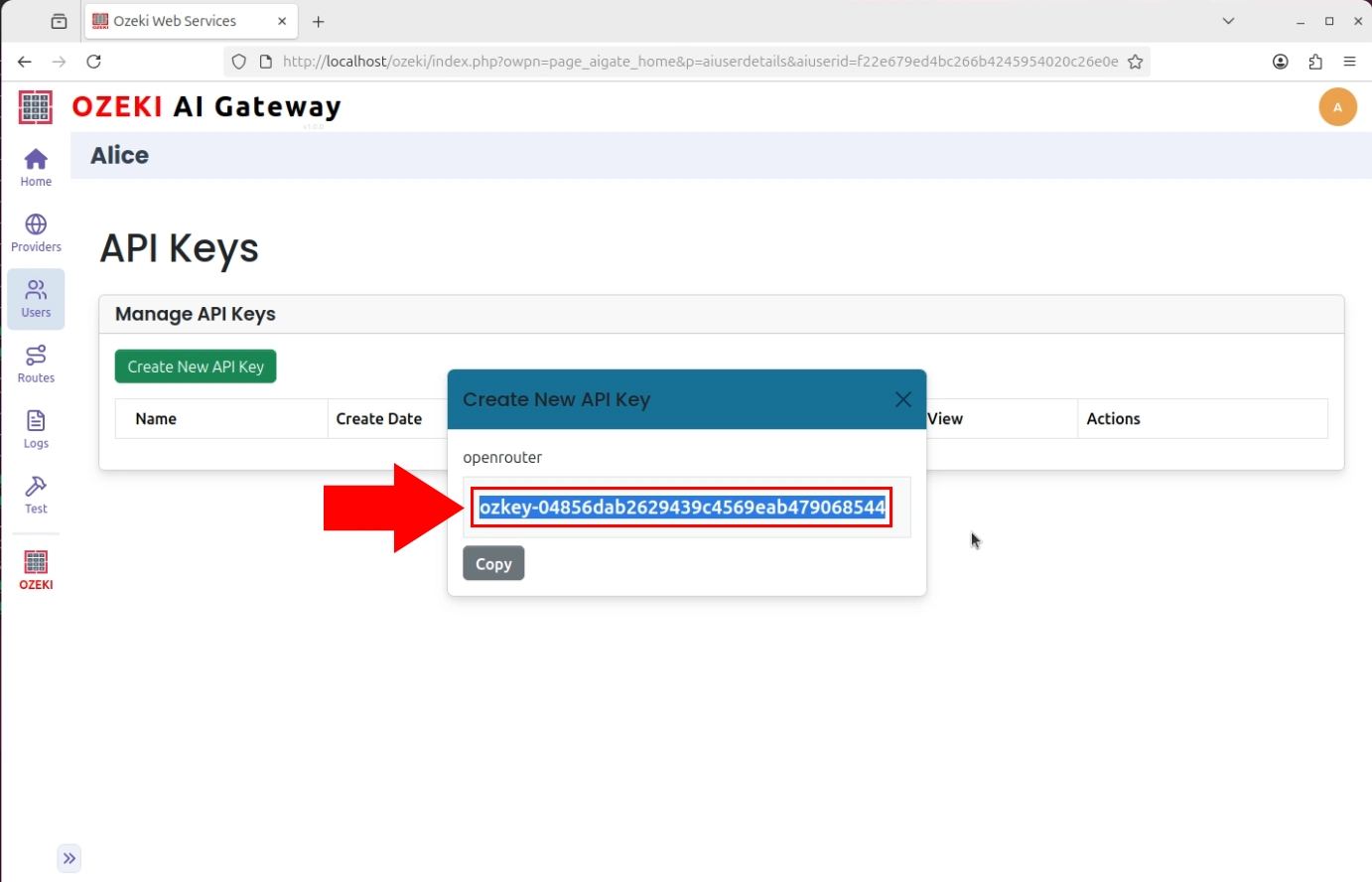
After the API key is generated, the gateway displays the complete key value. Click the copy button to copy the key to your clipboard (Figure 22). The secure handling and protection of API keys is critical to prevent unauthorized access to your gateway.
Step 8 - Create route
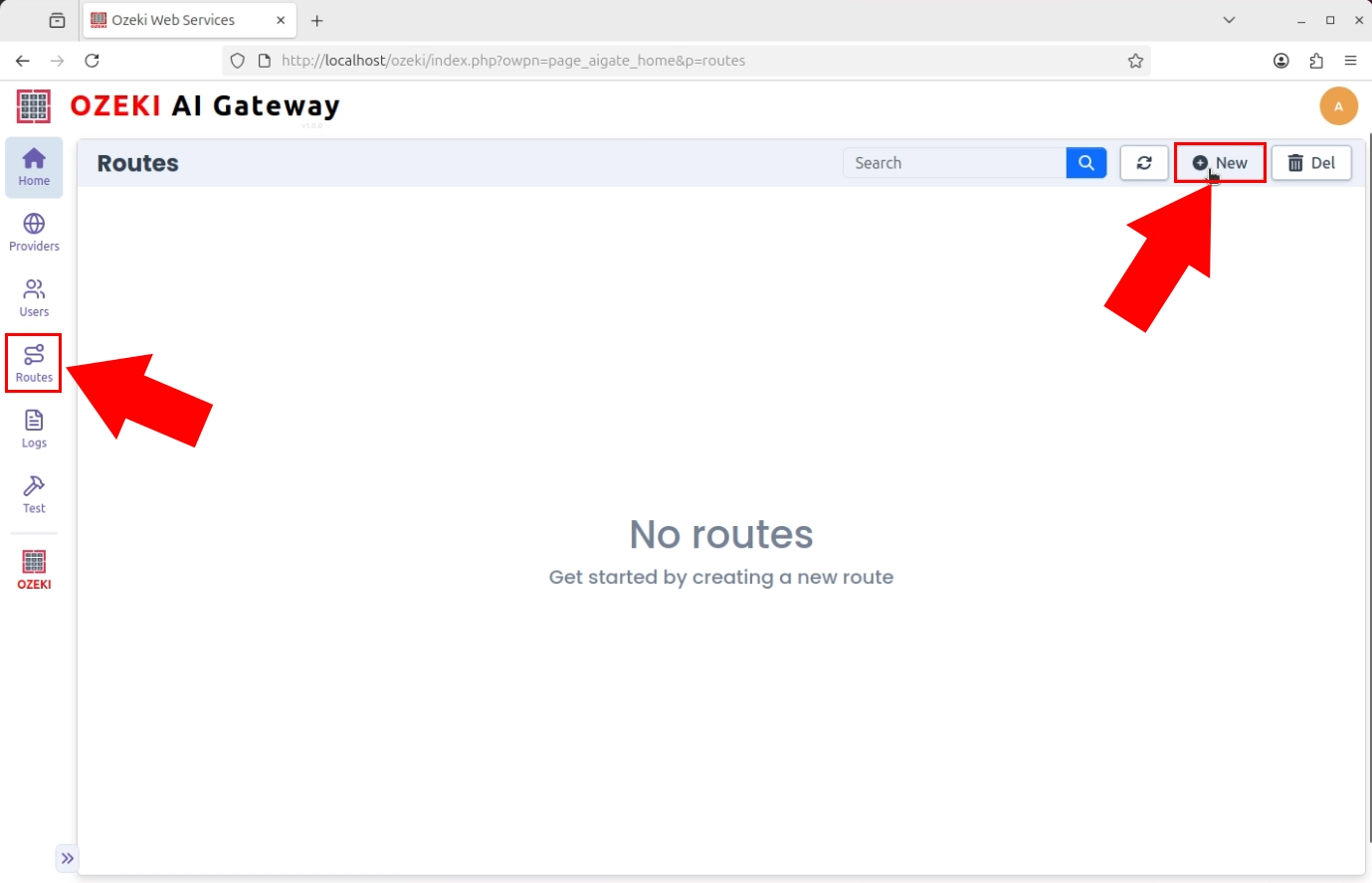
Navigate to the Routes page to create routing rules. Routes define the mapping between users, providers, and API models. Click the "New" button to open the route creation form (Figure 23).
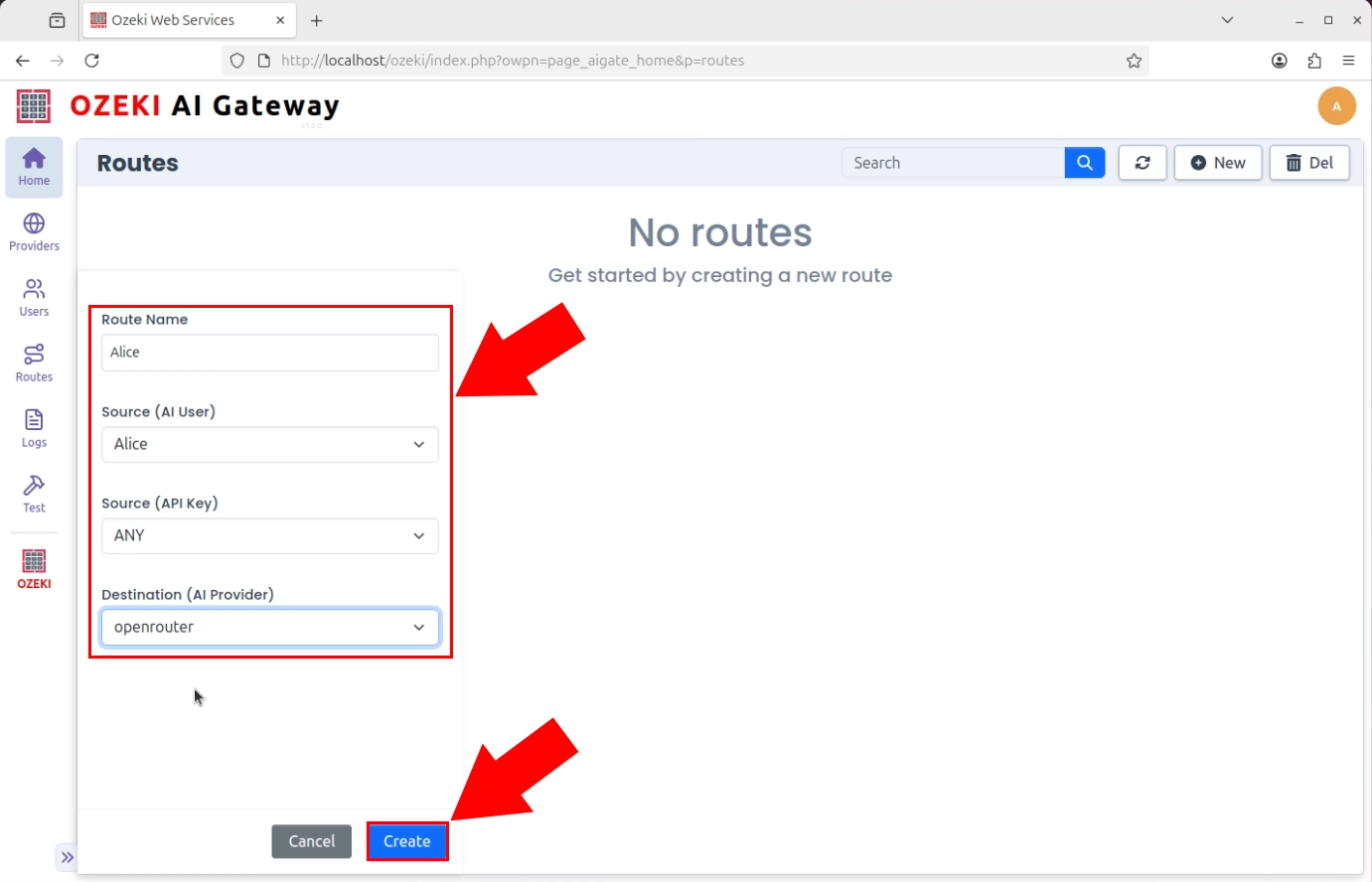
Specify the route configuration by selecting the user, provider, and model information from dropdown menus. The route includes the user account, the AI provider through which requests will be routed, and the specific models that this user can access. Click "Create" to register this access path in the gateway's routing table (Figure 24).
Step 9 - Send API request
The following video shows how to send an API request to Ozeki AI Gateway step-by-step. The video demonstrates using curl to send a request with authentication and checking the response.
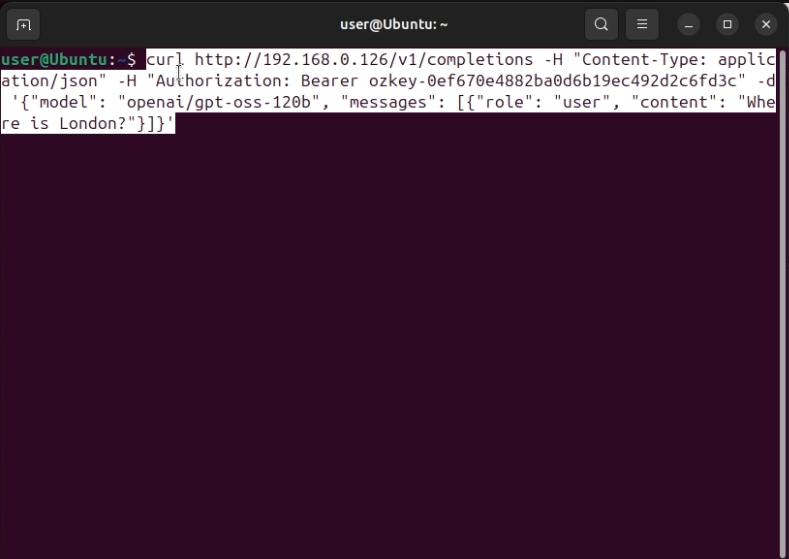
Once users, API keys, and routes are configured, applications can send API requests to the gateway. Use the curl command to send an HTTP POST request to the gateway's /v1/completions endpoint. Include the API key in the Authorization header, specify the AI model, and provide the user prompt (Figure 25).
Example API request:
curl http://localhost/v1/completions \
	-H "Content-Type: application/json" \
	-H "Authorization: Bearer ozkey-0ef670e4882ba0d6b19ec492d2c6fd3c" \
	-d '{
		   "model":"openai/gpt-oss-120b",
		   "messages":[
		      {
		         "role":"user",
		         "content":"Where is London?"
		      }
		   ]
		}'
Step 10 - Verify API response
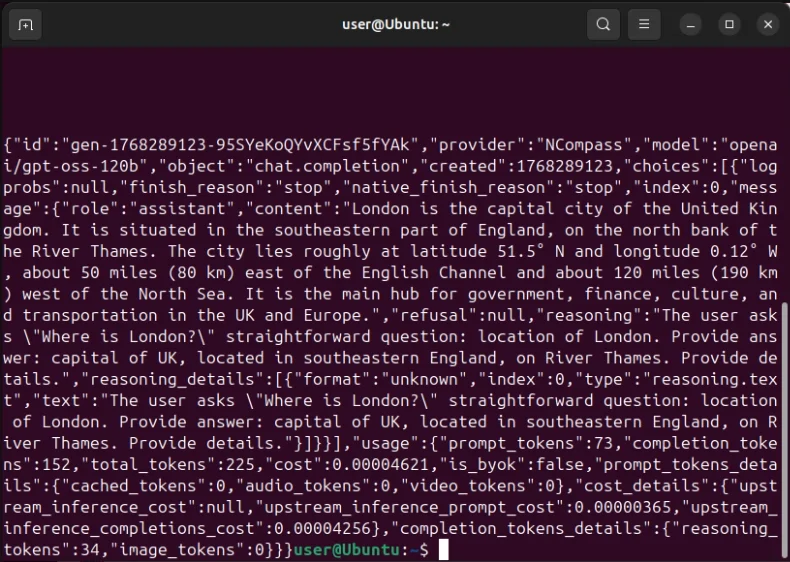
When the gateway receives a properly formatted API request with valid authentication, it forwards the request to the specified AI provider and returns the provider's response. A successful response indicates that your Ozeki AI Gateway is fully operational and ready for production use (Figure 26).
To sum it up
The Ozeki AI Gateway Quick Start Guide for Linux is a complete end-to-end tutorial that guides users through the entire process of deploying, configuring, and operationalizing an AI gateway on Linux systems. The guide is organized into three major phases: the installation and configuration phase, which covers GPG key setup, repository configuration, package installation, and Apache web server routing; the provider setup phase, where users connect to AI services, test provider connectivity, and verify API communication; and the user management phase, which covers creating user accounts, generating API keys, and establishing routes that control which users can access which AI models through which providers. By completing all 10 steps with 26 illustrated figures in this guide, Linux administrators and developers will have a fully functional Ozeki AI Gateway that bridges their applications and services to multiple AI providers.