
How to create a vLLM API key to use in Ozeki AI Gateway
This guide demonstrates how to set up a local vLLM server with API key authentication and configure it in Ozeki AI Gateway. You'll learn how to run vLLM on your system, configure API key authentication, and set up vLLM as a provider in your gateway. By following these steps, you can connect your Ozeki AI Gateway to self-hosted AI models running on your own infrastructure. While this guide uses Docker for demonstration purposes, you can also install vLLM directly on Linux or other supported platforms.
API URL: http://localhost:8000/v1/
Example API Key: ozkey123
Example model: Qwen/Qwen2.5-1.5B-Instruct

Docker command (example):
docker run -d `
  --name vllm-qwen `
  --gpus all `
  -p 8000:8000 `
  --ipc=host `
  -e VLLM_API_KEY=ozkey123 `
  vllm/vllm-openai:latest `
  --model Qwen/Qwen2.5-1.5B-Instruct `
  --dtype float16 `
  --max-model-len 1024

Monitor logs:
docker logs -f vllm-qwen
What is vLLM?
vLLM is a high-performance inference engine for large language models that you can run on your own hardware. Unlike cloud-based services, vLLM runs locally on your computer or server, giving you complete control over your AI infrastructure. vLLM provides an OpenAI-compatible API interface, making it easy to integrate with applications that already support the OpenAI API format. When configured with Ozeki AI Gateway, it allows you to serve AI models from your own hardware while maintaining centralized access control and monitoring.
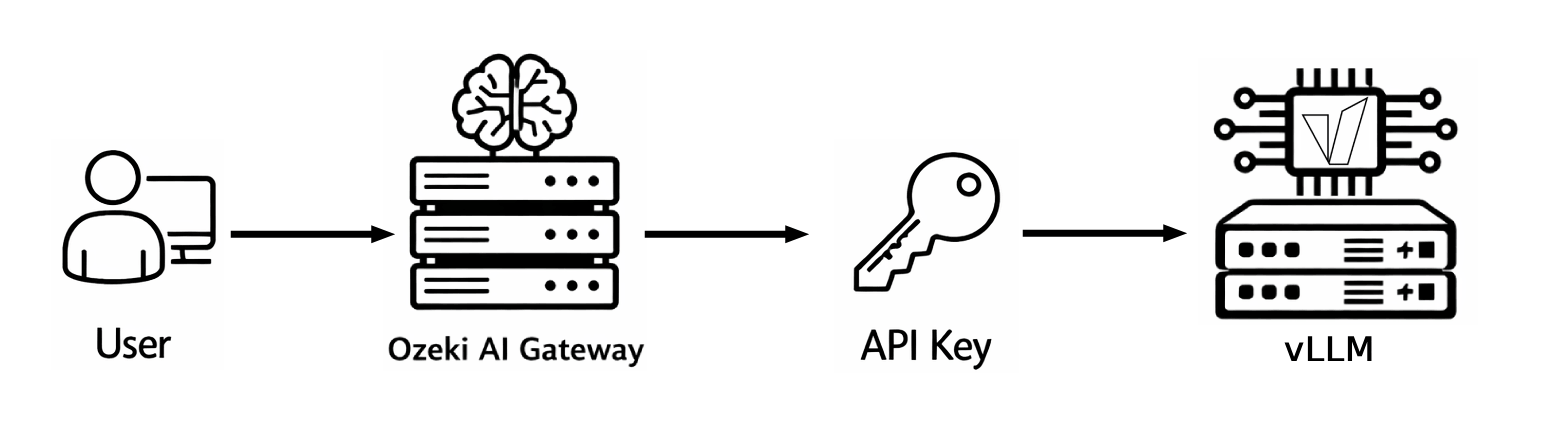
Steps to follow
We assume Ozeki AI Gateway is already installed on your system. You can install it on Linux, Windows or Mac.
- Run vLLM with API key parameter
- Open Providers page in Ozeki AI Gateway
- Create provider
- Test the vLLM provider
How to Create vLLM API key video
The following video shows how to set up a local vLLM server with API key authentication and configure it in Ozeki AI Gateway step-by-step.
Step 1 - Run vLLM with API key parameter
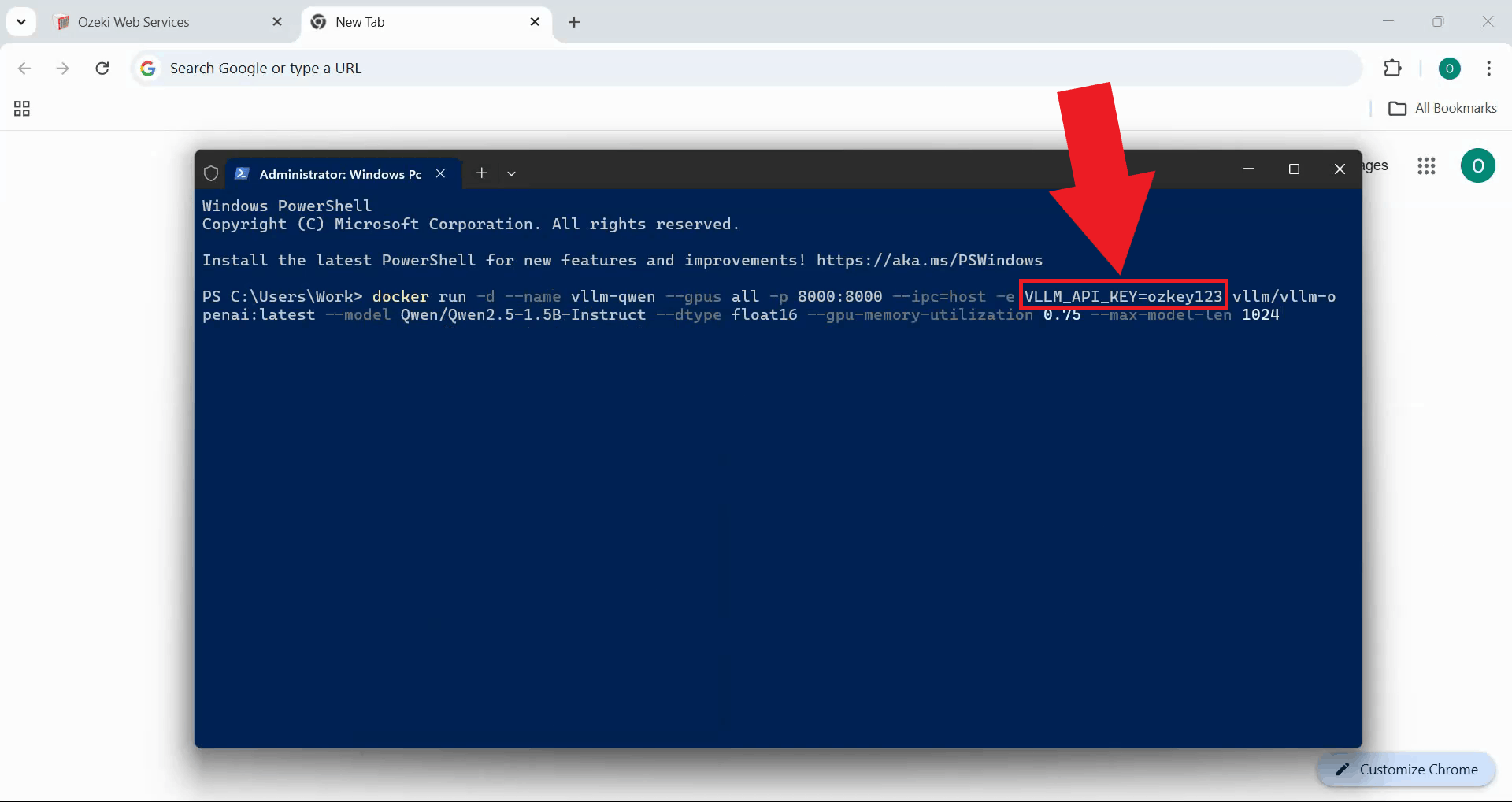
Start the vLLM server with API key authentication enabled. This example shows how to launch vLLM using Docker,
but the same configuration can be applied when running vLLM directly on Linux or other platforms (Figure 1).
The VLLM_API_KEY environment variable or command-line parameter sets the API key that will be
required to access the vLLM server.
docker run -d `
  --name vllm-qwen `
  --gpus all `
  -p 8000:8000 `
  --ipc=host `
  -e VLLM_API_KEY=ozkey123 `
  vllm/vllm-openai:latest `
  --model Qwen/Qwen2.5-1.5B-Instruct `
  --dtype float16 `
  --max-model-len 1024
You can change the API key value to any secure string you prefer. Make sure to use the same API key when configuring the provider in Ozeki AI Gateway.
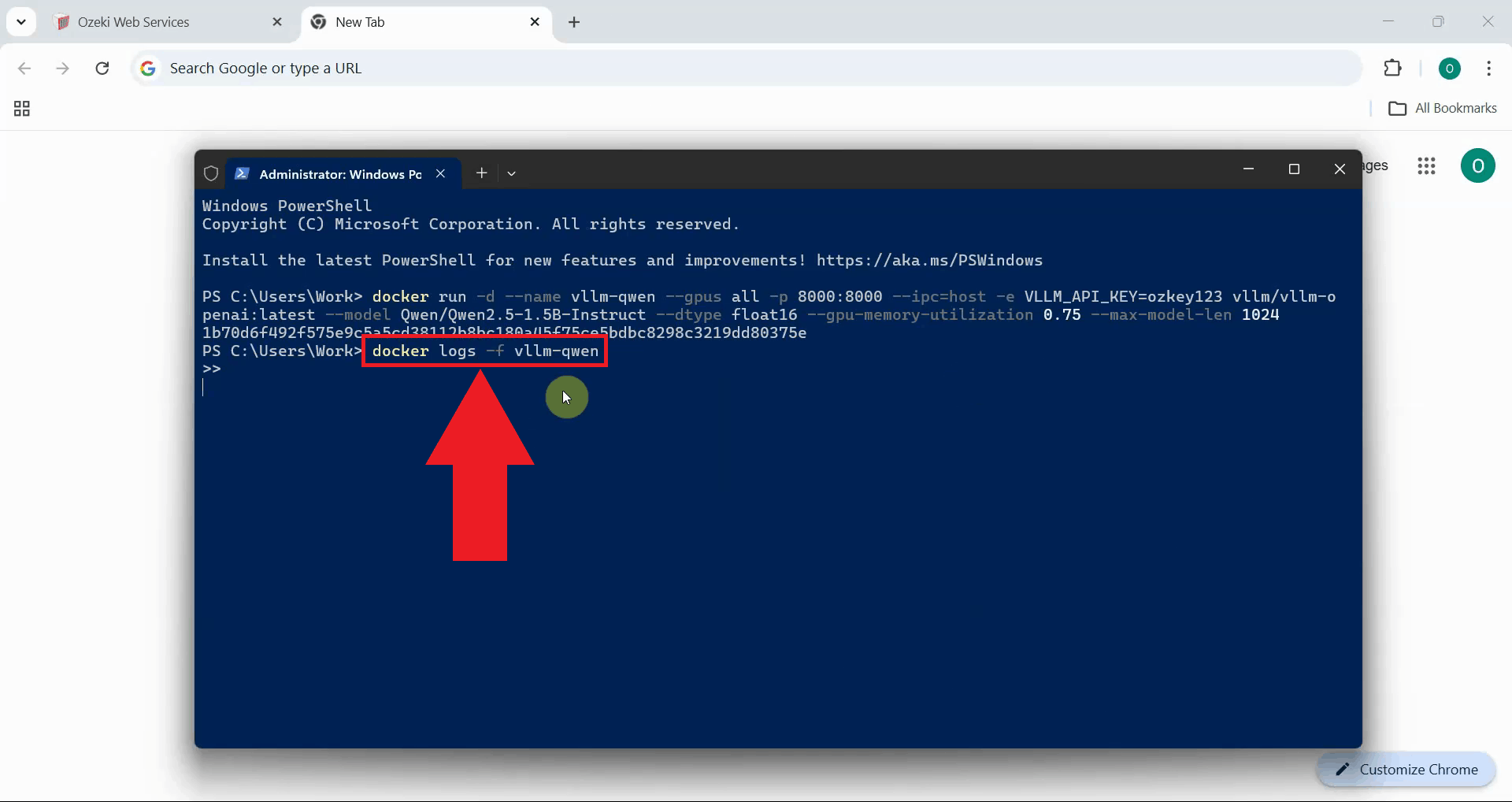
To monitor the vLLM server startup process, check the server logs. If using Docker, run the logs command shown below. For native Linux installations, check the terminal output or your configured log files (Figure 2). This displays real-time output from the vLLM server, allowing you to track the model loading progress and verify that the server starts correctly.
docker logs -f vllm-qwen
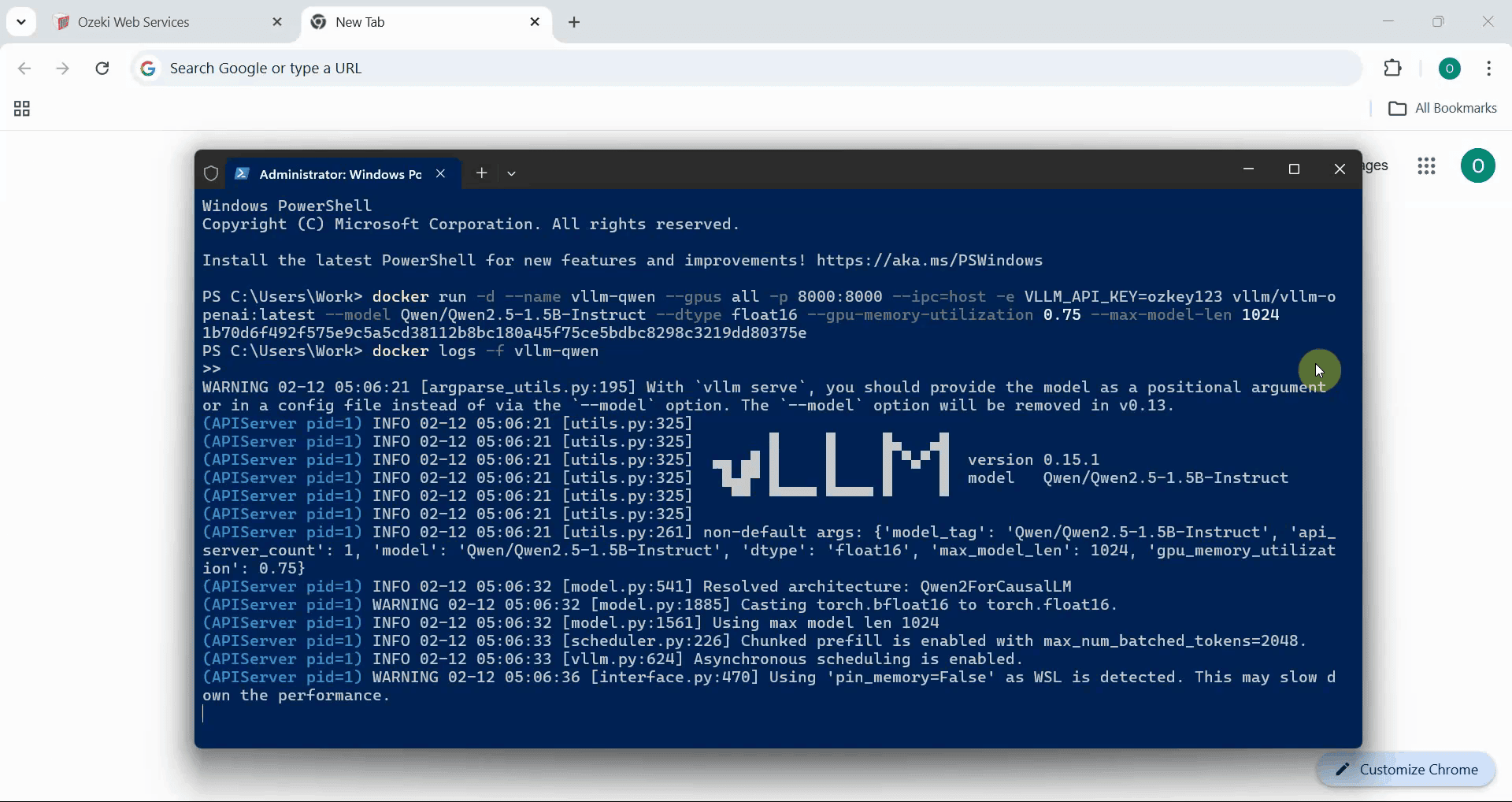
The vLLM server needs time to initialize and load the AI model into memory. During this process, you'll see various log messages indicating the model loading progress, GPU initialization, and server configuration (Figure 3).
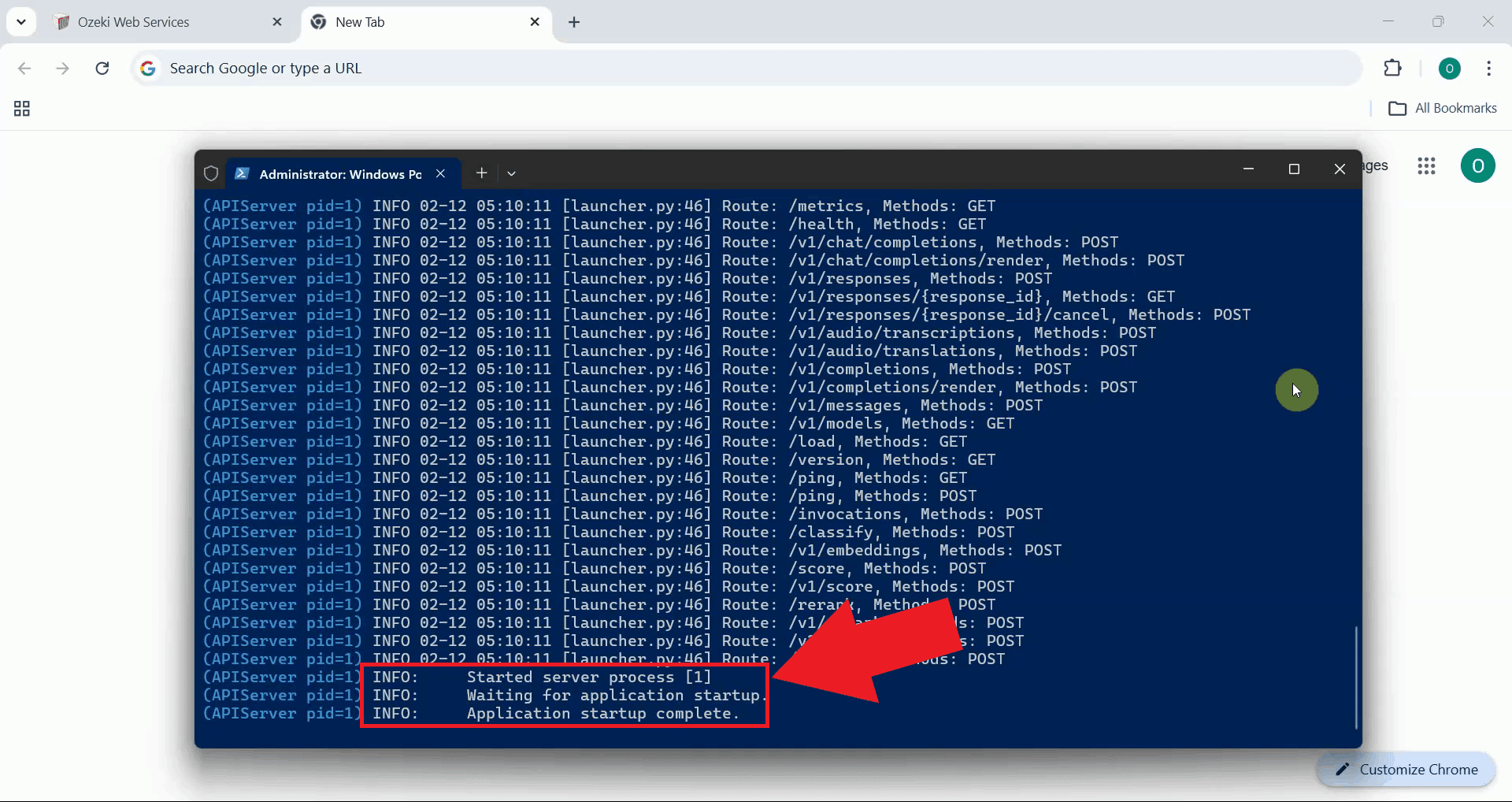
Wait until you see the message indicating that vLLM is ready to accept requests. The logs will show a message like "Application startup complete" or similar, confirming that the server is fully initialized and ready for use (Figure 4).
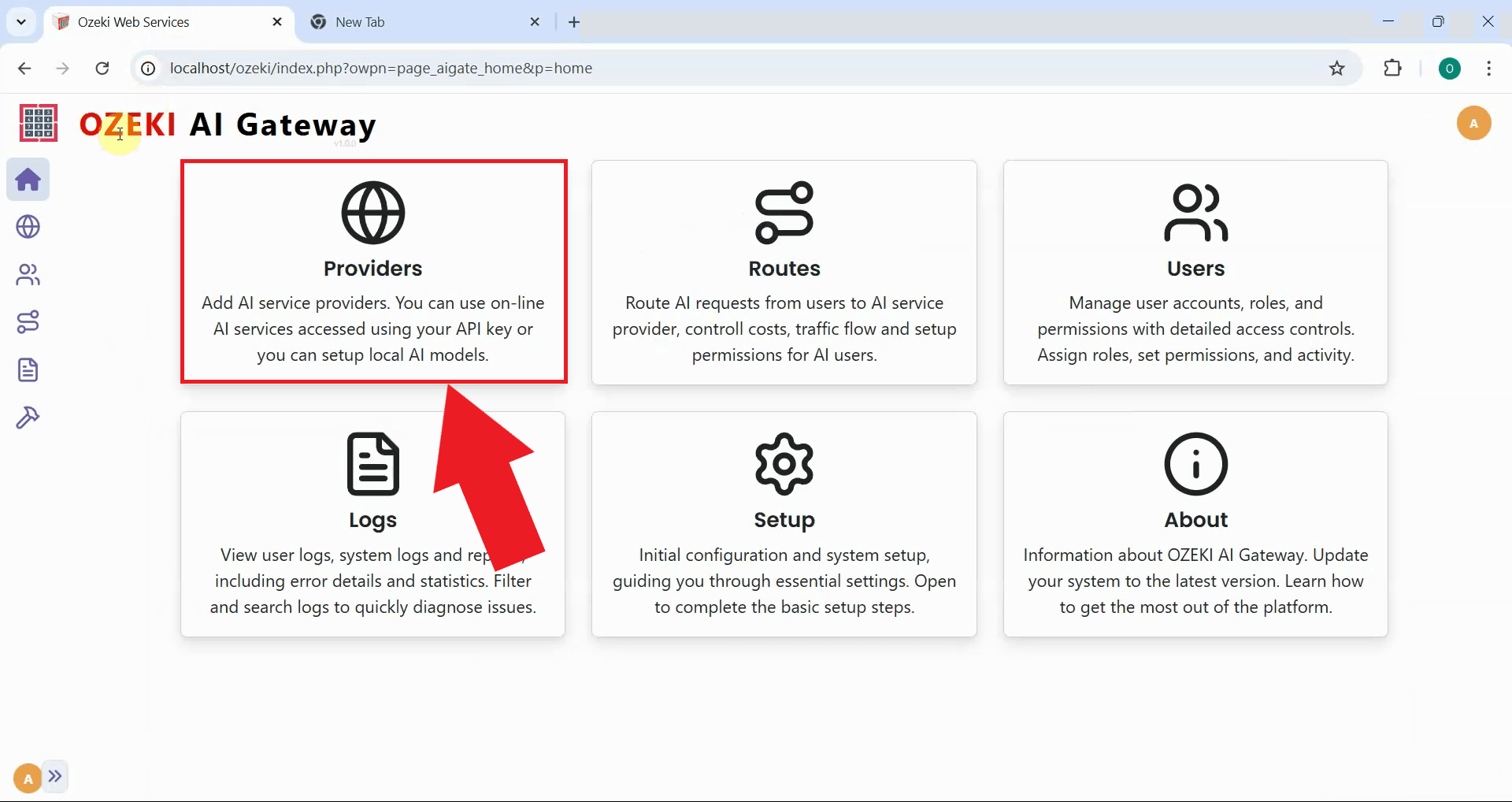
Step 2 - Open Providers page in Ozeki AI Gateway
Open the Ozeki AI Gateway web interface and navigate to the Providers page. This is where you'll configure vLLM as a new provider using the API key you specified when launching the vLLM server (Figure 5).
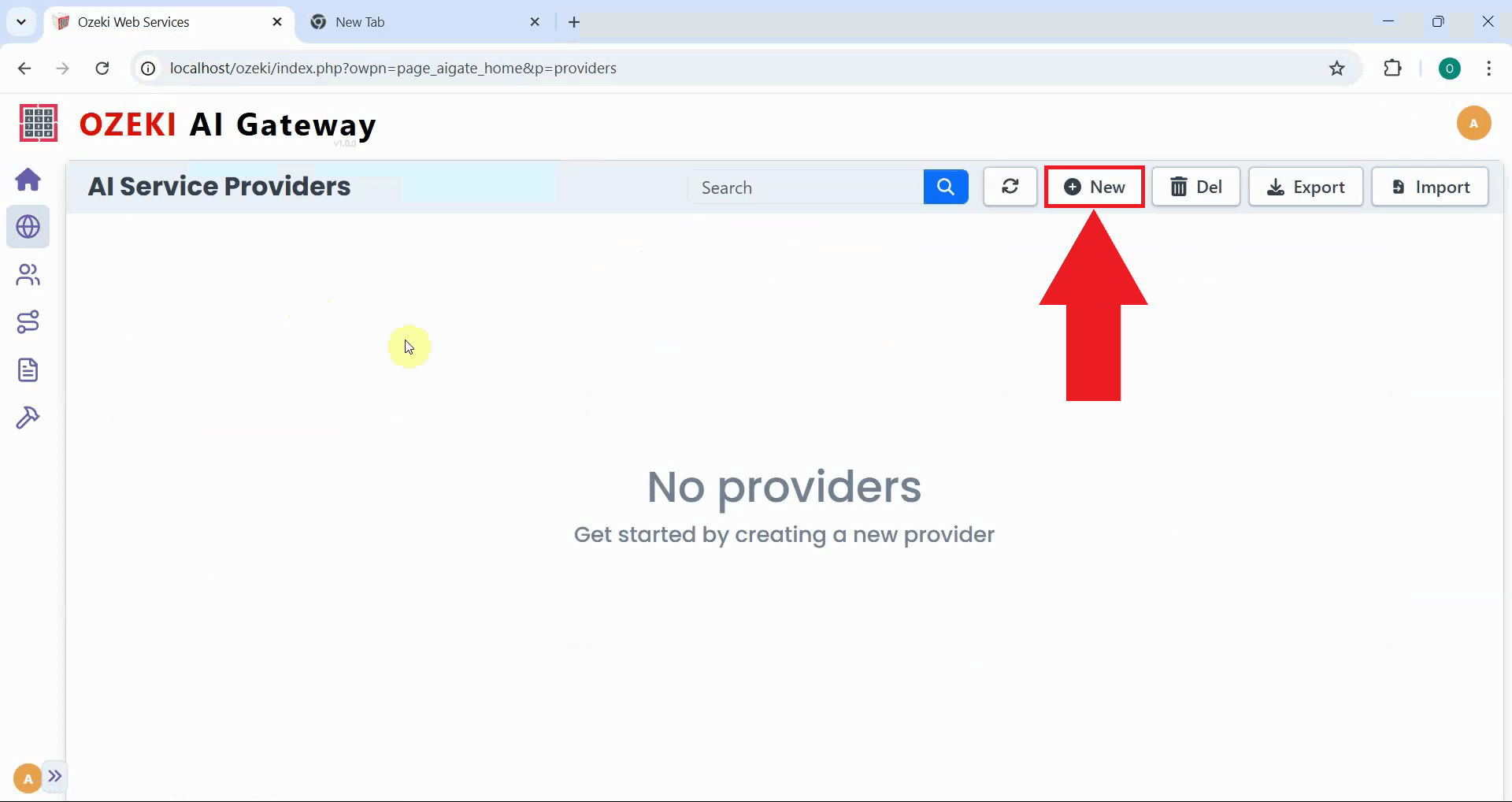
Step 3 - Create provider
Click the "New" button to begin the provider creation process. This opens a form where you'll enter the connection details for your local vLLM server (Figure 6).
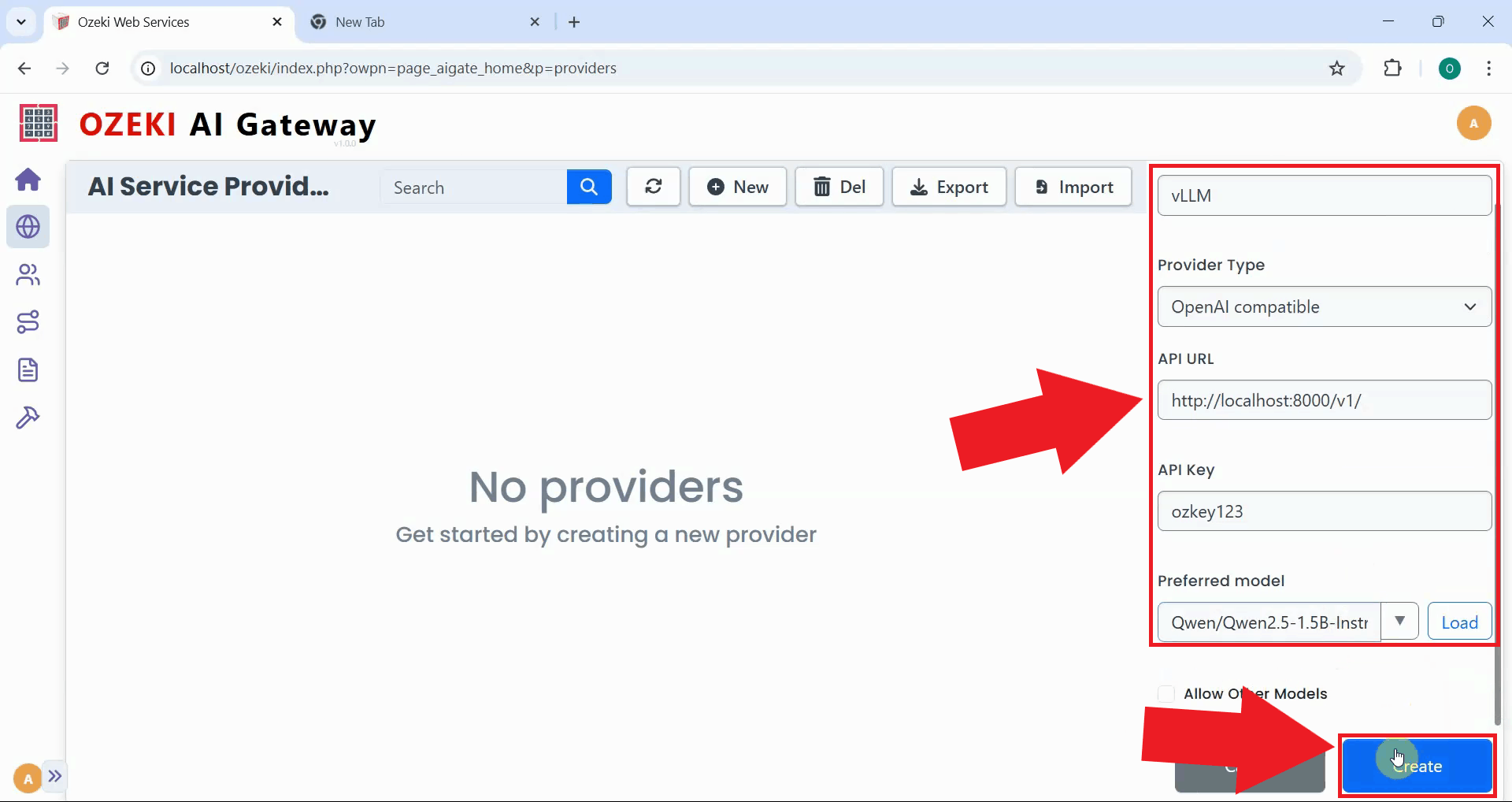
Fill in the provider configuration form with your vLLM server's details. Enter a descriptive provider name, select "OpenAI compatible" as the provider type, specify the API endpoint URL you set, and paste the API key you configured. Select the model you're running from the dropdown list, then click "Create" to save the configuration (Figure 7).
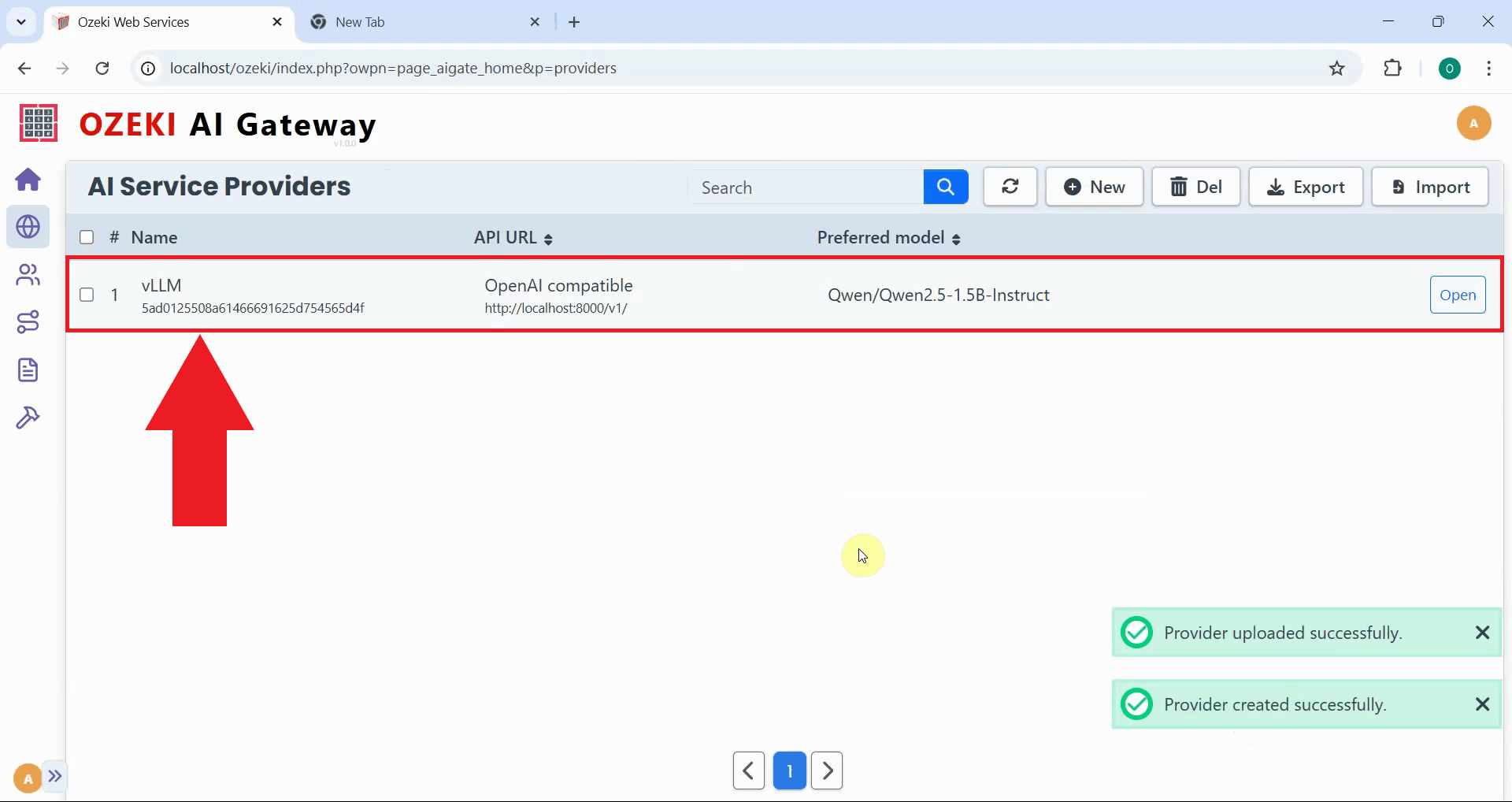
After creation, the vLLM provider is added to Ozeki AI Gateway. The provider now appears in the list, confirming that your gateway can route requests to your local vLLM server. You can now create routes that allow users to access your self-hosted AI models through the gateway (Figure 8).
Step 4 - Test the vLLM provider
The following video demonstrates how to test your vLLM provider by sending a test prompt and verifying the response.
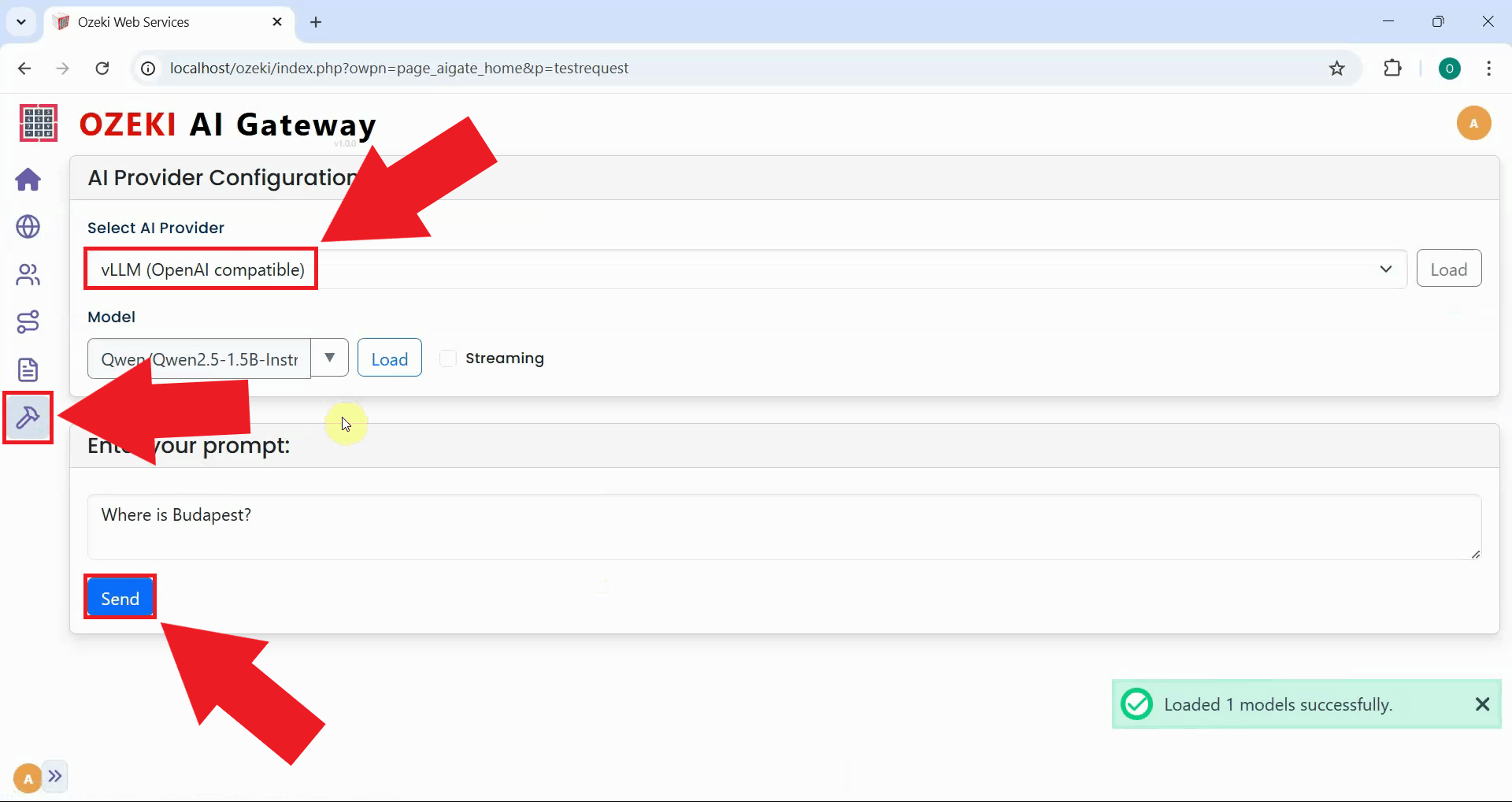
To verify that your vLLM provider is working correctly, send a test prompt through the Ozeki AI Gateway interface. Navigate to the request test page and select your vLLM provider, then enter a simple prompt to test the connection (Figure 9).
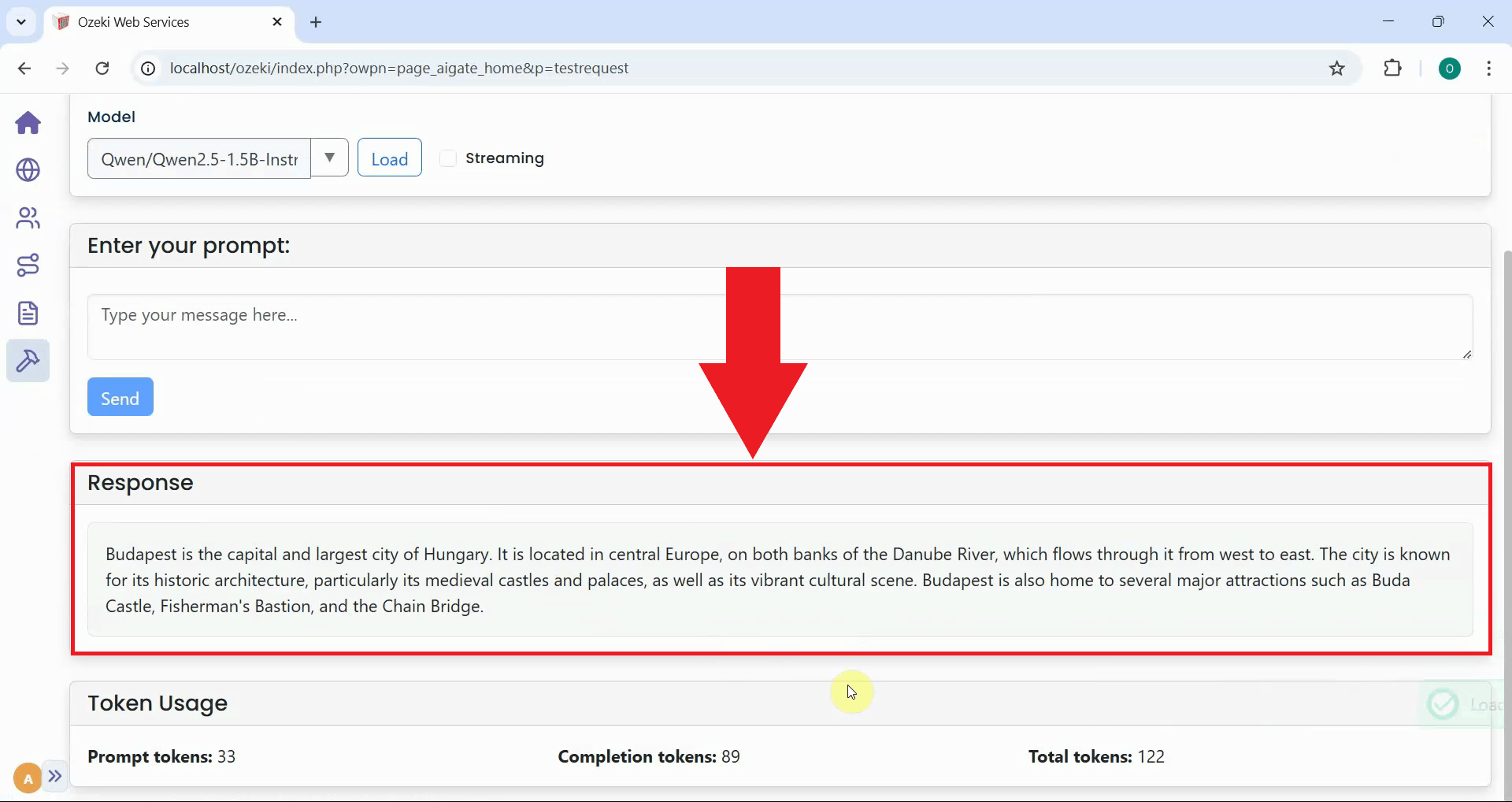
After sending the test prompt, verify that you receive a response from the vLLM server. A successful response confirms that your provider is configured correctly, the API key authentication is working, and the vLLM server is processing requests as expected (Figure 10).
Conclusion
You have successfully set up a local vLLM server with API key authentication and configured it as a provider in Ozeki AI Gateway. Your gateway can now communicate with your self-hosted AI models running on your own infrastructure. This setup gives you complete control over your AI infrastructure while maintaining centralized access management through Ozeki AI Gateway. You can now serve AI models from your own hardware, ensuring data privacy, reducing cloud costs, and maintaining full control over your AI deployment.