
How to install Ozeki AI Gateway on Windows
This guide demonstrates how to install Ozeki AI Gateway on Windows systems using WampServer. You'll learn how to install the required WampServer environment, set up the Ozeki AI Gateway application, and configure Apache to handle API requests. By following these step-by-step instructions, you will have a fully operational AI gateway running on your Windows machine.
What is Ozeki AI Gateway?
Ozeki AI Gateway is a software solution that enables seamless integration with multiple AI providers and models. It acts as a unified interface for connecting applications to various AI services, providing centralized API management, user authentication, and request routing. The gateway runs on Windows systems using WampServer and integrates with Apache web server to handle incoming API requests. Installation involves setting up WampServer with required dependencies, installing the Ozeki AI Gateway package, and configuring Apache rewrite rules to properly direct API calls to the gateway application.
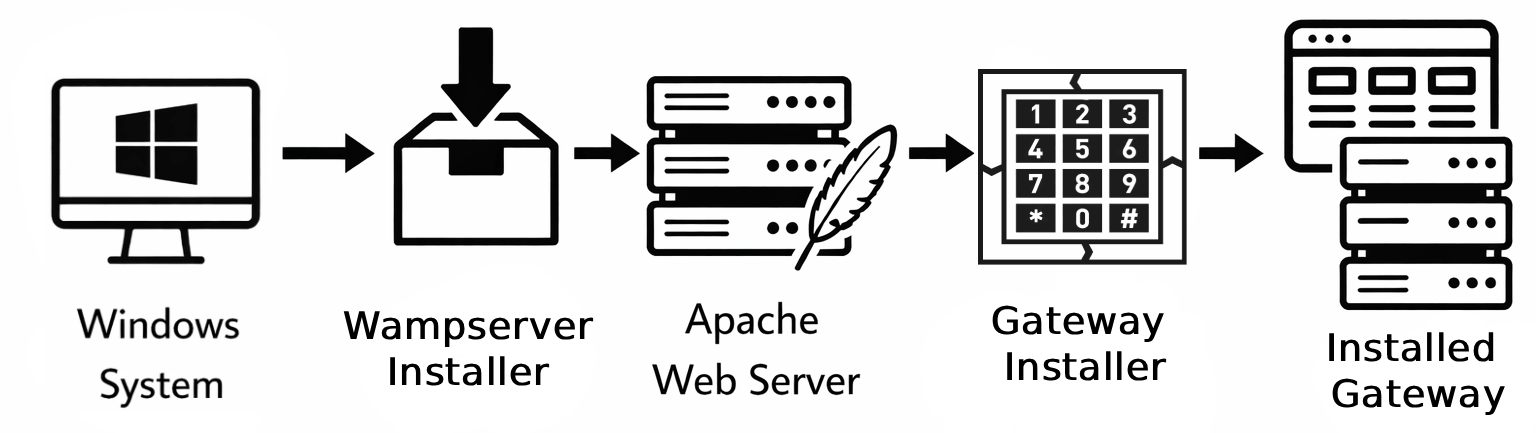
Steps to follow
- Download WampServer installer
- Install VC++ redistributables
- Install and start WampServer
- Install Ozeki AI Gateway
- Configure Apache rewrite rules
- Access gateway interface
- Create admin account and login
- Open AI Gateway service
- Access dashboard
How to Install WampServer video
The following video shows how to install WampServer on Windows step-by-step. The video covers downloading the installer, installing required VC++ redistributables, and starting the WAMP server.
Step 1 - Download WampServer installer
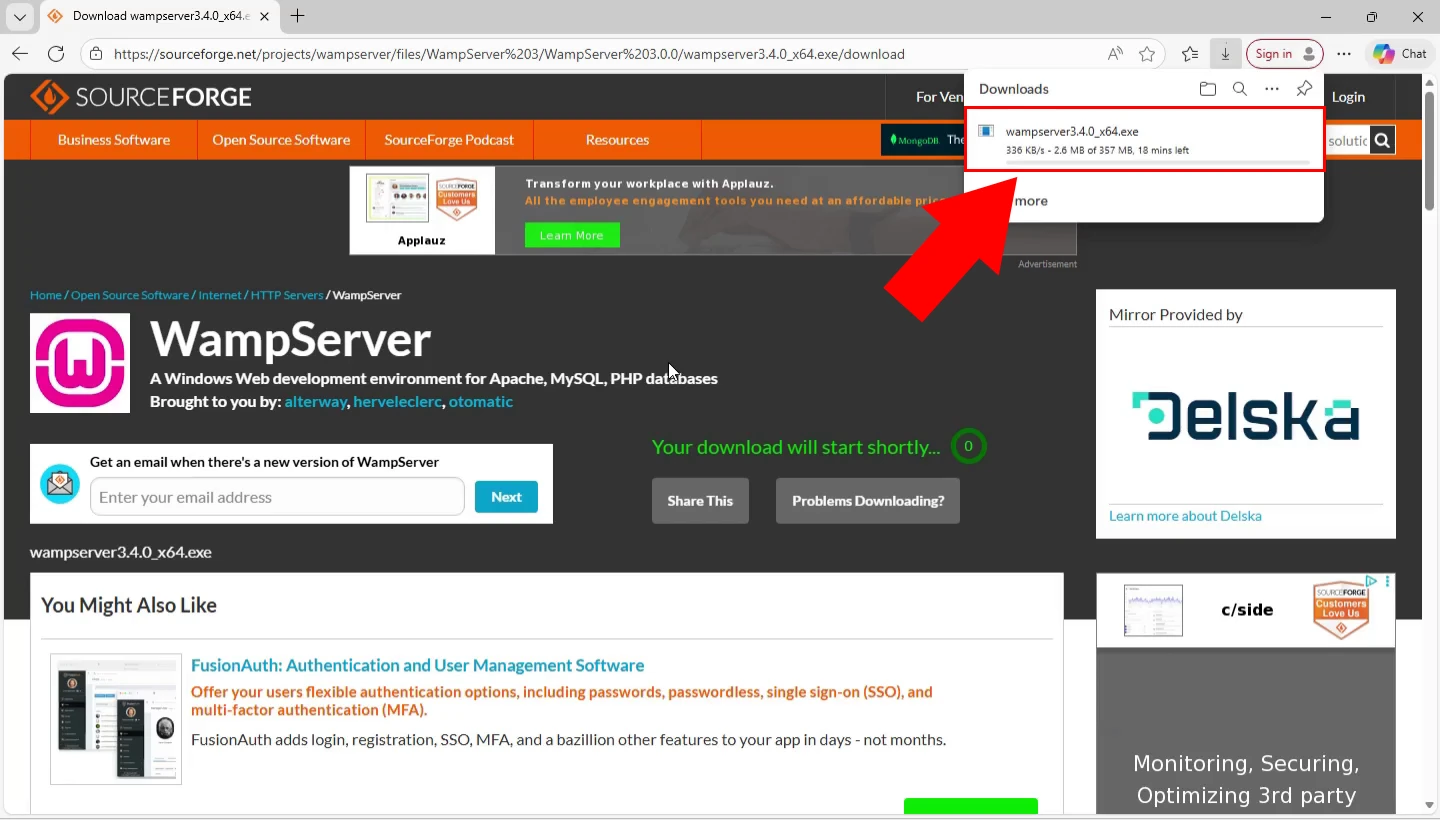
Open your web browser and navigate to the WampServer website. Download the appropriate WampServer installer for your system. The installer file will be downloaded to your default downloads folder (Figure 1).
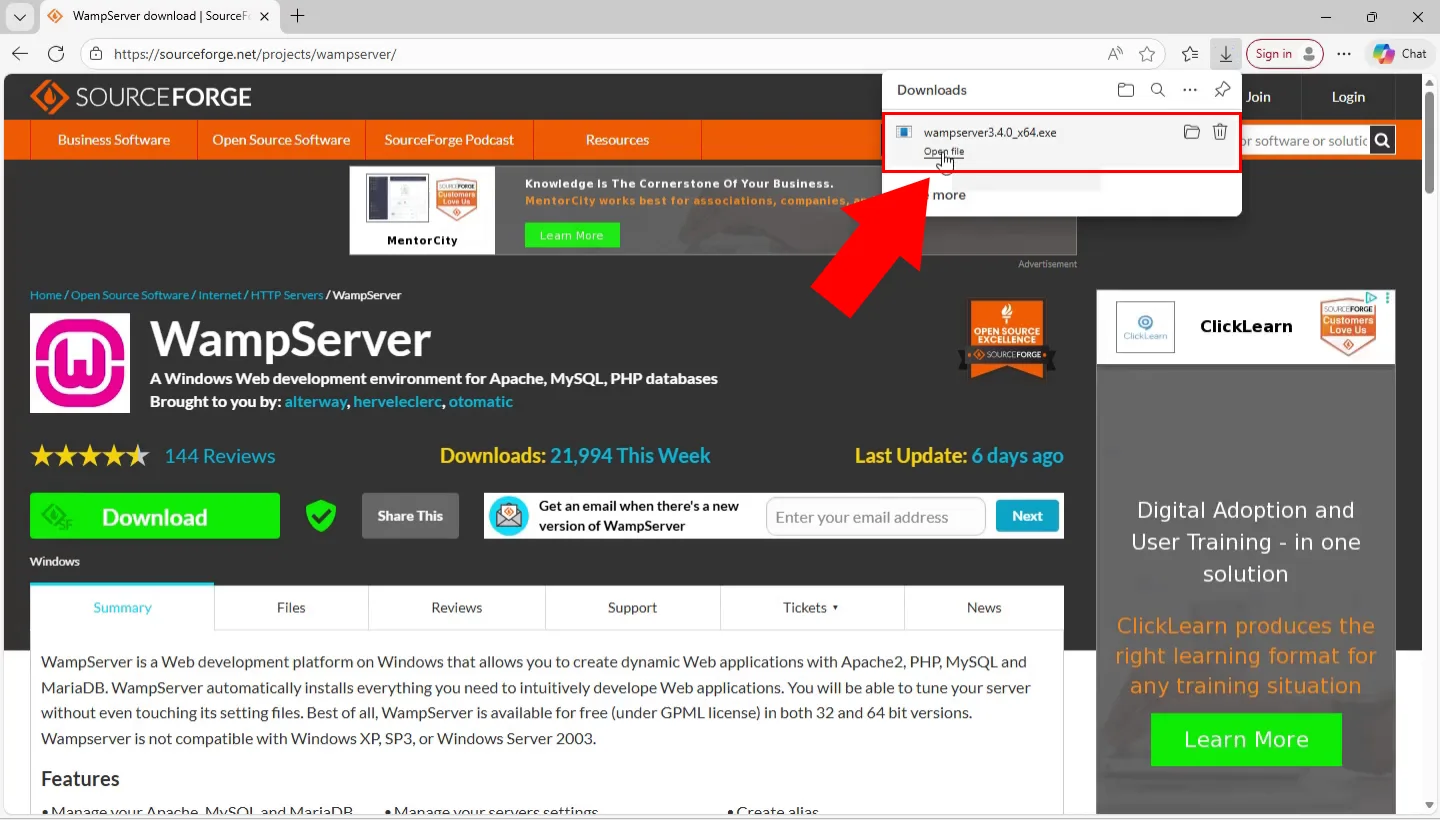
Locate the downloaded WampServer installer in your browser or downloads folder and double-click it to launch the installation wizard. Windows may display a User Account Control prompt asking for permission to make changes to your device - click "Yes" to proceed with the installation (Figure 2).
Step 2 - Install VC++ redistributables
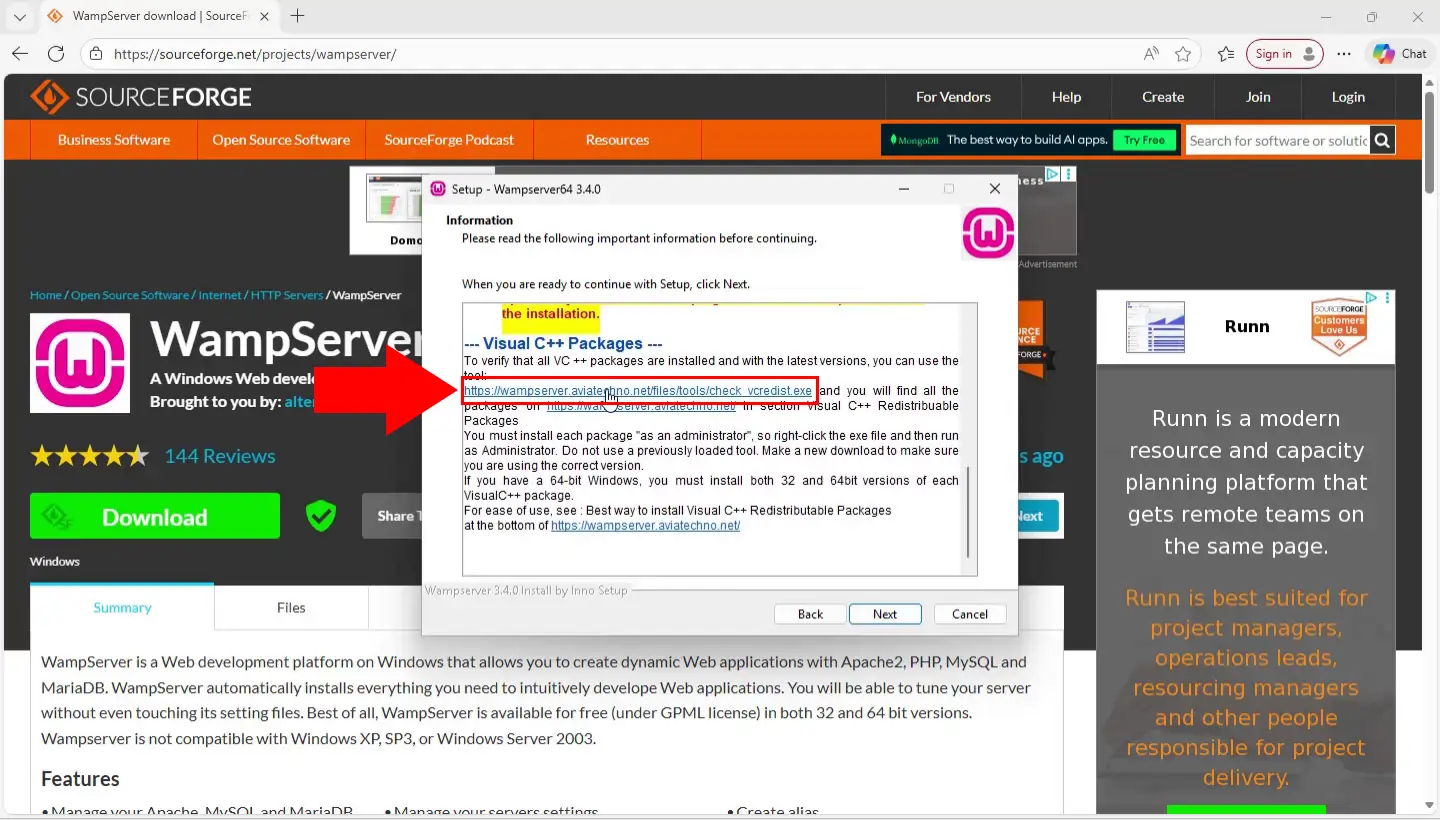
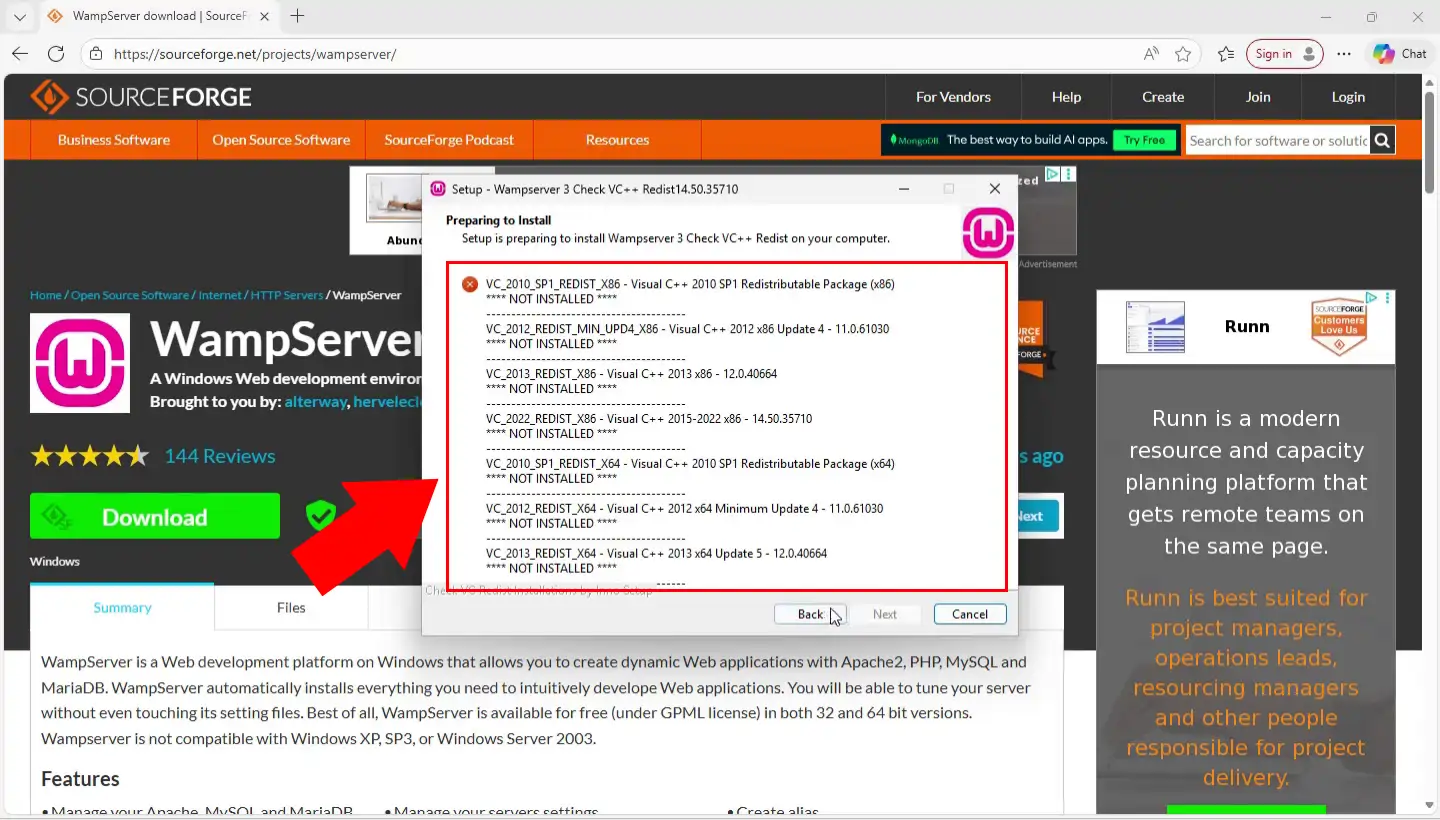
The WAMP installer requires Visual C++ redistributables to be installed on your system. Download the VC++ redistributable check tool from the provided link in the installer. This tool verifies which redistributable packages are already installed and which ones are missing (Figure 3).
Run the VC++ redistributable check tool to verify which Visual C++ packages are installed on your system. The tool displays a list of required redistributables and indicates which ones are missing. Make note of any missing packages that need to be installed (Figure 4).
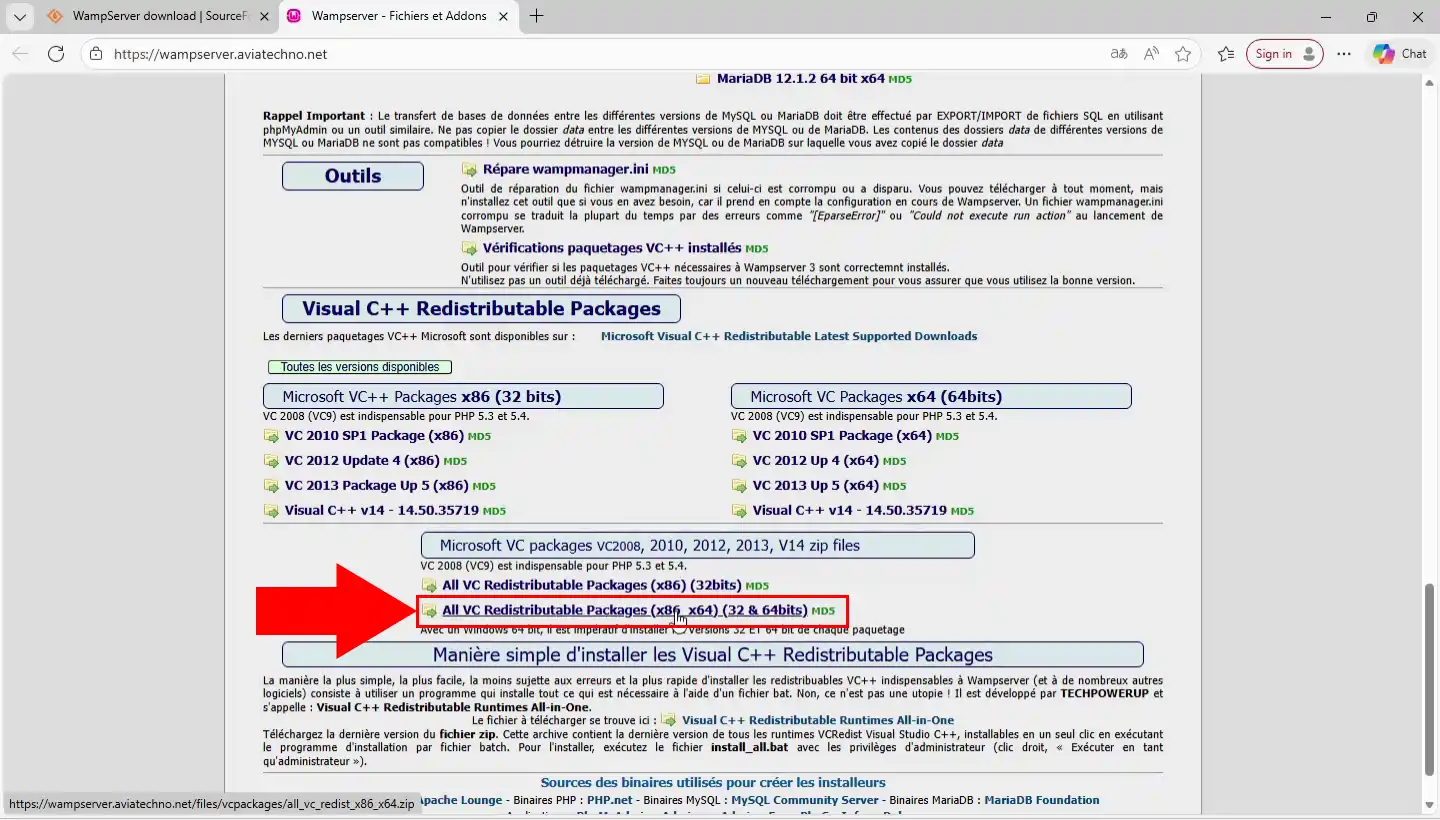
Navigate to the all VC++ redistributable packages page on the WampServer website. This page provides information about all required Visual C++ redistributable packages and links to download an all-in-one installer that includes all versions (Figure 5).
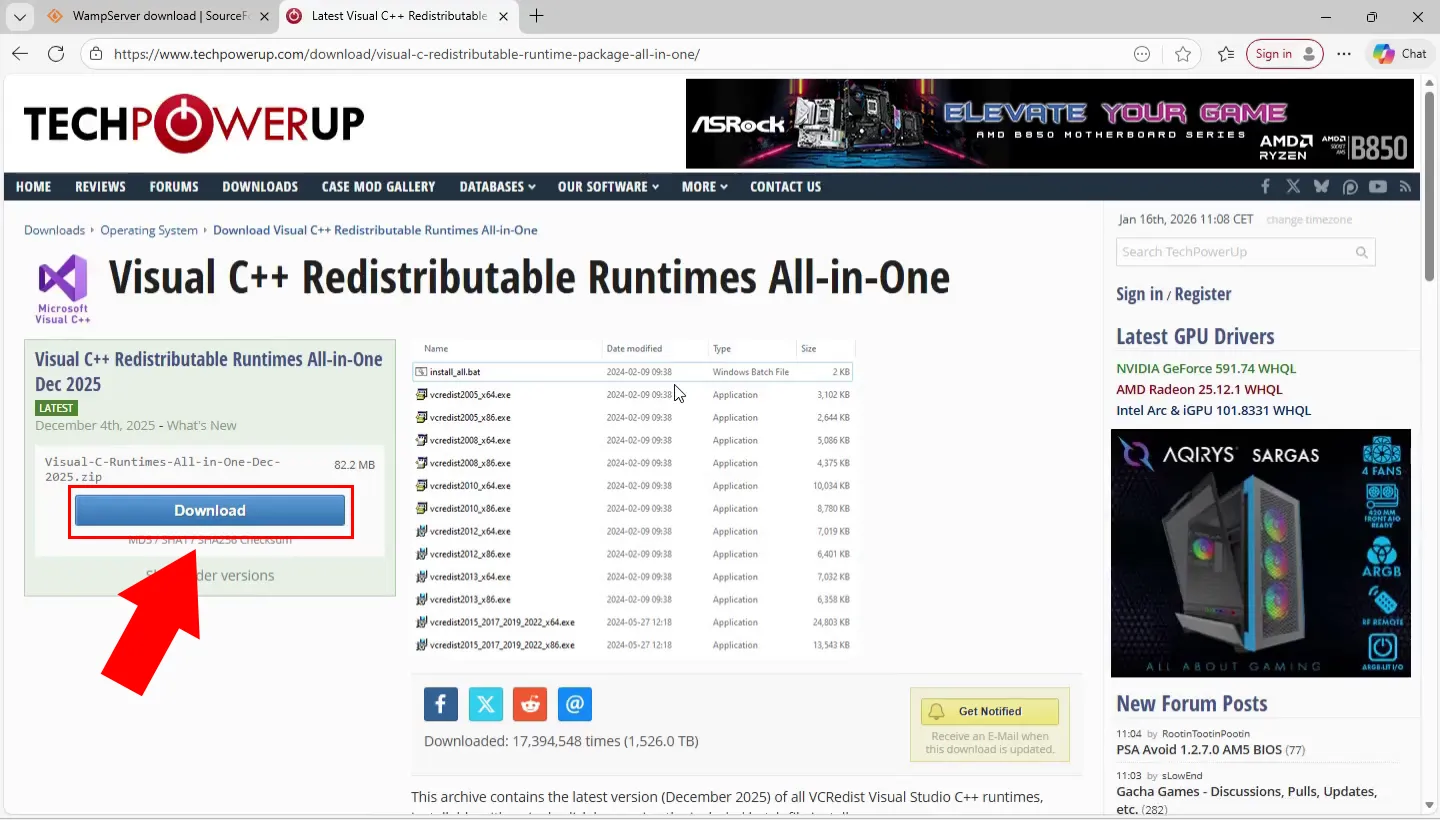
Download the all-in-one Visual C++ redistributable installer. This single installer includes all versions of the Visual C++ redistributables, simplifying the installation process. Save the installer to a convenient location (Figure 6).
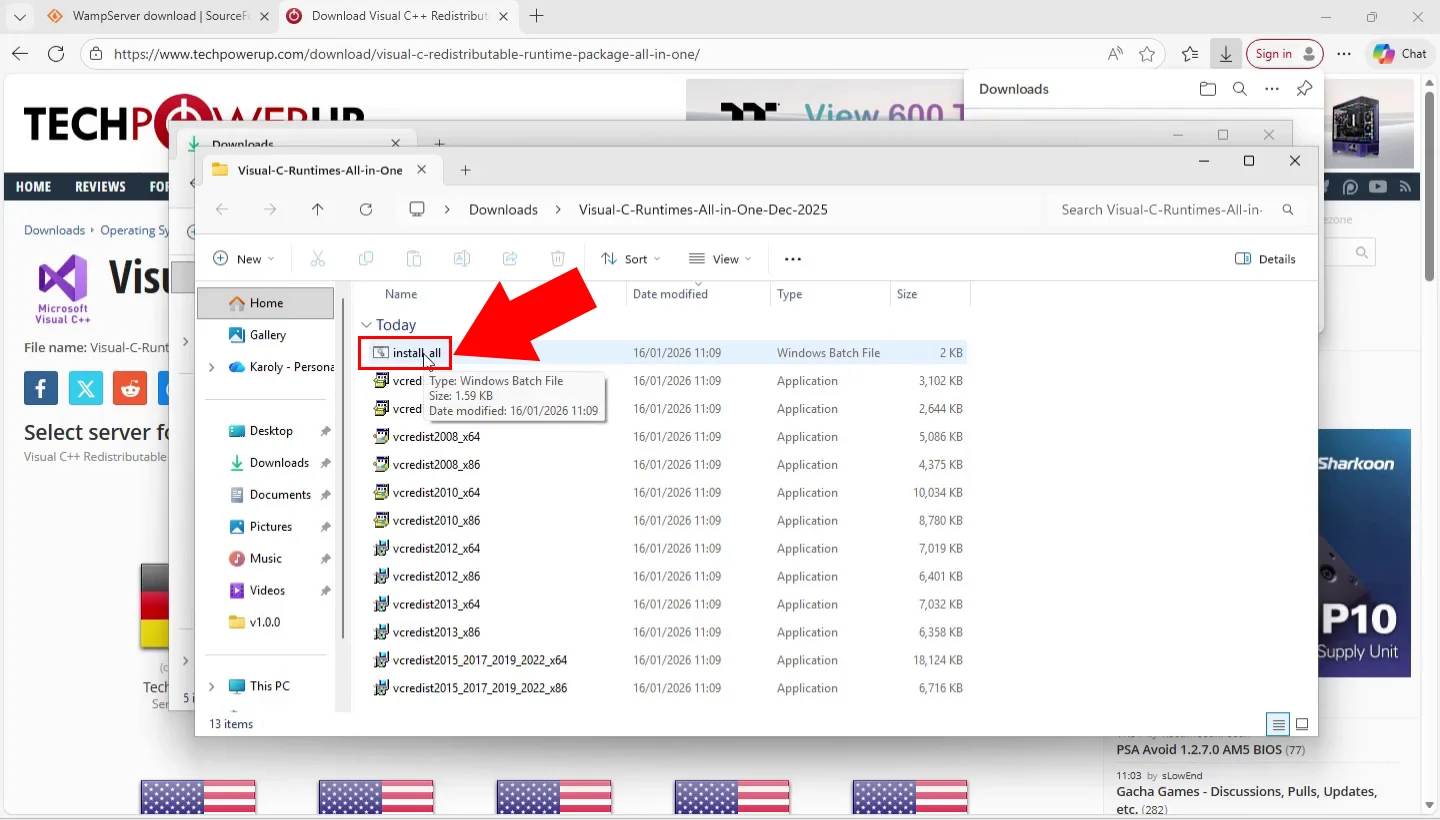
Run the all-in-one Visual C++ redistributable installer and follow the installation prompts. This installer automatically installs all required Visual C++ packages in one process. Accept the license agreements and complete the installation. This ensures WampServer has all the required runtime libraries (Figure 7).
Step 3 - Install and start WampServer
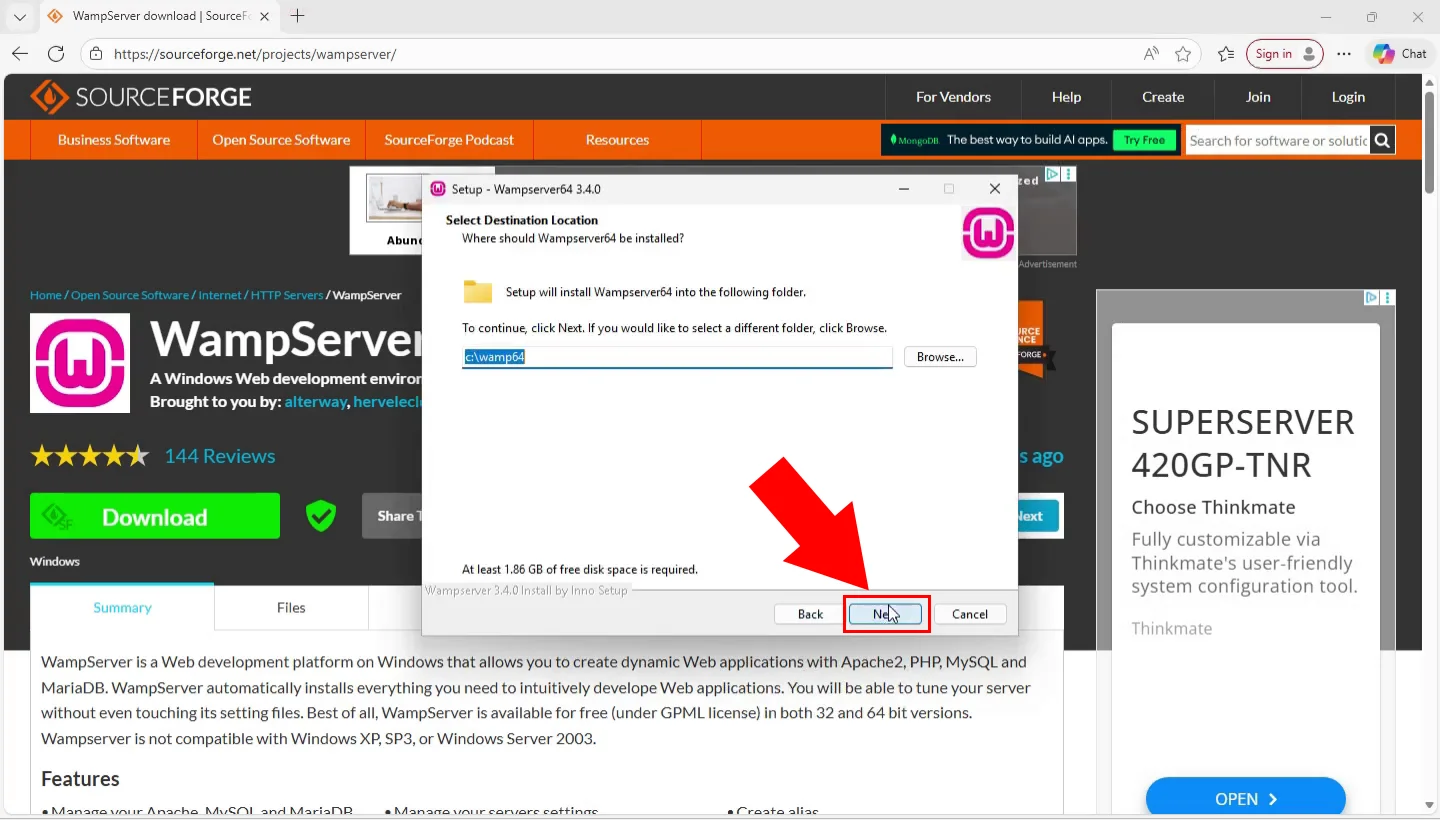
After installing the required VC++ redistributables, return to the WampServer installer and proceed with the installation. Follow the installation wizard steps, accepting the license agreement when prompted. Choose the installation directory (the default location is typically recommended), and complete the setup. The installer will configure Apache, PHP, and MySQL on your system (Figure 8).
After installation completes, launch WampServer from the Start menu or desktop shortcut. The WAMP icon appears in your system tray. Wait for the icon to turn green, indicating that all services (Apache, MySQL) are running properly (Figure 9).

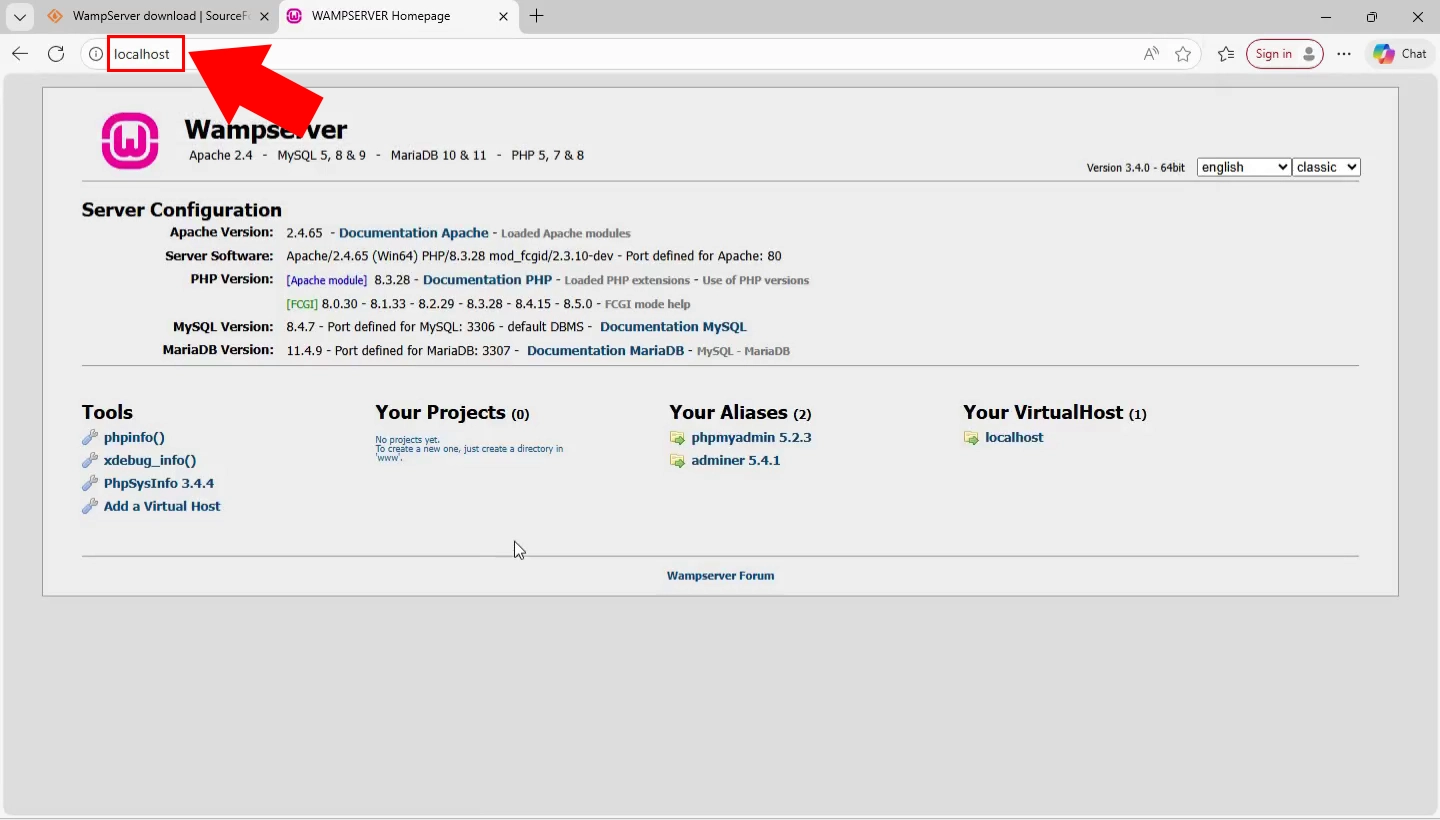
Verify that WampServer is running by checking the system tray icon. A green icon indicates all services are running correctly. You can also navigate to http://localhost in your browser to confirm the WAMP server is accessible (Figure 10).
Step 4 - Install Ozeki AI Gateway
The following video shows how to install Ozeki AI Gateway on Windows step-by-step. The video covers running the installer, configuring Apache rewrite rules, and accessing the gateway interface.
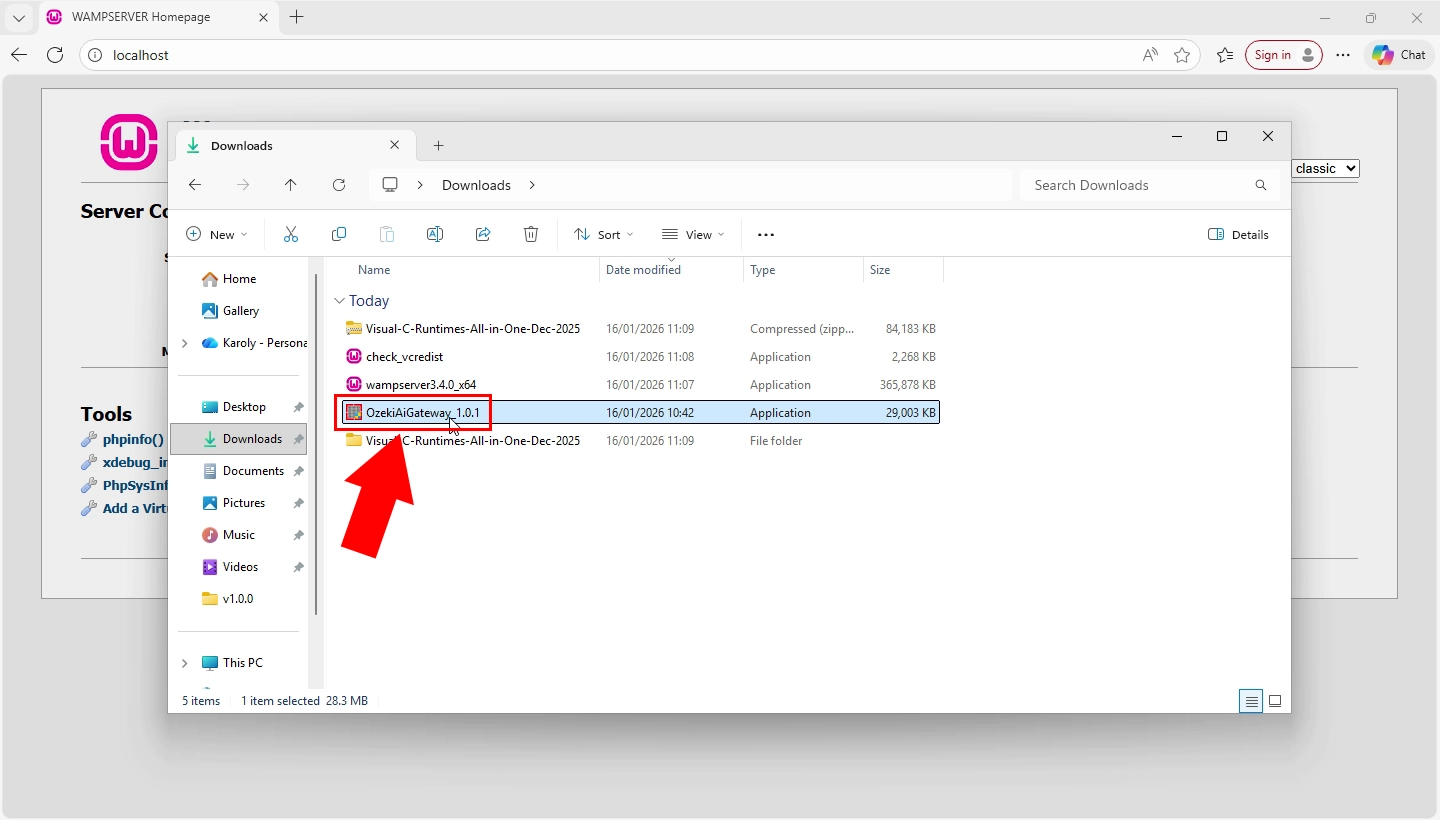
Download the Ozeki AI Gateway installer for Windows and double-click it to launch the installation wizard. The installer will guide you through the setup process. Click "Next" to begin the installation (Figure 11).
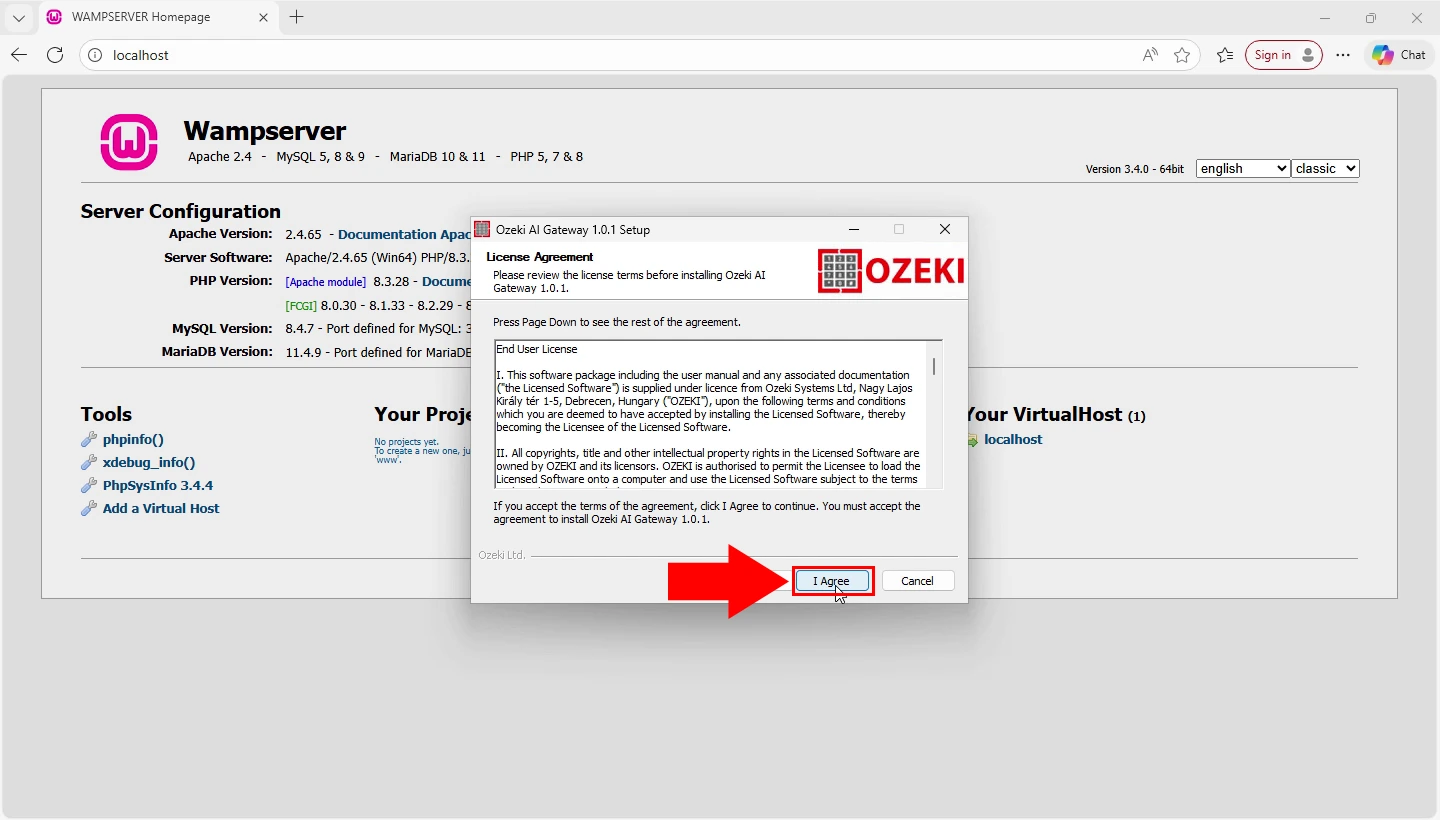
The installer displays the Ozeki AI Gateway license agreement. Read through the terms and conditions, then select "I agree" if you accept the terms. Accepting the license agreement is mandatory to proceed with the installation (Figure 12).
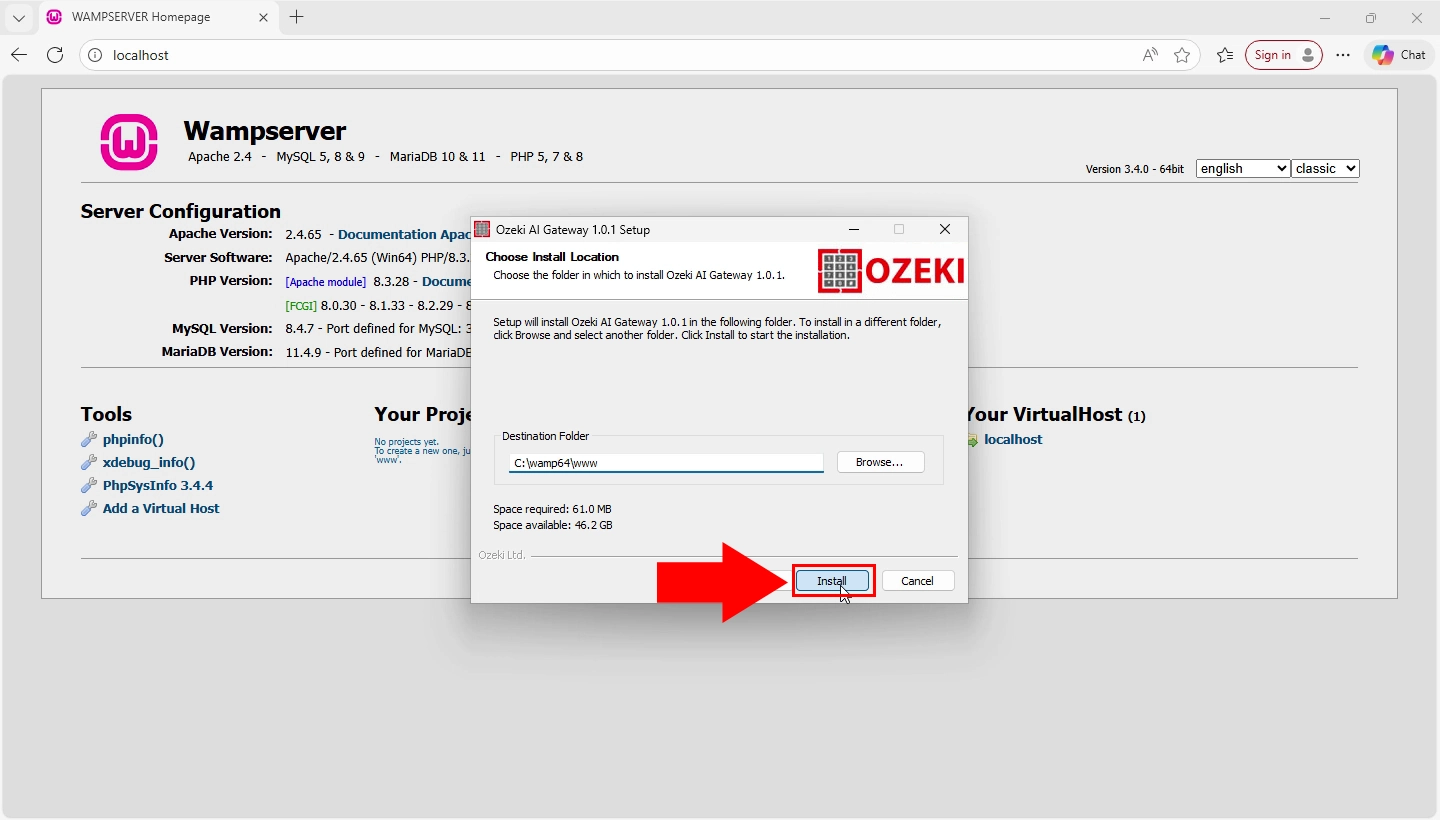
Review the installation location and click "Install" to begin installing Ozeki AI Gateway. The installer will copy files to the WampServer www directory and configure the necessary components (Figure 13).
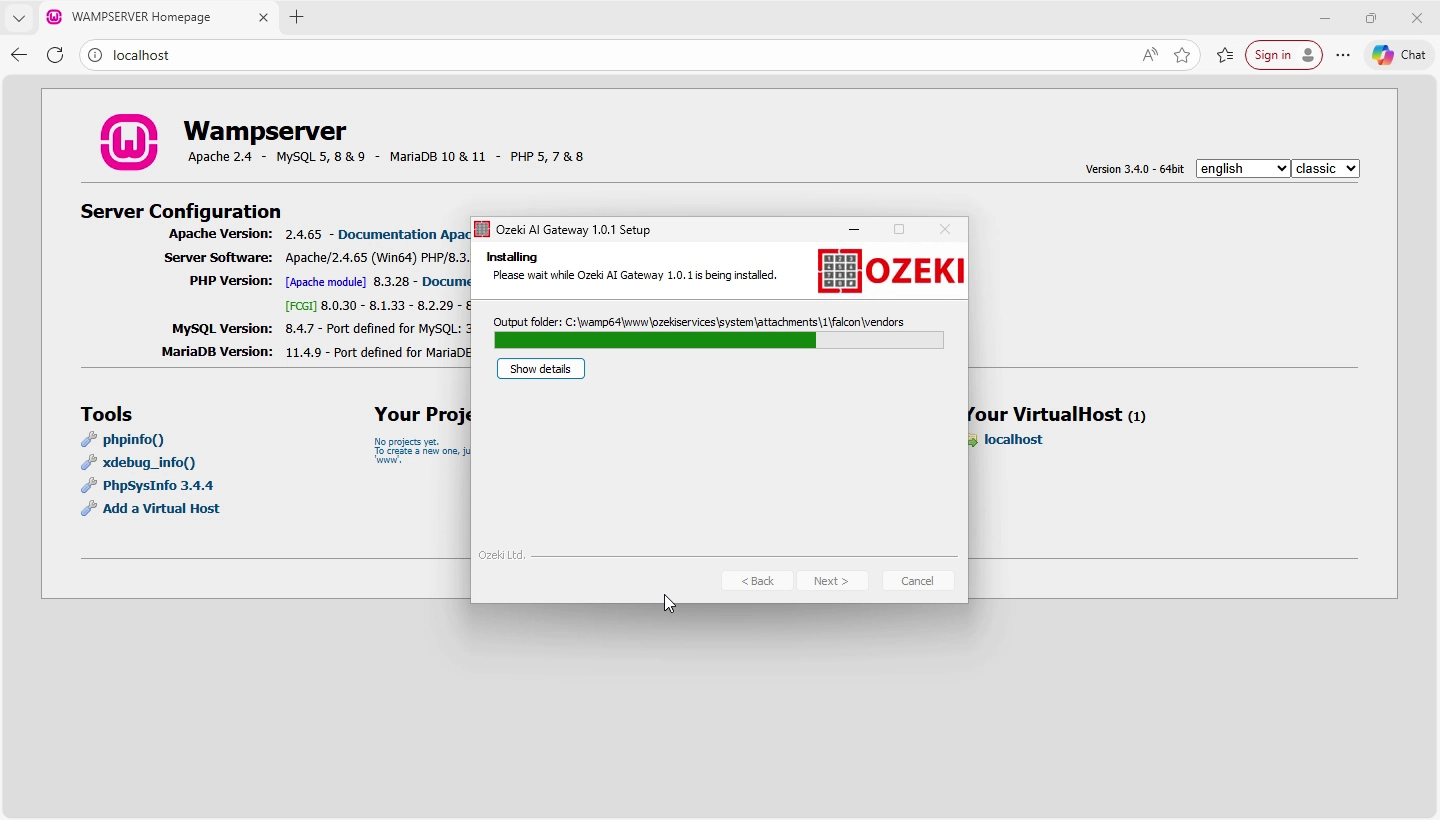
Wait for the installation process to complete. The installer displays progress as it copies files and configures Ozeki AI Gateway (Figure 14).
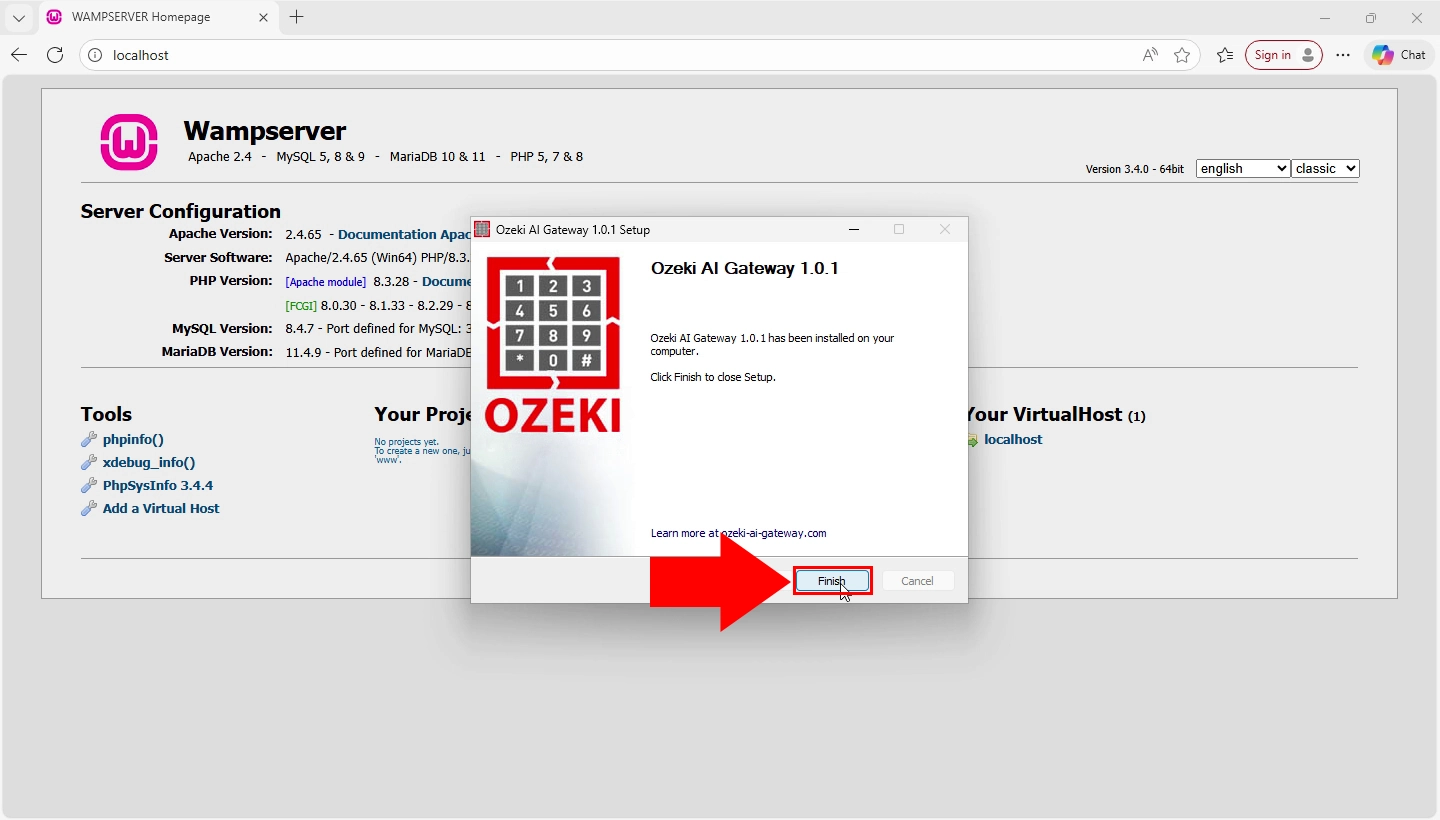
When the installation completes, click "Finish" to exit the installer. Ozeki AI Gateway is now installed in your WampServer directory, but you still need to configure Apache rewrite rules before it's fully operational (Figure 15).
Step 5 - Configure Apache rewrite rules
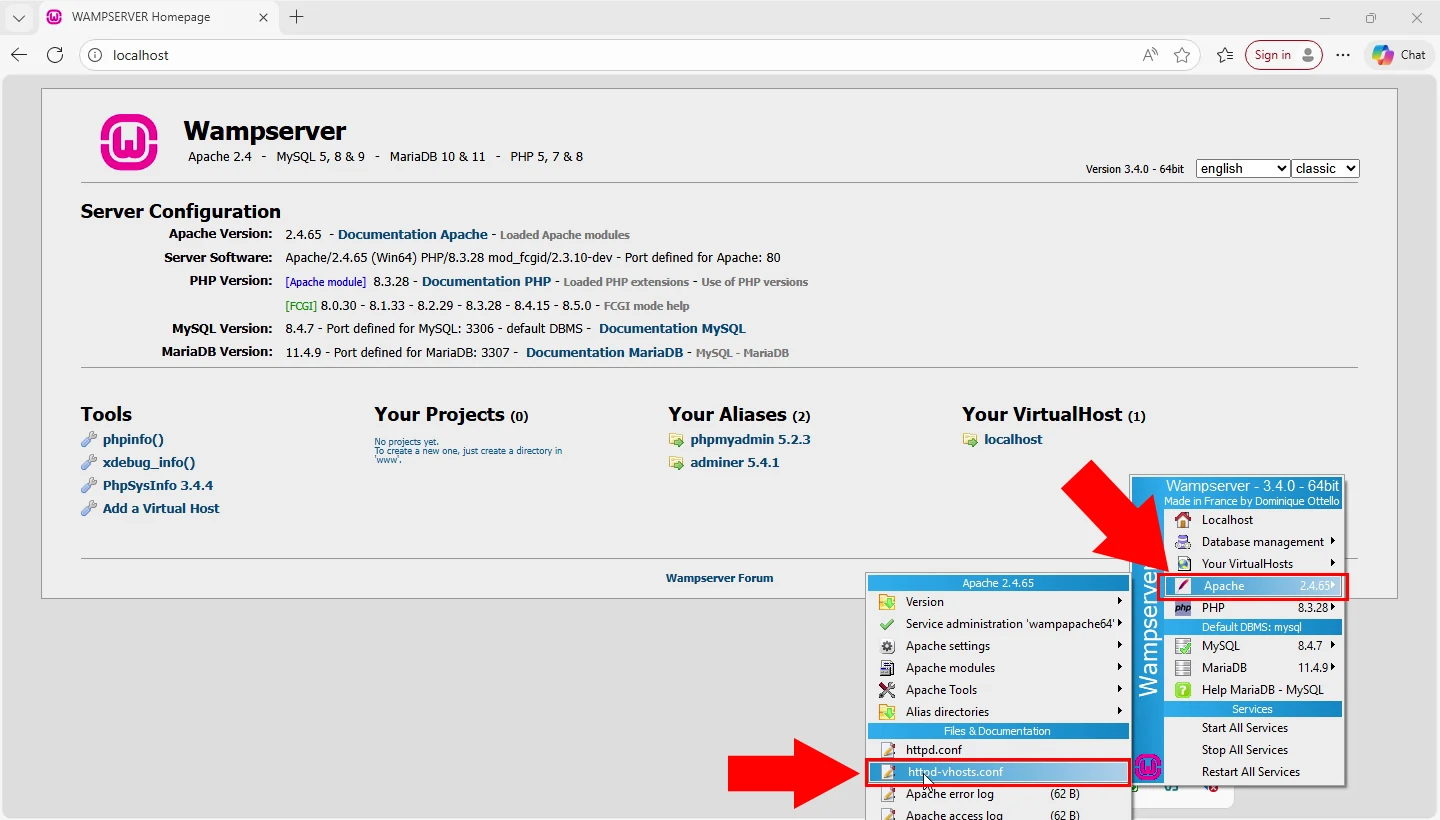
Right-click the WAMP icon in the system tray to open the WAMP menu. Navigate through the menu hierarchy to Apache, then hover over the Apache submenu and click on "httpd-vhosts.conf" to open the Apache virtual host configuration file in your default text editor. This configuration file controls how Apache handles web requests and needs to be modified to add URL rewriting rules that direct API requests to the Ozeki AI Gateway application (Figure 16).
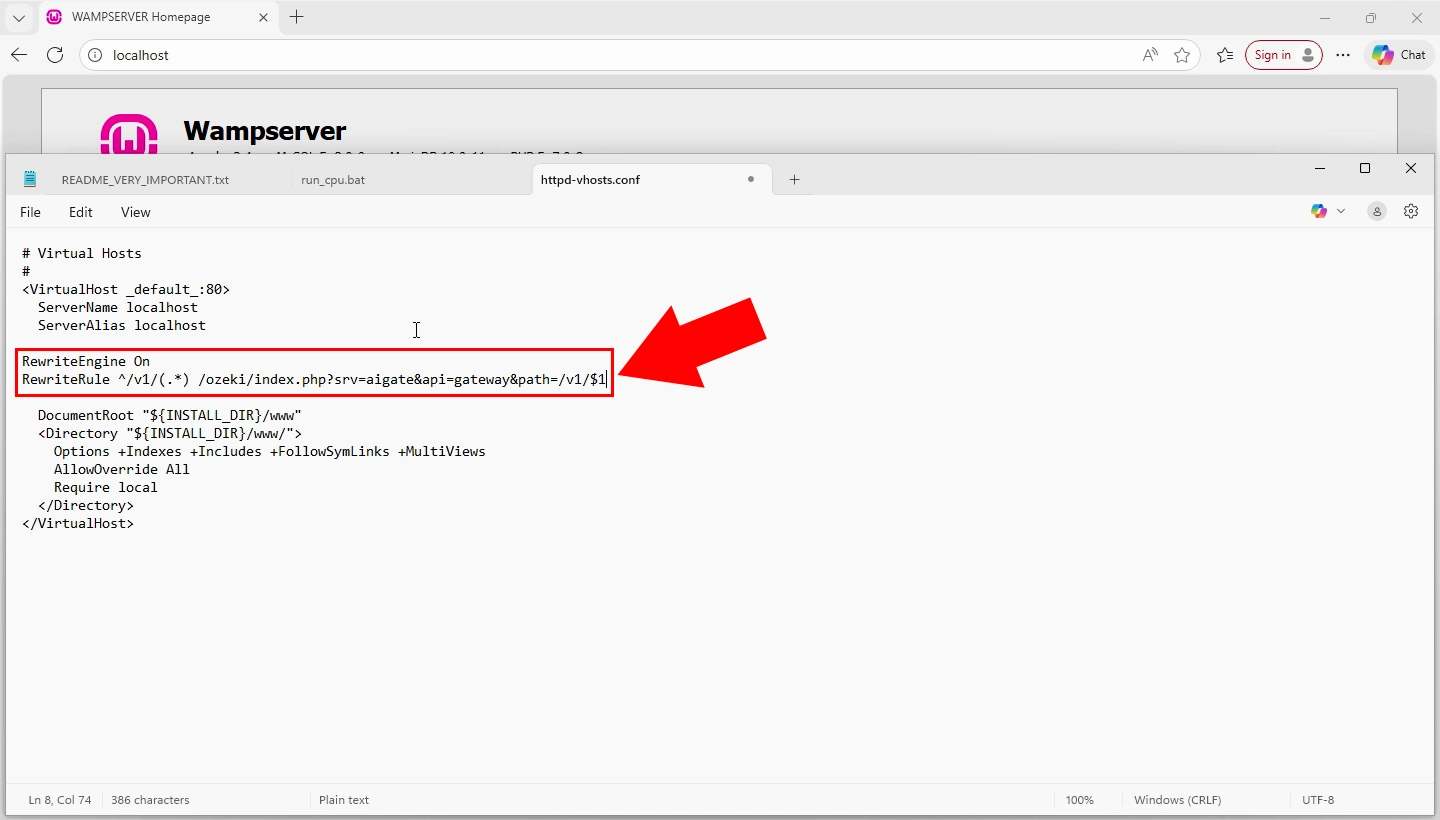
Add Apache rewrite rules to direct incoming API requests to the Ozeki AI Gateway handler. These rules enable Apache's rewriting module and capture any request to paths beginning with /v1/, redirecting them to the Ozeki AI Gateway PHP handler. This routing ensures all AI Gateway API calls are processed correctly (Figure 17).
C:\wamp64\bin\apache\apache2.4.59\conf\extra\httpd-vhosts.conf
RewriteEngine On
RewriteRule ^/v1/?(.*)$ /ozeki/index.php?srv=aigate&api=gateway&path=/v1/$1 [L,QSA]
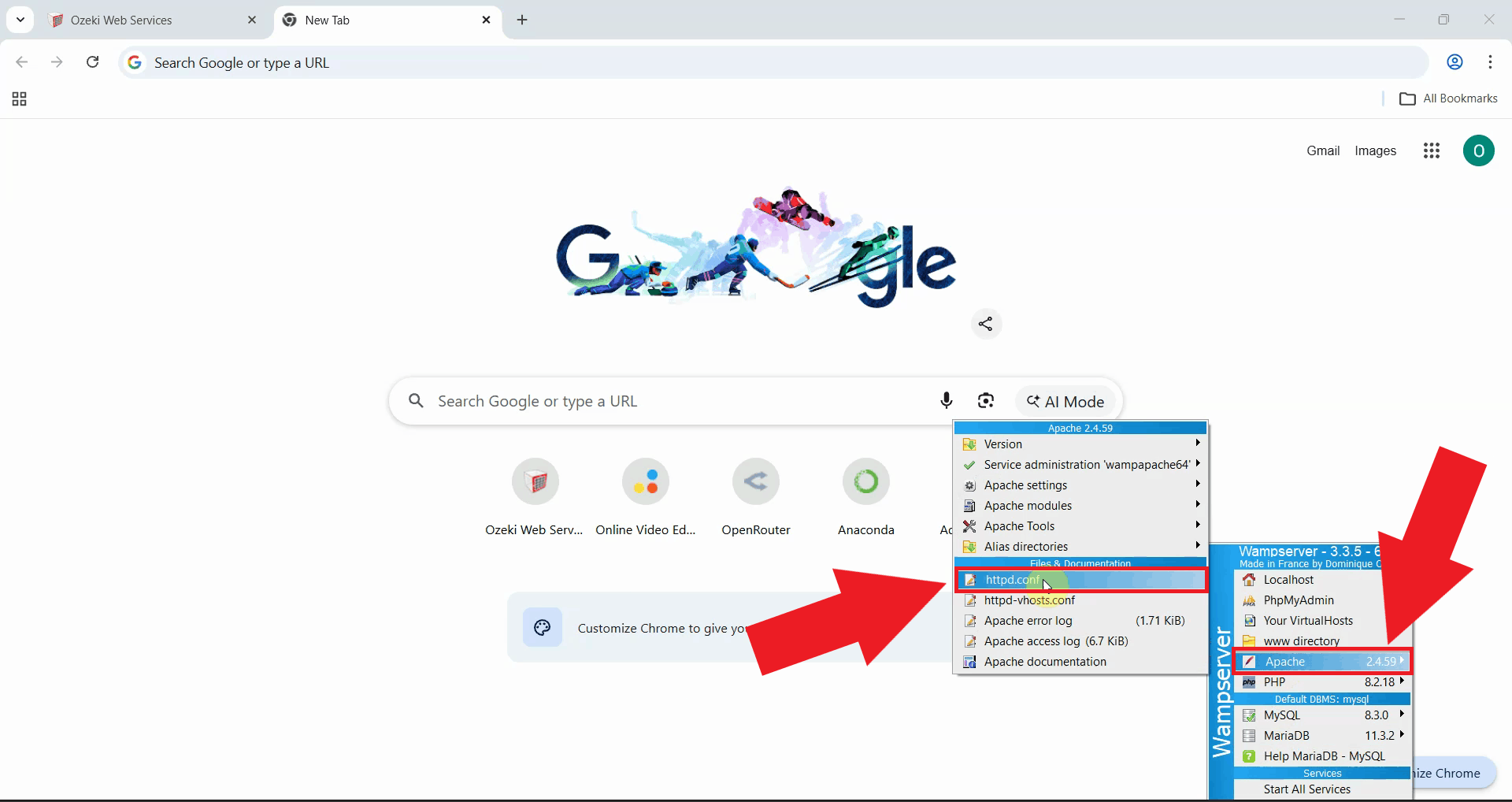
After adding the rewrite rules to the virtual host configuration, you need to enable the rewrite module in Apache's main configuration file. Right-click the WAMP icon in the system tray, navigate to Apache, then click on "httpd.conf" to open the main Apache configuration file (Figure 18).
C:\wamp64\bin\apache\apache2.4.59\conf\httpd.conf
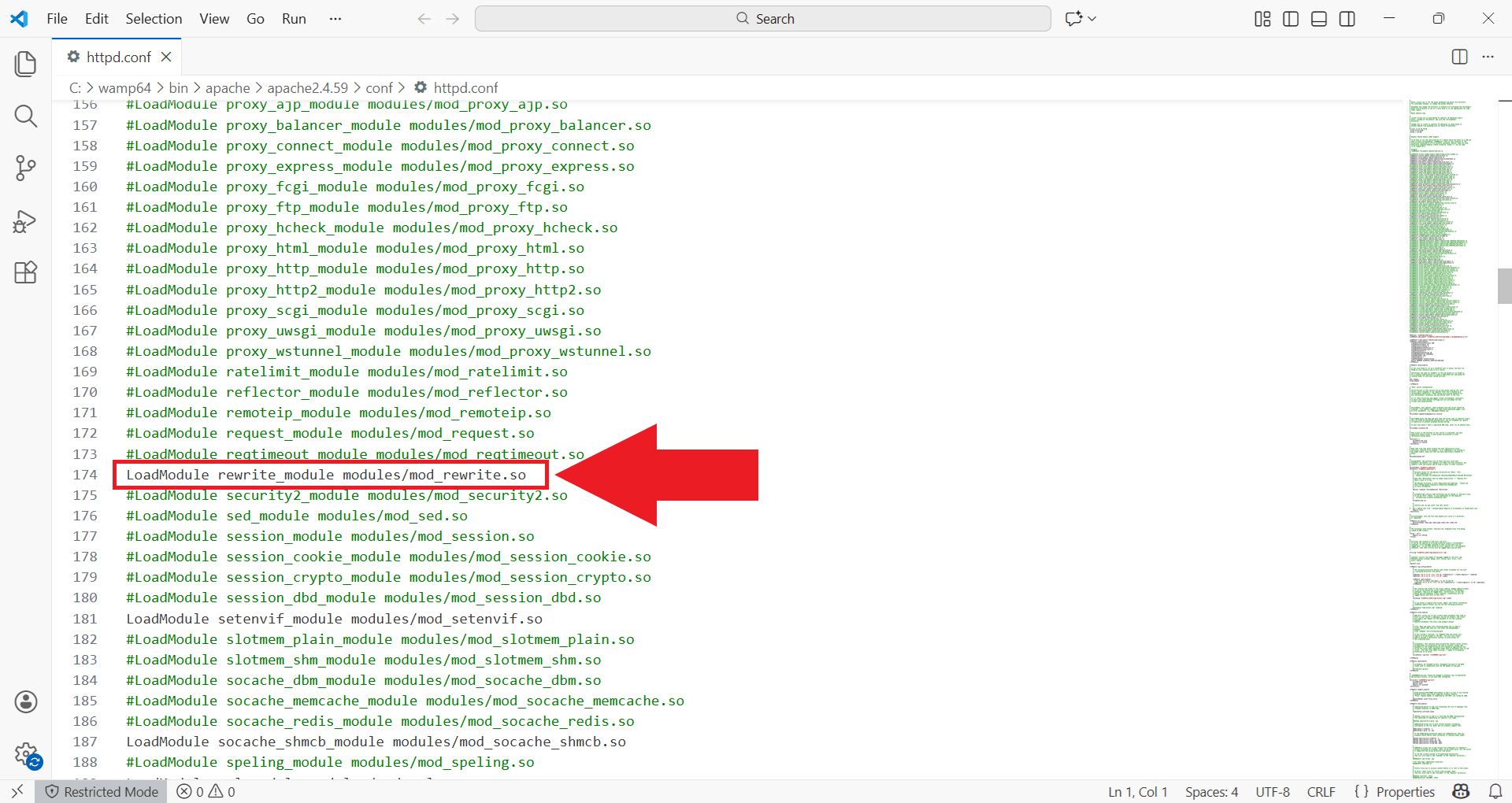
In the httpd.conf file, locate the line that reads "#LoadModule rewrite_module modules/mod_rewrite.so" and remove the # symbol at the beginning to uncomment it. This enables Apache's rewrite module which is required for the URL rewriting rules to function properly. Save the file after making this change (Figure 19).
LoadModule rewrite_module modules/mod_rewrite.so
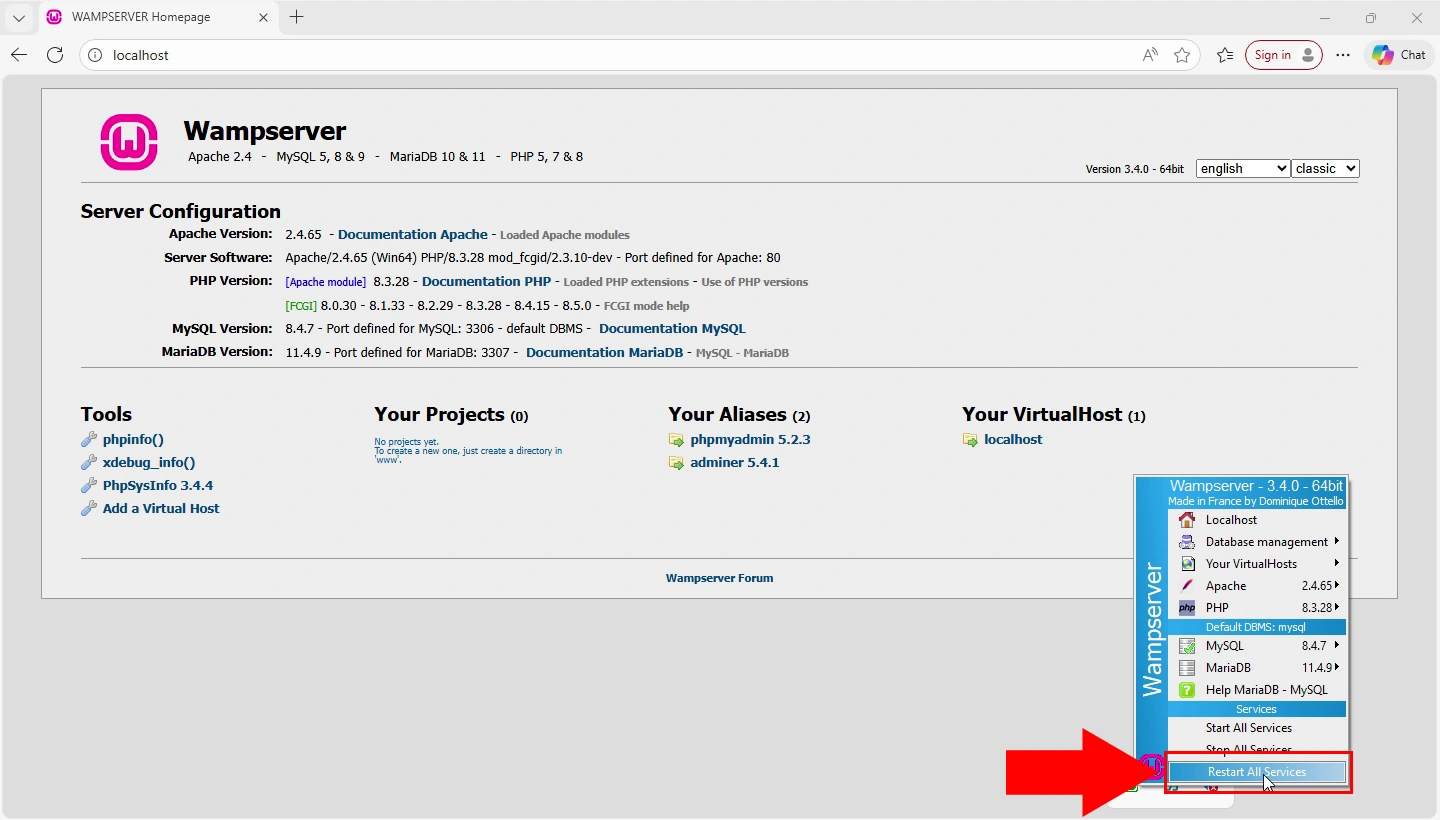
Right-click the WAMP icon in the system tray and select "Restart All Services" to apply the Apache configuration changes. Wait for all services to restart and the WAMP icon to turn green again (Figure 20).
Step 6 - Access gateway interface
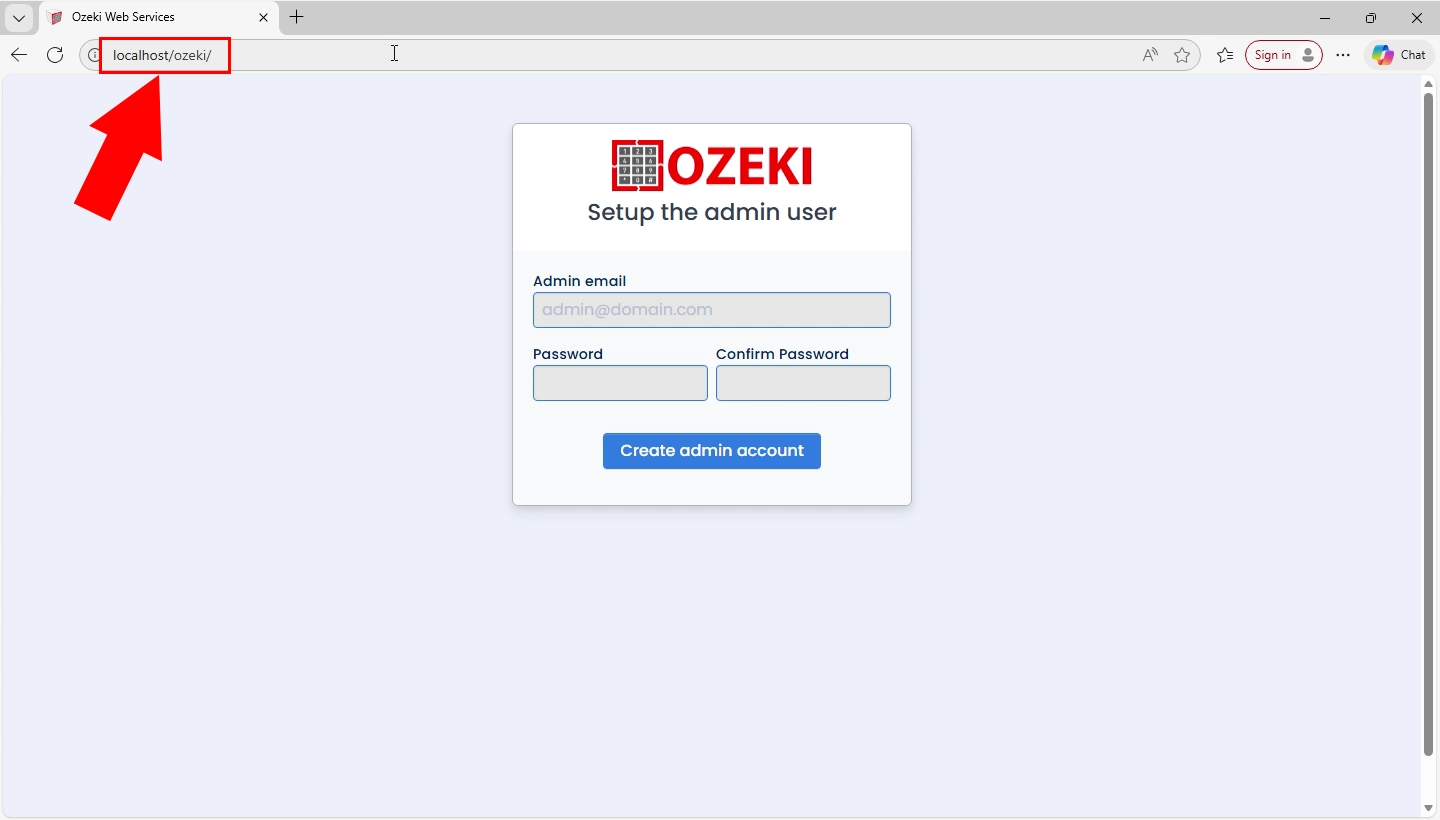
Open your web browser and navigate to http://localhost/ozeki to access the Ozeki AI Gateway interface. The browser displays the gateway setup page where you'll create an admin account (Figure 21).
Step 7 - Create admin account and login
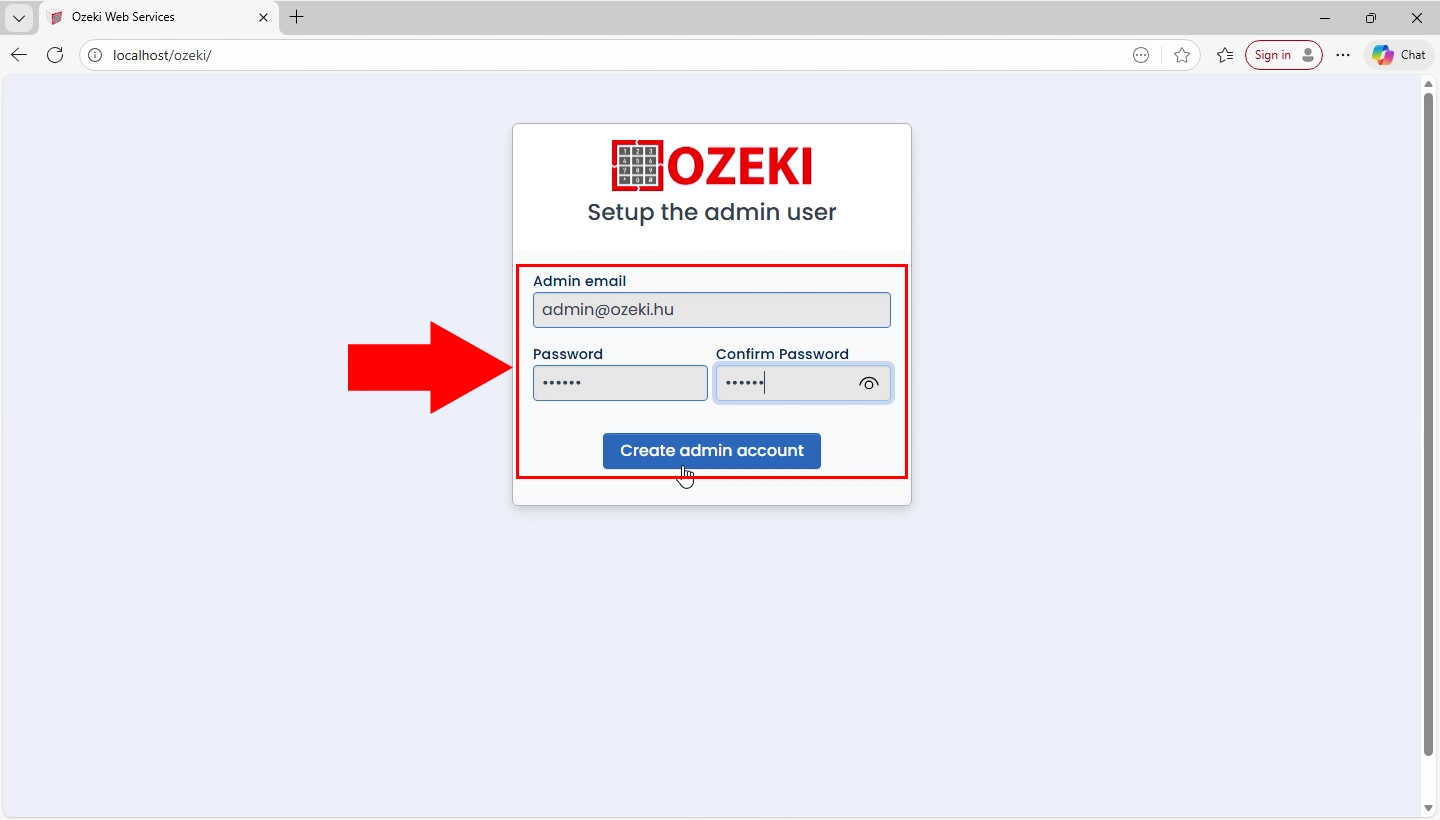
Upon first access to the Ozeki AI Gateway interface, you're prompted to create an administrative account. Enter an email address and a strong password for the primary administrator. This admin account grants full access to all gateway features including provider management, user creation, route configuration, and API key generation. Click "Create" to establish the admin account and proceed to the login page (Figure 22).
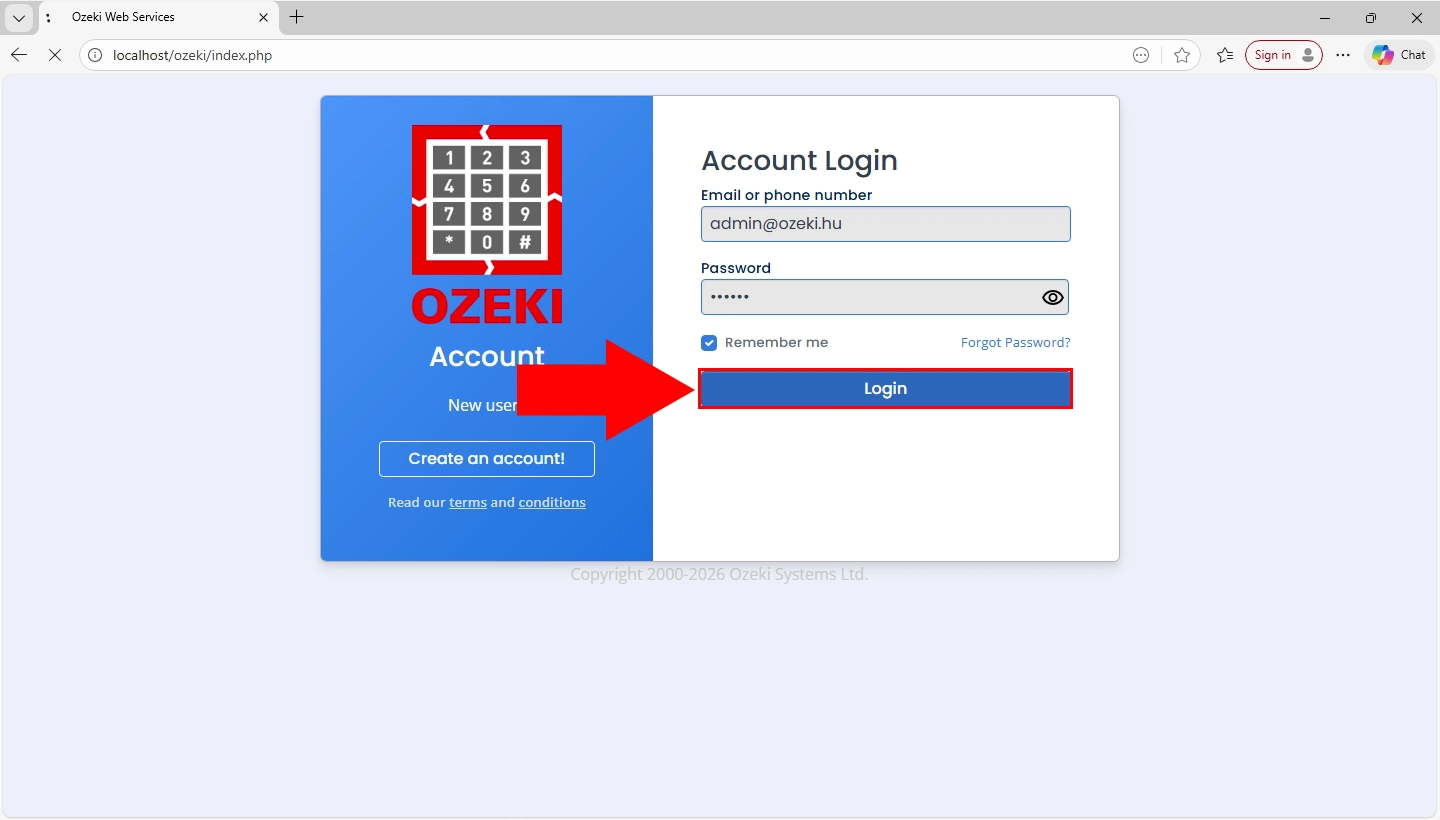
After creating the admin account, you'll be redirected to the login page. Enter the admin credentials you just created and click "Login" to access the gateway management interface (Figure 23).
Step 8 - Open AI Gateway service
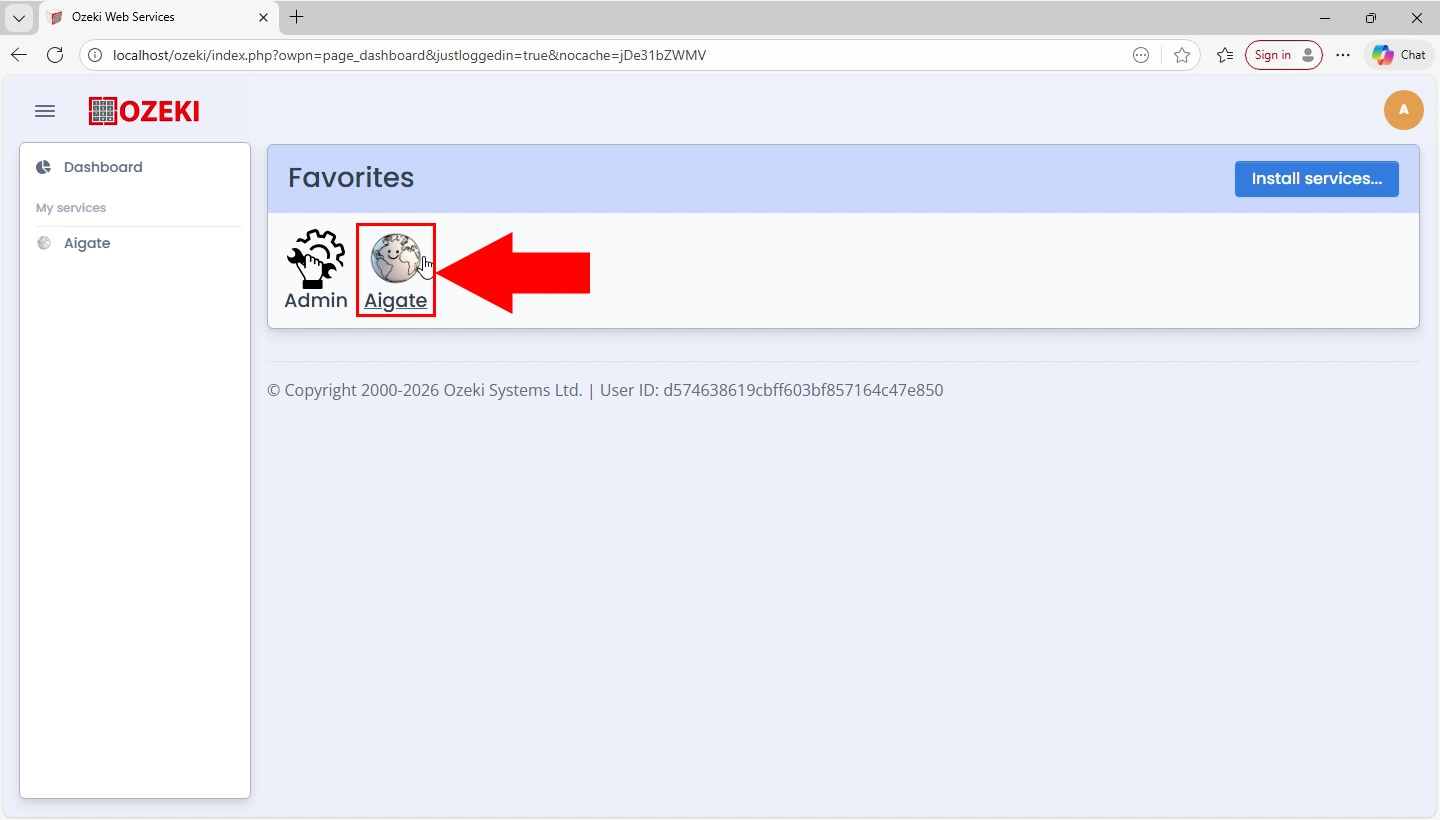
After logging in, navigate to the AI Gateway service from the main dashboard. This service section provides access to the gateway's core functionality and management features (Figure 24).
Step 9 - Access dashboard
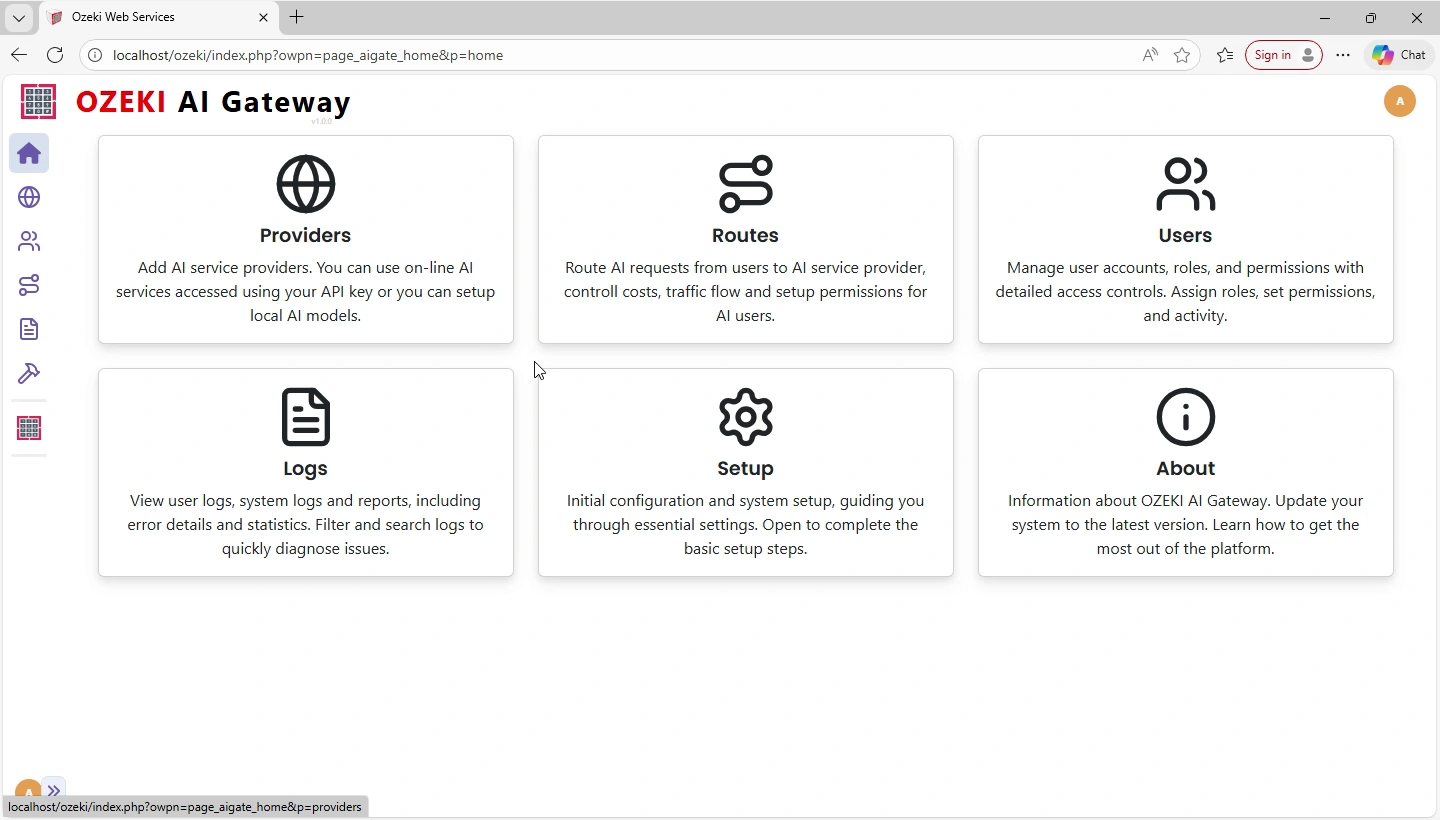
The AI Gateway dashboard displays the main interface where you can manage providers, users, routes, and other gateway configurations. Your Ozeki AI Gateway is now fully installed and ready to be configured with AI providers (Figure 25).
Conclusion
You have successfully installed Ozeki AI Gateway on Windows with WampServer. The gateway is now operational and ready to be configured with AI providers, users, and routes. You can now proceed to add AI service providers and create user accounts to start routing AI requests through your gateway.