
How to create a Xinference API key to use in Ozeki AI Gateway
This guide demonstrates how to set up a local Xinference server and configure it in Ozeki AI Gateway. You'll learn how to configure Xinference with authentication, launch the server with your auth config, deploy AI models, and set up Xinference as a provider in your gateway. By following these steps, you can connect your Ozeki AI Gateway to self-hosted AI models running on your own infrastructure with full access control.
What is Xinference?
Xinference is a powerful open-source model inference framework that allows you to run AI models on your own hardware. It provides a unified interface for deploying and serving various types of models including LLMs, embedding models, and multimodal models. Xinference offers an OpenAI-compatible API interface and includes built-in authentication support, making it easy to secure your AI infrastructure.
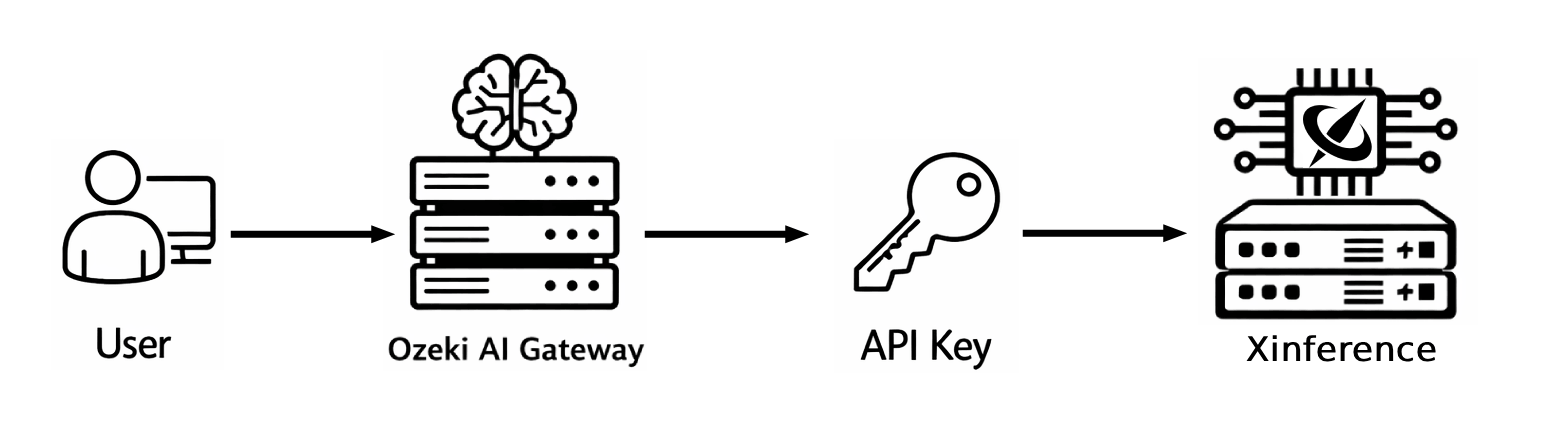
Steps to follow
We assume Ozeki AI Gateway is already installed on your system. You can install it on Linux, Windows or Mac.
- Create auth config file
- Start Xinference from terminal
- Open and log in to Xinference web UI
- Configure a model of choice
- Launch the model
- Open Providers page in Ozeki AI Gateway
- Create provider
- Test the Xinference provider
Quick reference commands
Web UI: http://localhost:9997/ui
API URL: http://localhost:9997/v1
Example API Key: sk-abcde

Start command (example):
xinference-local --host 127.0.0.1 --port 9997 --auth-config C:\Xinference\auth_config.json

Auth config file (auth_config.json):
{
    "auth_config": {
        "algorithm": "HS256",
        "secret_key": "09d25e094faa6ca2556c818166b7a9563b93f7099f6f0f4caa6cf63b88e8d3e7",
        "token_expire_in_minutes": 30
    },
    "user_config": [
        {
            "username": "admin",
            "password": "qwe123",
            "permissions": [
                "admin"
            ],
            "api_keys": [
                "sk-72tkvudyGLPMi",
                "sk-ZOTLIY4gt9w11"
            ]
        }
    ]
}
How to create Xinference API key video
The following video shows how to set up a local Xinference server with API key authentication and configure it in Ozeki AI Gateway step-by-step. The video covers creating the auth config, starting the server, deploying a model, and setting up the provider.
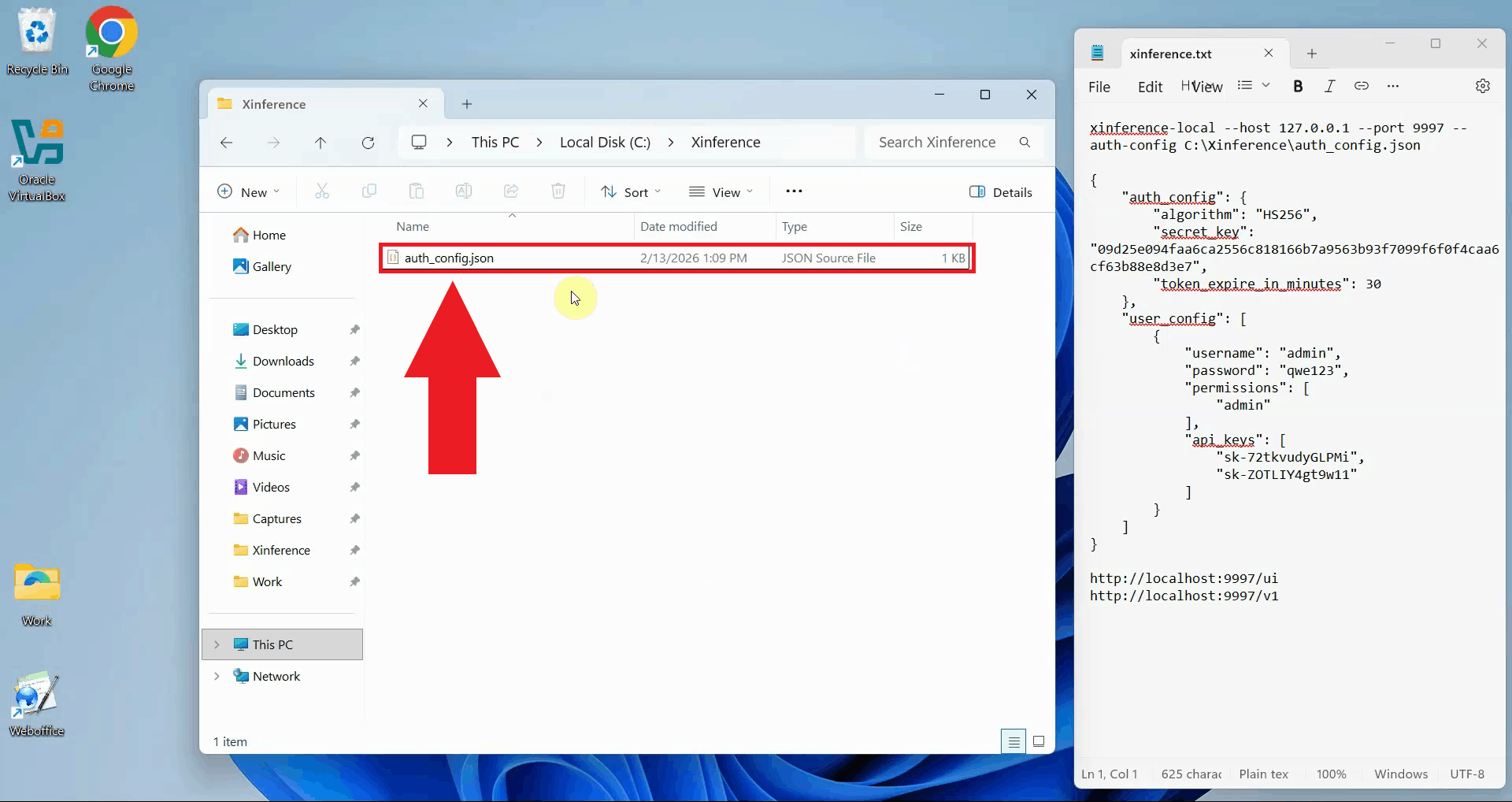
Step 1 - Create auth config file
Create a new JSON file for your Xinference authentication configuration. Choose a location on your system
where you'll store this file, such as C:\Xinference\auth_config.json on Windows.
This file will contain your authentication settings
including API keys and user credentials (Figure 1).
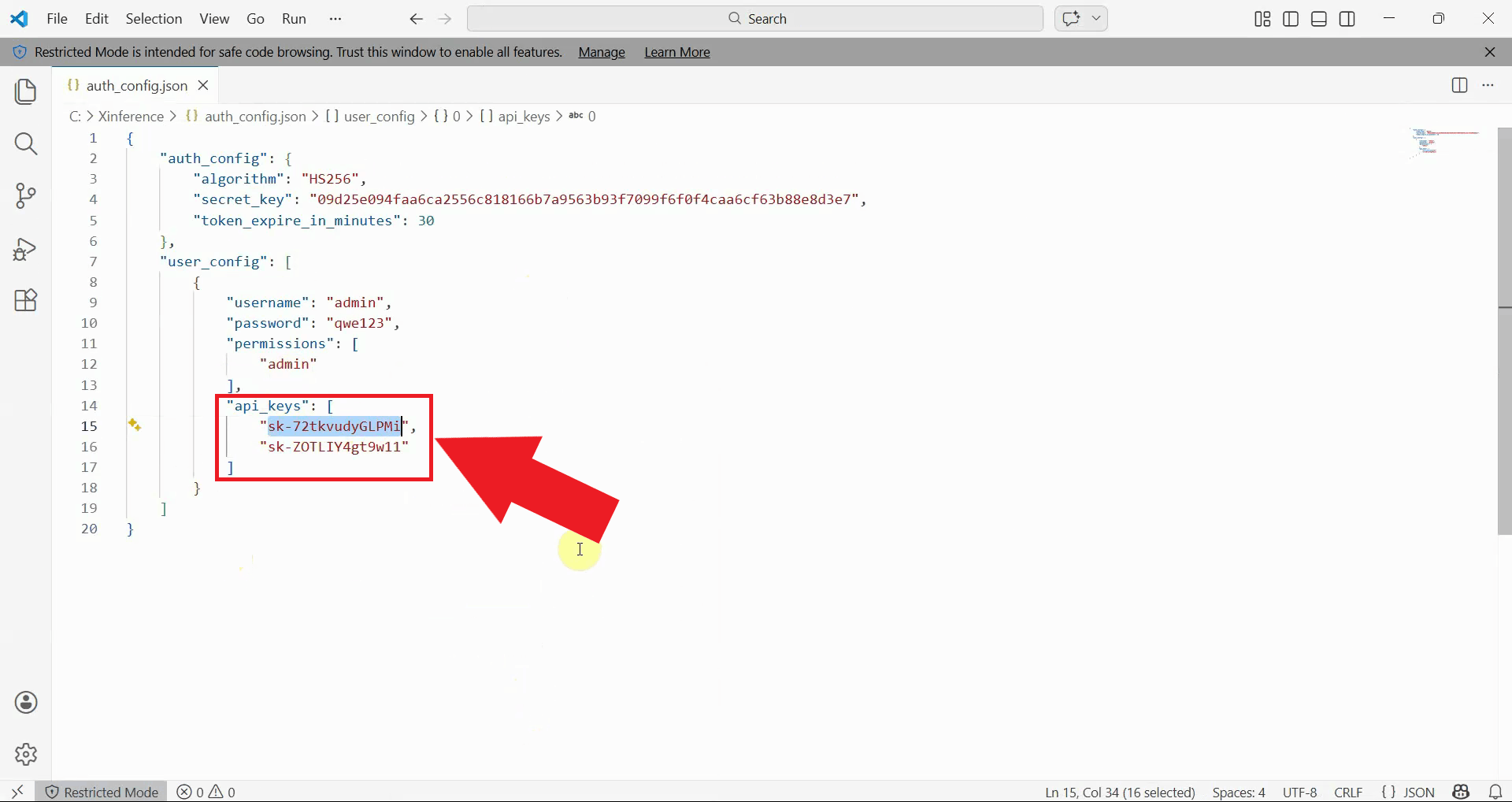
Edit the auth config file and add your authentication configuration. The file includes sections for auth settings
and user configuration.
You can specify one or more API keys in the api_keys array. These keys will be used to authenticate requests to your
Xinference server. Make sure to use secure, randomly generated API keys and passwords (Figure 2).
Step 2 - Start Xinference from terminal
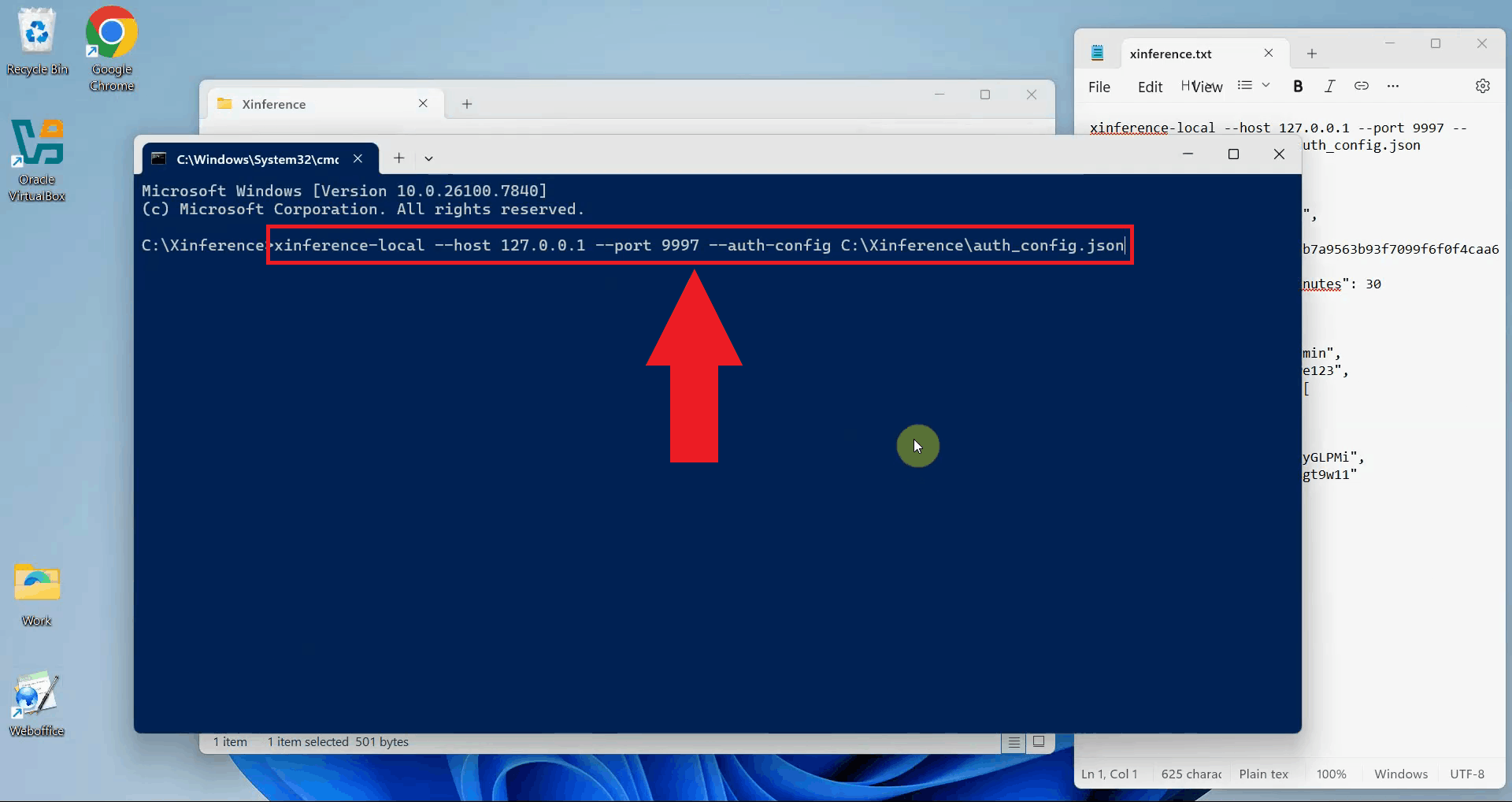
Open a terminal or command prompt and start the Xinference server with your auth config file. Use the
xinference-local command with the --auth-config parameter pointing to your
configuration file. Specify the host and port where the server should listen for connections (Figure 3).
xinference-local --host 127.0.0.1 --port 9997 --auth-config C:\Xinference\auth_config.json
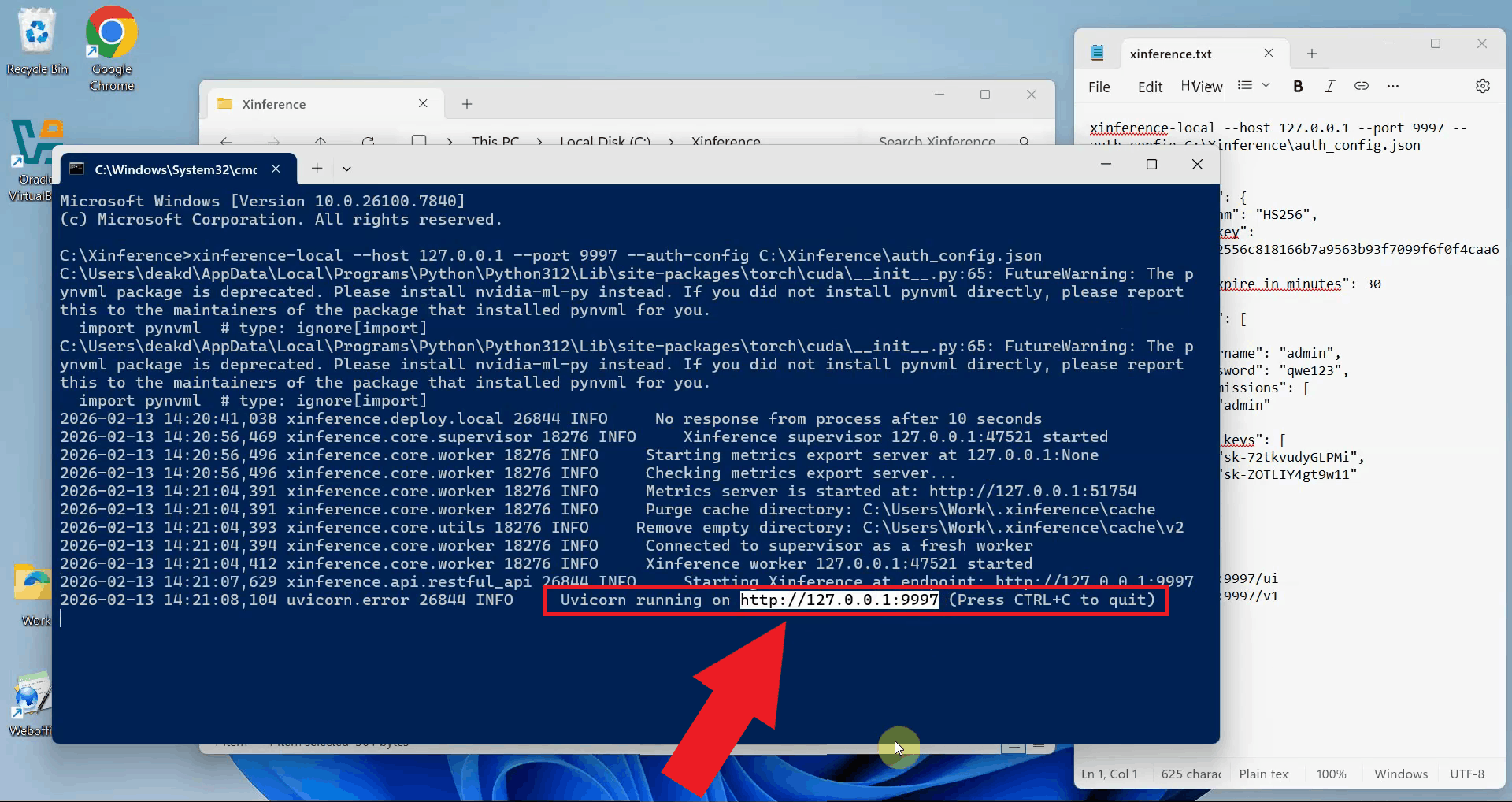
Wait for Xinference to complete its startup process. The terminal will display initialization messages and confirm when the server is ready to accept connections. You should see messages indicating that the web UI and API endpoints are available (Figure 4).
Step 3 - Open and log in to Xinference web UI
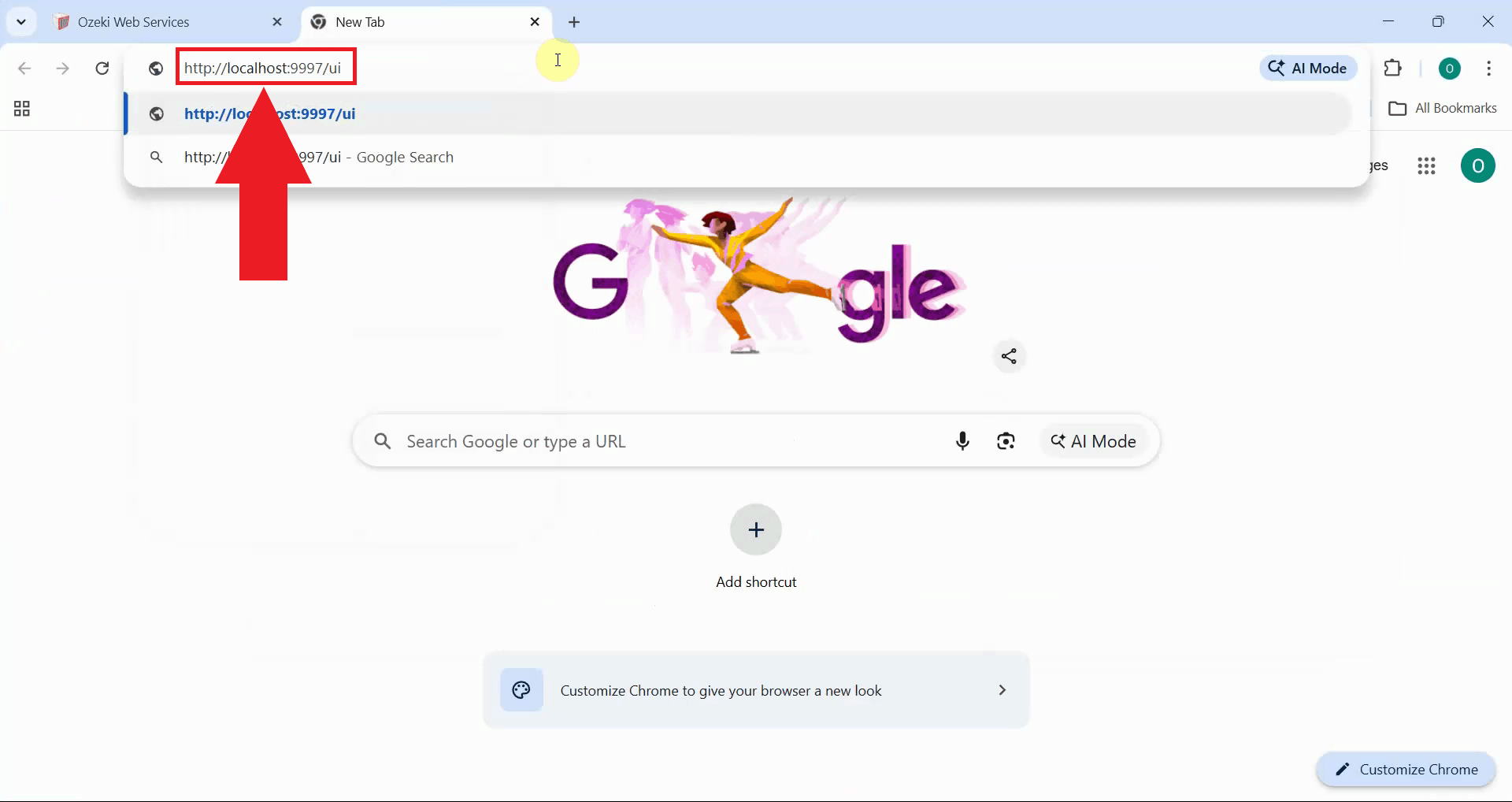
Open your web browser and navigate to the Xinference web UI. This opens the Xinference management interface where you can deploy models, manage configurations, and monitor your AI infrastructure (Figure 5).
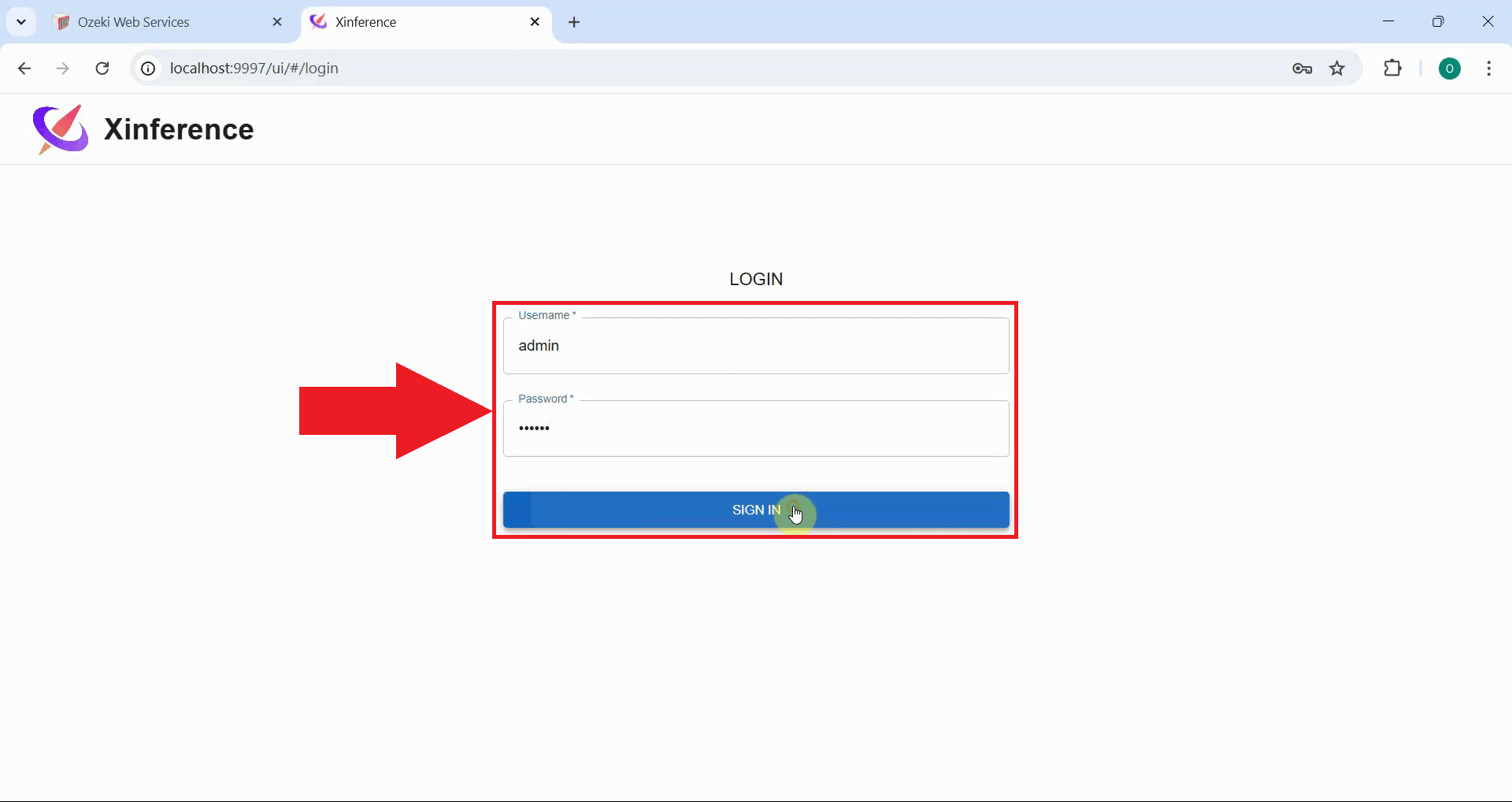
Enter the admin credentials you configured in your auth config file. Use the username and password
you specified in the user_config section. Click the sign in button to access the
Xinference dashboard (Figure 6).
Step 4 - Configure a model of choice
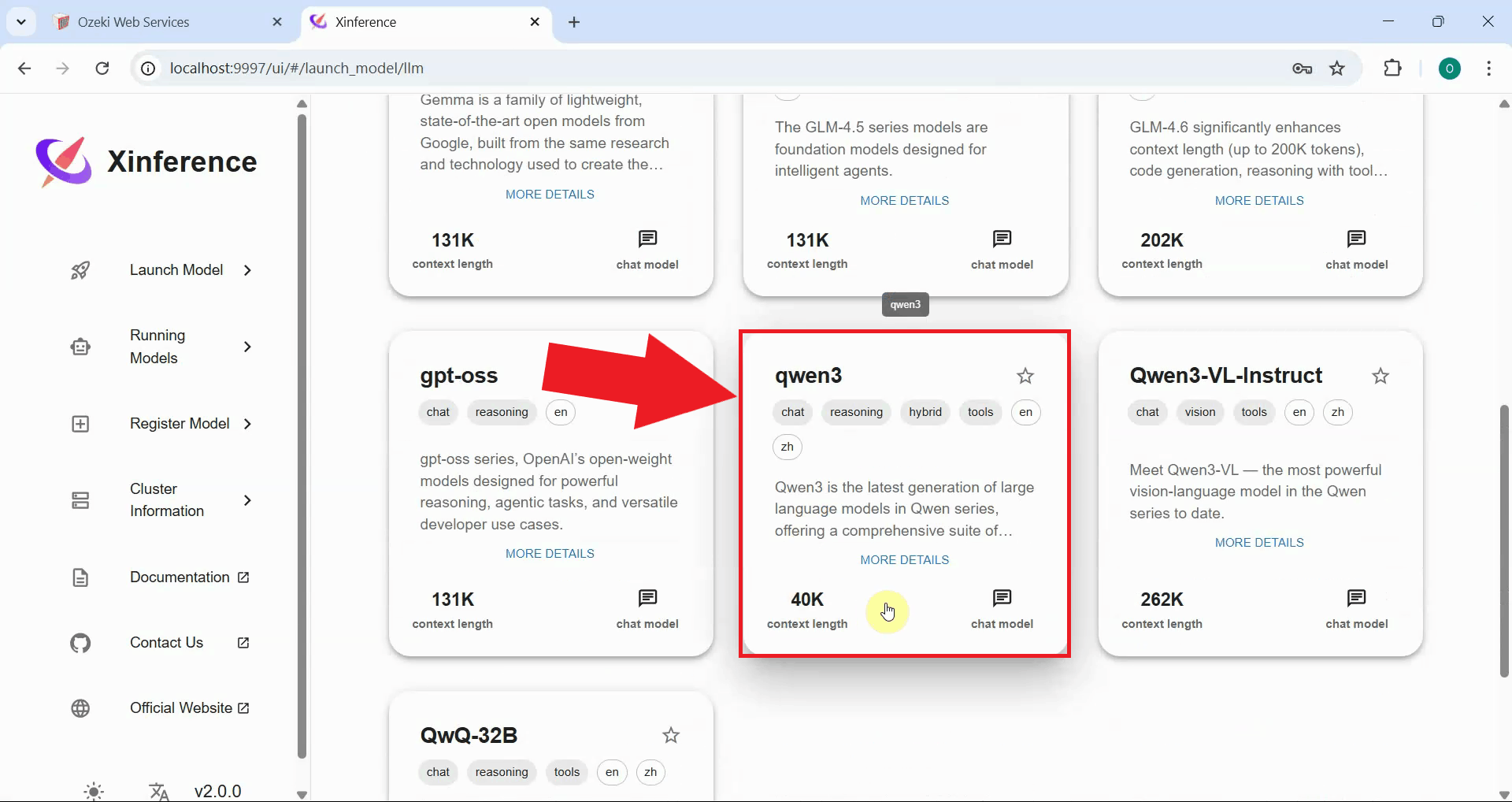
In the Xinference dashboard, browse the available models and select one to deploy. Choose a model that fits your requirements and hardware capabilities (Figure 7).
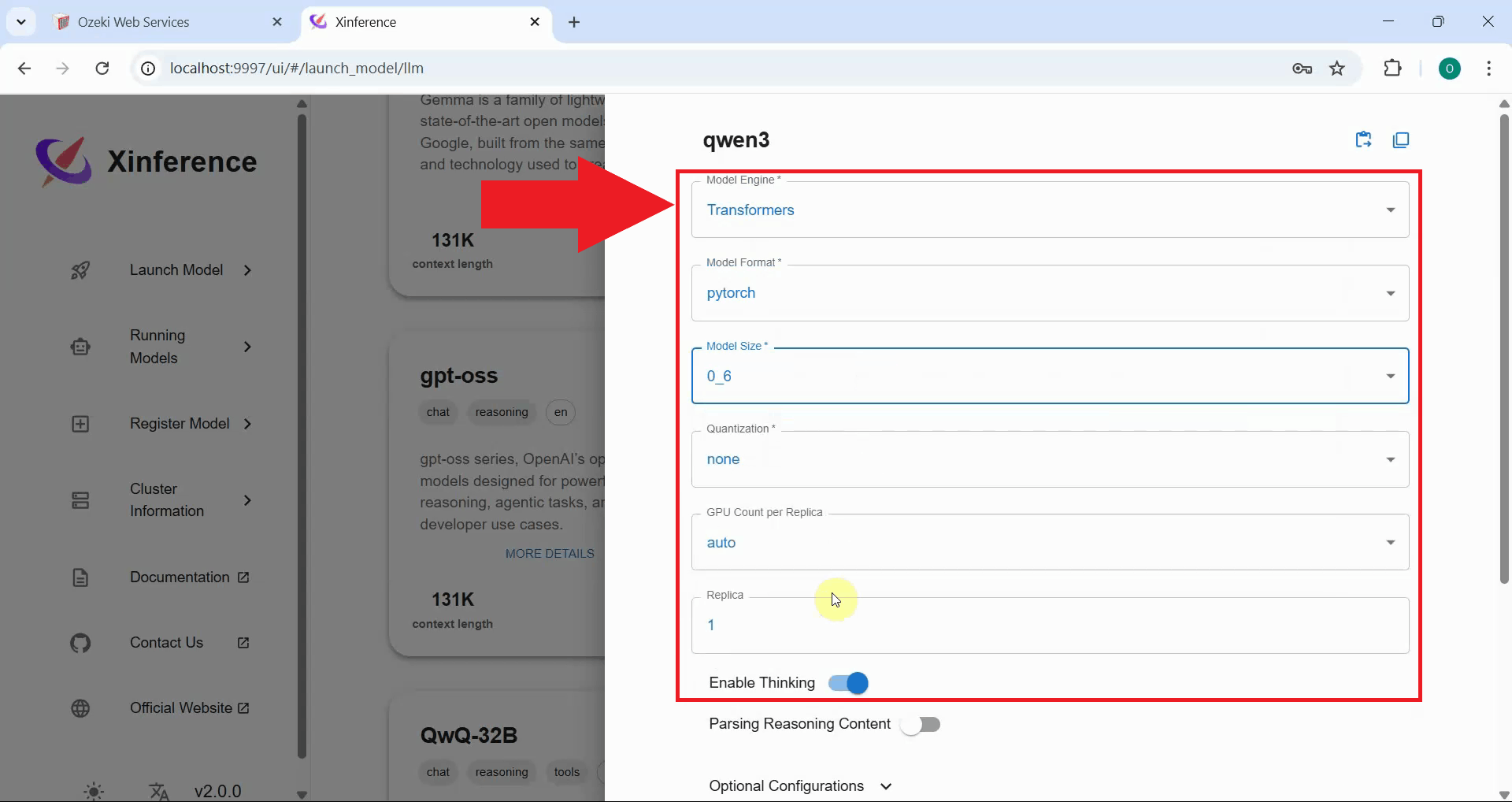
Configure the model deployment settings. You can specify parameters such as the model format, quantization level, context length, and other performance settings. Adjust these settings based on your hardware capabilities and use case requirements (Figure 8).
Step 5 - Launch the model
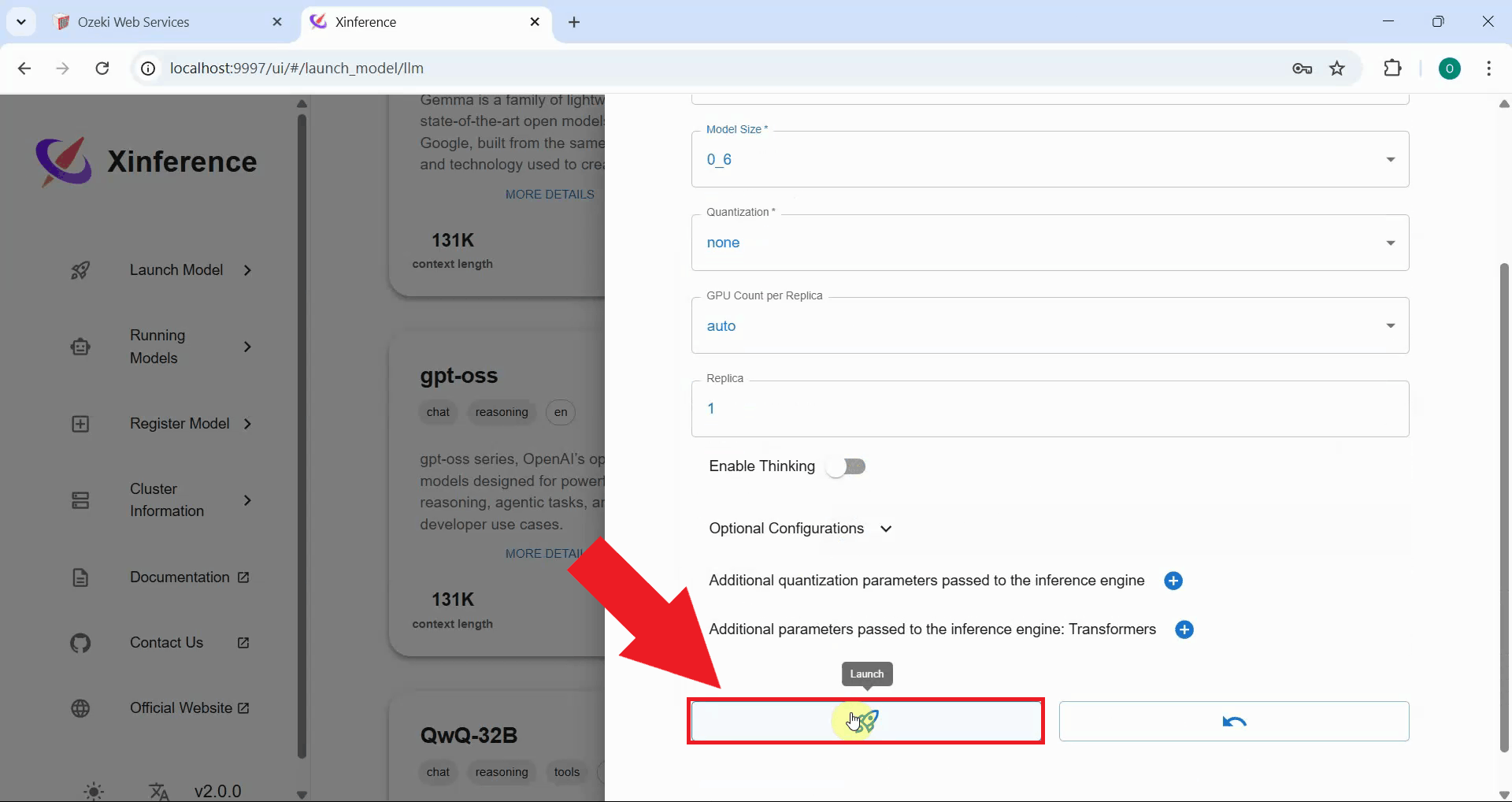
Click the launch button to deploy the model. Xinference will begin loading the model into memory and preparing it for inference. This process may take several minutes depending on the model size and your system's capabilities (Figure 9).
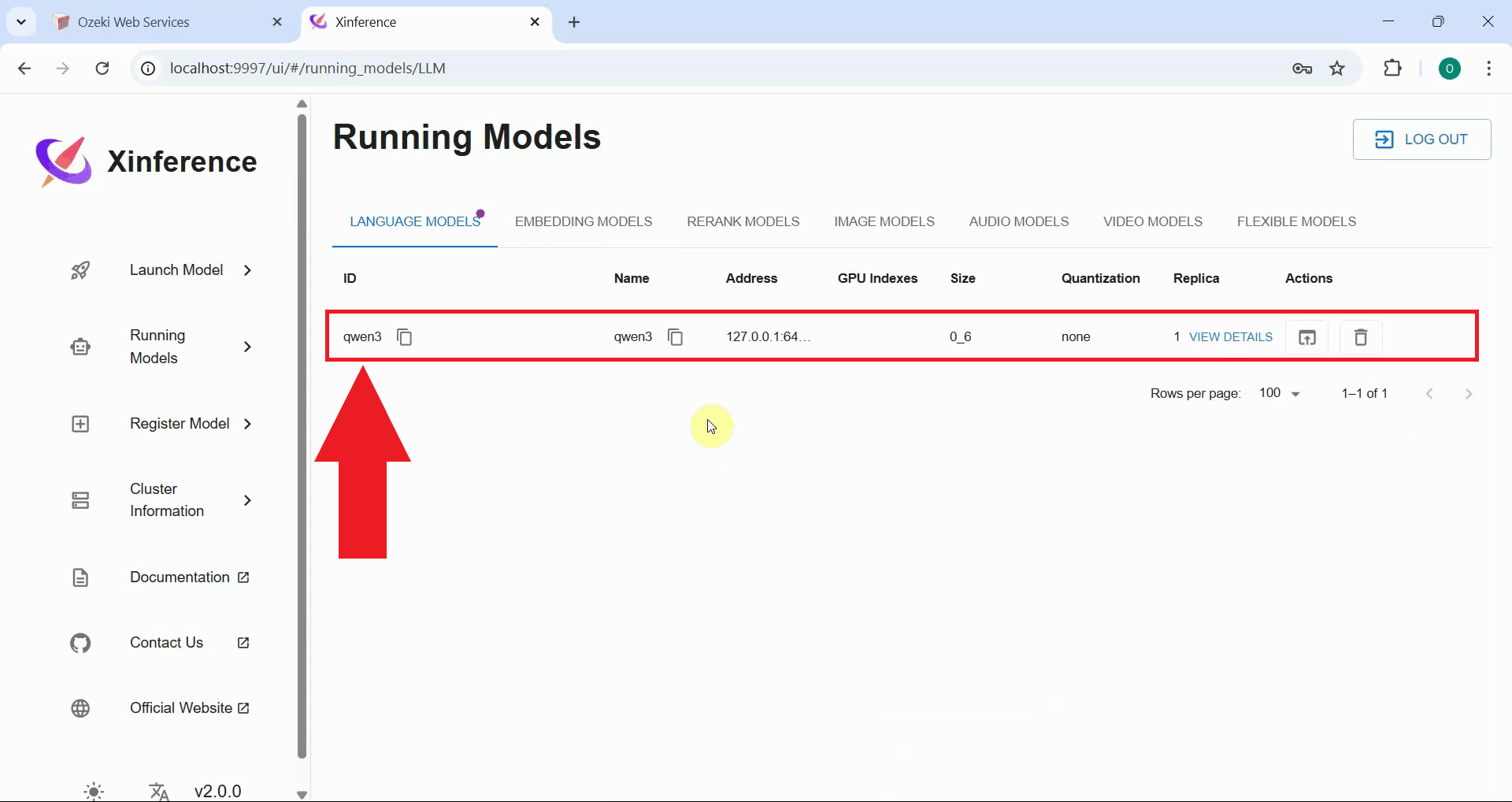
Wait for the model to finish loading and verify that it's running successfully. The dashboard will show the model status as Running when deployment is complete. You can now use this model through the Xinference API (Figure 10).
Step 6 - Open Providers page in Ozeki AI Gateway
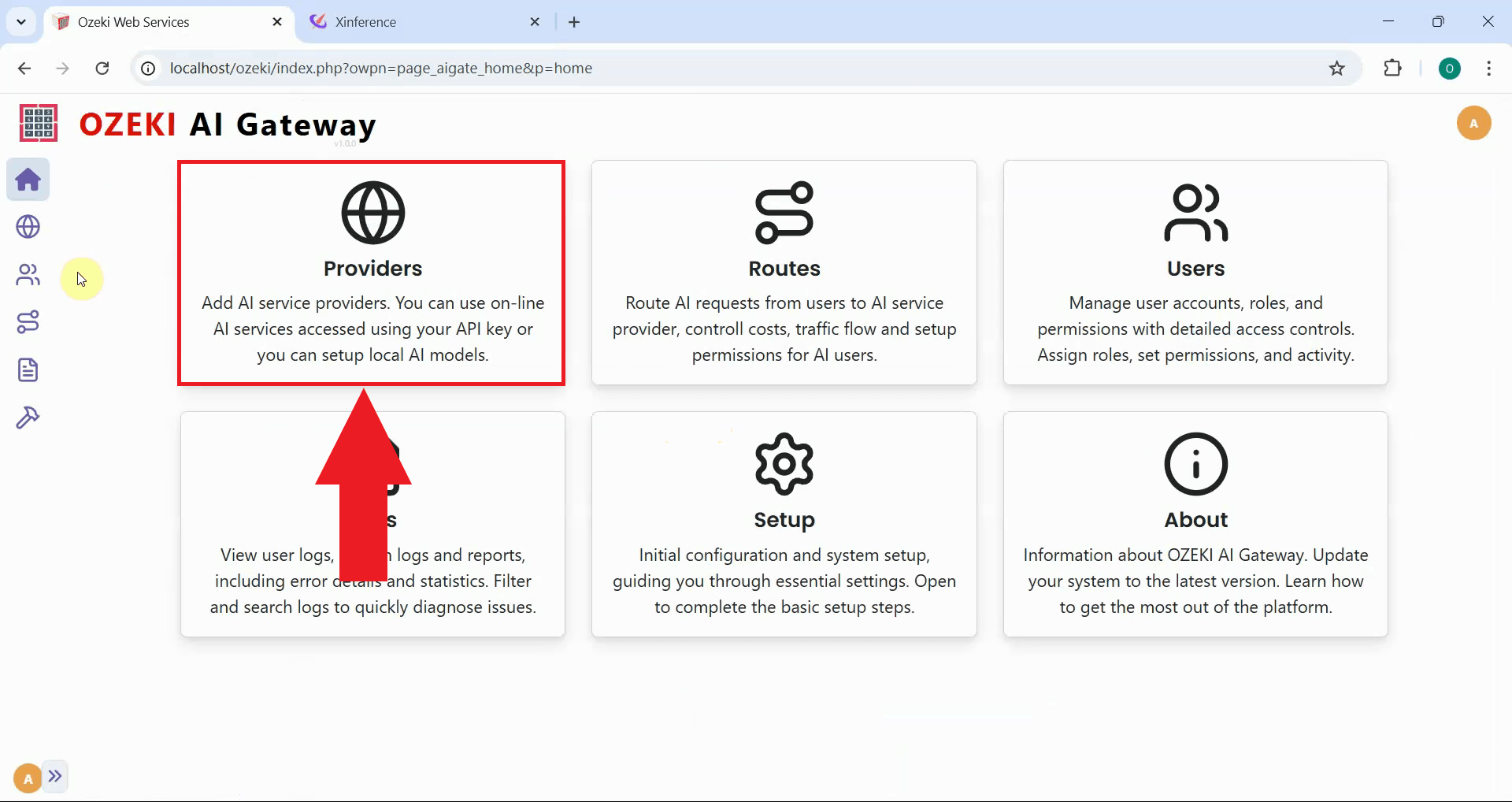
Open the Ozeki AI Gateway web interface and navigate to the Providers page. This is where you'll configure Xinference as a new provider using the API key you specified in the auth config file (Figure 11).
Step 7 - Create provider
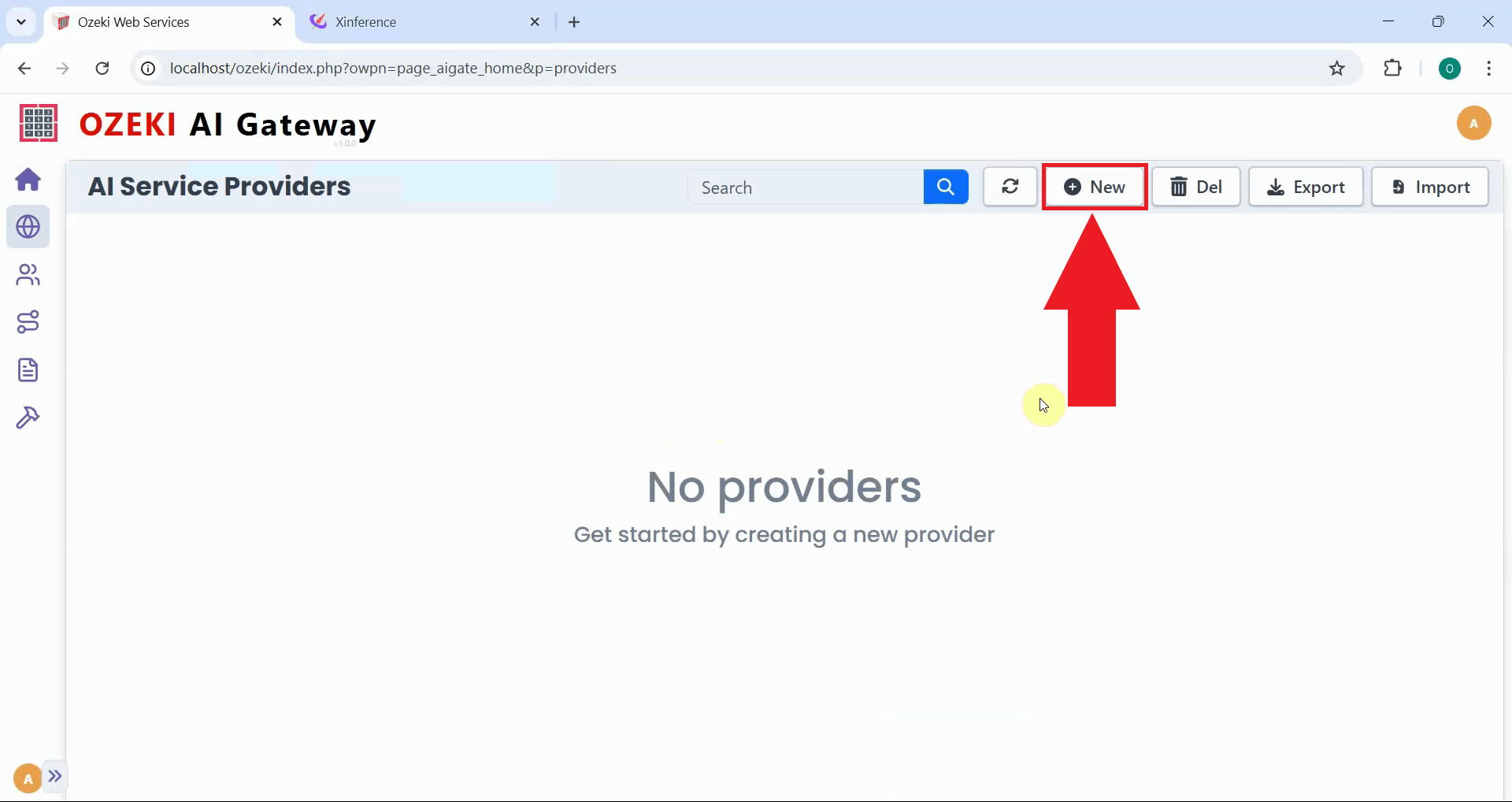
Click the "New" button to begin the provider creation process. This opens a form where you'll enter the connection details for your Xinference server (Figure 12).
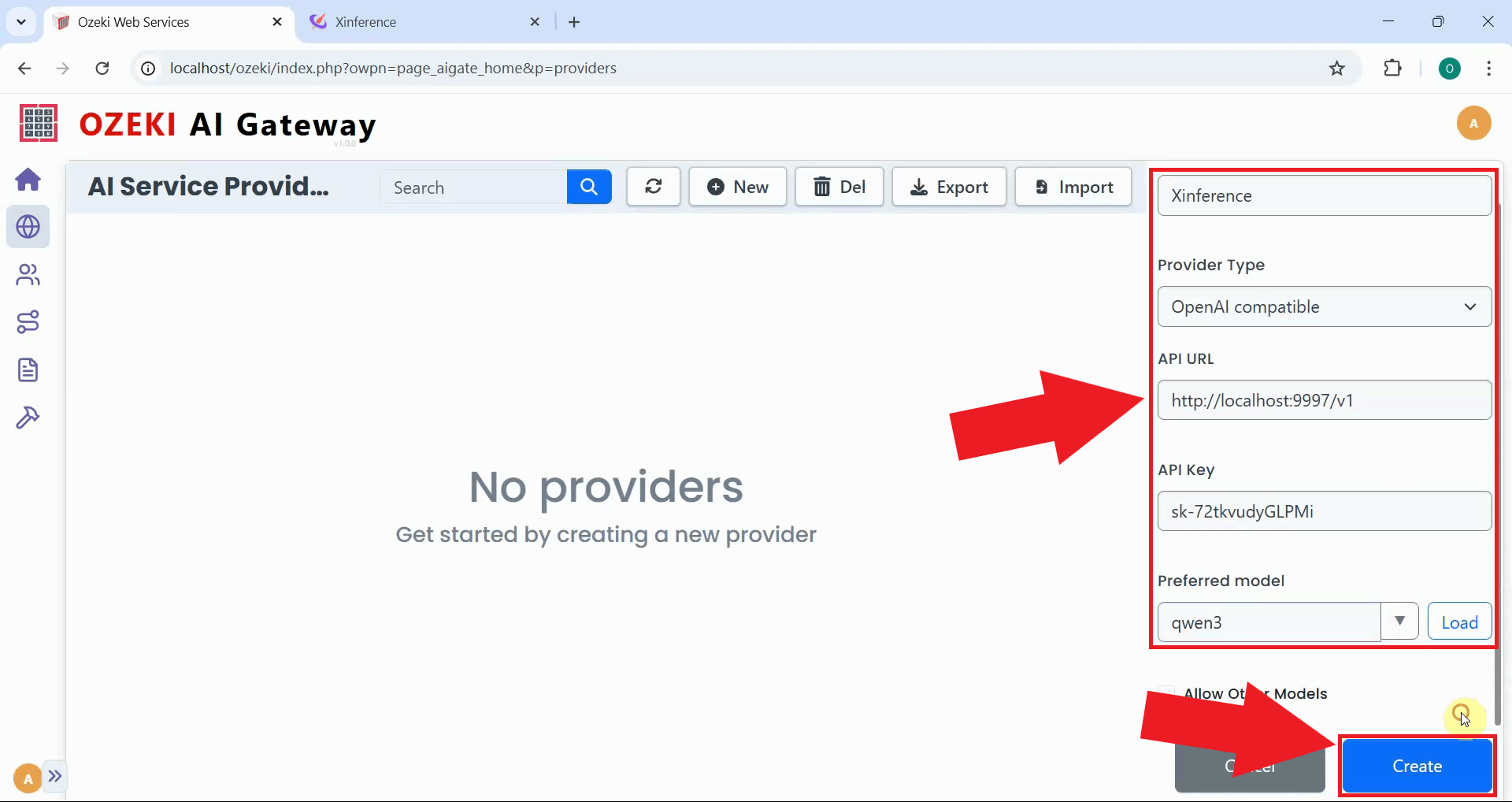
Fill in the provider configuration form with your Xinference server's details. Enter a descriptive provider
name, select "OpenAI compatible" as the provider type, specify the API endpoint URL
(http://localhost:9997/v1), and paste one of the API keys from your auth config file.
Select the model you deployed from the dropdown list, then click "Create" to save the configuration (Figure 13).
http://localhost:9997/v1
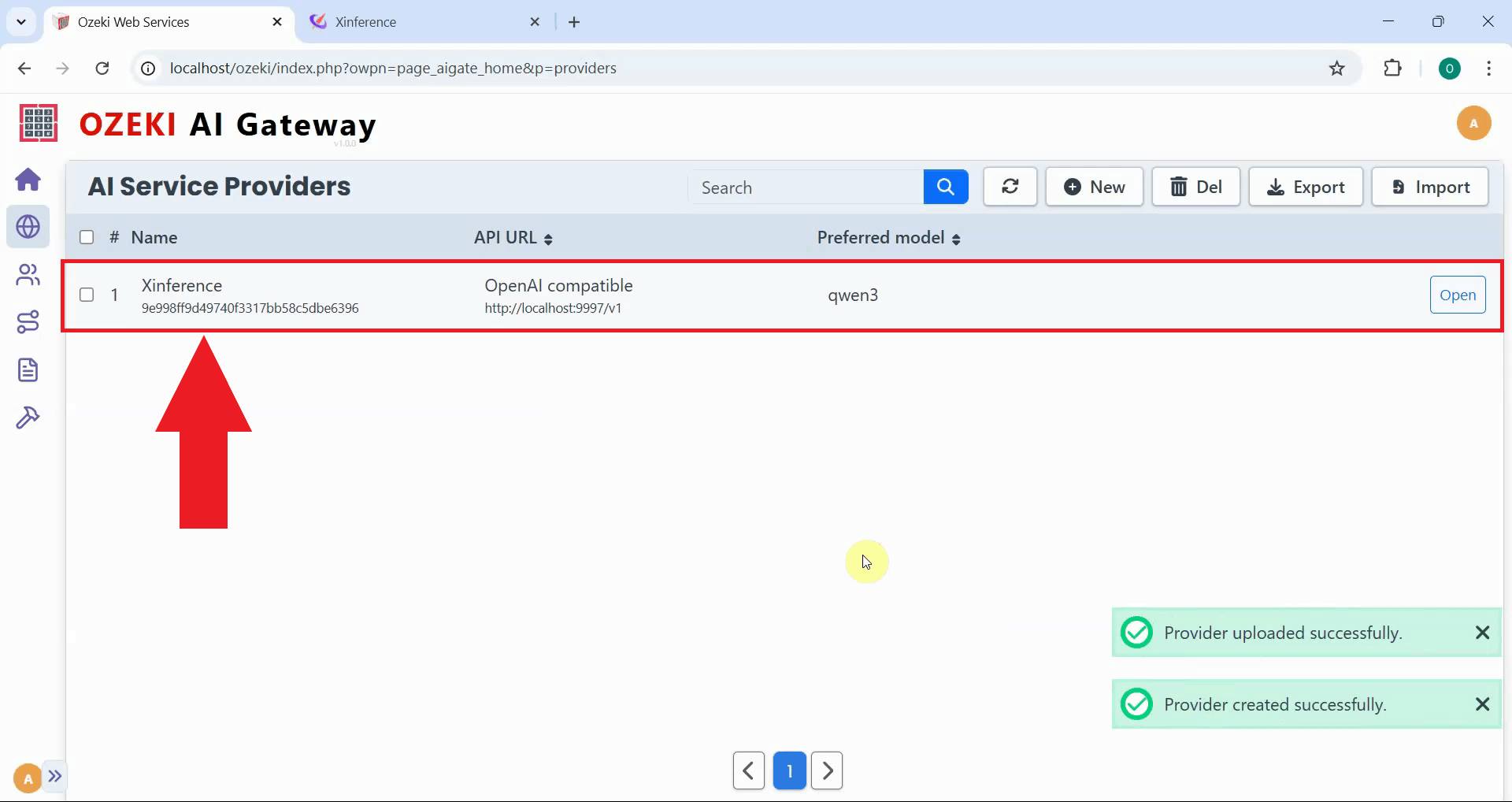
After creation, the Xinference provider is added to Ozeki AI Gateway. The provider now appears in the list, confirming that your gateway can route requests to your local Xinference server. You can now create routes that allow users to access your self-hosted AI models through the gateway (Figure 14).
Step 8 - Test the Xinference provider
The following video demonstrates how to test your Xinference provider by sending a test prompt and verifying the response.
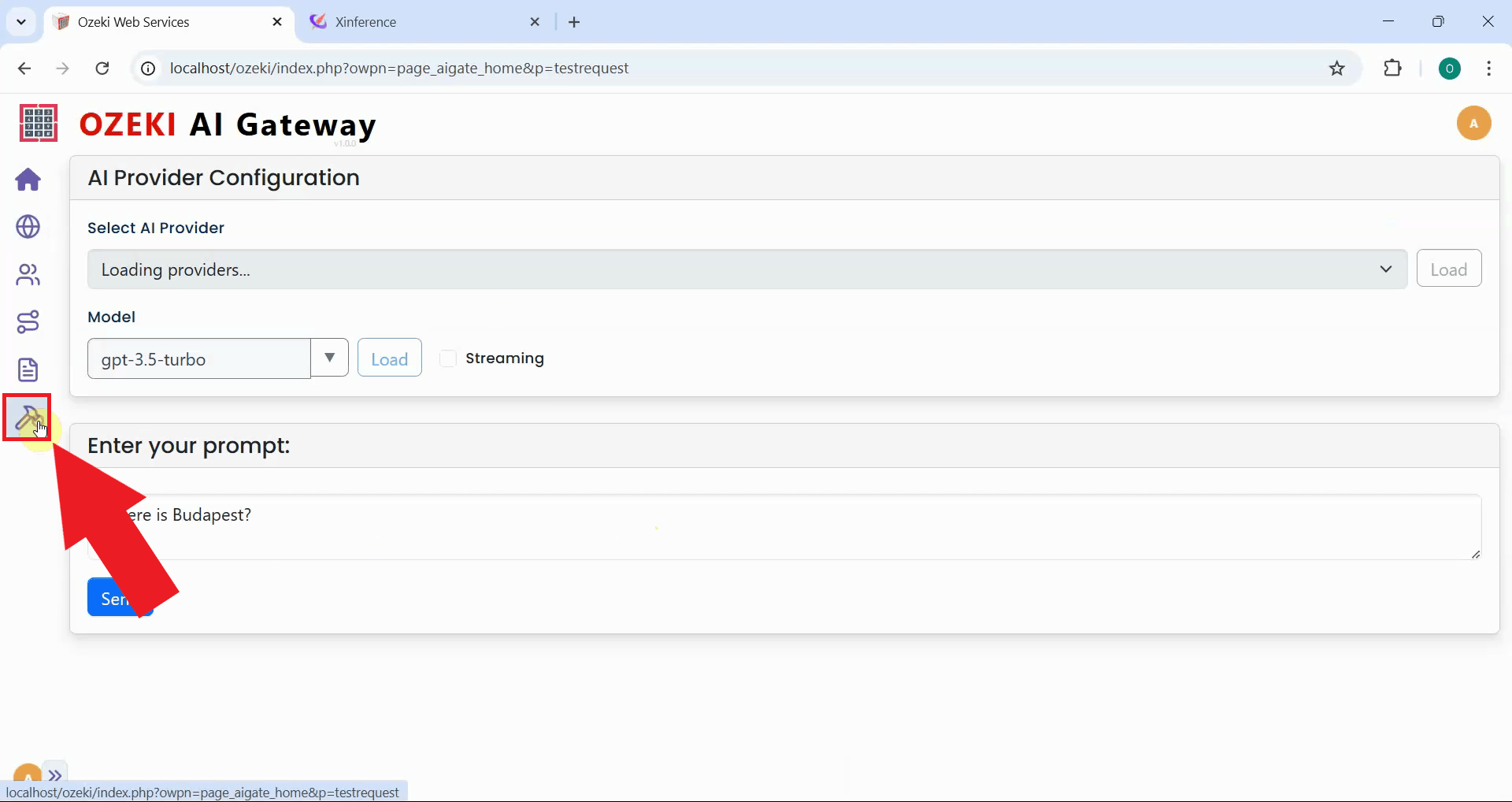
To verify that your Xinference provider is working correctly, navigate to the provider test page in Ozeki AI Gateway. This interface allows you to send test prompts directly to your configured Xinference server (Figure 15).
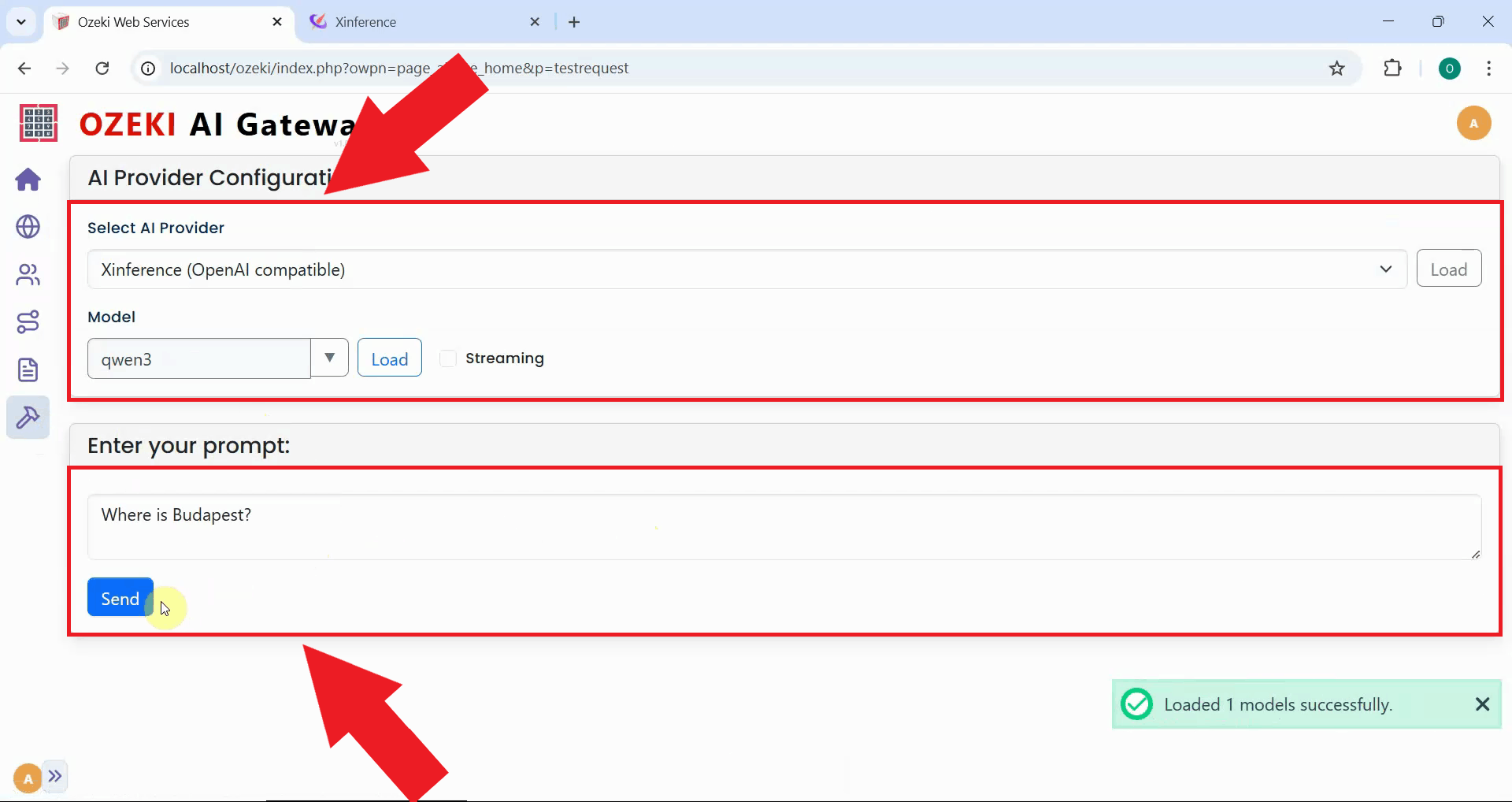
Select your Xinference provider and the deployed model, then enter a simple test prompt. Click the send button to submit the request to your Xinference server (Figure 16).
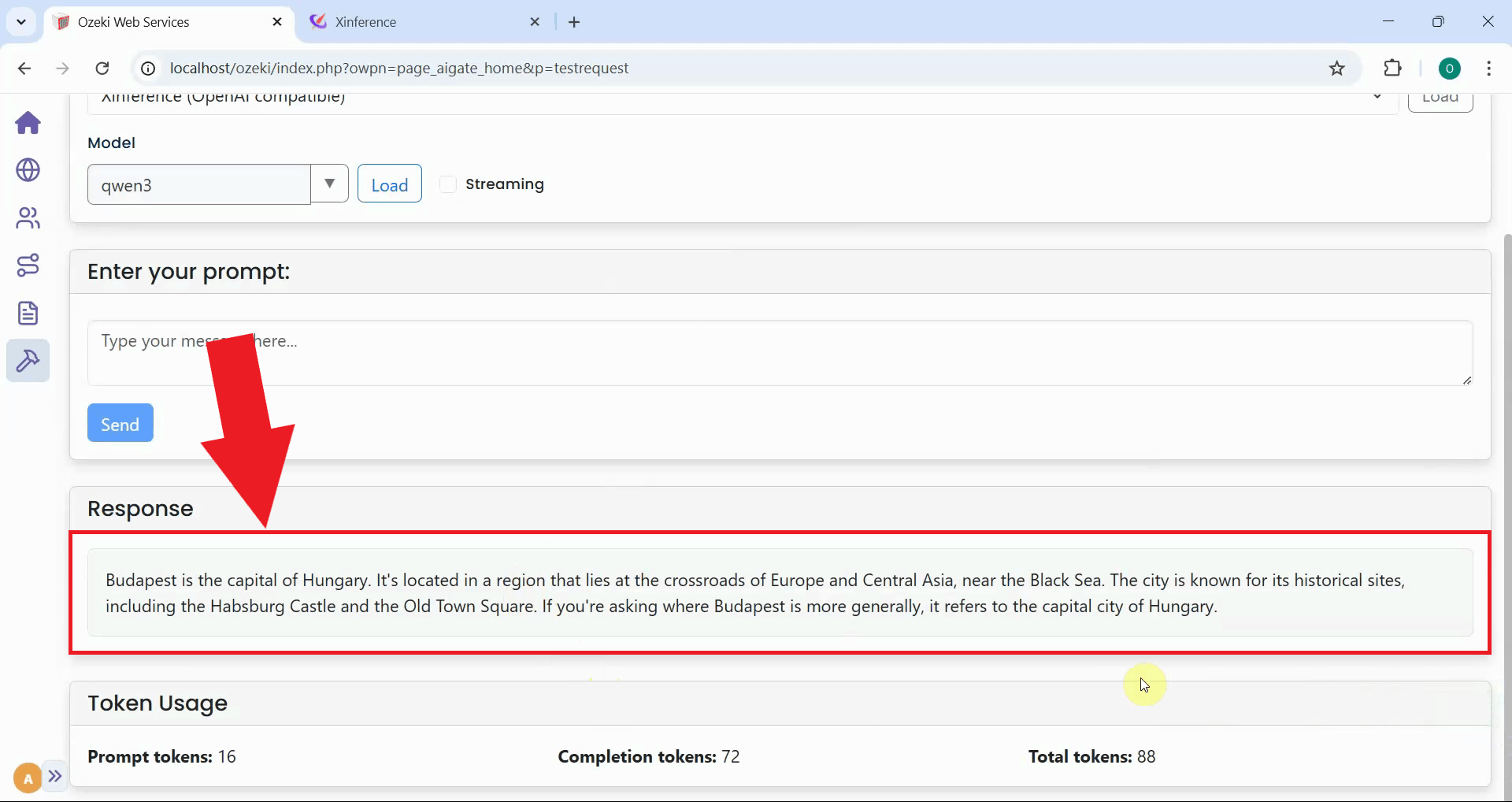
After sending the test prompt, verify that you receive a response from the Xinference server. A successful response confirms that your provider is configured correctly, the API key authentication is working, and the Xinference server is processing requests as expected (Figure 17).
Conclusion
You have successfully set up a local Xinference server with API key authentication and configured it as a provider in Ozeki AI Gateway. Your gateway can now communicate with your self-hosted AI models running on your own infrastructure with full authentication and access control. This setup gives you complete control over your AI infrastructure while maintaining centralized access management through Ozeki AI Gateway. You can deploy and serve multiple AI models from your own hardware, ensuring data privacy, reducing cloud costs, and maintaining full control over your AI deployment.