
How to create a Mistral API key to use in Ozeki AI Gateway
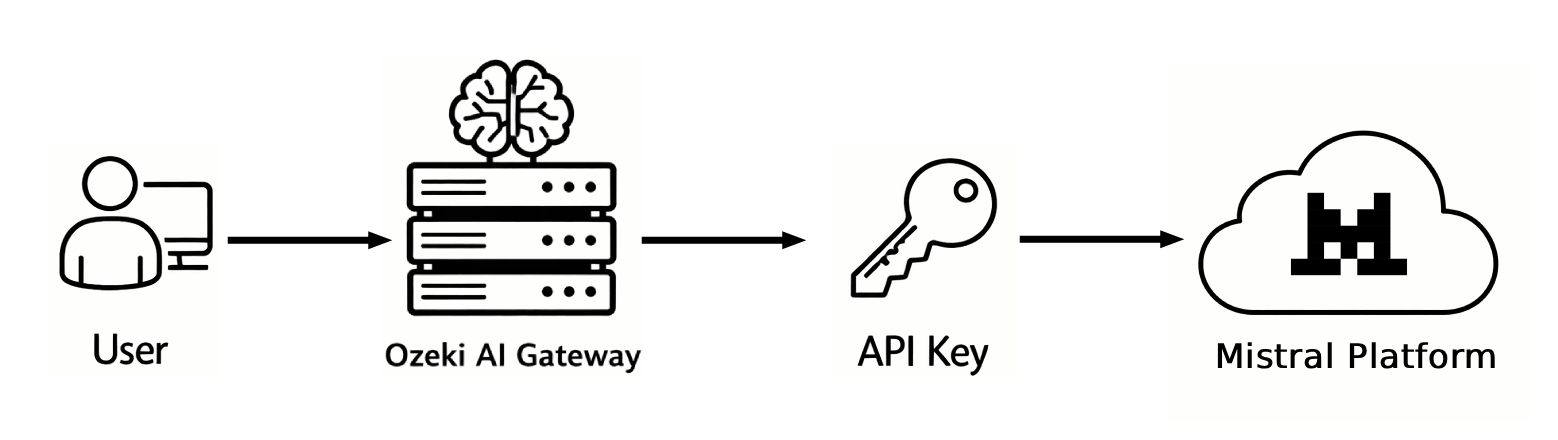
This guide demonstrates how to create a Mistral API key and configure it in Ozeki AI Gateway. You'll learn how to access the Mistral platform, generate a new API key, and set up Mistral as a provider in your gateway. By following these steps, you can connect your Ozeki AI Gateway to Mistral's AI models and services.
API URL: https://api.mistral.ai/v1
Example API Key: 12345...
Default model: mistral-large-latest
What is a Mistral API key?
A Mistral API key is a unique authentication credential that allows applications to access Mistral's AI models and services. The API key serves as a secure token that identifies your Mistral account and authorizes API requests. When configuring Mistral as a provider in Ozeki AI Gateway, you need this API key to establish the connection between your gateway and Mistral's services.
Steps to follow
We assume Ozeki AI Gateway is already installed on your system. You can install it on Linux, Windows or Mac.
- Open Mistral platform
- Login to Mistral
- Create new key
- Enter key details
- Copy API key
- Open Providers page in Ozeki AI Gateway
- Create provider
- Test provider
How to create a Mistral API key video
The following video shows how to create a Mistral API key and configure it in Ozeki AI Gateway step-by-step. The video covers accessing the Mistral platform, generating a new API key, and setting up Mistral as a provider in your gateway.
Step 1 - Open Mistral platform
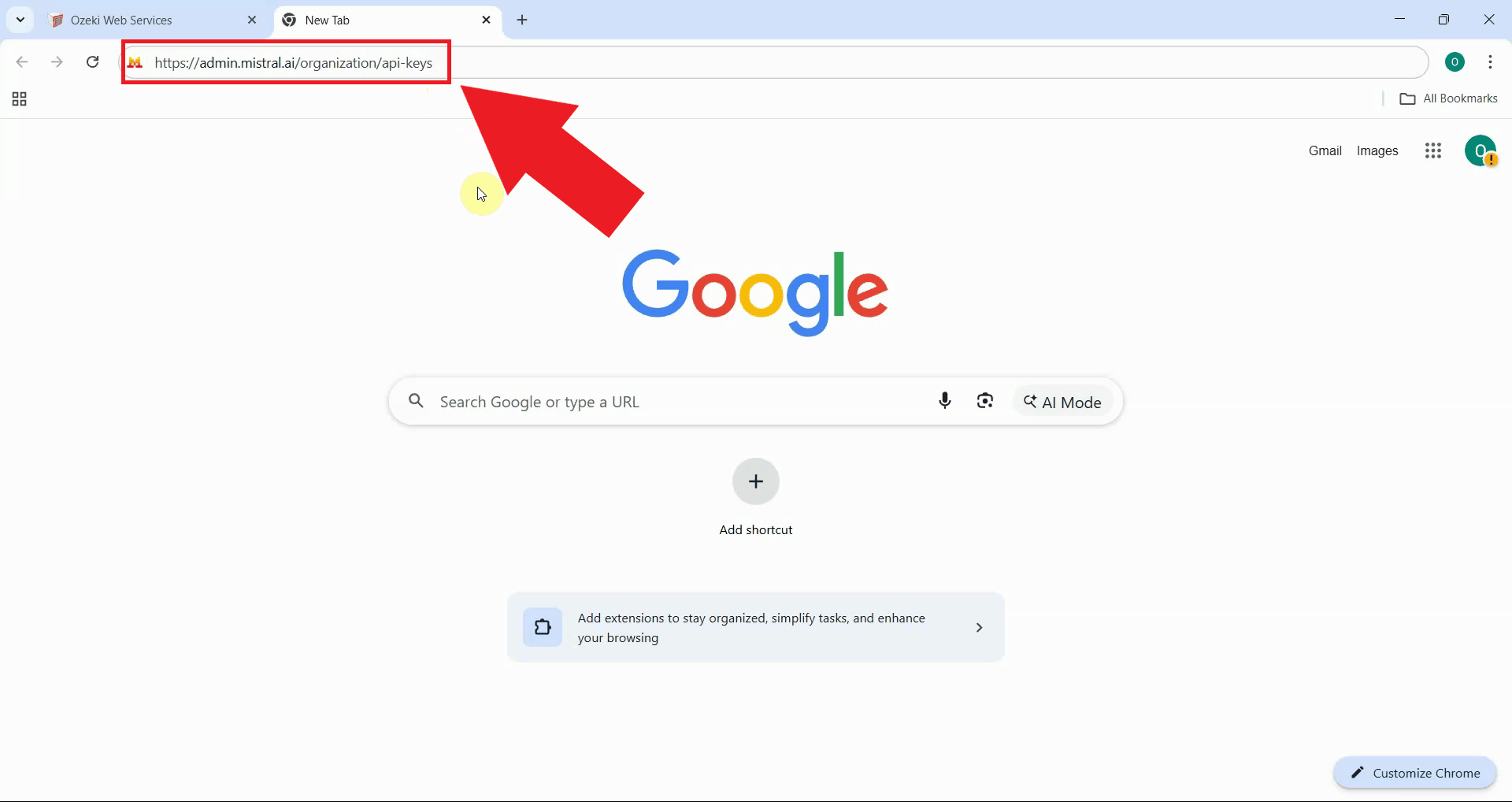
Open your web browser and navigate to the API keys page. This is where you'll create and manage your Mistral API keys (Figure 1).
Step 2 - Login to Mistral
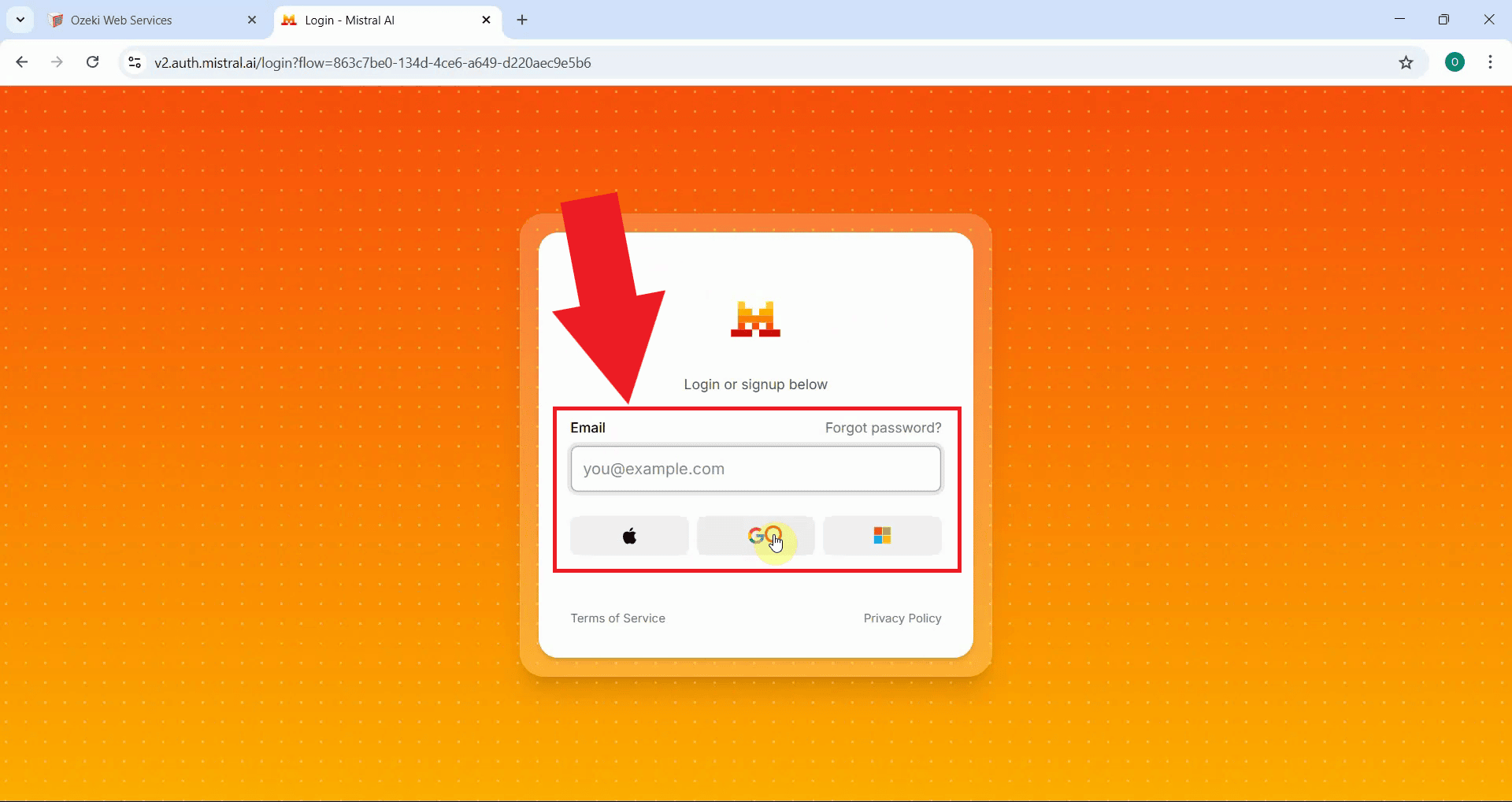
Sign in to your Mistral account using your credentials. If you don't have a Mistral account yet, you'll need to create one before proceeding (Figure 2).
Step 3 - Create new key
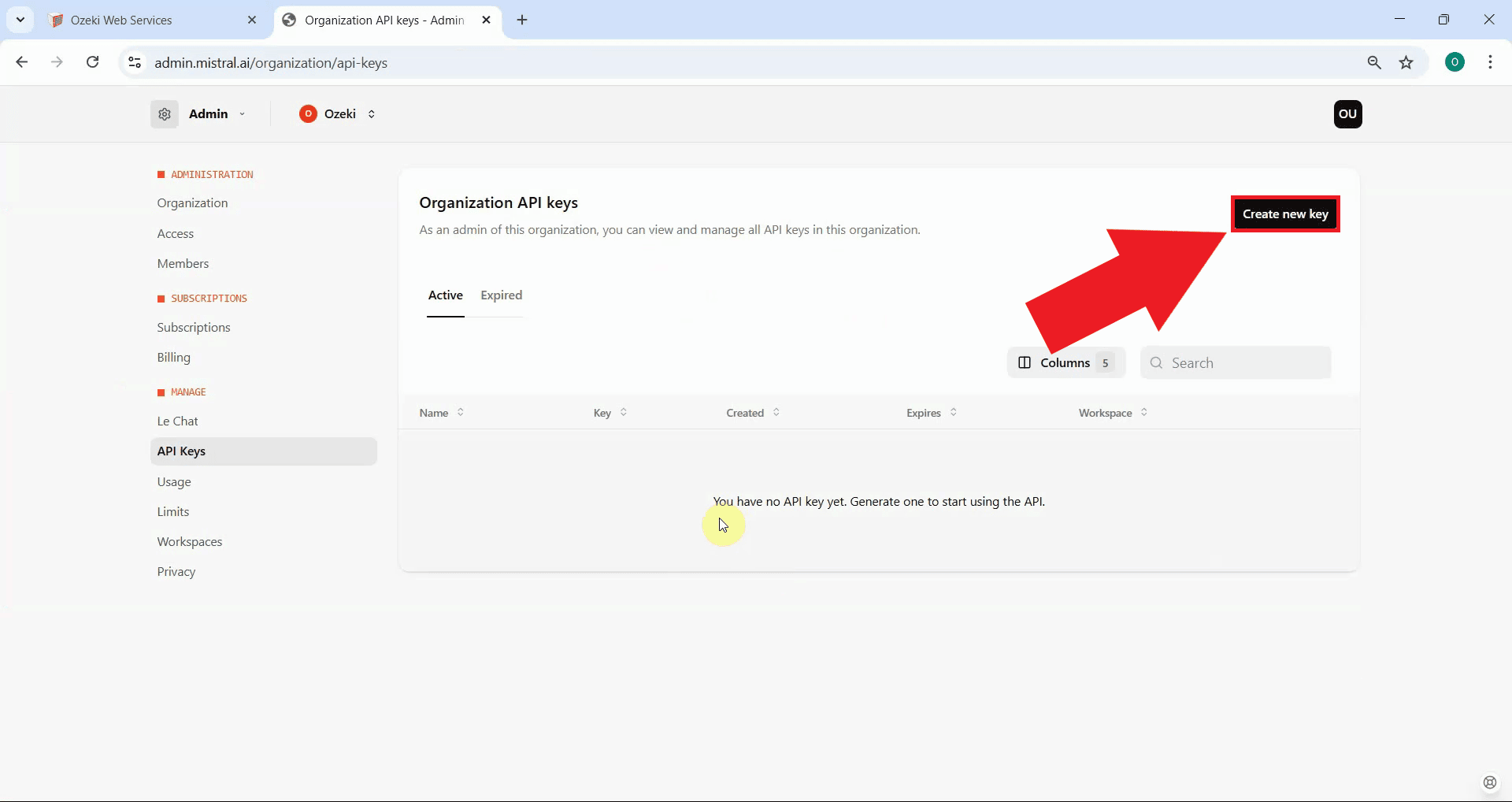
Navigate to the API keys section in your Mistral admin panel and click the "Create new key" button to begin the API key generation process (Figure 3).
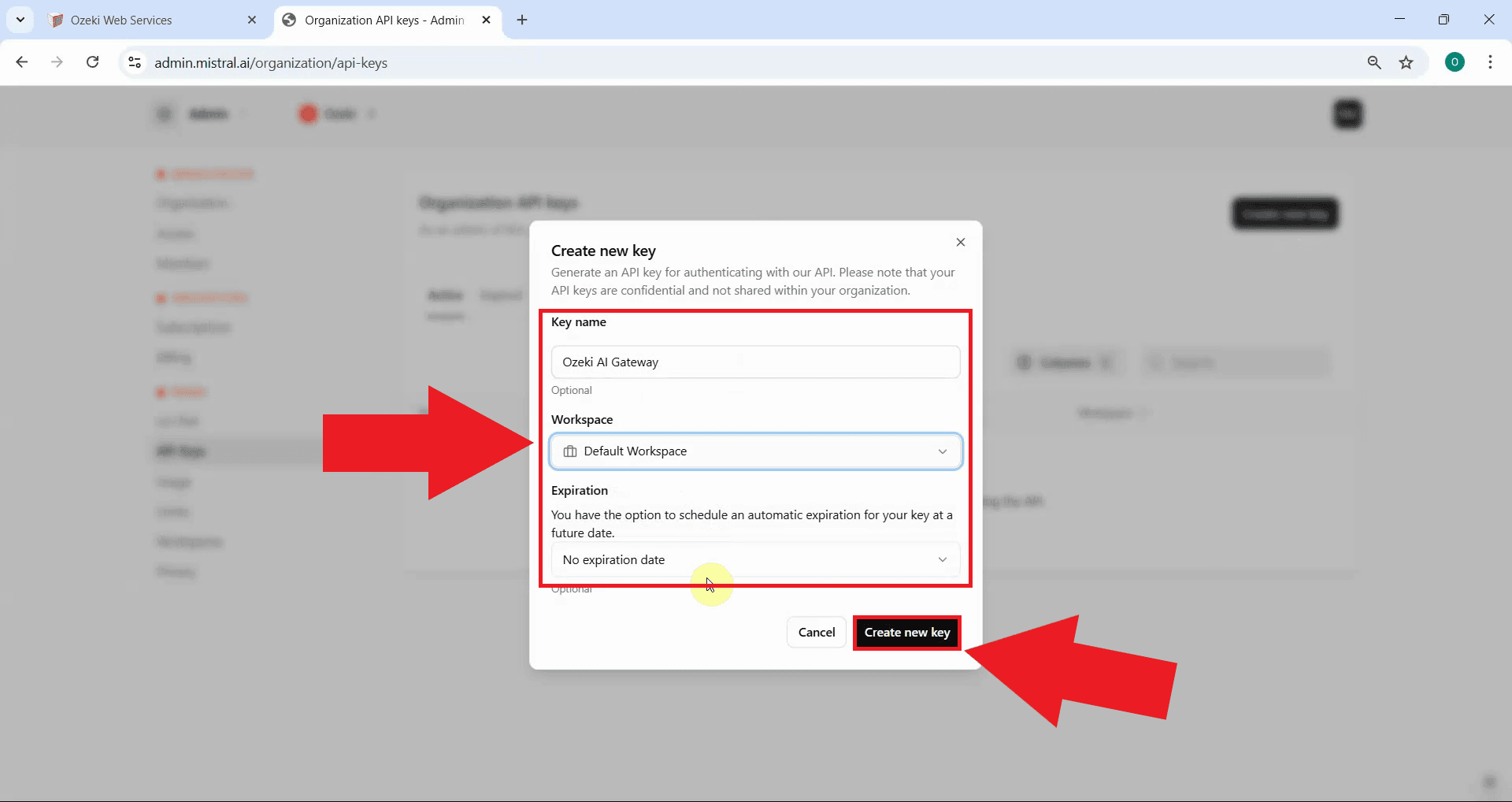
Step 4 - Enter key details
Enter a descriptive name for your API key that identifies its purpose. For example, you might name it "Ozeki AI Gateway" to indicate it will be used with your gateway installation and select a workspace. Click "Create new key" to proceed (Figure 4).
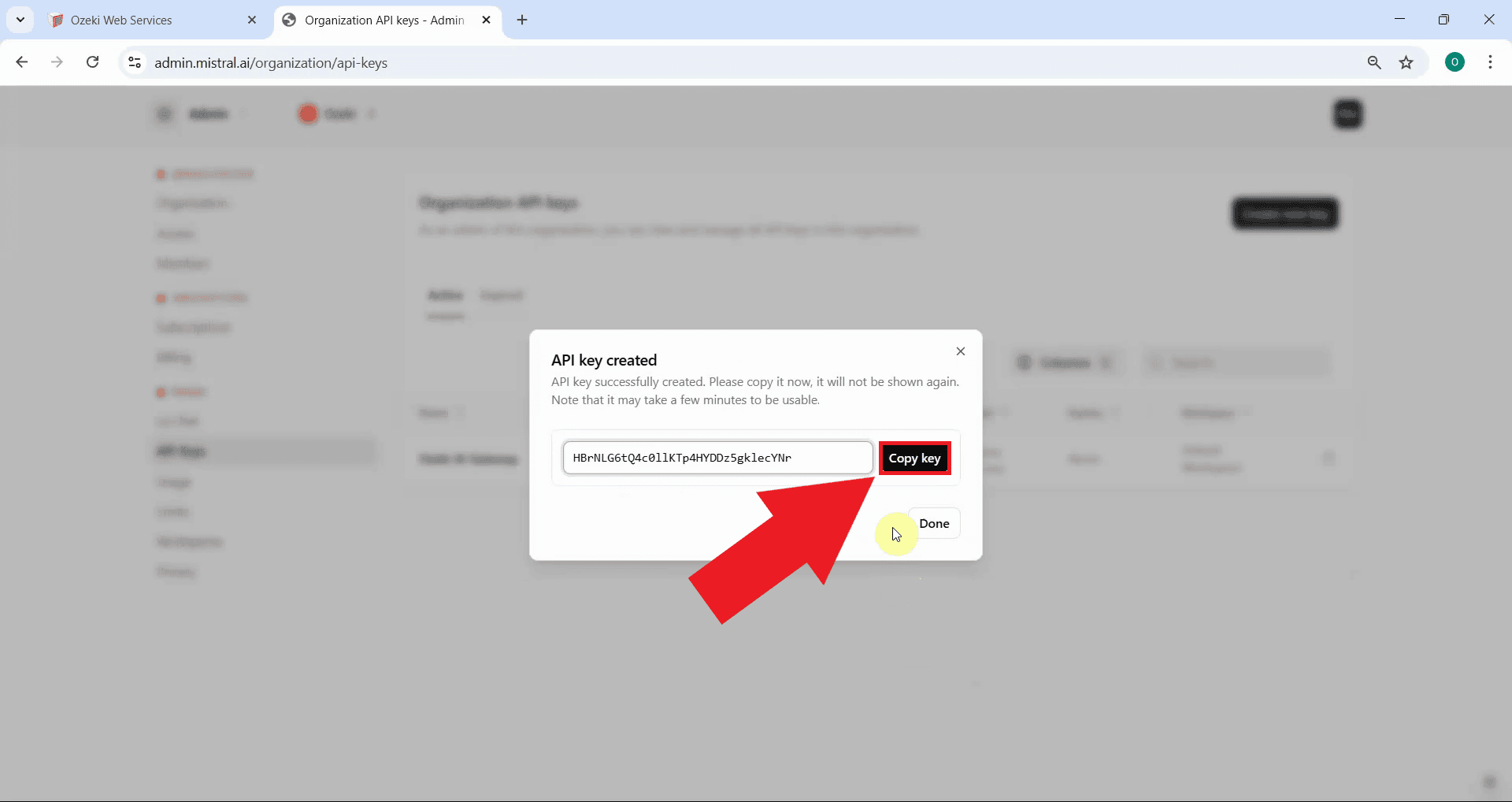
Step 5 - Copy API key
After the API key is generated, Mistral displays the complete key value. Click the copy button to copy the key to your clipboard (Figure 5).
The API key is shown only once during creation. Make sure to copy and securely store the key before closing this window.
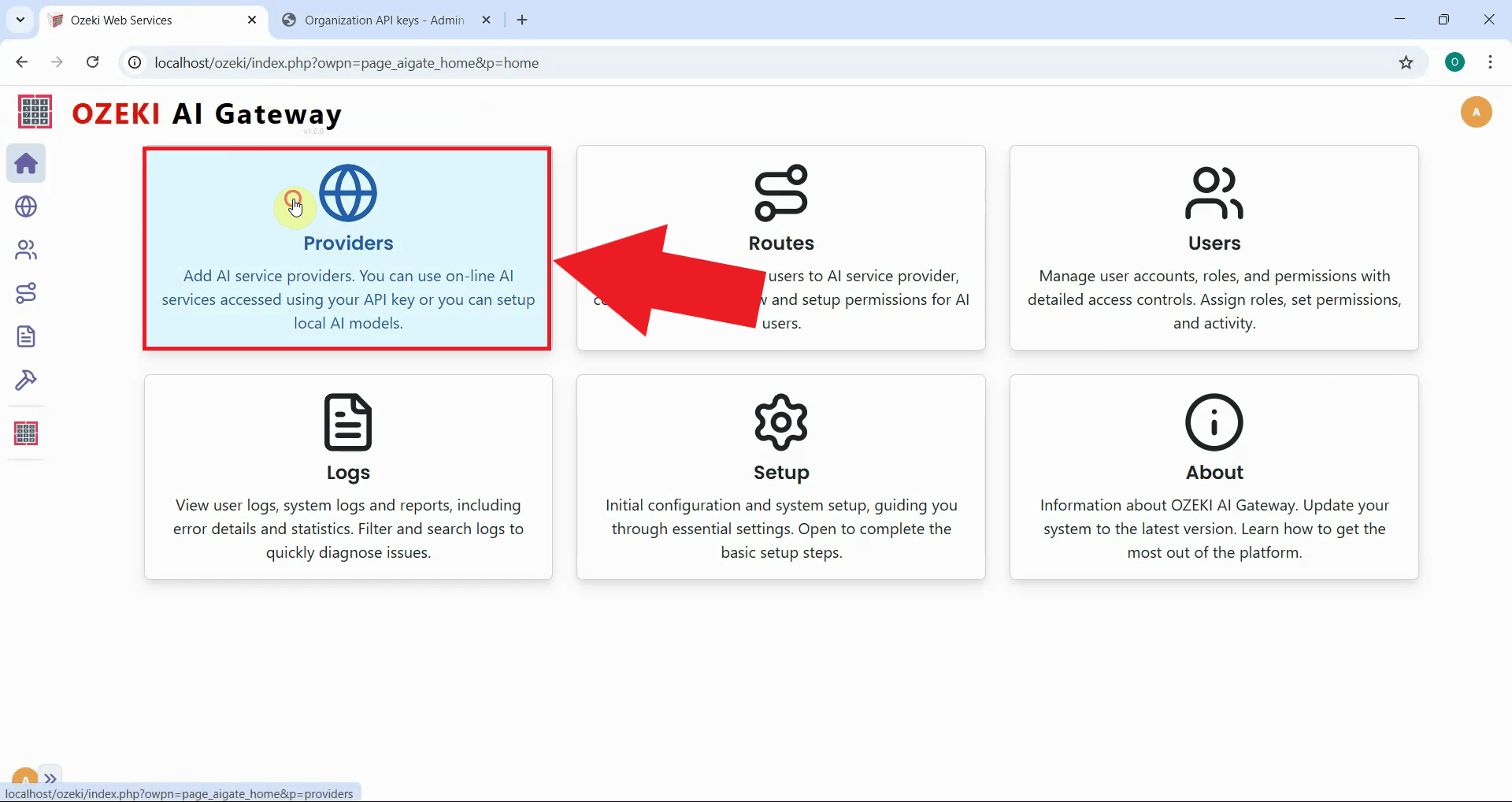
Step 6 - Open Providers page in Ozeki AI Gateway
Open the Ozeki AI Gateway web interface and navigate to the Providers page. This is where you'll configure Mistral as a new provider using the API key you just created (Figure 6).
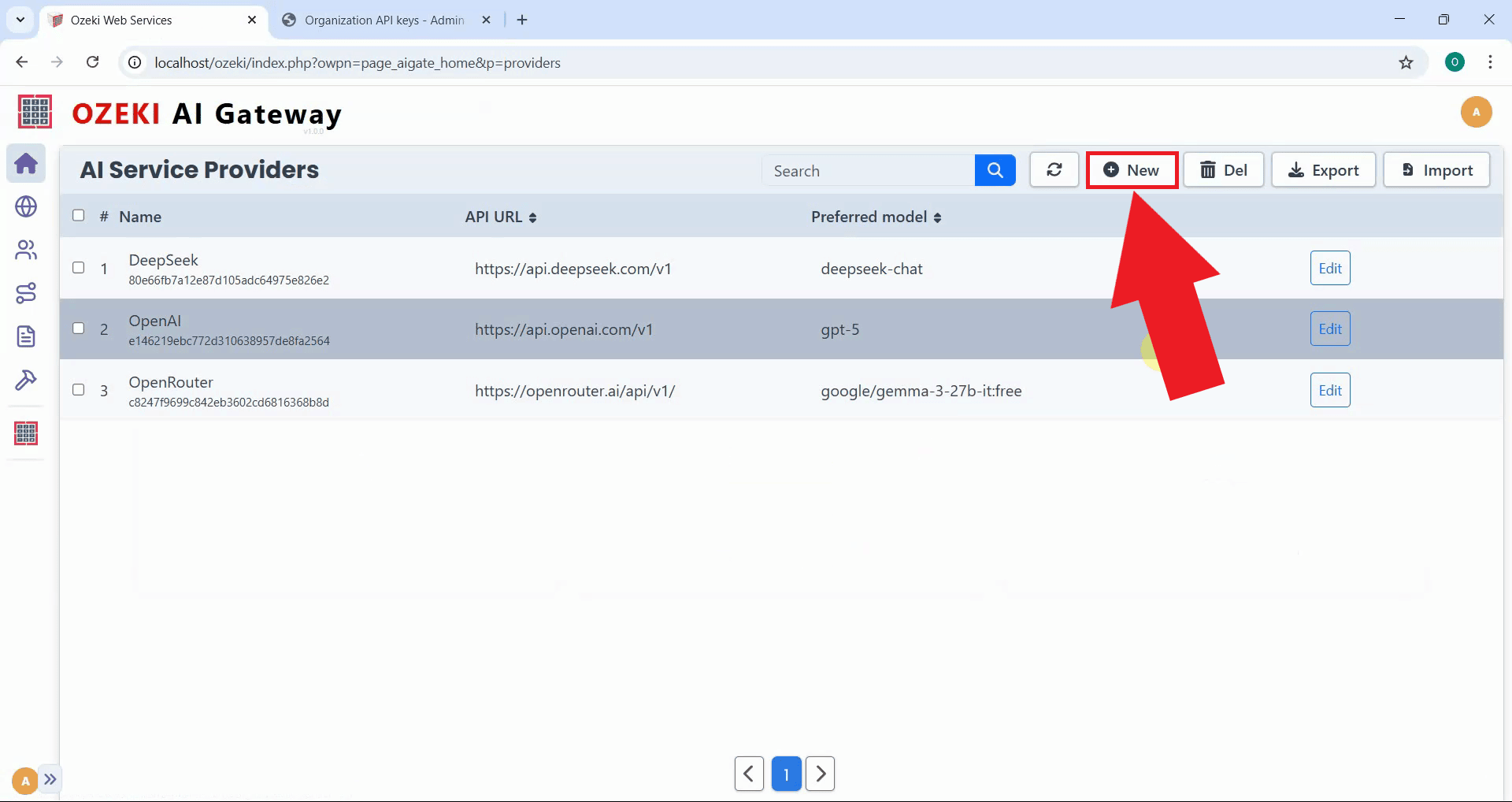
Step 7 - Create provider
Click the "New" button to begin the provider creation process. This opens a form where you'll enter the connection details for Mistral (Figure 7).
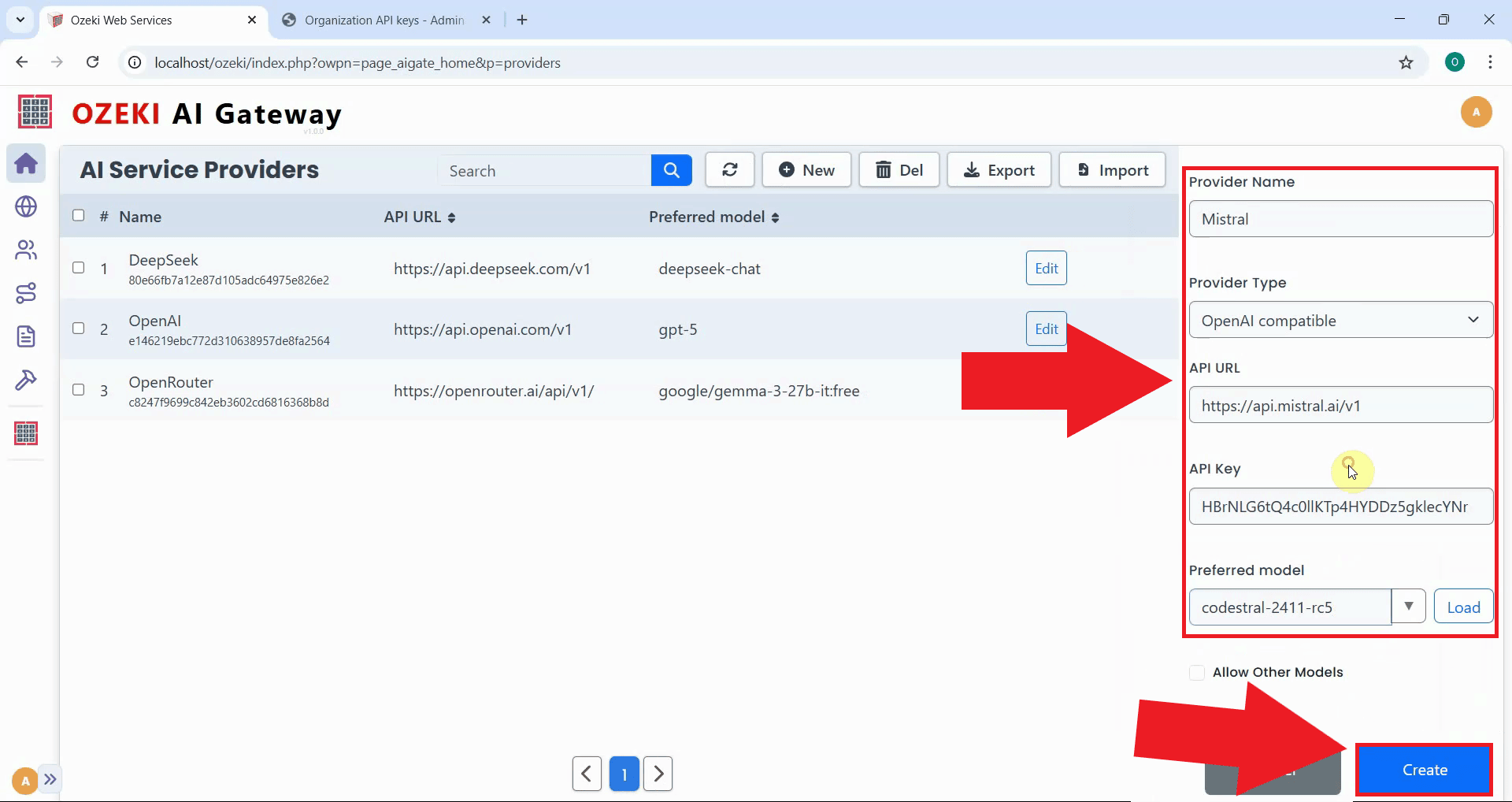
Fill in the provider configuration form with Mistral's details. Enter "Mistral" as the provider name, select "OpenAI compatible" as the provider type, specify the API endpoint URL, and paste the API key you copied earlier. Select the preferred model from the dropdown list, then click "Create" to save the configuration (Figure 8).
https://api.mistral.ai/v1
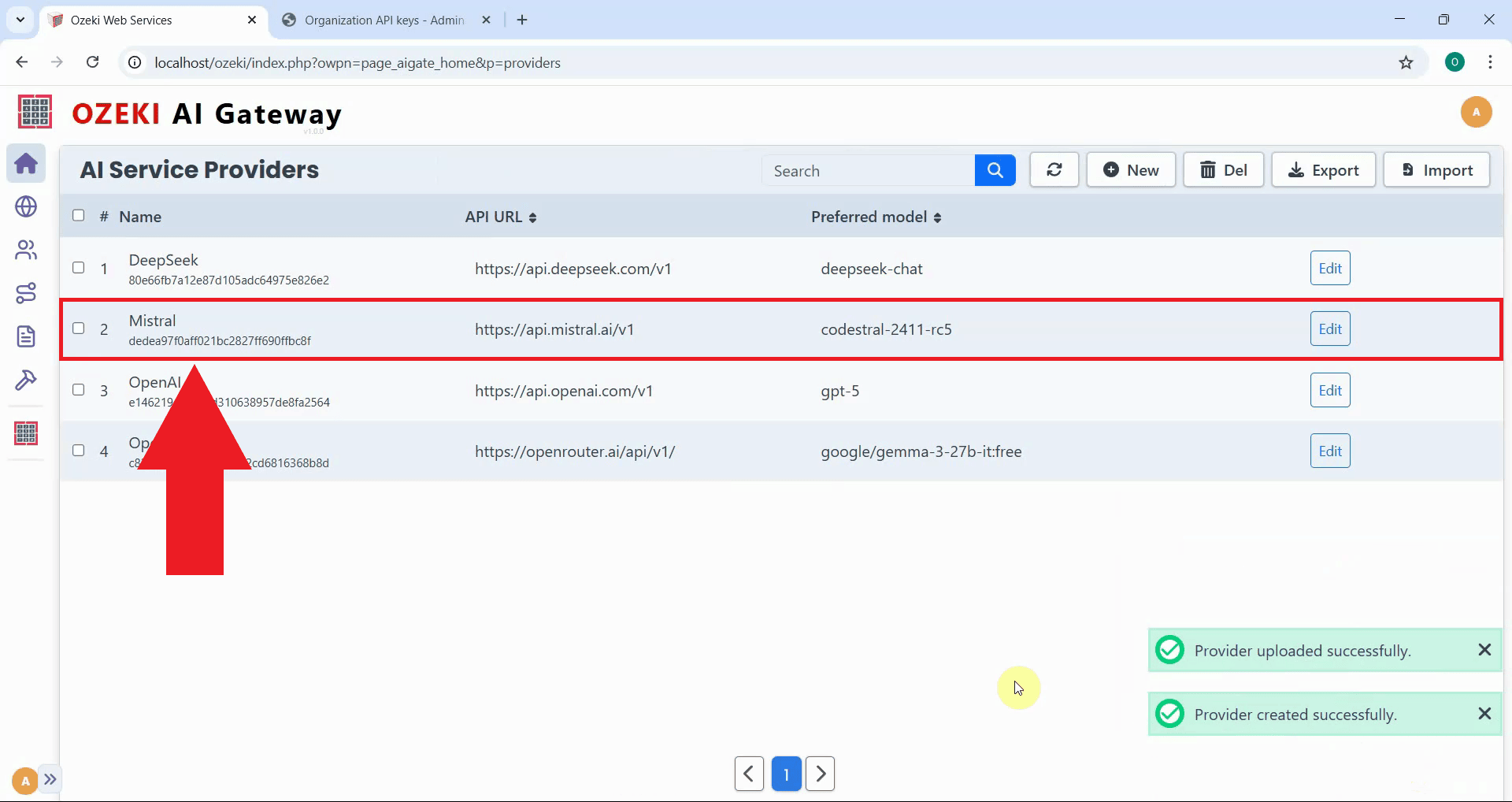
After clicking "Create", the Mistral provider is added to Ozeki AI Gateway. The provider now appears in the providers list, confirming that your gateway can route requests to Mistral's services. You can now create routes that allow users to access Mistral models through your gateway (Figure 9).
Step 8 - Test provider
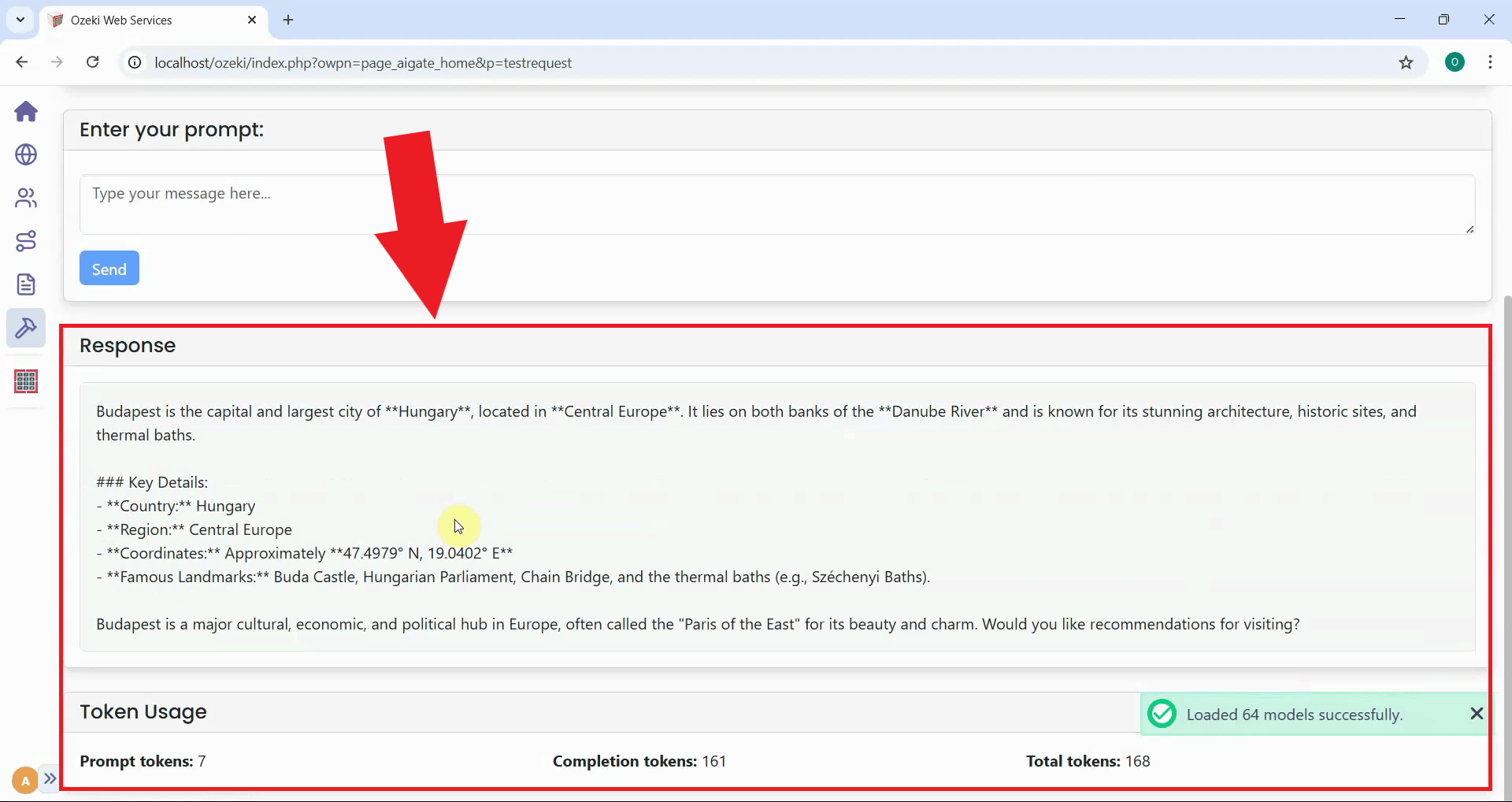
After configuring Mistral as a provider, you should test the connection to verify it's working correctly. This video demonstrates how to use the gateway's testing interface to send a sample prompt to Mistral and confirm that your configuration is functioning properly.
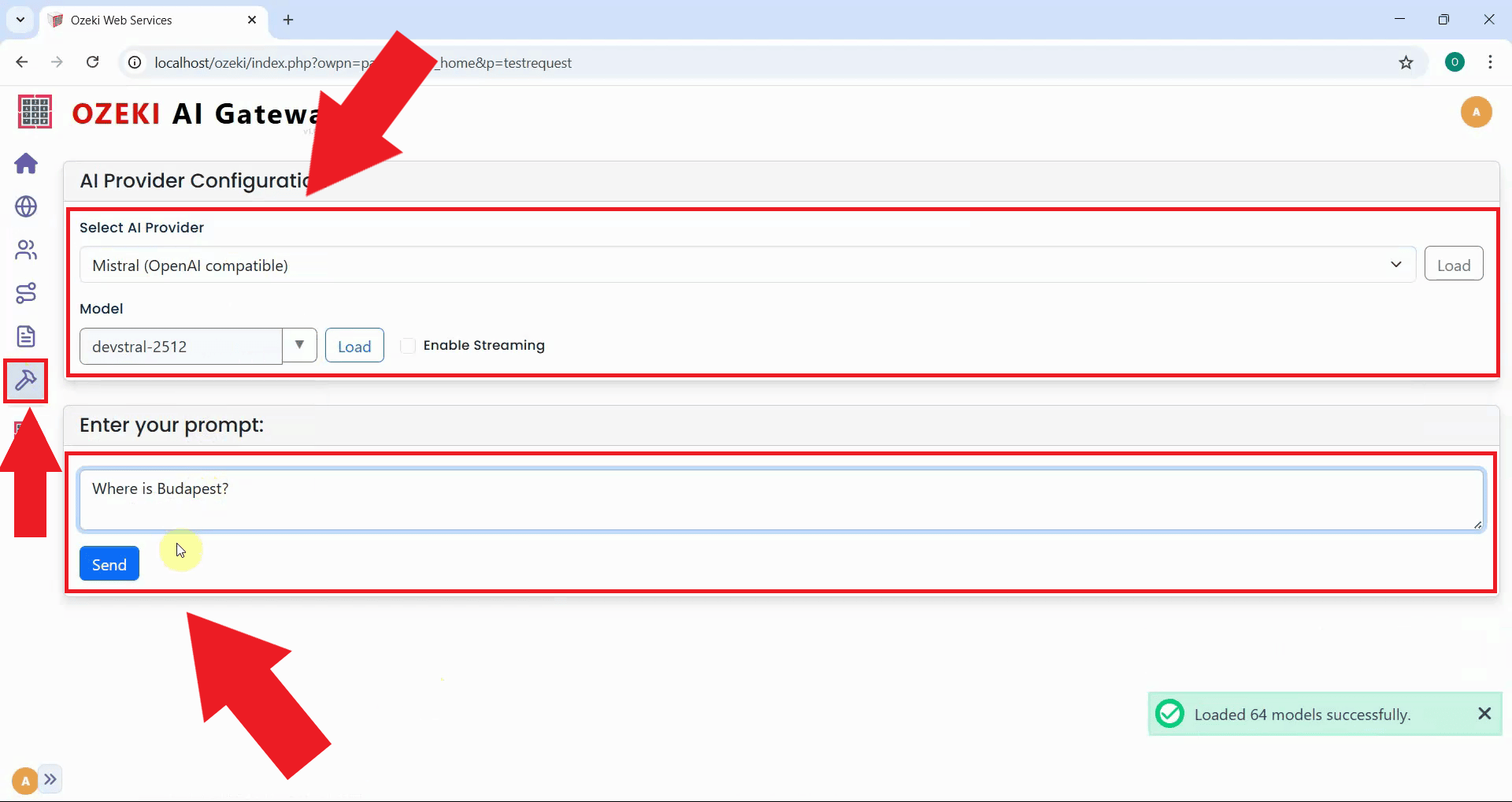
To verify that your Mistral provider connection is working correctly, navigate to the Testing tool from the left sidebar in Ozeki AI Gateway. Select "Mistral" as the provider and choose a model such as "devstral-2512". Enter a test prompt like "Where is Budapest?" and click Send to submit the request to Mistral's API (Figure 10).
To sum it up
You have successfully created a Mistral API key, configured it as a provider in Ozeki AI Gateway, and verified the connection is working properly. Your gateway can now communicate with Mistral's services and access Mistral AI models through your centralized gateway infrastructure. This setup allows you to manage Mistral access for multiple users and applications from a single point.