
How to create an Azure OpenAI API key to use in Ozeki AI Gateway
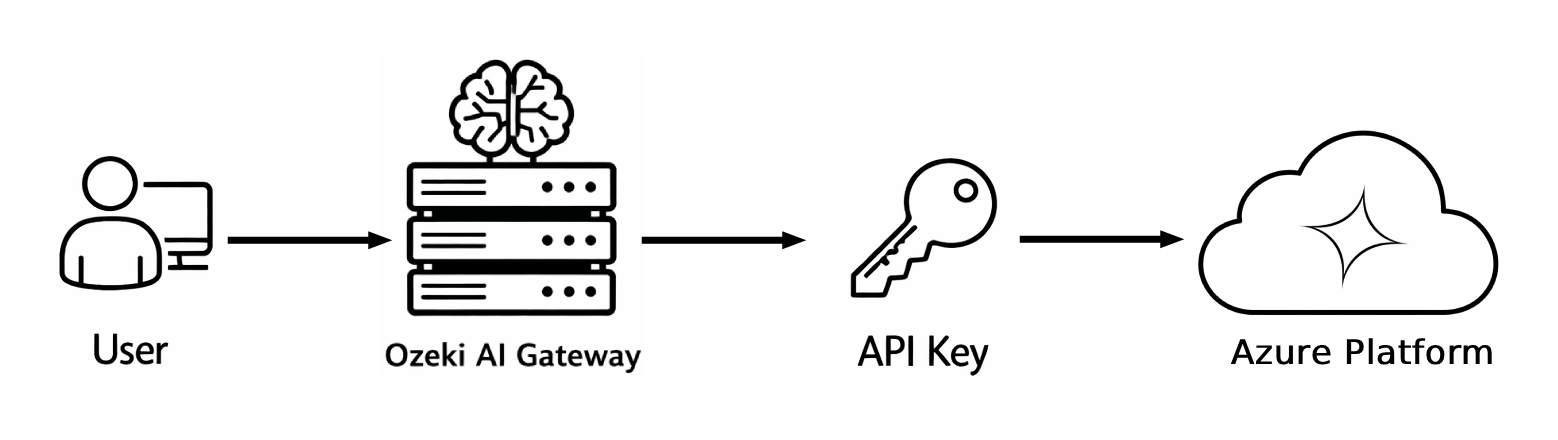
This guide demonstrates how to create an Azure OpenAI instance and configure it in Ozeki AI Gateway. You'll learn how to access the Azure portal, deploy an Azure OpenAI resource, retrieve your API credentials, and set up Azure OpenAI as a provider in your gateway. By following these steps, you can connect your Ozeki AI Gateway to Azure's OpenAI models and services.
API URL: https://{instancename}.openai.azure.com/openai/v1
Example API Key: abc123...
Default model: gpt-5.2
What is an Azure OpenAI API key?
An Azure OpenAI API key is a unique authentication credential provided by Microsoft Azure that allows applications to access OpenAI models hosted on Azure infrastructure. Unlike standard OpenAI API keys, Azure OpenAI keys are tied to your Azure subscription and provide access to OpenAI models through Azure's infrastructure. When configuring Azure OpenAI as a provider in Ozeki AI Gateway, you need both the API key and the instance-specific endpoint URL to establish the connection.
Steps to follow
We assume Ozeki AI Gateway is already installed on your system. You can install it on Linux, Windows or Mac.
- Access Azure portal and create instance
- Configure resource group and instance details
- Set pricing tier and network settings
- Review and deploy Azure OpenAI resource
- Retrieve API credentials
- Add provider in Ozeki AI Gateway
- Configure provider
- Verify provider creation
How to create an Azure OpenAI API key video
The following video shows how to create an Azure OpenAI instance and configure it in Ozeki AI Gateway step-by-step. The video covers accessing the Azure portal, deploying an Azure OpenAI resource, retrieving credentials, and setting up the provider in your gateway.
Step 1 - Access Azure portal and create instance
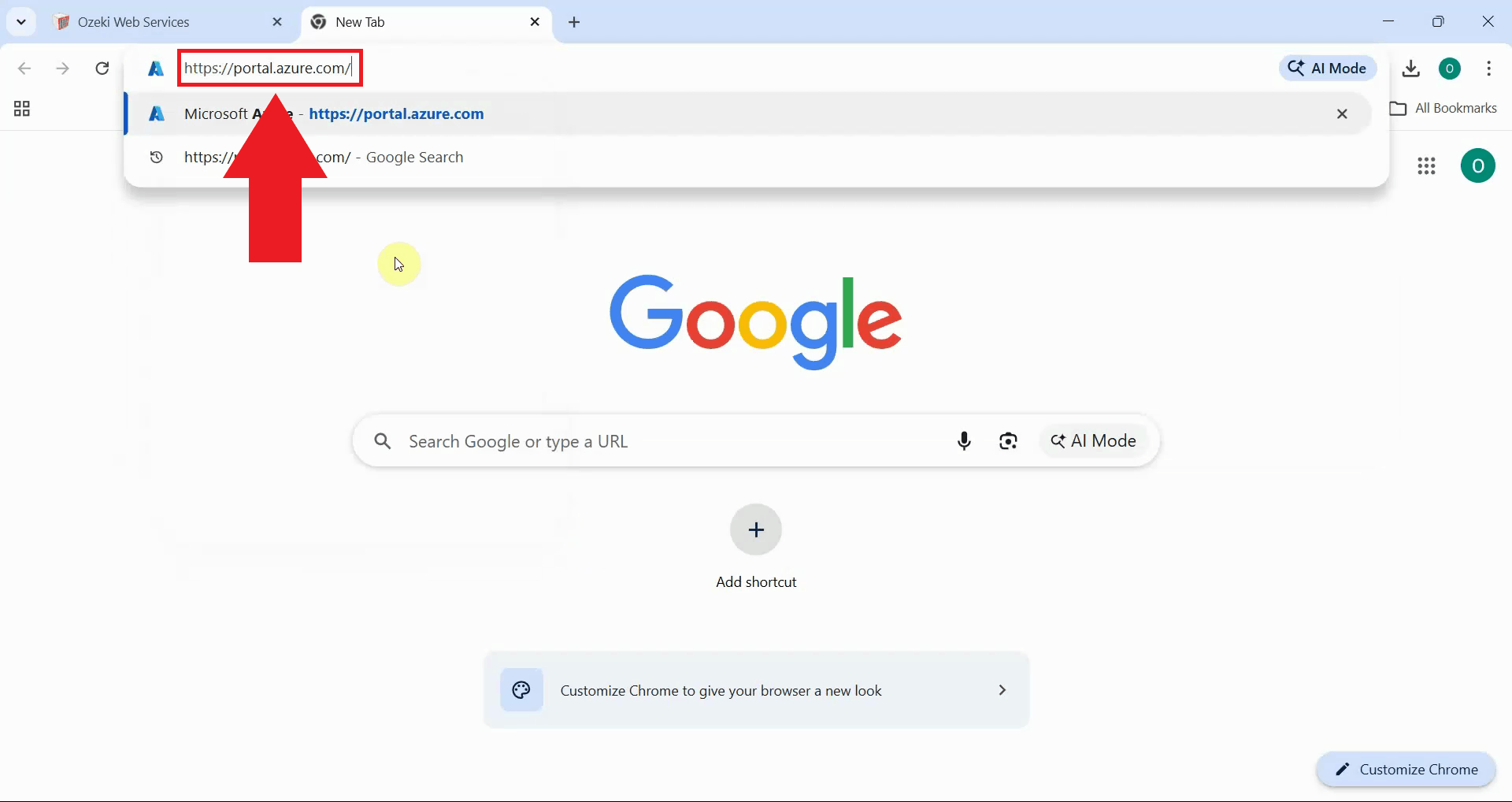
Open your web browser and navigate to the Azure portal. Sign in with your Microsoft Azure account credentials. If you don't have an Azure account, you'll need to create one before proceeding. The Azure portal is where you'll manage all your Azure resources, including Azure OpenAI instances (Figure 1).
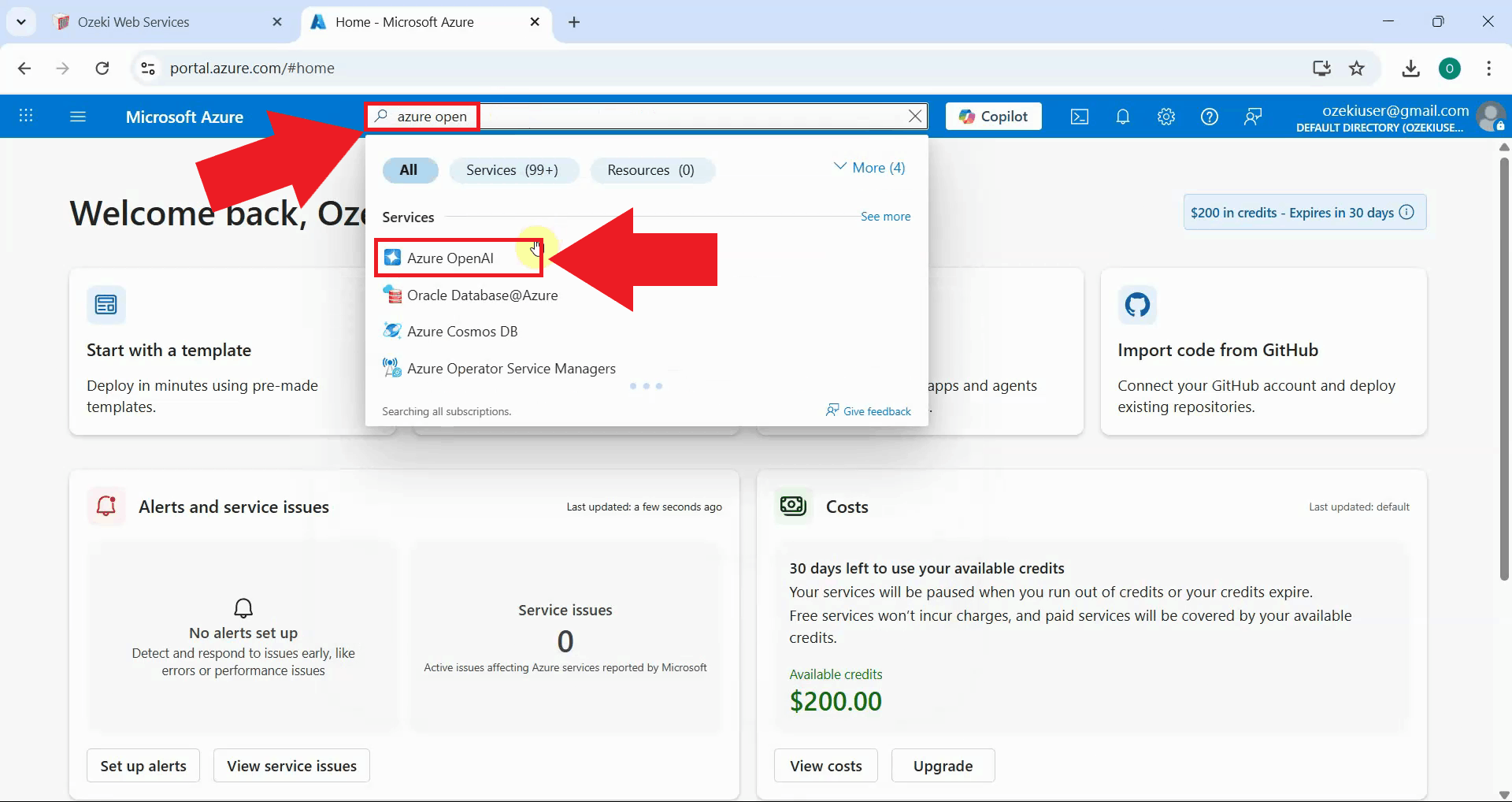
Use the search bar at the top of the Azure portal to search for "Azure OpenAI". Click on "Azure OpenAI" in the search results to access the Azure OpenAI service page (Figure 2).
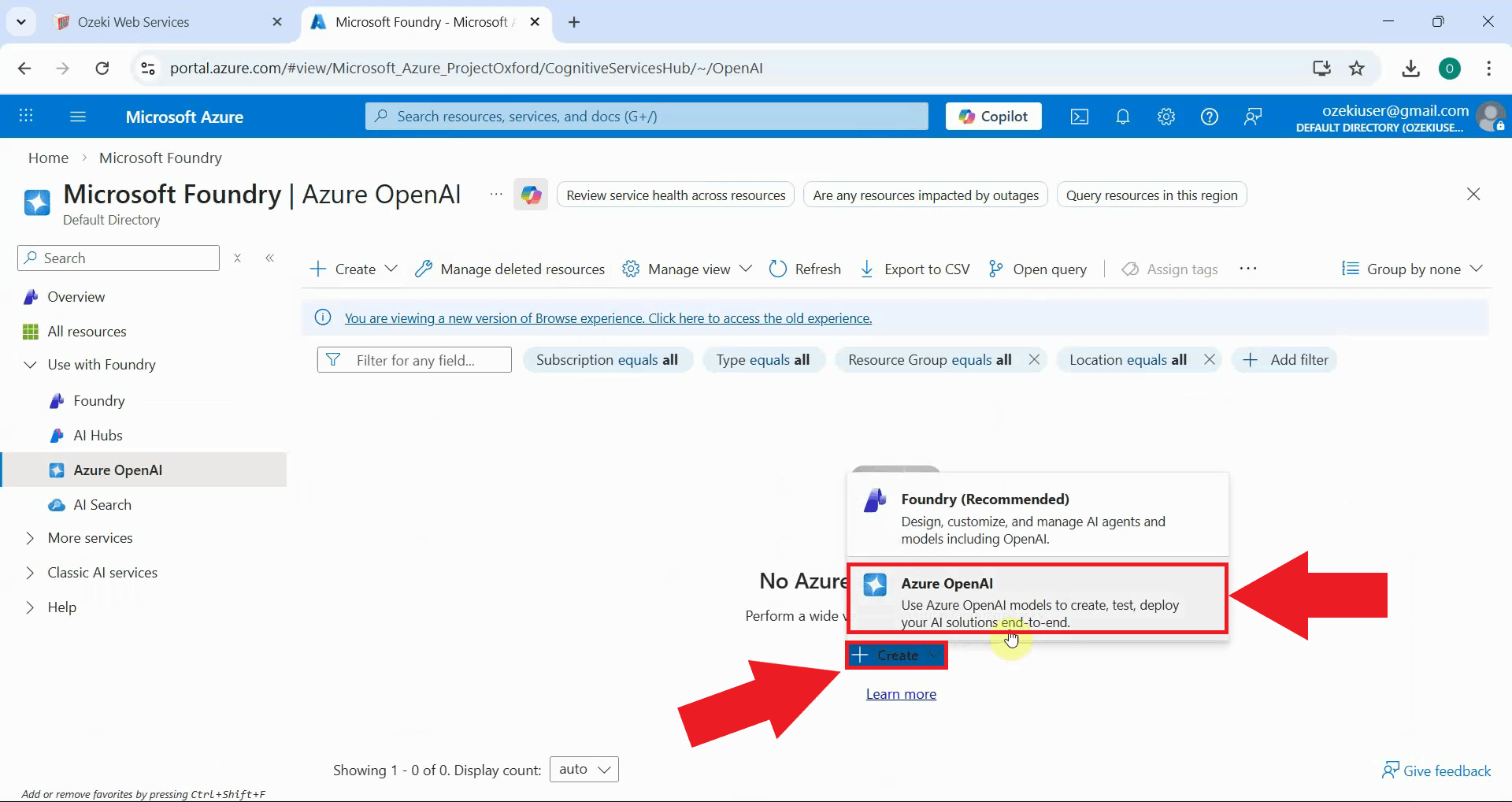
On the Azure OpenAI page, click the "Create" button and choose "Azure OpenAI" to begin creating a new Azure OpenAI instance. This initiates the deployment wizard that will guide you through configuring your Azure OpenAI resource with the necessary settings (Figure 3).
Step 2 - Configure resource group and instance details
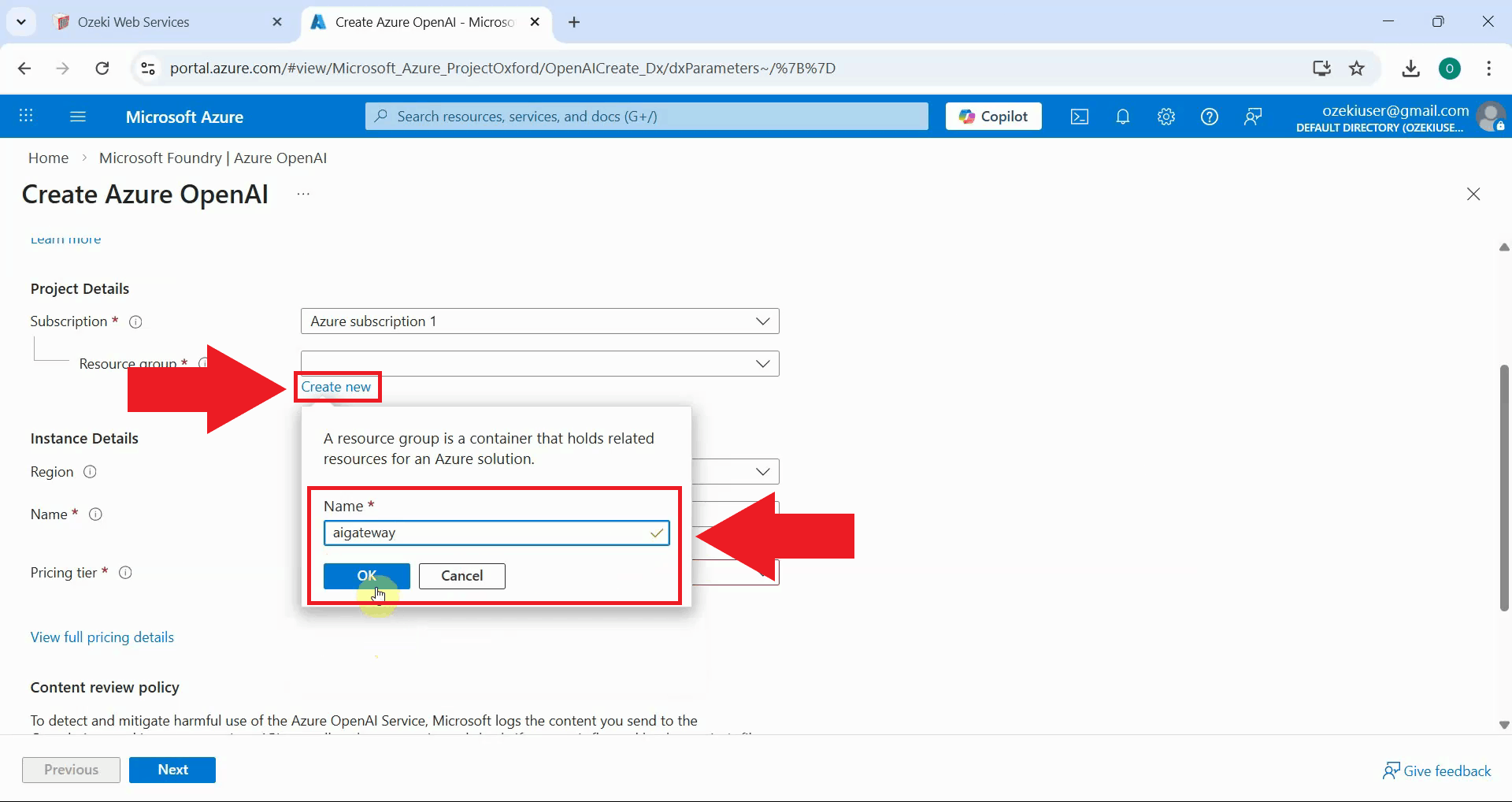
Select your Azure subscription from the dropdown menu and create a new resource group or select an existing one. Resource groups help organize and manage related Azure resources. If creating a new resource group, provide a descriptive name that identifies its purpose, such as "AI-Gateway-Resources" (Figure 4).
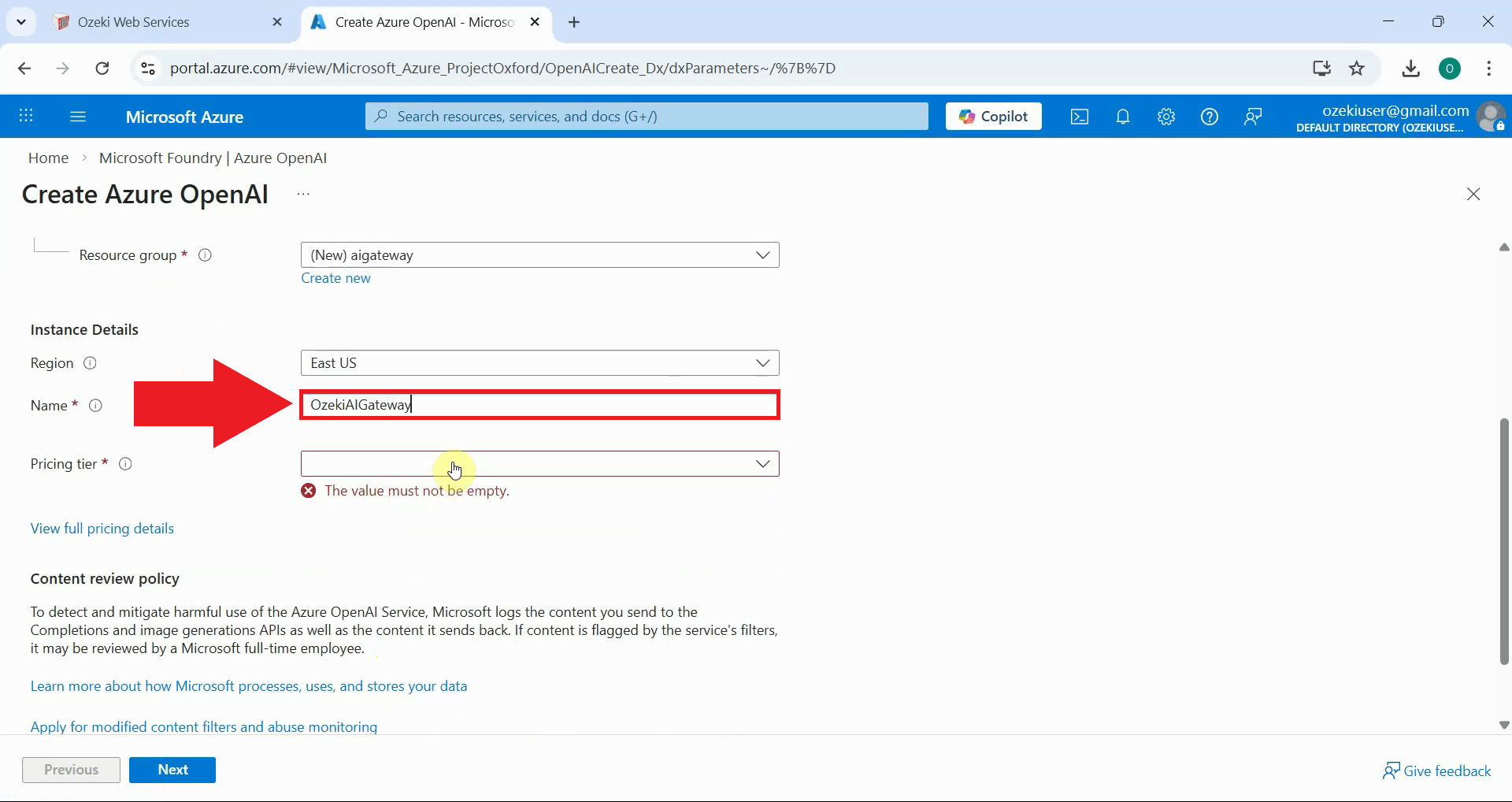
Enter a unique name for your Azure OpenAI instance in the "Name" field. This name will be part of your API endpoint URL and must be globally unique across all Azure OpenAI instances. Choose a descriptive name that identifies the instance's purpose, and select the region where you want to deploy the resource (Figure 5).
Step 3 - Set pricing tier and network settings
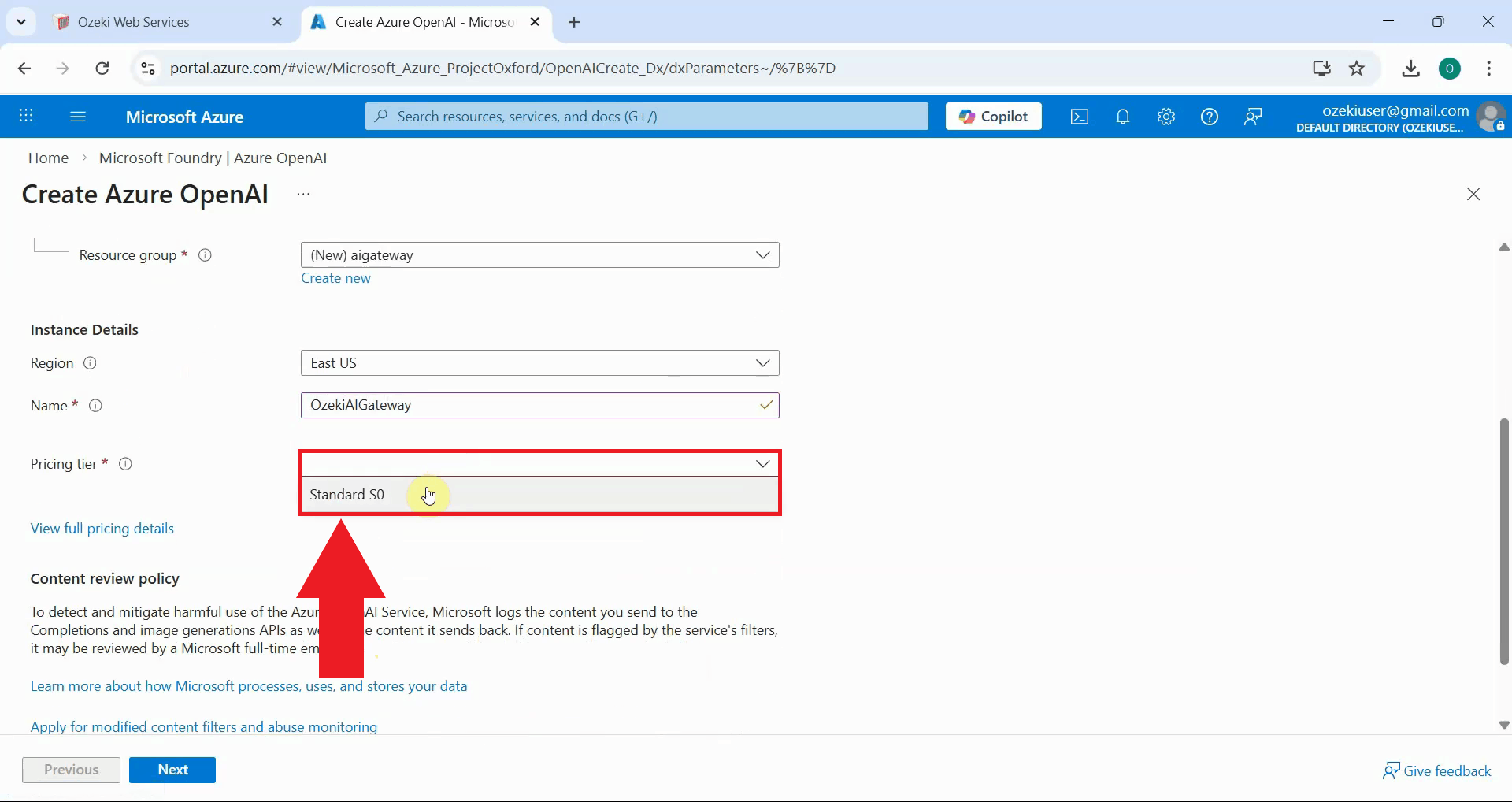
Select the pricing tier for your Azure OpenAI instance. Azure offers different pricing tiers with varying capabilities and costs. The Standard tier is suitable for most production workloads. Review the pricing details and select the tier that best fits your usage requirements and budget (Figure 6).
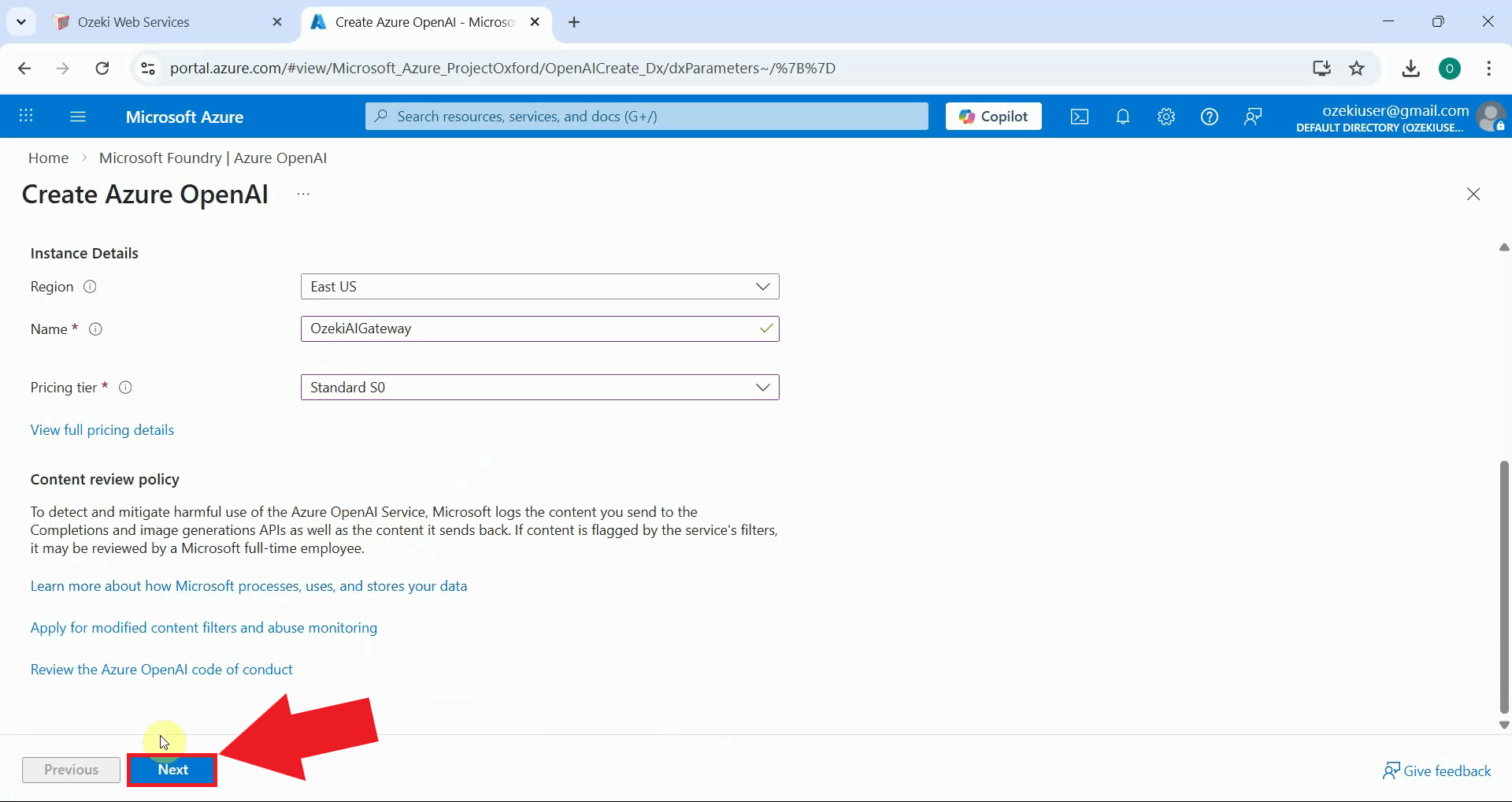
After reviewing your basic configuration settings, click "Next" to proceed to the network configuration page. This advances the deployment wizard to the next step where you'll configure network security and access settings (Figure 7).
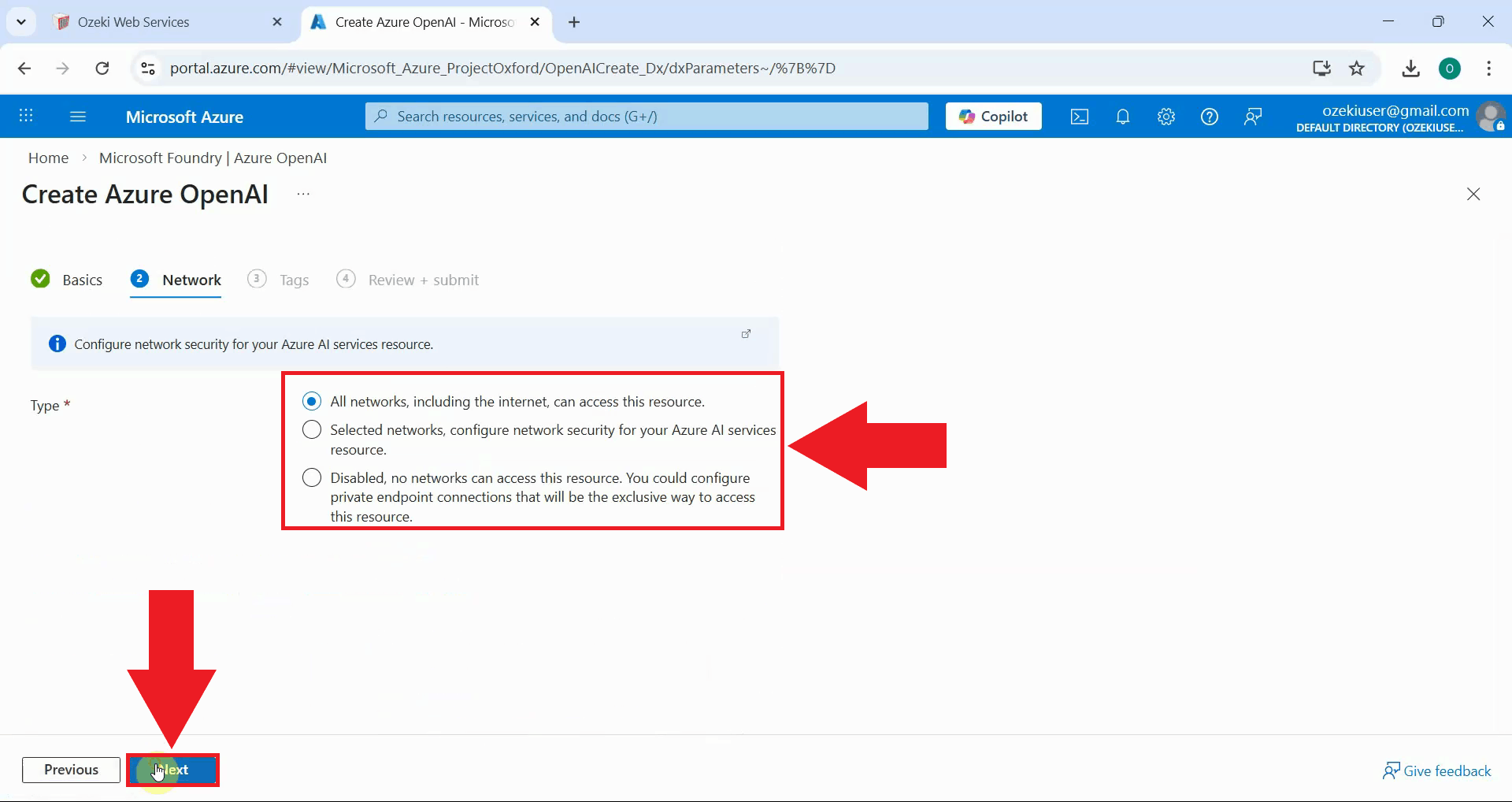
Configure the network access settings for your Azure OpenAI instance. You can choose to allow access from all networks, selected networks, or disable public access entirely. For testing and initial setup, allowing access from all networks simplifies configuration (Figure 8).
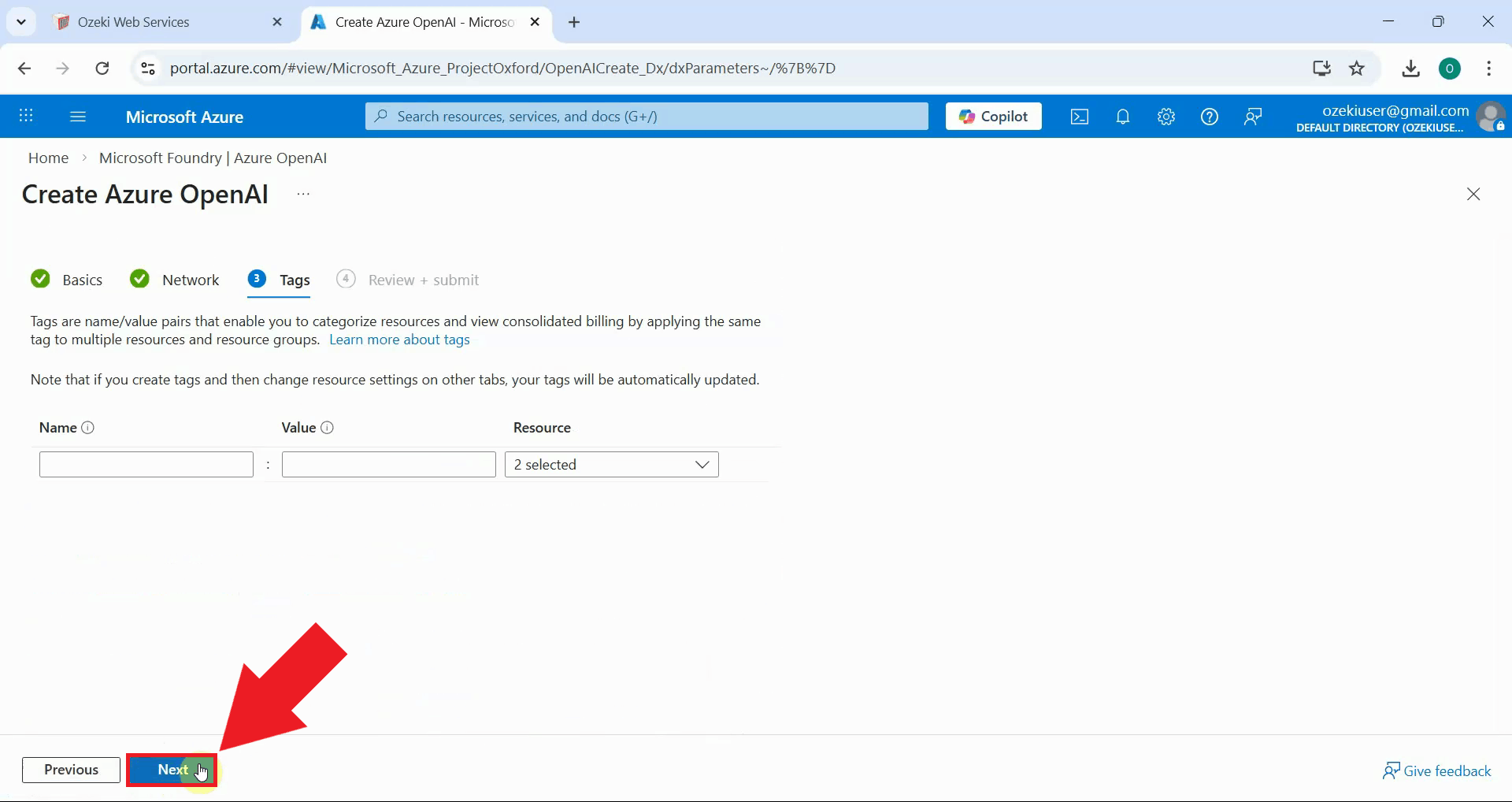
Tags are optional name-value pairs that help organize and categorize Azure resources. You can add tags to help with cost tracking, resource management, or organizational purposes. Click "Next" to proceed (Figure 9).
Step 4 - Review and deploy Azure OpenAI resource
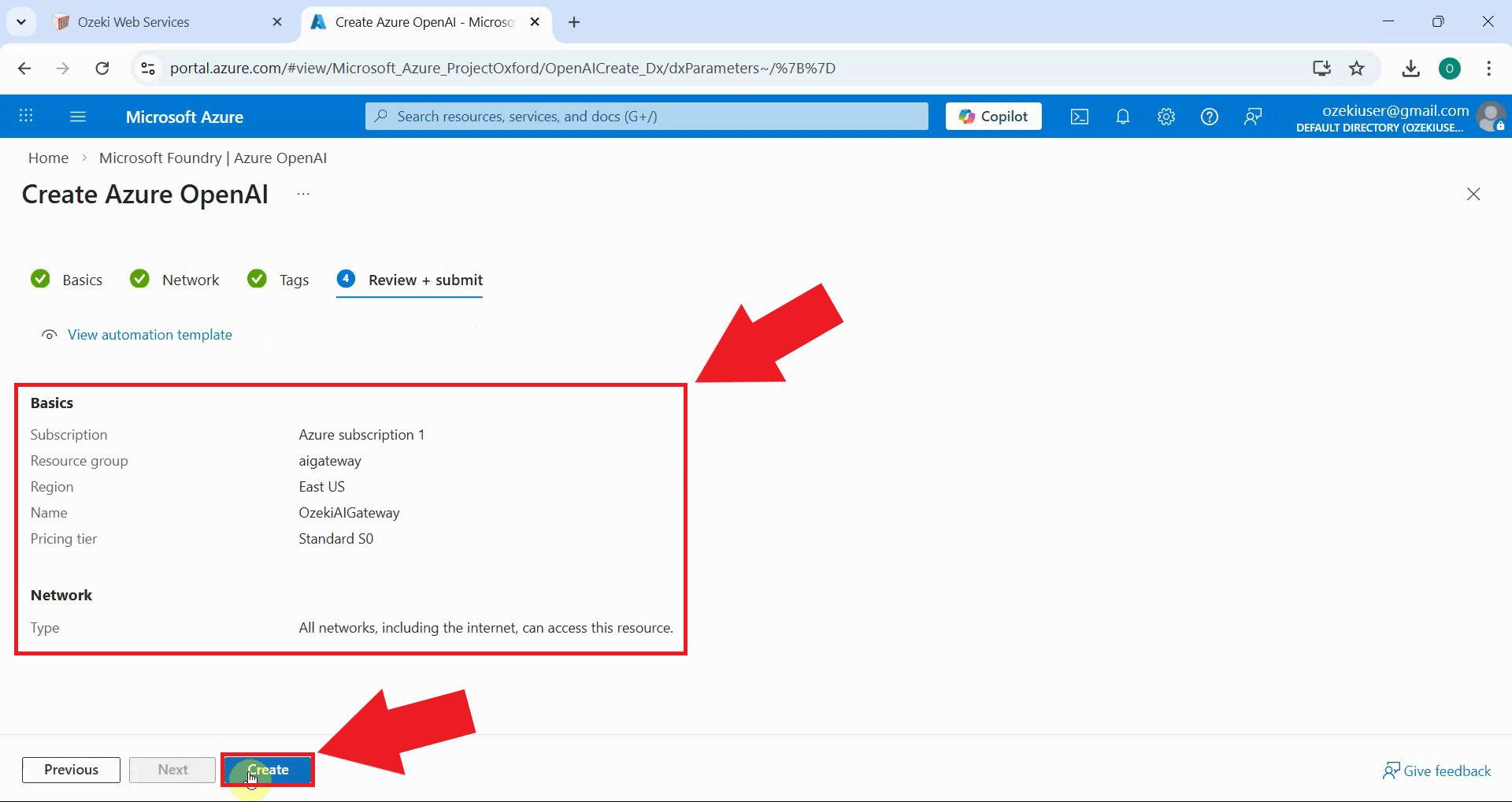
Review all your configuration settings on the final review page. Verify that the instance name, resource group, region, pricing tier, and network settings are correct. If everything looks good, click "Create" to submit the deployment. Azure will validate your configuration and begin provisioning the Azure OpenAI resource (Figure 10).
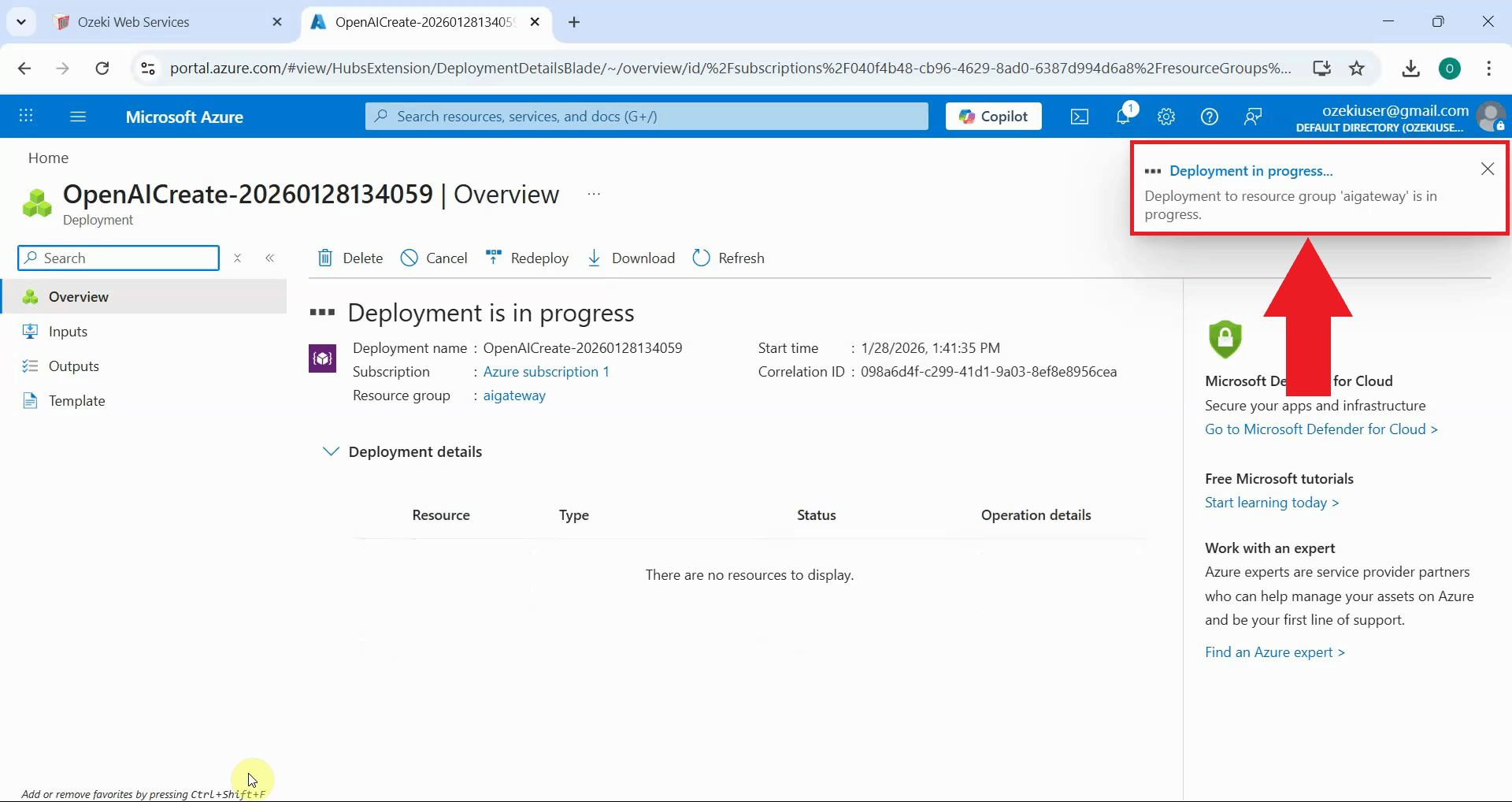
Azure begins deploying your Azure OpenAI instance. You can monitor the deployment progress on the deployment status page. Azure displays real-time status updates as it provisions and configures your resource (Figure 11).
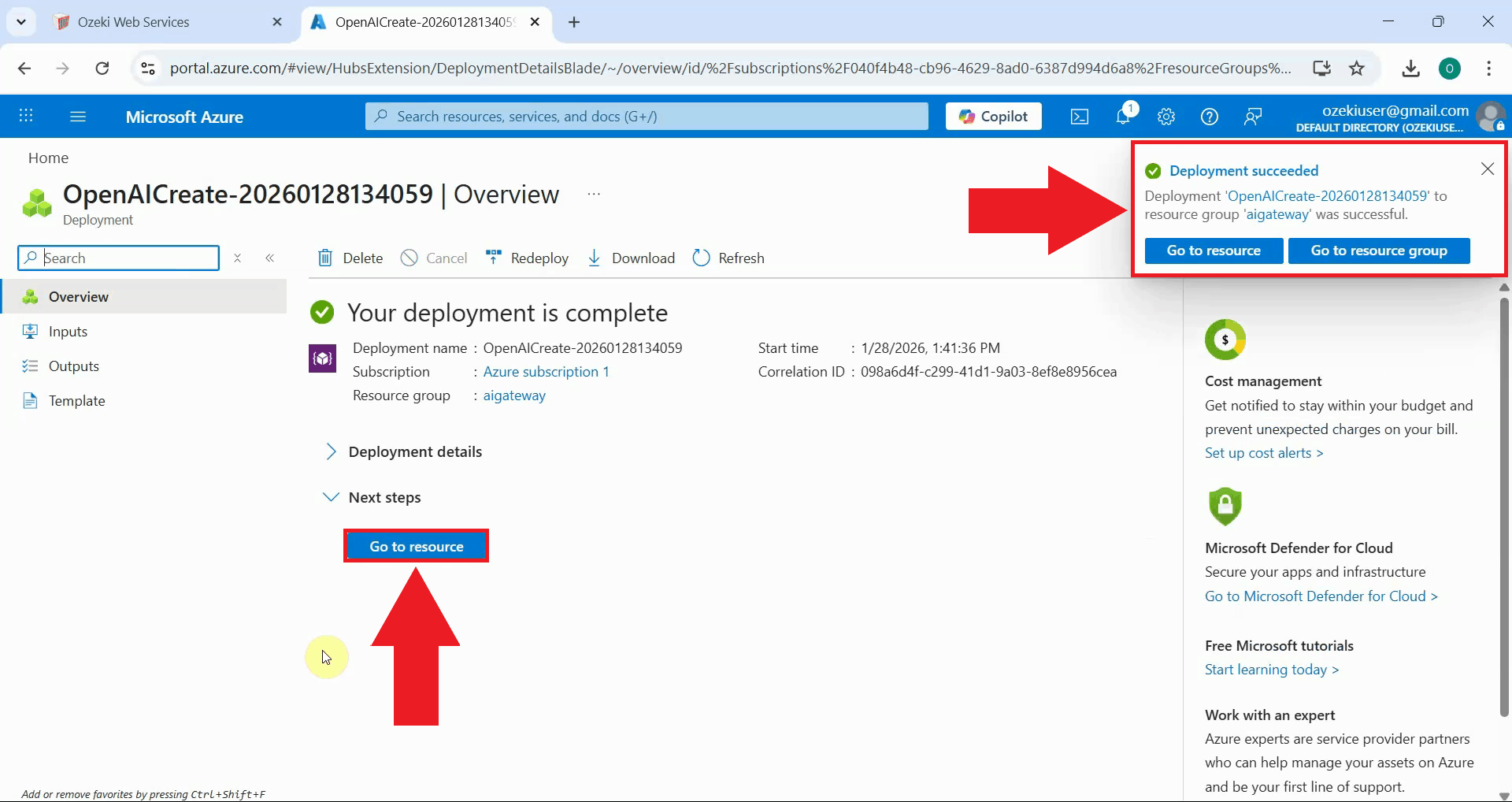
When the deployment completes successfully, Azure displays a success message. Click the "Go to resource" button to navigate directly to your newly created Azure OpenAI instance. This takes you to the resource overview page where you can access configuration settings and credentials (Figure 12).
Step 5 - Retrieve API credentials
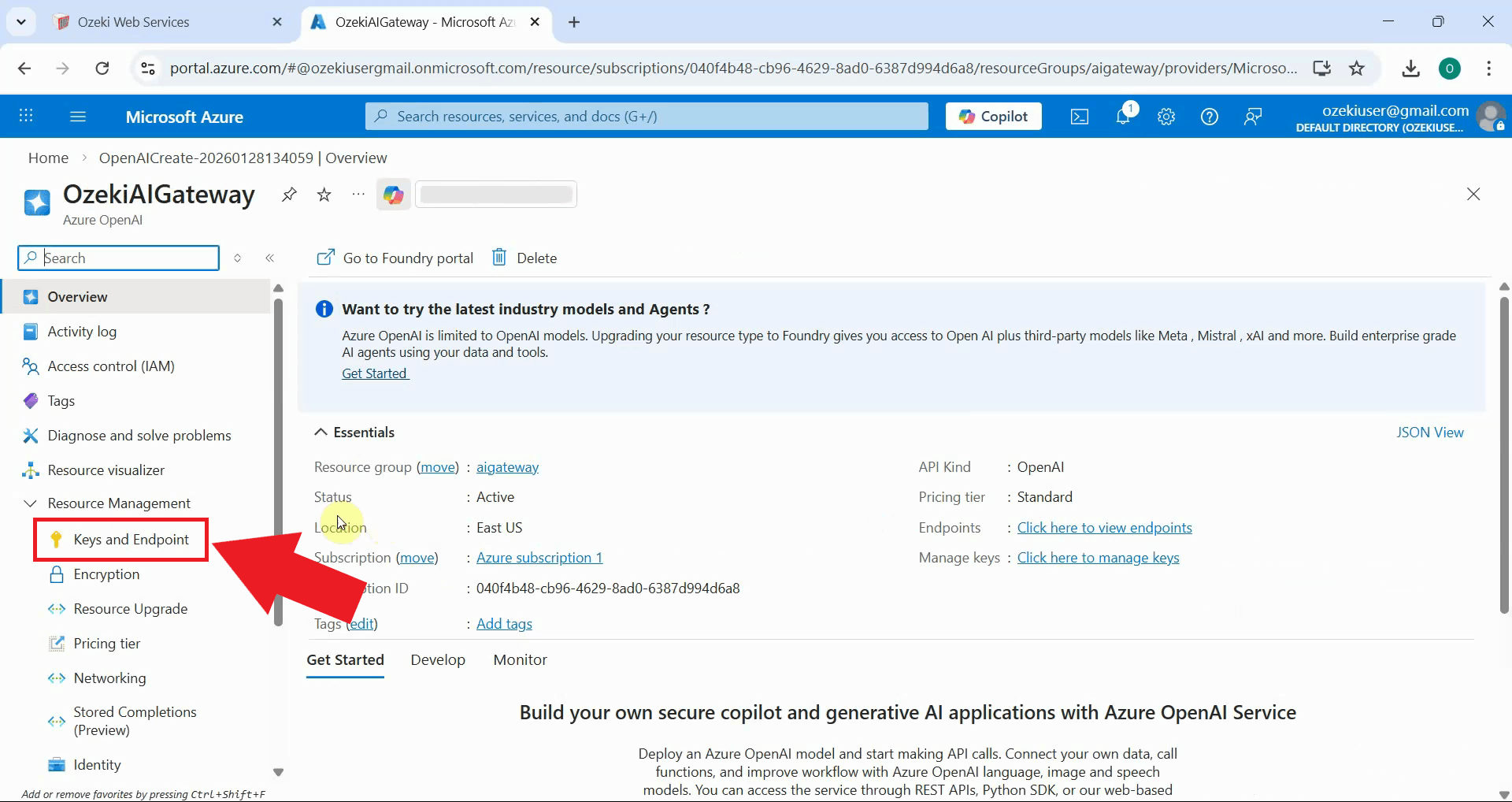
In the left sidebar of your Azure OpenAI resource page, locate and click on "Keys and Endpoint" under the "Resource Management" section. This page contains the authentication credentials and endpoint URL you'll need to configure Ozeki AI Gateway (Figure 13).
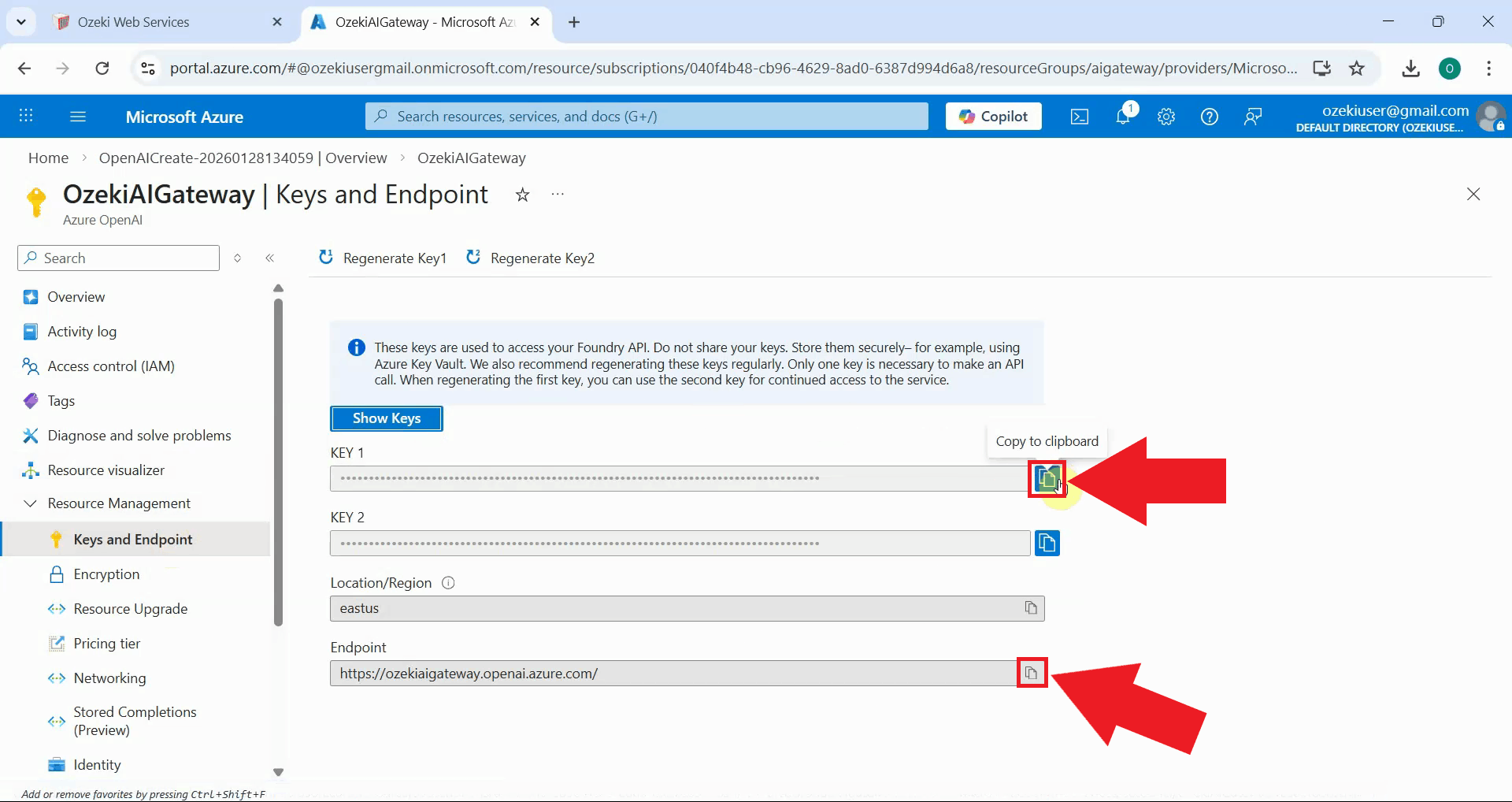
On the Keys and Endpoint page, you'll see two API keys (KEY 1 and KEY 2) and the endpoint URL. Click the copy button next to KEY 1 to copy the API key to your clipboard. Then copy the endpoint URL as well. You'll need both values to configure Azure OpenAI in Ozeki AI Gateway. Keep these credentials secure and never share them publicly (Figure 14).
Step 6 - Add provider in Ozeki AI Gateway
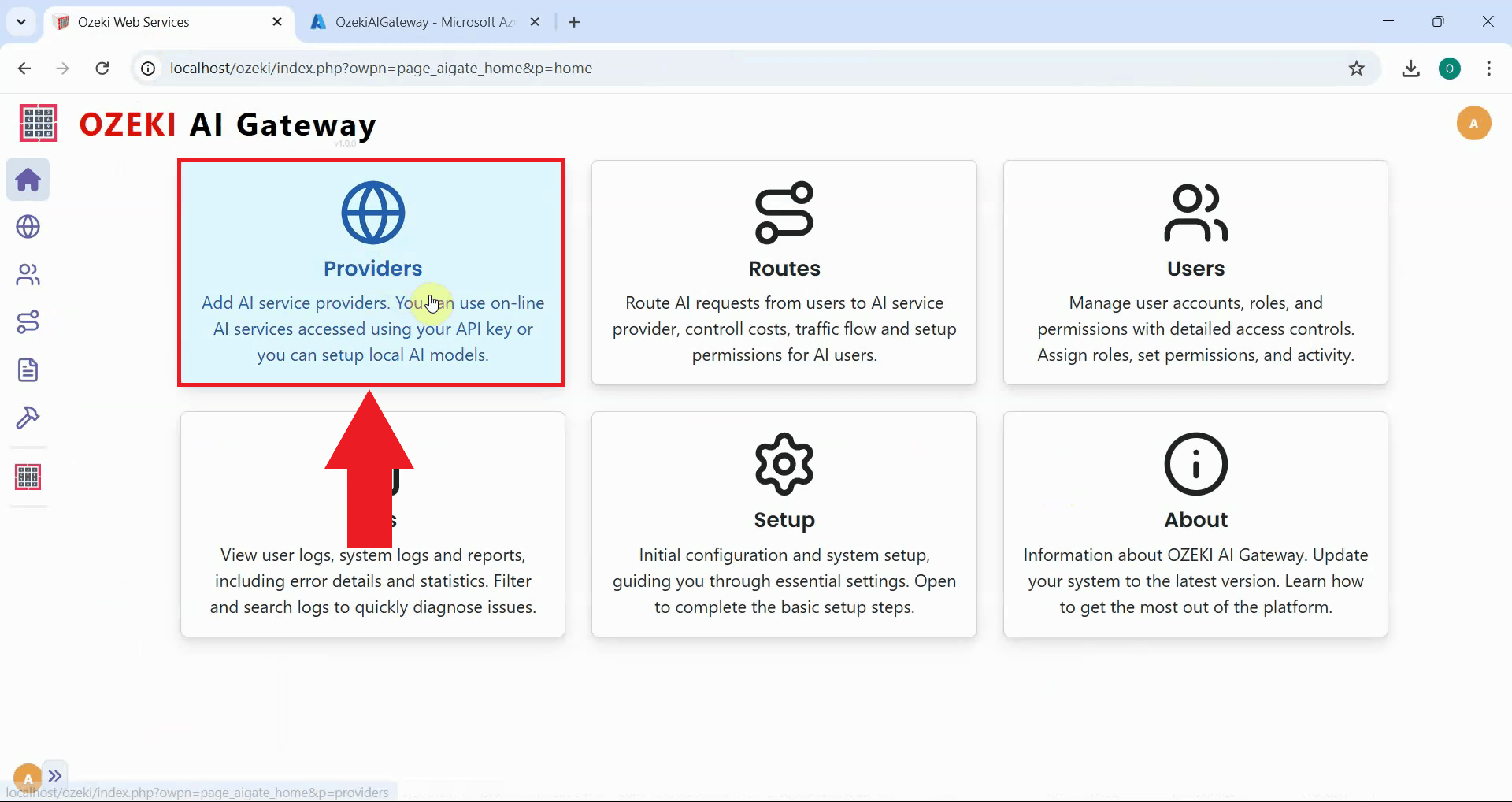
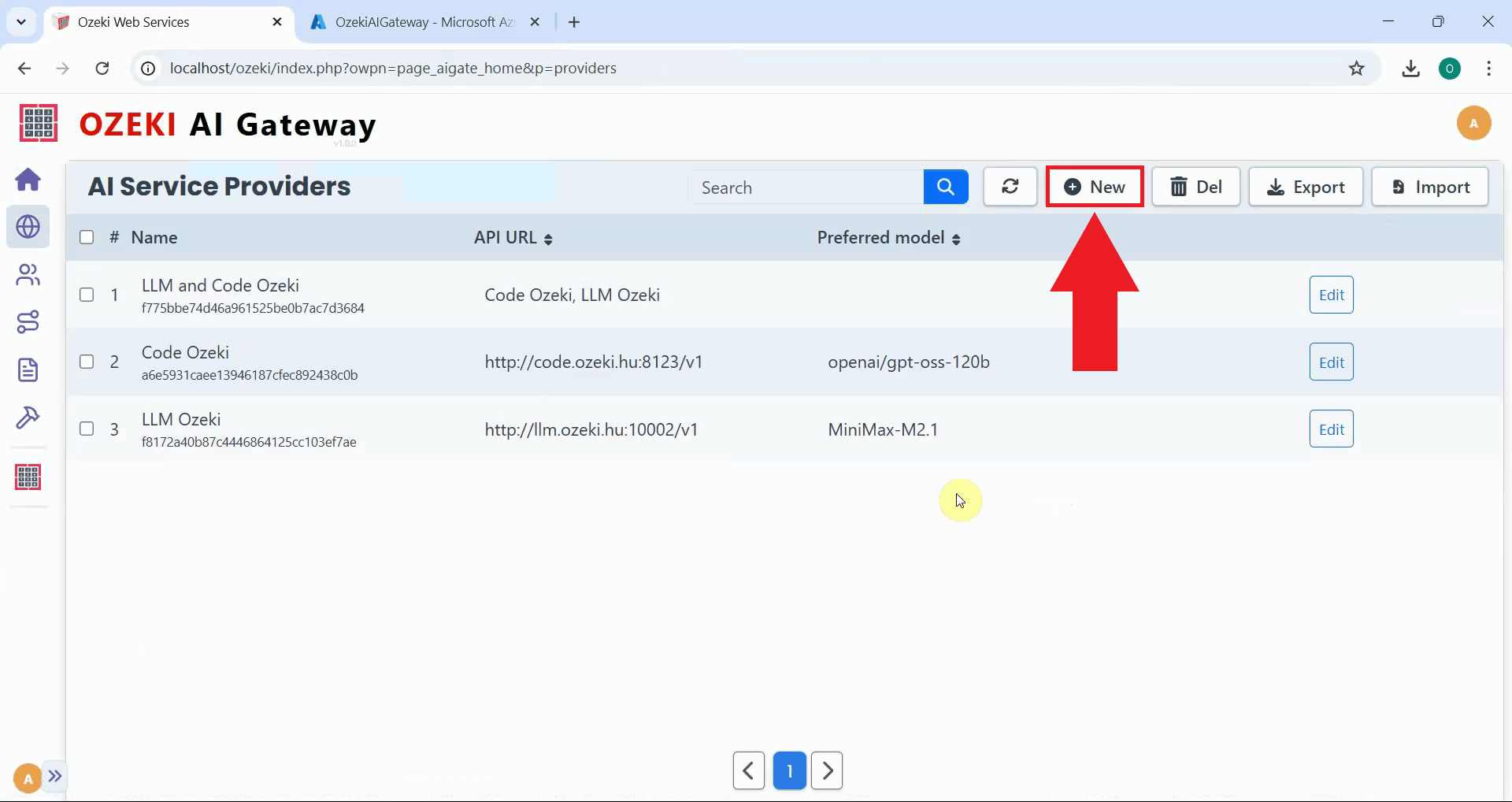
Open the Ozeki AI Gateway web interface and navigate to the Providers page. This is where you'll configure Azure OpenAI as a new provider using the API key and endpoint URL you just copied (Figure 15).
Click the "New" button to begin the provider creation process. This opens a form where you'll enter the connection details for Azure OpenAI (Figure 16).
Step 7 - Configure Azure OpenAI provider
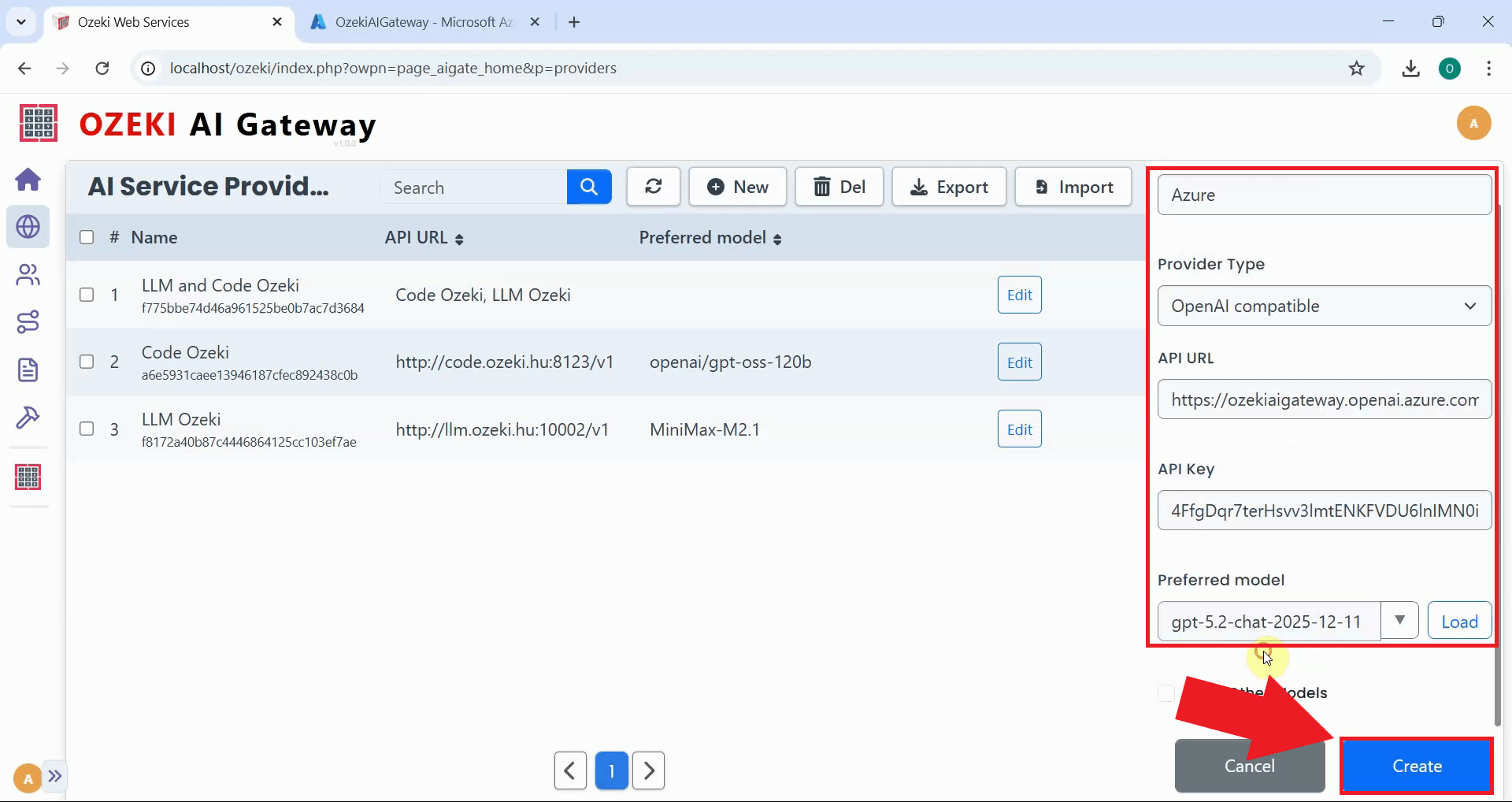
Fill in the provider configuration form with your Azure OpenAI details. Enter the provider name, select "OpenAI compatible" as the provider type, paste the endpoint URL you copied from Azure (it should look like https://{instancename}.openai.azure.com/openai/v1), and paste your API key. Select your preferred model from the dropdown list, then click "Create" to save the configuration (Figure 17).
https://{instancename}.openai.azure.com/openai/v1
Step 8 - Verify provider creation
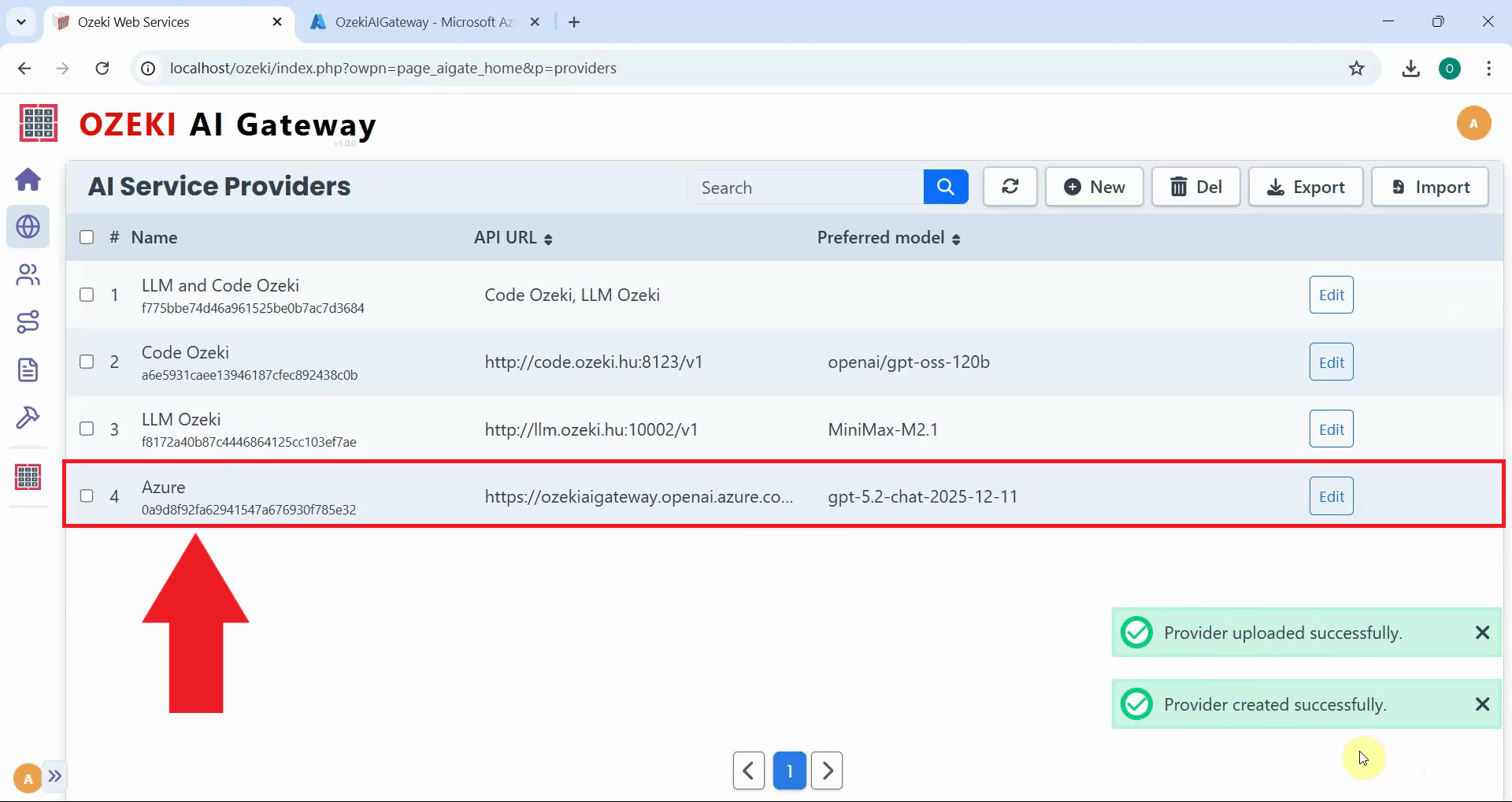
After clicking "Create", the Azure OpenAI provider is added to Ozeki AI Gateway. The provider now appears in the providers list, confirming that your gateway can route requests to Azure OpenAI services. You can now create routes that allow users to access Azure OpenAI models through your gateway (Figure 18).
To sum it up
You have successfully created an Azure OpenAI instance and configured it as a provider in Ozeki AI Gateway. Your gateway can now communicate with Azure's OpenAI services and access models like GPT-5 through Azure's infrastructure. This setup allows you to manage Azure OpenAI access for multiple users and applications from a single point while benefiting from Azure's enterprise features, security, and compliance capabilities.