
How to set up Reor with Ozeki AI Gateway
This guide walks you through installing Reor on Windows and connecting it to Ozeki AI Gateway as a custom LLM provider. By following this tutorial, you will learn how to download the installer from GitHub, complete the setup wizard, configure a custom API endpoint pointing to your gateway, and verify the connection by sending a test prompt.
What is Reor?
Reor is a free, open-source AI-powered desktop note-taking application available for Windows, macOS, and Linux. Every note you write is automatically chunked and stored in an internal vector database, related notes are linked automatically via vector similarity, and an LLM-powered question-and-answer mode lets you query your entire note collection using retrieval-augmented generation (RAG).
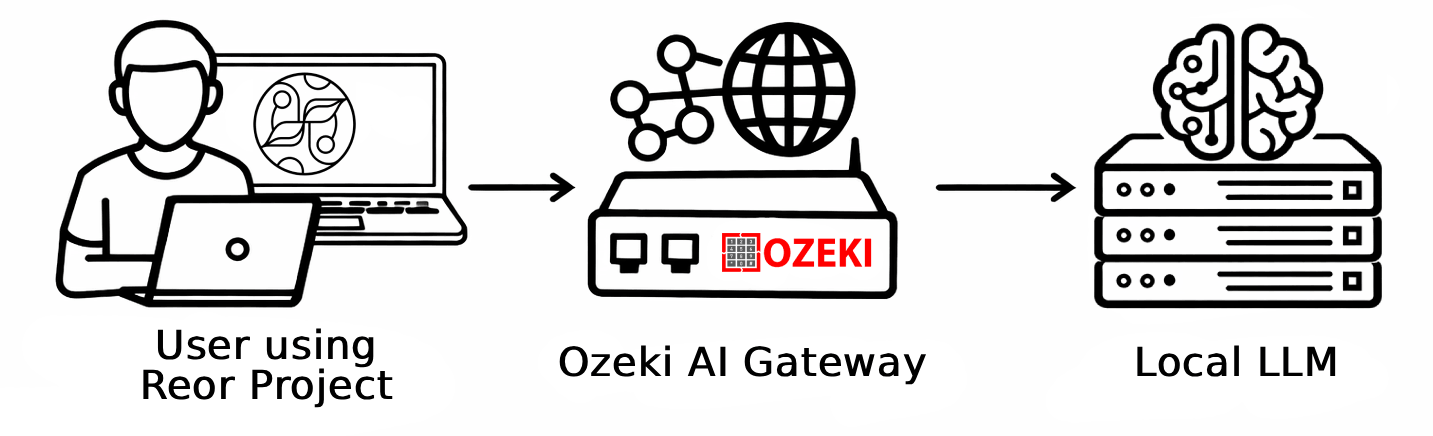
Reor LLM configuration
API URL: http://{address}/v1
API Name: Ozeki AI Gateway
API Key: ozkey-abc123
Steps to follow
We assume Ozeki AI Gateway is already installed on your system. You can install it on Linux, Windows or Mac.
- Download and install Reor
- Set up the vault and configure LLM
- Start a new chat and send a test prompt
Video tutorial
The following video shows how to install Reor and configure it to work with Ozeki AI Gateway step-by-step. The video covers downloading the installer from GitHub, completing the setup wizard, adding a custom LLM API, and testing the connection with a sample prompt.
Step 1 - Download and install Reor
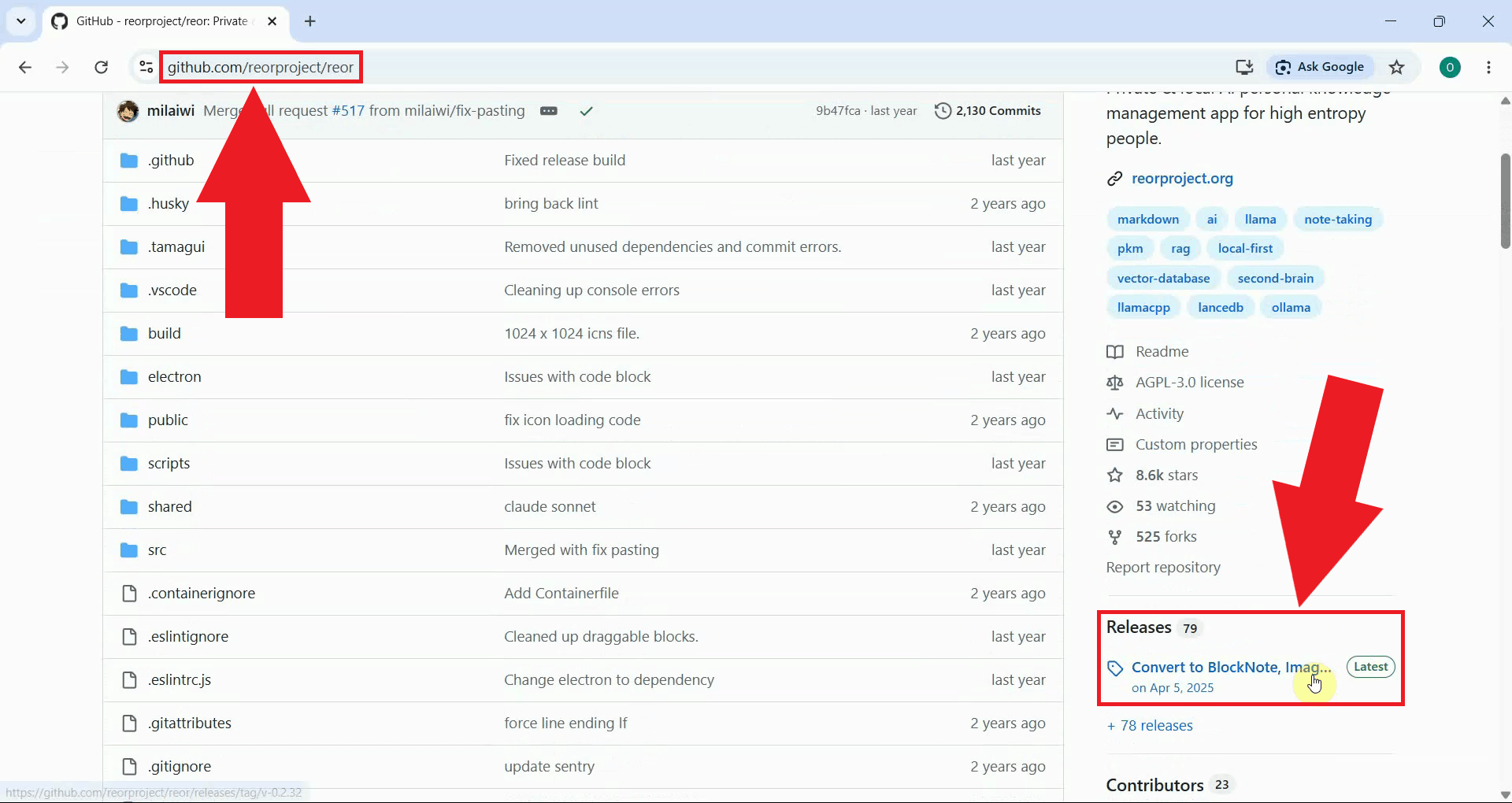
Open your browser and navigate to the Reor GitHub repository. In the right-hand sidebar, click Releases to open the releases page where all available installer versions are listed (Figure 1).
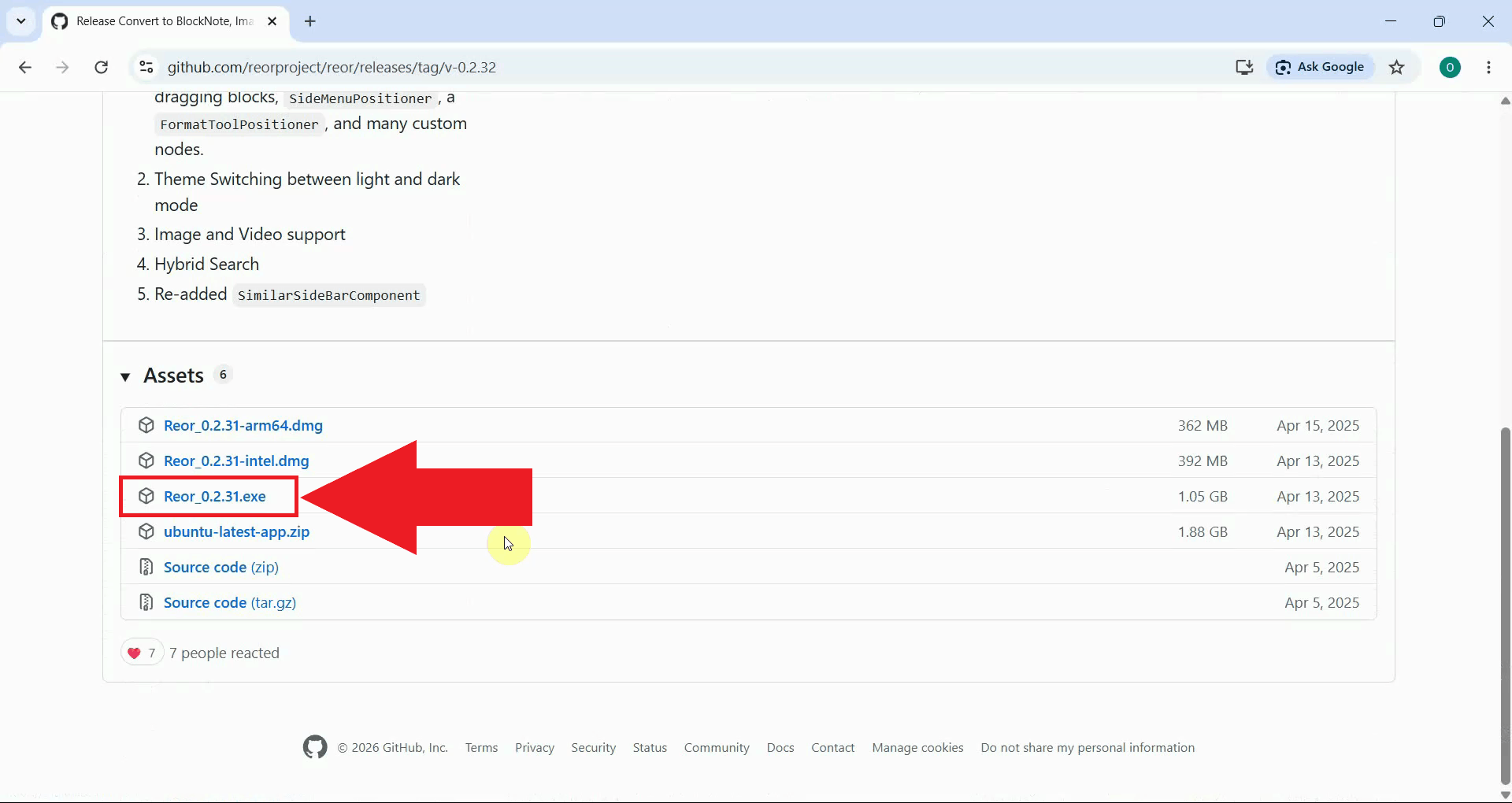
On the releases page, locate the latest release and expand the Assets section. Click the Windows installer file to download it to your machine (Figure 2).
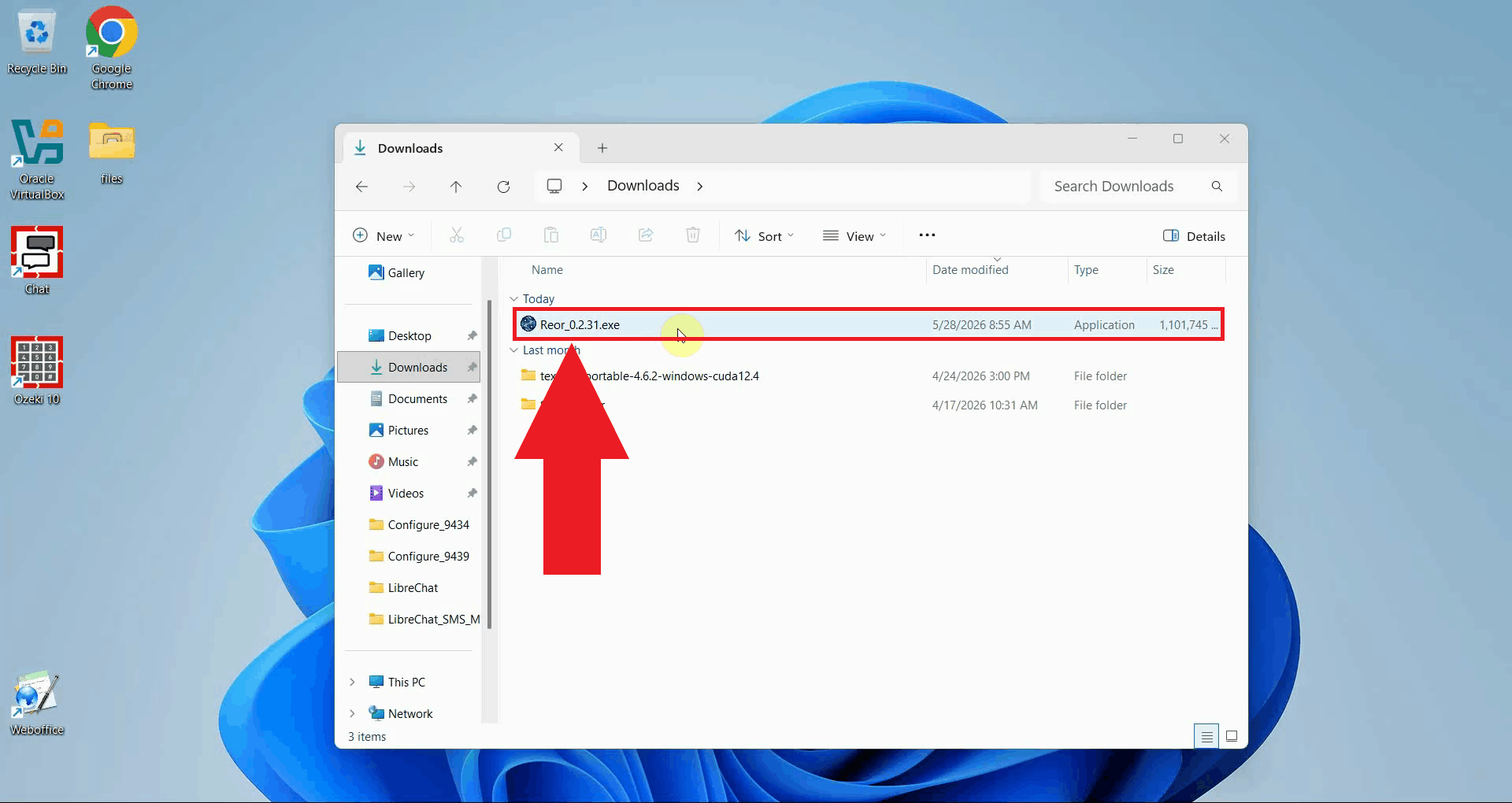
Once the download has finished, locate the installer file in your Downloads folder and double-click it to launch the setup process (Figure 3).
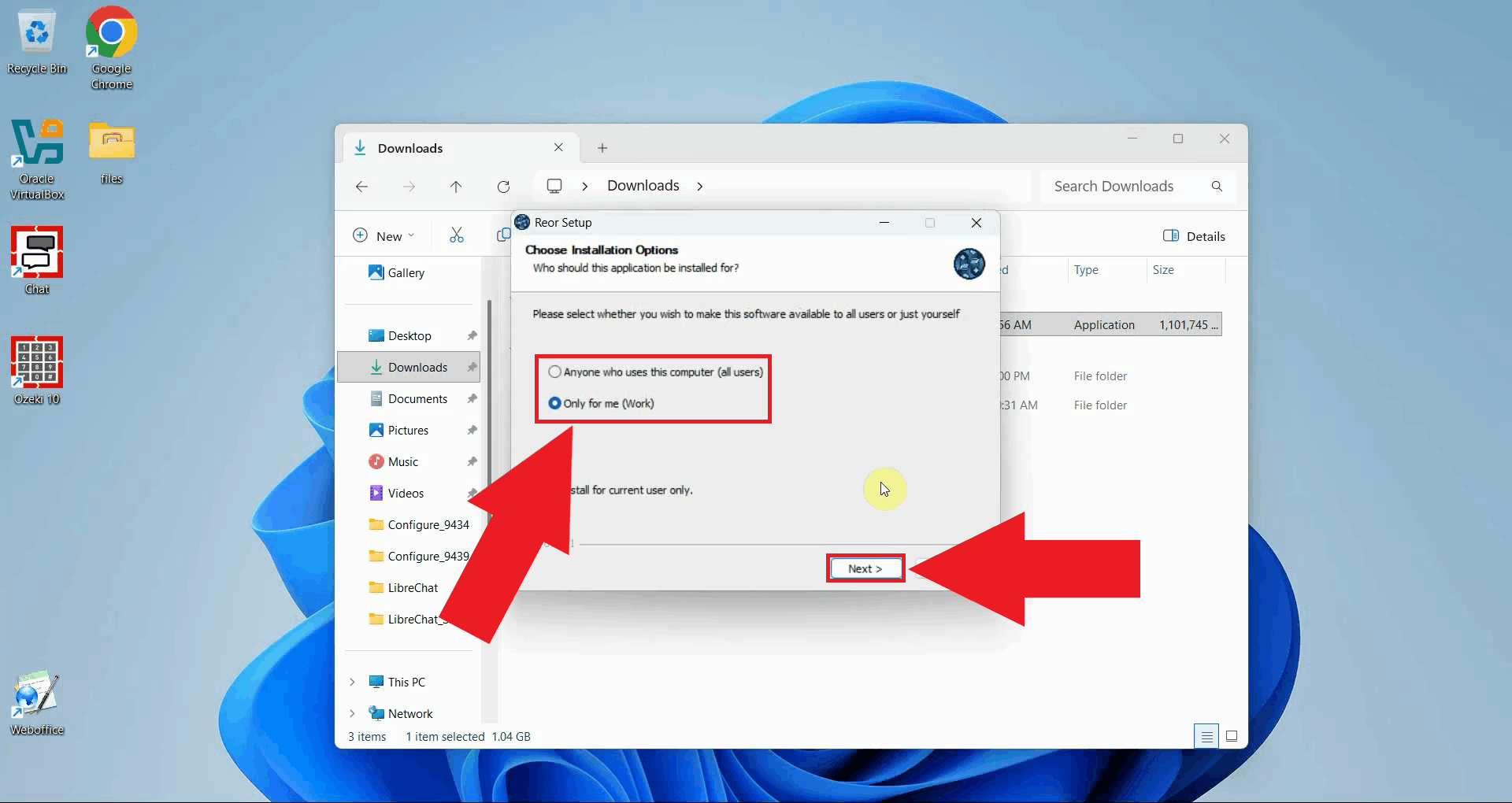
Choose whether to install the application for all users on the machine or only for your current account (Figure 4). If you are the only person using this computer, selecting Only for me is the simplest option. Click Next to continue.
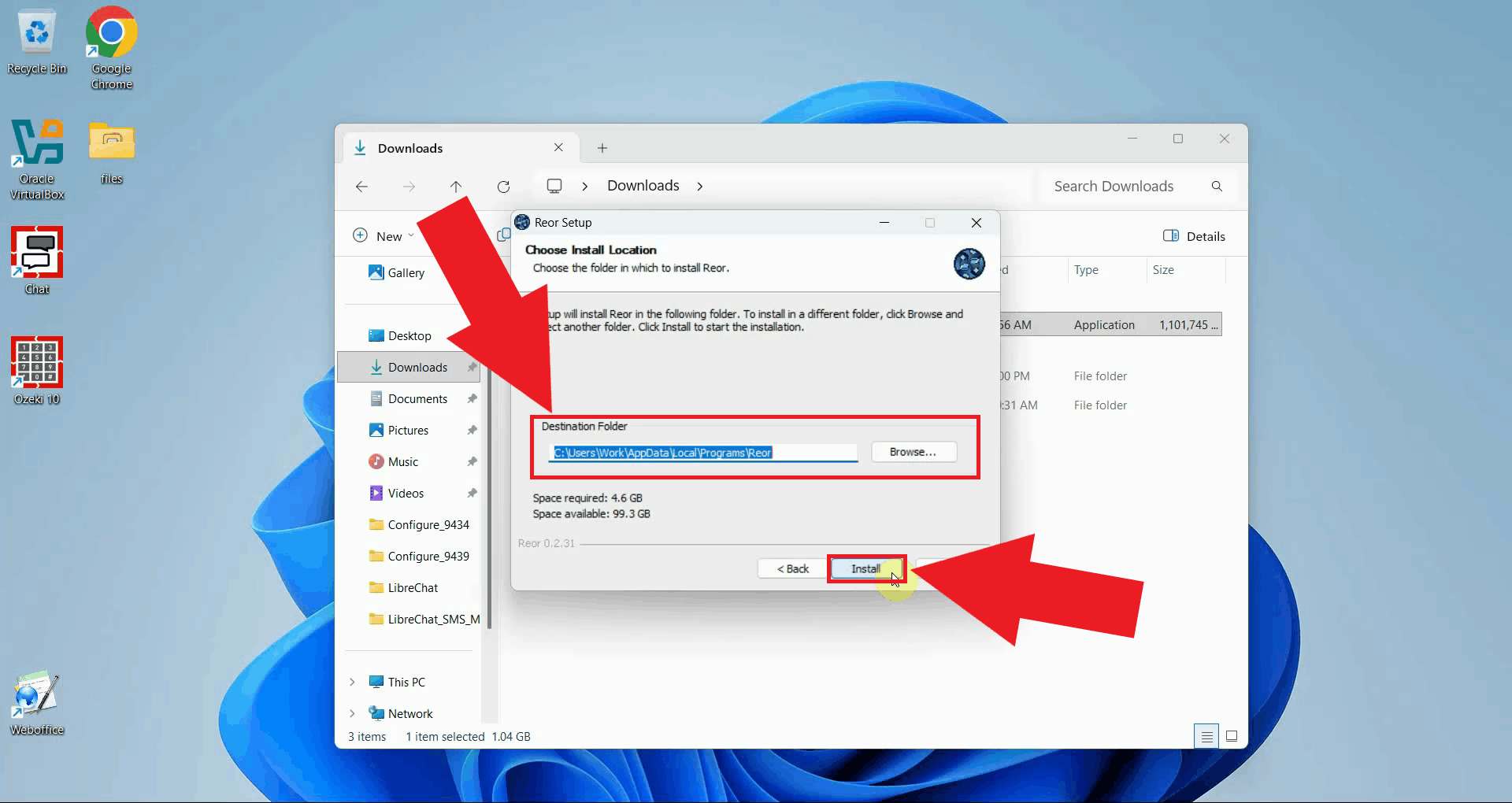
Confirm or change the destination folder where the application will be installed (Figure 5). The default location is recommended for most users. Click Install to begin copying the application files to your machine.
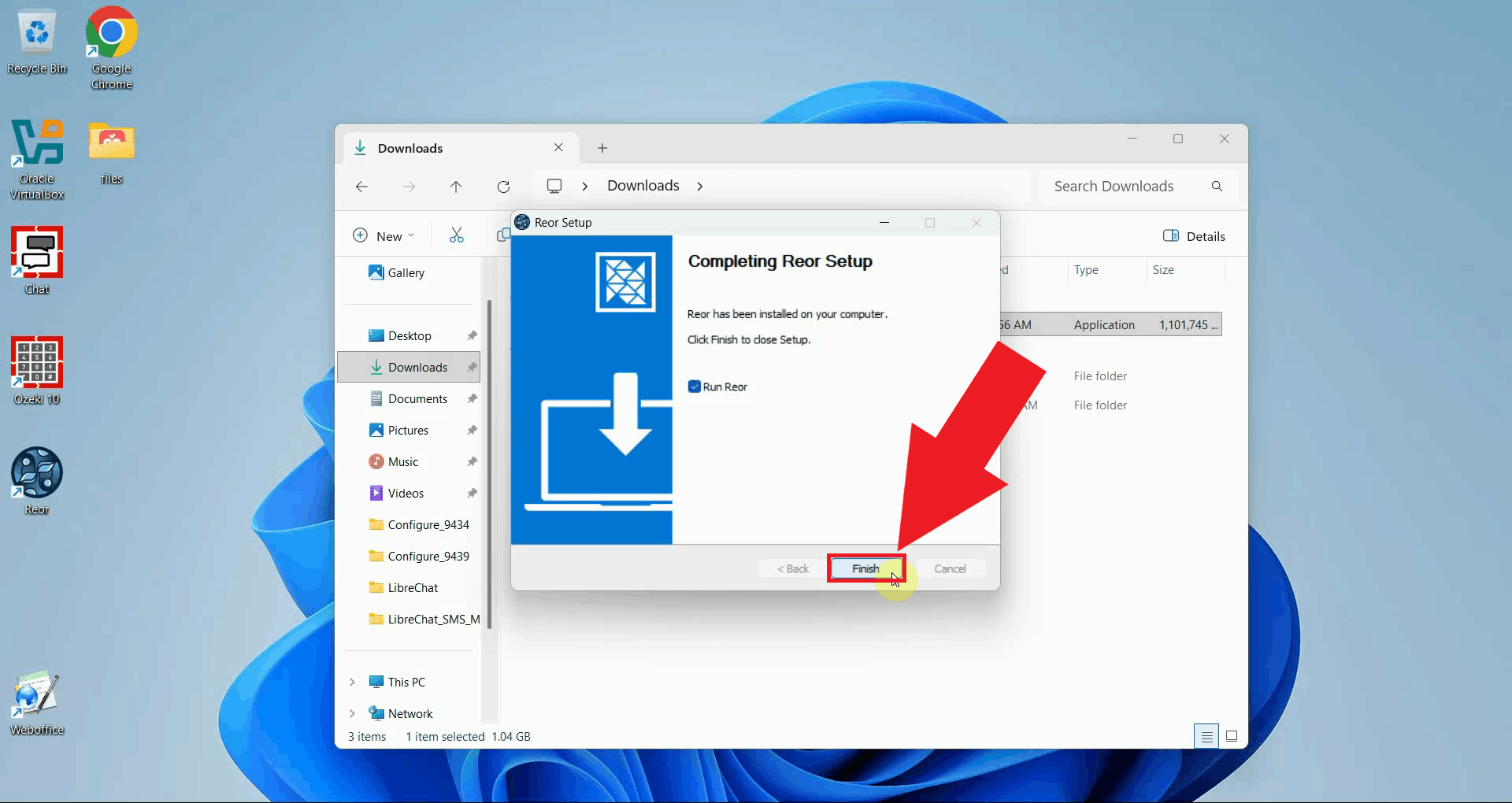
When the installation is complete, the wizard will show a confirmation screen. Click Finish to close the setup wizard (Figure 6). The application will launch automatically so you can proceed with the initial configuration.
Step 2 - Set up the vault and configure LLM
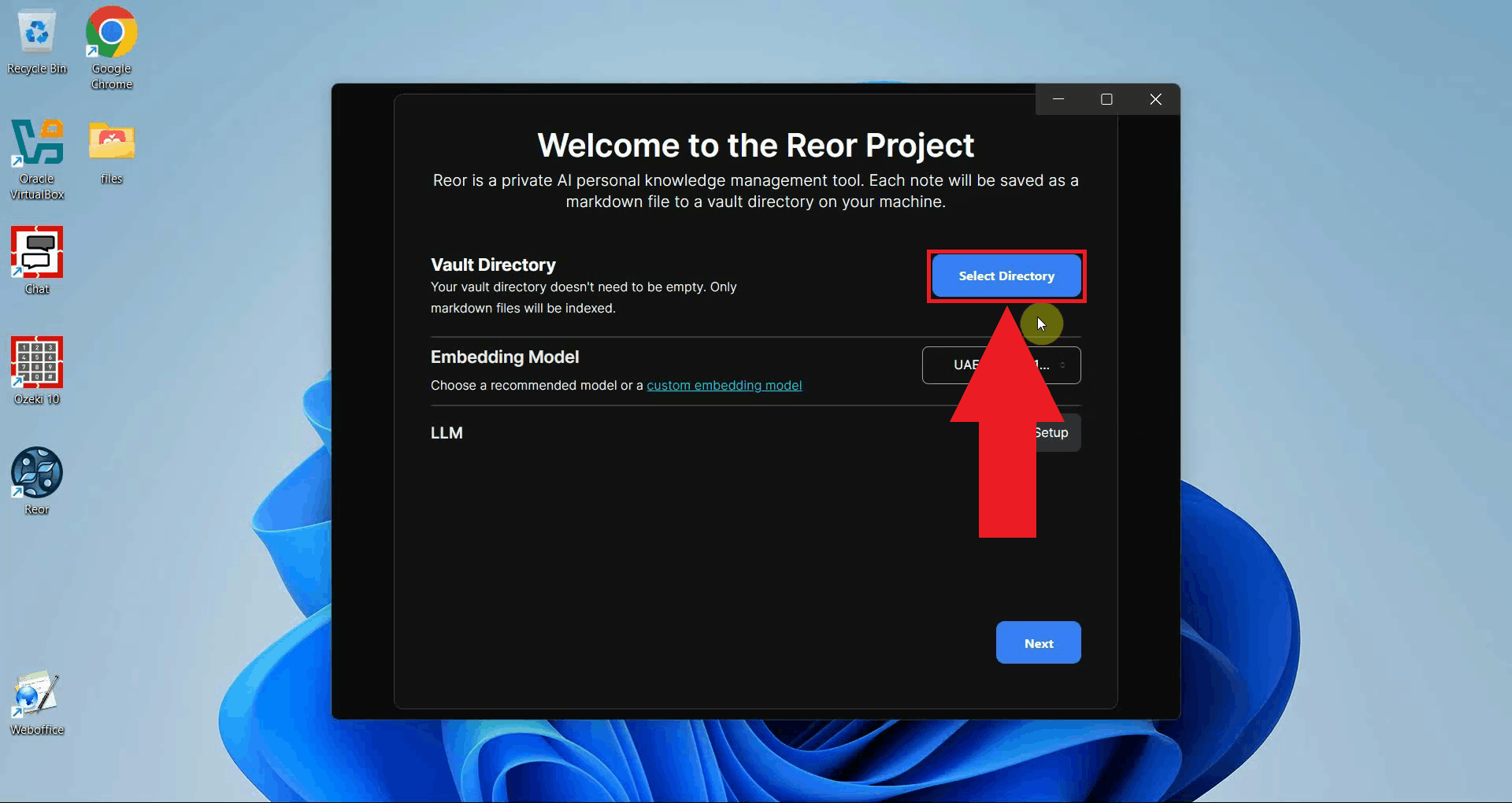
On the first launch, a welcome screen will appear asking you to select a vault directory. This is the local folder where all your notes will be stored (Figure 7). Click Select directory, choose or create a folder on your machine, and confirm your selection to continue.
Next, set up an LLM: select the Setup option to configure Ozeki AI Gateway as your model provider (Figure 8).
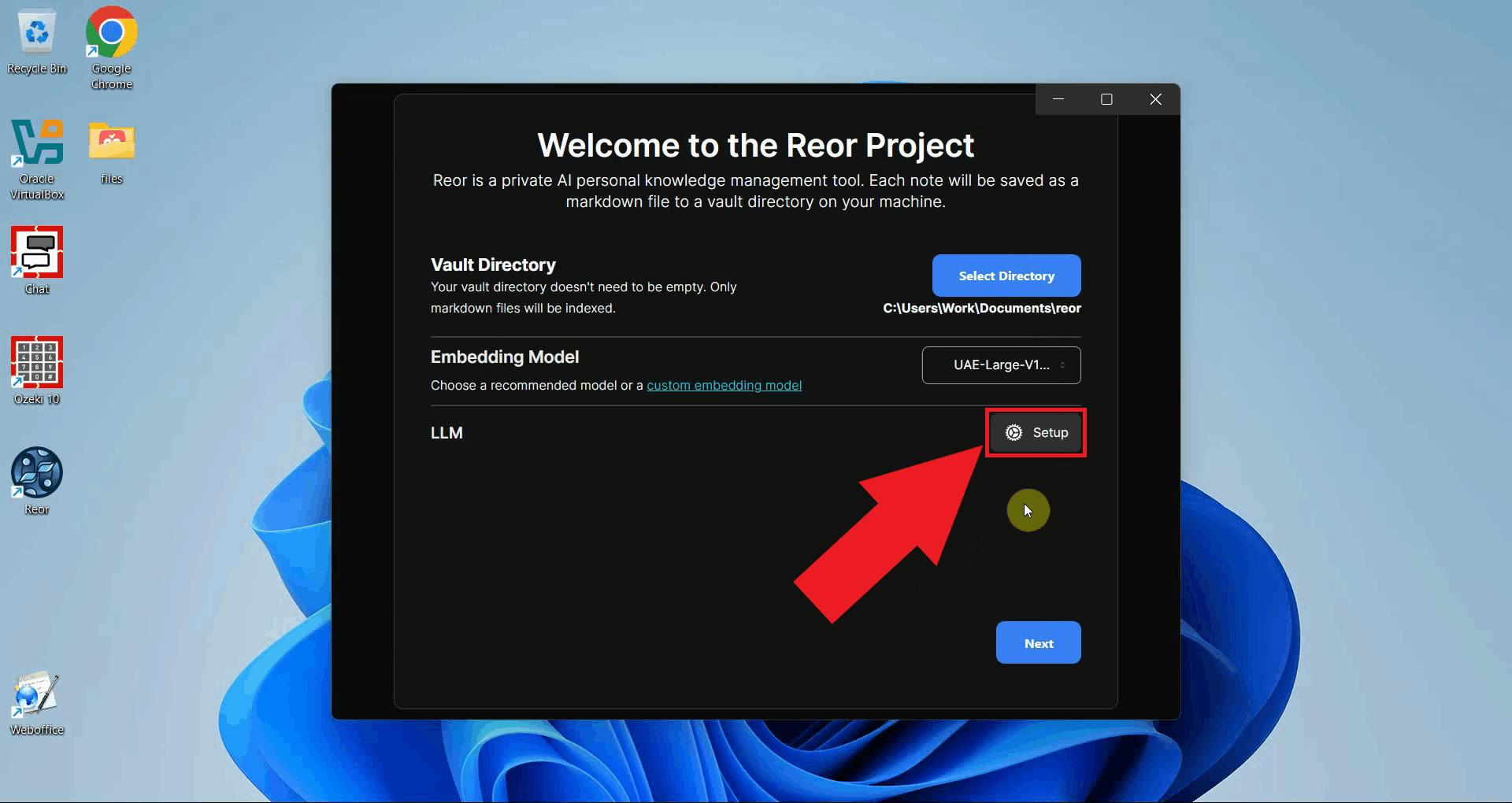
Click Custom LLM Setup to open the custom API configuration form (Figure 9).
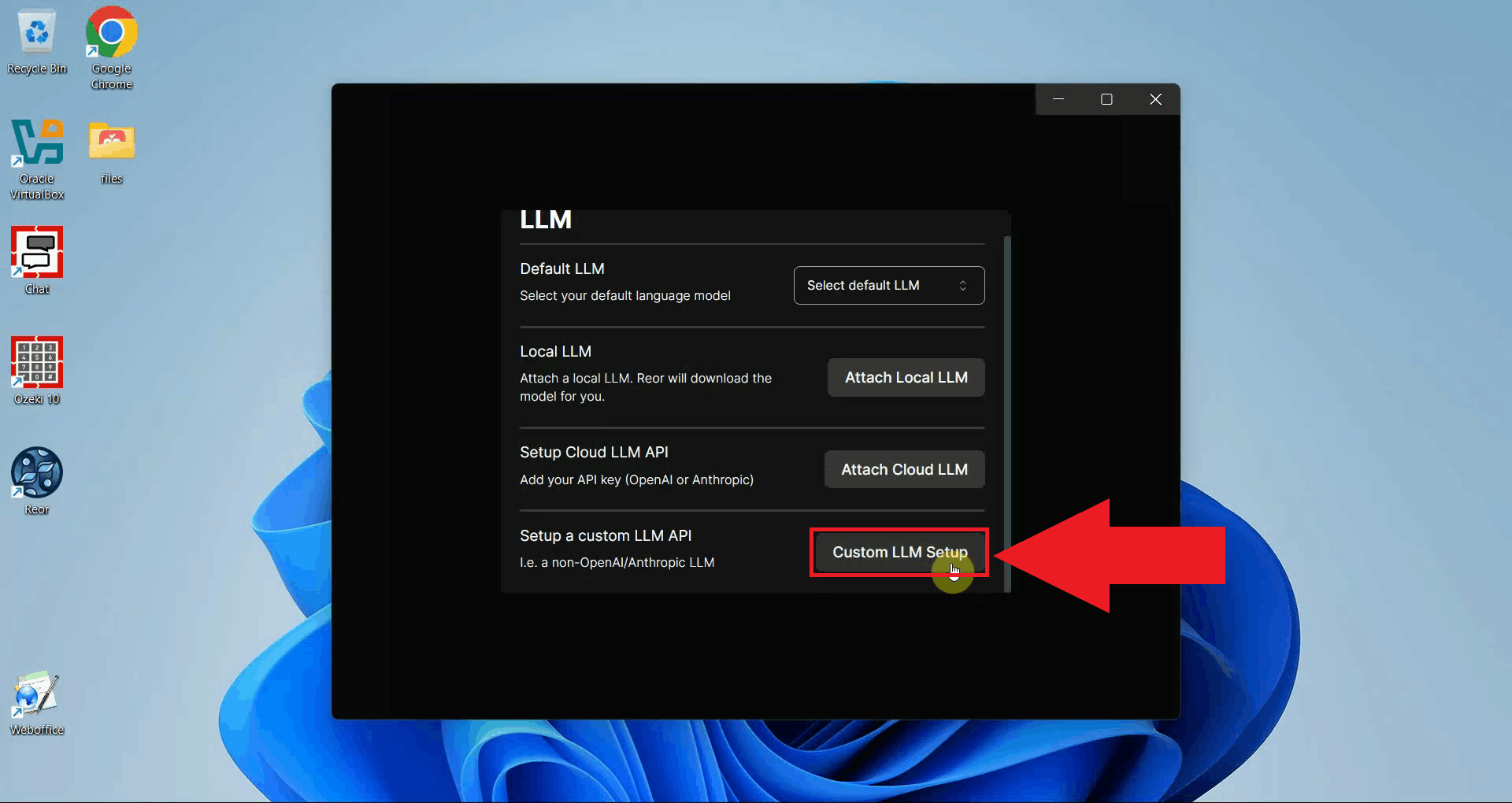
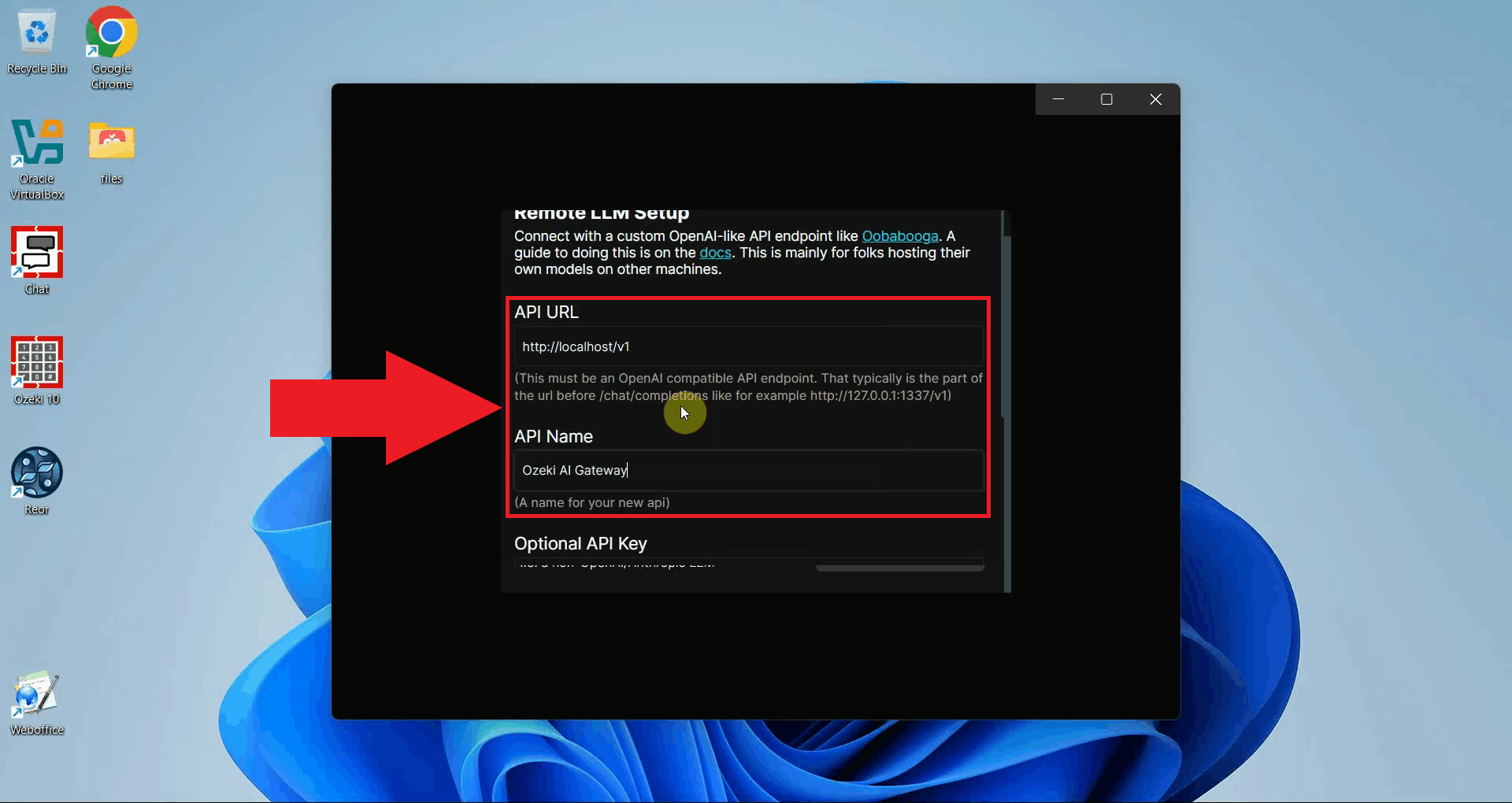
Enter the API URL and a name for the provider using the values below (Figure 10).
Replace {address} with the hostname or IP address of your Ozeki AI Gateway installation.
API URL:  http://{address}/v1
API Name: Ozeki AI Gateway
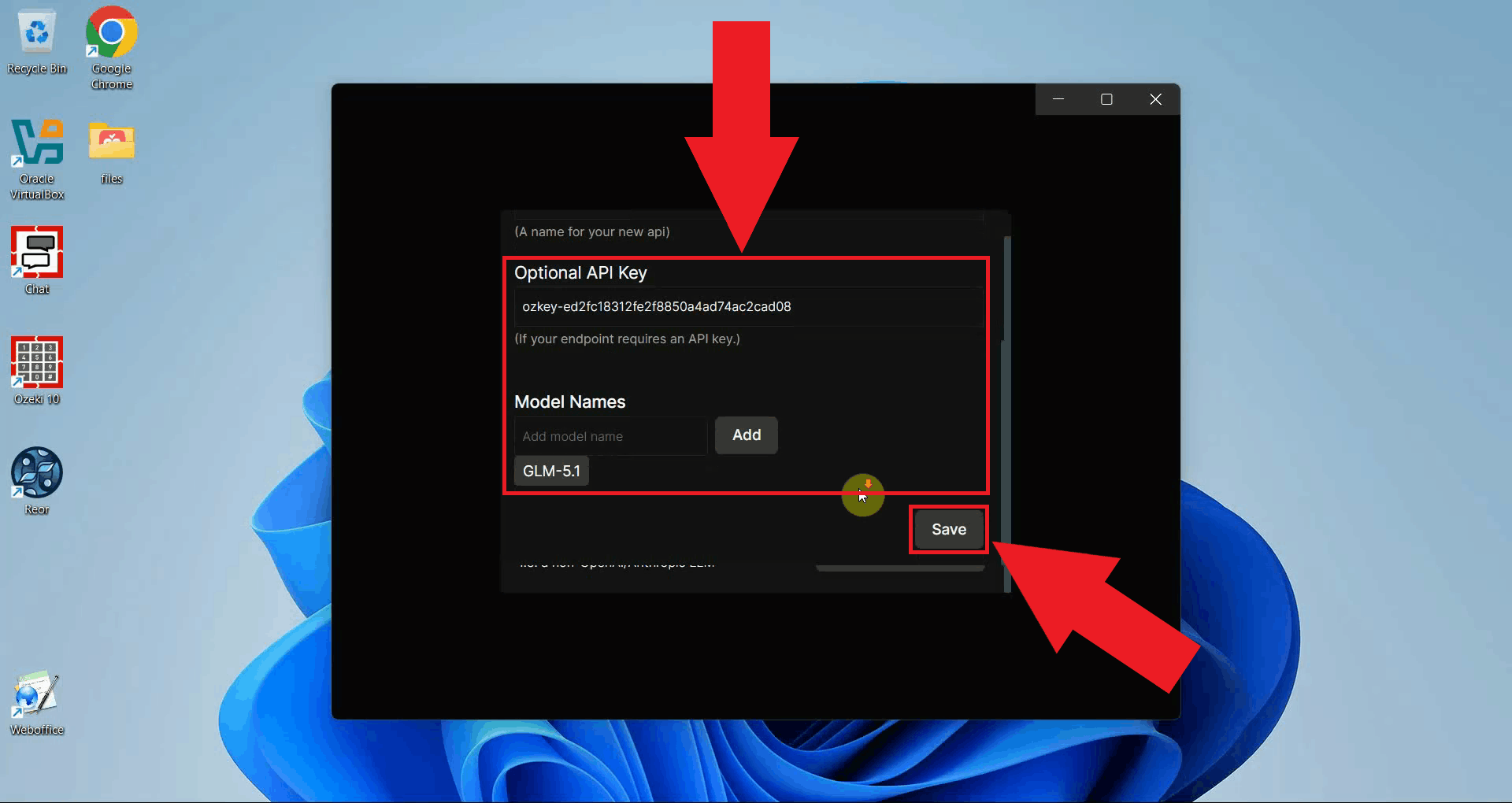
Enter your API key and the model name you want to use, then click Save LLM to store
the configuration (Figure 11). Replace ozkey-abc123 with the
API key you created in Ozeki AI Gateway. The model name must
match a model that is configured and available in your gateway.
API Key: ozkey-abc123
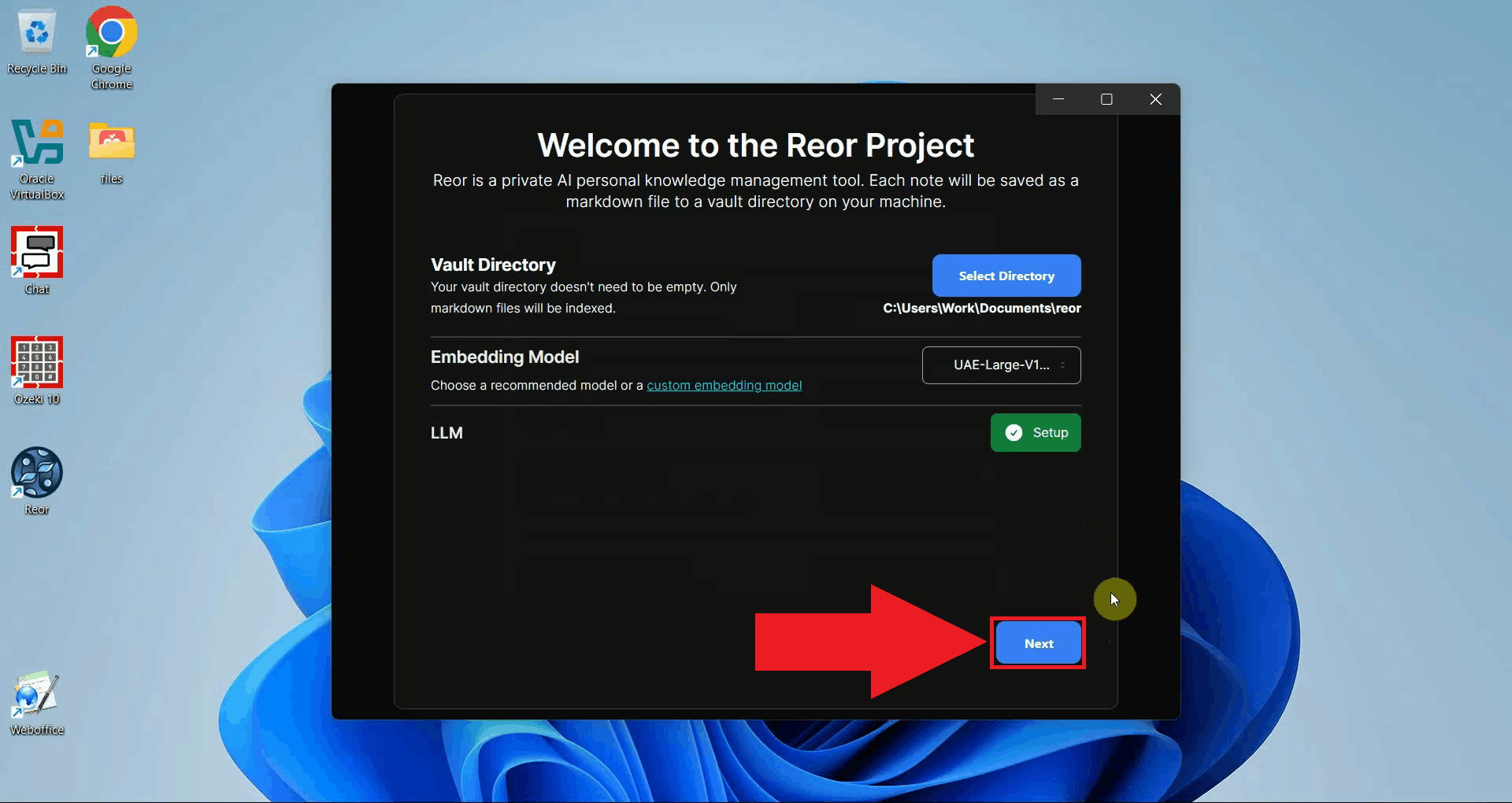
After saving, return to the welcome screen. Click Next to complete the initial setup and open the main interface (Figure 12).
Step 3 - Start a new chat and send a test prompt
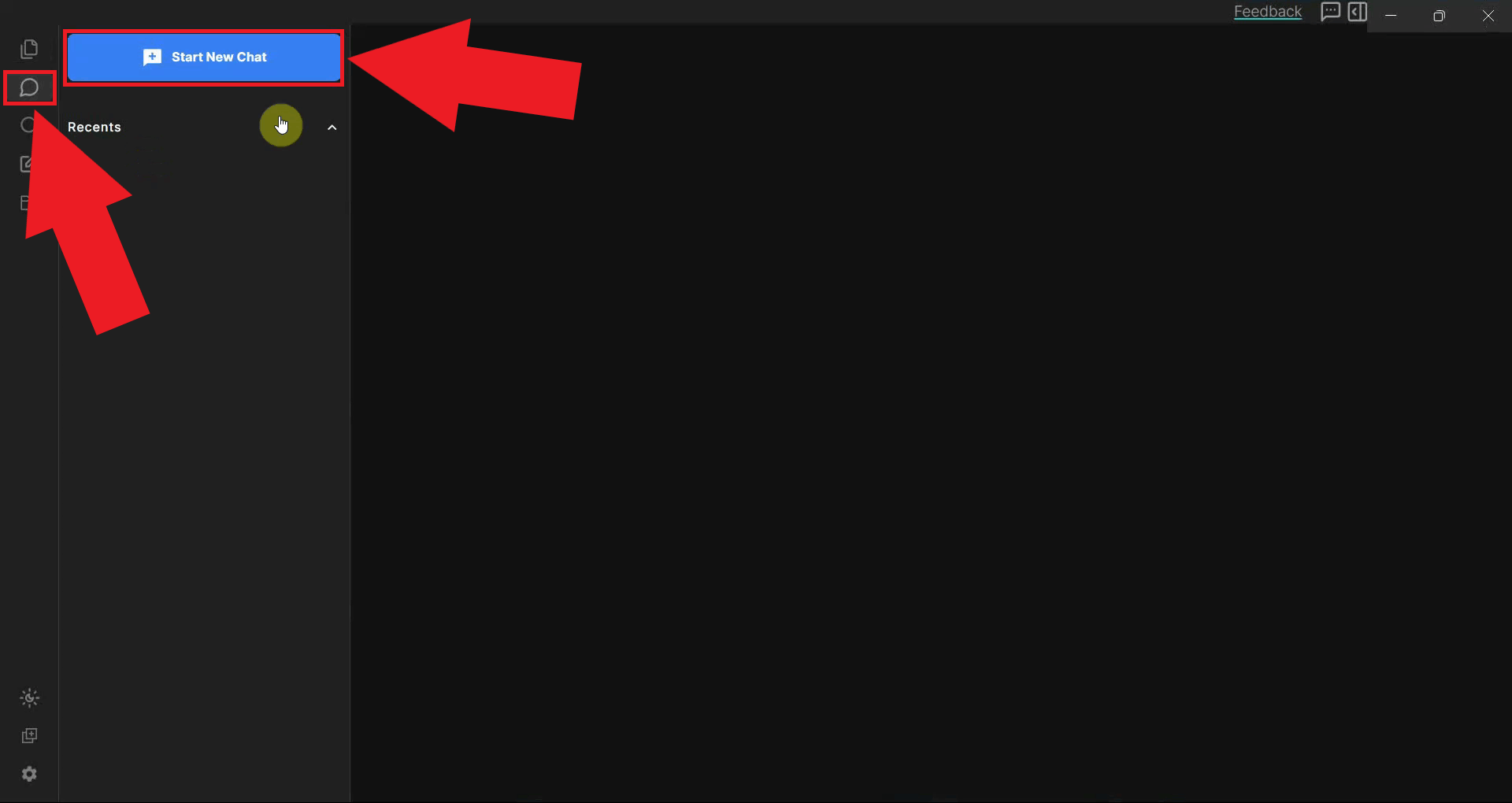
Open the chat panel by clicking the icon in the left sidebar and start a new conversation (Figure 13).
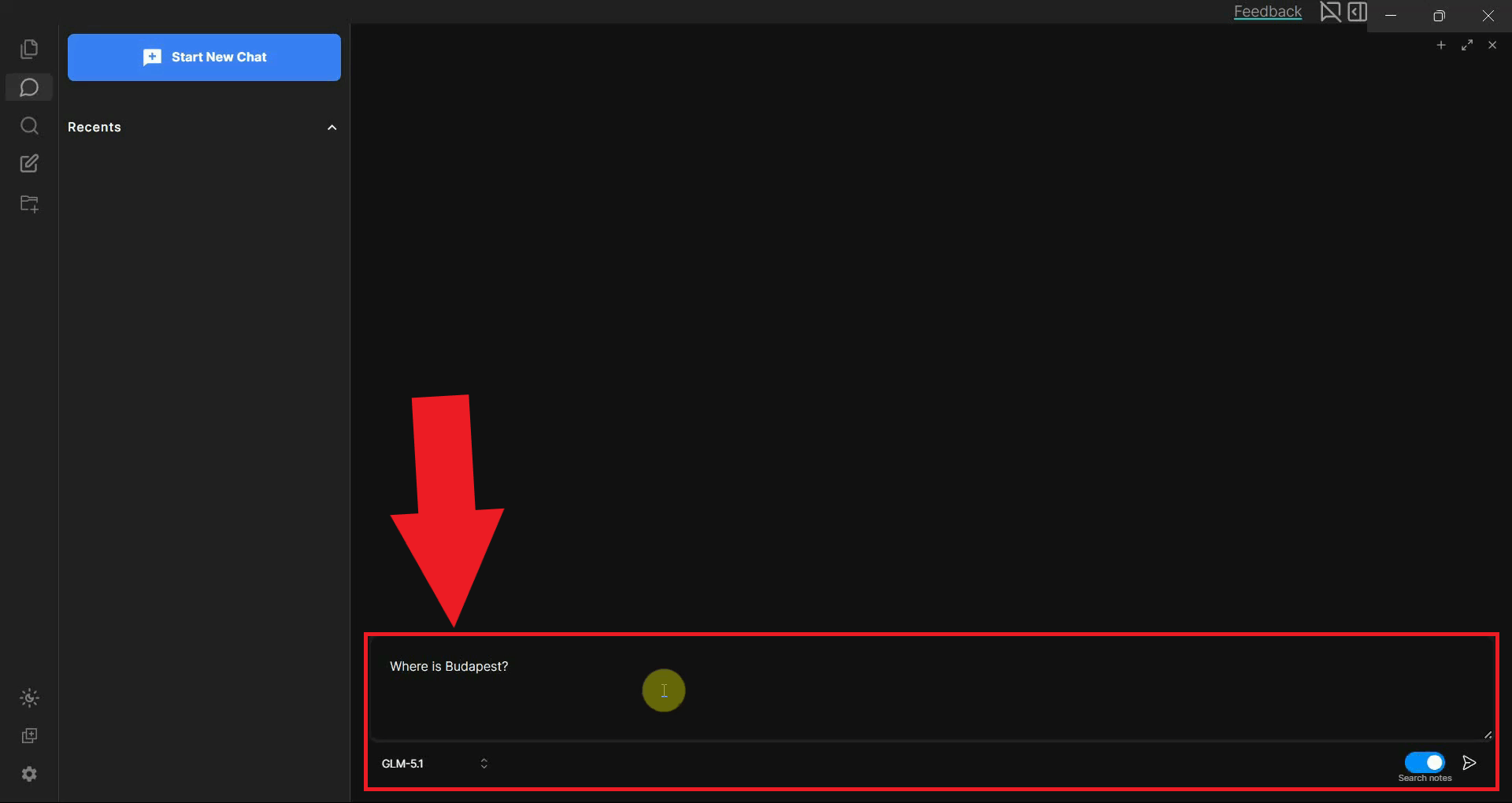
Type a test question in the chat input field and press Enter or click the send button to submit the prompt (Figure 14). The request will be forwarded to Ozeki AI Gateway, which will route it to the selected model and return a response.
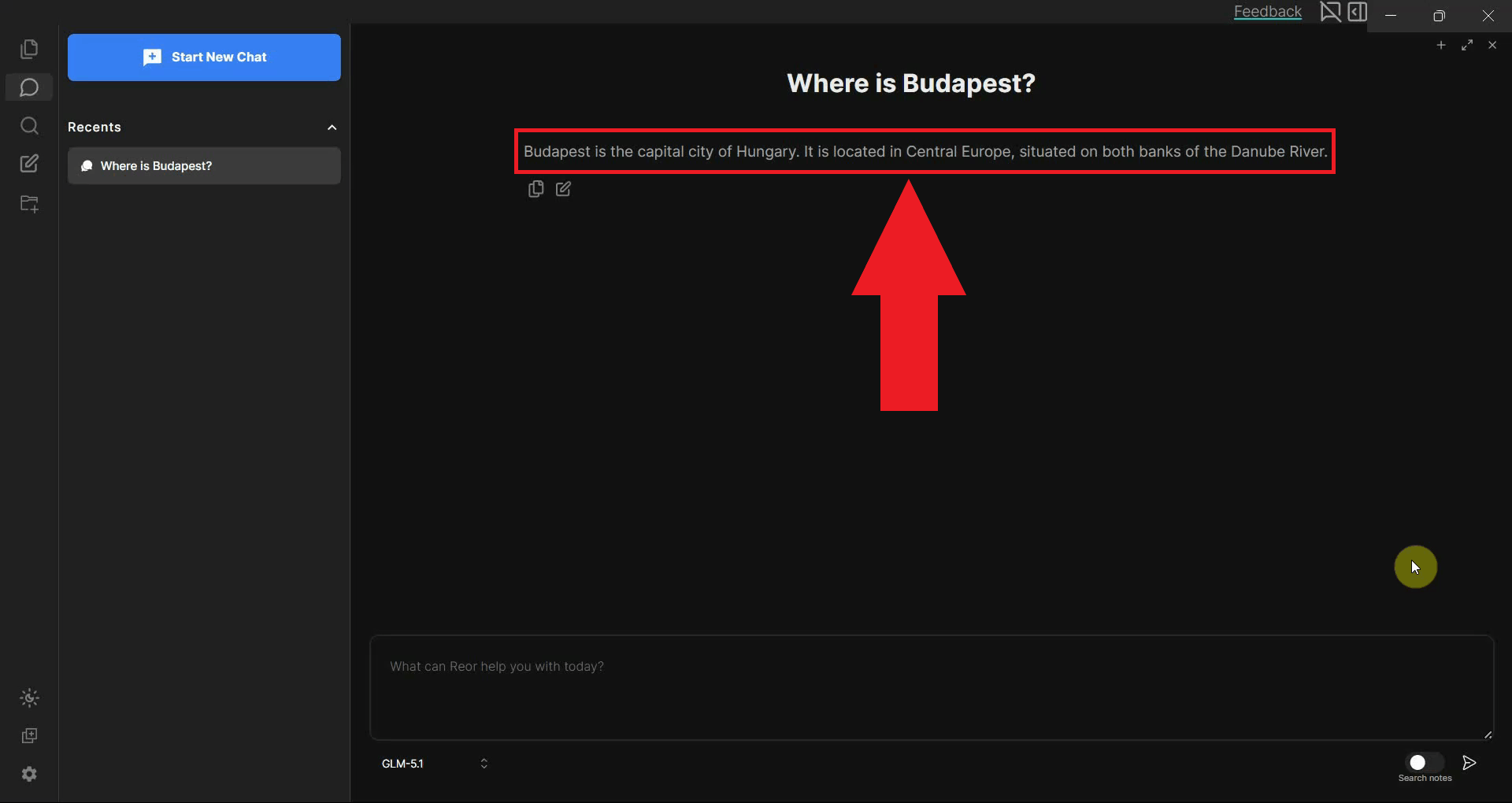
The AI response will appear in the chat window, confirming that the connection to Ozeki AI Gateway is working and requests are being routed through your configured model (Figure 15). If a response is displayed, the setup is complete and the integration is working correctly.
Final thoughts
You have successfully installed Reor and configured it to use Ozeki AI Gateway as its LLM provider. All AI requests from the chat panel and note editor are now routed through your gateway, giving you centralised control over model access and API key management. The LLM configuration can be updated at any time from within the application settings.