
How to use SillyTavern with Ozeki AI Gateway
SillyTavern is an application that allows users to interact with ChatGPT and other AI models in a fun, creative, and customizable way. It’s an open-source project aimed at providing playful, engaging interactions while expanding the possibilities for conversations with AI.
Who is using SillyTavern
1. AI Enthusiasts and Developers
Why do they use it? Those interested in AI and machine learning often try out SillyTavern because it allows them to test models in a personalized way. Developers and researchers can test different aspects of AI, fine-tune responses, and observe how the model reacts to various inputs. Additionally, SillyTavern allows for interactive AI usage, which can be both fun and educational for them.
2. Gamers and RPG Fans
Why do they use it? Fans of RPG (Role-Playing Games) and text-based games use SillyTavern to play games with AI, create characters, and customize responses. Users can create different characters, personalize interactions, and develop unique stories. Gamers enjoy using the AI as a "Dungeon Master" (DM) in role-playing scenarios or as part of an interactive storyline.
3. Writers and Creative Creators
Why do they use it? Writers, novelists, and creative creators use SillyTavern to generate ideas, create characters, write stories, or simply enhance their creative process. The AI can help in brainstorming scenarios, designing characters, or even shaping narratives. This helps creators break through writer's block and generate content more easily.
4. AI Applications and Chatbot Developers
Why do they use it? Developers of chatbots and AI applications choose SillyTavern because it allows them to easily customize chat interfaces, generate AI responses, and integrate them into other applications. Its interactive and customizable nature is especially attractive to those working on chatbot development or AI application projects.
5. General Users Who Want to Have Fun
Why do they use it? Those looking for a fun and entertaining way to interact with AI also use SillyTavern. It provides an enjoyable platform for exploring AI’s creative potential, having playful conversations, or even running mini-simulations. For these users, it offers a creative way to relax and explore something new in an engaging way.
How Do People Use It?
Users can engage with SillyTavern in several ways:
- Text-based interactions: Users can start conversations with the AI. They can customize the AI's responses by adjusting settings and prompts to fit their needs, whether it’s chatting, role-playing, or creating a specific character.
- Roleplaying and Interactive Stories: RPG fans use SillyTavern as a "storyteller" where the plot progresses based on their choices and the AI's responses. Users can create characters to interact with and participate in a dynamic story.
- AI Customization: Users can customize the AI’s responses by adjusting prompts and settings, creating personalized interactions. The AI’s replies can be tailored for specific characters or situations.
- Story Creation and Writing: Creative users can write their own stories with the help of the system, designing characters and events that the AI continually develops and evolves.
Why Do People Use It?
SillyTavern is appealing for a variety of reasons:
- Entertainment and Creativity: It allows users to explore the power of AI in a fun way, whether it’s through entertaining conversations, role-playing games, or creative writing.
- Customization: The platform’s customization options make it possible to adjust the AI's responses and interactions to meet individual preferences, offering a personalized experience.
- Ease of Use: With a simple and user-friendly interface, even users without technical or programming experience can easily navigate and enjoy the platform.
- Community Experience: The open-source nature of the project allows people to collaborate on development, share ideas, and enjoy the content created by others.
This combination makes SillyTavern ideal for those who want a playful, creative way to interact with artificial intelligence while enjoying a personalized experience.
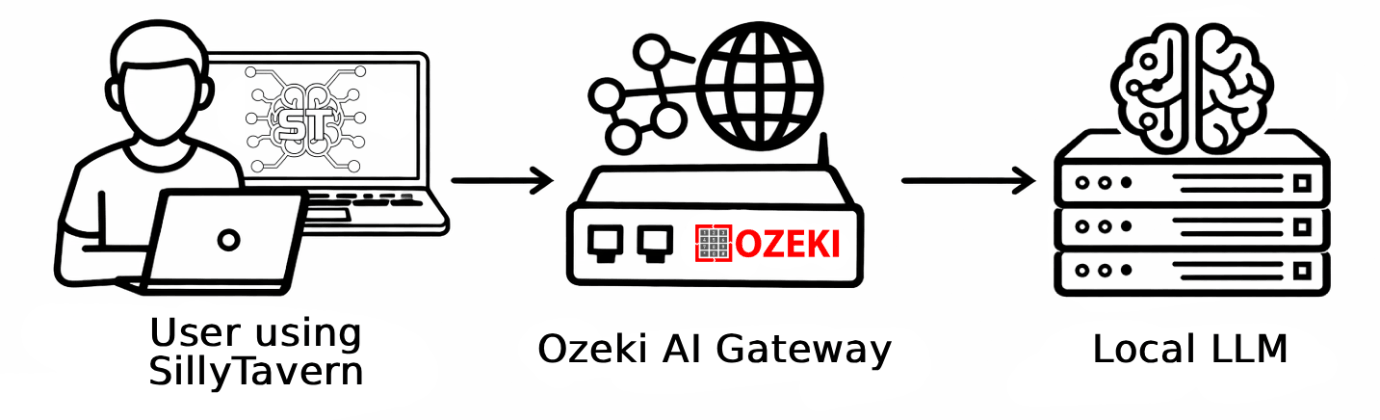
Steps to follow
We assume Ozeki AI Gateway is already installed on your system. You can install it on Linux, Windows or Mac.
- Install Git
- Install SillyTavern
- Complete initial setup
- Configure connection to Ozeki AI Gateway
- Test the connection
Quick reference commands
Here are the key commands you'll need for installing Git and SillyTavern:
# Install Git using winget
cmd /c winget install -e --id Git.Git

# Clone and install SillyTavern
git clone https://github.com/SillyTavern/SillyTavern-Launcher.git && cd SillyTavern-Launcher && start installer.bat
Git installation video
The following video shows how to install Git on Windows, which is required for installing SillyTavern. The video demonstrates using the winget package manager to install Git through the command line.
Step 1 - Install Git
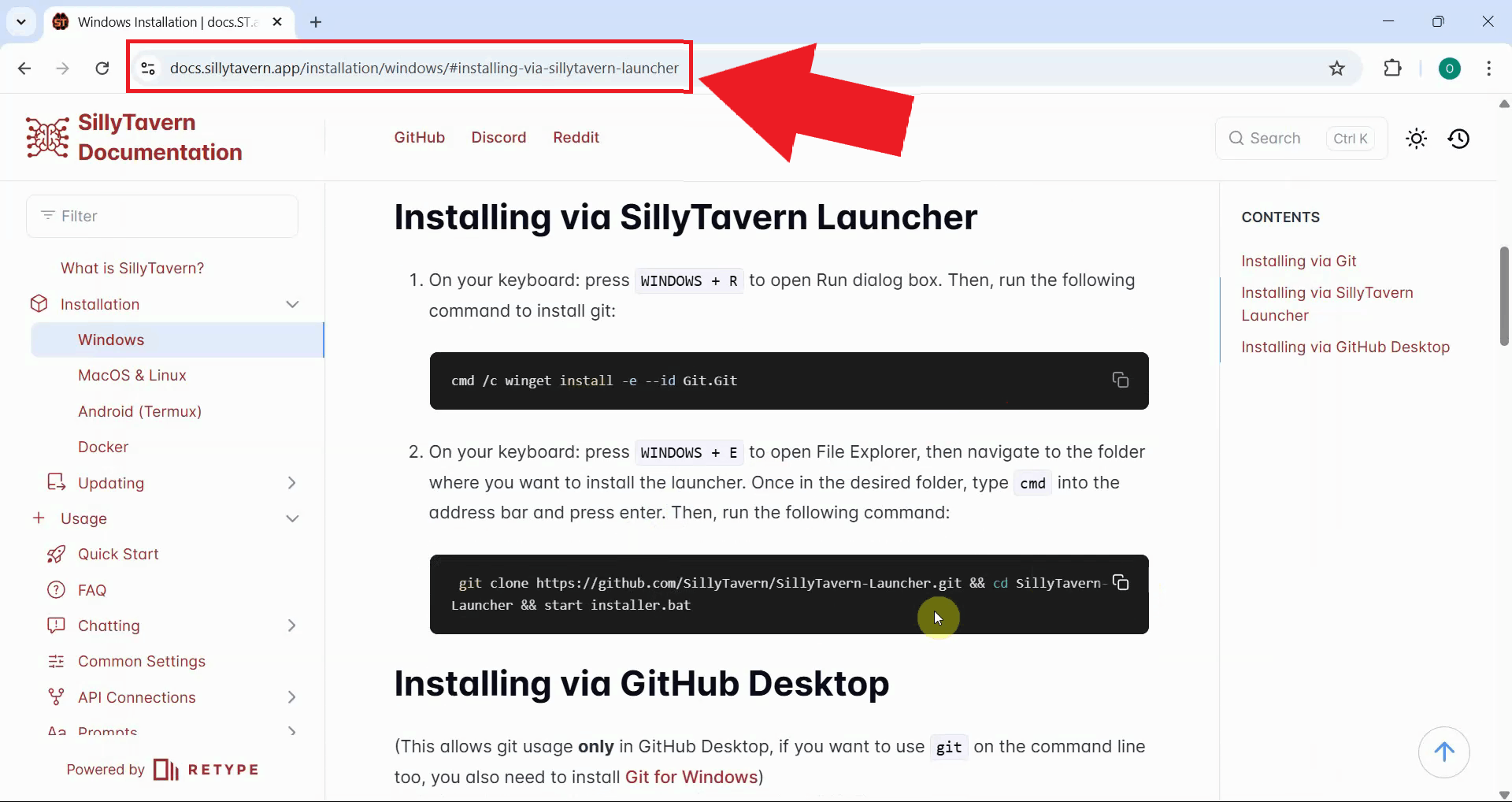
Before installing SillyTavern, you need to install Git, which is required for downloading and managing the SillyTavern files. Open the SillyTavern installation documentation in your web browser to access the installation commands (Figure 1).
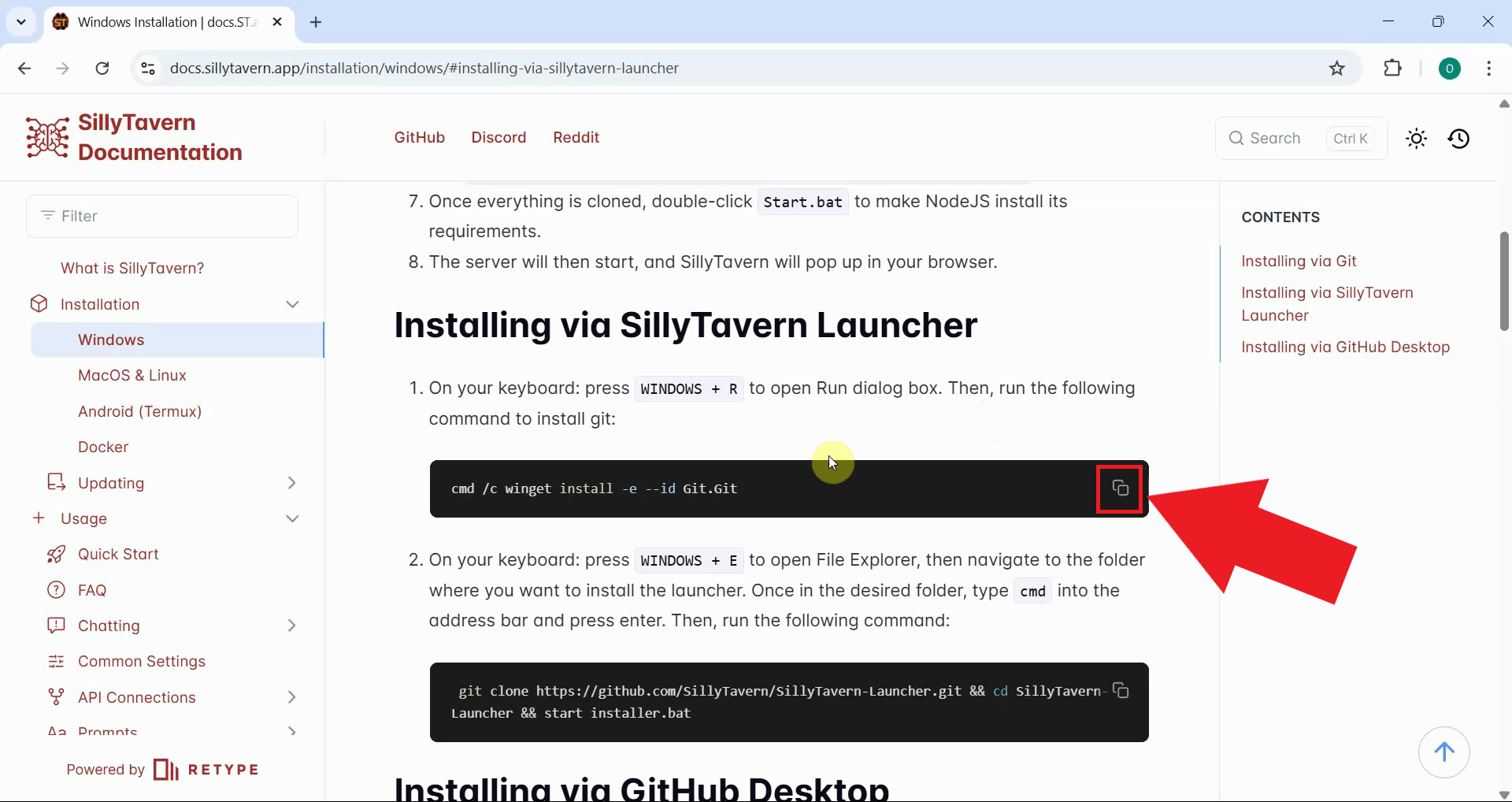
Locate and copy the Git installation command from the documentation. The command uses Windows Package Manager (winget) to install Git automatically (Figure 2).
cmd /c winget install -e --id Git.Git
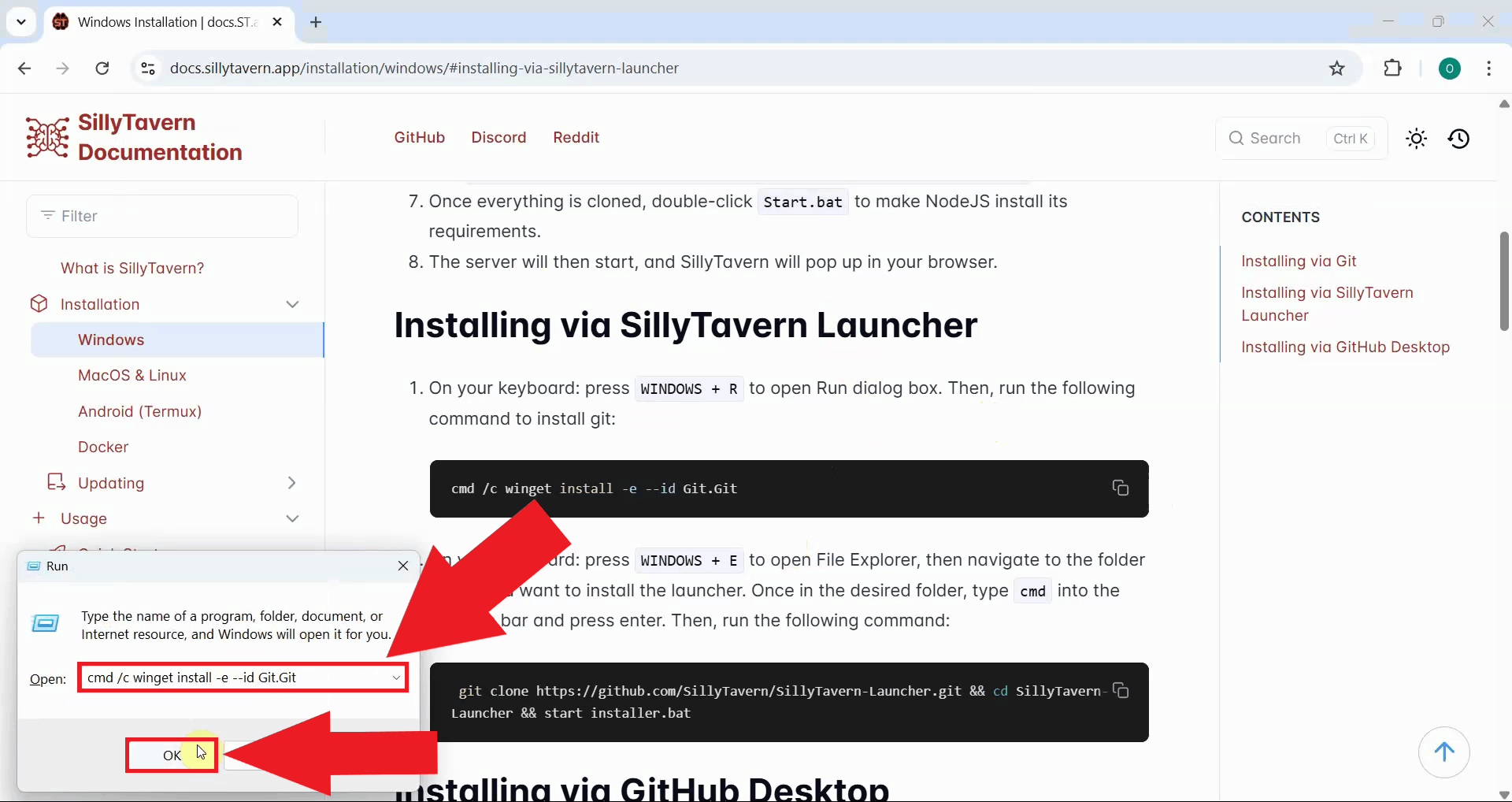
Open the "Run" dialog box in Windows by pressing WINDOWS + R and paste the Git installation command.
Press OK or Enter to execute the command and start the installation process (Figure 3).
If prompted, accept the Microsoft Store terms and agreements. This is required for winget to function properly and download packages (Figure 4).
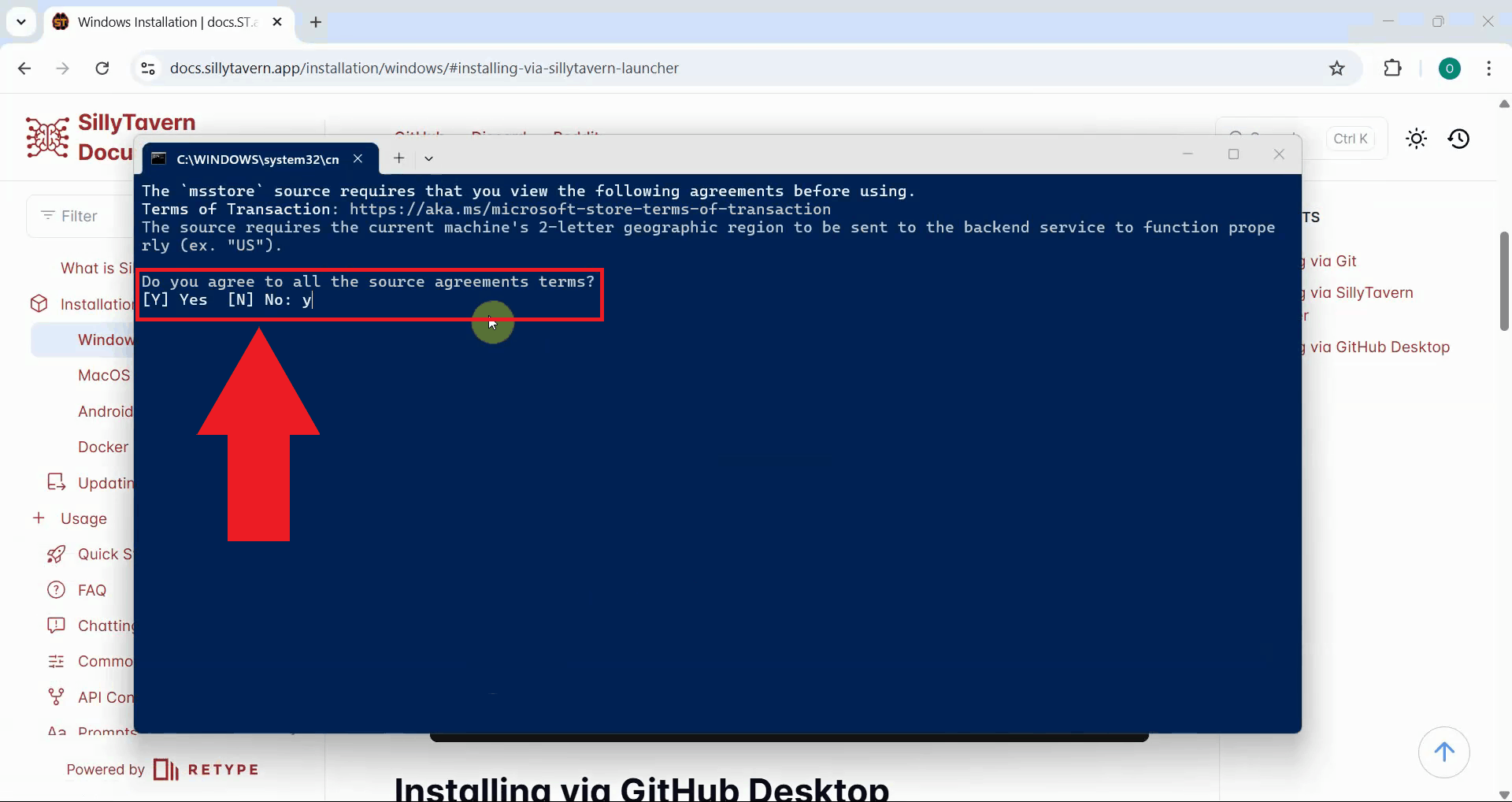
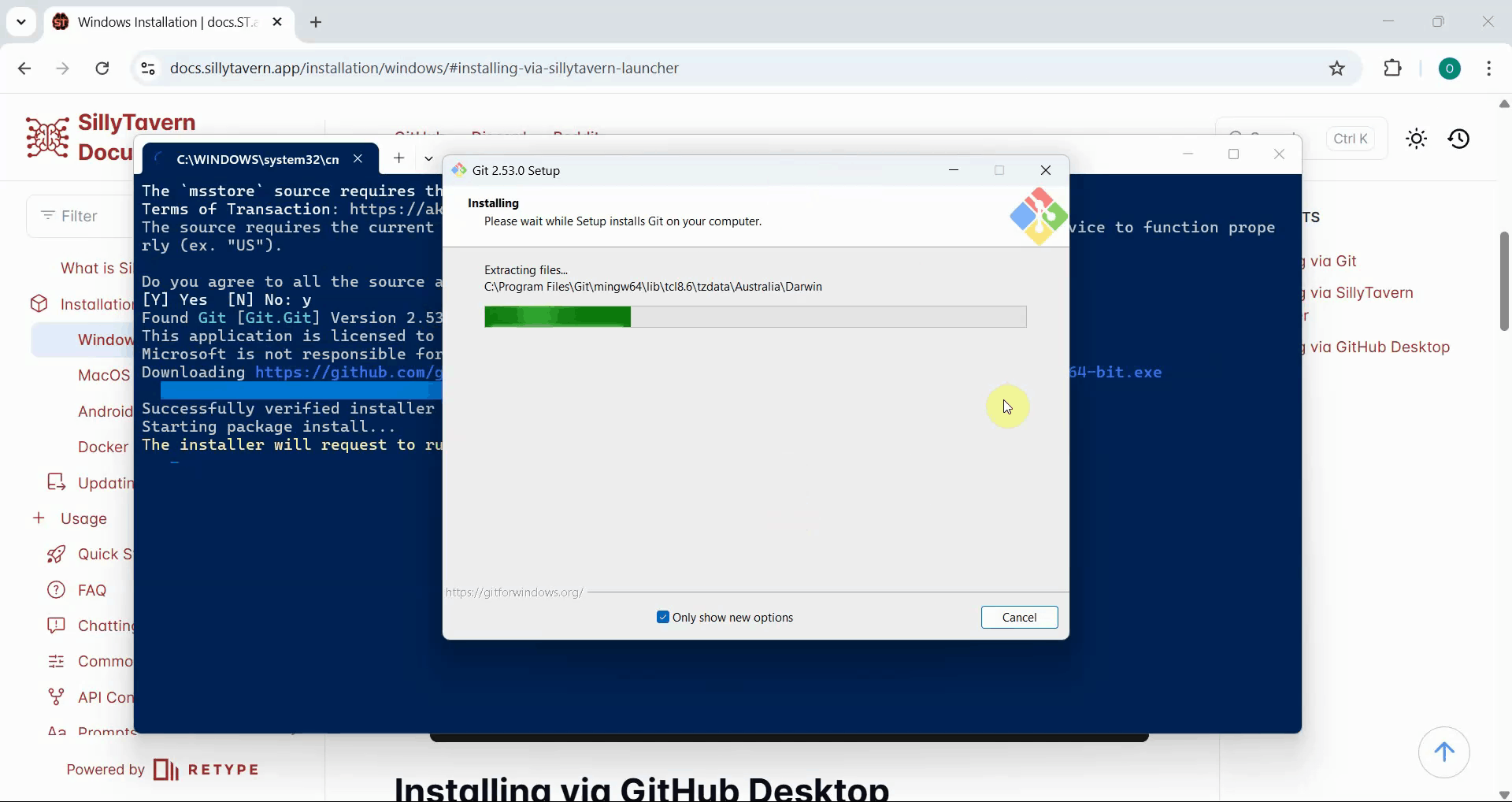
Wait for the Git installation to complete. The installer will download and install Git along with all required dependencies. This may take a few minutes depending on your internet connection (Figure 5).
Step 2 - Install SillyTavern
The following video shows how to install and configure SillyTavern with Ozeki AI Gateway step-by-step. The video covers downloading SillyTavern using Git, running the installer, completing the initial setup, and configuring the connection to Ozeki AI Gateway.
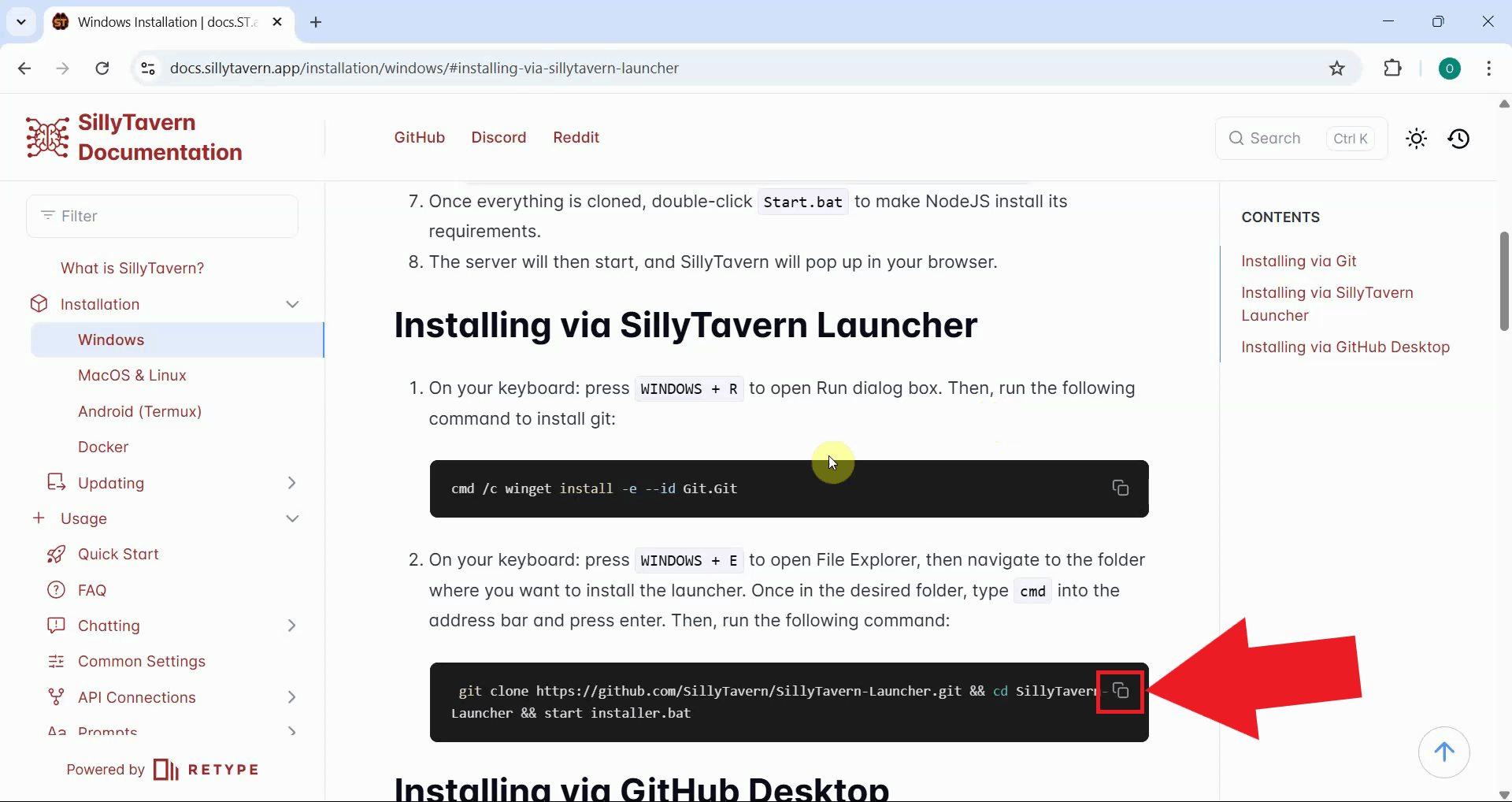
Return to the SillyTavern documentation and copy the installation command. This command clones the SillyTavern launcher repository and starts the installation process (Figure 6).
git clone https://github.com/SillyTavern/SillyTavern-Launcher.git && cd SillyTavern-Launcher && start installer.bat
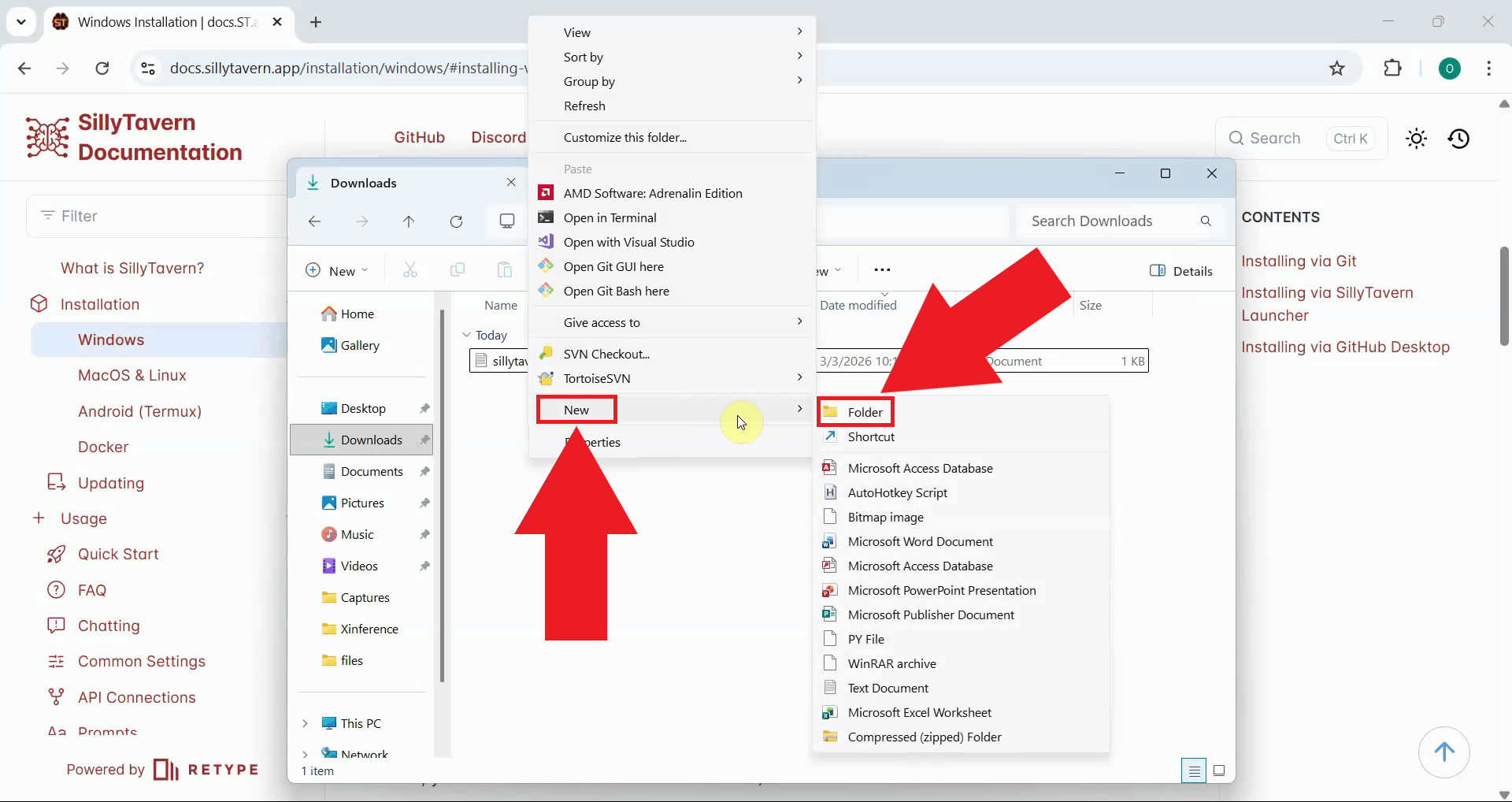
Create a new folder on your computer where you want to install SillyTavern. Choose a location with adequate disk space, as SillyTavern will download additional files during setup (Figure 7).
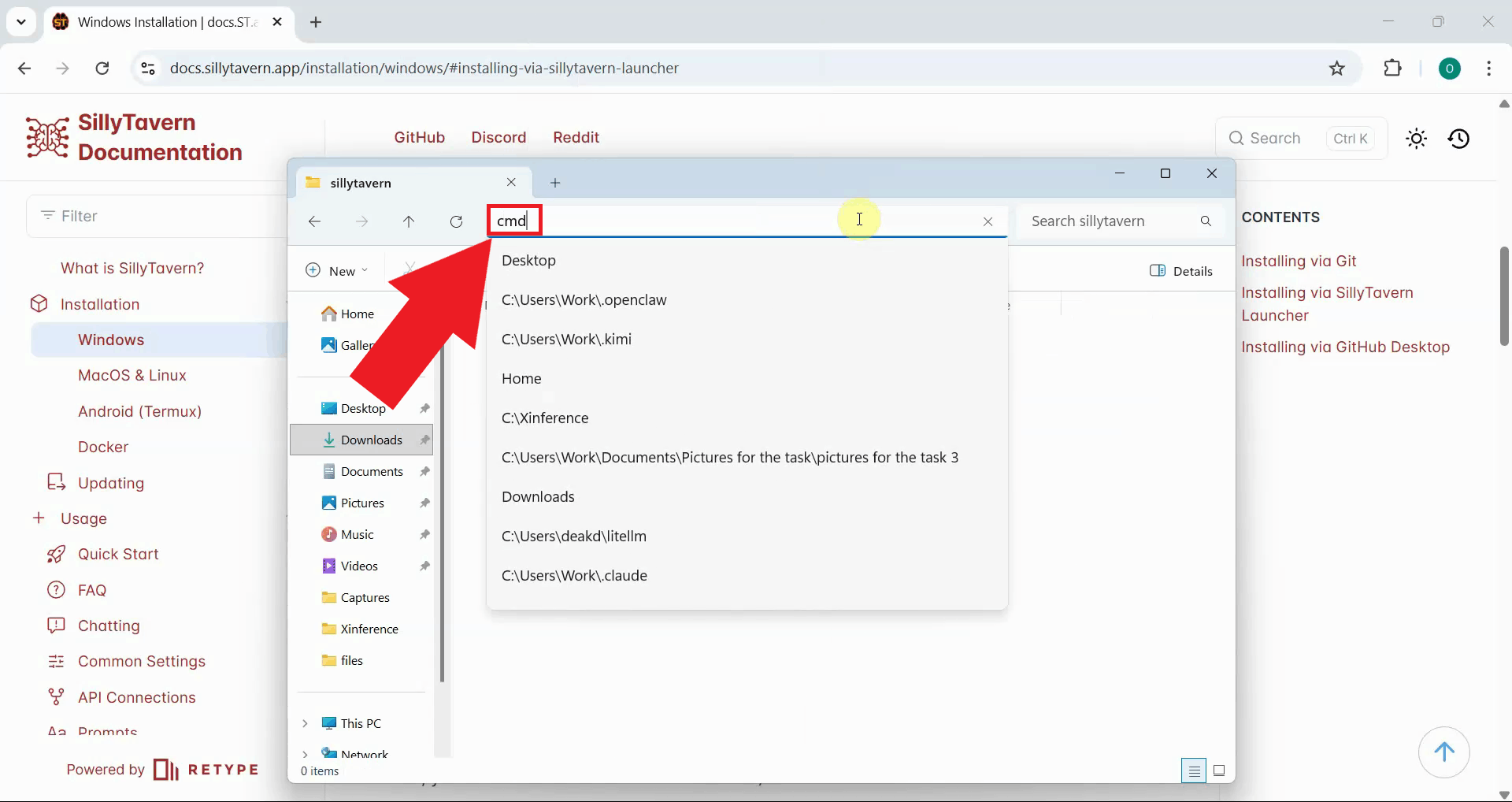
Navigate to the folder you created, then right-click in the folder and select Open in Terminal or type "cmd" into the search bar to open a command prompt in that location (Figure 8).
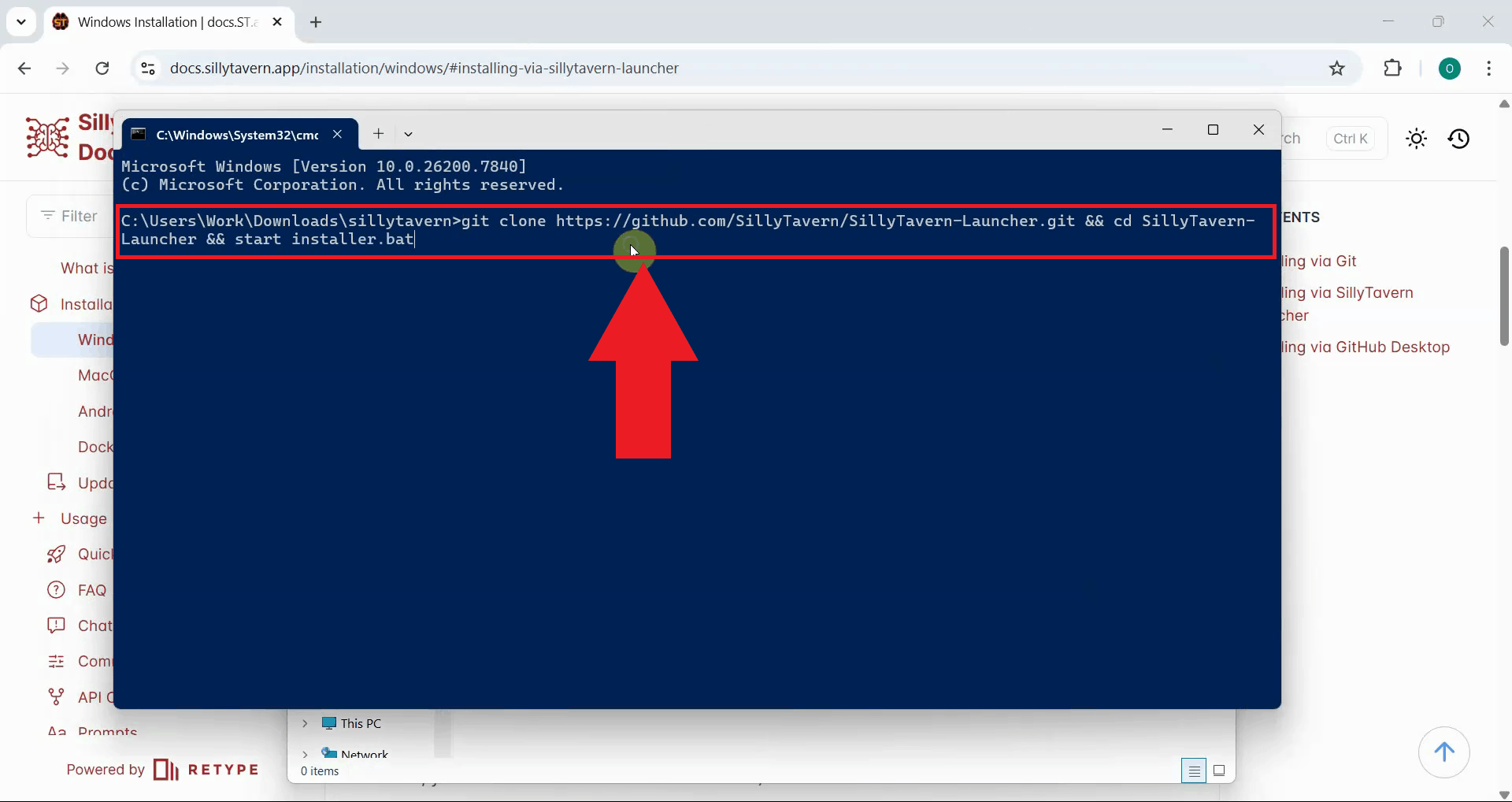
Paste the SillyTavern installation command into the terminal and press Enter. The command will clone the SillyTavern repository and automatically start the installer (Figure 9).
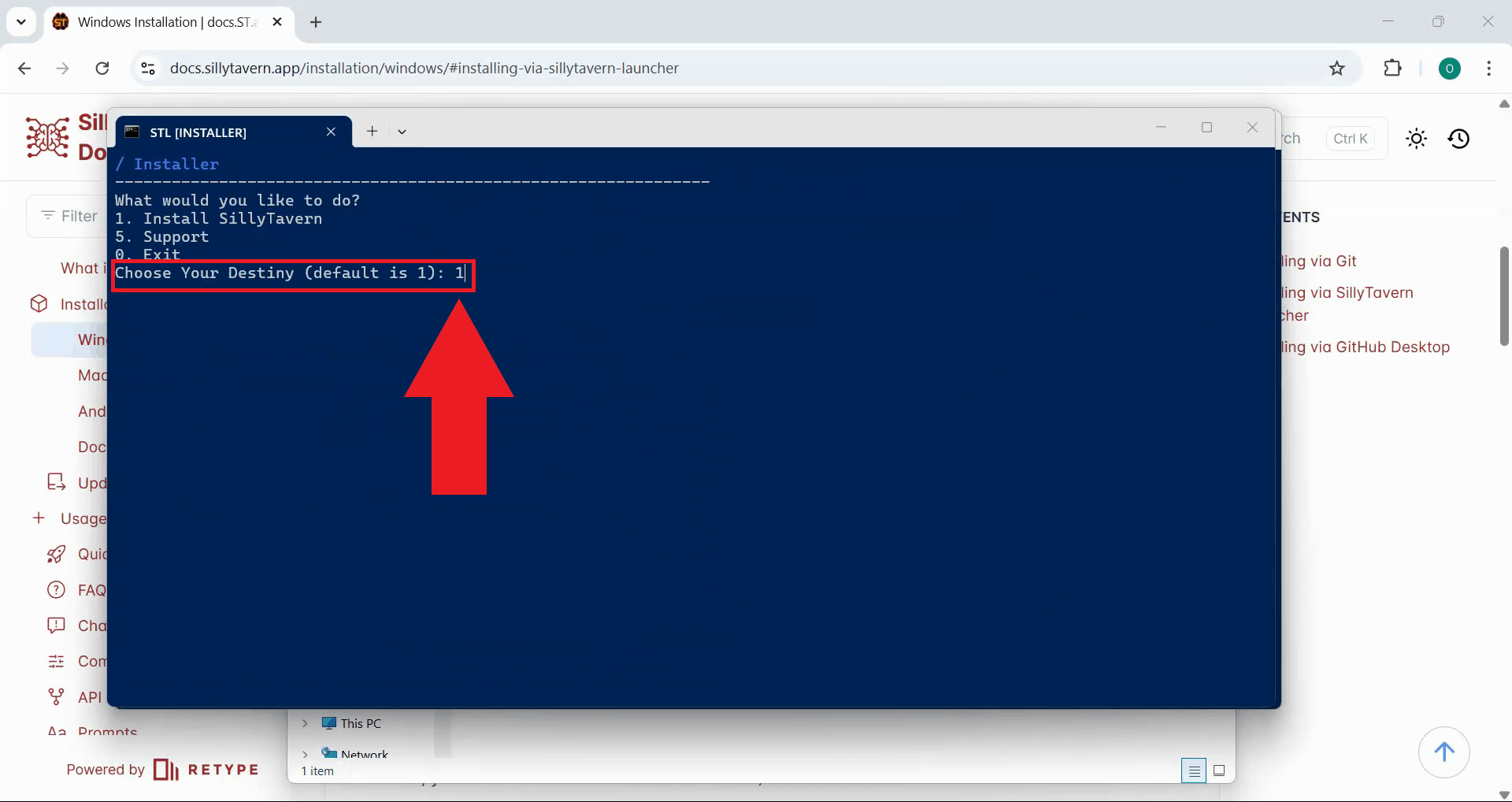
When the installer menu appears, select the option to Install SillyTavern by entering the corresponding number and pressing Enter (Figure 10).
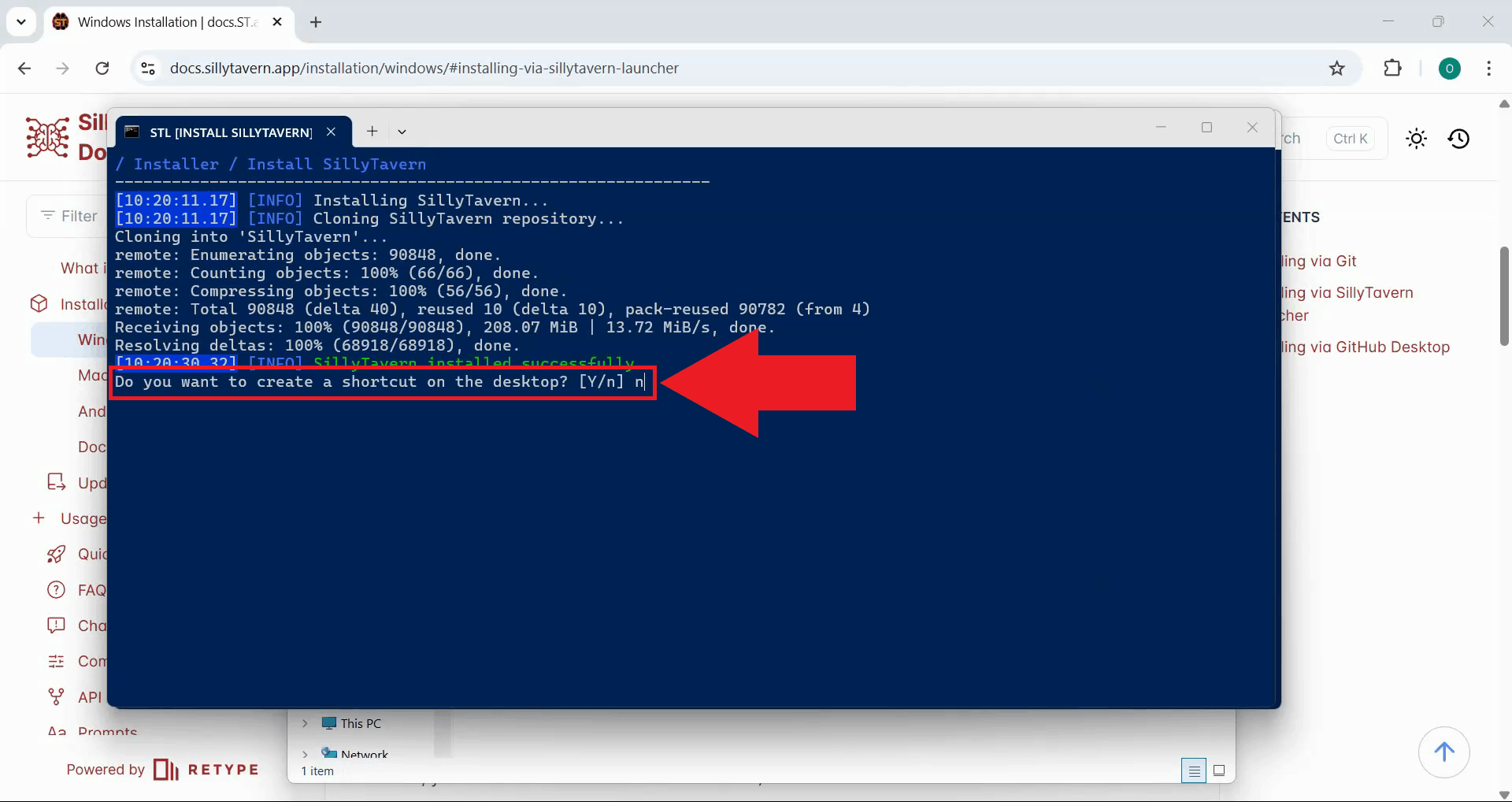
The installer asks if you want to create a desktop shortcut for easy access to SillyTavern. Choose "Yes" if you want a desktop shortcut, or "No" to skip this step. The shortcut provides convenient access to launch SillyTavern (Figure 11).
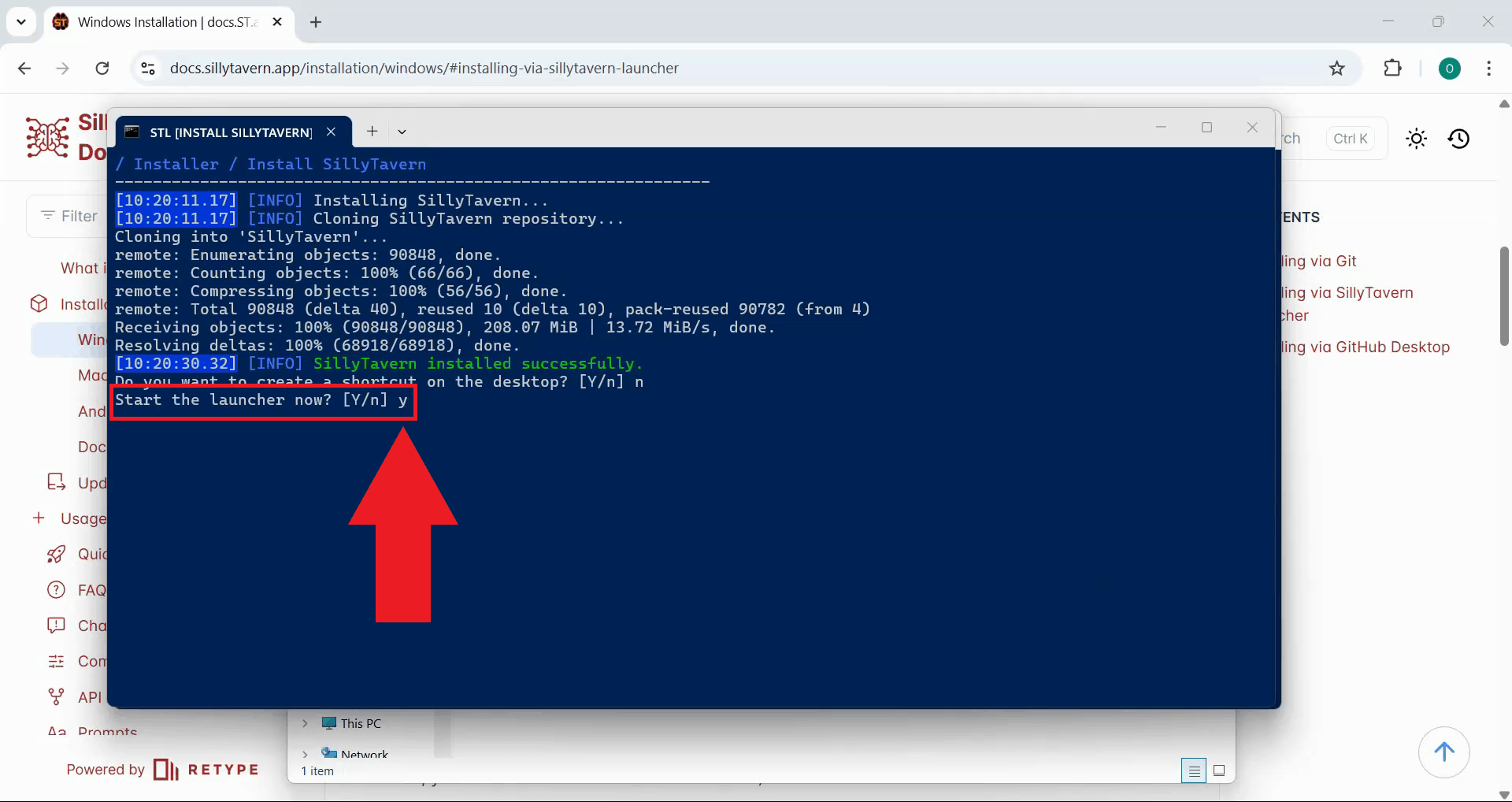
When prompted whether to start the launcher now, enter "Y" and press Enter. This will open the SillyTavern launcher (Figure 12).
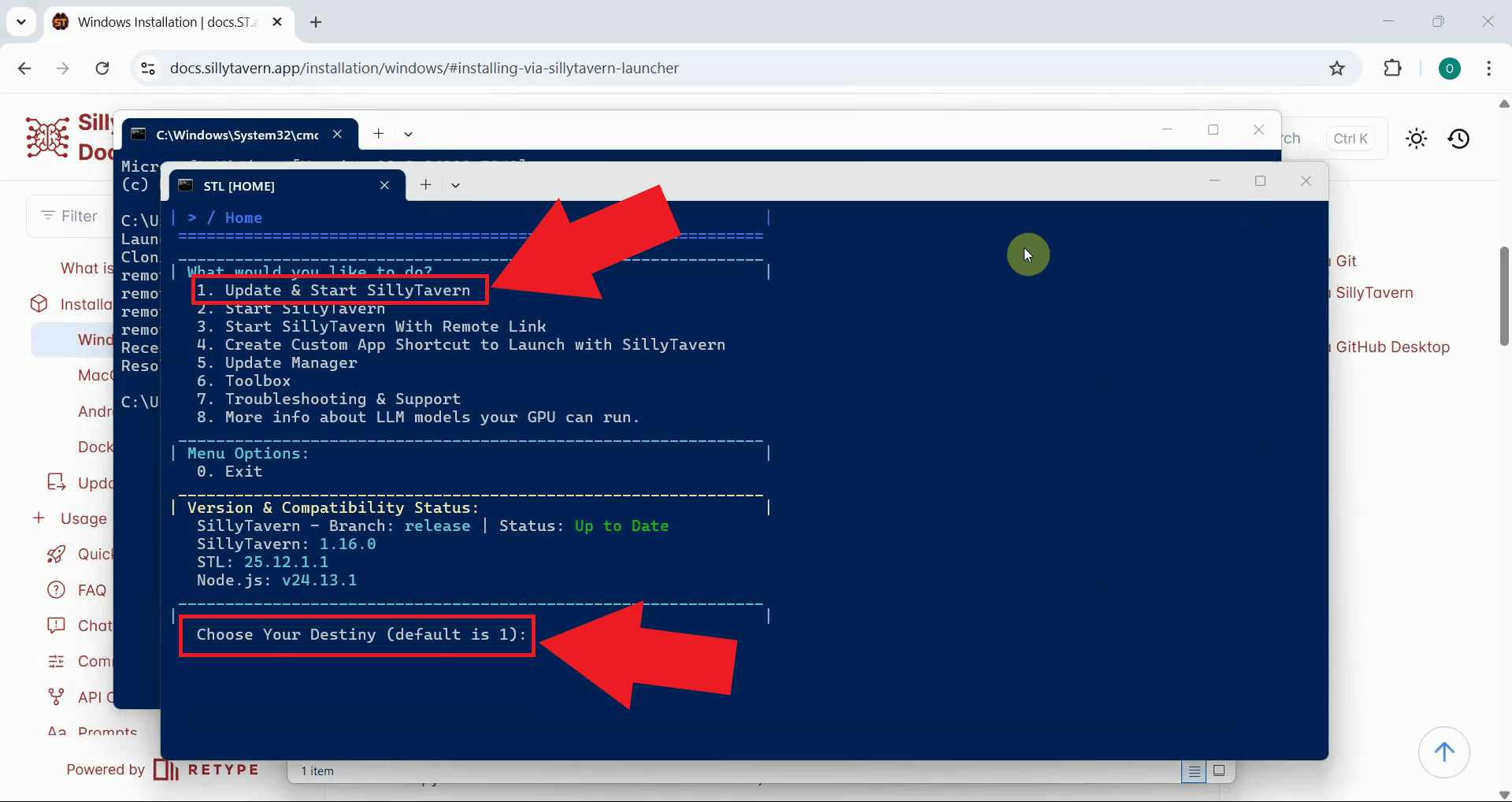
In the launcher menu, select the default action to Update and Start SillyTavern. This ensures you have the latest version and starts the application (Figure 13).
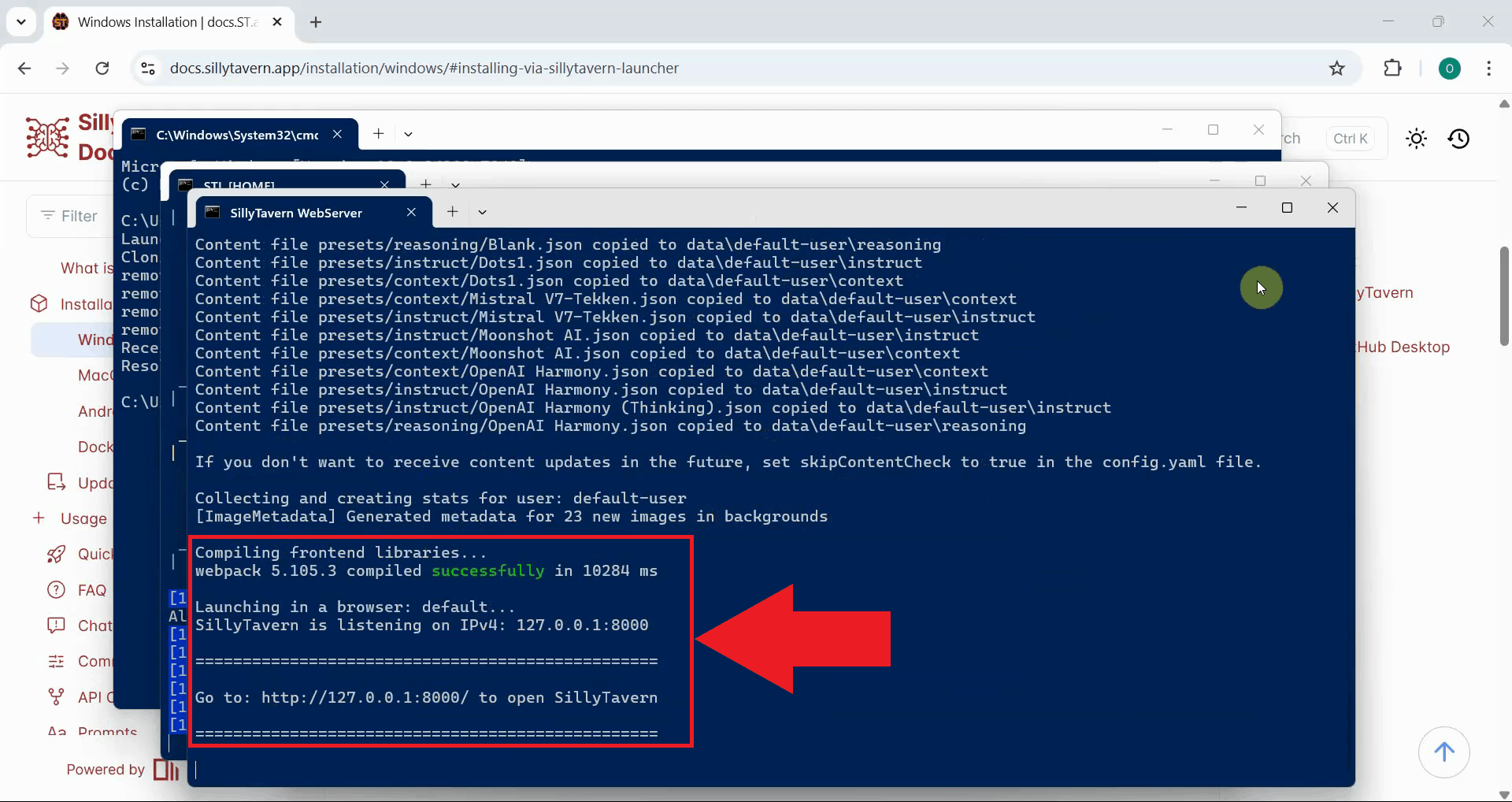
Wait for SillyTavern to check for updates, download any necessary files, and start the web server. Once the server is running, SillyTavern will automatically open in your default web browser (Figure 14).
Step 3 - Complete initial setup
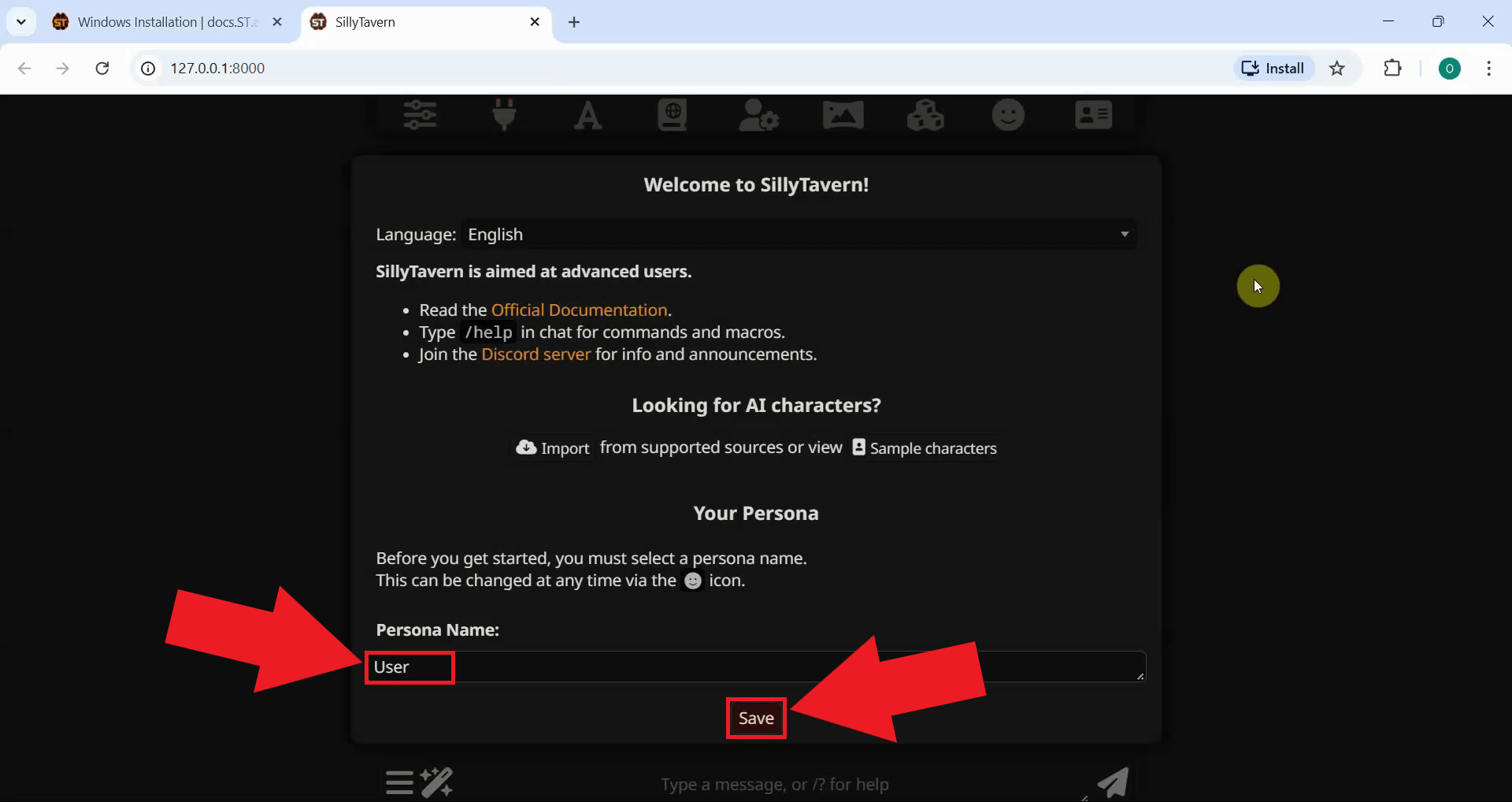
You'll see the welcome page, enter a persona name that will represent you in conversations with the AI. This can be any username you prefer (Figure 15).
Step 4 - Configure connection to Ozeki AI Gateway
Navigate to the Connections menu in the SillyTavern interface. This is where you'll configure the AI provider settings (Figure 16).
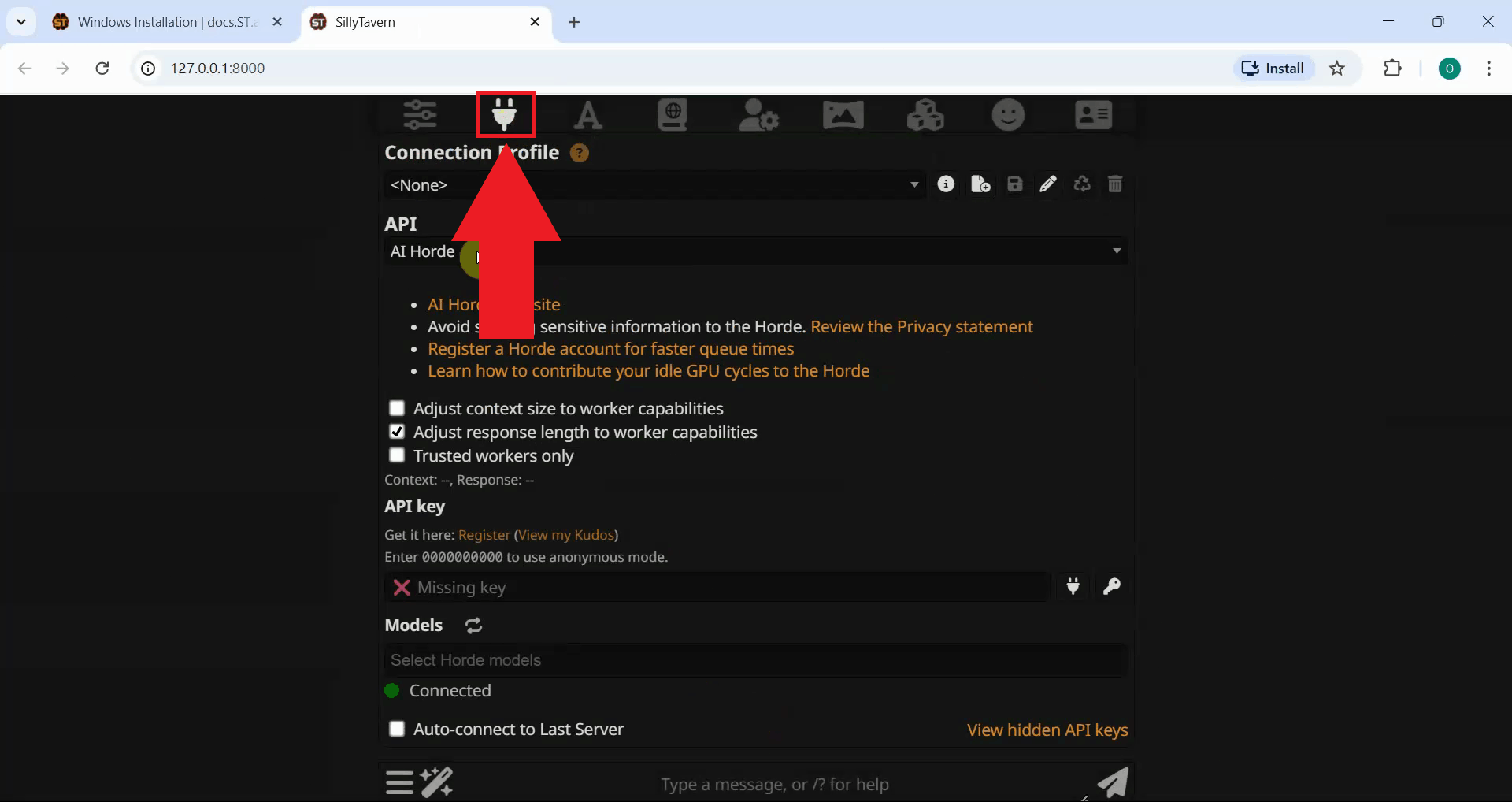
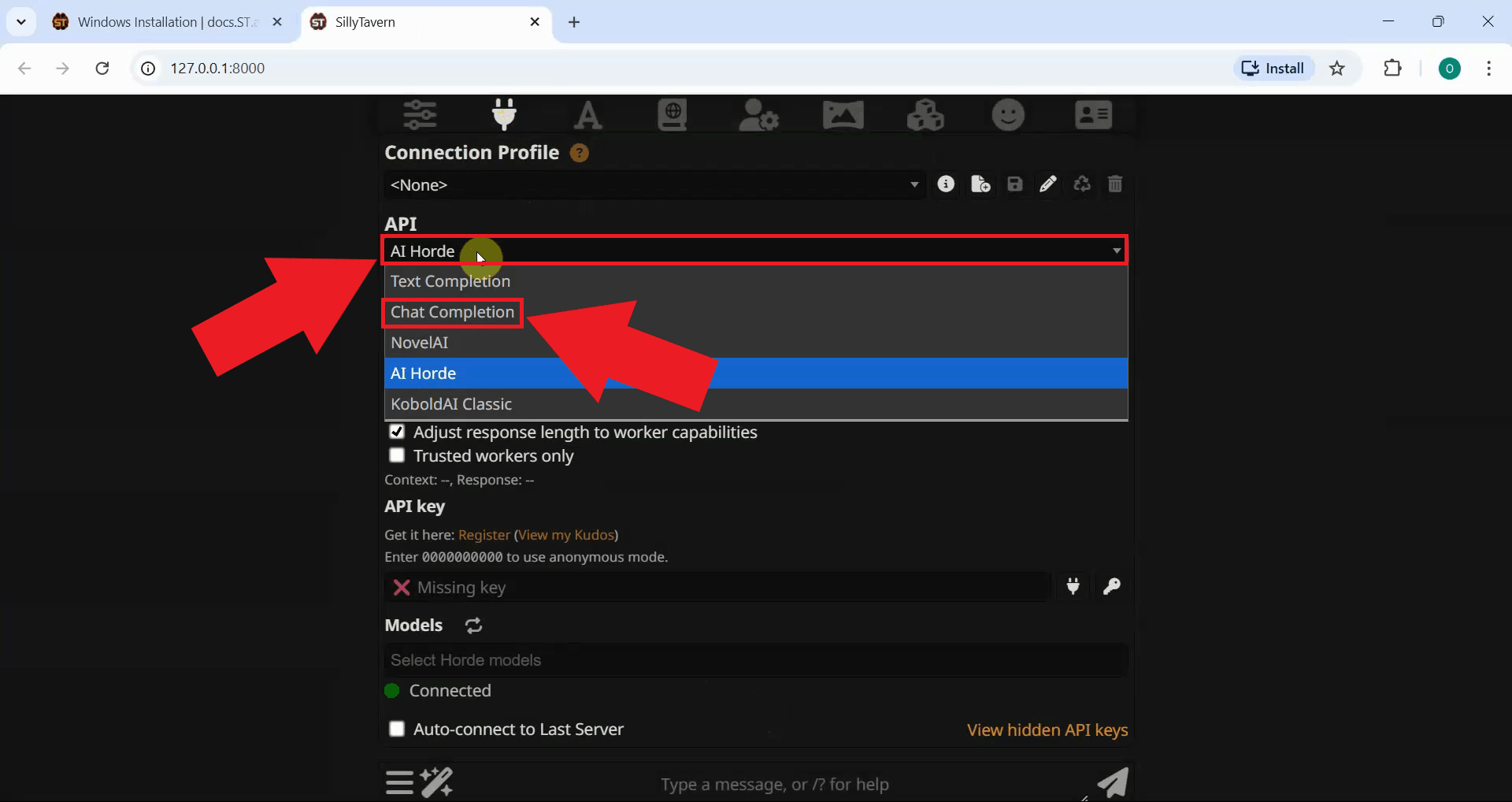
In the API connections dropdown, select Chat Completion API. This is the standard API type that works with OpenAI-compatible endpoints like Ozeki AI Gateway (Figure 17).
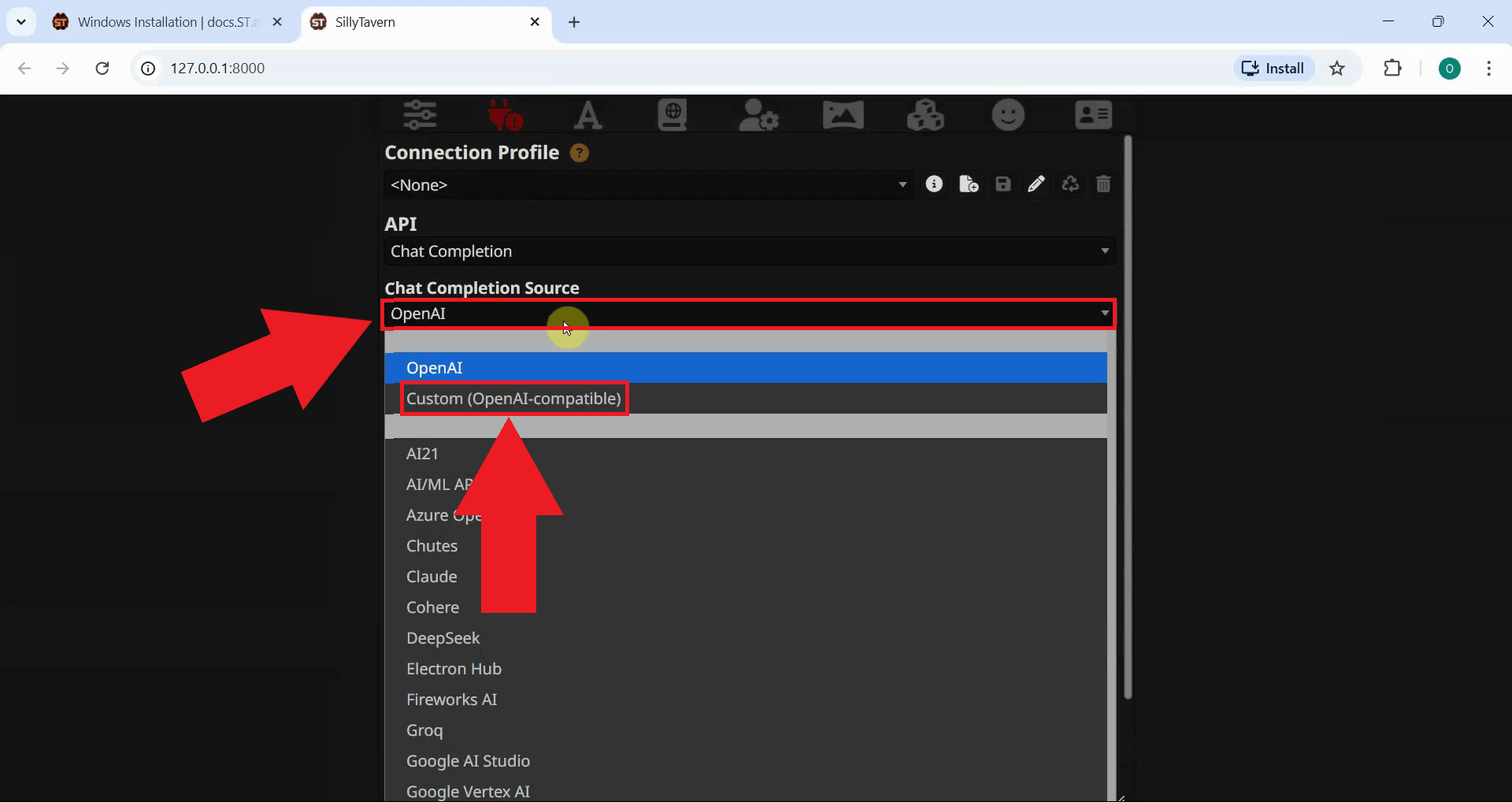
From the Chat Completion Source dropdown, choose Custom (OpenAI-compatible). This option allows you to connect to any OpenAI-compatible API endpoint (Figure 18).
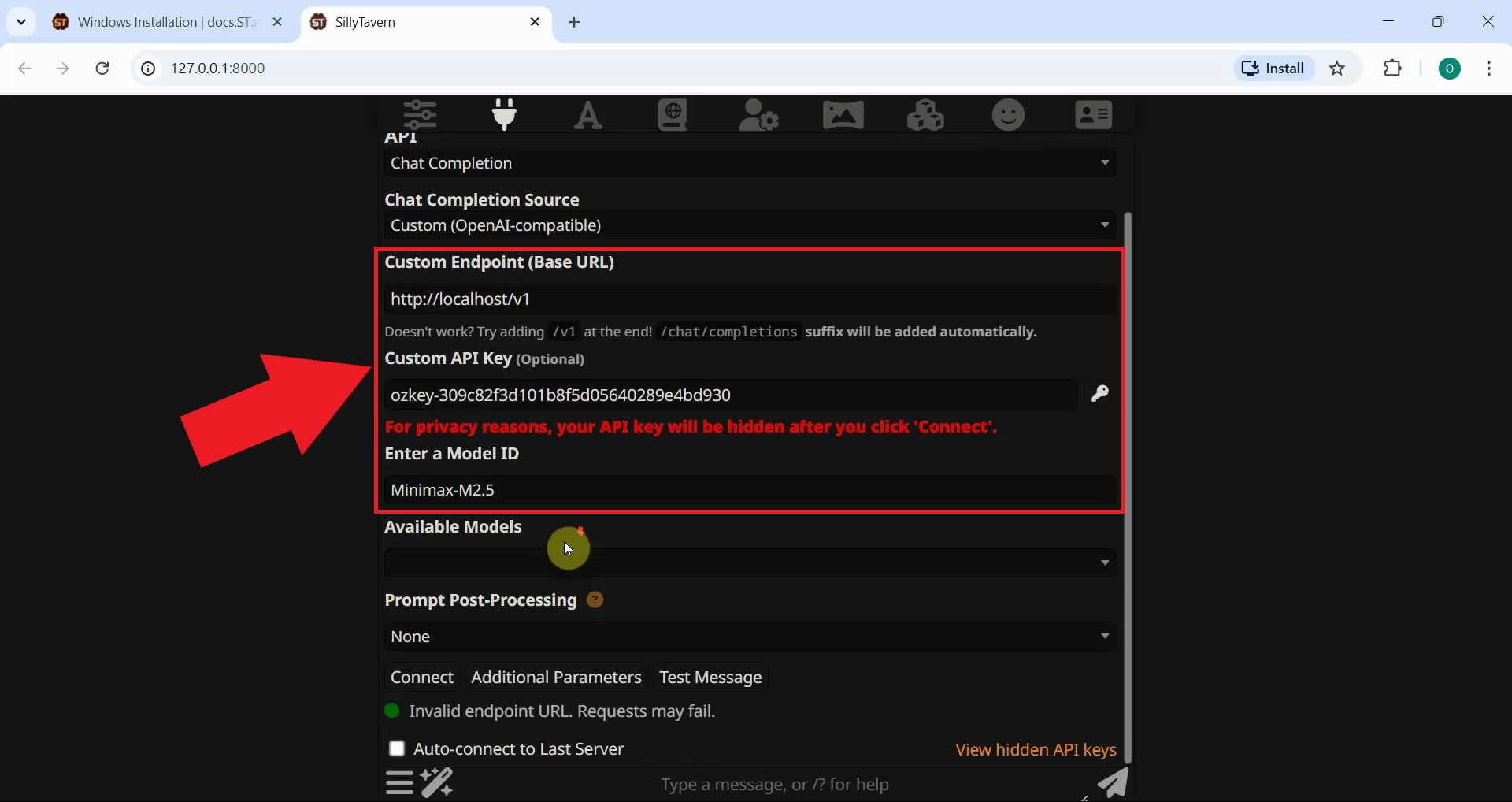
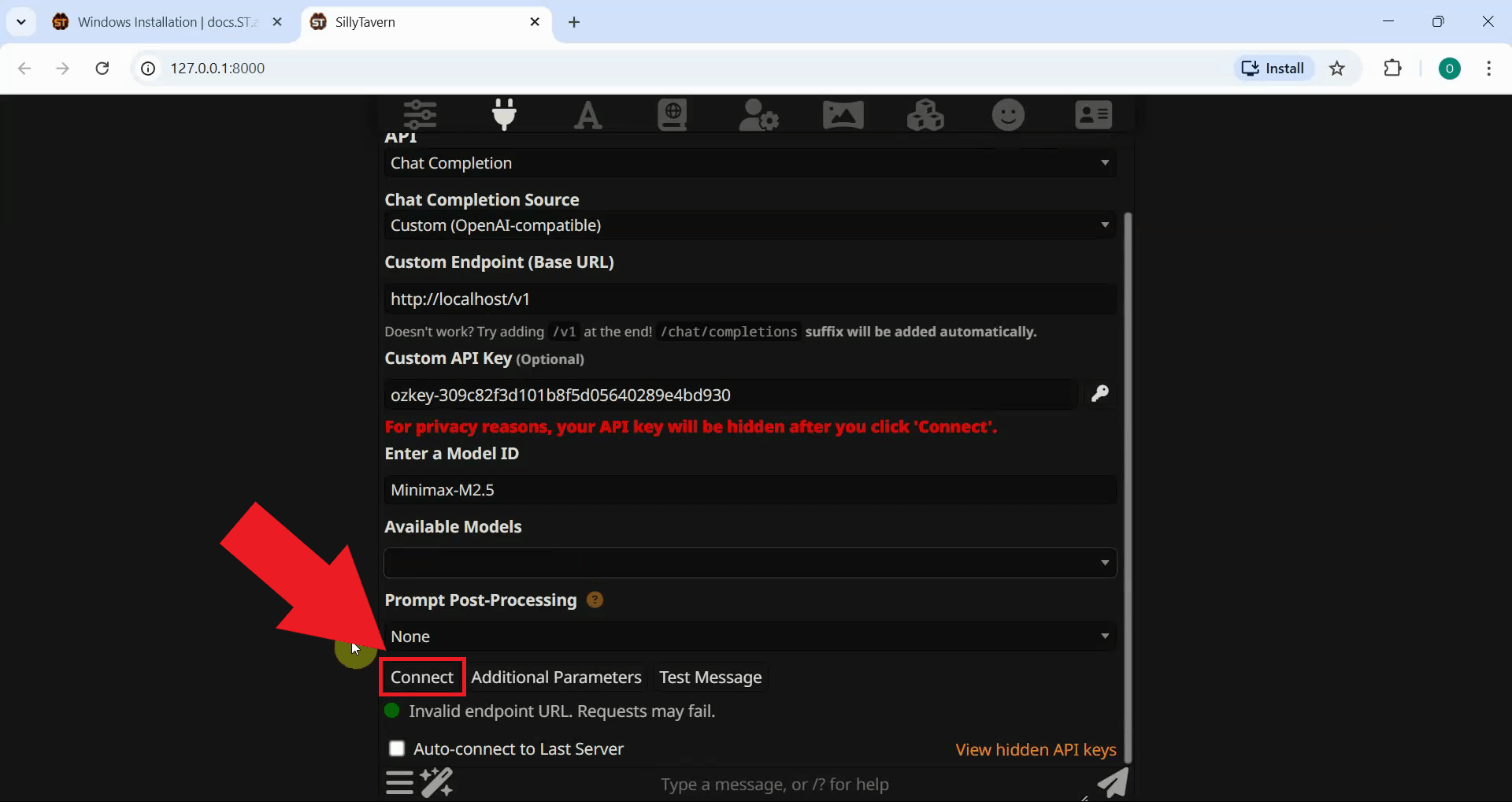
Enter your Ozeki AI Gateway connection details. In the Base URL field, enter your
gateway's endpoint (http://localhost/v1 for local installations).
In the API Key field, paste the API key you created in Ozeki AI Gateway.
In the Model ID field, specify the AI model you want to use (Figure 19).
Click the Connect button to establish the connection between SillyTavern and Ozeki AI Gateway. If the connection is successful, you'll see a confirmation message (Figure 20).
Step 5 - Test the connection
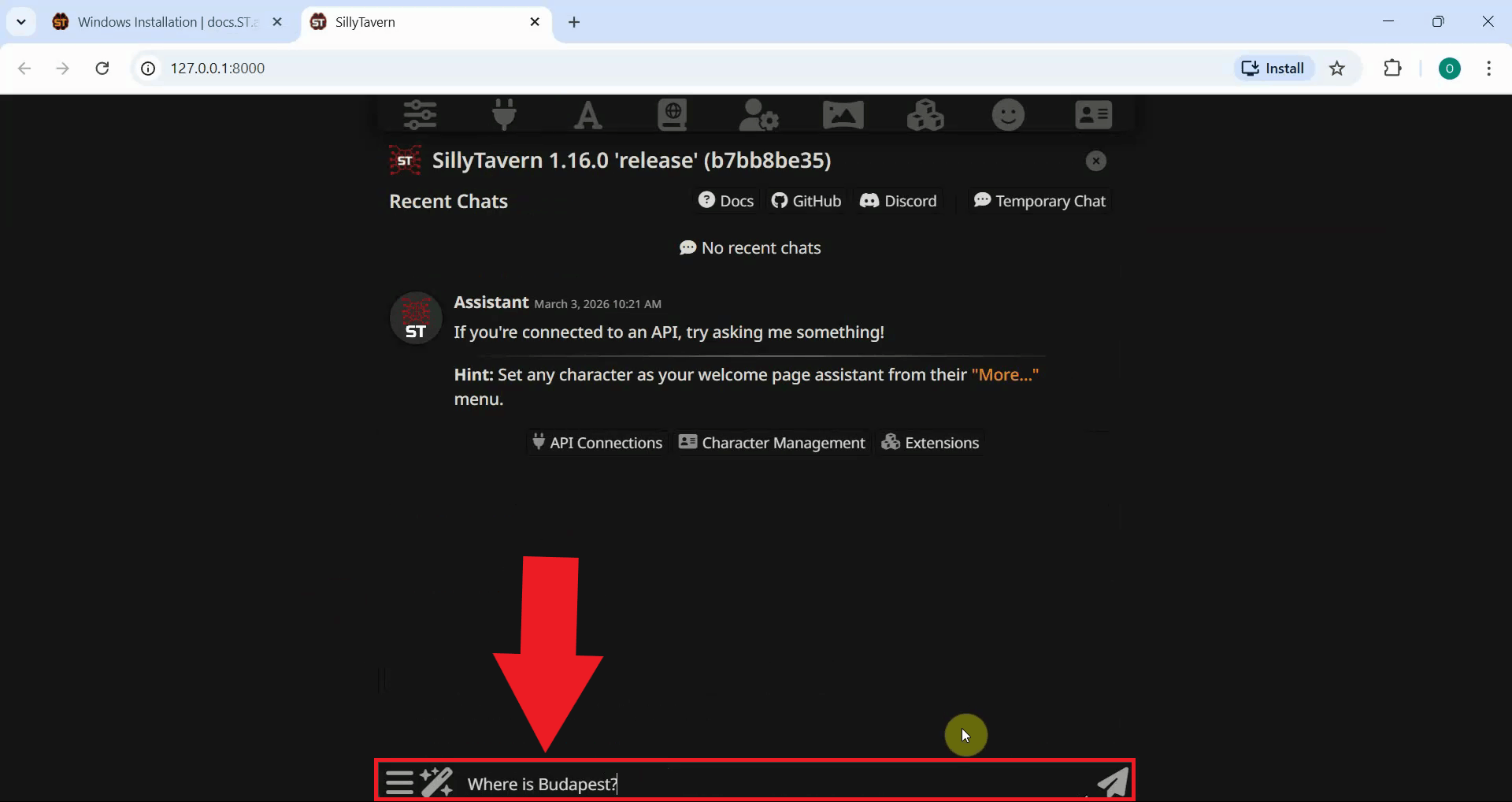
To verify that the connection is working properly, send a test prompt to the AI model. Type a simple message or question in the chat input field and press Enter to send it (Figure 21).
Wait for the AI model to process your prompt and return a response. A successful response confirms that SillyTavern is properly connected to Ozeki AI Gateway and can communicate with your configured AI model (Figure 22).

To sum it up
You have successfully installed and configured SillyTavern to work with Ozeki AI Gateway. This integration provides you with a powerful, customizable platform for AI interactions, role-playing, and creative writing while maintaining centralized control over API access, model selection, and usage monitoring through your gateway infrastructure.