
How to set up LibreChat with Ozeki AI Gateway
This comprehensive guide walks you through installing and configuring LibreChat on Windows using Docker. By following this tutorial, you'll learn how to clone the LibreChat repository, configure it to connect to Ozeki AI Gateway, mount the configuration into the Docker container, and start having AI-powered conversations.
What is LibreChat?
LibreChat is an open-source, self-hosted chat interface that supports a wide range of AI providers through a unified interface. It offers conversation history, multi-model switching, user management, and a modern chat experience. Because it supports OpenAI-compatible APIs, it works seamlessly with Ozeki AI Gateway, allowing you to route all AI traffic through your own local gateway and use any models available there.
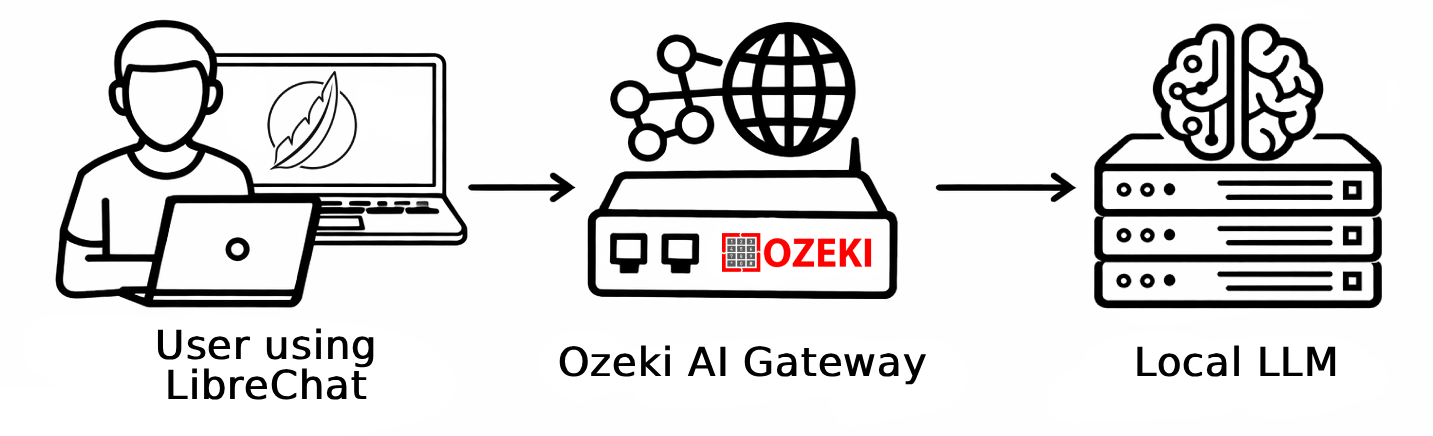
Steps to follow
We assume Ozeki AI Gateway is already installed on your system. You can install it on Linux, Windows or Mac.
You will also need Docker Desktop to run LibreChat in a container, and Git to download the LibreChat source code.
- Clone the LibreChat repository
- Create the environment file
- Create and edit the LibreChat config file
- Create and edit the Docker Compose override file
- Start LibreChat with Docker Compose
- Register an account and log in
- Select an LLM model and send a test prompt
Quick reference commands
# Clone the LibreChat repository
git clone https://github.com/danny-avila/LibreChat.git
cd LibreChat

# Create th configuration files
copy .env.example .env
copy librechat.example.yaml librechat.yaml
copy docker-compose.override.yml.example docker-compose.override.yml

# Add the following block under the custom: section in librechat.yaml
custom:
  - name: "Ozeki AI Gateway"
    apiKey: "ozkey-abc123"
    baseURL: "http://host.docker.internal/v1"
    models:
      default: ["your-llm-model"]
      fetch: true
    titleConvo: true
    titleModel: "your-llm-model"

# Add the following volume binding under the api: service in docker-compose.override.yml
services:
  api:
    volumes:
      - type: bind
        source: ./librechat.yaml
        target: /app/librechat.yaml

# Start LibreChat
docker compose up -d

# Open LibreChat in your browser
http://localhost:3080
How to set up LibreChat with Ozeki AI Gateway video
The following video shows how to install and configure LibreChat to work with Ozeki AI Gateway step-by-step. The video covers cloning the repository, editing the configuration files and starting the Docker container.
Step 1 - Clone the LibreChat repository
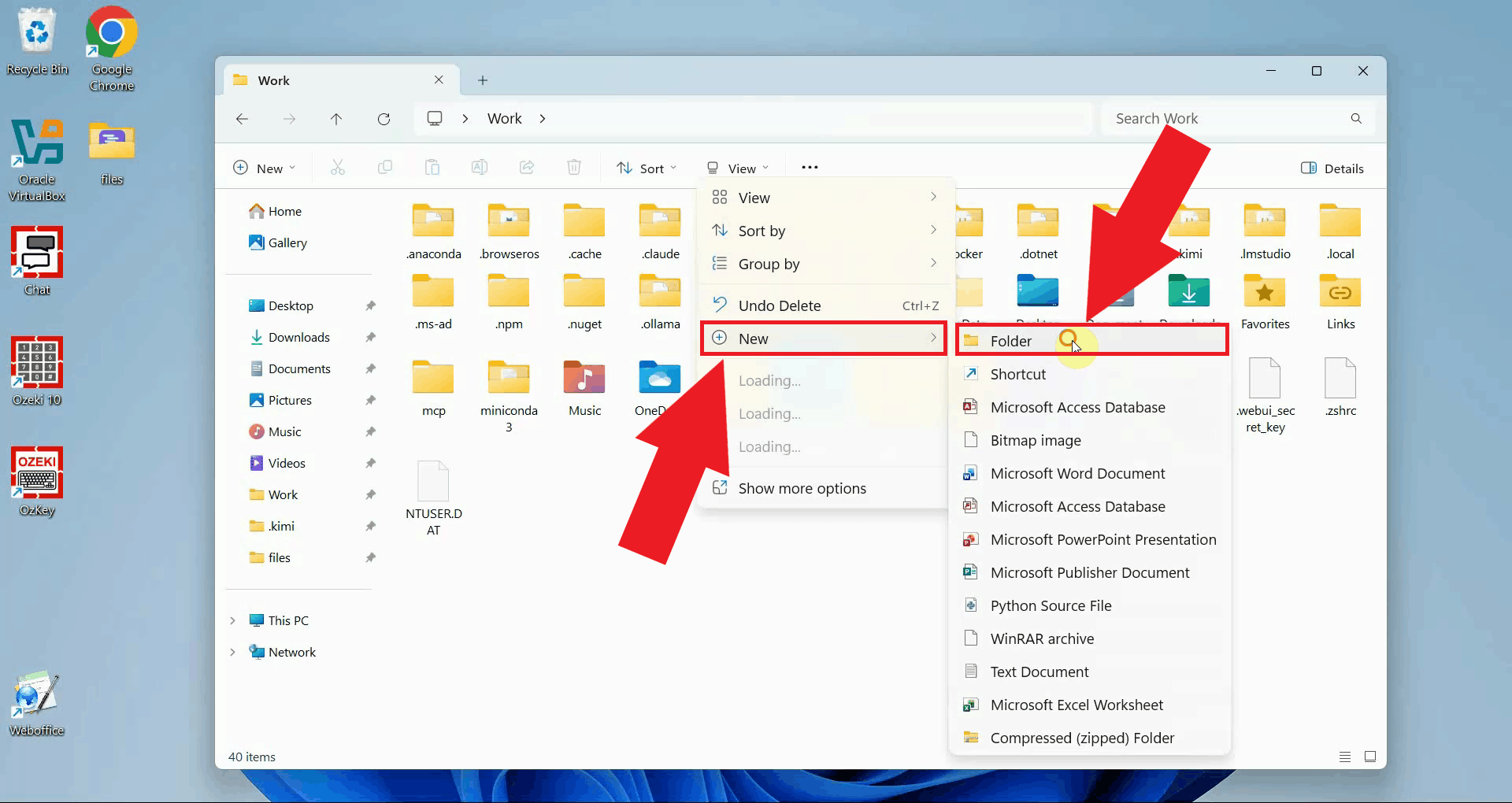
Create a new folder on your computer where you want to store the LibreChat files (Figure 1).
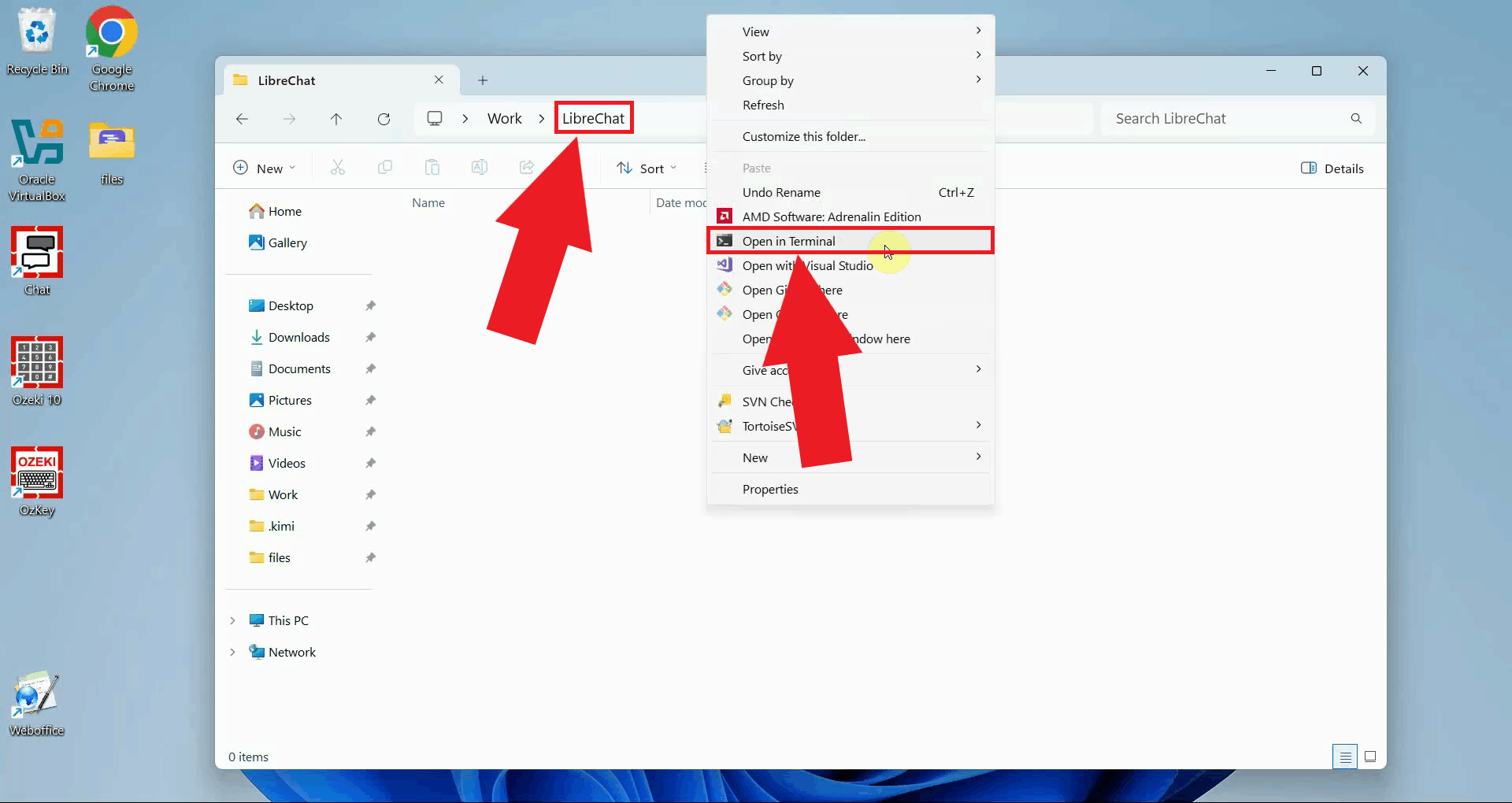
Open a terminal window inside the folder. You can do this in Windows by right-clicking inside the folder in File Explorer and selecting Open in Terminal from the context menu (Figure 2).
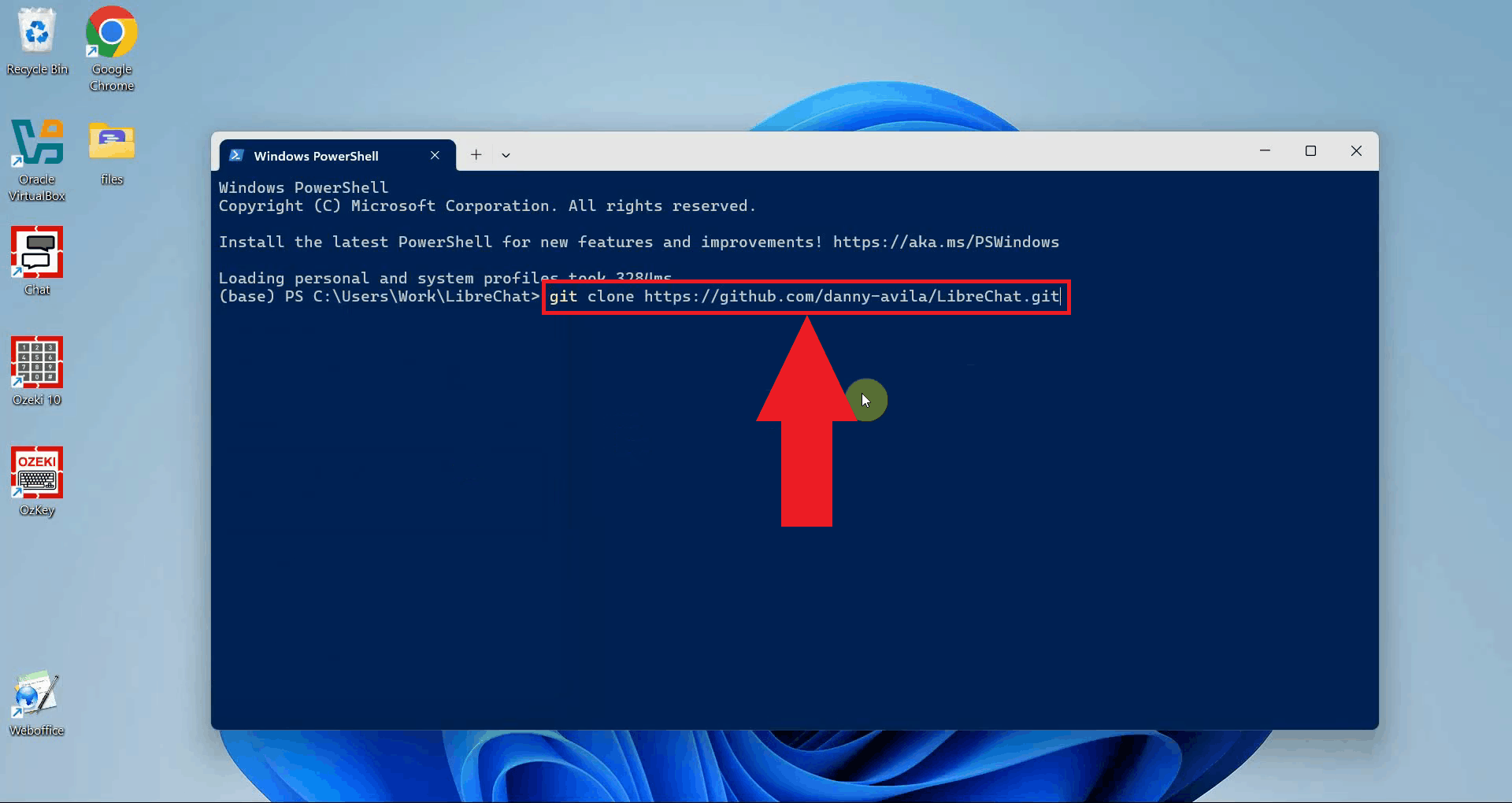
In the terminal window, run the following command to download the LibreChat source code from GitHub. This will create a new subfolder called LibreChat containing all the necessary files (Figure 3).
git clone https://github.com/danny-avila/LibreChat.git
Step 2 - Create the environment file
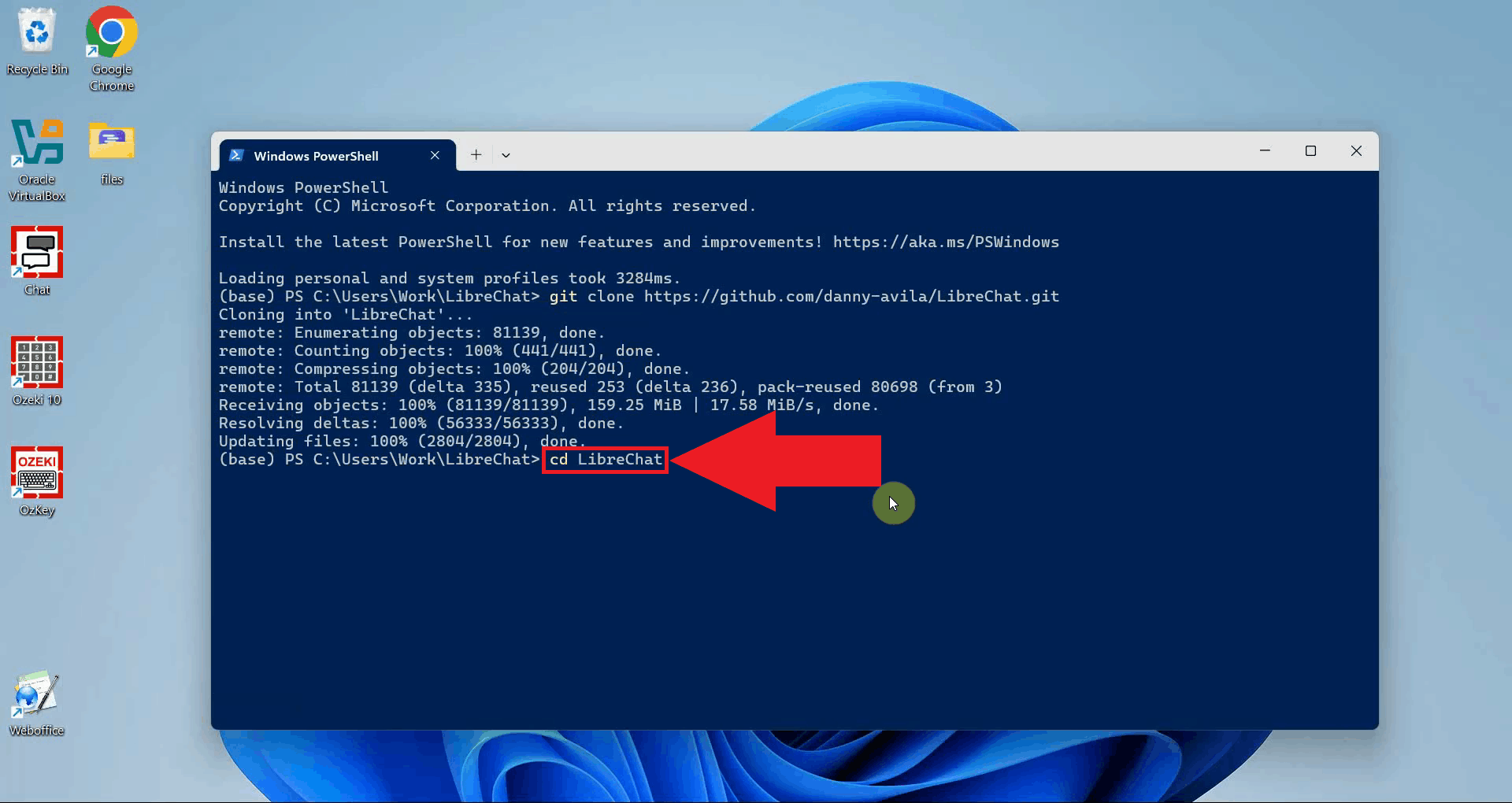
Navigate into the newly created LibreChat directory using the cd command (Figure 4).
cd LibreChat
LibreChat requires an environment file named .env to store its settings.
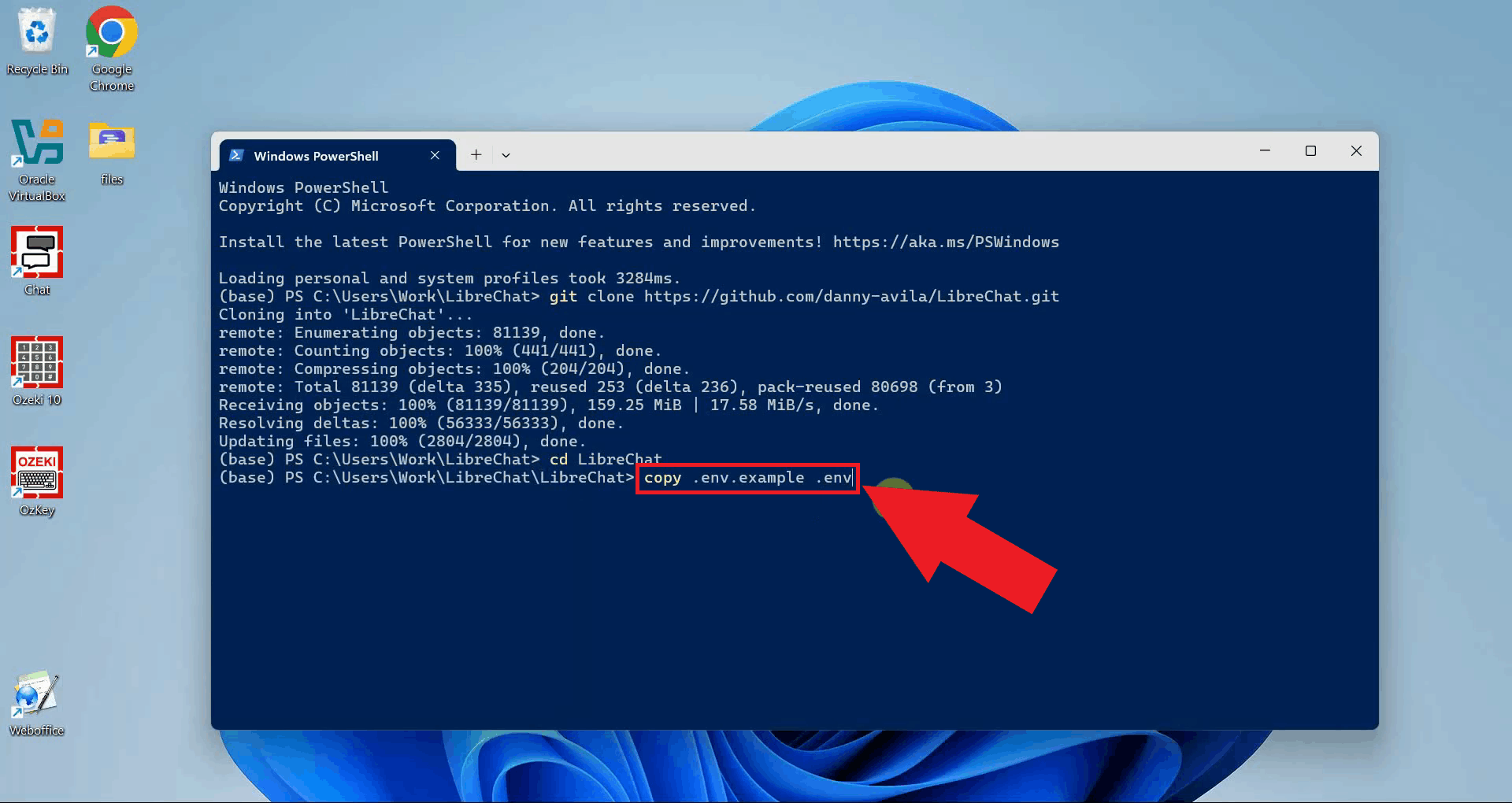
The repository includes an example file you can use as a starting point. Copy it using
the following command. You do not need to edit this file for a basic setup (Figure 5).
copy .env.example .env
Step 3 - Create and edit the LibreChat config file
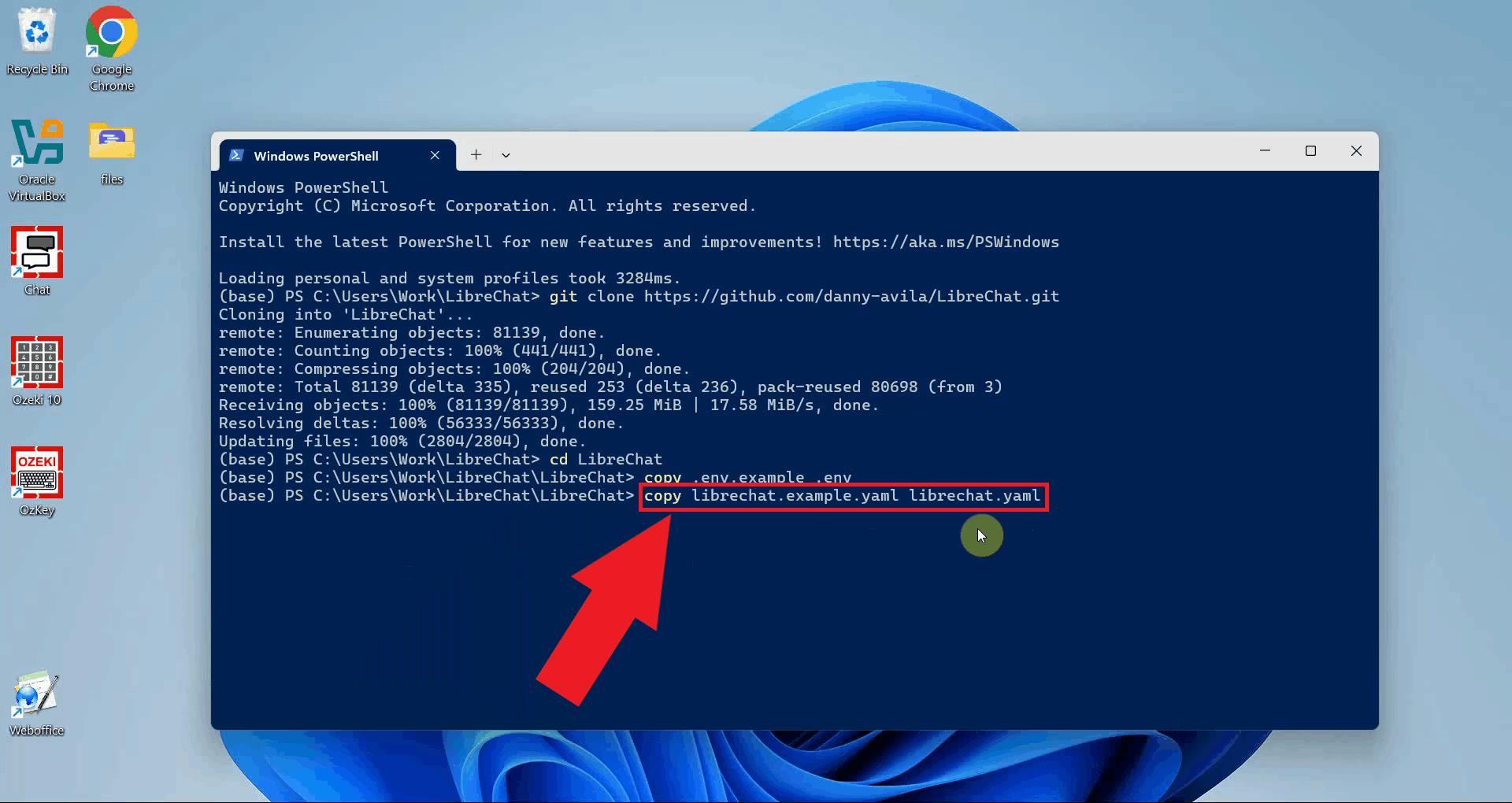
The LibreChat config file controls which AI providers and models are available in the interface. Copy the example config file to create your own editable version (Figure 6).
copy librechat.example.yaml librechat.yaml
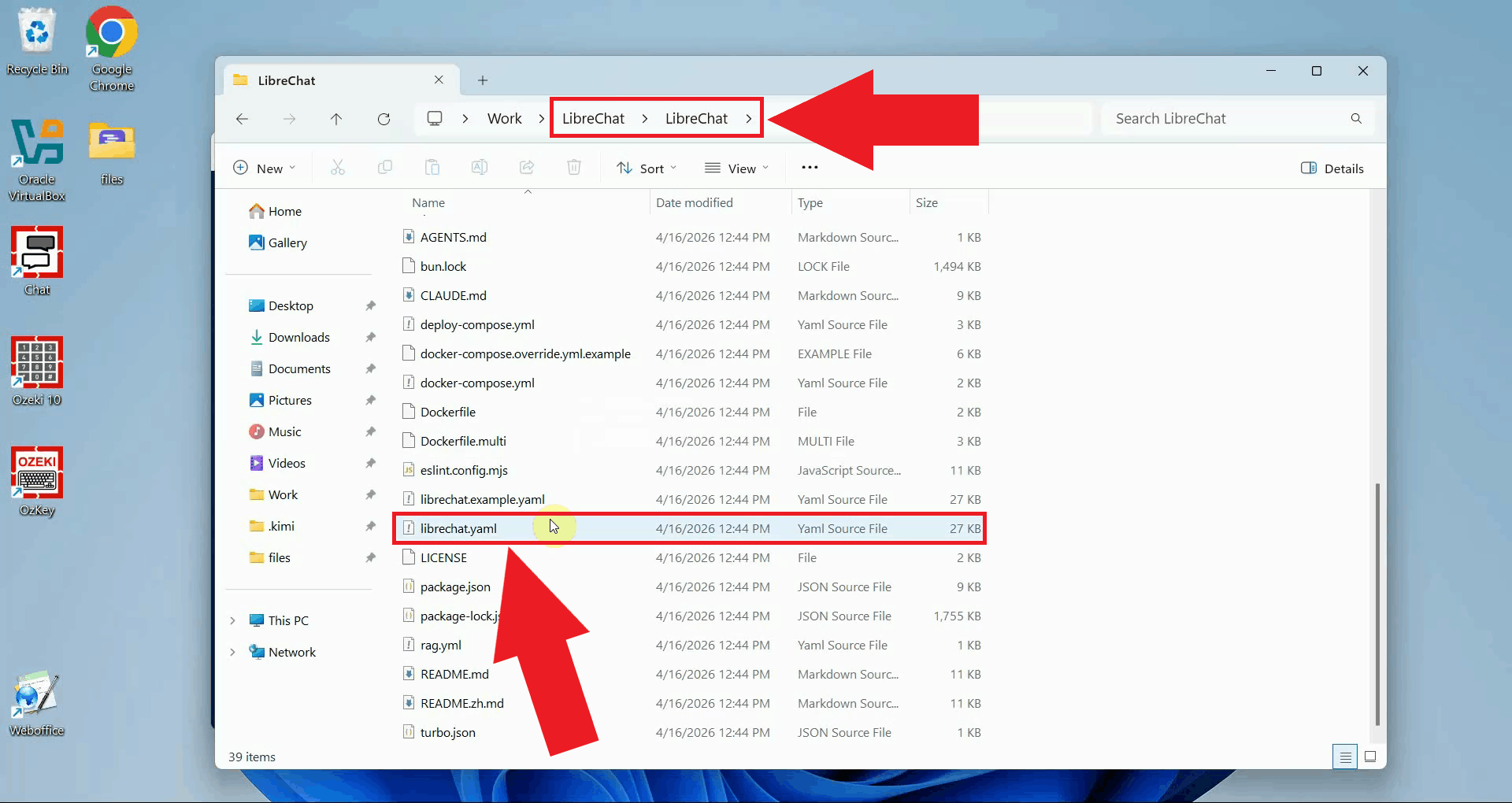
Open the newly created librechat.yaml file in a text editor such as Notepad (Figure 7).
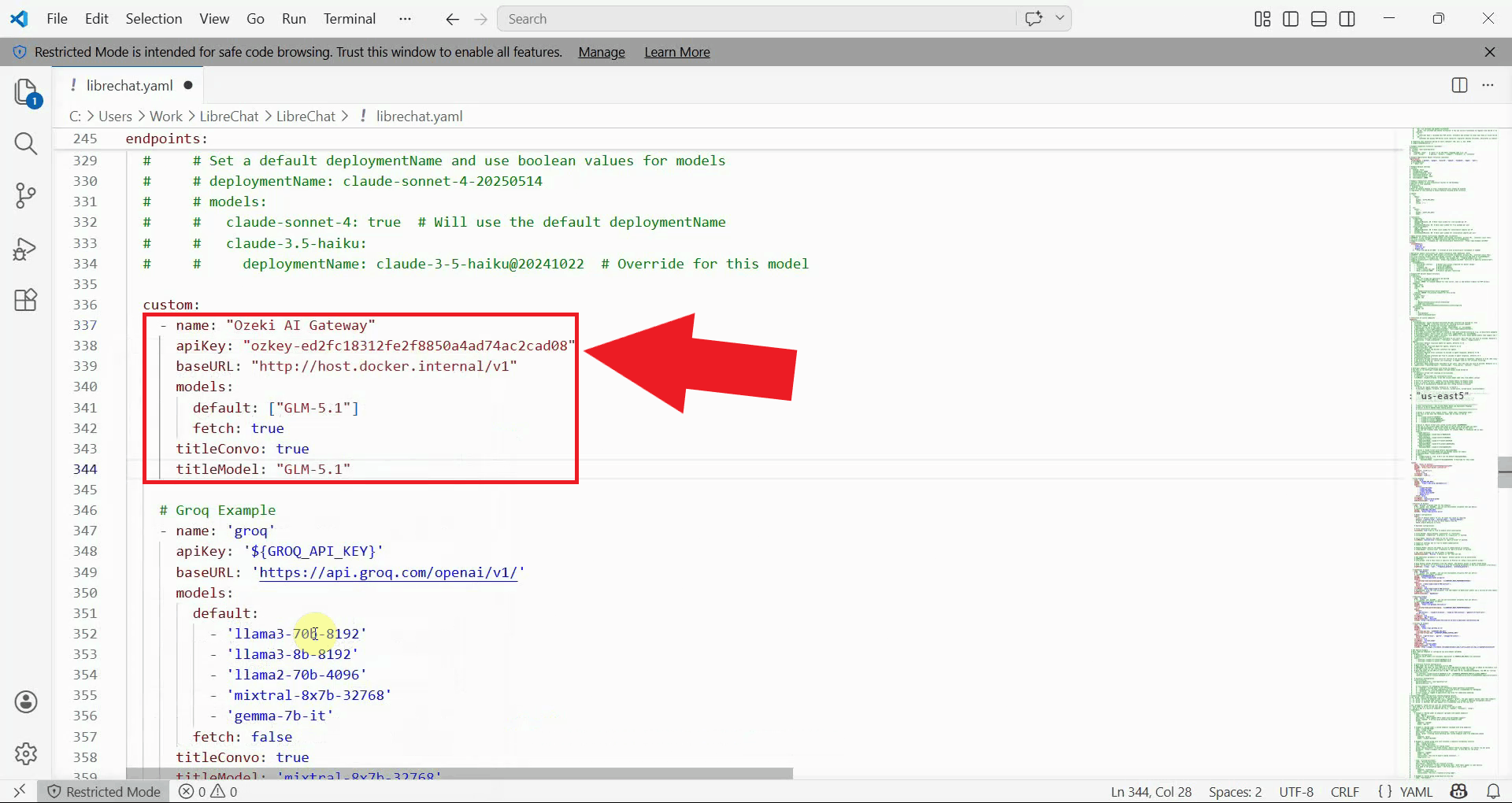
In the librechat.yaml file, locate the custom: section and
add the following block to register Ozeki AI Gateway as a custom endpoint. Replace
ozkey-abc123 with the API key you created in Ozeki AI Gateway, and replace
your-llm-model with the name of the model you want to use (Figure 8).
custom:
  - name: "Ozeki AI Gateway"
    apiKey: "ozkey-abc123"
    baseURL: "http://host.docker.internal/v1"
    models:
      default: ["your-llm-model"]
      fetch: true
    titleConvo: true
    titleModel: "your-llm-model"
The host.docker.internal hostname allows the Docker container to reach services
running on your host machine. If Ozeki AI Gateway is installed on a different server,
replace it with that server's IP address or hostname.
Step 4 - Create and edit the Docker Compose override file
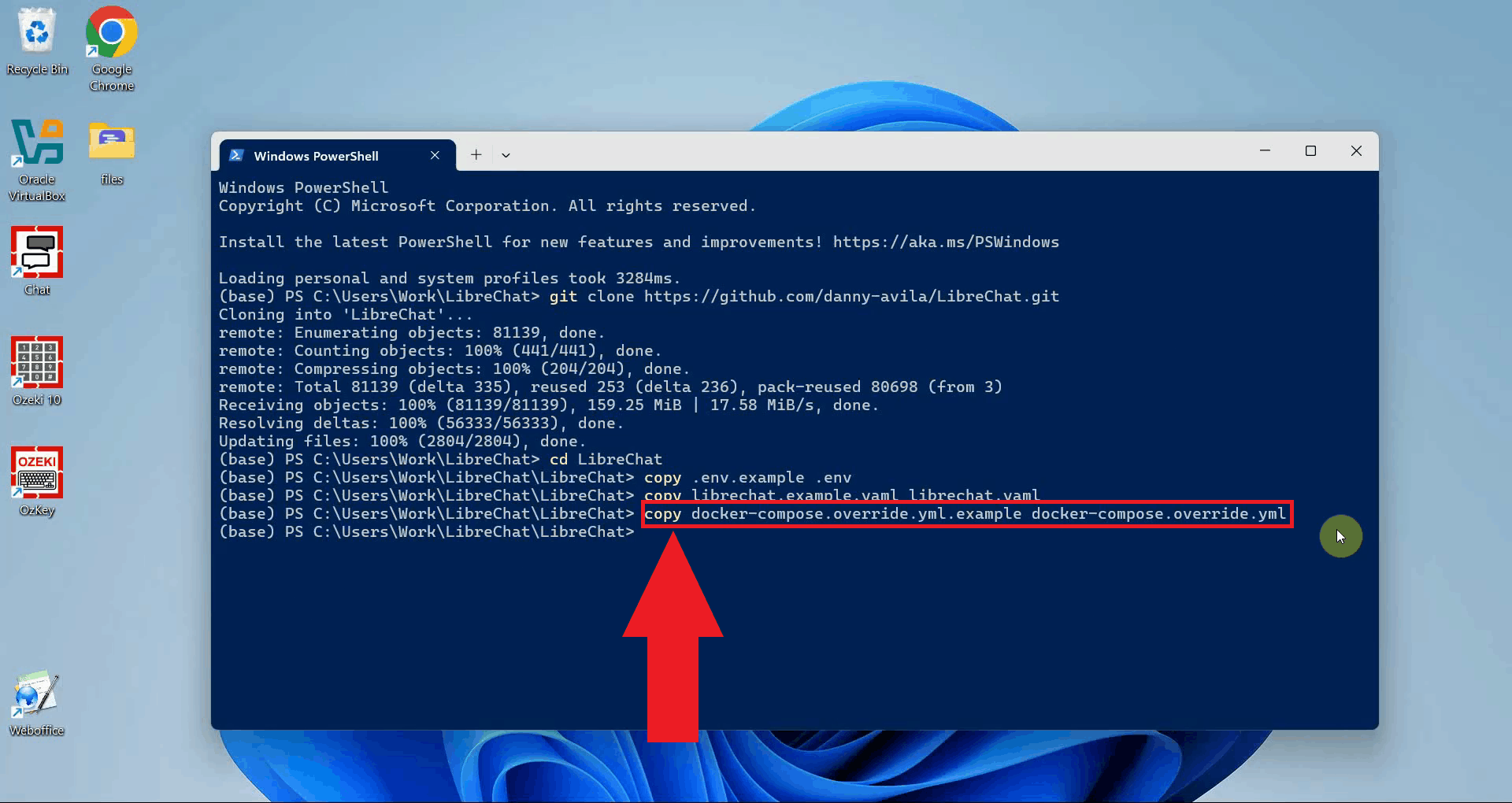
LibreChat uses Docker Compose to manage its containers. To make your custom configuration available inside the container, you need a Docker Compose override file. Copy the example override file to create your own (Figure 9).
copy docker-compose.override.yml.example docker-compose.override.yml
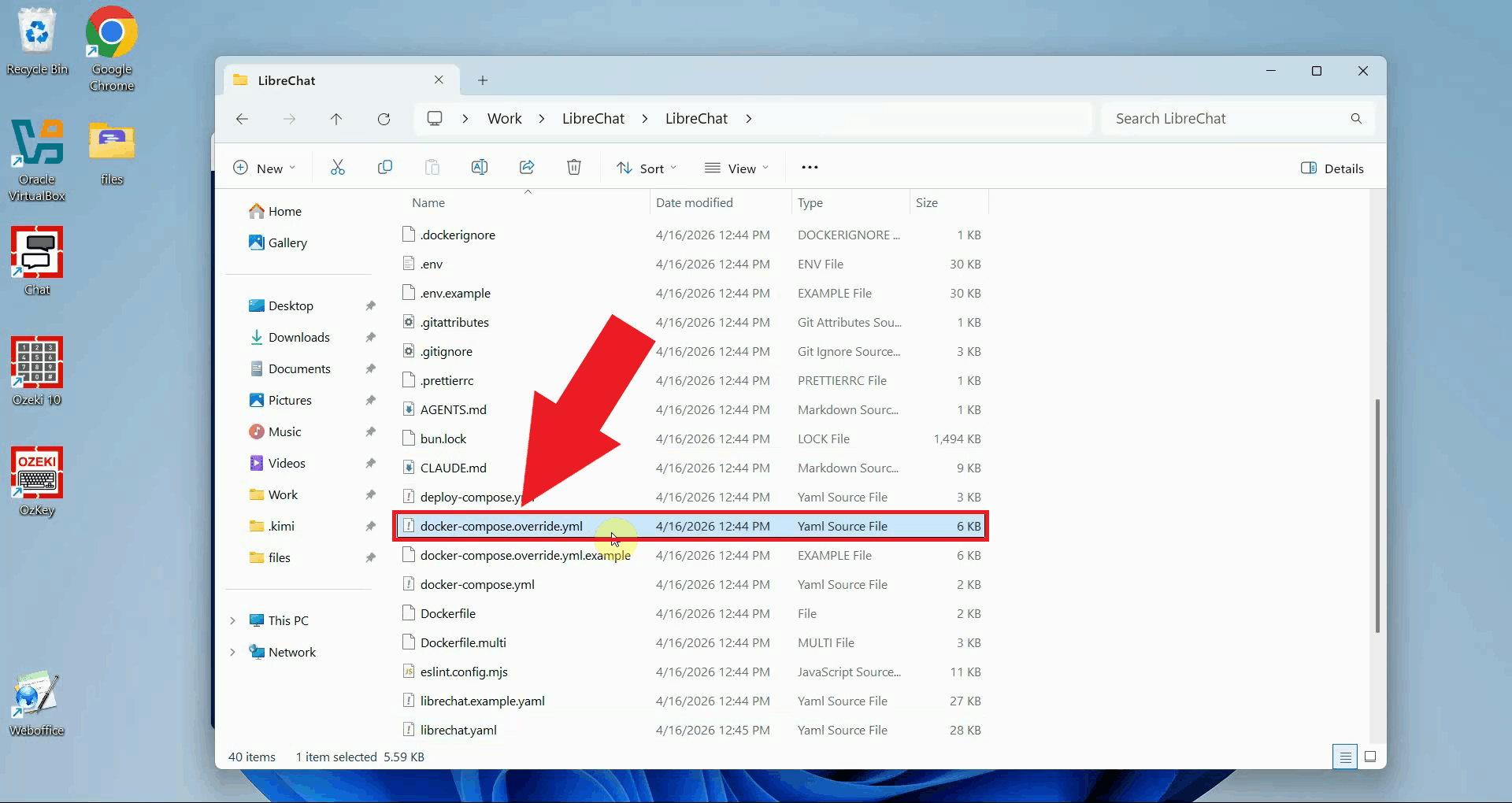
Open the newly created docker-compose.override.yml file in your text editor (Figure 10).
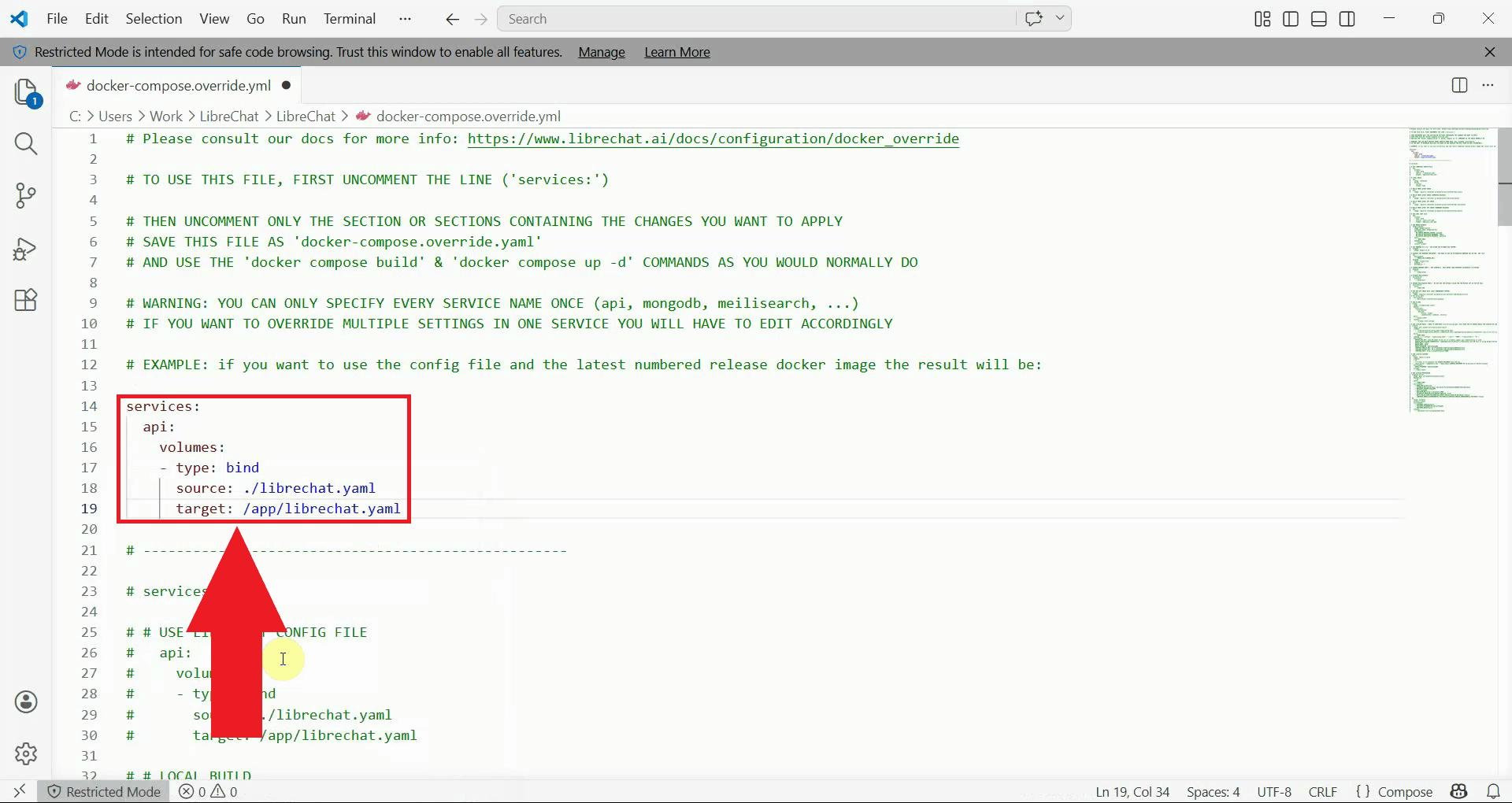
In the docker-compose.override.yml file, find and uncomment the services: section and
add a volume binding for the api service. This tells Docker to use your local
librechat.yaml file inside the container, so your custom endpoint settings take effect.
Save the file after making the change (Figure 11).
services:
  api:
    volumes:
      - type: bind
        source: ./librechat.yaml
        target: /app/librechat.yaml
Step 5 - Start LibreChat with Docker Compose
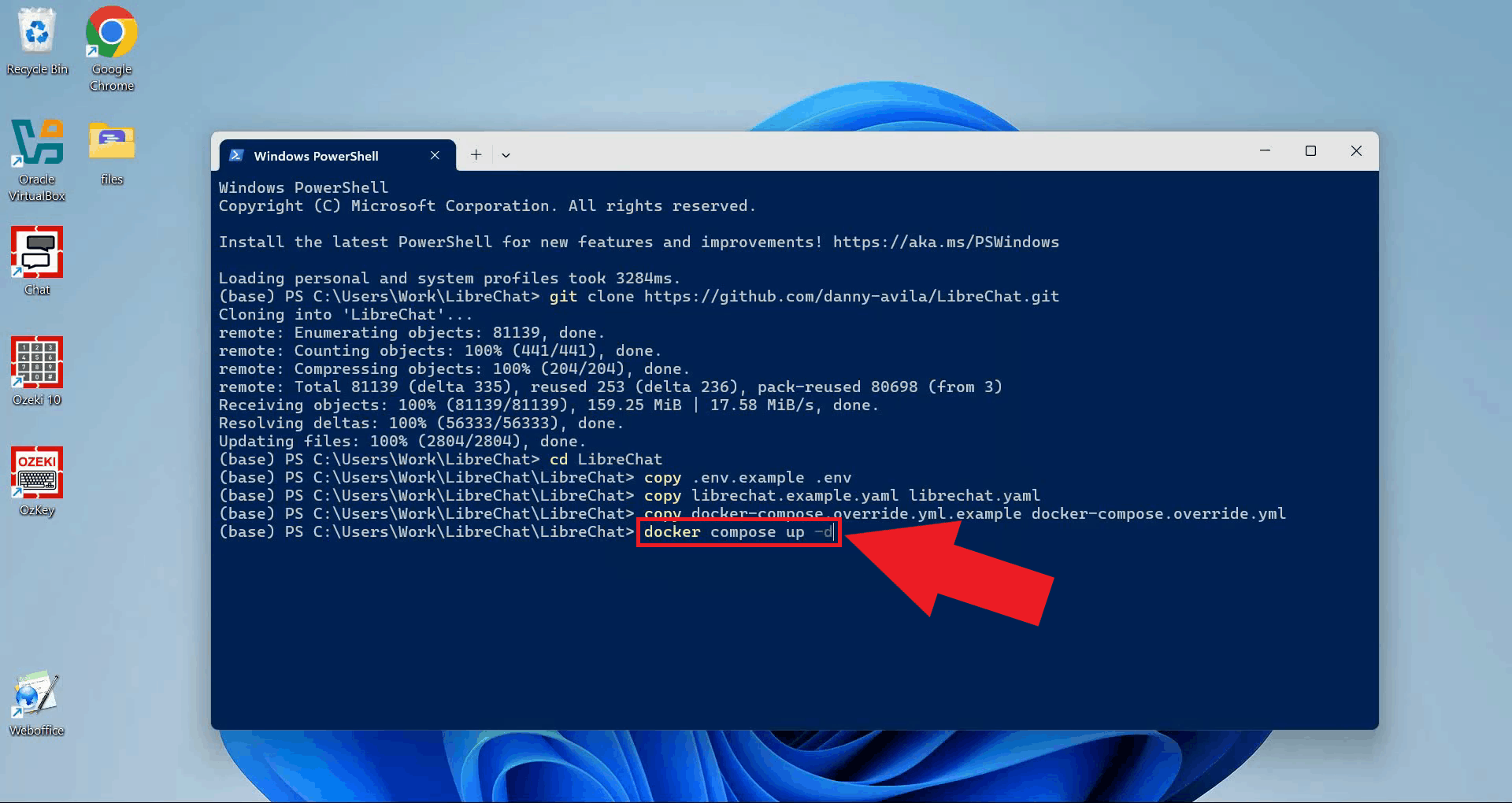
With all configuration files in place, start LibreChat by running the following command in your terminal. Docker will download the required images and start all the necessary services. This may take a few minutes the first time (Figure 12).
docker compose up -d
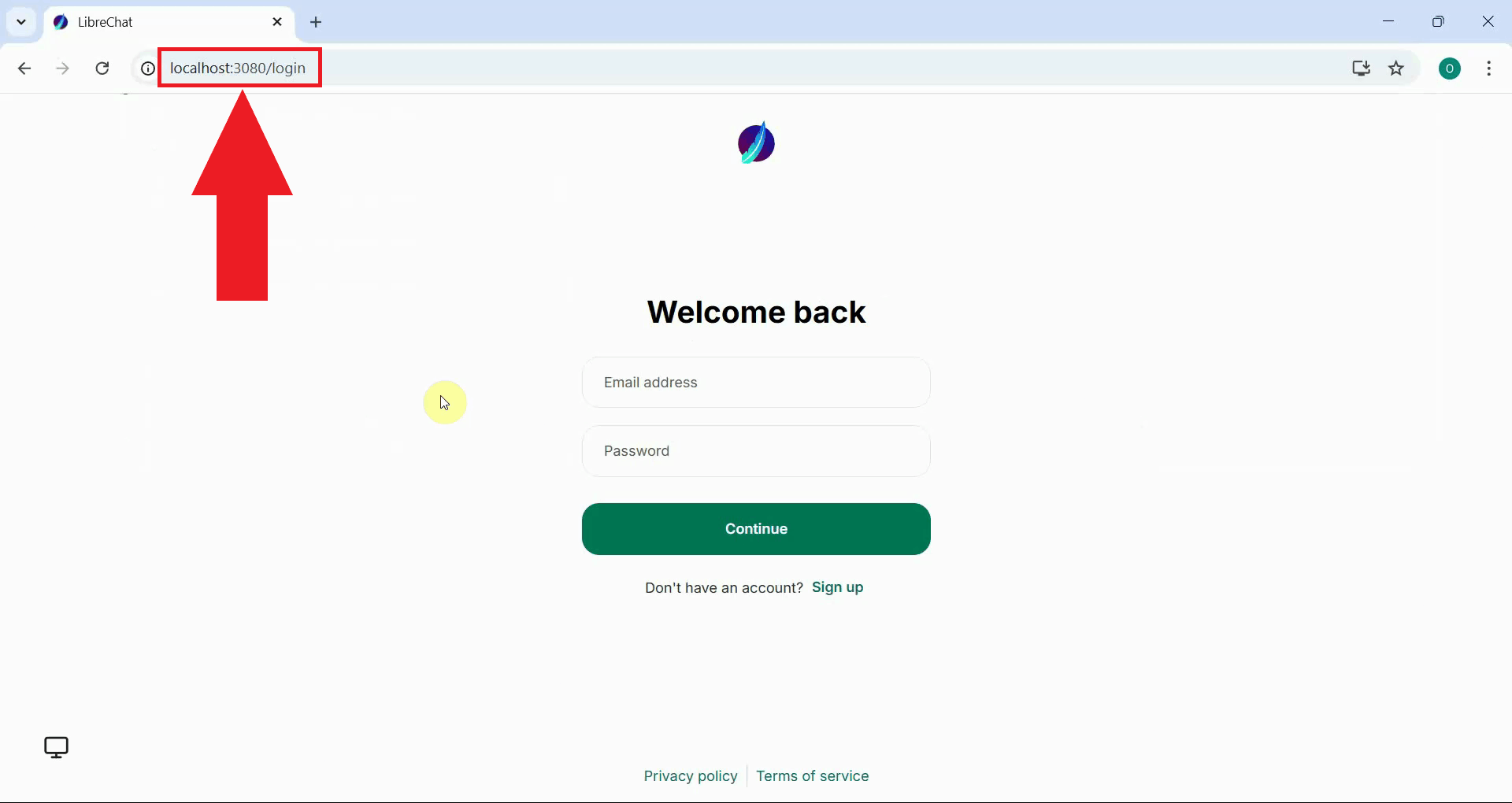
Once Docker has finished starting the containers, open your web browser and navigate to the following address to access the LibreChat interface (Figure 13).
http://localhost:3080
Step 6 - Register an account and log in
The following video walks you through registering a new account, logging in, and sending your first test prompt in LibreChat.
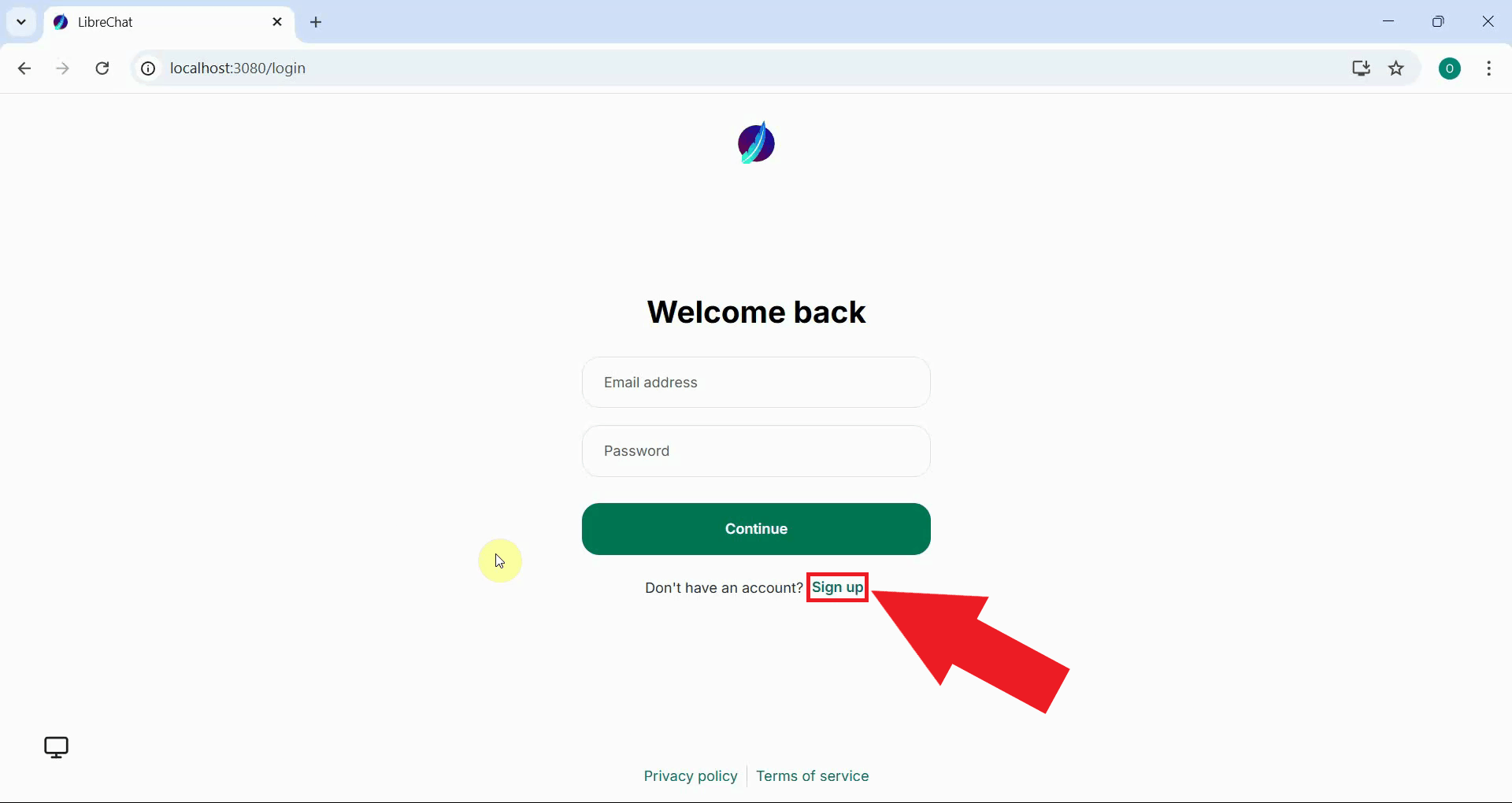
When you first open LibreChat, you will be taken to the login page. Since this is a fresh installation, you need to create a new account. Click the Sign up button to open the sign-up form (Figure 14).
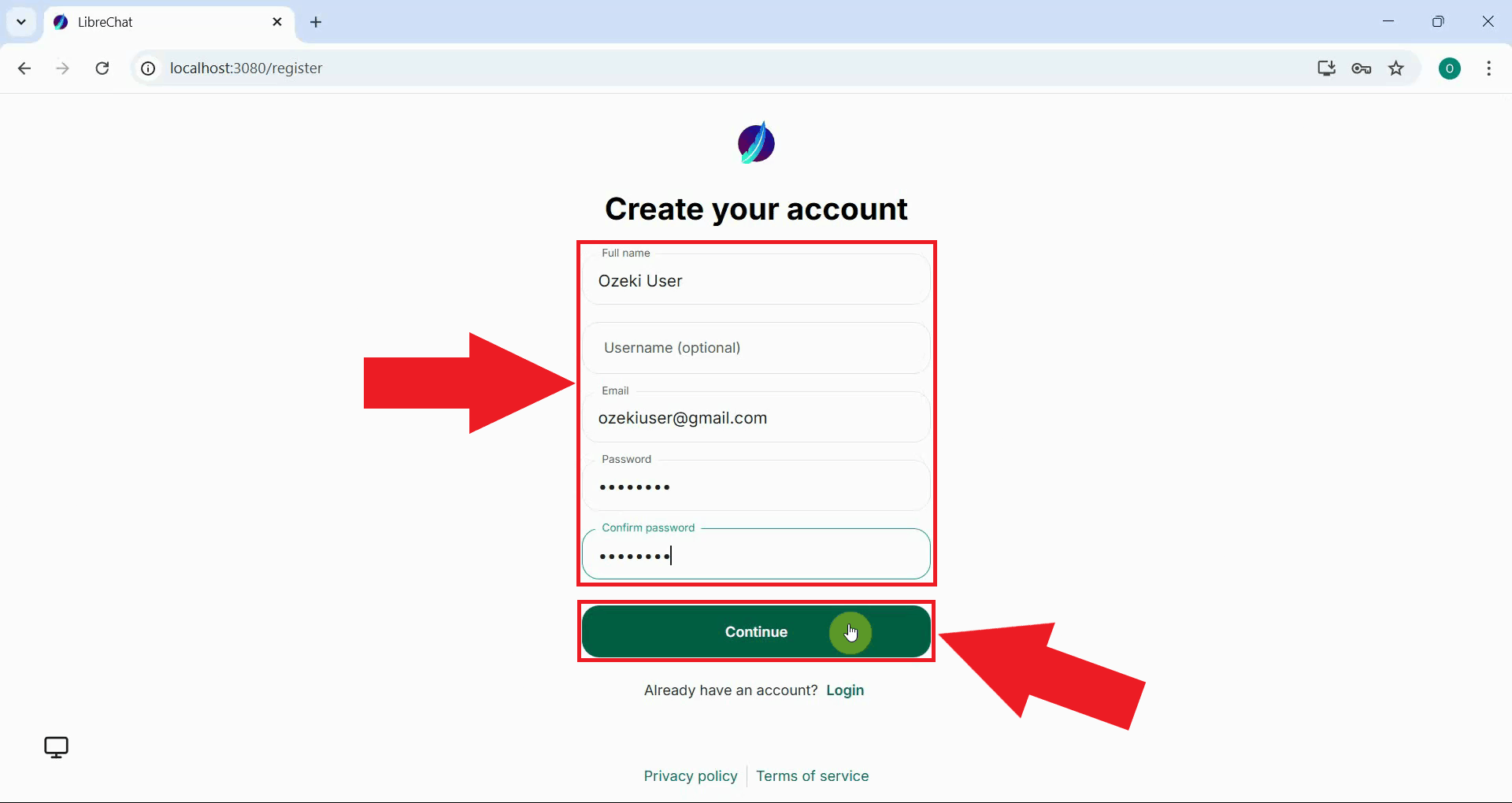
Fill in the registration form with your name, email address, and a password of your choice. After entering all the required information, click the Continue button to create your account (Figure 15).
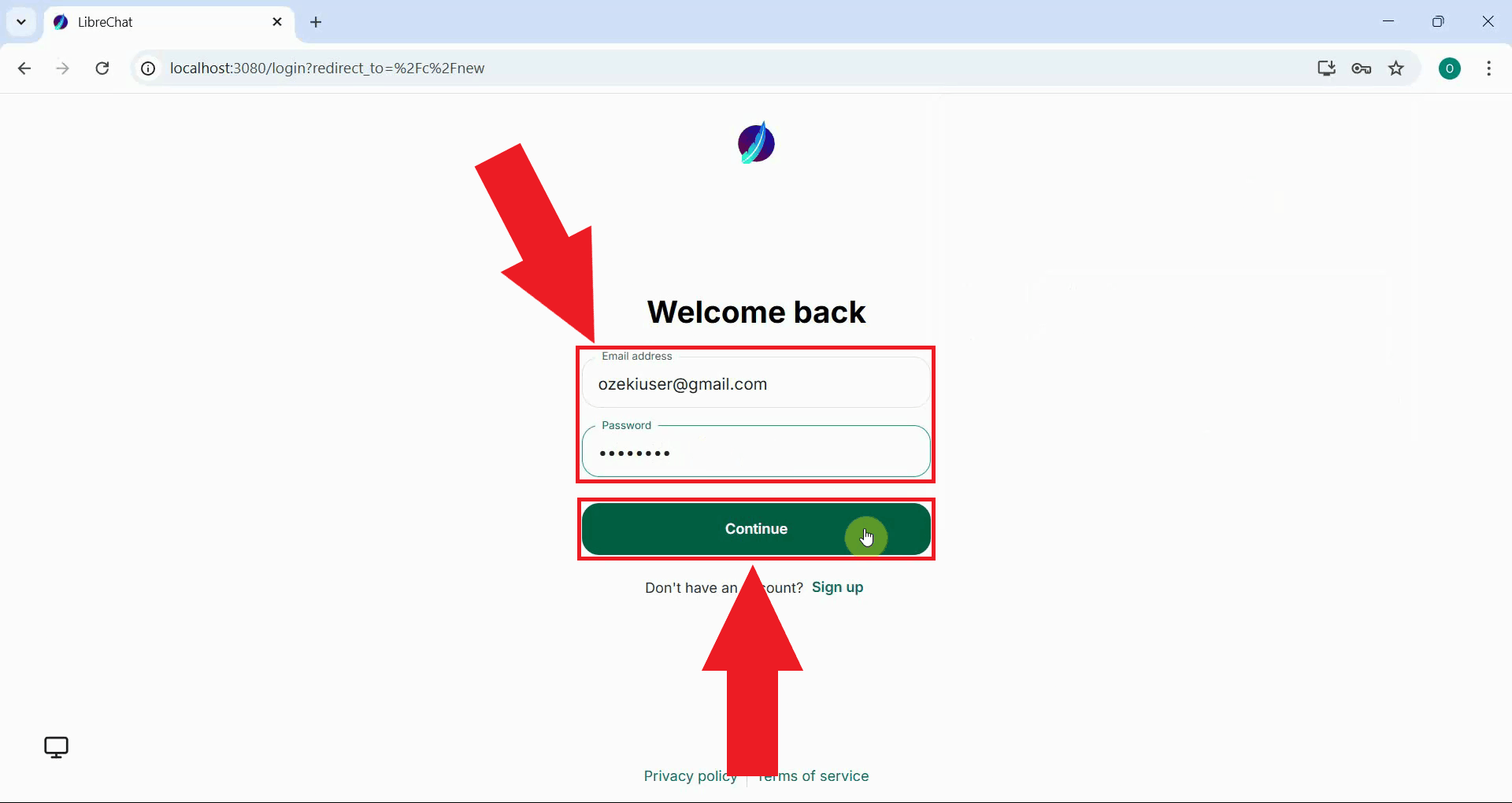
After registering, you will be redirected to the login page. Enter your email address and password, then click Continue to sign in to your new account (Figure 16).
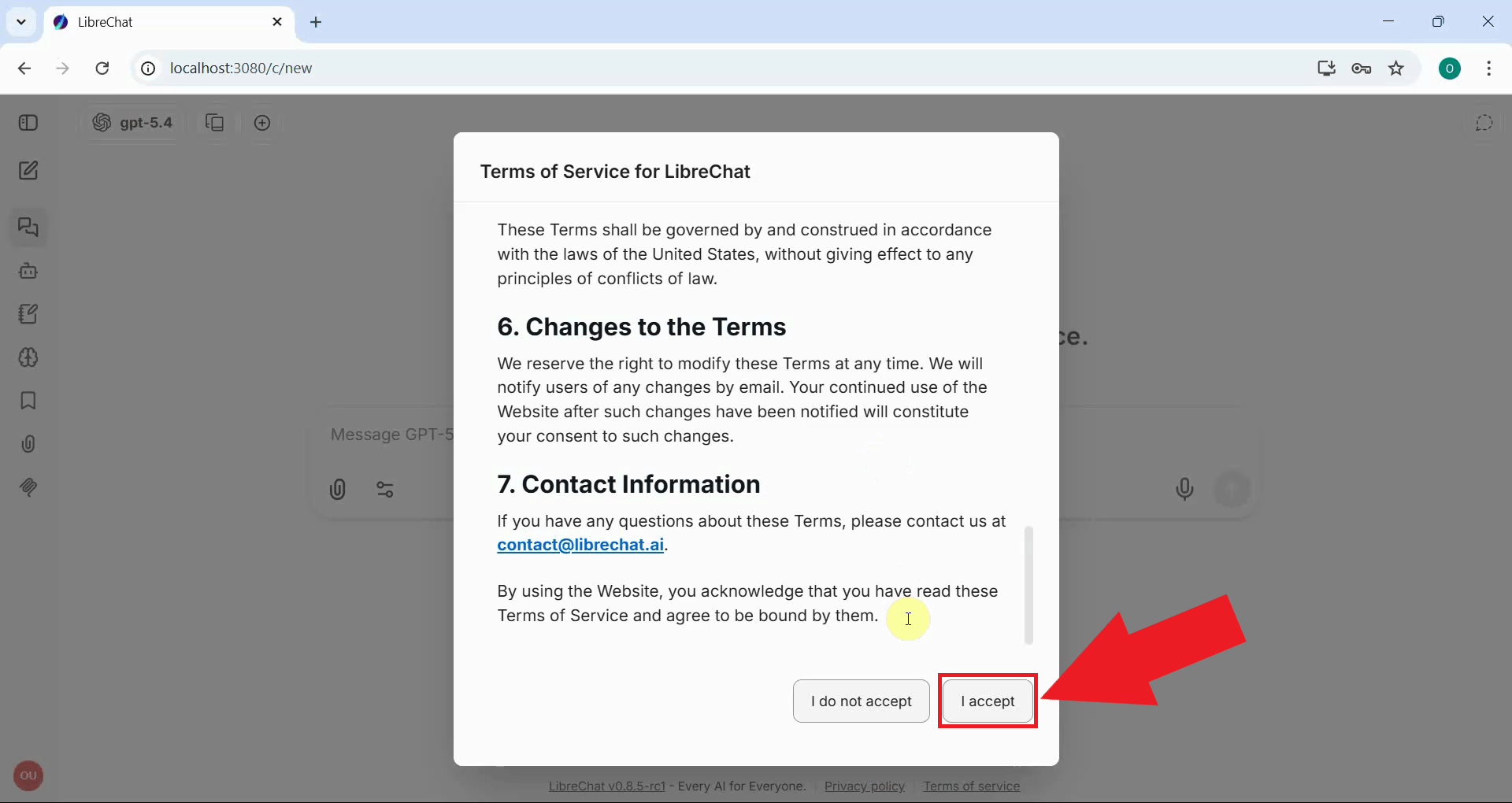
On your first login, LibreChat will present its terms of service. Read through the terms and click the accept button to proceed to the main interface (Figure 17).
Step 7 - Select an LLM model and send a test prompt
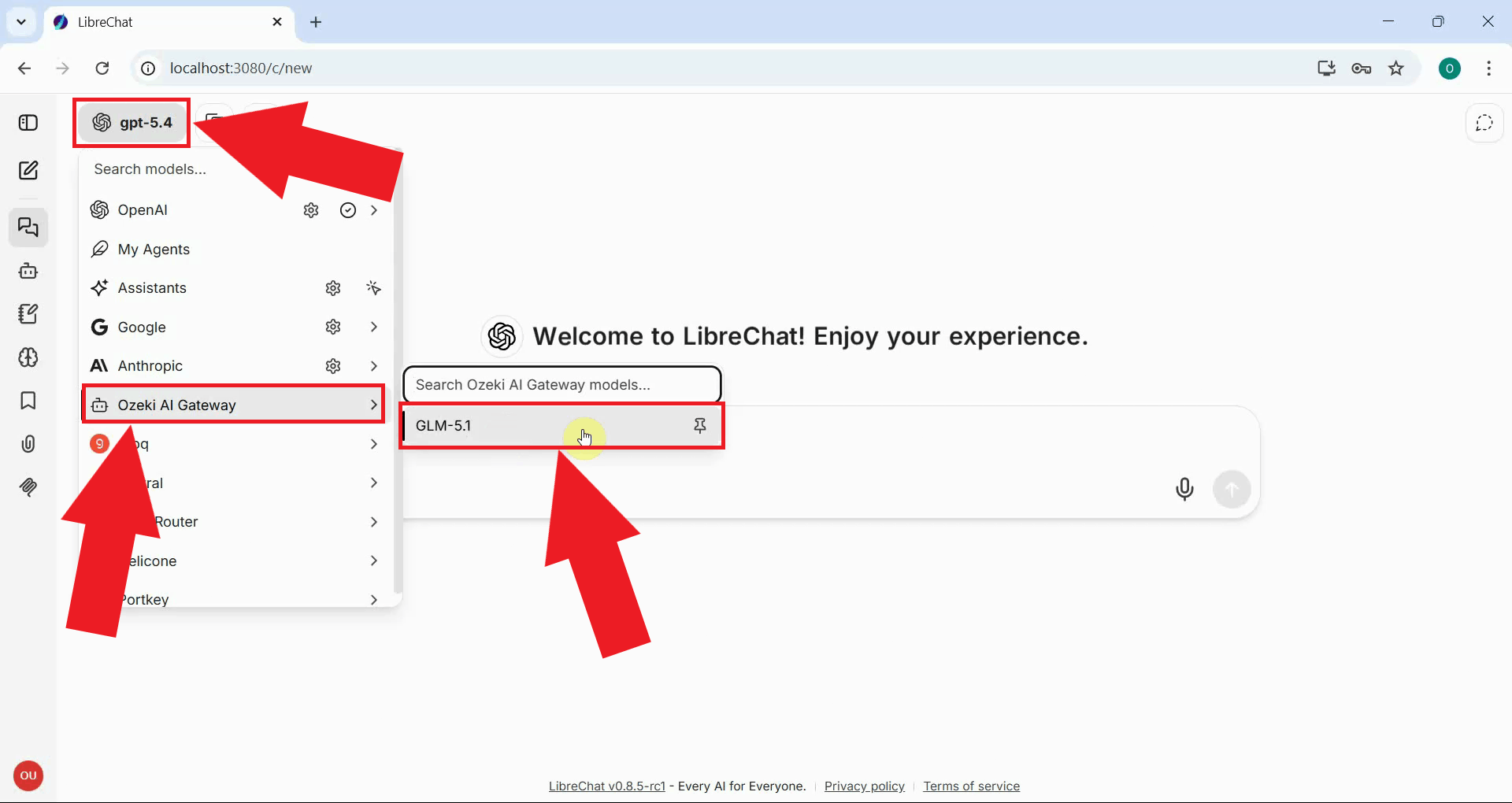
In the LibreChat interface, click the model selector at the top of the chat window. You should see "Ozeki AI Gateway" listed as an available endpoint. Select it, then choose the model you configured earlier from the model list (Figure 18).
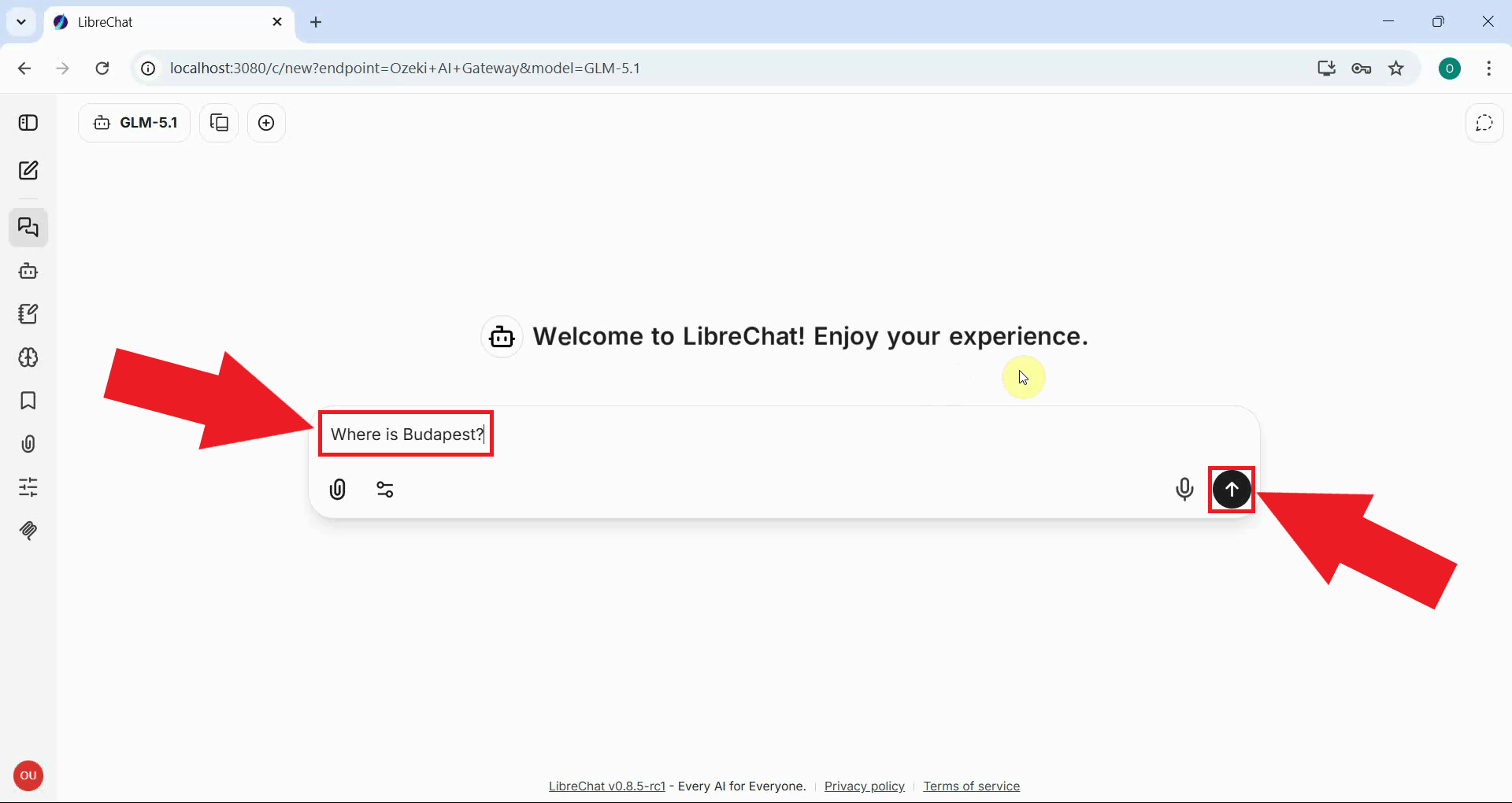
Type a test message into the chat input box and press Enter or click the send button (Figure 19).
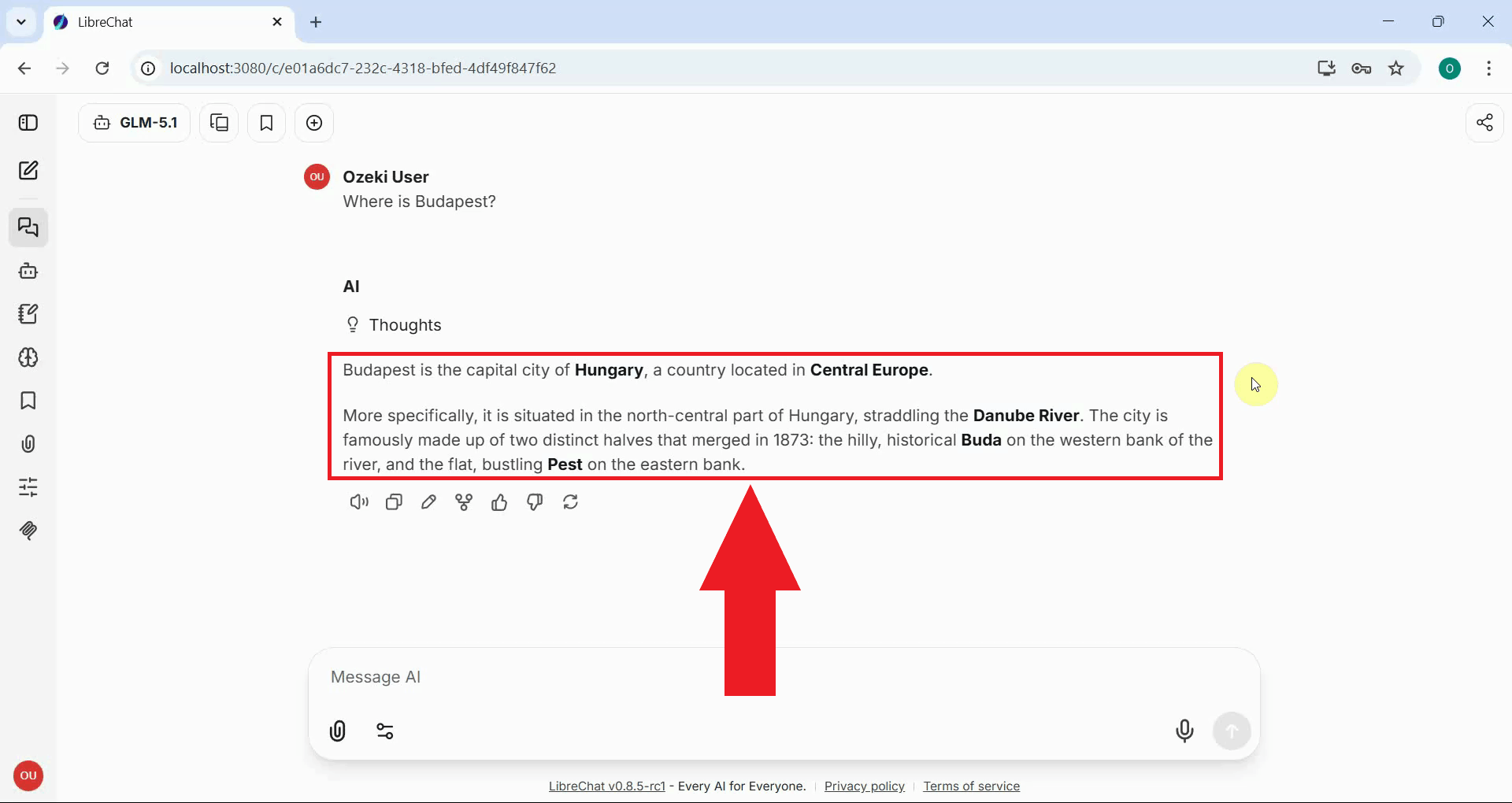
You should see a response appear in the chat window, confirming that the integration is working correctly (Figure 20).
To sum it up
You have successfully installed and configured LibreChat to work with Ozeki AI Gateway. You can now use LibreChat's modern chat interface to interact with any AI model available through your gateway. All requests are routed through Ozeki AI Gateway, giving you centralized control over API keys, model access, and usage statistics.