
How to set up Continue VS Code agent with Ozeki AI Gateway
This guide walks you through installing and configuring the Continue extension in Visual Studio Code to work with Ozeki AI Gateway. By following this tutorial, you'll learn how to install the Continue extension, open its configuration file, and add Ozeki AI Gateway as a model provider.
What is Continue?
Continue is an open-source VS Code extension that brings AI-powered coding assistance directly into your editor. It supports code completion, inline edits, and chat-based interactions with LLMs. Because it supports OpenAI-compatible APIs, it can be connected to Ozeki AI Gateway, allowing you to route all requests through your gateway and use any configured models.
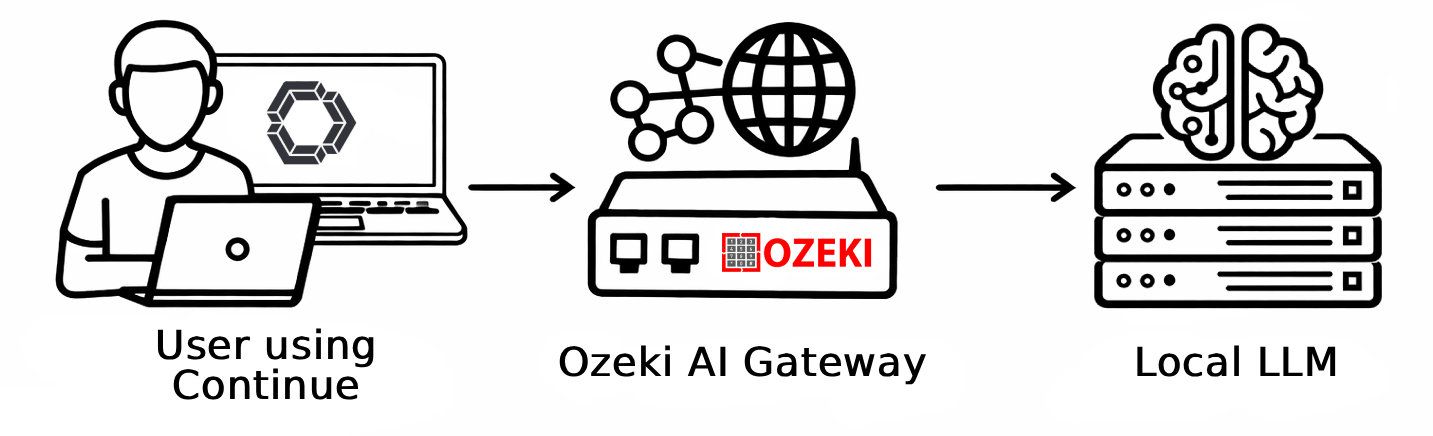
Continue VS Code agent models config
models:
  - name: Ozeki AI Gateway
    provider: openai
    model: your-llm-model
    apiBase: http://localhost/v1
    apiKey: ozkey-abc123
Steps to follow
We assume Ozeki AI Gateway is already installed on your system. You can install it on Linux, Windows or Mac.
You will also need Visual Studio Code installed on your system.
- Install and open Continue extension
- Open the local config file
- Add Ozeki AI Gateway to the config
- Send a test prompt
How to set up Continue VS Code agent with Ozeki AI Gateway video
The following video shows how to install and configure the Continue extension to work with Ozeki AI Gateway step-by-step. The video covers installing the extension, editing the configuration file, and testing the connection with a sample prompt.
Step 1 - Install and open Continue extension
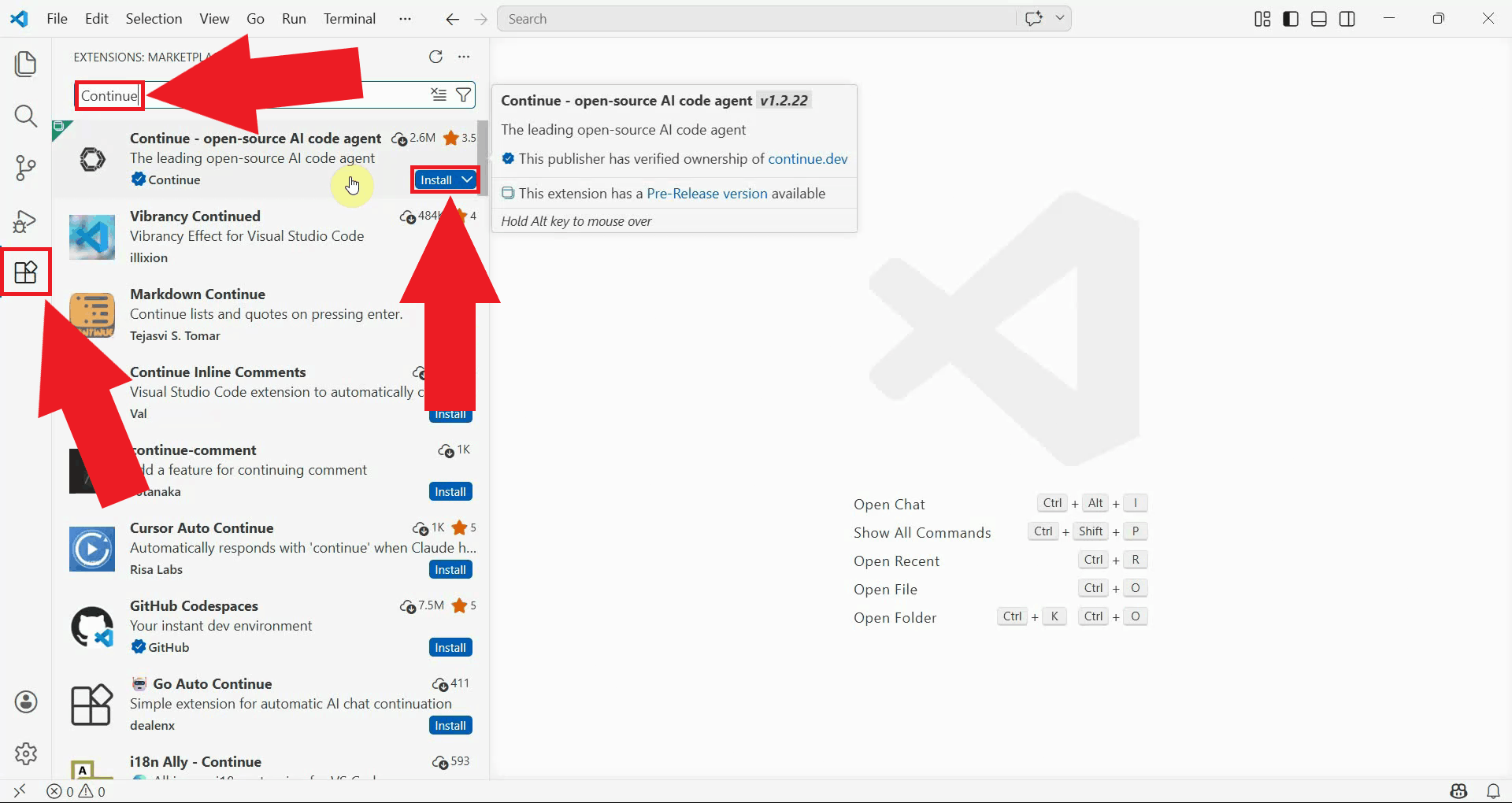
Open Visual Studio Code and navigate to the Extensions panel by clicking the Extensions icon
in the left sidebar or pressing Ctrl+Shift+X. Search for Continue and click
the Install button on the extension (Figure 1).
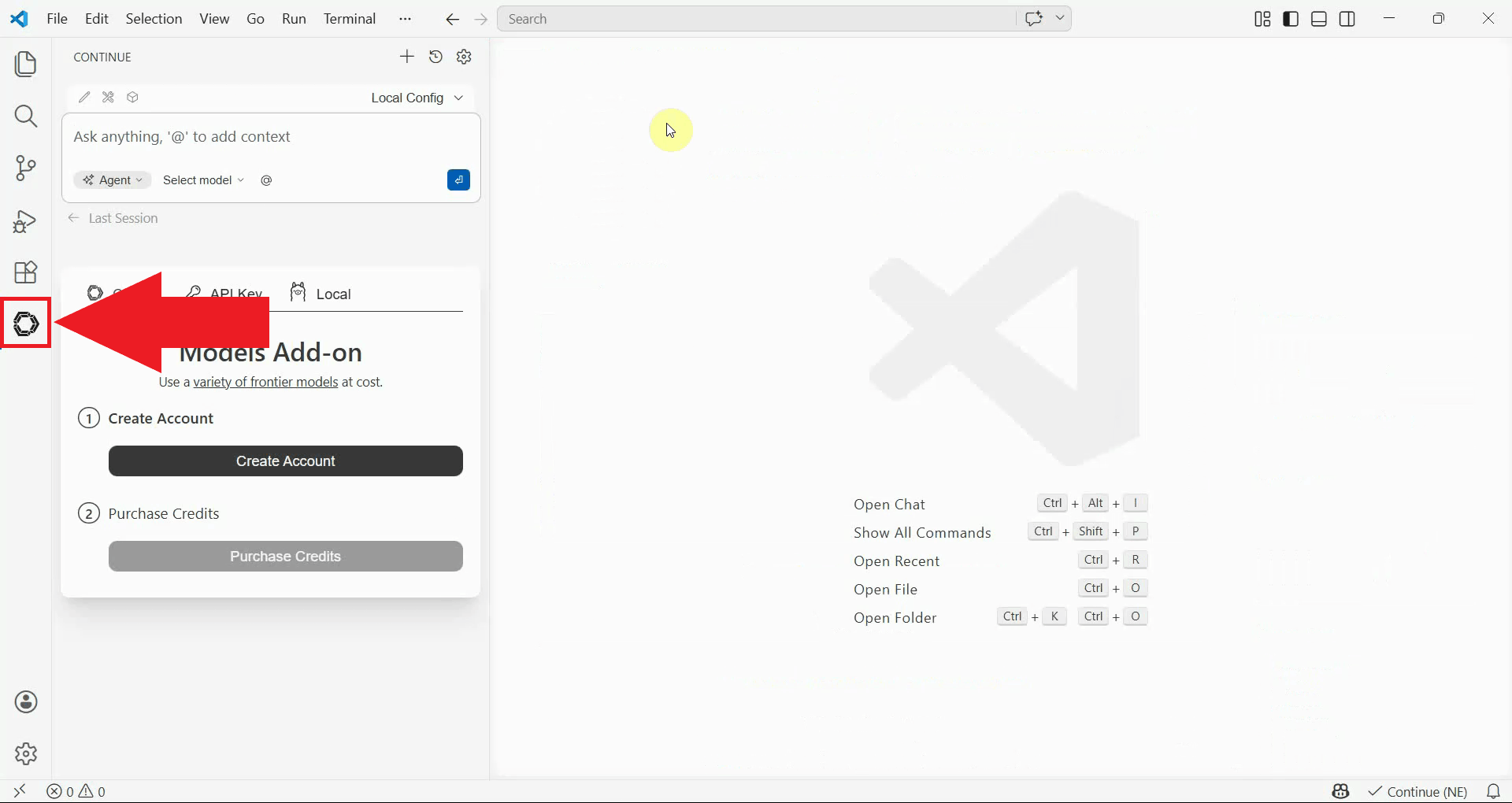
Once installed, open the extension's panel by clicking the Continue icon that appears in the left sidebar (Figure 2).
Step 2 - Open the local config file
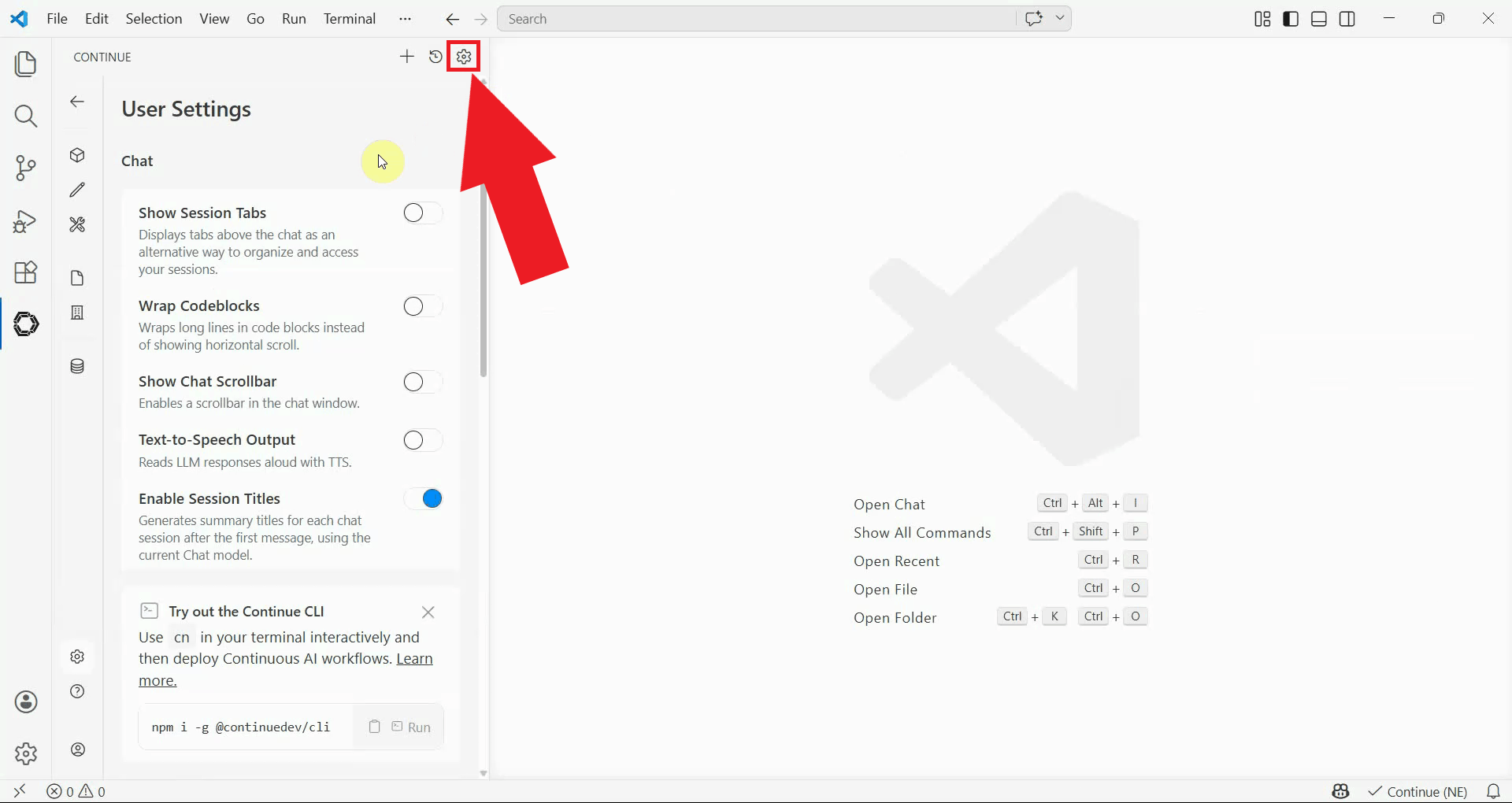
Inside the Continue panel, locate and click the settings icon in the top right corner to open the settings menu (Figure 3).
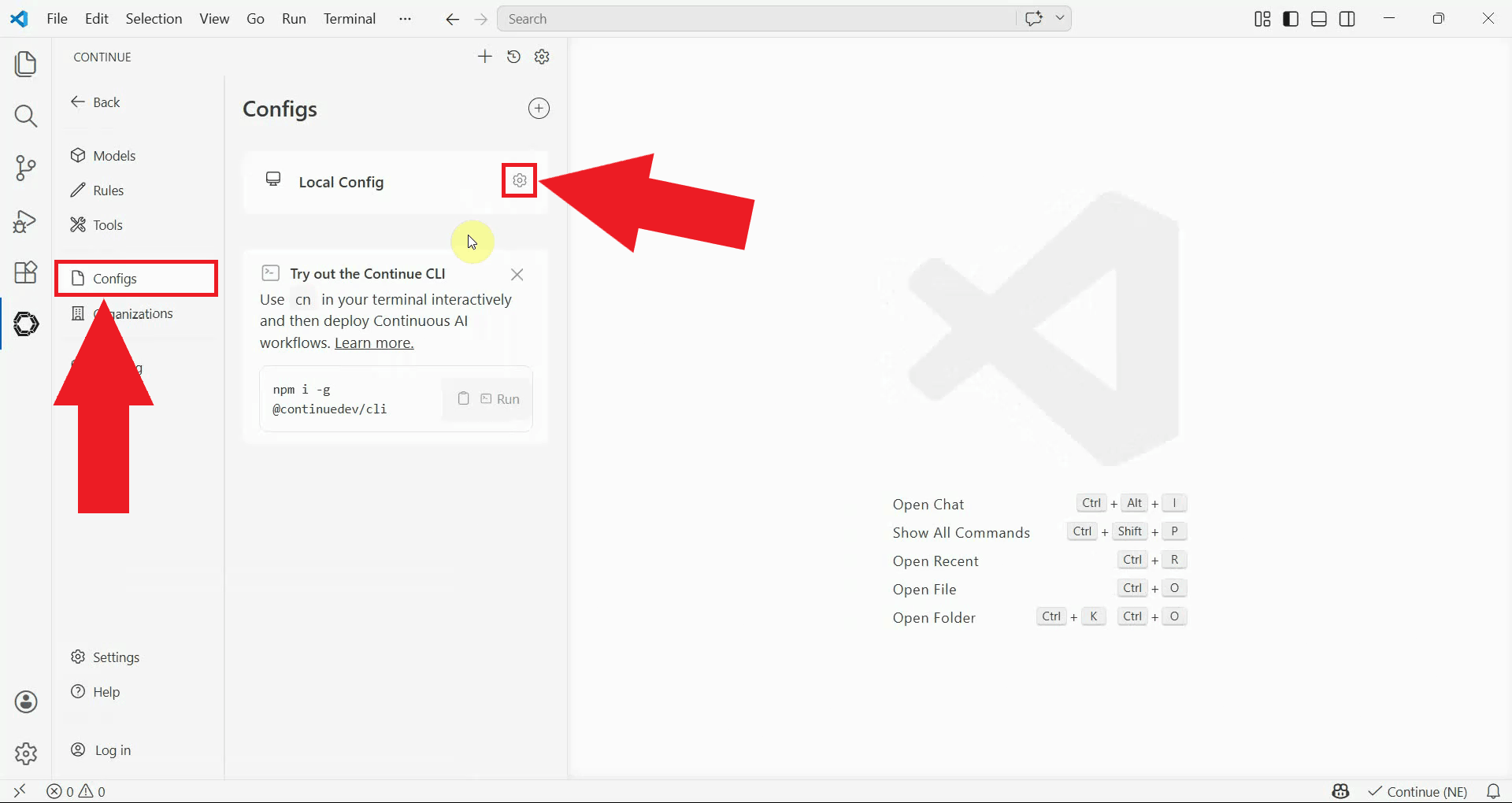
In the settings menu, select Configs from the left sidebar and click the gear icon next to Local Config to open it in the editor (Figure 4).
Step 3 - Add Ozeki AI Gateway to the config
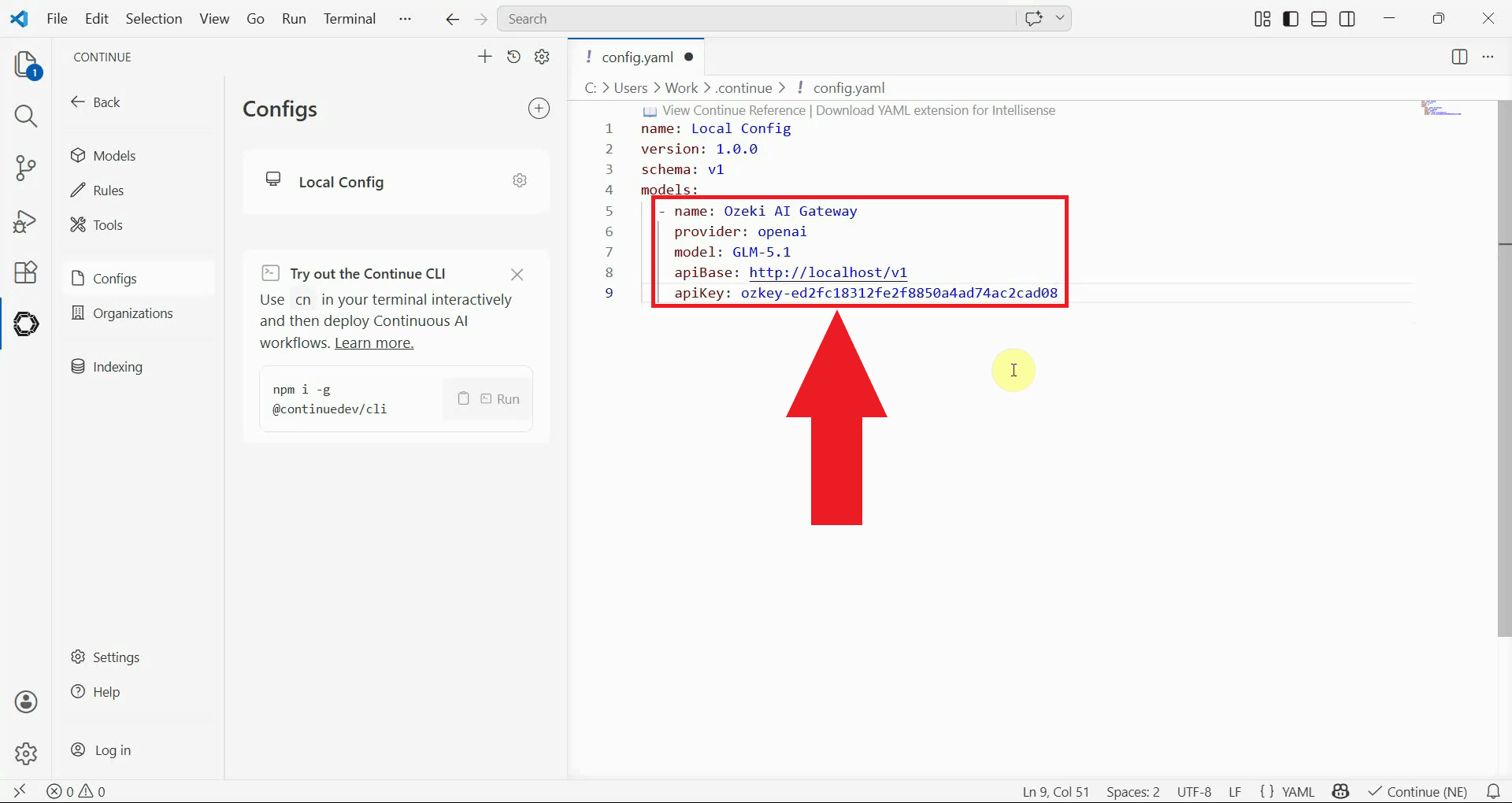
In the config file, locate the models: section and add the following block.
Replace your-llm-model with the name of the model you want to use, and
ozkey-abc123 with the API key you created in Ozeki AI Gateway (Figure 5).
models:
  - name: Ozeki AI Gateway
    provider: openai
    model: your-llm-model
    apiBase: http://localhost/v1
    apiKey: ozkey-abc123
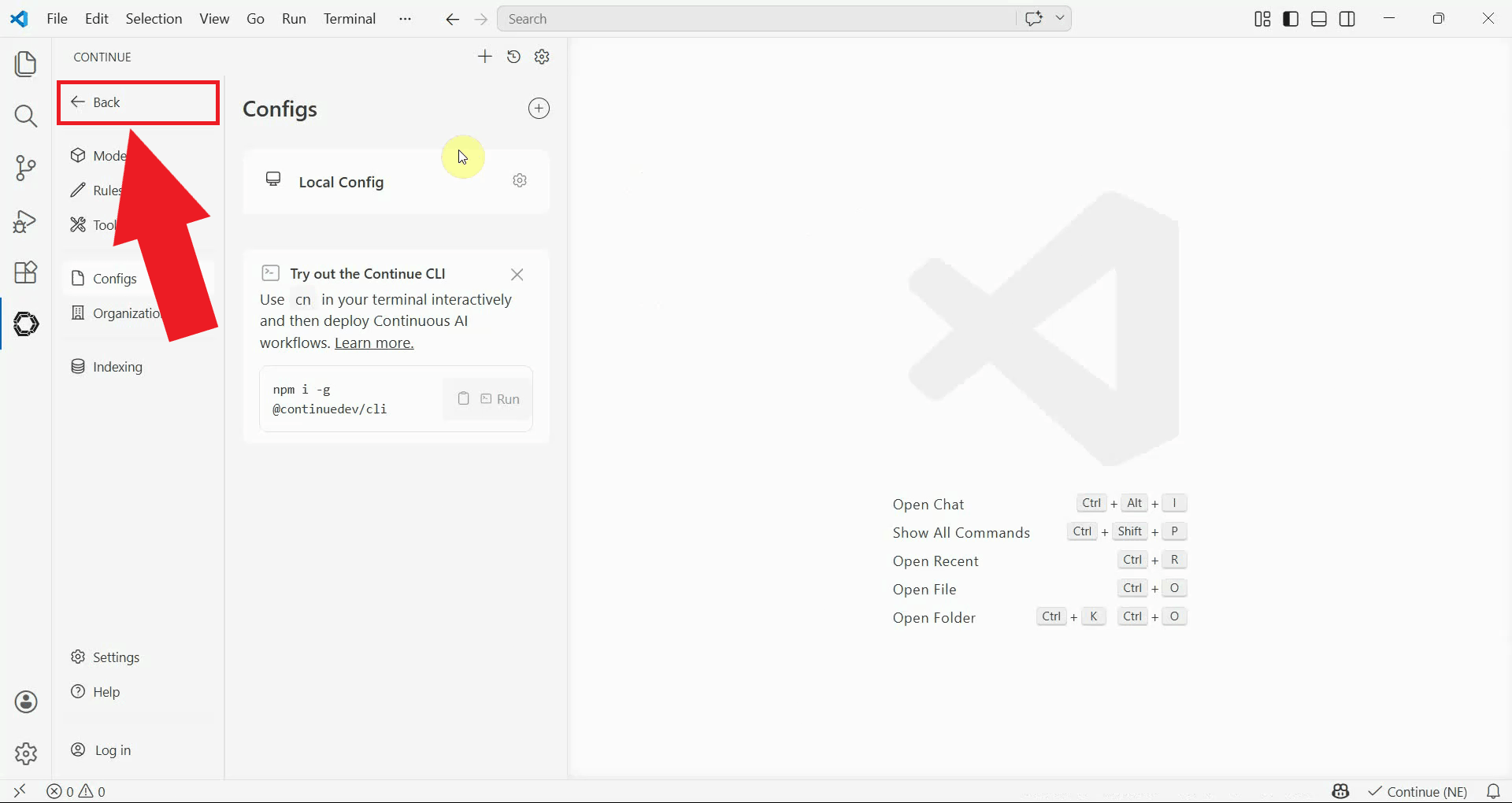
After saving the config file, click the back button to exit the settings view and return to the main chat panel (Figure 6).
Step 4 - Send a test prompt
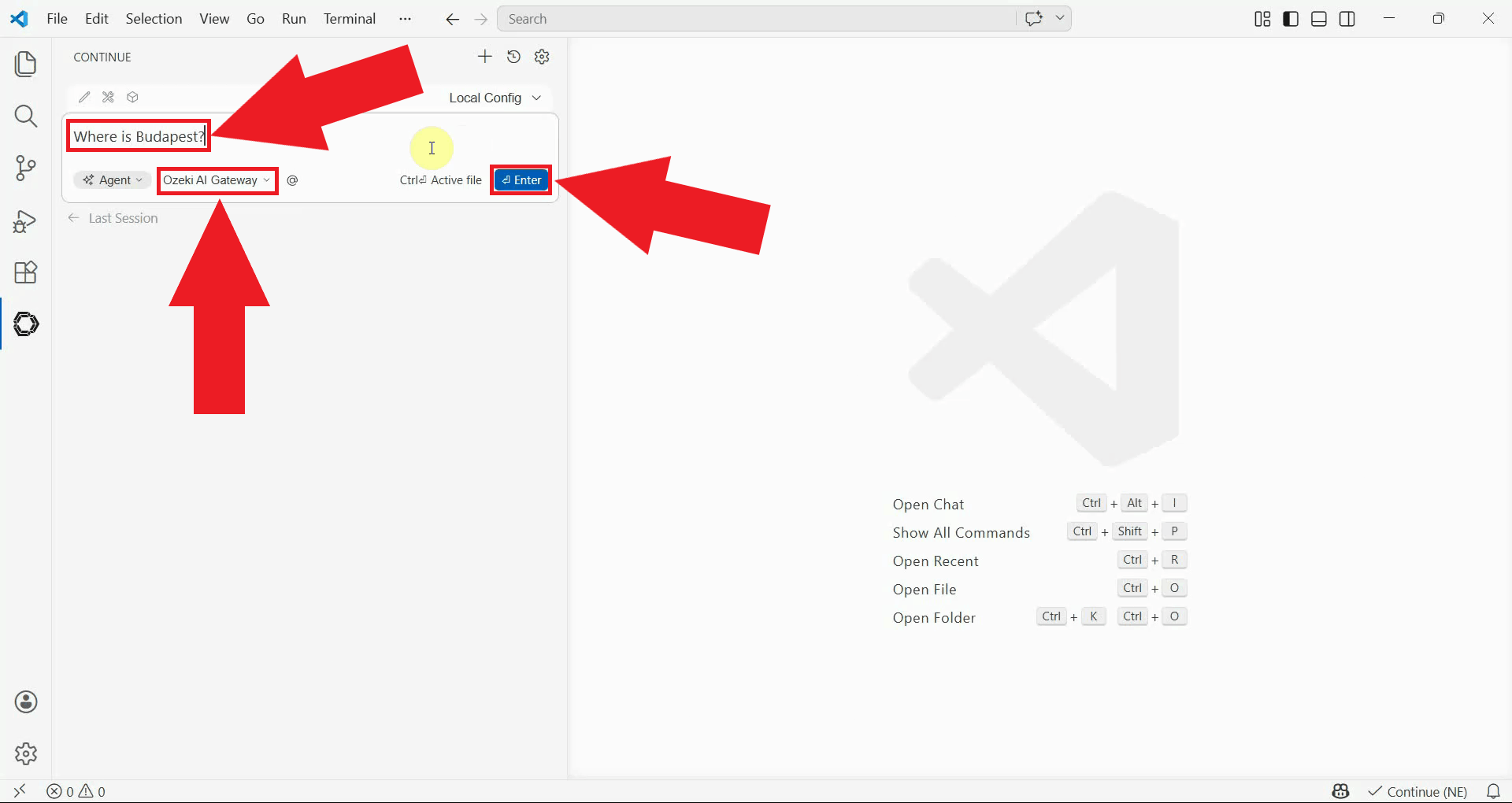
In the Continue chat panel, open the model selector and choose "Ozeki AI Gateway" from the list, then type a test prompt and press Enter (Figure 7).
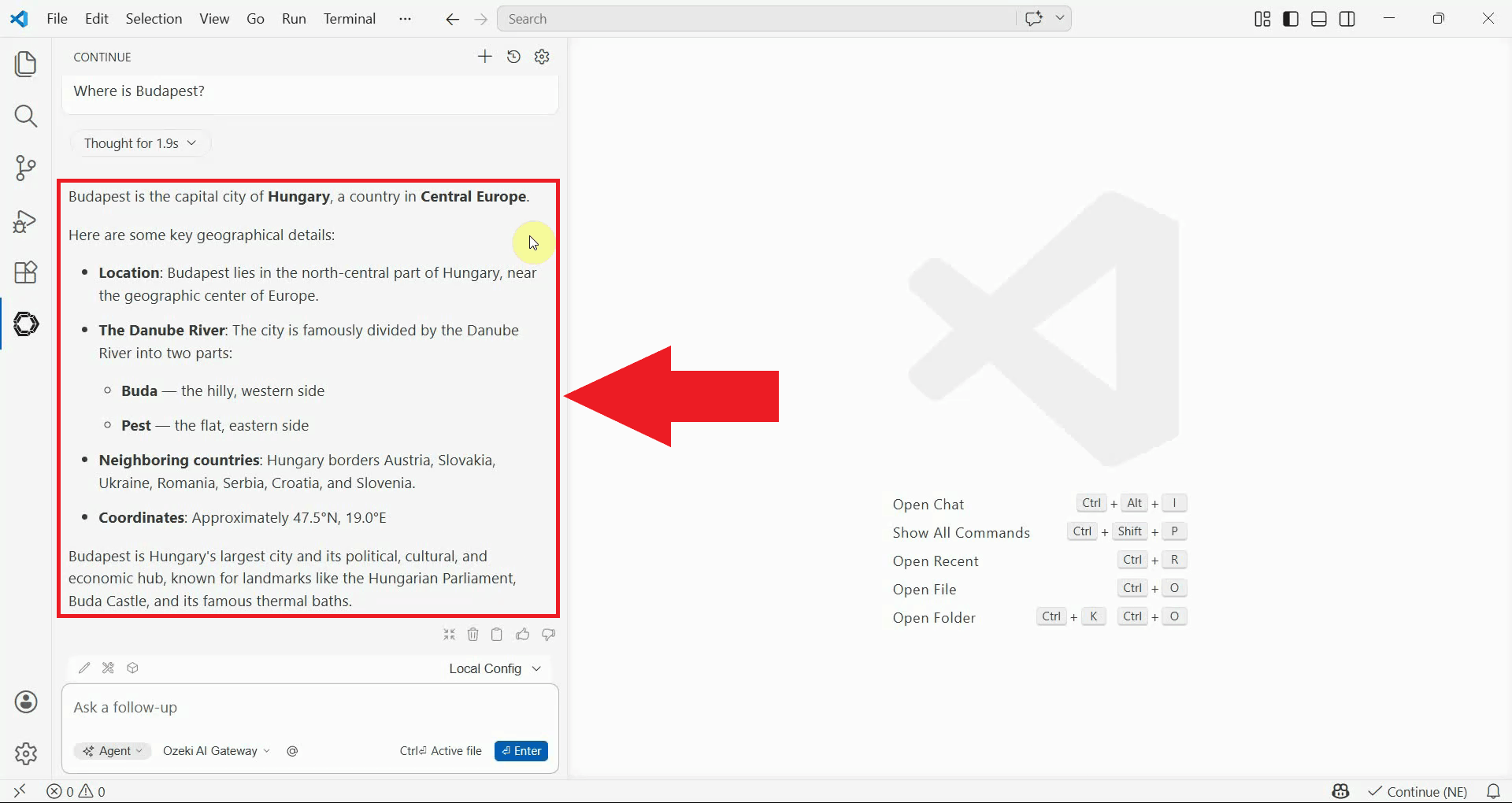
You should see a response appear in the chat panel, confirming that Continue is correctly connected to Ozeki AI Gateway (Figure 8).
Conclusion
You have successfully installed and configured the Continue extension to work with Ozeki AI Gateway. You can now use Continue's chat and code assistance features inside VS Code, with all requests routed through your gateway and handled by the AI models available there.