
How to set up LobeChat with Ozeki AI Gateway
This guide demonstrates how to run LobeChat using Docker and configure it to use Ozeki AI Gateway as its LLM provider. LobeChat supports custom OpenAI-compatible endpoints through its language model settings, and with client-side fetching enabled it can communicate directly with your gateway from the browser.
What is LobeChat?
LobeChat is an open-source, modern AI chat framework that provides a polished web-based interface for interacting with large language models. It supports a wide range of providers through OpenAI-compatible APIs and can be self-hosted using Docker with a single command.
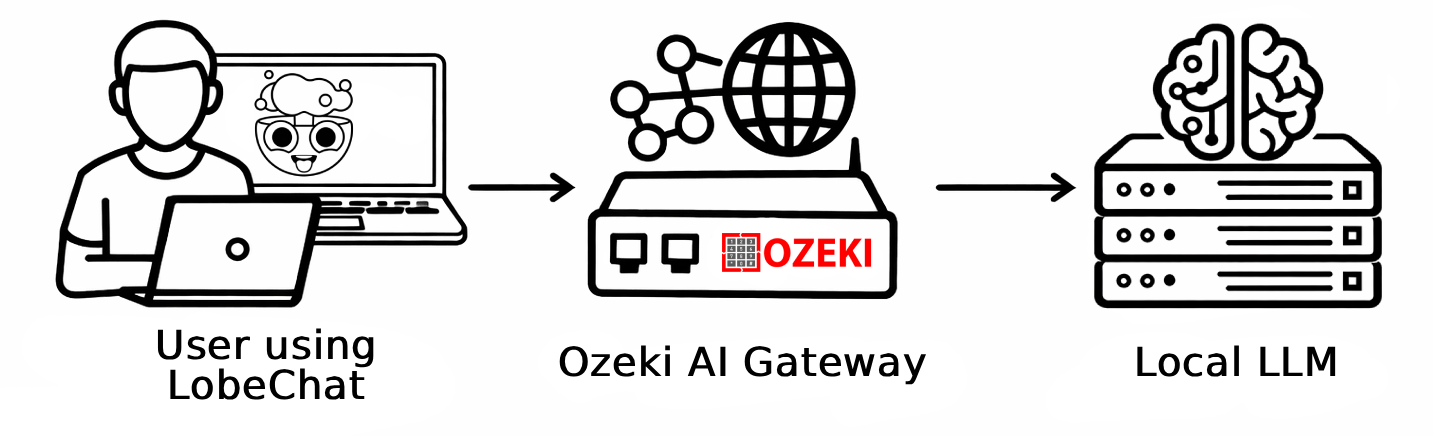
Steps to follow
We assume Ozeki AI Gateway is already installed on your system. You can install it on Linux, Windows or Mac. You will also need Docker Desktop installed and running on your Windows machine.
Docker run command
docker run -p 3210:3210 lobehub/lobe-chat
How to run and set up LobeChat with Ozeki AI Gateway video
The following video shows how to run LobeChat with Docker and configure it to use Ozeki AI Gateway step-by-step.
Step 1 - Run LobeChat using Docker
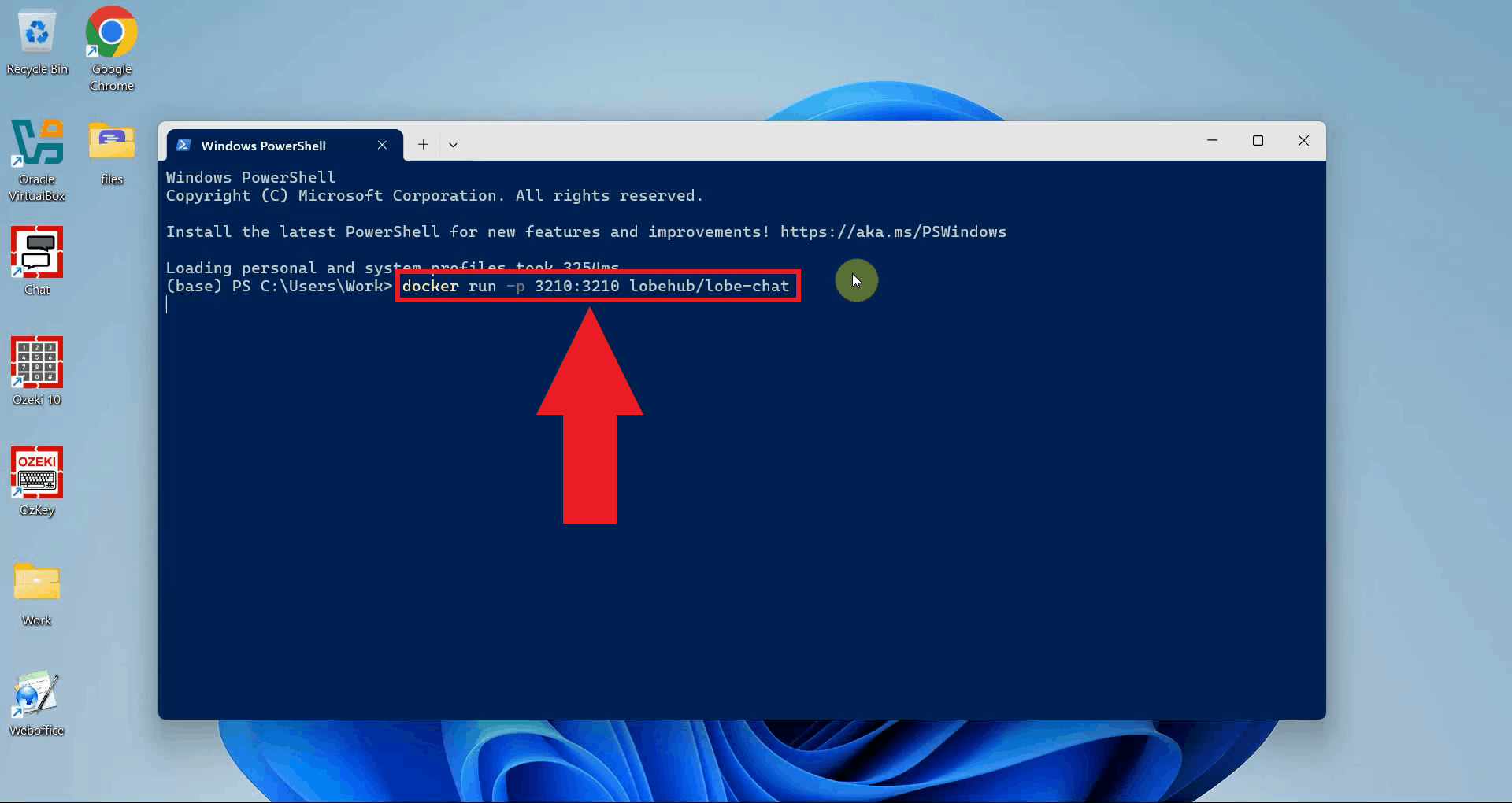
Open a terminal window and run the following Docker command to pull and start the
LobeChat container. The -p 3210:3210 flag maps the container port to
your local machine, making the interface accessible at
http://localhost:3210 (Figure 1).
docker run -p 3210:3210 lobehub/lobe-chat
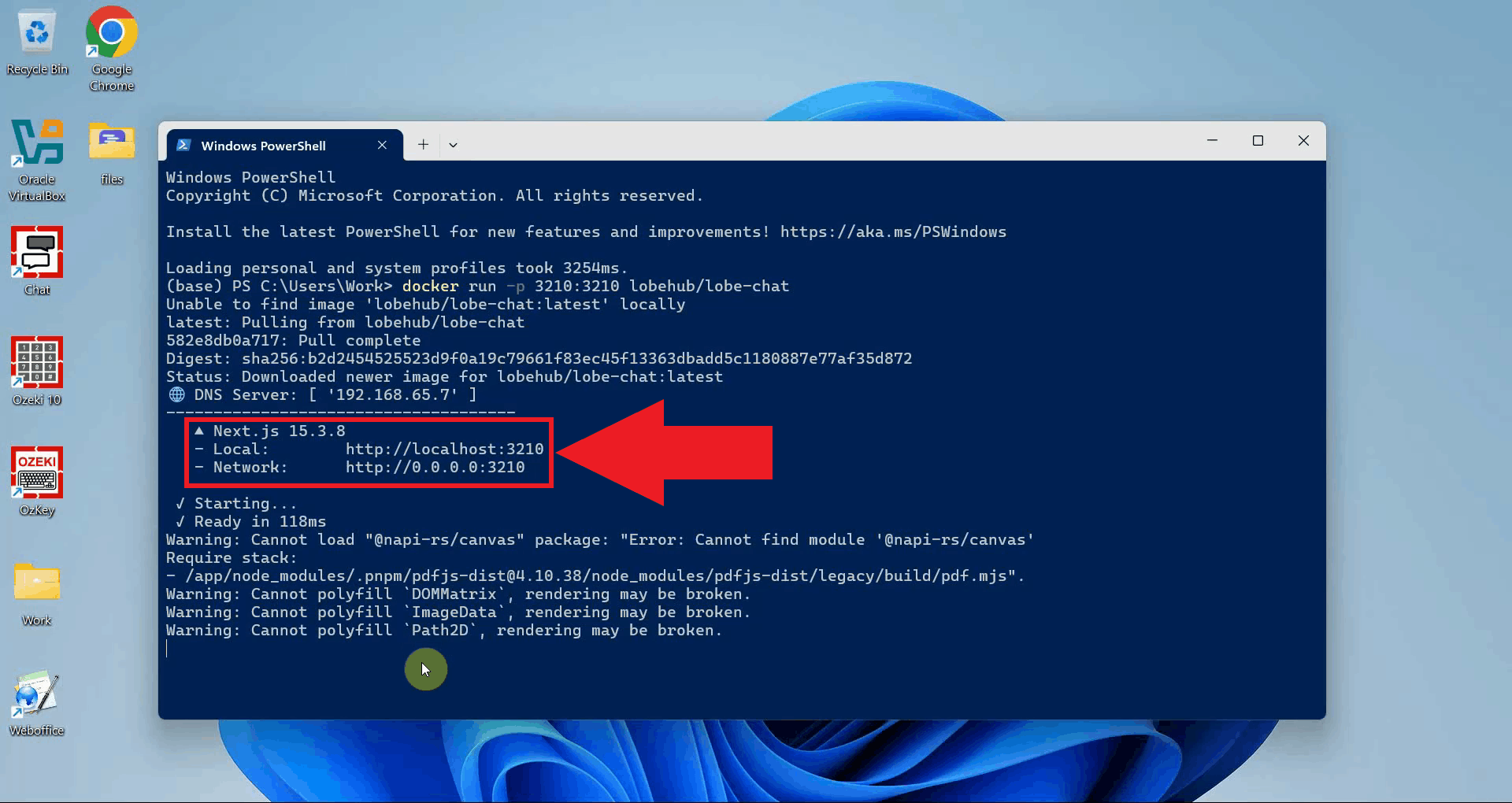
Wait for Docker to pull the image and start the container. Once the terminal shows
that the server is ready, click the url in the terminal or open your browser and navigate to
http://localhost:3210 (Figure 2).
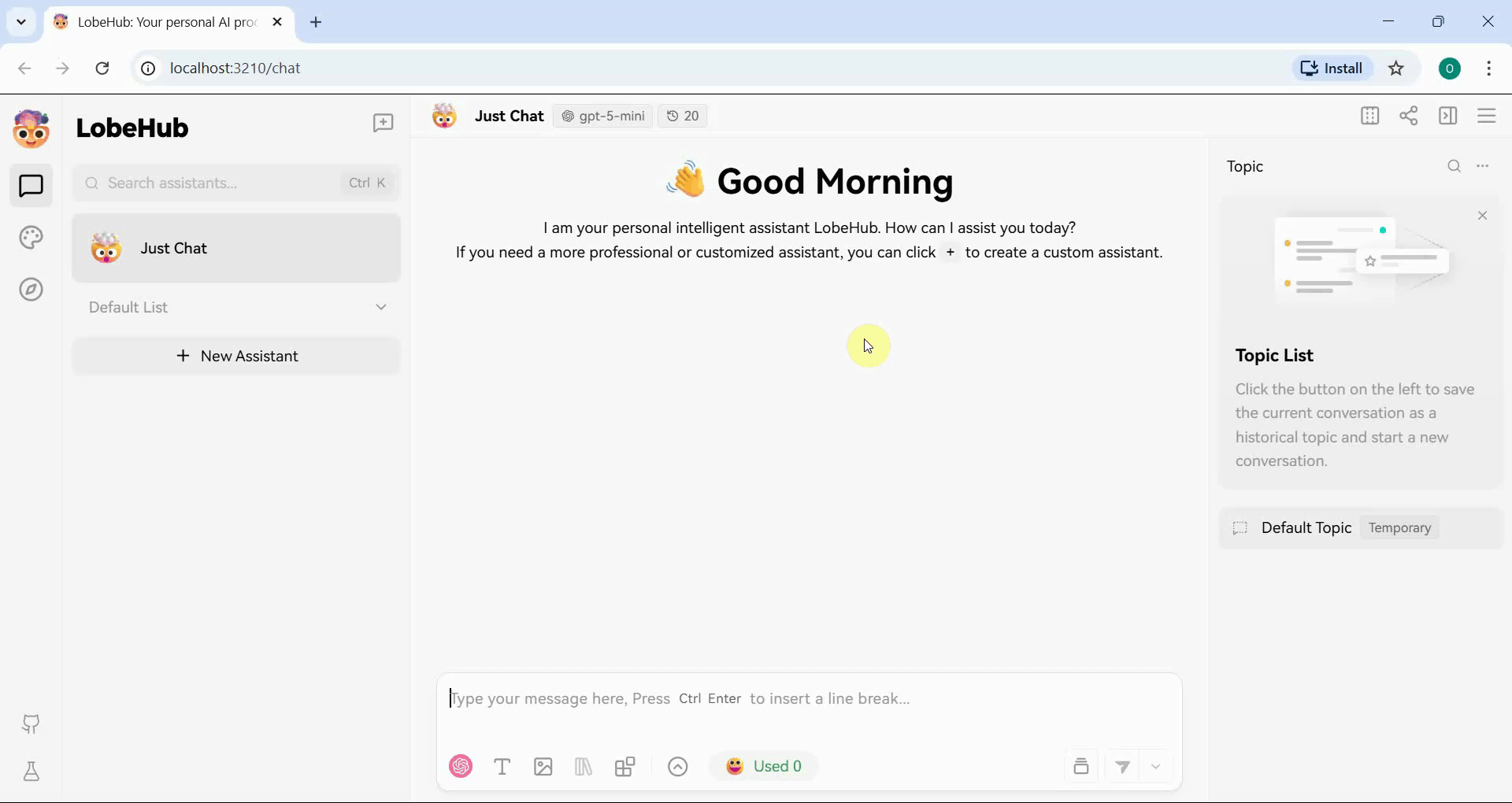
The LobeChat homepage will appear in your browser. The interface is now running and ready to be configured with Ozeki AI Gateway as a provider (Figure 3).
Step 2 - Configure Ozeki AI Gateway in LobeChat settings
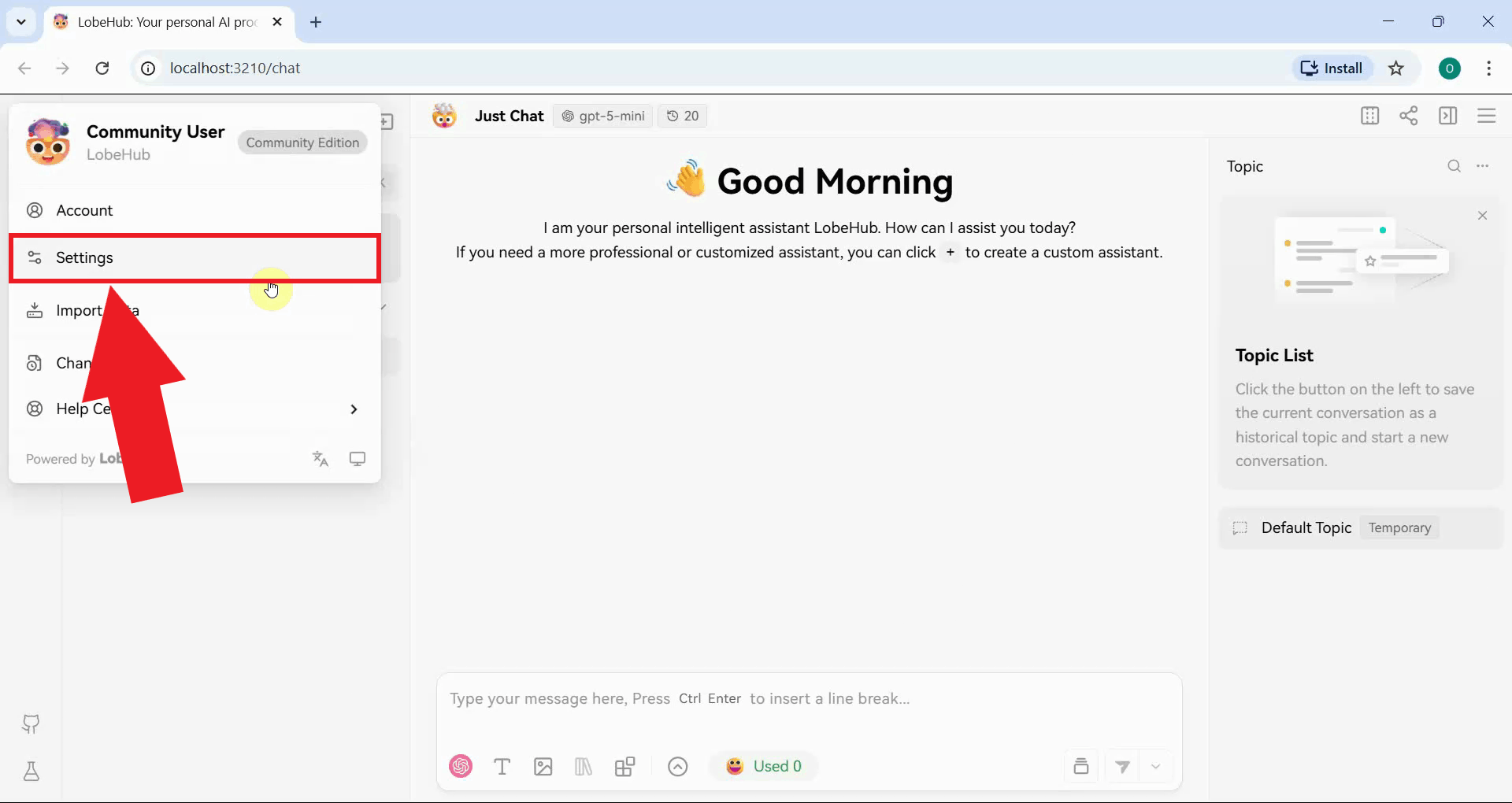
Open the settings by clicking the LobeChat logo in the top-left corner of the interface and selecting Settings (Figure 4).
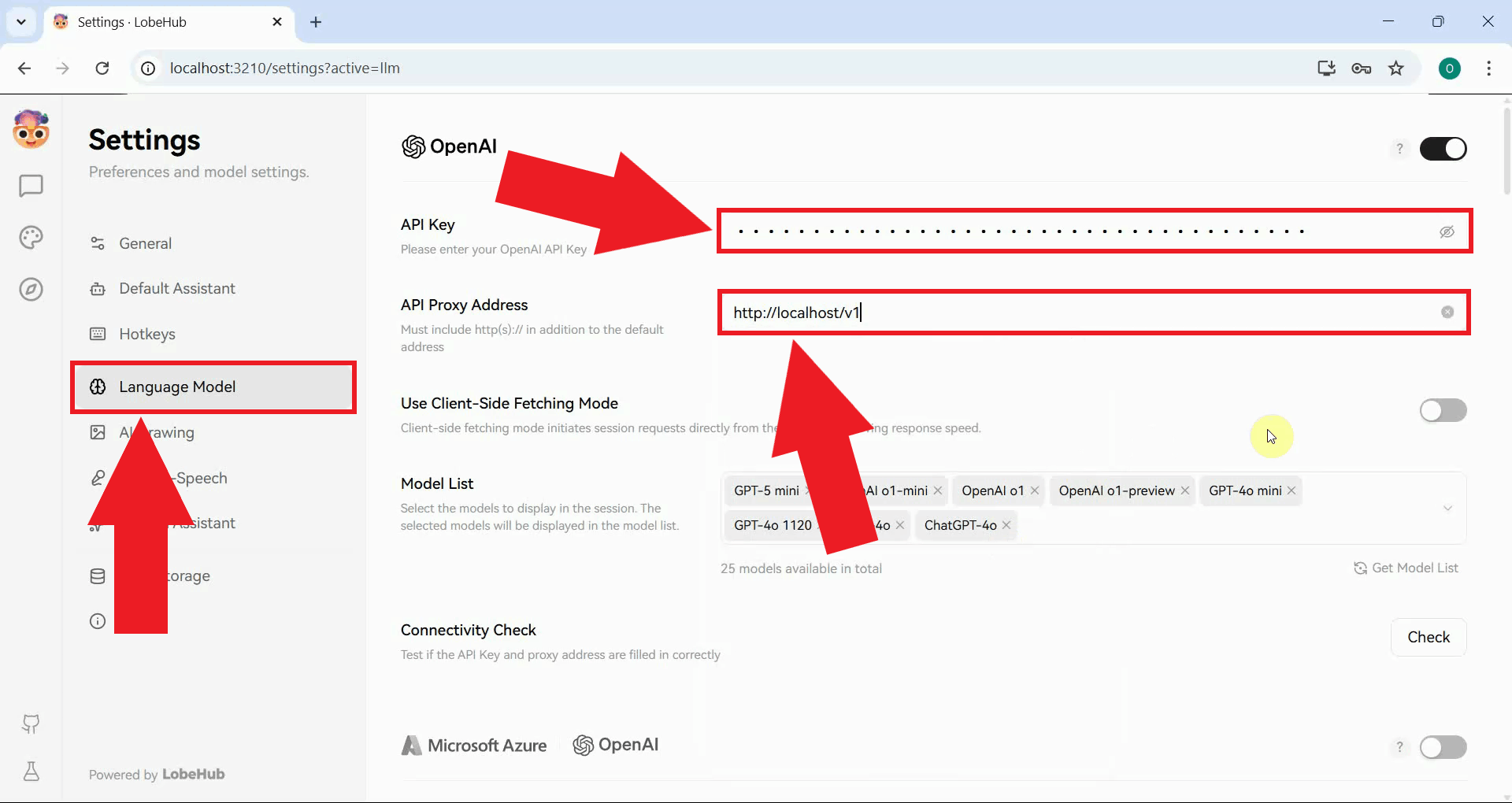
Navigate to the Language Model section where you can configure AI provider endpoints. Locate the OpenAI provider section and enter your Ozeki AI Gateway connection details. Set the API URL to your gateway endpoint and paste your API key into the API key field (Figure 5).
http://localhost/v1
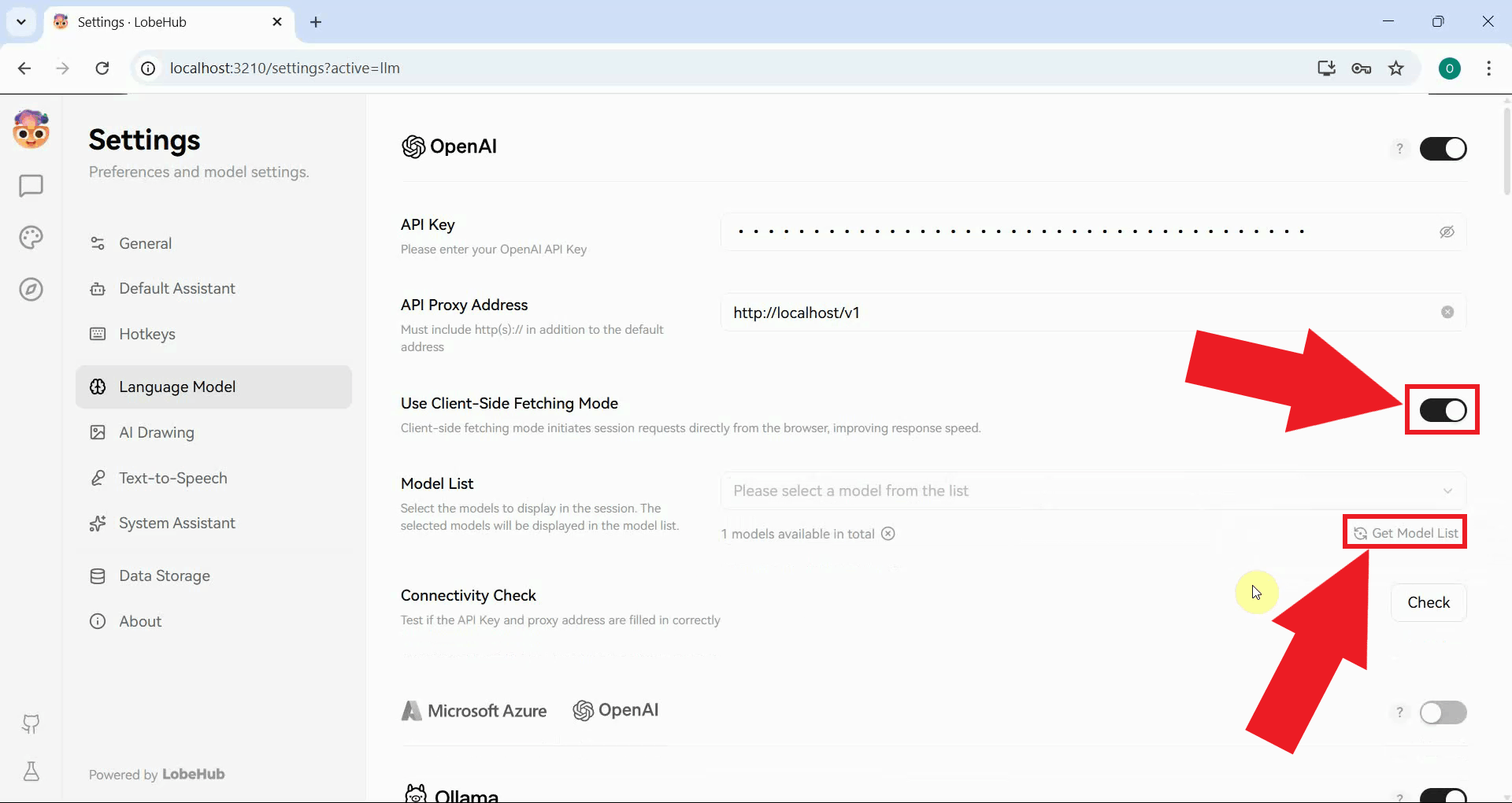
Enable the Use Client-Side Fetching Mode toggle: this is required when LobeChat is running locally and needs to communicate directly with your gateway from the browser rather than routing through the container server. Once enabled, click the Get Model List button to fetch the list of models available from your gateway (Figure 6).
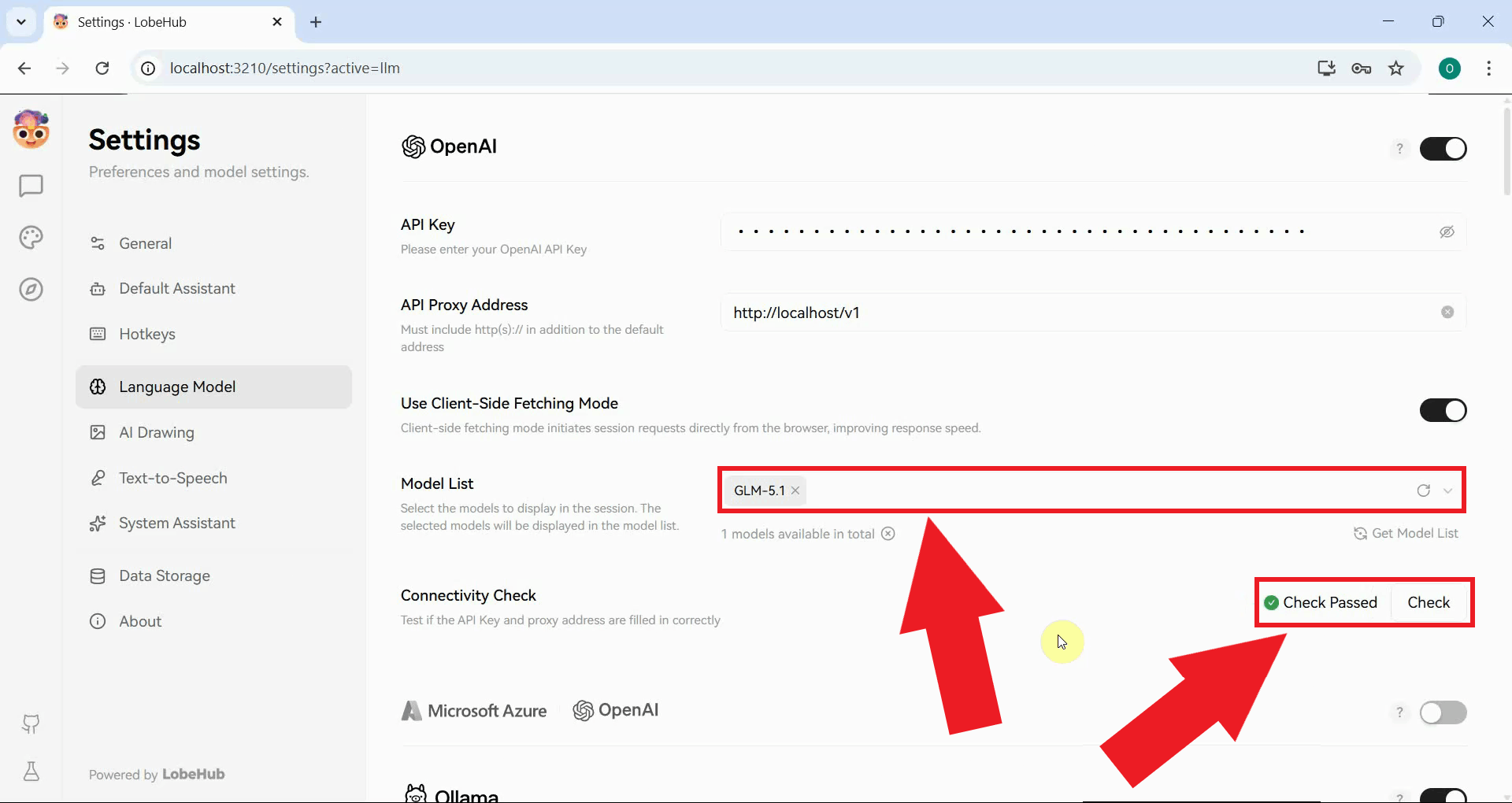
The models available through your Ozeki AI Gateway will now appear in the model list. Use the Connectivity Check tool to test the connection status (Figure 7).
Step 3 - Send a test prompt
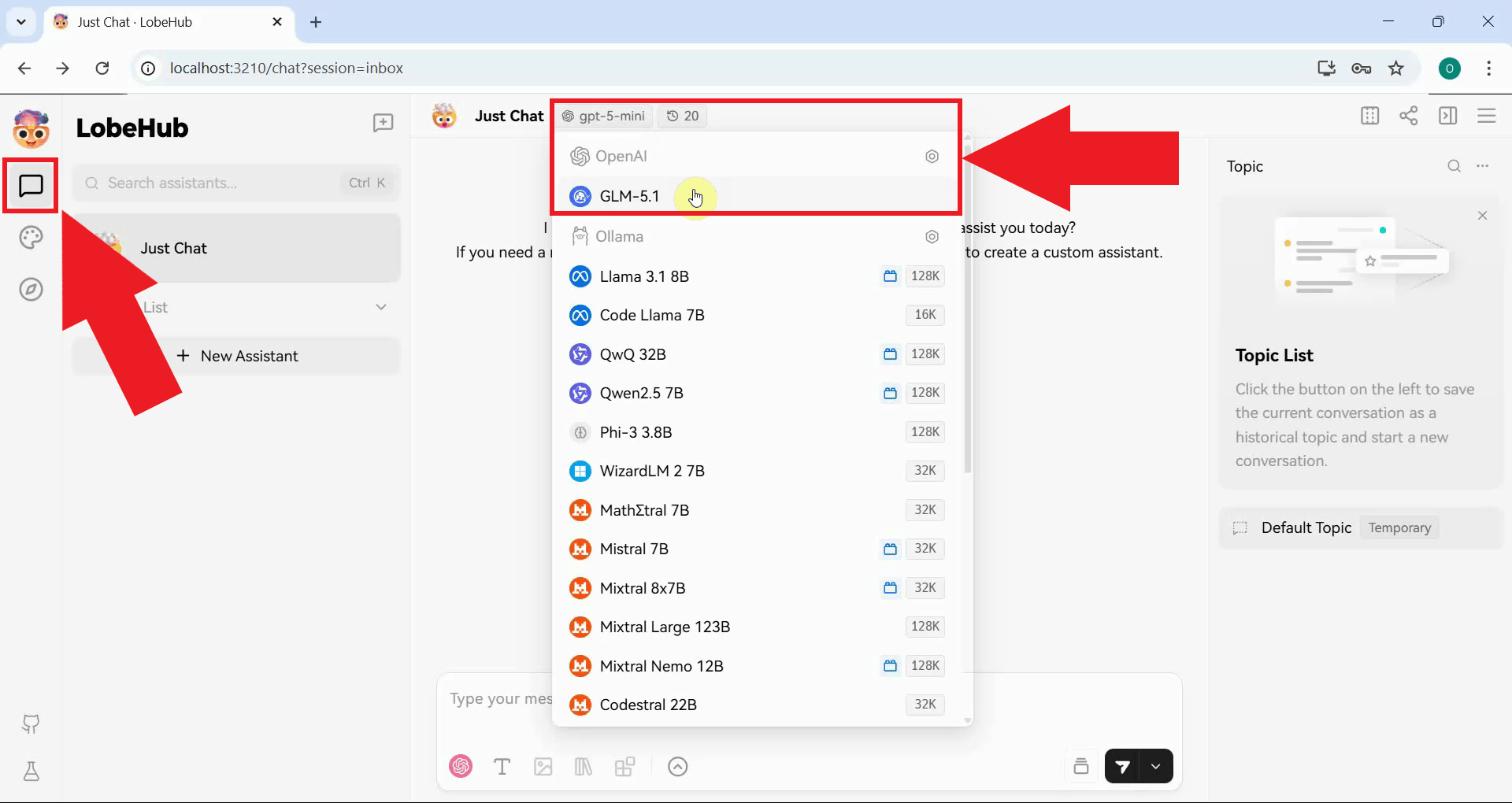
Start a new chat session in LobeChat and select the model provided by your Ozeki AI Gateway connection from the model selector at the top of the chat window (Figure 8).
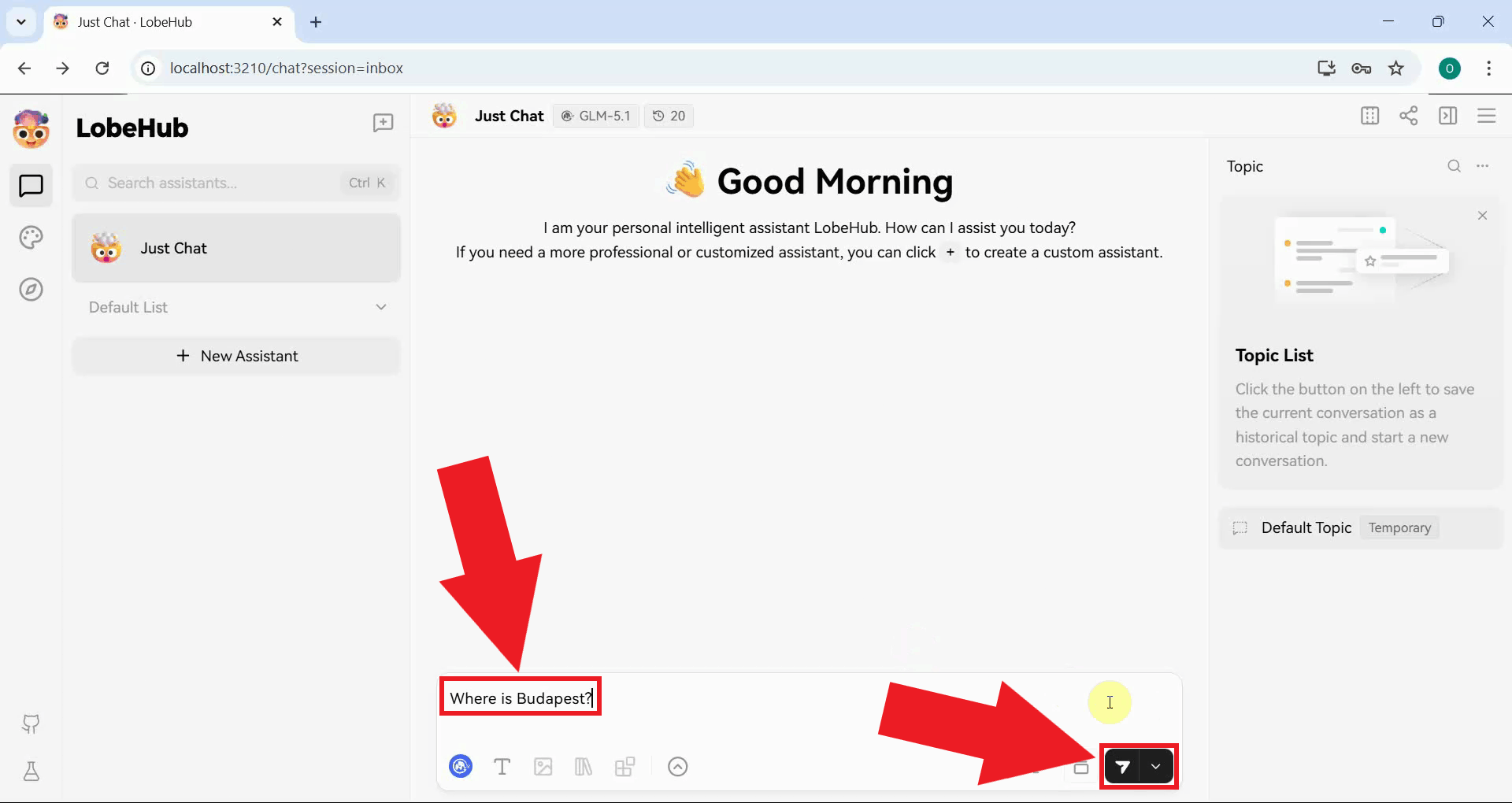
Type a test message in the chat input and press the Send button or Enter to send it (Figure 9).
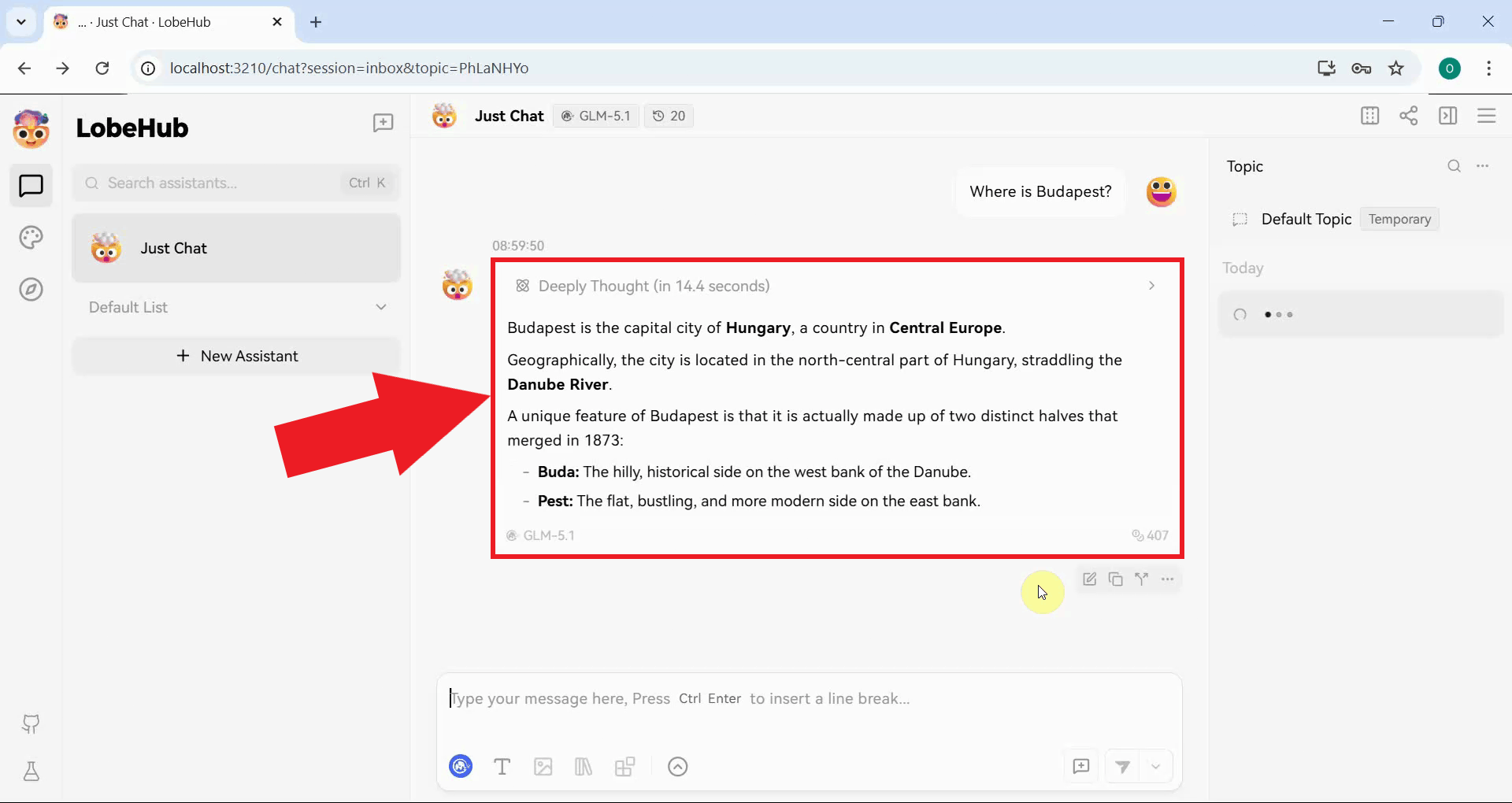
A successful response confirms that LobeChat is correctly connected to Ozeki AI Gateway and that all requests are being routed through your gateway infrastructure (Figure 10).
Conclusion
You have successfully deployed LobeChat using Docker and configured it to use Ozeki AI Gateway as its LLM provider. With client-side fetching enabled, the browser communicates directly with your gateway, and all model requests are routed through your infrastructure for centralized access control and monitoring.