
How to set up Hermes Agent with Ozeki AI Gateway
This guide walks you through installing and configuring Hermes Agent on Windows and connecting it to Ozeki AI Gateway. By following this tutorial, you will learn how to install Hermes Agent using PowerShell, run the interactive setup wizard, point it to your Ozeki AI Gateway endpoint, and send your first prompt through the terminal interface.
What is Hermes Agent?
Hermes Agent is an open-source autonomous AI agent developed by Nous Research. Unlike a simple chatbot, Hermes is a fully capable agent that can execute terminal commands, manage files, run scheduled tasks, and connect to messaging platforms such as Telegram or Discord. It supports OpenAI-compatible API endpoints, which means it can be connected to Ozeki AI Gateway, allowing you to route all AI requests through your own gateway and use any model configured there.
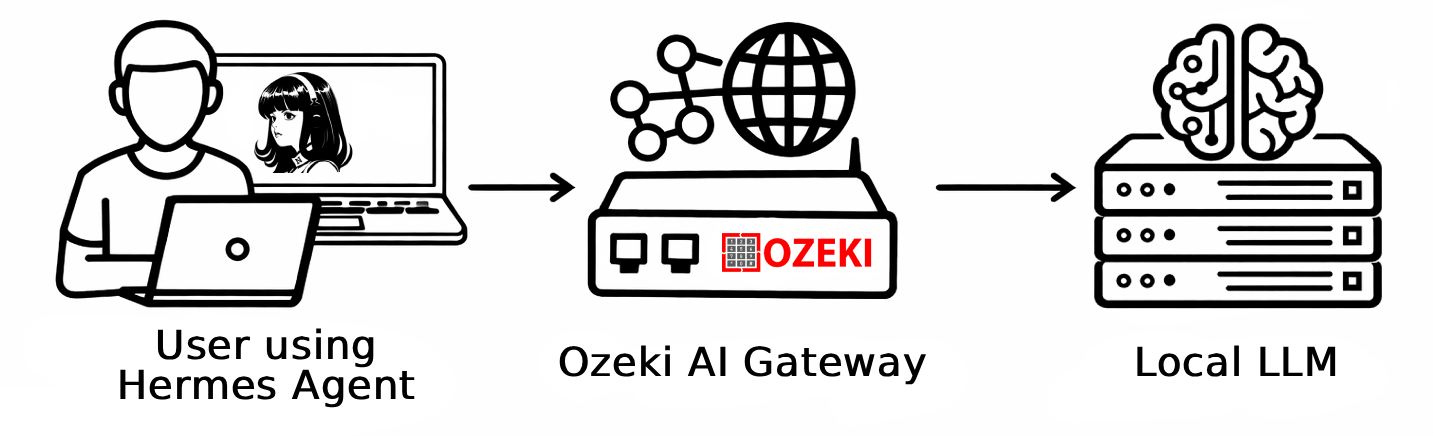
Hermes Agent PowerShell install command
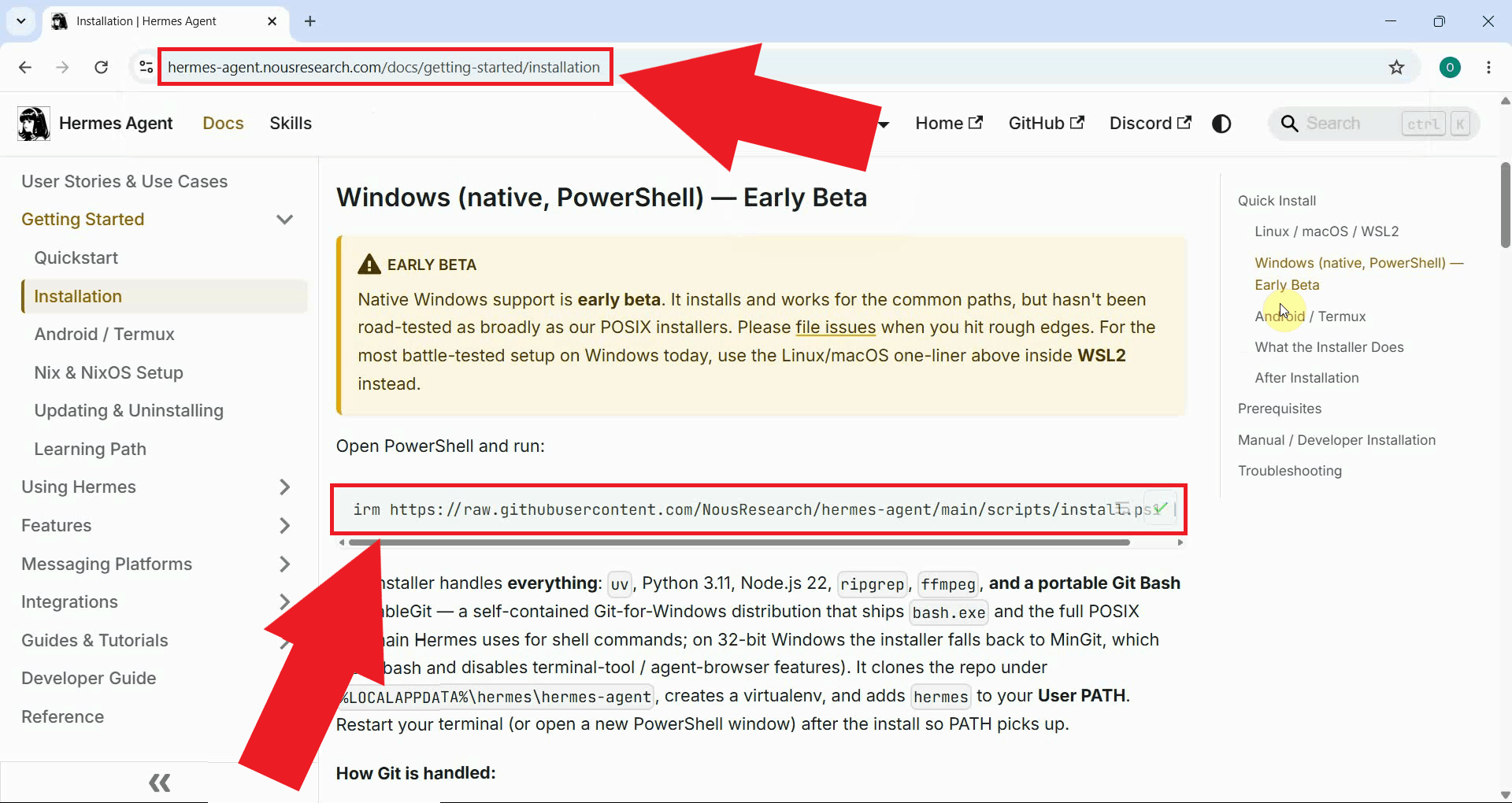
irm https://raw.githubusercontent.com/NousResearch/hermes-agent/main/scripts/install.ps1 | iex
Steps to follow
We assume Ozeki AI Gateway is already installed on your system. You can install it on Linux, Windows or Mac.
- Copy install command
- Run the installer in a terminal
- Start Quick Setup
- Enter Gateway URL details
- Choose a backend and launch Hermes
- Test Hermes Agent
Video tutorial
The following video shows how to install and configure Hermes Agent to work with Ozeki AI Gateway step-by-step.
Step 1 - Copy install command
Open your browser and navigate to hermes-agent.nousresearch.com. Locate the Windows installation command and copy it to your clipboard (Figure 1).
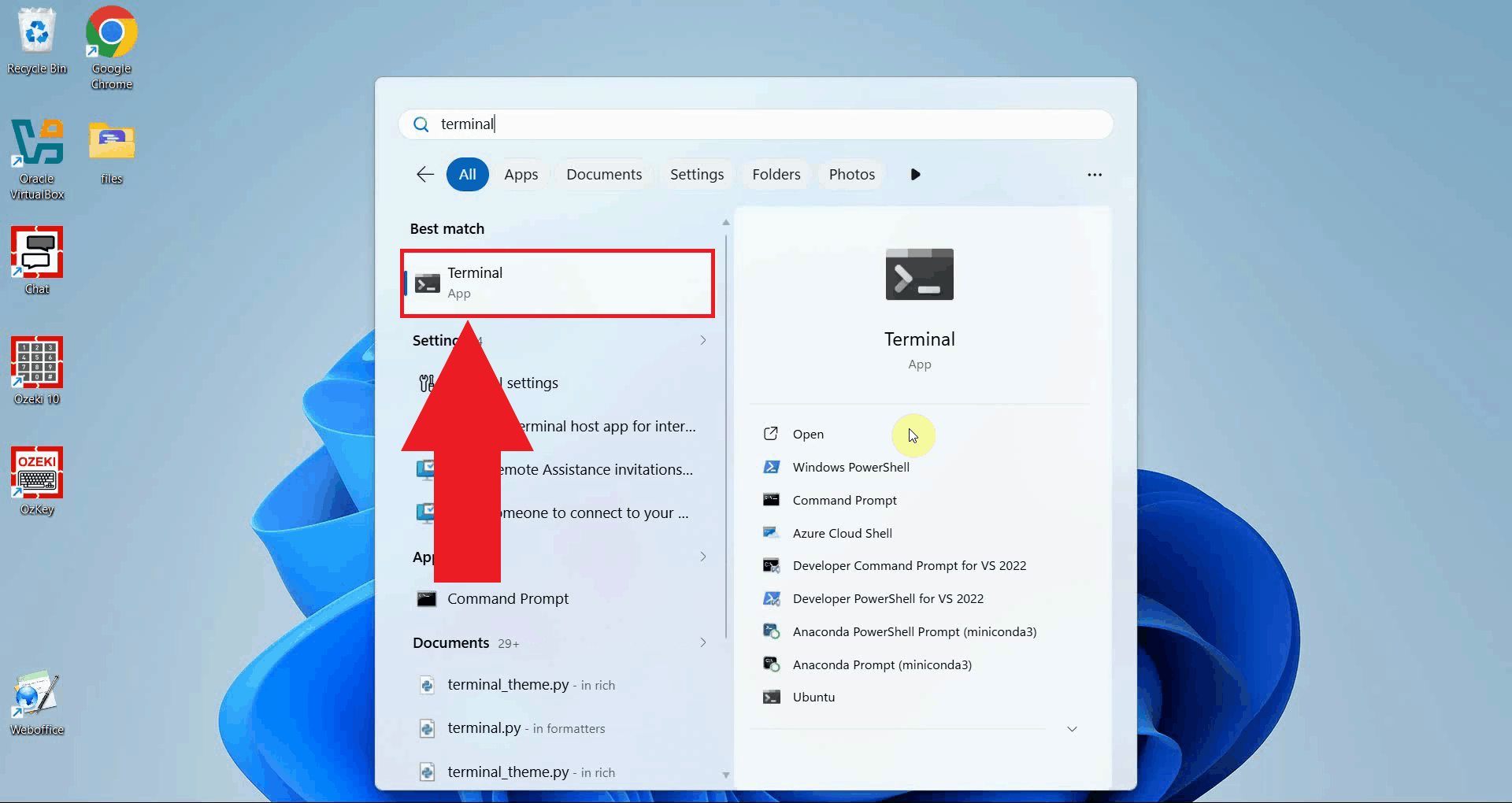
Step 2 - Run the installer in a terminal
Open a PowerShell terminal by searching for Terminal in the Start menu (Figure 2).
Paste the install command into the terminal and press Enter to run it (Figure 3).
irm https://raw.githubusercontent.com/NousResearch/hermes-agent/main/scripts/install.ps1 | iex
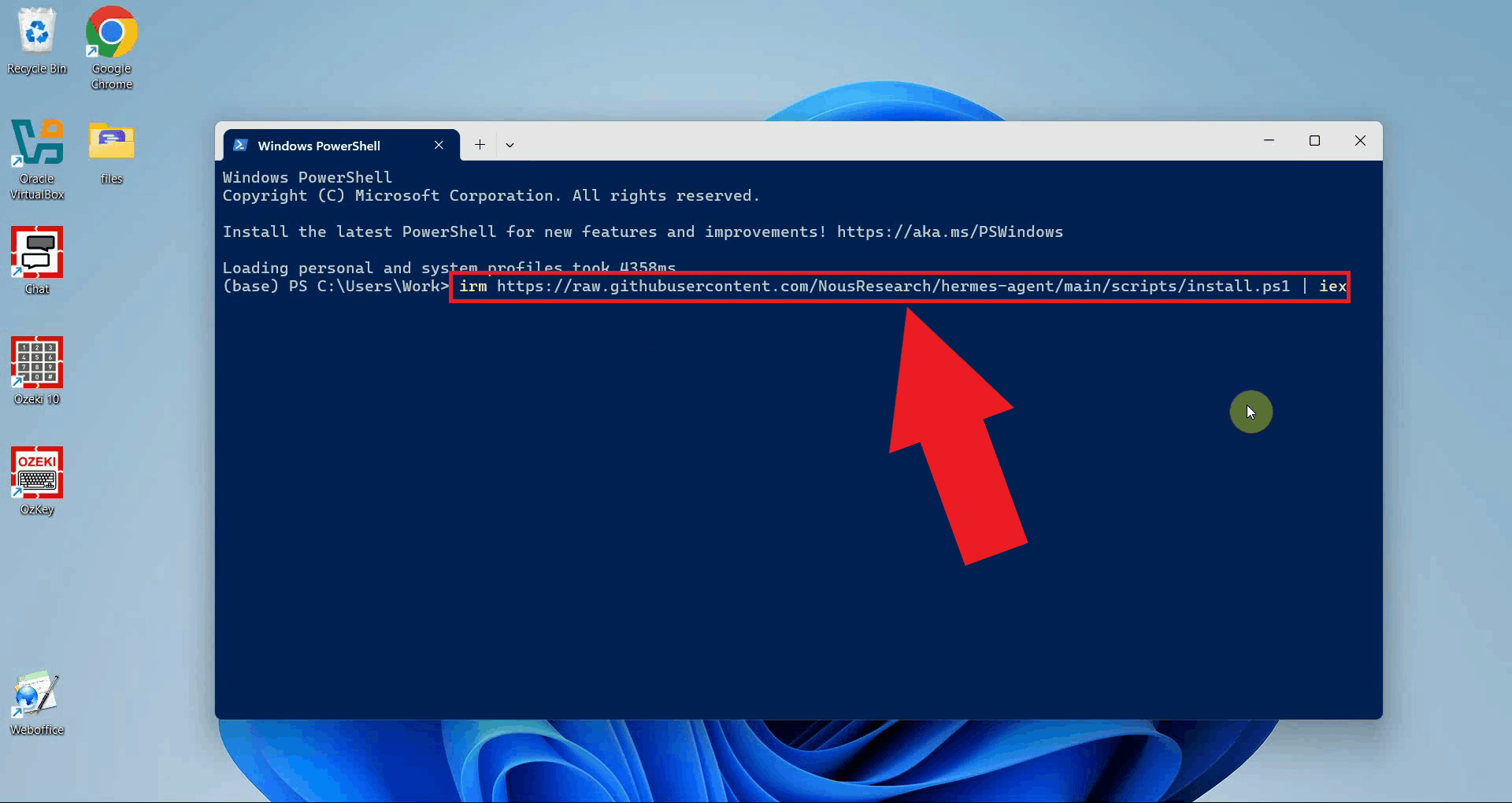
The installer will automatically download and set up all required dependencies, including Python, Node.js, and the Hermes Agent itself. Wait until the process completes before proceeding (Figure 4).
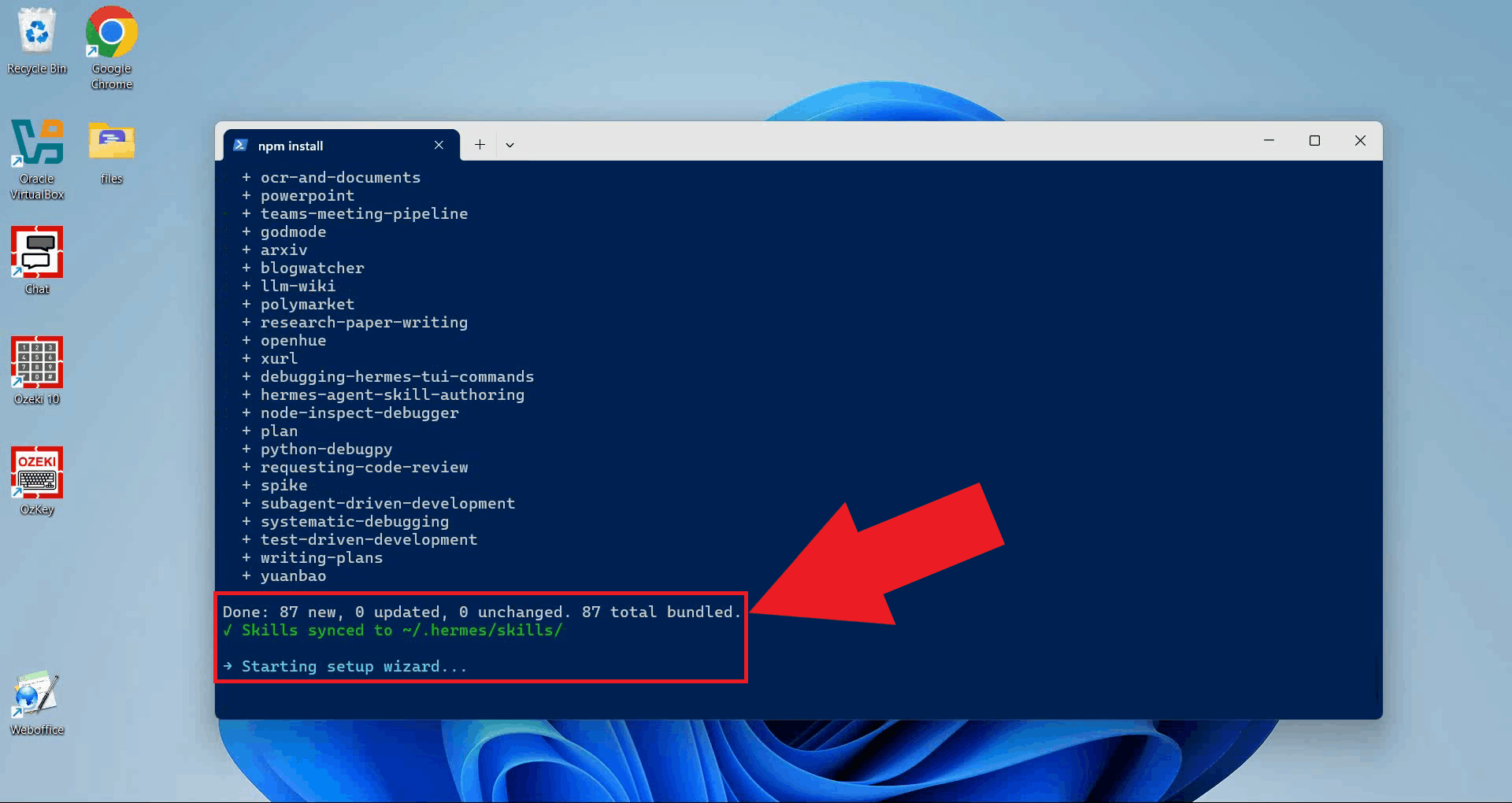
Step 3 - Start Quick Setup
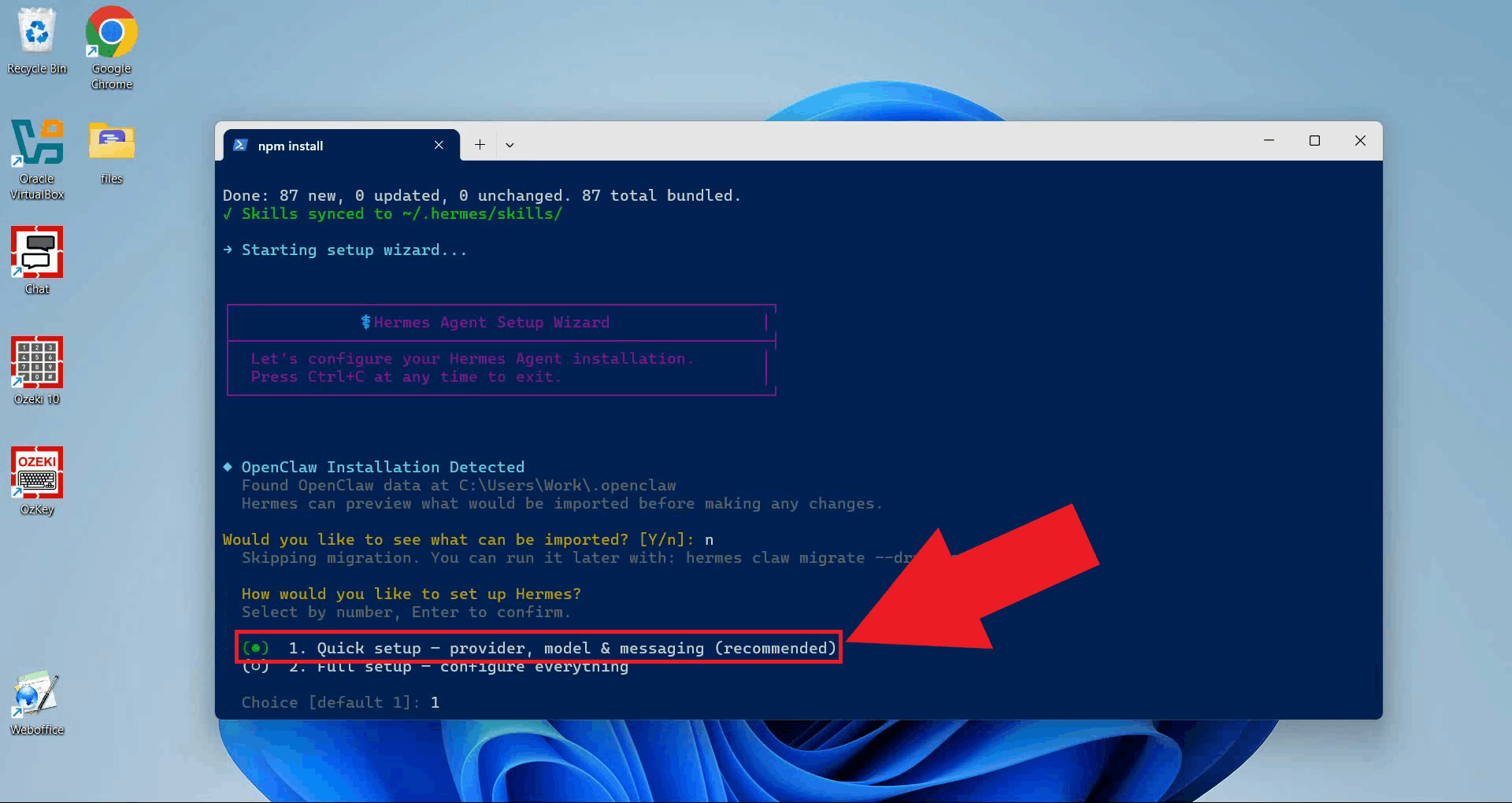
Once installation is complete, the Hermes setup wizard will launch automatically. When prompted
to choose a setup mode, type 1 and press Enter to start Quick Setup (Figure 5).
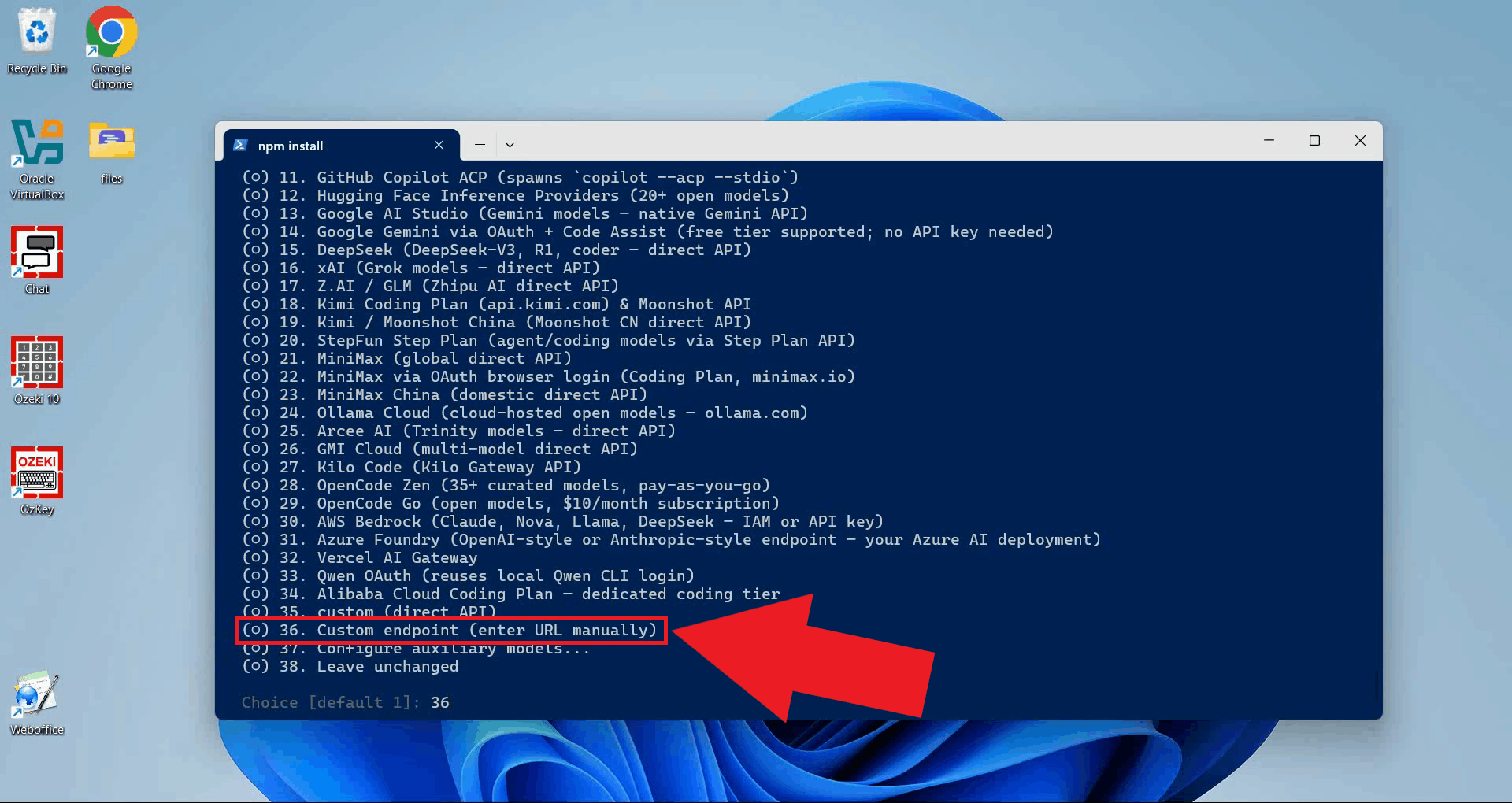
The wizard will present a list of supported LLM providers. Select the option for Custom endpoint by entering its corresponding number and pressing Enter (Figure 6). This option allows you to connect Hermes to any OpenAI-compatible API, including Ozeki AI Gateway.
Step 4 - Enter Gateway URL details
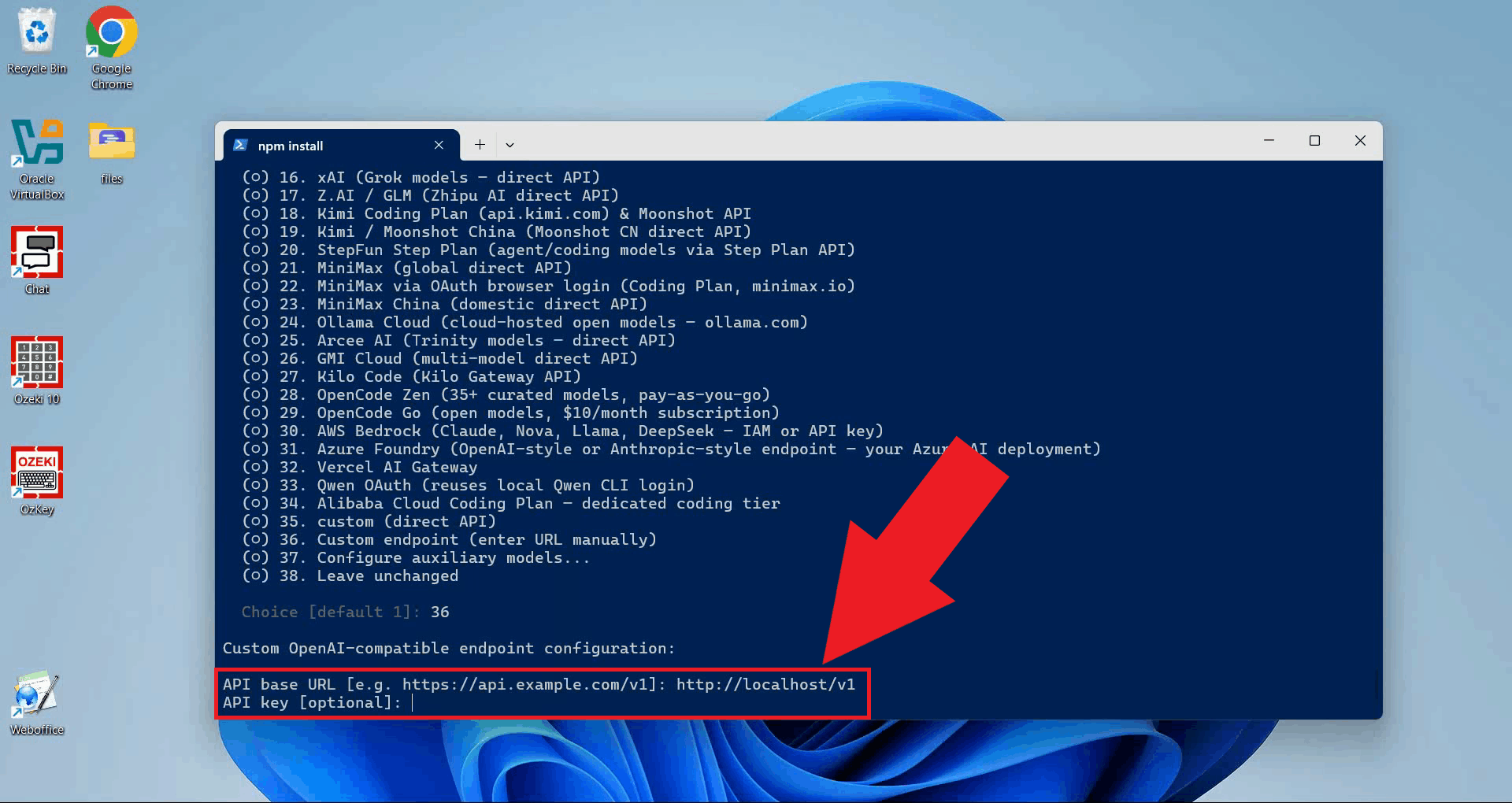
When prompted, enter the Ozeki AI Gateway API base URL and your API key. Replace ozkey-abc123 with the API key you created (Figure 7).
API base URL: http://localhost/v1
API key:      ozkey-abc123
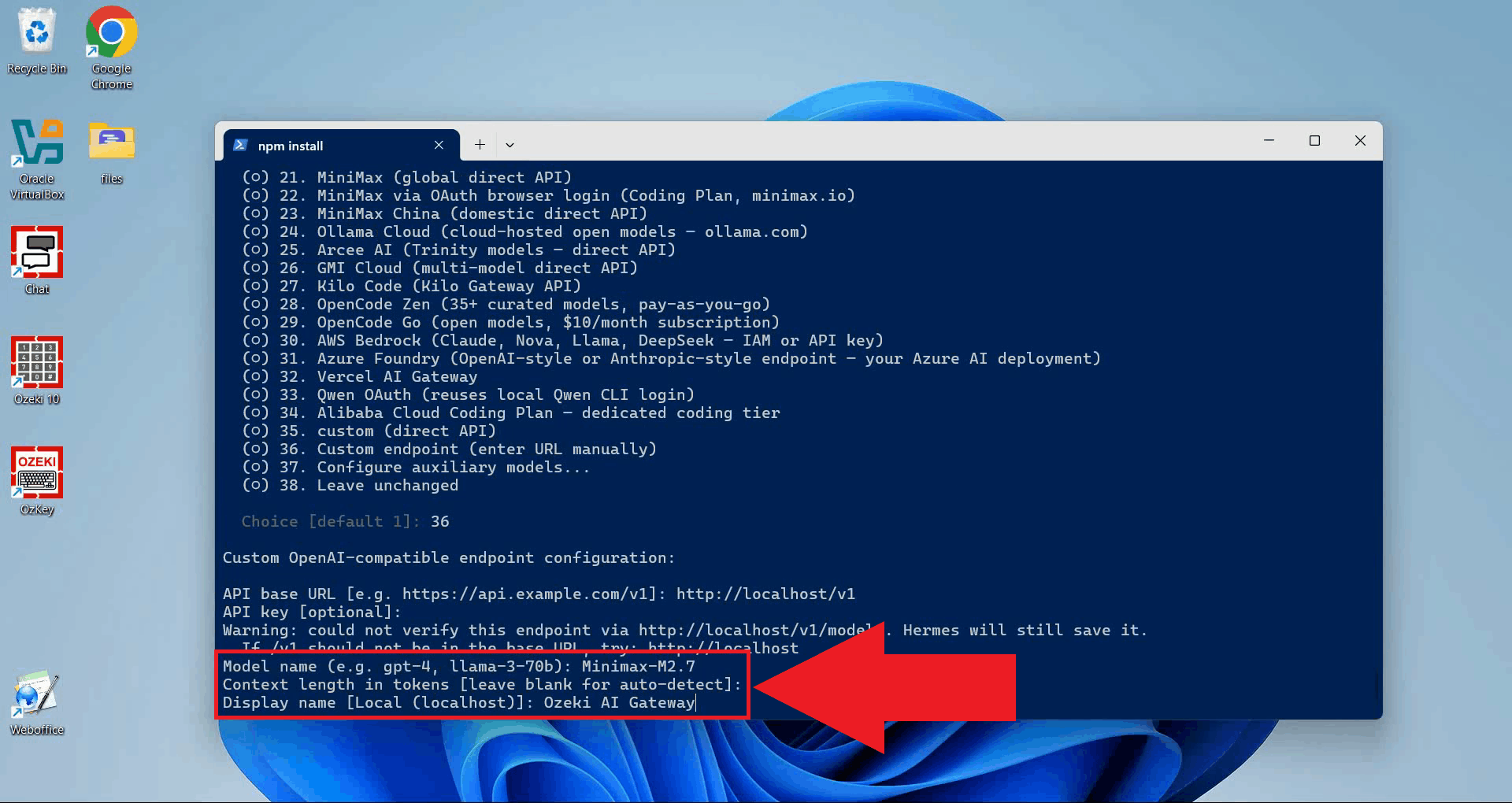
Next, enter the model name you want to use and a display name for it. The model name must match a model configured in your Ozeki AI Gateway (Figure 8).
Model:        Minimax-M2.7
Display name: Ozeki AI Gateway
Step 5 - Choose a backend and launch Hermes
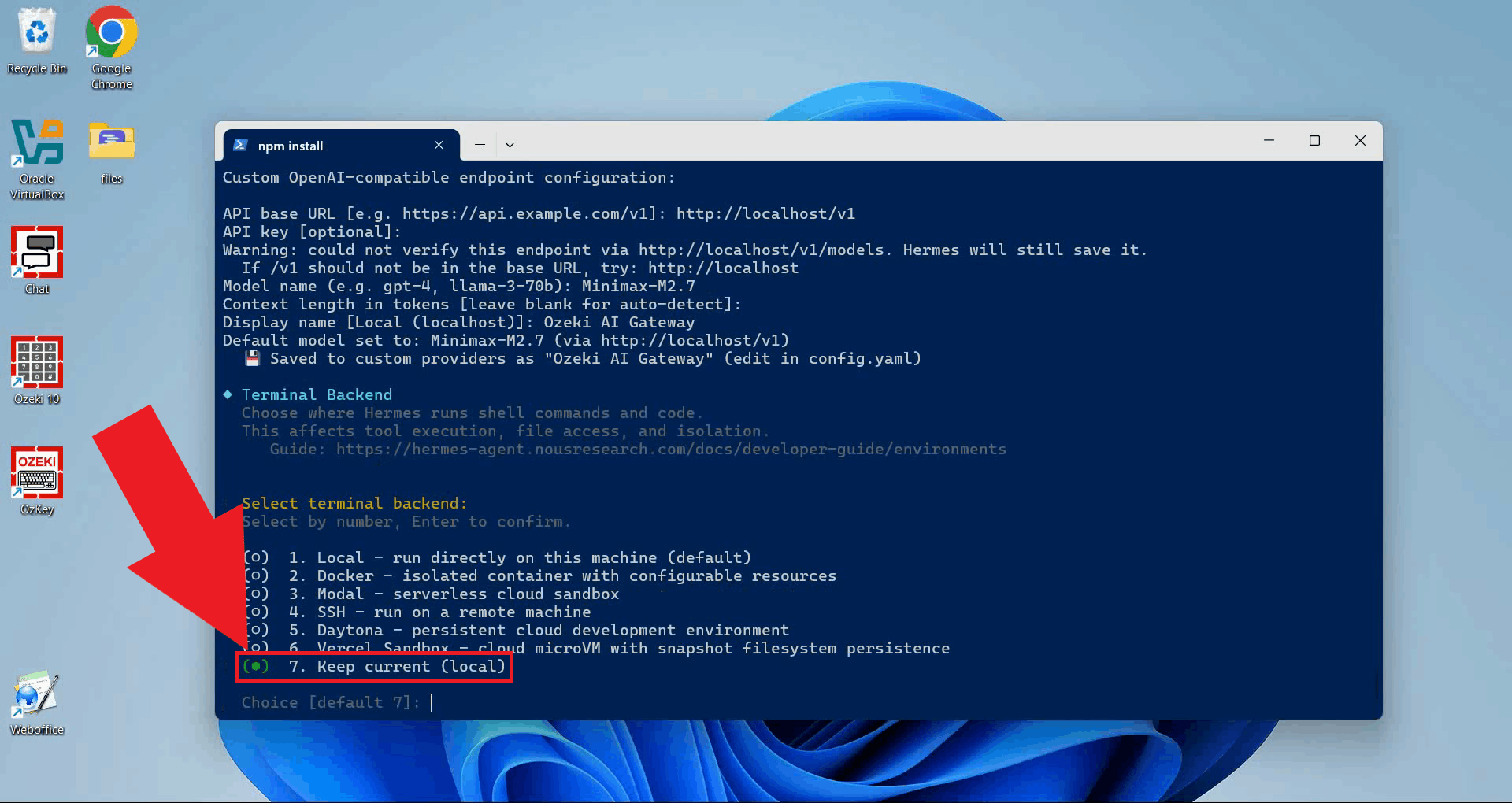
When prompted to select a terminal backend, choose Local terminal. This option runs agent commands directly on your local machine without requiring Docker or a remote server (Figure 9).
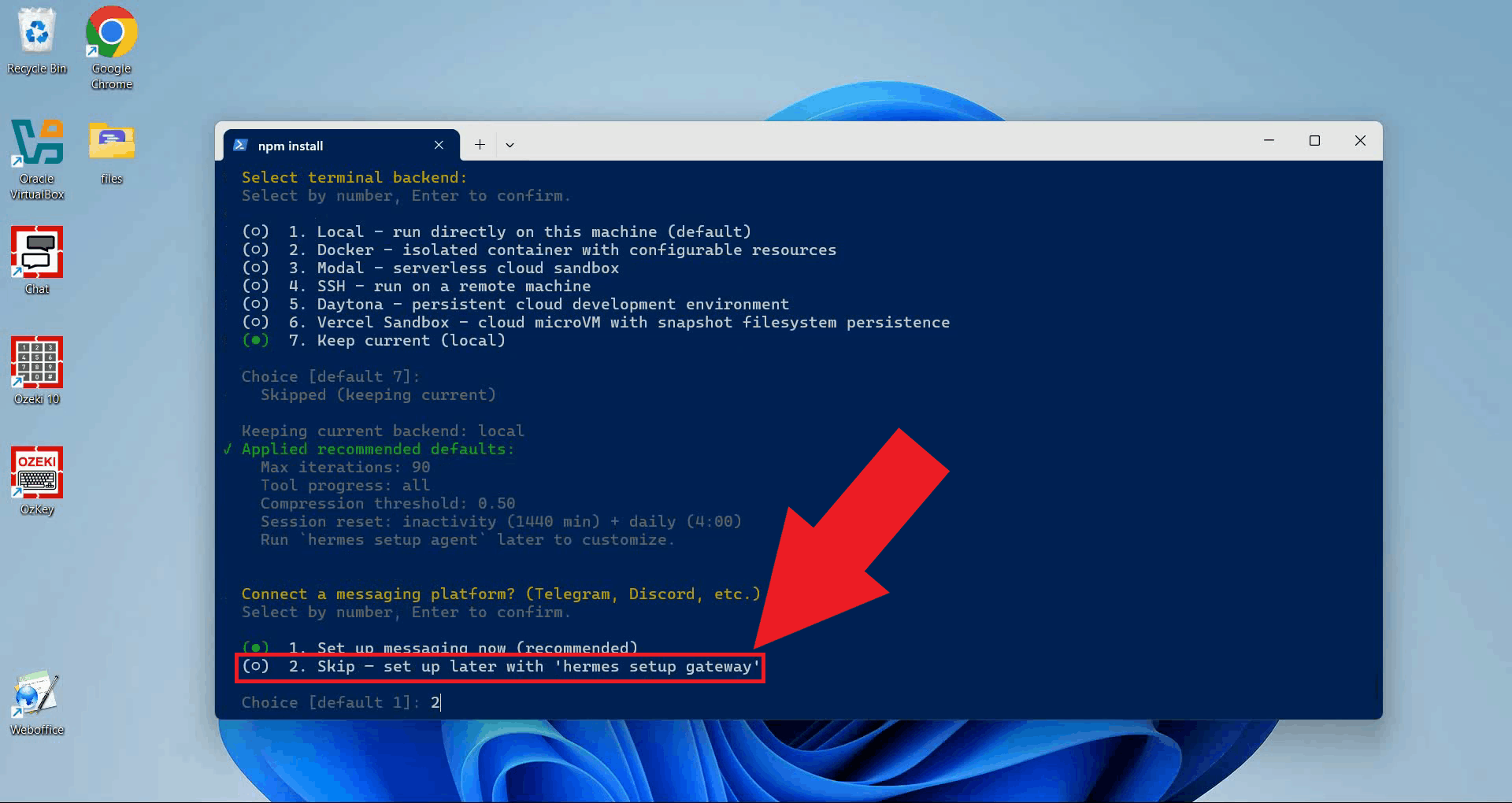
The wizard will ask whether you want to set up a messaging platform integration such as
Telegram or Discord. For this tutorial, choose to skip this step (Figure 10).
You can configure messaging platforms later using the hermes gateway setup command.
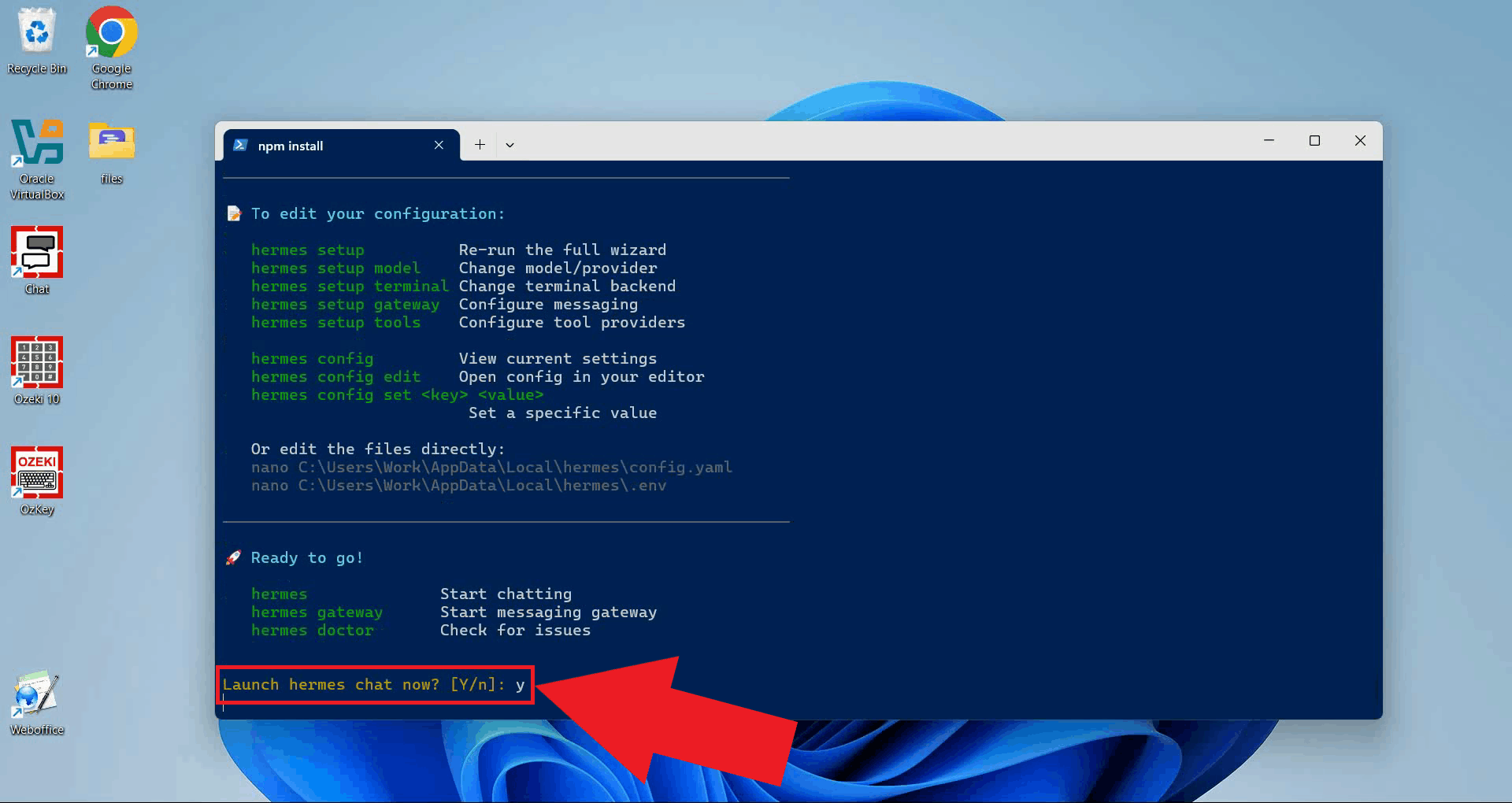
Finally, type y and press Enter to confirm and launch Hermes Agent (Figure 11).
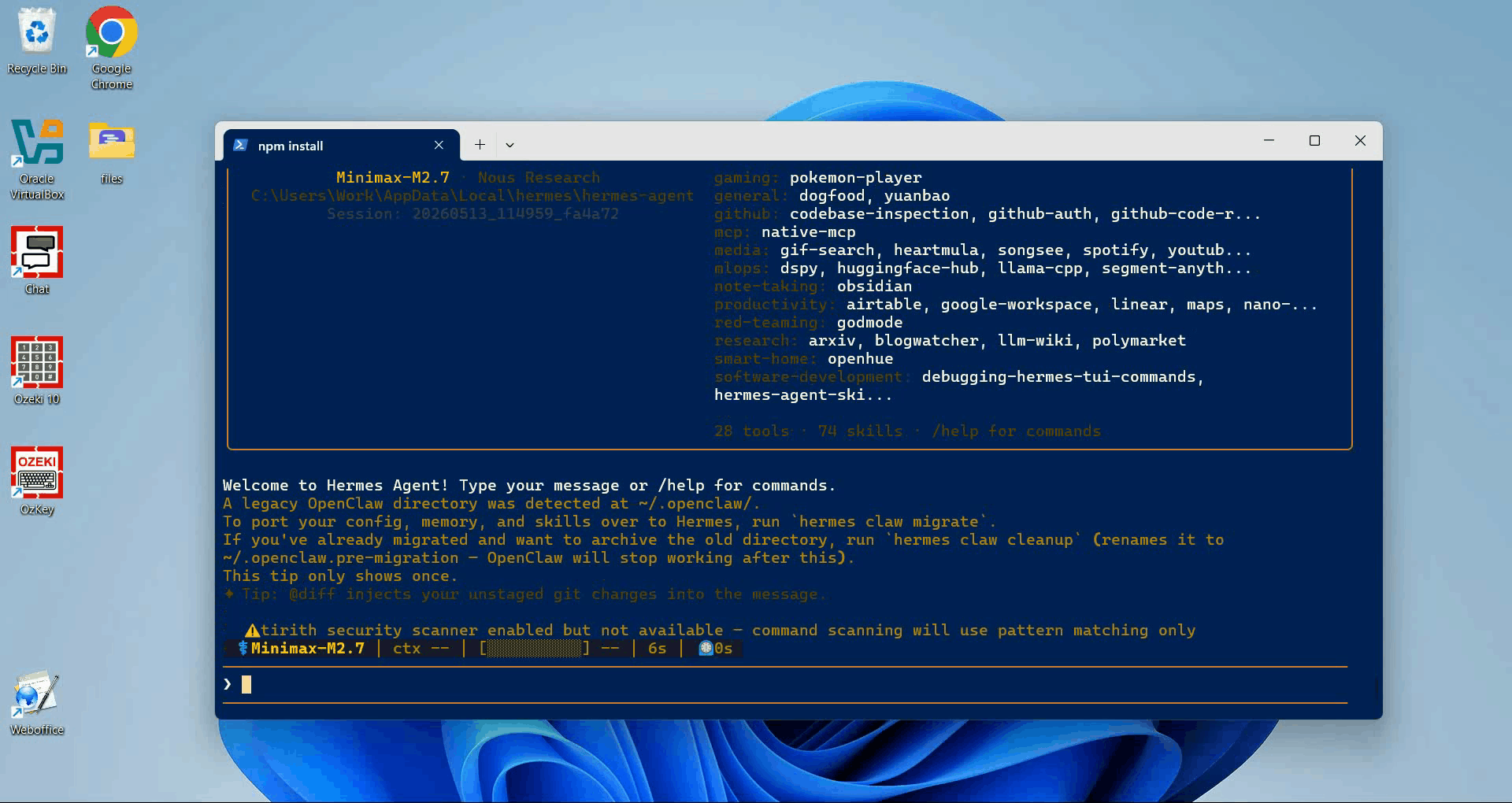
Hermes Agent will start and display its welcome screen in the terminal, confirming that the agent is running and ready to accept prompts (Figure 12).
Step 6 - Test Hermes Agent
The following video shows how to test the Hermes Agent connection to Ozeki AI Gateway by sending a sample prompt and verifying the response.
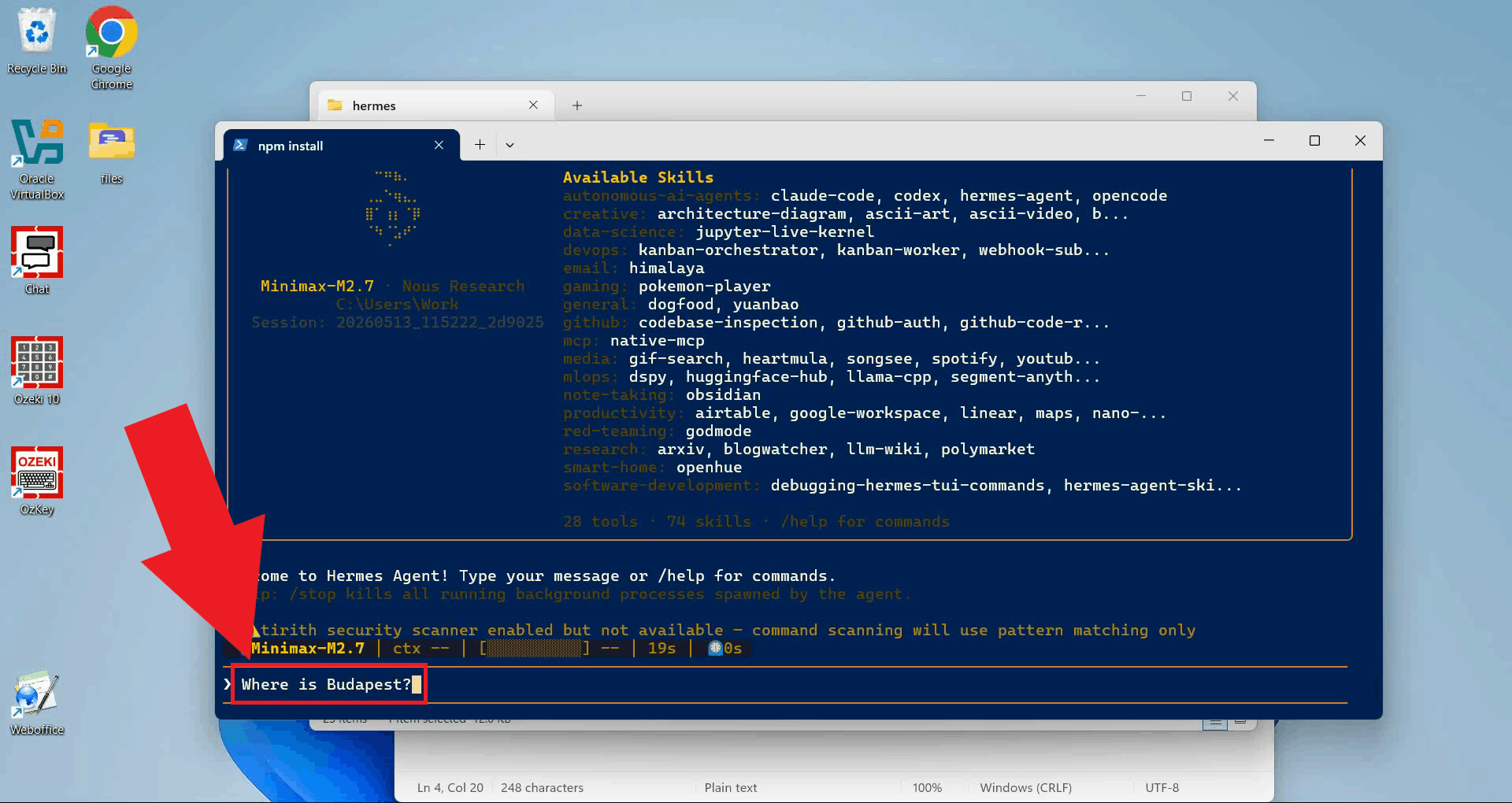
Type a test prompt in the Hermes terminal interface and press Enter to send it (Figure 13). Hermes will forward the request to Ozeki AI Gateway, which will route it to the configured model.
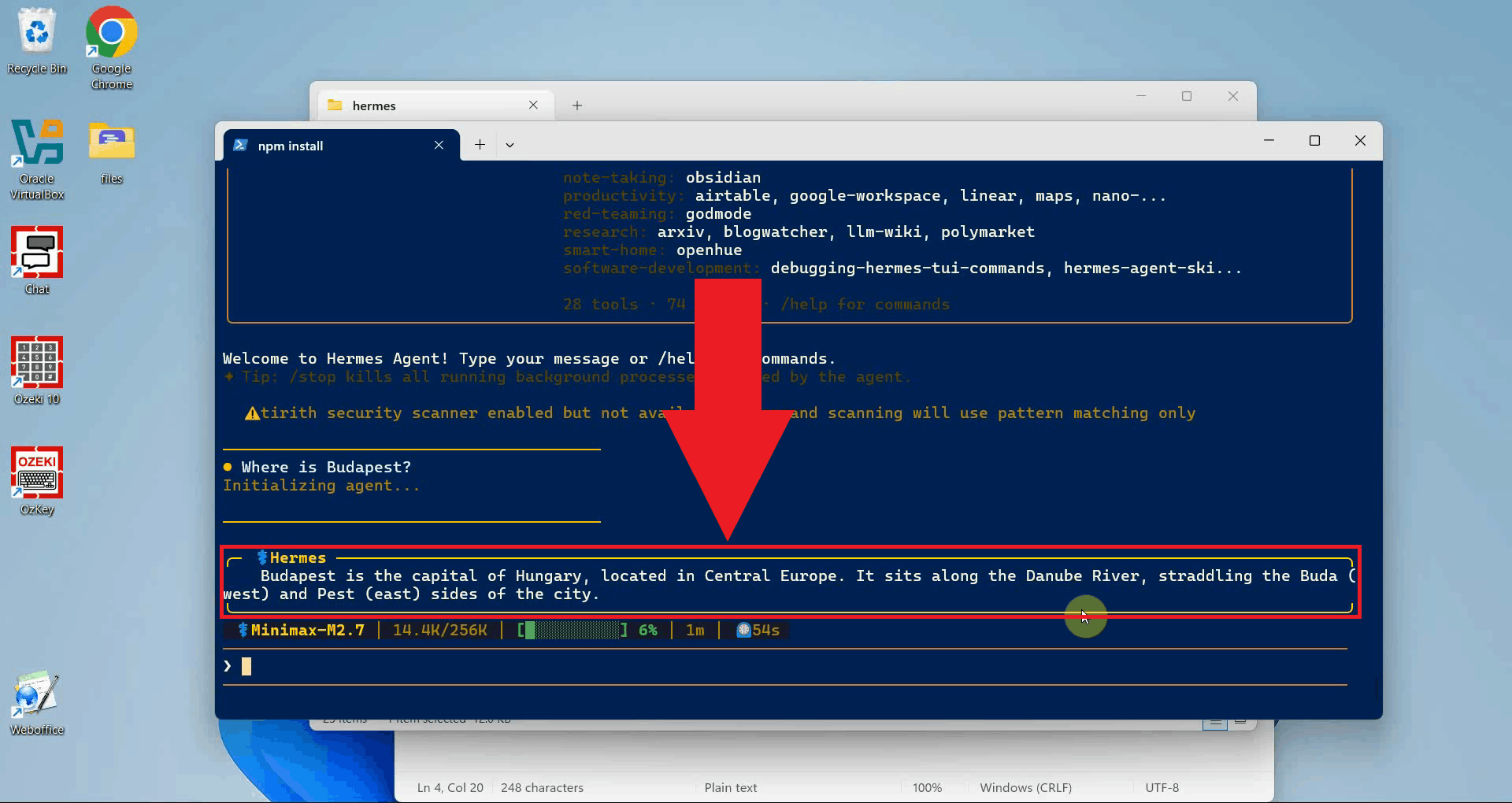
The agent's response will appear in the terminal window, confirming that Hermes Agent is successfully connected to Ozeki AI Gateway and communicating with the selected model (Figure 14).
To sum it up
You have successfully installed Hermes Agent and connected it to Ozeki AI Gateway. All prompts you send through the Hermes terminal are now routed through your gateway, giving you centralised control over API keys, model selection, and usage statistics. From here you can expand Hermes further by enabling messaging platform integrations, configuring additional tools, or switching to a different model at any time.