
How to set up GPT4All with Ozeki AI Gateway
This guide demonstrates how to install GPT4All and configure it to work with Ozeki AI Gateway on Windows. By connecting GPT4All to Ozeki AI Gateway, you can route requests through your local gateway and access any AI model configured in your gateway infrastructure. This tutorial covers the complete setup process, from downloading and installing GPT4All to adding Ozeki AI Gateway as a custom remote provider.
What is GPT4All?
GPT4All is a free, open-source desktop application developed by Nomic AI that allows you to run large language models locally on your own hardware. It provides a clean chat interface and supports both locally hosted models and remote AI providers through an OpenAI-compatible API.
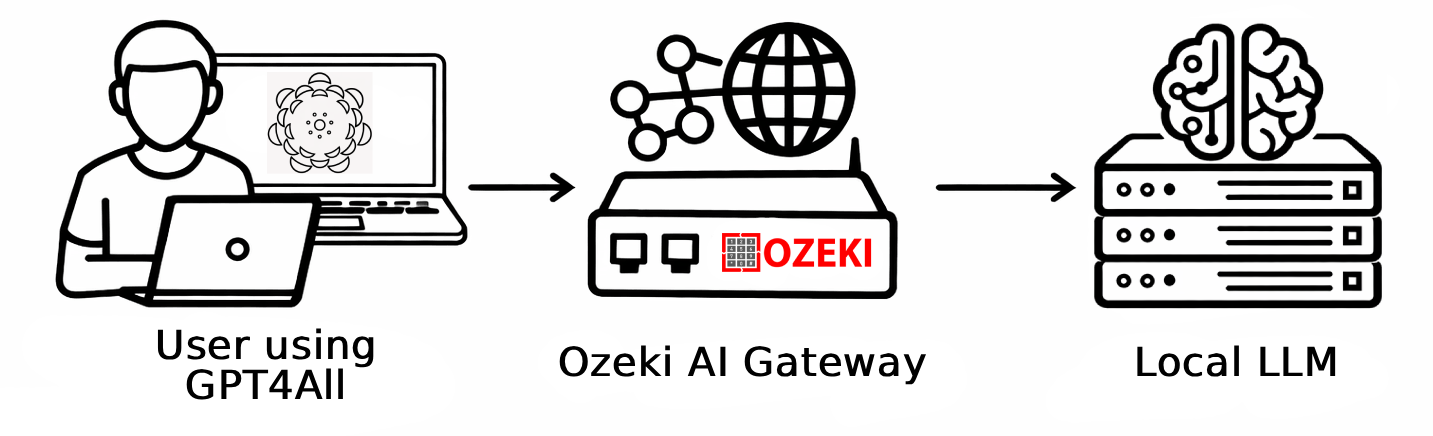
Steps to follow
We assume Ozeki AI Gateway is already installed on your system. You can install it on Linux, Windows or Mac.
How to install GPT4All video
The following video shows how to download and install GPT4All on Windows step-by-step. The video covers downloading the installer, completing the setup wizard, and launching the application for the first time.
Step 1 - Download and install GPT4All
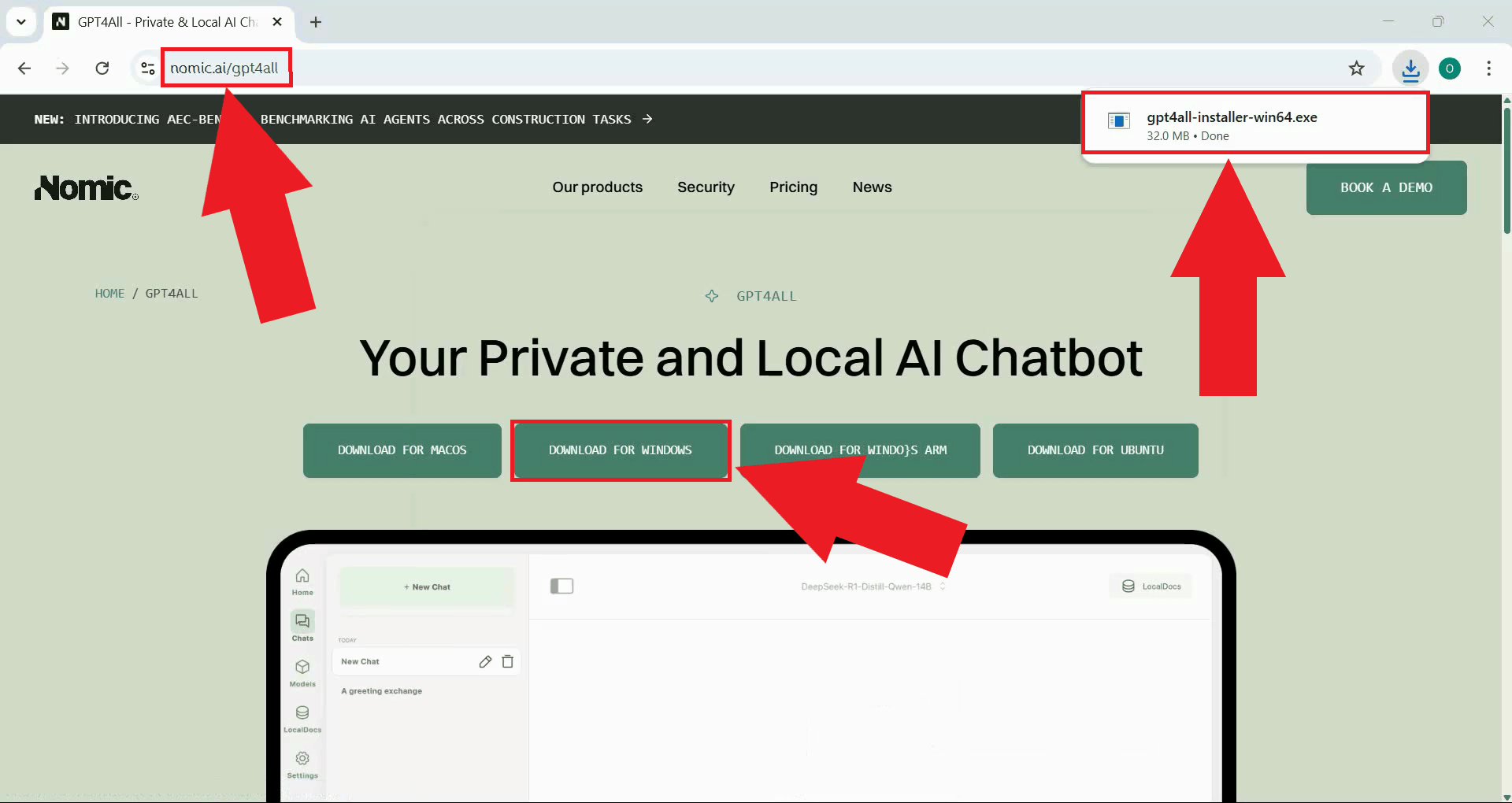
Navigate to the GPT4All website and download the Windows installer. The page always links to the latest available version of the application (Figure 1).
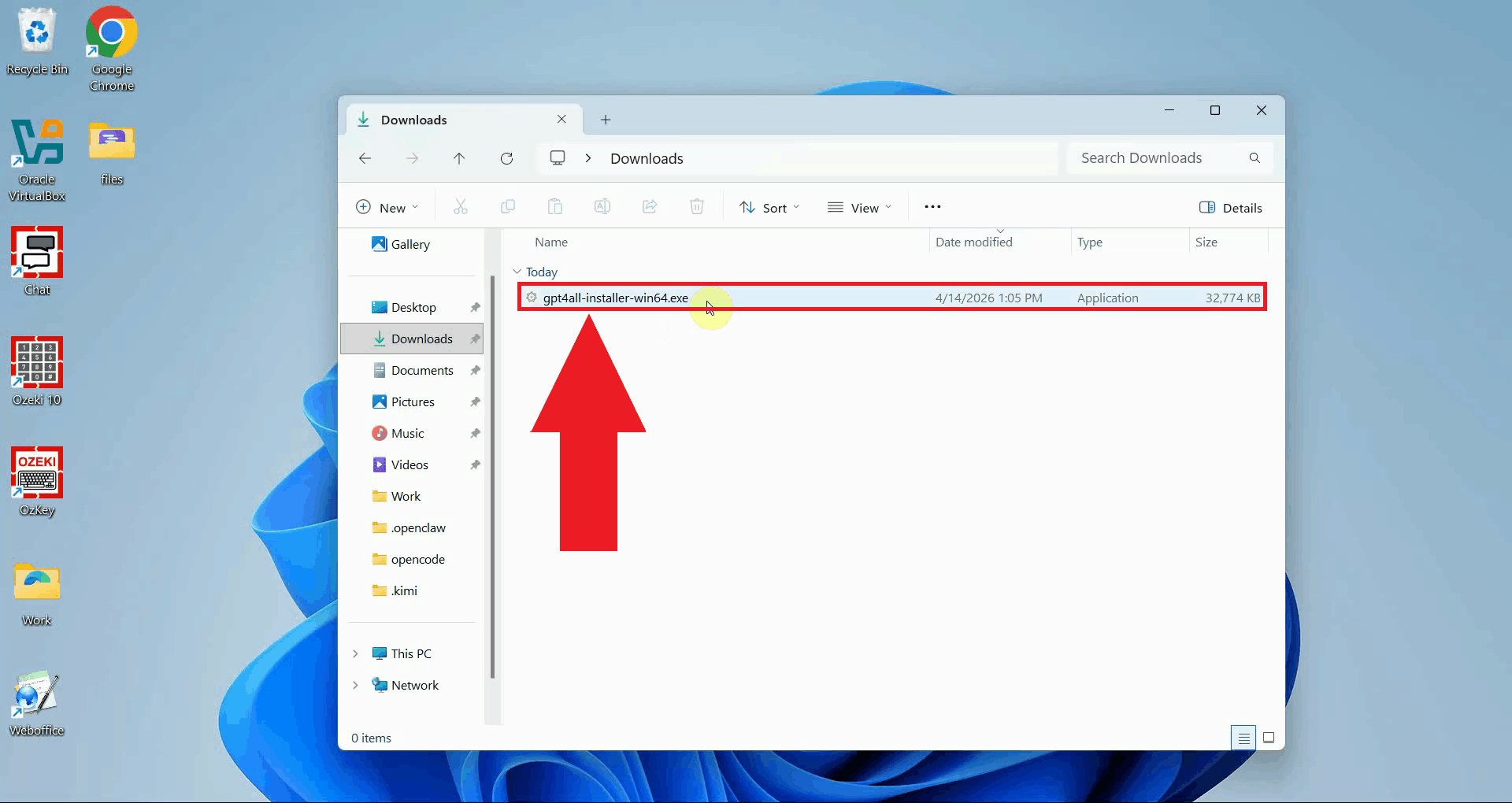
Locate the downloaded installer in your Downloads folder and double-click it to launch the setup wizard. If prompted by Windows User Account Control, click Yes to allow the installer to run (Figure 2).
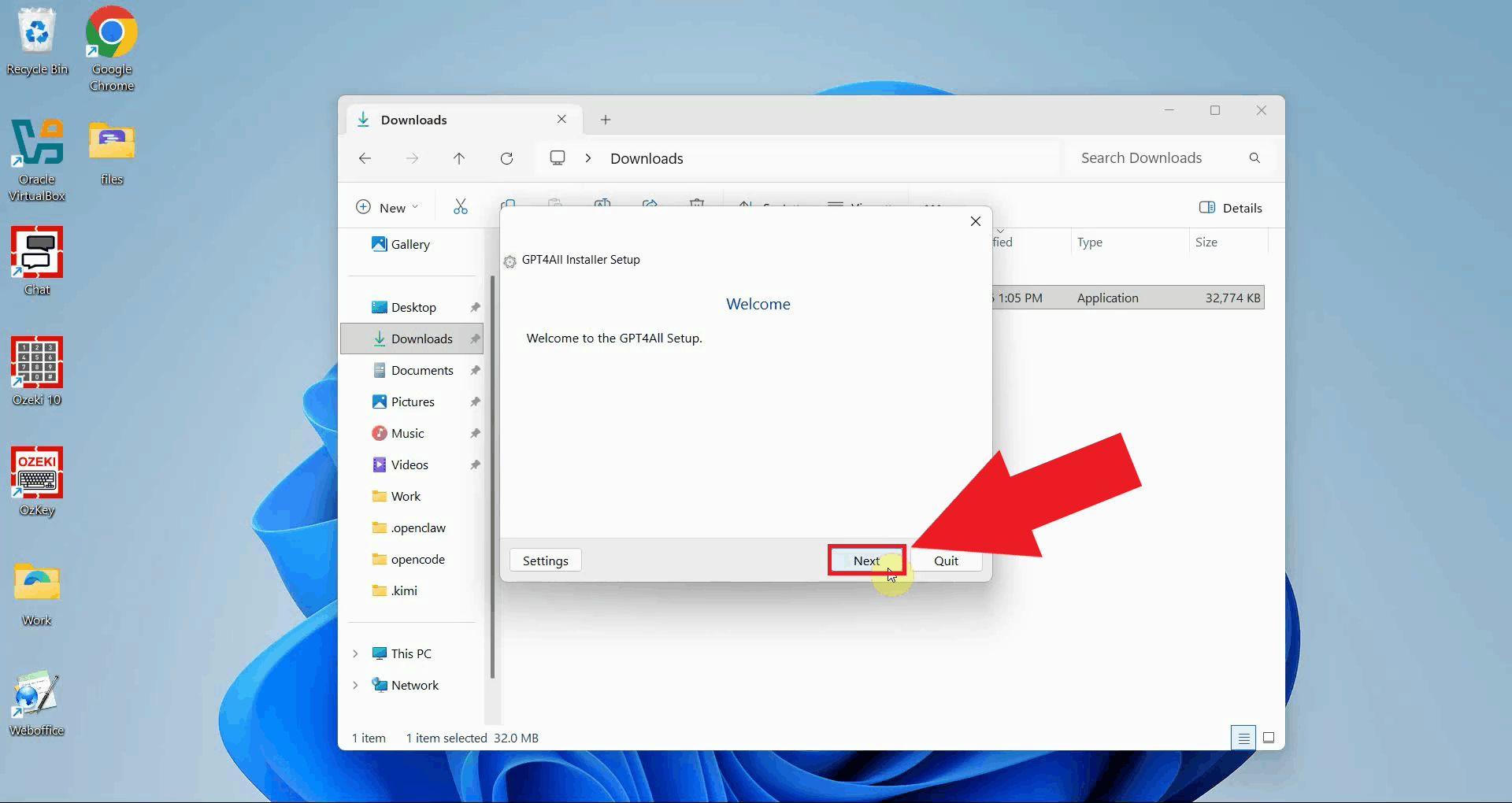
The setup wizard welcome screen will appear. Click Next to begin the installation process (Figure 3).
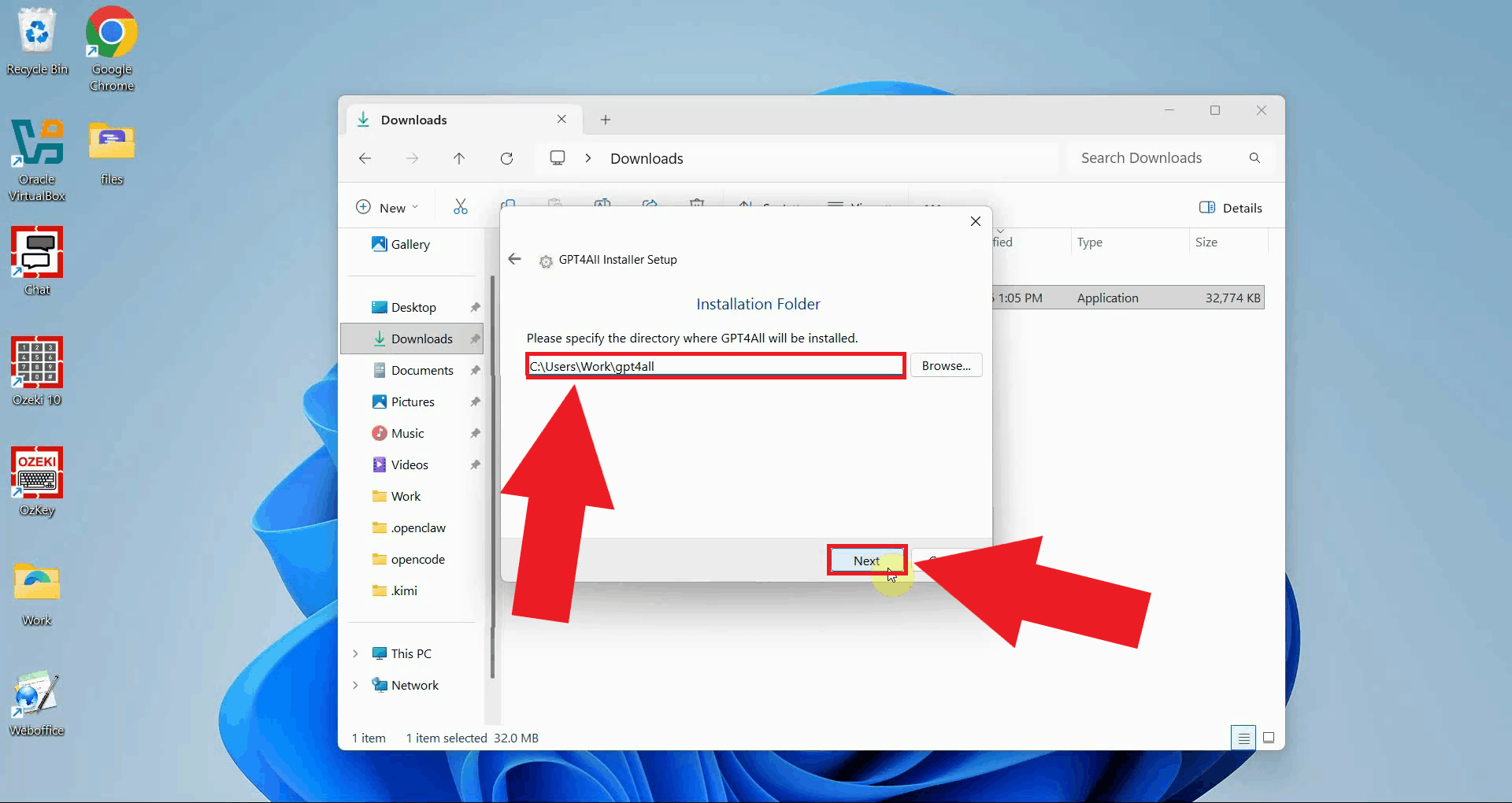
Choose the installation directory where GPT4All will be installed. The default location is recommended for most users. Click Next to continue (Figure 4).
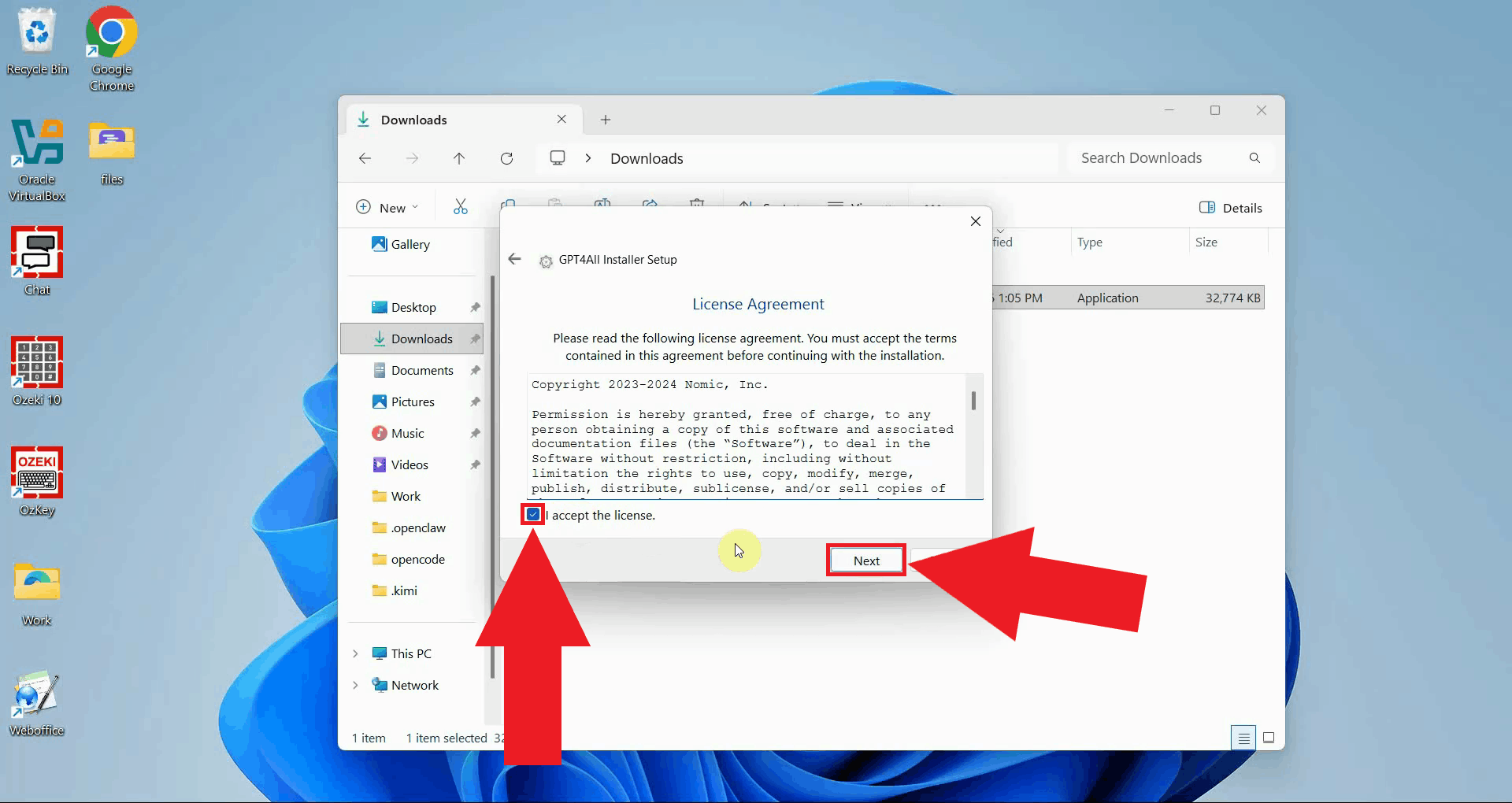
Read the license agreement and click I Agree to accept the terms and proceed to the installation (Figure 5).
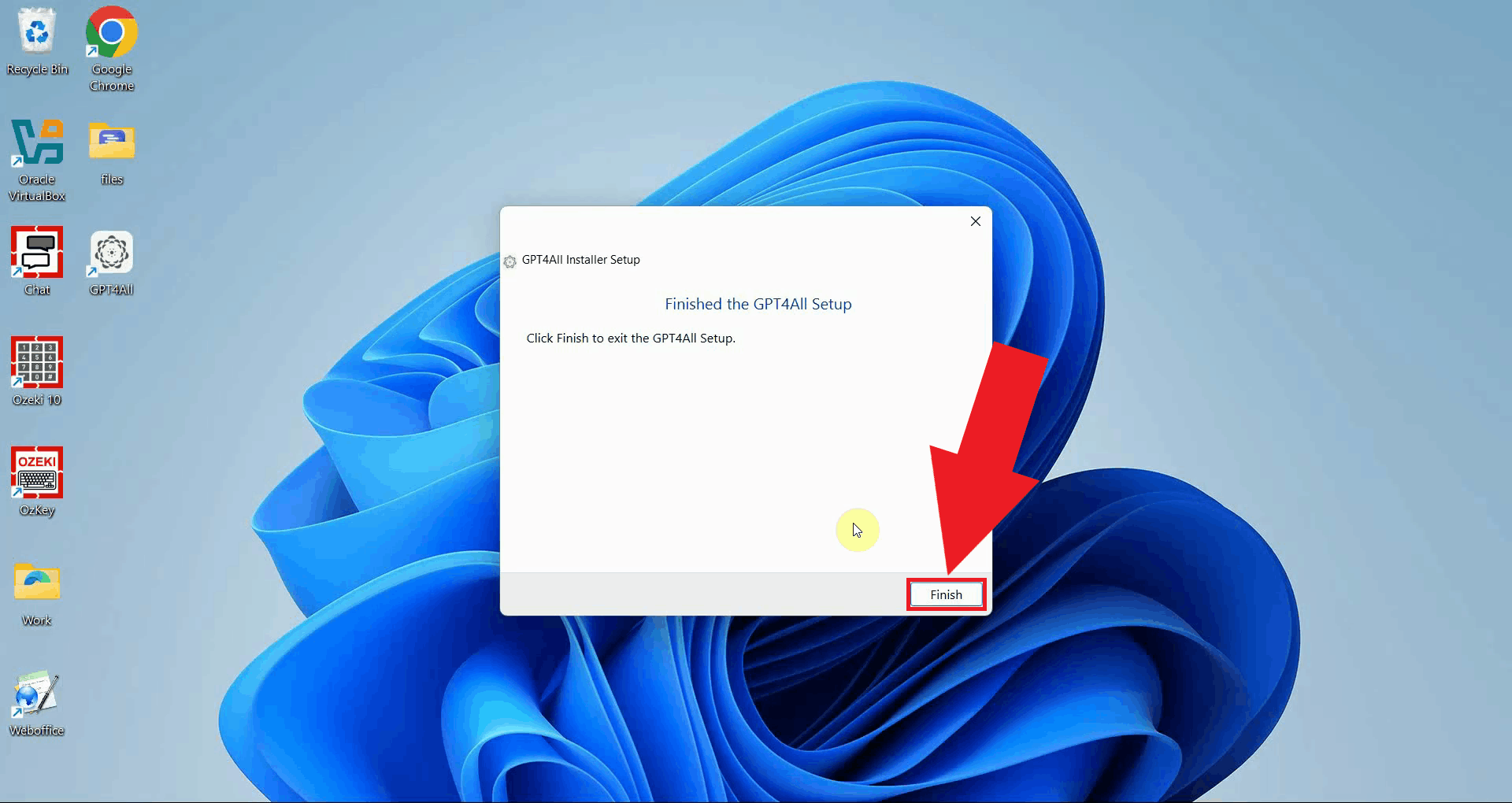
Once the installation is complete, click Finish to close the installer (Figure 6).
Locate GPT4All's desktop icon or start menu entry and launch the application (Figure 7).

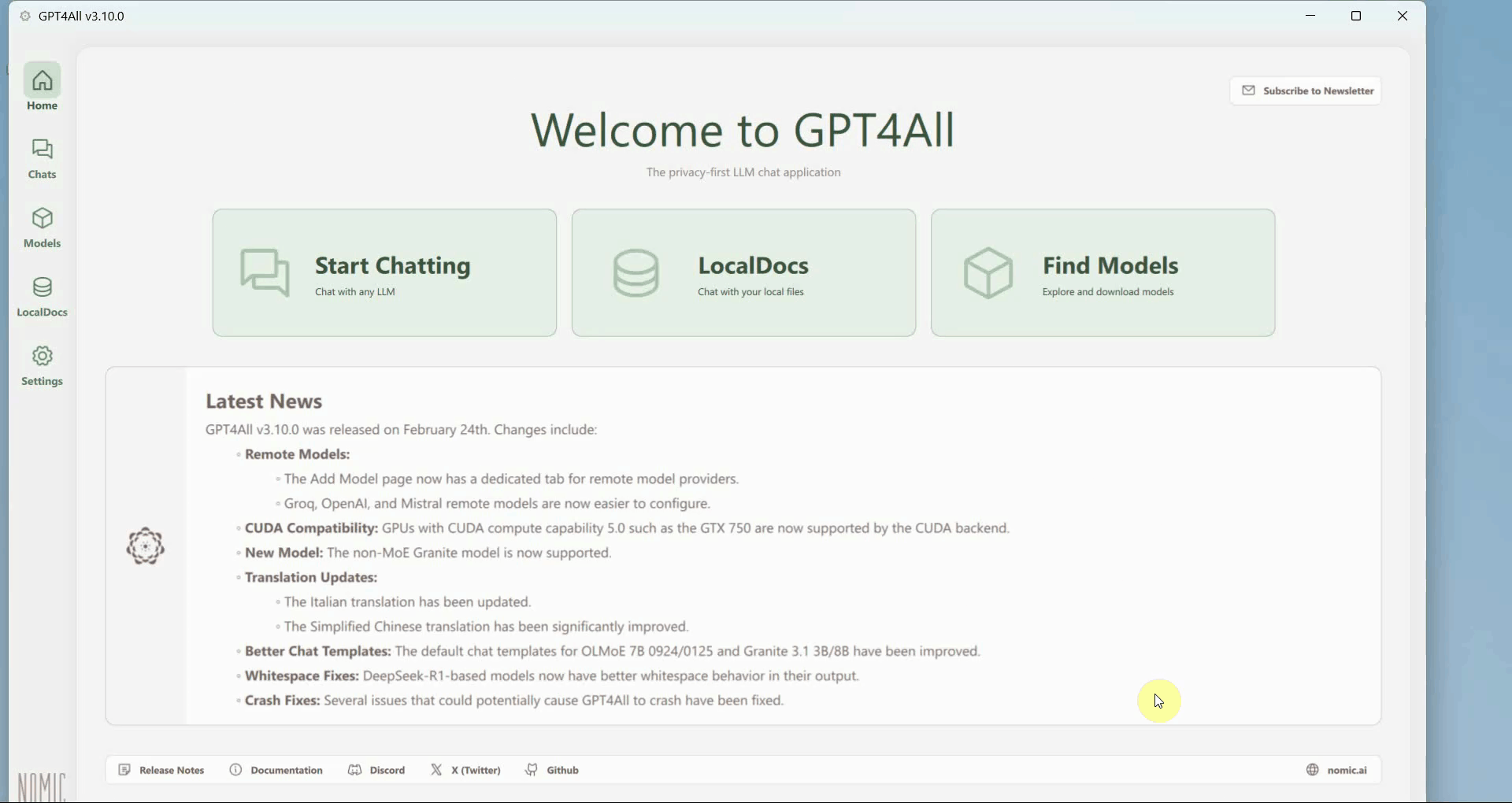
The GPT4All dashboard is now visible. This is the main interface where you manage models, configure providers, and start chat sessions (Figure 8).
Step 2 - Add Ozeki AI Gateway as a custom provider
The following video shows how to add Ozeki AI Gateway as a custom remote provider in GPT4All and send a test prompt.
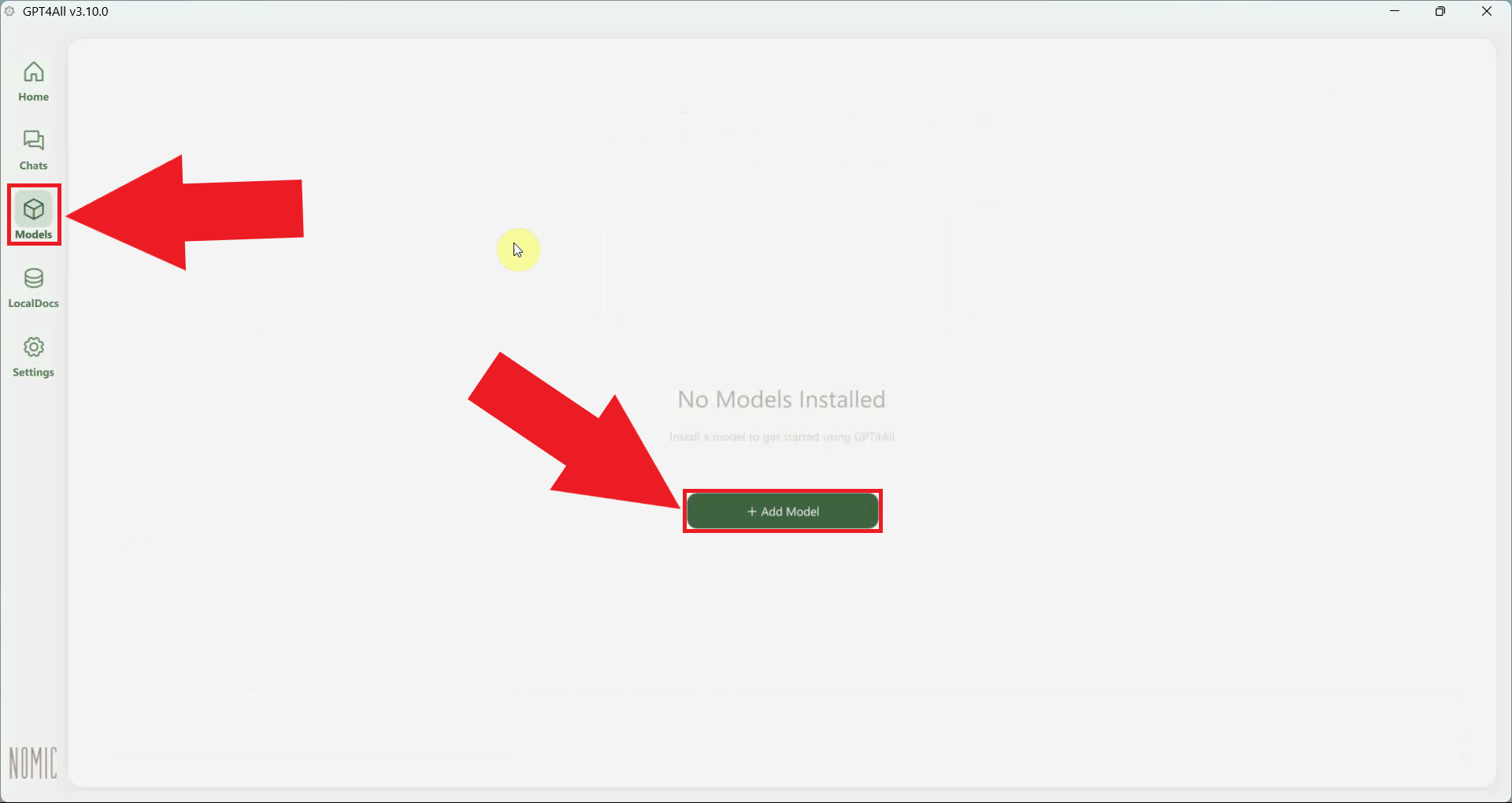
Open the Model Explorer from the left sidebar. This section allows you to browse available local models and configure remote AI providers (Figure 9).
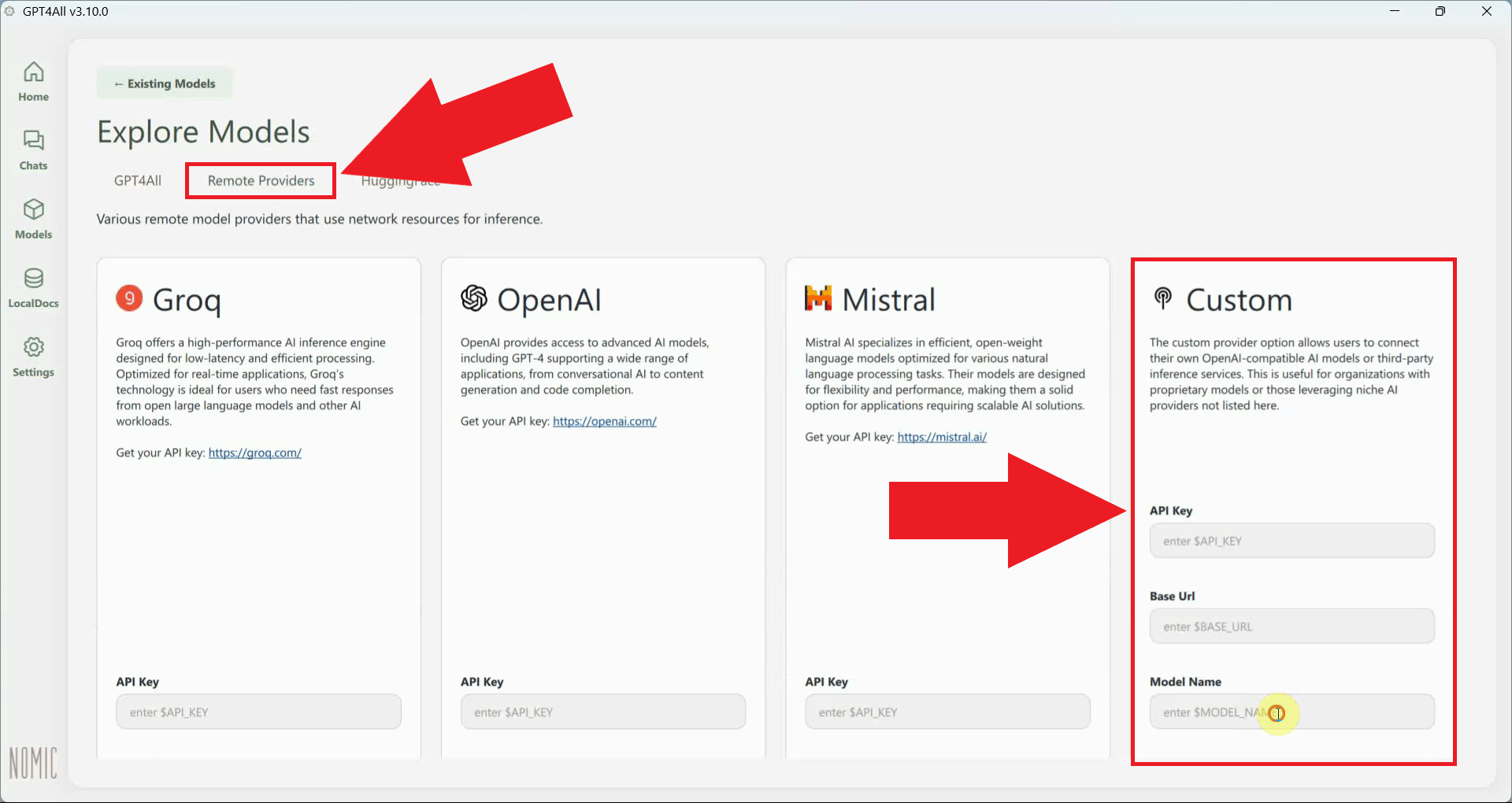
Navigate to the Remote Providers tab and locate the custom provider input section. This is where you can register any OpenAI-compatible endpoint, including your local Ozeki AI Gateway instance (Figure 10).
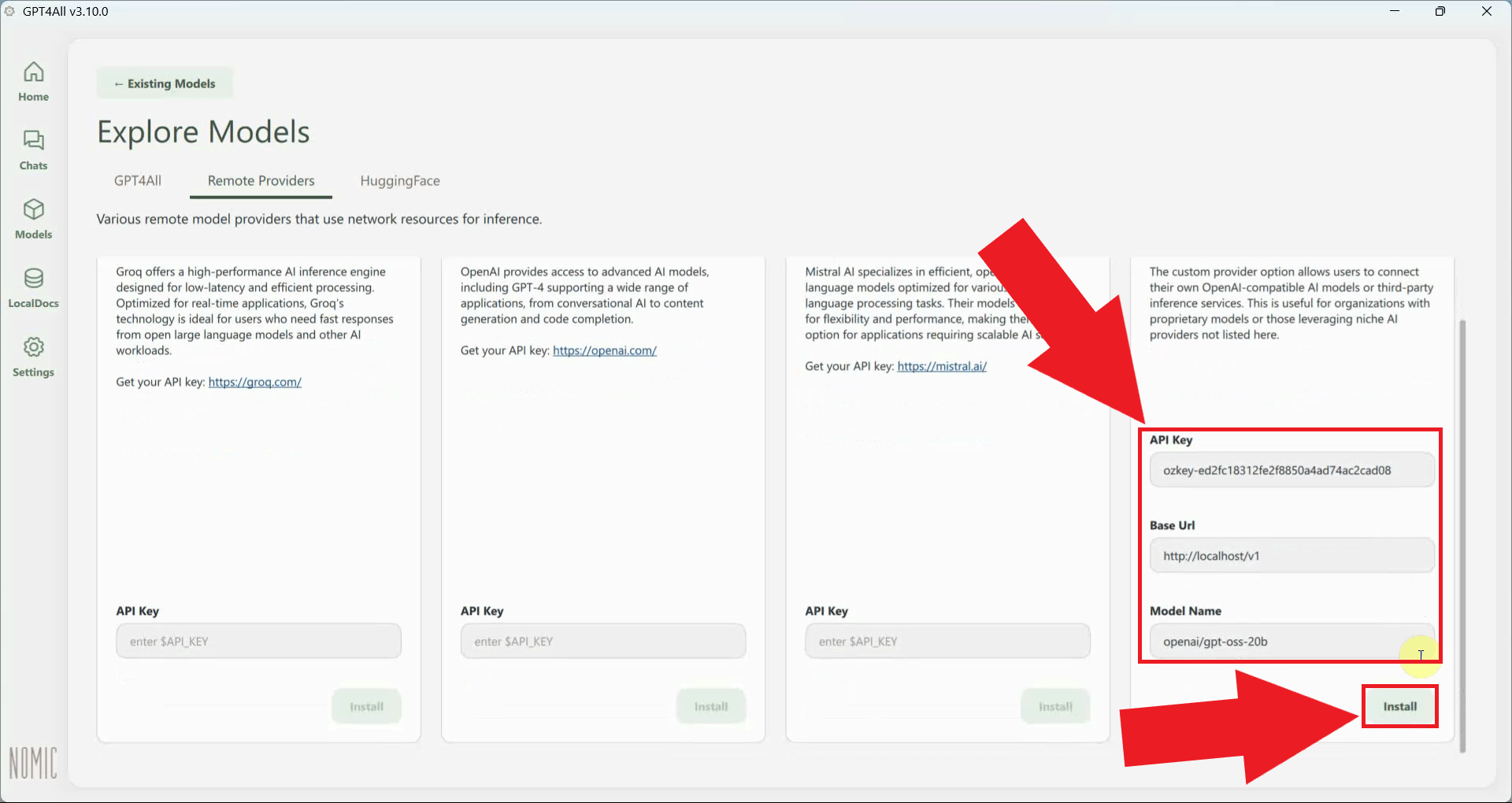
Enter your Ozeki AI Gateway endpoint URL, API key and the Model Name in the provider fields, then click Install to register the provider. GPT4All will connect to the gateway (Figure 11).
http://localhost/v1
Step 3 - Send a test prompt
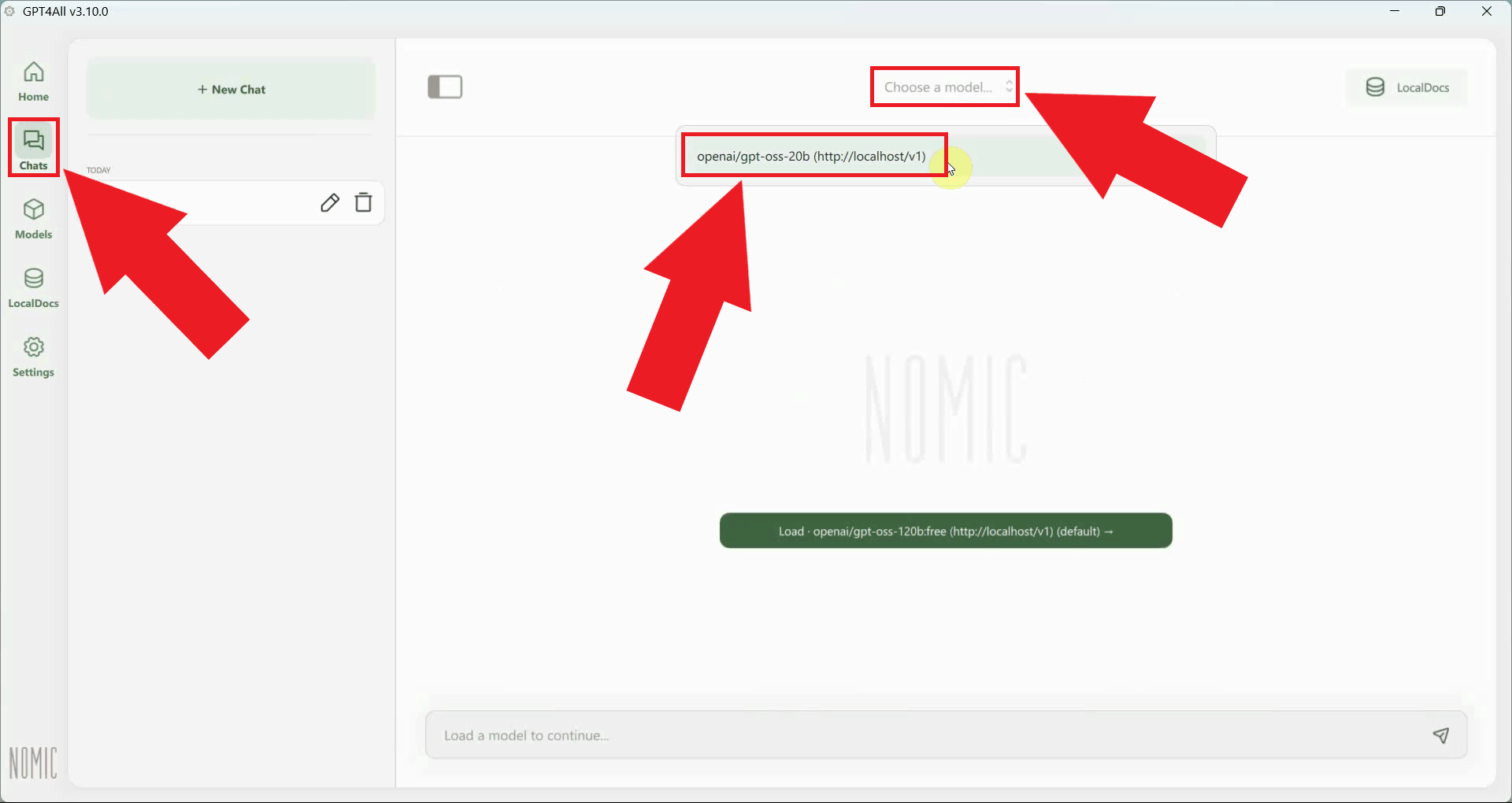
Navigate to Chats in the sidebar and open a new chat session. Click the model dropdown at the top of the chat window and select the model provided by your Ozeki AI Gateway connection (Figure 12).
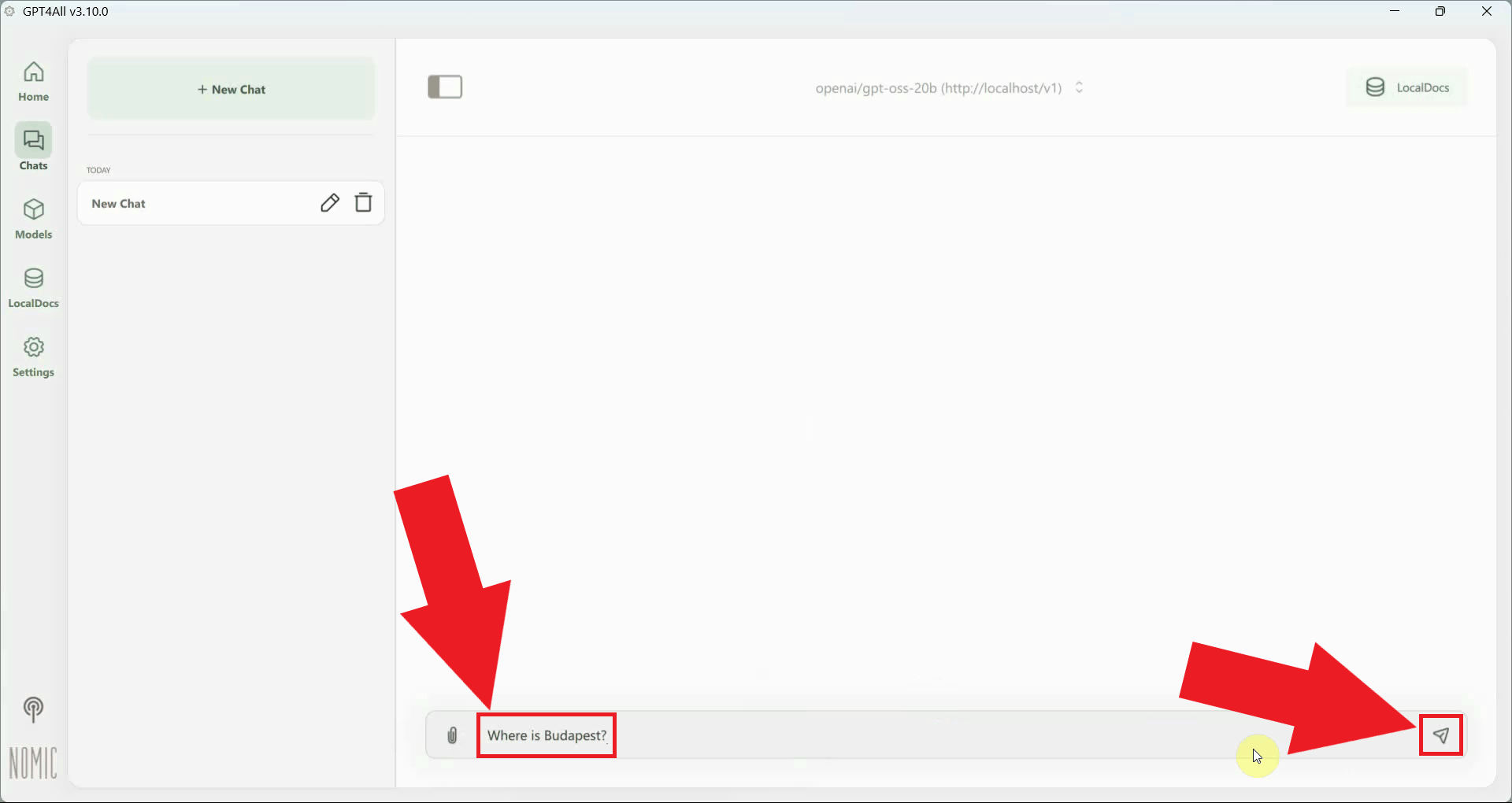
Type a test prompt in the chat input field and press Enter to send it. This will verify that GPT4All can reach Ozeki AI Gateway and that the model is responding correctly (Figure 13).
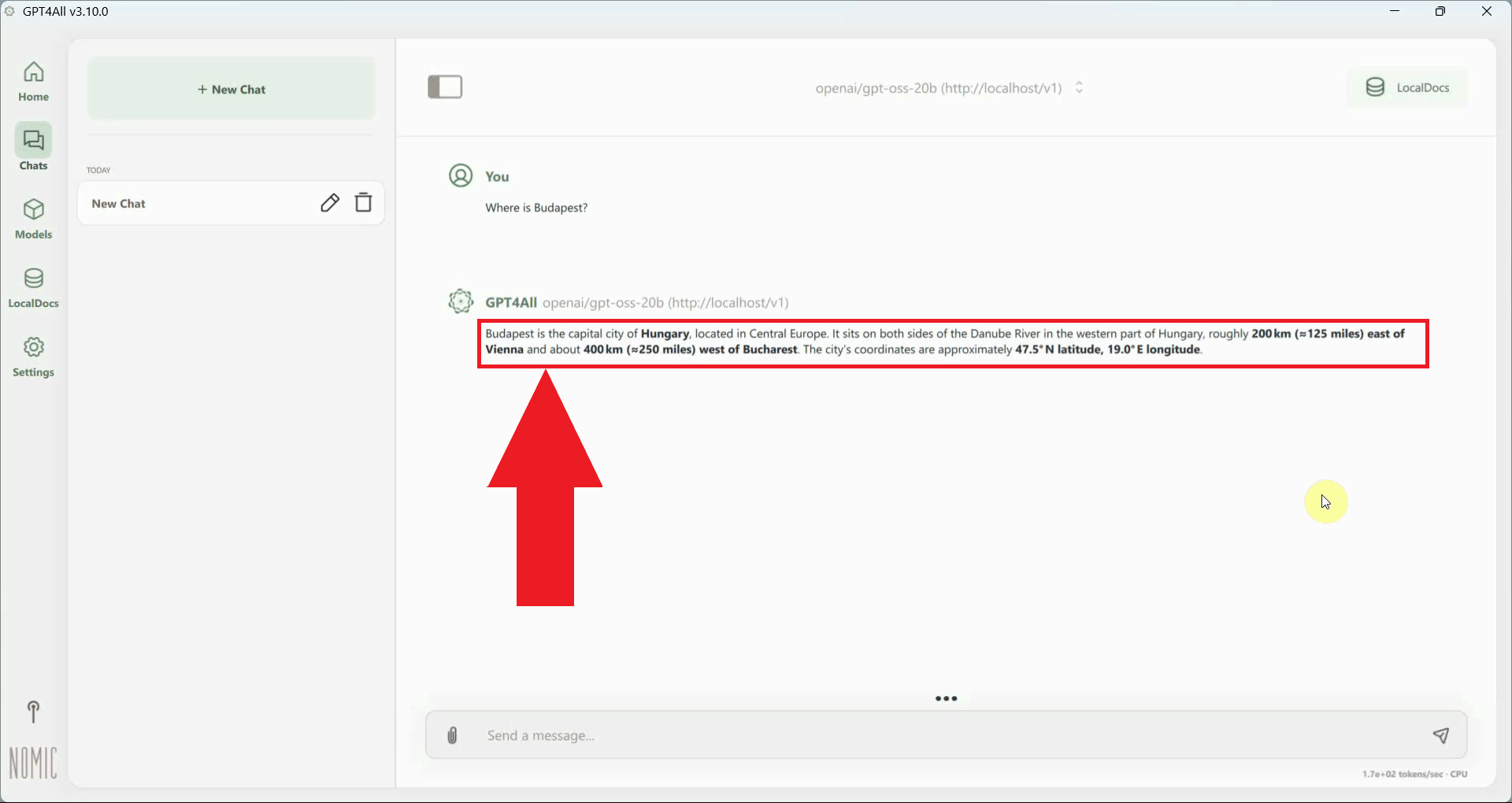
A successful response from the model confirms that GPT4All is correctly connected to Ozeki AI Gateway and that all requests are being routed through your local gateway infrastructure (Figure 14).
Final thoughts
You have successfully installed GPT4All and configured it to use Ozeki AI Gateway as a remote provider. All chat requests will now be routed through your gateway, giving you centralized control over model access, API key management, and usage monitoring across all connected client applications.