
How to run Claude Code with Ozeki AI Gateway
This comprehensive guide demonstrates how to install and configure Claude Code to work with Ozeki AI Gateway on Windows systems. By connecting Claude Code to Ozeki AI Gateway, you can route requests through your local gateway and use alternative AI models. This tutorial covers the complete setup process, from installing Claude Code using PowerShell to configuring environment variables and JSON settings files.
What is Claude Code?
Claude Code is a command-line interface tool developed by Anthropic that enables developers to interact with Claude AI directly from their terminal. It provides an agentic coding experience where you can delegate programming tasks, file operations, and code generation to Claude without leaving your command-line environment.
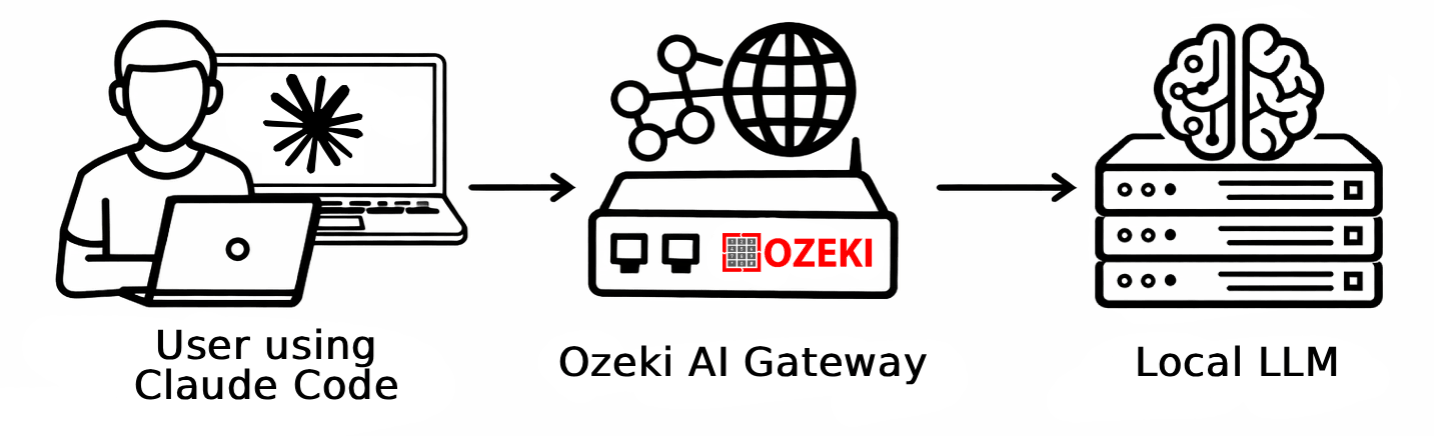
Steps to follow
We assume Ozeki AI Gateway is already installed on your system. You can install it on Linux, Windows or Mac.
- Install Claude Code via PowerShell
- Configure PATH environment variable
- Modify .claude.json configuration file
- Configure settings.json with Ozeki AI Gateway
- Launch Claude Code
- Trust workspace files
- Send test prompt
- Accept file operations
- Verify task completion
Configuration files overview
PowerShell install command:
irm https://claude.ai/install.ps1 | iex

Environment variable:
C:\Users\{Account}\.local\bin

Config file C:\Users\{Account}\.claude.json:
"hasCompletedOnboarding": true,

Settings file C:\Users\{Account}\.claude\settings.json:
{
  "env": {
    "ANTHROPIC_BASE_URL": "http://localhost/ozeki/index.php?srv=aigate&api=gateway&path=",
    "ANTHROPIC_AUTH_TOKEN": "ozkey-12345...",
    "API_TIMEOUT_MS": "3000000",
    "CLAUDE_CODE_DISABLE_NONESSENTIAL_TRAFFIC": "1",
    "ANTHROPIC_MODEL": "openai/gpt-oss-120b",
    "ANTHROPIC_SMALL_FAST_MODEL": "openai/gpt-oss-120b",
    "ANTHROPIC_DEFAULT_SONNET_MODEL": "openai/gpt-oss-120b",
    "ANTHROPIC_DEFAULT_OPUS_MODEL": "openai/gpt-oss-120b",
    "ANTHROPIC_DEFAULT_HAIKU_MODEL": "openai/gpt-oss-120b"
  }
}
How to run Claude Code with Ozeki AI Gateway video
The following video shows how to install and configure Claude Code to work with Ozeki AI Gateway step-by-step. The video covers the PowerShell installation, environment variable configuration, JSON file setup, and testing the integration with a sample coding task.
Step 1 - Install Claude Code via PowerShell
Open PowerShell on your Windows system by searching for "PowerShell". You'll use PowerShell to run the Claude Code installation command (Figure 1).
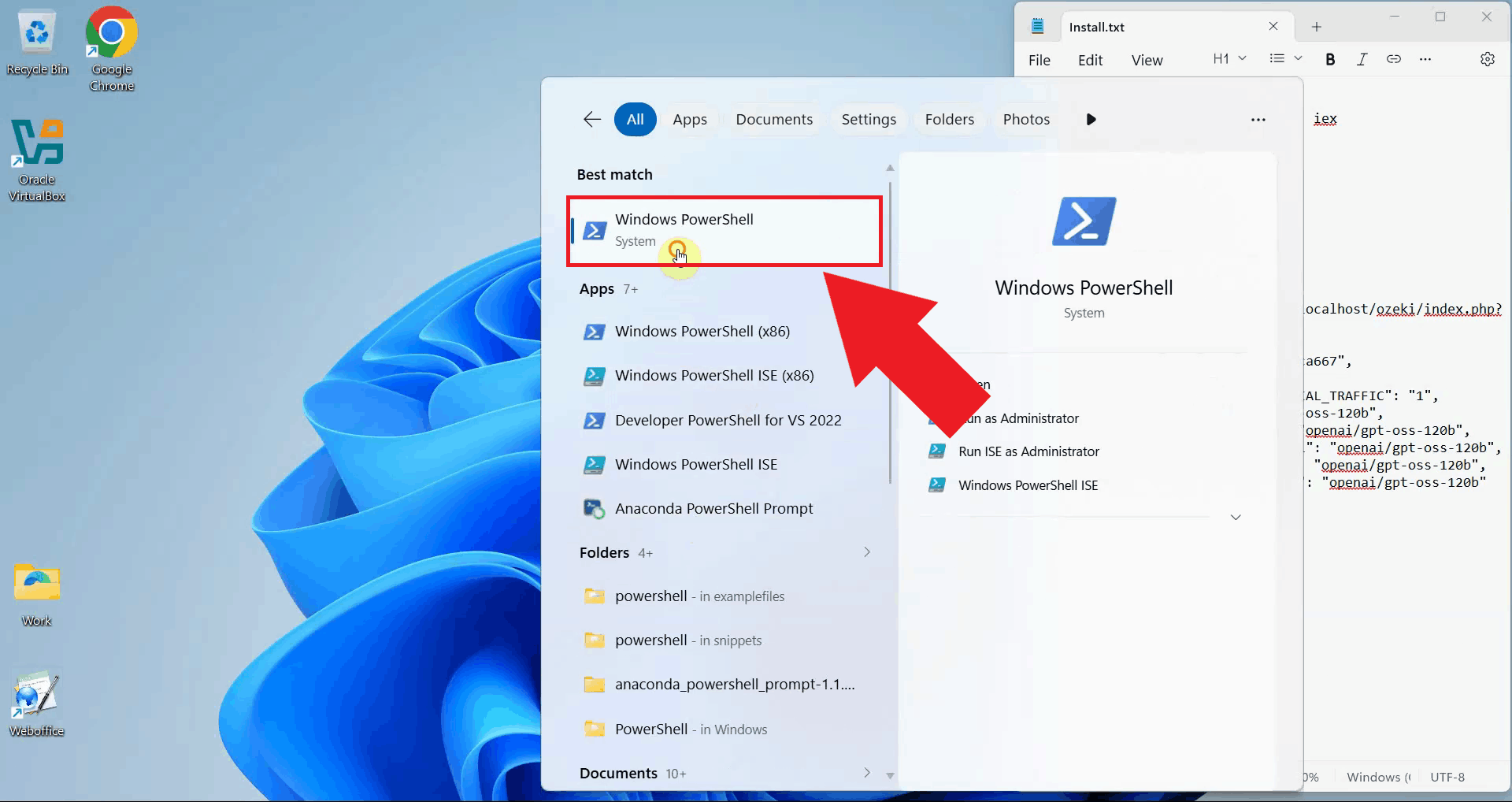
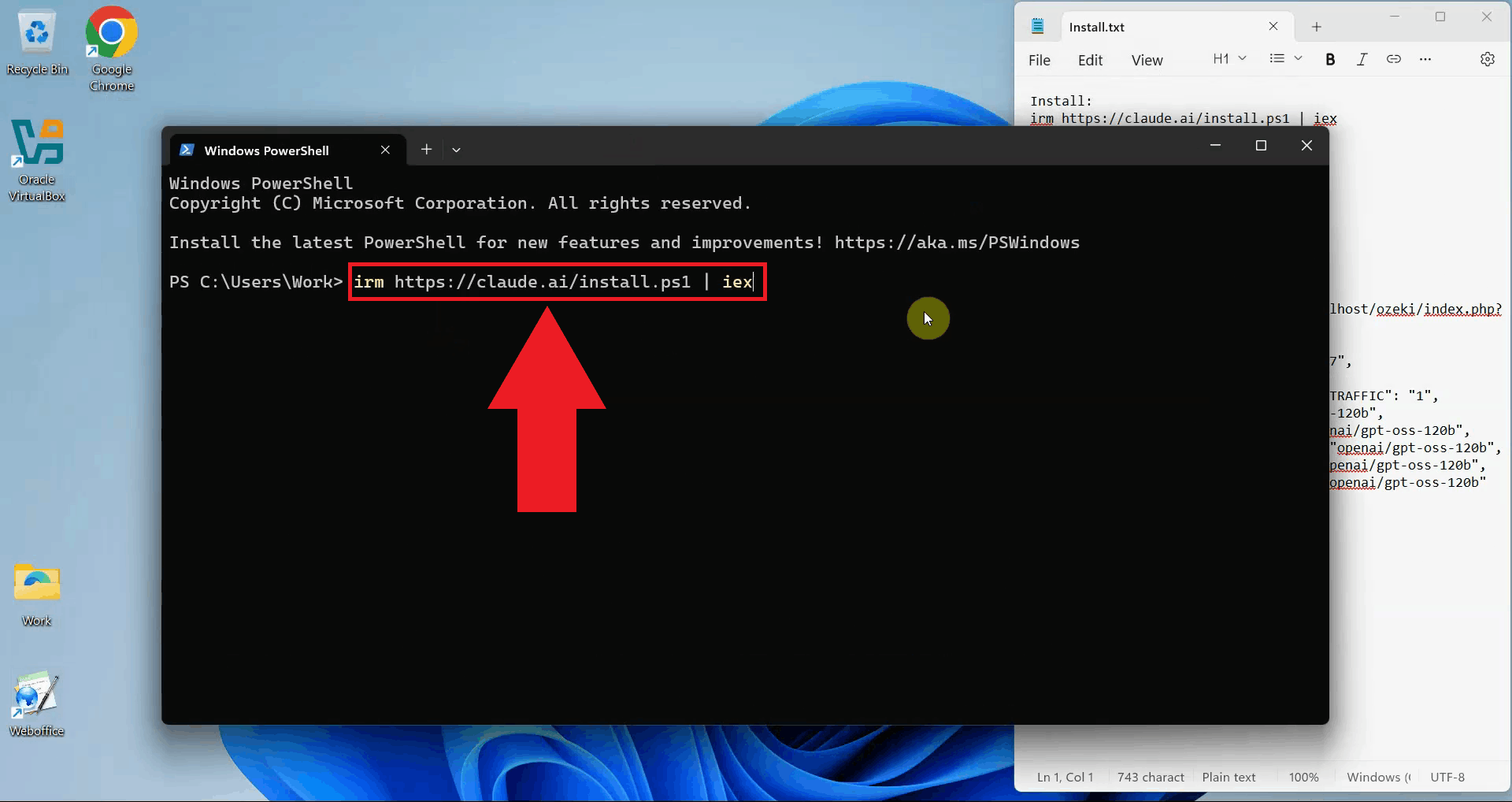
Execute the Claude Code installation command in PowerShell. This command downloads and installs Claude Code on your system (Figure 2).
irm https://claude.ai/install.ps1 | iex
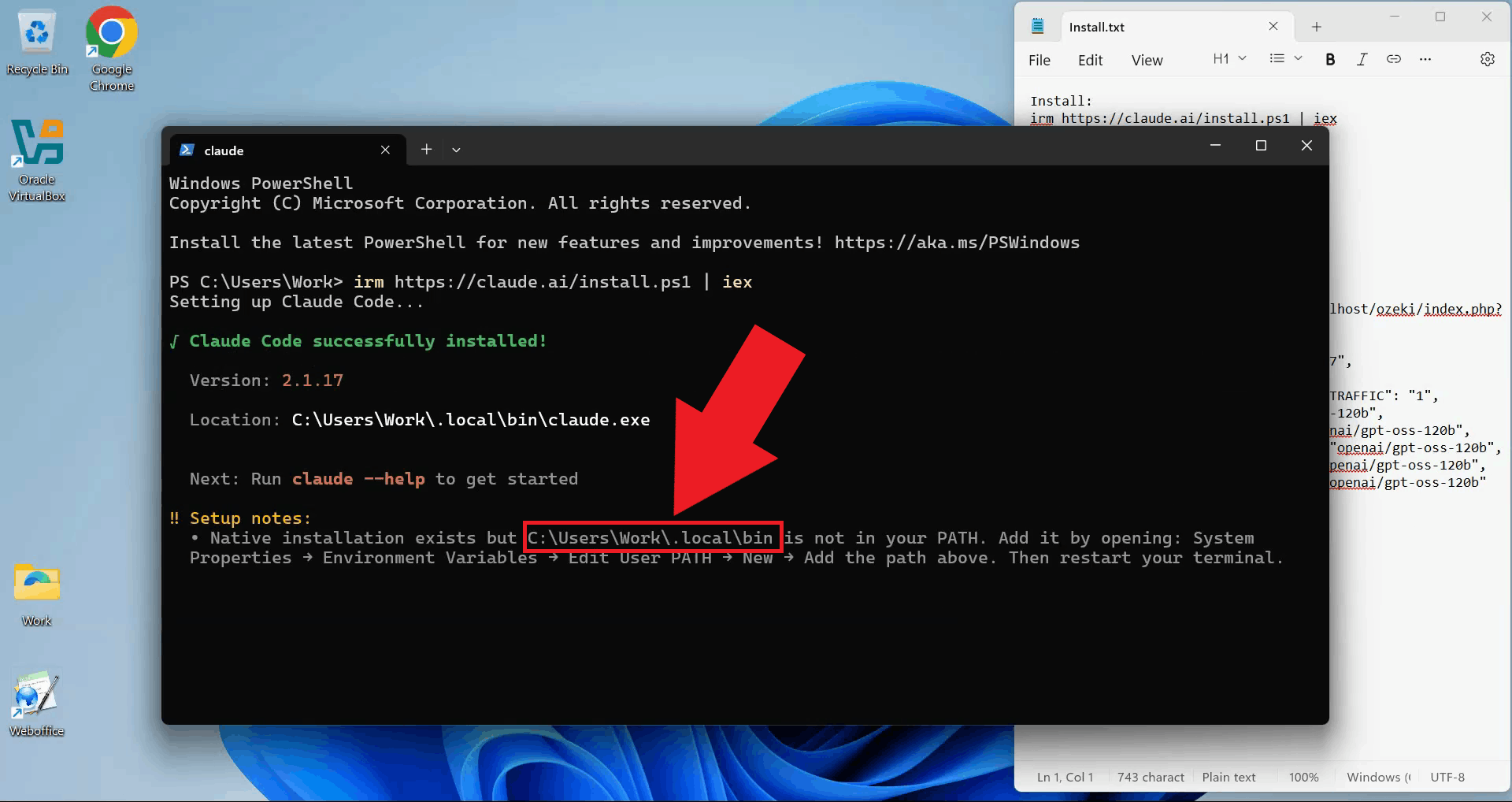
After installation completes, review the setup notes displayed in PowerShell. The notes include important information about the installation path, typically located at C:\Users\{Account}\.local\bin (replace "{Account}" with your Windows username). Copy this path as you'll need it for the environment variable configuration in the next steps (Figure 3).
Step 2 - Configure PATH environment variable
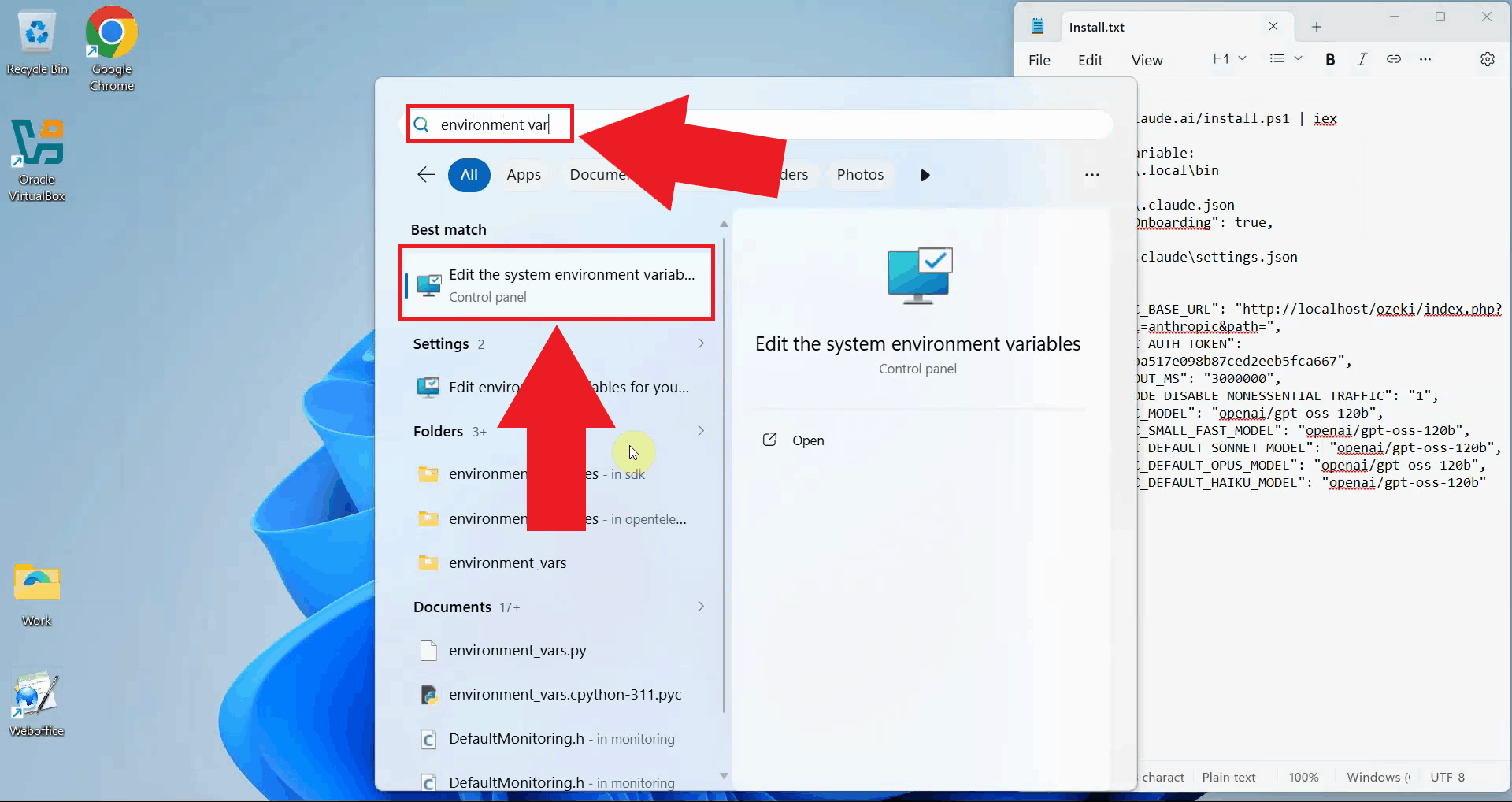
Open the Windows Environment Variables panel by searching for "environment variables" in the Start menu and selecting "Edit the system environment variables". This opens the System Properties dialog where you can configure system and user environment variables (Figure 4).
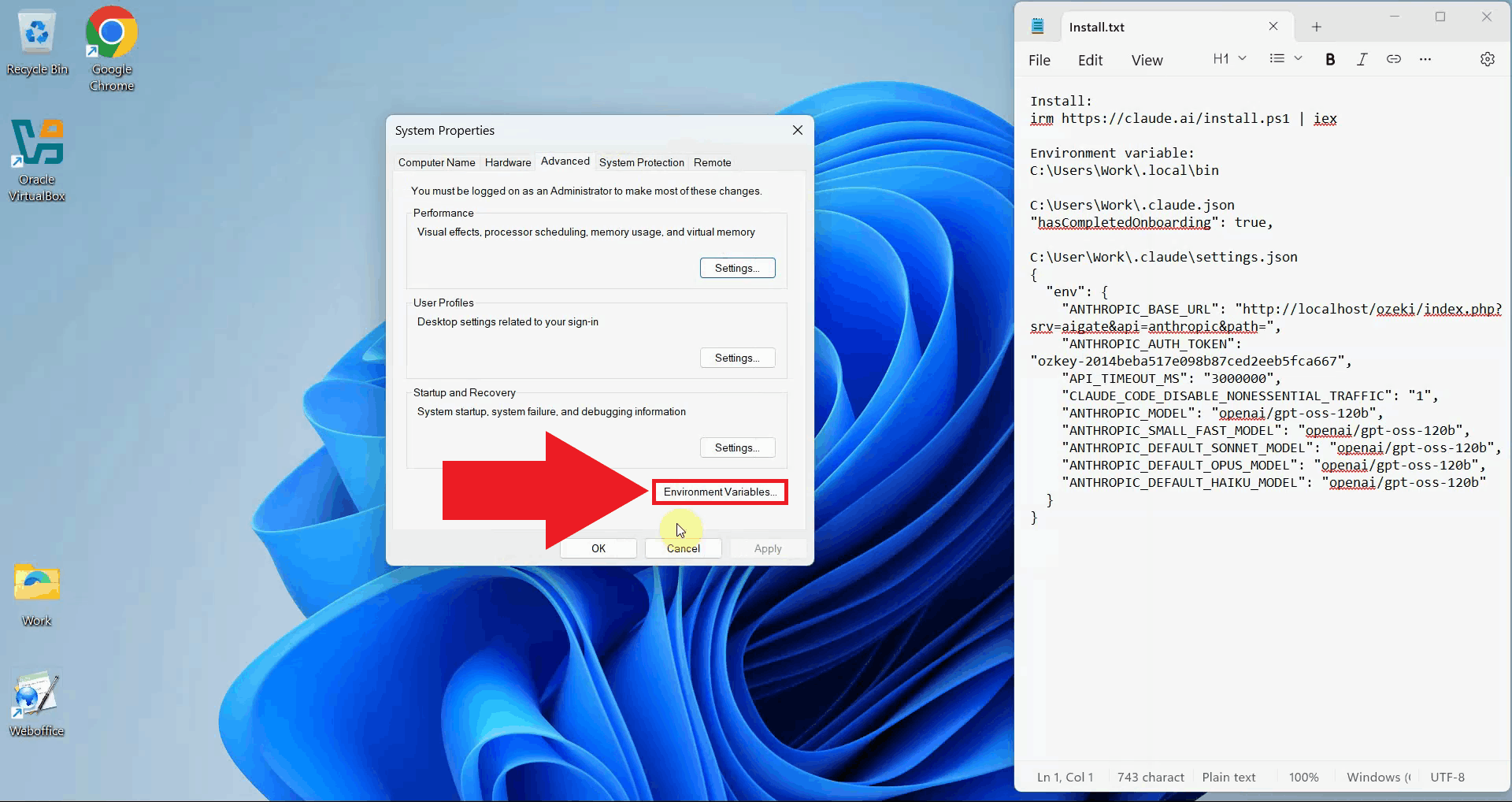
In the System Properties dialog, click the "Environment Variables" button at the bottom of the Advanced tab (Figure 5).
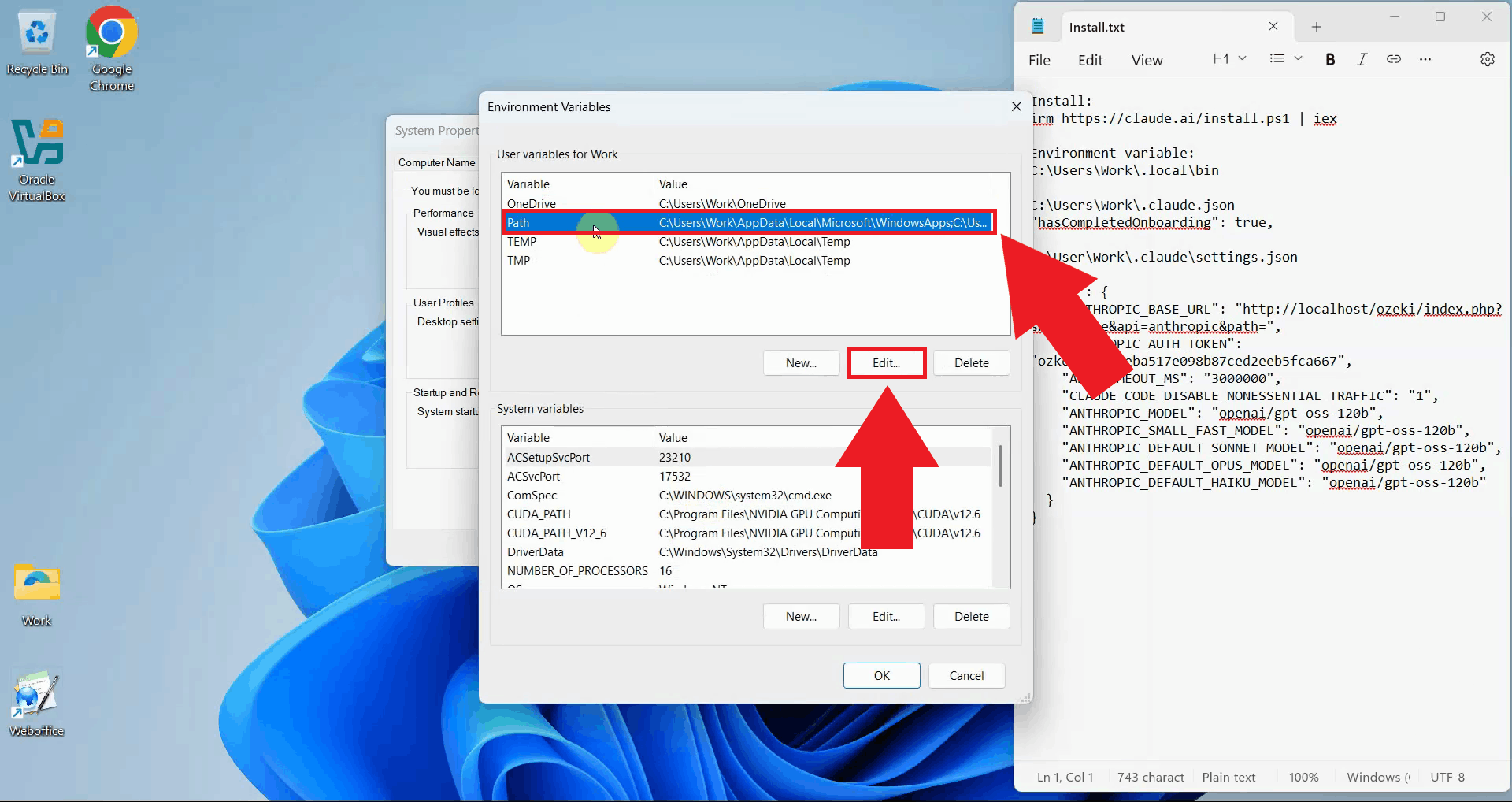
In the Environment Variables window, locate the "Path" variable in the User variables section. Select "Path" and click the "Edit" button. This allows you to add the Claude Code installation directory to your system path so you can run Claude Code from any directory (Figure 6).
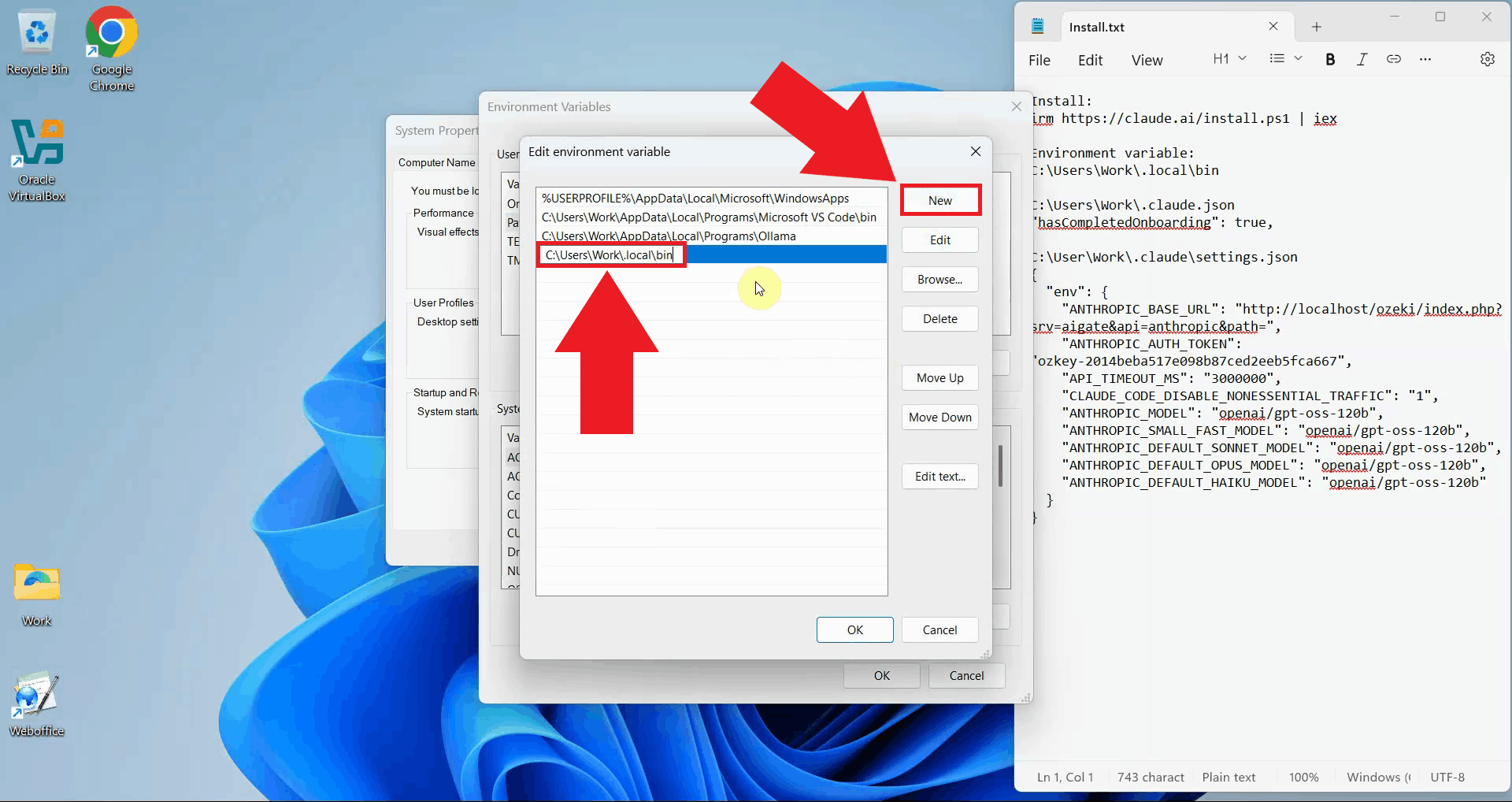
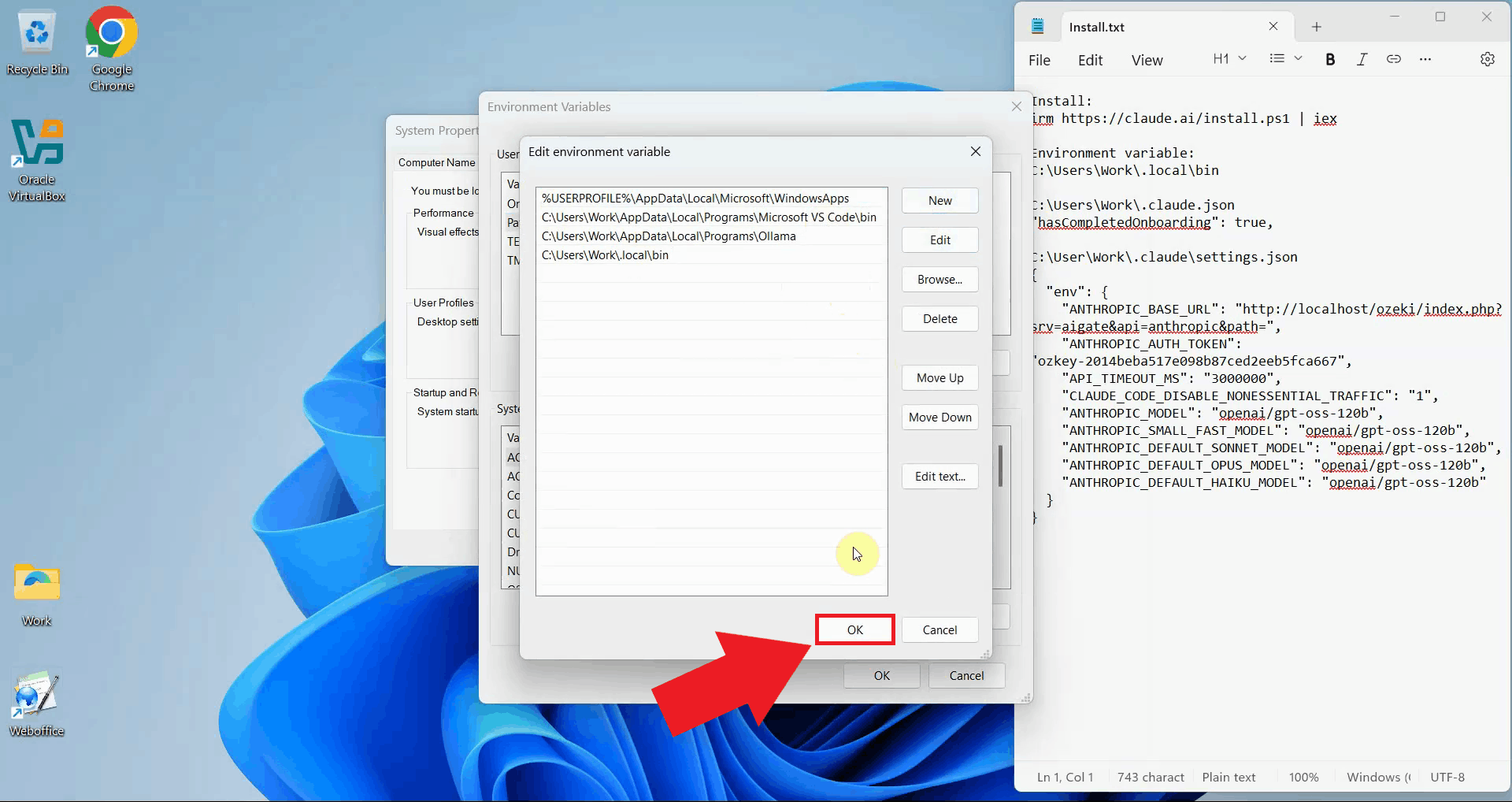
In the Edit Environment Variable window, click "New" to add a new path entry. Paste the Claude Code installation path you copied earlier (C:\Users\{Account}\.local\bin). Make sure to replace "{Account}" with your Windows username. This adds the Claude Code executable directory to your system path (Figure 7).
Click "OK" to save the path changes, then click "OK" again on each open dialog to close the Environment Variables windows. The path changes will take effect for new terminal sessions. You may need to restart any open Command Prompt or PowerShell windows to use the updated path (Figure 8).
Step 3 - Modify .claude.json configuration file
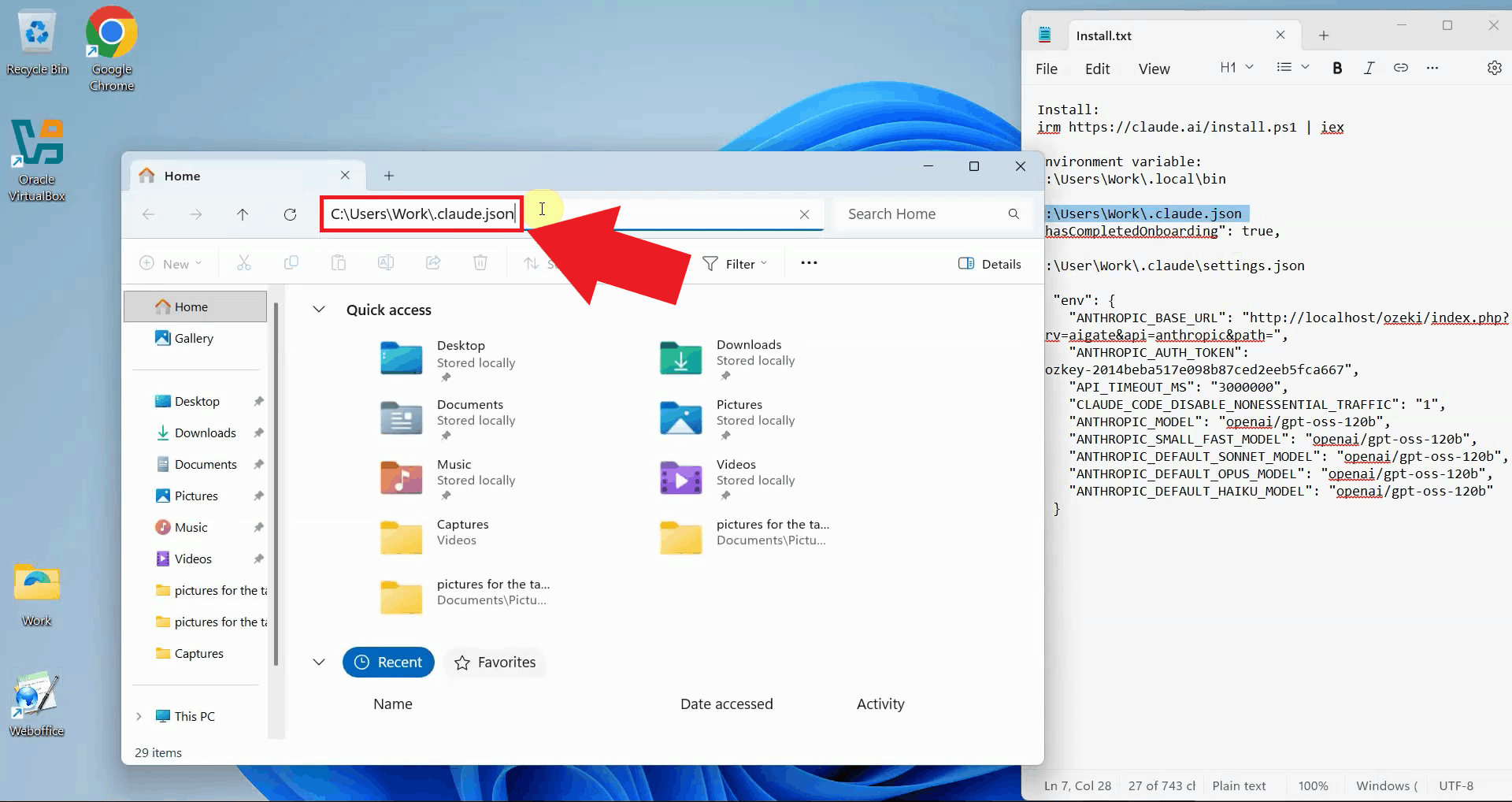
Navigate to your user directory (C:\Users\{Account}) and open the .claude.json file. You can use Notepad or any text editor (Figure 9).
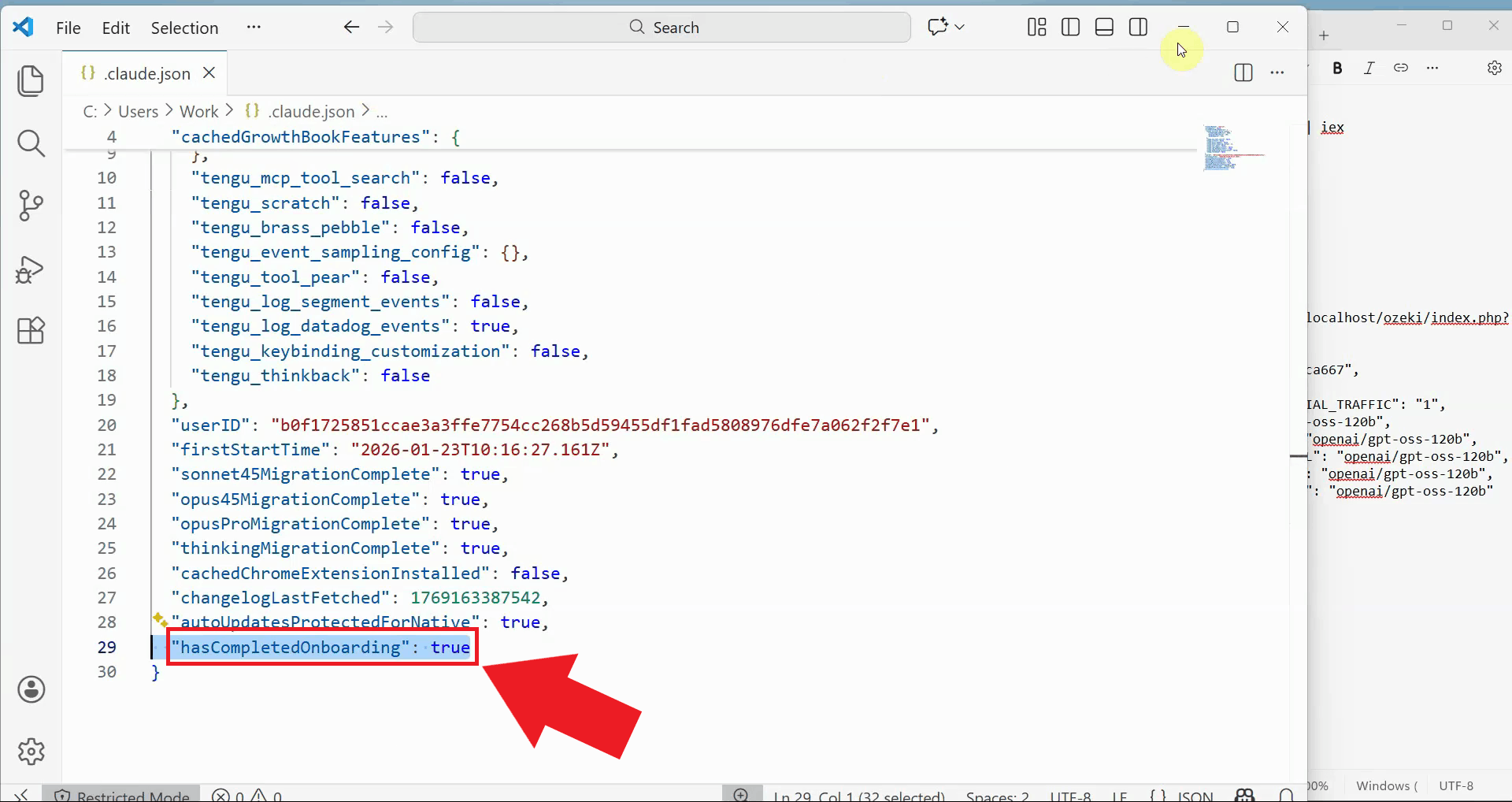
Add the hasCompletedOnboarding flag to the .claude.json file. This configuration tells Claude Code to skip the onboarding process and go straight to the main interface. Save the file after adding this line (Figure 10).
"hasCompletedOnboarding": true
Step 4 - Configure settings.json with Ozeki AI Gateway
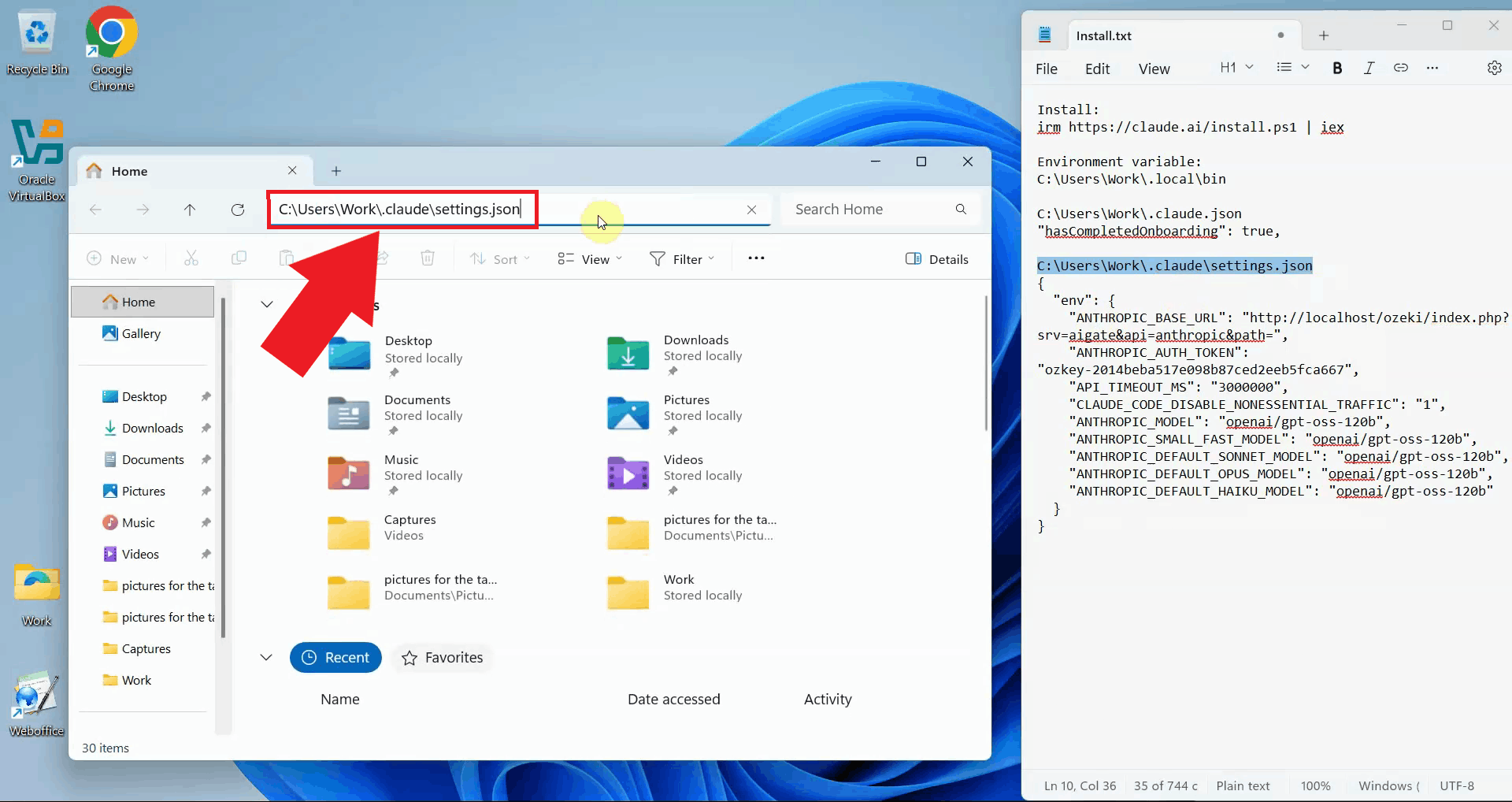
Navigate to the .claude subdirectory in your user folder (C:\Users\{Account}\.claude), and open or create the settings.json file. This file contains the environment variables that configure Claude Code to connect to Ozeki AI Gateway (Figure 11).
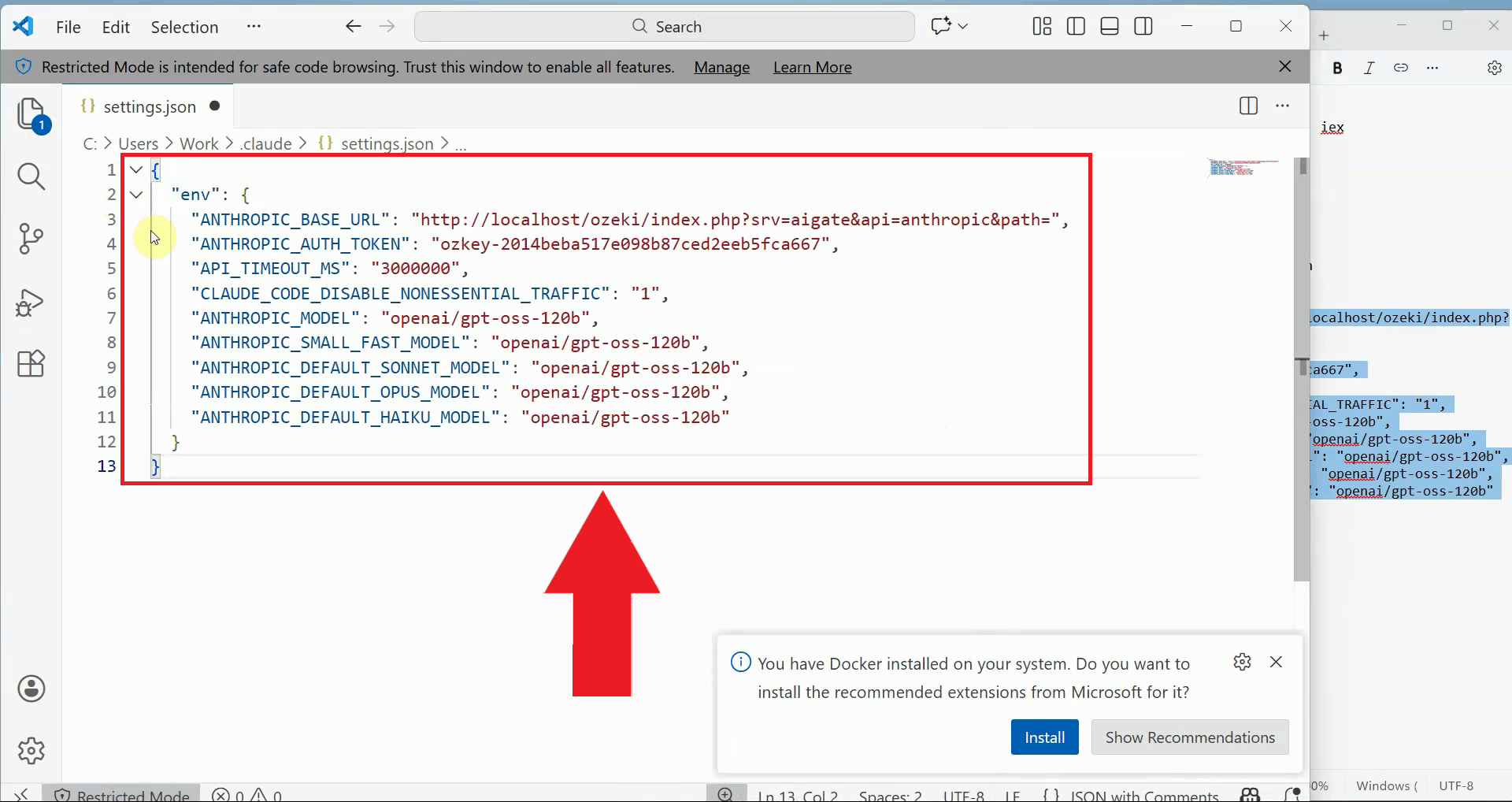
Add the Ozeki AI Gateway configuration to settings.json. Update the ANTHROPIC_BASE_URL to point to your Ozeki AI Gateway endpoint, and set the ANTHROPIC_AUTH_TOKEN to your gateway API key. Configure the model names to match the AI models available in your Ozeki AI Gateway installation. Save the file after making these changes (Figure 12).
{
  "env": {
    "ANTHROPIC_BASE_URL": "http://localhost/ozeki/index.php?srv=aigate&api=gateway&path=",
    "ANTHROPIC_AUTH_TOKEN": "ozkey-12345...",
    "API_TIMEOUT_MS": "3000000",
    "CLAUDE_CODE_DISABLE_NONESSENTIAL_TRAFFIC": "1",
    "ANTHROPIC_MODEL": "openai/gpt-oss-120b",
    "ANTHROPIC_SMALL_FAST_MODEL": "openai/gpt-oss-120b",
    "ANTHROPIC_DEFAULT_SONNET_MODEL": "openai/gpt-oss-120b",
    "ANTHROPIC_DEFAULT_OPUS_MODEL": "openai/gpt-oss-120b",
    "ANTHROPIC_DEFAULT_HAIKU_MODEL": "openai/gpt-oss-120b"
  }
}
Step 5 - Launch Claude Code
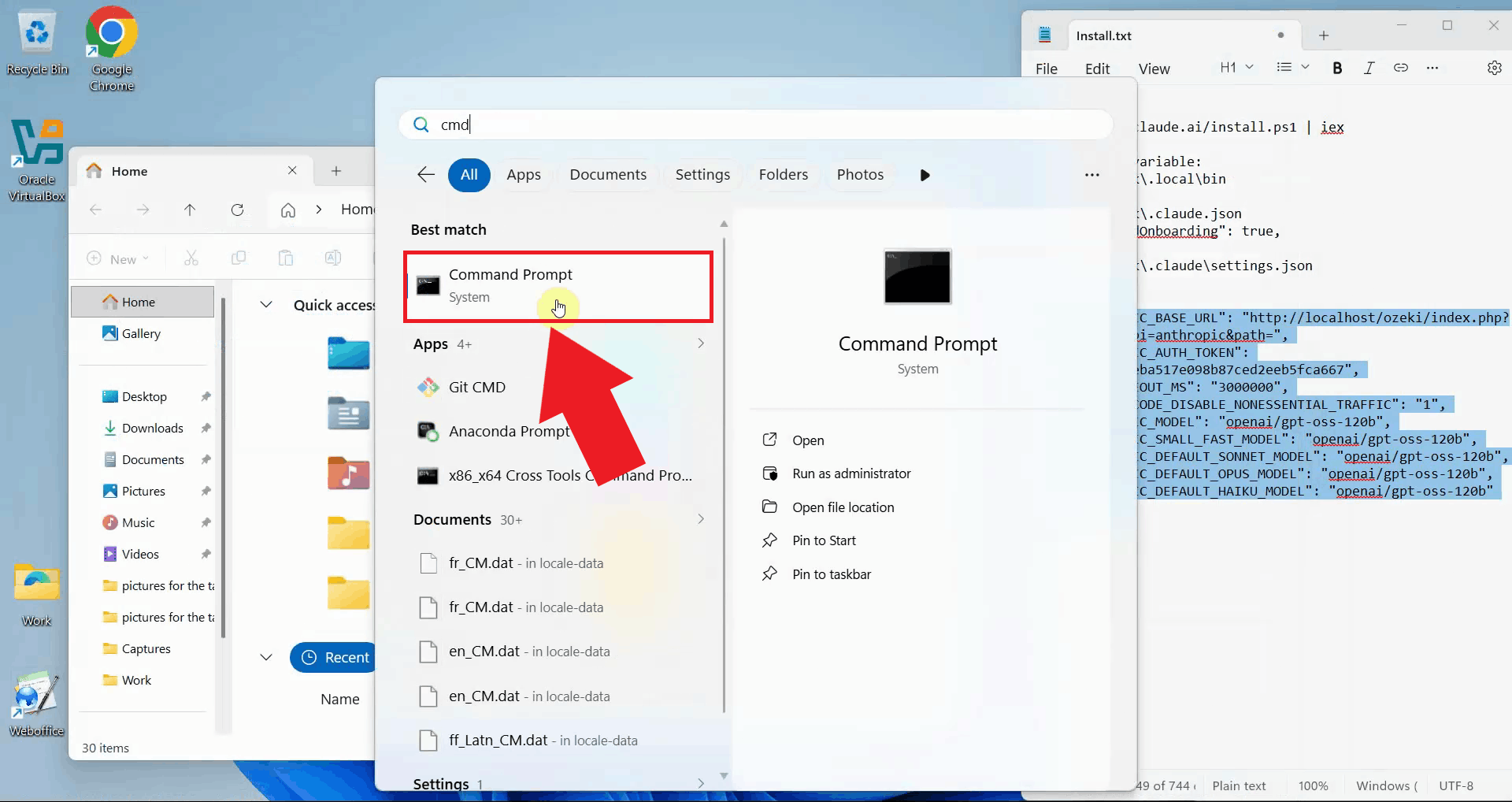
Open a new Command Prompt window by searching for "cmd" in the Start menu. It's important to open a new terminal window after modifying the environment variables to ensure the updated PATH is loaded (Figure 13).
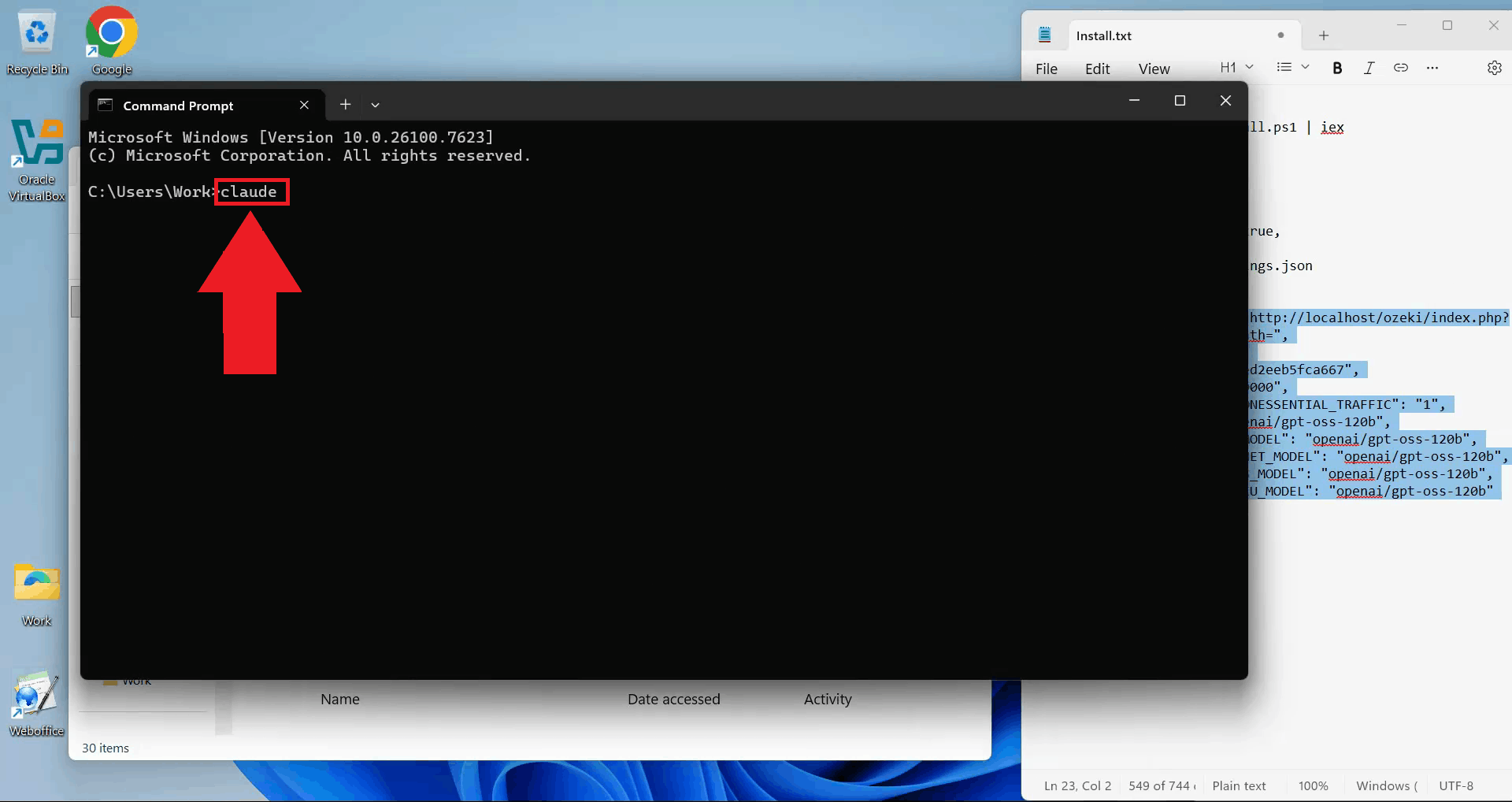
Navigate to the directory where you want to work and type "claude" to start Claude Code. The application will launch and display its interface directly in the terminal window (Figure 14).
claude
Step 6 - Trust workspace files
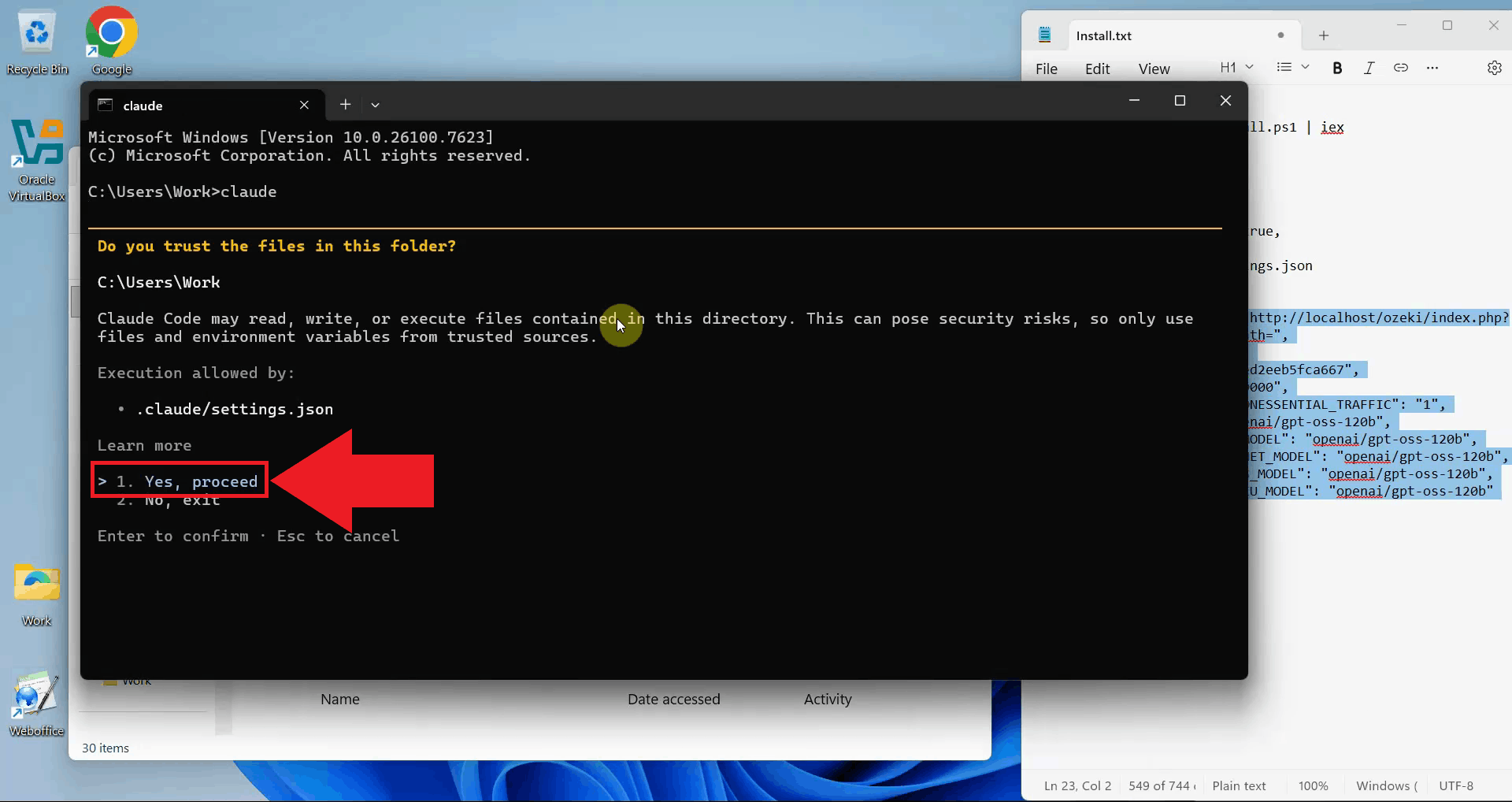
When Claude Code first starts in a directory, it will ask you to trust the files in that folder. This is a security measure to ensure you're aware of what files Claude has access to. Click "Yes, proceed" to allow Claude Code to work with files in the current directory (Figure 15).
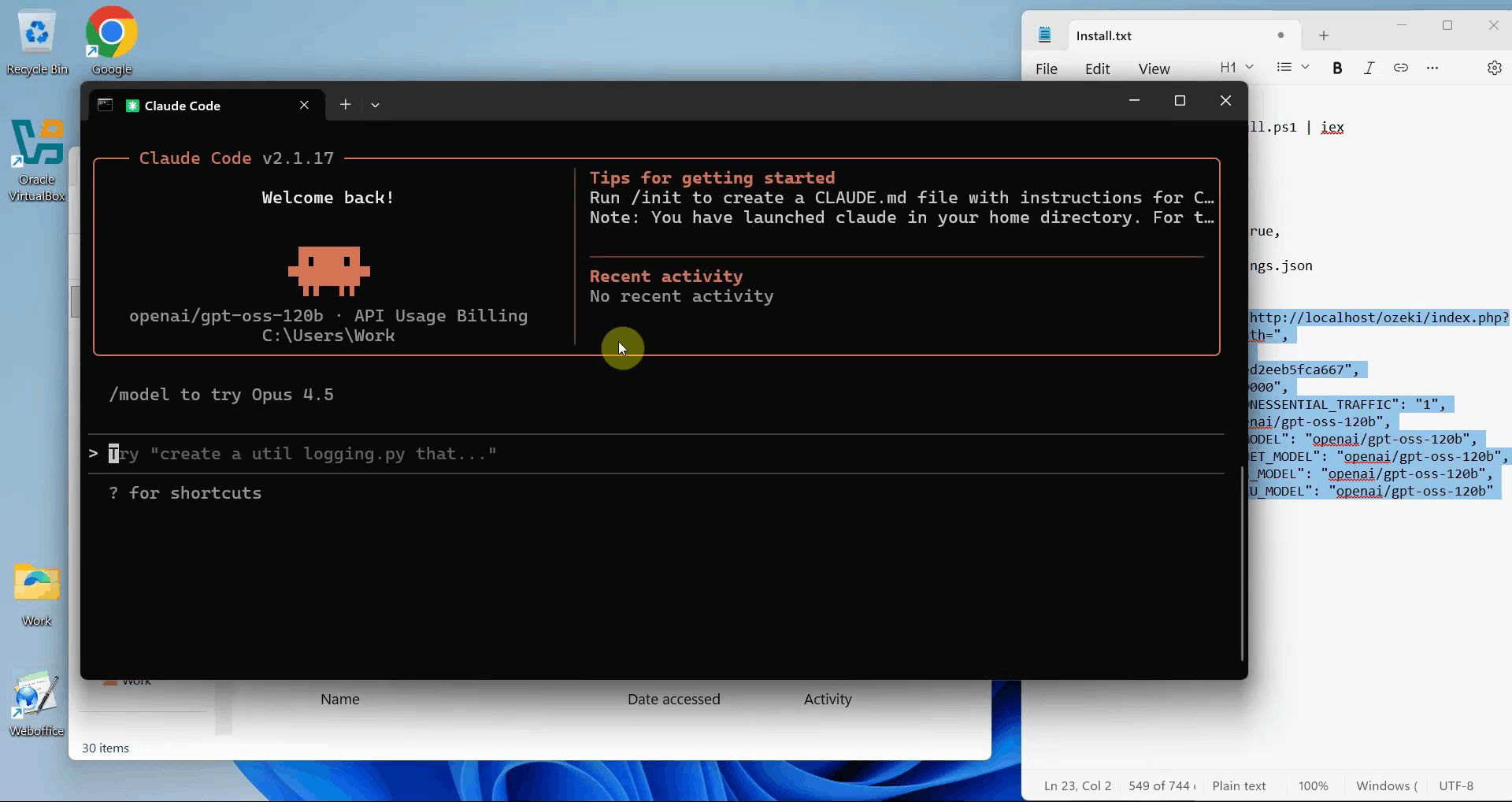
After trusting the workspace, Claude Code displays its welcome page in the terminal window. This interface allows you to enter prompts and interact with Claude in a chat-like environment for coding tasks (Figure 16).
Step 7 - Send test prompt
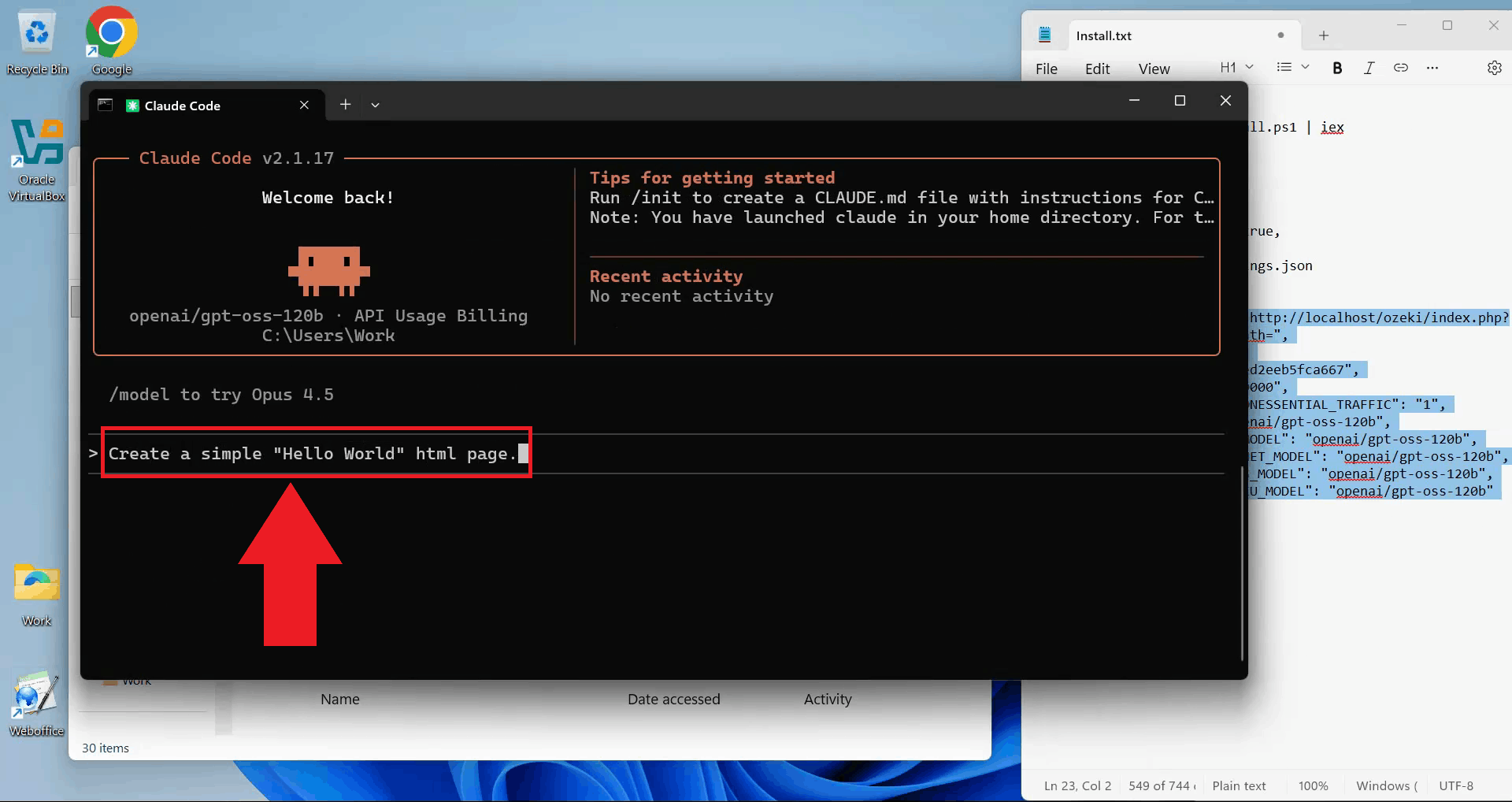
Test your Claude Code installation by entering a simple prompt. For example, ask Claude to create a basic HTML file or write a simple script. This verifies that Claude Code is properly connected to Ozeki AI Gateway and can execute coding tasks (Figure 17).
Step 8 - Accept file operations
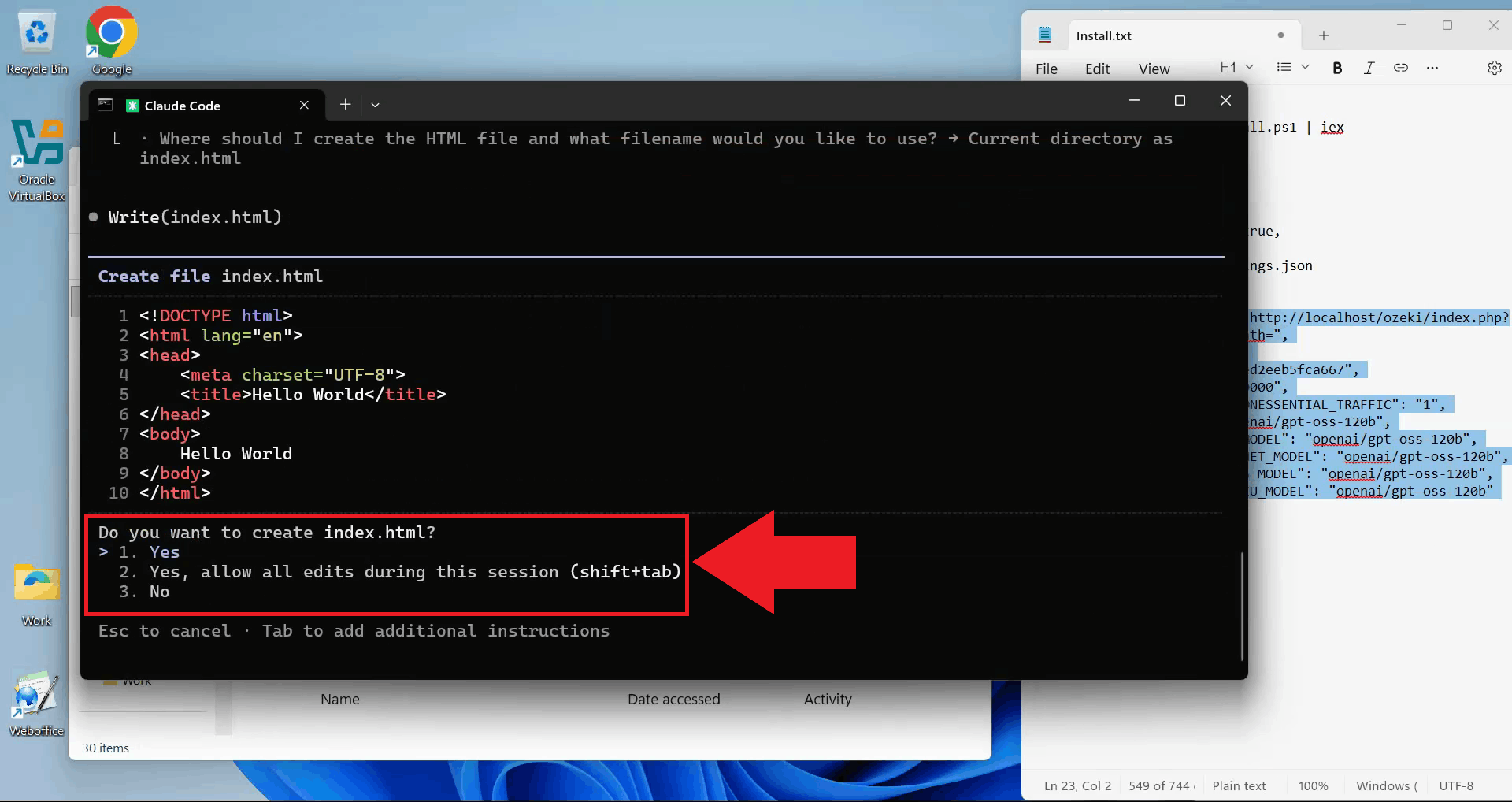
When Claude proposes to create or modify files, it will ask for your permission. Review the proposed changes and click the appropriate confirmation button to let Claude proceed with creating the files (Figure 18).
Step 9 - Verify task completion
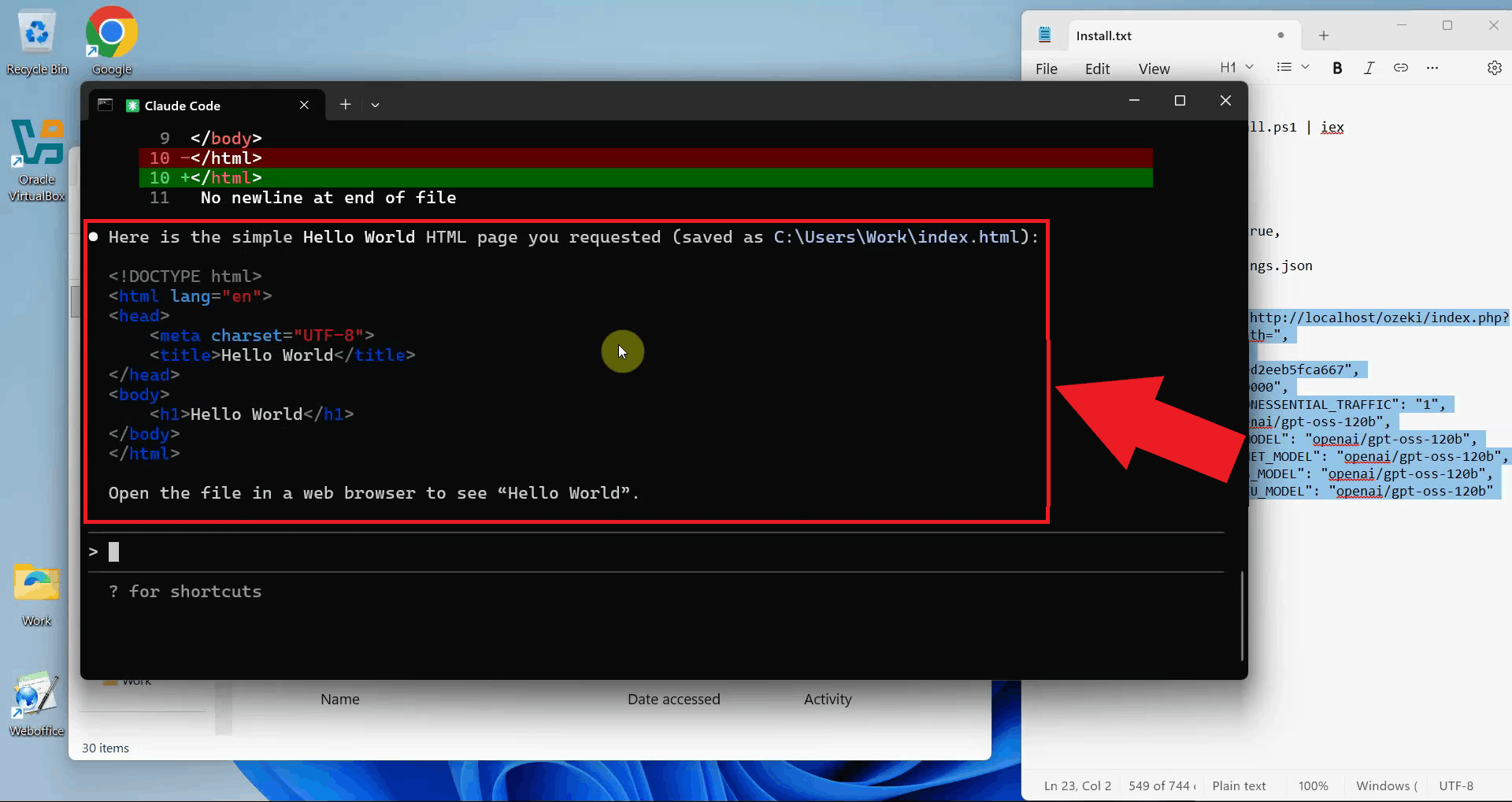
Claude Code completes the requested task and displays the results. You can see the created files in your directory and verify that the integration with Ozeki AI Gateway is working correctly. Your Claude Code installation is now fully configured and ready for development work (Figure 19).
Troubleshooting
Claude Code command not found
If you receive a "command not found" error when trying to run Claude Code, ensure you've added the installation path to your PATH environment variable and opened a new terminal window after making the changes.
Connection errors
If Claude Code cannot connect to Ozeki AI Gateway, verify that:
- Ozeki AI Gateway is running and accessible at the configured URL
- The ANTHROPIC_BASE_URL in settings.json is correct
- The ANTHROPIC_AUTH_TOKEN matches your gateway API key
- The configured AI models are available in your Ozeki AI Gateway installation
To sum it up
You have successfully installed and configured Claude Code to work with Ozeki AI Gateway. You can now use Claude Code from the command line to delegate coding tasks, automate file operations, and leverage AI assistance in your development workflow. All requests will be routed through your Ozeki AI Gateway, allowing you to use alternative AI models and maintain control over your API infrastructure.