
How to set up Jan with Ozeki AI Gateway
This guide demonstrates how to install Jan and configure it to use Ozeki AI Gateway as an AI provider on Windows. By connecting Jan to Ozeki AI Gateway, you can route all requests through your local gateway and access any AI model available in your gateway infrastructure from Jan's clean, privacy-focused chat interface.
What is Jan?
Jan is an open-source, privacy-first desktop AI assistant available for Windows, macOS, and Linux. It supports both locally hosted models and remote AI providers through OpenAI-compatible APIs. Jan stores all data locally on your machine and provides a straightforward interface for managing models and having AI-powered conversations. When connected to Ozeki AI Gateway, Jan can access all models configured in your gateway from a single, unified endpoint.
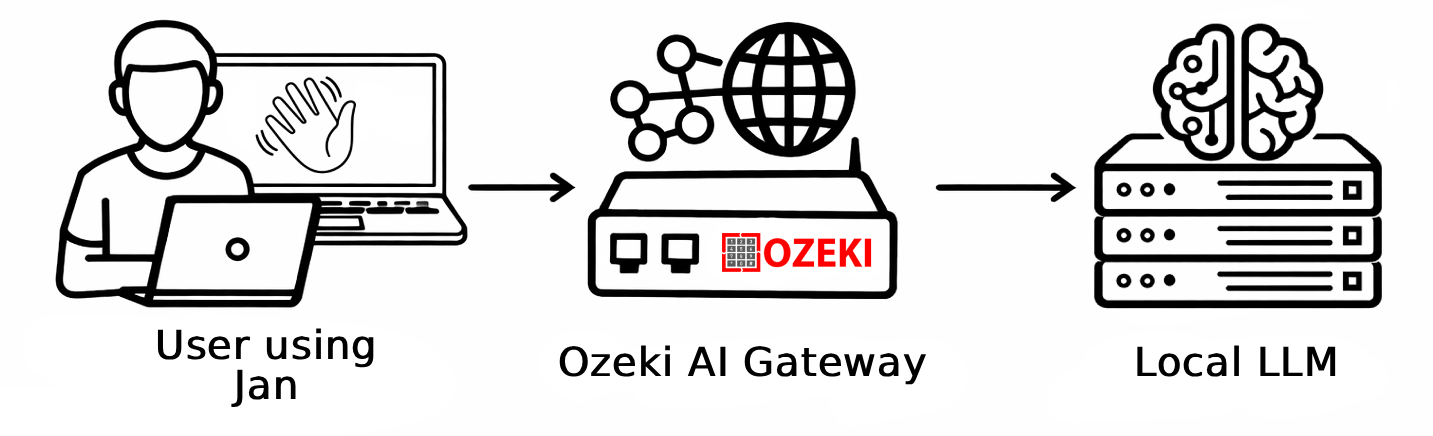
Steps to follow
We assume Ozeki AI Gateway is already installed on your system. You can install it on Linux, Windows or Mac.
Provider example
# Ozeki AI Gateway connection details
API URL:  http://localhost/v1
API Key:  your-api-key
How to install Jan video
The following video shows how to download and install Jan on Windows step-by-step.
Step 1 - Download and install Jan
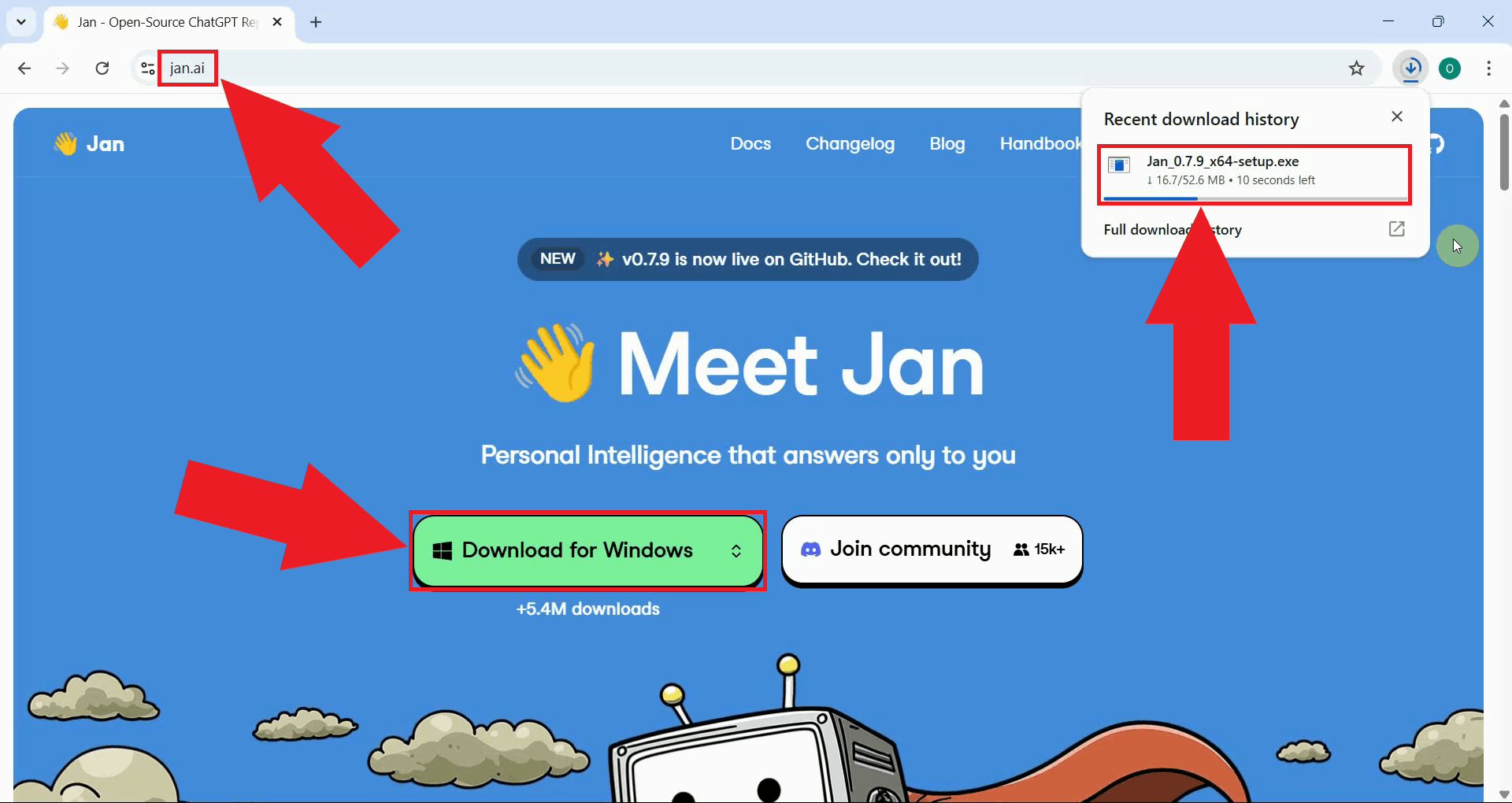
Navigate to the Jan website and download the Windows installer. The website always provides the latest stable release of the application (Figure 1).
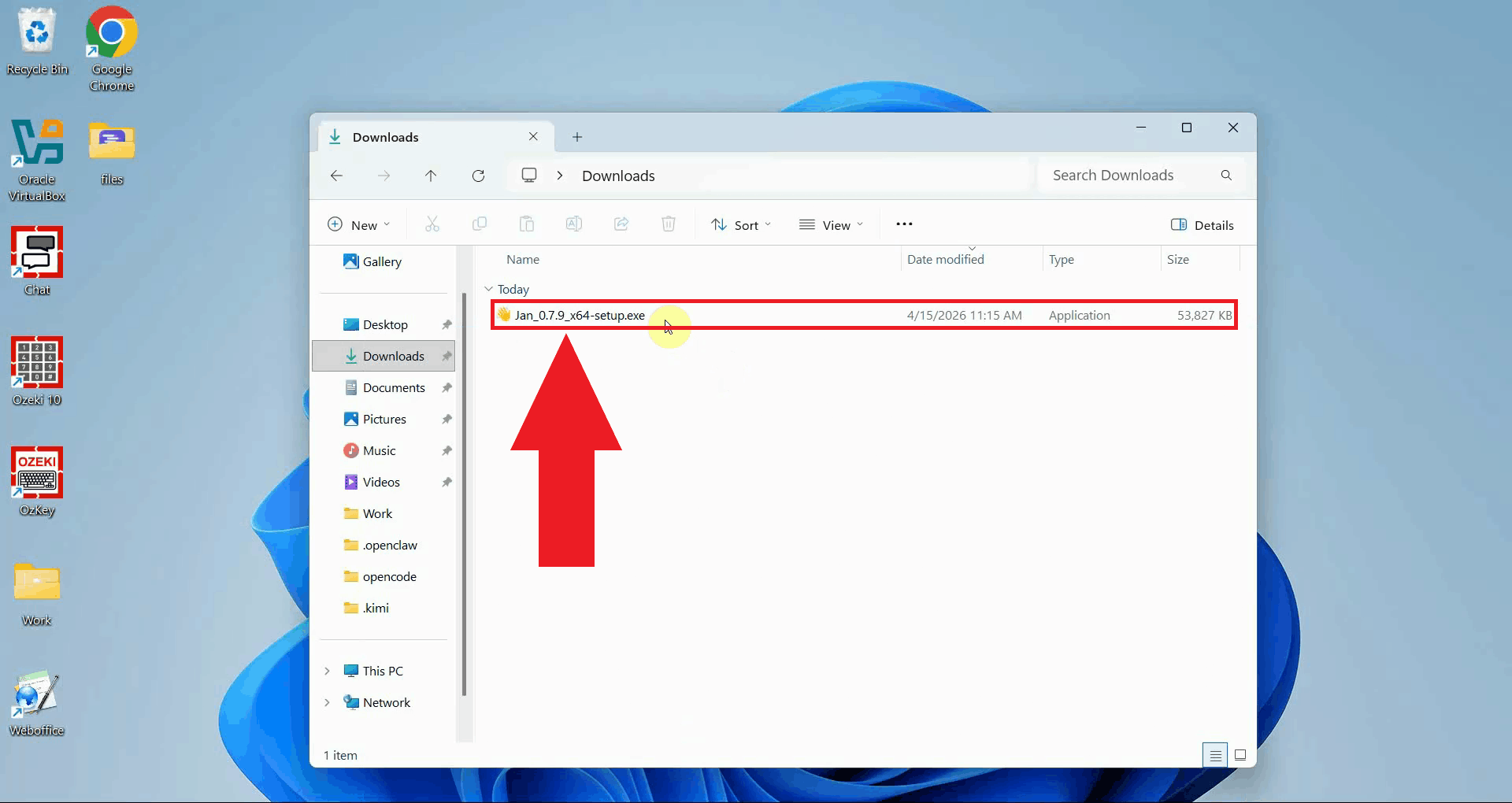
Locate the downloaded installer in your Downloads folder and double-click it to begin the installation. If prompted by Windows User Account Control, click Yes to allow it to run (Figure 2).
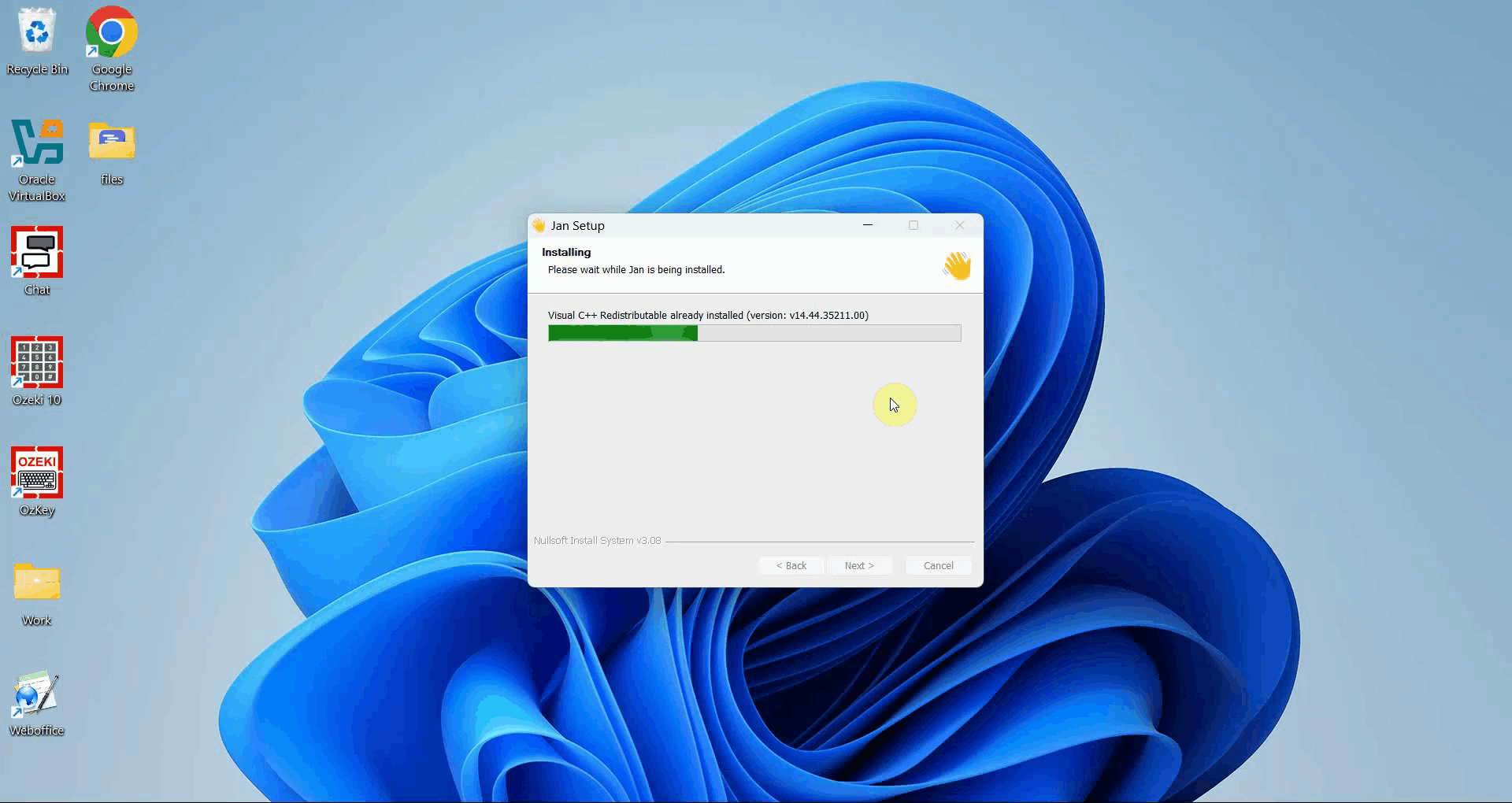
The installer will copy all necessary files to your system. A progress indicator shows how much of the installation has completed. No additional configuration is required during this step (Figure 3).
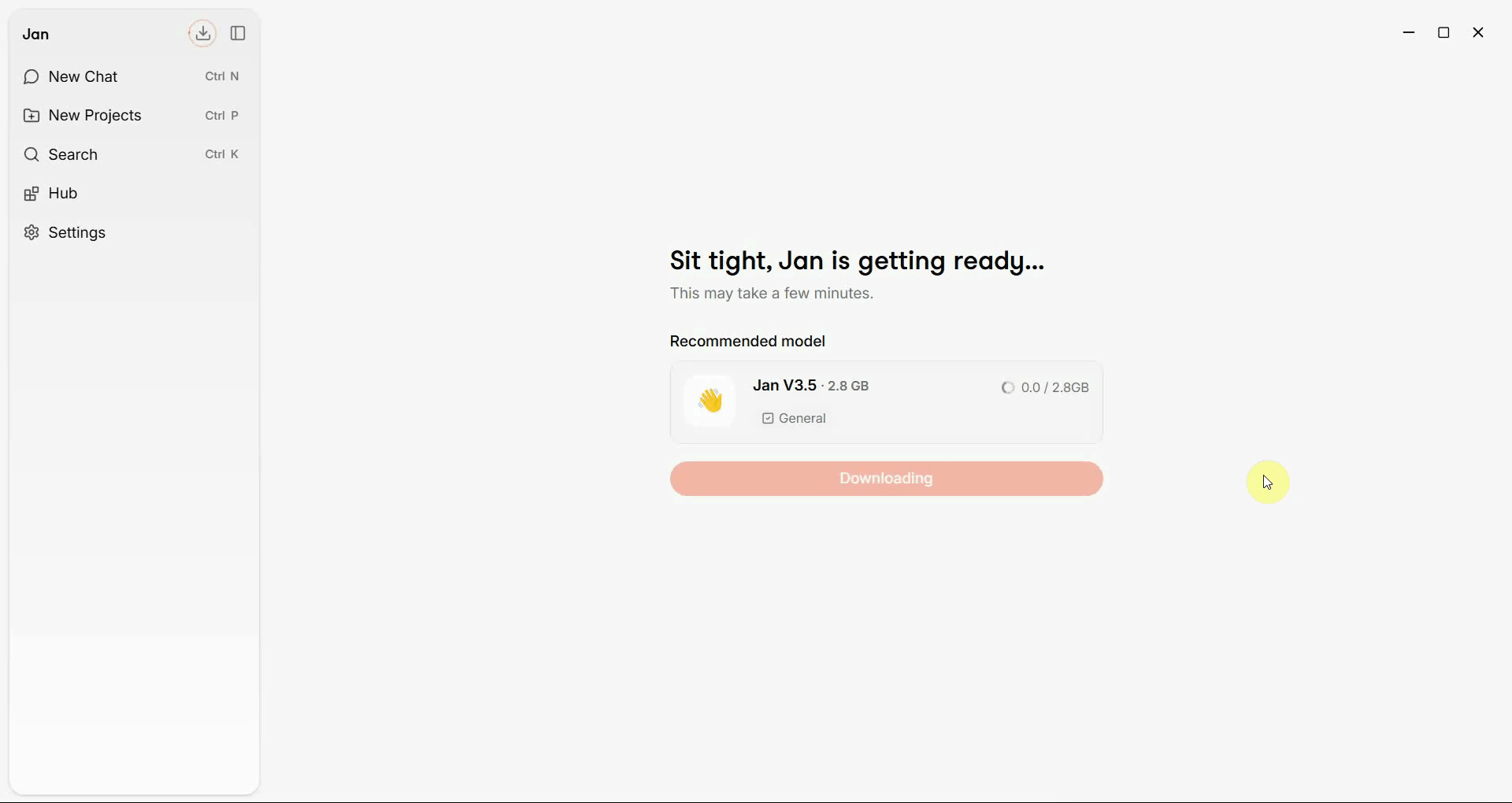
Once the installation is complete, Jan will launch automatically. The application is now installed and ready to be configured with Ozeki AI Gateway as a provider (Figure 4).
Step 2 - Add Ozeki AI Gateway as a provider
The following video shows how to add Ozeki AI Gateway as a provider in Jan and ask the AI a test question. The video covers opening the settings, creating the provider, entering the connection details, and verifying the response.
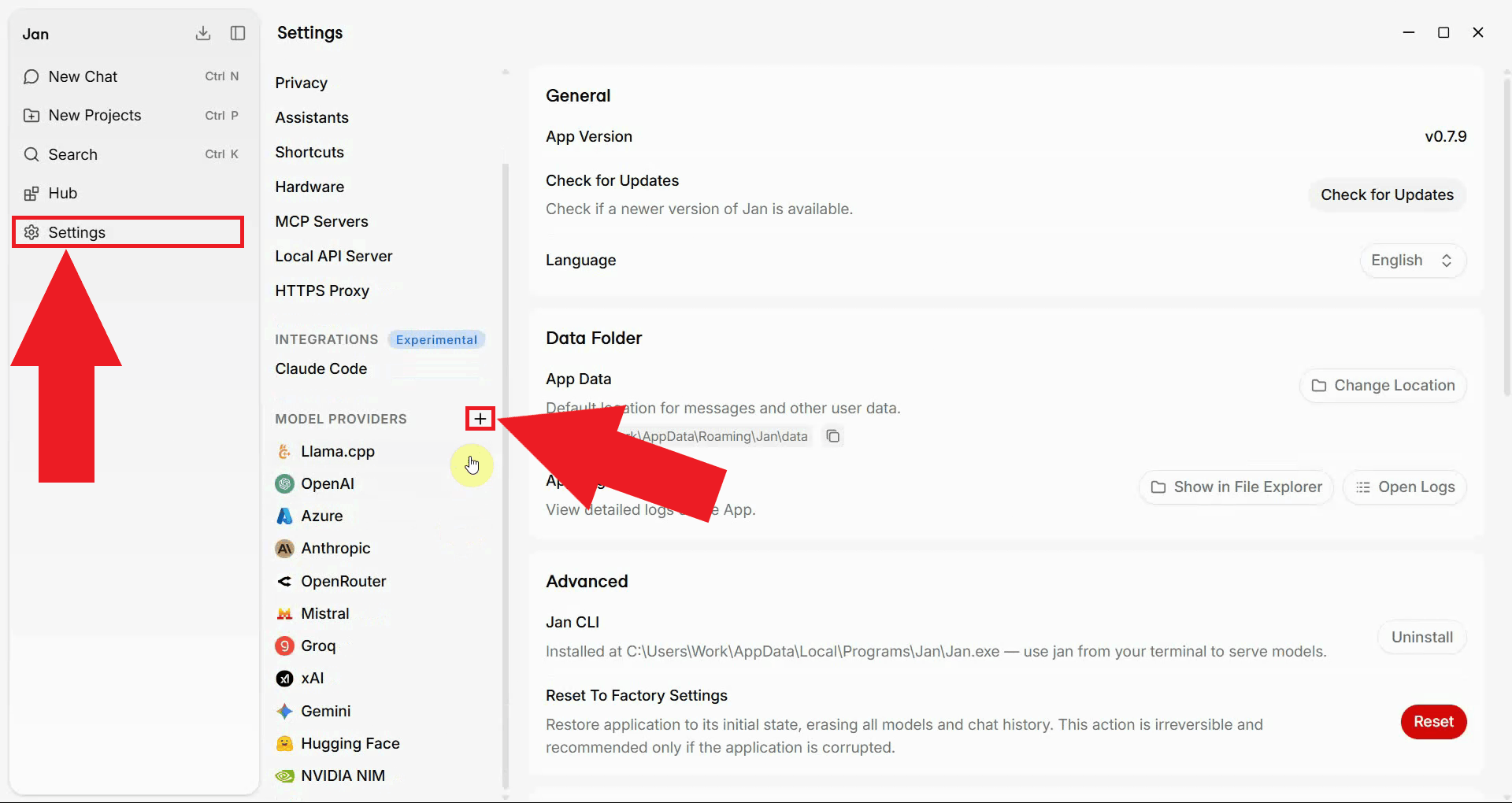
Open the Jan settings and navigate to the providers section. Click the Plus button to add a new remote provider, this is where you will register Ozeki AI Gateway as a custom OpenAI-compatible endpoint (Figure 5).
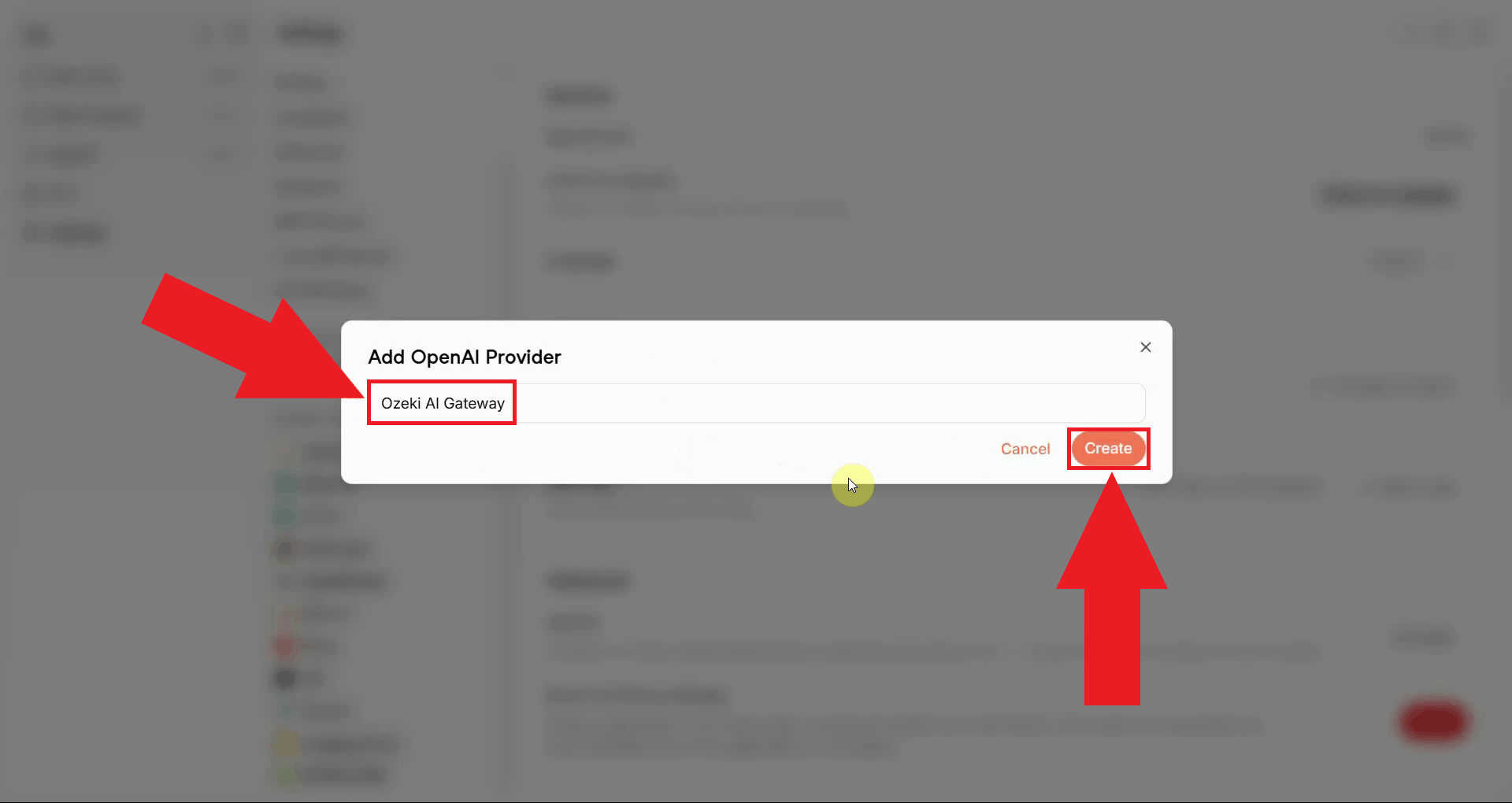
Enter a descriptive name for the provider, such as Ozeki AI Gateway, and click Create to initialize the provider entry (Figure 6).
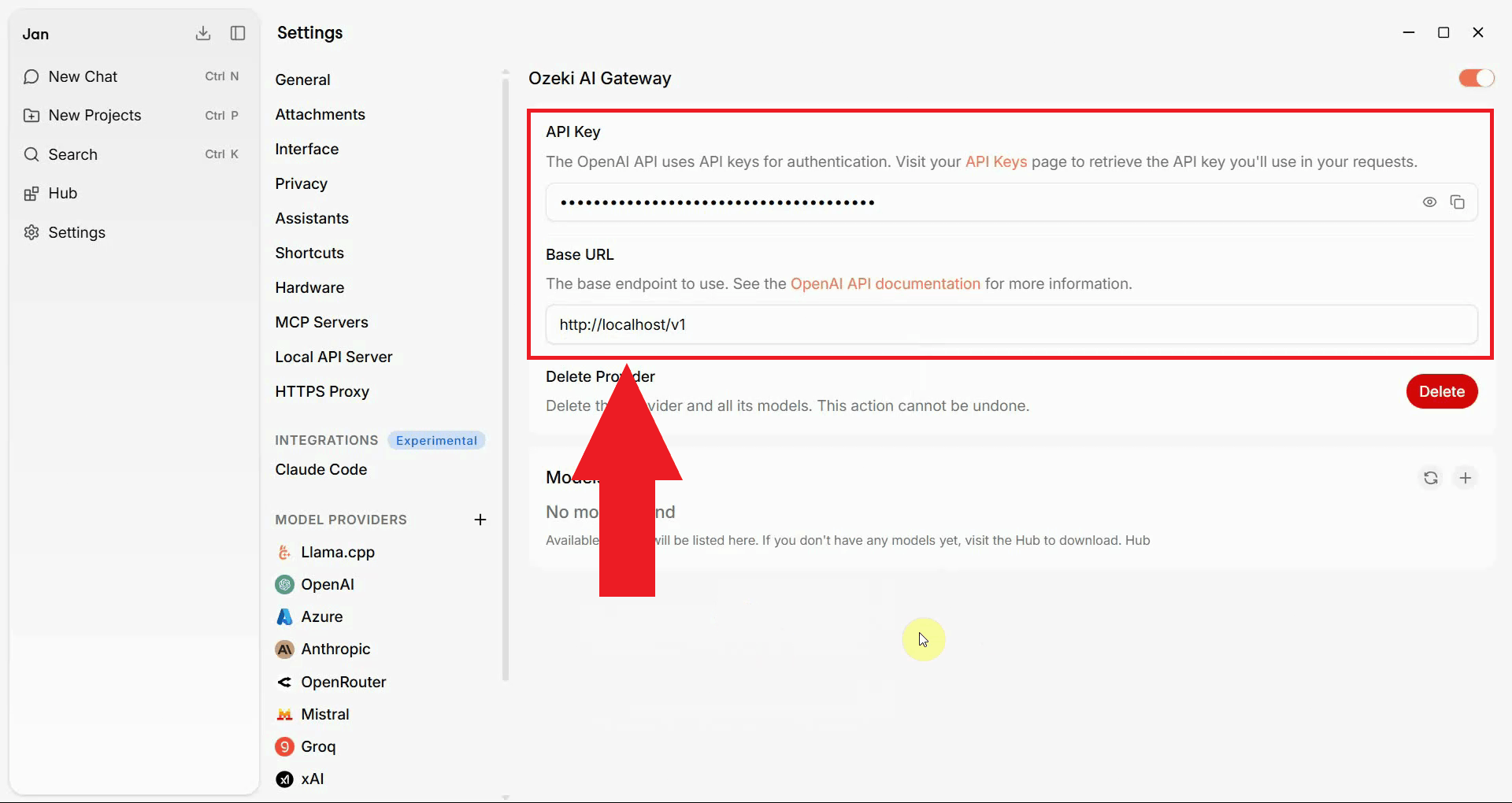
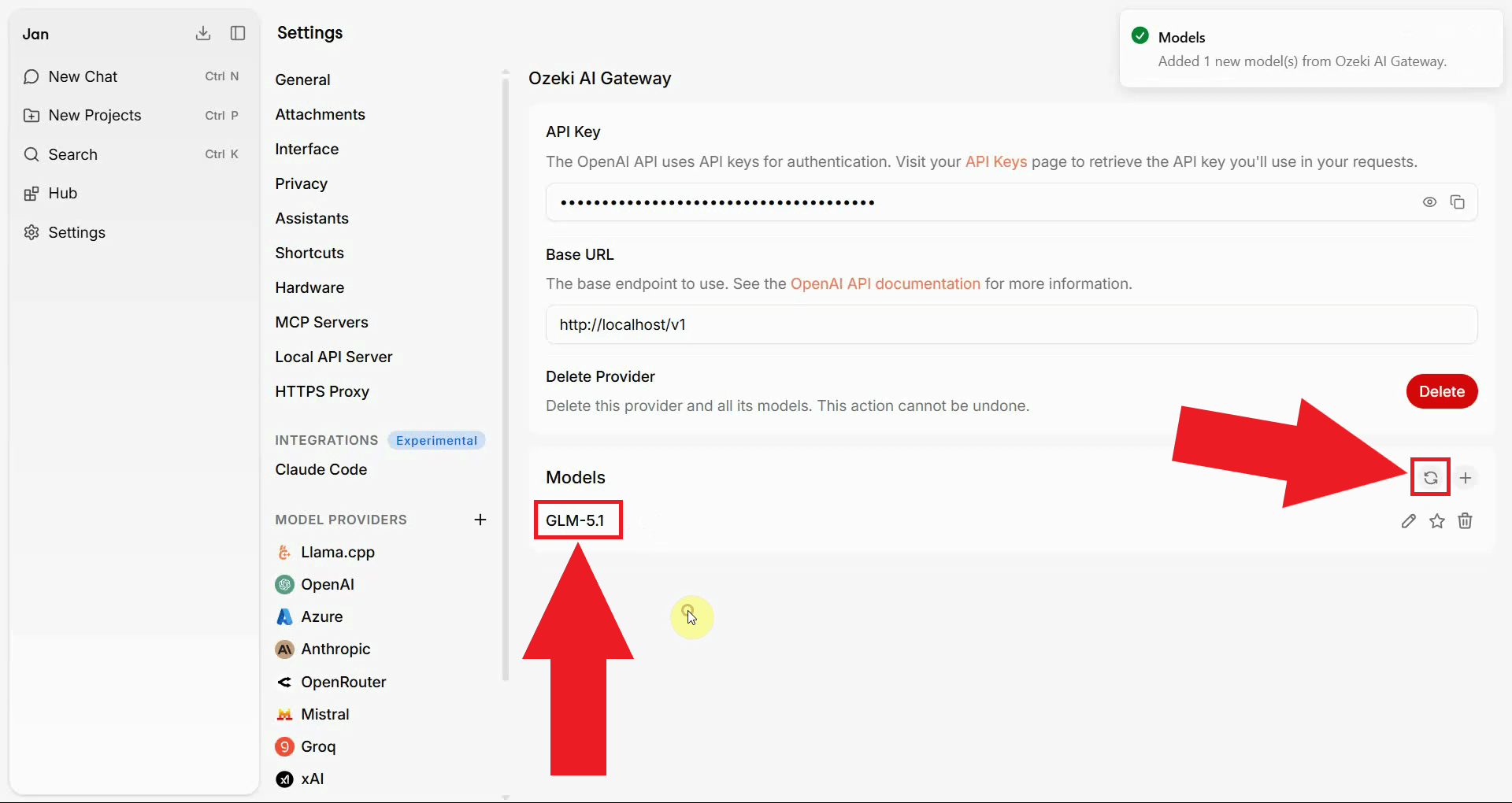
Enter the Ozeki AI Gateway API endpoint URL in the base URL field and paste your API key into the API key field. The config is automatically saved after modification (Figure 7).
http://localhost/v1
Click the refresh button to fetch the list of available models from your Ozeki AI Gateway. The models configured in your gateway will appear in the model list, confirming that the connection has been established successfully (Figure 8).
Step 3 - Send a test prompt
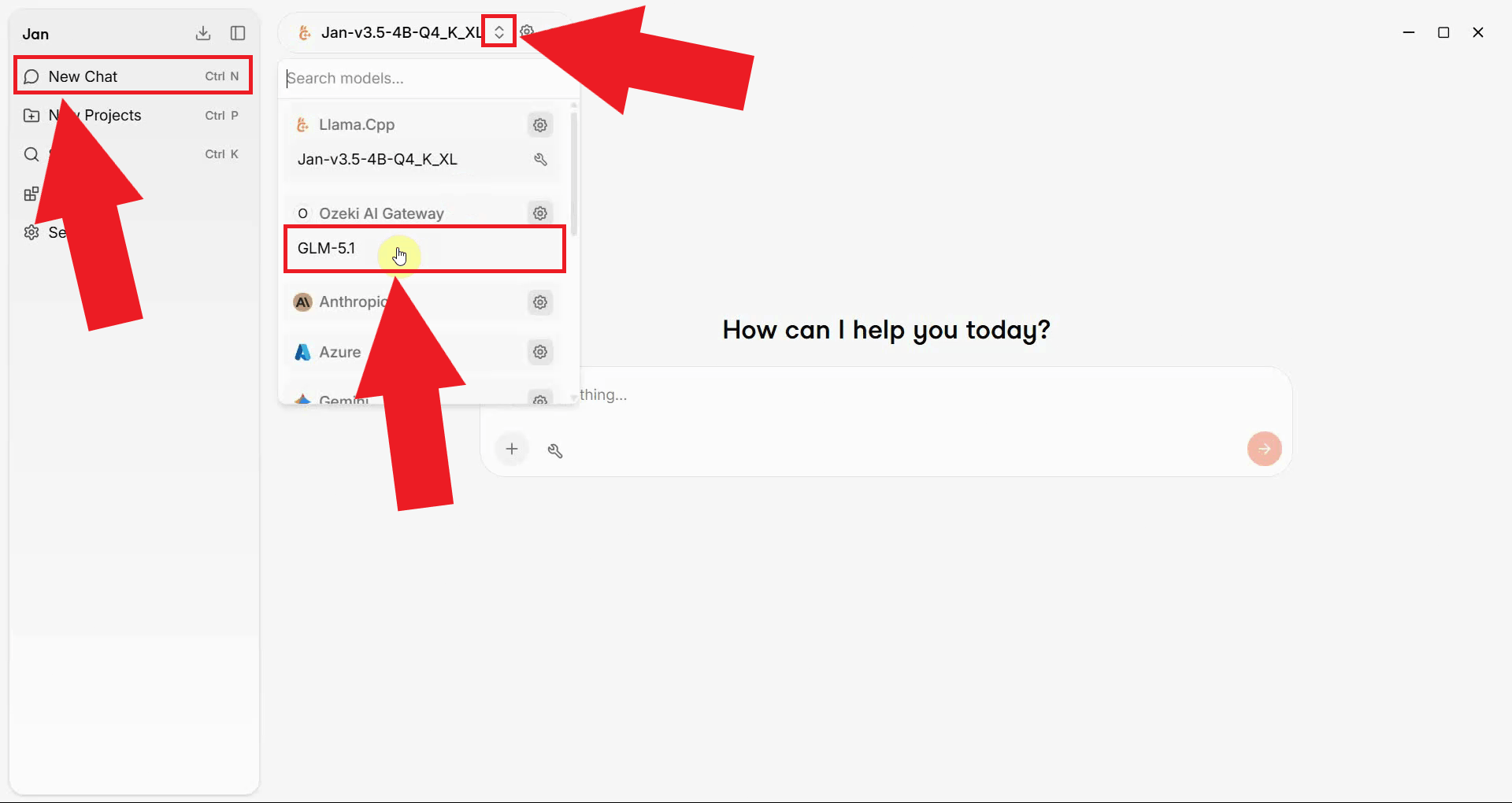
Start a new chat session in Jan and select one of the models provided by your Ozeki AI Gateway connection from the model dropdown (Figure 9).
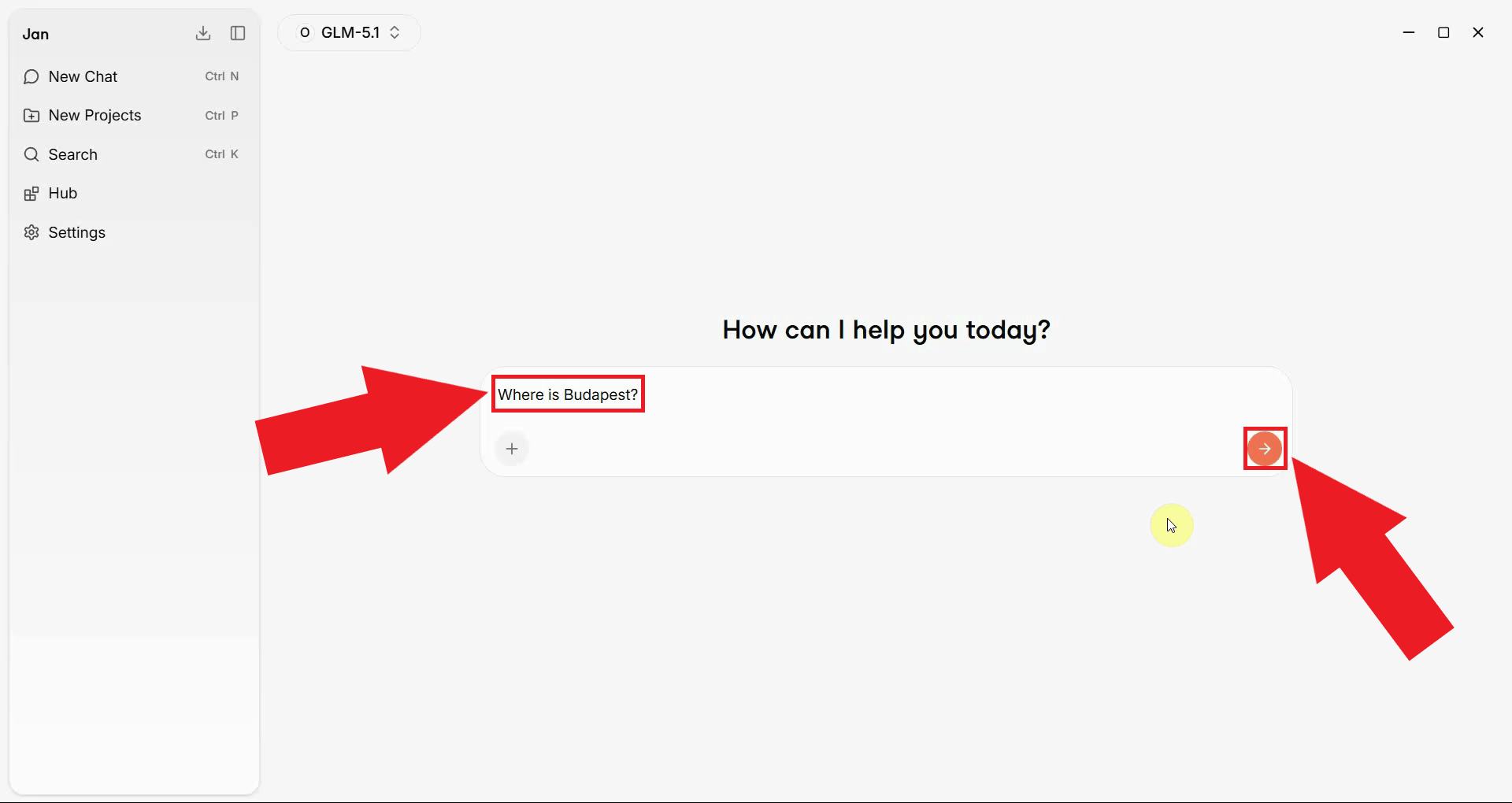
Type a test prompt in the message input field and press the Send button or Enter to send it (Figure 10).
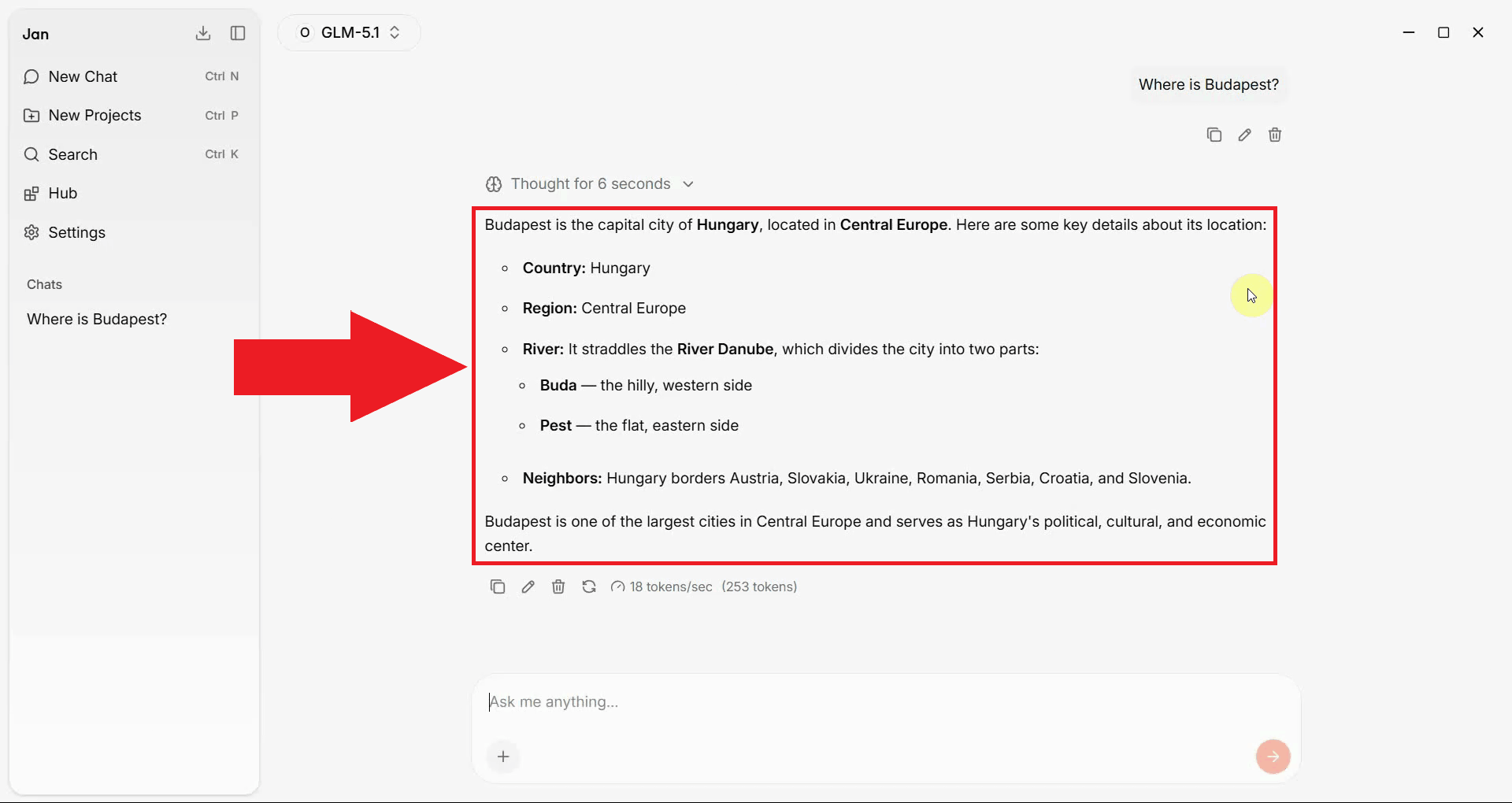
A successful response confirms that Jan is correctly connected to Ozeki AI Gateway and that all requests are being routed through your gateway infrastructure (Figure 11).
Final thoughts
You have successfully installed Jan and configured it to use Ozeki AI Gateway as a remote provider. All chat requests from Jan will now be routed through your gateway, giving you centralized control over model access, API key management, and usage monitoring across your connected client applications.