
How to set up AnythingLLM with Ozeki AI Gateway
This guide demonstrates how to install AnythingLLM and configure it to use Ozeki AI Gateway as its LLM provider on Windows. AnythingLLM supports OpenAI-compatible endpoints through its Generic OpenAI provider type, making it straightforward to connect to your local gateway during the initial setup wizard.
What is AnythingLLM?
AnythingLLM is an open-source, all-in-one desktop AI application that combines chat, document management, and AI agent capabilities in a single interface. It supports a wide range of LLM providers and allows you to create workspaces where you can chat with documents, build AI agents, and manage conversations. When connected to Ozeki AI Gateway, all model requests are routed through your local gateway, giving you centralized control over access and usage.
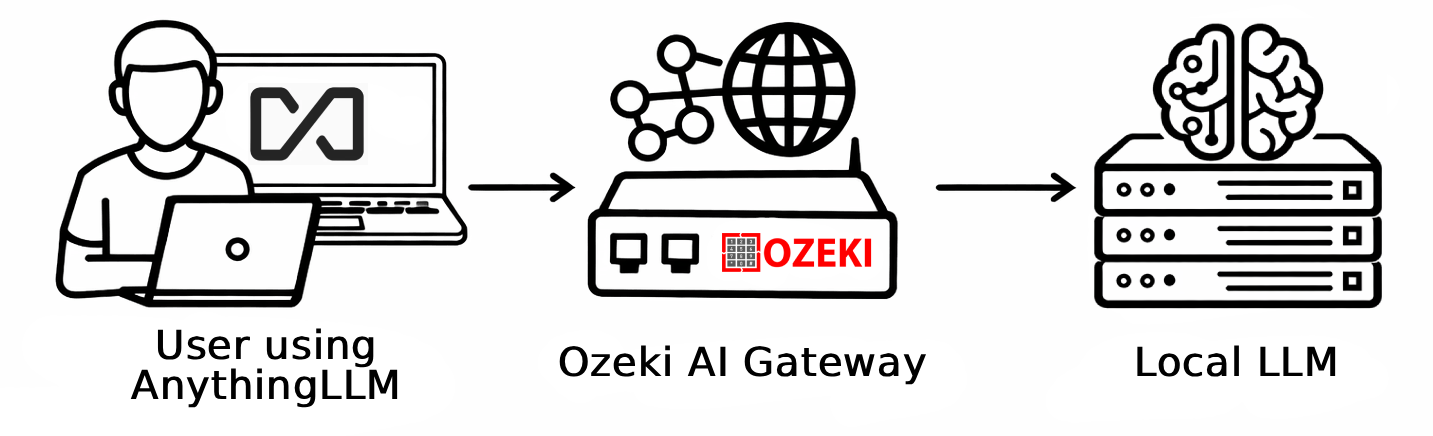
Steps to follow
We assume Ozeki AI Gateway is already installed on your system. You can install it on Linux, Windows or Mac.
Provider example
# Ozeki AI Gateway
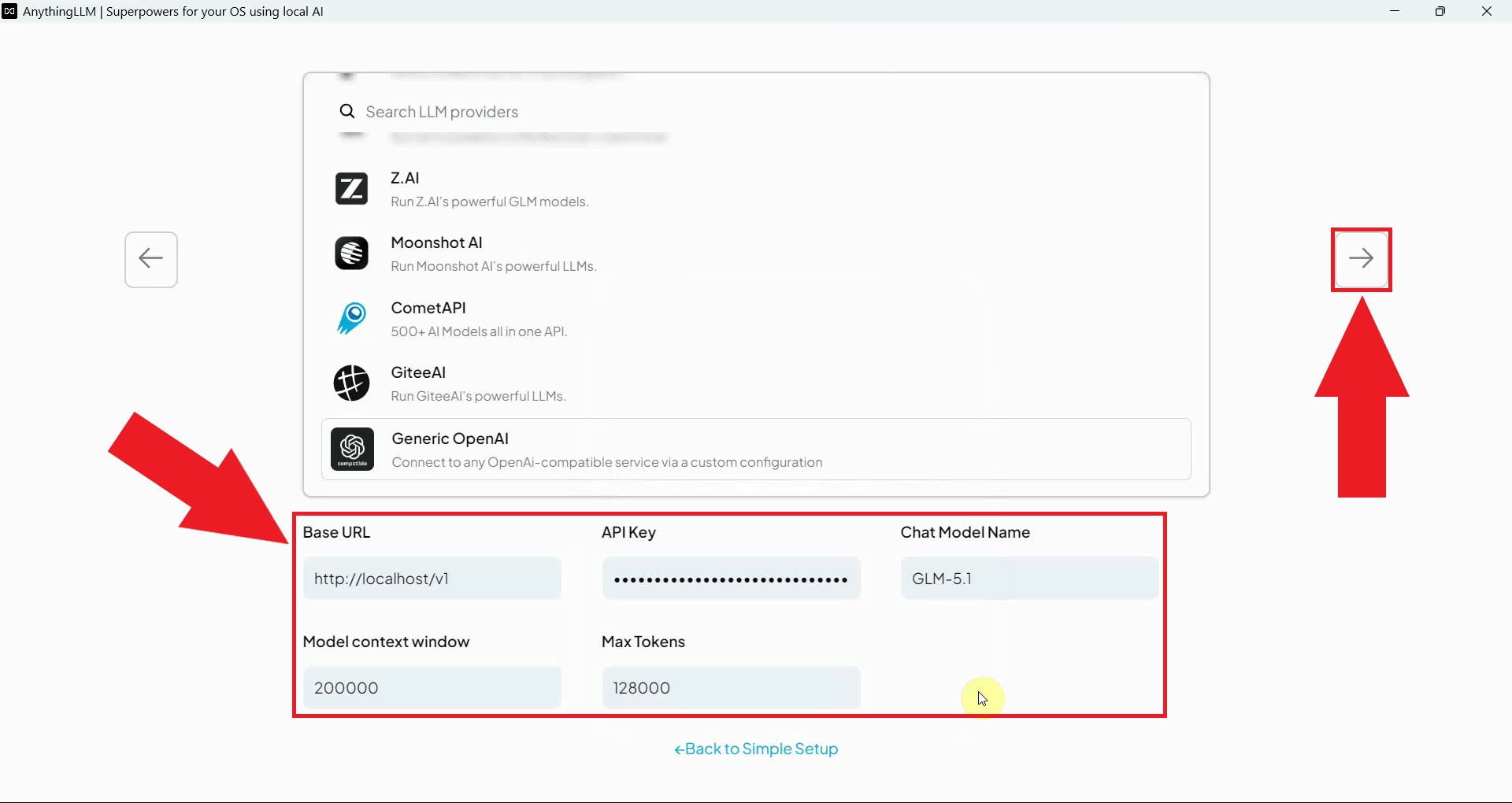
Provider type:       Generic OpenAI
Base URL:            http://localhost/v1
API Key:             ozkey-qwe123
Model:               your-model-name
Context window:      model-context-window-length
Max tokens:          model-max-tokens
How to download, set up and configure AnythingLLM with Ozeki AI Gateway video
The following video shows how to download, install, and configure AnythingLLM with Ozeki AI Gateway step-by-step. The video covers downloading the installer, completing the setup wizard, selecting the Generic OpenAI provider, entering the gateway connection details, and sending a test prompt.
Step 1 - Download and install AnythingLLM
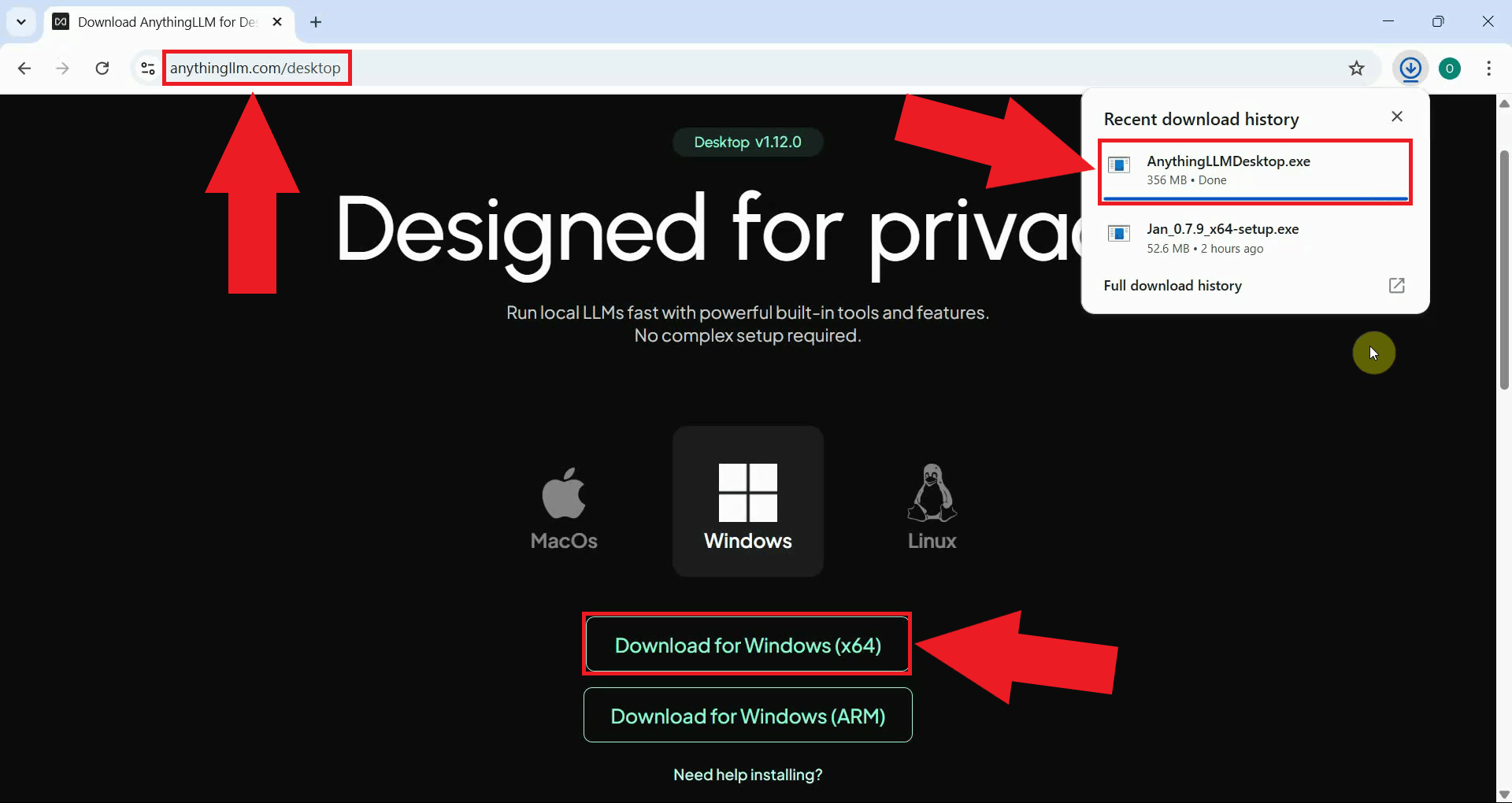
Navigate to the AnythingLLM website and download the Windows installer. The website always provides the latest available release of the application (Figure 1).
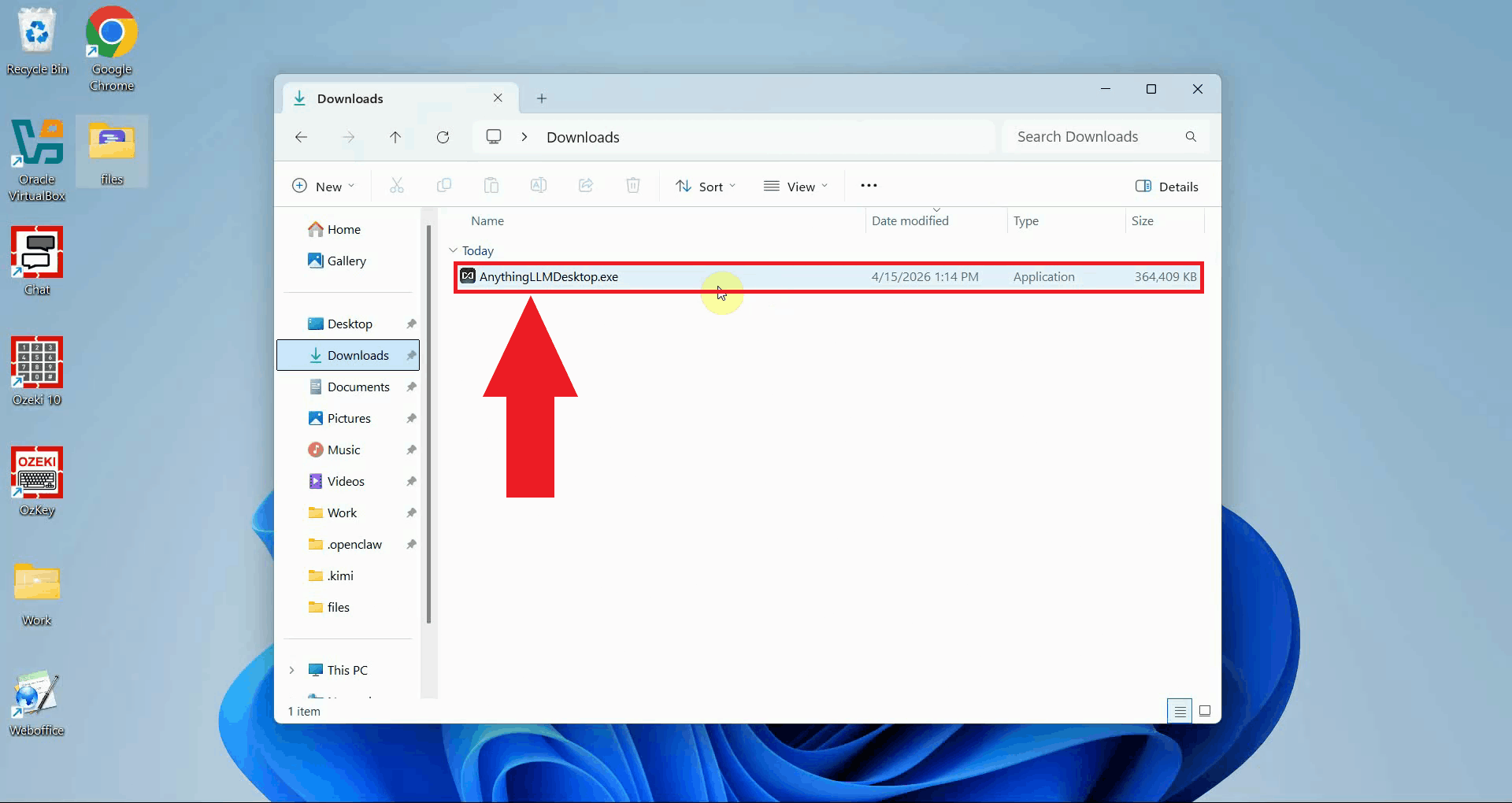
Locate the downloaded installer in your Downloads folder and double-click it to launch the setup wizard. If prompted by Windows User Account Control, click Yes to allow the installer to run (Figure 2).
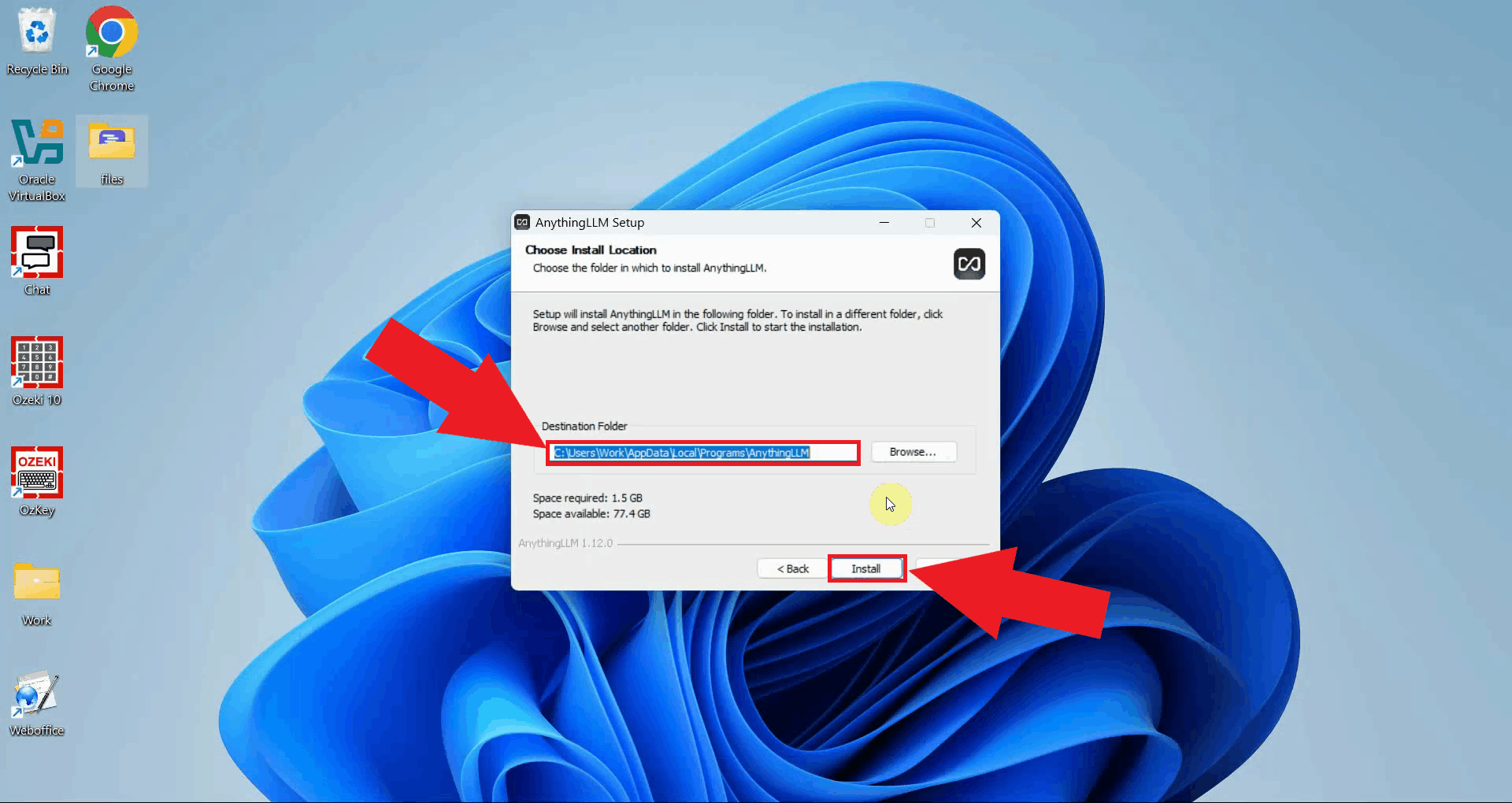
Choose the installation directory where AnythingLLM will be installed. The default location is recommended for most users. Click Install to continue (Figure 3).
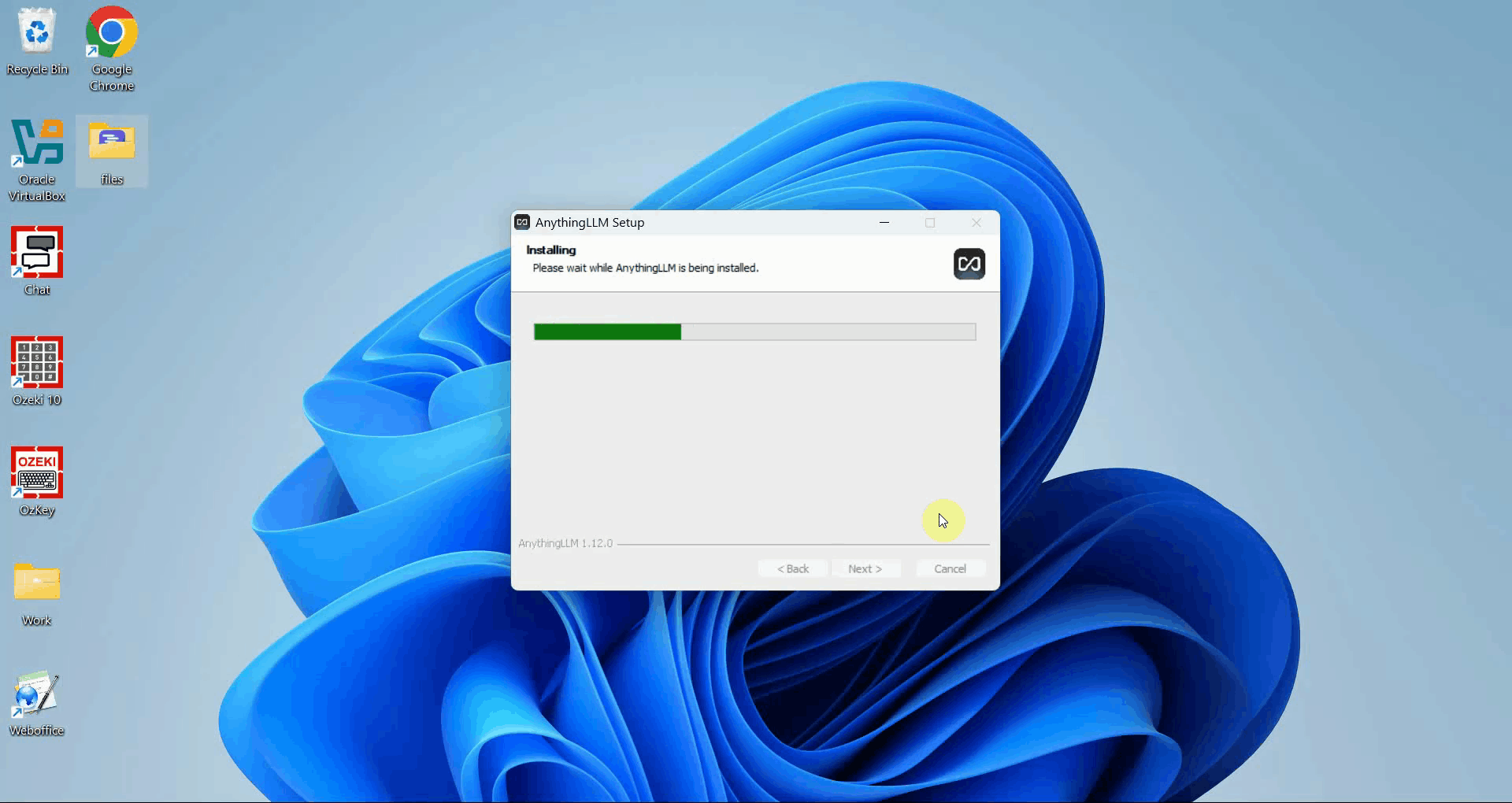
The installer will copy all necessary files to the selected directory. Wait for the progress bar to complete before proceeding (Figure 4).
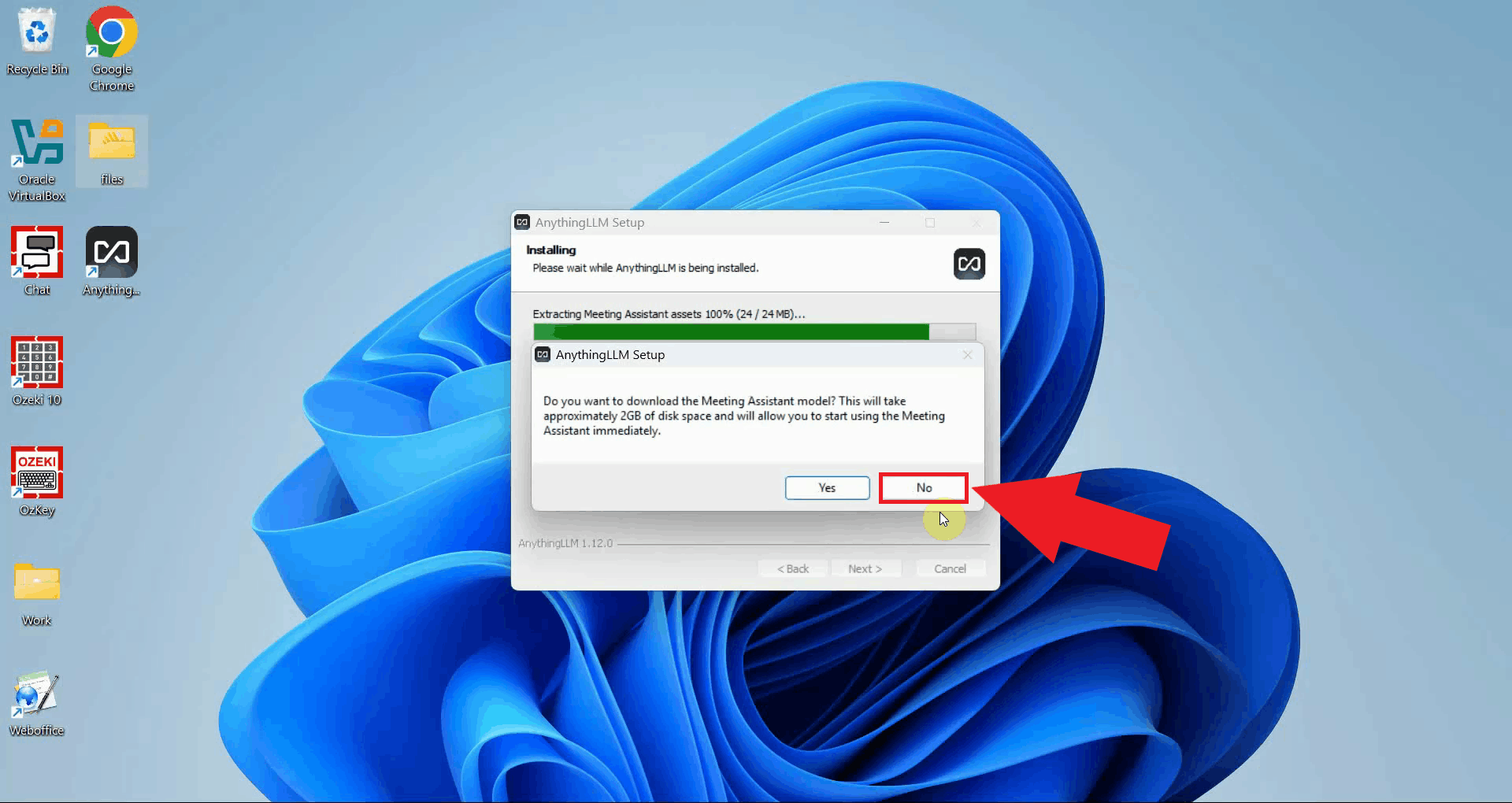
The installer may offer to download the AnythingLLM Meeting Assistant as an optional add-on. This is not required for the gateway integration, click No to skip it and continue (Figure 5).
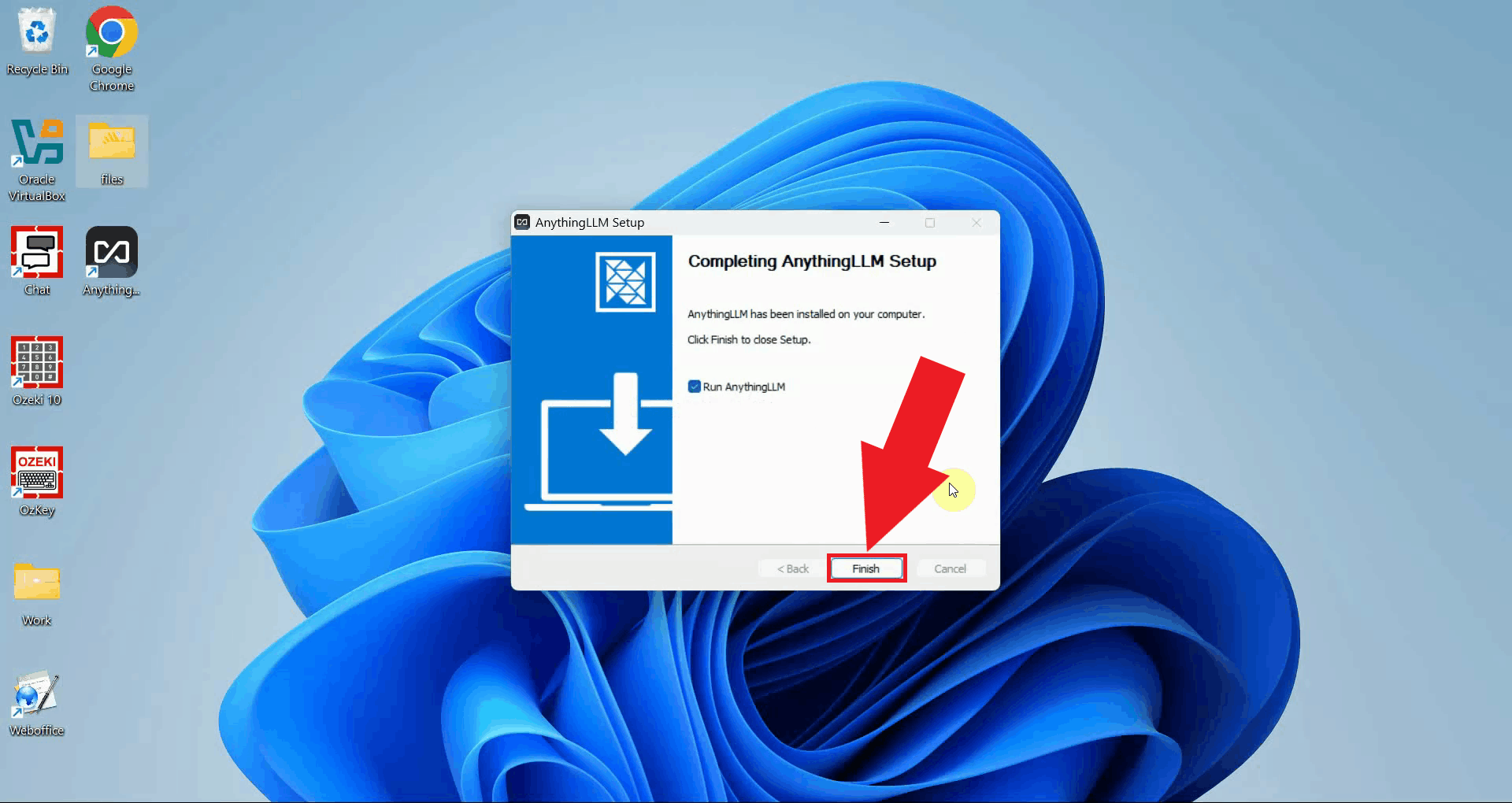
Click Finish to close the installer and launch AnythingLLM for the first time (Figure 6).
Step 2 - Configure Ozeki AI Gateway during setup
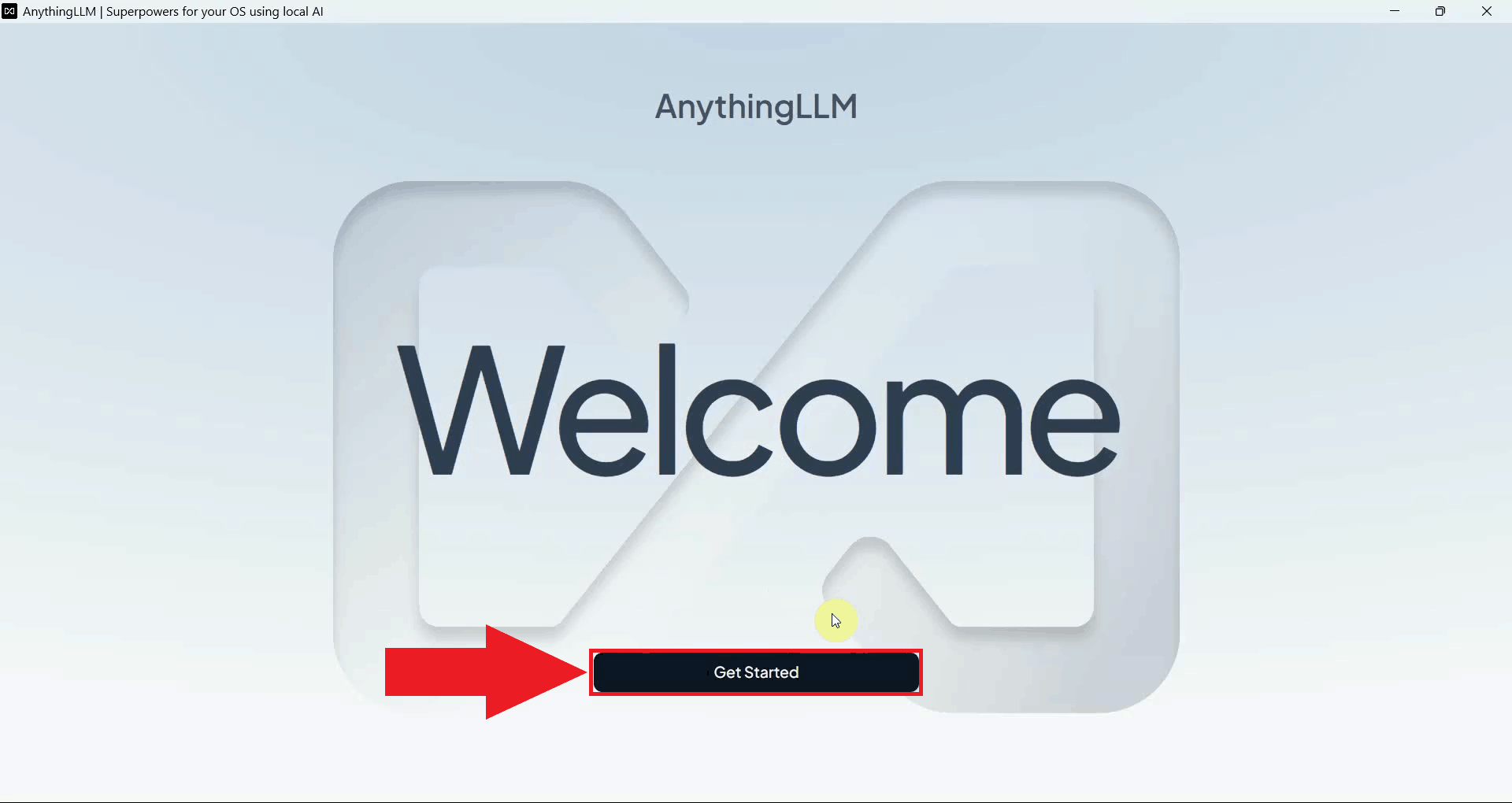
AnythingLLM will display its welcome screen on first launch. This screen introduces the application and leads into the initial configuration wizard (Figure 7).
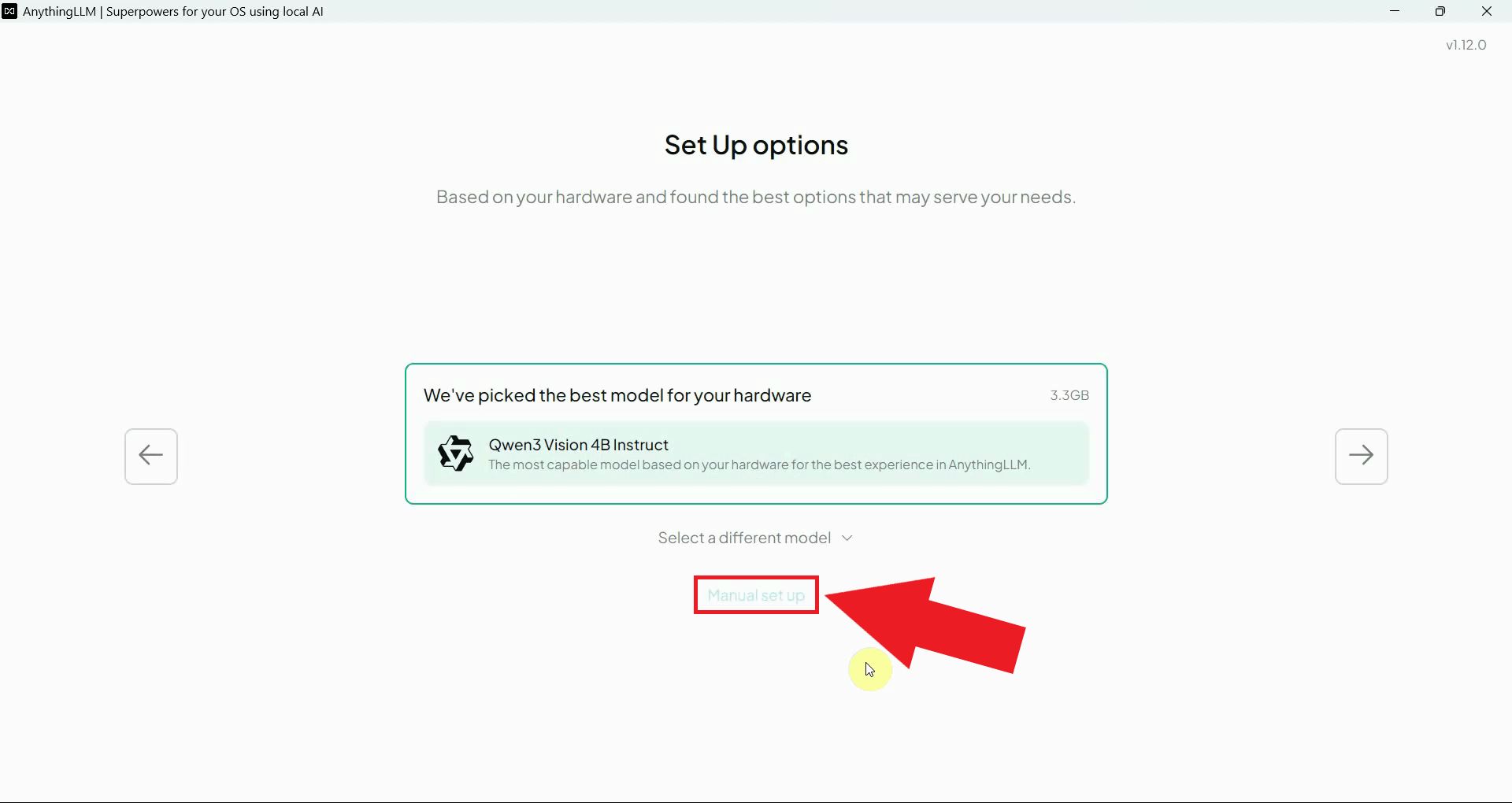
When prompted to choose a setup method, select Manual provider setup to configure the LLM provider yourself. This option gives you full control over which endpoint and model will be used (Figure 8).
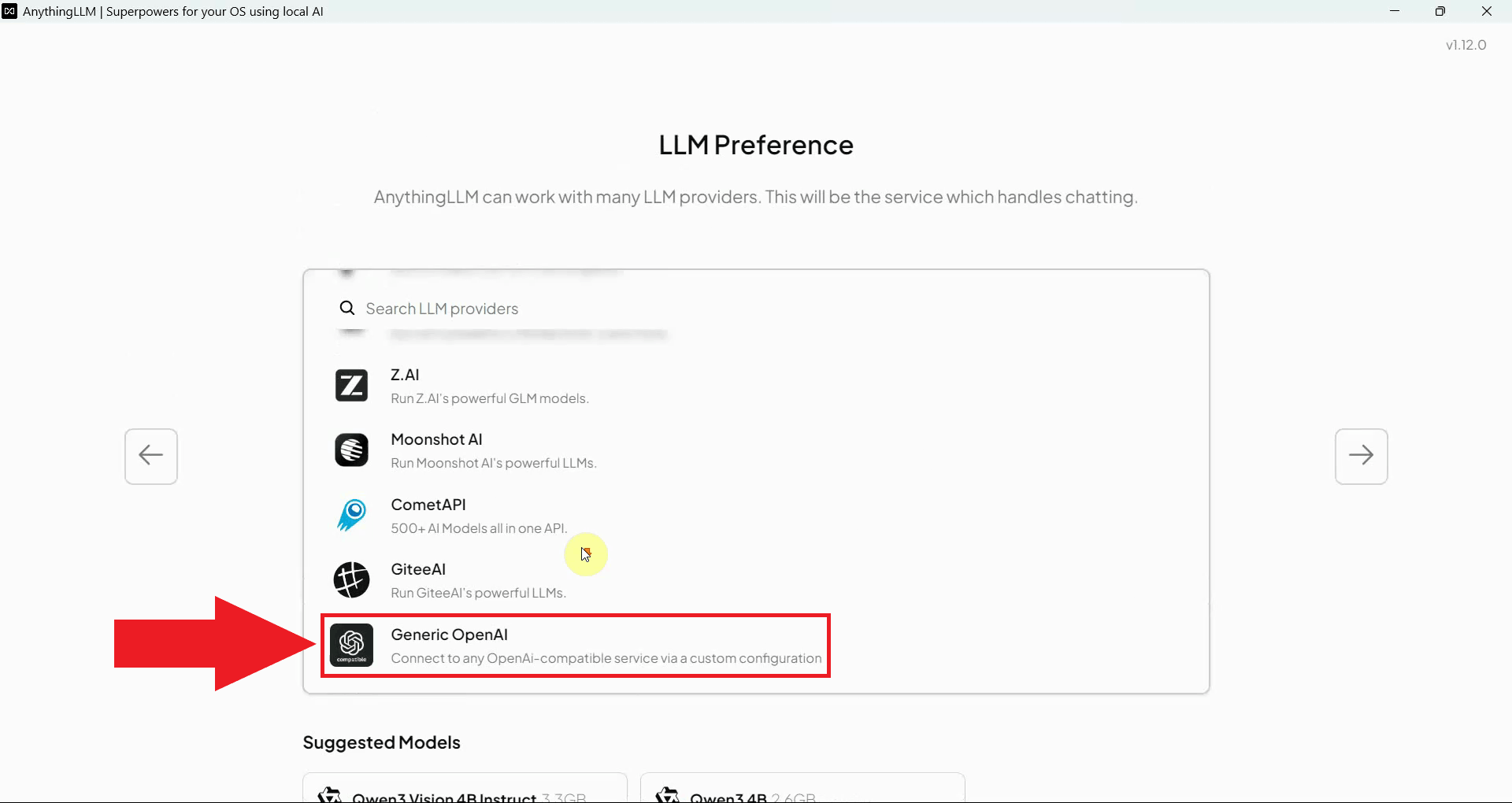
From the list of available LLM provider types, select Generic OpenAI. This option supports any OpenAI-compatible API endpoint, including Ozeki AI Gateway (Figure 9).
Fill in the provider configuration fields with your Ozeki AI Gateway connection details. Enter the gateway URL as the base URL, paste your API key, specify the model name available in your gateway, and set the context window and max token values appropriate for your model. Click Continue to save and proceed through the rest of the setup wizard (Figure 10).
Step 3 - Send a test prompt
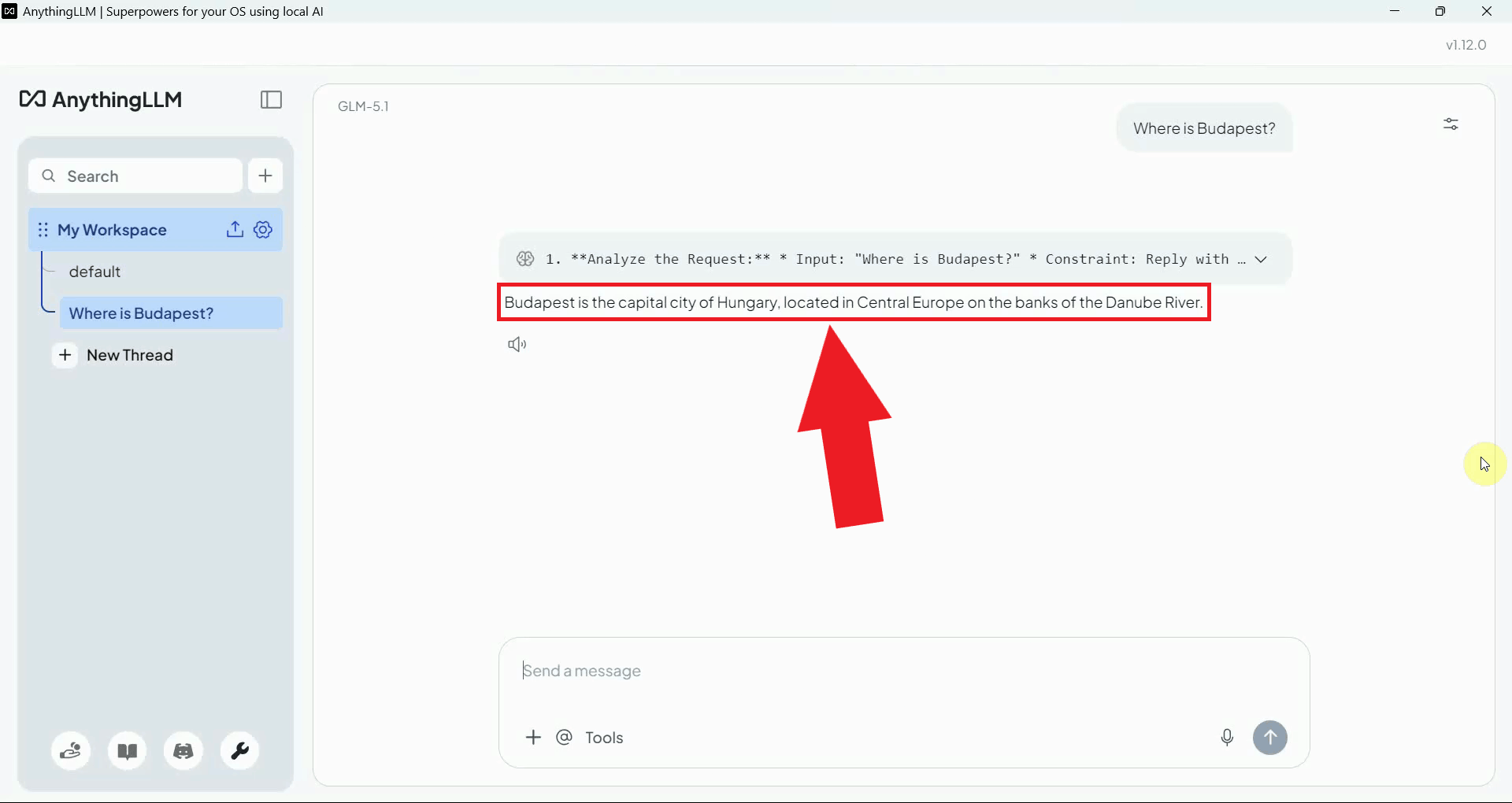
After completing the setup wizard, send a test message in the chat interface to verify that AnythingLLM is correctly connected to Ozeki AI Gateway and the configured model is responding (Figure 11).
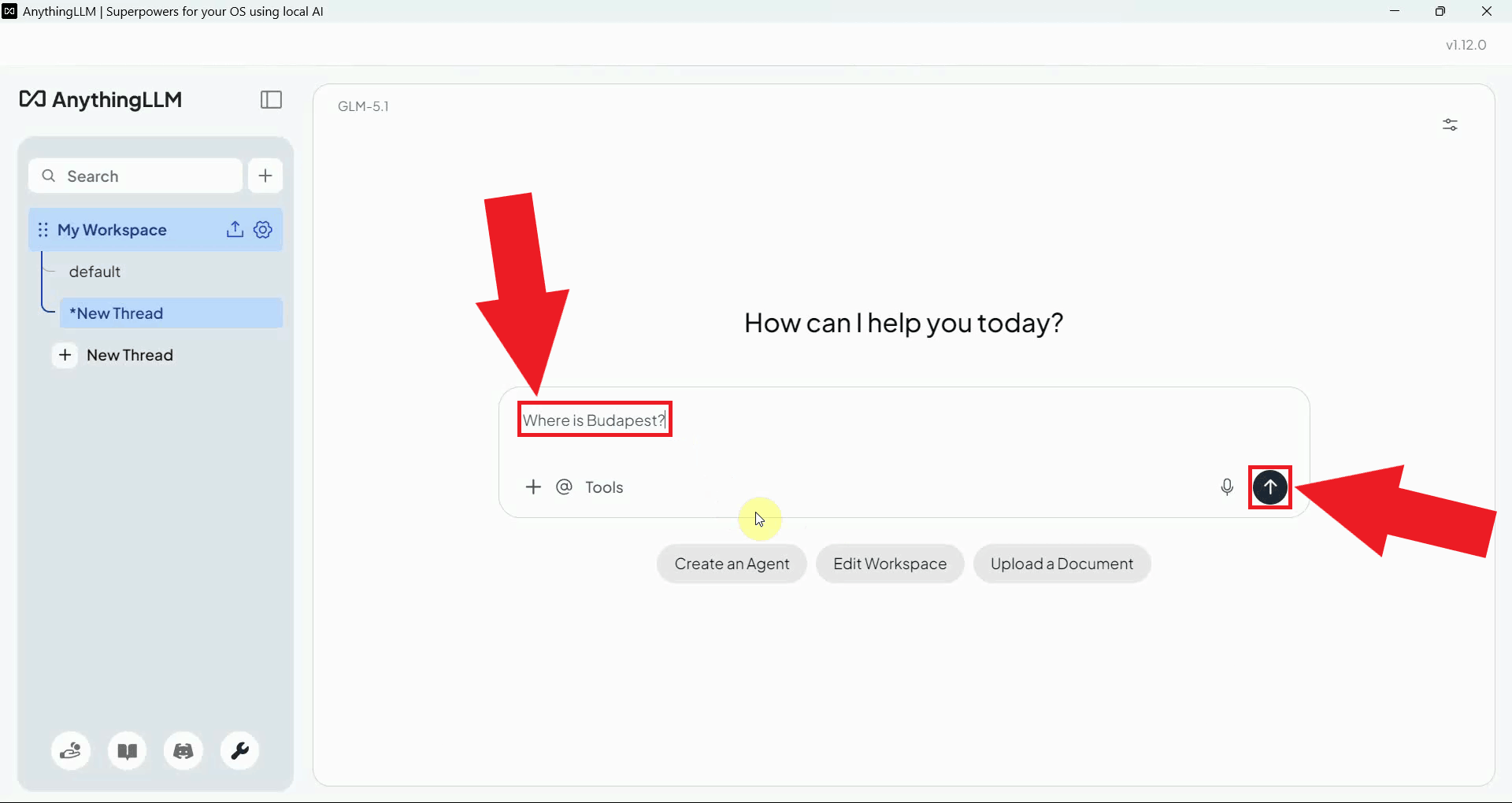
A successful response confirms that AnythingLLM is correctly communicating with Ozeki AI Gateway and that all requests are being routed through your local gateway infrastructure (Figure 12).
To sum it up
You have successfully installed AnythingLLM and connected it to Ozeki AI Gateway using the Generic OpenAI provider type. All LLM requests from AnythingLLM will now be routed through your gateway, allowing you to manage model access, API keys, and usage monitoring from a single centralized location.