
How to set up the Cline coding agent in VS Code with Ozeki AI Gateway
This guide demonstrates how to configure Cline, an AI-powered coding assistant for Visual Studio Code, to work with Ozeki AI Gateway. You'll learn the complete installation process and configuration steps needed to integrate Cline with your Ozeki AI Gateway setup.
What is Cline?
Cline is an AI-powered coding assistant extension for Visual Studio Code that helps developers write code faster and more efficiently. It provides intelligent code completion, generation, and refactoring suggestions powered by large language models. When connected to Ozeki AI Gateway, you authenticate using API keys created in the gateway and access only the AI models that have been configured for your specific provider and routed to your user account.
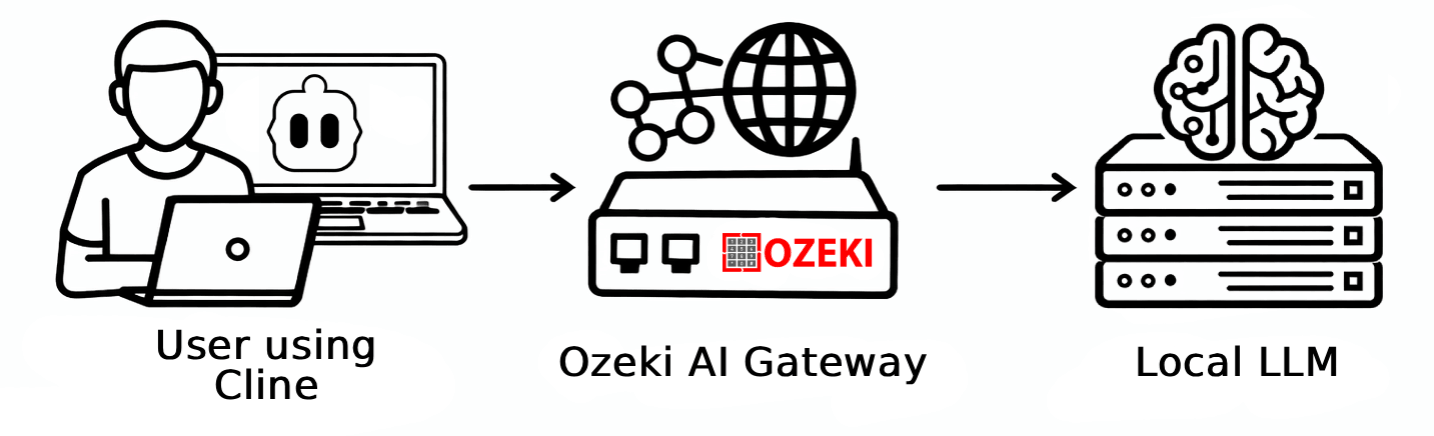
Steps to follow
We assume Ozeki AI Gateway is already installed on your system. You can install it on Linux, Windows or Mac.
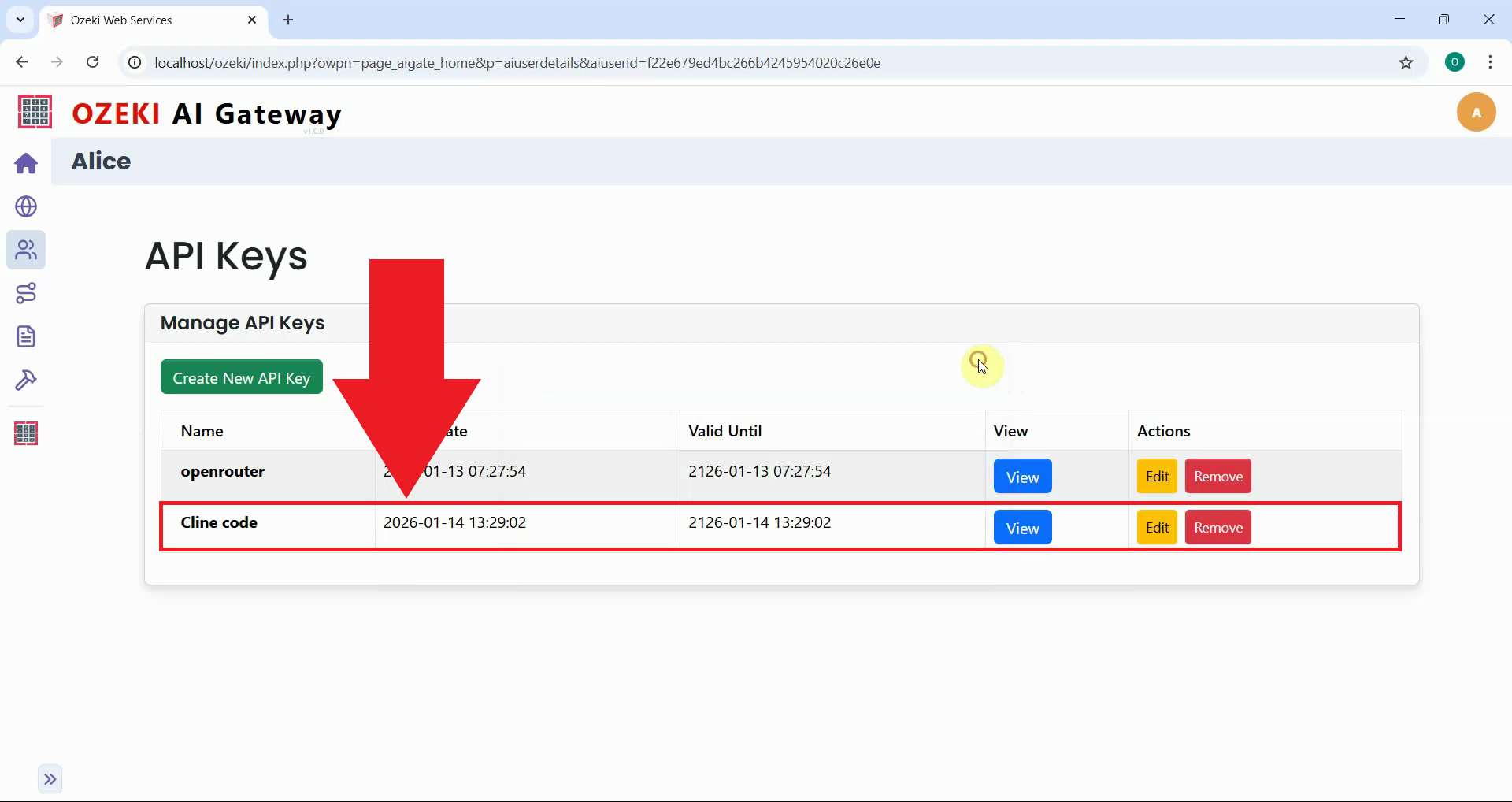
Create API key for Cline video
Before configuring Cline, you need to create an API key in Ozeki AI Gateway. This video demonstrates how to navigate to the Users section, create a new API key for Cline, and copy it for use in the configuration process. The API key serves as the authentication credential that allows Cline to communicate with your Ozeki AI Gateway.
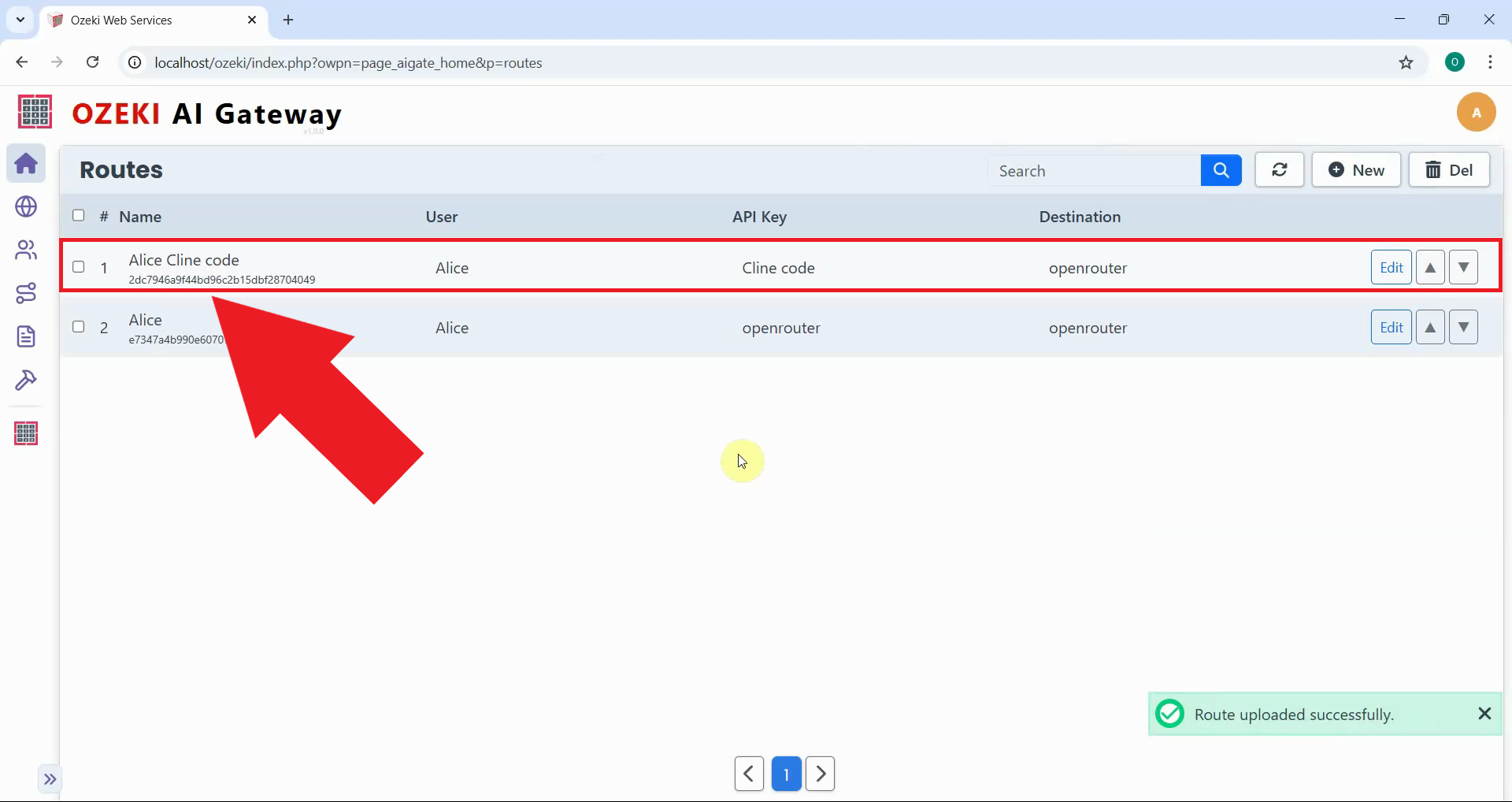
Create route for Cline video
After creating the API key, you must establish a route in Ozeki AI Gateway that connects your user account to an AI provider. This video shows how to create a route that links your Cline user to a provider like OpenRouter, enabling access to the AI models you've configured.
How to set up Cline with Ozeki AI Gateway video
The following video shows how to set up Cline with Ozeki AI Gateway step-by-step. The video covers installing the extension, configuring the API connection, and testing the integration with a sample coding task.
Step 1 - Install Cline VS Code extension
Open Visual Studio Code and click on the Extensions icon in the left sidebar. In the search bar, type "Cline" to find the AI coding assistant extension (Figure 3).
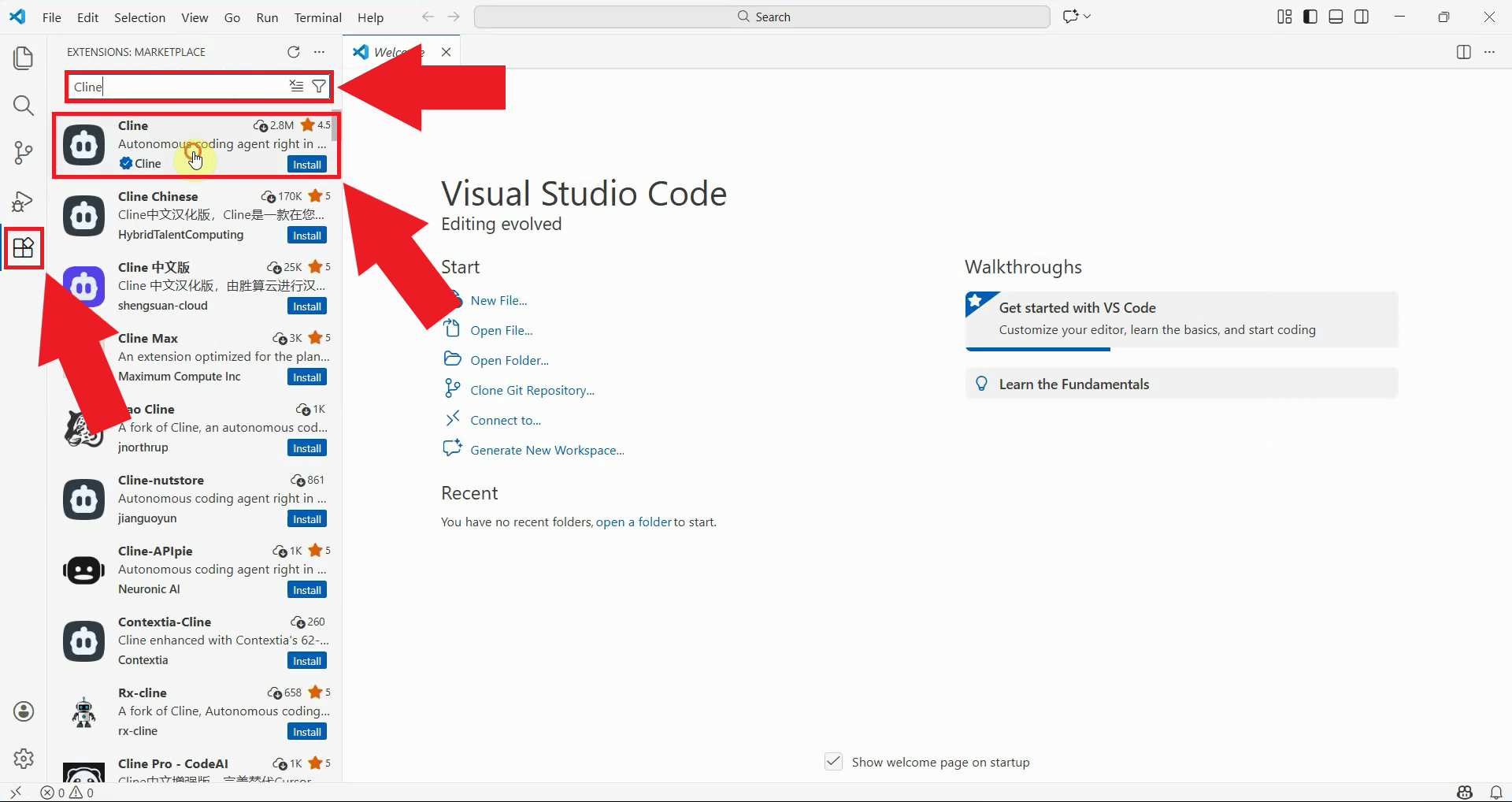
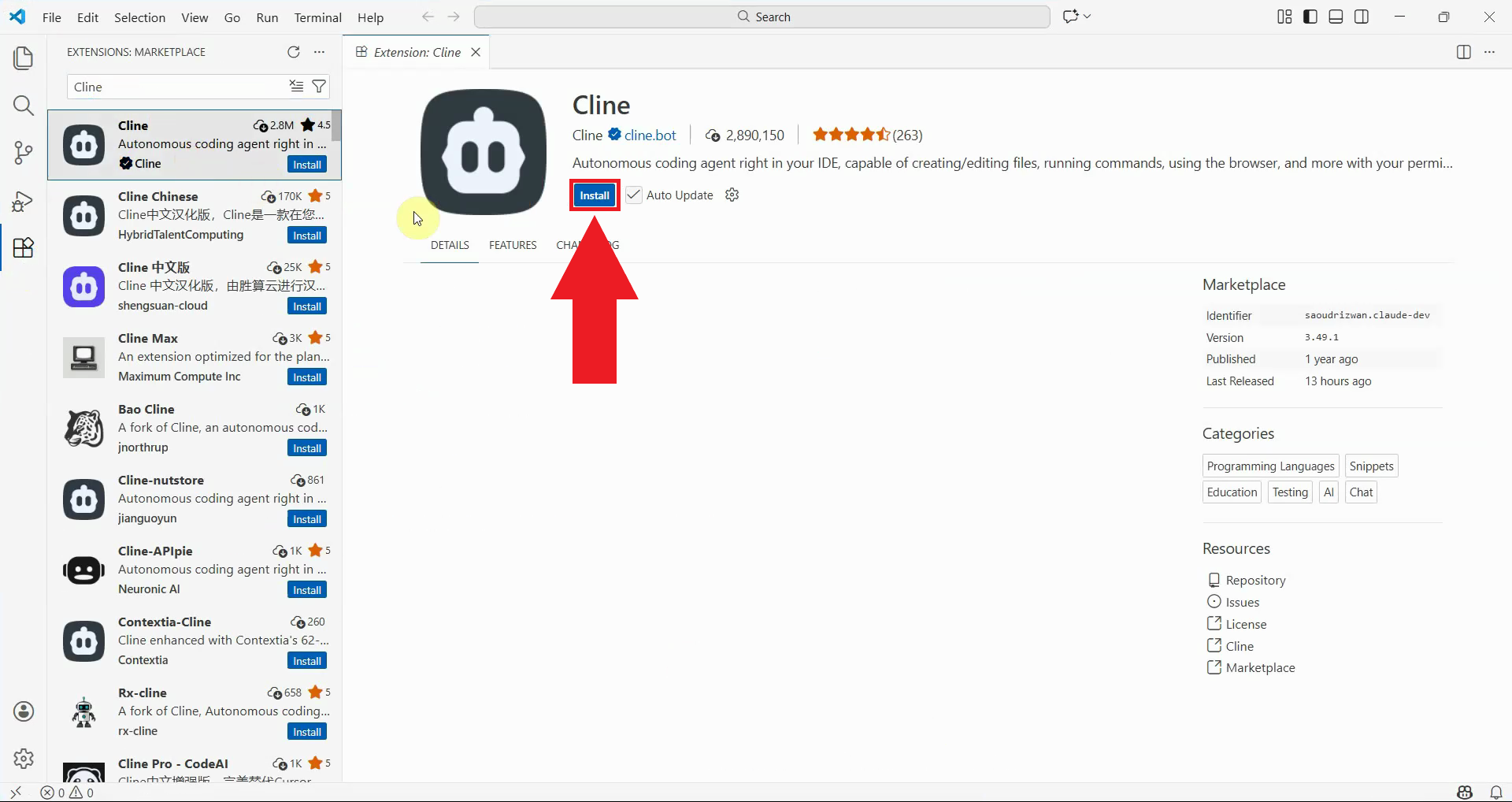
Locate the Cline extension in the search results and click the "Install" button. Visual Studio Code will download and install the extension. Wait for the installation to complete before proceeding (Figure 4).
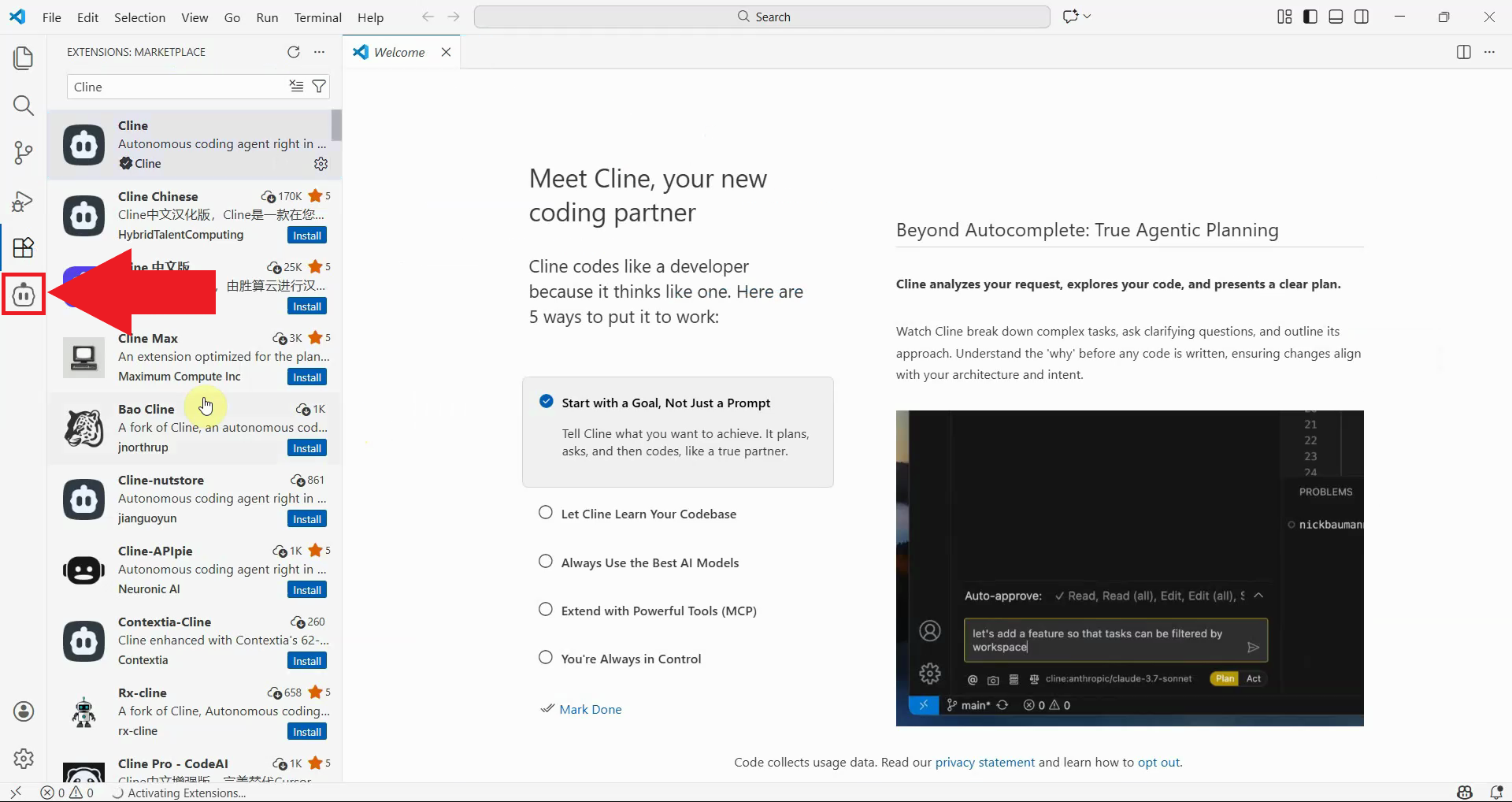
After installation, the Cline icon will appear in the VS Code sidebar. Click on the Cline icon to open the extension's interface. This will display the welcome screen where you can configure the AI provider connection (Figure 5).
Step 2 - Configure Cline
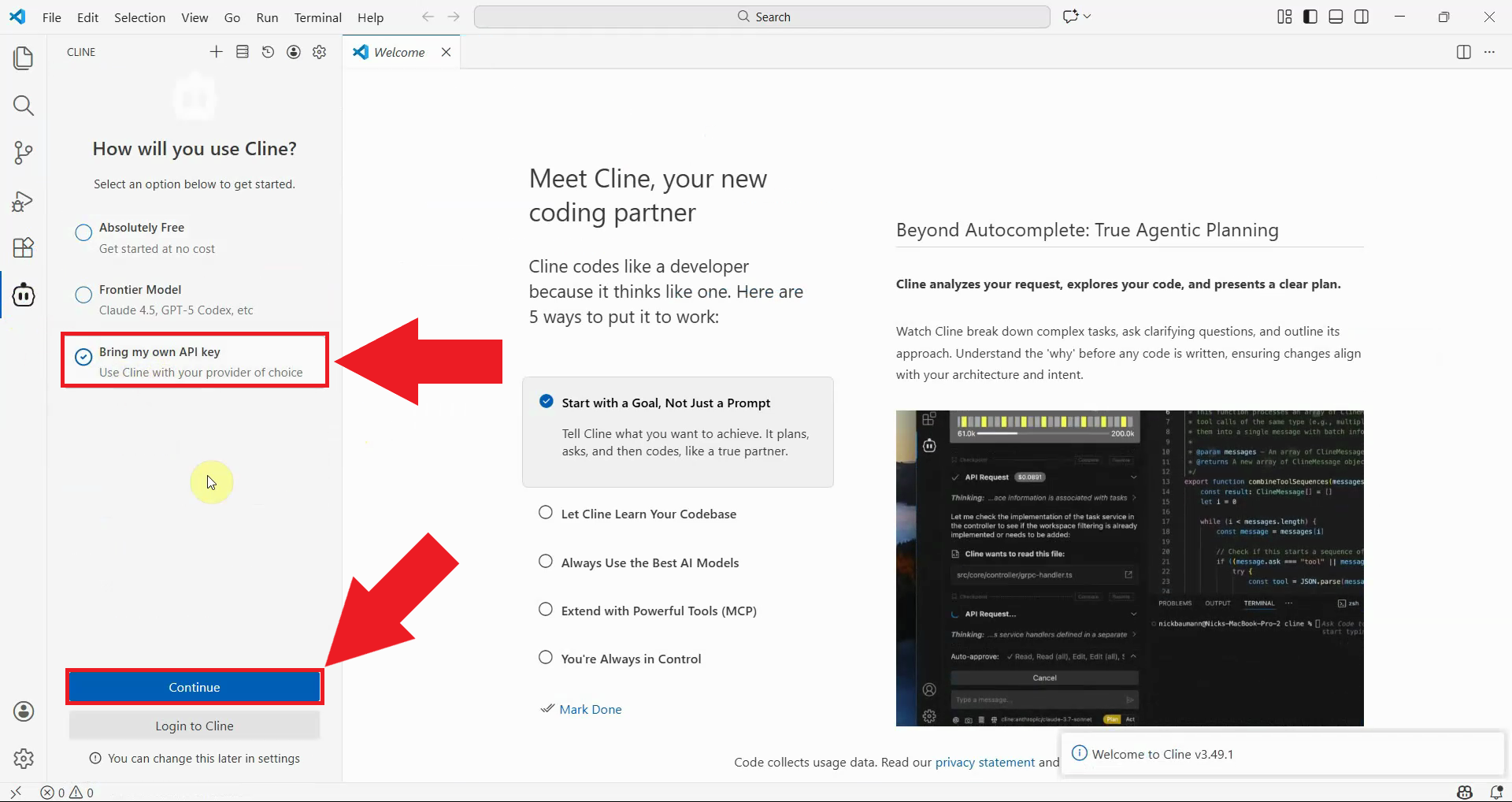
On the Cline welcome screen, select "Bring my own API key" to configure a custom API endpoint. This option allows you to connect Cline to Ozeki AI Gateway (Figure 6).
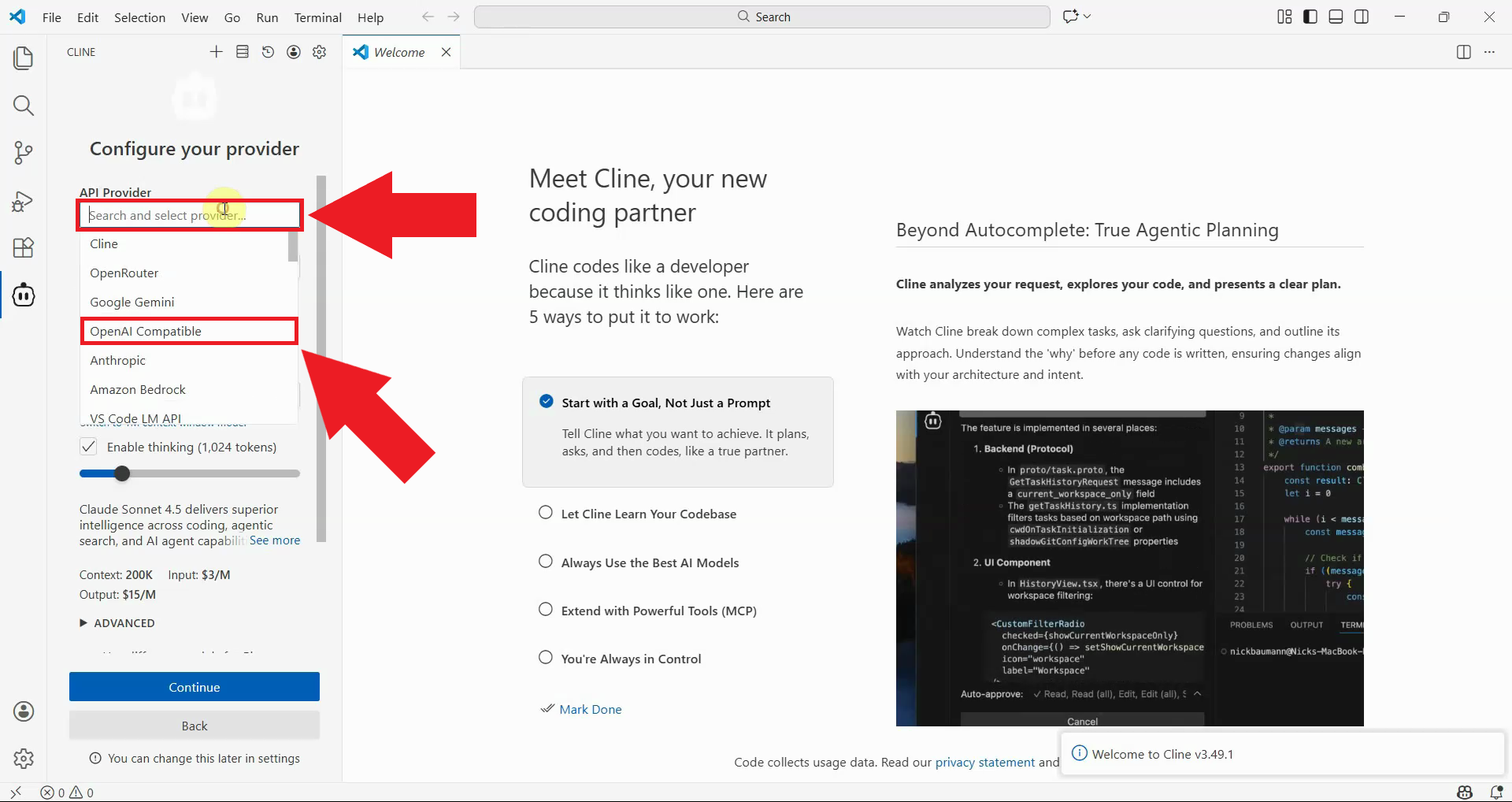
From the provider list, select "OpenAI Compatible" as your API provider type. This option works with any API that follows the OpenAI API format, including Ozeki AI Gateway (Figure 7).
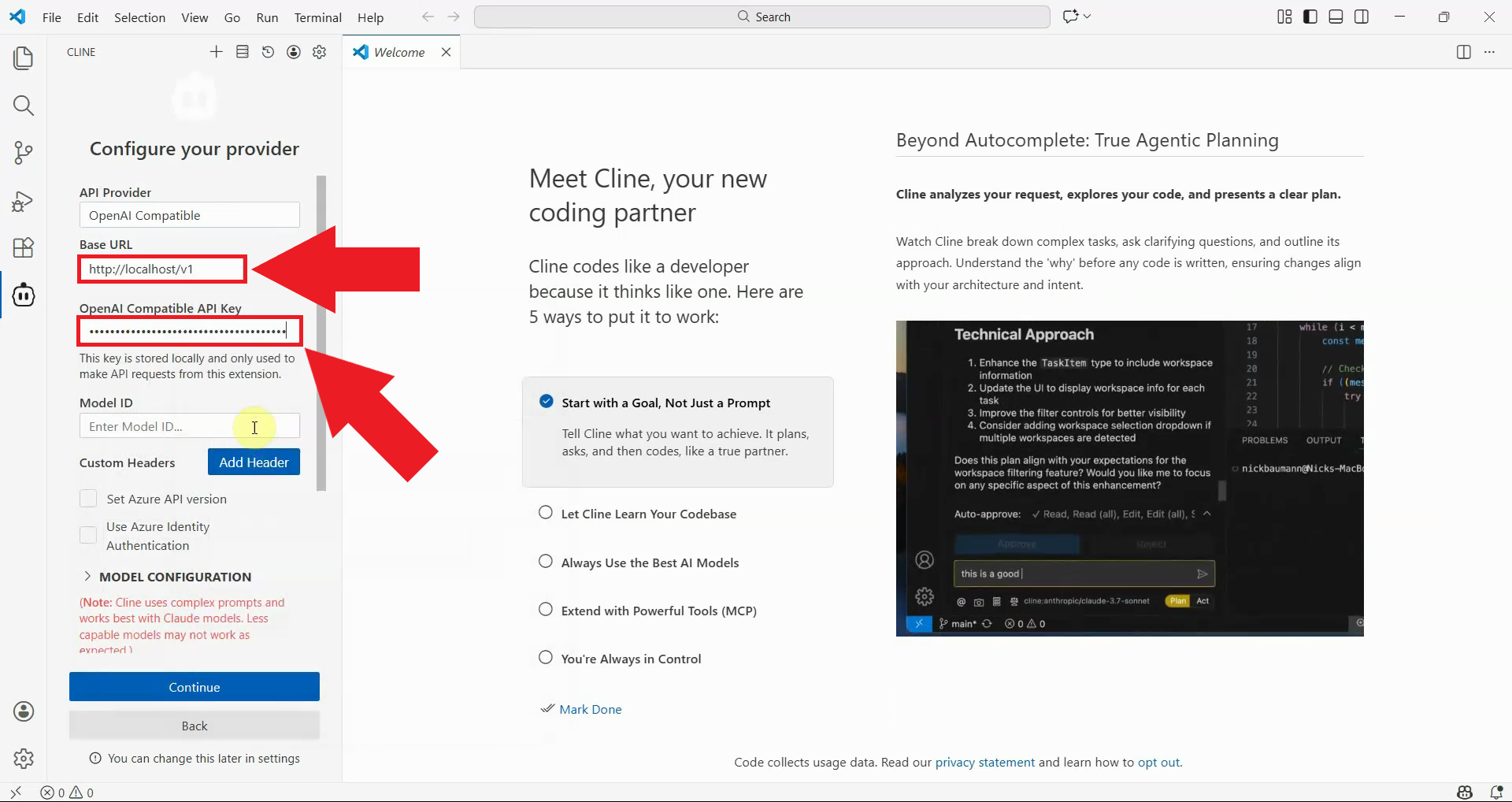
Enter your Ozeki AI Gateway base URL in the API endpoint field. Then, enter your Ozeki AI Gateway API key in the API key field. Cline authenticates to the gateway using this key (Figure 8).
You need a working installation of Ozeki AI Gateway with at least one configured AI provider, one user with an API key, and at least one route that connects the user to a provider. If you haven't set this up yet, please check out the Ozeki AI Gateway Quick Start Guide.
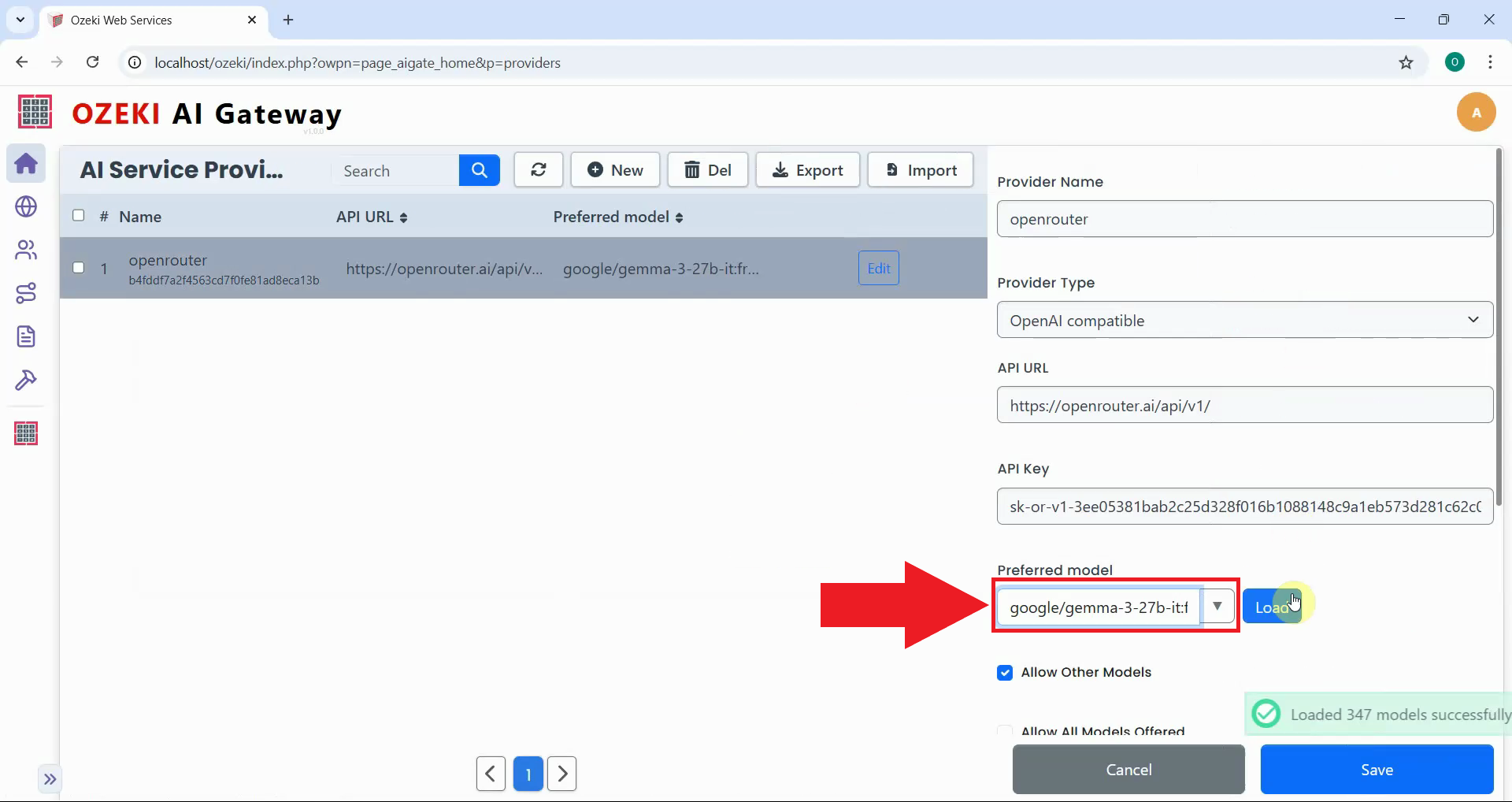
If you don't know the exact model ID to use, you can check it in Ozeki AI Gateway. Navigate to the Providers section in your Ozeki AI Gateway interface and locate the provider you configured (Figure 9).
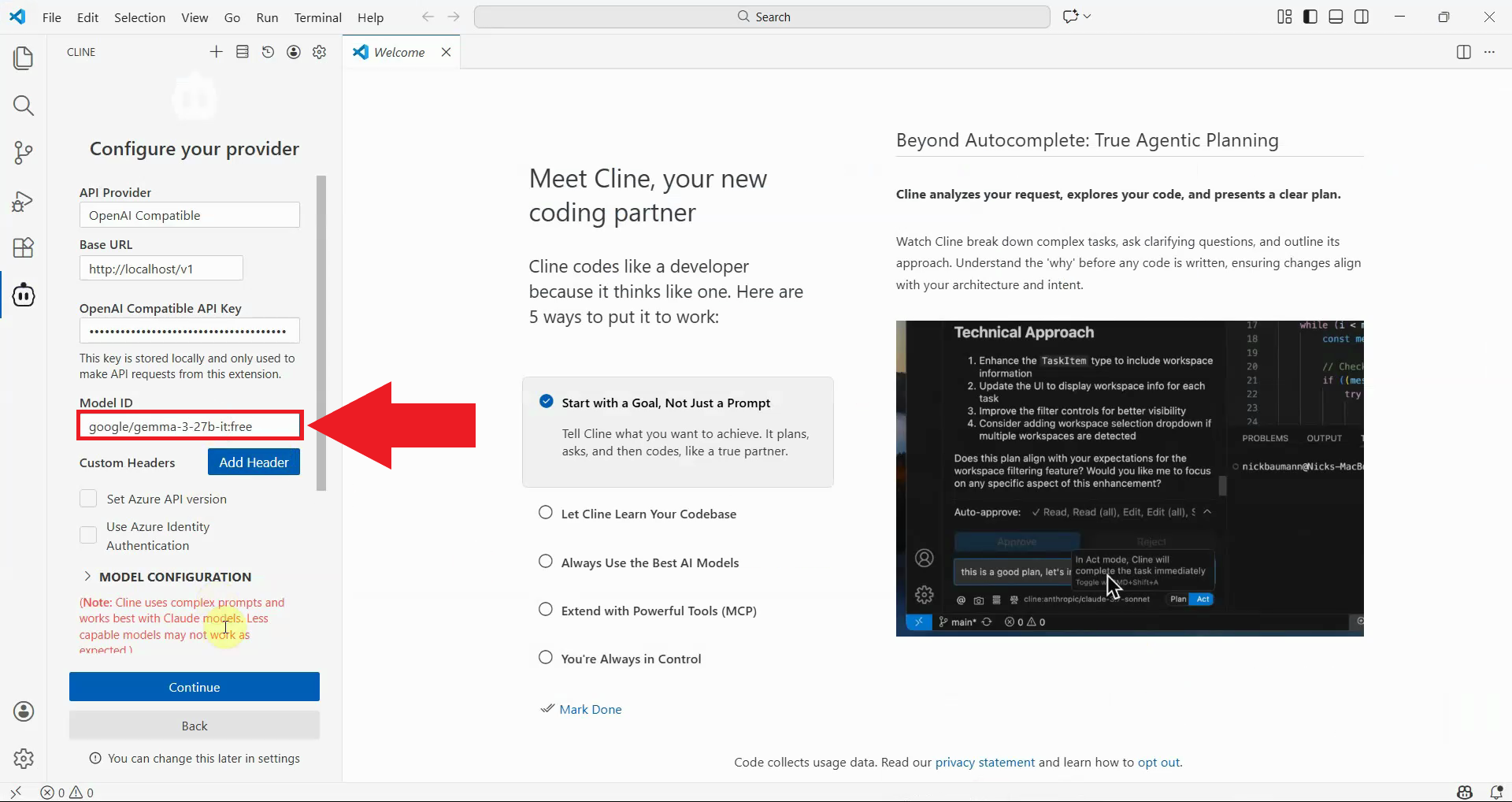
Enter the model ID you want to use with Cline. This should match one of the models that have been enabled in your provider configuration (Figure 10).
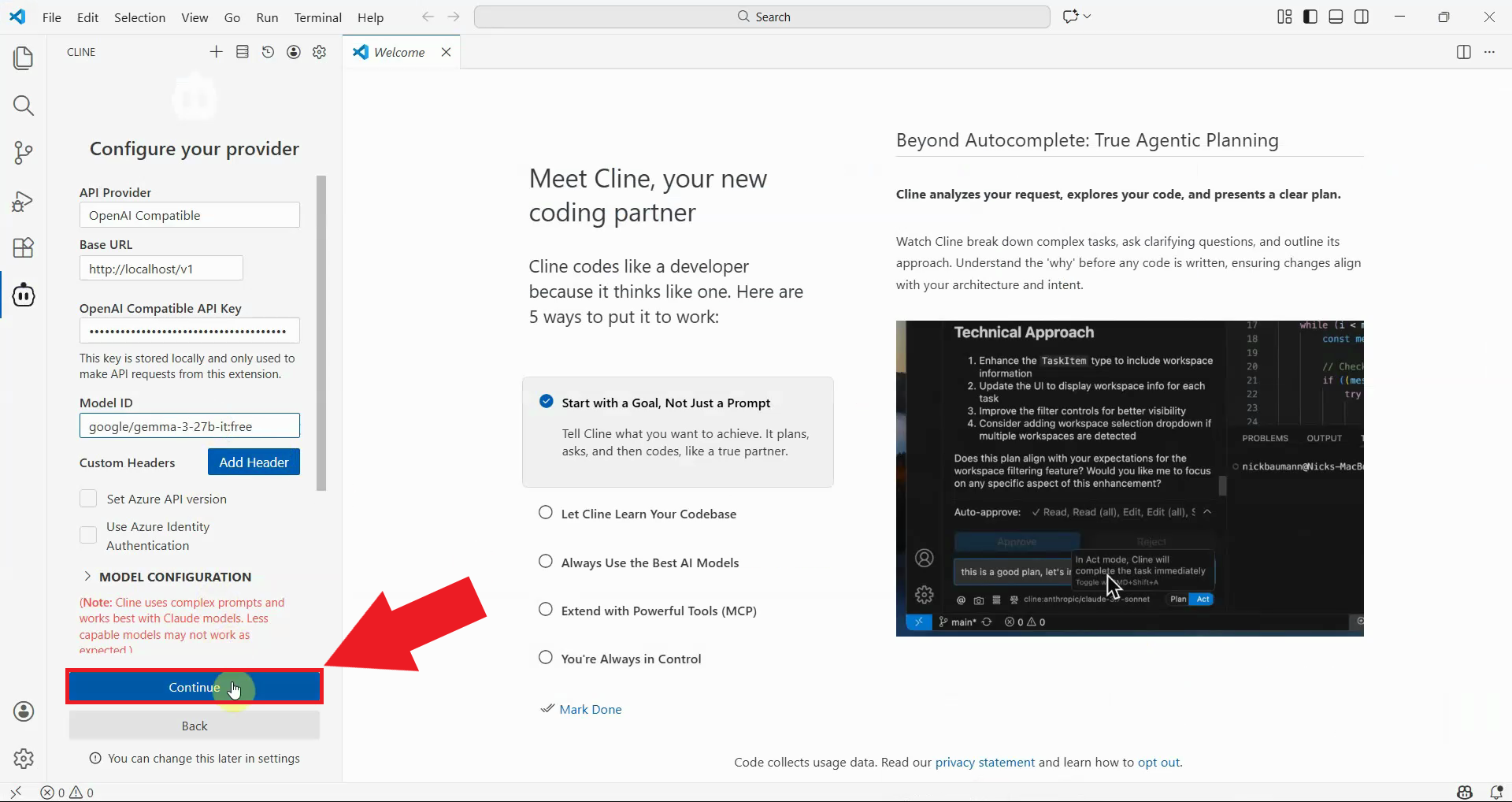
After entering all the configuration details, click the "Continue" button to save your settings and complete the Cline configuration (Figure 11).
Step 3 - Test Cline
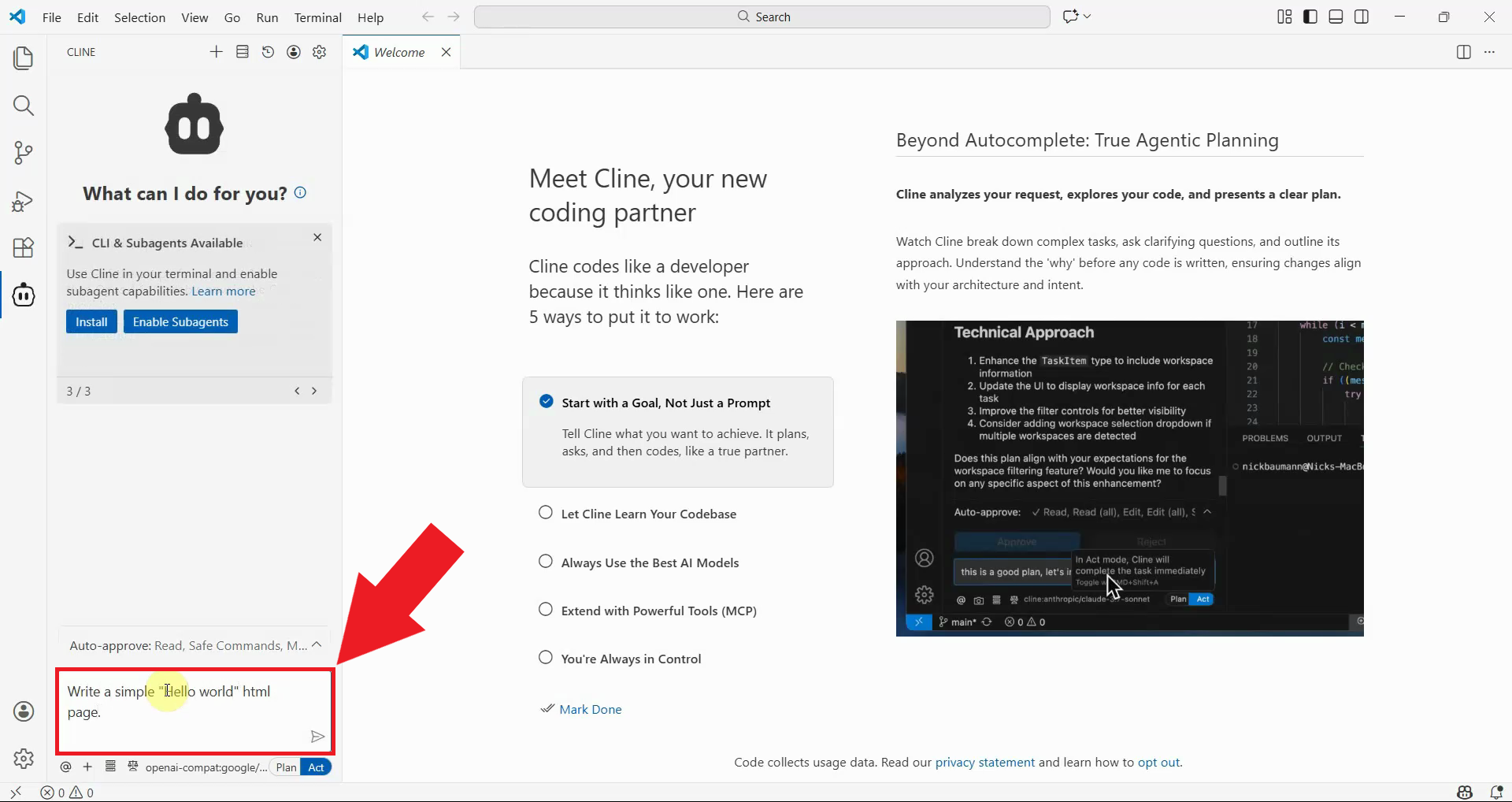
To verify that Cline is working properly with your Ozeki AI Gateway, test it with a simple coding task. The AI will generate code based on your request (Figure 12).
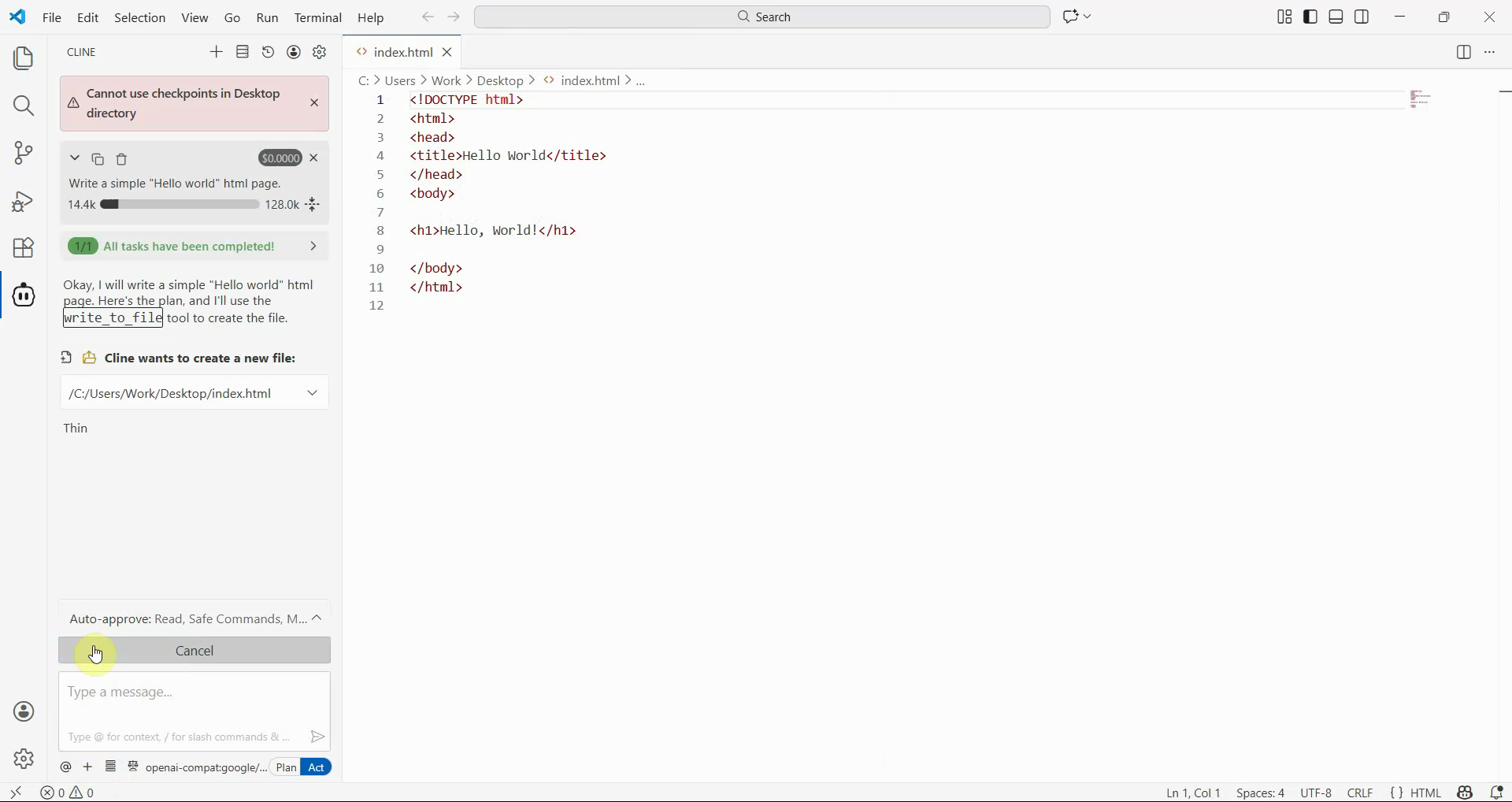
Cline will generate the requested code and display it in the interface. You can review the generated code, insert it into your project, or ask for modifications (Figure 13).
View Cline Transaction Log video
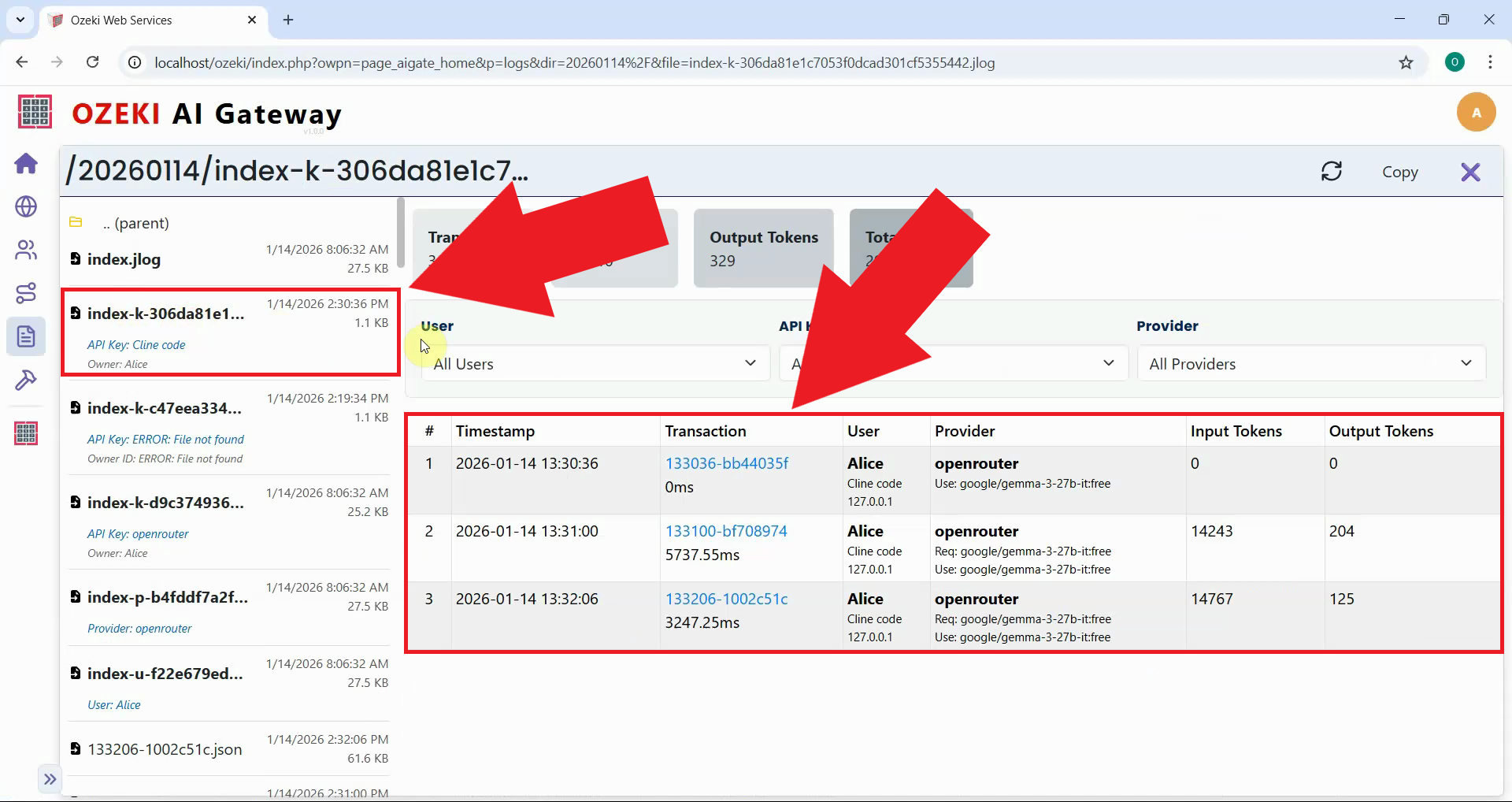
One of the key advantages of using Ozeki AI Gateway is the ability to monitor usage. This video demonstrates how to access the transaction log in Ozeki AI Gateway to view information about Cline requests, including which developer made requests, which models were used, token consumption, and associated costs.
Conclusion
You have successfully configured Cline to work with Ozeki AI Gateway, giving you an AI-powered coding assistant that routes through your own on-premises infrastructure. Use it to accelerate your development workflow with code generation, debugging assistance, and documentation creation. All interactions are authenticated through your gateway API key and limited to the providers and models configured for your account.