
How to fix OpenClaw model context window too small error
This guide demonstrates how to resolve the "model context window too small" error in OpenClaw when using Ozeki AI Gateway. You'll learn how to modify OpenClaw's configuration file to adjust the context window and max tokens settings to match your AI model's capabilities, ensuring proper communication between OpenClaw and your gateway.
Understanding the error
The context window error occurs when OpenClaw's default configuration doesn't match the capabilities of the AI model you're using. OpenClaw sets conservative default values for context window size and maximum tokens, which may be smaller than what your AI model can actually handle. This mismatch causes OpenClaw to reject requests that exceed its configured limits, even though the underlying AI model could process them.
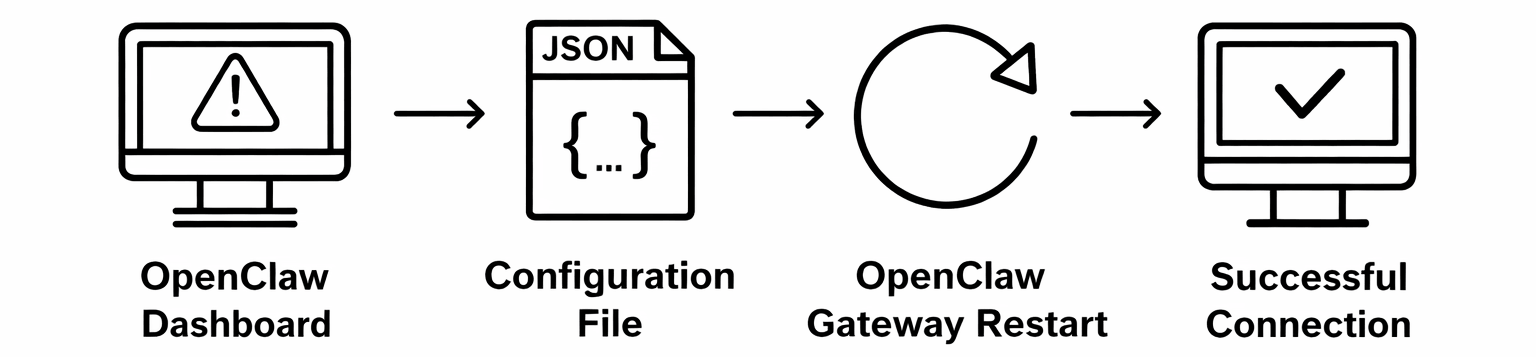
Steps to follow
We assume OpenClaw is already installed and configured to work with Ozeki AI Gateway on your system. You can install it on Linux, Windows or Mac.
Quick reference commands
# Configuration file location
C:\Users\{User}\.openclaw\openclaw.json

# Configuration values to modify
"contextWindow": 16384,
"maxTokens": 65536

# Start OpenClaw gateway
openclaw gateway start

# Open OpenClaw dashboard
openclaw dashboard
Fix OpenClaw context window error video
The following video shows how to fix the OpenClaw model context window error step-by-step. The video covers identifying the error in the logs, modifying the configuration file, restarting the gateway service, and verifying that the fix resolved the issue.
Step 1 - Identify the error
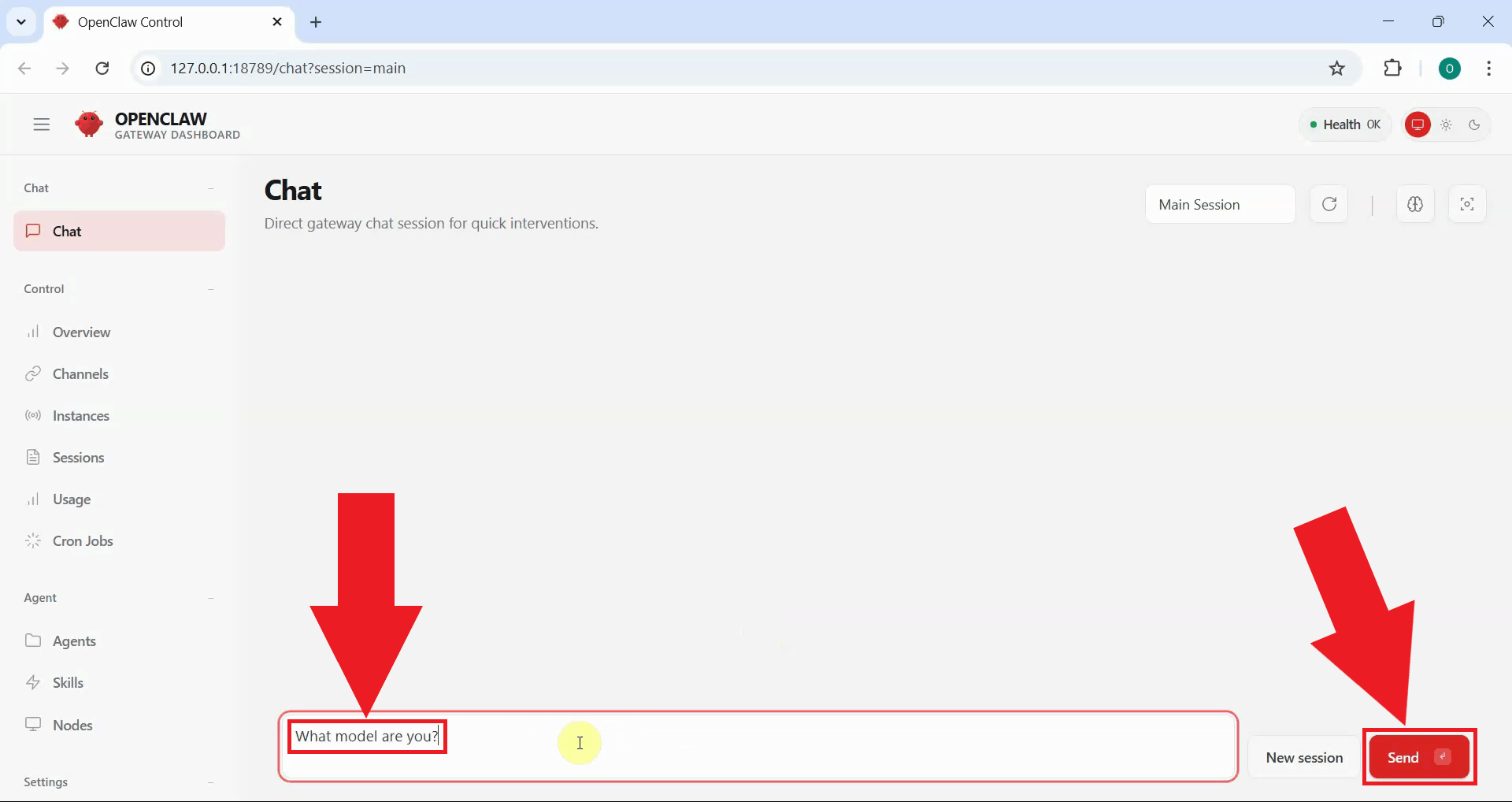
To verify that OpenClaw is properly connected to Ozeki AI Gateway, open the OpenClaw dashboard and enter a test prompt in the chat interface. Type a simple question and send it to test the connection (Figure 1).
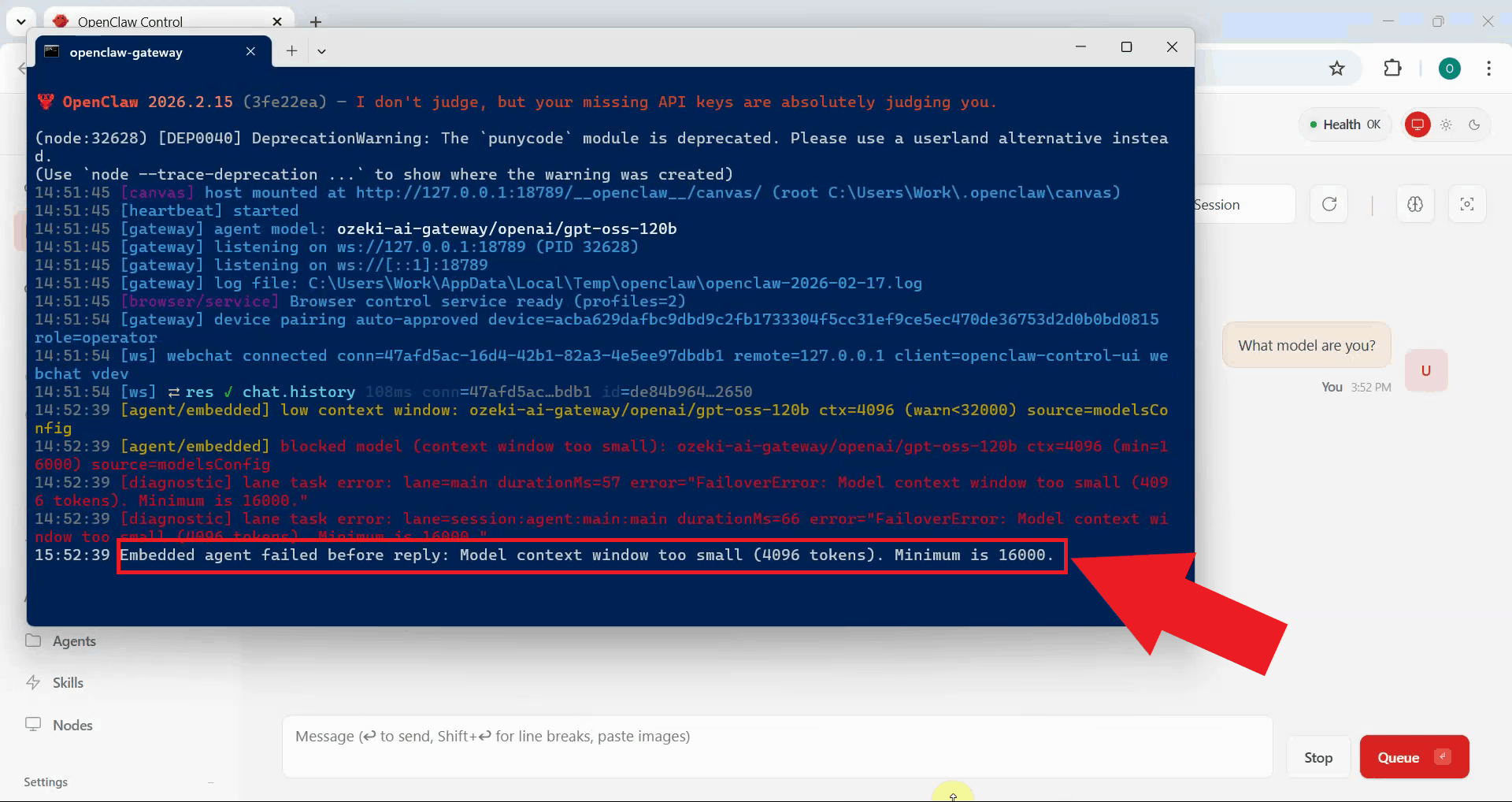
If the model fails to respond, check the OpenClaw Gateway logs displayed in the terminal for an error message. The error shown in Figure 2 typically indicates that the model's context window length is insufficient. The error message displays the current configured value and suggests the minimum value required.
Step 2 - Locate and modify configuration file
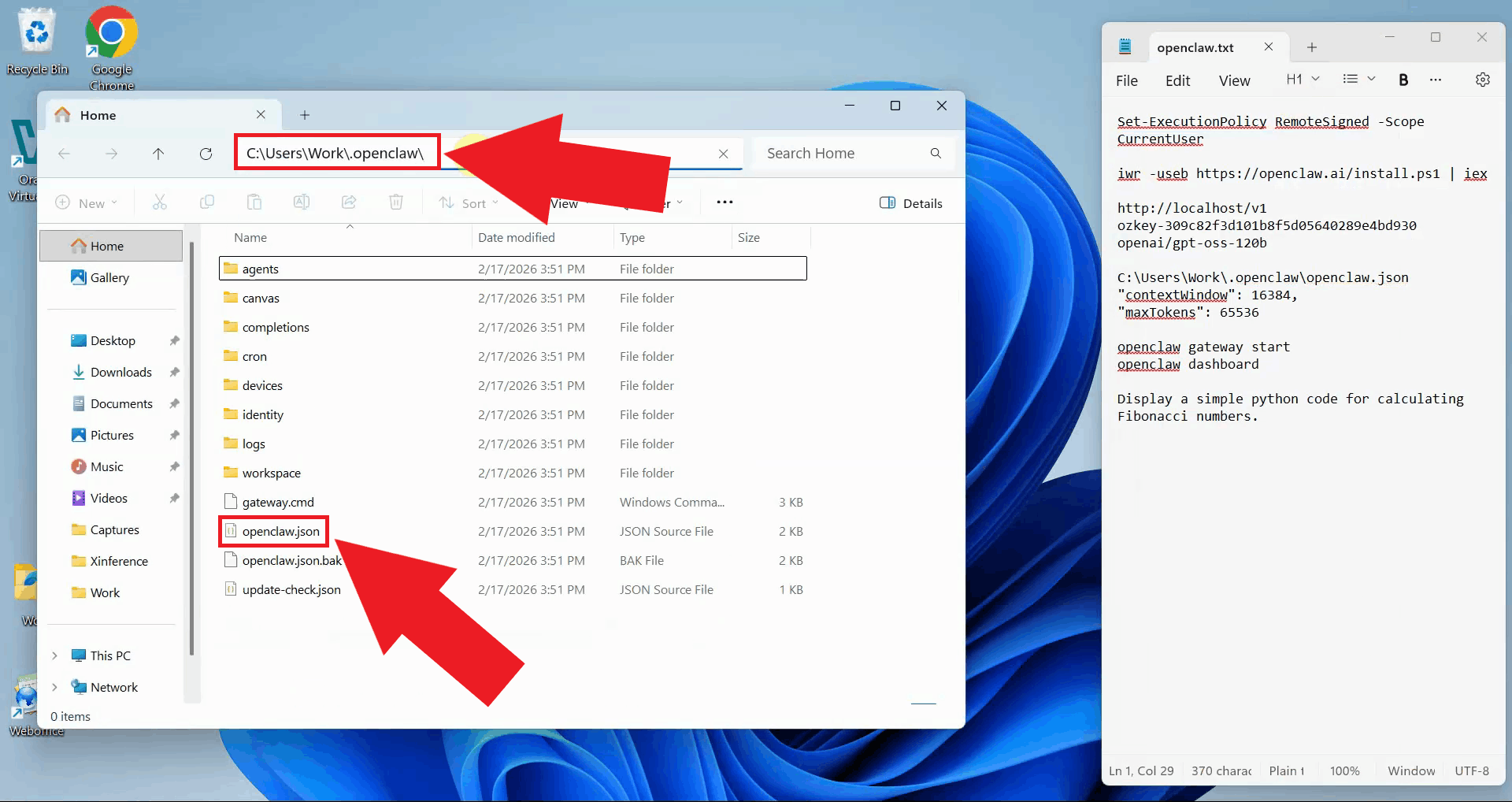
Navigate to your user directory and locate the OpenClaw configuration file at the path shown below. Open this file with a text editor such as Notepad, Notepad++, or Visual Studio Code to modify the configuration settings (Figure 3).
C:\Users\{User}\.openclaw\openclaw.json
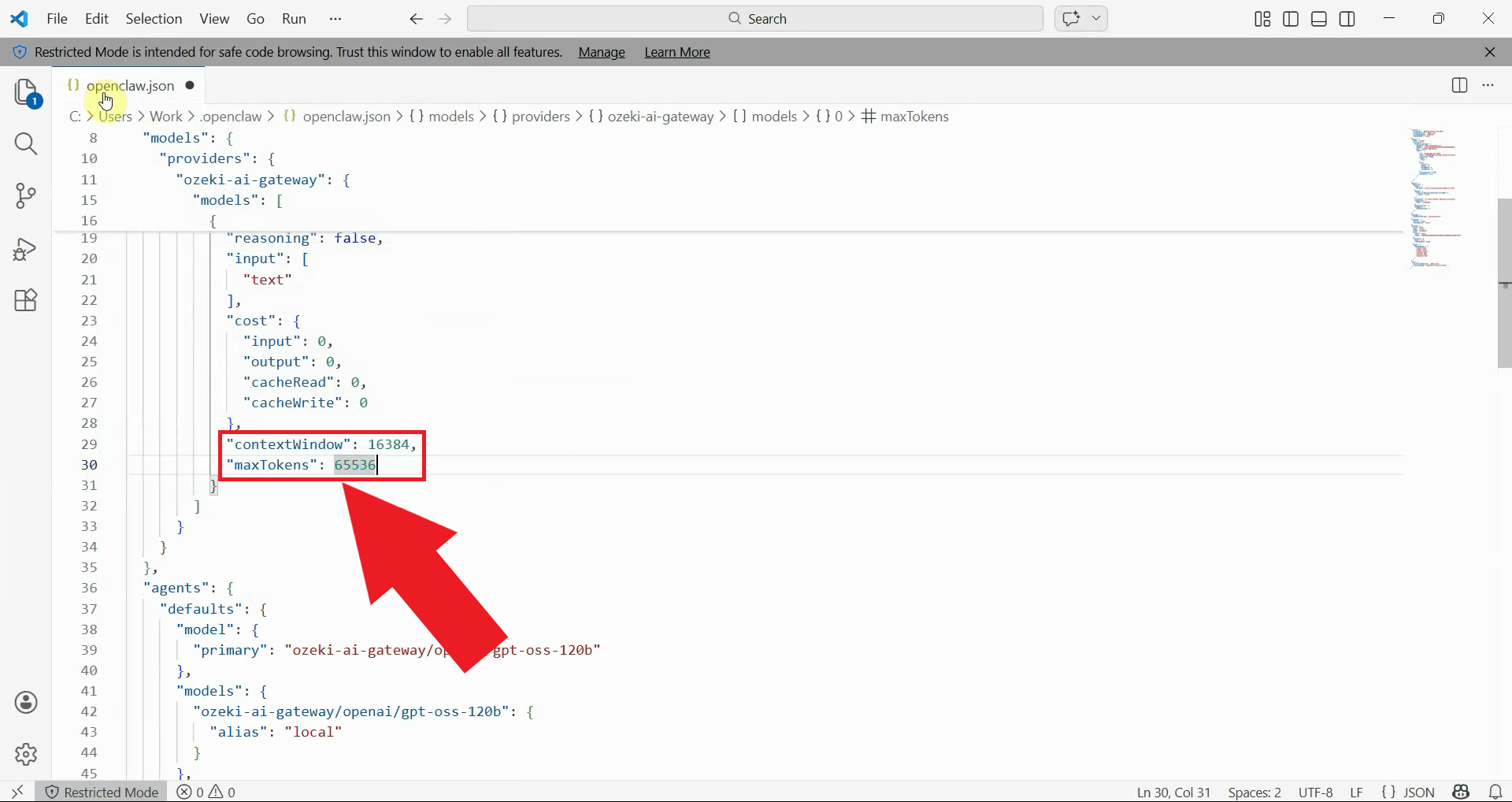
In the configuration file, locate the contextWindow and maxTokens parameters.
Modify these values to match your AI model's capabilities, for example: "contextWindow": 16384 and "maxTokens": 65536.
The contextWindow value determines how much conversation history and context can be included in requests,
while maxTokens sets the maximum length of AI responses (Figure 4).
# Configuration values to modify
"contextWindow": 16384,
"maxTokens": 65536
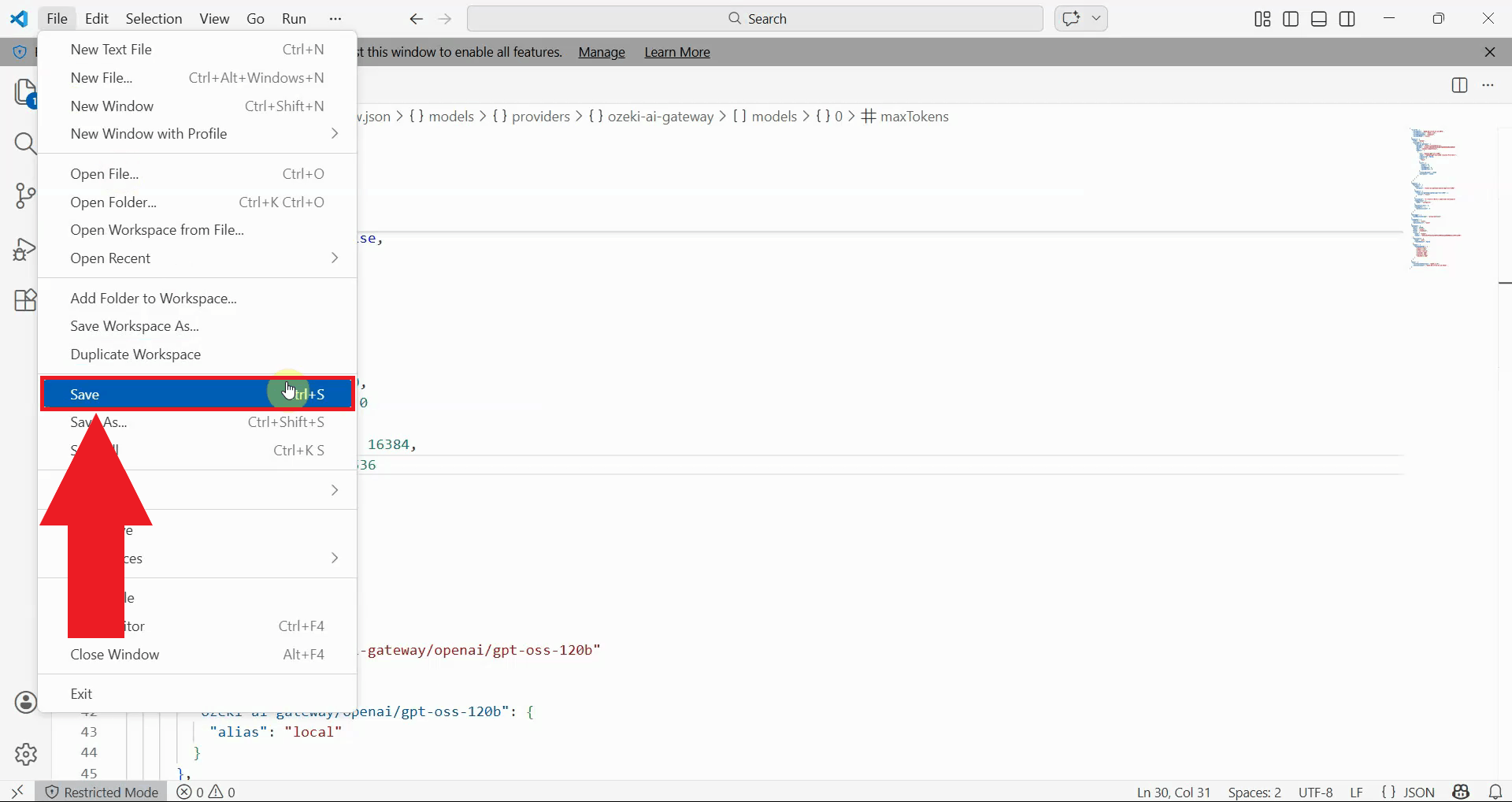
After modifying the configuration values, save the file and close your text editor. Ensure the JSON syntax remains valid: the values should be numbers without quotes, and each line except the last should end with a comma. The changes will take effect once you restart the OpenClaw gateway service (Figure 5).
Step 3 - Restart OpenClaw gateway
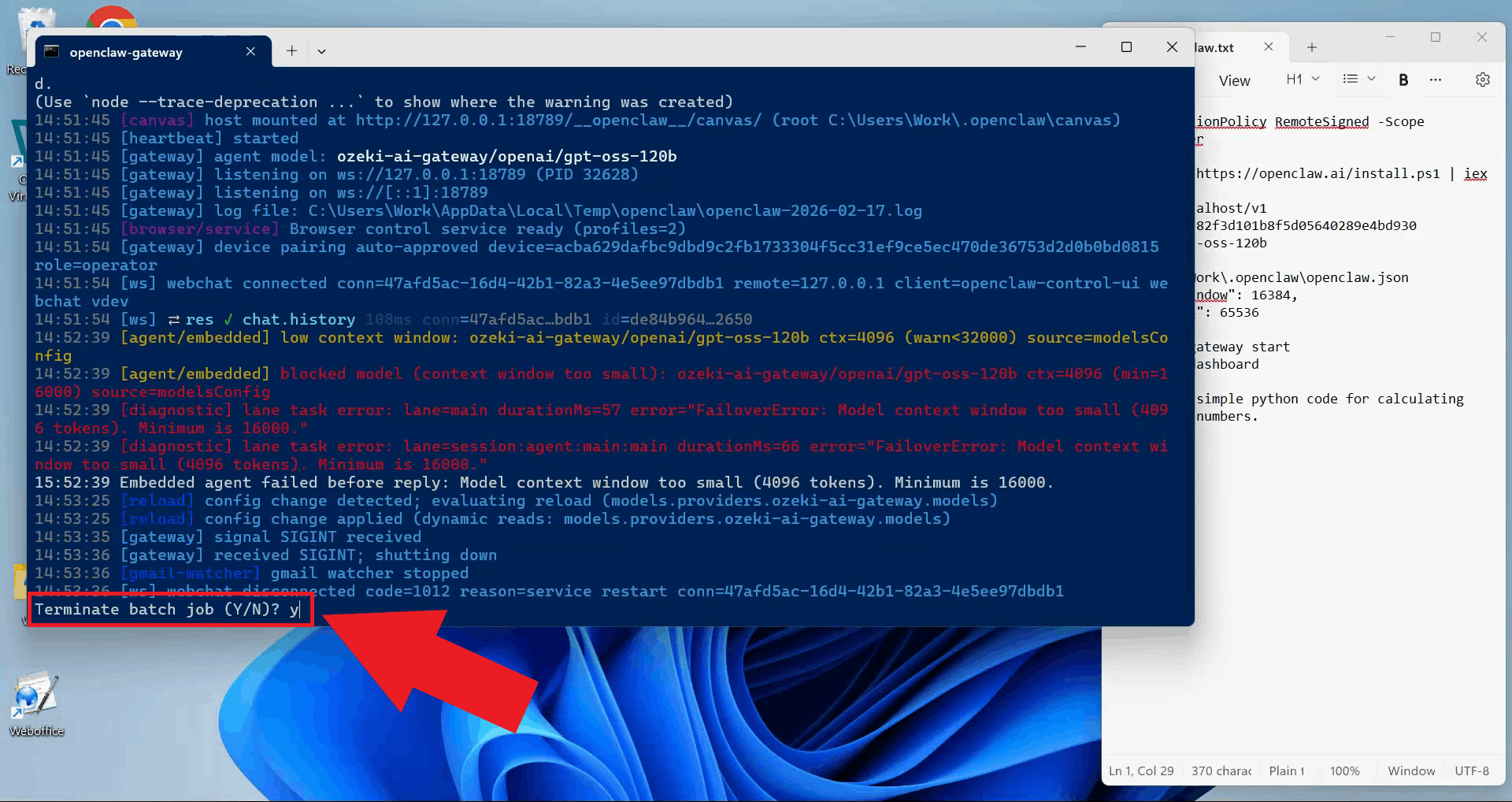
Return to the PowerShell terminal where the OpenClaw Gateway is running. Press Ctrl+C to terminate the gateway process. If prompted, type "y" and press Enter to terminate the process (Figure 6).
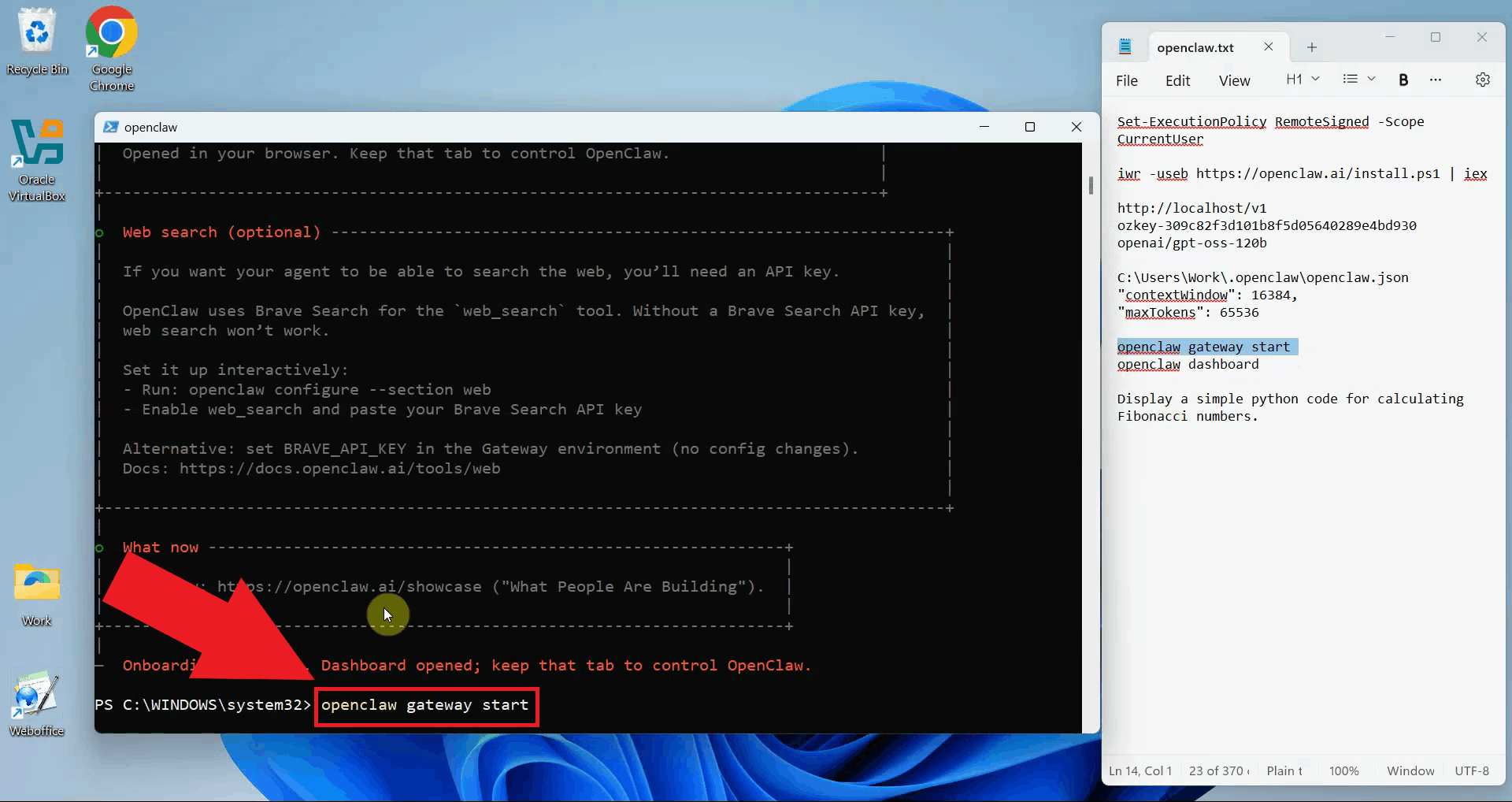
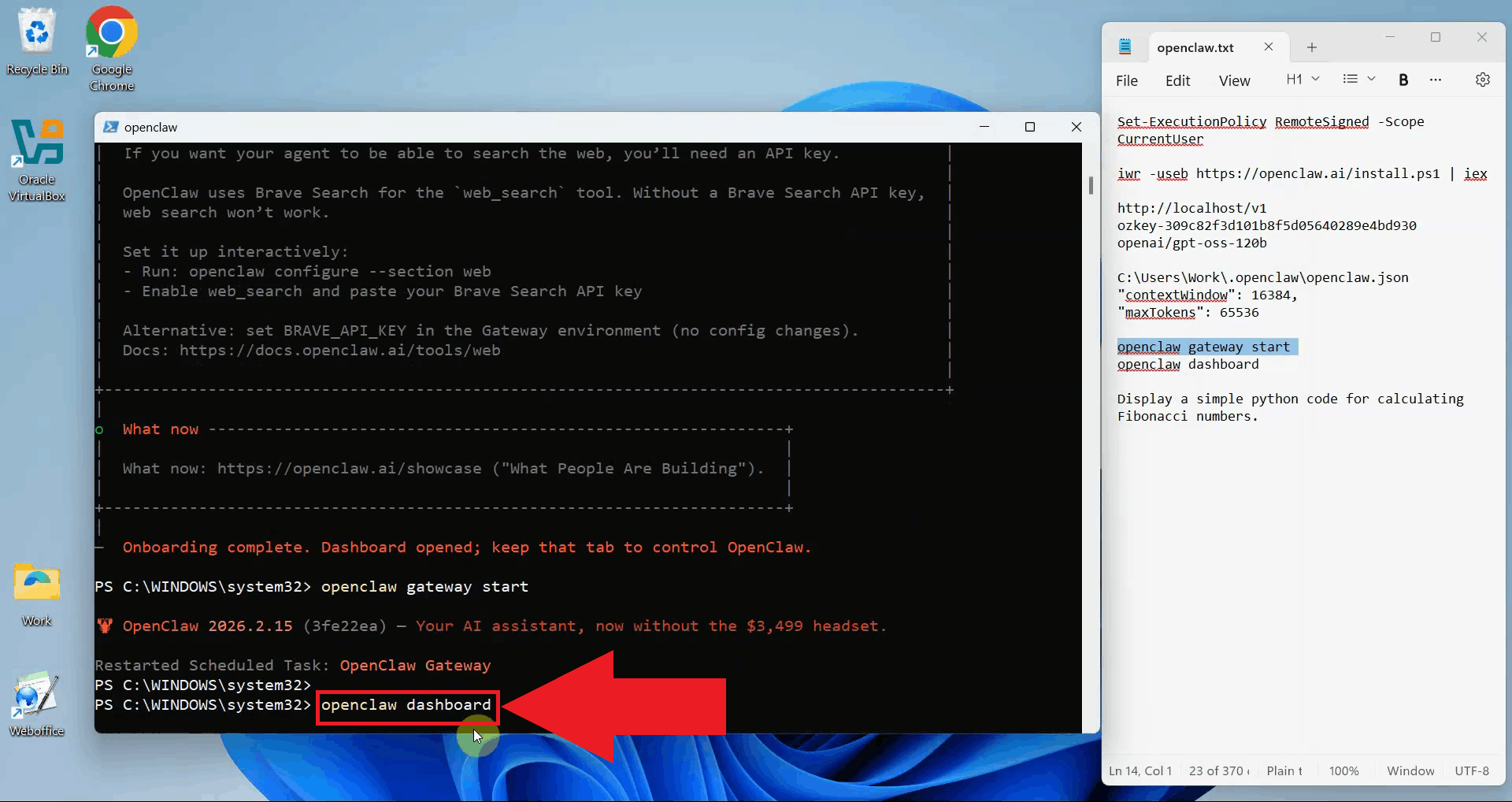
Start the OpenClaw gateway again by executing the command openclaw gateway start in a terminal.
The gateway will load the updated configuration file and apply the new context
window and max tokens settings (Figure 7).
Open the OpenClaw dashboard by running the command openclaw dashboard.
Alternatively, you can navigate directly to the dashboard URL in your web
browser if you know the address from the previous session (Figure 8).
Step 4 - Verify the fix
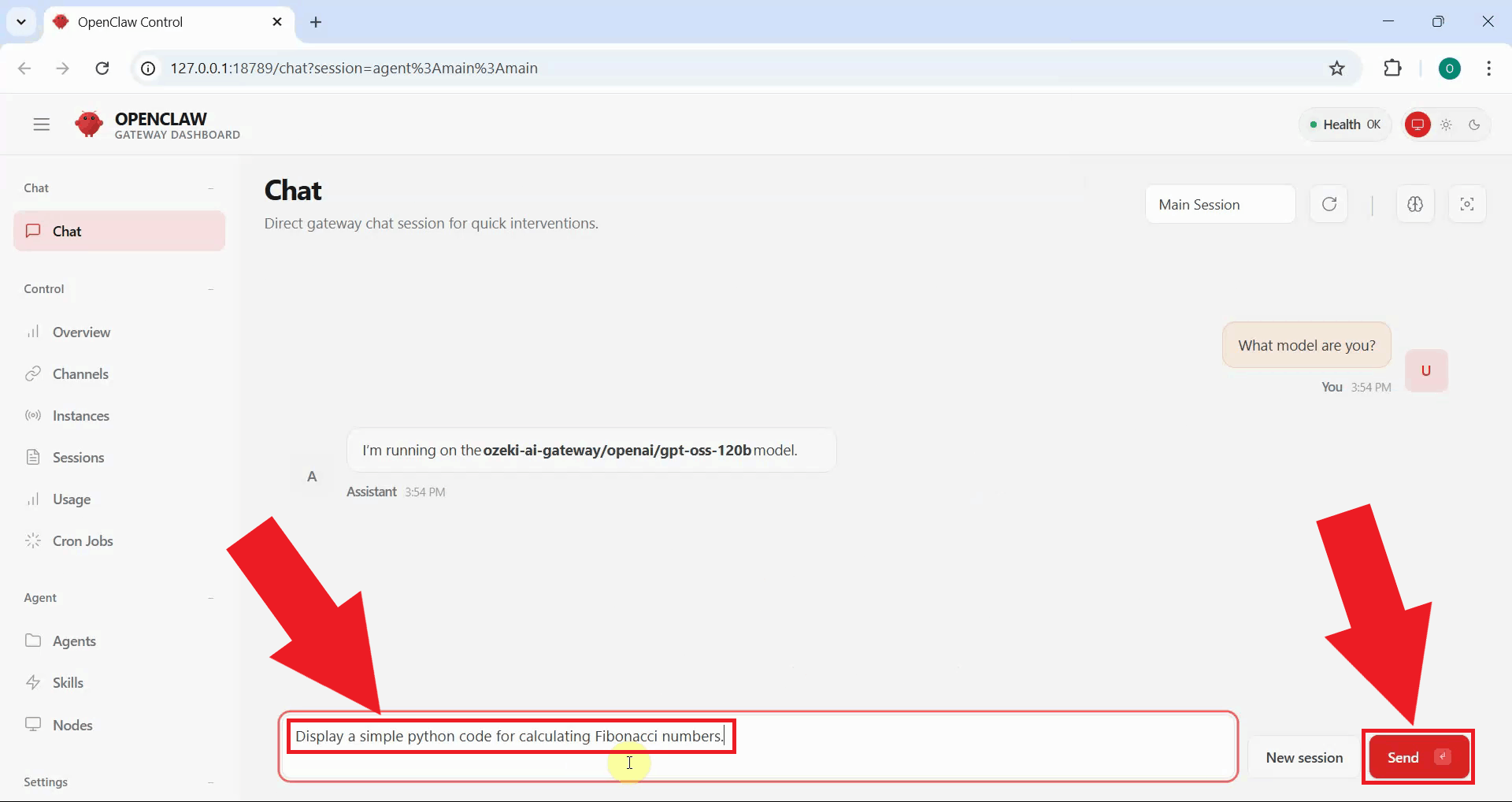
Send another test prompt in the OpenClaw Chat to verify that the configuration changes resolved the context window error (Figure 9). The request should now process without errors.
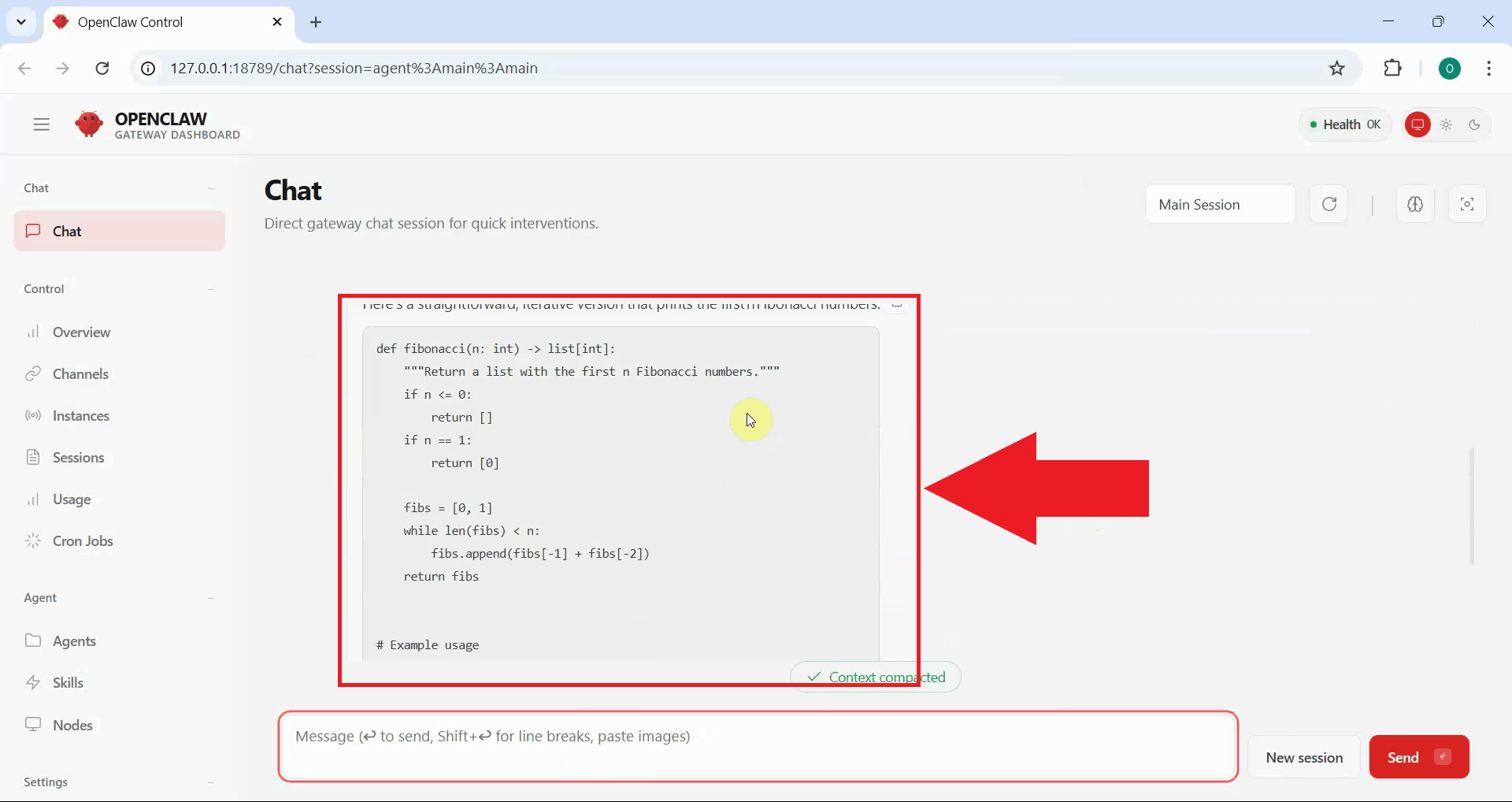
If the configuration fix was successful, OpenClaw properly communicates with Ozeki AI Gateway and displays the AI-generated response. You should no longer see context window errors in the gateway logs (Figure 10).
Troubleshooting tips
If you still encounter errors after modifying the configuration, consider these troubleshooting steps:
- Verify JSON Syntax: Ensure the configuration file has valid JSON syntax. Numbers should not be in quotes, and commas should separate properties correctly.
- Check File Permissions: Make sure you have write permissions to the configuration file and that it saved correctly.
- Gateway Not Restarting: If the gateway doesn't start after restart, check for error messages in the terminal that might indicate configuration file syntax errors.
- Model-Specific Limits: If errors persist, your AI model may have lower limits than the values you set. Try reducing the contextWindow value to 8192 or 4096 to see if that resolves the issue.
Conclusion
You have successfully resolved the OpenClaw model context window error by adjusting the configuration settings to match your AI model's capabilities. OpenClaw can now properly communicate with Ozeki AI Gateway and handle requests without context window limitations. This configuration ensures you can take full advantage of your AI model's capabilities while using OpenClaw. If you need to adjust these values in the future for different models or use cases, simply modify the configuration file and restart the gateway service.