
How to download and set up Oobabooga Text Generation Web UI on Windows
This guide demonstrates how to download and set up the Oobabooga Text Generation Web UI on Windows, download a language model from Hugging Face, and test it through the built-in chat interface.
What is Oobabooga Text Generation Web UI?
Oobabooga Text Generation Web UI is an open-source web interface for running large language models locally on your own hardware. It supports a wide range of model formats and backends including llama.cpp, as well as GPU-accelerated inference for NVIDIA and AMD graphics cards. The software is distributed as a portable package directly from its GitHub releases page.
Steps to follow
- Download and start the Text Generation Web UI
- Download and load an LLM model
- Test the model in the chat interface
Example model
# Hugging Face model ID and filename
Qwen/Qwen2.5-1.5B-Instruct-GGUF
qwen2.5-1.5b-instruct-q4_0.gguf
Video tutorial
The following video shows how to download and start the Oobabooga Text Generation Web UI on Windows. The video covers navigating to the GitHub releases page, choosing the correct build, extracting the archive, and running the startup script.
Step 1 - Download and start the Text Generation Web UI
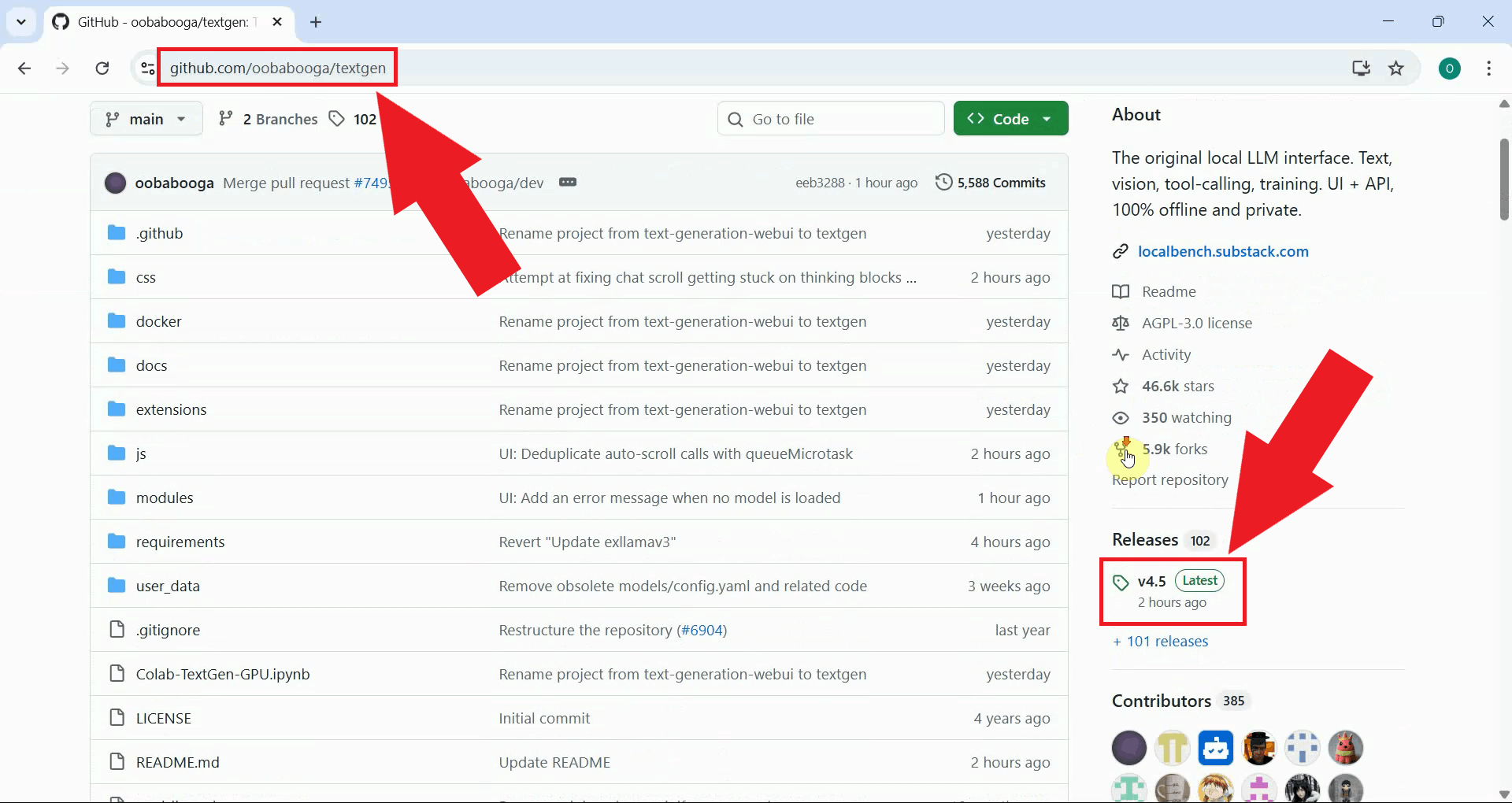
Open your browser and navigate to the Oobabooga Text Generation Web UI releases page on GitHub. The releases page lists all available versions of the software with portable builds for different platforms (Figure 1).
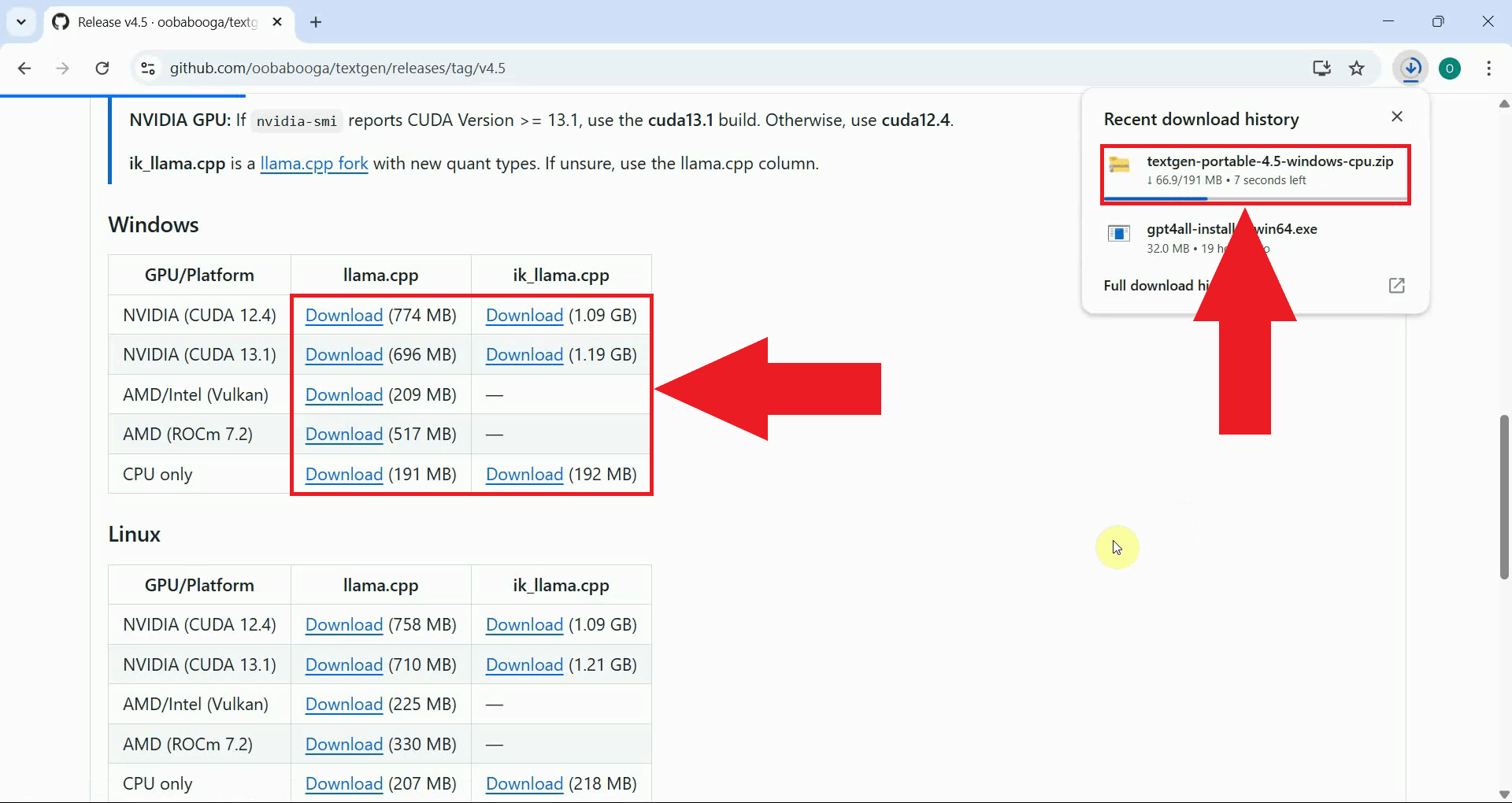
Scroll down to the portable builds and choose the one that matches your hardware - select the NVIDIA build if you have an NVIDIA GPU, AMD for AMD graphics cards, or the CPU-only build if you do not have a dedicated GPU (Figure 2).
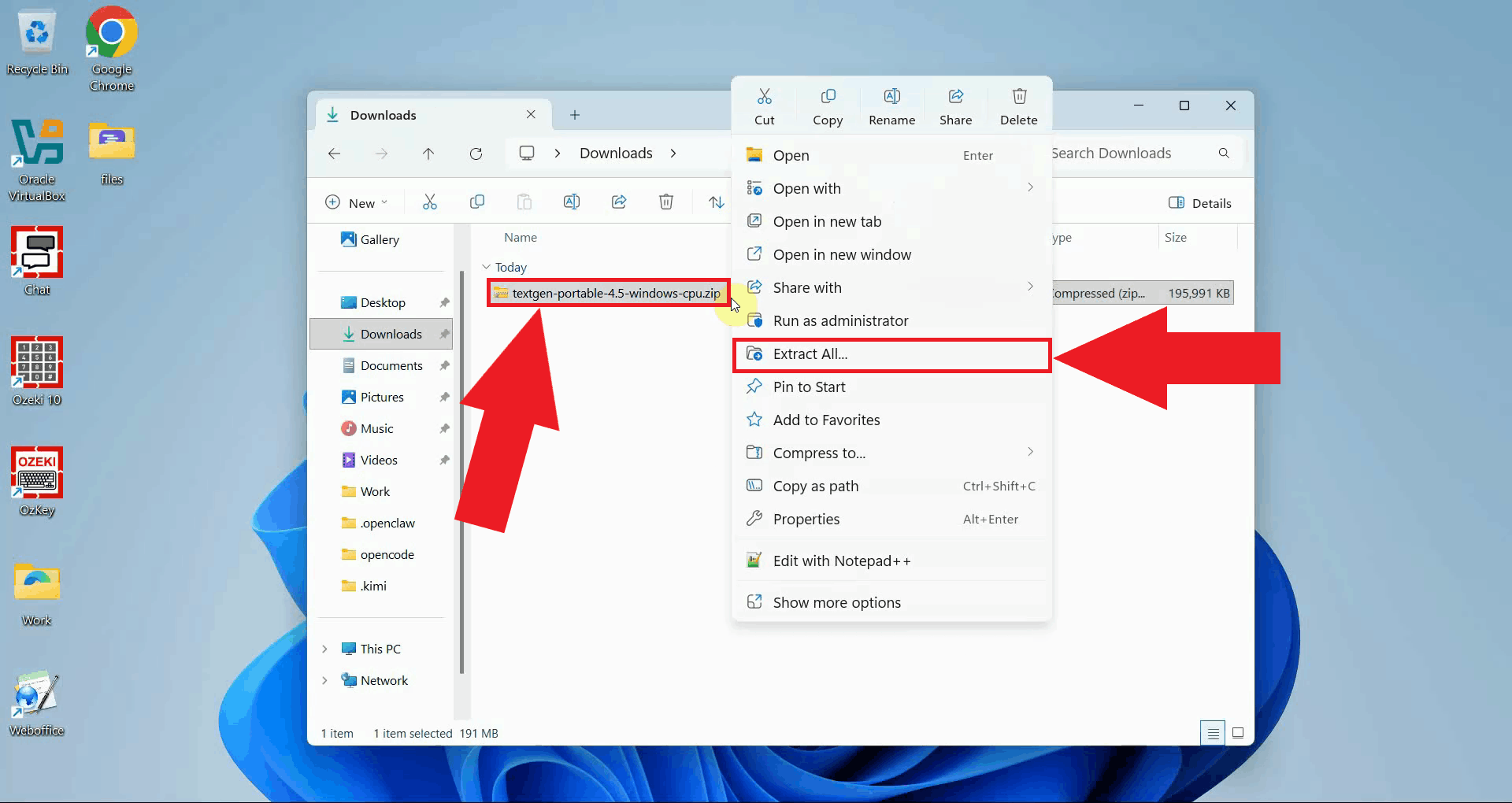
Once the download is complete, right-click the ZIP file and select Extract All to unpack the contents to a folder of your choice. The extracted folder contains all files needed to run the application without any additional installation (Figure 3).
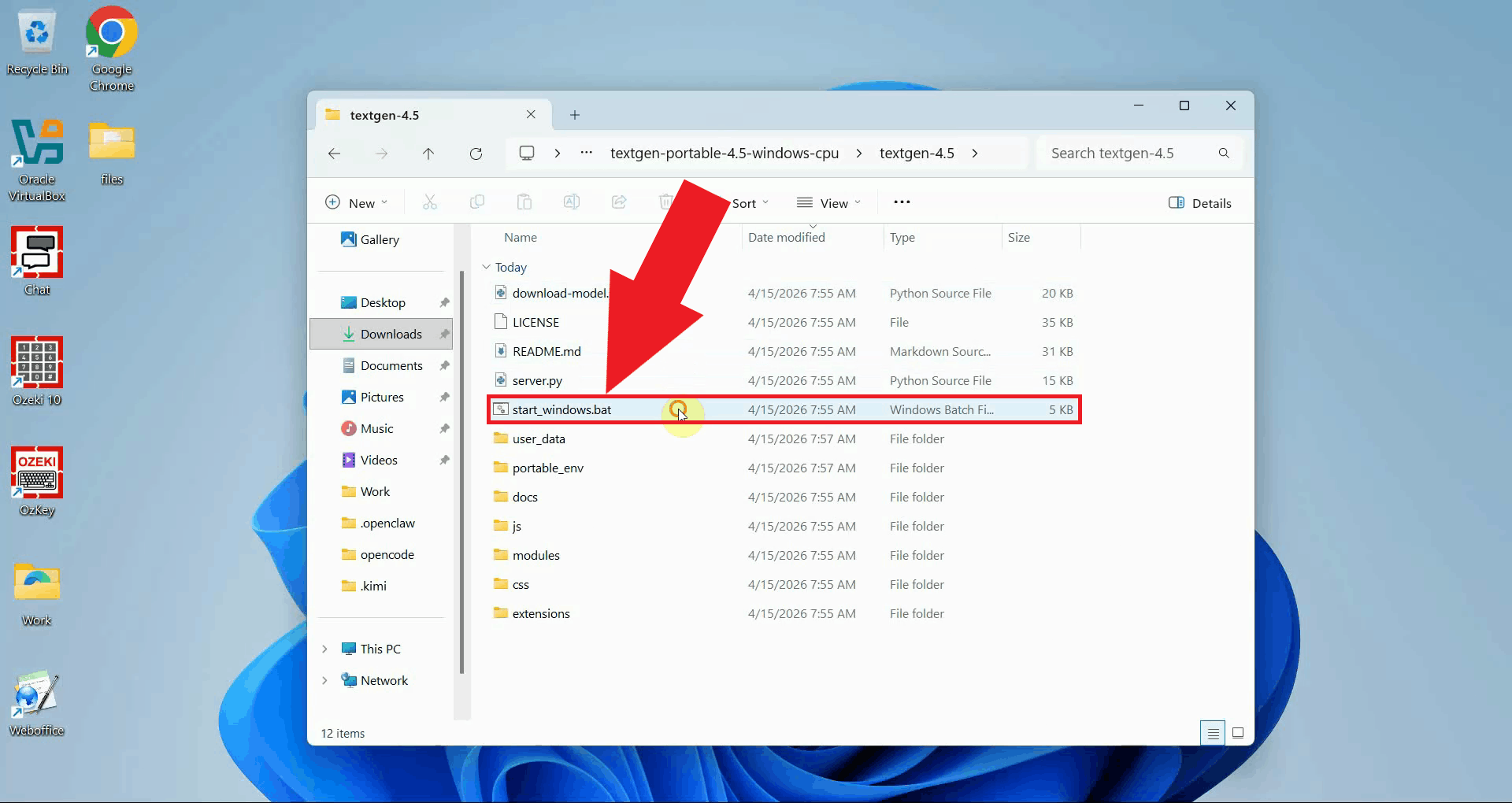
Open the extracted folder and double-click start_windows.bat to launch the application (Figure 4).
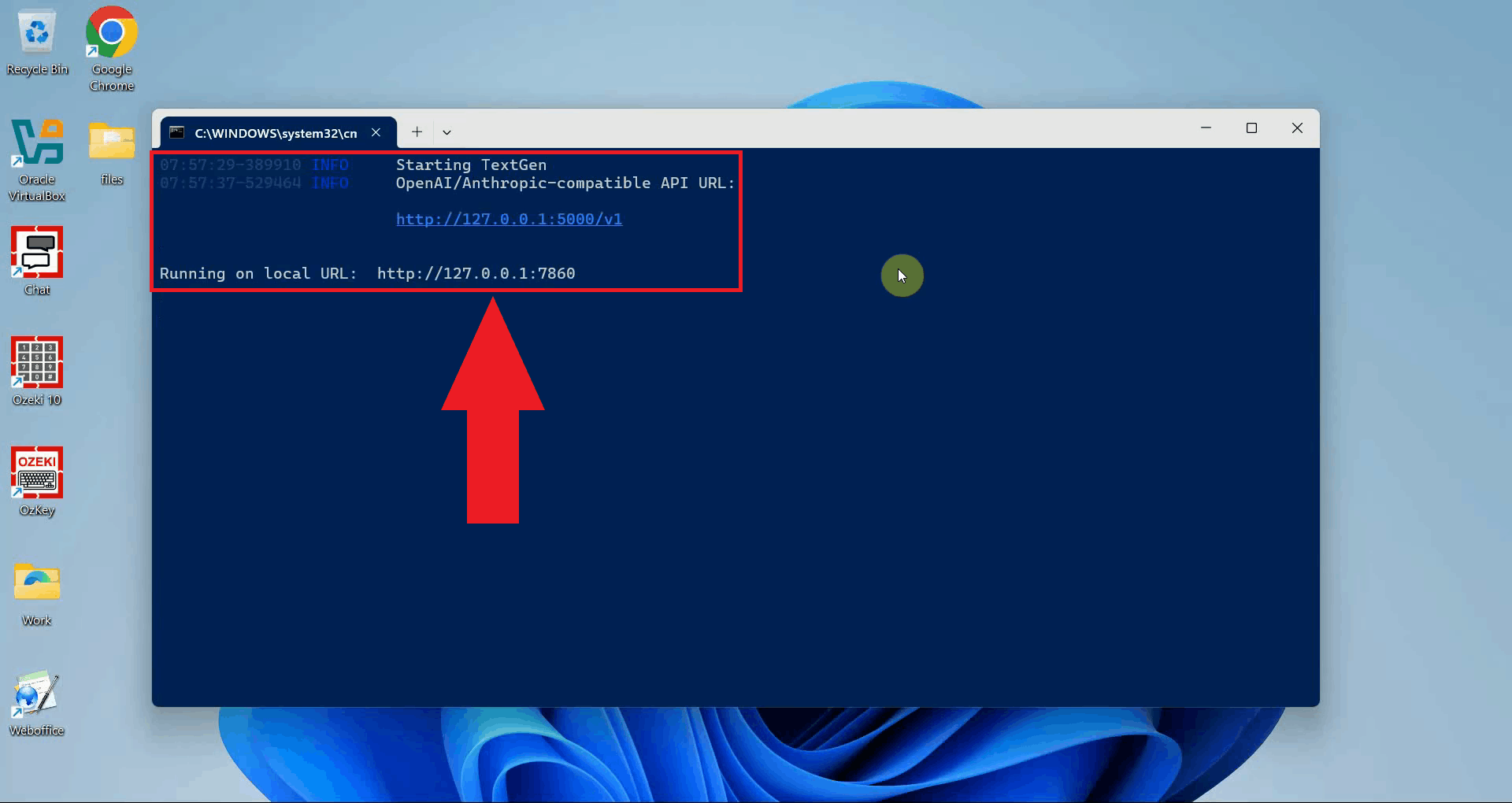
A terminal window will appear showing the startup progress. Wait for the server to finish initializing, it will display a local URL when it is ready. Keep this terminal open for the duration of your session (Figure 5).
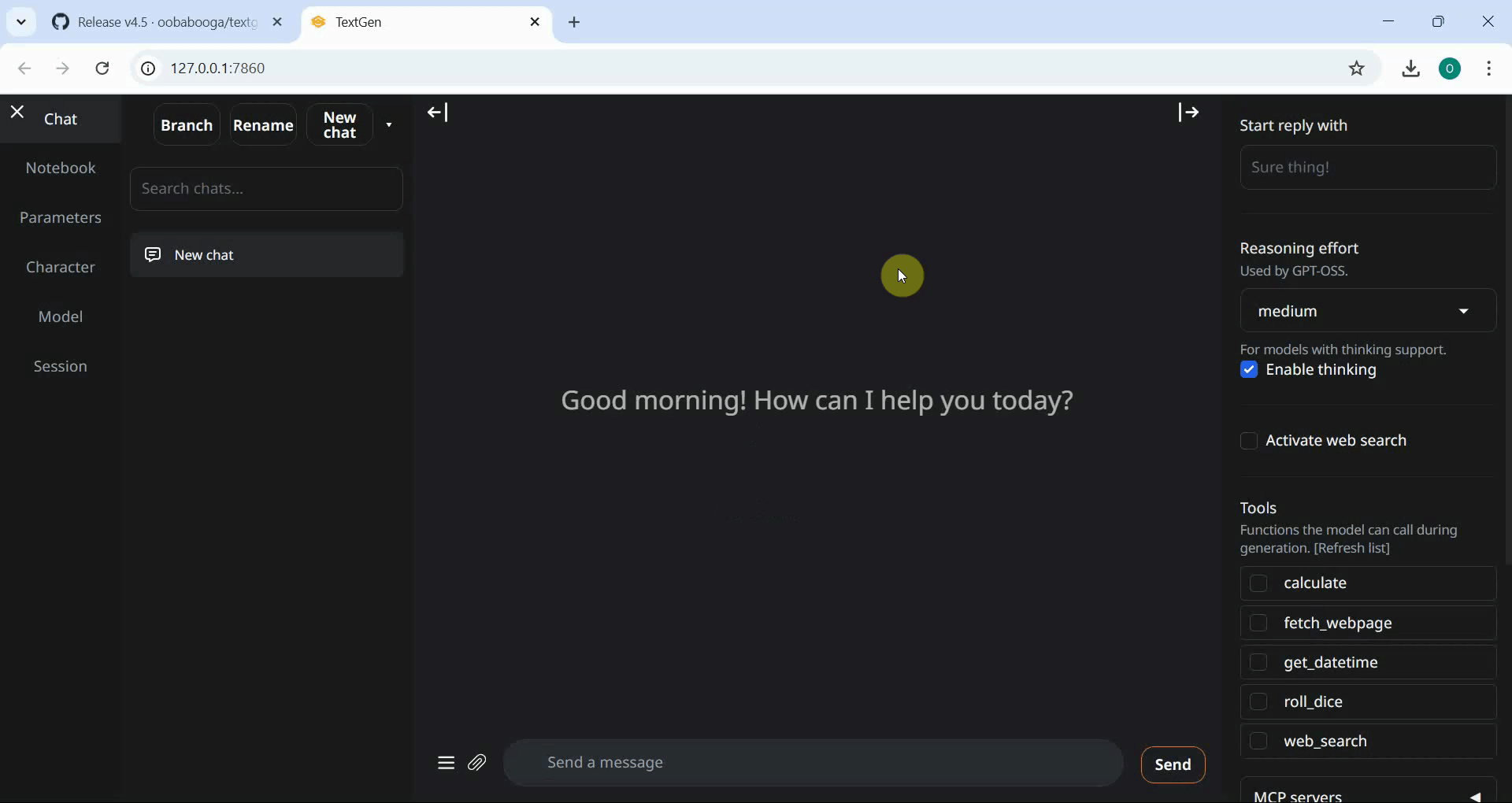
The Text Generation Web UI will open automatically in your default browser, or you
can navigate to http://localhost:7860 manually. The dashboard is now
ready for you to download and configure a language model (Figure 6).
Step 2 - Download and load an LLM model
The following video shows how to download a model from Hugging Face, load it in the Text Generation Web UI, and test it through the chat interface.
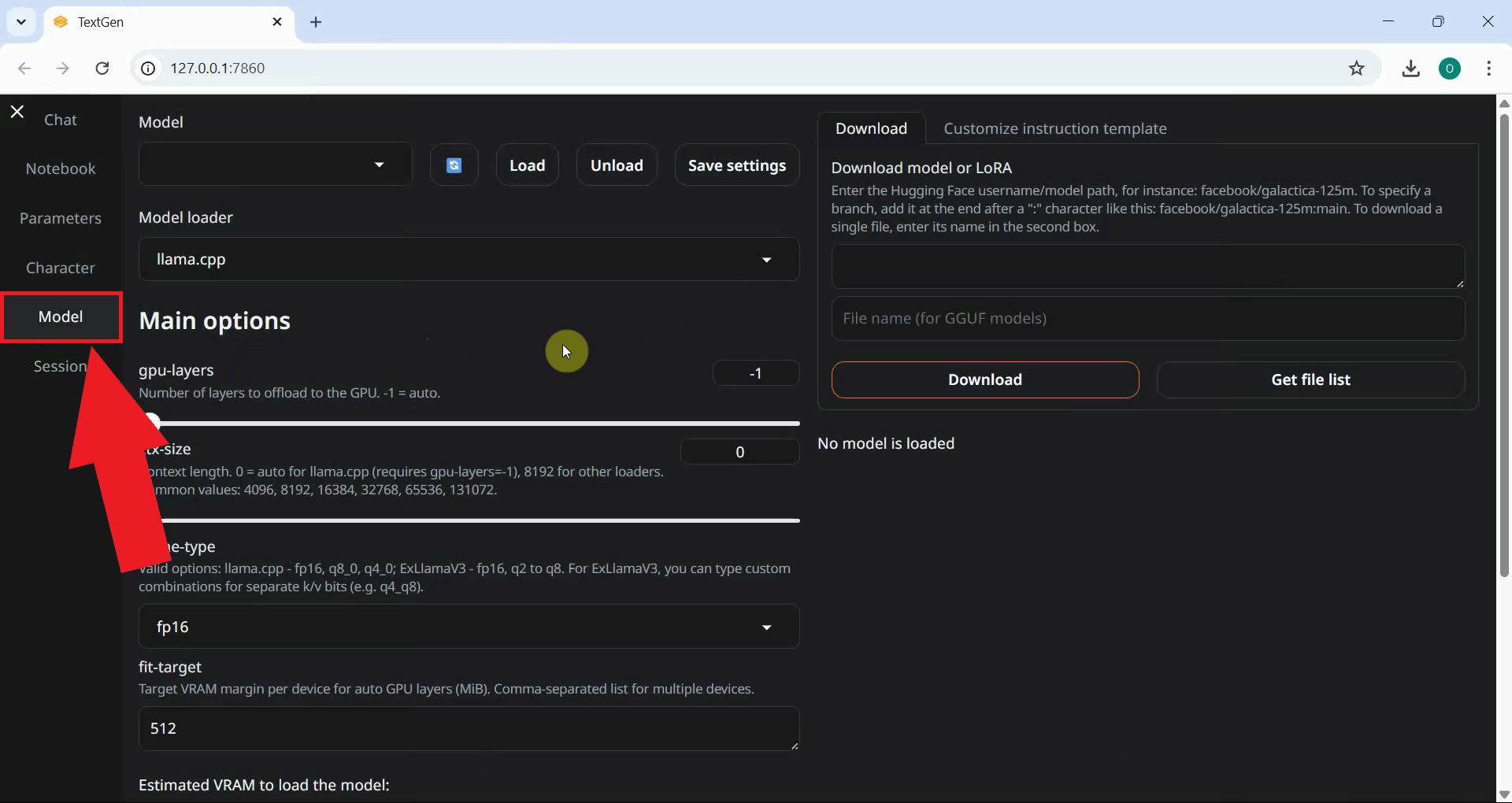
Click the Model option in the left sidebar to open the model management page. This is where you can download models directly from Hugging Face and manage which model is currently loaded into memory (Figure 7).
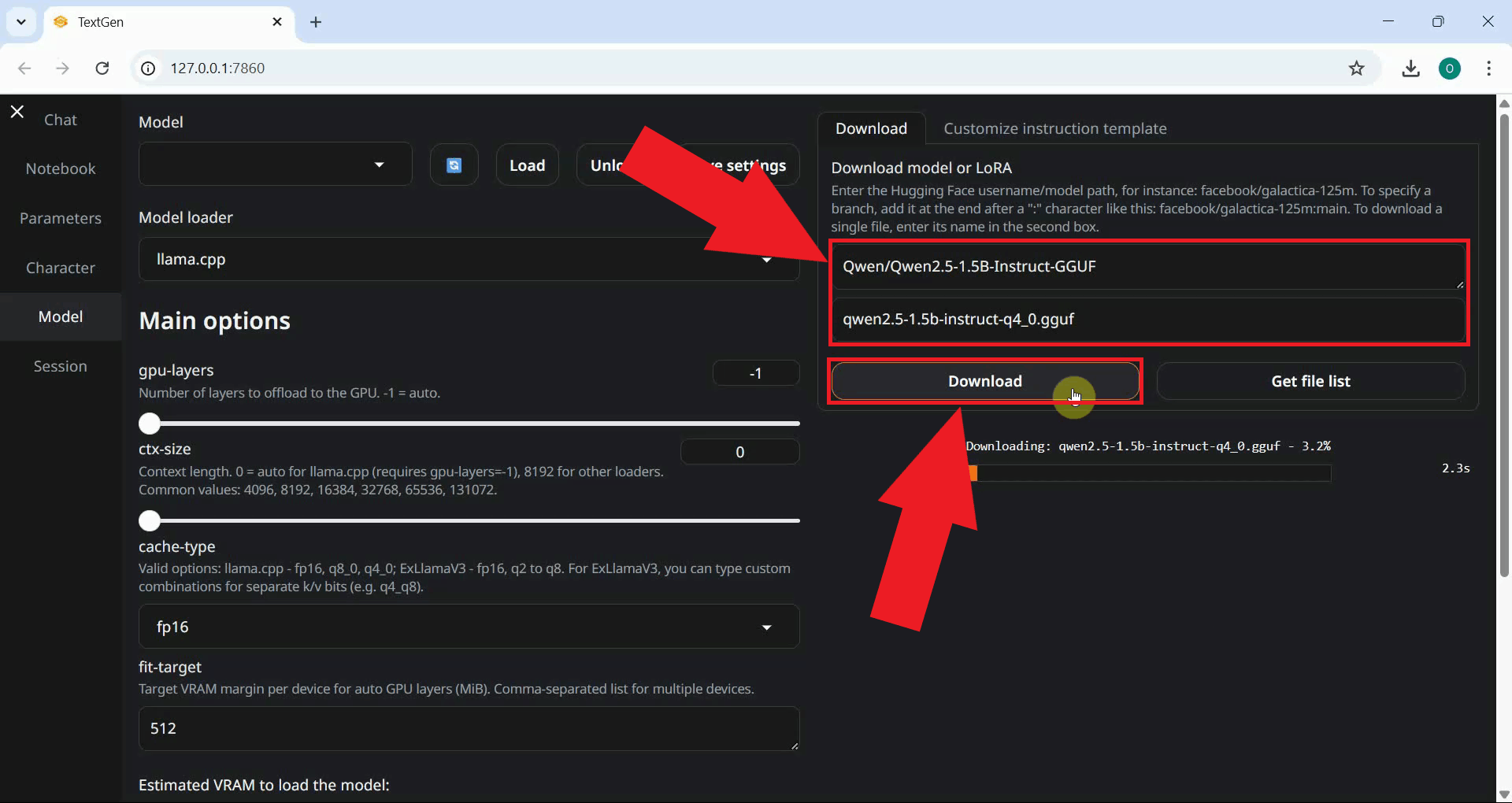
Navigate to the Download model or LoRA section. Enter the Hugging Face model repository ID in the first field and the specific filename in the second field, then click Download. The download will begin immediately and progress will be shown on a progress bar (Figure 8).
Qwen/Qwen2.5-1.5B-Instruct-GGUF
qwen2.5-1.5b-instruct-q4_0.gguf
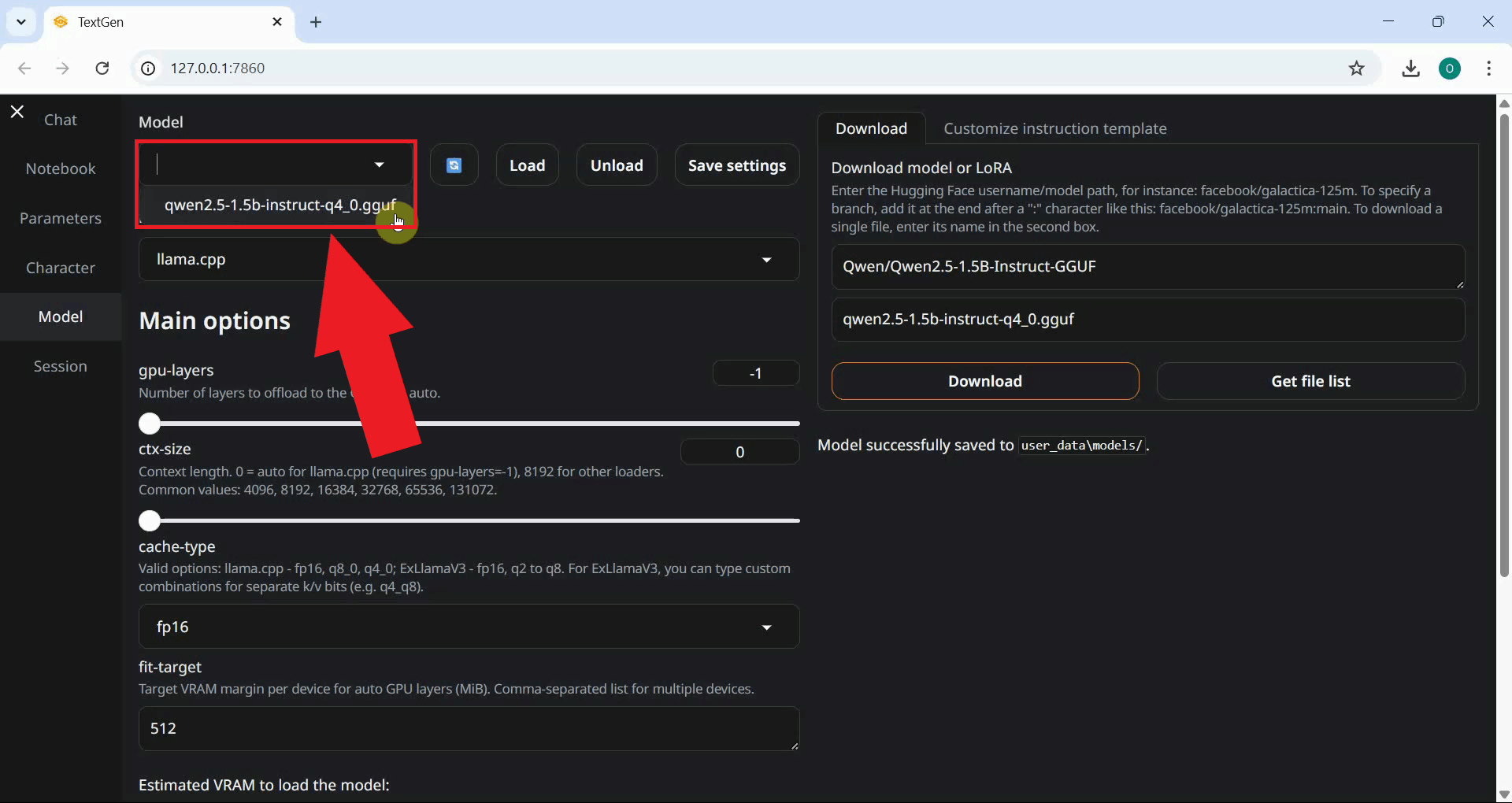
Once the download completes, click the Refresh button next to the model dropdown to update the list. Select the downloaded model from the dropdown (Figure 9).
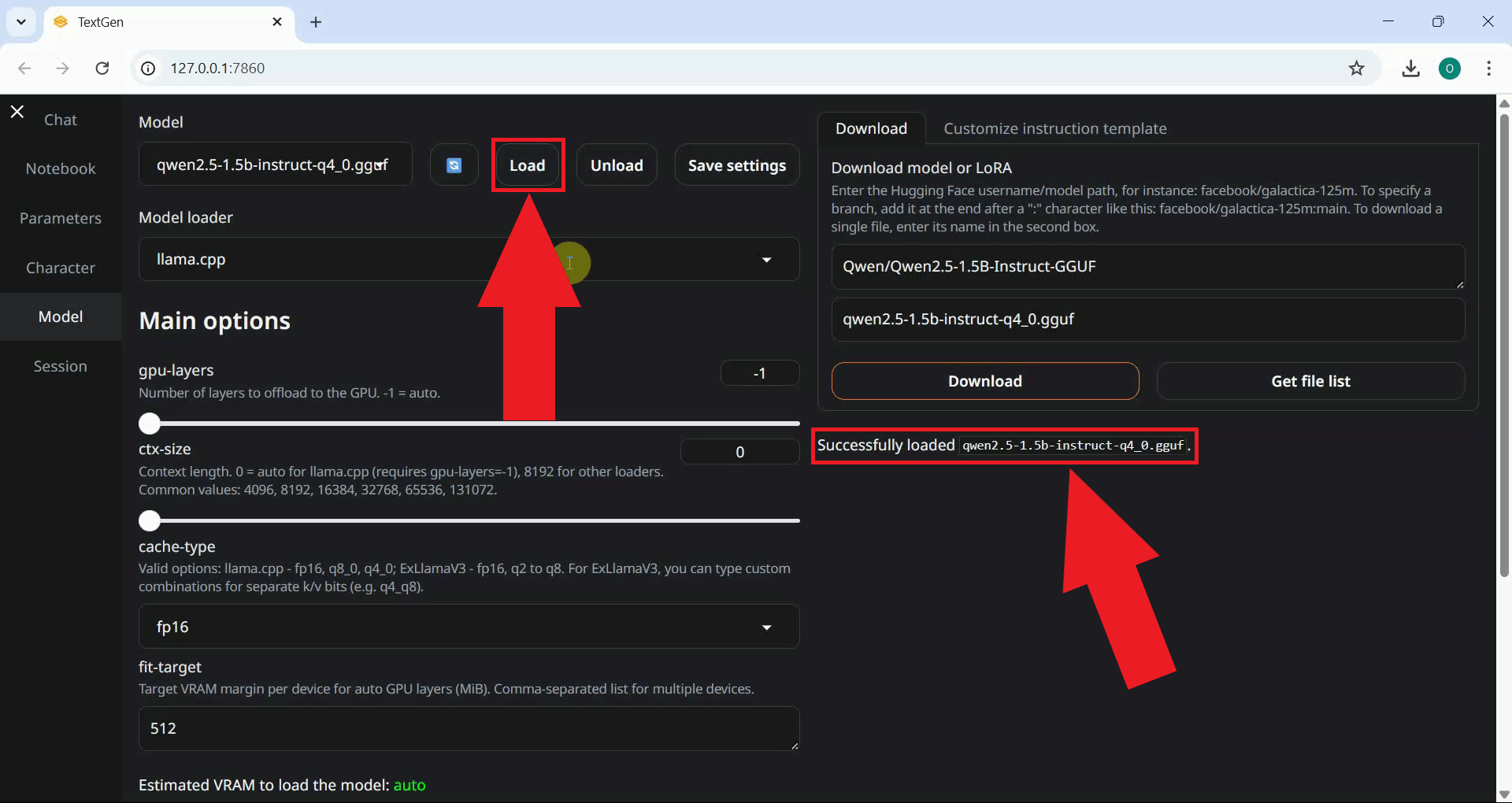
Click the Load button to load the selected model into memory. The loading process may take a moment depending on the model size and your hardware. A confirmation message will appear in the interface once the model is ready (Figure 10).
Step 3 - Test the model in the chat interface
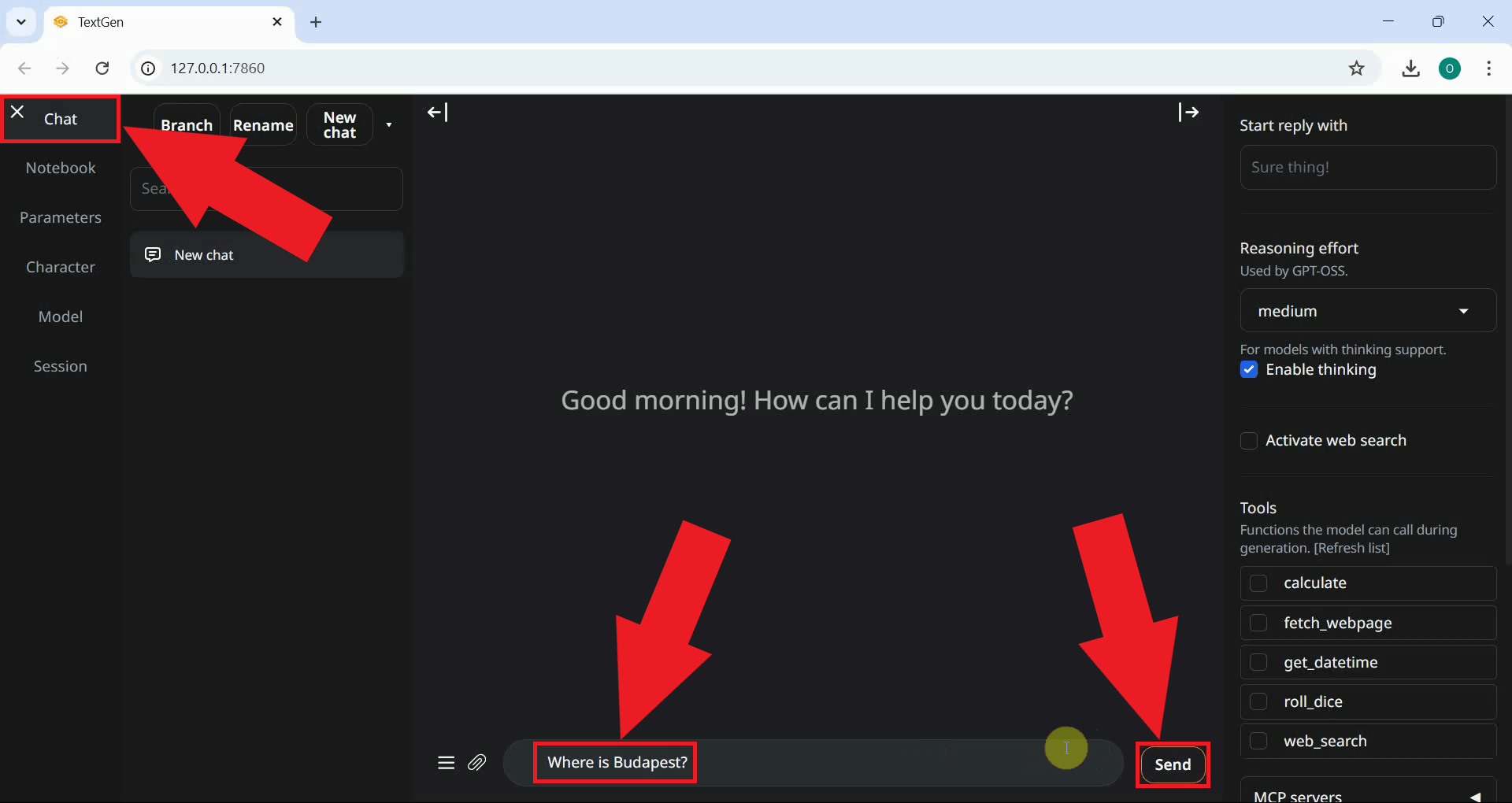
Navigate to the Chat tab in the left sidebar to open the chat interface. Type a test message in the input field at the bottom and press Enter or click the send button to submit it to the loaded model (Figure 11).
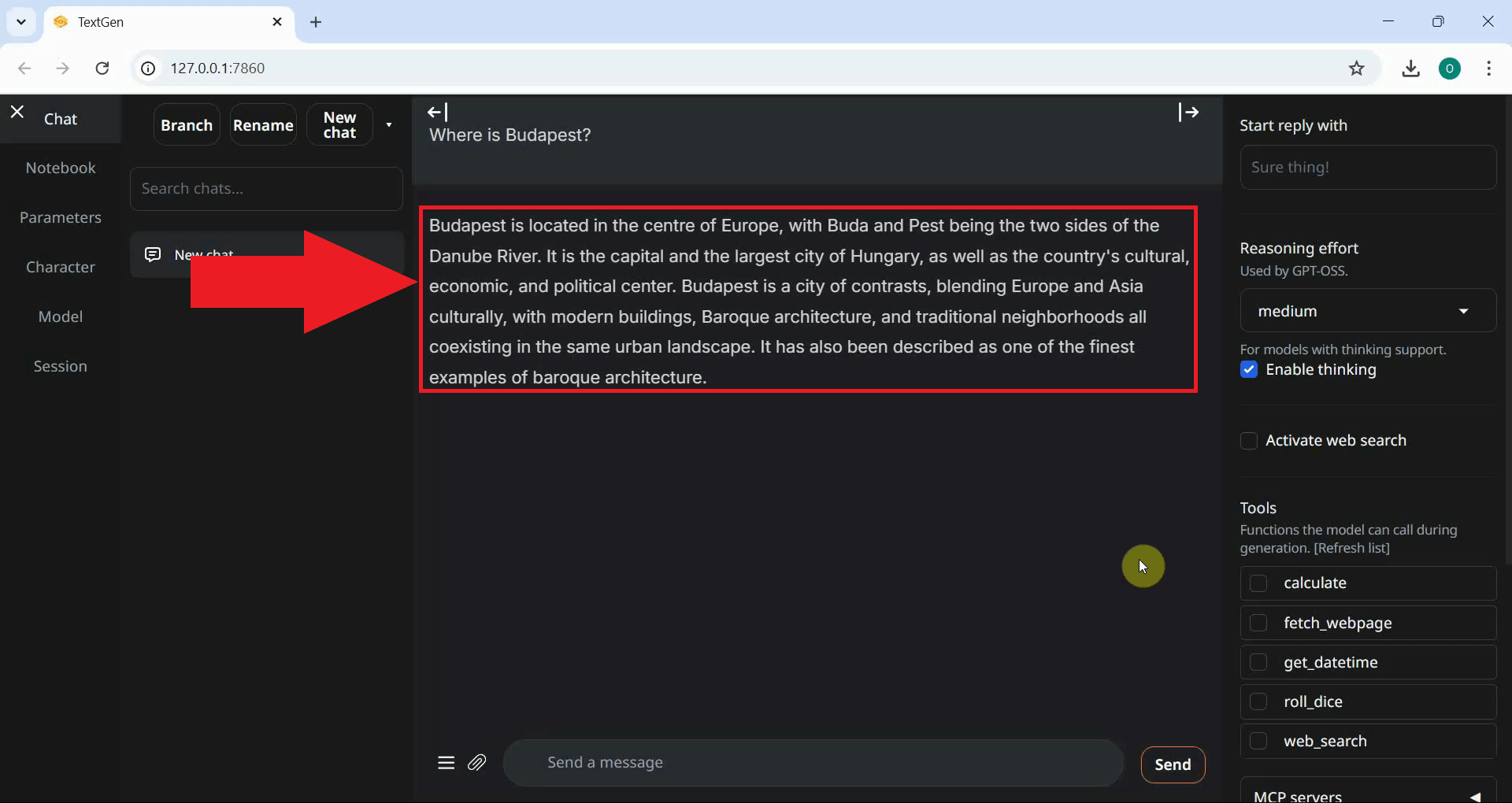
The model will generate a response and display it in the chat window. A successful reply confirms that the Text Generation Web UI is running correctly and the model has been loaded and is ready for use (Figure 12).
To sum it up
You have successfully downloaded and set up the Oobabooga Text Generation Web UI on Windows, downloaded a language model from Hugging Face, loaded it into the interface, and verified that it is responding correctly through the chat tab. The application is now ready for use as a local AI chat interface or as a backend for other tools and integrations.