
How to set up an MCP Server in OpenClaw
This guide demonstrates how to set up a MySQL MCP server and connect it to OpenClaw, allowing the AI assistant to interact directly with your MySQL database. You will learn how to build the MCP server, register it in the OpenClaw configuration file, and test the available database tools through the OpenClaw dashboard.
What is an MCP server?
An MCP (Model Context Protocol) server exposes tools that an AI model can call during a conversation. In this setup, the MySQL MCP server provides database tools such as running queries, creating tables, and inserting data. OpenClaw launches the MCP server as a subprocess and communicates with it directly, making the setup straightforward without needing an intermediate proxy layer.
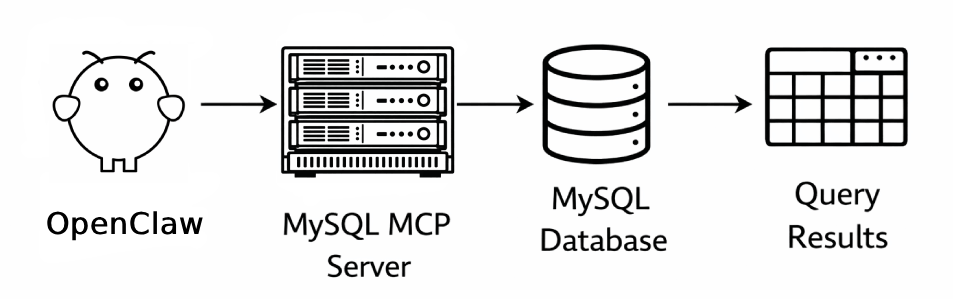
Steps to follow
If you haven't installed OpenClaw, check out our How to setup OpenClaw with Ozeki AI Gateway guide.
- Download and build the MySQL MCP server
- Configure the MCP server in OpenClaw
- Test the database tools
Quick reference
# Install dependencies and build the MCP server
npm install
npm run build

# OpenClaw configuration file location
C:\Users\{User}\.openclaw\openclaw.json

# MCP server configuration block to add to openclaw.json
"mcp": {
    "servers": {
        "mysql-mcp-server": {
            "command": "node",
            "args": [
                "C:\\path\\to\\mysql-mcp-server\\build\\index.js"
            ],
            "env": {
                "MYSQL_HOST": "your-mysql-host",
                "MYSQL_PORT": "your-mysql-port",
                "MYSQL_USER": "your-mysql-user",
                "MYSQL_PASSWORD": "your-mysql-password",
                "MYSQL_DATABASE": "your-database-name"
            }
        }
    }
}
How to install the MySQL MCP server video
The following video shows how to download, build, and set up the MySQL MCP server step-by-step.
Step 1 - Download and build the MySQL MCP server
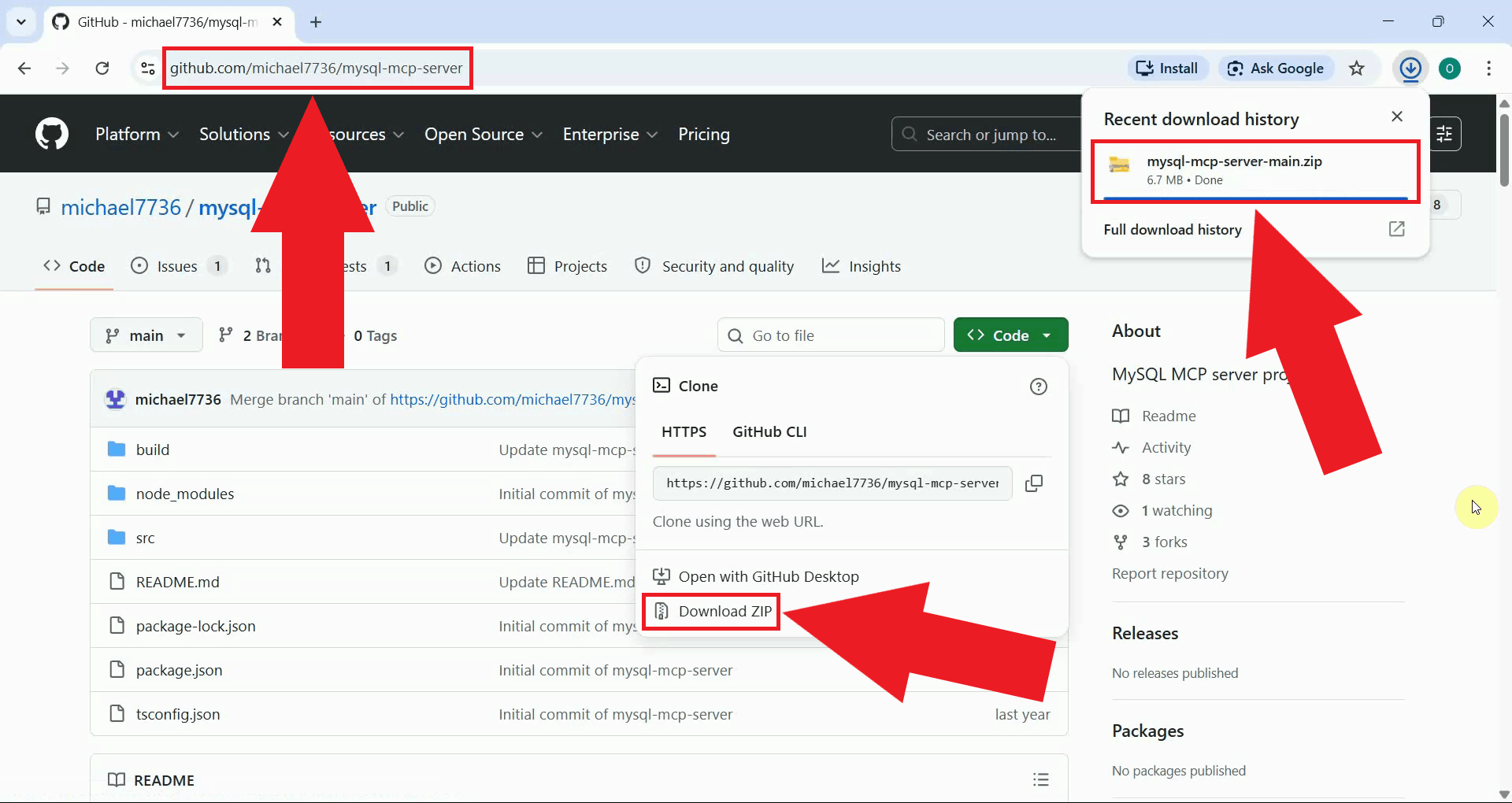
Navigate to the MySQL MCP server repository on GitHub and download the repository as a ZIP file by clicking the Code button and selecting Download ZIP (Figure 1).
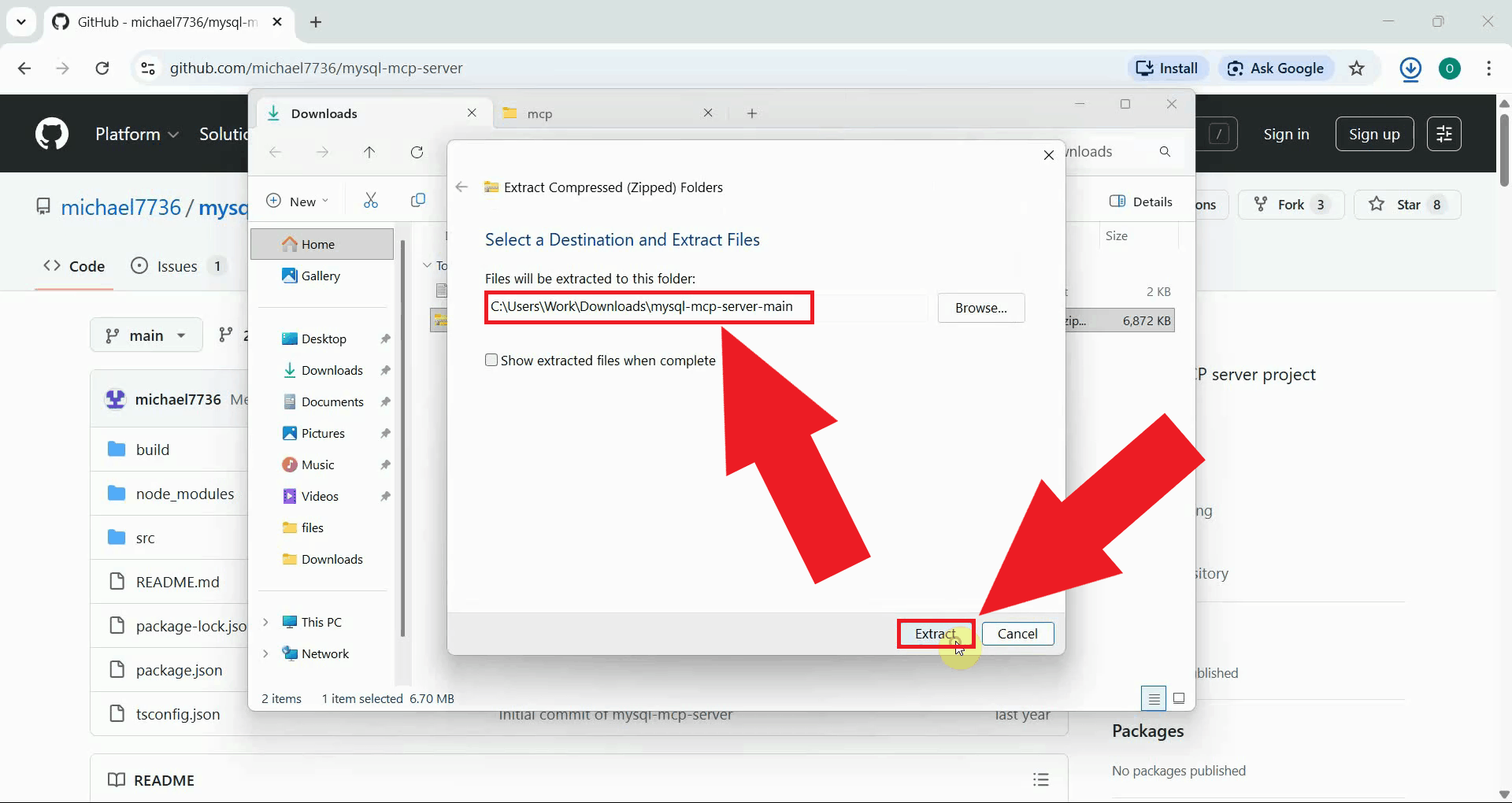
Locate the downloaded ZIP file in your Downloads folder and extract it to a directory of your choice. The extracted folder will contain the MCP server source files (Figure 2).
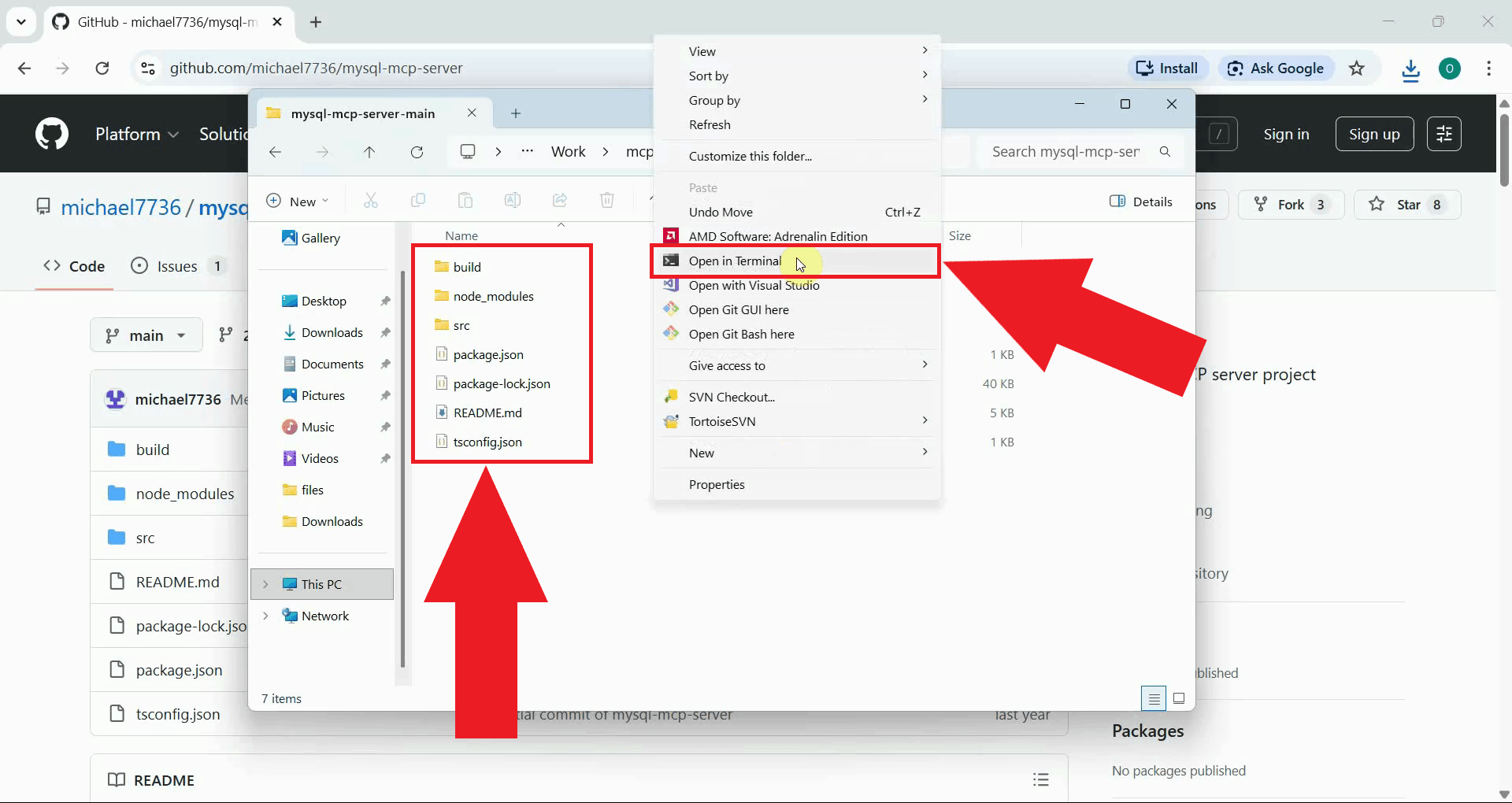
Open a terminal window in the extracted MCP server folder. You can do this by right-clicking inside the folder and selecting Open in Terminal or by navigating to the folder path in an existing terminal (Figure 3).
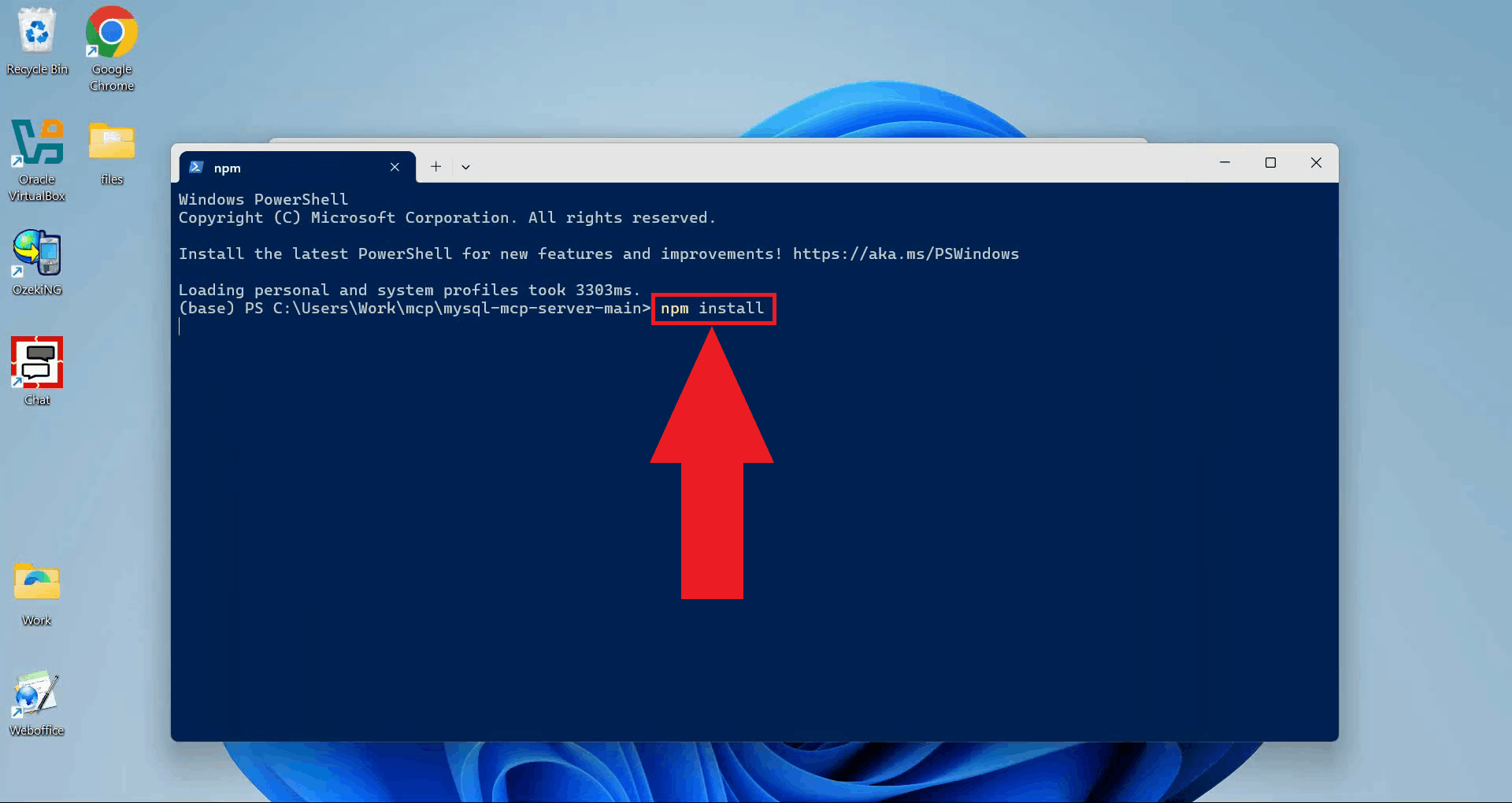
Run npm install to download and install all dependencies required by the
MCP server. Wait for the installation to complete before proceeding (Figure 4).
npm install
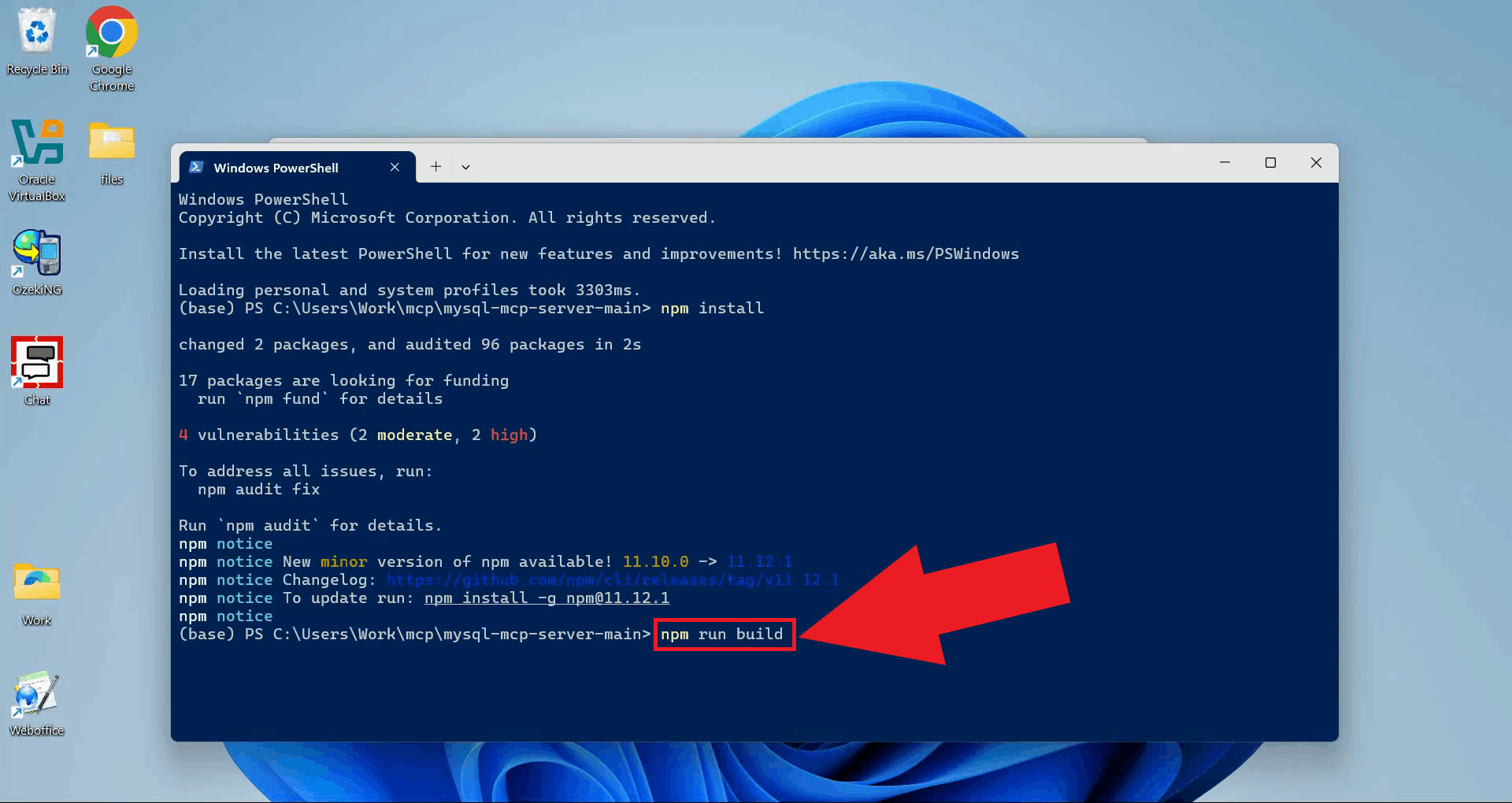
Run npm run build to compile the TypeScript source files into JavaScript.
The compiled output will be placed in the build folder: this is the
index.js file you will reference in the OpenClaw configuration (Figure 5).
npm run build
Step 2 - Configure the MCP server in OpenClaw
The following video shows how to register the MySQL MCP server in the OpenClaw configuration file and test the available database tools through the OpenClaw dashboard.
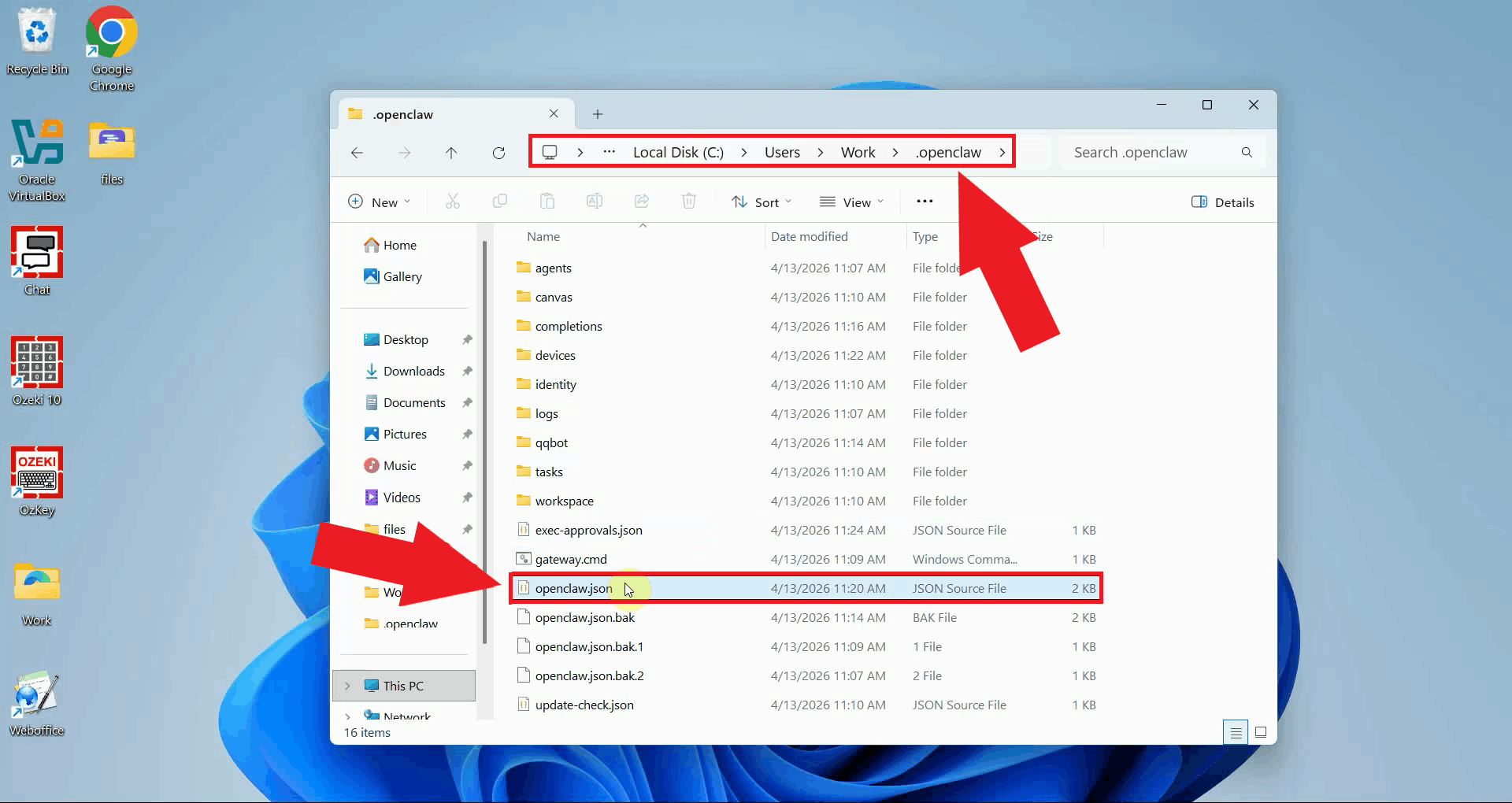
Locate the OpenClaw configuration file at
C:\Users\{User}\.openclaw\openclaw.json and open it in a text editor.
This file stores all OpenClaw settings including registered MCP servers (Figure 6).
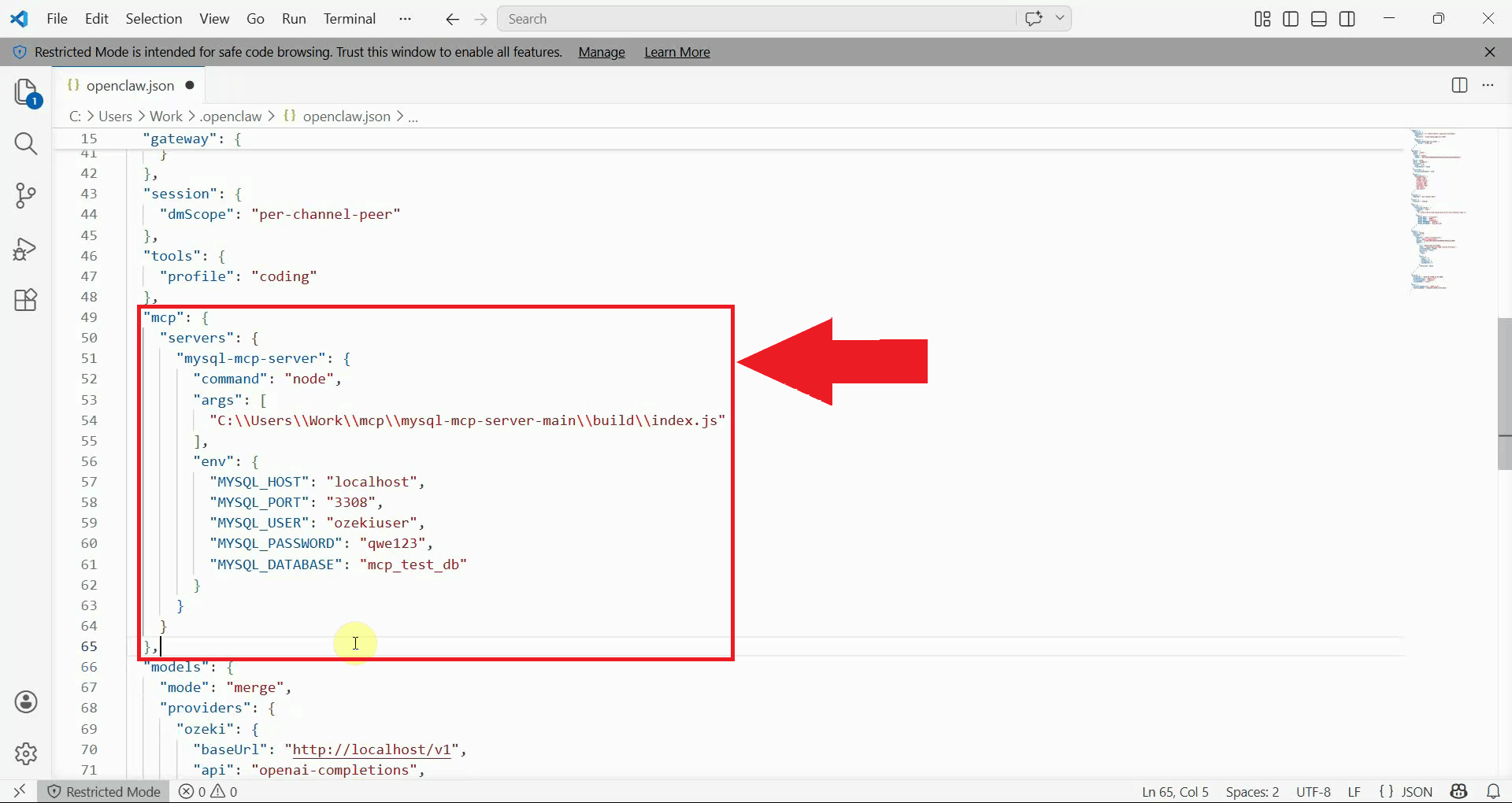
Add the MySQL MCP server entry to the mcp.servers block. Replace the
path in the args array with the actual path to the index.js
file in your build folder, and fill in your MySQL connection details in the
env section. Save the file when done (Figure 7).
"mcp": {
    "servers": {
        "mysql-mcp-server": {
            "command": "node",
            "args": [
                "C:\\path\\to\\mysql-mcp-server\\build\\index.js"
            ],
            "env": {
                "MYSQL_HOST": "your-mysql-host",
                "MYSQL_PORT": "your-mysql-port",
                "MYSQL_USER": "your-mysql-user",
                "MYSQL_PASSWORD": "your-mysql-password",
                "MYSQL_DATABASE": "your-database-name"
            }
        }
    }
}
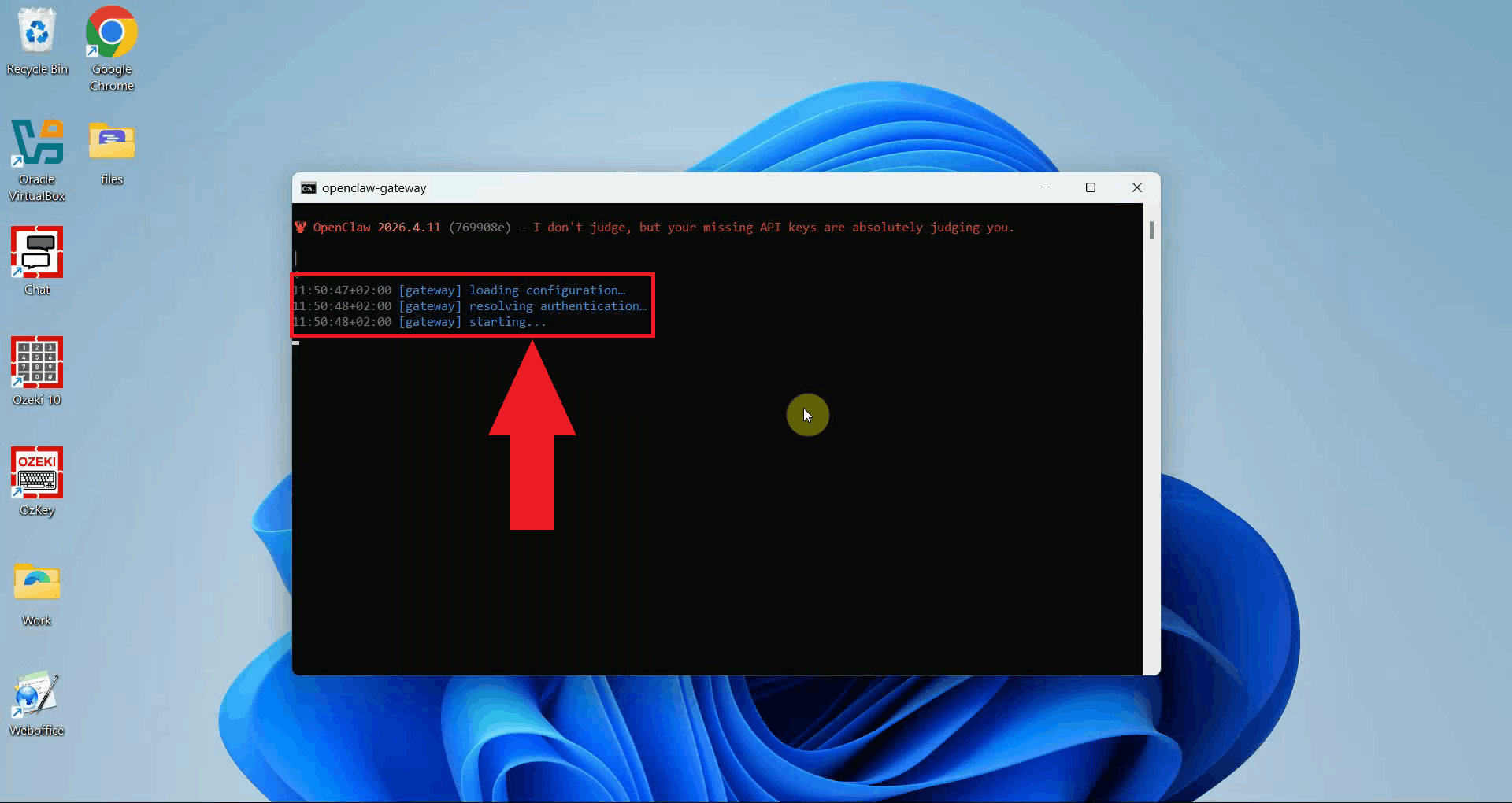
After saving the configuration file, OpenClaw will automatically detect the change and restart its gateway service to apply the new MCP server registration. Wait for the restart to complete before proceeding (Figure 8).
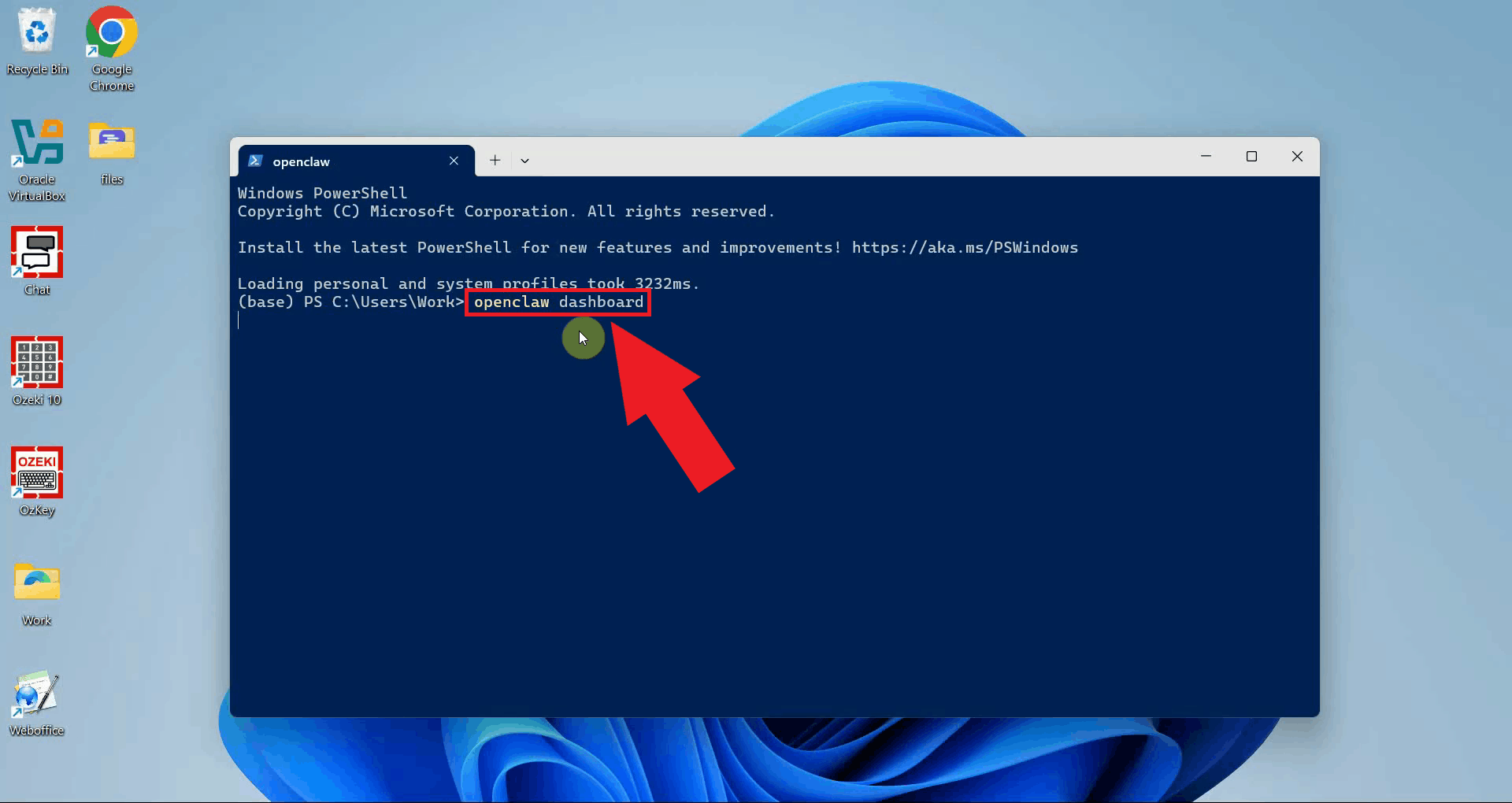
Open the OpenClaw dashboard by running the openclaw dashboard command
in your terminal. The dashboard is the web interface where you can interact with
the AI assistant and use the registered MCP tools (Figure 9).
openclaw dashboard
Step 3 - Test the database tools
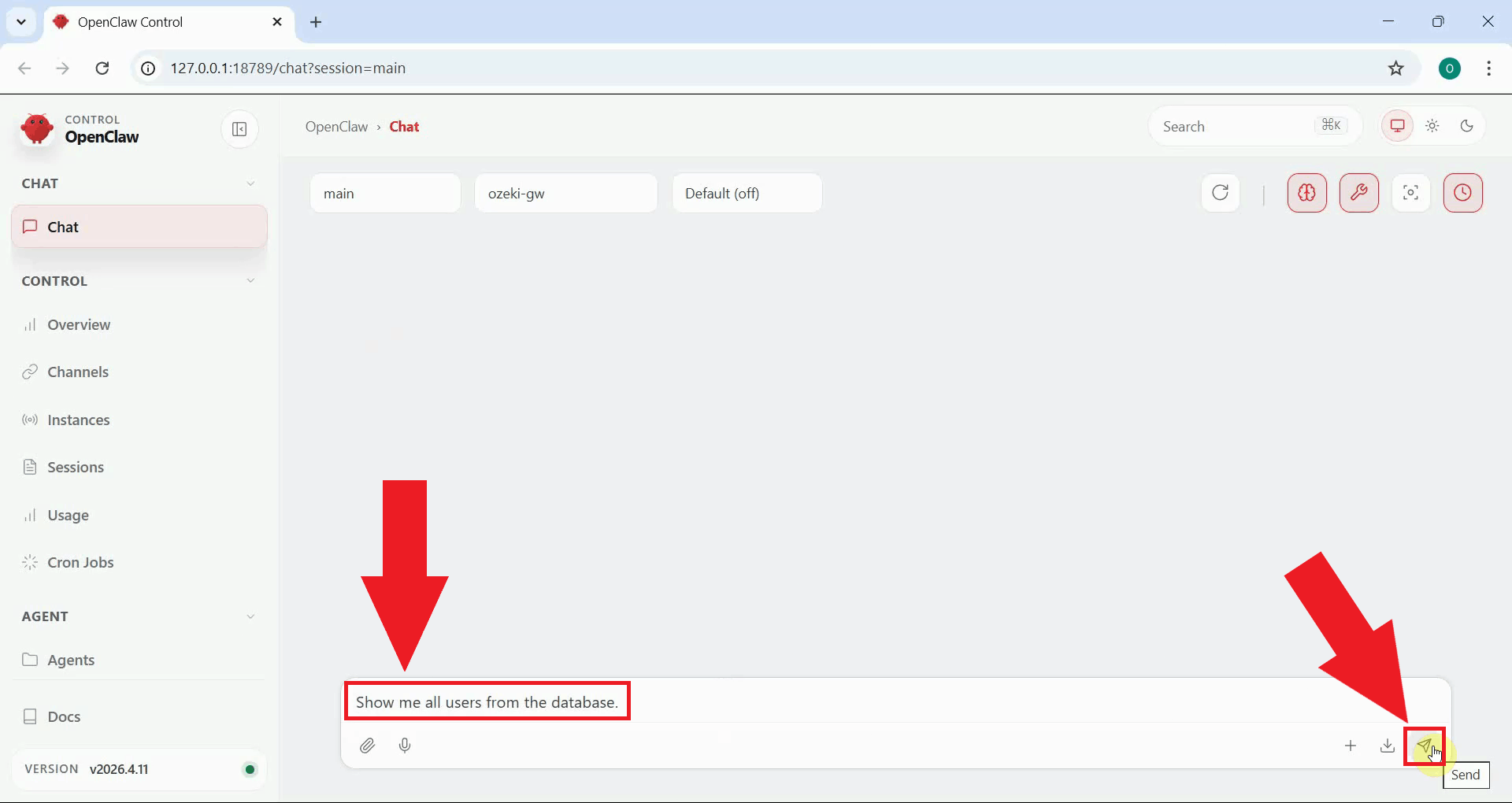
Test the query tool by asking the AI to retrieve data from your database. OpenClaw will use the MCP tool to execute the SQL query and return the results directly in the dashboard chat interface (Figure 10).
Show me all users from the database.
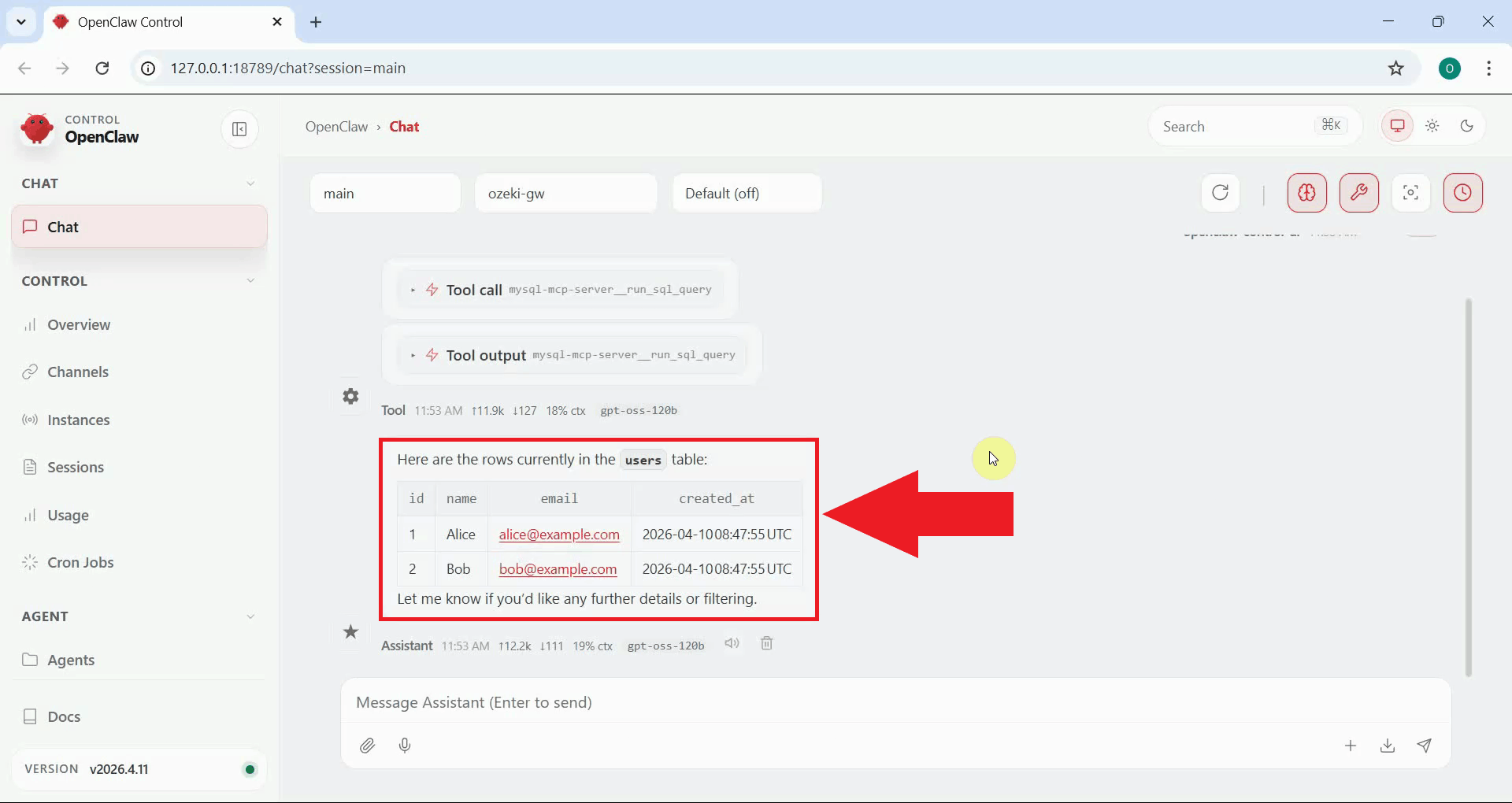
The query results will be displayed in the dashboard, confirming that OpenClaw is successfully communicating with the MySQL MCP server and executing database operations (Figure 11).
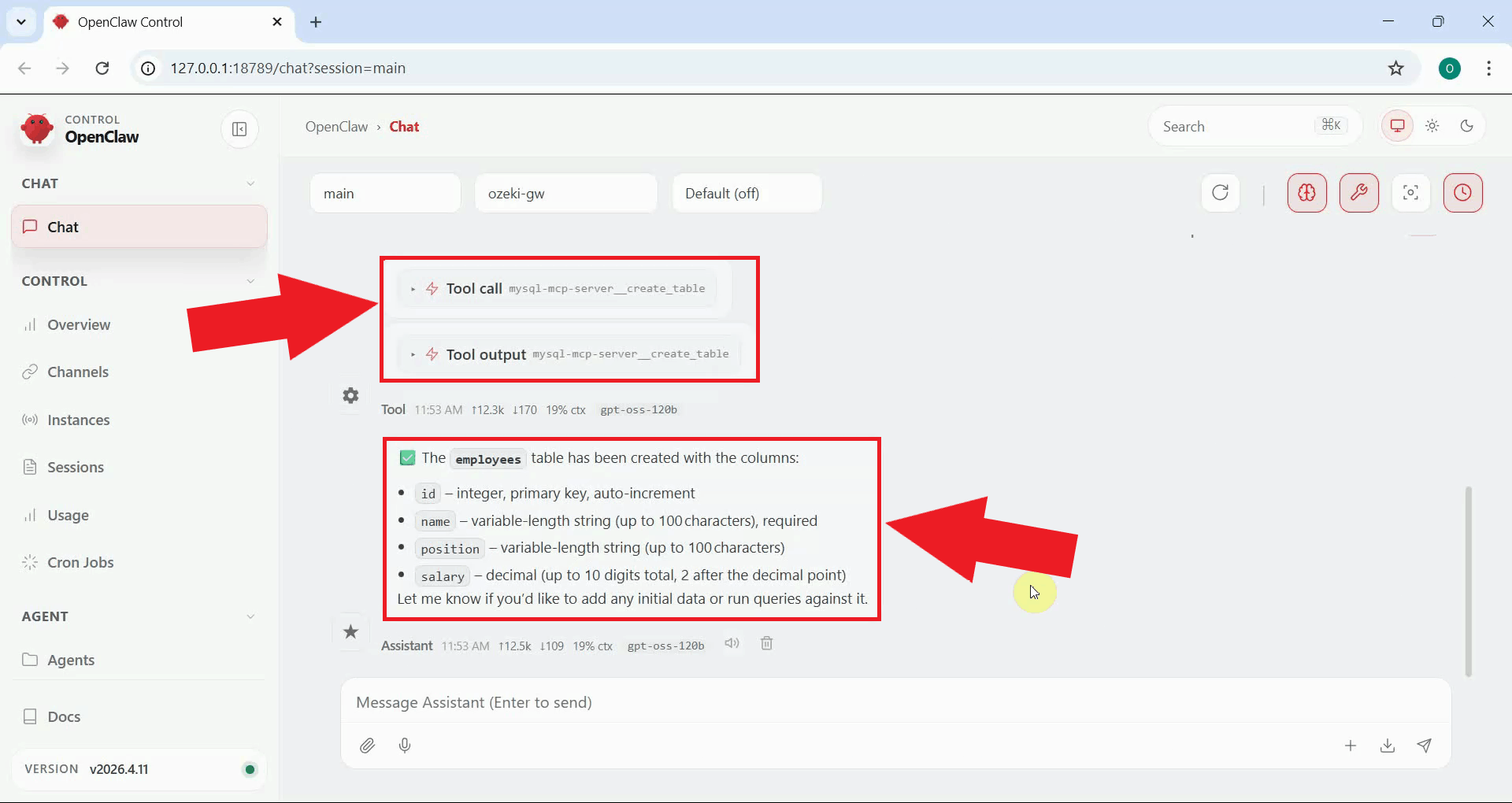
Test the table creation tool by instructing the AI to create a new table in your database (Figure 12).
Create a table called "employees" in the database with columns for id, name, position, and salary.
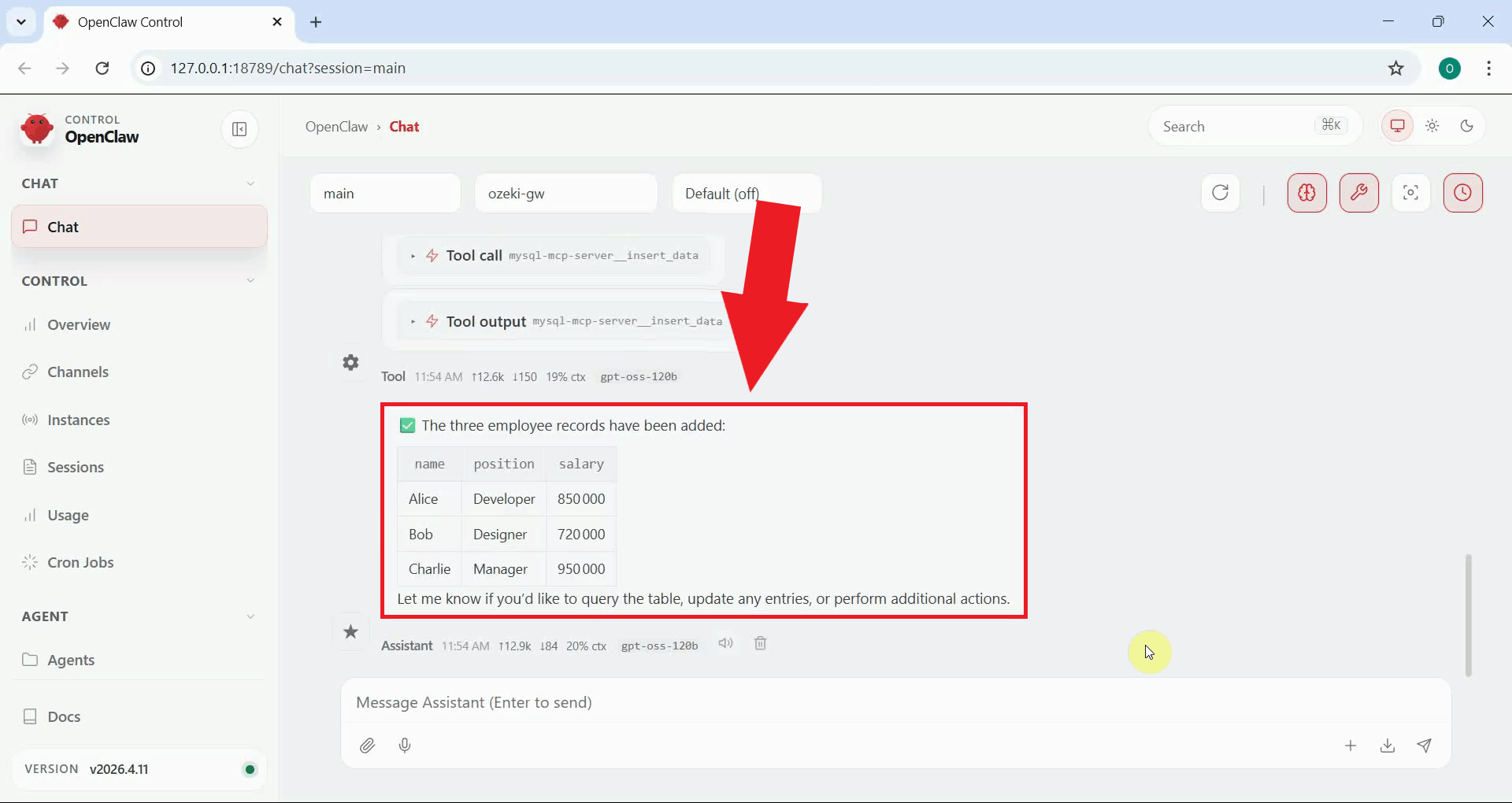
Test the data insertion tool by asking the AI to insert records into the table. Provide the data in natural language and it will construct and execute the appropriate INSERT statements through the MCP server (Figure 13).
Insert these three rows into the employees table: Alice - Developer - 850000, Bob - Designer - 720000, Charlie - Manager - 950000.
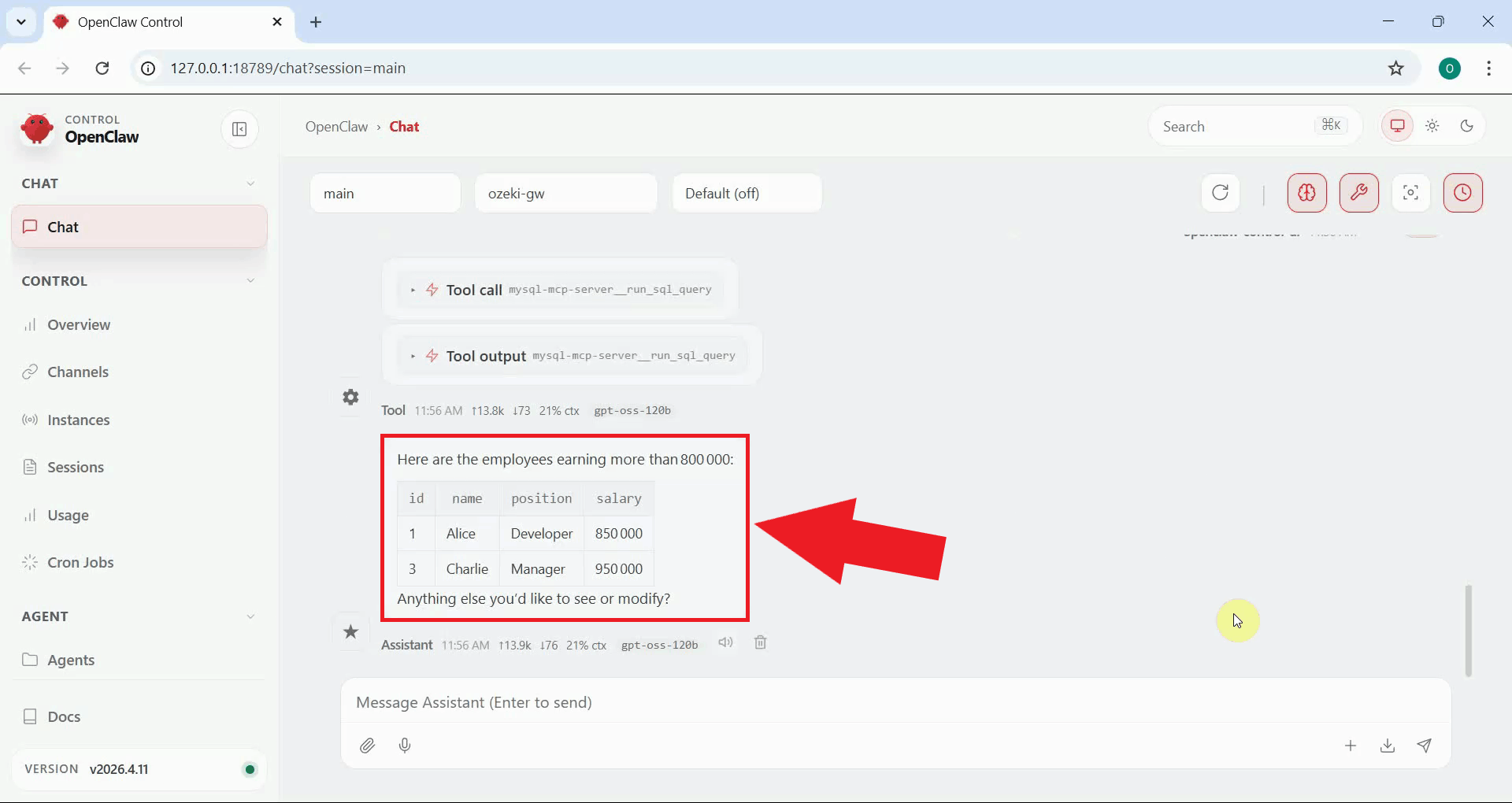
Finally, test a conditional query to confirm that filtering works correctly. This verifies the full pipeline from natural language input through SQL execution to result display in the dashboard (Figure 14).
Query the database and show me all employees who earn more than 800000.
Conclusion
You have successfully set up a MySQL MCP server and connected it to OpenClaw. The AI assistant can now interact with your MySQL database directly through natural language in the OpenClaw dashboard, executing queries, creating tables, and managing data without requiring any manual SQL input.