
How to setup a gpt-oss-120b connection in Ozeki AI Gateway
This guide demonstrates how to setup a gpt-oss-120b AI model connection in Ozeki AI Gateway. You'll learn how to configure an AI provider, create user accounts, generate API keys, and establish routes for accessing the gpt-oss-120b model. By following these steps, you can enable users to interact with this powerful AI model through your Ozeki AI Gateway.
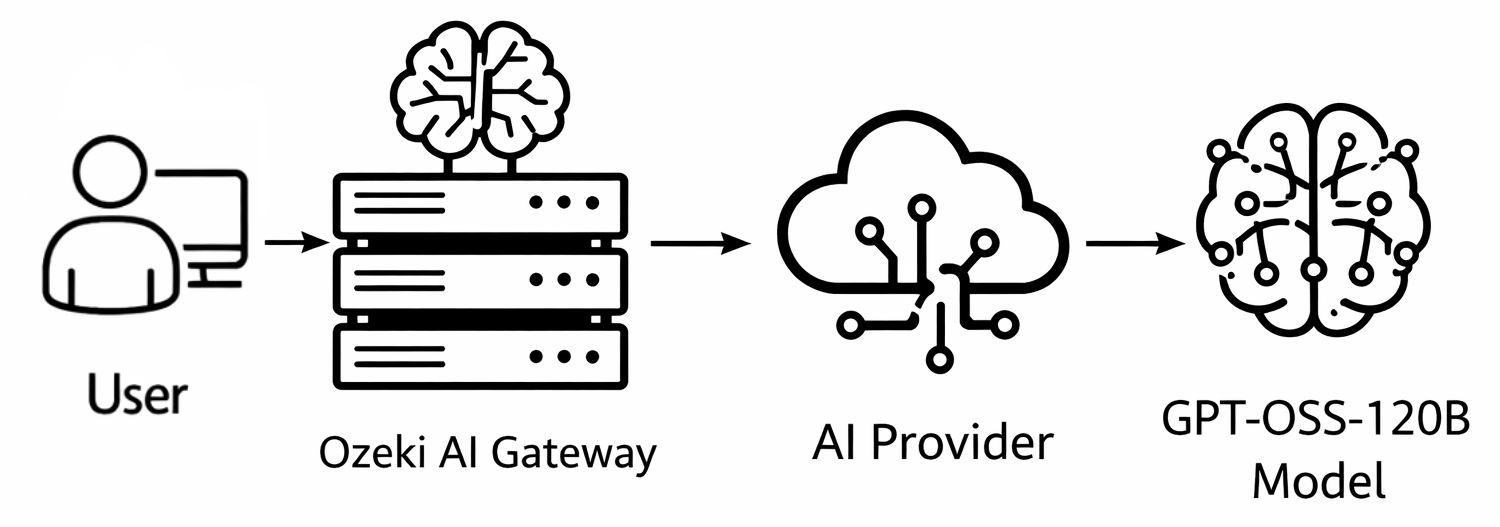
API URL: https://your-provider-url/v1
Example API Key: your-api-key
Default model: openai/gpt-oss-120b
Steps to follow
We assume Ozeki AI Gateway is already installed on your system. You can install it on Linux, Windows or Mac.
How to setup a gpt-oss-120b provider video
The following video shows how to setup a gpt-oss-120b provider in Ozeki AI Gateway step-by-step.
Step 1 - Configure AI provider
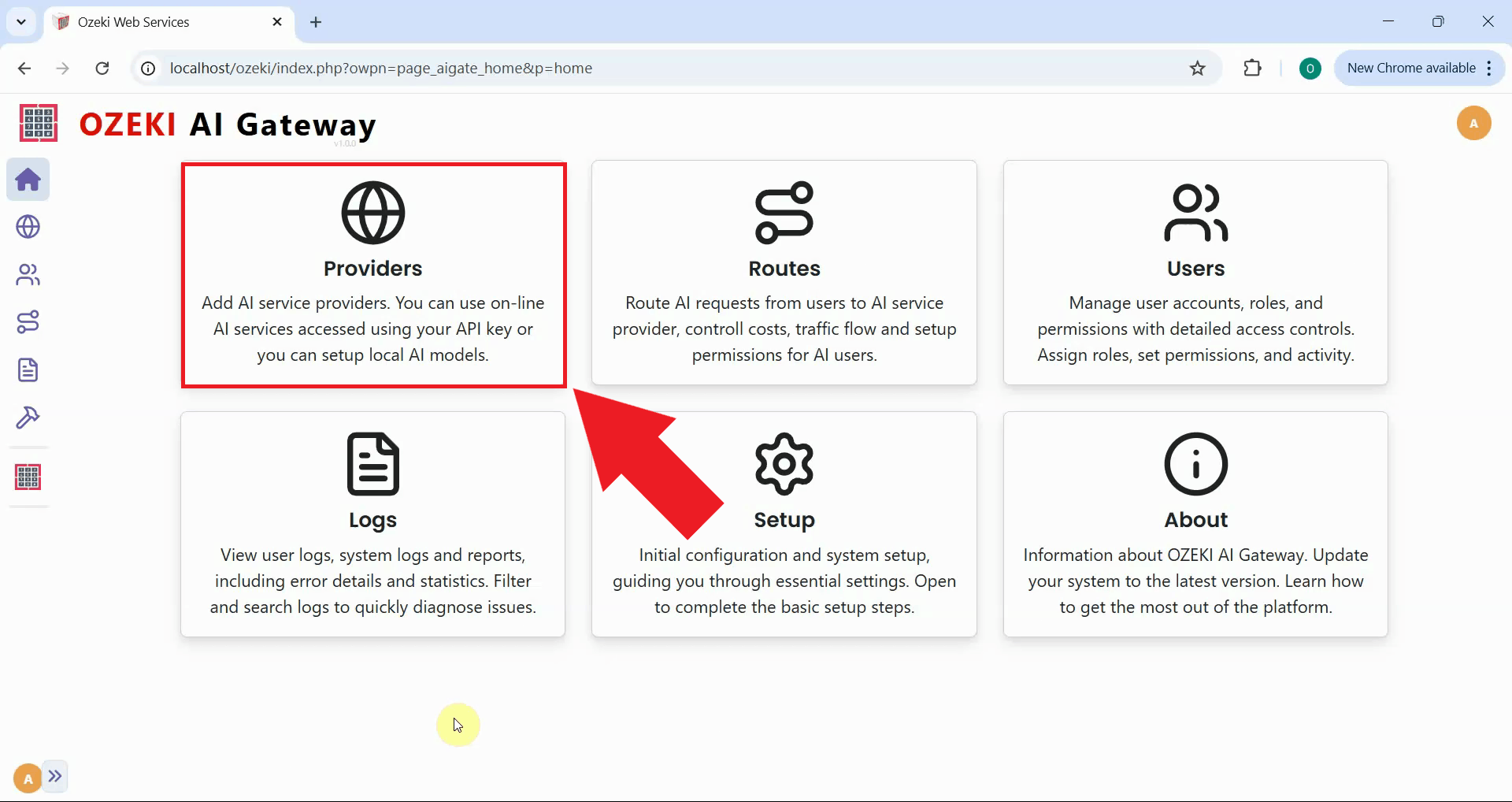
Navigate to the Providers page from the main gateway interface. This page displays a list of currently configured AI providers. The gateway requires at least one configured provider to process AI requests (Figure 1).
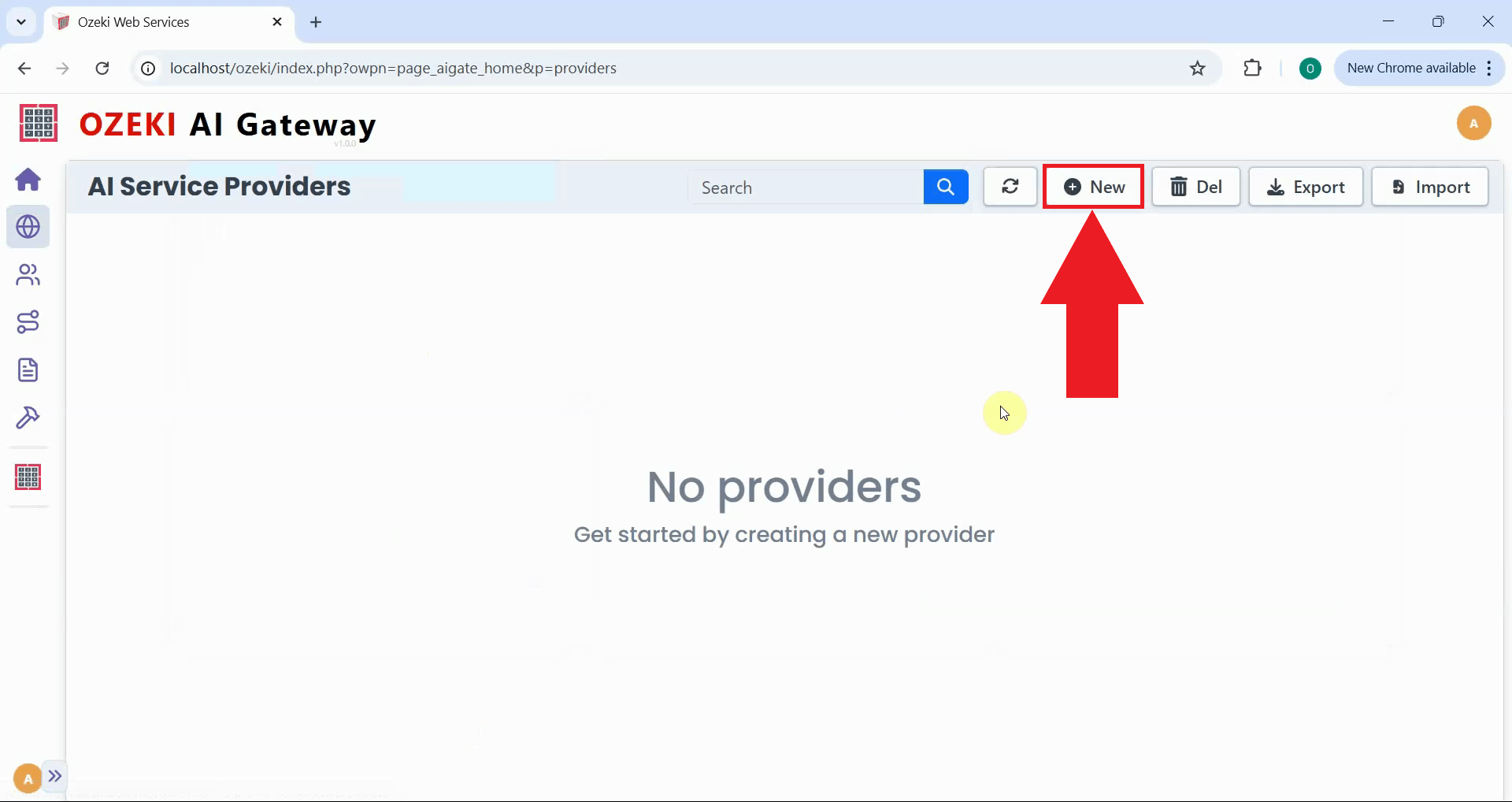
Click the "New" button to initiate the provider creation workflow, opening a form where you specify the connection details. The form requires entering the provider's name, type, API endpoint URL, and preferred default AI model. This configuration allows the gateway to communicate with the specific AI service (Figure 2).
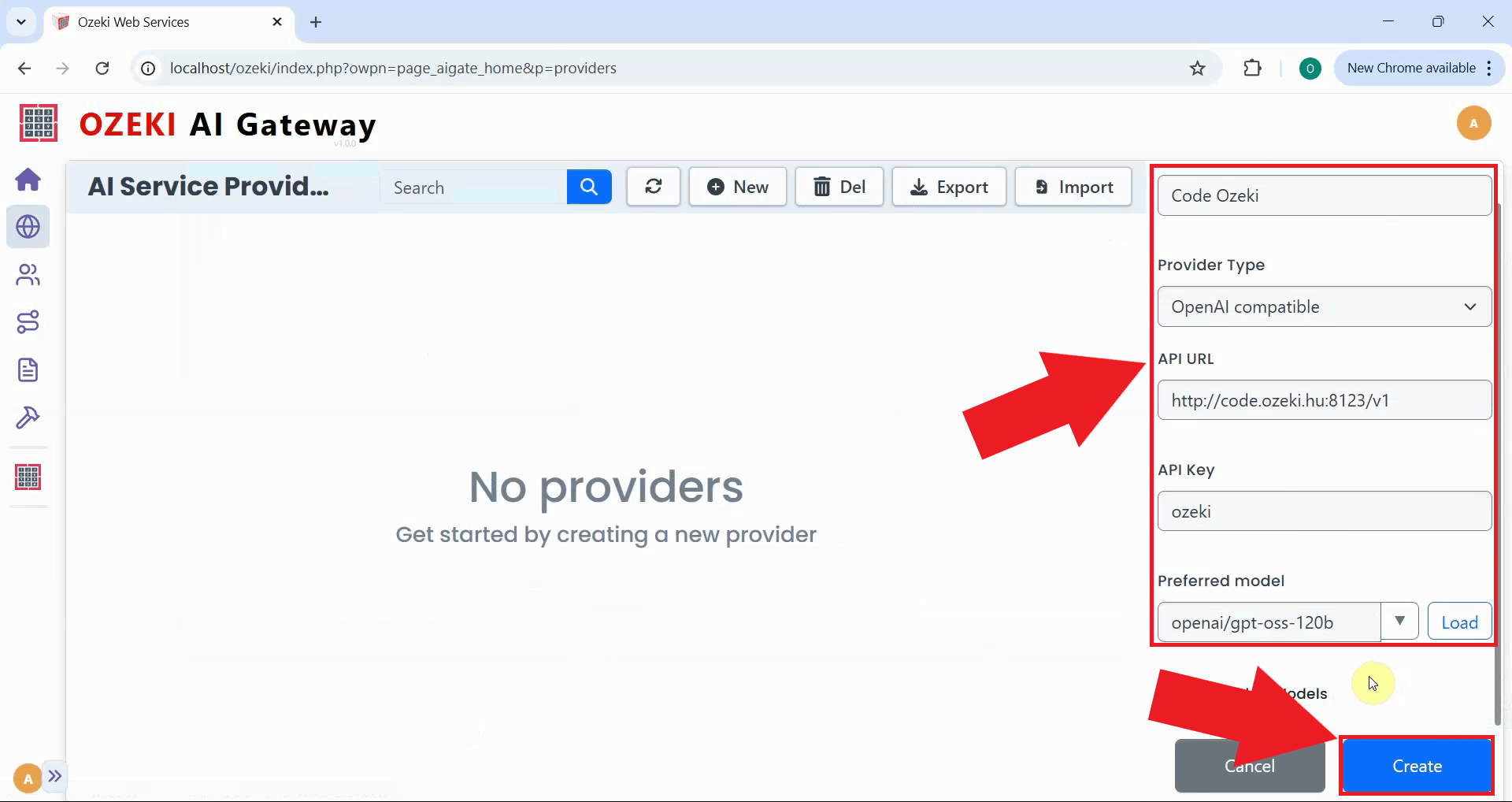
Fill in the configuration form with your provider information. Enter the provider name, select "OpenAI compatible" as the type, paste the endpoint URL, and add your authentication token. Select the openai/gpt-oss-120b model from the dropdown list, then click "Create" to save the configuration (Figure 8).
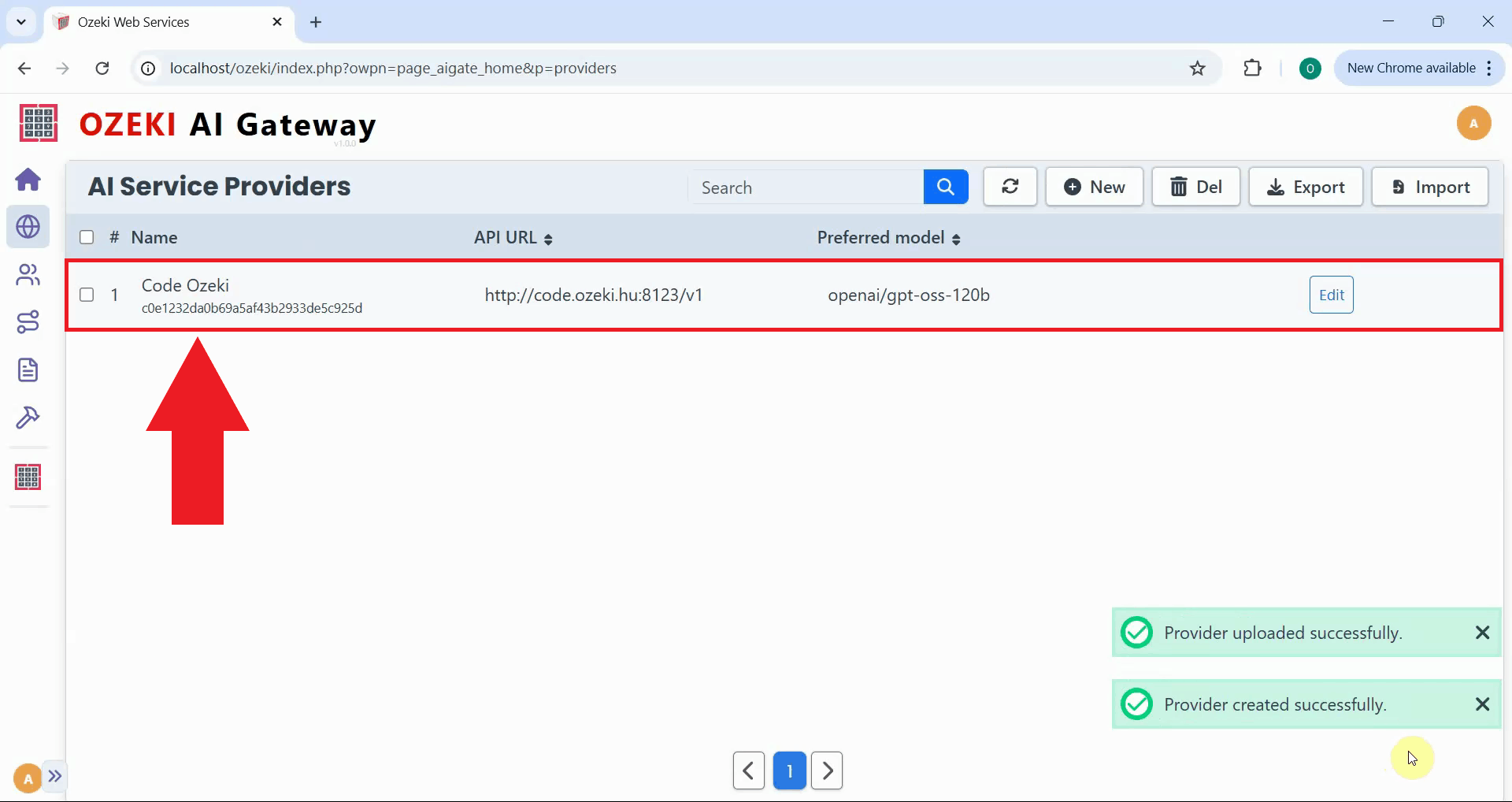
The provider appears in the list with its configuration details visible, indicating that the gateway recognizes it as a valid connection option (Figure 4).
Step 2 - Create user account
The following video shows how to create a user account and generate an API key step-by-step.
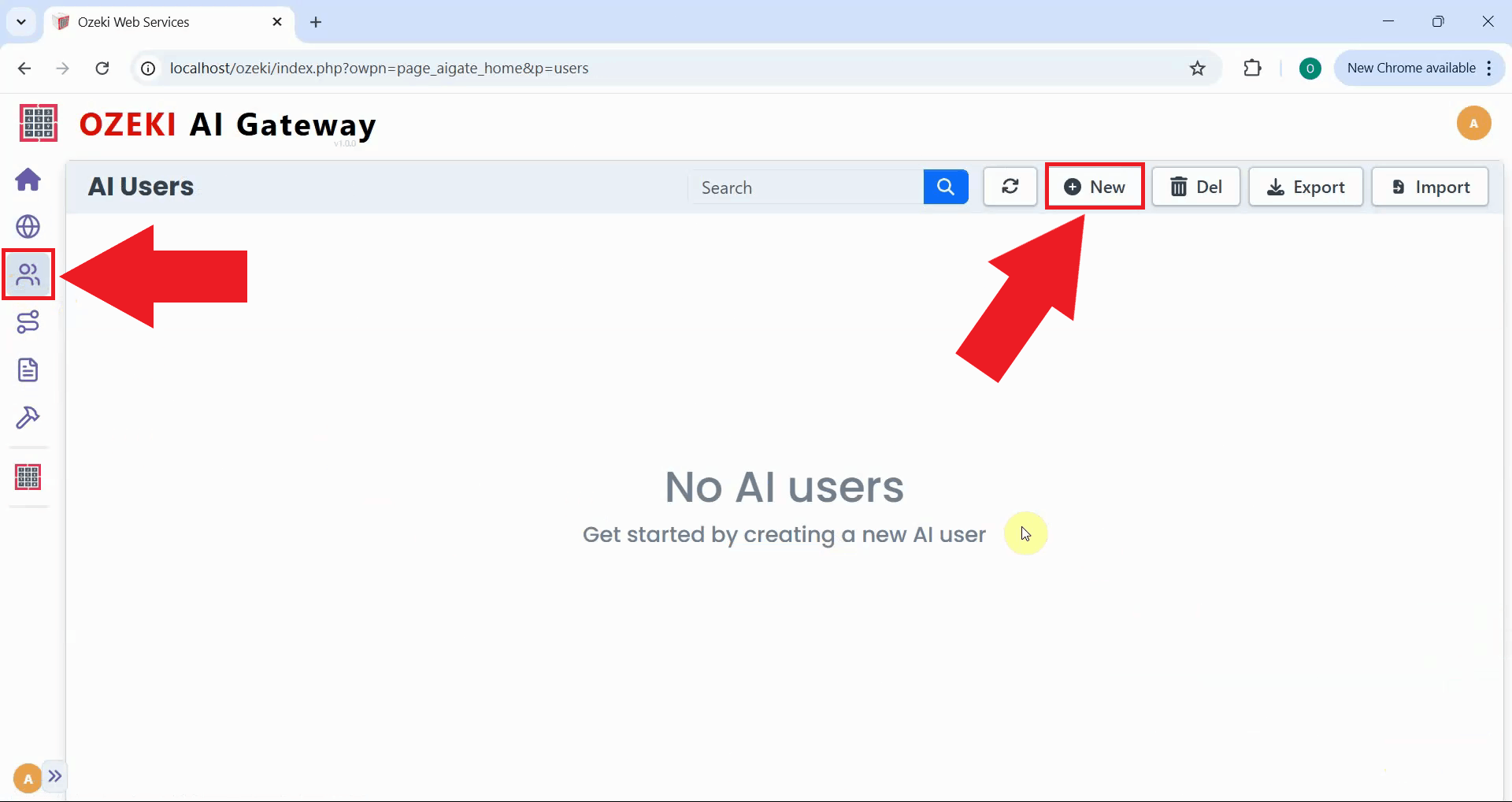
Navigate to the Users page to create AI users. Creating distinct user accounts allows you to control who can access your gateway and manage API request quotas on a per-user basis. Click the "New" button to open the user creation form (Figure 5).
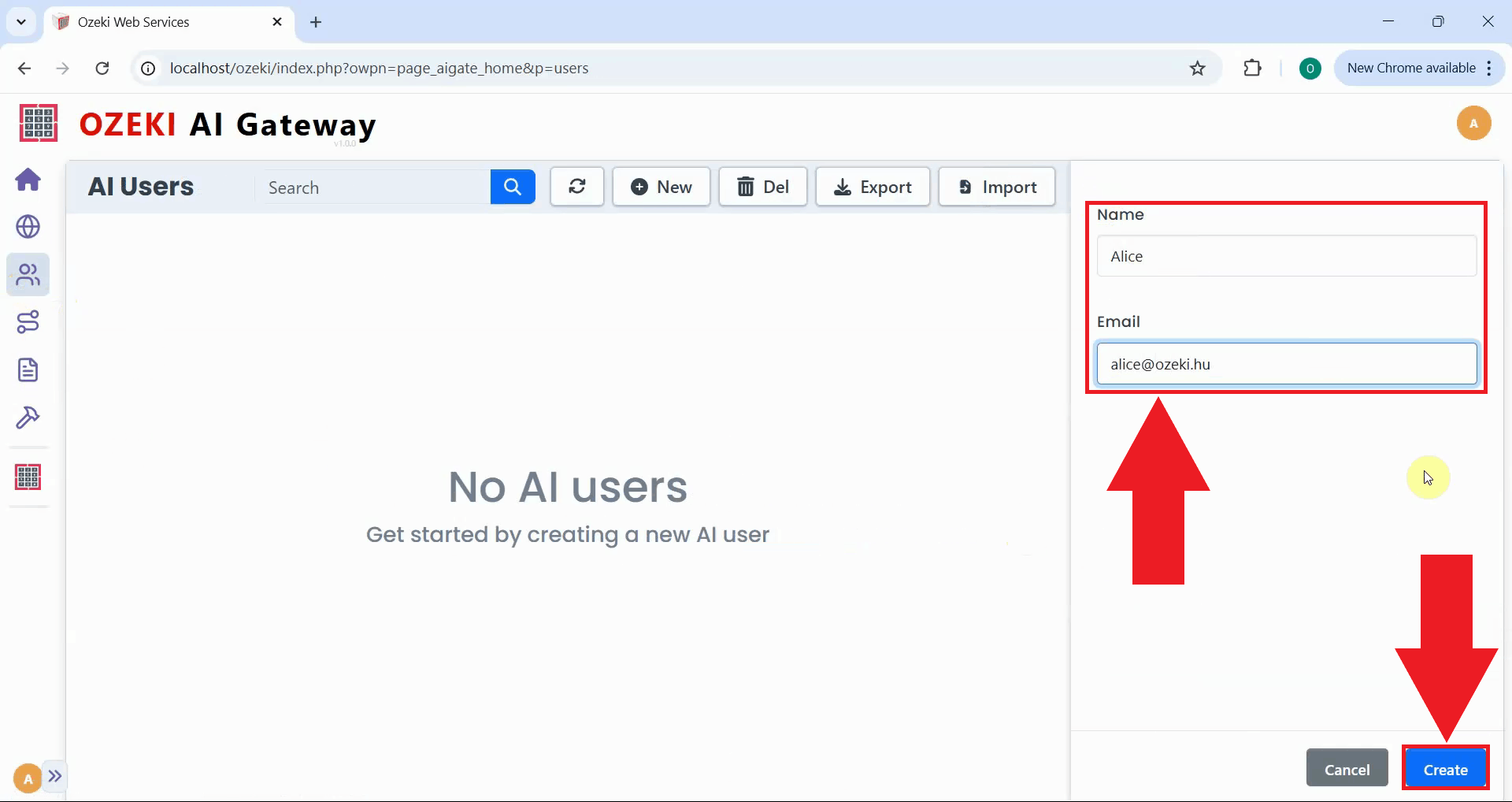
Enter identifying information such as the name and email address. These details establish the user's identity within the gateway system. Click "Create" to save the user account (Figure 6).
Step 3 - Generate user API key
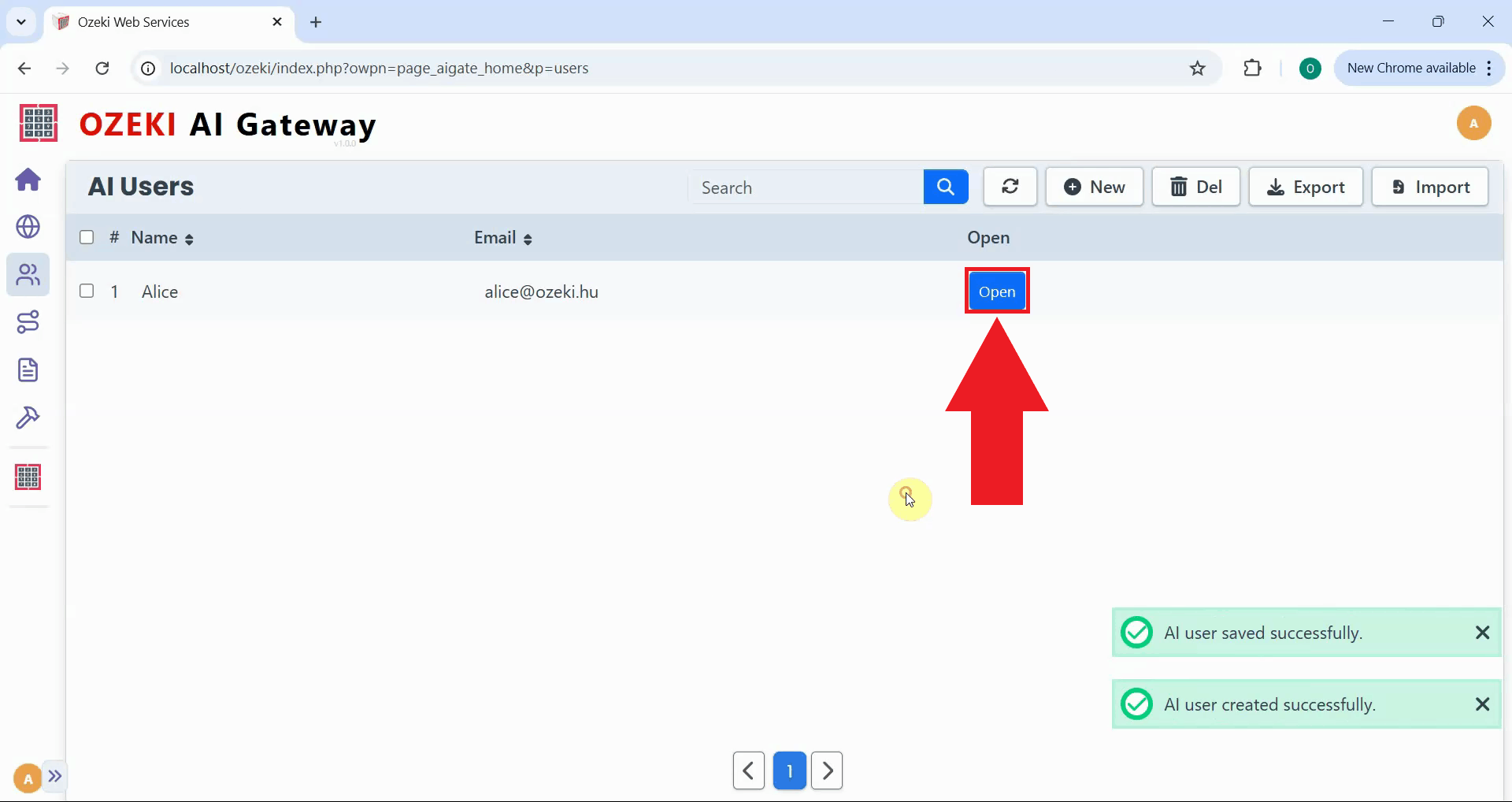
After creating a user account, click the "Open" button next to that user to navigate to their API key management page. This page allows you to create and manage the user's authentication credentials. From here, you can generate new API keys, view existing keys, and control the user's access tokens for authenticating with the gateway (Figure 7).
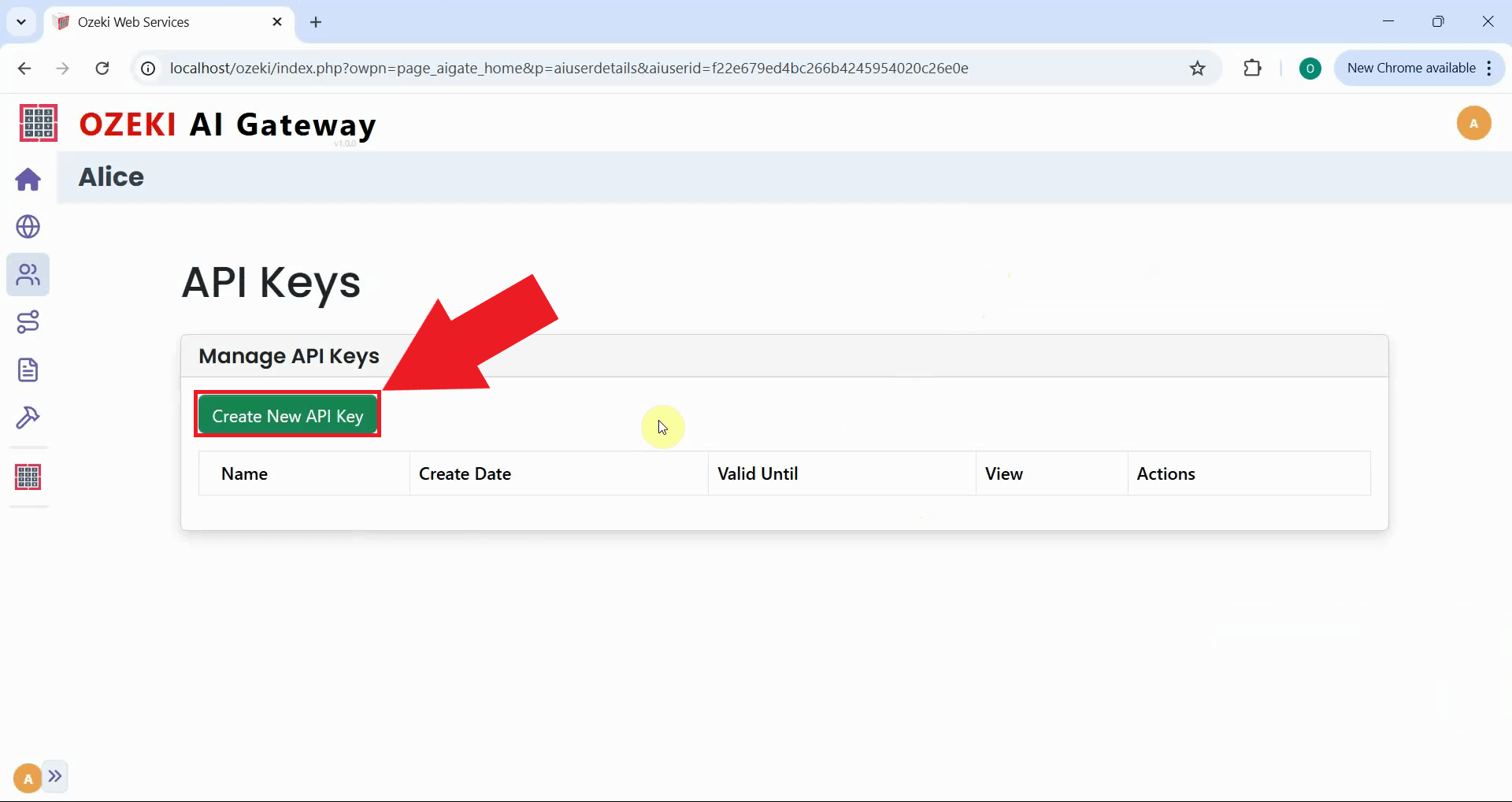
Each user requires at least one API key to authenticate with the gateway when making API requests. Click the "Create New API Key" button to generate a new authentication token (Figure 8).
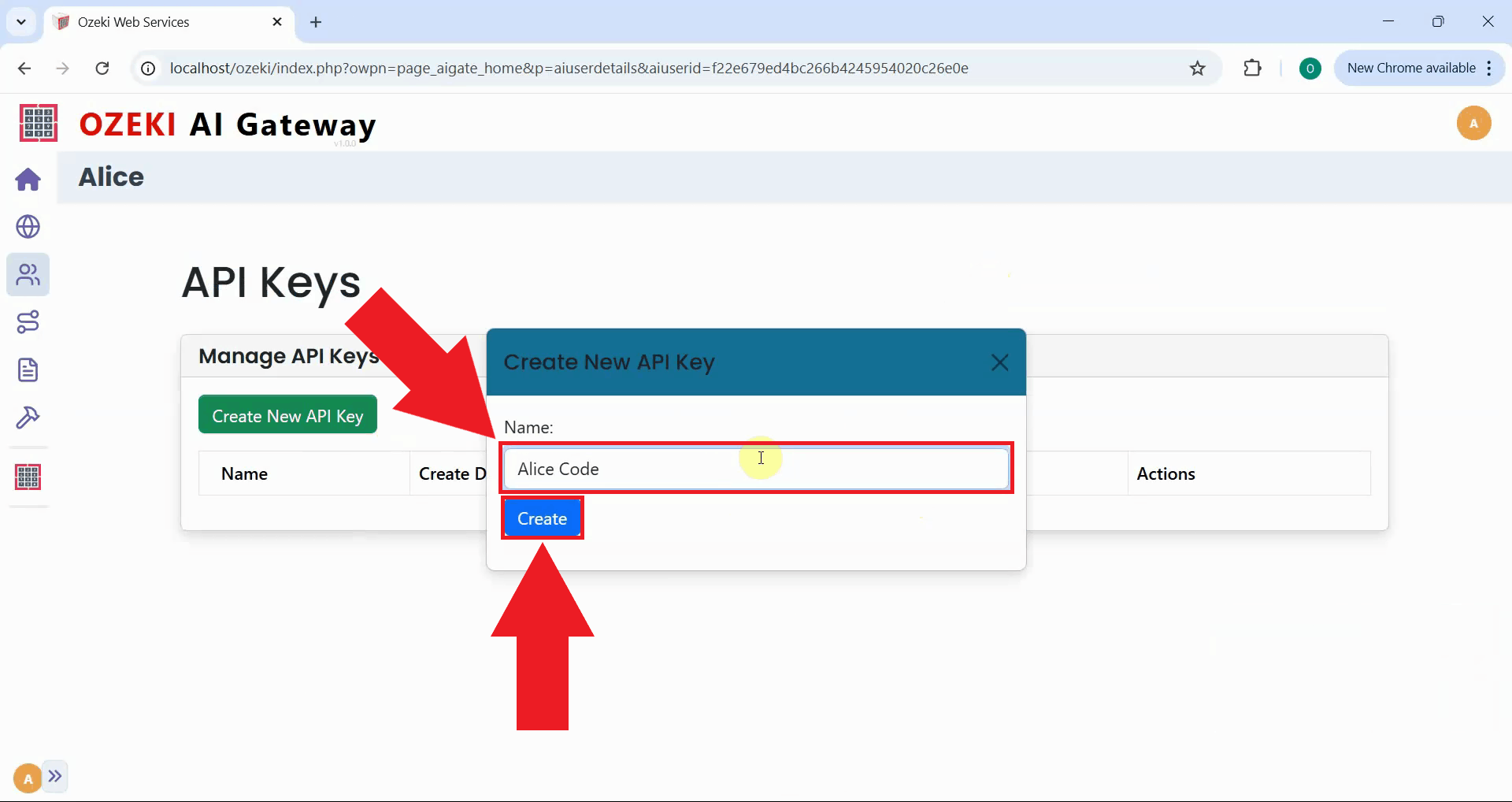
Assign a descriptive name to the key that identifies its purpose or associated application. A clear naming scheme helps identify which keys are in use. Click "Create" to generate the API key (Figure 9).
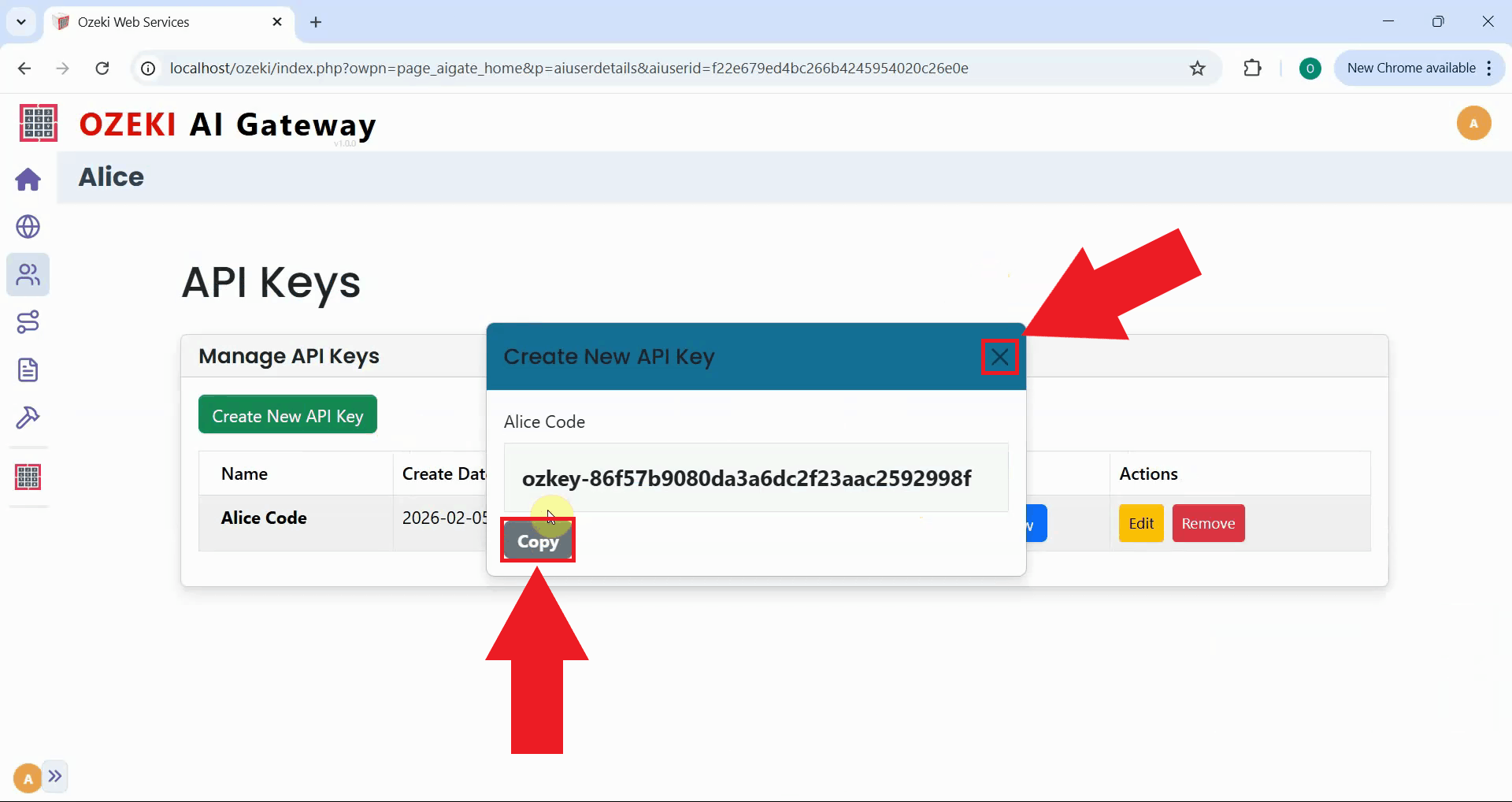
After the API key is generated, the gateway displays the complete key value. Click the copy button to copy the key to your clipboard. The secure handling and protection of API keys is critical to prevent unauthorized access to your gateway (Figure 10).
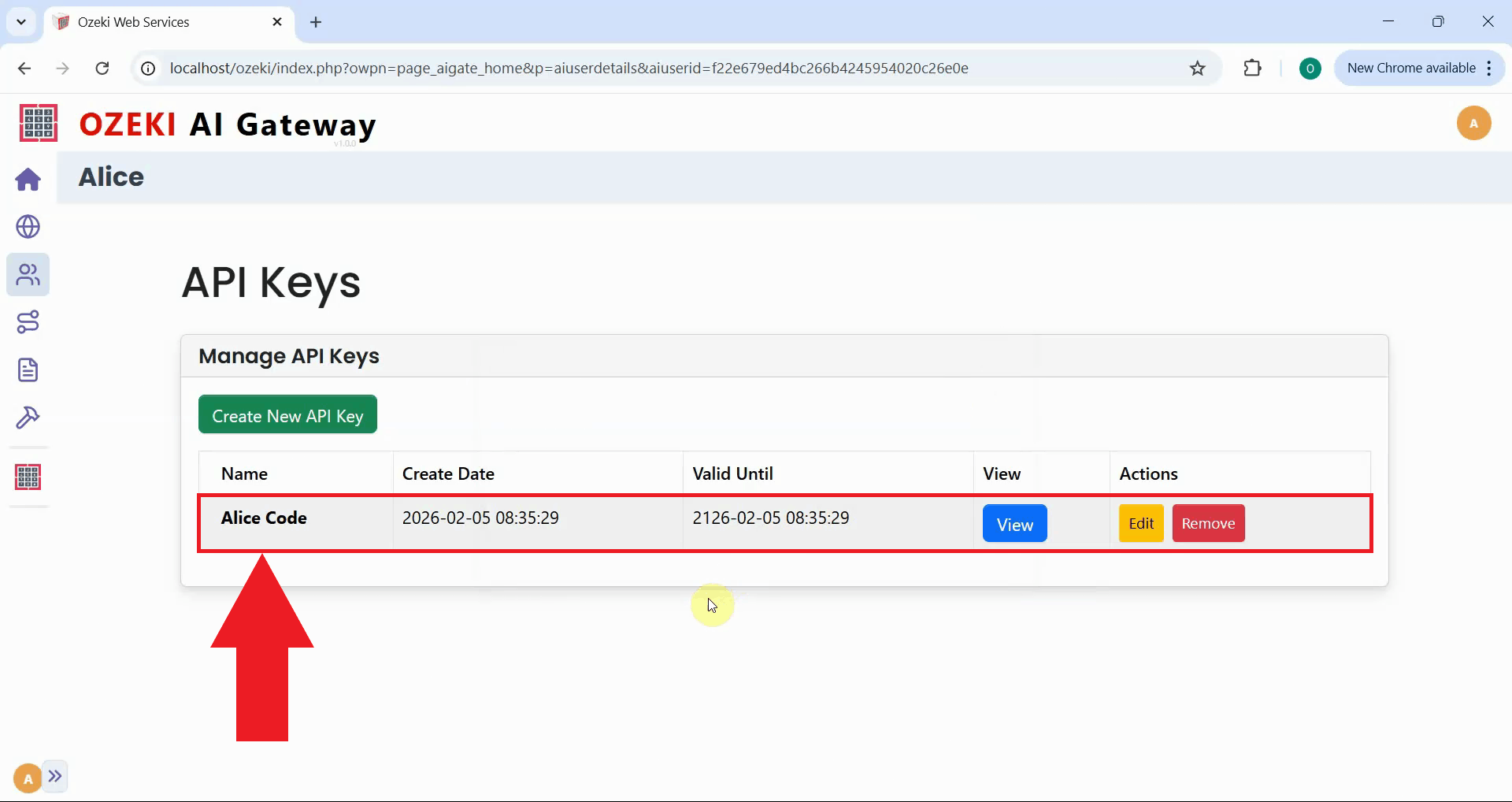
The API key has been successfully created and is now ready for use. The key appears in the user's API keys list, confirming that authentication credentials have been properly configured (Figure 11).
Step 4 - Create route
The following video shows how to create a route to connect users to the AI provider step-by-step.
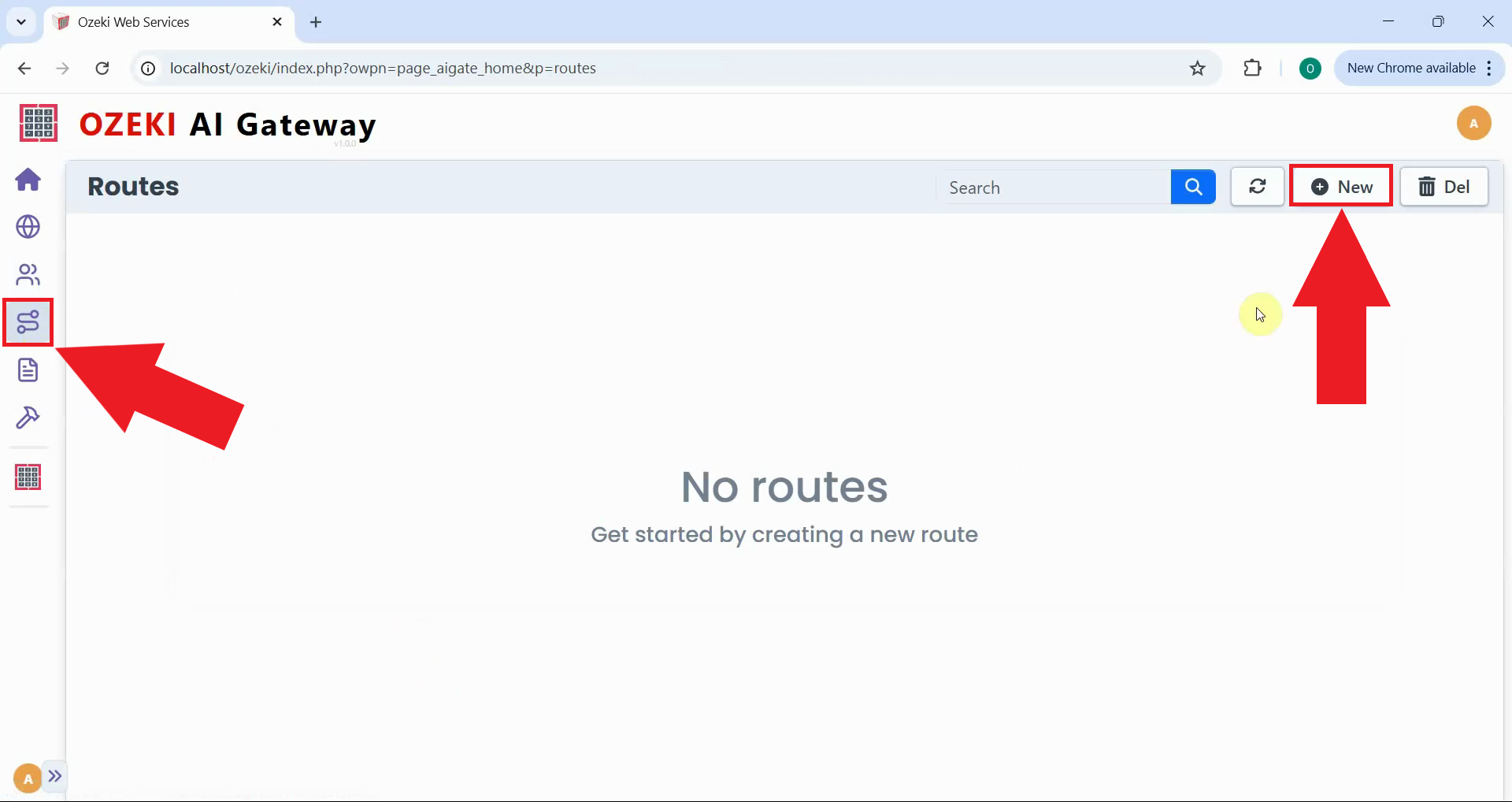
Navigate to the Routes page to create routing rules. Routes define the mapping between users, providers, and API models. Click the "New" button to open the route creation form (Figure 12).
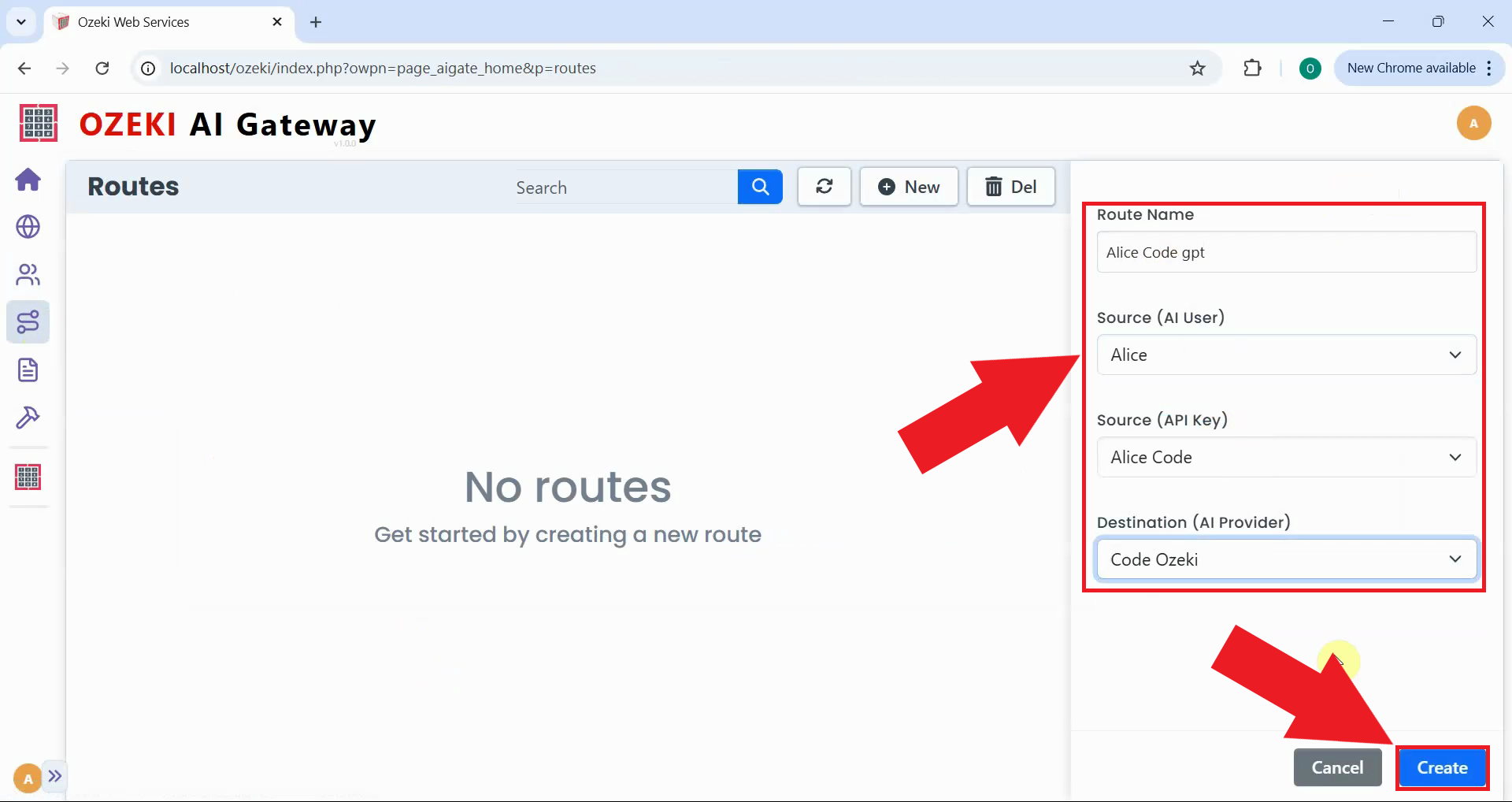
Specify the route configuration by selecting the user, provider, and model information from dropdown menus. The route includes the user account, the AI provider through which requests will be routed, and the specific models that this user can access. Click "Create" to register this access path in the gateway's routing table (Figure 13).
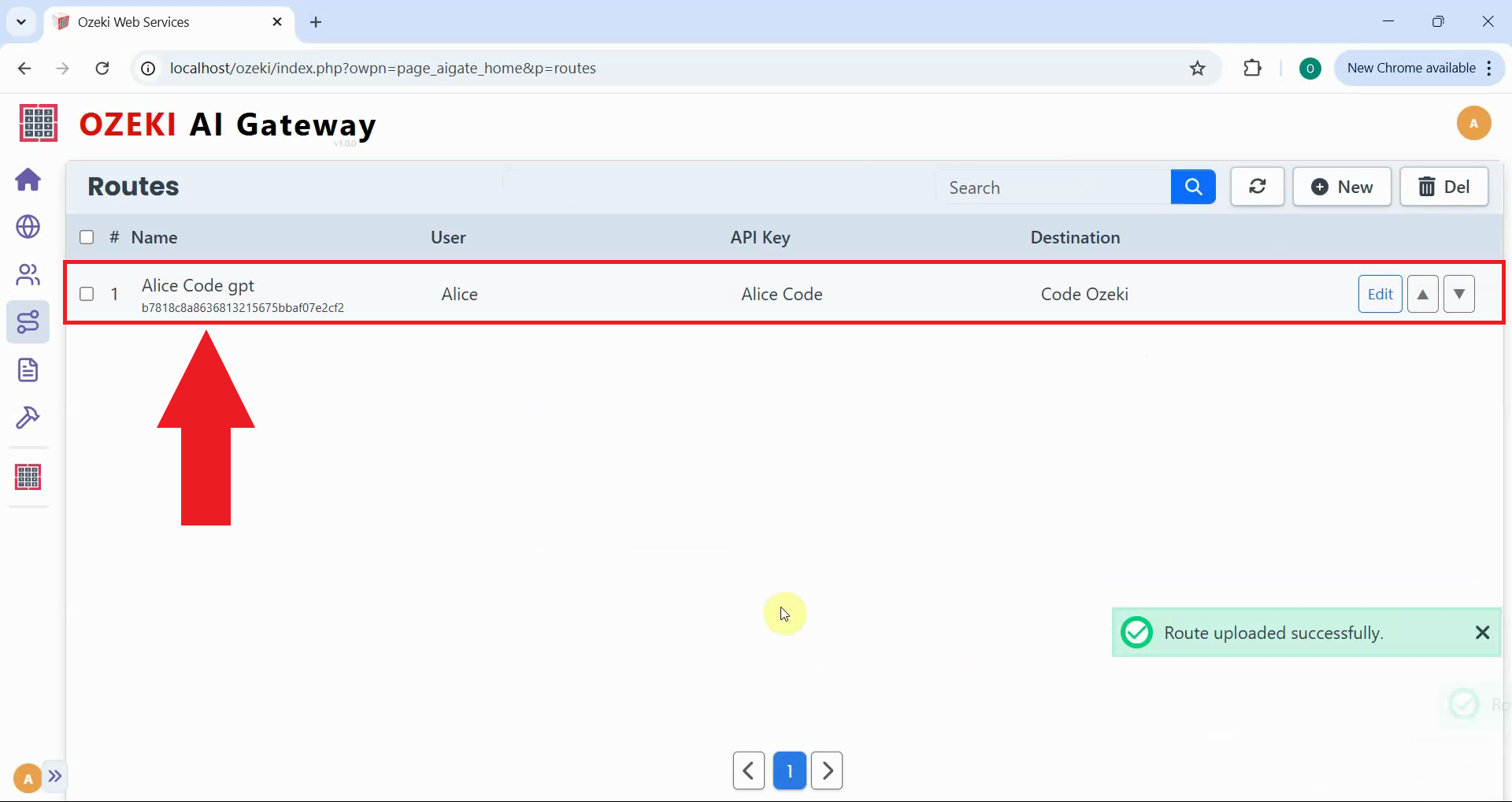
The route has been successfully created and now appears in the routes list. You can now use the API key to authenticate requests to the gpt-oss-120b model through your Ozeki AI Gateway (Figure 14).
To sum it up
You have successfully configured a gpt-oss-120b connection in Ozeki AI Gateway. The provider has been set up, a user account has been created, an API key has been generated for authentication, and a route has been established to connect the user to the AI provider. Your gateway can now route requests to the gpt-oss-120b model, allowing users and applications to access this powerful AI model through a centralized and managed interface.