
How to use Claude Code as a VS Code extension with Ozeki AI Gateway
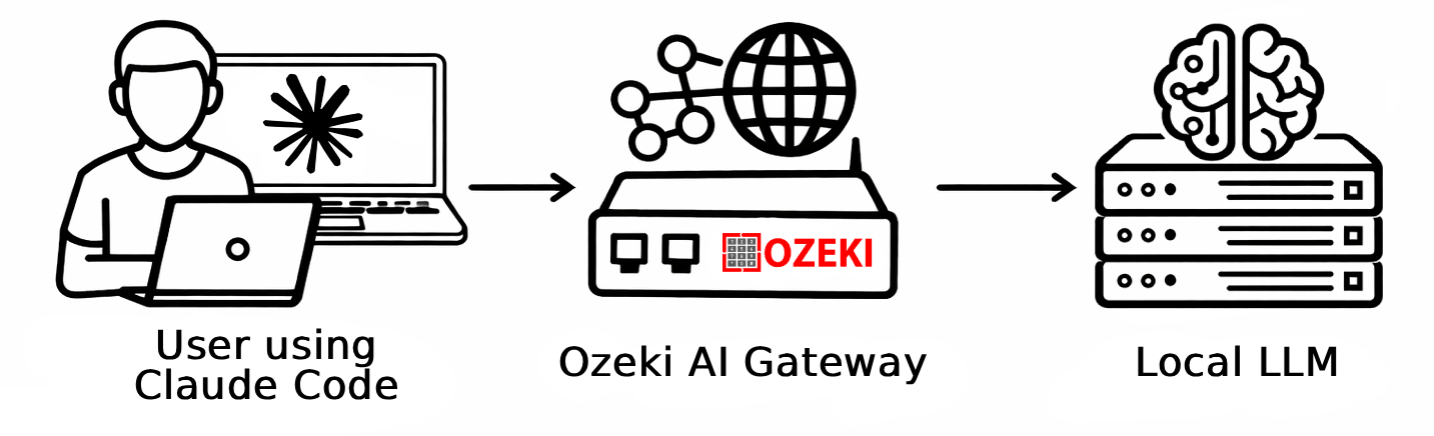
This comprehensive guide demonstrates how to install and configure the Claude Code extension for Visual Studio Code to work with Ozeki AI Gateway. By connecting the Claude Code VS Code extension to Ozeki AI Gateway, you can route AI requests through your gateway. This tutorial covers the complete setup process, from installing the extension to configuring the settings file with your gateway credentials.
Prerequisites
In order to use the Claude Code VS Code extension with third-party LLM service providers or local AI models, you first need to set up the connection in Ozeki AI Gateway. For example, the following guide shows you how to create access on your AI Gateway for the openai/gpt-oss-120b model: How to setup a gpt-oss-120b connection in Ozeki AI Gateway.
What is Claude Code VS Code extension?
The Claude Code VS Code extension brings AI-powered coding assistance directly into Visual Studio Code. It provides an integrated experience where you can interact with Claude AI without leaving your editor, delegate programming tasks, review and approve code changes, and leverage AI assistance for debugging and refactoring.
Steps to follow
We assume Ozeki AI Gateway is already installed on your system. You can install it on Linux, Windows or Mac.
- Install Claude Code
- Open Claude Code
- Configure Claude settings.json
- Reopen Claude
- Enter test prompt
- Allow Claude file write or modification
- Task completed
Configuration file overview
Settings file C:\Users\{Account}\.claude\settings.json:
{
  "env": {
    "ANTHROPIC_BASE_URL": "http://localhost/ozeki/index.php?srv=aigate&api=gateway&path=",
    "ANTHROPIC_AUTH_TOKEN": "ozkey-12345...",
    "API_TIMEOUT_MS": "3000000",
    "CLAUDE_CODE_DISABLE_NONESSENTIAL_TRAFFIC": "1",
    "ANTHROPIC_MODEL": "openai/gpt-oss-120b",
    "ANTHROPIC_SMALL_FAST_MODEL": "openai/gpt-oss-120b",
    "ANTHROPIC_DEFAULT_SONNET_MODEL": "openai/gpt-oss-120b",
    "ANTHROPIC_DEFAULT_OPUS_MODEL": "openai/gpt-oss-120b",
    "ANTHROPIC_DEFAULT_HAIKU_MODEL": "openai/gpt-oss-120b"
  }
}
How to use Claude Code extension video
The following video shows how to install and configure the Claude Code VS Code extension to work with Ozeki AI Gateway step-by-step. The video covers installing the extension, creating the settings.json configuration file, and testing the integration with a sample coding task.
Step 1 - Install Claude Code
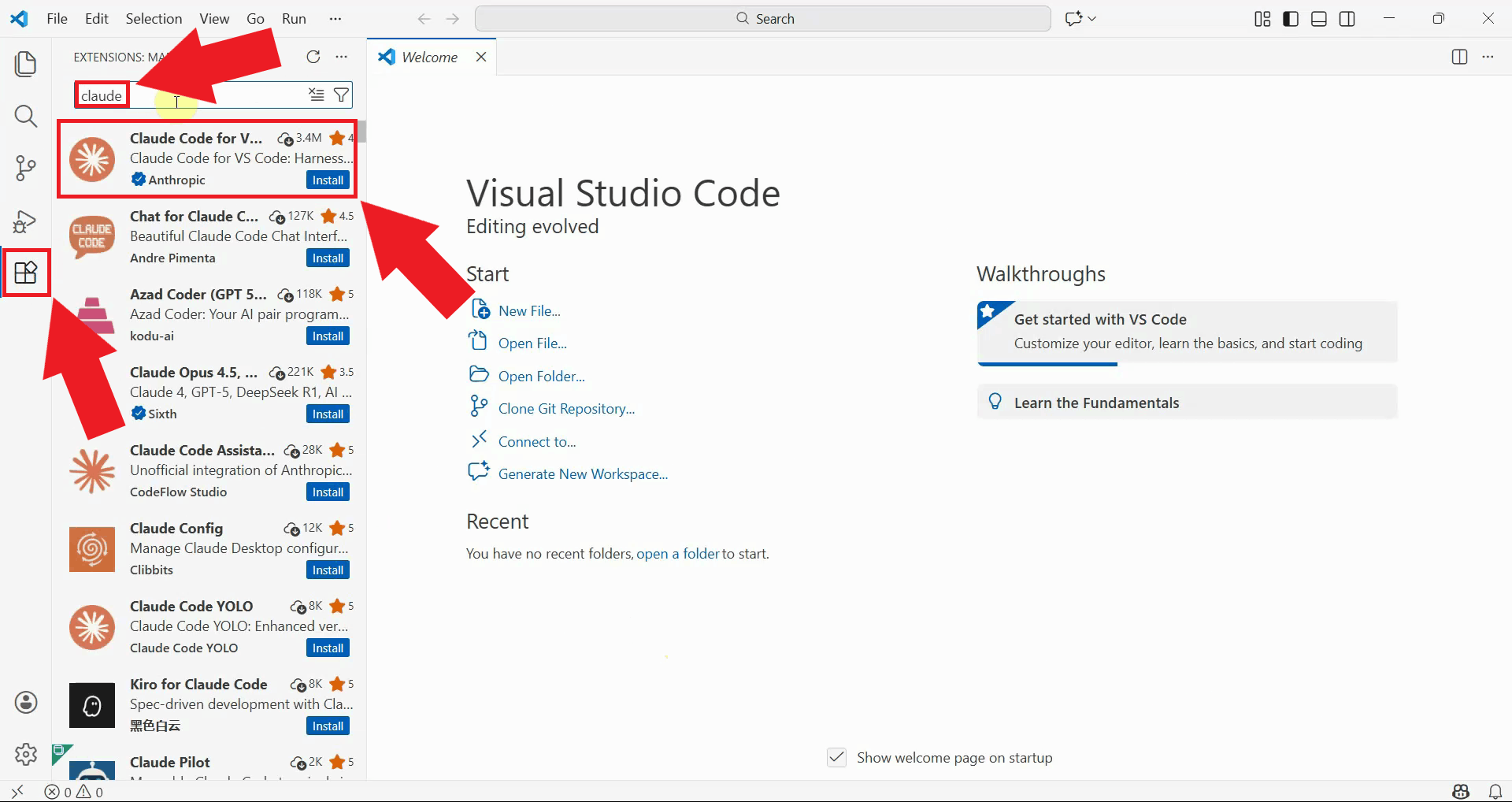
Open Visual Studio Code and navigate to the Extensions panel by clicking the Extensions icon in the left sidebar. In the search bar at the top of the Extensions panel, type "Claude" to find the Claude Code extension (Figure 1).
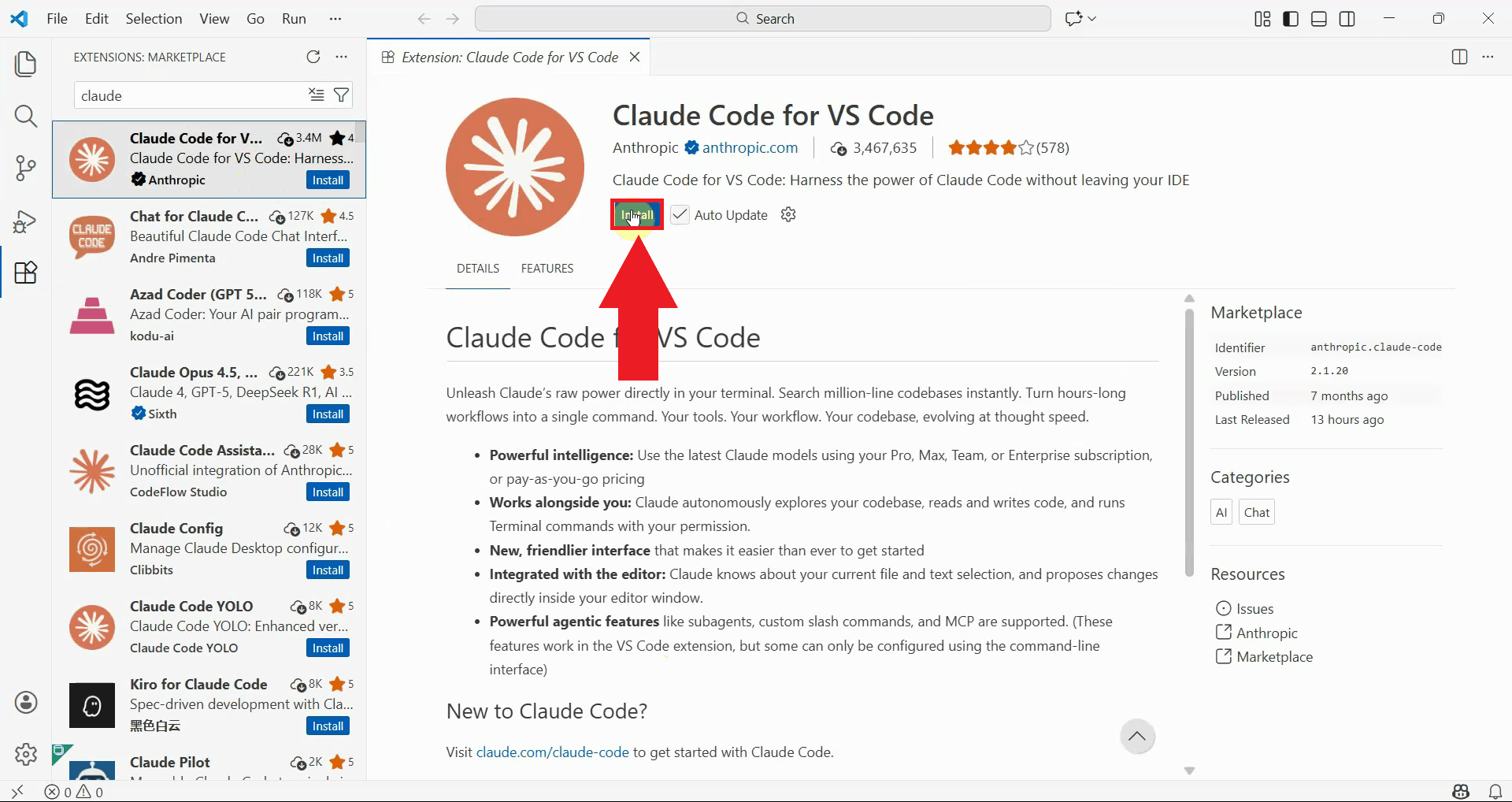
Locate the Claude Code extension in the search results and click the "Install" button. Visual Studio Code will download and install the extension. Wait for the installation to complete before proceeding (Figure 2).
Step 2 - Open Claude Code
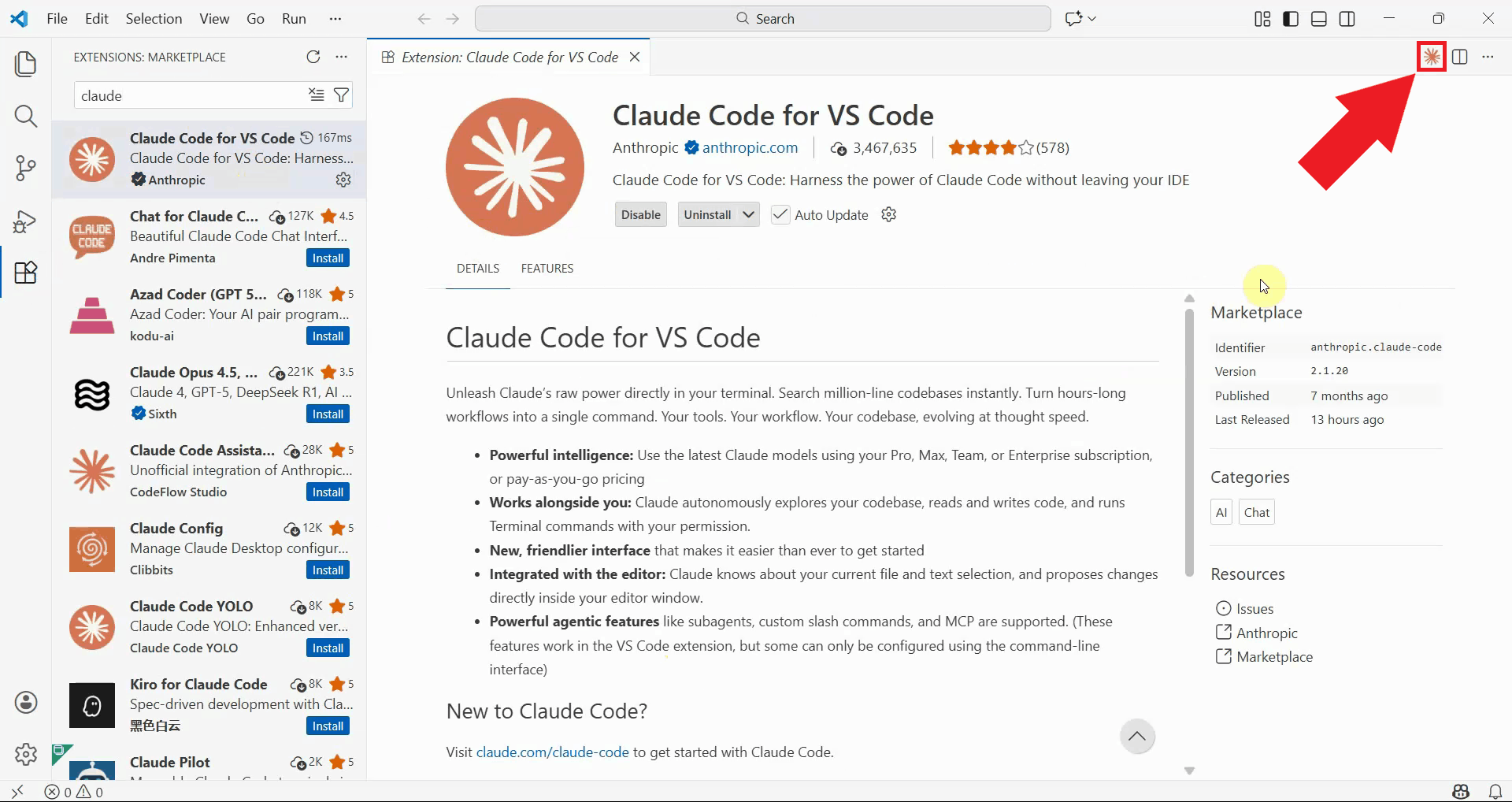
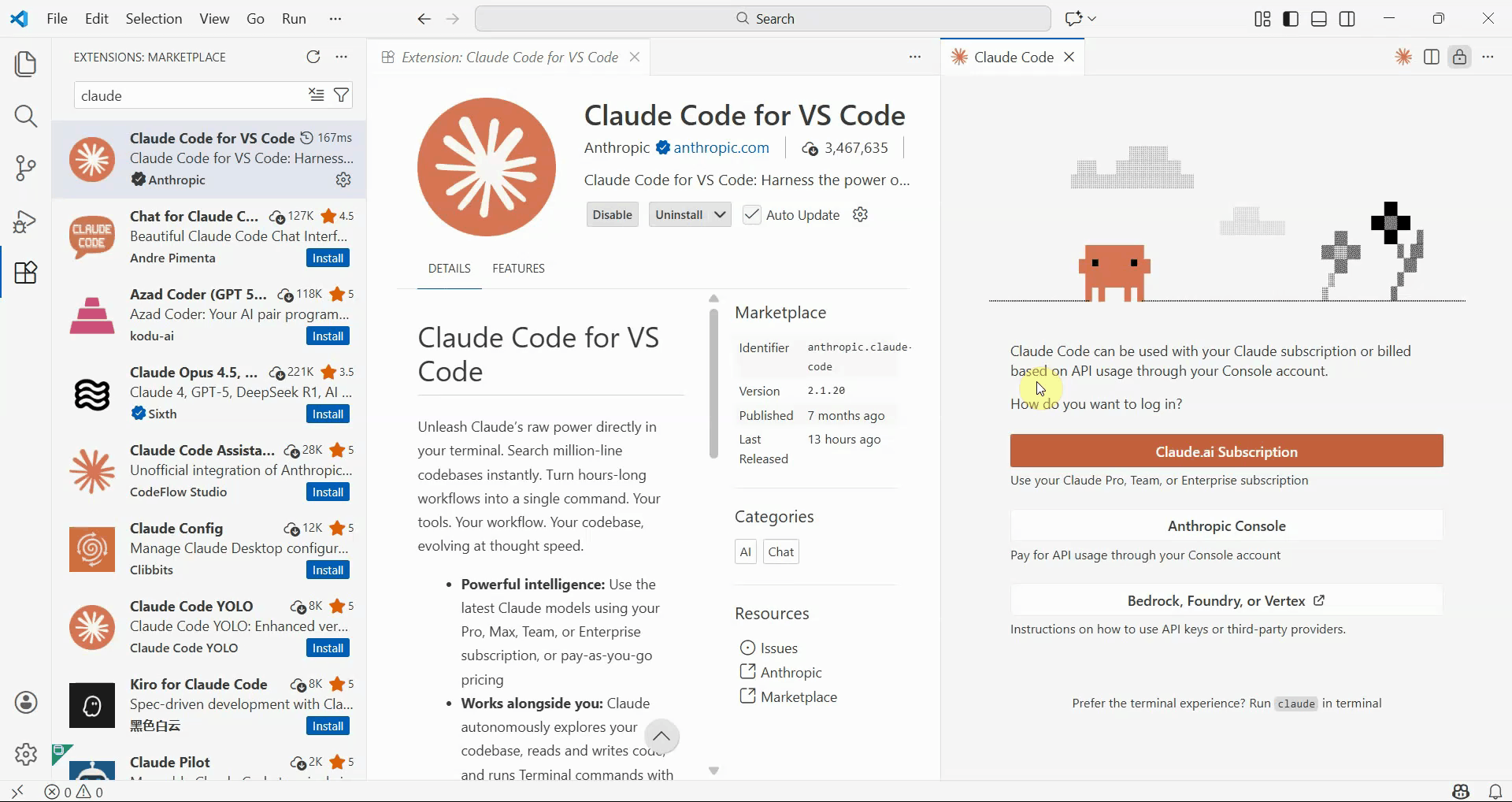
After installation, the Claude Code icon appears in the top-right toolbar of VS Code. Click this icon to open the Claude Code extension panel on the right side of your editor (Figure 3).
The Claude Code extension displays its welcome page when opened for the first time. Before you can use Claude Code with Ozeki AI Gateway, you need to configure the settings.json file to point to your gateway endpoint (Figure 4).
Step 3 - Configure Claude settings.json
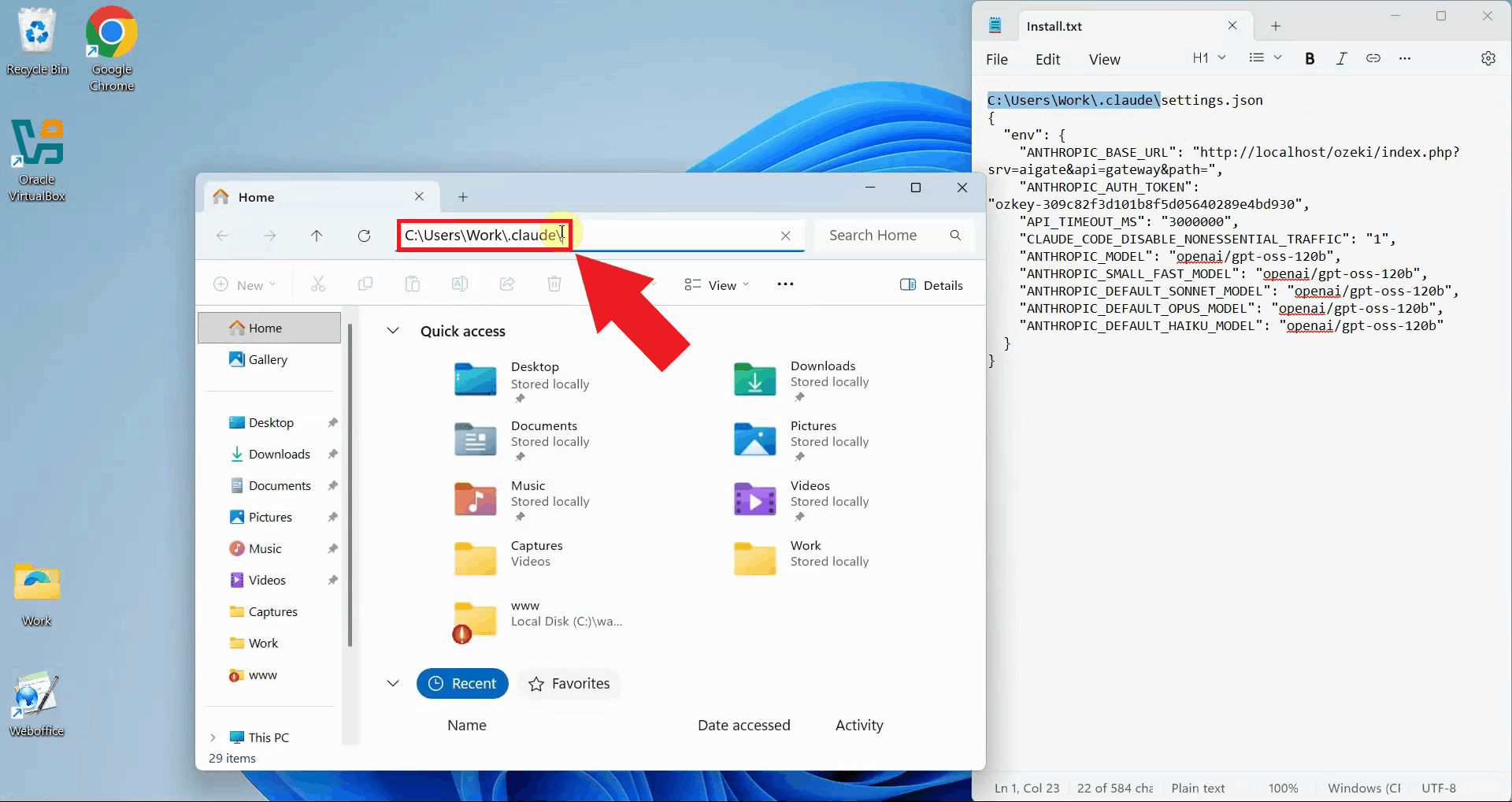
Navigate to your user directory at C:\Users\{Account}\.claude\ (replace {Account} with your Windows username). This directory stores Claude Code configuration files including the settings.json file that defines how Claude connects to AI services (Figure 5).
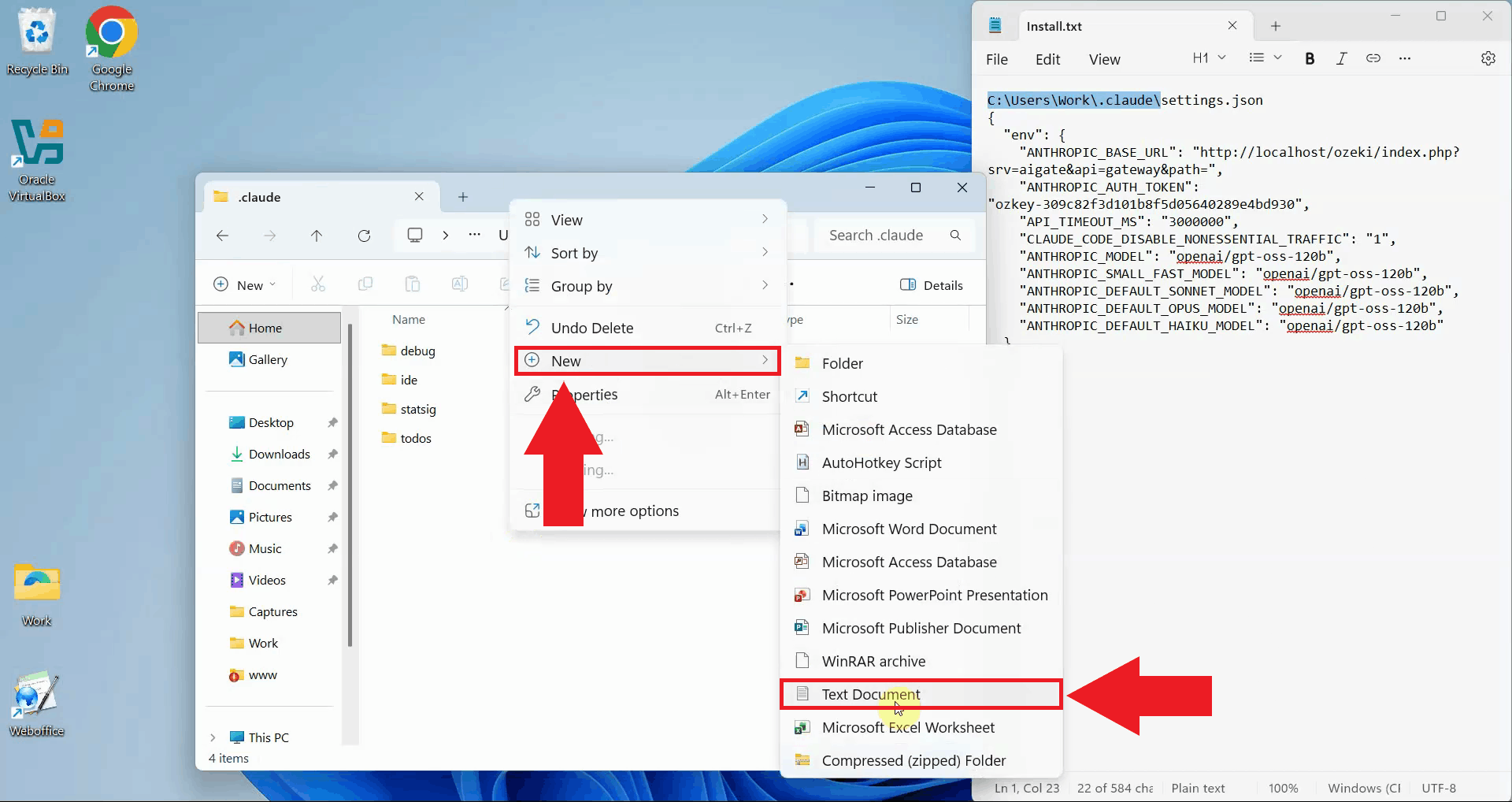
Inside the .claude directory, right-click in an empty area and select "New" > "Text Document" from the context menu. This creates a new text file that you'll rename to settings.json. Windows Explorer may show a warning when changing the file extension, confirm that you want to change it (Figure 6).
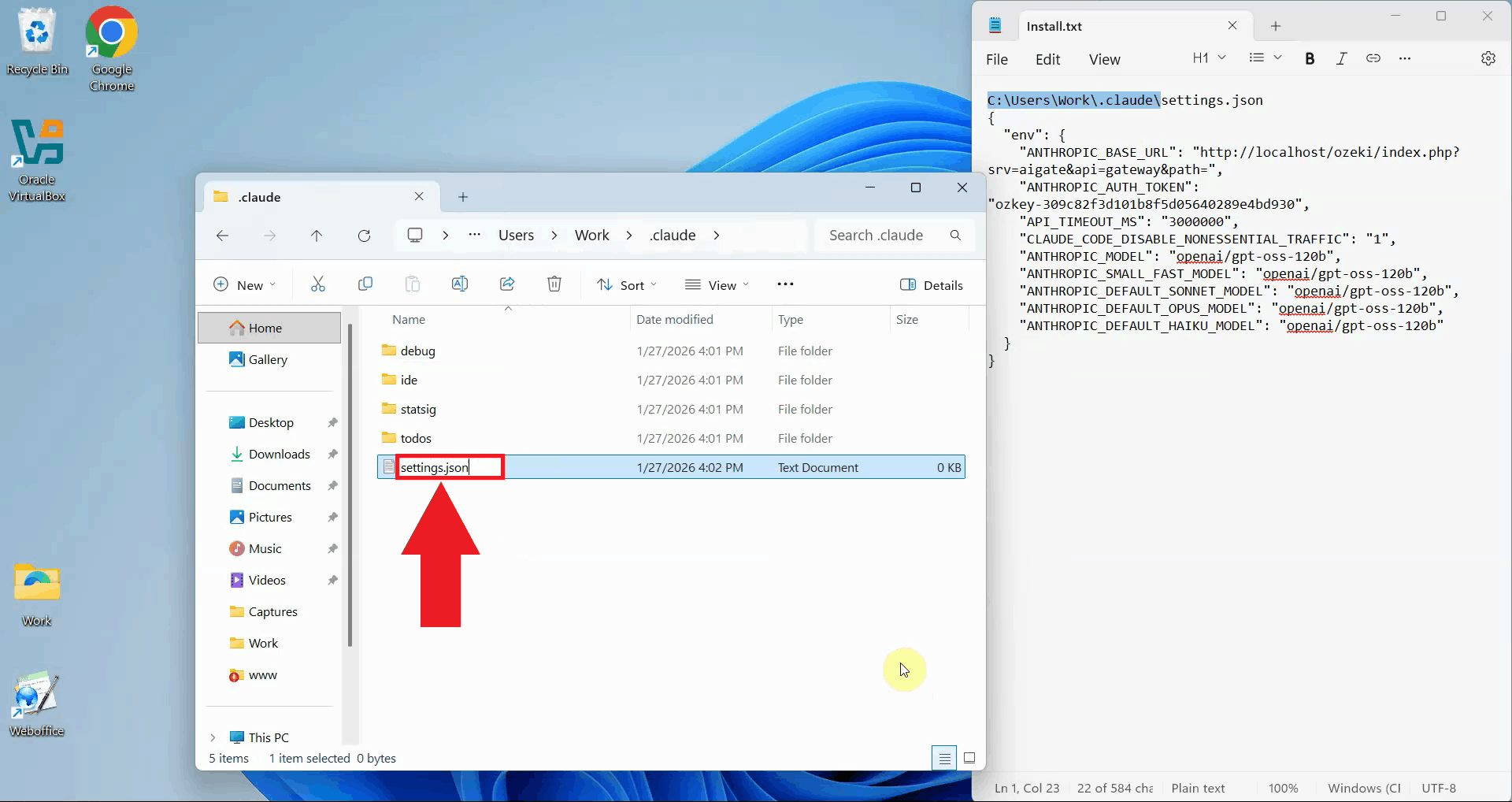
Rename the newly created text document to "settings.json". Make sure to include the .json extension and remove the .txt extension that Windows adds by default. If you don't see file extensions in Windows Explorer, enable "File name extensions" in the View tab. The settings.json file will store your Ozeki AI Gateway configuration (Figure 7).
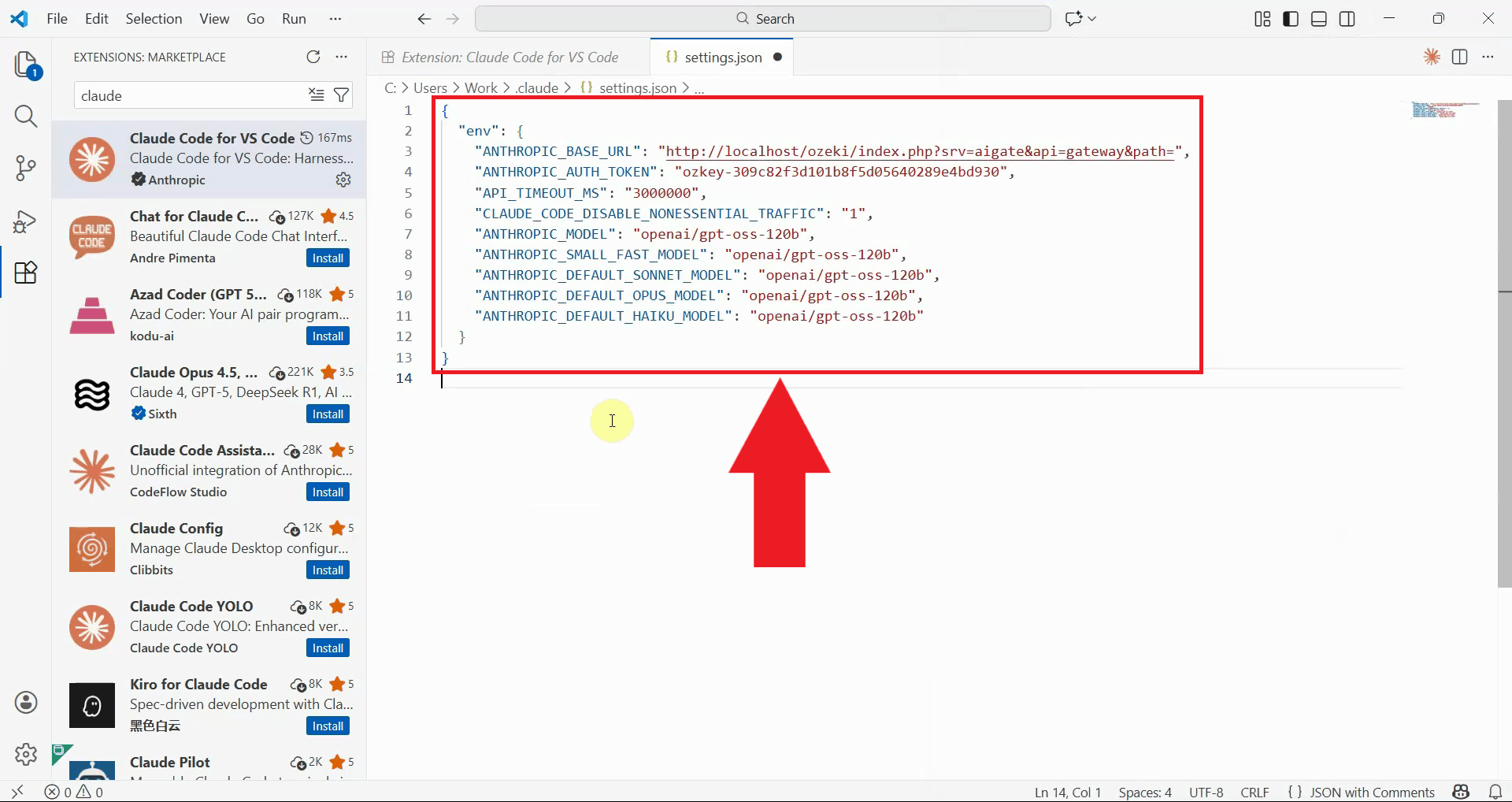
Open the settings.json file with a text editor of your choice, and add the Ozeki AI Gateway configuration. Set the ANTHROPIC_BASE_URL to point to your gateway endpoint, update the ANTHROPIC_AUTH_TOKEN with your gateway API key, and configure the model names to match the AI models available in your Ozeki AI Gateway. Save the file after adding these settings (Figure 8).
{
  "env": {
    "ANTHROPIC_BASE_URL": "http://localhost/ozeki/index.php?srv=aigate&api=gateway&path=",
    "ANTHROPIC_AUTH_TOKEN": "ozkey-12345...",
    "API_TIMEOUT_MS": "3000000",
    "CLAUDE_CODE_DISABLE_NONESSENTIAL_TRAFFIC": "1",
    "ANTHROPIC_MODEL": "openai/gpt-oss-120b",
    "ANTHROPIC_SMALL_FAST_MODEL": "openai/gpt-oss-120b",
    "ANTHROPIC_DEFAULT_SONNET_MODEL": "openai/gpt-oss-120b",
    "ANTHROPIC_DEFAULT_OPUS_MODEL": "openai/gpt-oss-120b",
    "ANTHROPIC_DEFAULT_HAIKU_MODEL": "openai/gpt-oss-120b"
  }
}
Step 4 - Reopen Claude
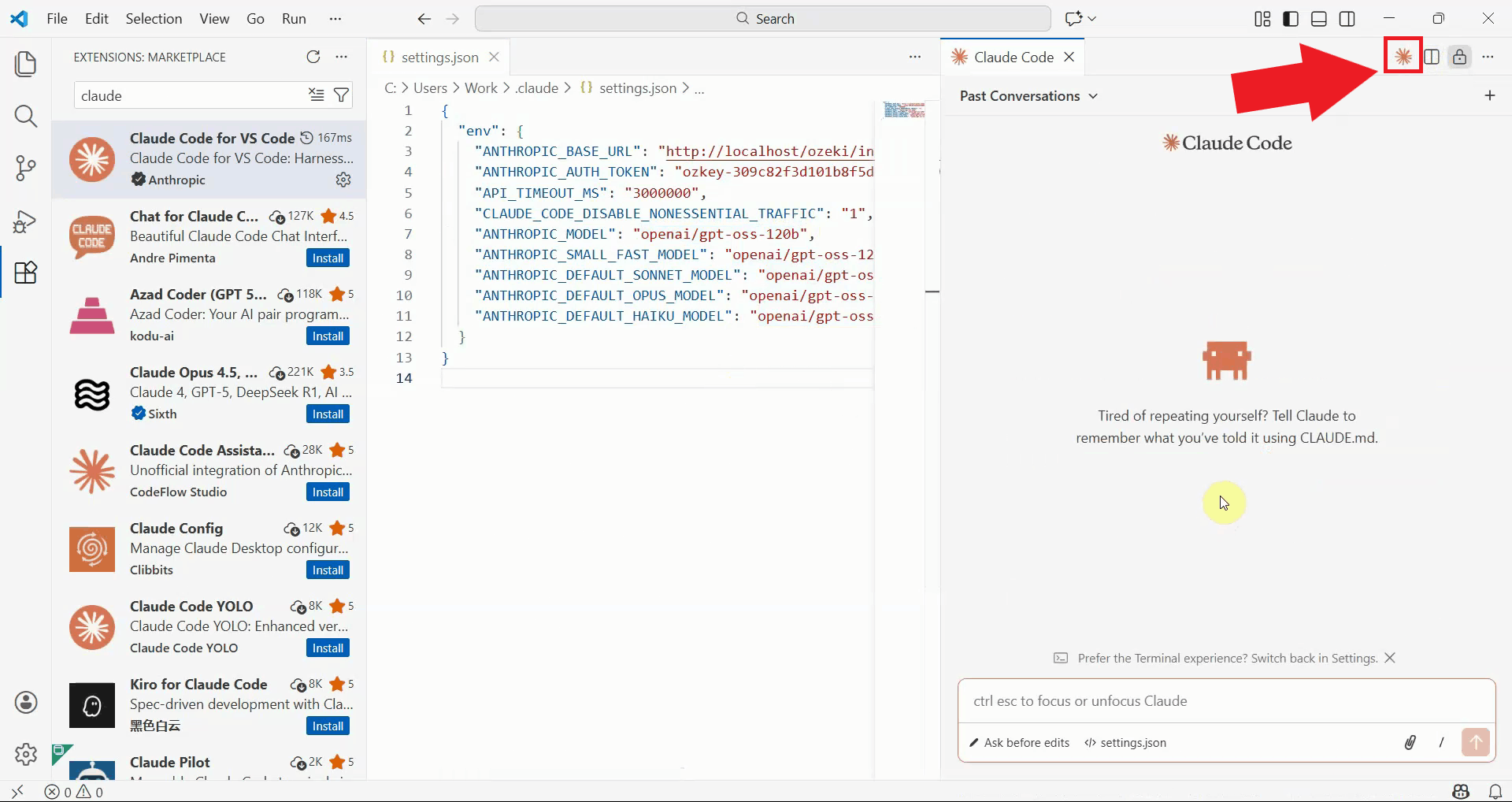
Return to Visual Studio Code and close then reopen the Claude Code extension panel to load the new configuration. The extension will now read the settings.json file and connect to your Ozeki AI Gateway instead of the default Anthropic API (Figure 9).
Step 5 - Enter test prompt
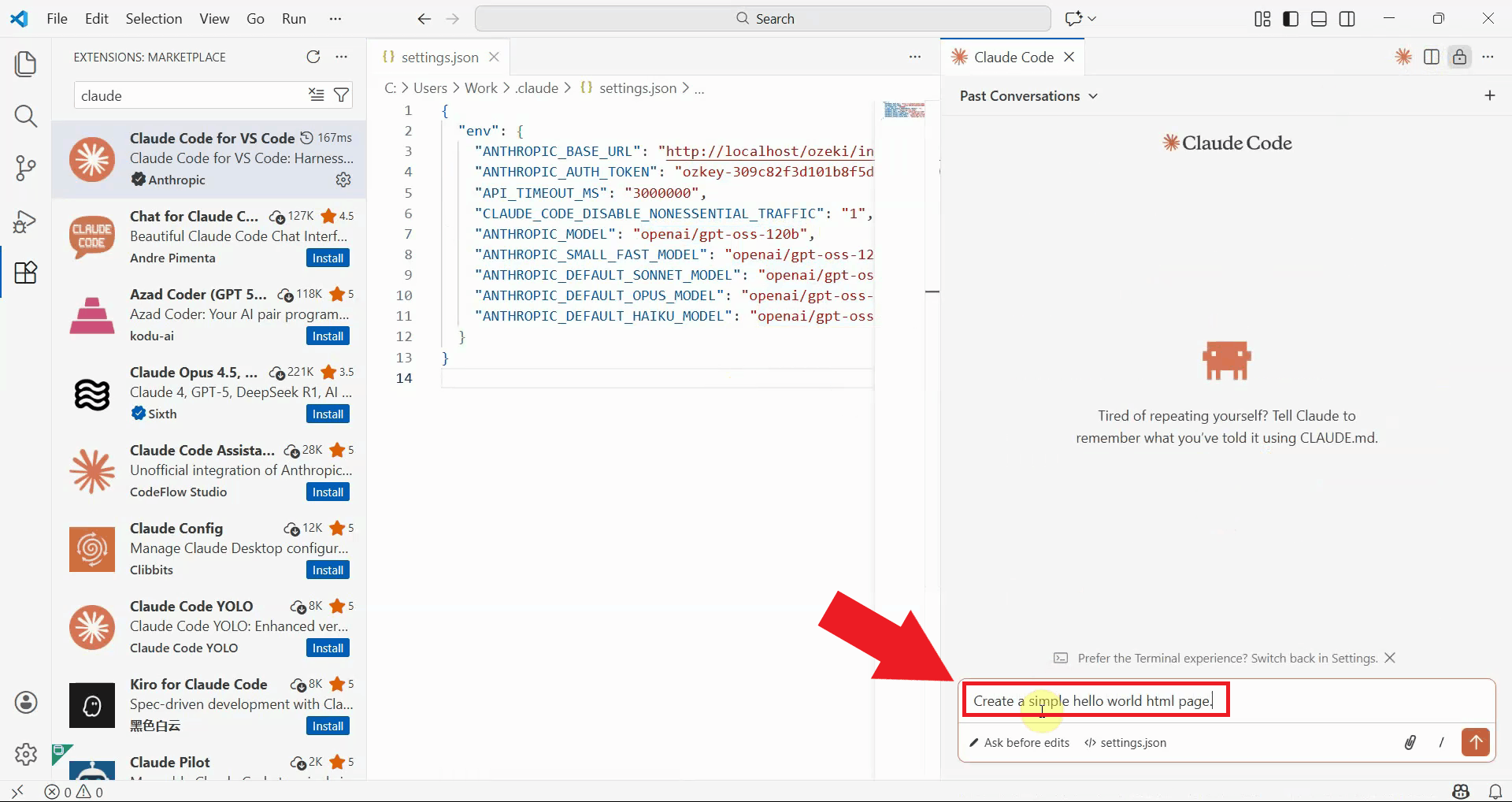
Test your Claude Code configuration by entering a simple prompt in the chat interface. For example, ask Claude to create a basic HTML file or write a simple function. This verifies that the Claude Code extension is properly connected to Ozeki AI Gateway and can execute coding tasks through your gateway (Figure 10).
Step 6 - Allow Claude file write or modification
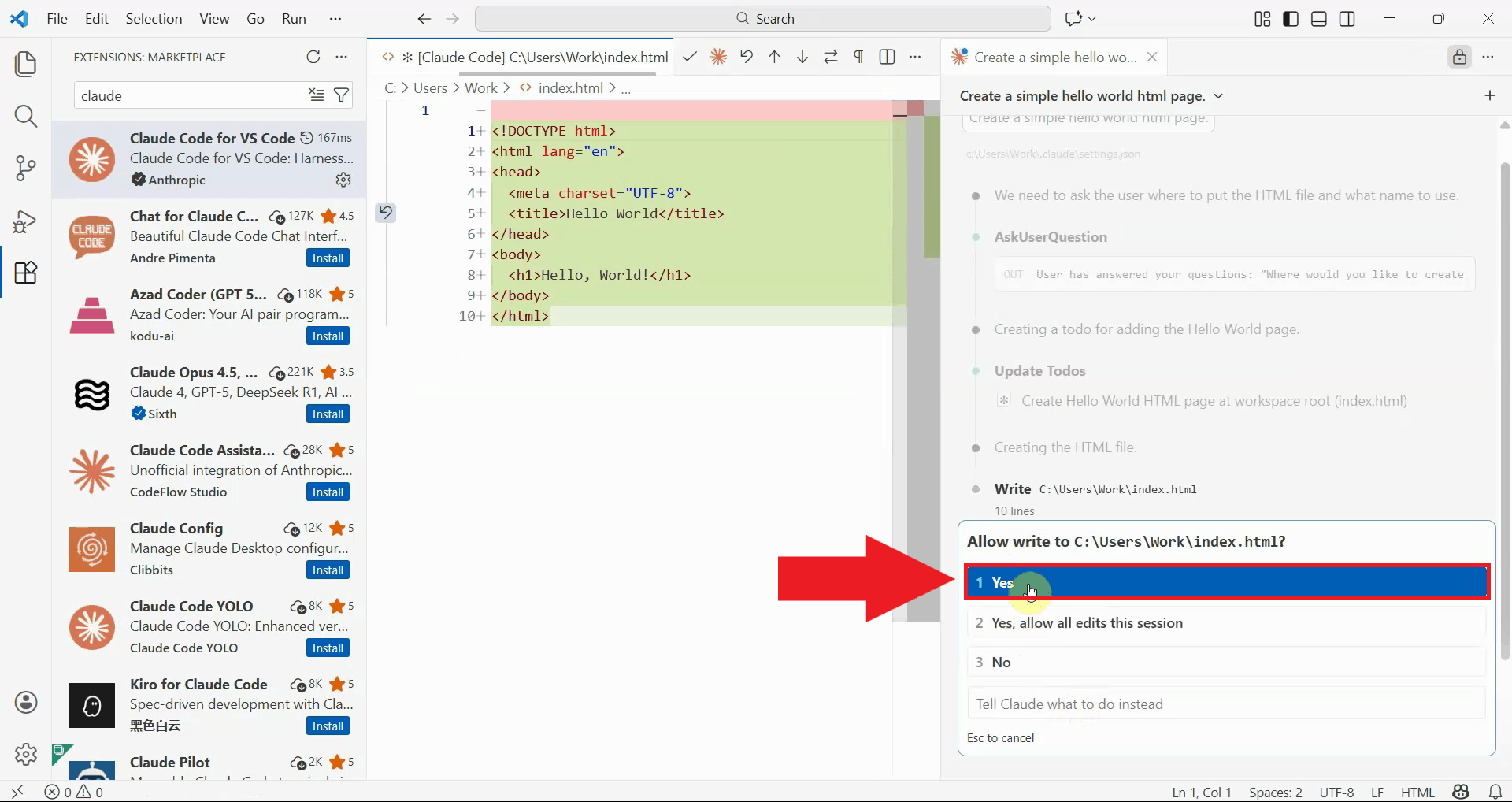
When Claude proposes to create or modify files in your workspace, the extension displays a permission dialog. Review the proposed changes and click the appropriate confirmation button (Figure 11).
Step 7 - Task completed
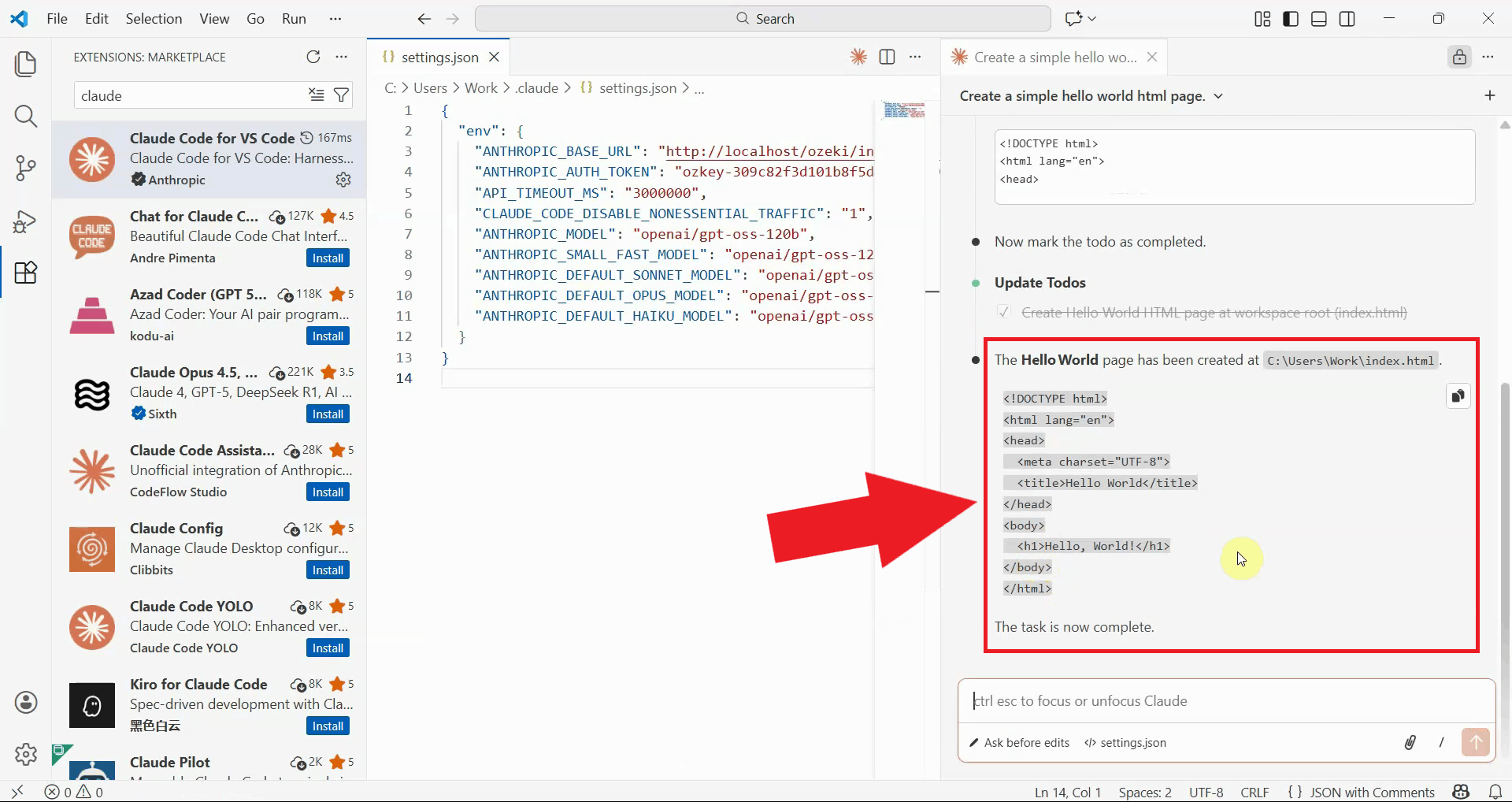
Claude Code completes the requested task and displays the results in the chat panel. You can see any created or modified files highlighted in VS Code's file explorer, and you can review the changes in the editor. The successful completion confirms that your Claude Code VS Code extension is properly configured to work with Ozeki AI Gateway (Figure 12).
Troubleshooting
Connection errors
If Claude Code cannot connect to Ozeki AI Gateway, verify that:
- Ozeki AI Gateway is running and accessible at the configured URL
- The ANTHROPIC_BASE_URL in settings.json is correct
- The ANTHROPIC_AUTH_TOKEN matches your gateway API key
- The configured AI models exist in your Ozeki AI Gateway routes
- Your firewall allows connections to localhost or your gateway server
Conclusion
You have successfully installed and configured the Claude Code VS Code extension. You can now use Claude AI directly within Visual Studio Code to assist with coding tasks, debug issues, refactor code, and generate new functionality. All AI requests will be routed through your Ozeki AI Gateway, giving you control over which AI models are used and allowing you to monitor and manage API usage centrally.