
How to add an MCP server to OpenWebUI
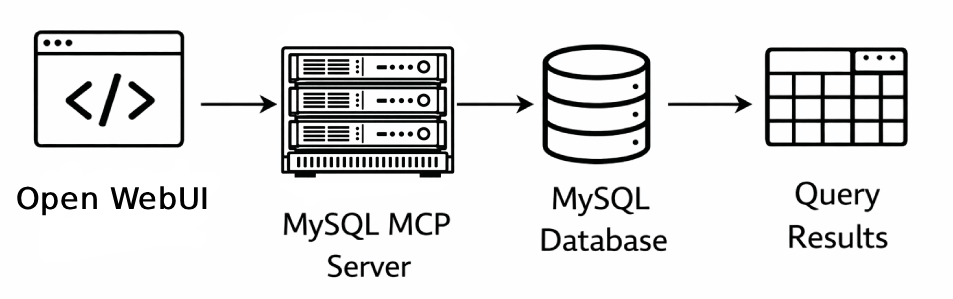
This guide demonstrates how to set up a MySQL MCP server and connect it to OpenWebUI, allowing the AI assistant to interact directly with your MySQL database. You will learn how to download and build the MCP server, configure and start an HTTP proxy, and register the tool server in OpenWebUI so the AI can query, create, and manipulate database content through natural language.
What is an MCP server?
An MCP (Model Context Protocol) server exposes tools that an AI model can call during a conversation. In this setup, the MySQL MCP server provides database tools such as running queries, creating tables, and inserting data. Because OpenWebUI communicates with MCP servers over HTTP, a proxy is used to bridge the stdio-based MCP server to an HTTP stream endpoint that OpenWebUI can connect to.
Steps to follow
We assume OpenWebUI is already installed and running on your system. You will also need Node.js and npm installed to build the MCP server and install the proxy.
- Download and build the MySQL MCP server
- Install and configure the MCP proxy
- Configure the MCP server in OpenWebUI
- Test the database tools
Quick reference commands
# Install dependencies and build the MCP server
npm install
npm run build

# Install the MCP proxy globally
npm install -g mcp-proxy

# Start the proxy (start-mysql-mcp.bat)
set MYSQL_HOST=your-mysql-host
set MYSQL_PORT=your-mysql-port
set MYSQL_USER=your-mysql-user
set MYSQL_PASSWORD=your-mysql-password
set MYSQL_DATABASE=your-database-name
mcp-proxy --transport httpStream --port 8000 -- node C:\path\to\mysql-mcp-server\build\index.js

# OpenWebUI tool server URL
http://localhost:8000/mcp
How to install the MySQL MCP server video
The following video shows how to download, build, and set up the MySQL MCP server step-by-step. The video covers cloning the repository, installing dependencies, and building the server package.
Step 1 - Download and build the MySQL MCP server
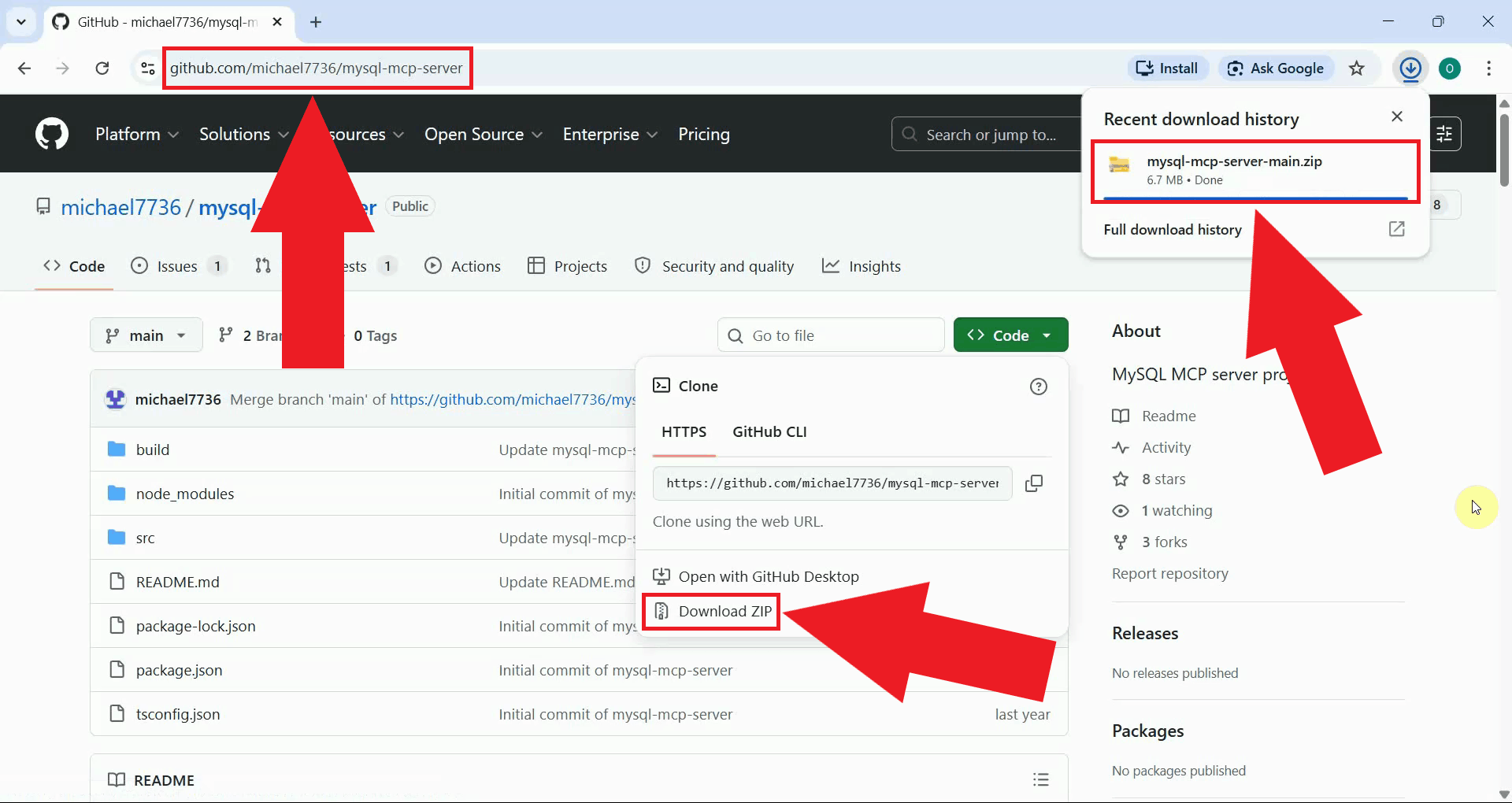
Navigate to the MySQL MCP server repository on GitHub and download the repository as a ZIP file by clicking the Code button and selecting Download ZIP (Figure 1).
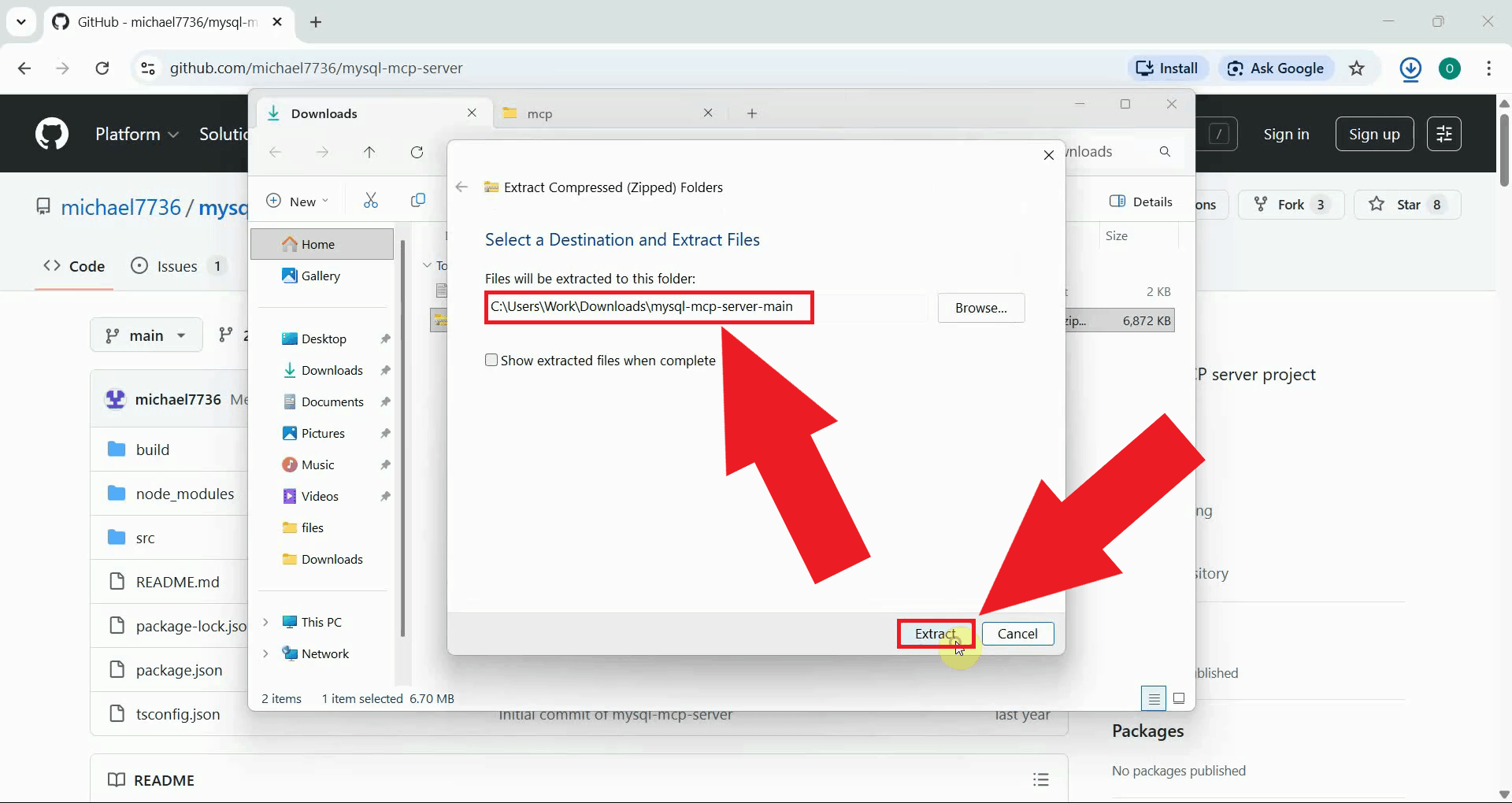
Locate the downloaded ZIP file in your Downloads folder and extract it to a directory of your choice. The extracted folder will contain the MCP server source files (Figure 2).
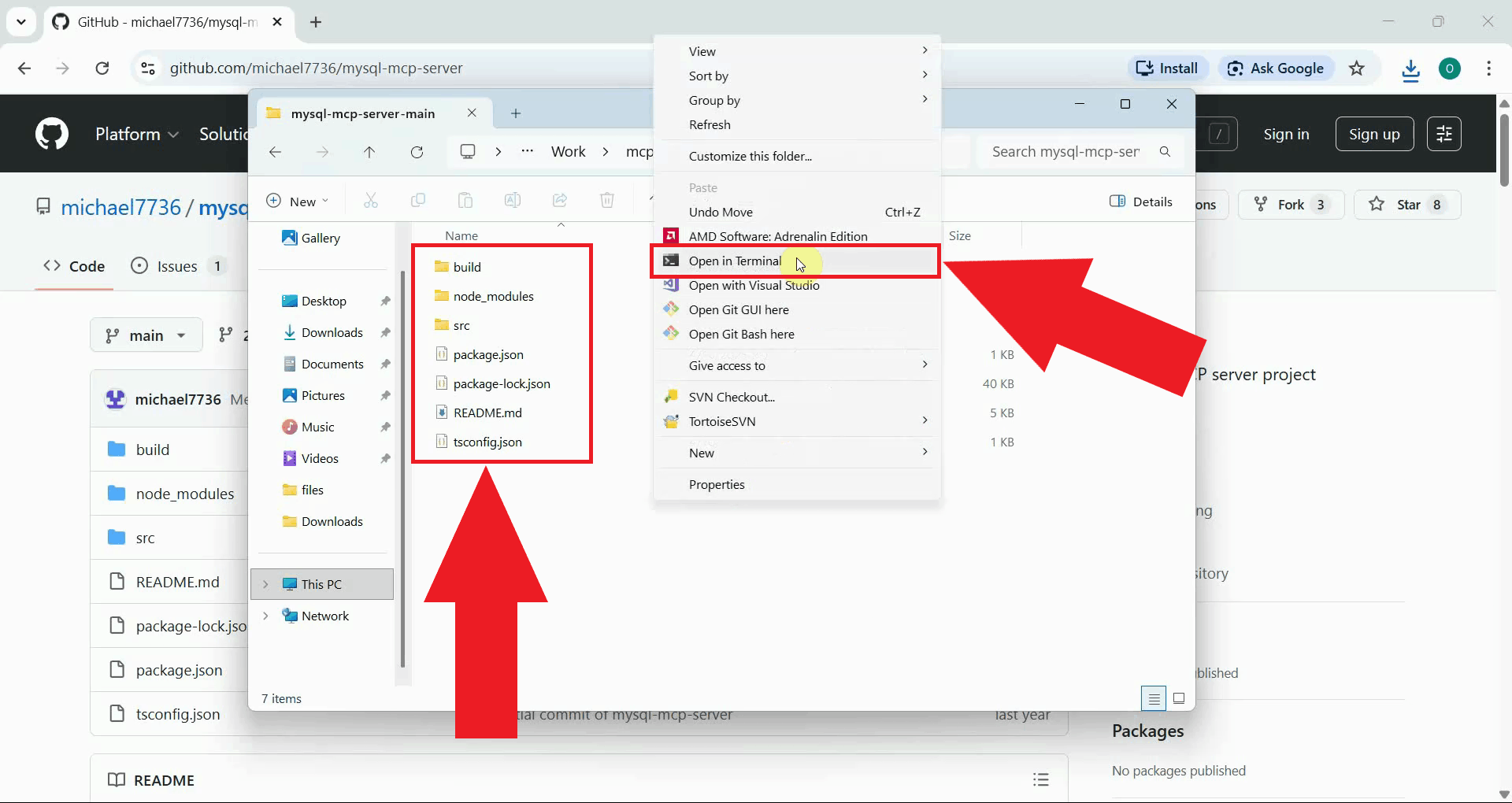
Open a terminal window in the extracted MCP server folder. You can do this by right-clicking inside the folder and selecting Open in Terminal or by navigating to the folder path in an existing terminal (Figure 3).
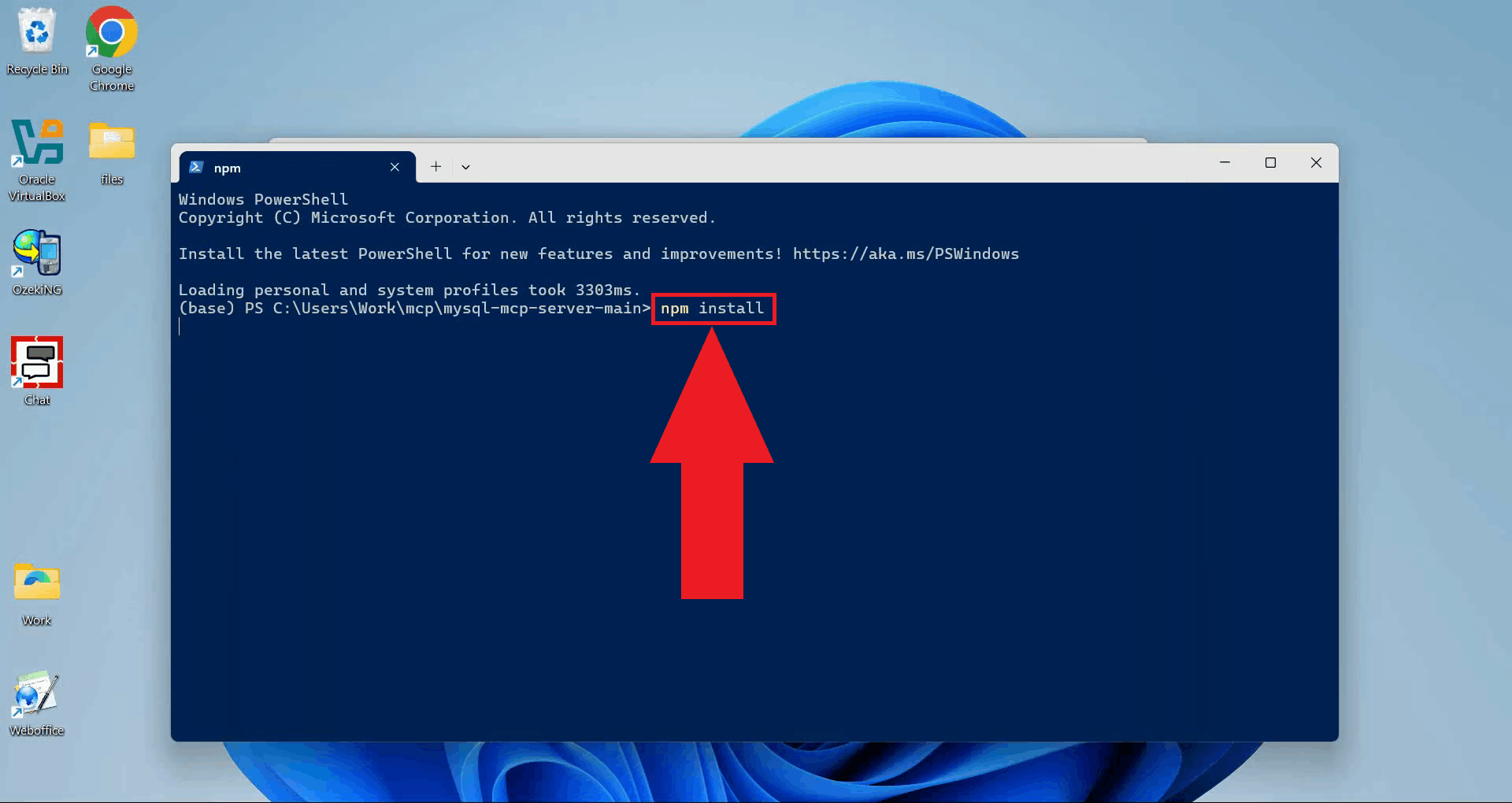
Run npm install to download and install all dependencies required by the
MCP server. Wait for the installation to complete before proceeding (Figure 4).
npm install
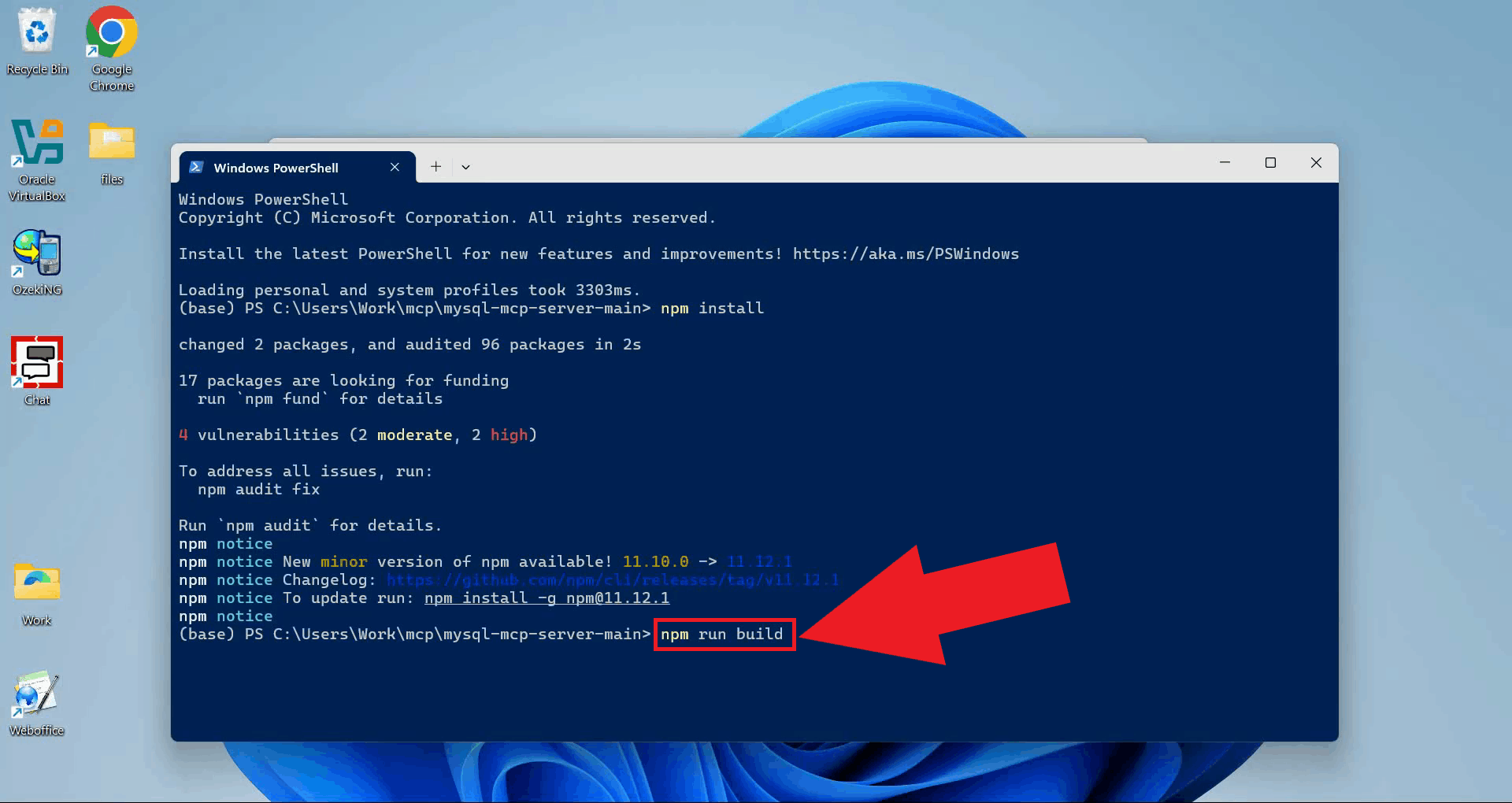
Run npm run build to compile the TypeScript source files into JavaScript.
The compiled output will be placed in the build folder and is what the
proxy will execute at runtime (Figure 5).
npm run build
Step 2 - Install and configure the MCP proxy
The following video shows how to install the MCP proxy and configure the runner script step-by-step. The video covers installing the proxy globally, creating the batch script, and starting the proxy server.
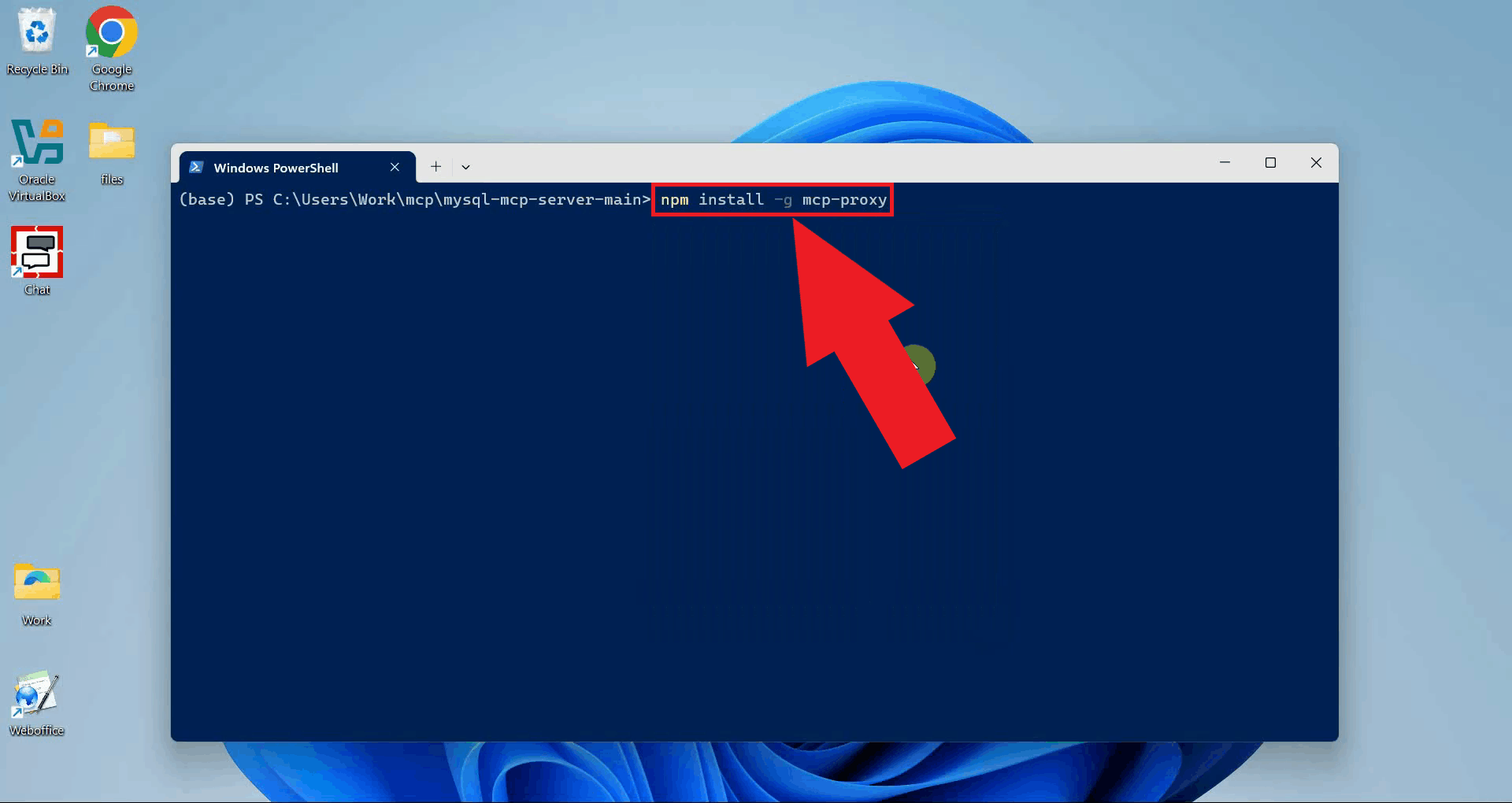
Install the MCP proxy globally using npm. The proxy bridges the stdio-based MCP server to an HTTP stream endpoint that OpenWebUI can connect to over the network (Figure 6).
npm install -g mcp-proxy
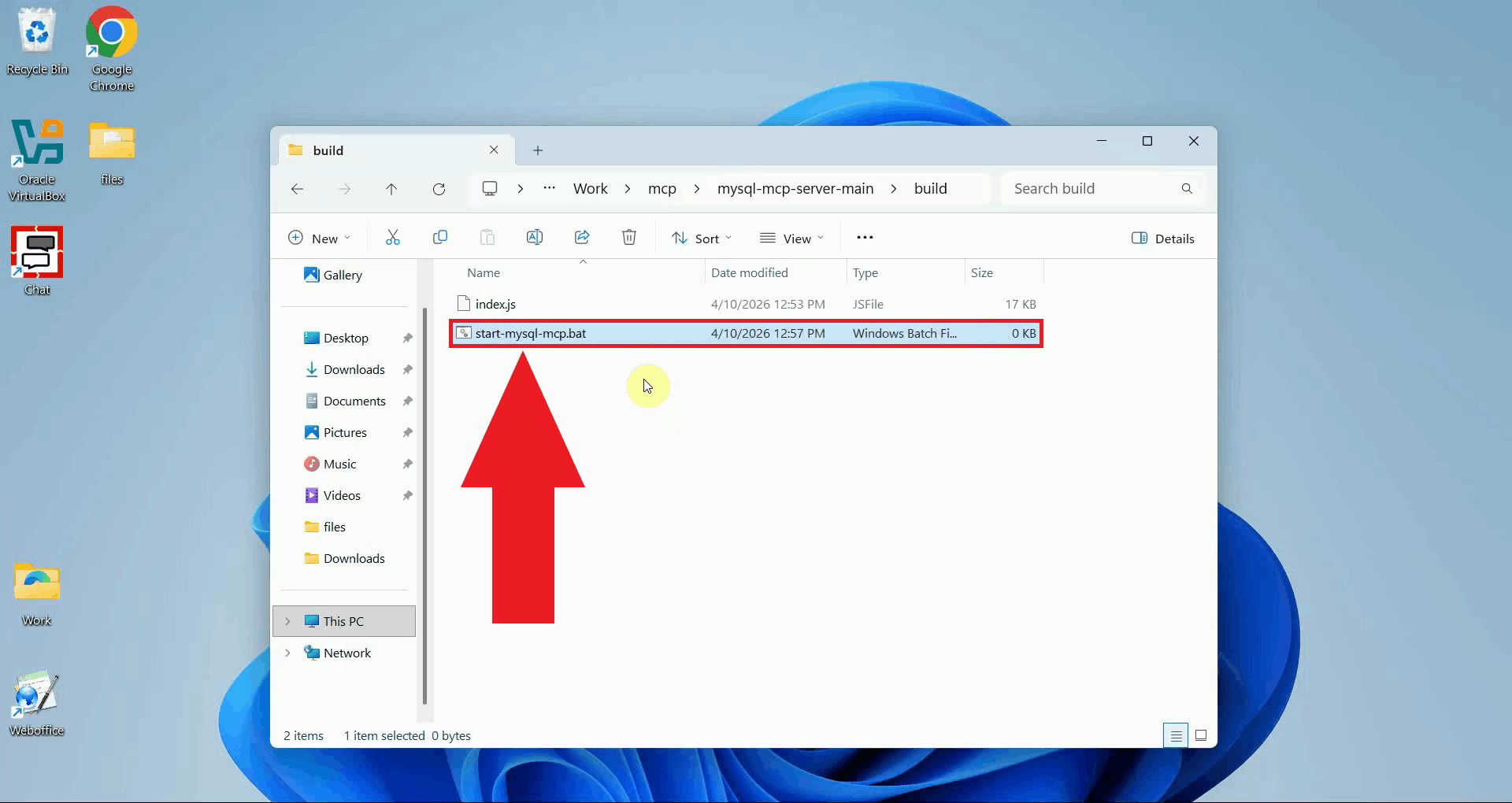
Create a new batch script file to serve as the runner for the MCP proxy. This script will set your MySQL connection details as environment variables and launch the proxy with the correct arguments each time you need to start it (Figure 7).
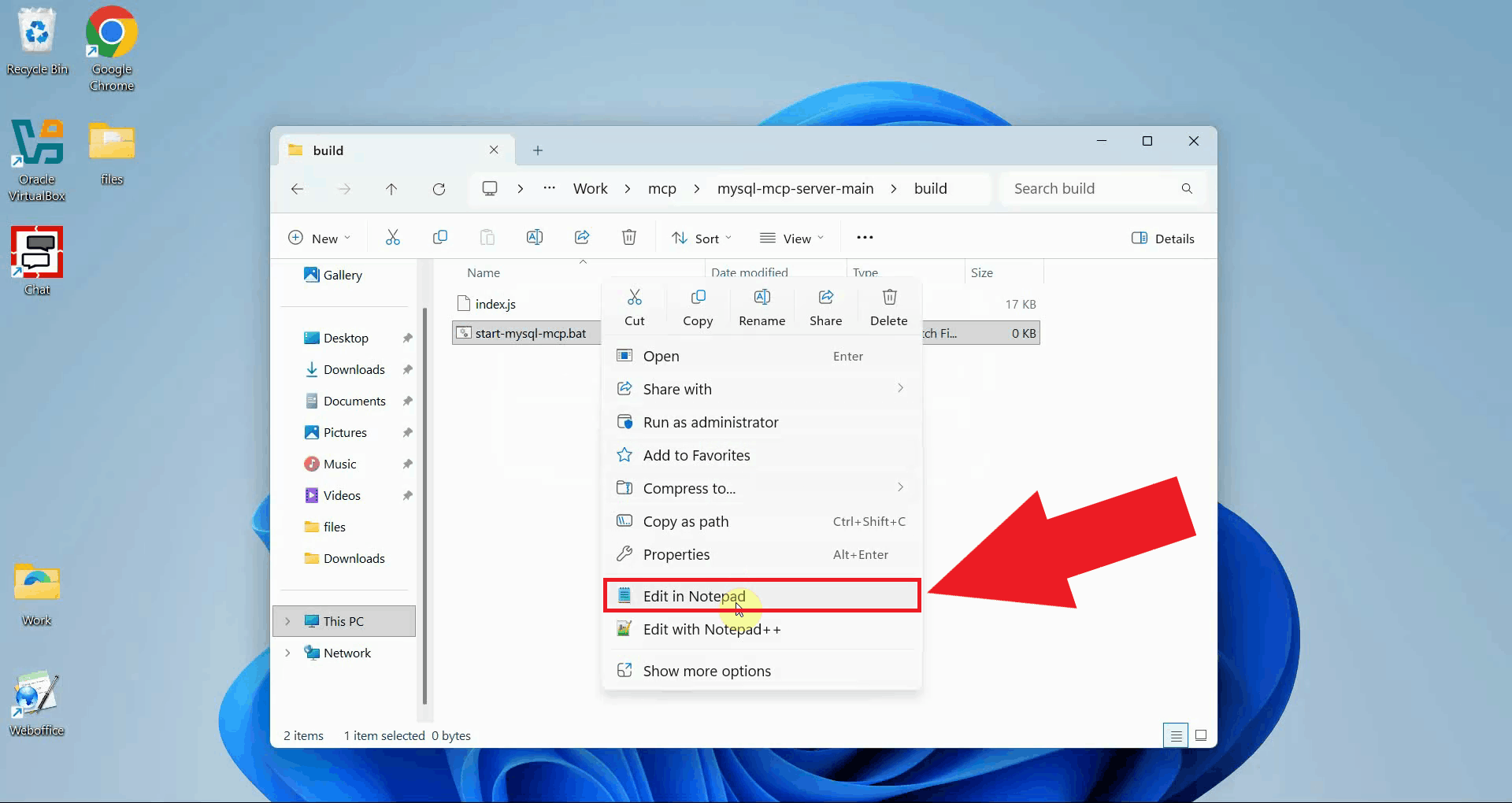
Open the batch script file in Notepad or any text editor to enter the proxy configuration (Figure 8).
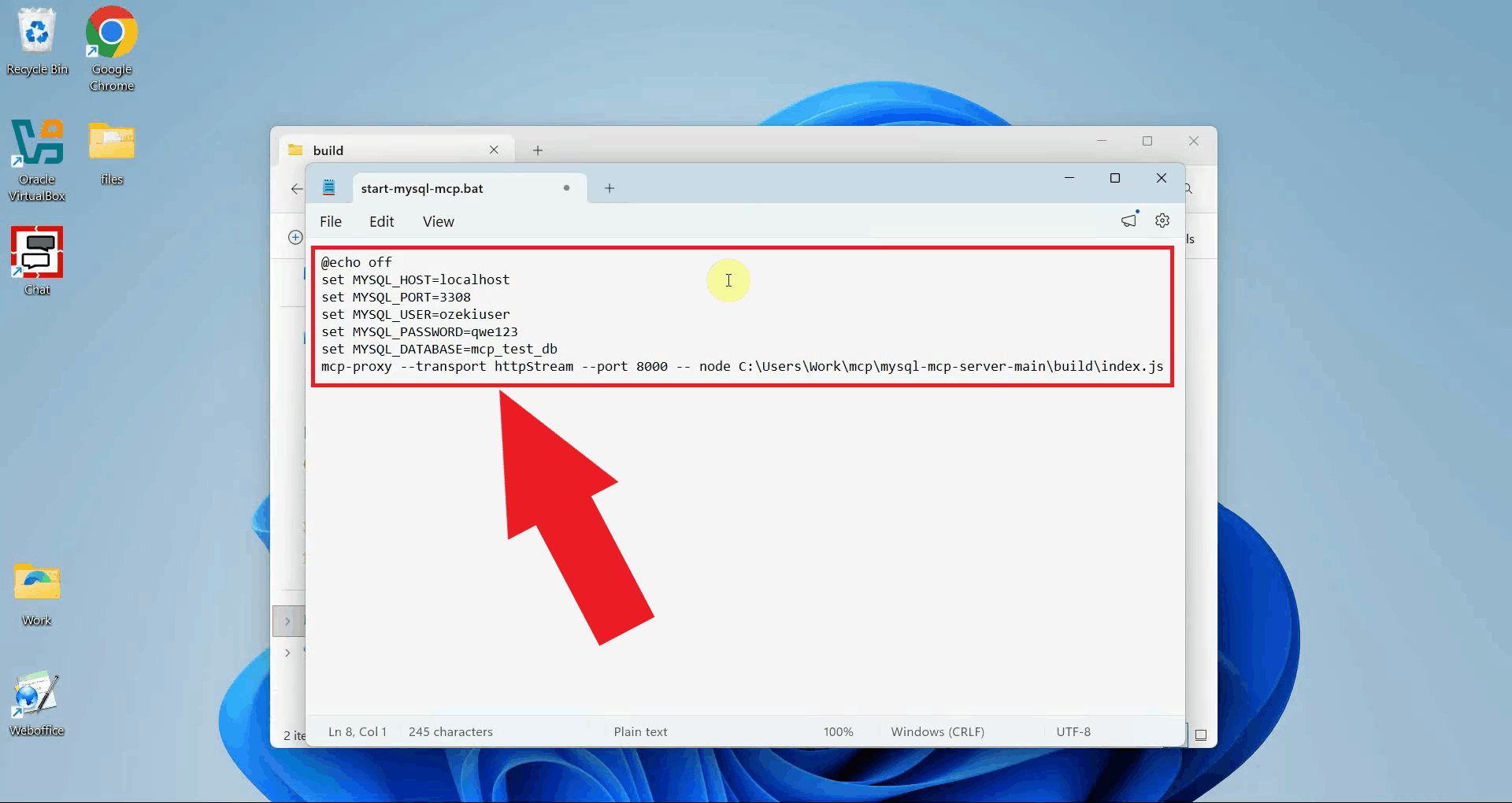
Paste the following script content into the file, replacing the placeholder values
with your actual MySQL connection details and the correct path to the built
index.js file. Save and close the file when done (Figure 9).
@echo off
set MYSQL_HOST=your-mysql-host
set MYSQL_PORT=your-mysql-port
set MYSQL_USER=your-mysql-user
set MYSQL_PASSWORD=your-mysql-password
set MYSQL_DATABASE=your-database-name
mcp-proxy --transport httpStream --port 8000 -- node C:\path\to\mysql-mcp-server\build\index.js
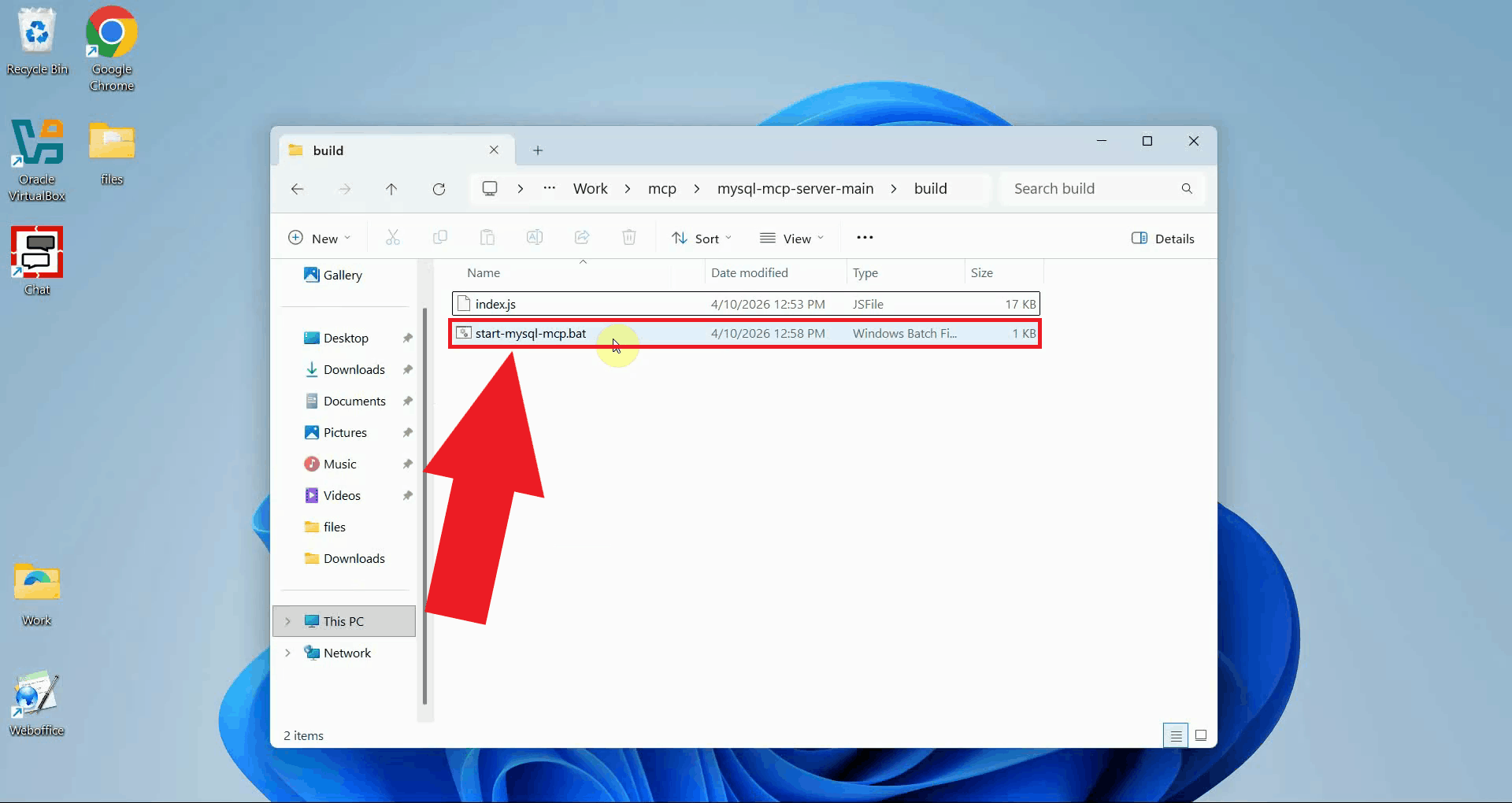
Run the batch script to start the MCP proxy. The proxy will read your MySQL environment variables and begin listening for incoming HTTP connections on port 8000. Keep this terminal open for the duration of your session (Figure 10).
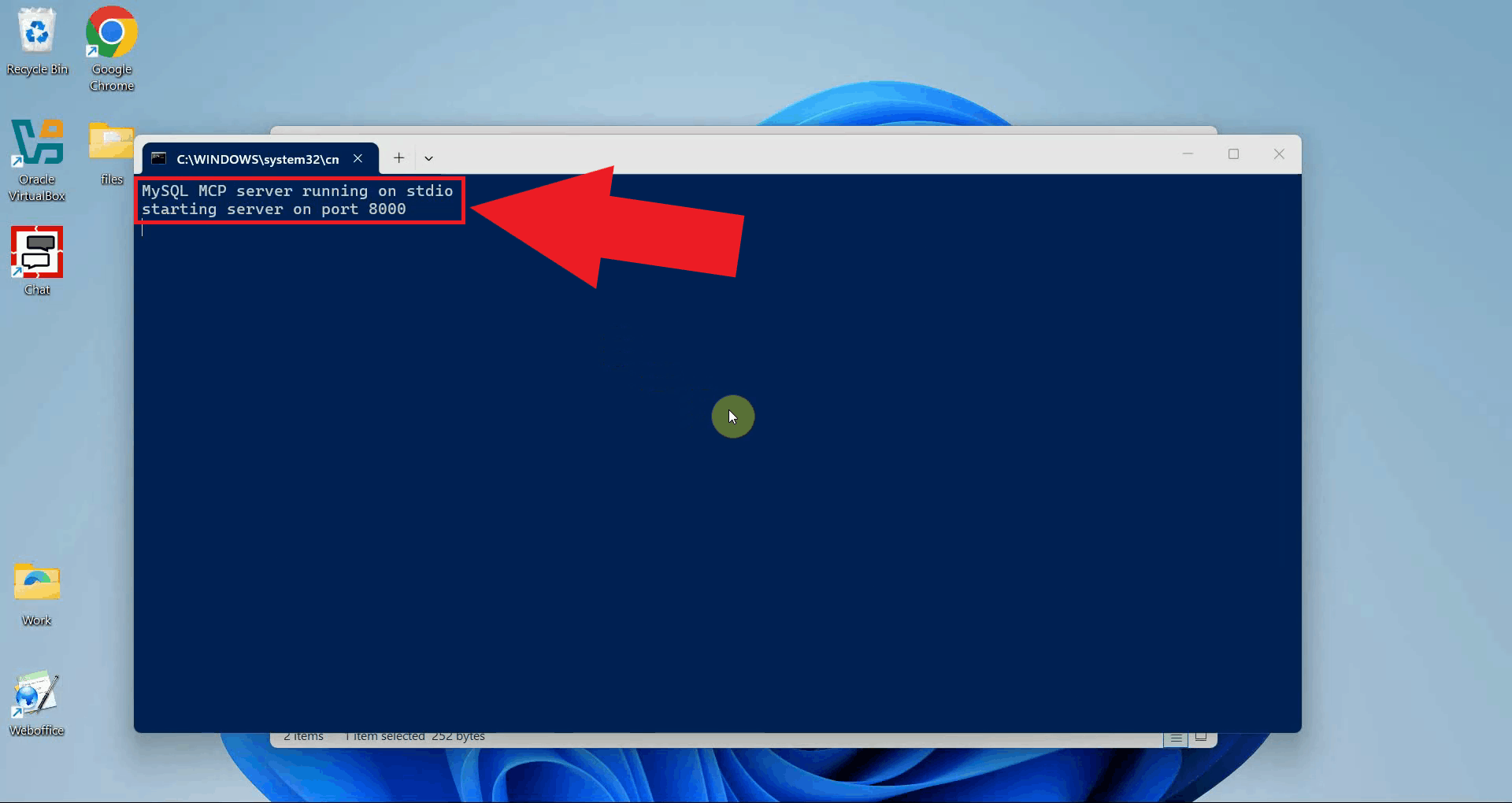
The MCP proxy is now running and ready to accept connections from OpenWebUI. You should see a confirmation message in the terminal indicating that the proxy has started successfully on the configured port (Figure 11).
Step 3 - Configure the MCP server in OpenWebUI
The following video shows how to register the MySQL MCP server in OpenWebUI and test the available database tools step-by-step.
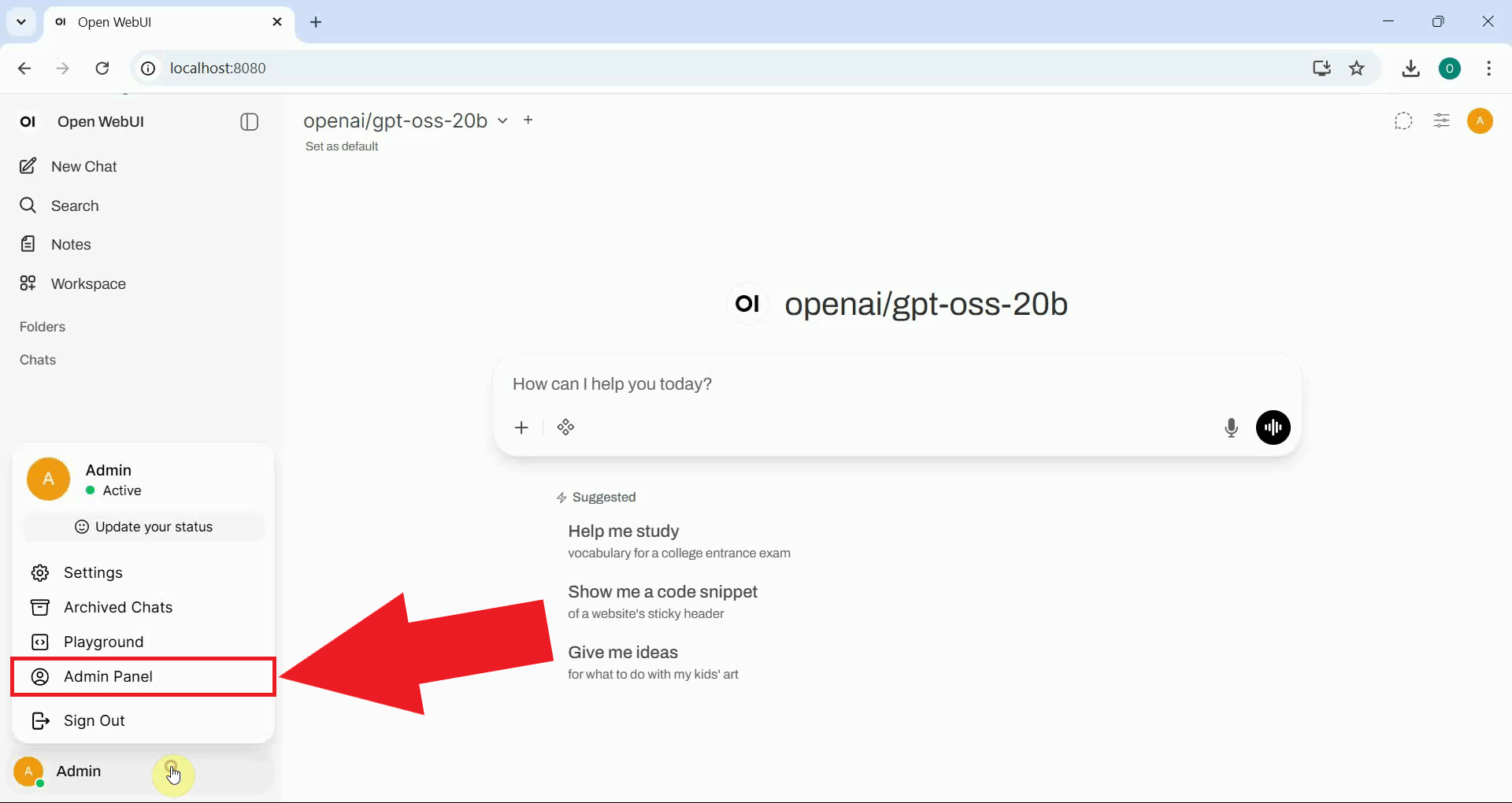
Open the OpenWebUI interface in your browser and navigate to the Admin Panel by clicking your profile name in the bottom left corner and selecting Admin Panel (Figure 12).
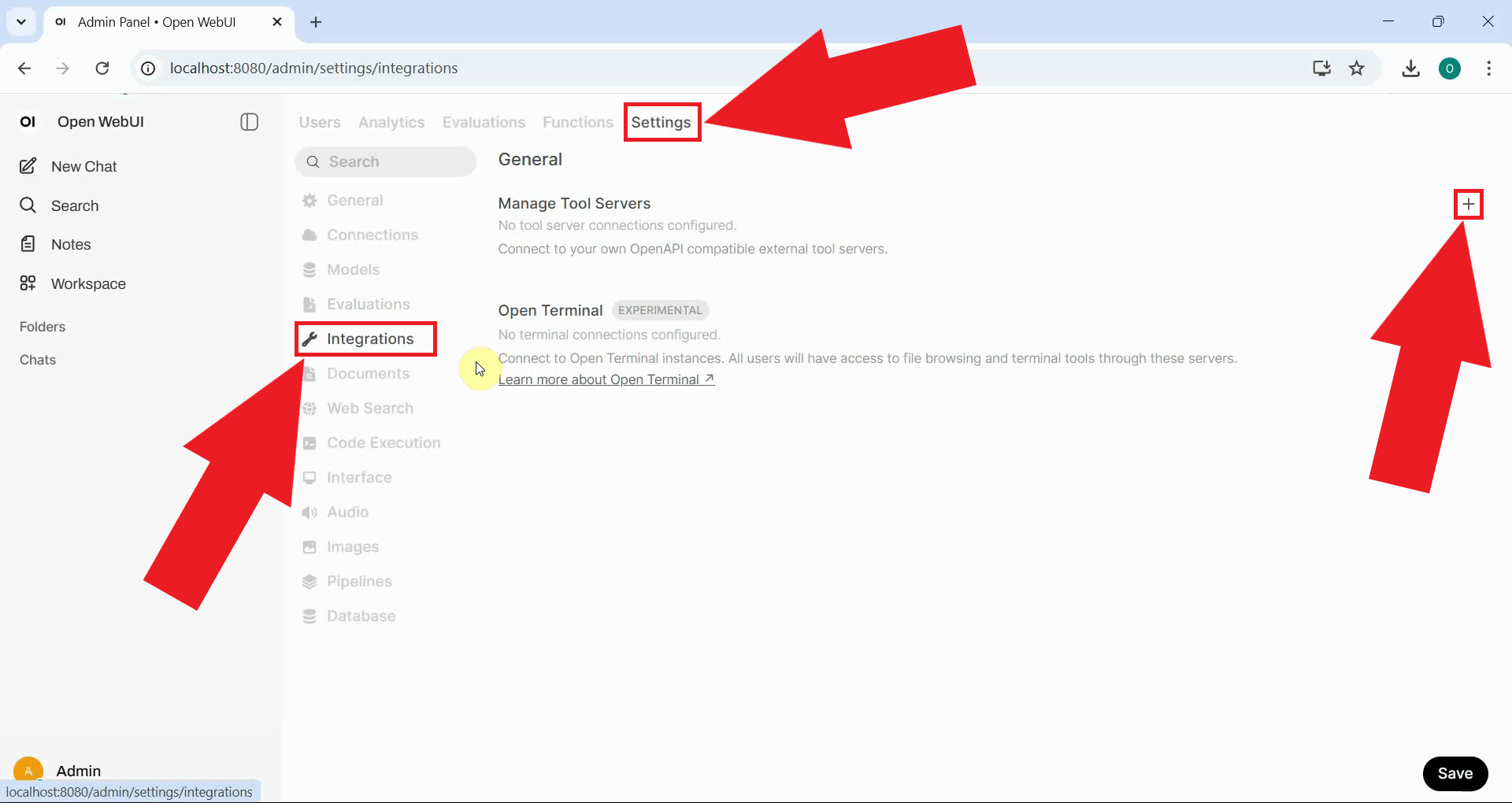
Navigate to Settings → Integrations and locate the Tool Servers section. Click the button to add a new tool server (Figure 13).
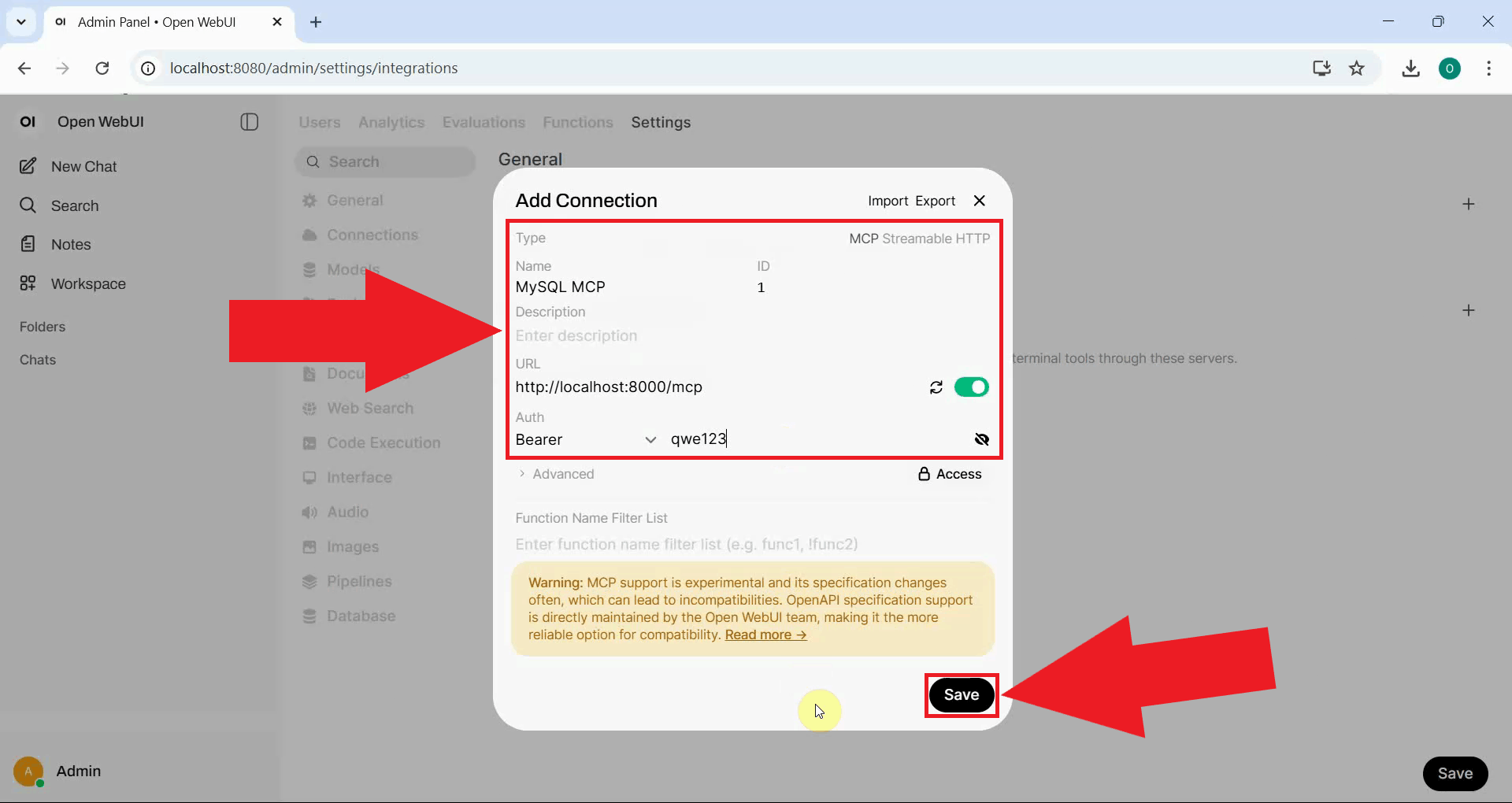
Enter the connection details for the MCP tool server. Provide a descriptive name to identify the connection, enter a unique ID, paste the MCP proxy URL into the URL field, and enter an API key for authentication (any key will suffice, but the field must not be empty). Click Save to establish the connection (Figure 14).
http://localhost:8000/mcp
Step 4 - Test the database tools
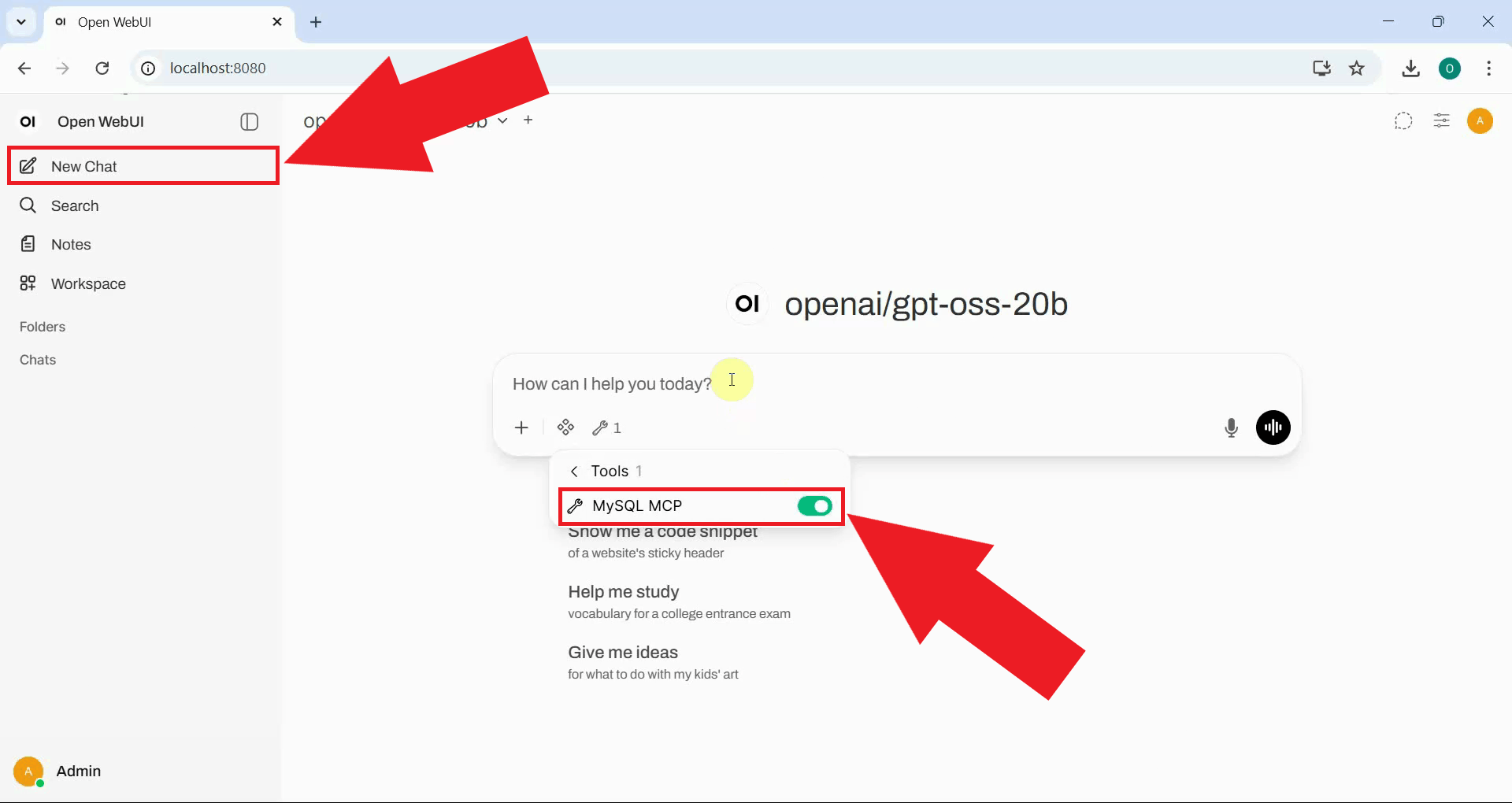
Start a new chat in OpenWebUI and enable the MySQL MCP tool by clicking the tools icon in the chat interface. The MySQL tools provided by the MCP server will appear in the list and can be toggled on for the current session (Figure 15).
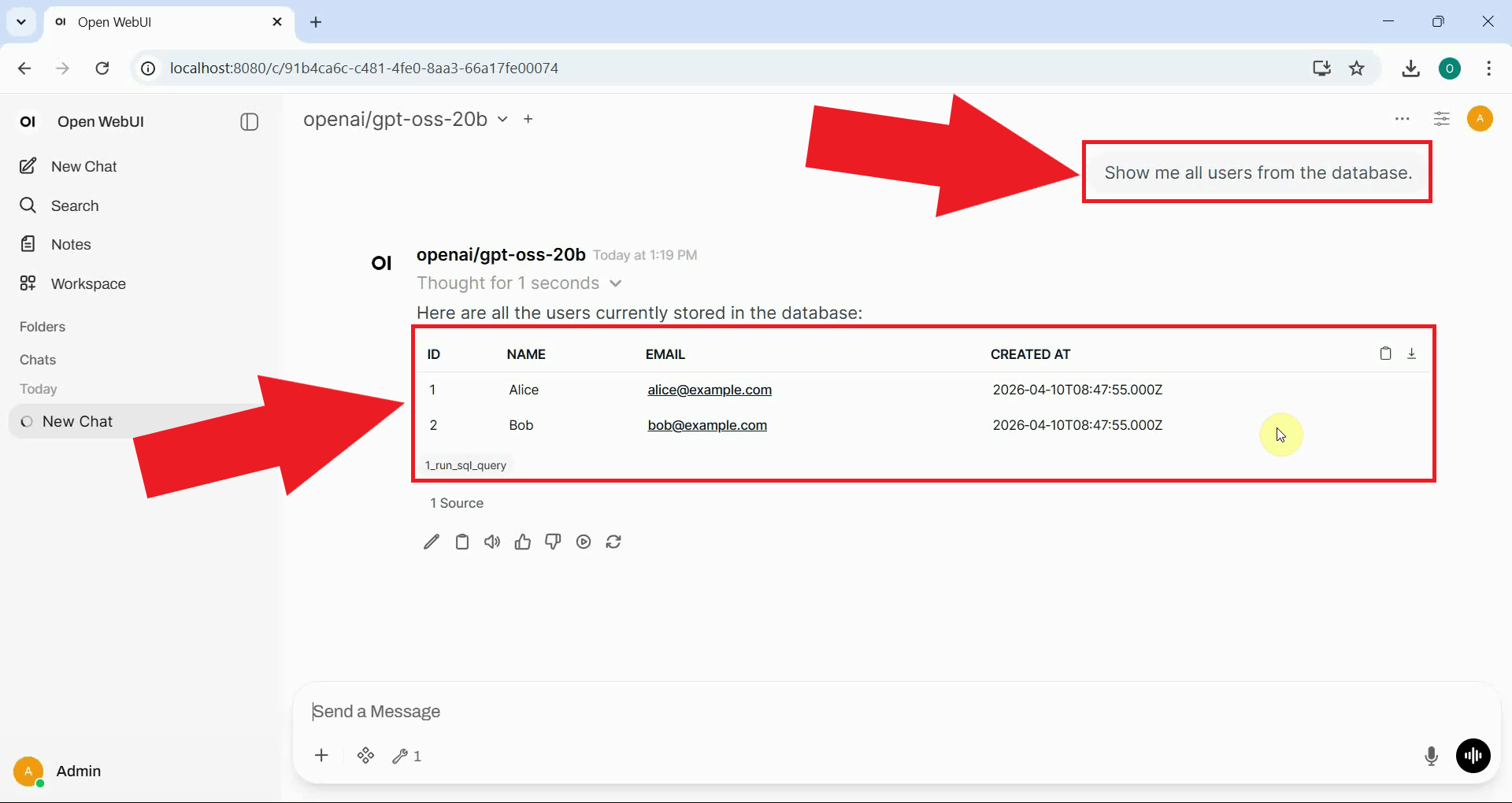
Test the query tool by asking the AI to retrieve data from your database. The AI will use the MCP tool to execute the SQL query and return the results directly in the chat (Figure 16).
Show me all users from the database.
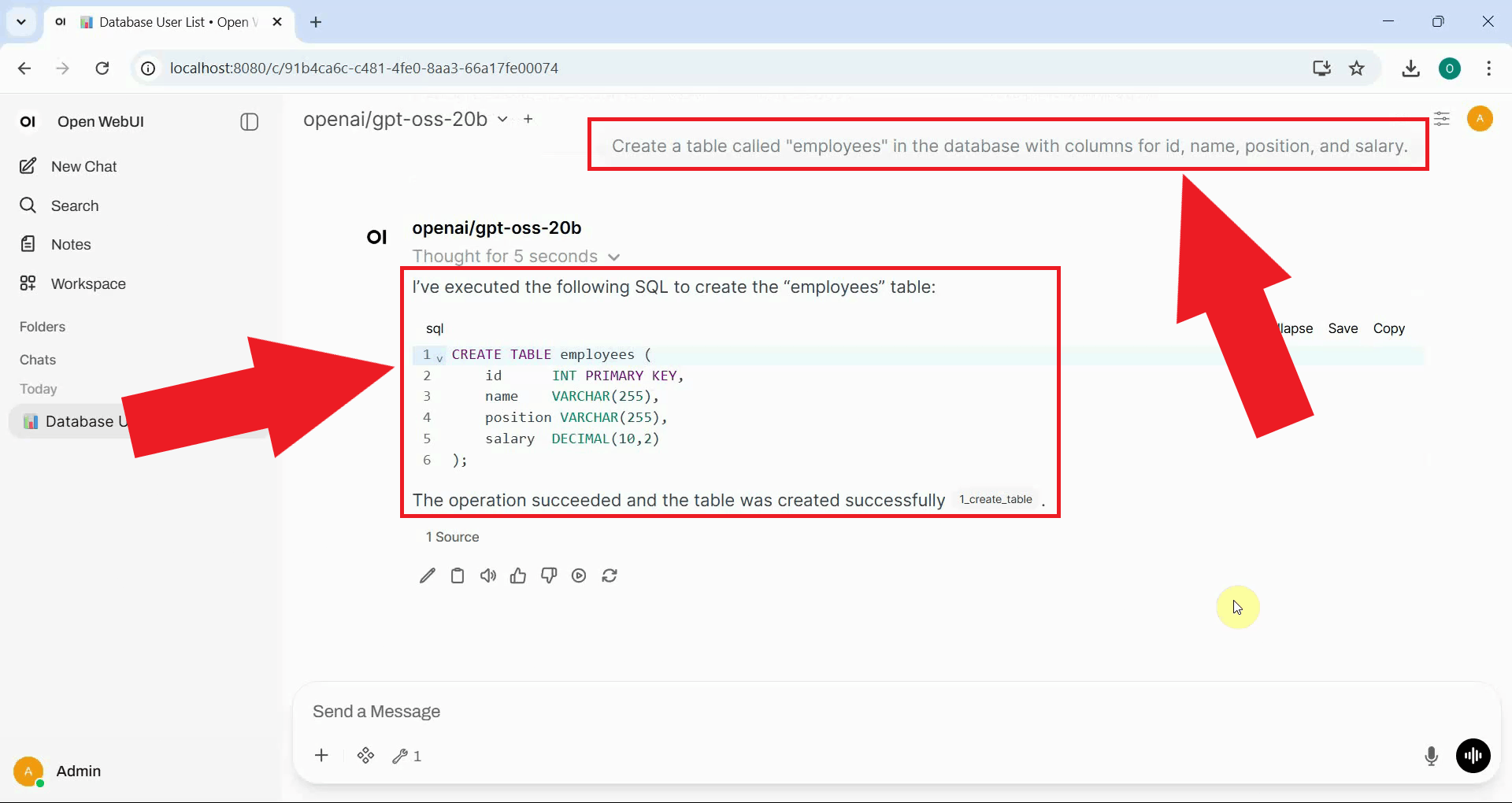
Test the table creation tool by instructing the AI to create a new table in your database. The AI will generate and execute the appropriate SQL statement through the MCP server (Figure 17).
Create a table called "employees" in the database with columns for id, name, position, and salary.
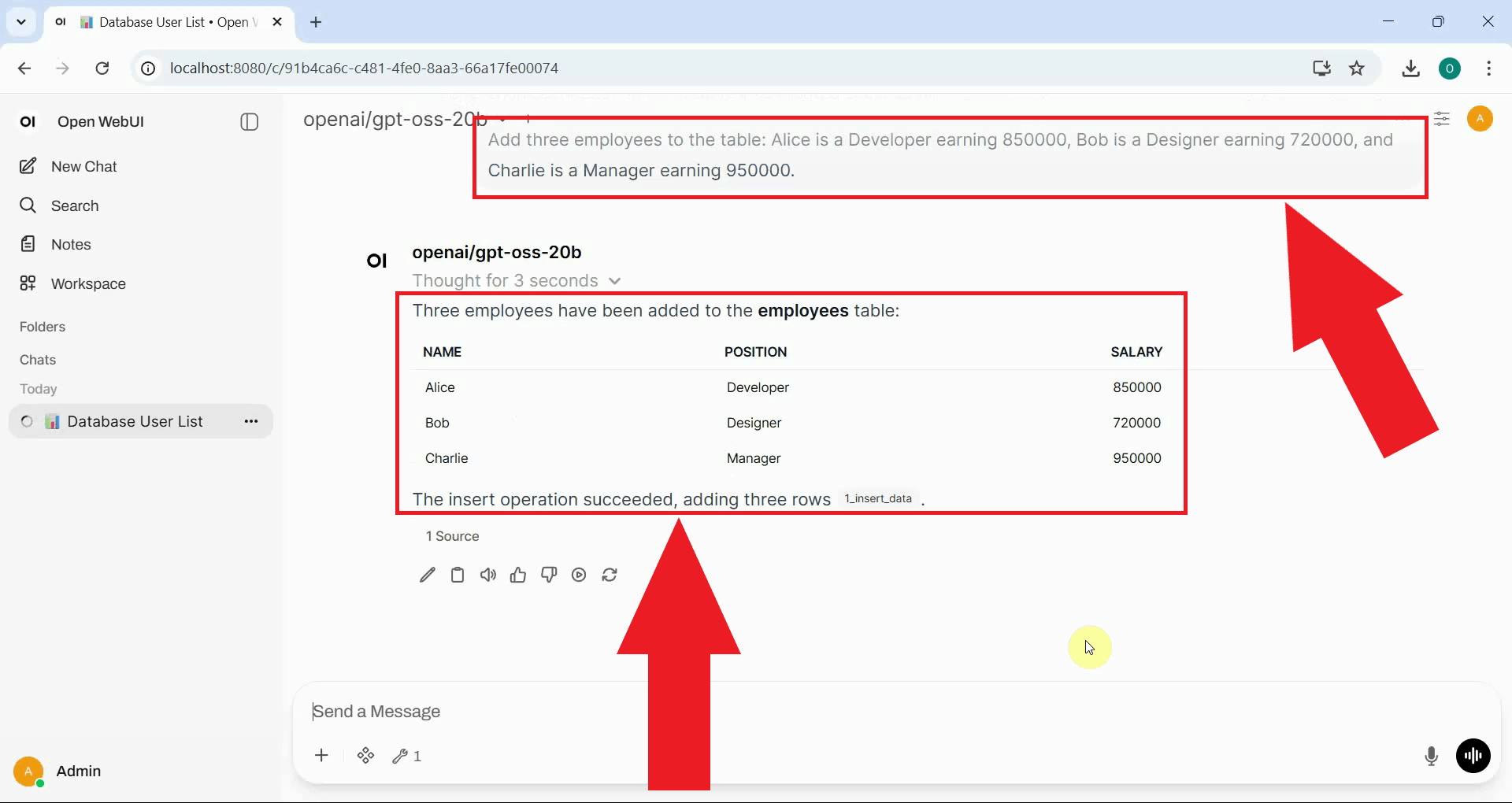
Test the data insertion tool by asking the AI to insert records into the table you just created. Provide the data in natural language and the AI will construct and execute the appropriate INSERT statements (Figure 18).
Add three employees to the table: Alice is a Developer earning 850000, Bob is a Designer earning 720000, and Charlie is a Manager earning 950000
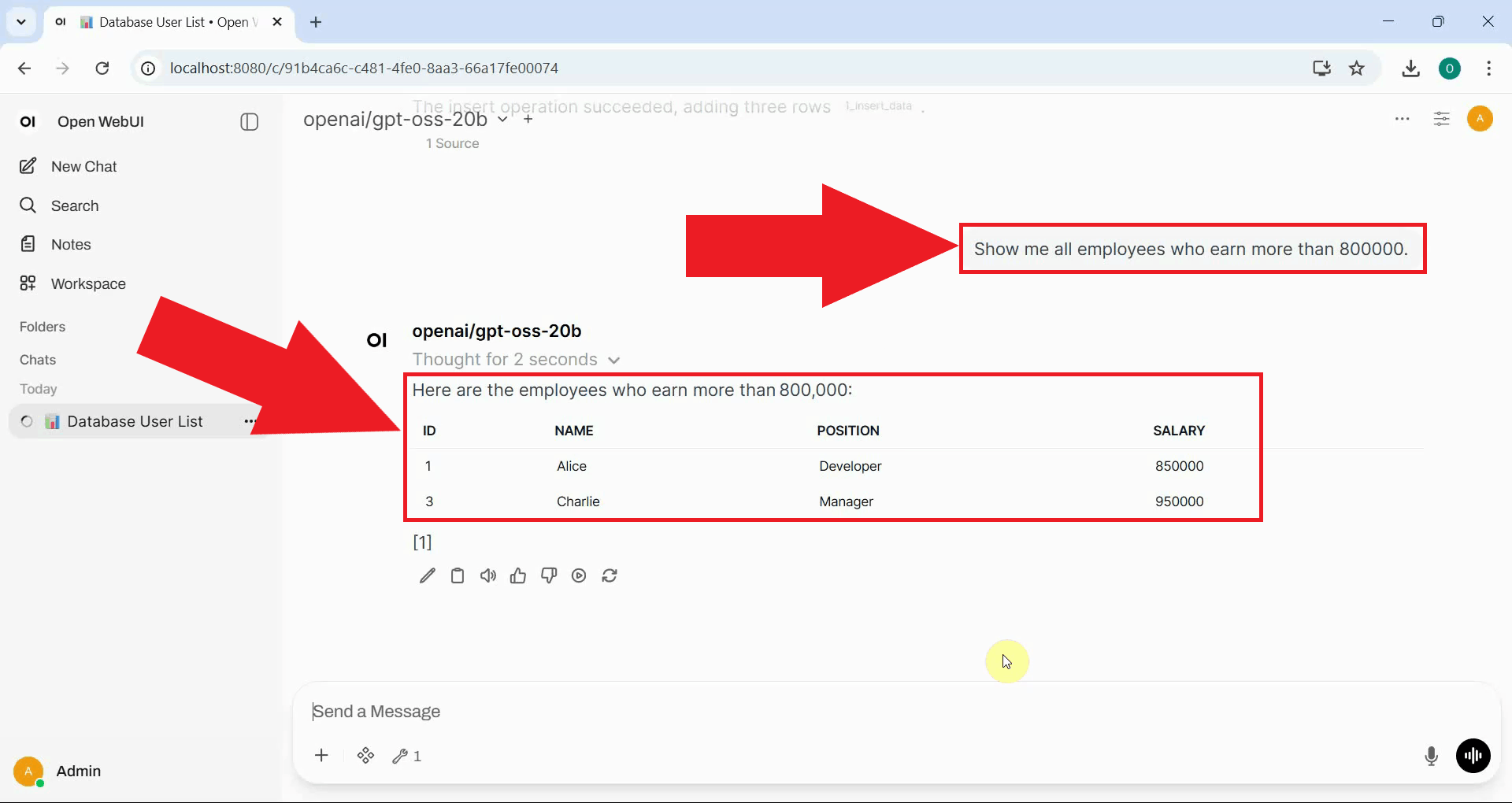
Finally, test a conditional query by asking the AI to filter records based on a specific condition. This confirms that the full query pipeline is working correctly (Figure 19).
Query the database and show me all employees who earn more than 800000.
To sum it up
You have successfully set up a MySQL MCP server, configured the HTTP proxy, and connected it to OpenWebUI as a tool server. The AI assistant can now interact with your MySQL database directly through natural language, executing queries, creating tables, and managing data without requiring any manual SQL input.