How to setup and use a Mysql MCP server in Kilo Code
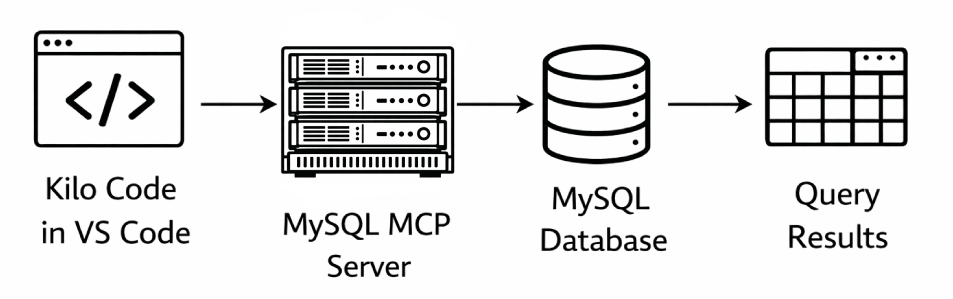
This detailed tutorial demonstrates how to integrate a MySQL Model Context Protocol (MCP) server with the Kilo Code AI assistant in Visual Studio Code, enabling seamless database interactions through natural language commands. The MCP server serves as a communication bridge between Kilo Code and your MySQL database, allowing developers to query and manipulate database information without writing complex SQL statements manually. Following this comprehensive guide, you'll learn the complete installation process from downloading the MCP server from GitHub, building it with npm, and configuring it within your Kilo Code environment. Once properly set up, you can leverage Kilo Code's AI capabilities to execute database queries conversationally, dramatically improving productivity and simplifying database development workflows.
Install MCP server video
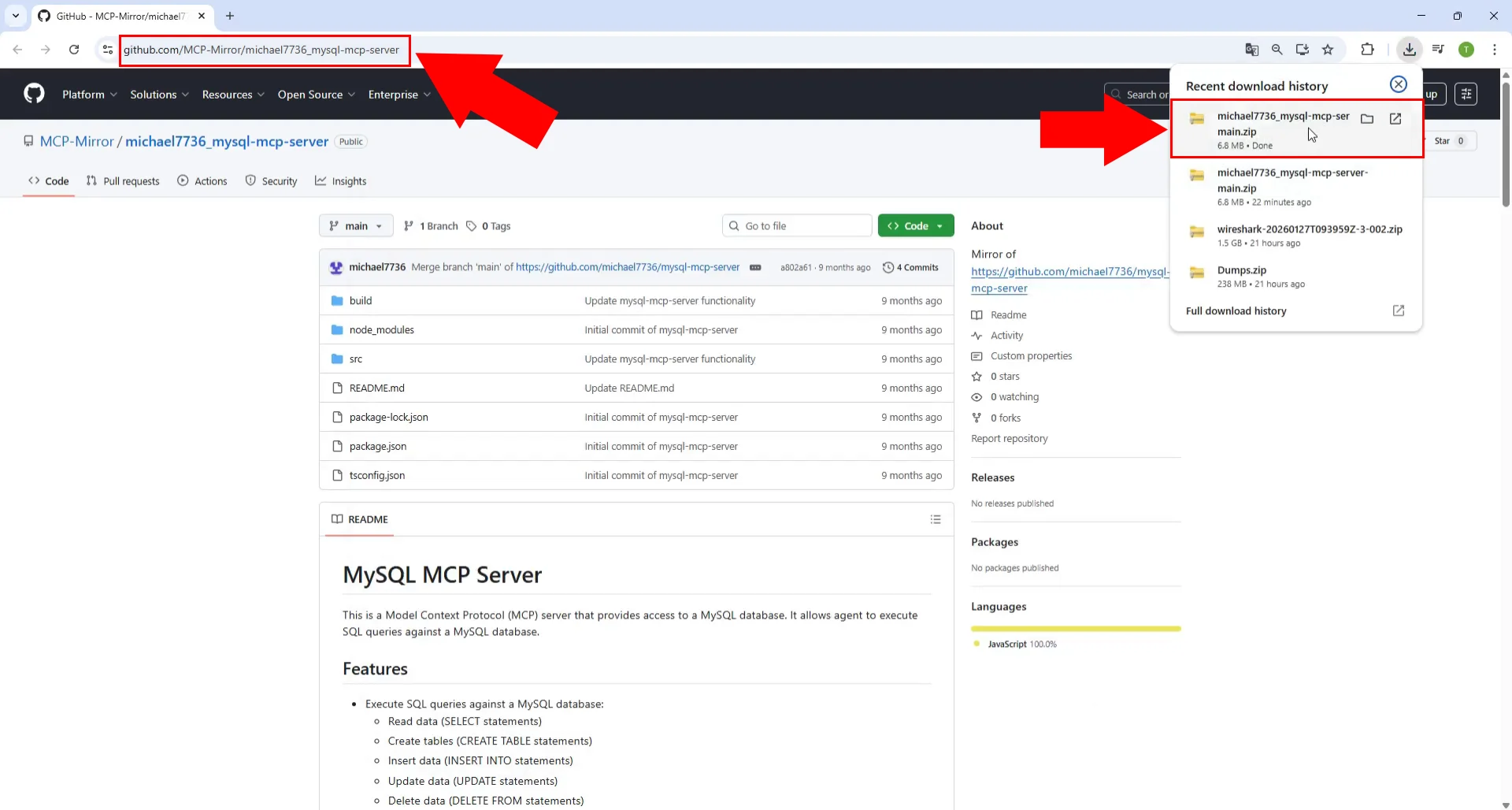
To begin the MCP server installation, navigate to the GitHub repository page for the MySQL MCP server project. Locate the recent download history section on the right side of the repository page where you'll find the download options. Click on the highlighted download button to obtain the MCP server files from the repository.
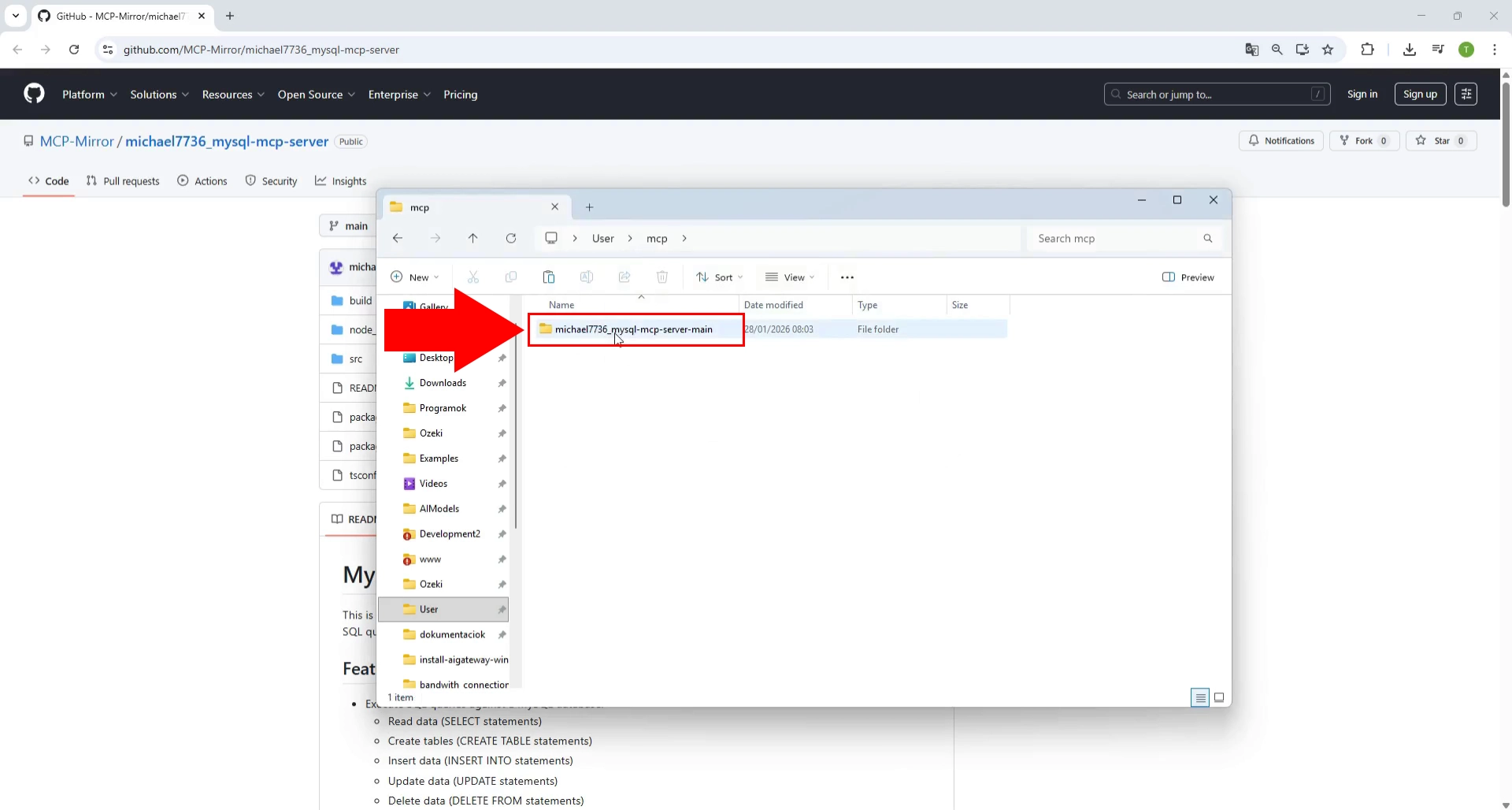
After downloading the MySQL MCP server archive from GitHub, locate the downloaded ZIP file in your downloads folder. Right-click on the archive file and select "Extract here" or "Extract to" from the context menu to unpack the contents. This will create a new folder containing all the necessary MCP server files including the source code and configuration files.
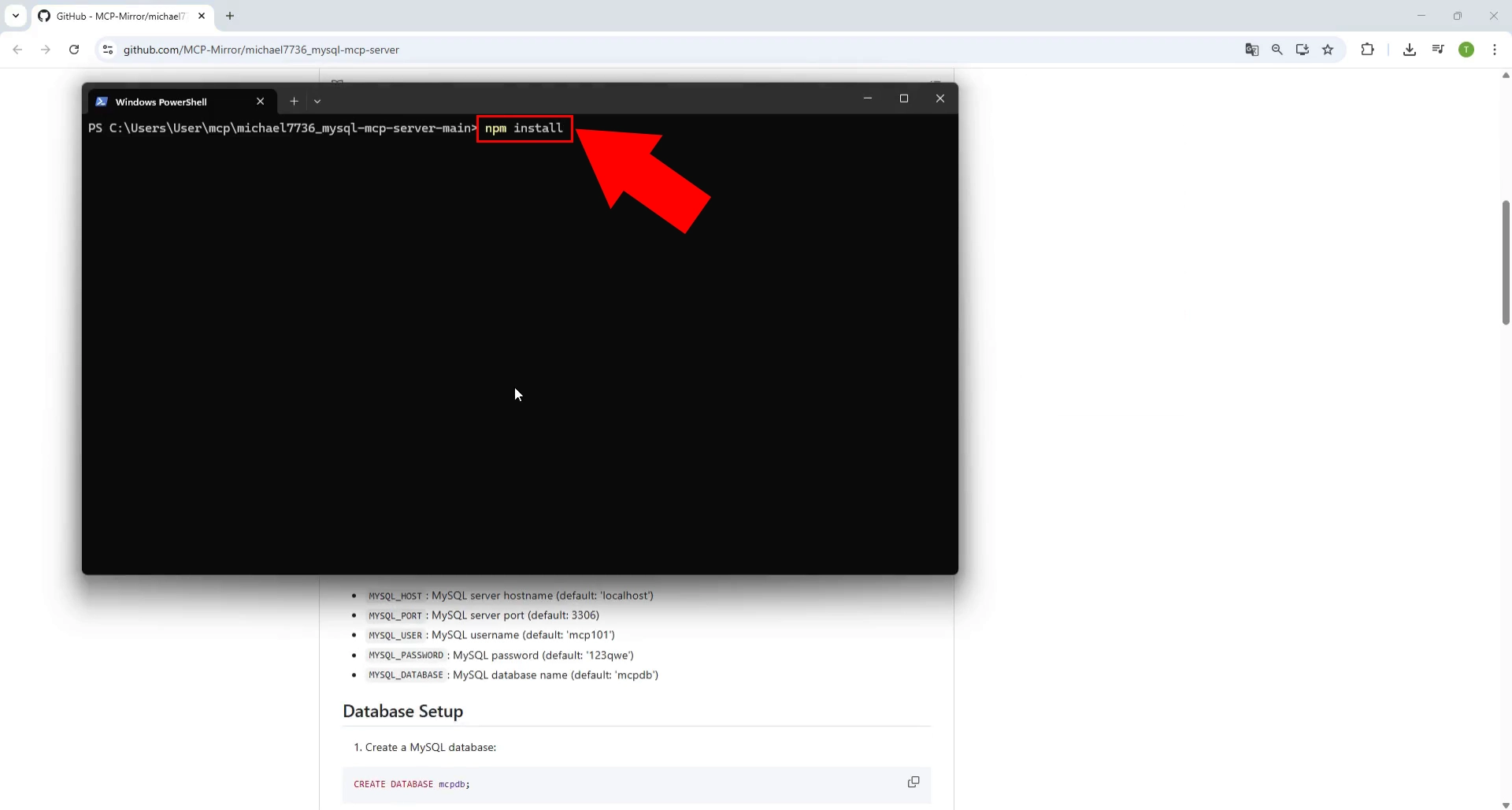
Open a terminal or command prompt window and navigate to the extracted MySQL MCP server folder directory. Execute the "npm install" command to install all the required dependencies and packages for the MCP server. The installation process will download and configure all necessary Node.js modules as specified in the package.json file.
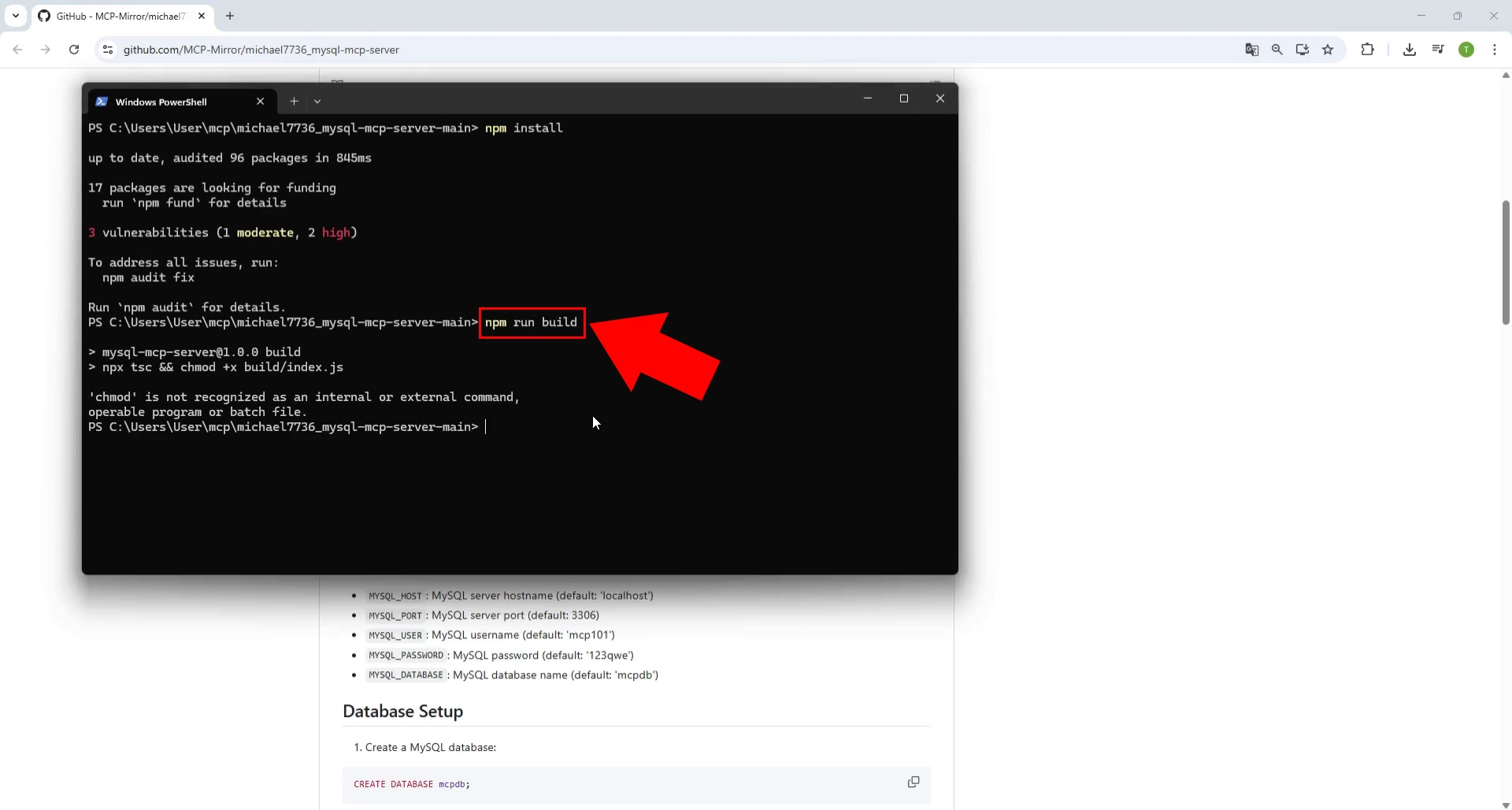
After successfully installing the npm dependencies, run the "npm run build" command in the terminal within the MCP server directory. T his command compiles the TypeScript source code and creates the production-ready build files in the appropriate directories. The build process ensures all modules are properly compiled and ready for use with Kilo code.
Set MCP server in Kilo code
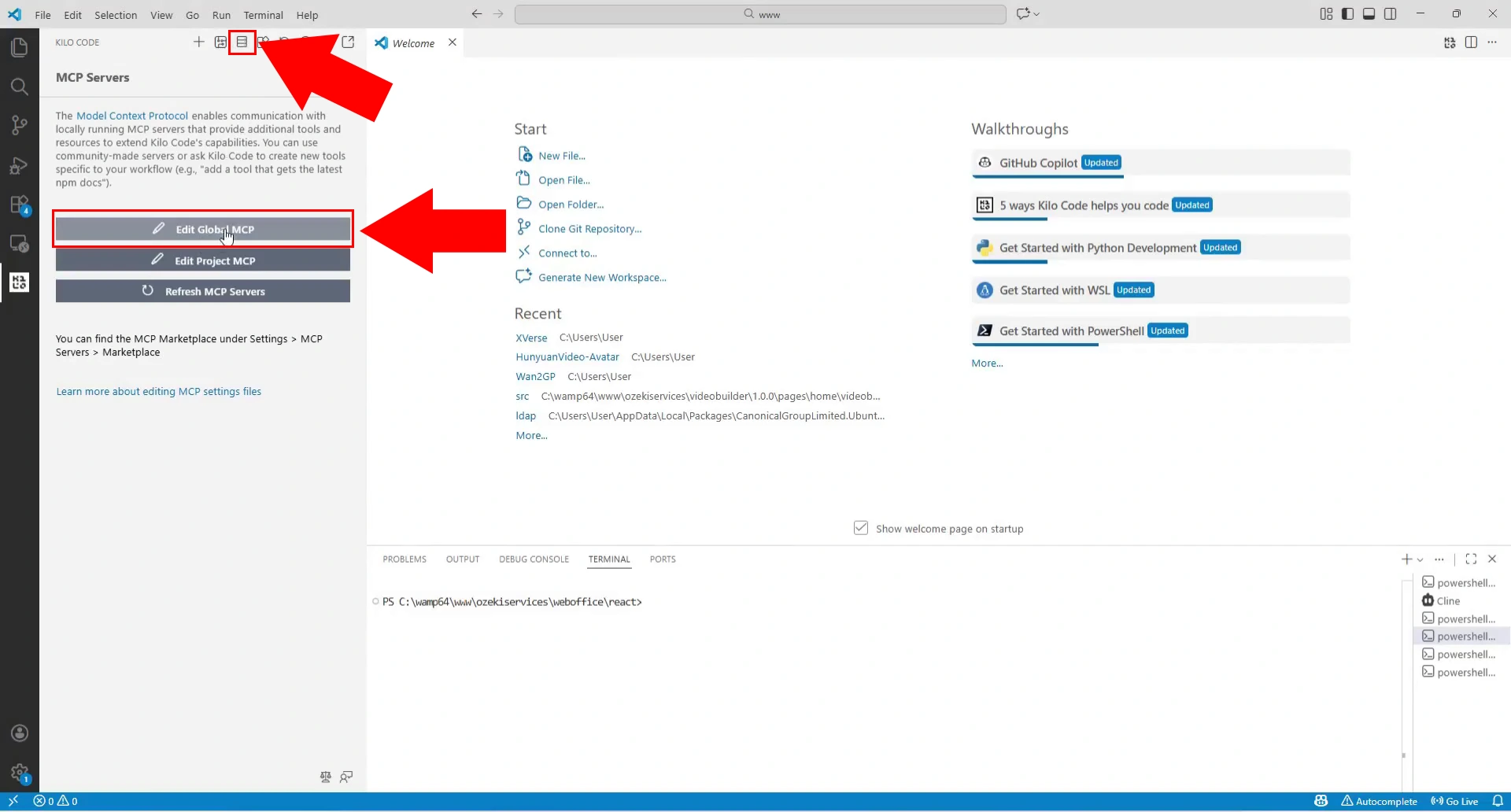
Open Visual Studio Code with the Kilo code extension and click on the MCP Servers button located in the top navigation bar to access server management options. From the MCP Servers panel that appears, you'll see options to edit existing servers or add new ones - click on "edit Global MCPs" to modify the server configuration. This opens the MCP configuration interface where you can add a new MySQL MCP server entry with the appropriate settings.
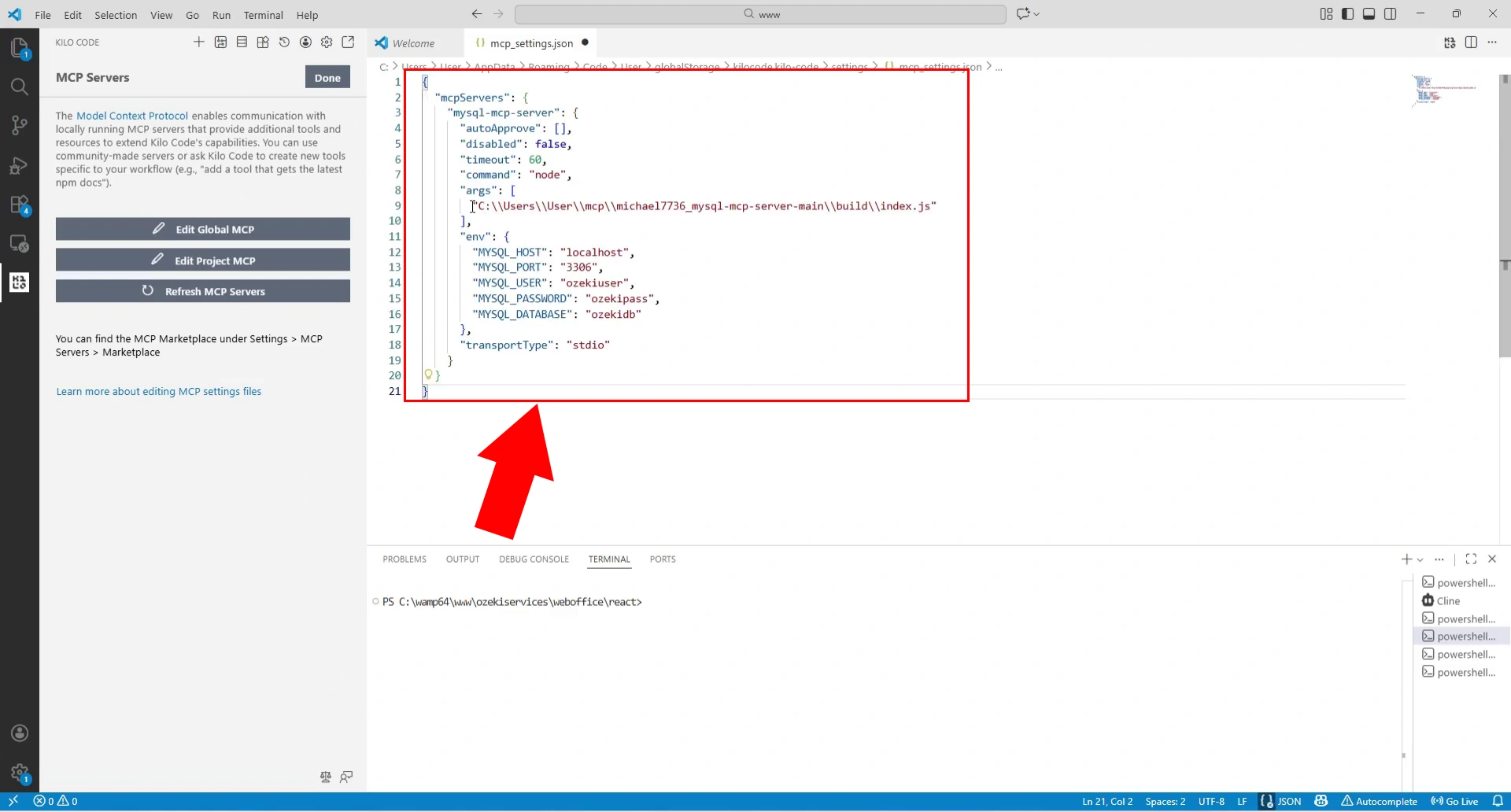
In the MCP server configuration file that opens, enter the MySQL server details in JSON format within the "mcpServers" object. Specify the server configuration including the command path pointing to your built MCP server executable file, typically located in the build directory of your downloaded server files. Add the required environment variables and database connection parameters such as MYSQL_HOST, MYSQL_PORT, MYSQL_USER, MYSQL_PASSWORD, and MYSQL_DATABASE to establish the connection.
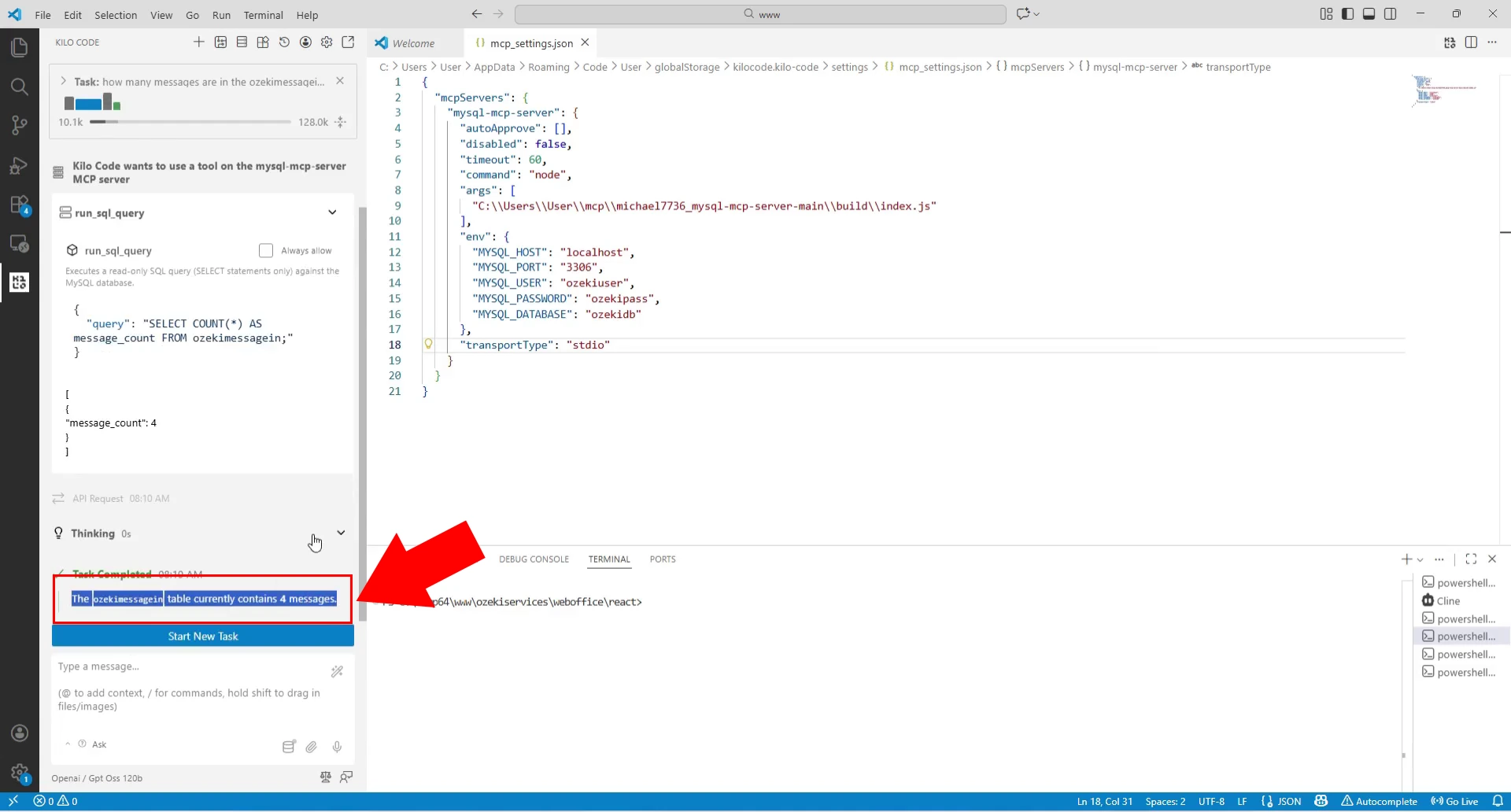
Once the MCP server is properly configured in Kilo code, you can interact with your MySQL database using natural language queries through the chat interface. Type your database-related question or request directly in the Kilo code chat panel, such as asking about table contents or requesting specific data from the database. The AI assistant will process your request and communicate with the MySQL MCP server to execute the appropriate database queries to retrieve the information you need.
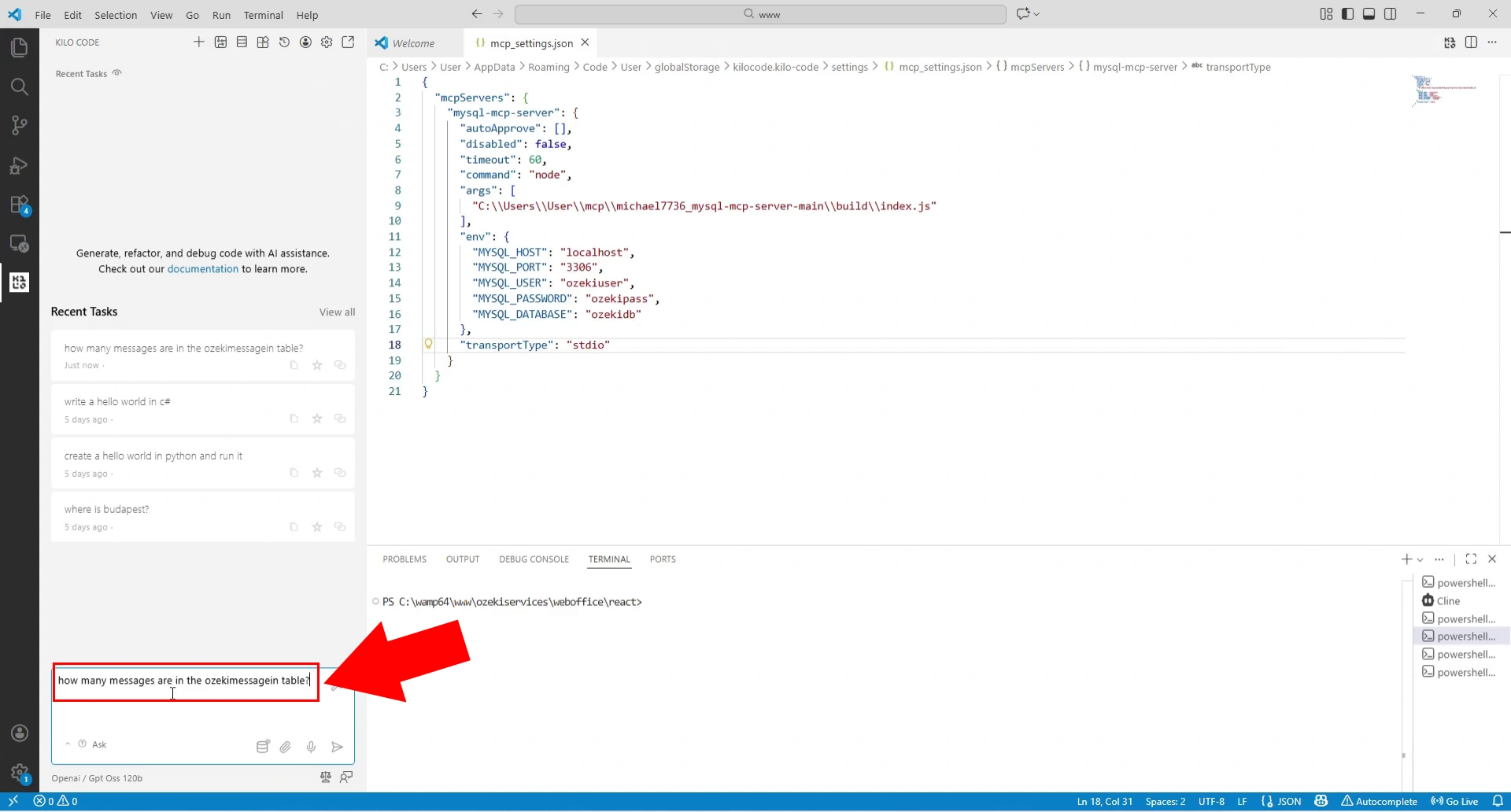
After submitting your database query, the MCP server establishes a connection to your MySQL database and executes the necessary SQL commands to fetch the requested data. The query results are returned through the MCP protocol and processed by Kilo code, which displays the information in a user-friendly format within the chat interface. You'll see a loading indicator followed by the complete query results showing the data from your database, along with a confirmation message indicating successful task completion.