
How to use the BrowserOS MCP Server
This guide demonstrates how to install and configure BrowserOS to work with Ozeki AI Gateway. You'll learn how to download and install BrowserOS, configure it to connect to your gateway, test the AI connection, and set up the BrowserOS MCP (Model Context Protocol).
What is BrowserOS?
BrowserOS is an AI-powered browser that enables intelligent automation and interaction with web content. It provides an integrated environment where AI models can control browser actions, navigate websites, extract information, and perform automated tasks. BrowserOS includes an MCP (Model Context Protocol) server that allows AI assistants to interact with the browser programmatically, making it a powerful tool for web automation, testing, and AI-driven browsing experiences. When configured with Ozeki AI Gateway, it routes all AI requests through your centralized gateway infrastructure.
Steps to follow
We assume Ozeki AI Gateway is already installed on your system. You can install it on Linux, Windows or Mac.
- Download and install BrowserOS
- Configure Ozeki AI Gateway connection
- Test the AI connection
- Access BrowserOS MCP server settings
- Run MCP Inspector
- Connect MCP Inspector to BrowserOS
- Test browser automation tools
Quick reference commands
Here are the key commands you'll need for setting up the MCP Inspector:
# Install and run MCP Inspector
npx @modelcontextprotocol/inspector
BrowserOS installation and configuration video
The following video shows how to install and configure BrowserOS with Ozeki AI Gateway step-by-step. The video covers downloading the installer, configuring the custom provider settings, and testing the AI connection.
Step 1 - Download and install BrowserOS
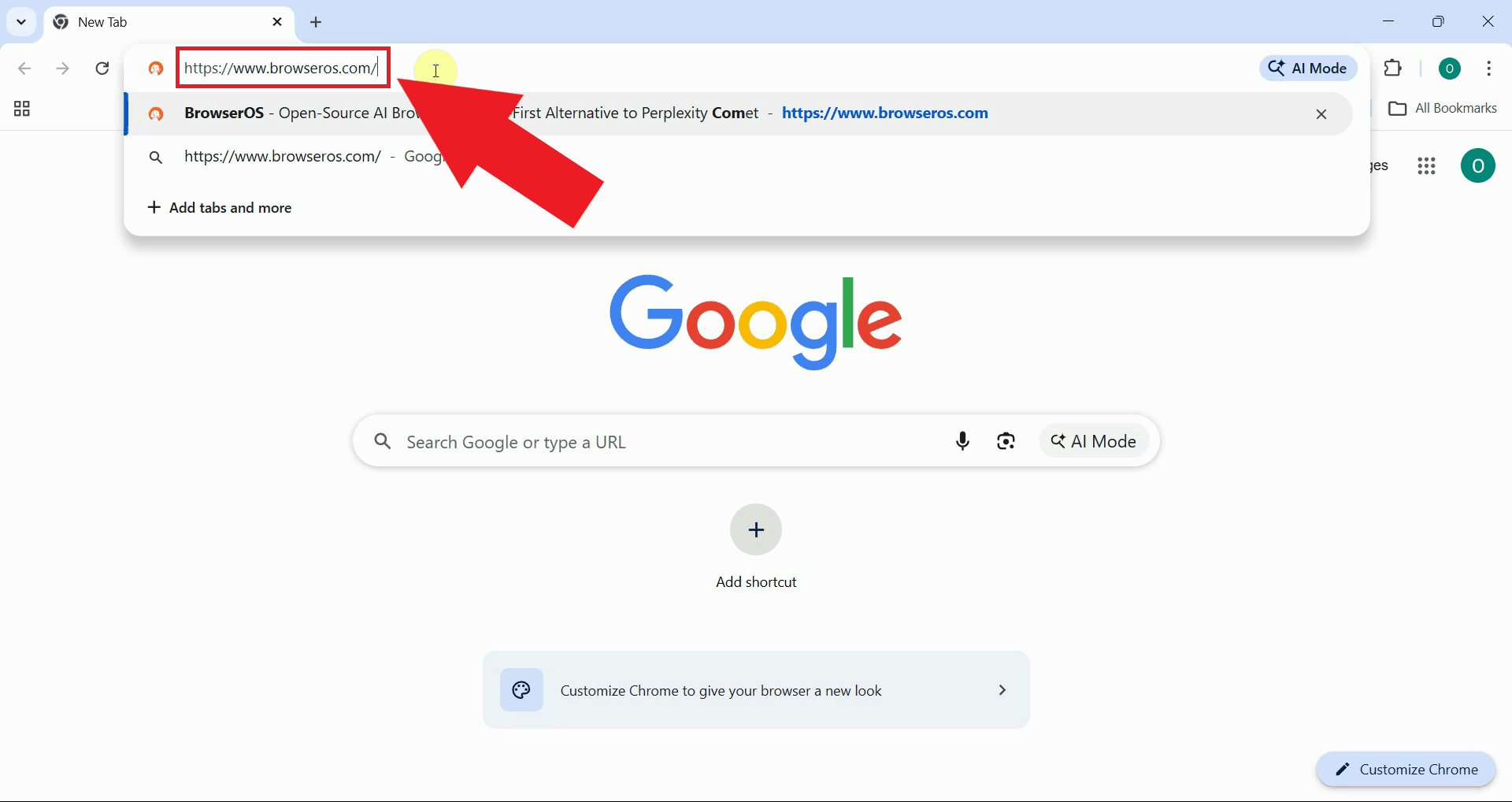
Navigate to the BrowserOS website. This is the official portal where you can download the BrowserOS installer and access comprehensive documentation about the platform's features and capabilities (Figure 1).
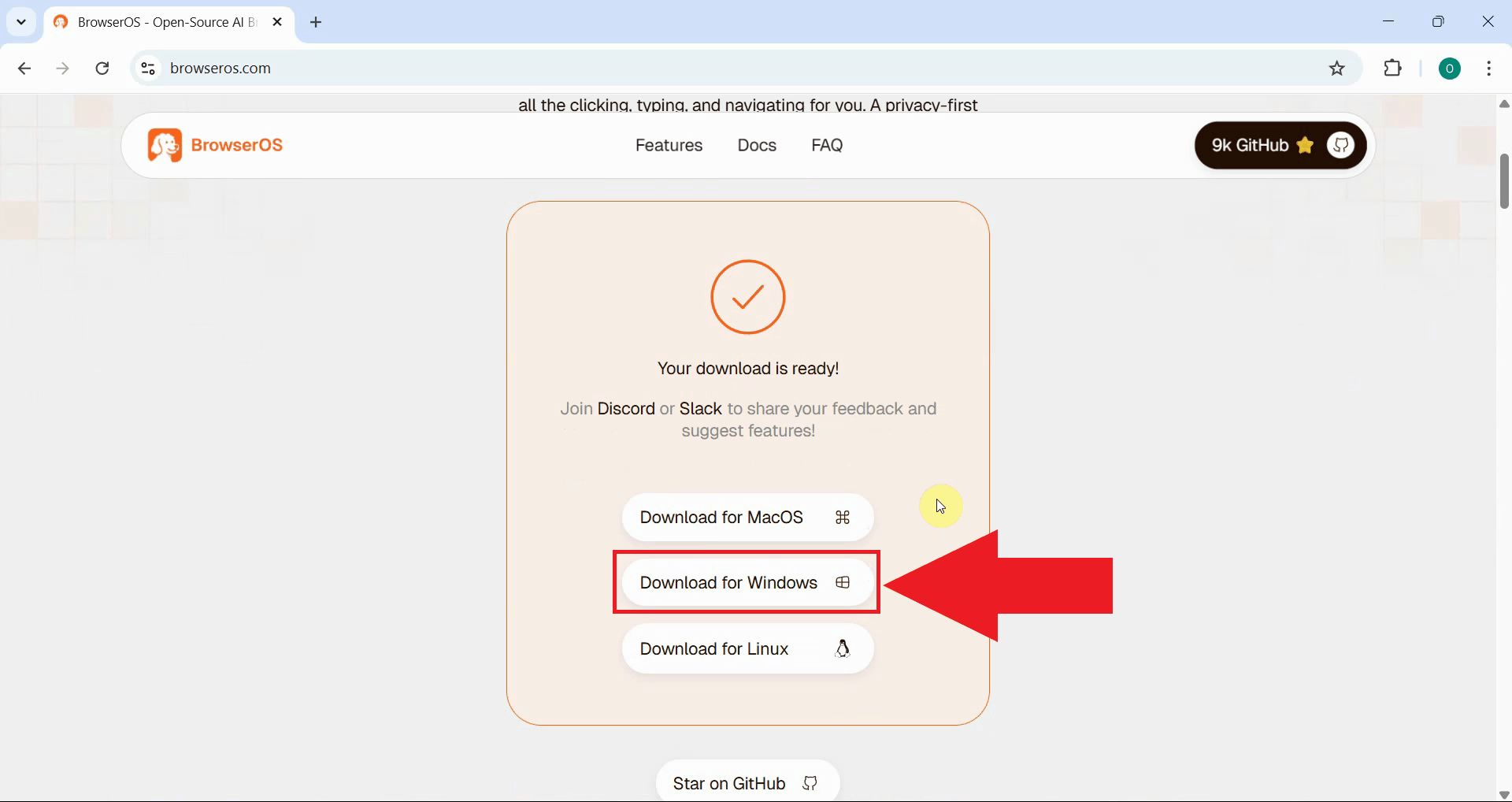
Download the BrowserOS installer for your operating system (Figure 2).
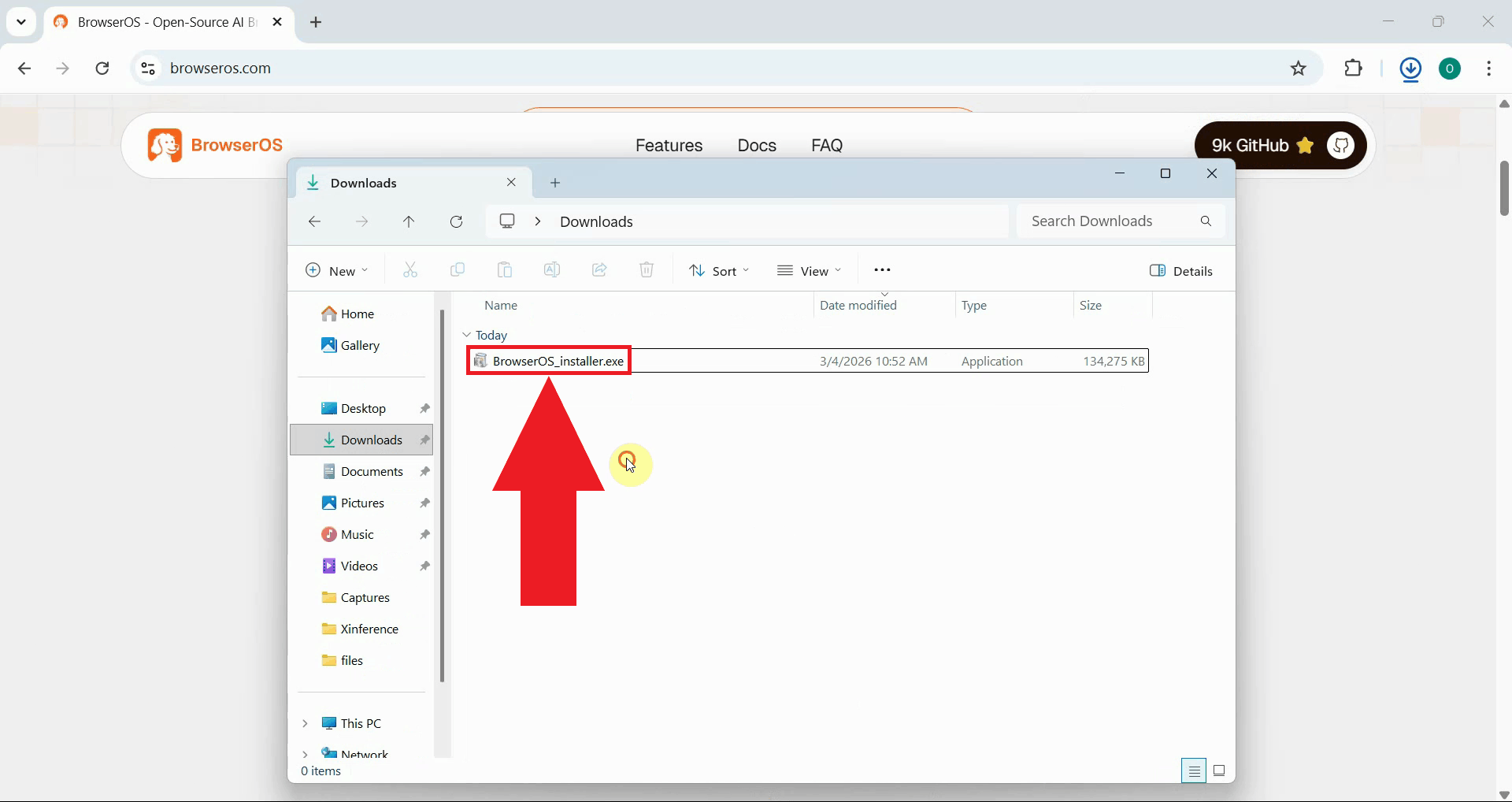
Once the download completes, locate the installer file in your downloads folder and double-click it to start the installation process (Figure 3).
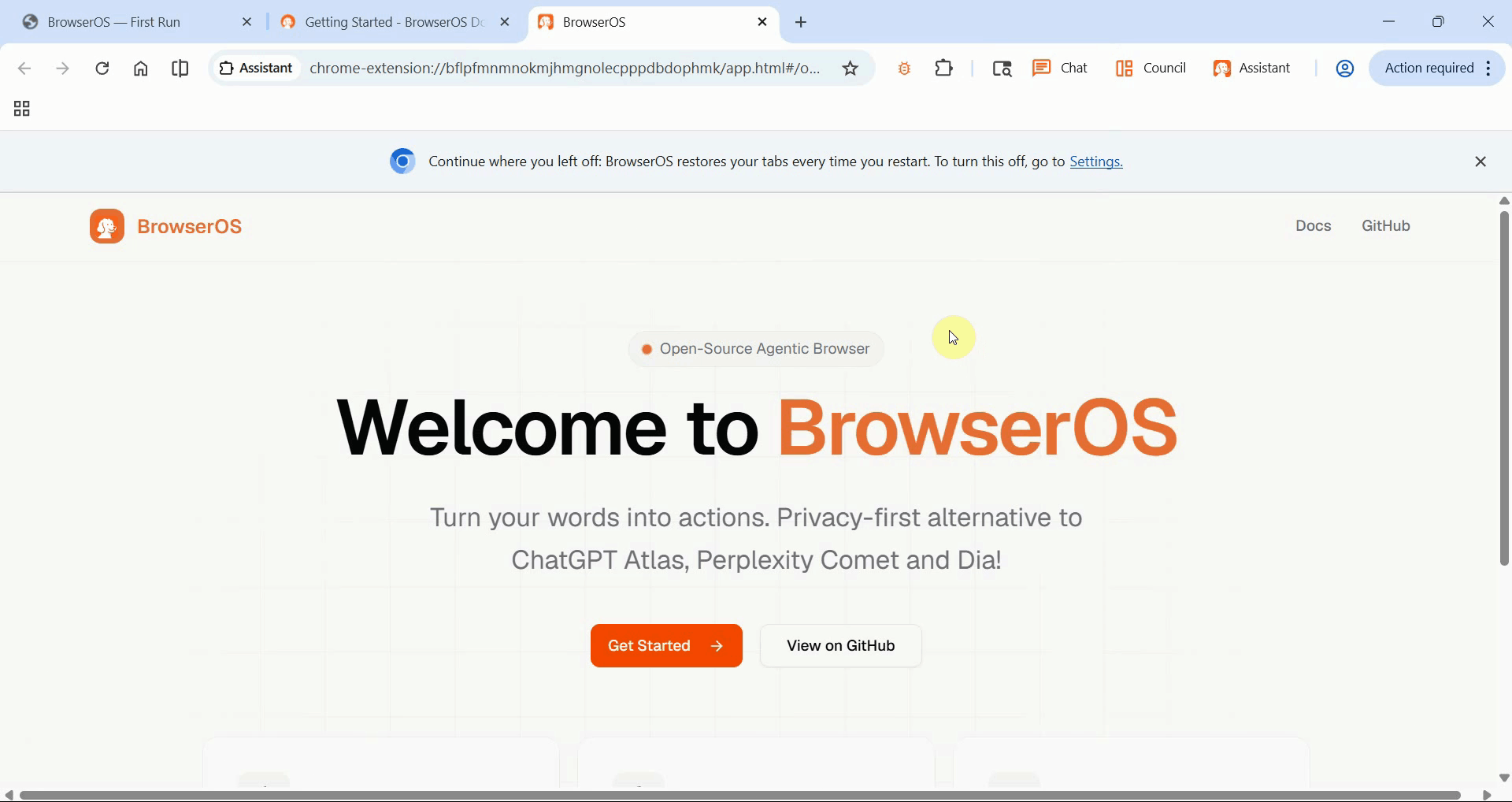
Once installation finishes, BrowserOS will launch automatically and display the welcome page (Figure 4).
Step 2 - Configure Ozeki AI Gateway connection
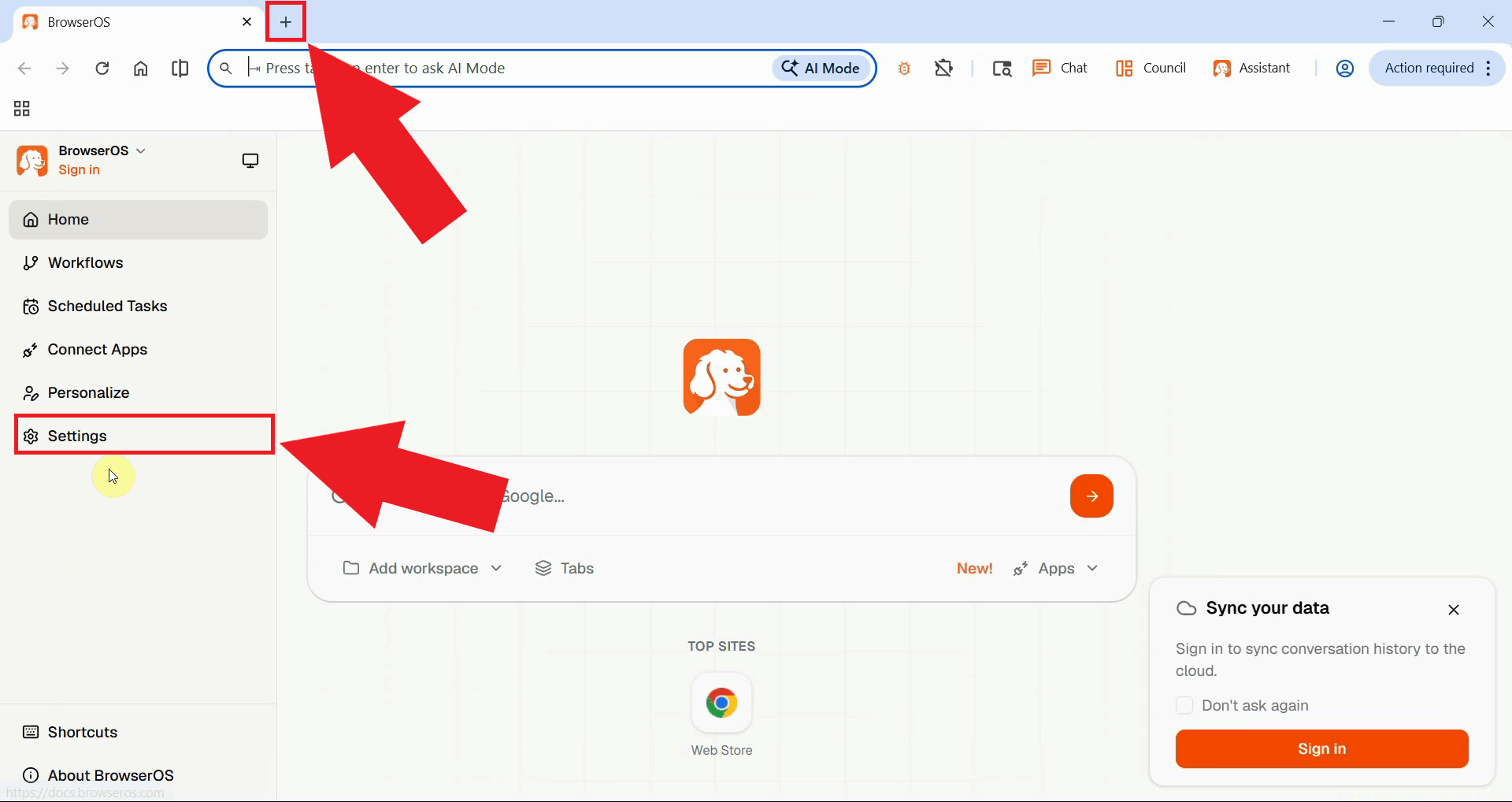
To configure the connection to Ozeki AI Gateway, open a new tab, then navigate to Settings in the left sidebar to manage AI providers and other browser settings (Figure 5).
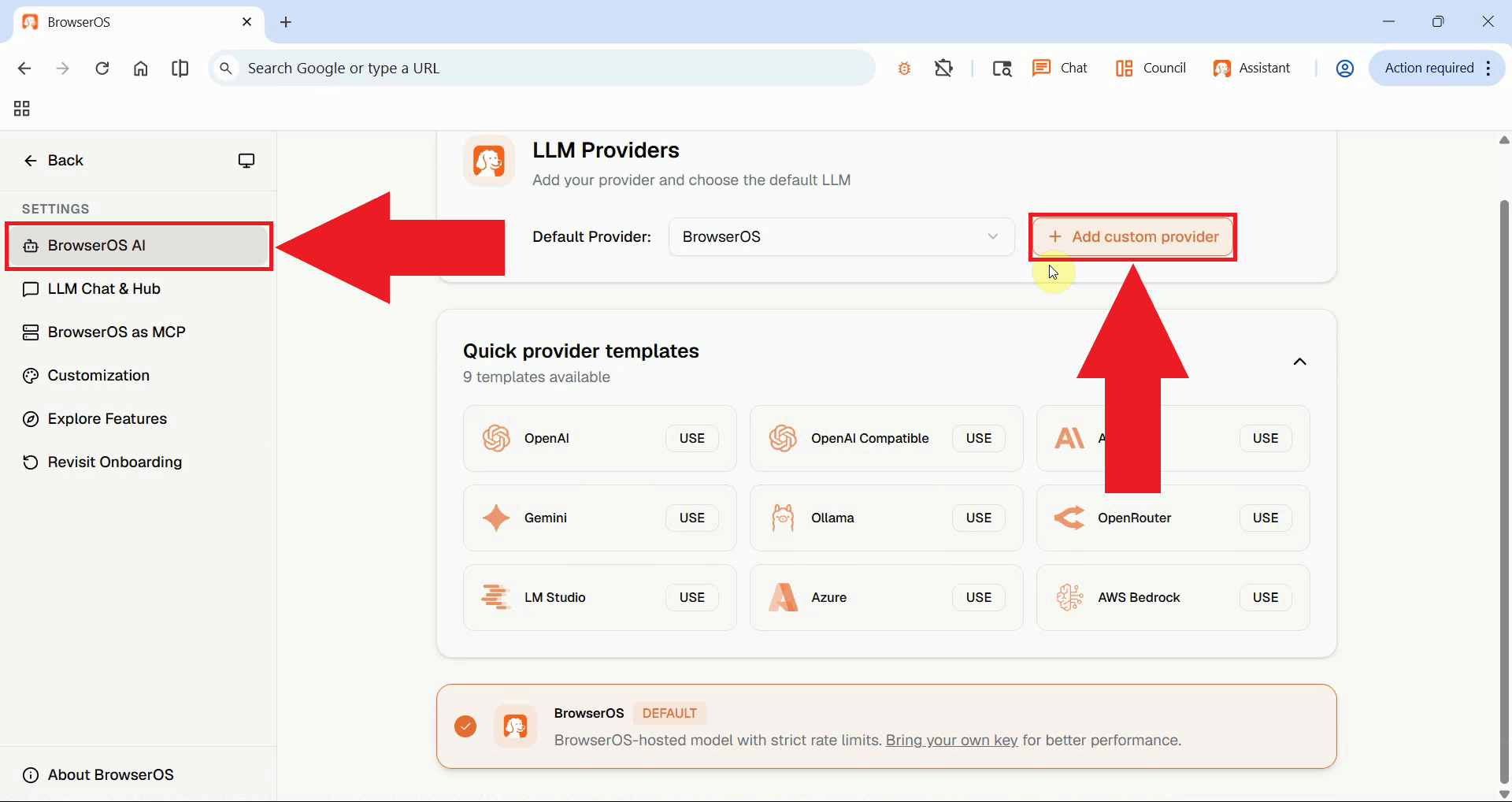
On the BrowserOS AI page, locate the LLM Providers section and click on the option to add a custom provider. This allows you to configure BrowserOS to use Ozeki AI Gateway instead of the default provider (Figure 6).
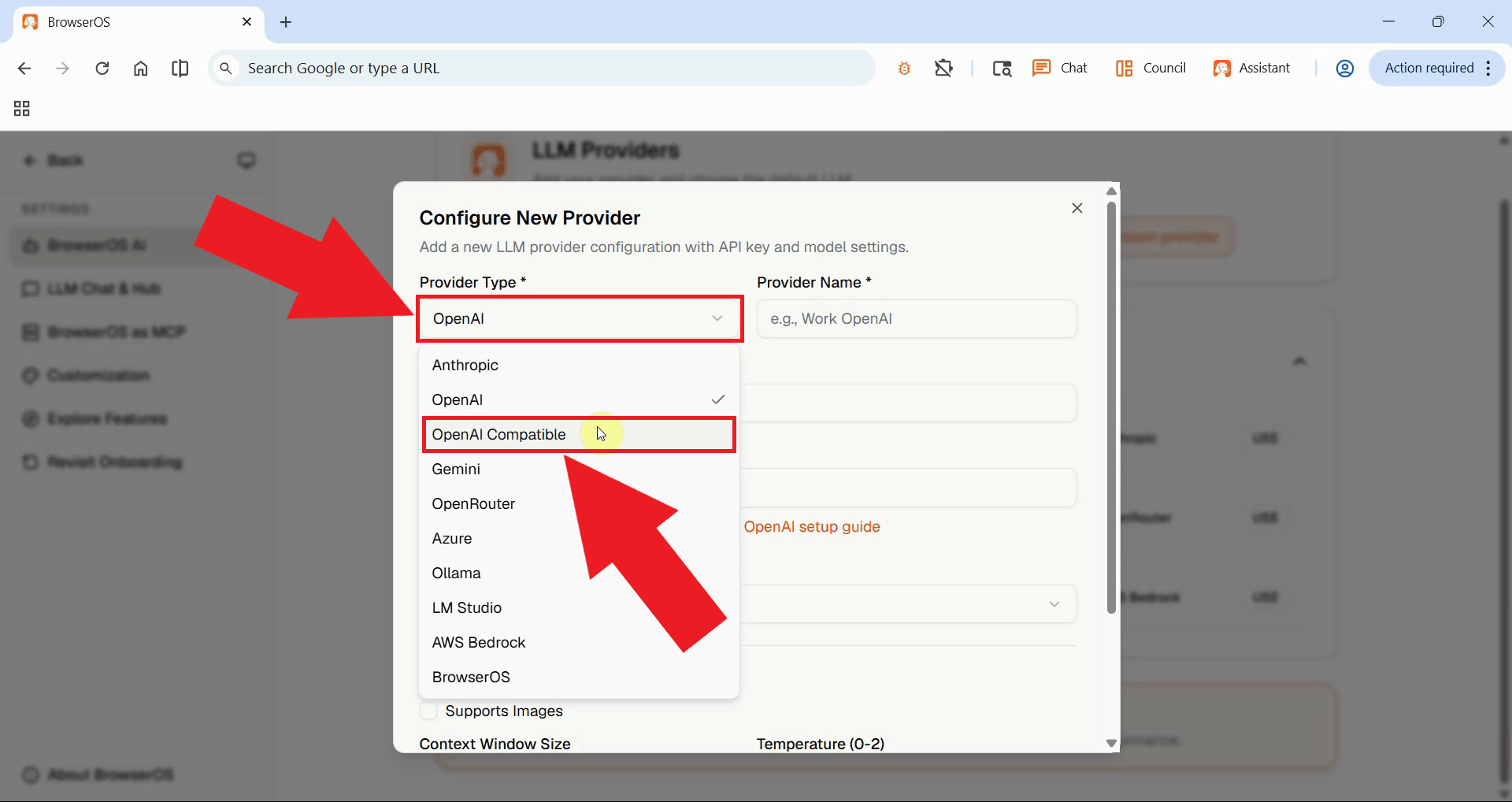
From the provider type dropdown menu, select OpenAI Compatible as the provider type. This ensures BrowserOS uses the OpenAI-compatible API format (Figure 7).
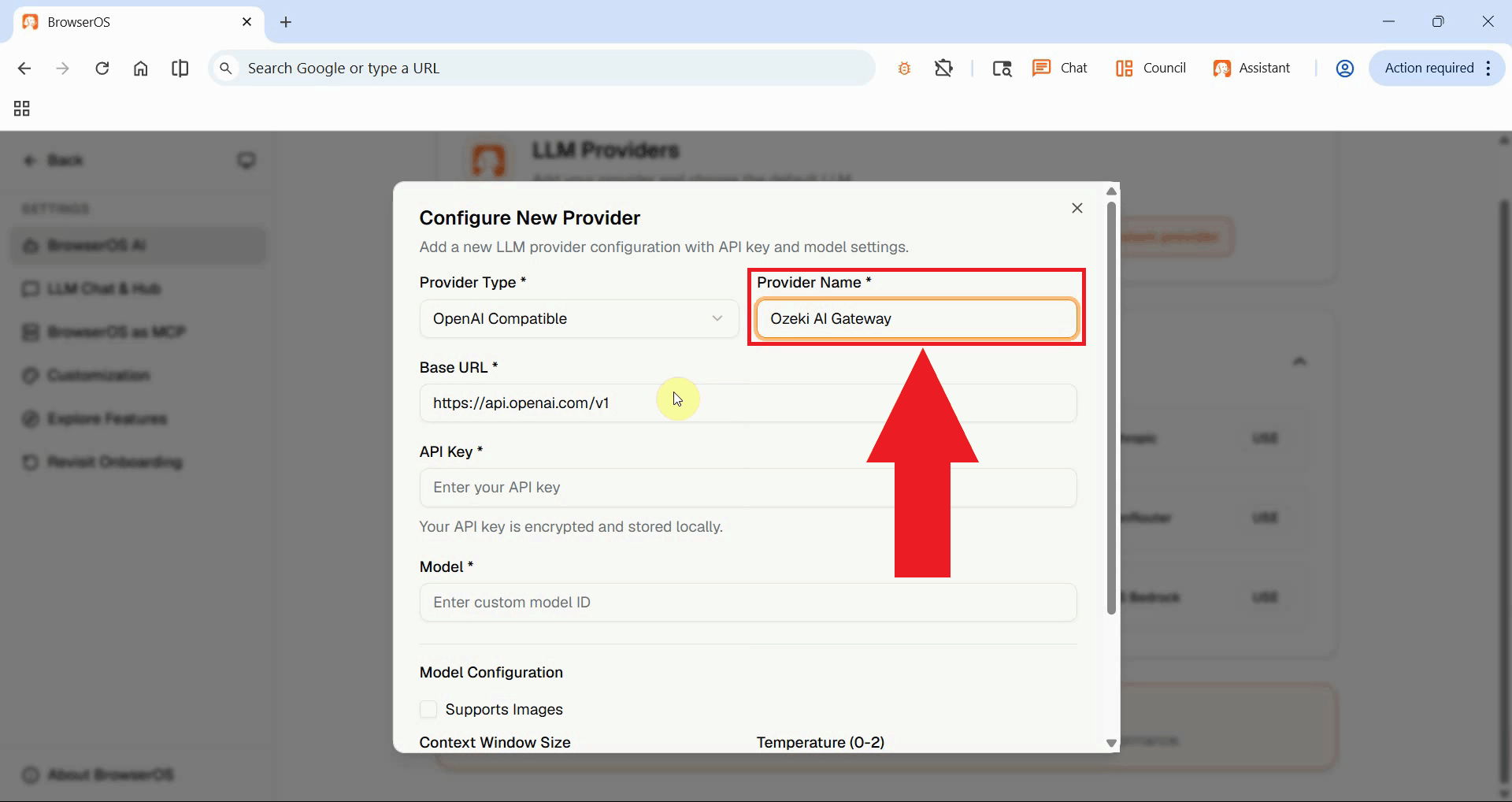
Enter a descriptive name for your provider configuration in the Provider Name field, such as "Ozeki AI Gateway". This helps you identify the connection in the settings (Figure 8).
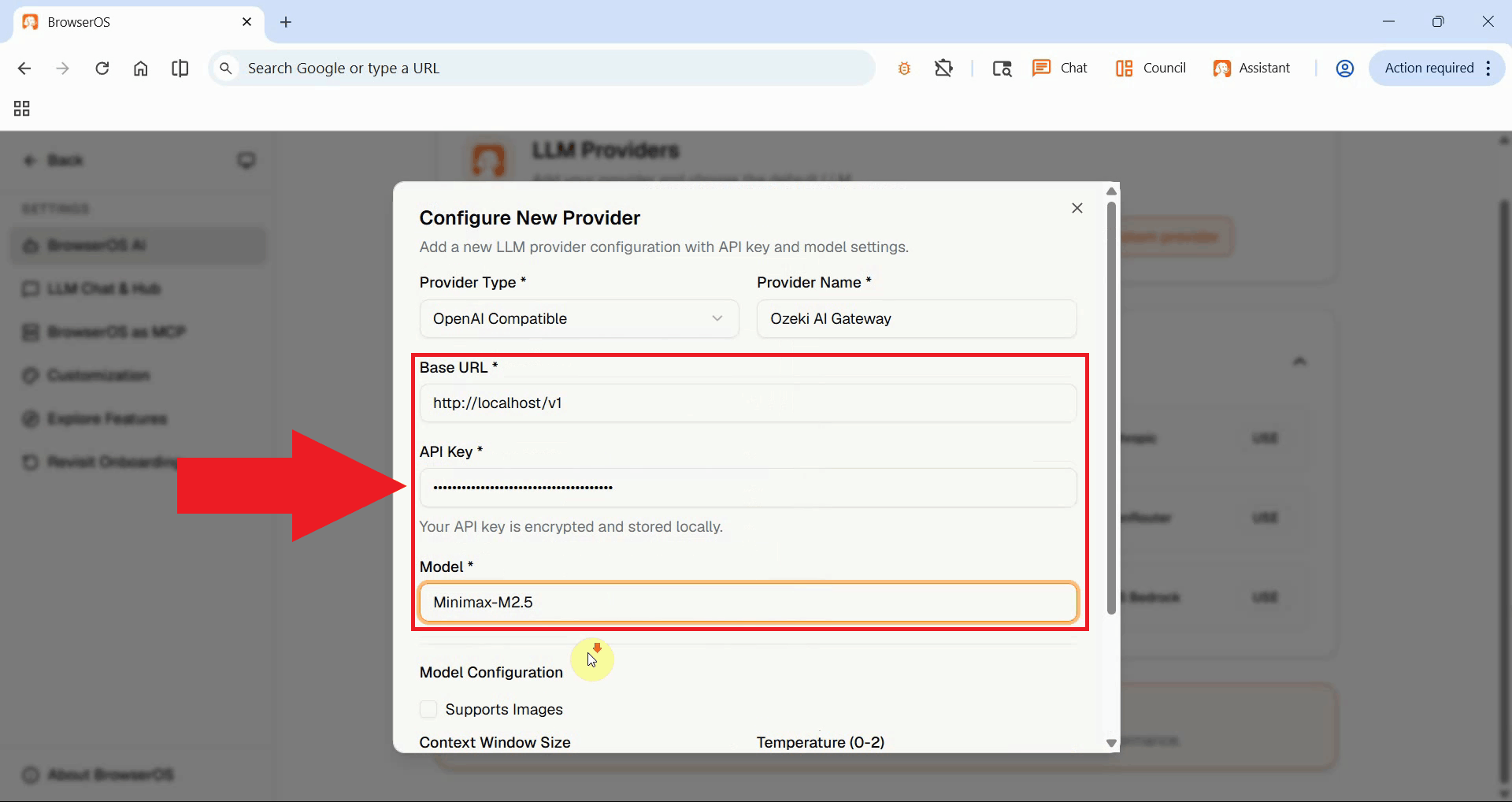
Fill in the connection details for Ozeki AI Gateway. In the Base URL field, enter your
gateway's API endpoint URL.
In the API Key field, paste the API key you created in
Ozeki AI Gateway. In the Model field, specify the AI model you want to use, such as
Minimax-M2.5 or whichever model is configured in your gateway (Figure 9).
Step 3 - Test the AI connection
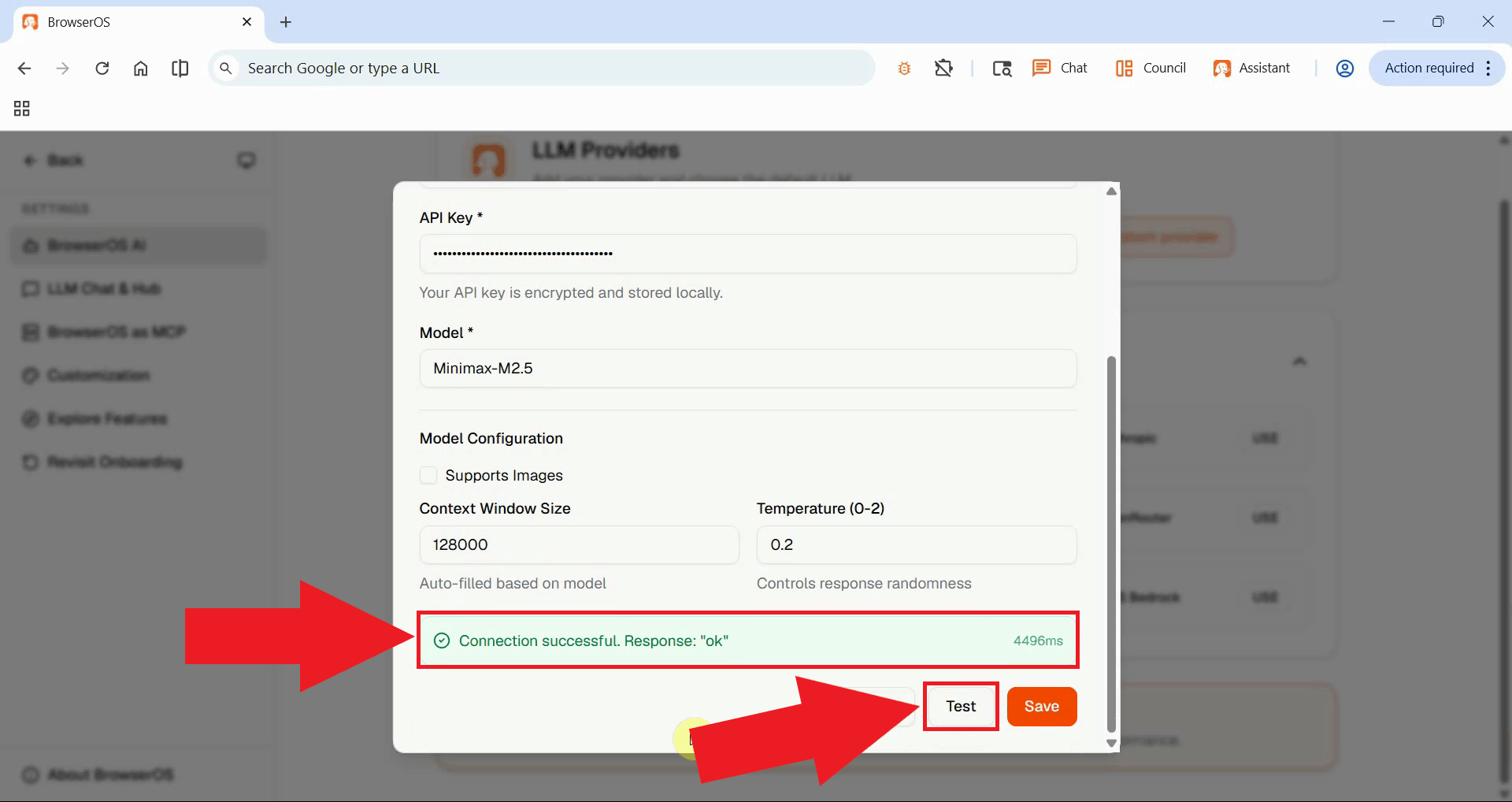
Before saving the configuration, click the Test button to verify that BrowserOS can successfully communicate with Ozeki AI Gateway. The test sends a sample request to your gateway to confirm the connection settings are correct. A successful test response confirms your base URL, API key, and model configuration are all working properly (Figure 10).
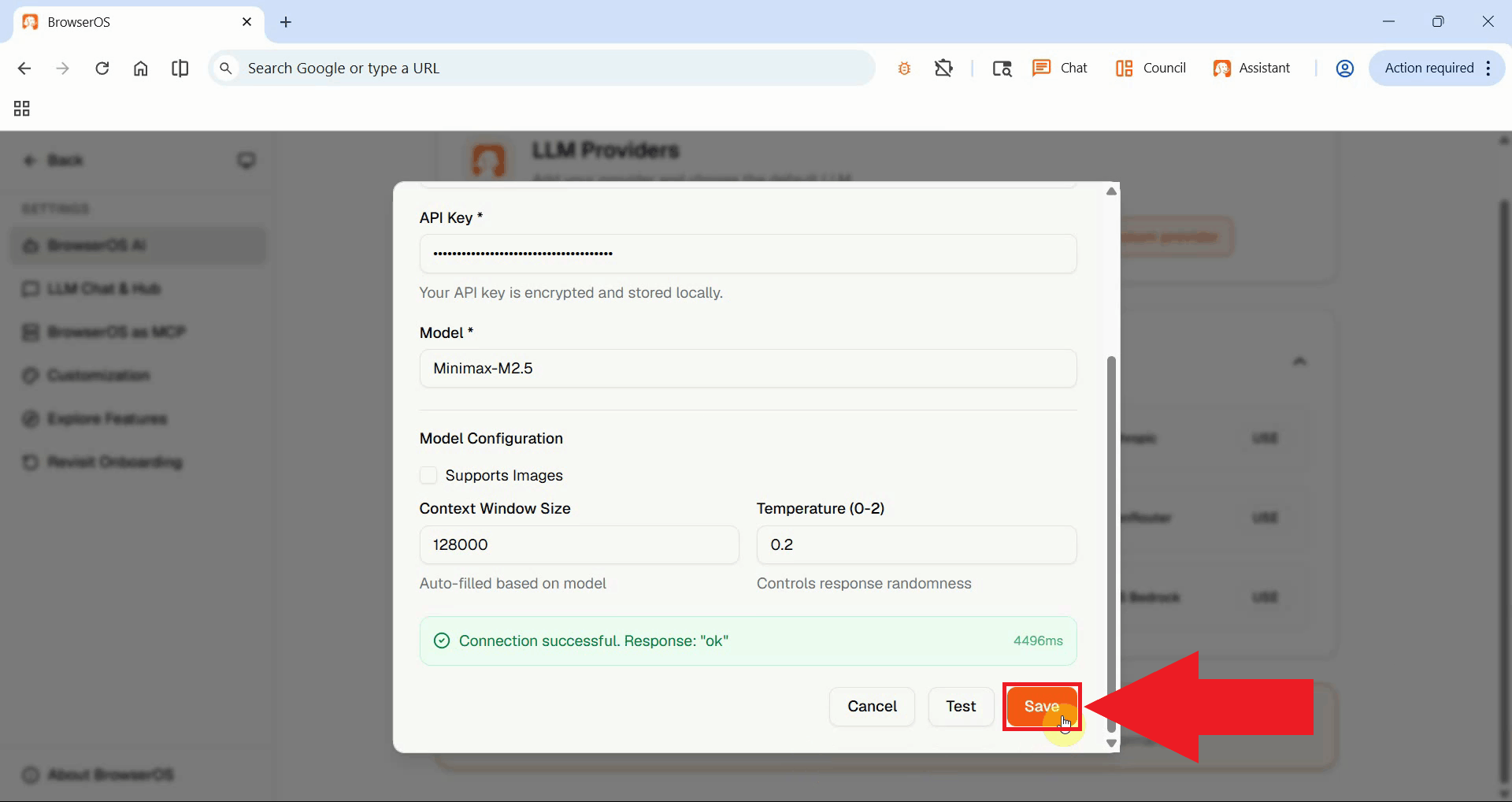
Once the connection test succeeds and you see a successful response message, click the Save button to store your configuration (Figure 11).
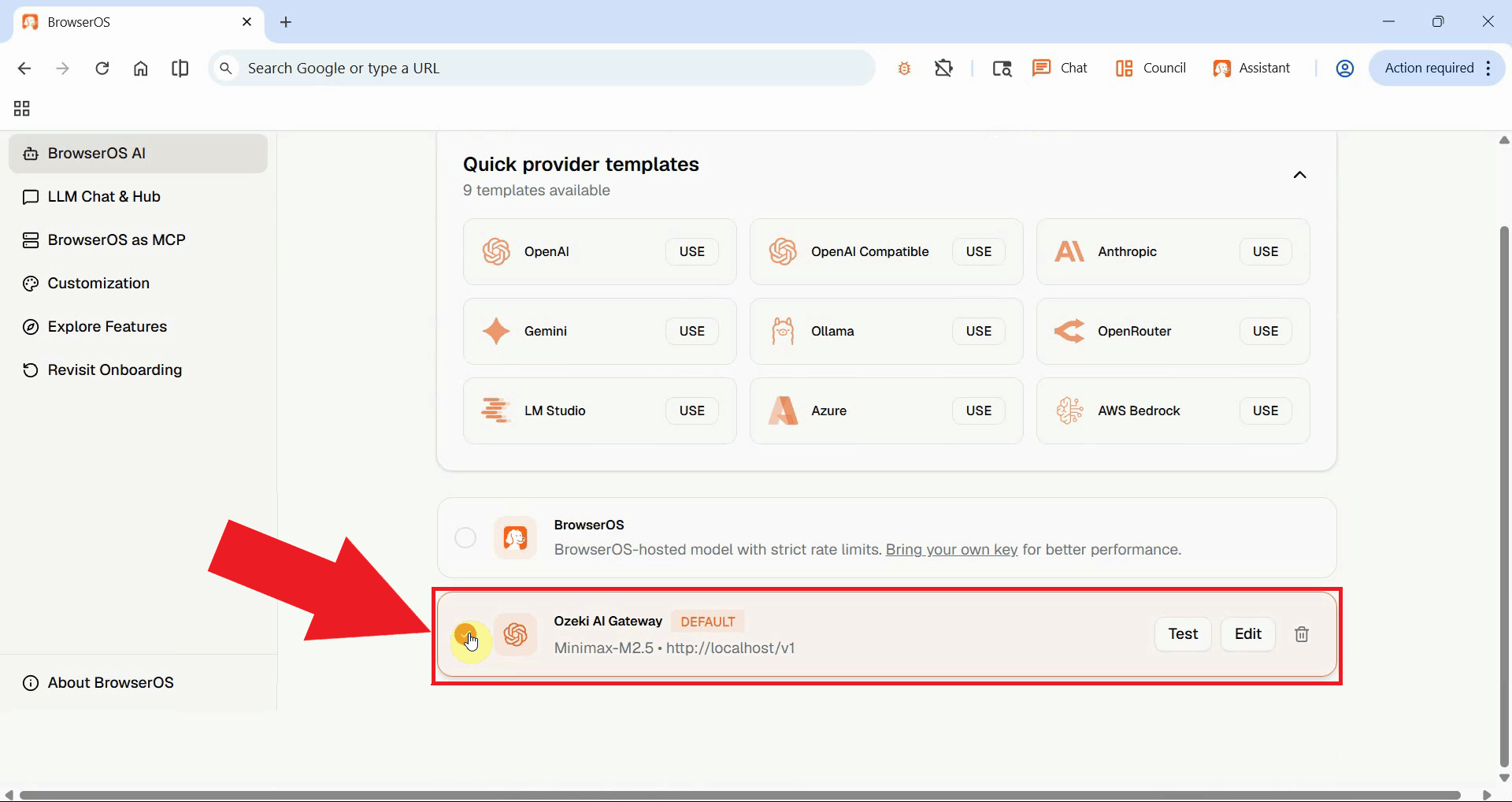
After saving the provider configuration, scroll to the bottom of the page and select Ozeki AI Gateway as your default provider. This ensures all AI interactions in BrowserOS use your gateway instead of any other configured providers (Figure 12).
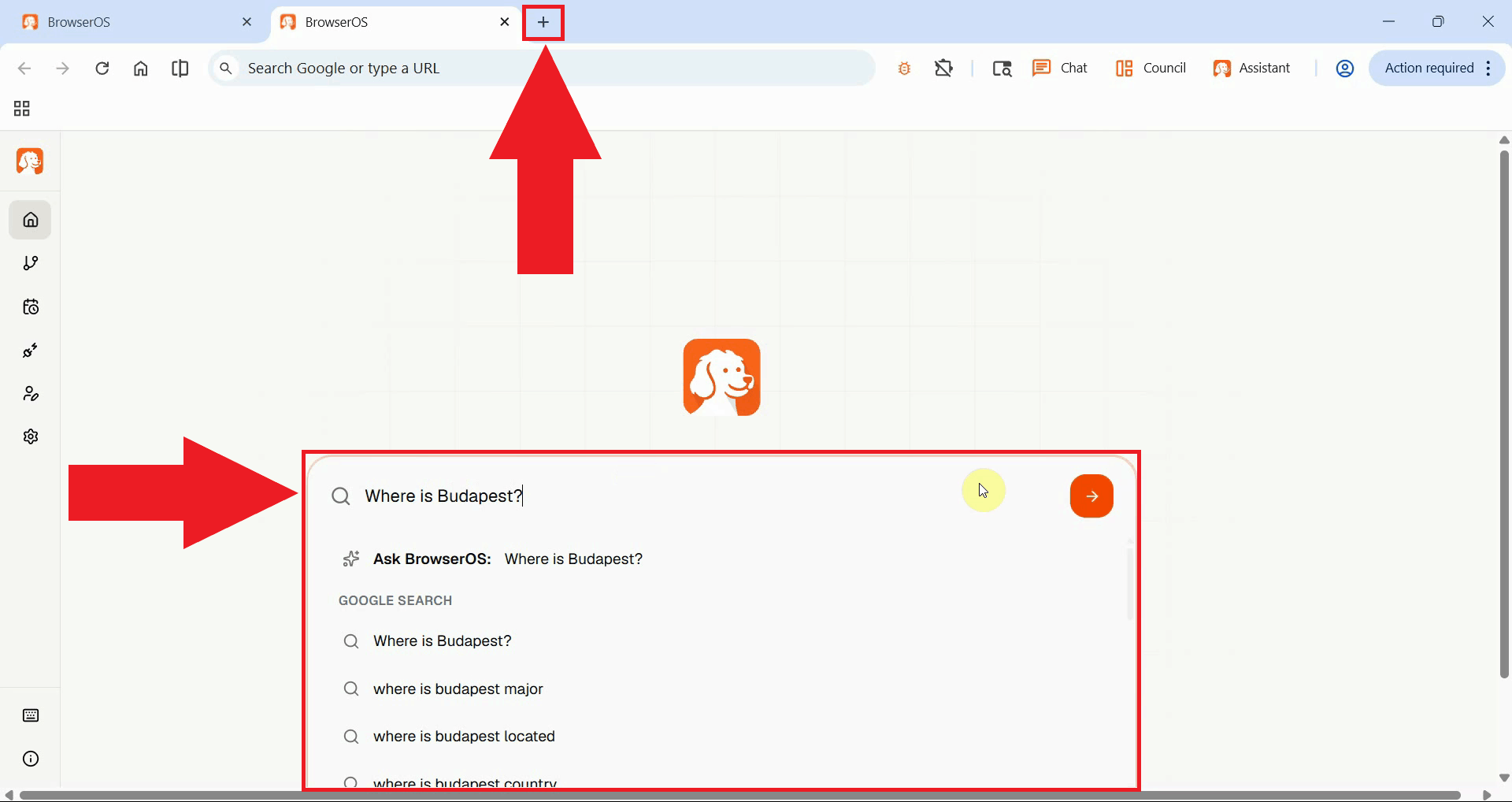
To verify everything is working, open a new tab and send a test prompt to the AI. Type a simple message or question to test the connection (Figure 13).
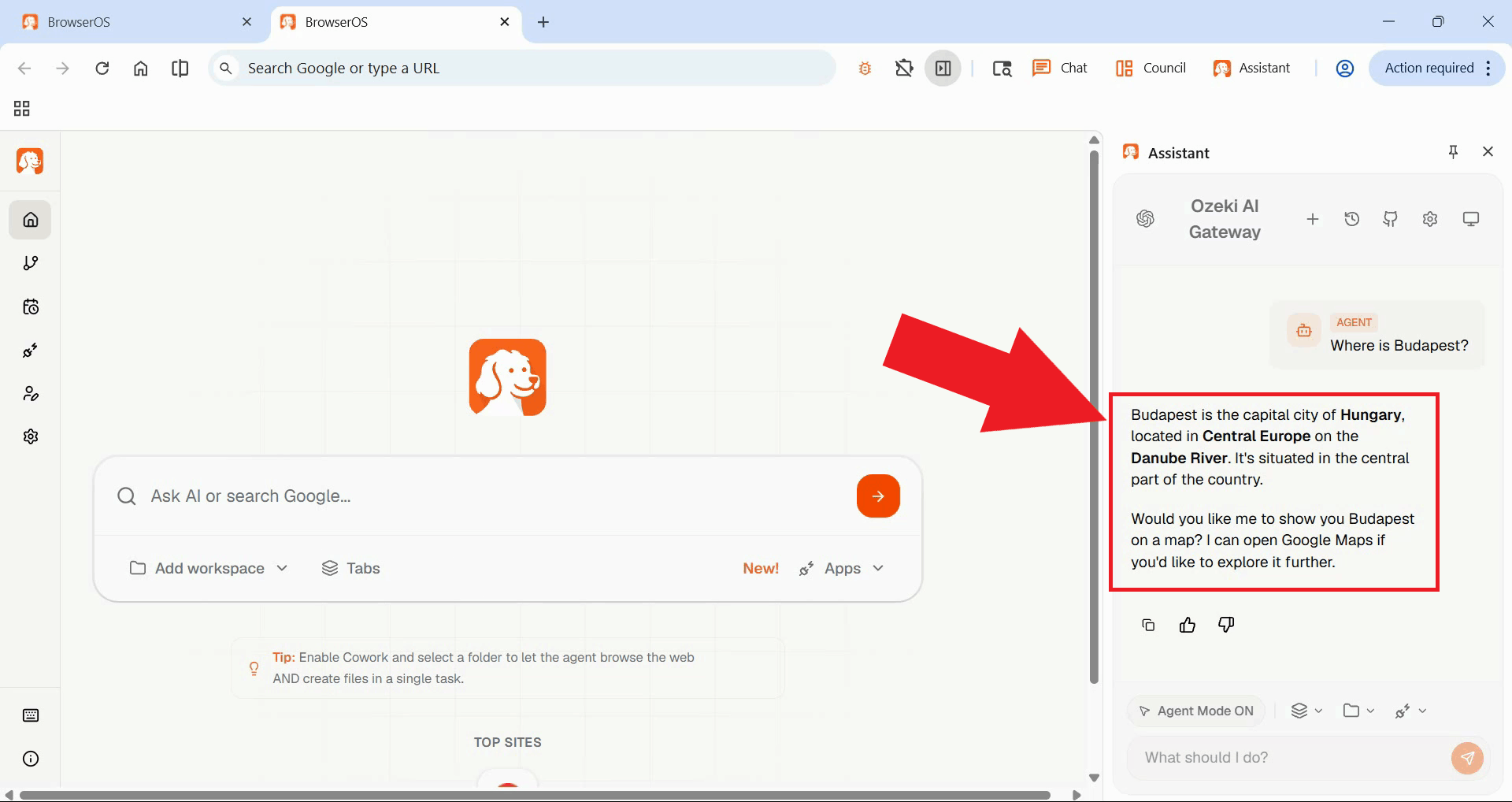
Wait for the AI model to process your prompt and return a response. A successful response confirms that BrowserOS is properly connected to Ozeki AI Gateway and all configurations are working as expected. You can now use BrowserOS's AI features with your gateway (Figure 14).
Step 4 - Access BrowserOS MCP server settings
The following video shows how to access the BrowserOS MCP server URL, connect the MCP Inspector to the server, and use browser automation tools to programmatically control browser actions like opening tabs and navigating to websites.
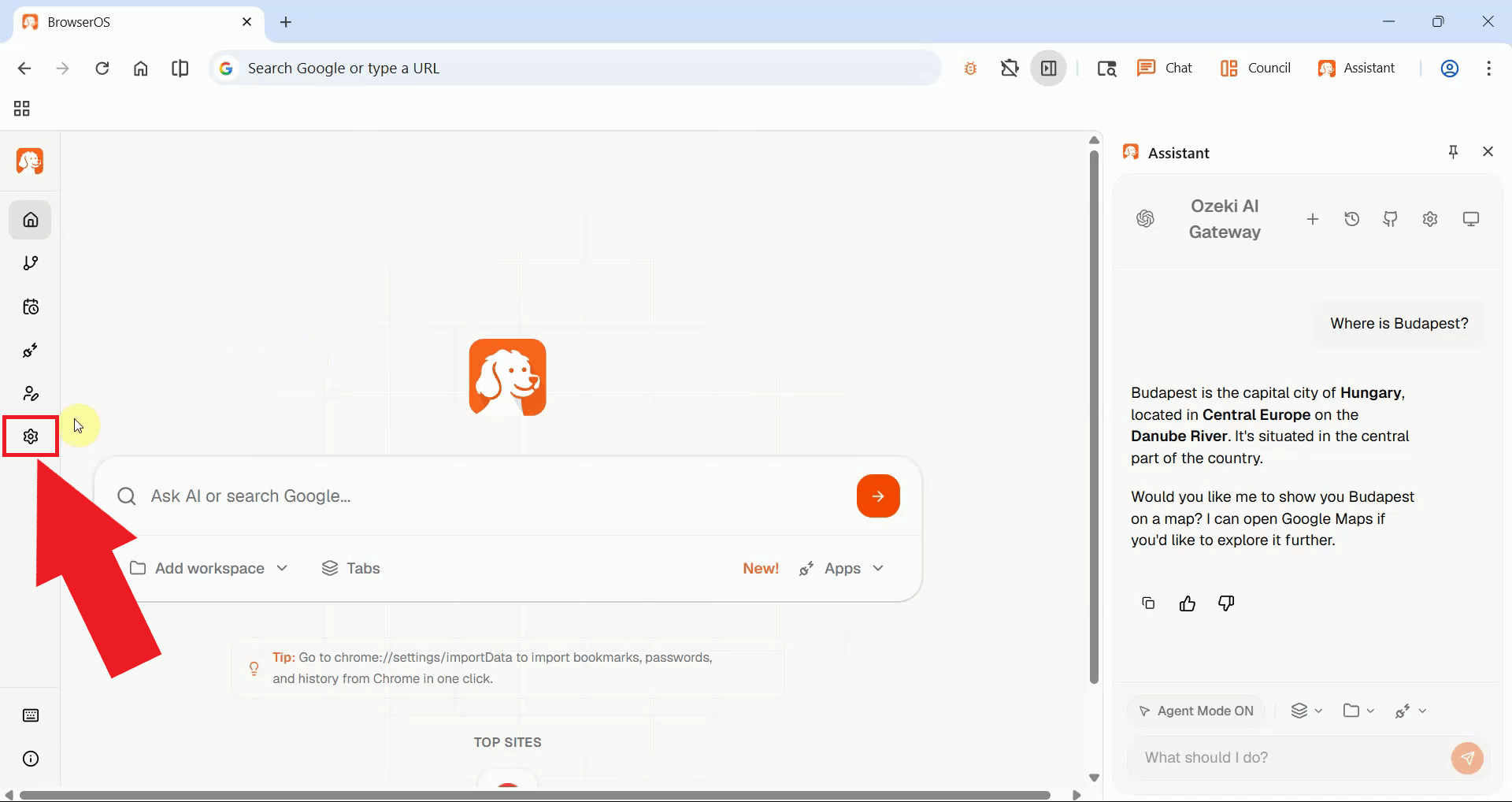
To use browser automation features through the Model Context Protocol (MCP), you need to access the BrowserOS MCP server configuration. Navigate back to the BrowserOS settings (Figure 15).
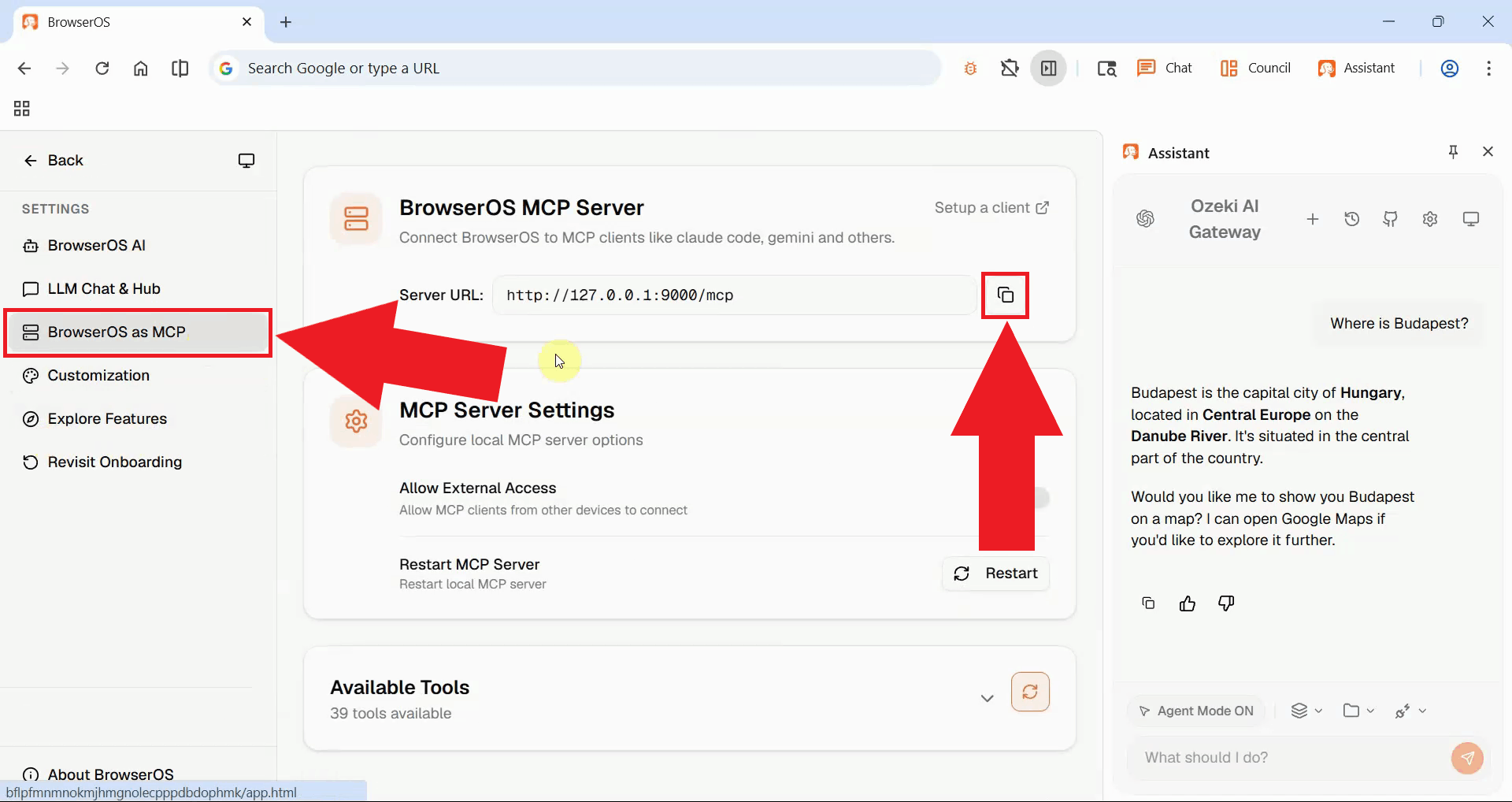
In the settings, locate and click the BrowserOS as MCP option from the left sidebar. In this section you will find the MCP Server URL of BrowserOS, copy this to your clipboard. This URL will be used to connect the MCP Inspector tool to BrowserOS (Figure 16).
Step 5 - Run MCP Inspector
Open a terminal window or command prompt on your system (Figure 17).
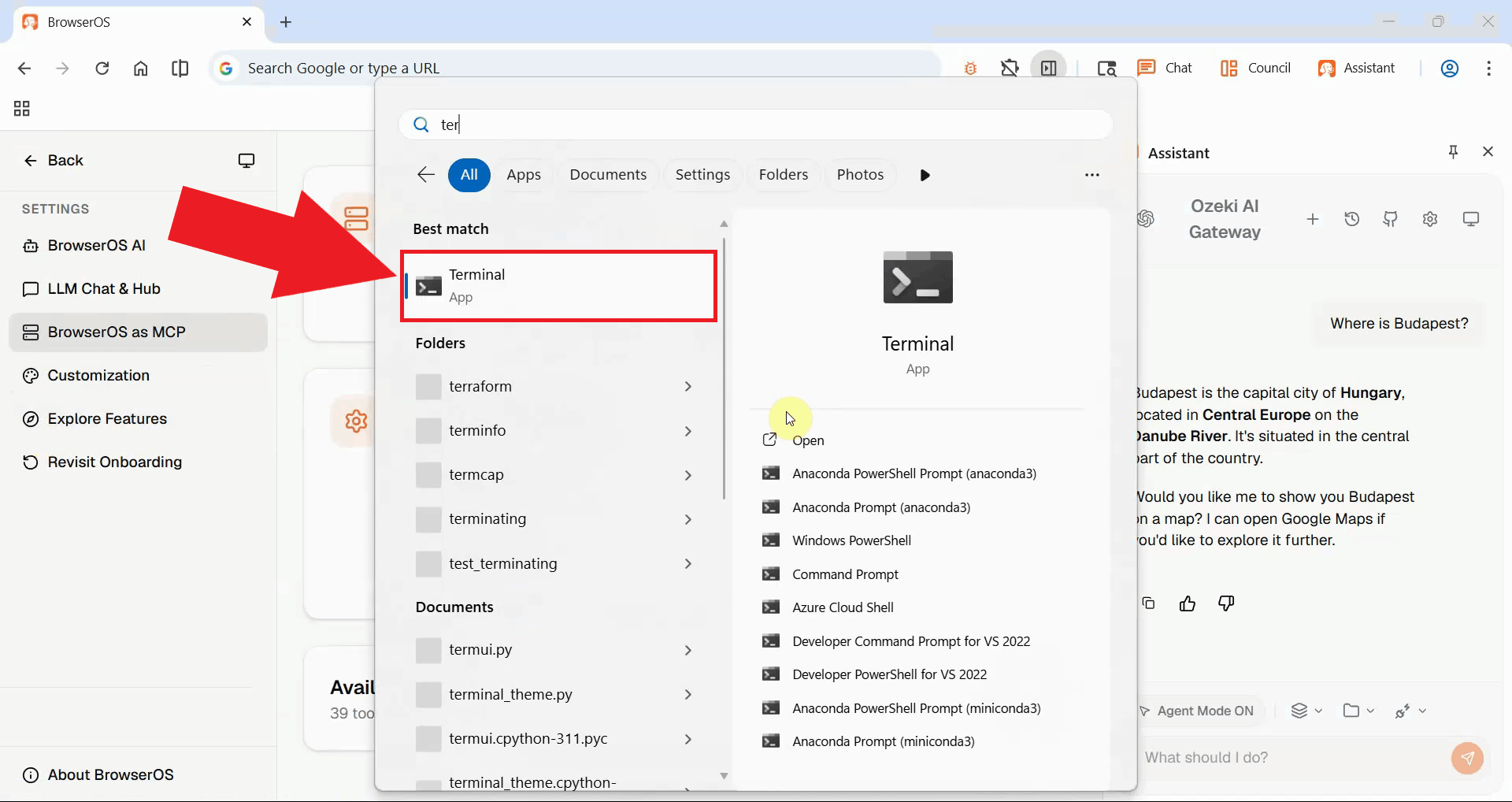
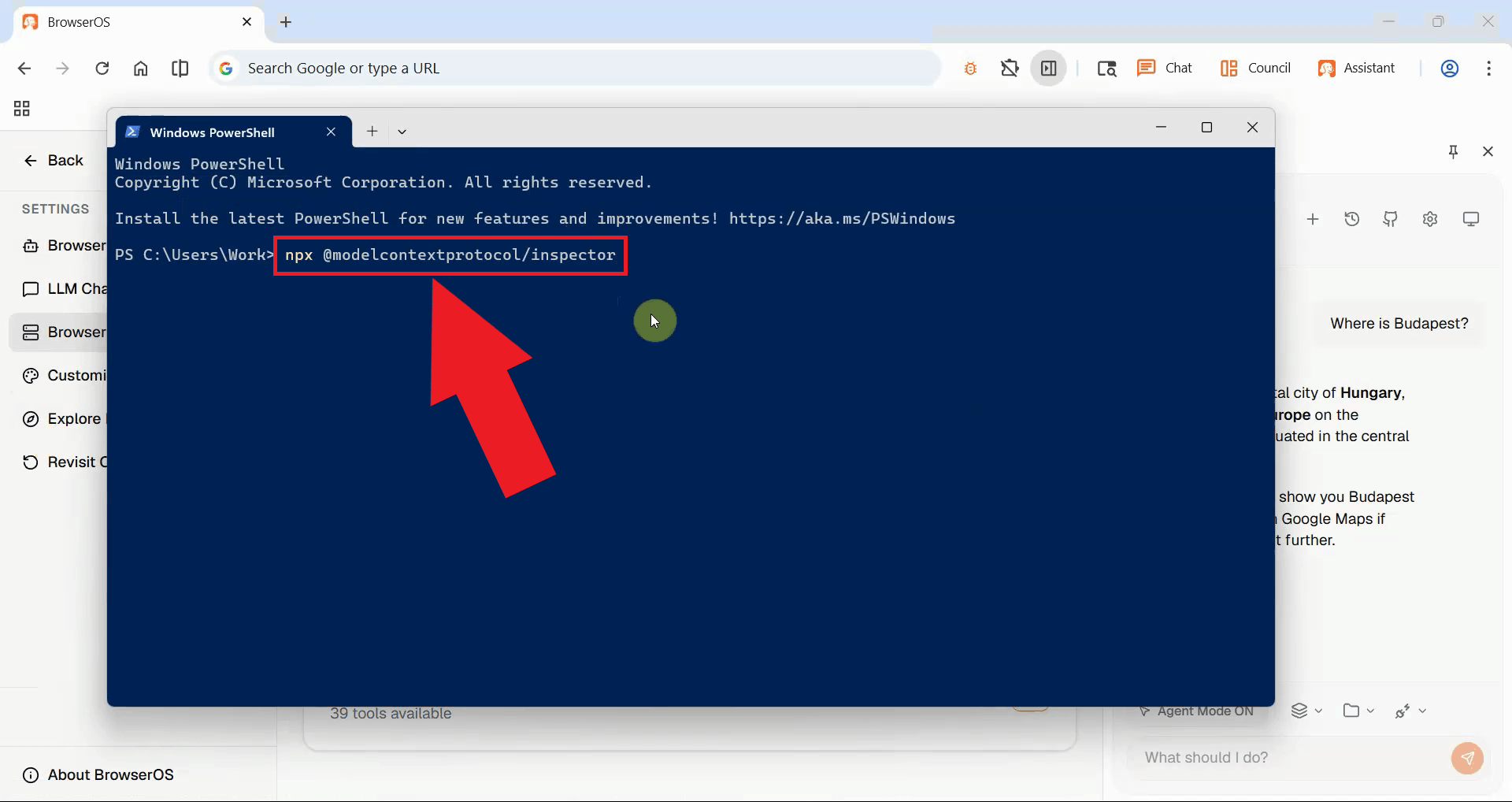
In the terminal, run the npx @modelcontextprotocol/inspector command to start the
MCP Inspector tool. This command uses NPX to download and execute the MCP Inspector without requiring
a global installation. The MCP Inspector is a diagnostic and testing tool that allows you to interact
with MCP servers, inspect available tools, and test automation features (Figure 18).
You can find more information about the MCP Inspector in the Model Context Protocol (MCP) Inspector documentation.
npx @modelcontextprotocol/inspector
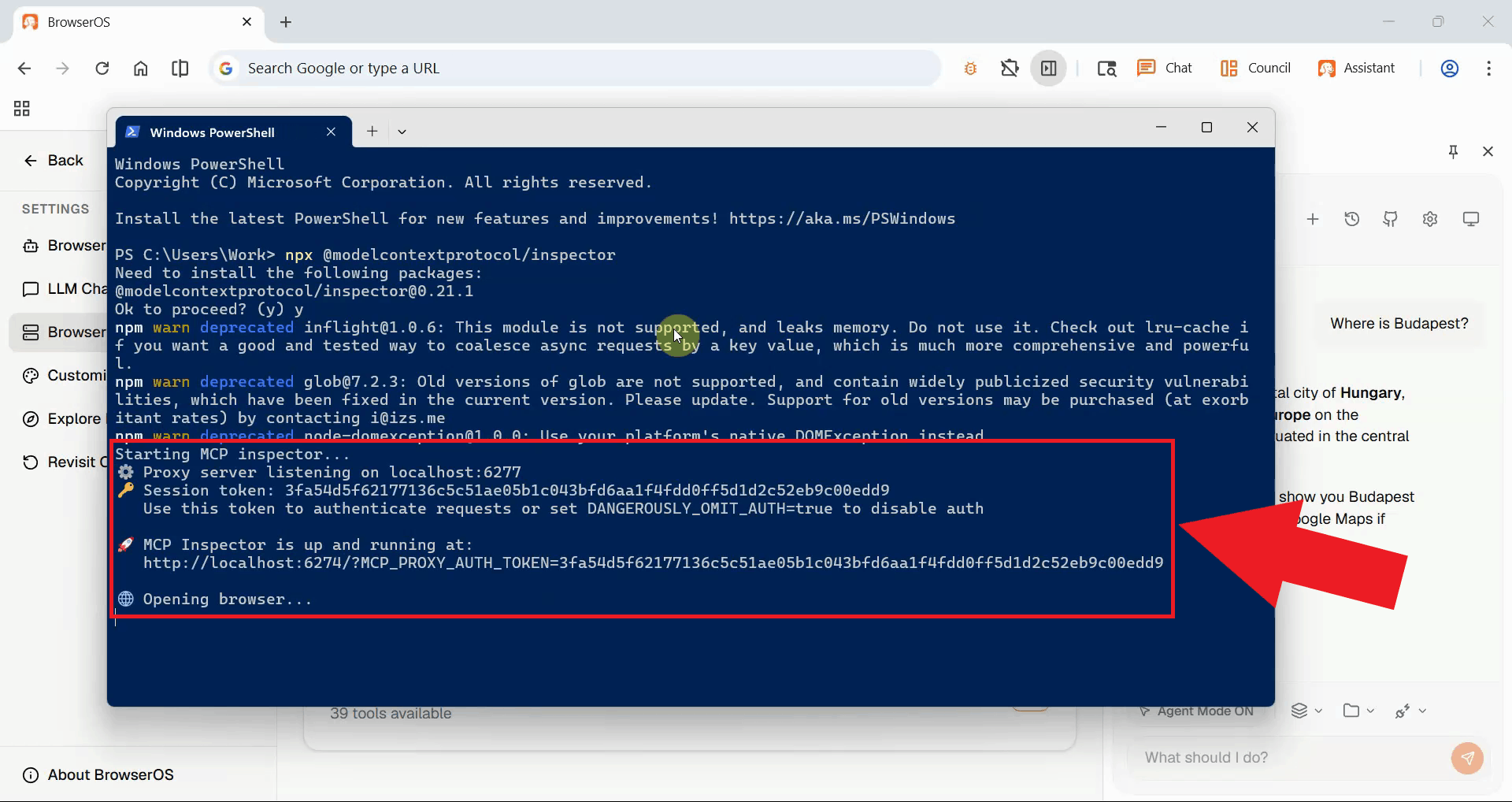
Wait for the MCP Inspector to download dependencies and start. Once ready, it will open in your default web browser (Figure 19).
Step 6 - Connect MCP Inspector to BrowserOS
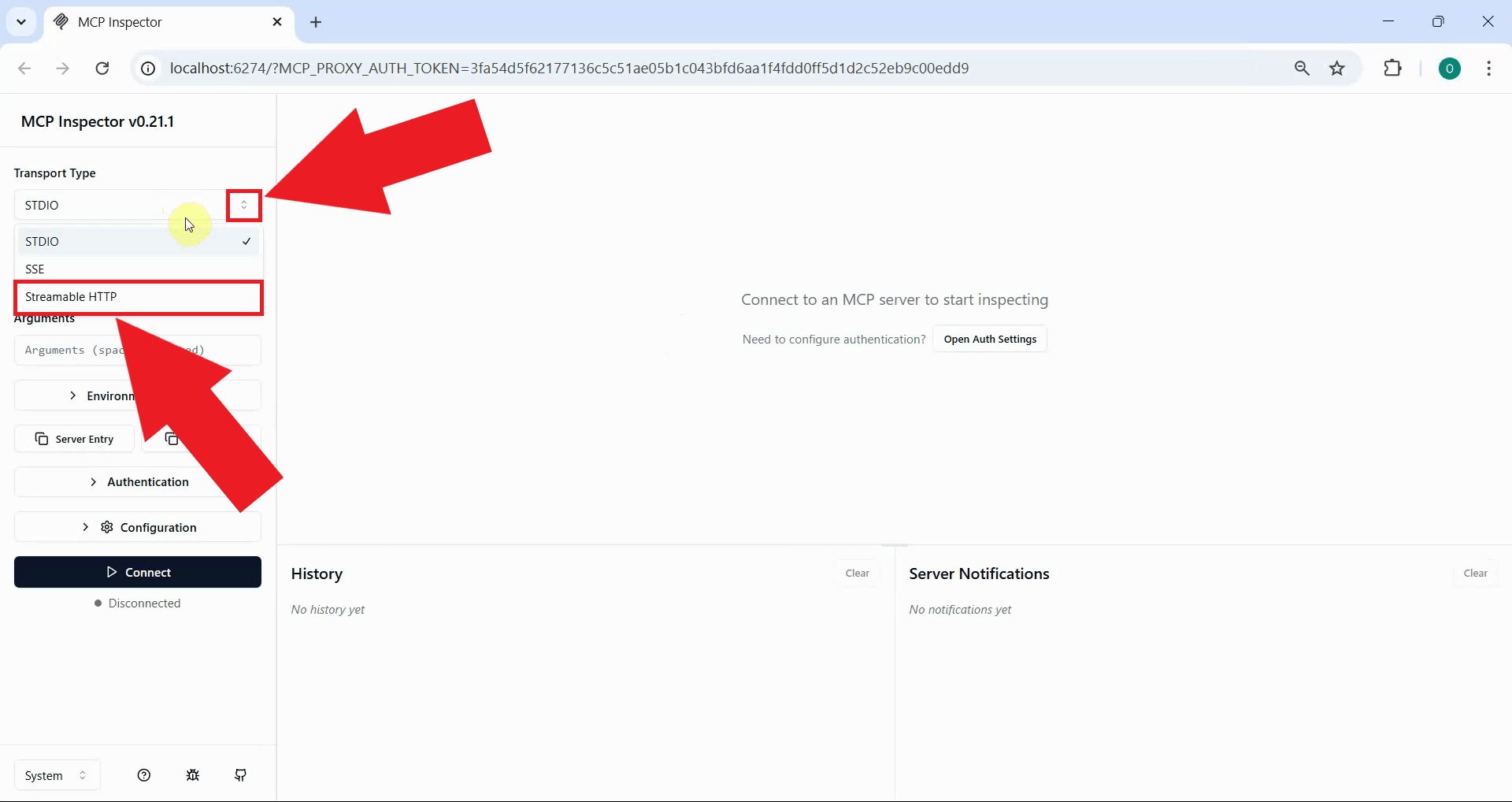
In the MCP Inspector interface, locate the transport type dropdown menu and select Streamable HTTP as the connection method. This is the specific transport protocol that BrowserOS uses for its MCP server communication. Streamable HTTP allows real-time bidirectional communication between the inspector and the browser (Figure 20).
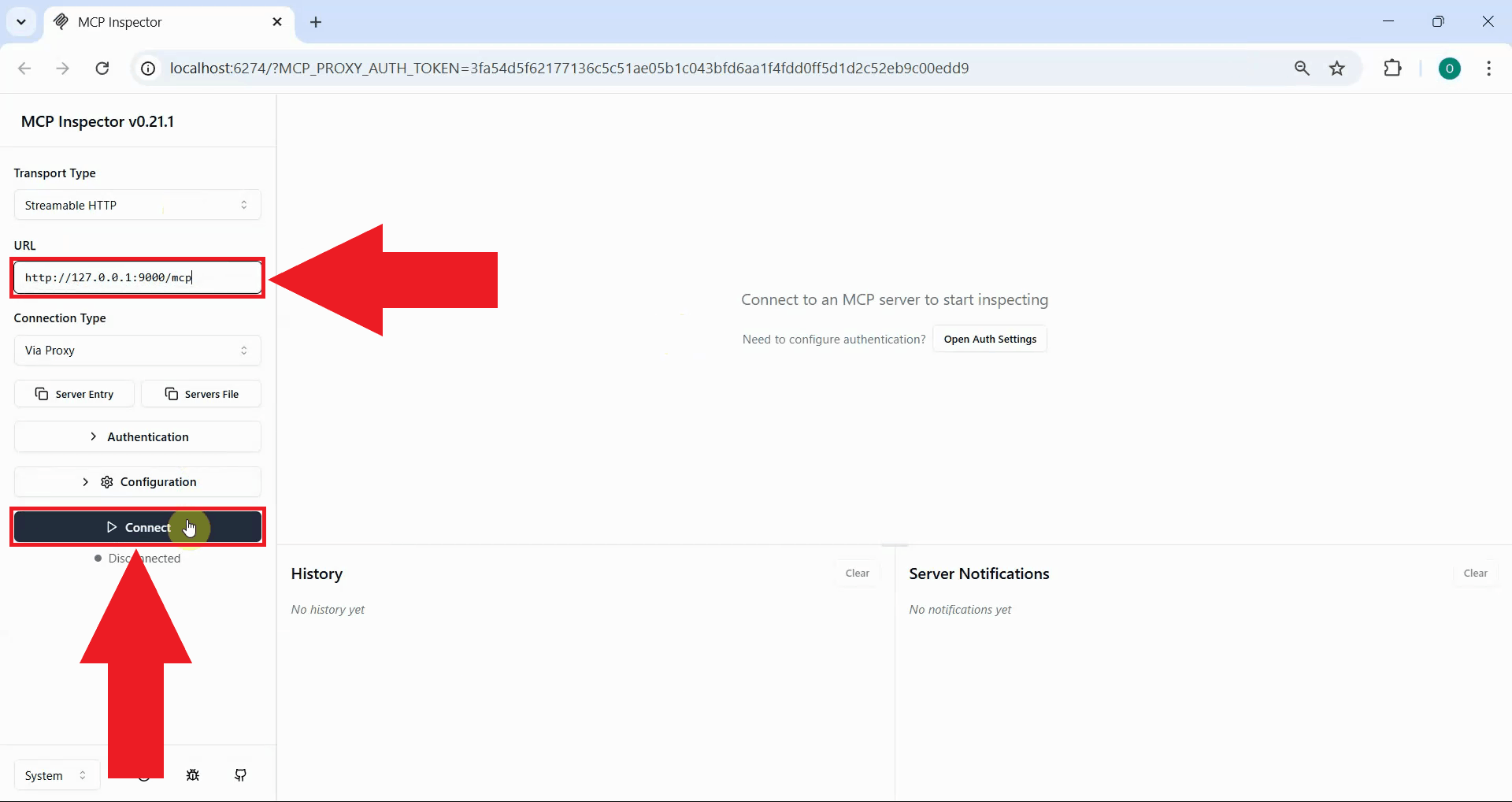
In the URL field, paste the BrowserOS MCP server URL you copied earlier from the settings. Then click the Connect button to establish the connection between MCP Inspector and the BrowserOS MCP server (Figure 21).
Step 7 - Test browser automation tools
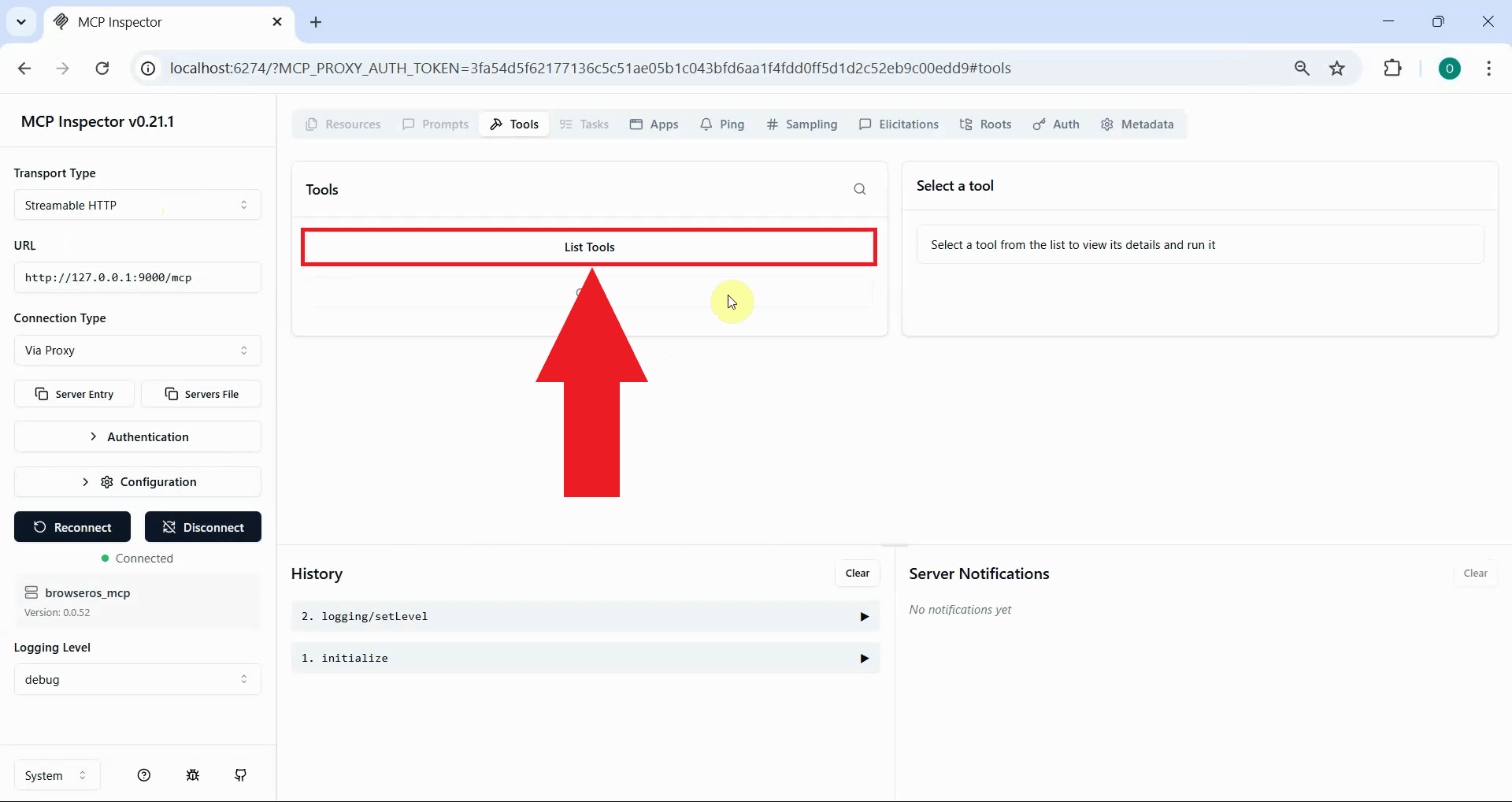
Once connected successfully, click the List Tools button to display all available automation tools that you can use to control BrowserOS. These tools provide various browser automation capabilities such as opening tabs, navigating to URLs, clicking elements, extracting data, and more (Figure 22).
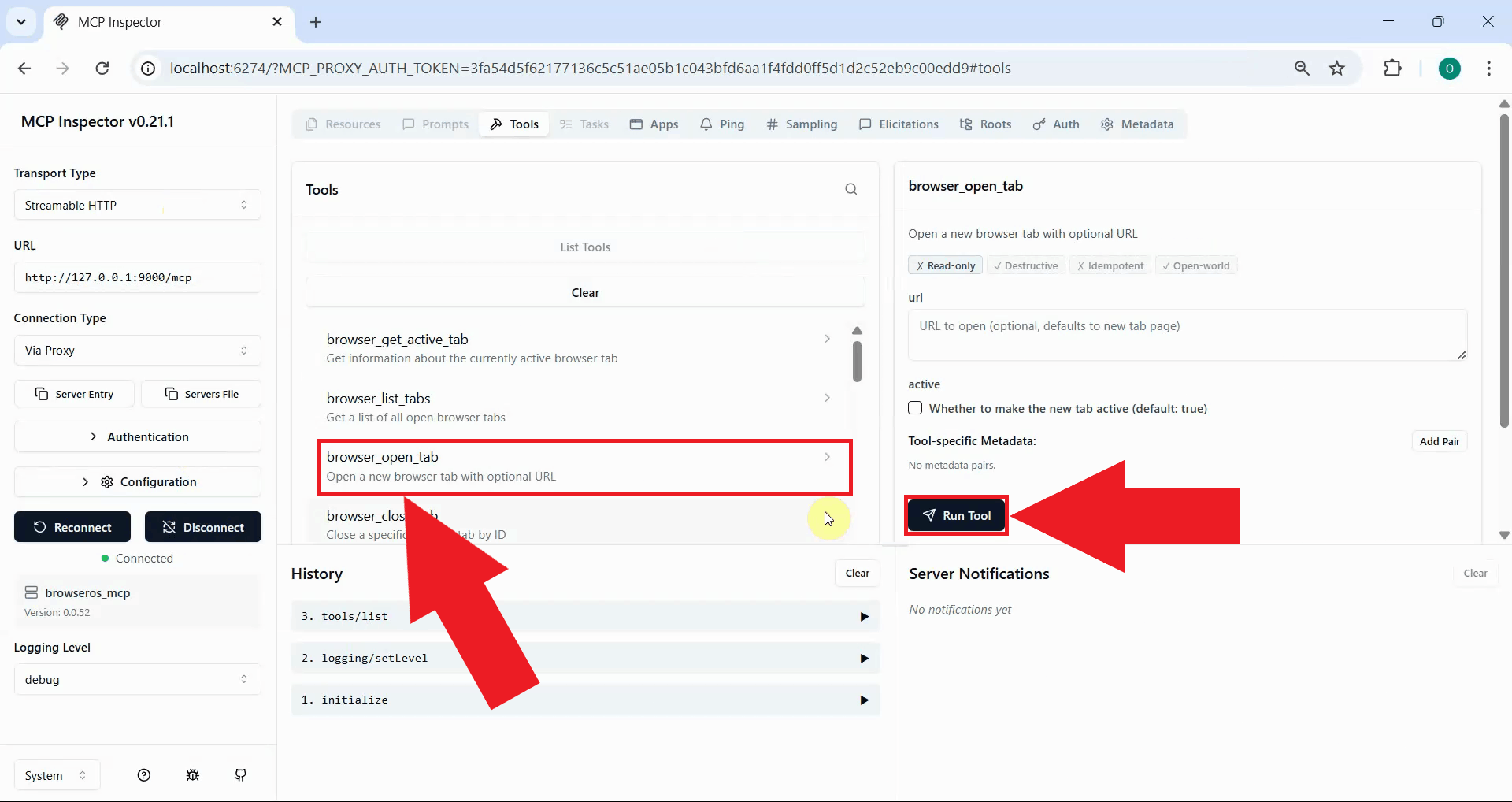
To test the automation capabilities, locate and select the browser_open_tab tool from the list. This tool instructs BrowserOS to open a new browser tab. Click on it to view its parameters, then execute the tool (Figure 23).
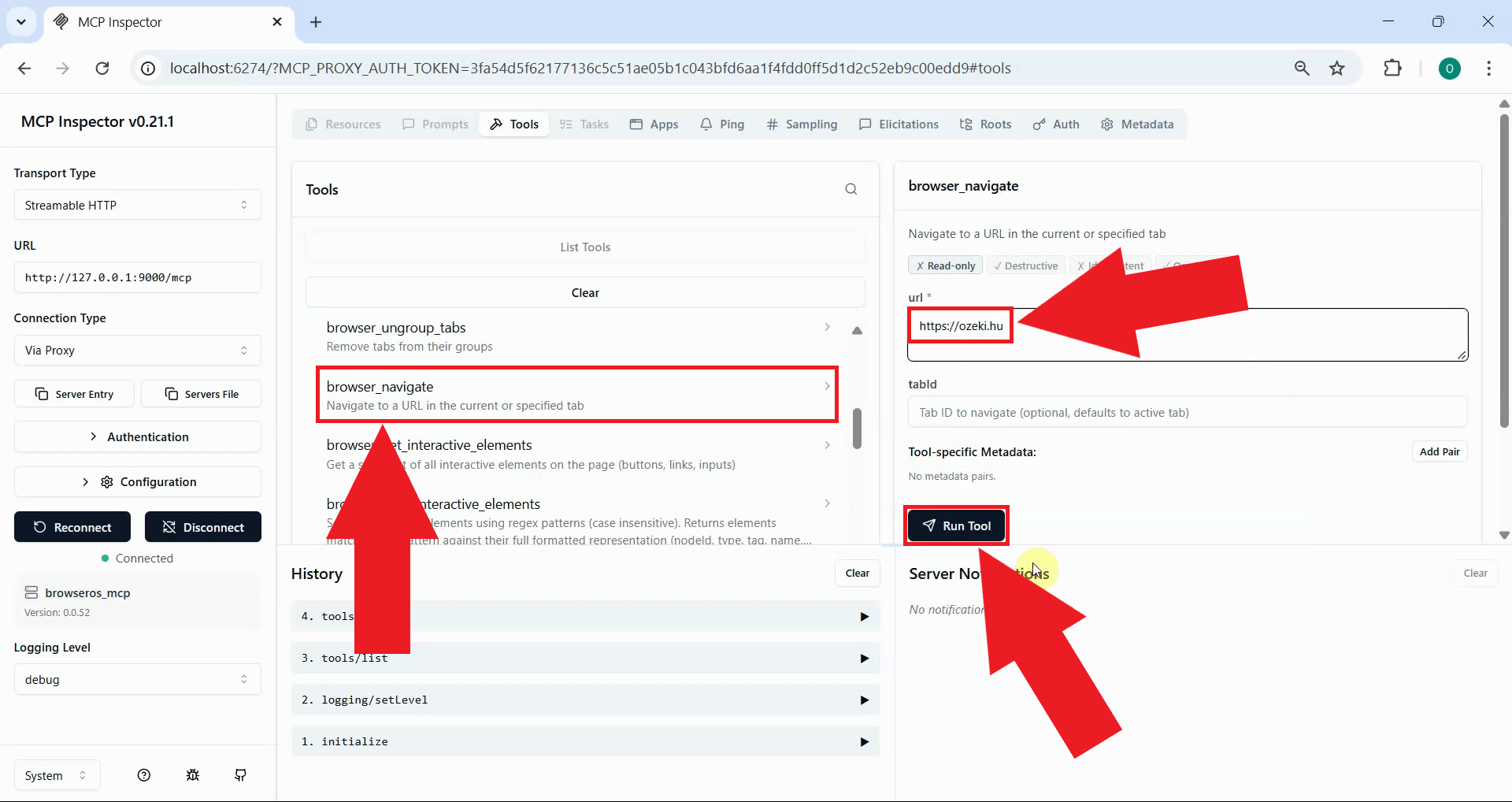
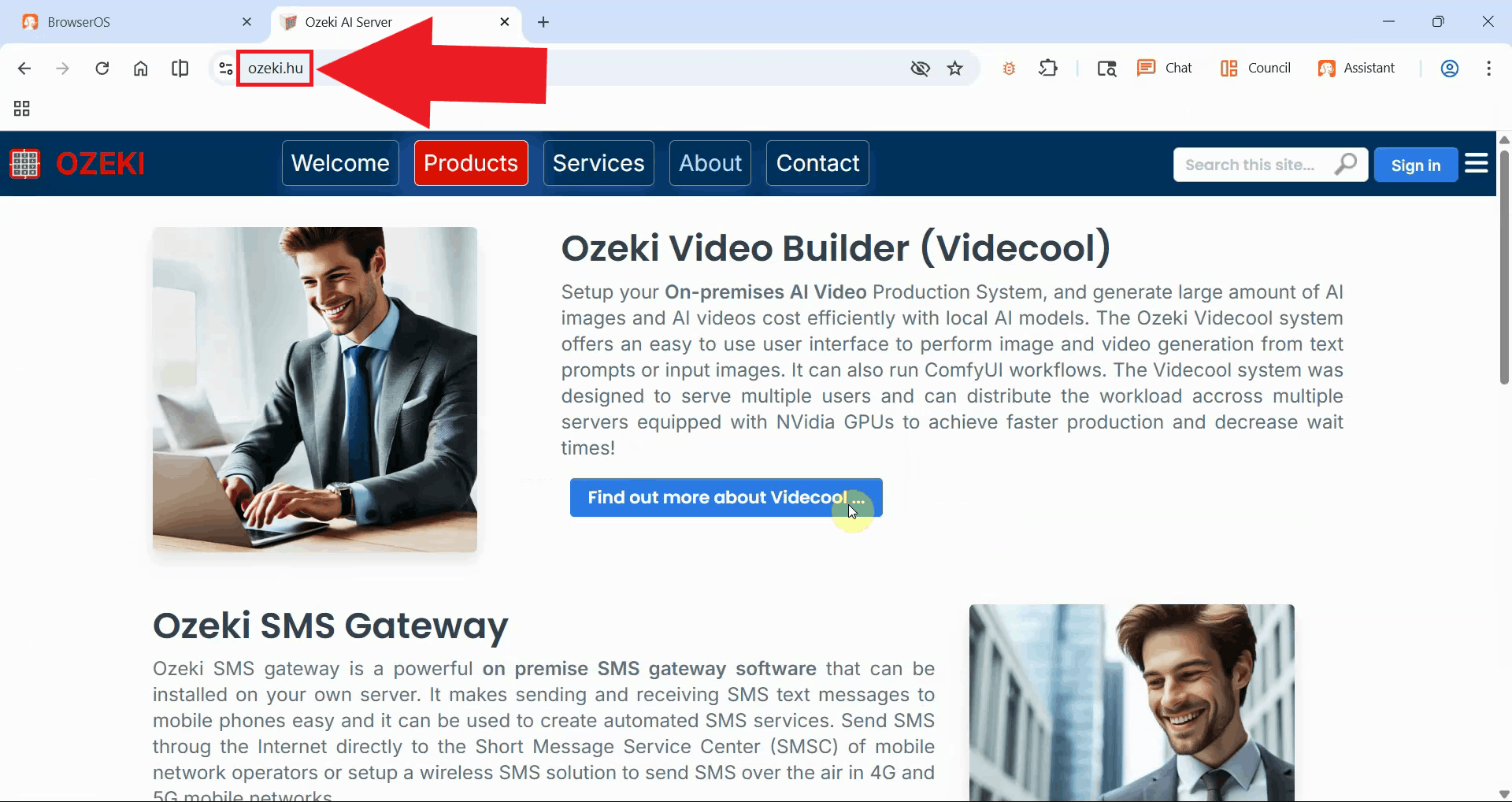
Next, select and run the browser_navigate tool to navigate to a specific website.
In the tool's parameter field, specify the URL you want to visit, such as https://ozeki.hu.
Execute the tool to instruct BrowserOS to navigate to that URL in the currently active tab (Figure 24).
Switch to the BrowserOS window to see the result. The browser has automatically opened a new tab and navigated to the specified website, demonstrating successful automation control (Figure 25).
Conclusion
You have successfully installed and configured BrowserOS to work with Ozeki AI Gateway. The integration provides you with AI-powered browsing capabilities and programmatic browser automation while maintaining centralized control over API access, model selection, and usage monitoring through your gateway infrastructure. This setup enables you to build sophisticated web automation workflows, extract data from websites, perform automated testing, and integrate AI-powered browsing into your applications.