
How to send and receive emails using Email Send/Receive MCP Server
This guide demonstrates how to set up and use the Email Send/Receive MCP Server to send and receive emails through the Model Context Protocol (MCP). You'll learn how to clone and install the server, configure your email account credentials, and use the MCP Inspector to execute email automation commands.
What is Email Send/Receive MCP Server?
Email Send/Receive MCP Server is a locally hosted Model Context Protocol server that provides programmatic access to email accounts via standard IMAP and SMTP protocols. It allows developers and AI assistants to send emails, list inbox messages, and retrieve full email content through standardized MCP commands, enabling automated email workflows and AI-driven email management. Unlike cloud-based email integrations, this server runs on your own machine and works with any IMAP/SMTP compatible email provider.
Steps to follow
- Clone the repository and install dependencies
- Configure .env file
- Switch transport to stdio
- Fix email validation and SSL certificate errors (optional)
- Run MCP Inspector with the email server
- Connect to the email MCP server and list tools
- Send an email
- Receive an email
Quick reference commands
# Clone and install
git clone https://github.com/bedro96/email-send-mcp.git
cd email-send-mcp
pip install -e .

# Switch transport to stdio in main.py
server.run(transport="http", host="0.0.0.0", port=8888, path="/mcp")  -->  server.run(transport="stdio")

# Run MCP Inspector with the email server
npx @modelcontextprotocol/inspector python main.py
Read more about the MCP inspector at: Model Context Protocol (MCP) Inspector
How to set up the Email Send/Receive MCP Server
The following video shows how to clone, install, and configure the Email Send/Receive MCP Server step-by-step. The video covers creating a project folder, cloning the repository, installing Python dependencies, editing the environment configuration file, and switching the server transport to stdio.
Step 1 - Clone the repository and install dependencies
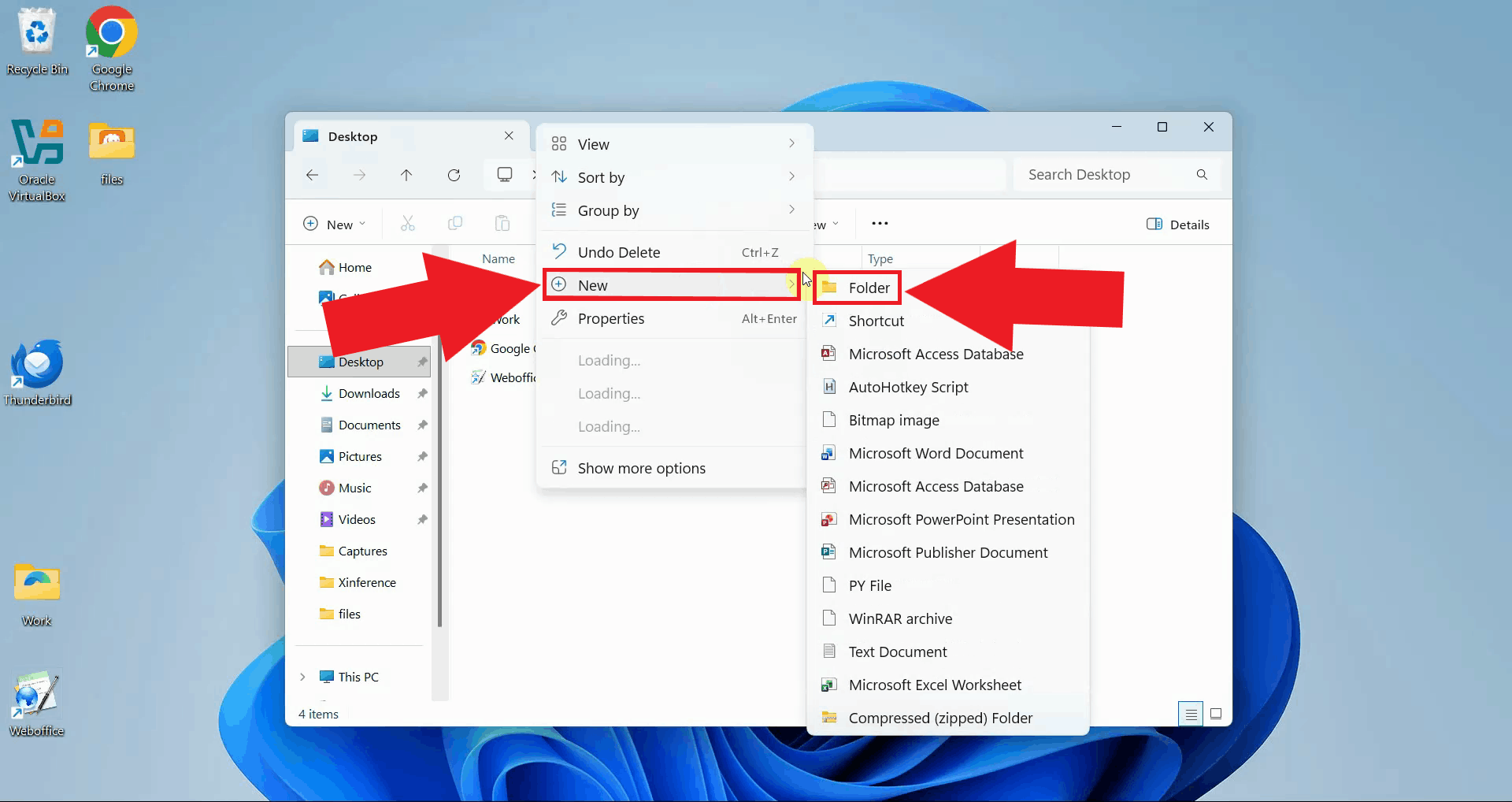
Create a new folder on your system where the MCP server files will be stored. Keeping the server in a dedicated folder makes it easier to manage and update later (Figure 1).
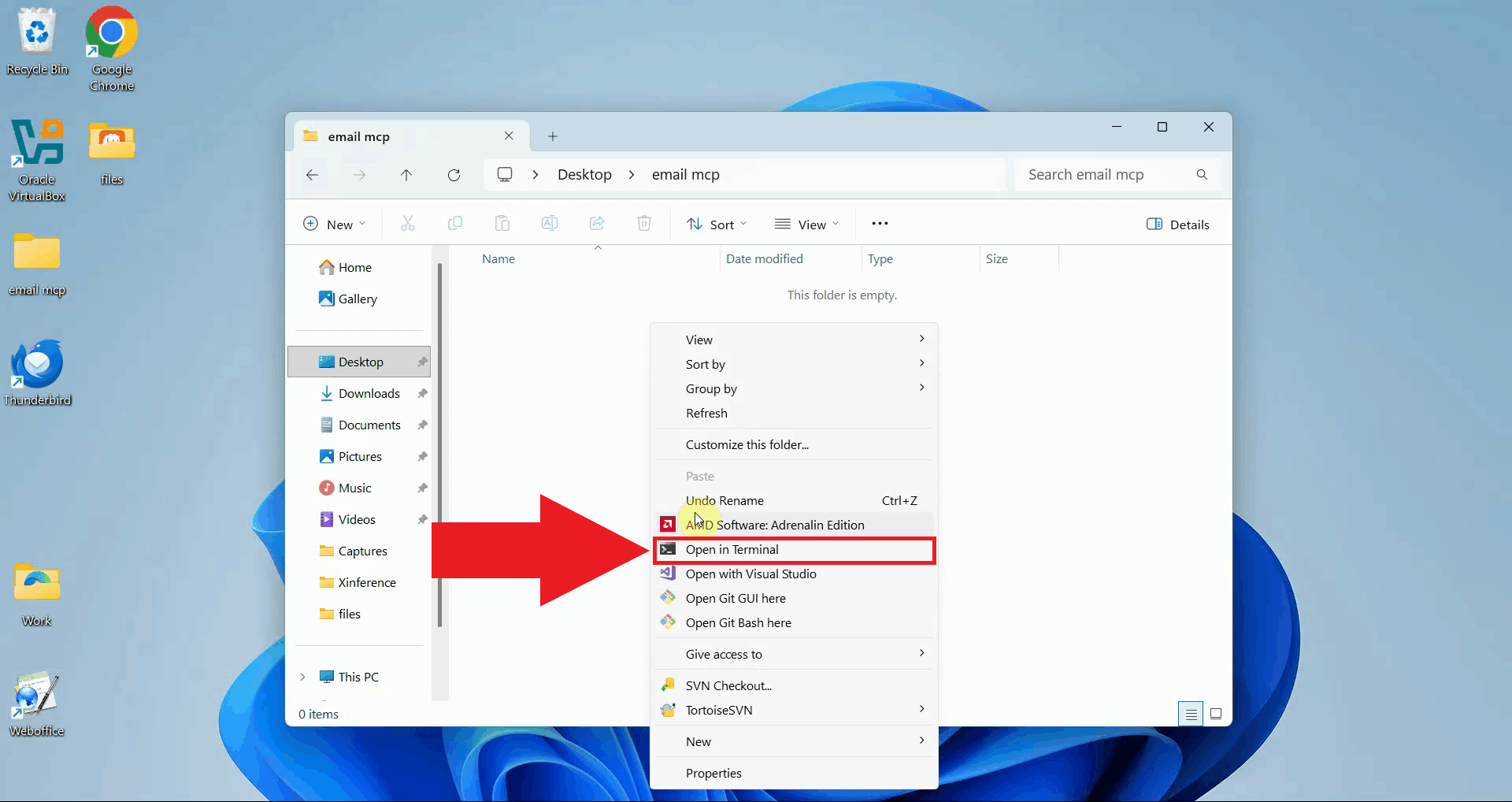
Open a terminal window inside the newly created folder. You can do this by right-clicking the folder and selecting "Open in Terminal" (Figure 2).
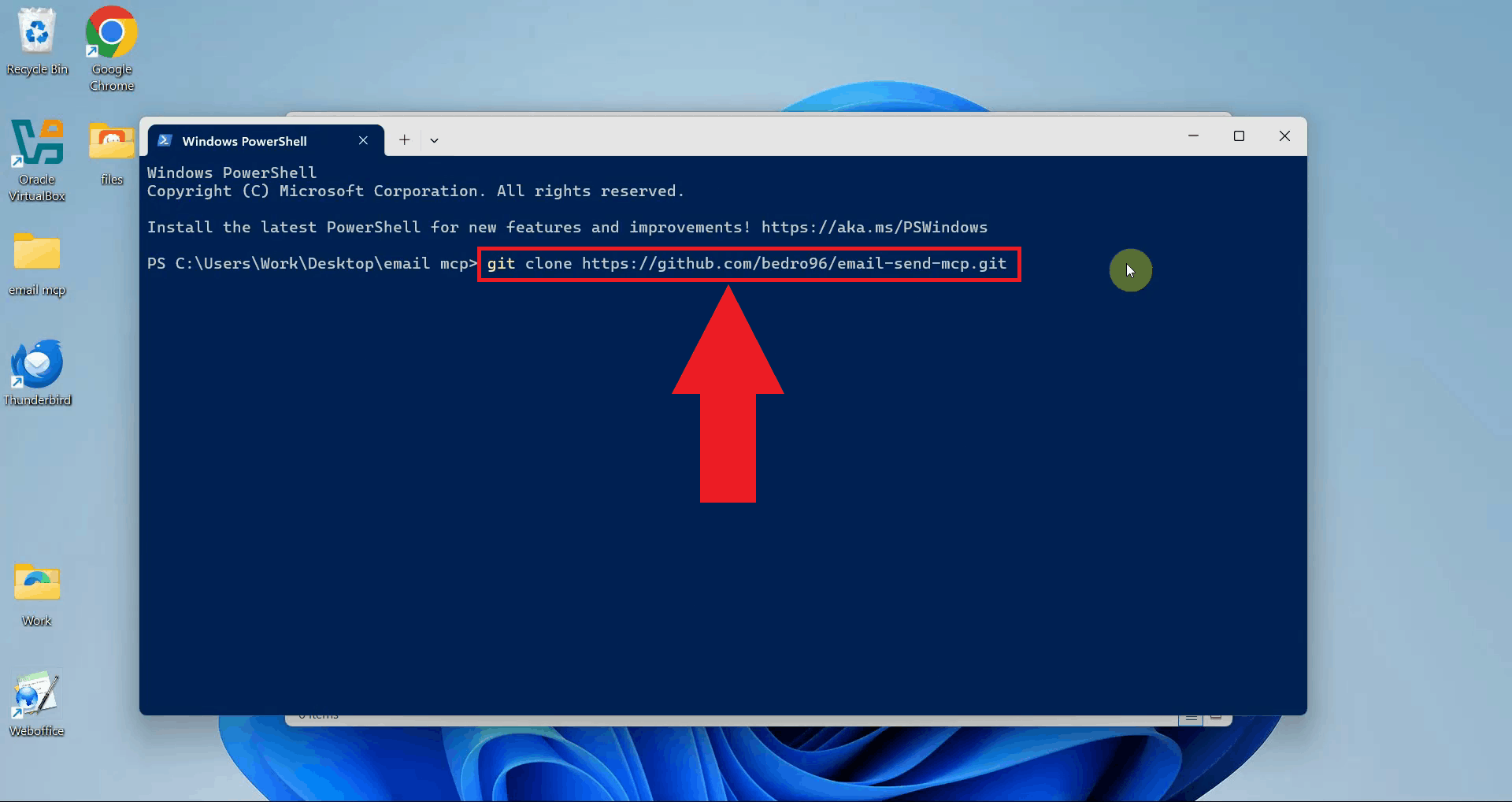
Run the git clone command below to download the repository from GitHub into
your folder (Figure 3).
You need Git installed on your system to run this command. If you don't have Git installed, download it from git-scm.com before proceeding.
git clone https://github.com/bedro96/email-send-mcp.git
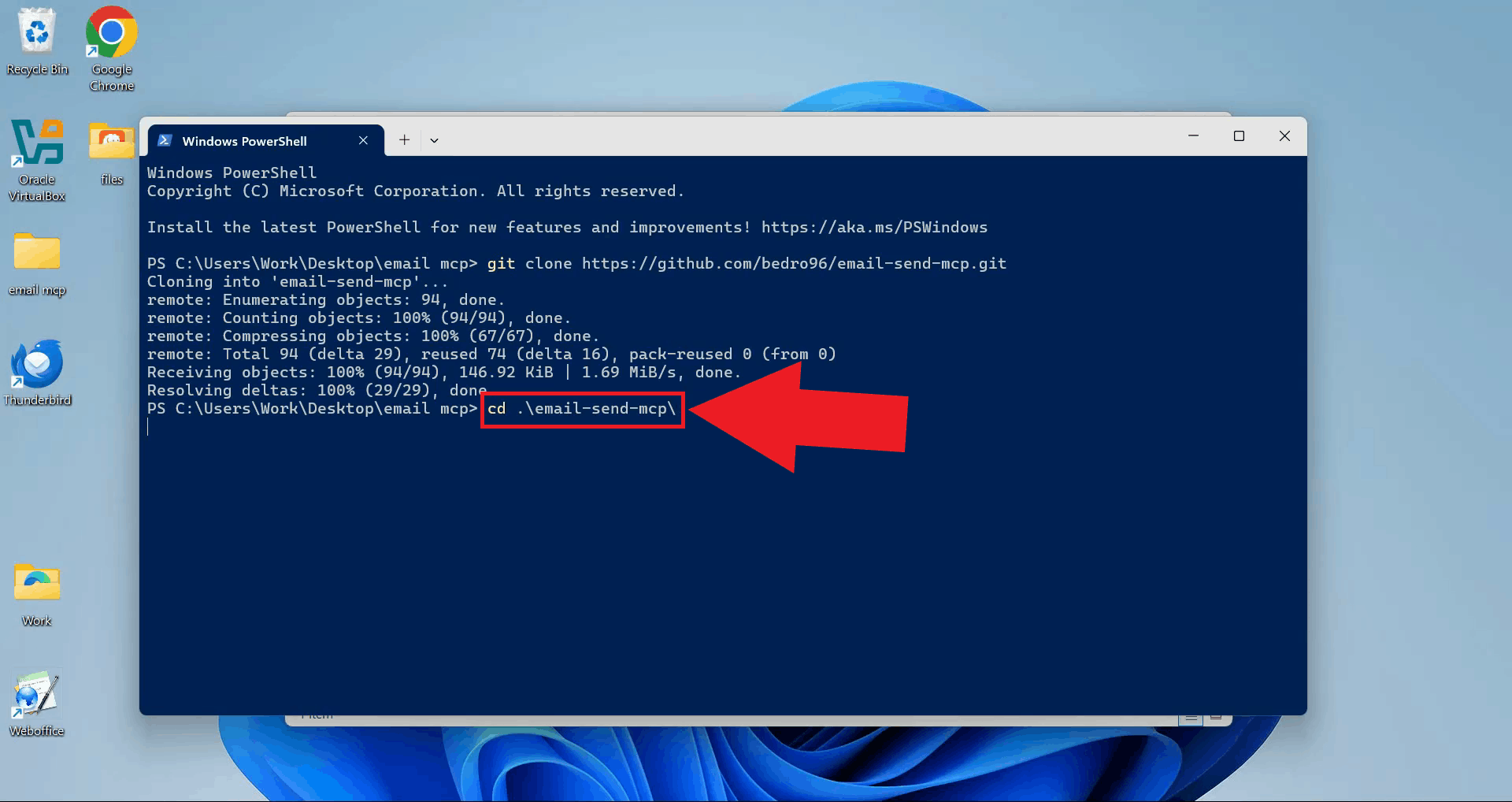
Once the clone is complete, navigate into the cloned repository folder using the
cd command (Figure 4).
cd email-send-mcp
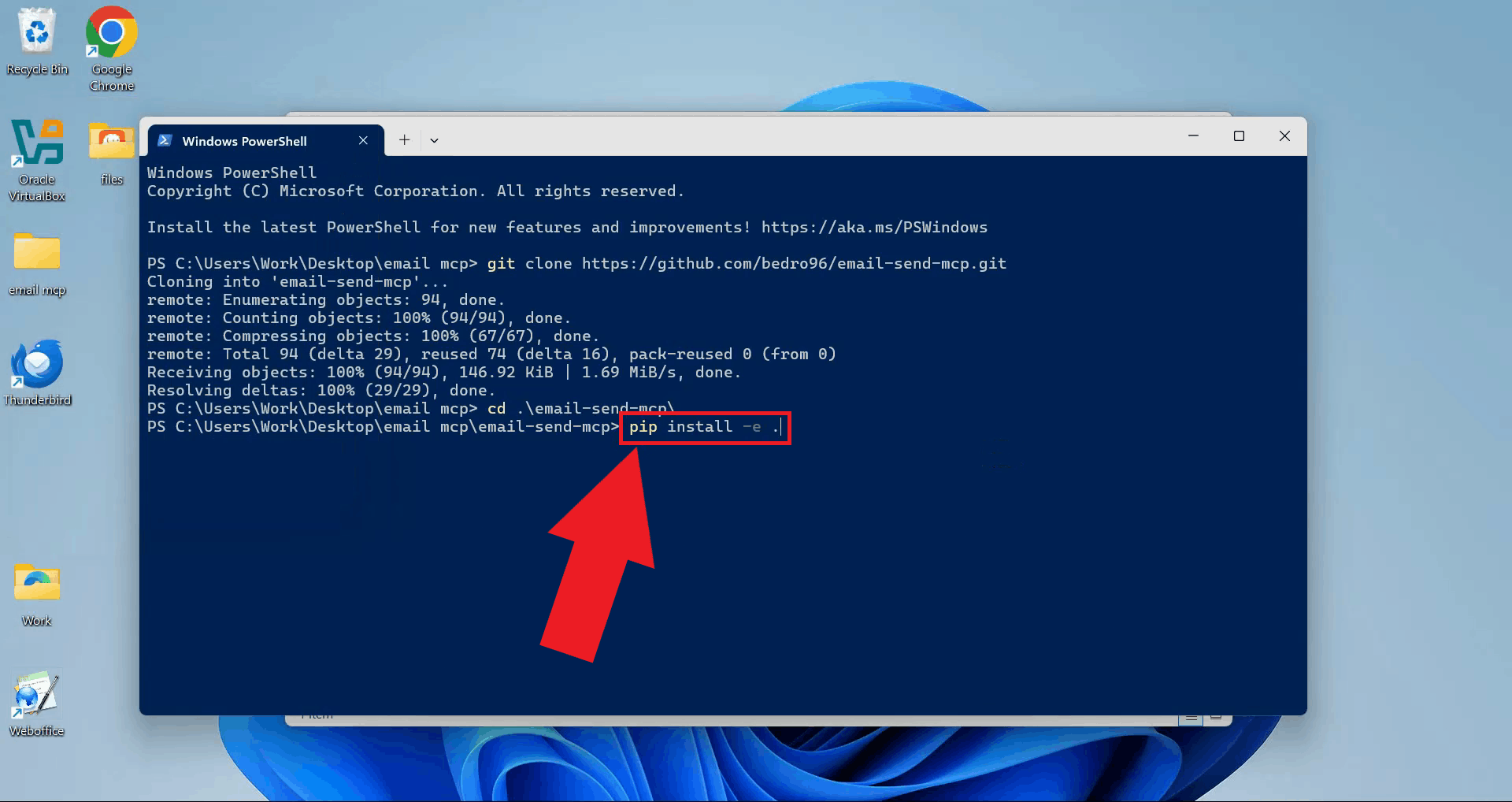
Install the required Python dependencies by running the command below. The -e
flag installs the package in editable mode, which is required if you need to apply source
code modifications (Figure 5).
You need Python and pip installed on your system to run this command. If you don't have Python installed, check our our How to install Python on Windows guide, or download it from python.org before proceeding.
pip install -e .
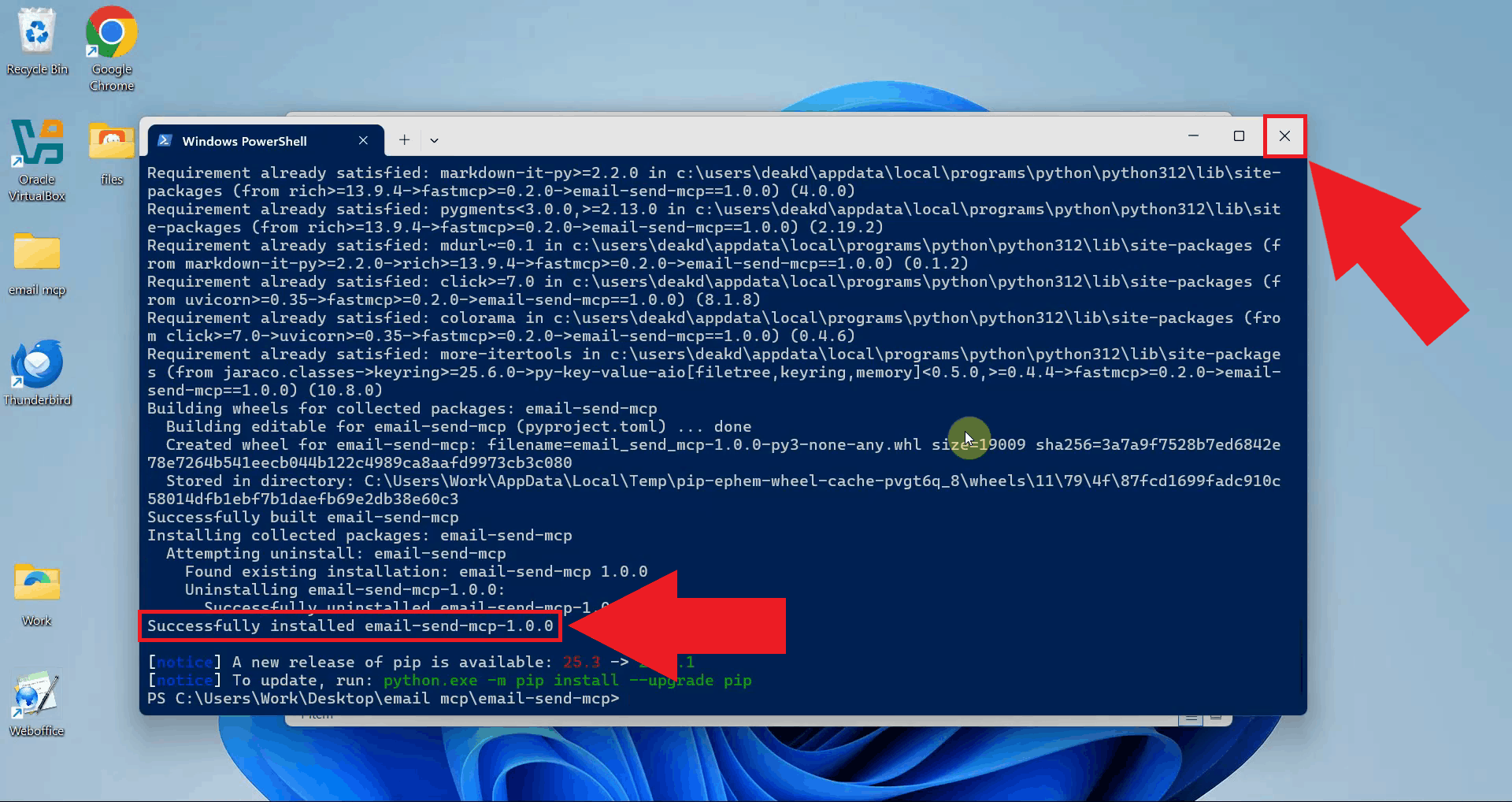
Wait for pip to finish downloading and installing all packages. Once the installation completes successfully, you can close this terminal window (Figure 6).
Step 2 - Configure .env file
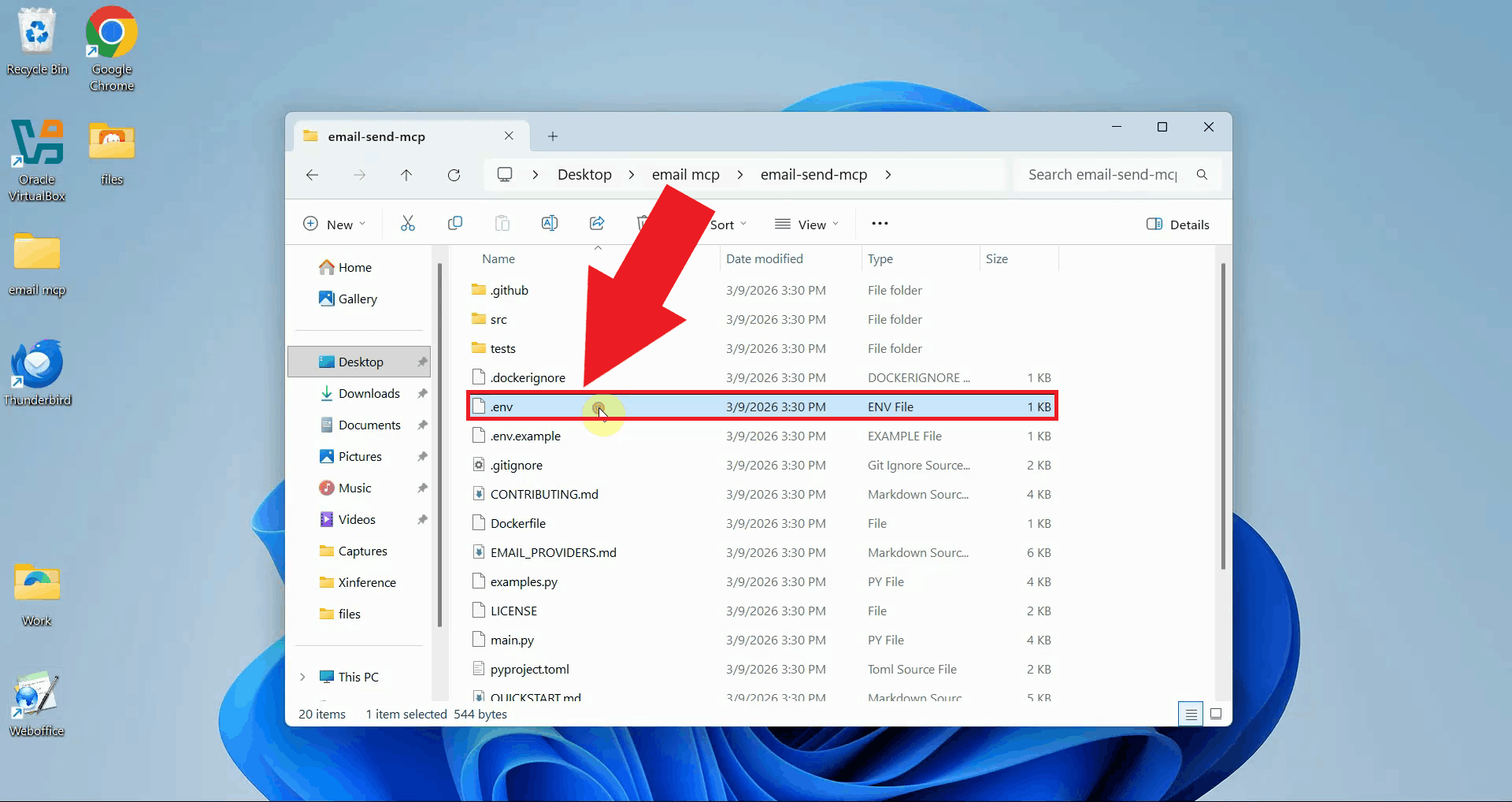
Open the .env file located in the cloned repository folder using a text editor.
This file contains all the connection settings the server needs to communicate with your
email provider (Figure 7).
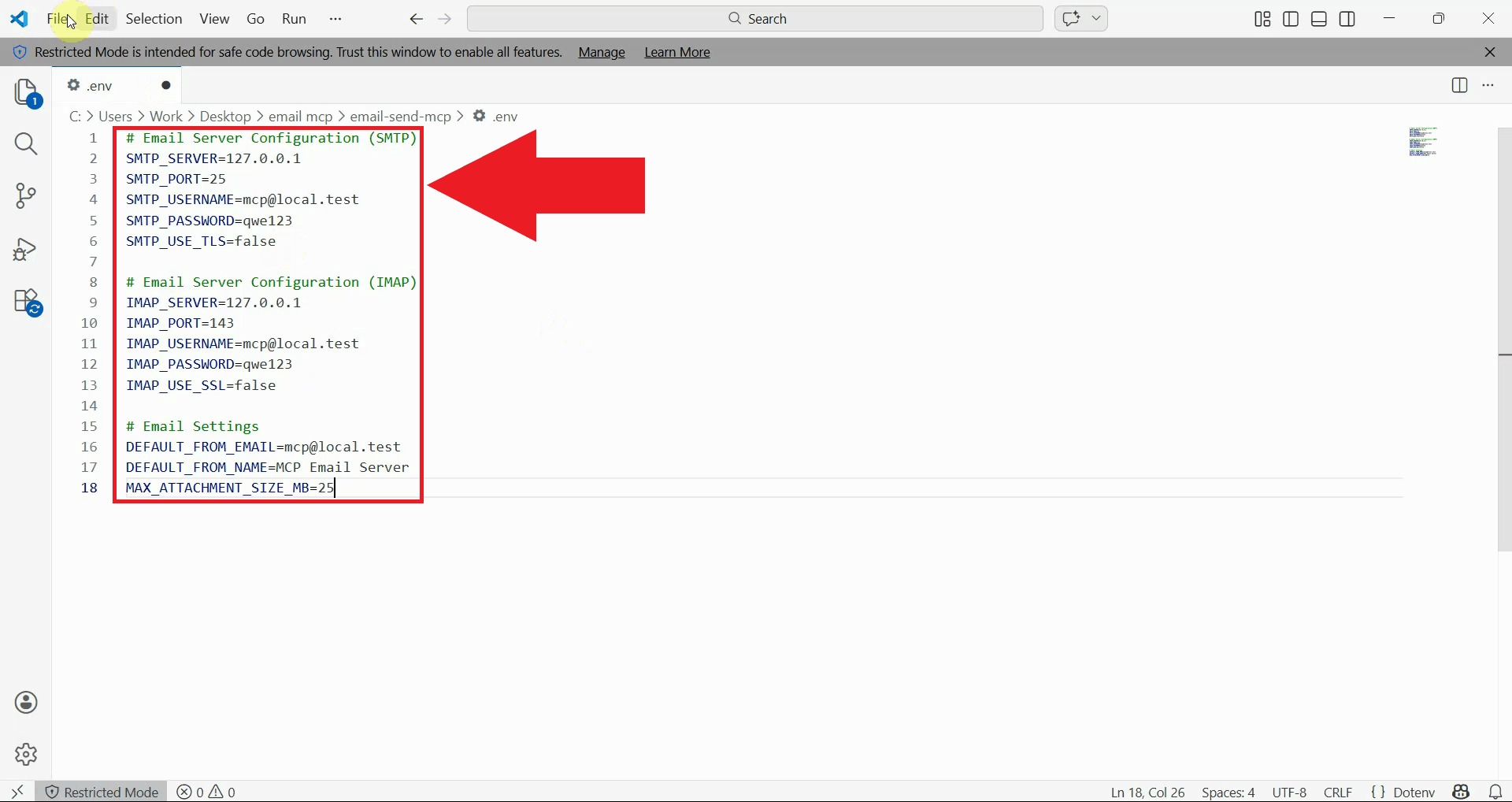
Fill in your email account details in the .env file. Replace the placeholder
values with your actual SMTP and IMAP host addresses, port numbers, login credentials, and
SSL settings (Figure 8).
# Email Server Configuration (SMTP)
SMTP_SERVER=your-smtp-server
SMTP_PORT=port
SMTP_USERNAME=your@email.com
SMTP_PASSWORD=your-smtp-password
SMTP_USE_TLS=false

# Email Server Configuration (IMAP)
IMAP_SERVER=your-imap-server
IMAP_PORT=port
IMAP_USERNAME=your@email.com
IMAP_PASSWORD=your-imap-password
IMAP_USE_SSL=false

# Email Settings
DEFAULT_FROM_EMAIL=your@email.com
DEFAULT_FROM_NAME=MCP Email Server
MAX_ATTACHMENT_SIZE_MB=25
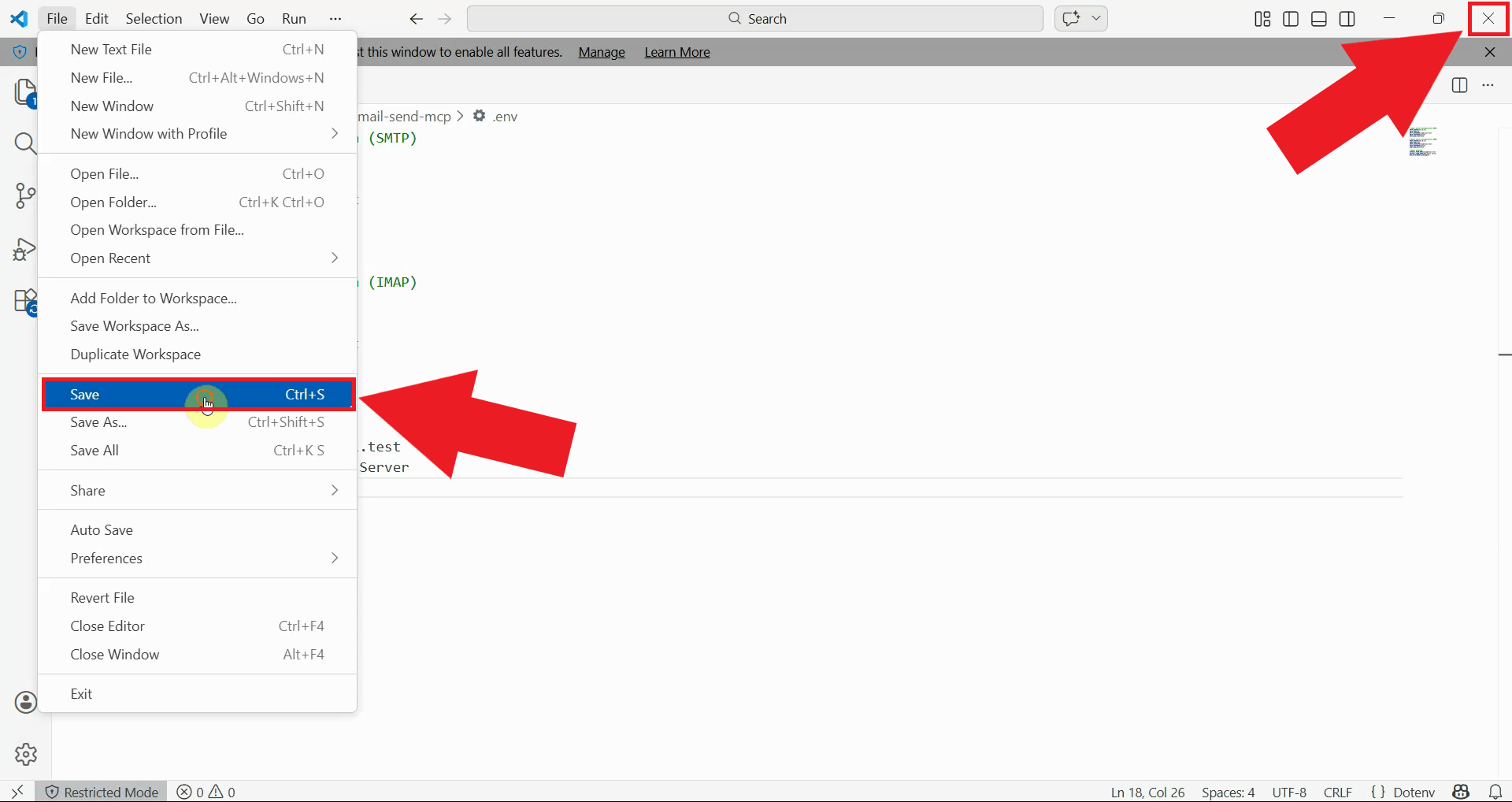
Save the file and close the text editor once all values have been filled in correctly (Figure 9).
Step 3 - Switch transport to stdio
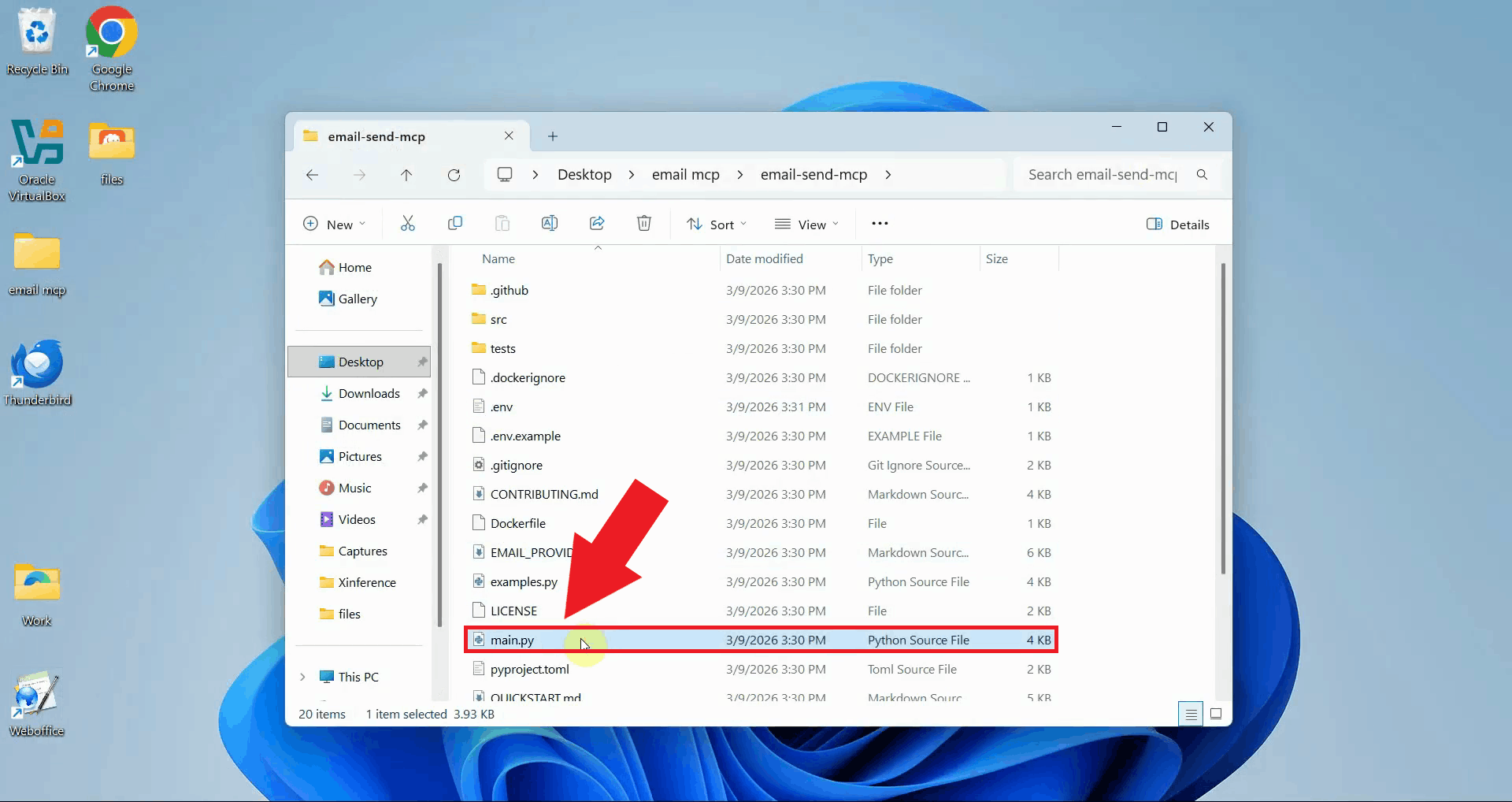
The server is configured by default to run as an HTTP server. To use it with the MCP Inspector,
the transport must be changed to stdio. Locate and open main.py in
the repository folder using a text editor (Figure 10).
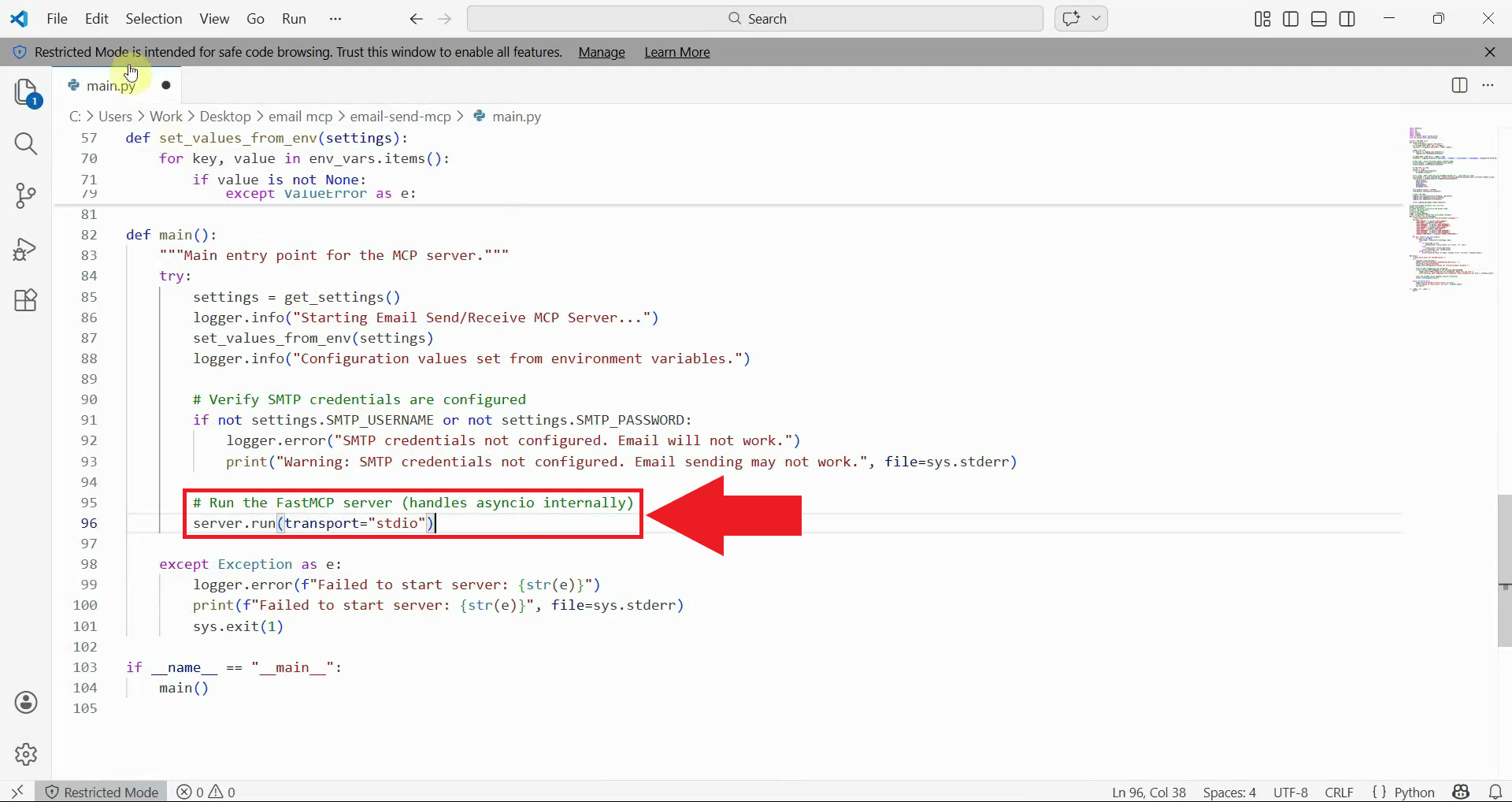
Find the server.run() call and replace it with the stdio version shown below.
This removes the HTTP host, port, and path parameters and switches the transport to
stdio (Figure 11).
# Before
server.run(transport="http", host="0.0.0.0", port=8888, path="/mcp")

# After
server.run(transport="stdio")
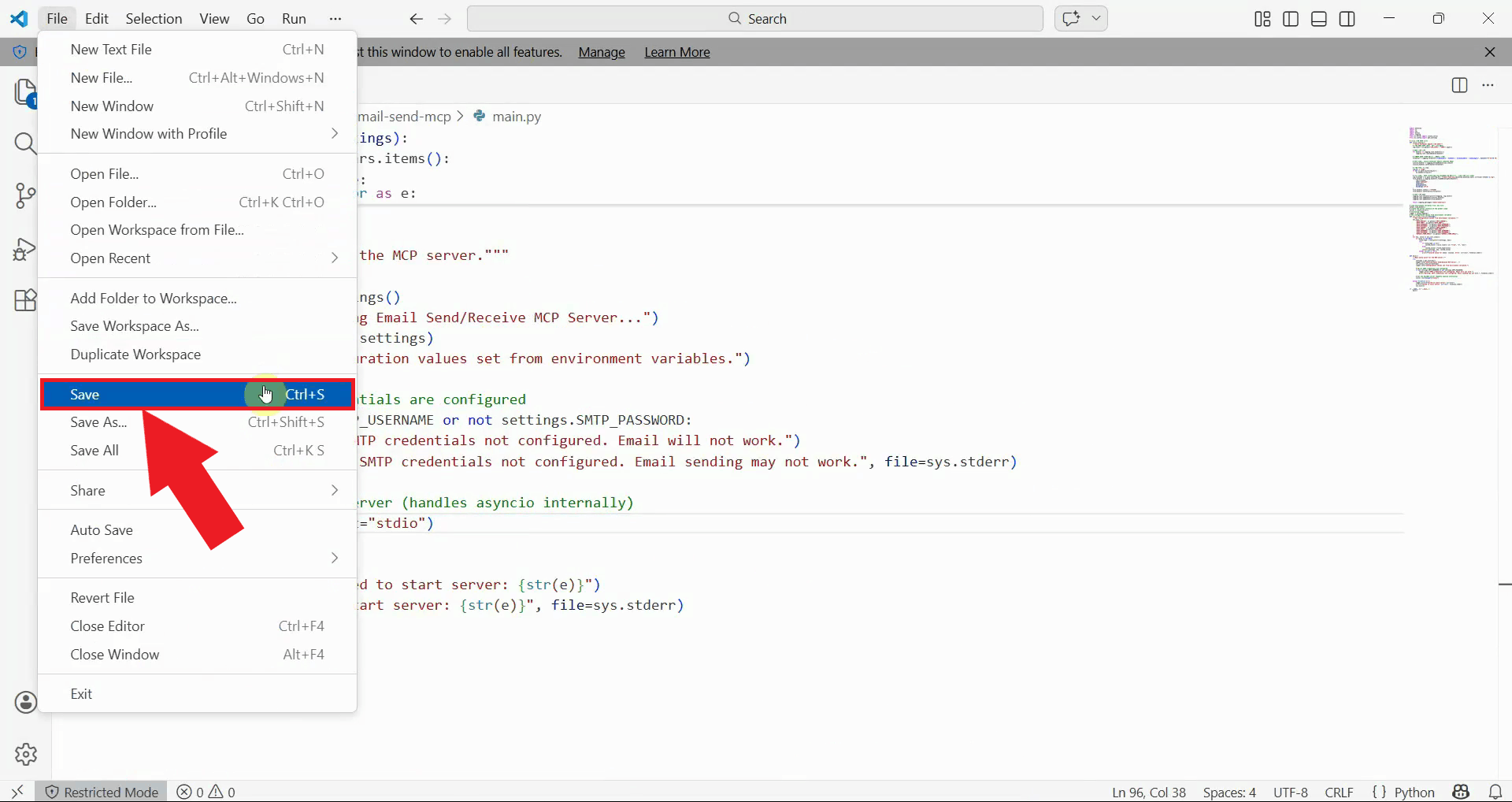
Save the file and close the text editor (Figure 12).
Step 4 - Fix email validation and SSL certificate errors (optional)
The following video shows how to fix email validation and SSL certificate errors that may occur in certain environments. These modifications are only necessary if you encounter issues such as non-standard email addresses being rejected by the validator, or SSL certificate errors when connecting to a mail server without a valid certificate (for example, a locally hosted test server).
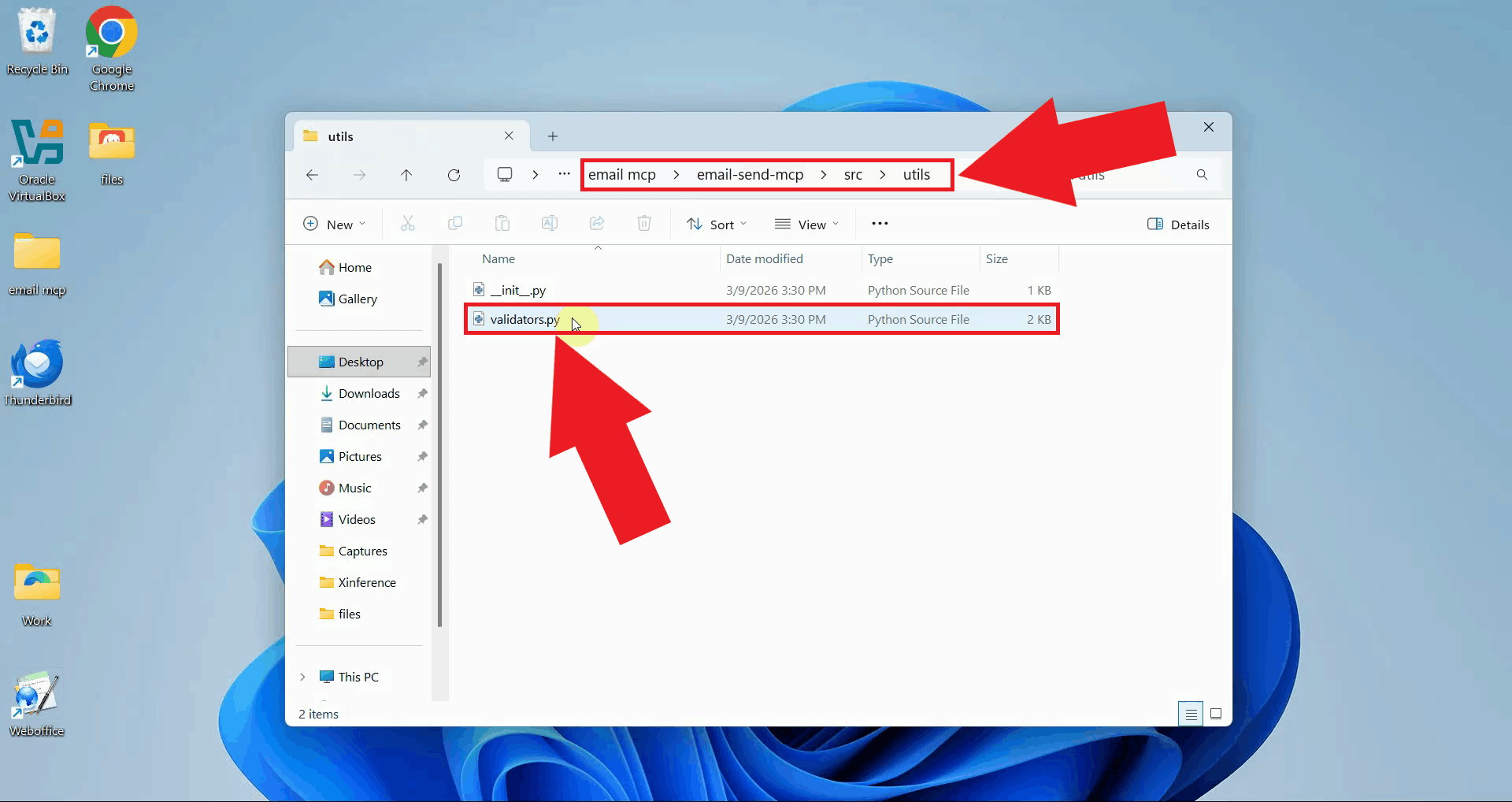
Open validator.py in a text editor. This file contains the function responsible
for validating email addresses before a message is sent (Figure 13).
This file can be found in the email-send-mcp/src/utils/ folder.
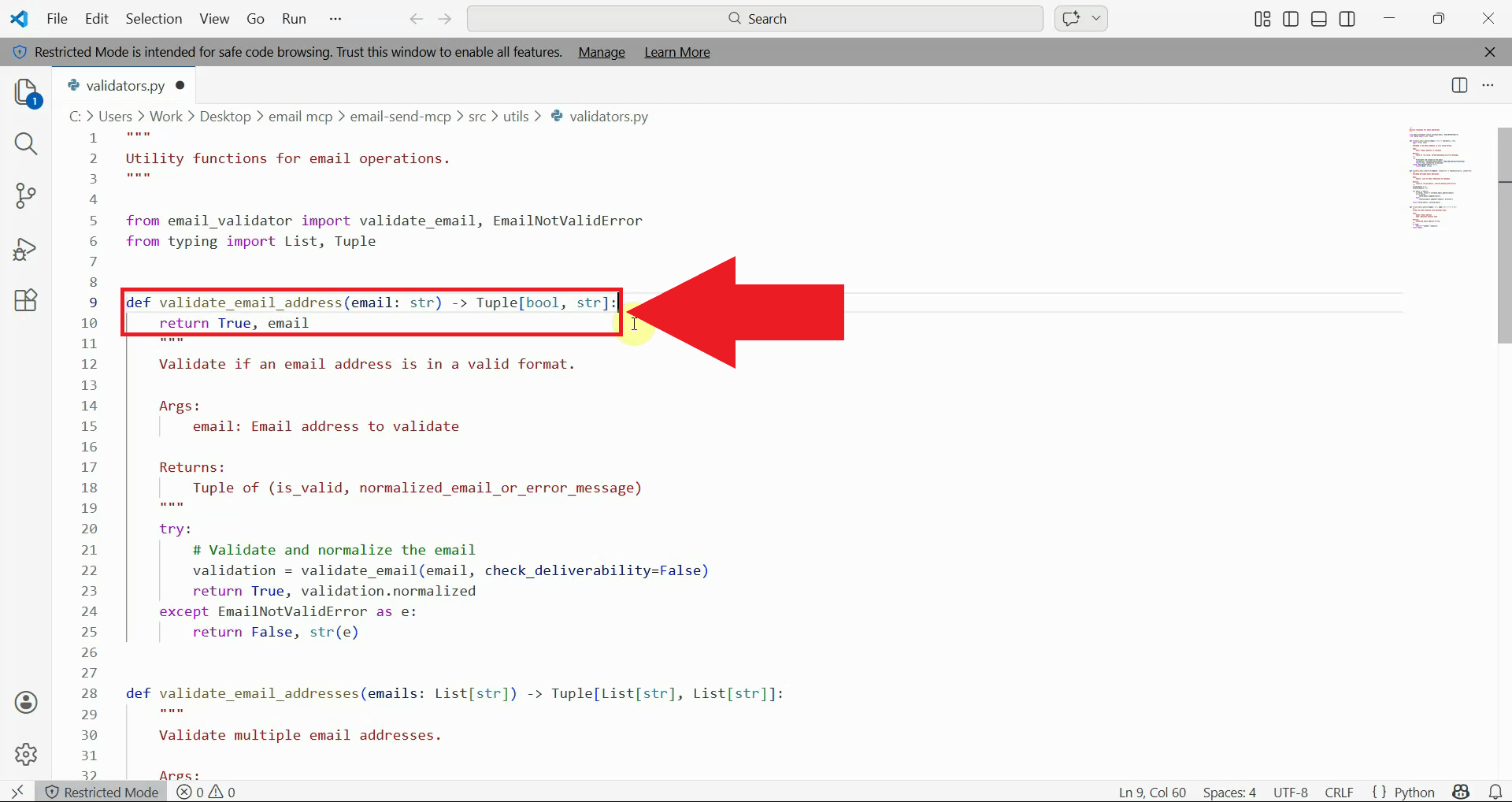
Replace the body of the validate_email_address function with the code below.
This makes the function always return a valid result, bypassing strict email format checks
that would otherwise reject non-standard or local domain addresses (Figure 14).
def validate_email_address(email: str) -> Tuple[bool, str]:
    return True, email
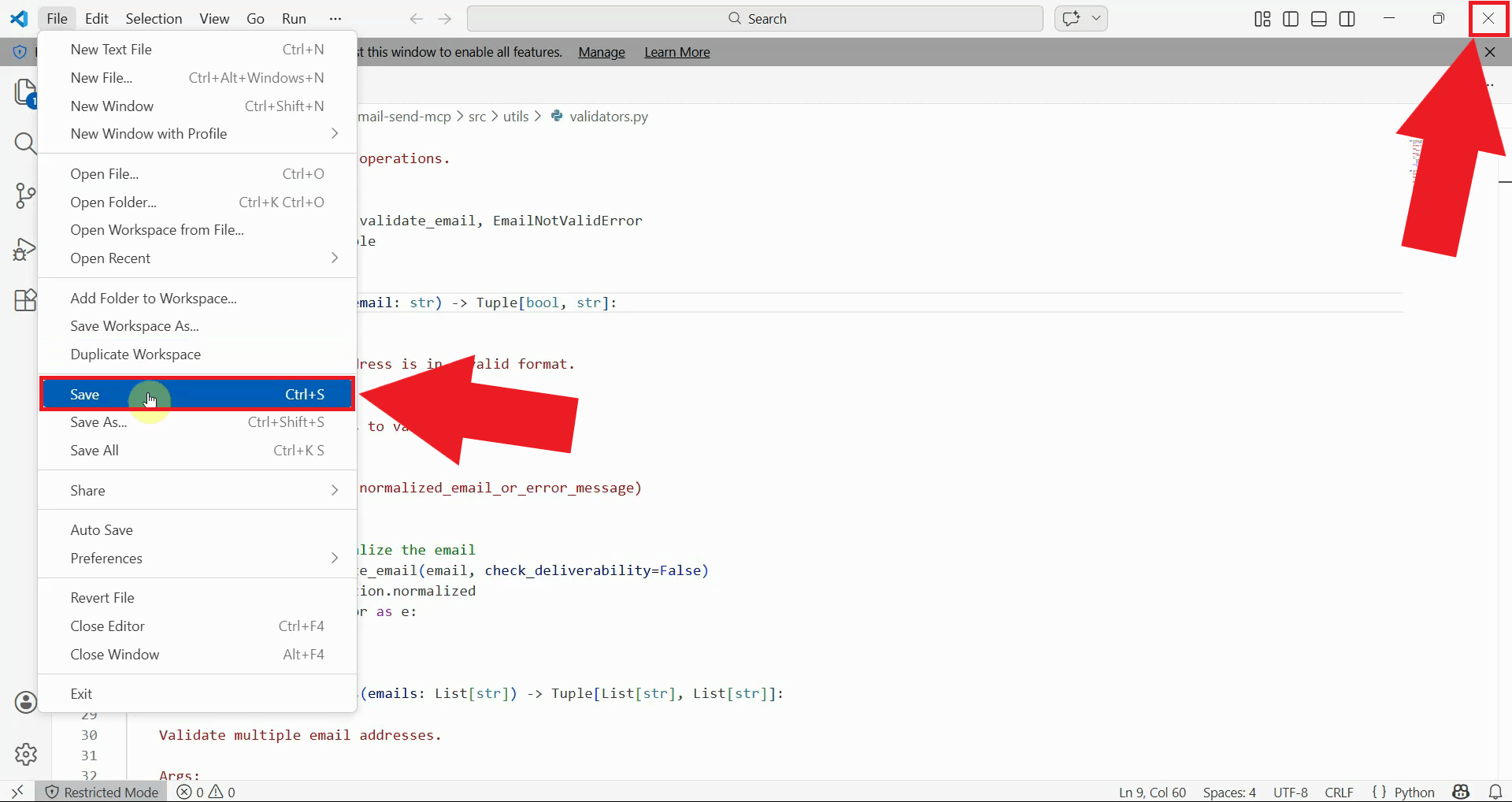
Save the file and close the text editor (Figure 15).
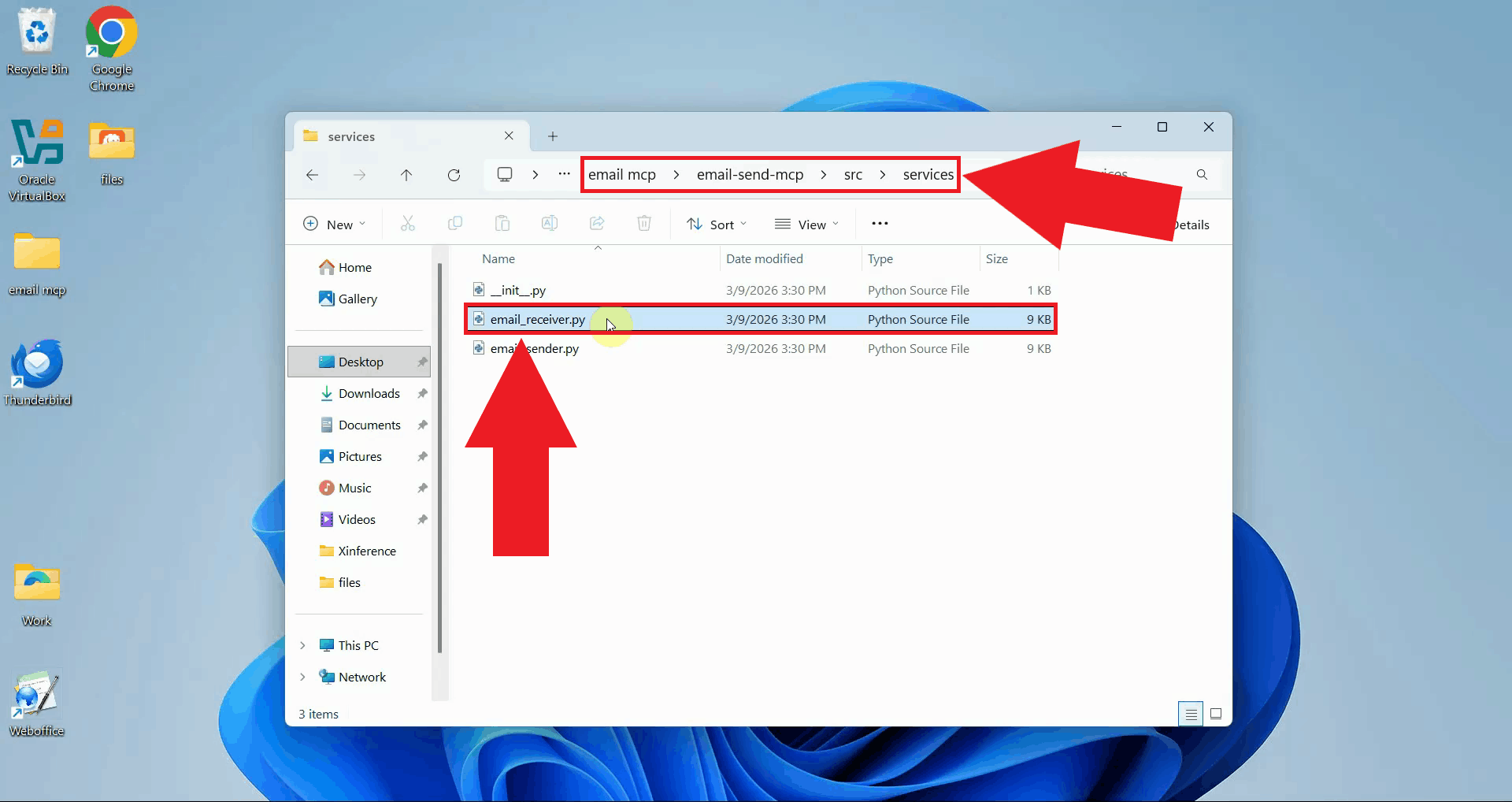
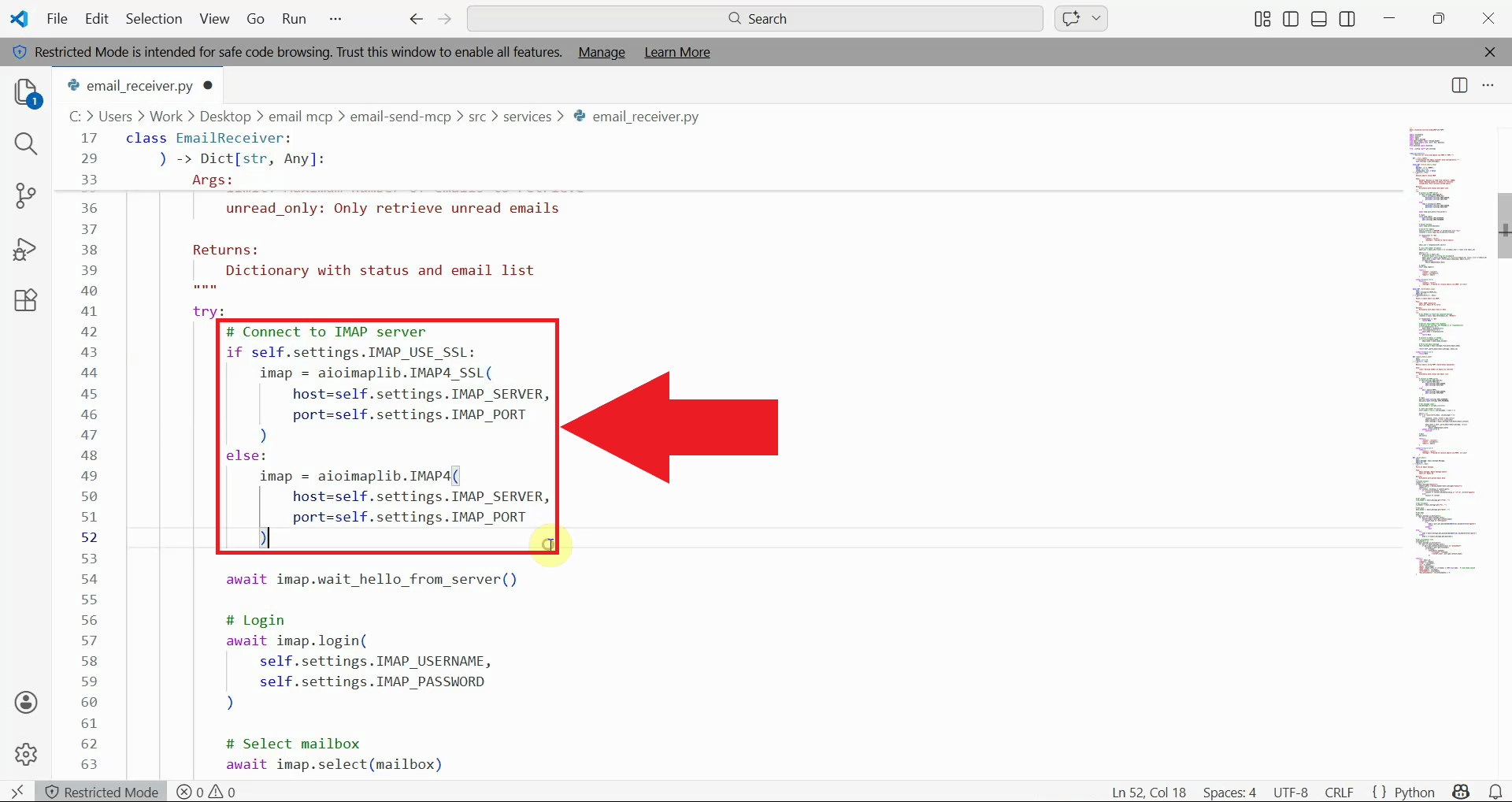
Open email_receiver.py in a text editor. This file handles the IMAP connection
used to retrieve incoming emails (Figure 16).
This file can be found in the email-send-mcp/src/services/ folder.
Replace the hardcoded IMAP4_SSL connection with the conditional block below.
This change makes the connection type respect the IMAP_USE_SSL setting in your
.env file, allowing the server to connect without SSL when the setting is set
to false (Figure 17).
if self.settings.IMAP_USE_SSL:
    imap = aioimaplib.IMAP4_SSL(
        host=self.settings.IMAP_SERVER,
        port=self.settings.IMAP_PORT
    )
else:
    imap = aioimaplib.IMAP4(
        host=self.settings.IMAP_SERVER,
        port=self.settings.IMAP_PORT
    )
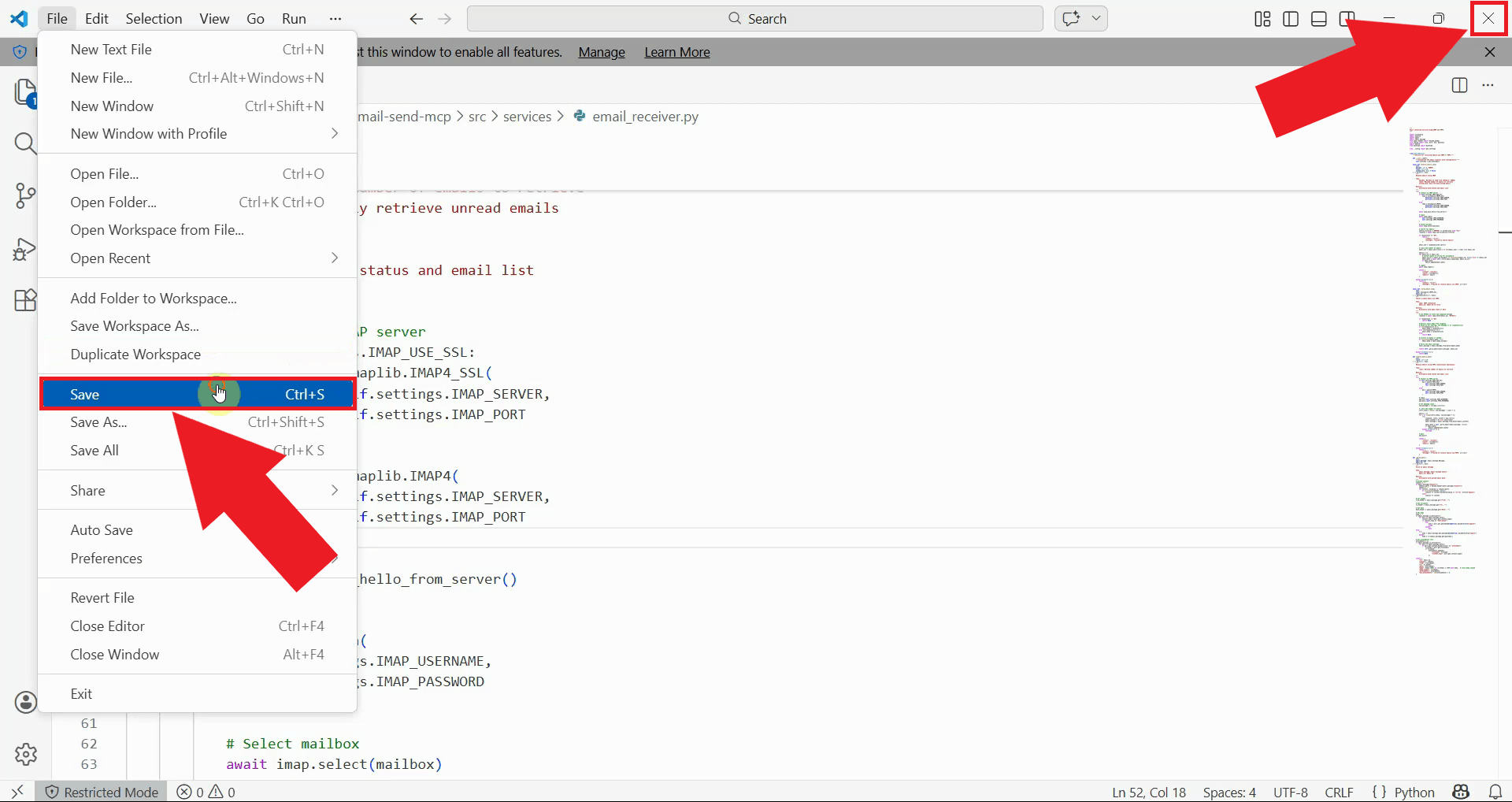
Save the file and close the text editor (Figure 18).
Step 5 - Run MCP Inspector with the email server
The following video shows how to send an email using the Email Send/Receive MCP Server step-by-step. The video covers launching the MCP Inspector from the server folder, connecting to the email server, and executing the send email tool.
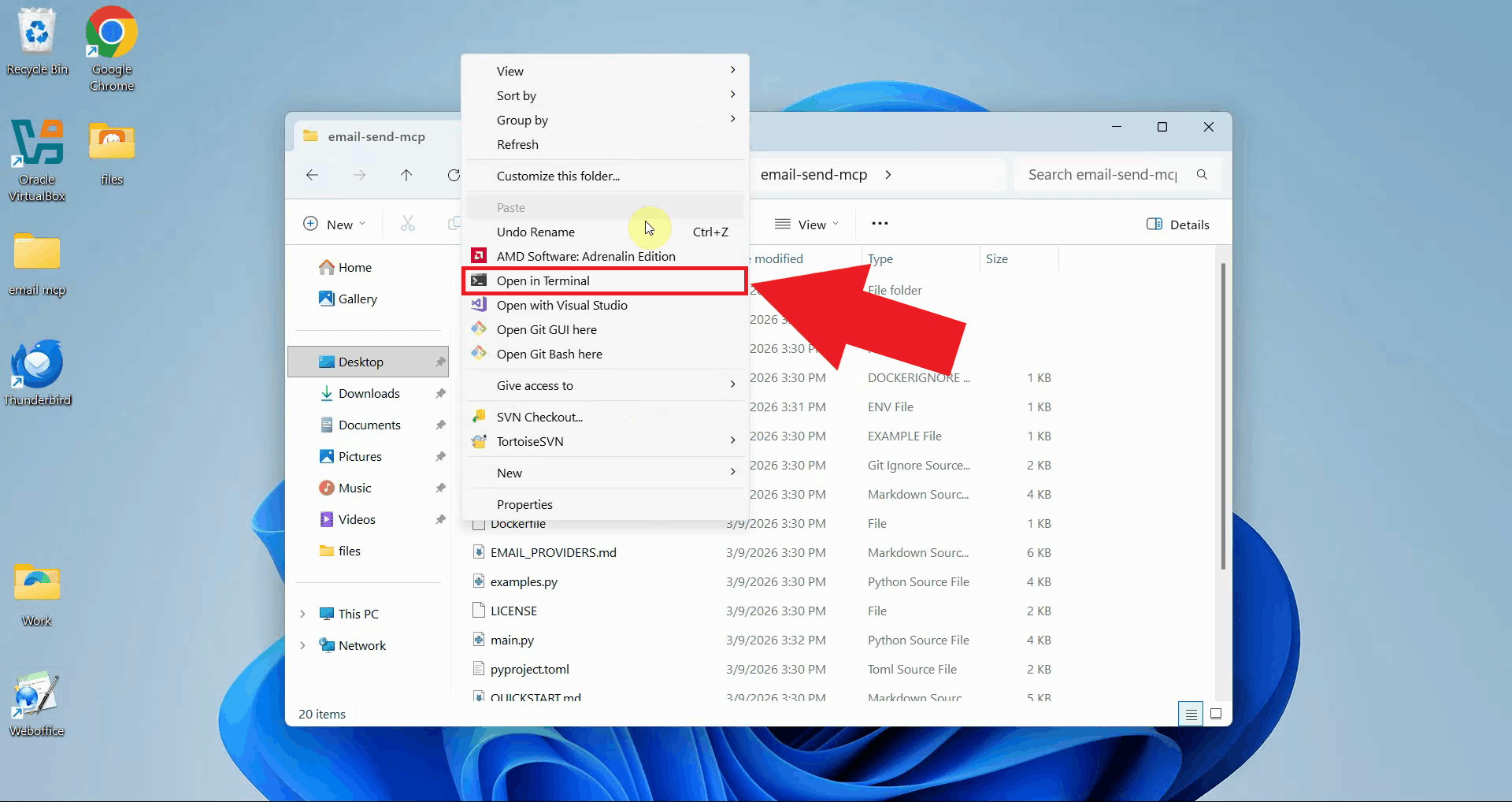
Open a terminal window in the MCP server folder. This is the same folder where you cloned the repository in step 1 (Figure 19).
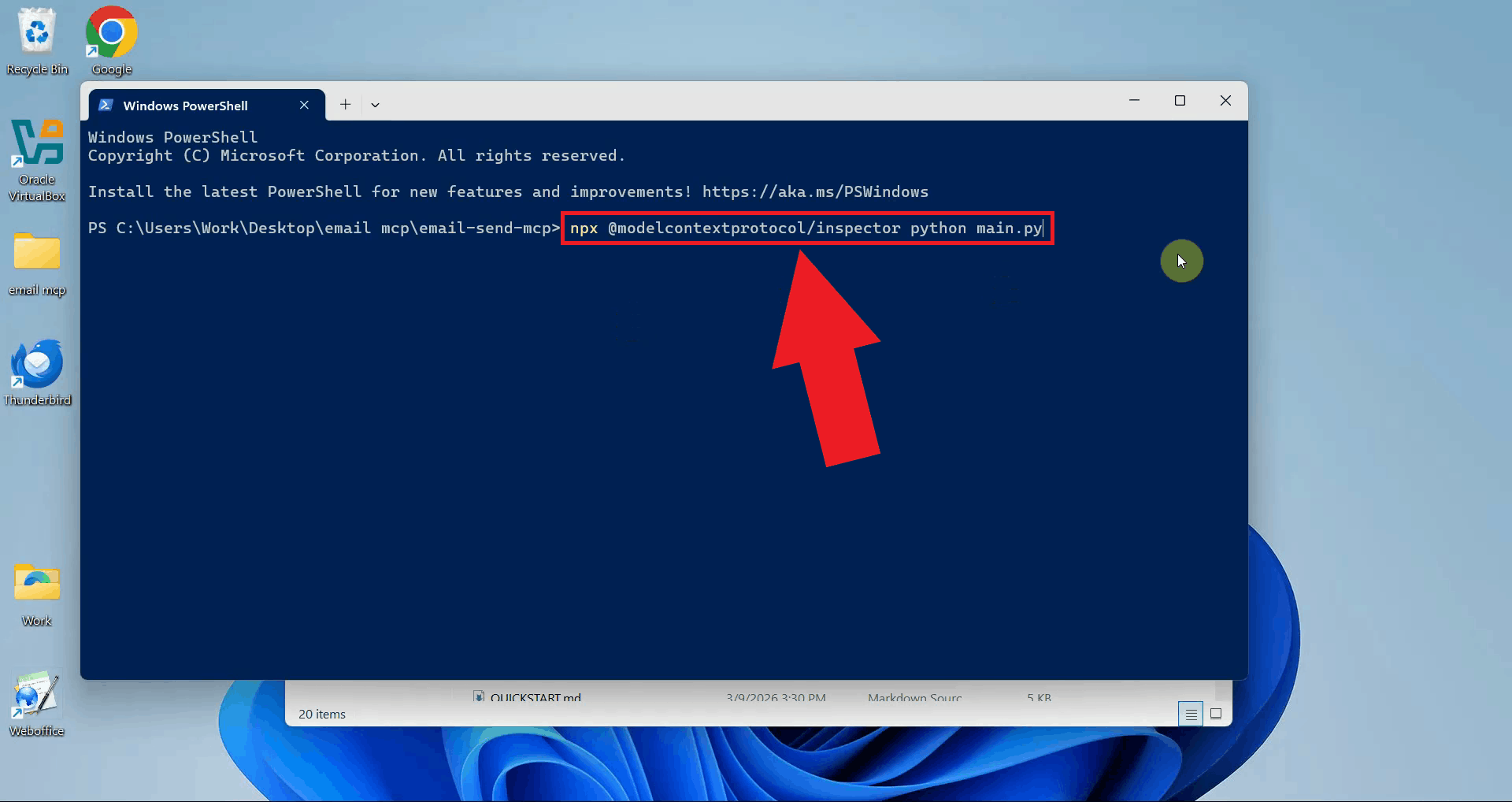
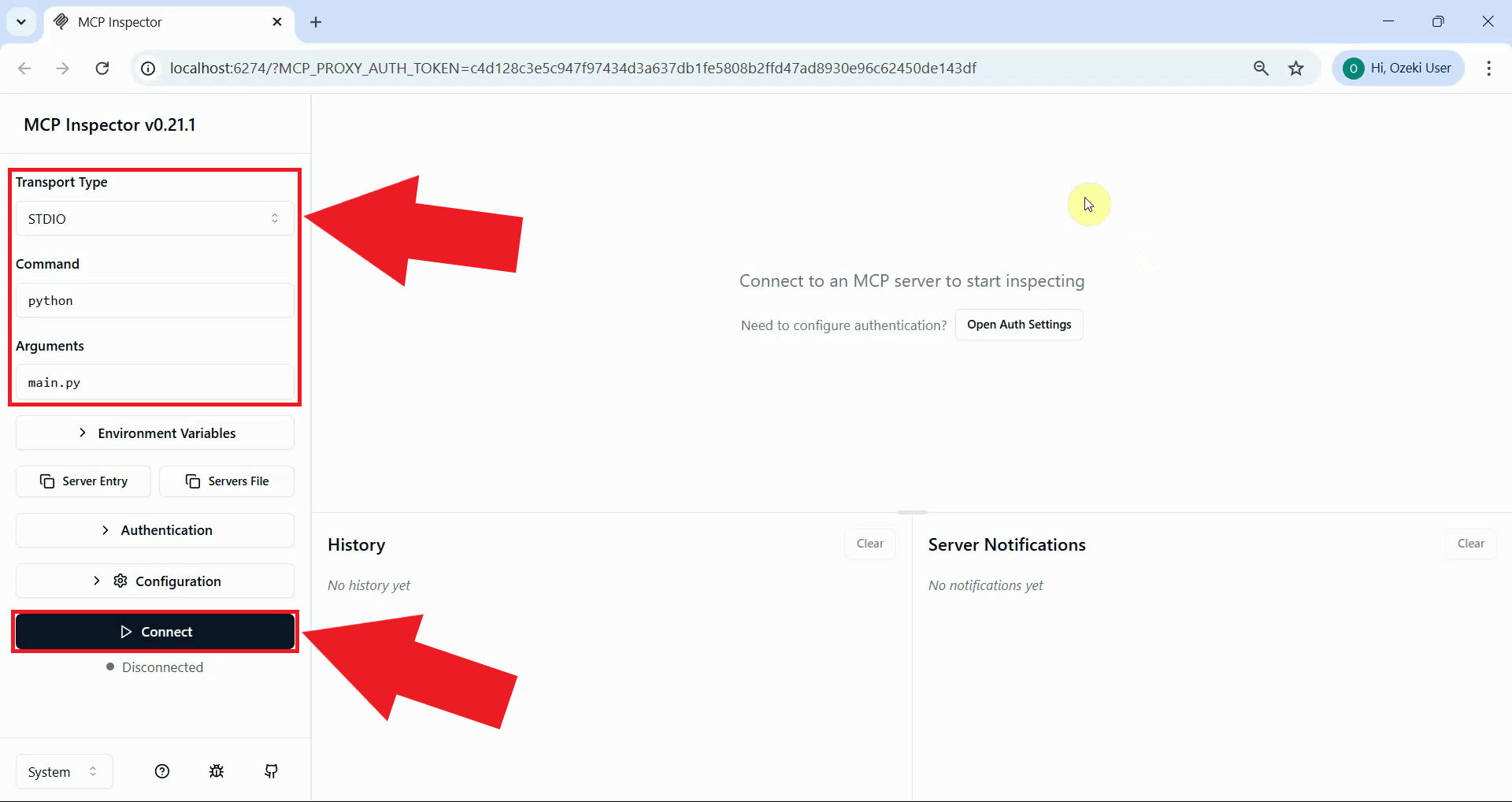
Run the command below to launch the MCP Inspector with main.py as the server
entry point. The MCP Inspector will download its dependencies and open in your default
web browser once ready (Figure 20).
npx @modelcontextprotocol/inspector python main.py
You need Node.js and NPM installed on your system to run this command. If you don't have Node.js installed, download it from nodejs.org before proceeding.
Step 6 - Connect to the email MCP server and list tools
In the MCP Inspector interface, the transport type will already be set to stdio. Click the Connect button to establish the connection between the MCP Inspector and the email server (Figure 21).
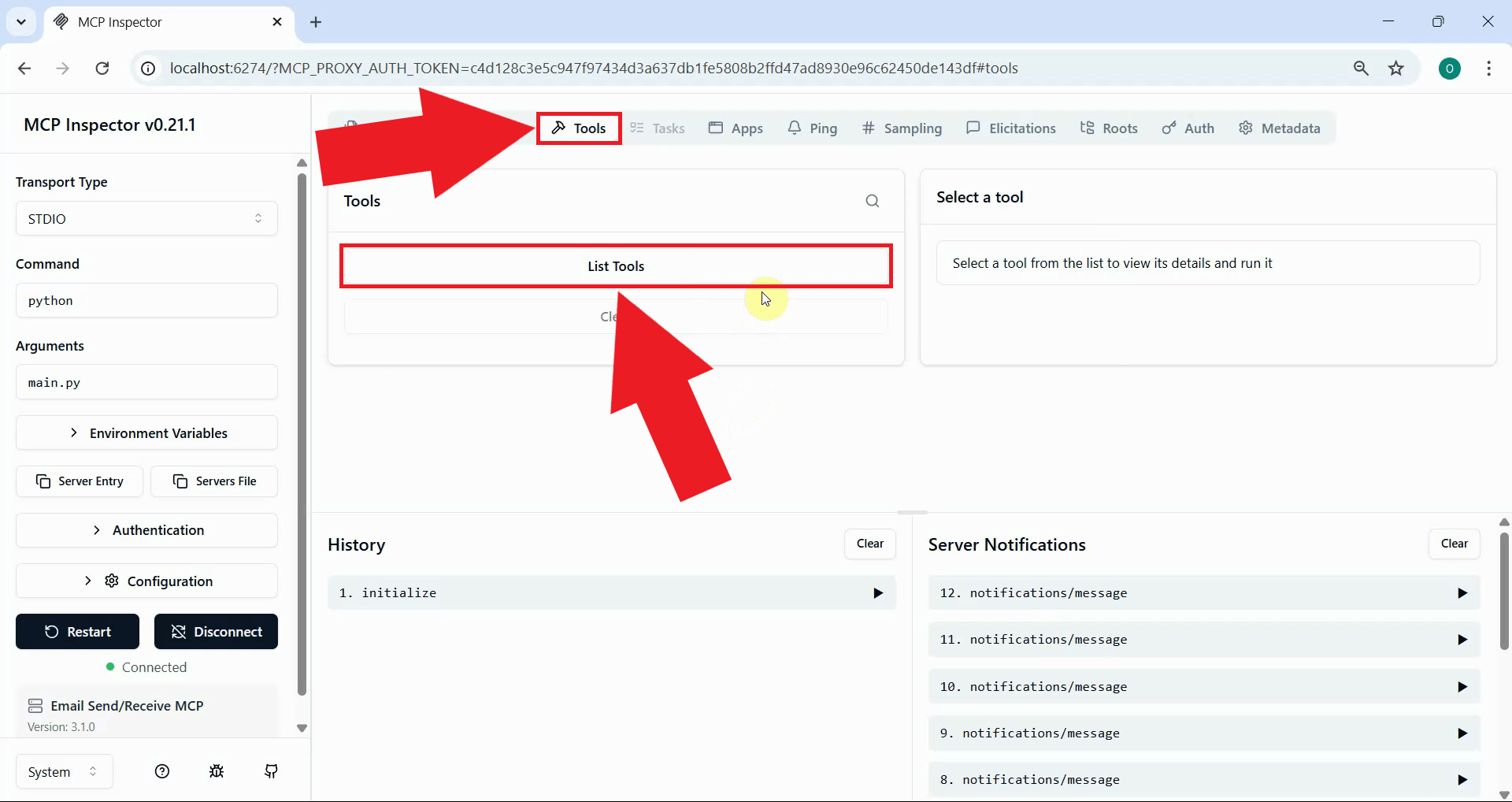
Once connected, click the List Tools button to display all available email automation tools provided by the server. The list will include tools for sending emails and retrieving messages from your inbox (Figure 22).
Step 7 - Send an email
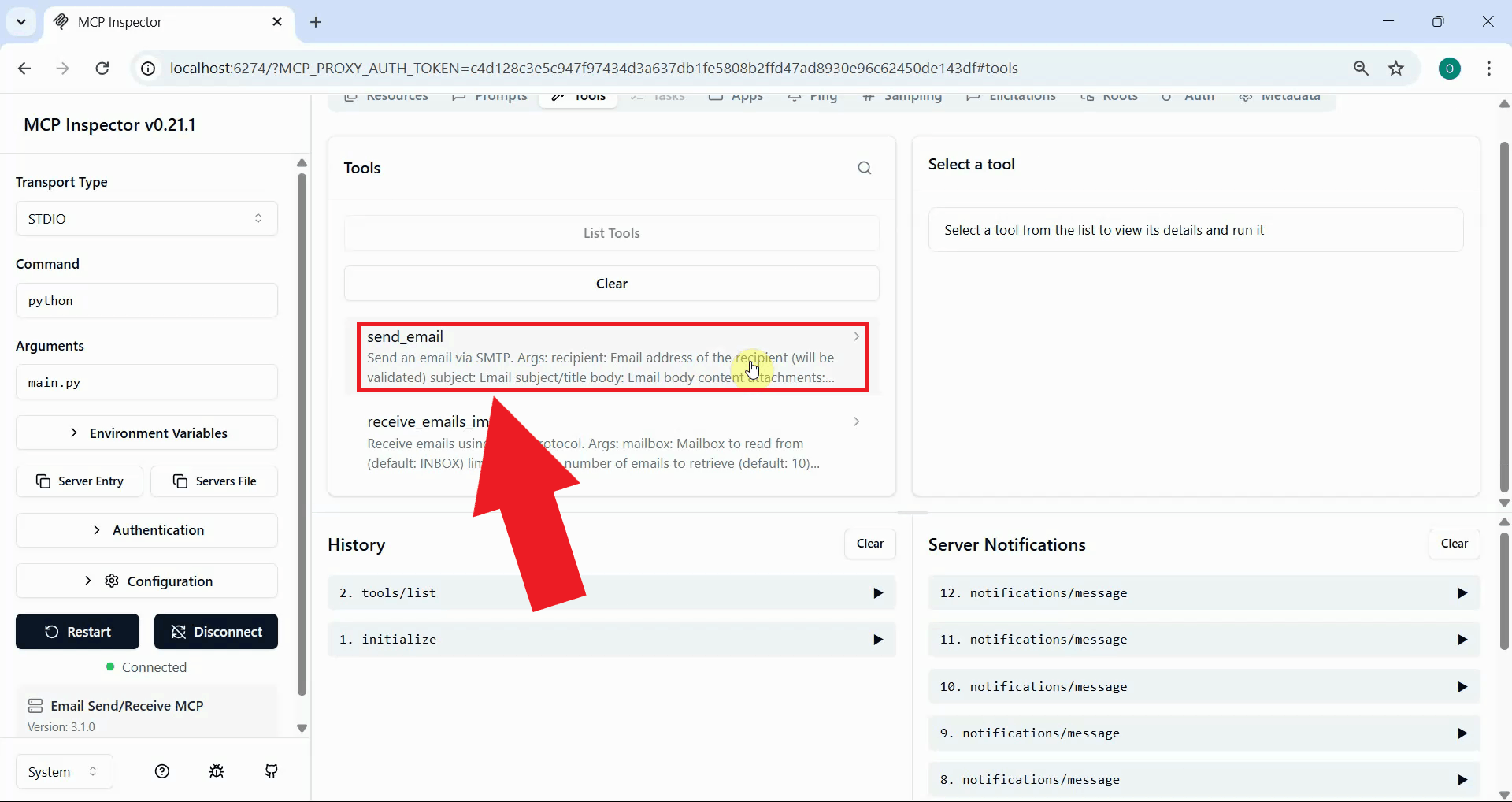
Locate and select the send_email tool from the available tools list. Clicking on it will expand the tool's parameter fields (Figure 23).
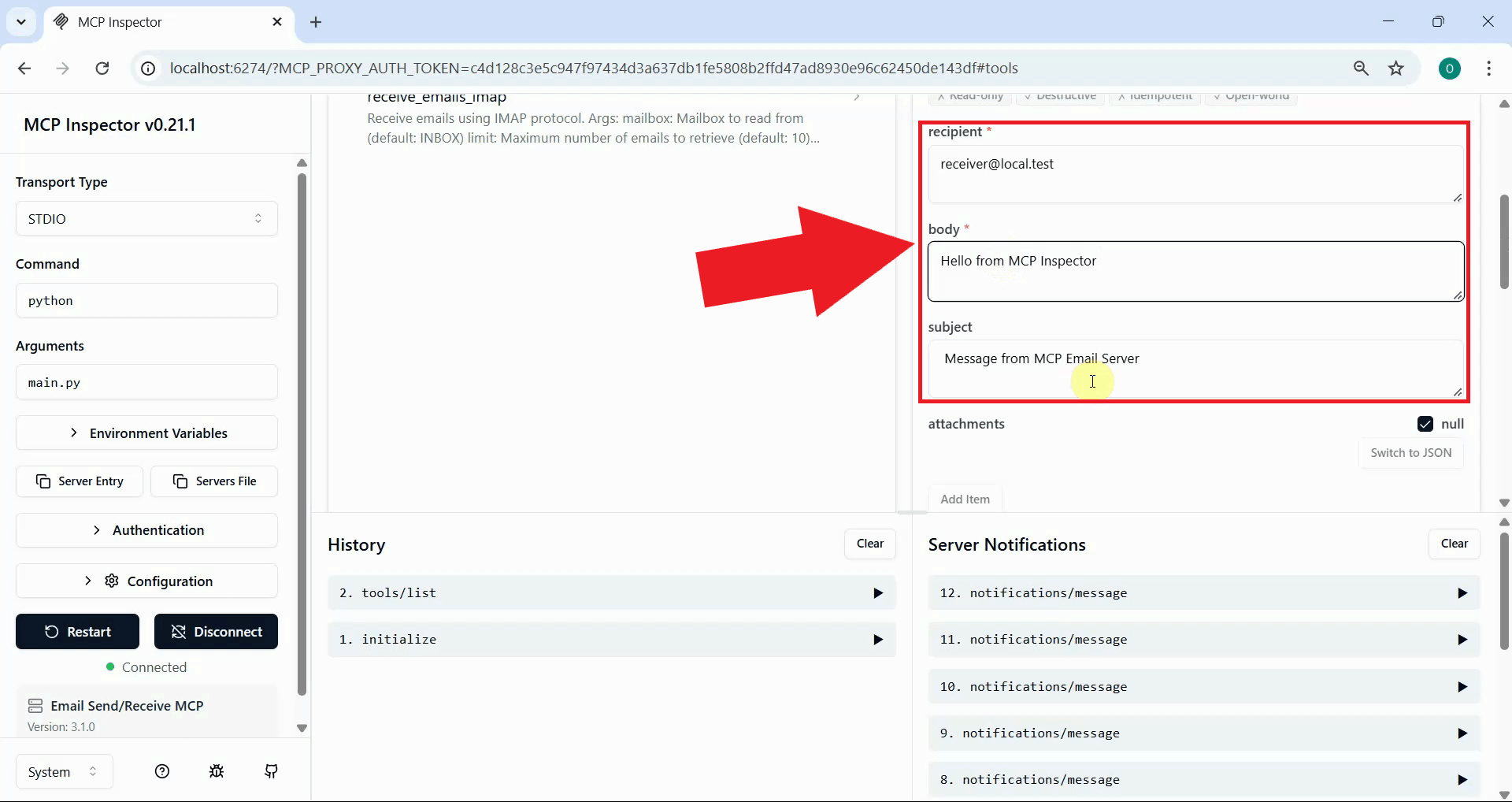
Fill in the tool's parameter fields: enter the recipient's email address in the recipient field, a subject line in the subject field, and the message content in the body field (Figure 24).
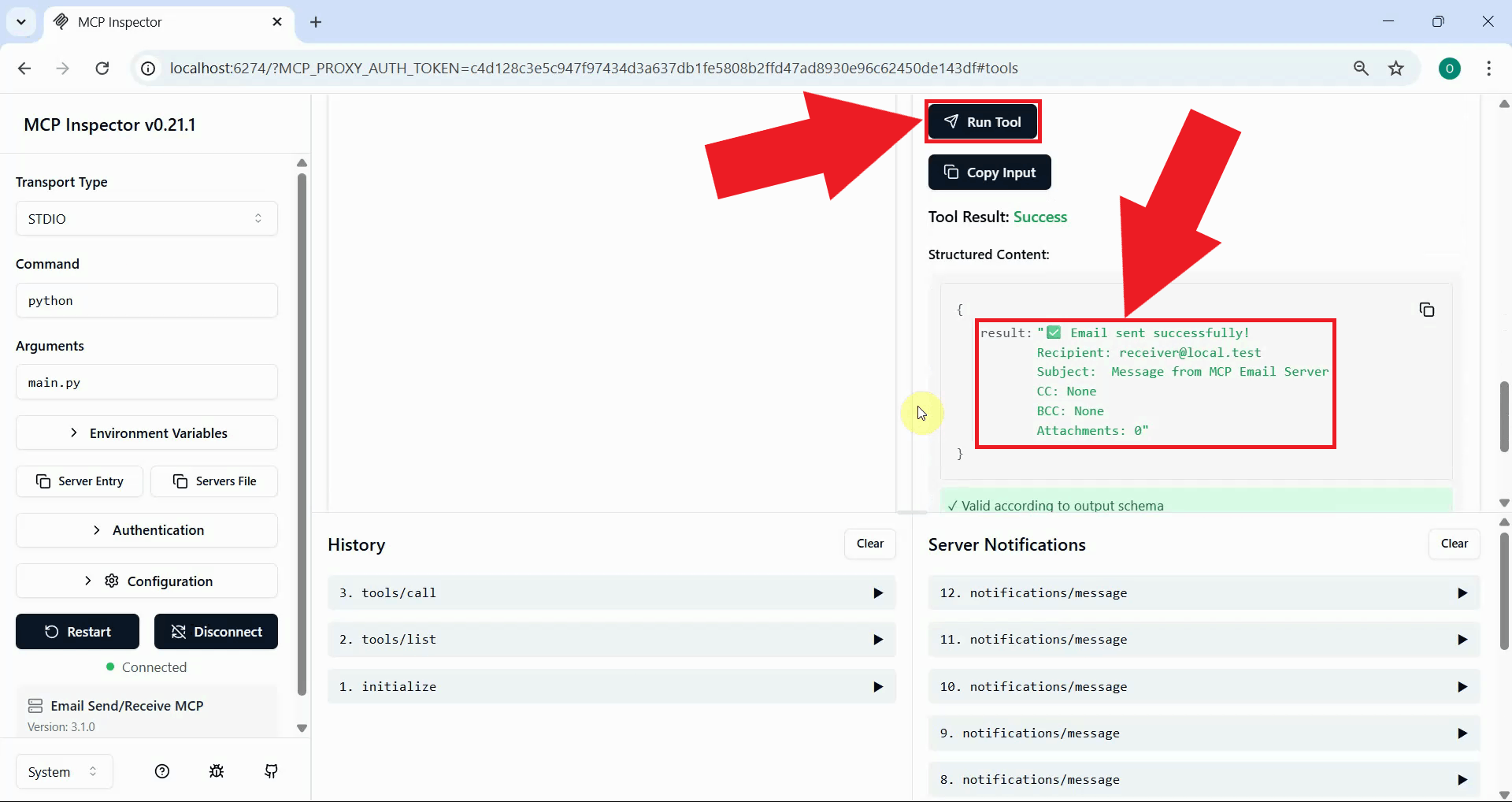
Click the Run Tool button to send the email. The MCP server will connect to your configured SMTP host and deliver the message. A successful response in the Inspector confirms the email was sent (Figure 25).
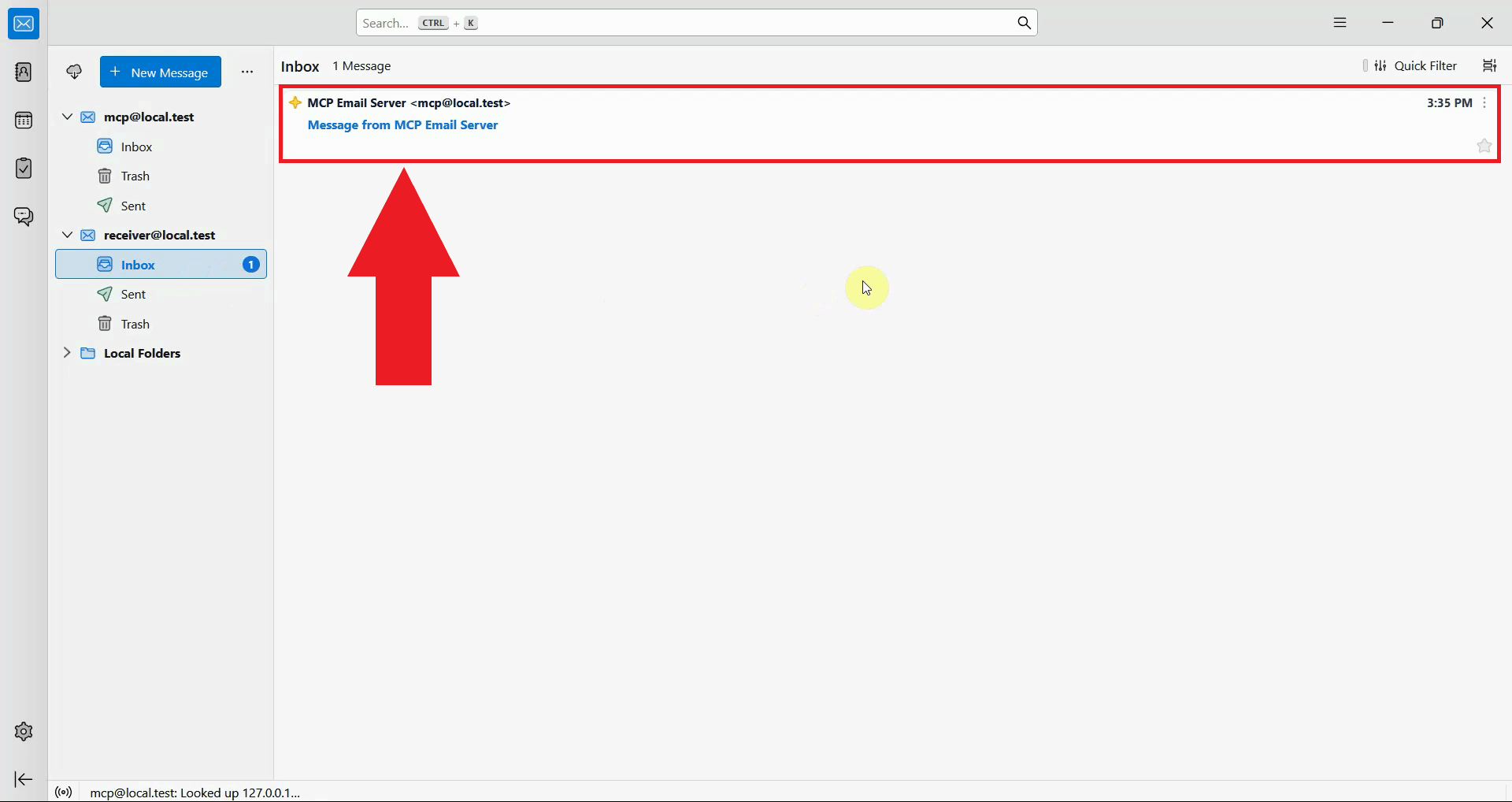
Open your email client to verify the result. The email sent through the MCP server should appear in the recipient's inbox, confirming the SMTP automation pipeline is working correctly (Figure 26).
Step 8 - Receive an email
The following video shows how to receive and read emails using the Email Send/Receive MCP Server. The video covers sending a test email to the configured account and retrieving it via the IMAP tool in the MCP Inspector.
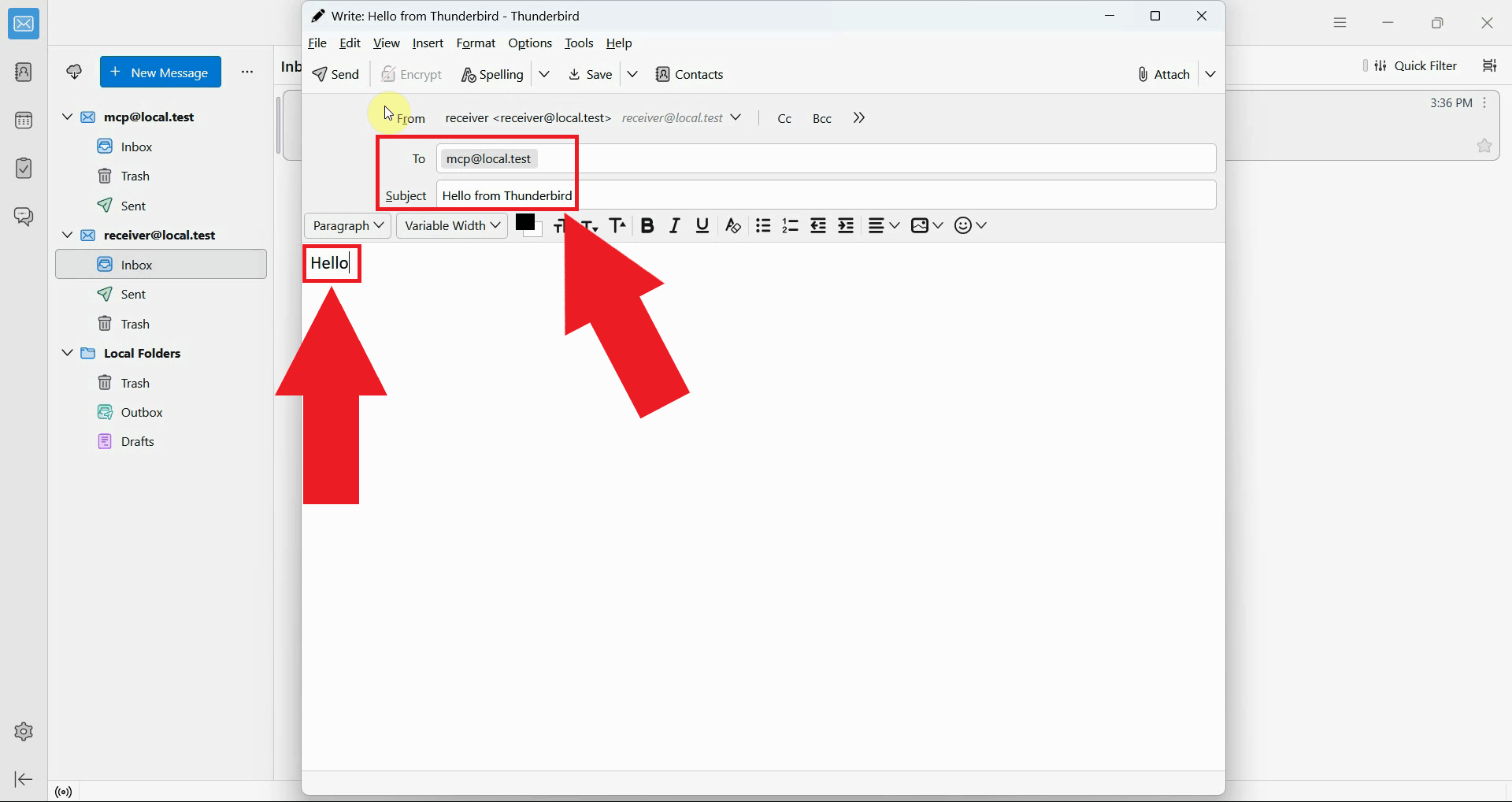
To test email retrieval, first send a message to the account configured in the MCP server using any mail client. In this example, Thunderbird is used to compose and send a test email to the MCP account (Figure 27).
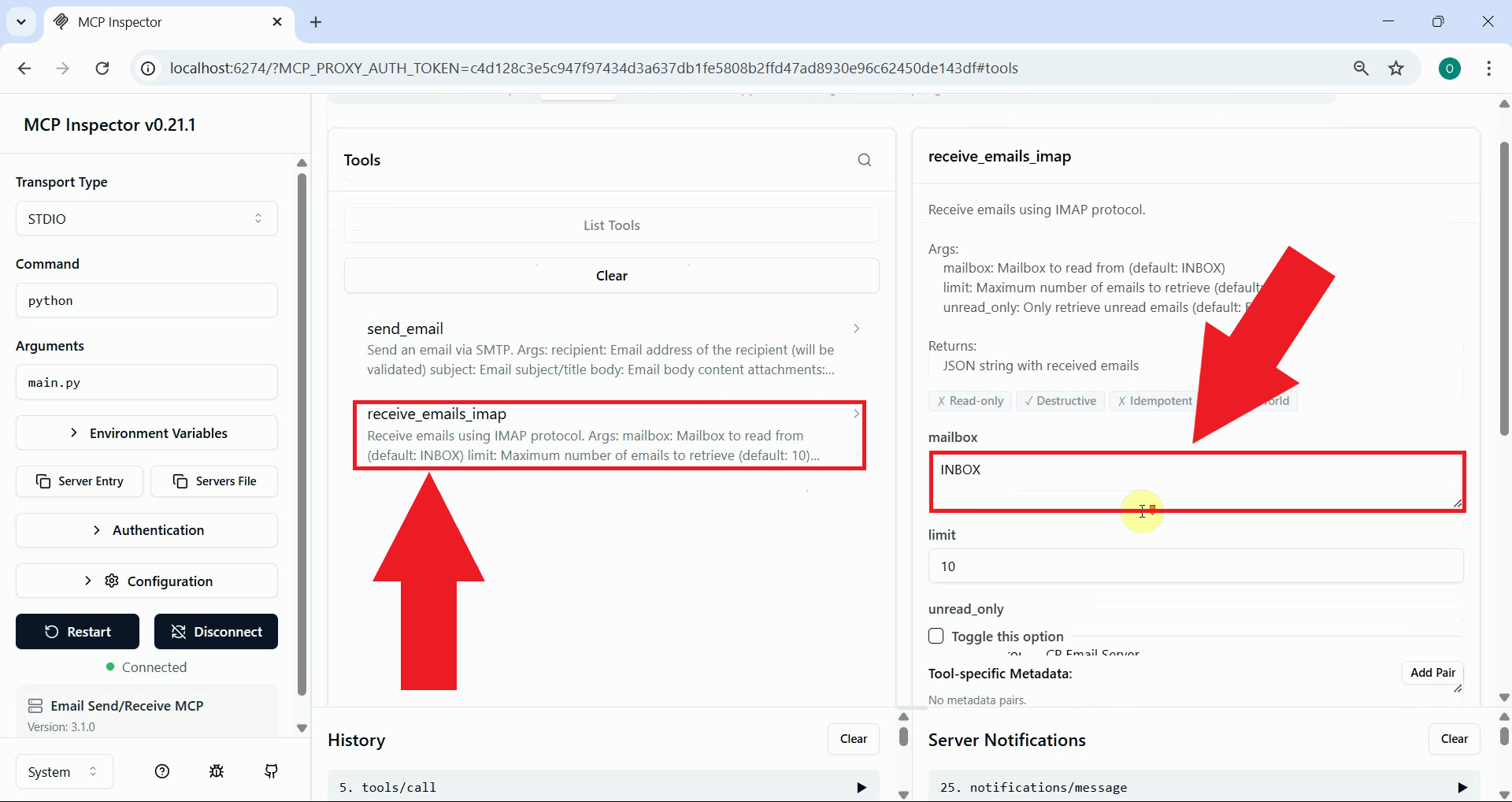
Back in the MCP Inspector, locate and select the receive_emails_imap tool from the tools list. This tool connects to your IMAP server and fetches messages from the inbox (Figure 28).
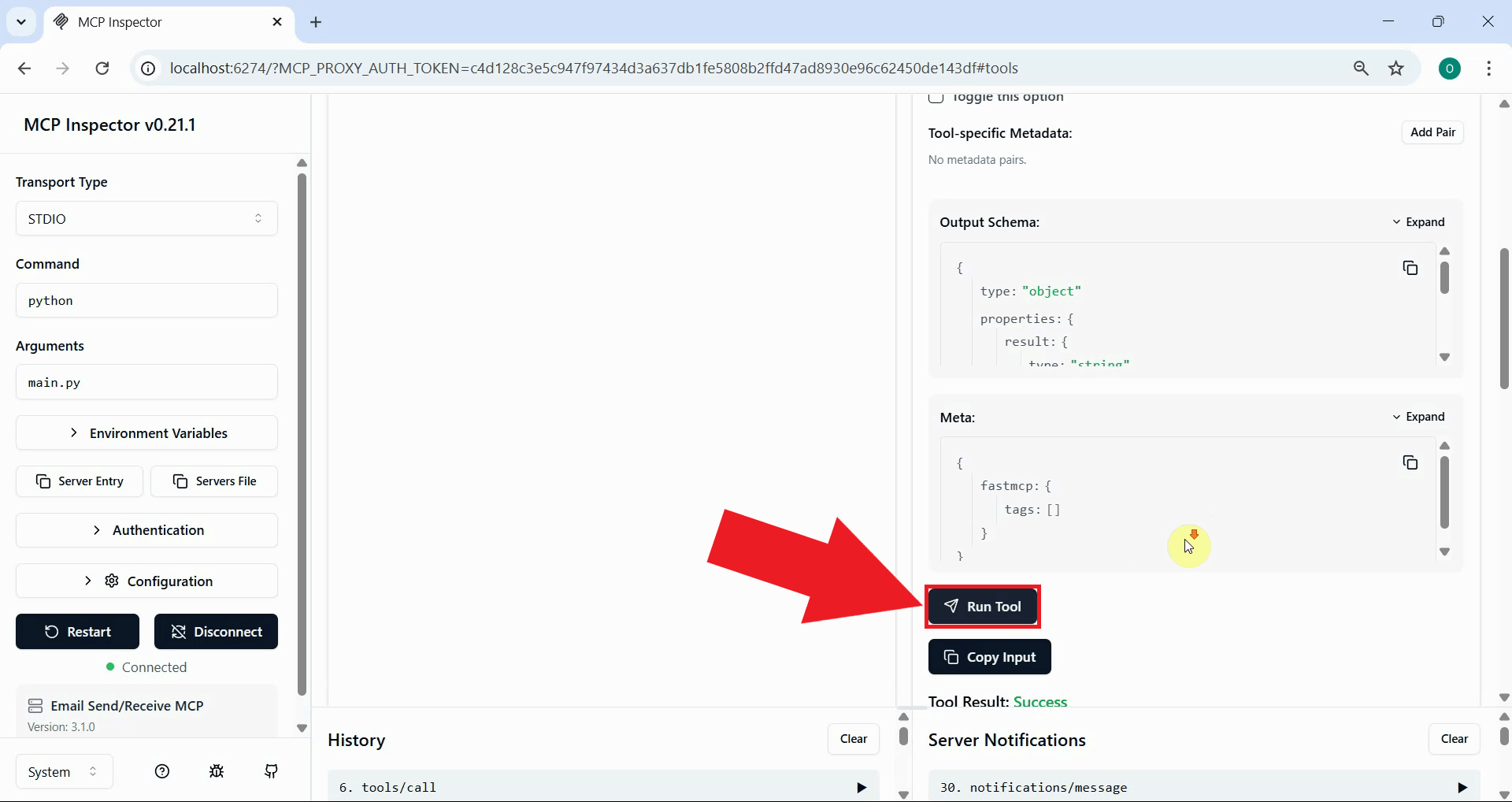
Click the Run Tool button to execute the retrieval. The MCP server will connect to your IMAP host and fetch the available messages from the inbox (Figure 29).
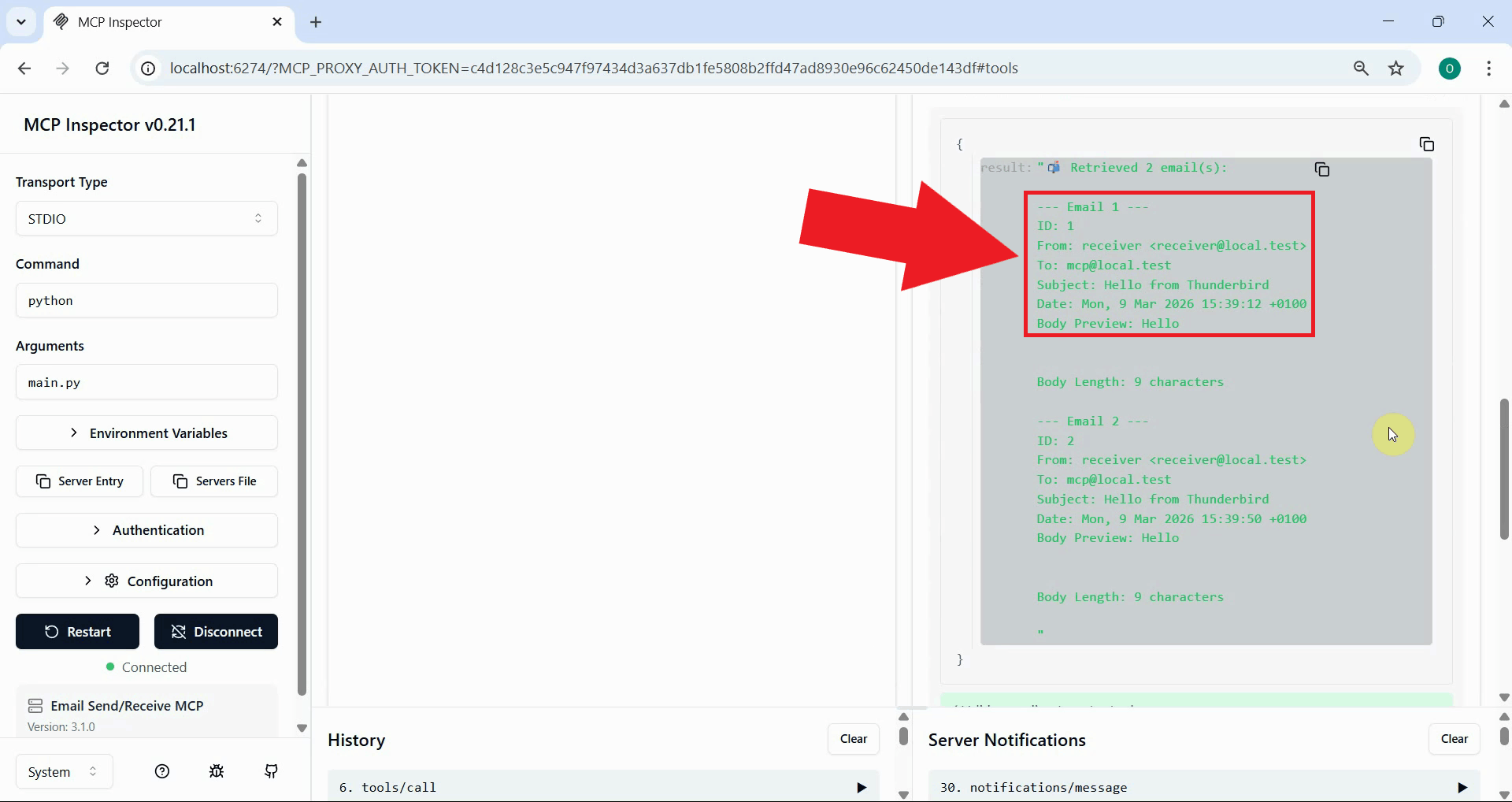
The tool response will display the retrieved emails including their sender, subject, and body content. This confirms the IMAP automation pipeline is working correctly and ready for integration into email processing workflows (Figure 30).
Conclusion
You have successfully set up and tested the Email Send/Receive MCP Server for programmatic email automation. This integration enables you to send and receive emails through the Model Context Protocol interface, opening possibilities for AI-driven email workflows, automated notifications, inbox monitoring, and integration with AI assistants that support MCP. The server works with any standard IMAP/SMTP compatible email provider.