
How to control Chrome using Chrome DevTools MCP
This guide demonstrates how to use the Chrome DevTools Model Context Protocol (MCP) server to programmatically control Google Chrome browser. You'll learn how to install and run the MCP Inspector with Chrome DevTools integration, connect to the Chrome automation server, and execute browser automation commands such as opening new pages and navigating to websites.
What is Chrome DevTools MCP?
Chrome DevTools MCP is a Model Context Protocol server that provides programmatic access to Google Chrome's DevTools Protocol. It allows developers and AI assistants to control Chrome browser instances through standardized MCP commands, enabling automated browsing, page navigation, element interaction, and data extraction.
Steps to follow
GitHub Repository: https://github.com/ChromeDevTools/chrome-devtools-mcp
Quick reference commands
# Install and run MCP Inspector with Chrome DevTools MCP server
npx -y @modelcontextprotocol/inspector npx -y chrome-devtools-mcp@latest
Read more about the MCP inspector at: Model Context Protocol (MCP) Inspector
Chrome DevTools MCP automation video
The following video shows how to control Chrome browser using the Chrome DevTools MCP server step-by-step. The video covers launching the MCP Inspector with Chrome DevTools, connecting to the automation server, and executing browser control commands to open pages and navigate to websites.
Step 1 - Run MCP Inspector
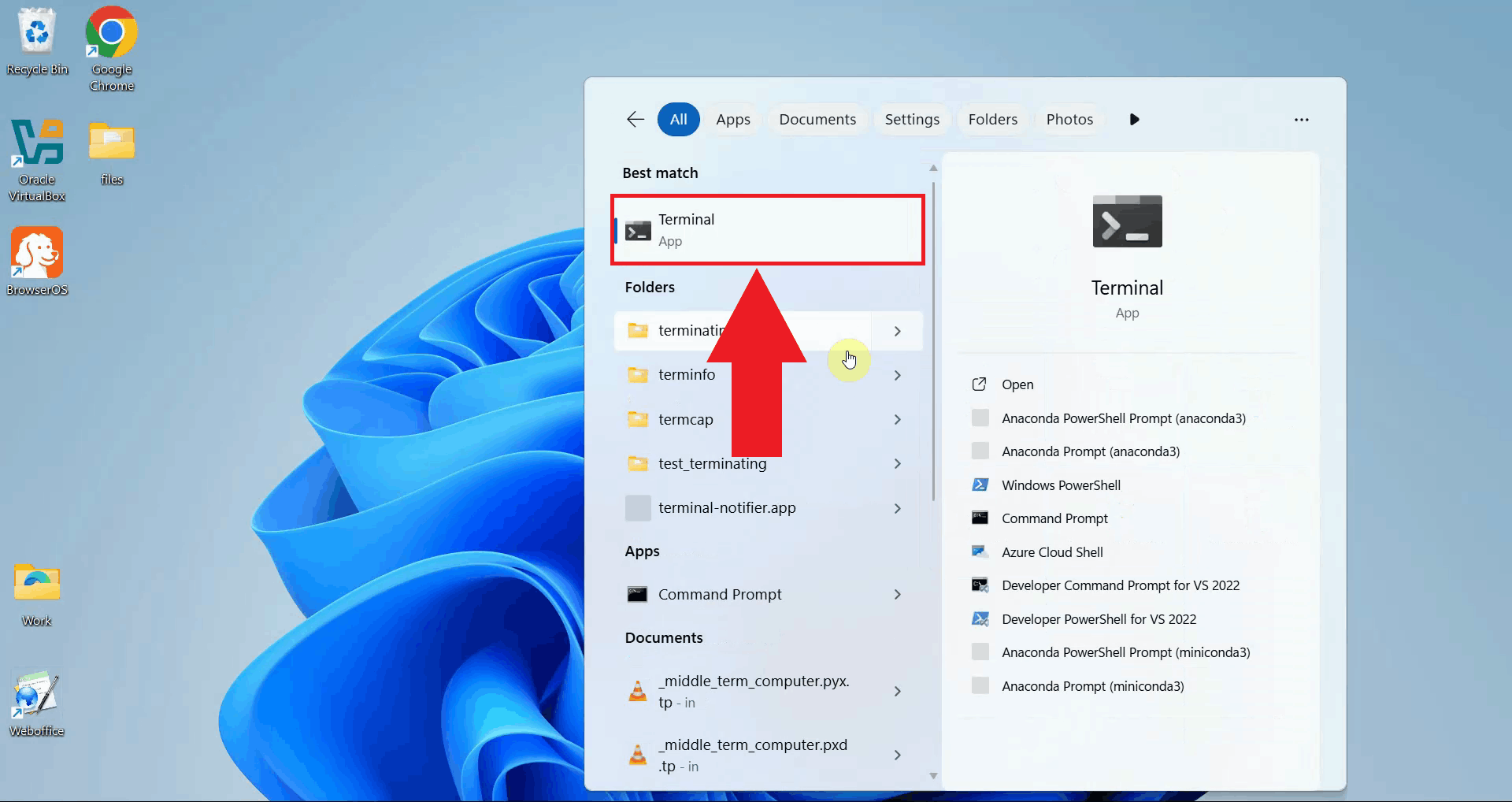
Open a terminal window by searching for "Terminal" in the start menu and clicking on the application. The terminal provides a command-line interface where you'll run the MCP Inspector (Figure 1).
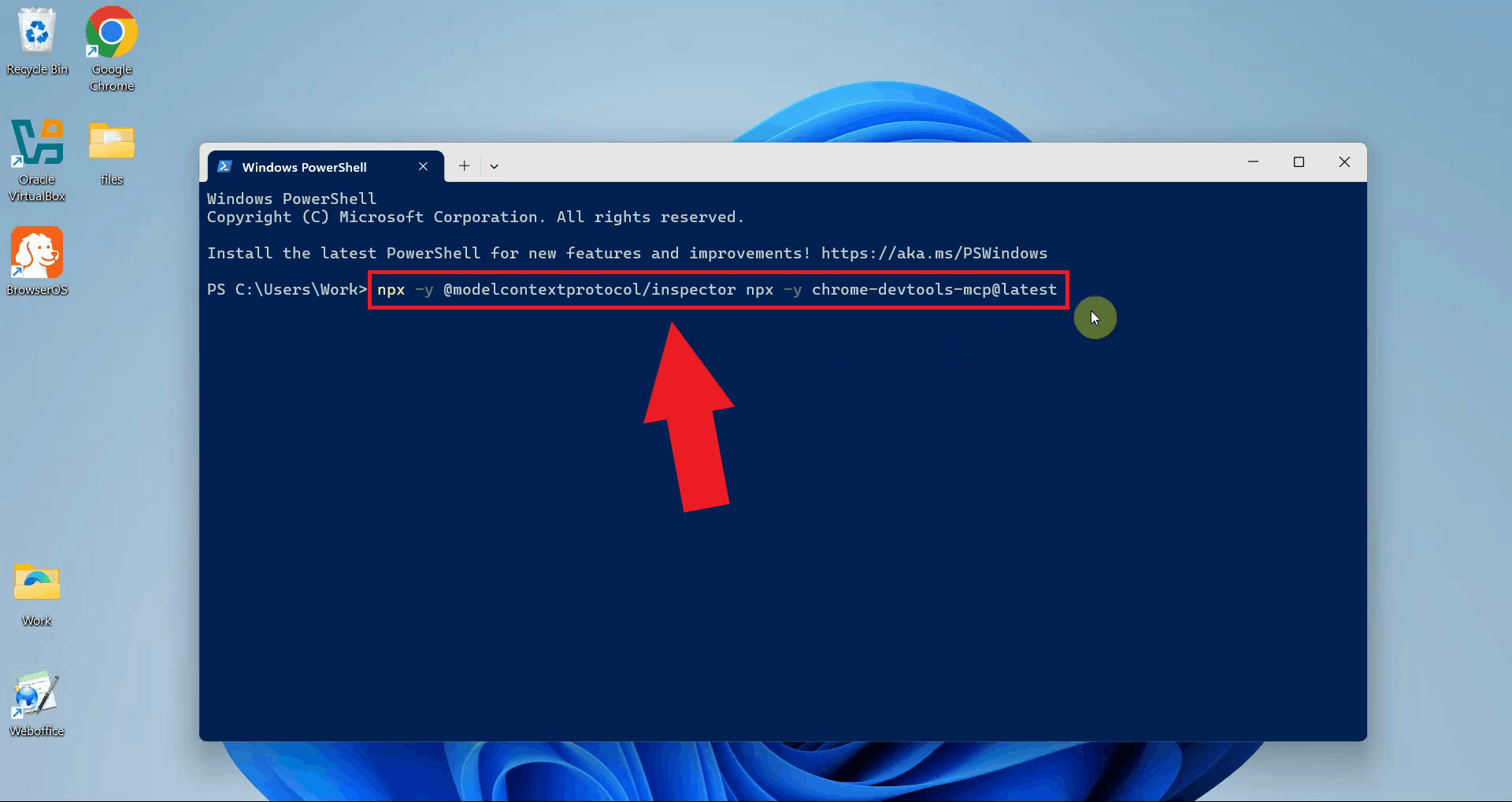
In the PowerShell terminal, execute the command npx -y @modelcontextprotocol/inspector npx -y chrome-devtools-mcp@latest
to launch the MCP Inspector with Chrome DevTools MCP server integration. This command uses NPX to download
and run both the MCP Inspector interface and the Chrome DevTools MCP server without requiring manual installation (Figure 2).
npx -y @modelcontextprotocol/inspector npx -y chrome-devtools-mcp@latest
You need Node.js and NPM installed on your system to run this command. If you don't have Node.js installed, download it from nodejs.org before proceeding.
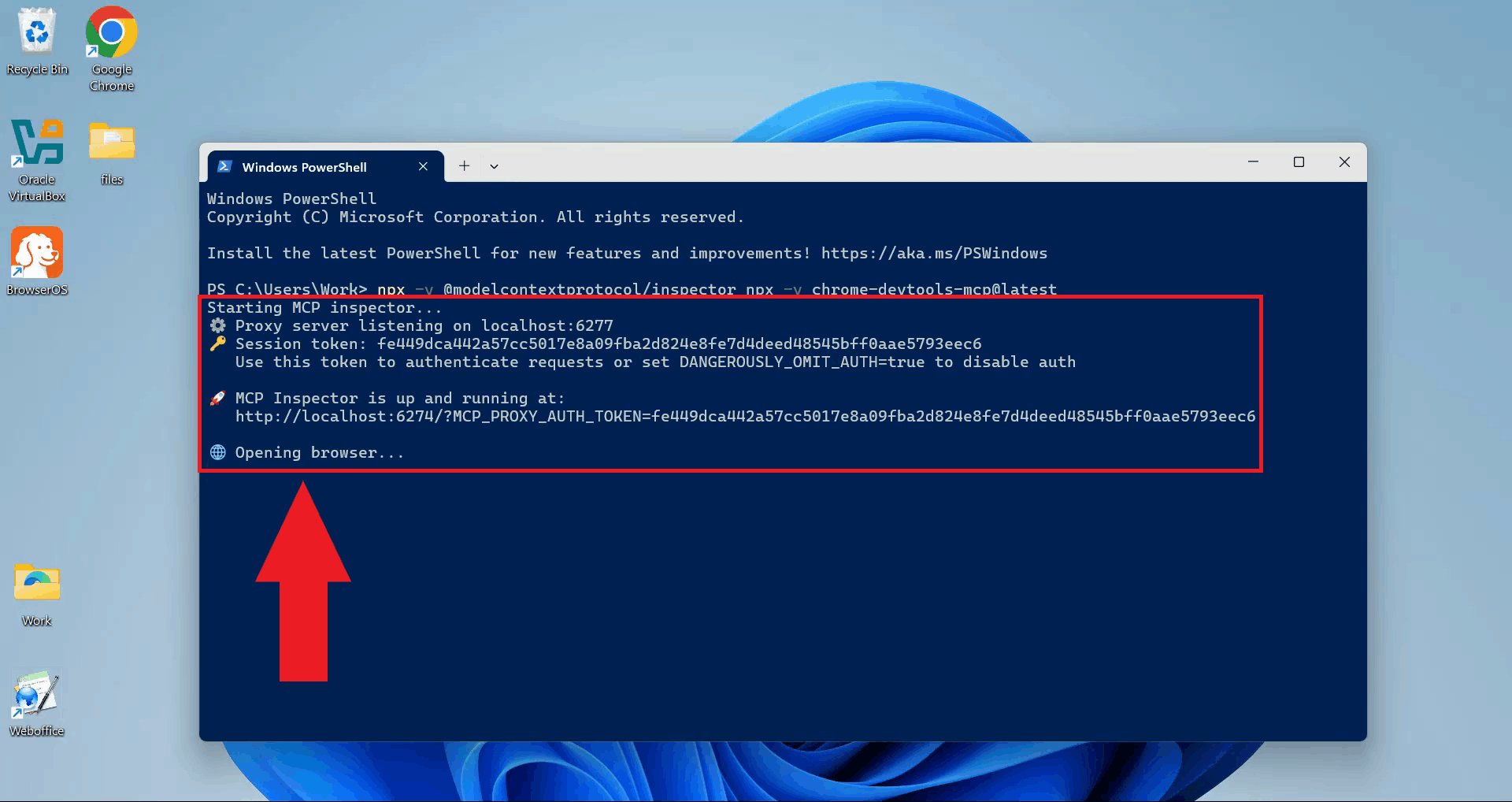
Wait for the MCP Inspector to download all required dependencies and initialize. Once initialization completes, the MCP Inspector will automatically open in your default web browser and display the connection interface (Figure 3).
Step 2 - Connect to Chrome DevTools MCP server
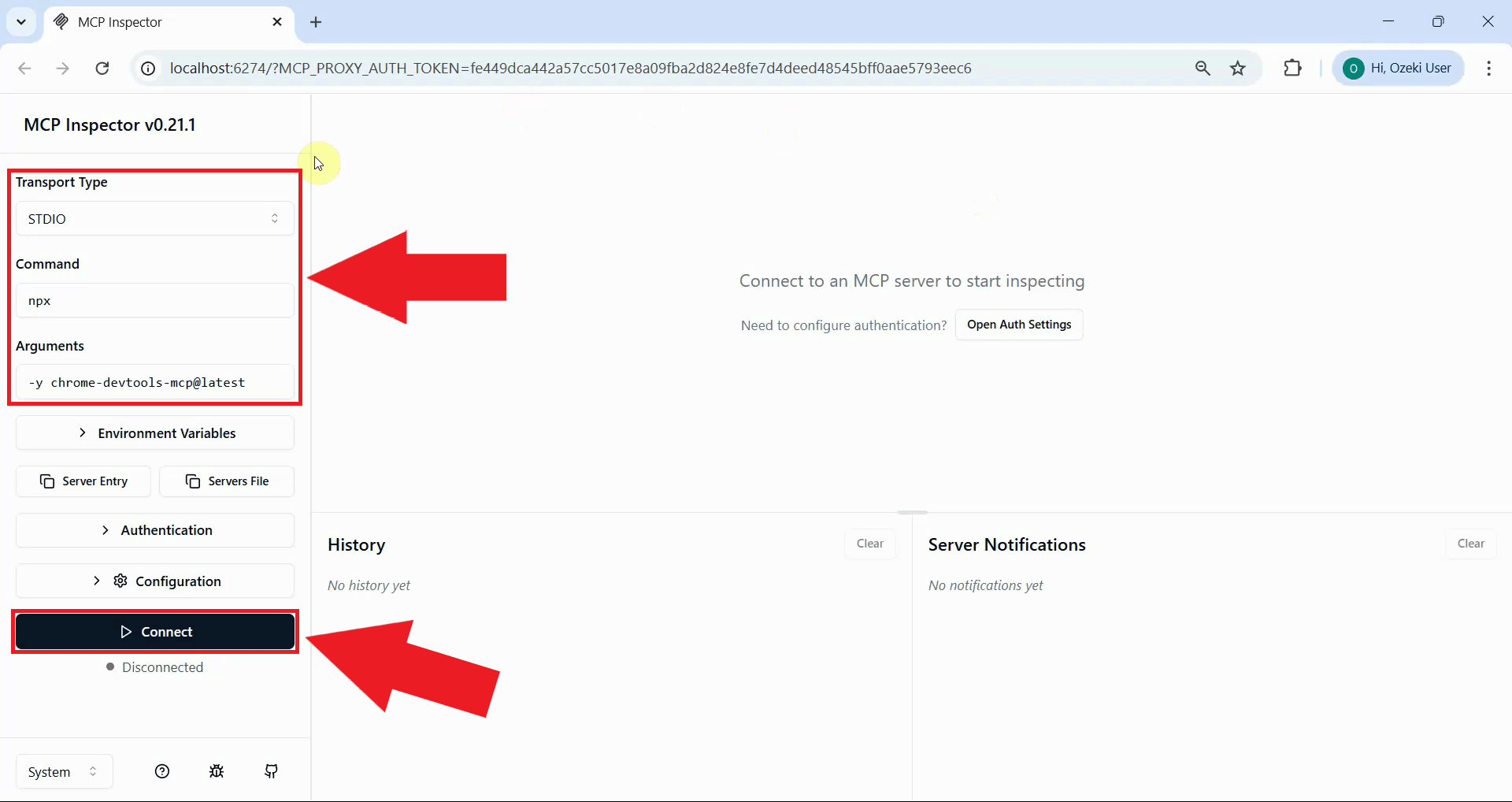
In the Inspector interface, the connection settings should already be pre-configured for the Chrome DevTools MCP server. The transport type should be set to stdio, which is the communication method used between the inspector and the Chrome DevTools MCP server. Click the Connect button to establish the connection (Figure 4).
Step 3 - List available automation tools
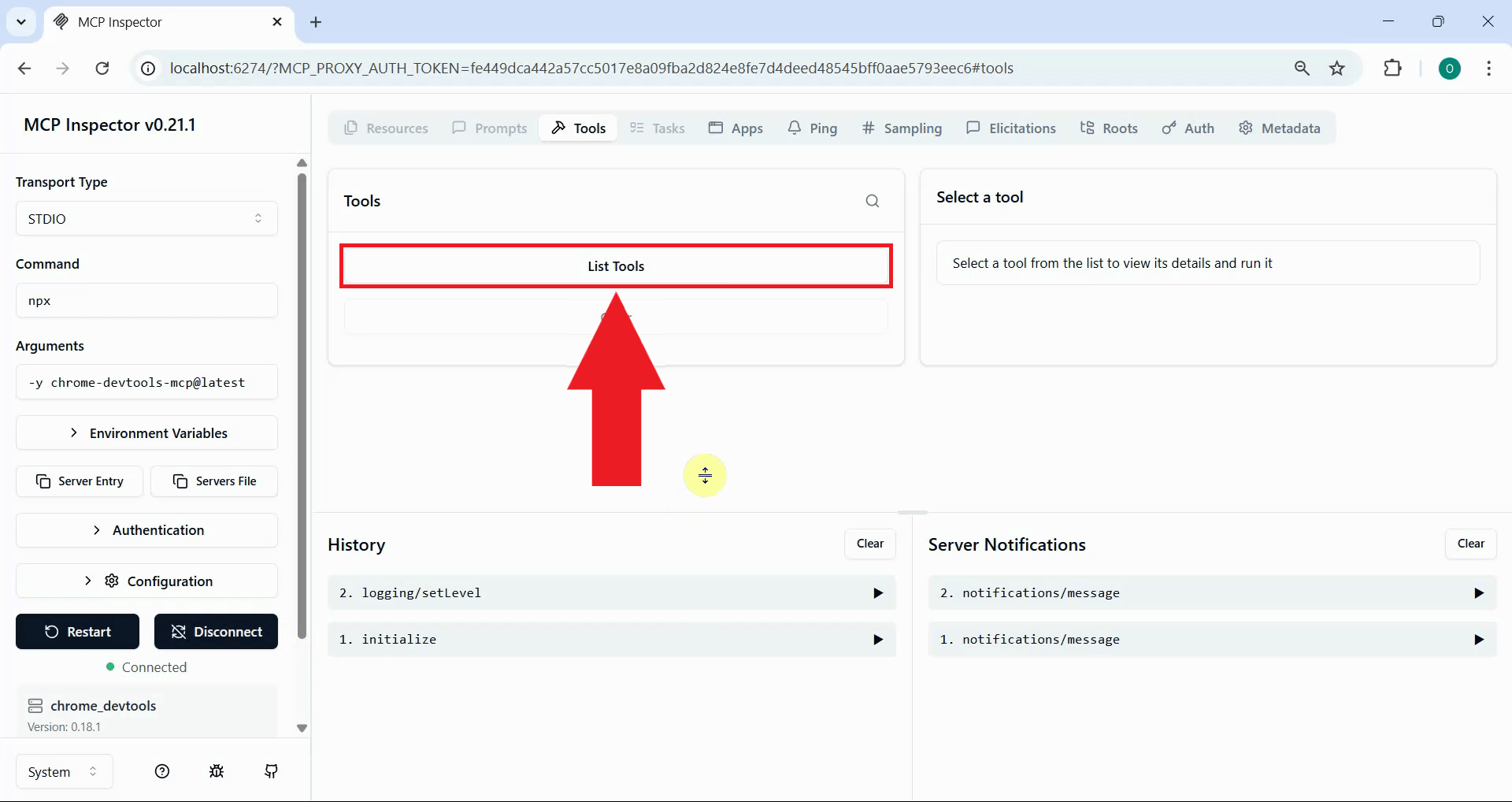
Once the connection is successful, click the List Tools button to display all available browser automation tools provided by the Chrome DevTools MCP server (Figure 5).
Step 4 - Test tools
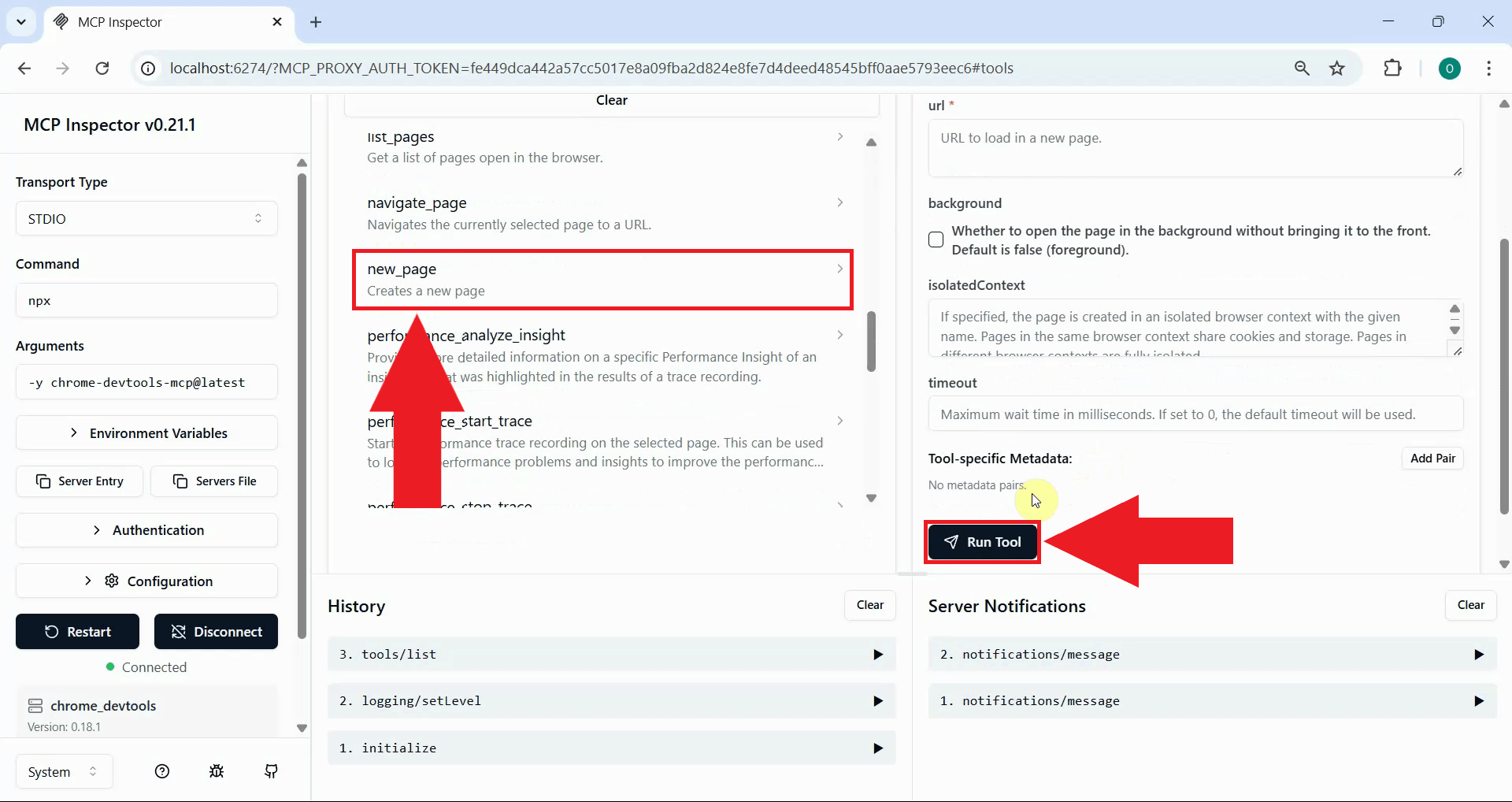
Locate and select the new_page tool from the available tools list. This tool instructs Chrome to create a new browser tab or window. Execute the tool by clicking the Run Tool button, and you should see a new Chrome window or tab open (Figure 6).
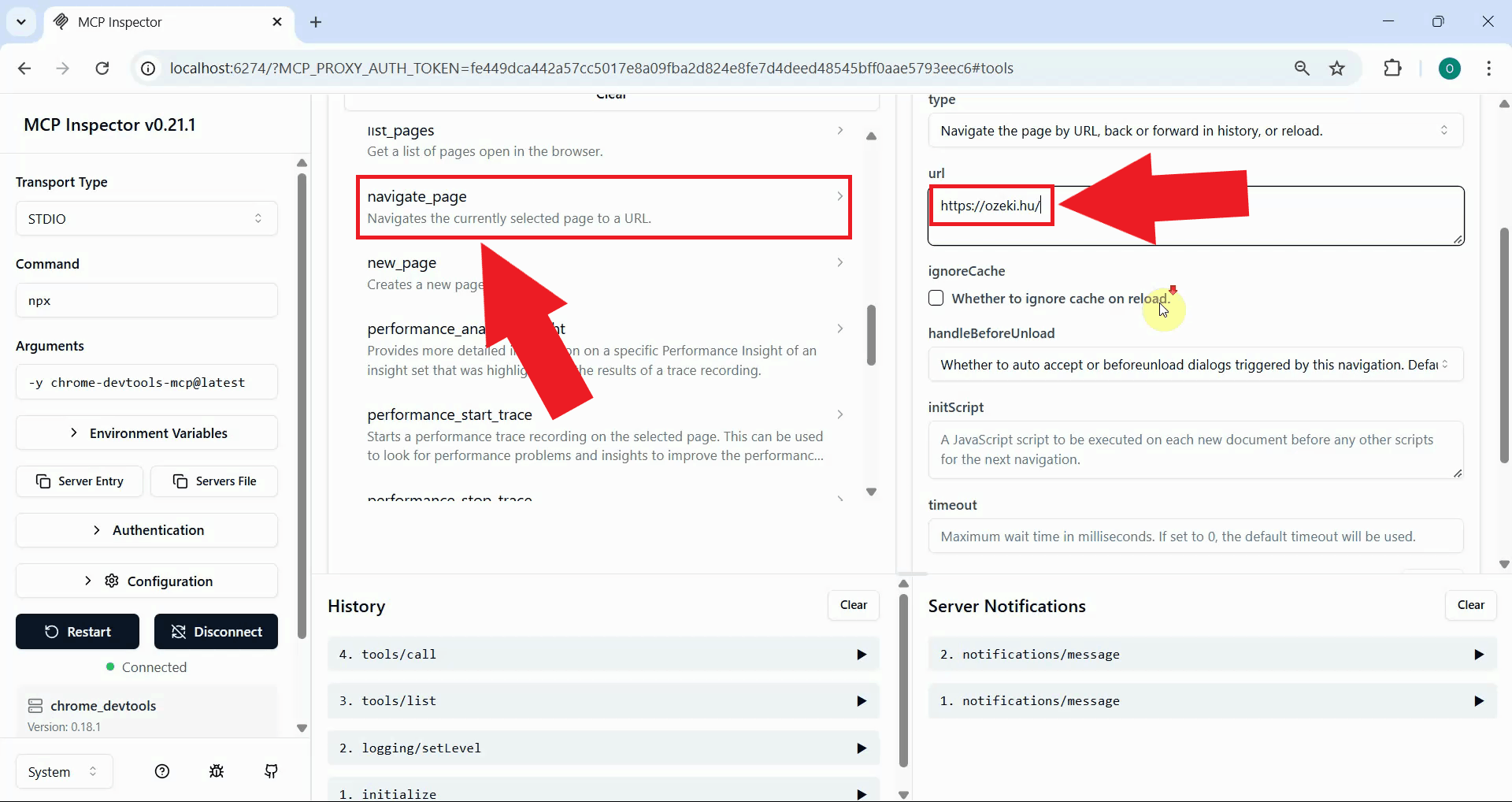
Select the navigate_page tool from the tools list to navigate the Chrome browser to a specific
URL. In the tool's parameter field, enter the website URL you want to visit, such as
https://ozeki.hu (Figure 7).
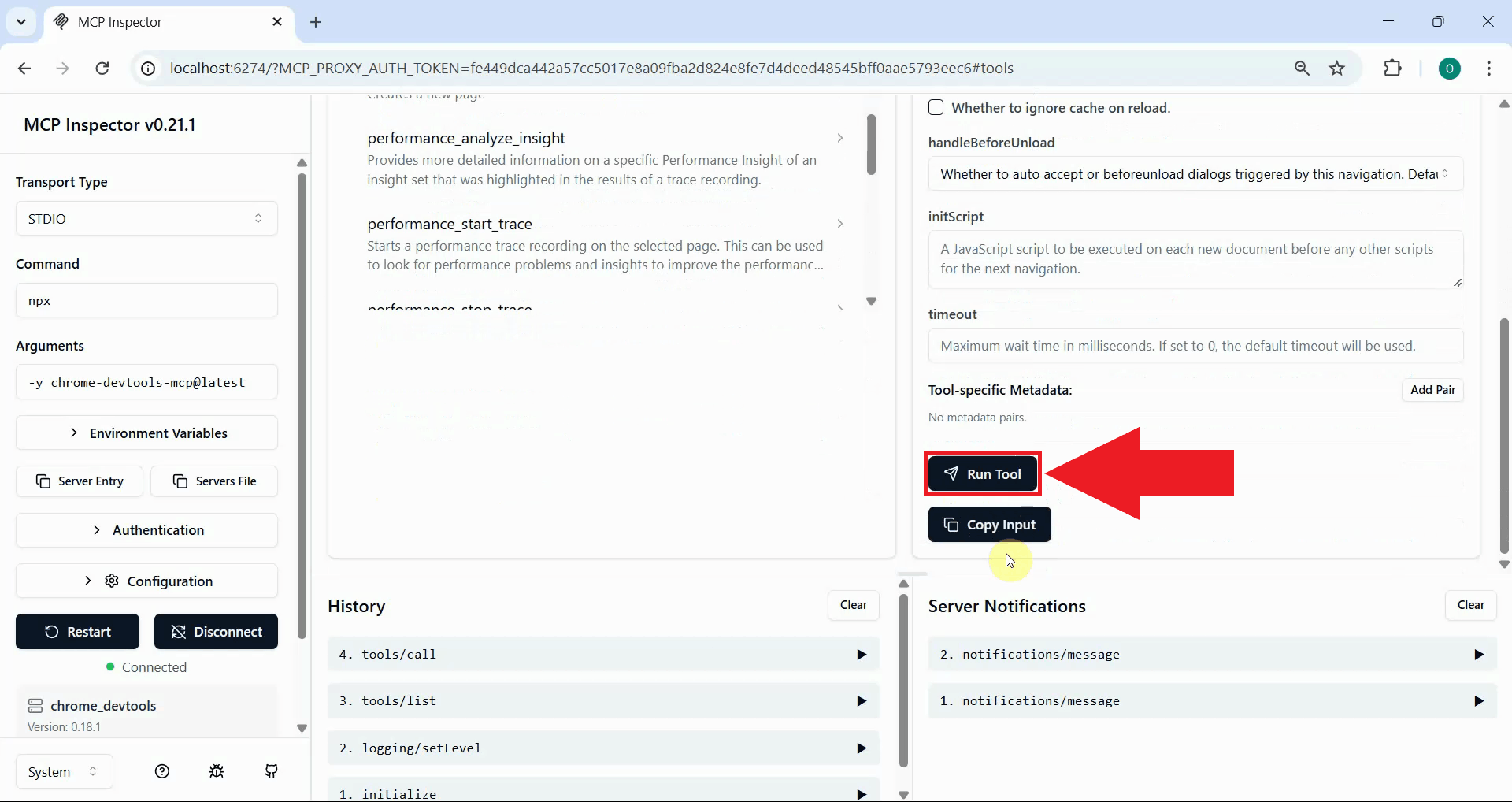
Click the Run Tool button to execute the navigate_page tool with your specified URL. The Chrome DevTools MCP server will send the navigation command to the Chrome browser instance, instructing it to load the specified website (Figure 8).
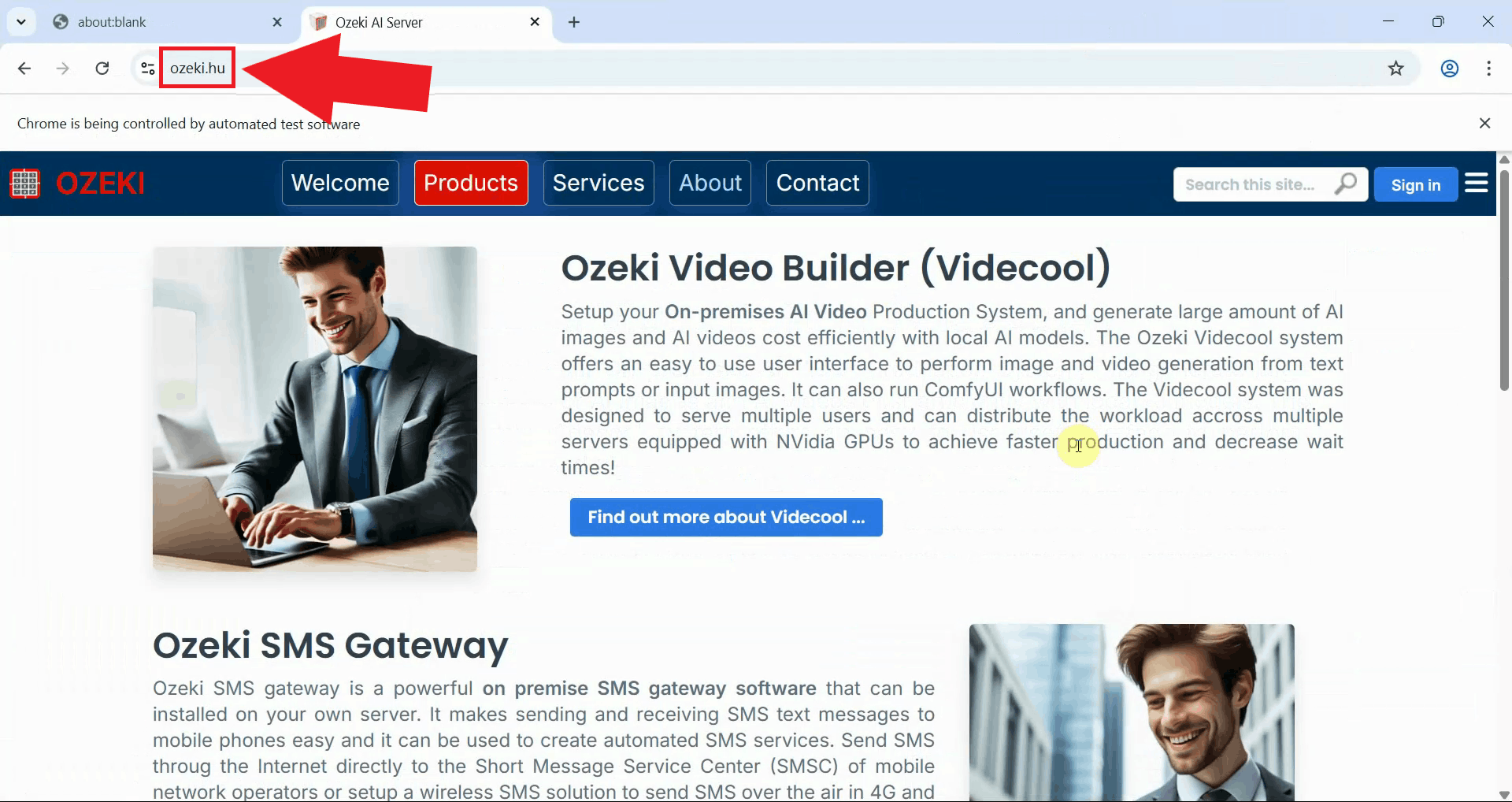
Switch to the Chrome browser window to check the result. The browser has successfully navigated to the specified website. This confirms the automation pipeline is working correctly and ready for more complex browser automation workflows (Figure 9).
Conclusion
You have successfully set up and tested the Chrome DevTools MCP server for programmatic browser automation. This integration enables you to control Chrome browser instances through the Model Context Protocol interface, opening possibilities for automated testing, AI-driven browsing, and integration with AI assistants that support MCP.