
How to send and receive emails using Zero Lab MCP Server
This guide demonstrates how to use the Zero Lab MCP Email Server to send and receive emails through the Model Context Protocol (MCP). You'll learn how to configure the server with your email account credentials, connect to it using the MCP Inspector, and execute email automation commands. For this demonstration, an hMailServer instance was used as the email server with Thunderbird as the mail client, but the setup works with any standard IMAP/SMTP compatible email server.
What is Zero Lab MCP Email Server?
Zero Lab MCP Email Server is a Model Context Protocol server that provides programmatic access to email accounts via IMAP and SMTP protocols. It allows developers and AI assistants to send and receive emails, list messages, and retrieve email content through standardized MCP commands, enabling automated email workflows and AI-driven email management.
Steps to follow
GitHub Repository: https://github.com/ai-zerolab/mcp-email-server
- Open a PowerShell terminal
- Set environment variables
- Run MCP Inspector with the email server
- Connect to the email MCP server
- List available tools
- Send an email
- Receive an email
Quick reference commands
# Environment variables
$env:MCP_EMAIL_SERVER_EMAIL_ADDRESS="account@domain";
$env:MCP_EMAIL_SERVER_PASSWORD="your-password";
$env:MCP_EMAIL_SERVER_IMAP_HOST="your-imap-host";
$env:MCP_EMAIL_SERVER_IMAP_PORT="143";
$env:MCP_EMAIL_SERVER_IMAP_SSL="false";
$env:MCP_EMAIL_SERVER_IMAP_VERIFY_SSL="false";
$env:MCP_EMAIL_SERVER_SMTP_HOST="your-smtp-host";
$env:MCP_EMAIL_SERVER_SMTP_PORT="25";
$env:MCP_EMAIL_SERVER_SMTP_SSL="false";
$env:MCP_EMAIL_SERVER_SMTP_VERIFY_SSL="false";
$env:MCP_EMAIL_SERVER_ENABLE_ATTACHMENT_DOWNLOAD="true";

# Run MCP Inspector
npx @modelcontextprotocol/inspector uvx mcp-email-server@latest stdio
Read more about the MCP inspector at: Model Context Protocol (MCP) Inspector
How to send an email using Zero Lab MCP Server
The following video shows how to send an email using the Zero Lab MCP Email Server step-by-step. The video covers setting environment variables, launching the MCP Inspector, connecting to the email server, and executing the send email tool.
Step 1 - Open a PowerShell terminal
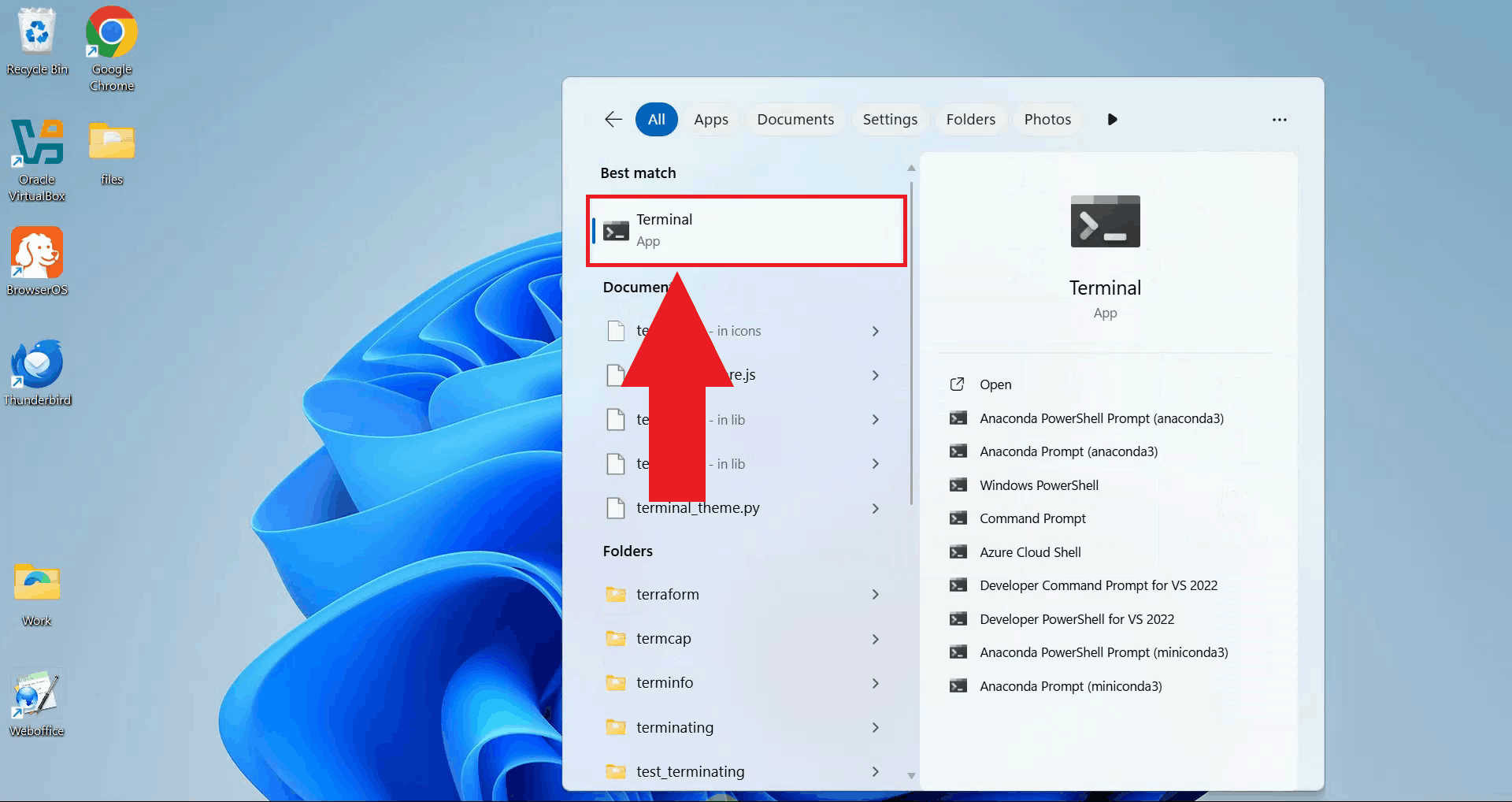
Open a PowerShell terminal by searching for "Terminal" in the start menu and clicking on the application. The terminal provides a command-line interface where you'll configure the email server credentials and run the MCP Inspector (Figure 1).
Step 2 - Set environment variables
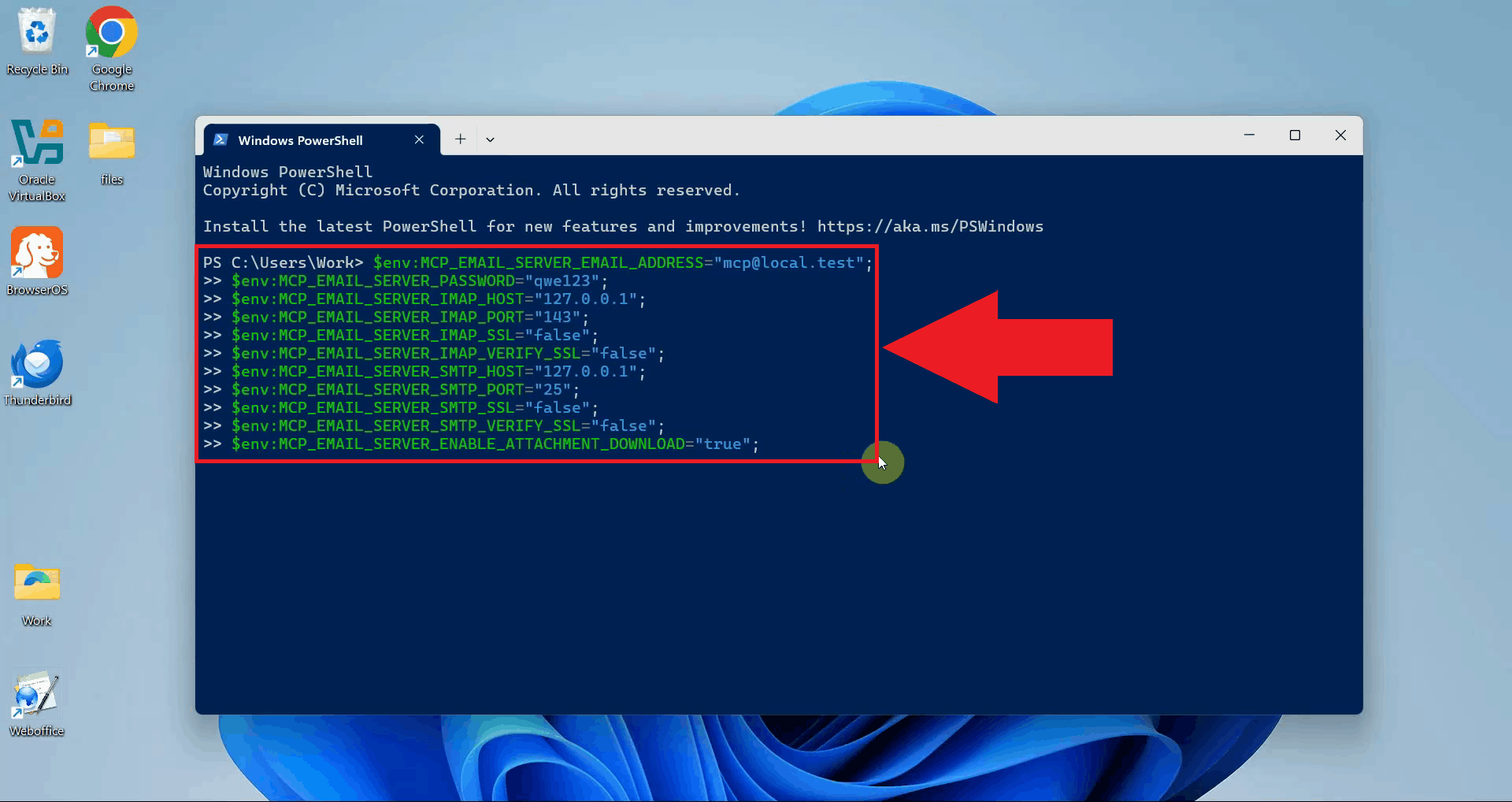
Before launching the MCP server, configure your email account credentials by setting the required environment variables in PowerShell. Replace the placeholder values with your actual email address, password, and the IMAP and SMTP host addresses of your email server. Adjust the port and SSL settings according to your provider's requirements (Figure 2).
$env:MCP_EMAIL_SERVER_EMAIL_ADDRESS="account@domain";
$env:MCP_EMAIL_SERVER_PASSWORD="your-password";
$env:MCP_EMAIL_SERVER_IMAP_HOST="your-imap-host";
$env:MCP_EMAIL_SERVER_IMAP_PORT="143";
$env:MCP_EMAIL_SERVER_IMAP_SSL="false";
$env:MCP_EMAIL_SERVER_IMAP_VERIFY_SSL="false";
$env:MCP_EMAIL_SERVER_SMTP_HOST="your-smtp-host";
$env:MCP_EMAIL_SERVER_SMTP_PORT="25";
$env:MCP_EMAIL_SERVER_SMTP_SSL="false";
$env:MCP_EMAIL_SERVER_SMTP_VERIFY_SSL="false";
$env:MCP_EMAIL_SERVER_ENABLE_ATTACHMENT_DOWNLOAD="true";
Step 3 - Run MCP Inspector with the email server
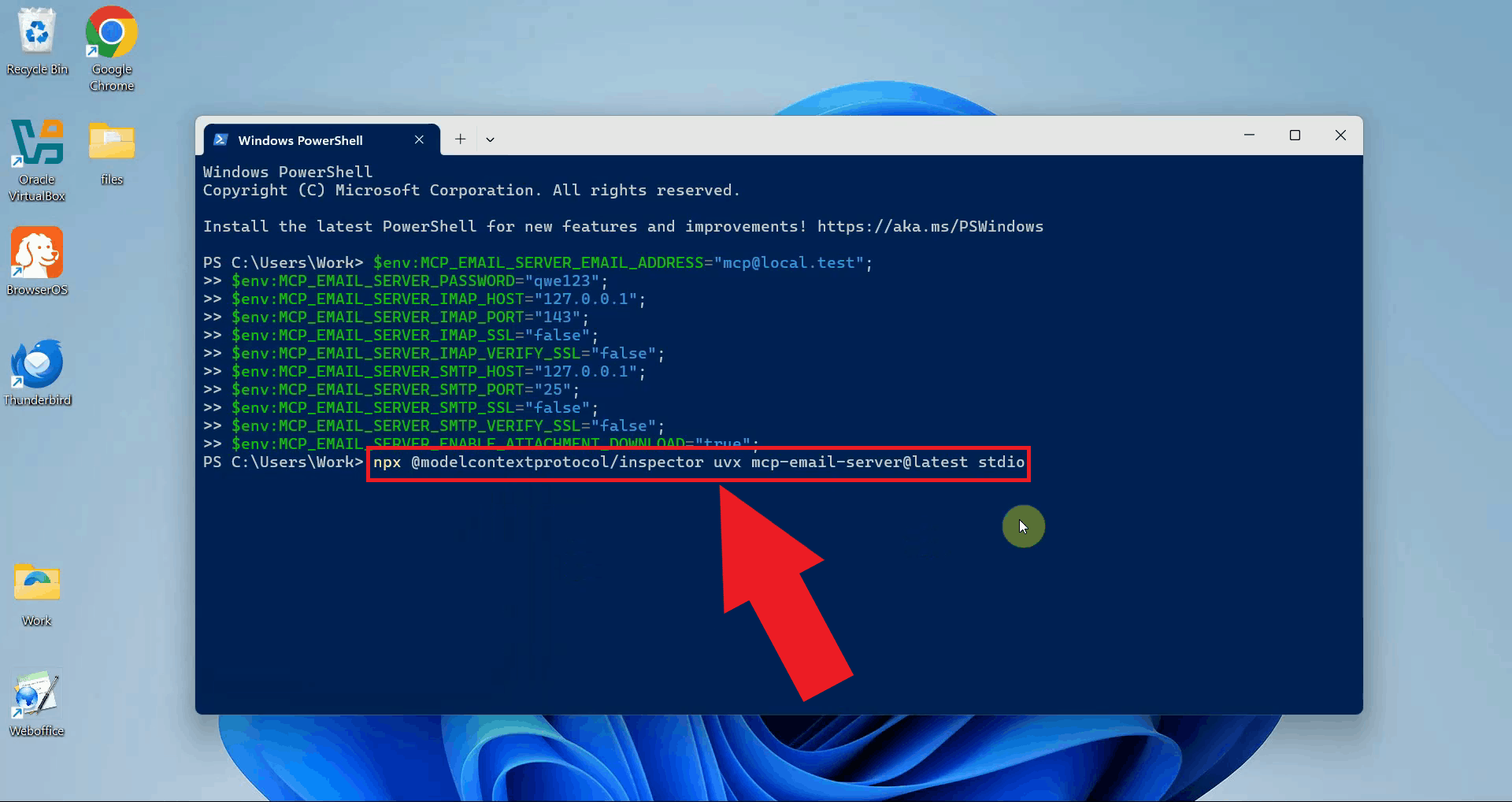
Execute the command below to launch the MCP Inspector with the MCP email server. This uses
NPX to run the MCP Inspector and UVX to run the email server package, with the stdio
transport argument specifying the communication method (Figure 3).
npx @modelcontextprotocol/inspector uvx mcp-email-server@latest stdio
You need Node.js, NPM, and Python's UV package manager installed on your system to run this command. If you don't have Node.js installed, download it from nodejs.org before proceeding.
Step 4 - Connect to the email MCP server
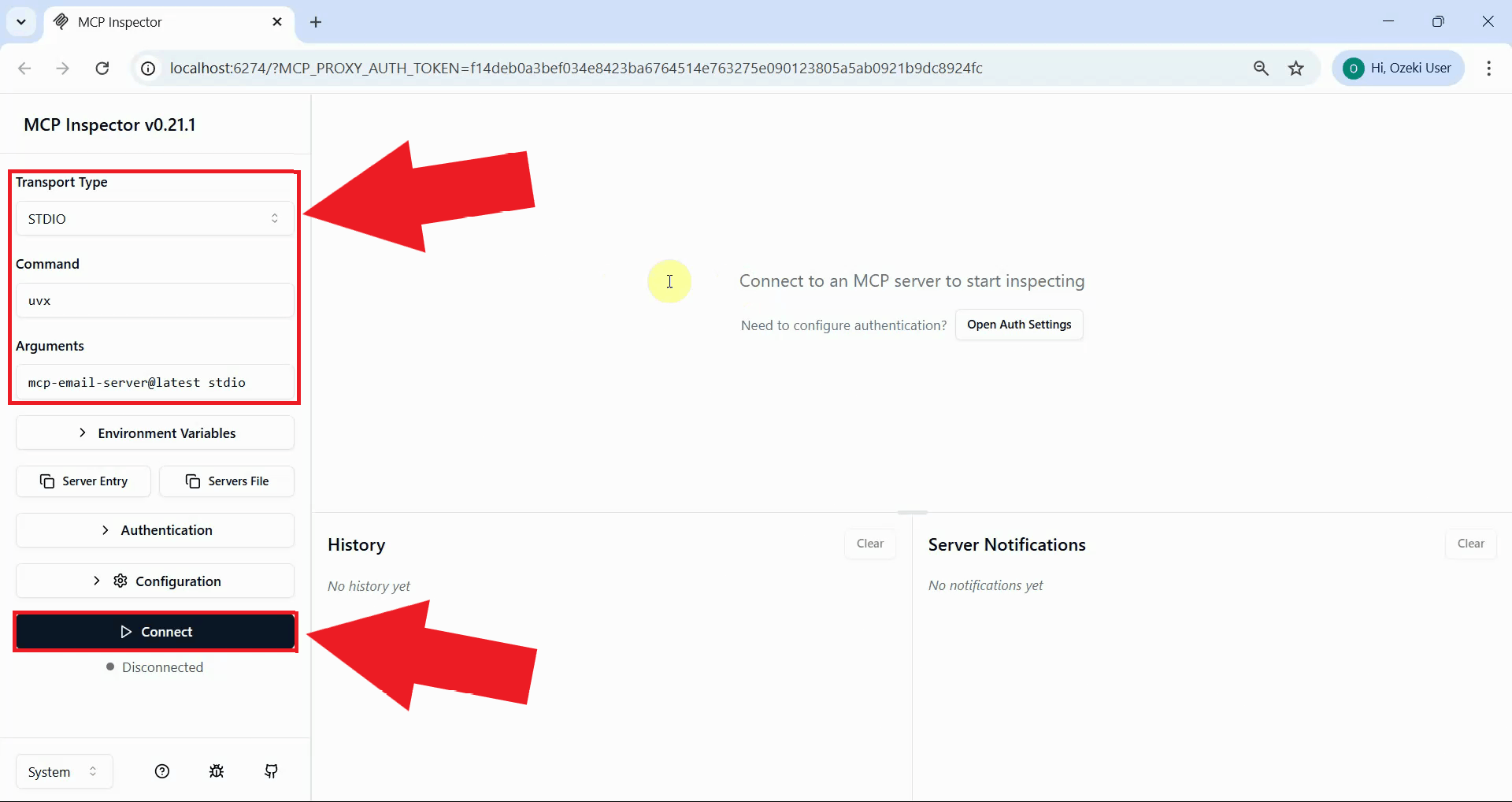
Once the MCP Inspector opens in your browser, the connection settings will be pre-configured. The transport type will be set to stdio. Click the Connect button to establish the connection between the MCP Inspector and the Zero Lab email server (Figure 4).
Step 5 - List available tools
Once the connection is successful, click the List Tools button to display all available email automation tools provided by the Zero Lab MCP Email Server. These tools include sending emails, listing email metadata, and retrieving full email content (Figure 5).
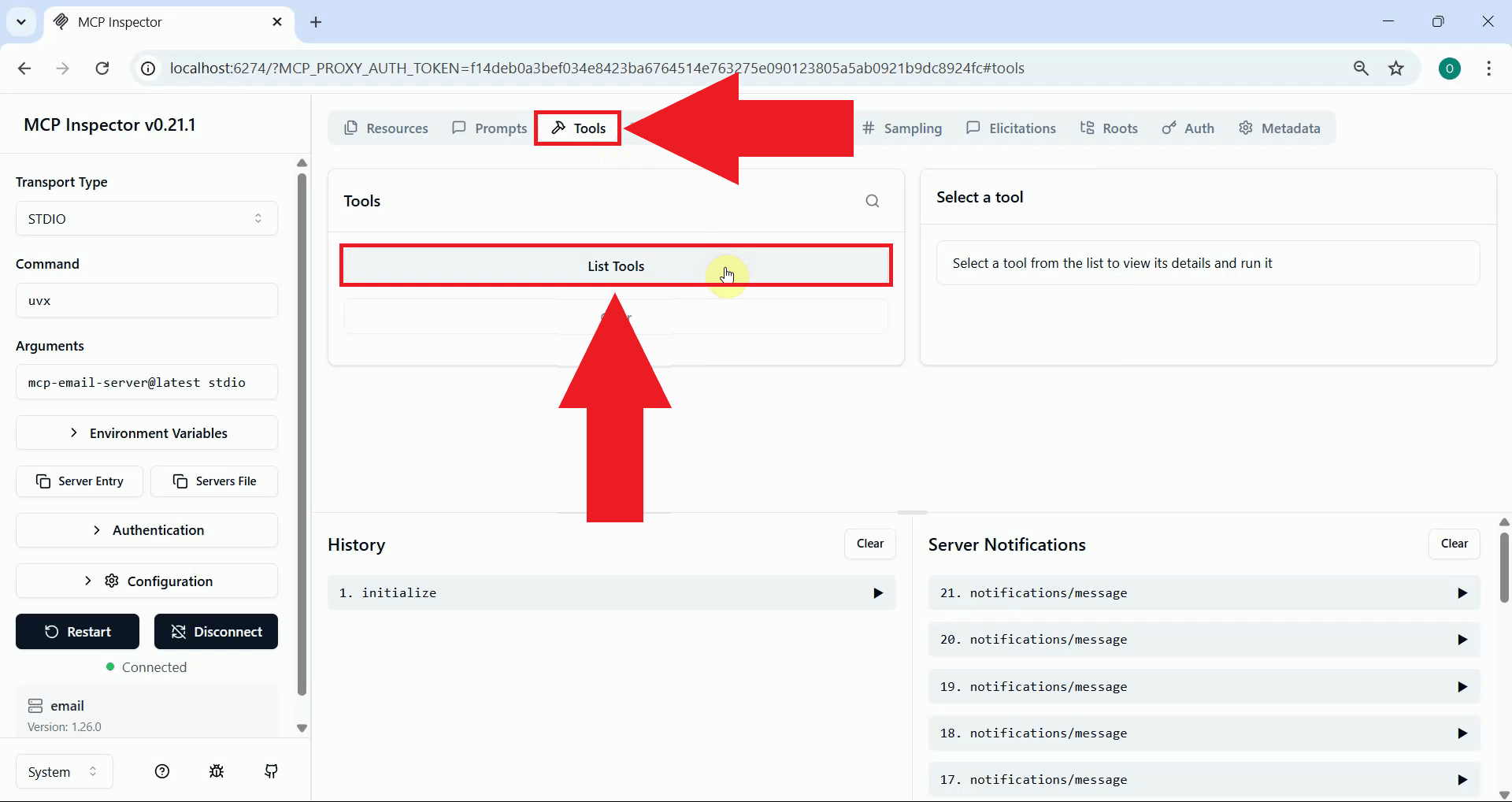
Step 6 - Send an email
Locate and select the send_email tool from the available tools list. In the tool's parameter fields, enter your sender account name to identify which account to send from (Figure 6).
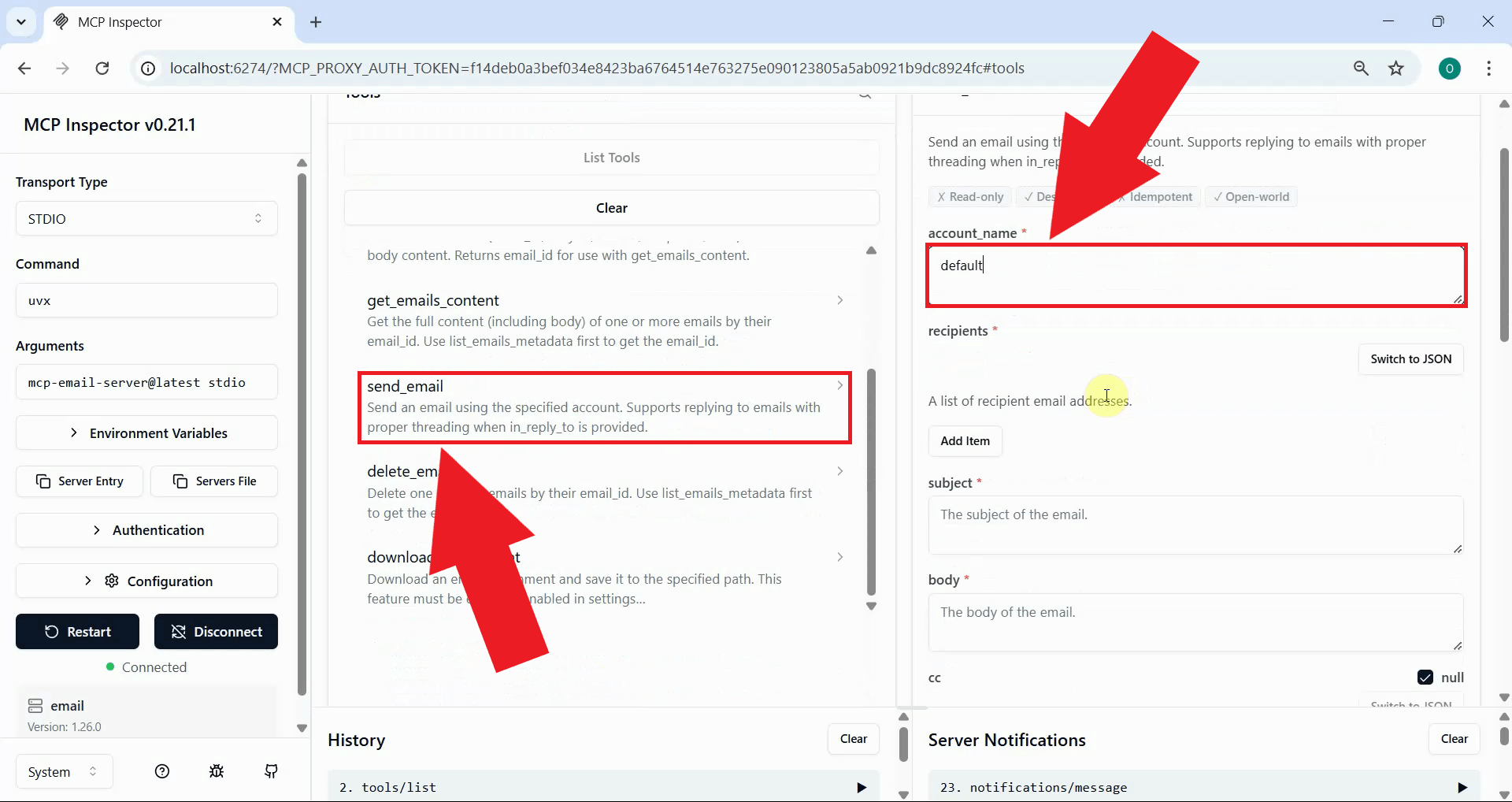
Fill in the remaining parameters: the recipient's email address in the recipients list, a subject line in the subject field, and the message content in the body field (Figure 7).
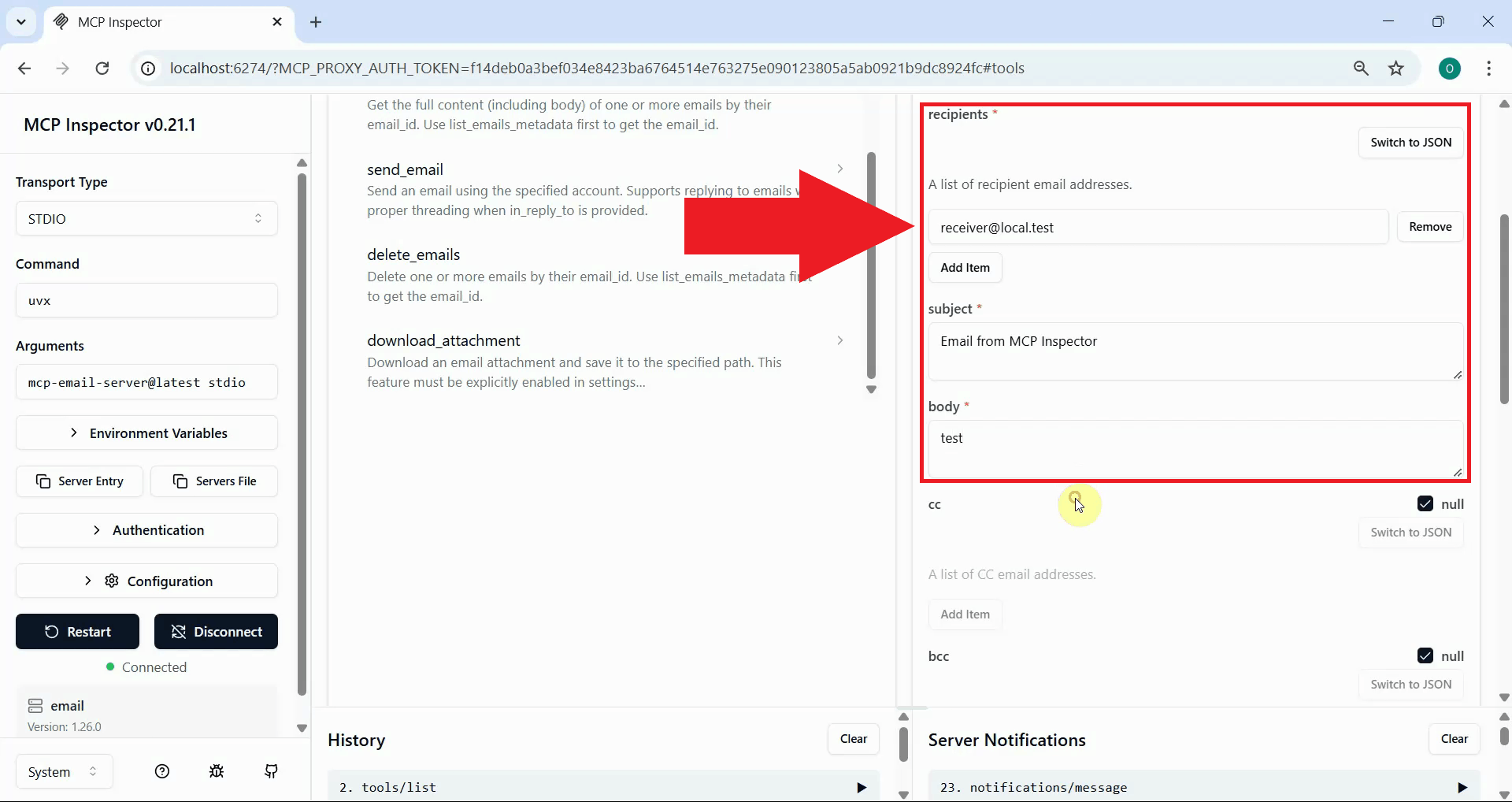
Click the Run Tool button to send the email. The MCP server will connect to your configured SMTP host and deliver the message. A successful response confirms the email was sent (Figure 8).
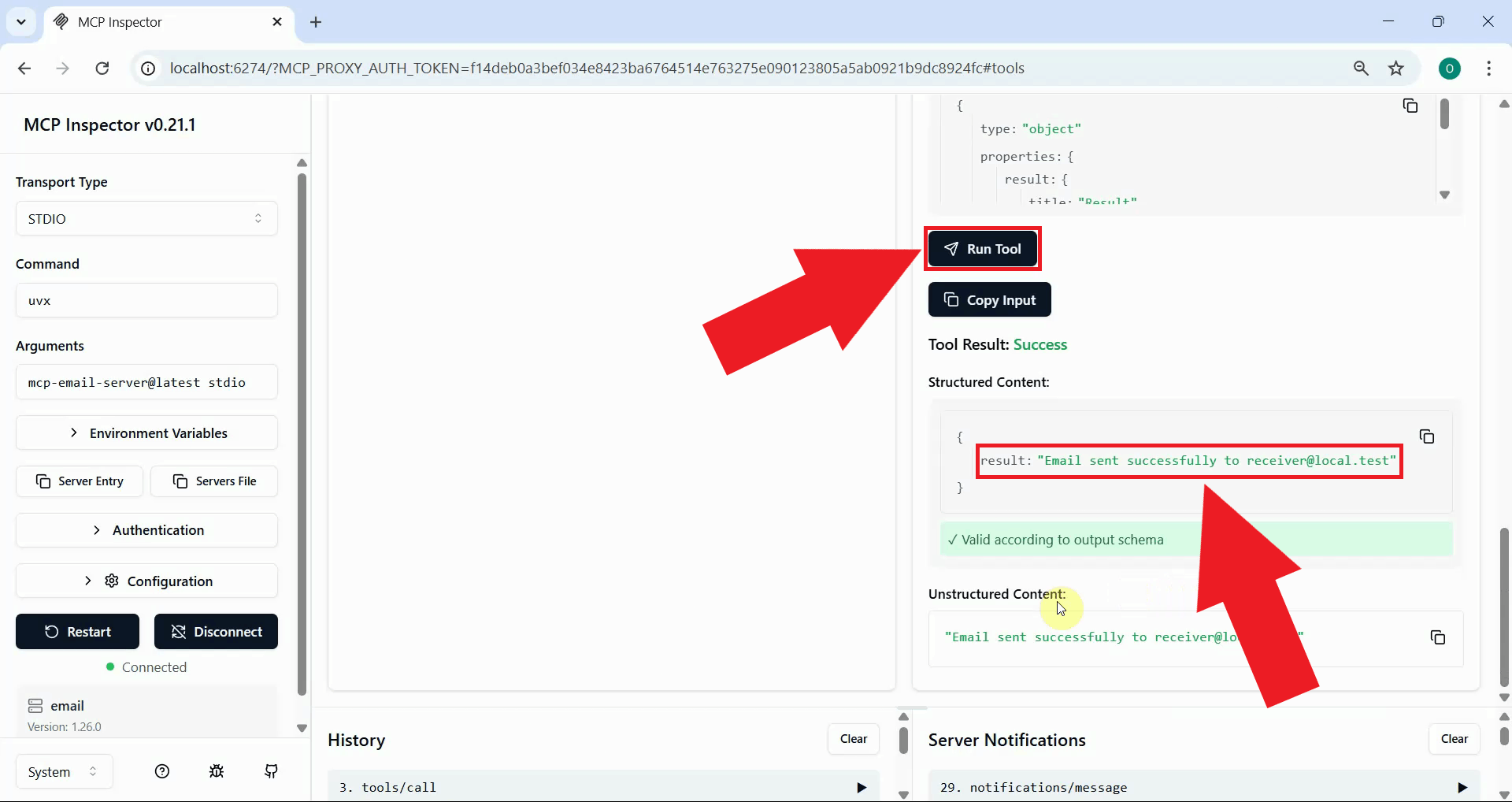
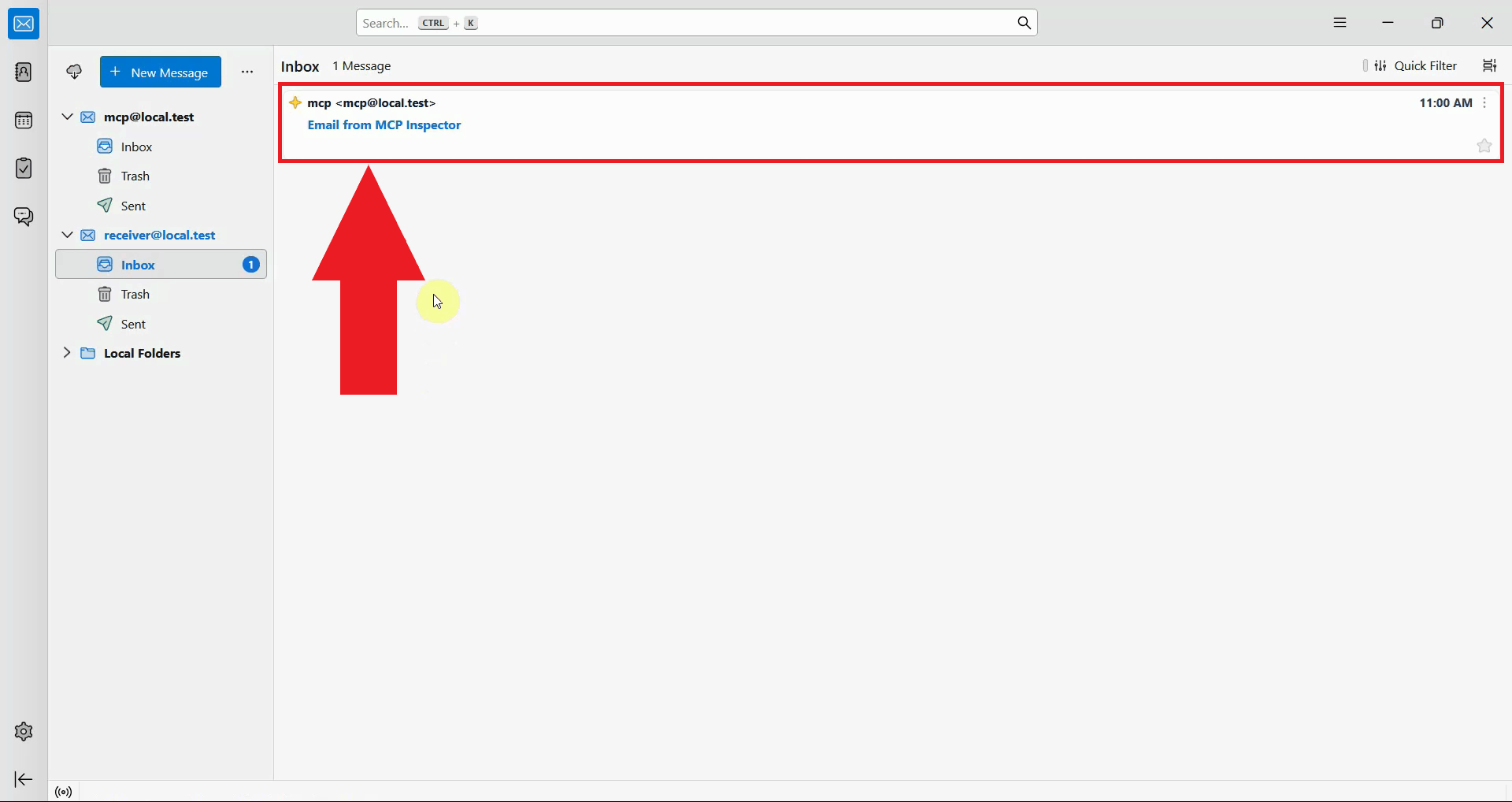
To verify the result, open your email client and check the recipient's inbox. The email sent through the MCP server should appear, confirming the SMTP automation pipeline is working correctly (Figure 9).
Step 7 - Receive an email
The following video shows how to receive and read an email using the Zero Lab MCP Email Server step-by-step. The video covers sending a test email to the configured account, listing inbox metadata via MCP, and retrieving the full email content using the message ID.
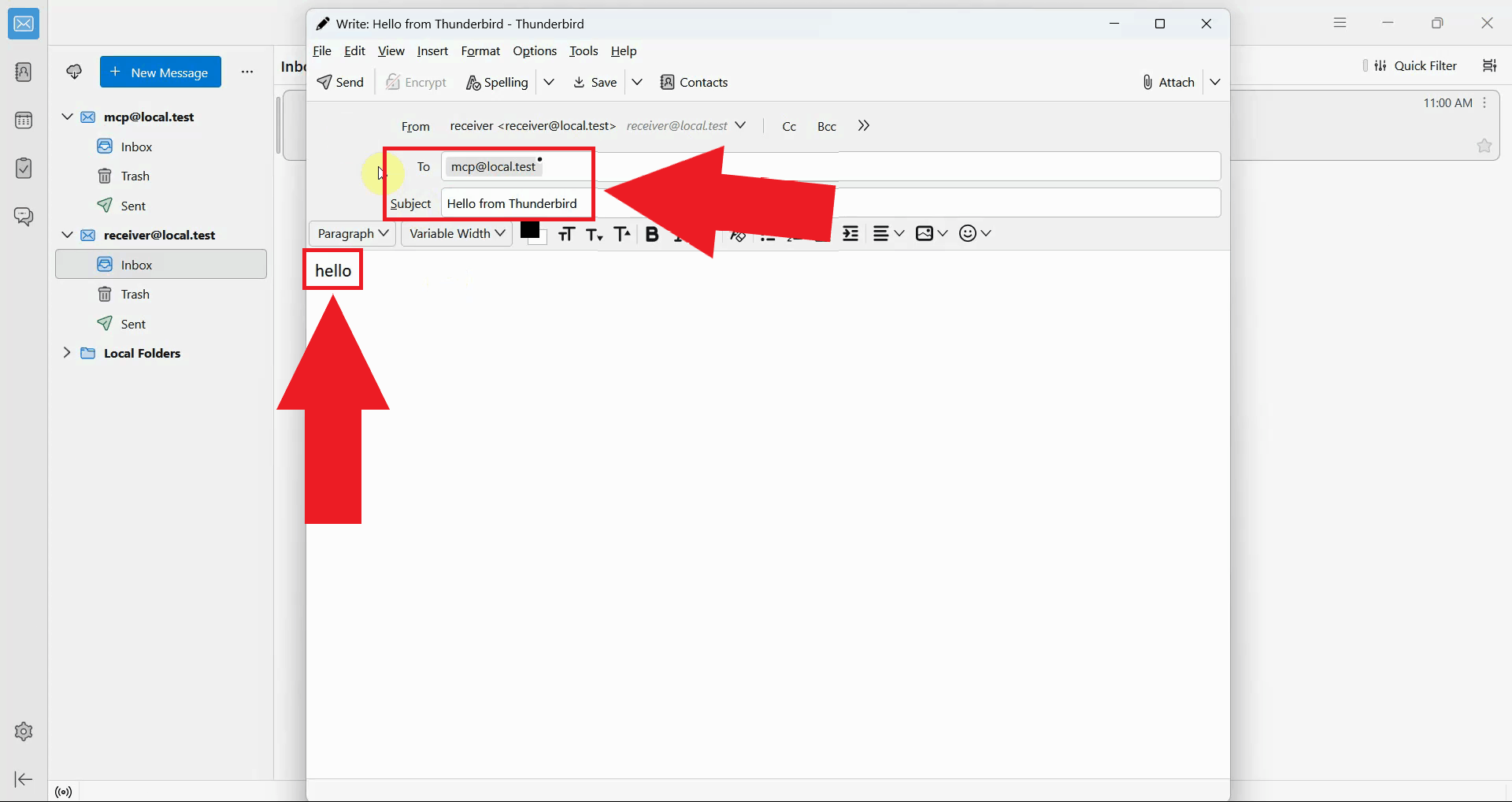
To test receiving emails, first send a message to the email account configured in the MCP server using any mail client. In this example, Thunderbird is used to send a test email to the MCP account (Figure 10).
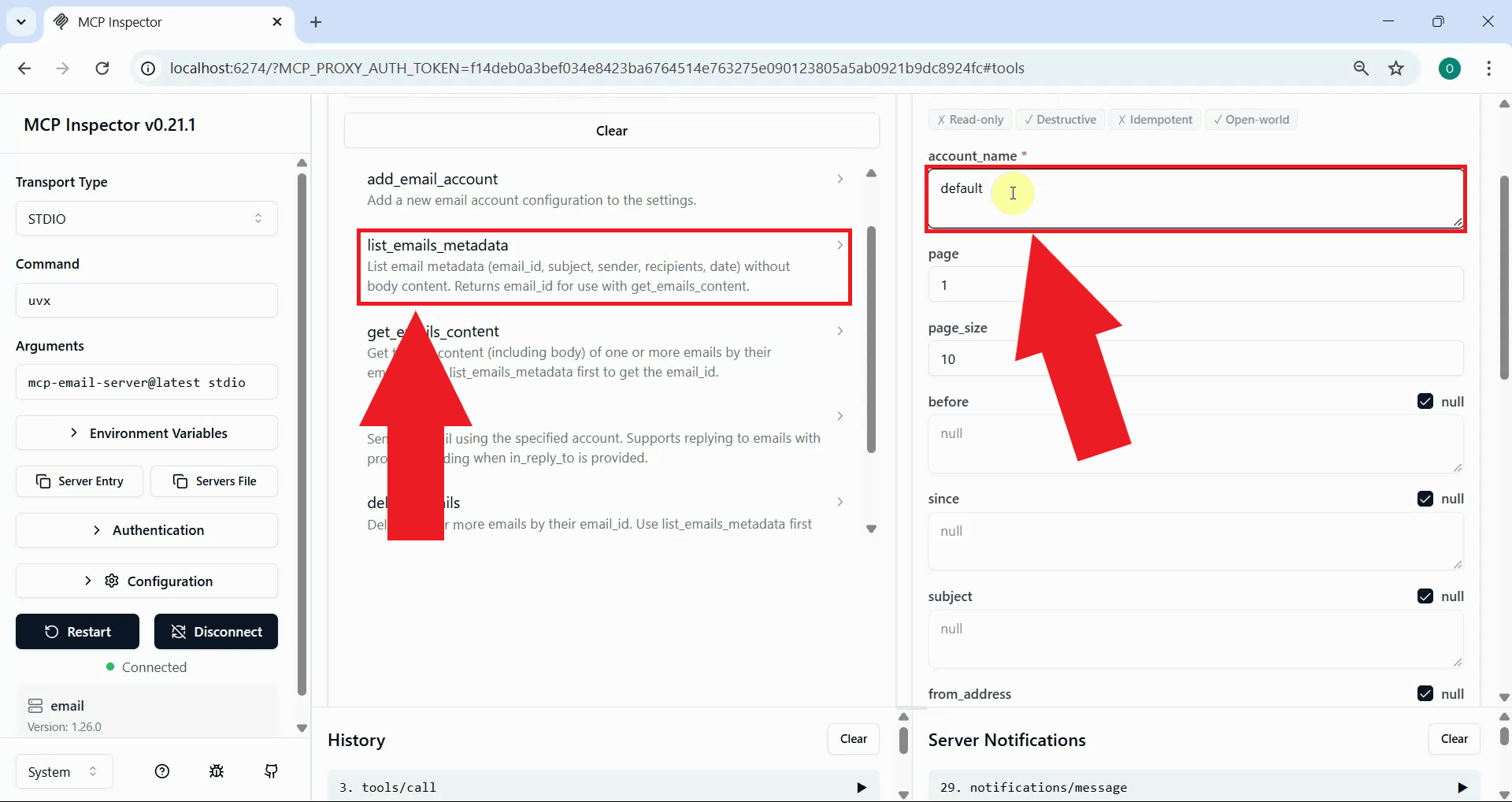
Back in the MCP Inspector, locate and select the list_emails_metadata tool. Enter your account name in the parameter field to specify which inbox to query (Figure 11).
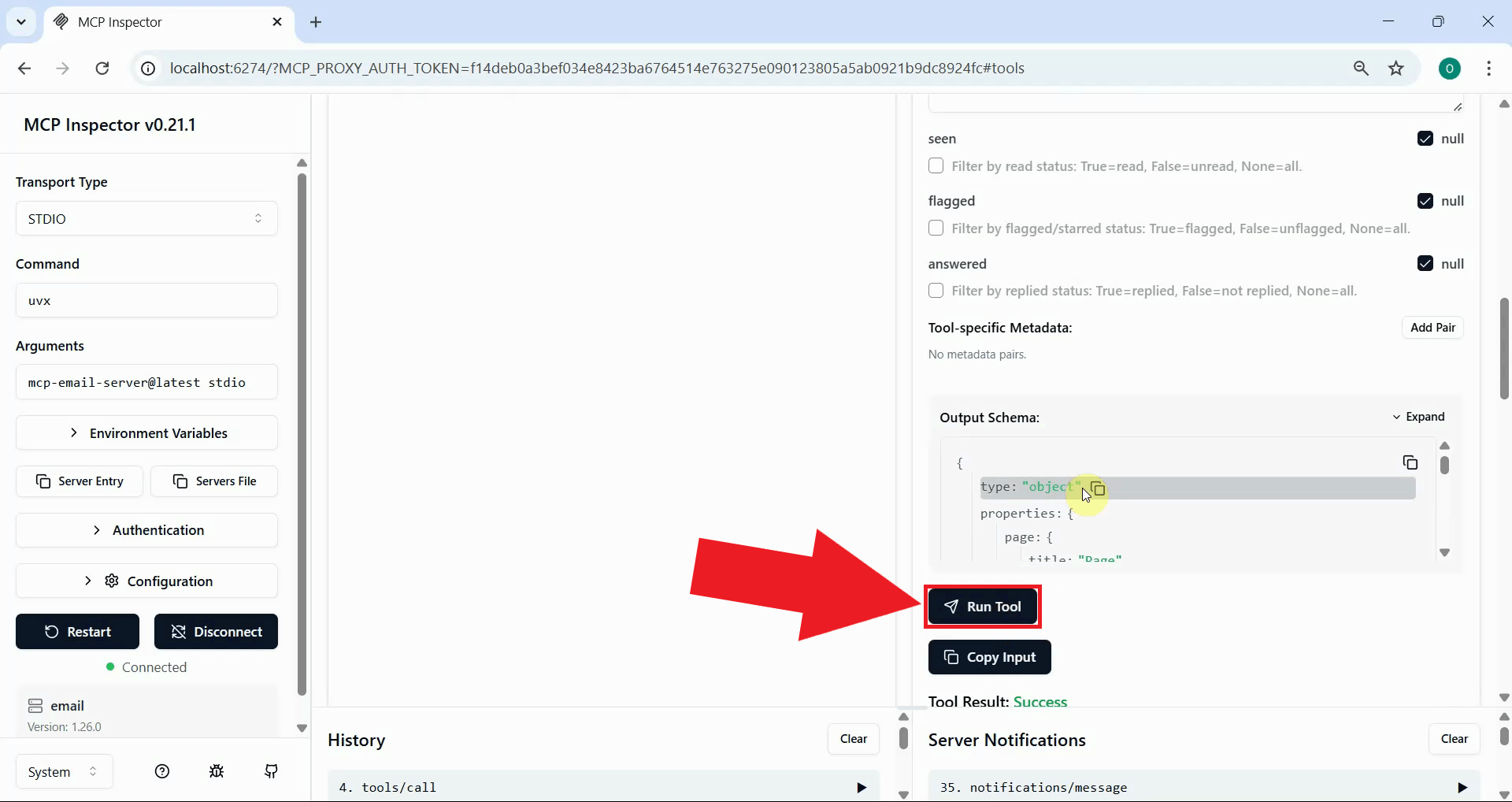
Click the Run Tool button to retrieve the list of emails from your inbox. The response will contain metadata for each message including sender, subject, date, and a unique message ID (Figure 12).
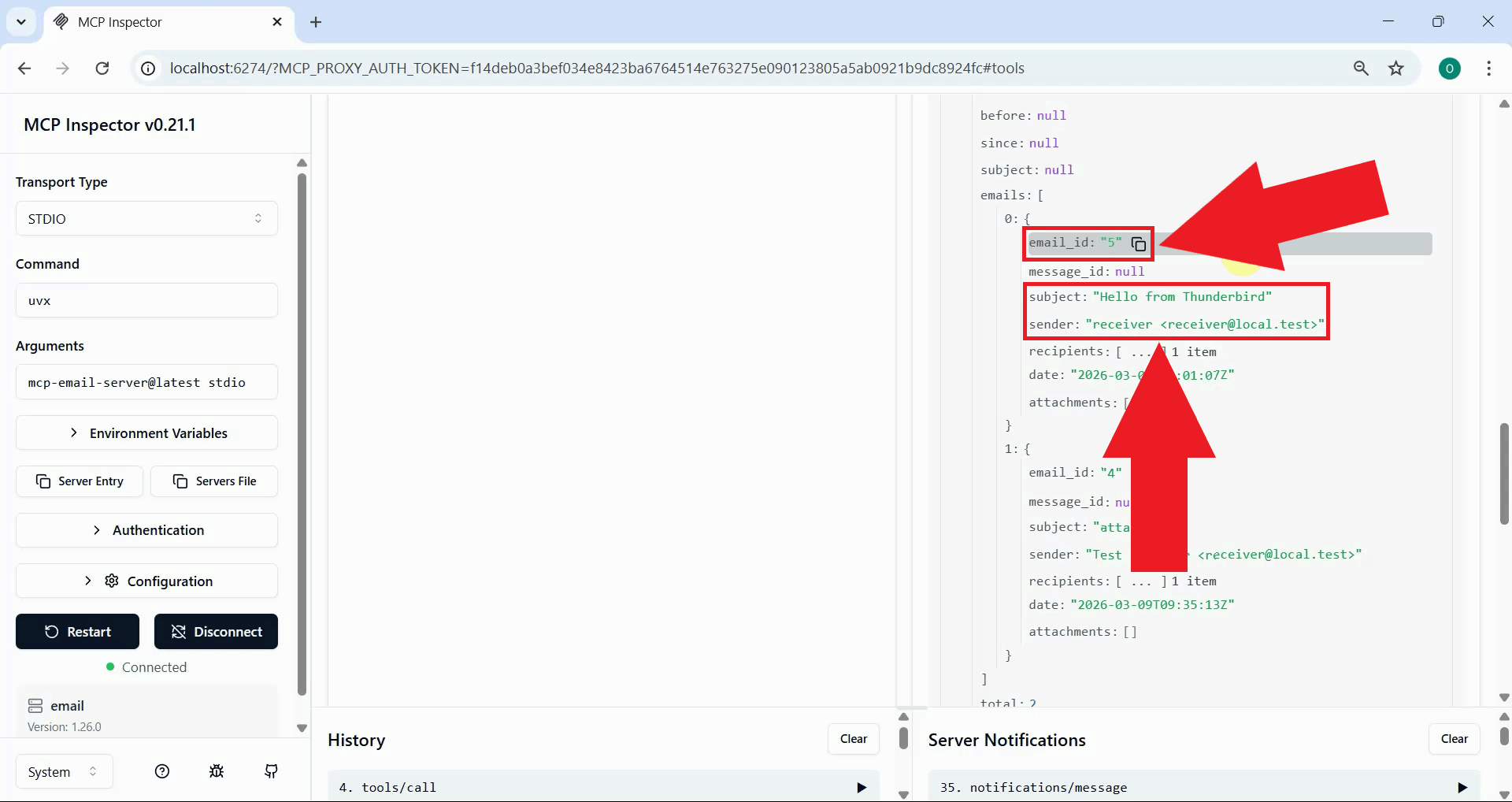
In the tool response, locate the test email you sent and copy its unique message ID. This ID will be used in the next step to retrieve the full content of the email (Figure 13).
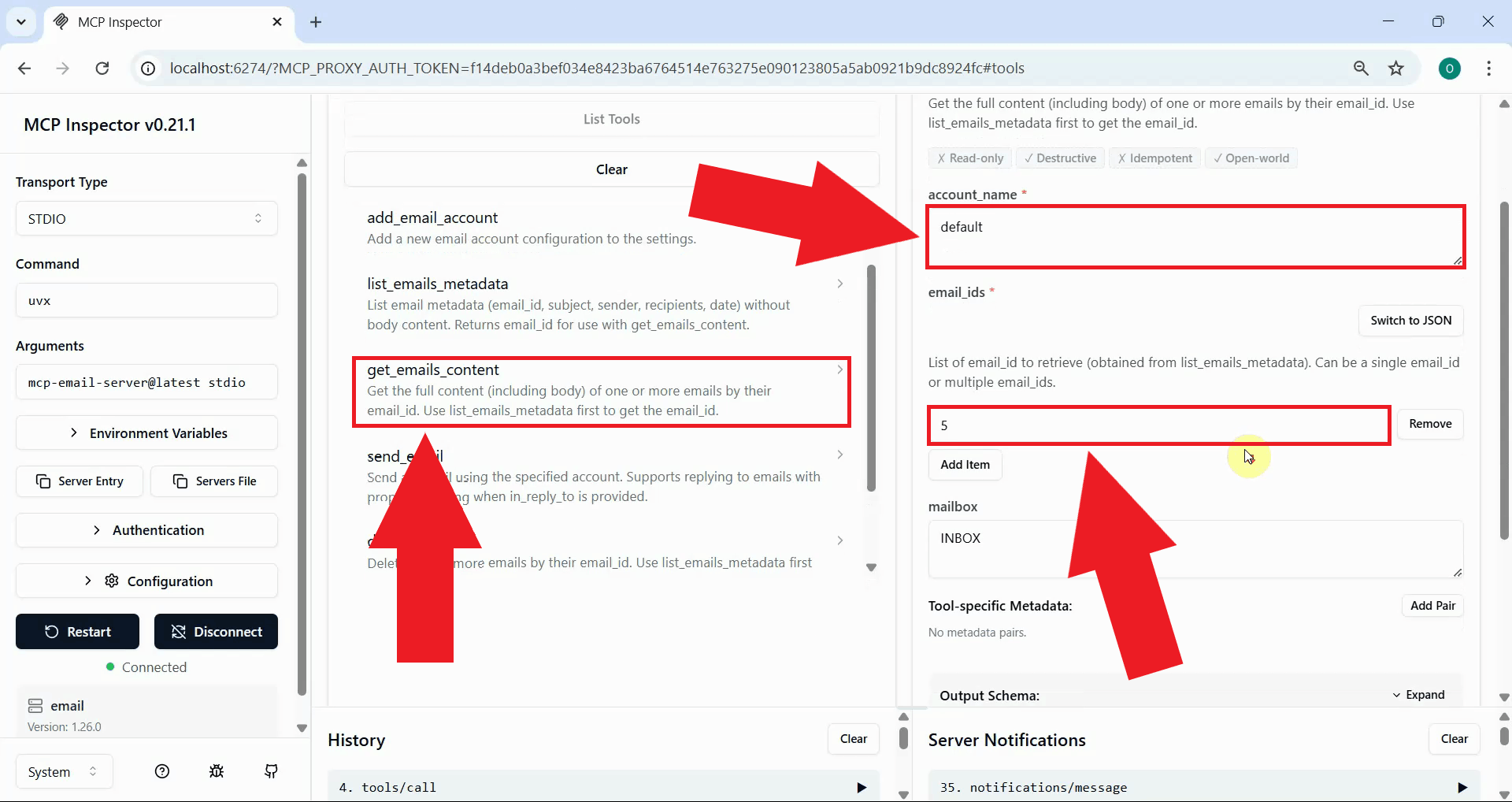
Select the get_emails_content tool from the tools list. Enter your account name and paste the message ID you copied into the appropriate parameter fields (Figure 14).
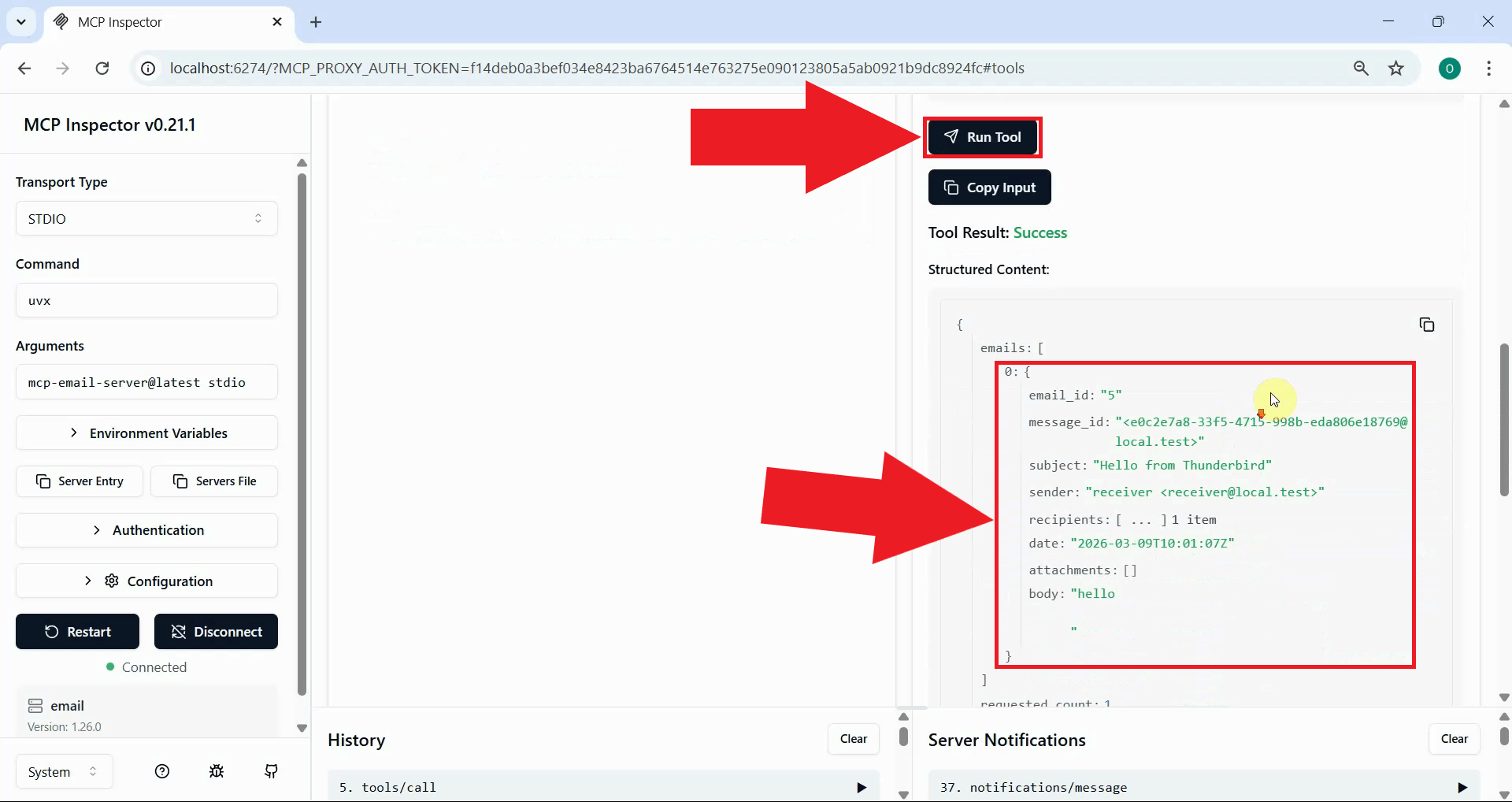
Click the Run Tool button to retrieve the full email content. The MCP server will connect to your IMAP host and return the complete email including the message body. This confirms the IMAP automation pipeline is working correctly and ready for integration into email processing workflows (Figure 15).
Final thoughts
You have successfully set up and tested the Zero Lab MCP Email Server for programmatic email automation. This integration enables you to send and receive emails through the Model Context Protocol interface, opening possibilities for AI-driven email workflows, automated notifications, inbox monitoring, and integration with AI assistants that support MCP. The server works with any standard IMAP/SMTP compatible email provider, making it flexible for use in a wide range of environments.