
How to Restore Ozeki AI Gateway
This guide demonstrates how to restore Ozeki AI Gateway from backup files on Linux systems. You'll learn how to extract and restore the data directory, configuration files, and program files using tar commands. By following these steps, you can recover your gateway installation files.
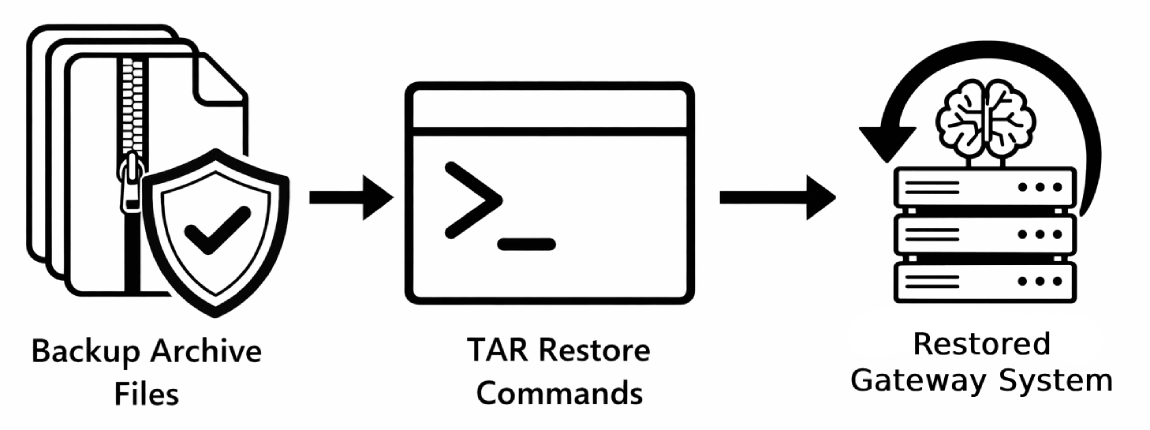
Steps to follow
- Verify backup files exist
- Open terminal
- Restore data directory
- Restore configuration directory
- Restore program files
Restore Commands
For quick reference, here are all the commands needed to restore Ozeki AI Gateway from backup:
sudo tar -xzvf ozeki-data-backup.tgz -C /
sudo tar -xzvf ozeki-config-backup.tgz -C /
sudo tar -xzvf ozeki-program-backup.tgz -C /
How to restore Ozeki AI Gateway video
The following video shows how to restore Ozeki AI Gateway from backup step-by-step. The video covers checking the backup files, opening the terminal, and running the restore commands for data, configuration, and program files.
Step 1 - Verify backup files exist
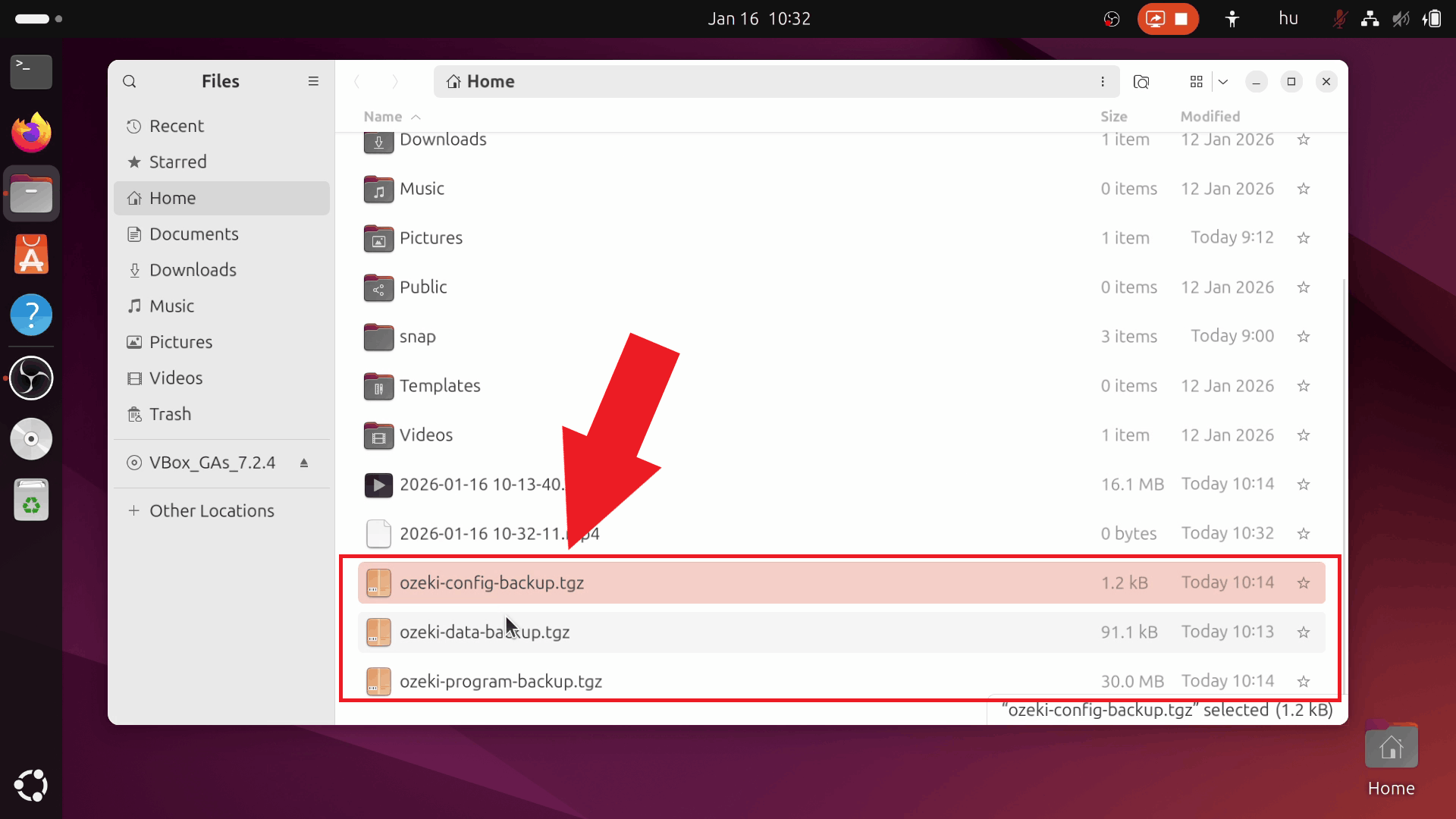
Before restoring Ozeki AI Gateway, ensure you have the three required backup files: ozeki-data-backup.tgz, ozeki-config-backup.tgz, and ozeki-program-backup.tgz. These backup files should be located in an accessible directory on your system. If you don't have backup files yet, you need to create them first by following our How to Backup Ozeki AI Gateway guide (Figure 1).
The restore process will overwrite existing Ozeki AI Gateway files. Make sure you have valid backup files before proceeding with the restoration.
Step 2 - Open terminal
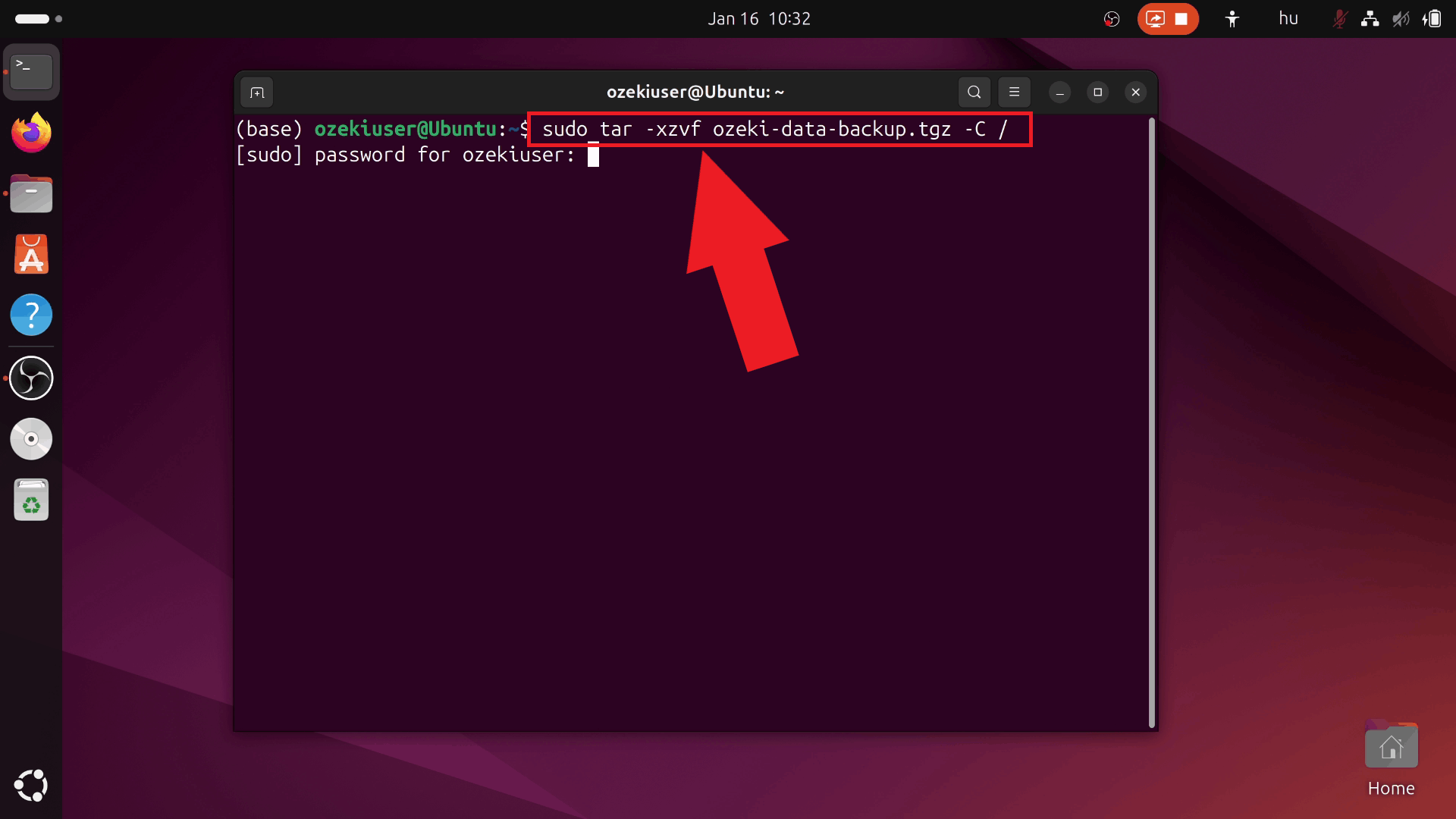
Open a terminal window on your Linux system. You can do this by pressing Ctrl+Alt+T, clicking the Terminal icon in the dock, or searching for "Terminal" in your applications menu. Navigate to the directory containing your backup files using the cd command (Figure 2).

Step 3 - Restore data directory
Execute the command to restore the Ozeki data directory. The tar command extracts the compressed archive and restores all files to /var/lib/ozeki/ozekidata (Figure 3).
sudo tar -xzvf ozeki-data-backup.tgz -C /
Step 4 - Restore configuration directory
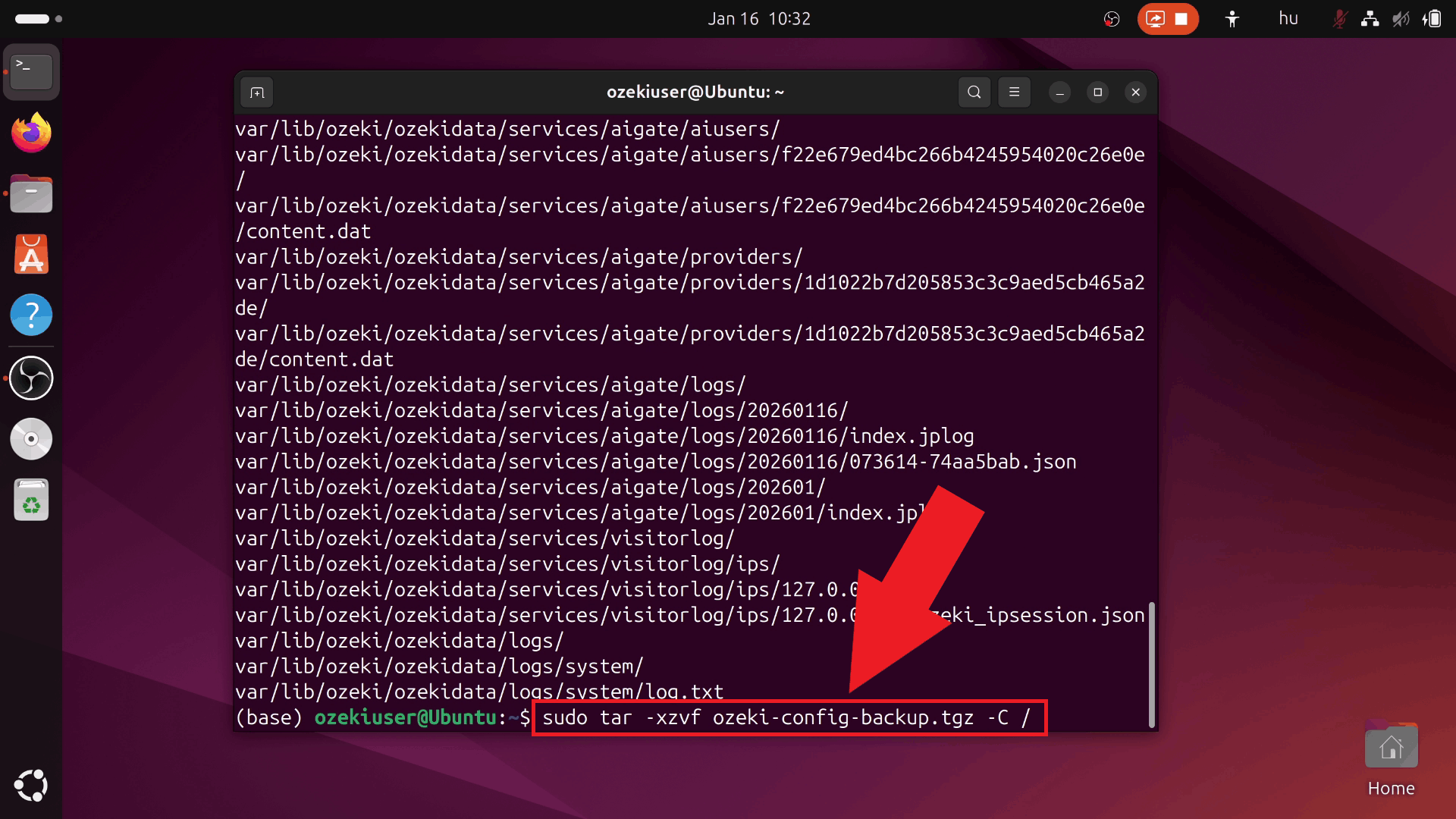
Execute the command to restore the Ozeki configuration directory. The tar command extracts the compressed archive and restores all files to /var/www/html/ozekiconfig (Figure 4).
sudo tar -xzvf ozeki-config-backup.tgz -C /
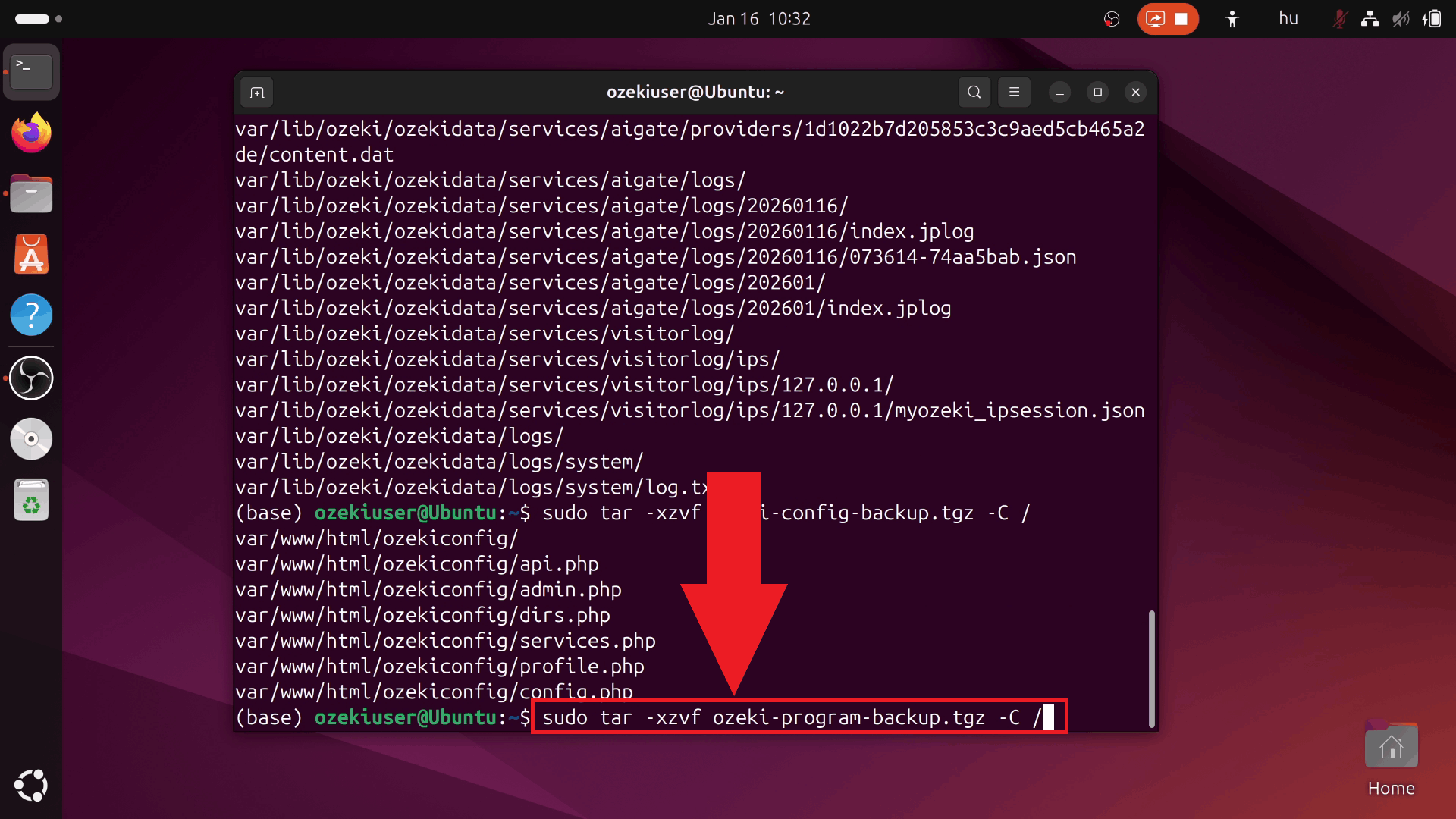
Step 5 - Restore program files
Execute the command to restore all Ozeki program files. The tar command extracts the compressed archive and restores all program files to /var/www/html (Figure 5).
sudo tar -xzvf ozeki-program-backup.tgz -C /
Conclusion
You have successfully restored your Ozeki AI Gateway installation from backup files. Your gateway has been recovered to its previous state with all data, configuration, and program files restored. You can now access the Ozeki AI Gateway web interface and verify that all providers, users, routes, and settings are present.