
How to backup Ozeki AI Gateway
This guide demonstrates how to create backups of your Ozeki AI Gateway installation on Linux systems. You'll learn how to backup the data directory, configuration files, and program files using tar commands. By following these steps, you can ensure your gateway configuration, user data, and system settings are safely preserved.
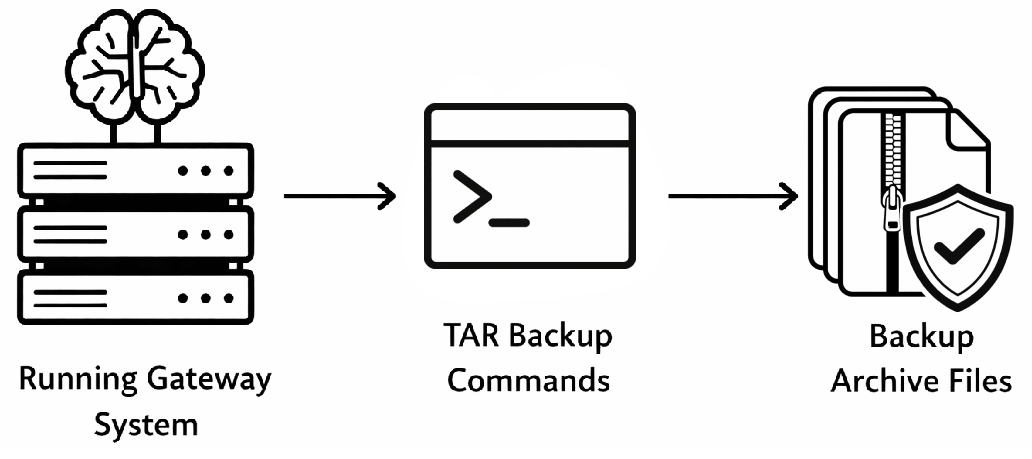
Steps to follow
- Open terminal
- Backup data directory
- Backup configuration directory
- Backup program files
- Verify backup files created
Backup Commands
For quick reference, here are all the commands needed to backup Ozeki AI Gateway:
tar -czvf ozeki-data-backup.tgz /var/lib/ozeki/ozekidata
tar -czvf ozeki-config-backup.tgz /var/www/html/ozekiconfig
find /var/www/html -type d -name 'ozeki*' -print0 | tar -czvf ozeki-program-backup.tgz --null -T -
How to backup Ozeki AI Gateway video
The following video shows how to backup Ozeki AI Gateway step-by-step. The video covers opening the terminal, running the backup commands for data, configuration, and program files, and verifying the backup files were created successfully.
Step 1 - Open terminal
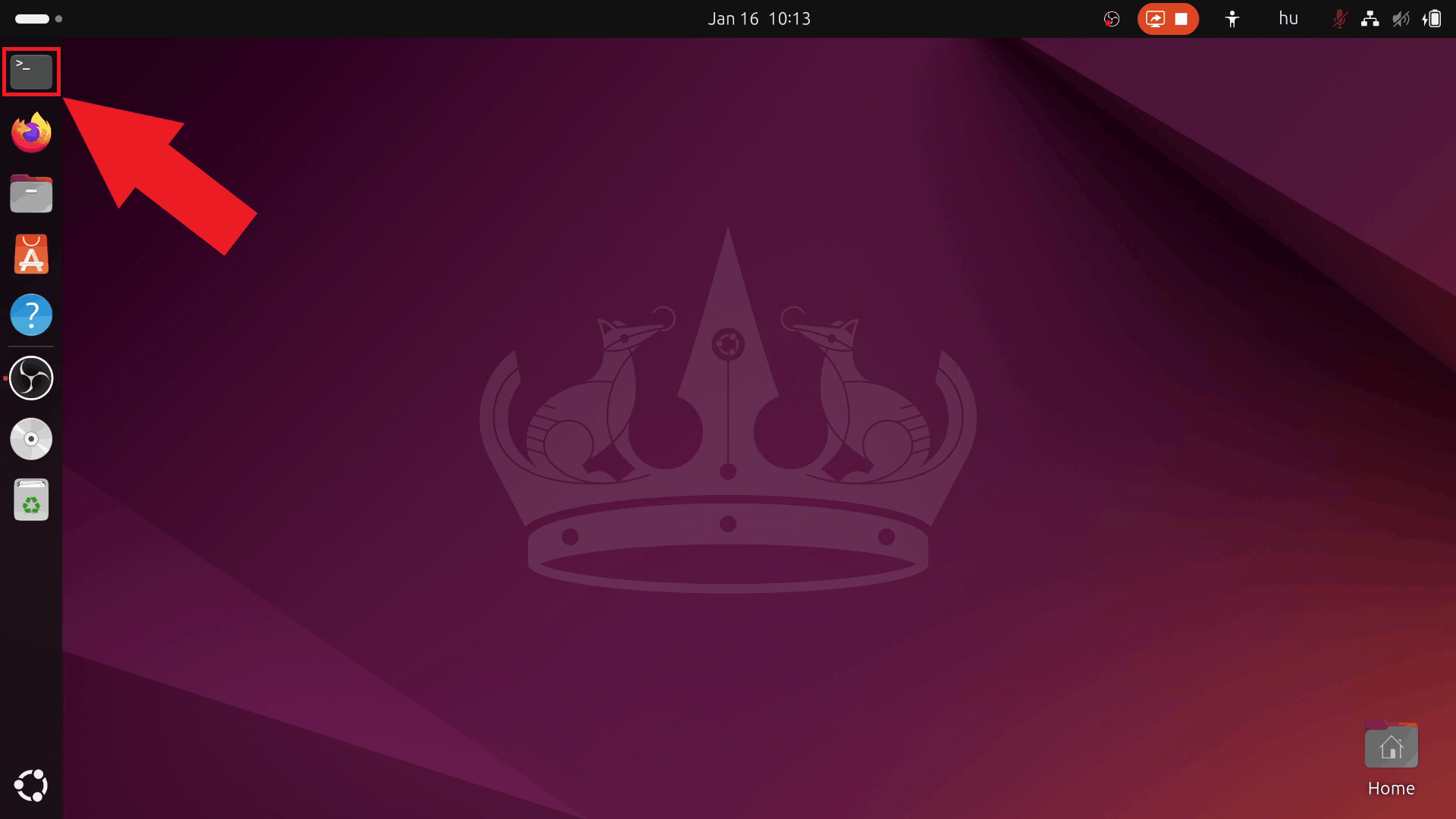
Open a terminal window on your Linux system. You can do this by pressing Ctrl+Alt+T, clicking the Terminal icon in the dock, or searching for "Terminal" in your applications menu. The terminal provides command-line access to execute the backup commands (Figure 1).
Step 2 - Backup data directory
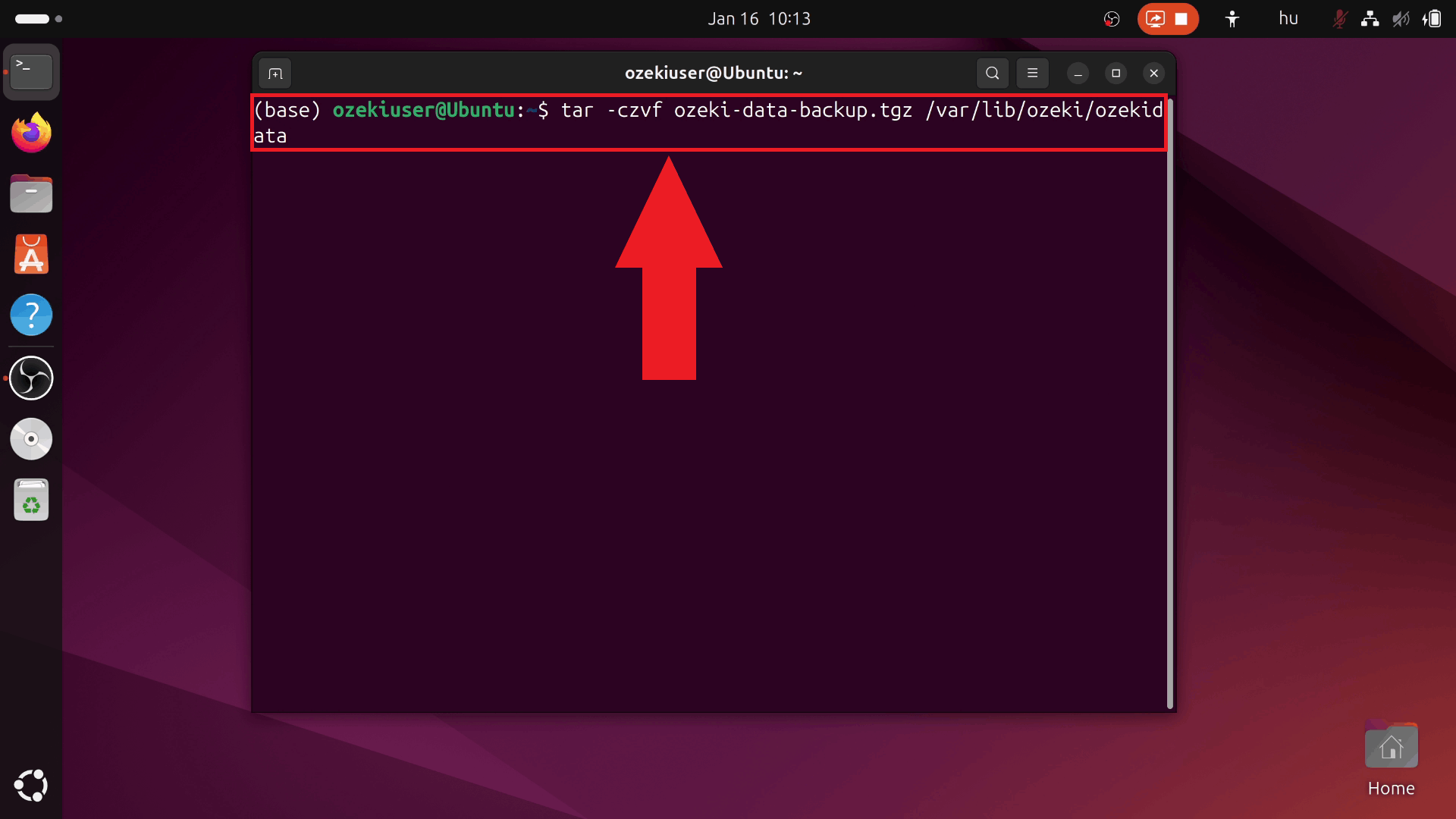
Execute the command to backup the Ozeki data directory located at /var/lib/ozeki/ozekidata. The tar command creates a compressed archive named ozeki-data-backup.tgz in your current directory (Figure 2).
tar -czvf ozeki-data-backup.tgz /var/lib/ozeki/ozekidata
Step 3 - Backup configuration directory
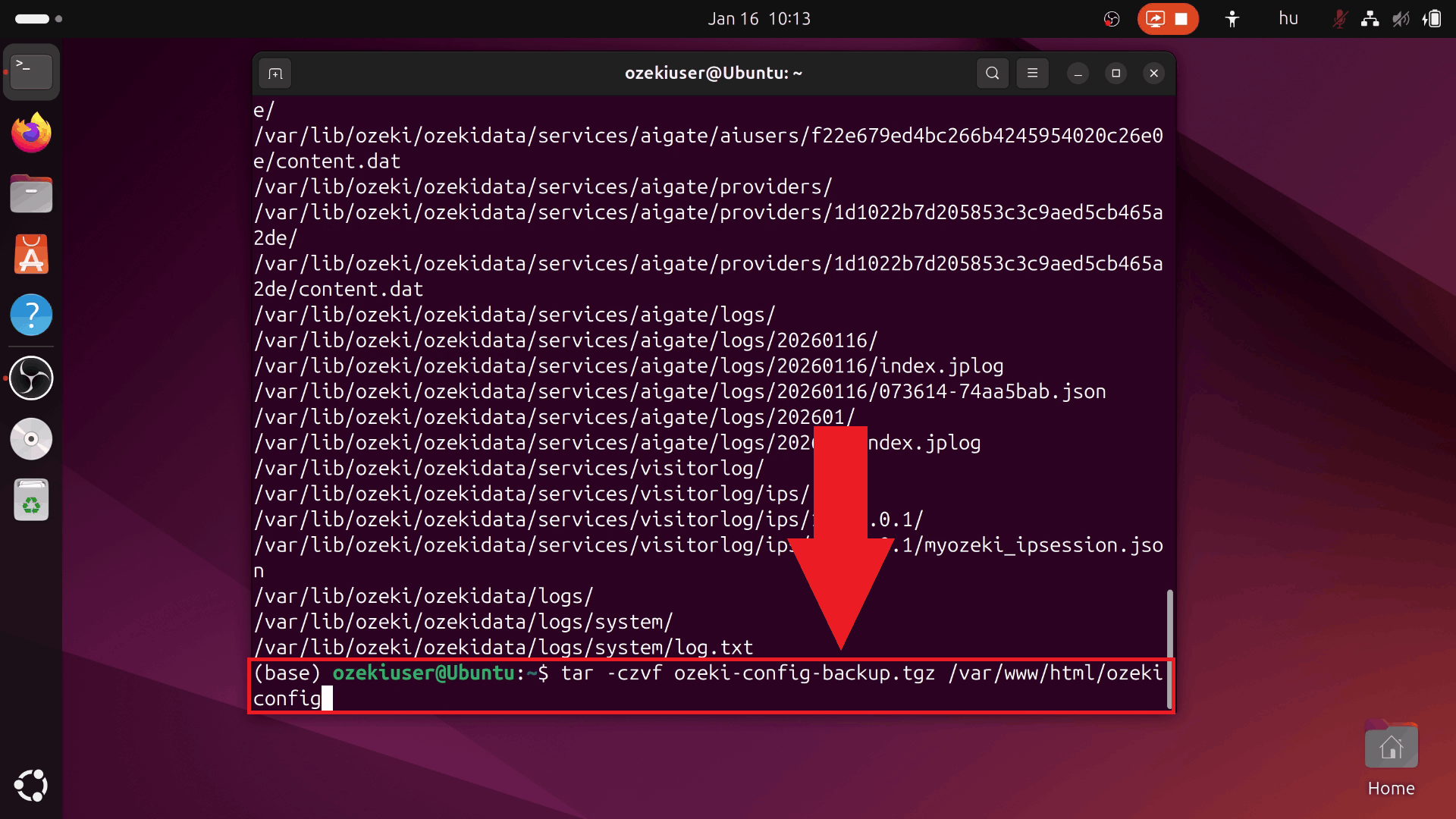
Execute the command to backup the Ozeki configuration directory located at /var/www/html/ozekiconfig. The tar command creates a compressed archive named ozeki-config-backup.tgz in your current directory (Figure 3).
tar -czvf ozeki-config-backup.tgz /var/www/html/ozekiconfig
Step 4 - Backup program files
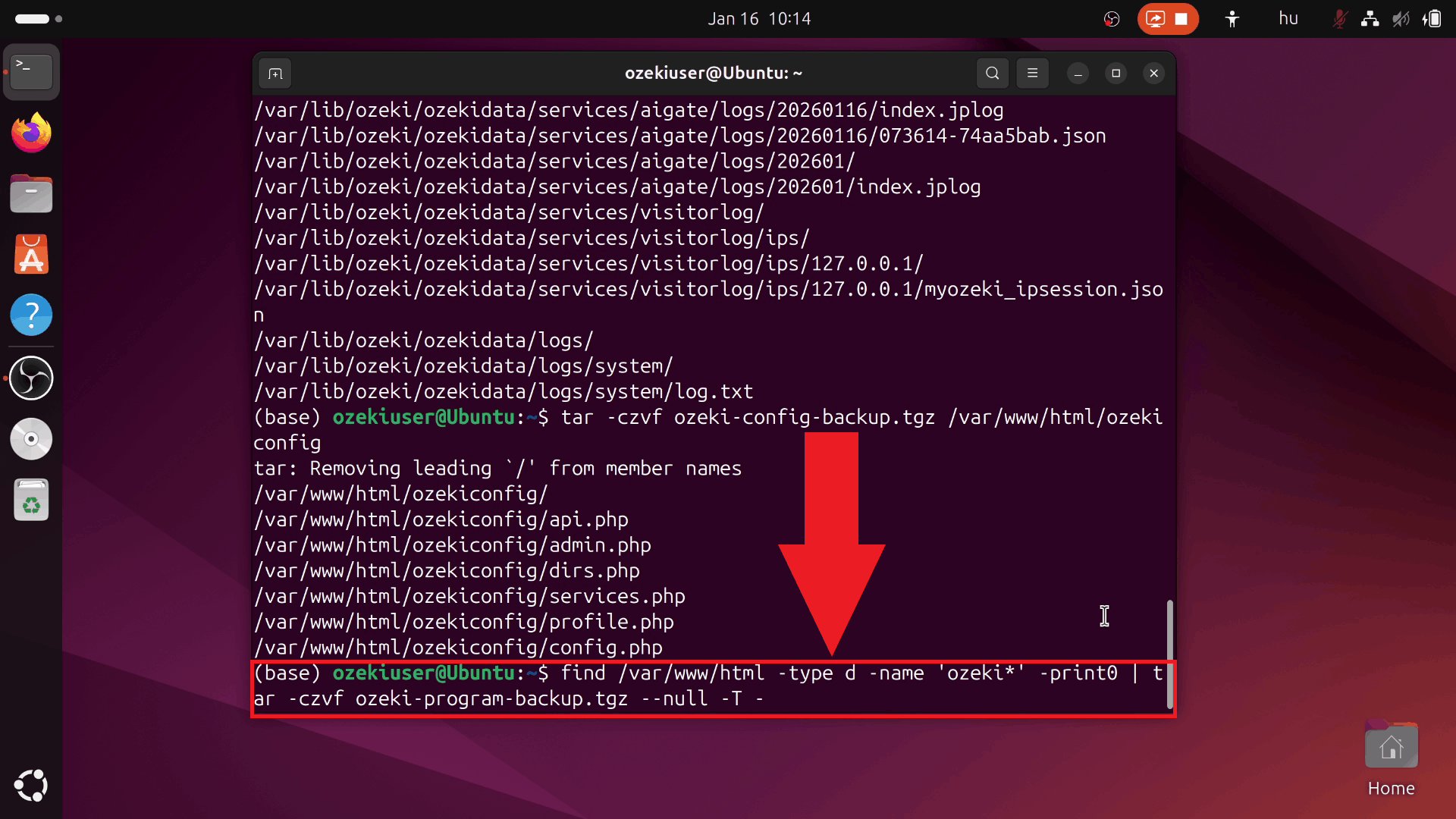
Execute the command to backup all Ozeki program files from the /var/www/html directory. This command finds all directories starting with "ozeki" and creates a compressed archive named ozeki-program-backup.tgz. This backup includes the gateway application files, web interface, and all program components (Figure 4).
find /var/www/html -type d -name 'ozeki*' -print0 | tar -czvf ozeki-program-backup.tgz --null -T -
Step 5 - Verify backup files created
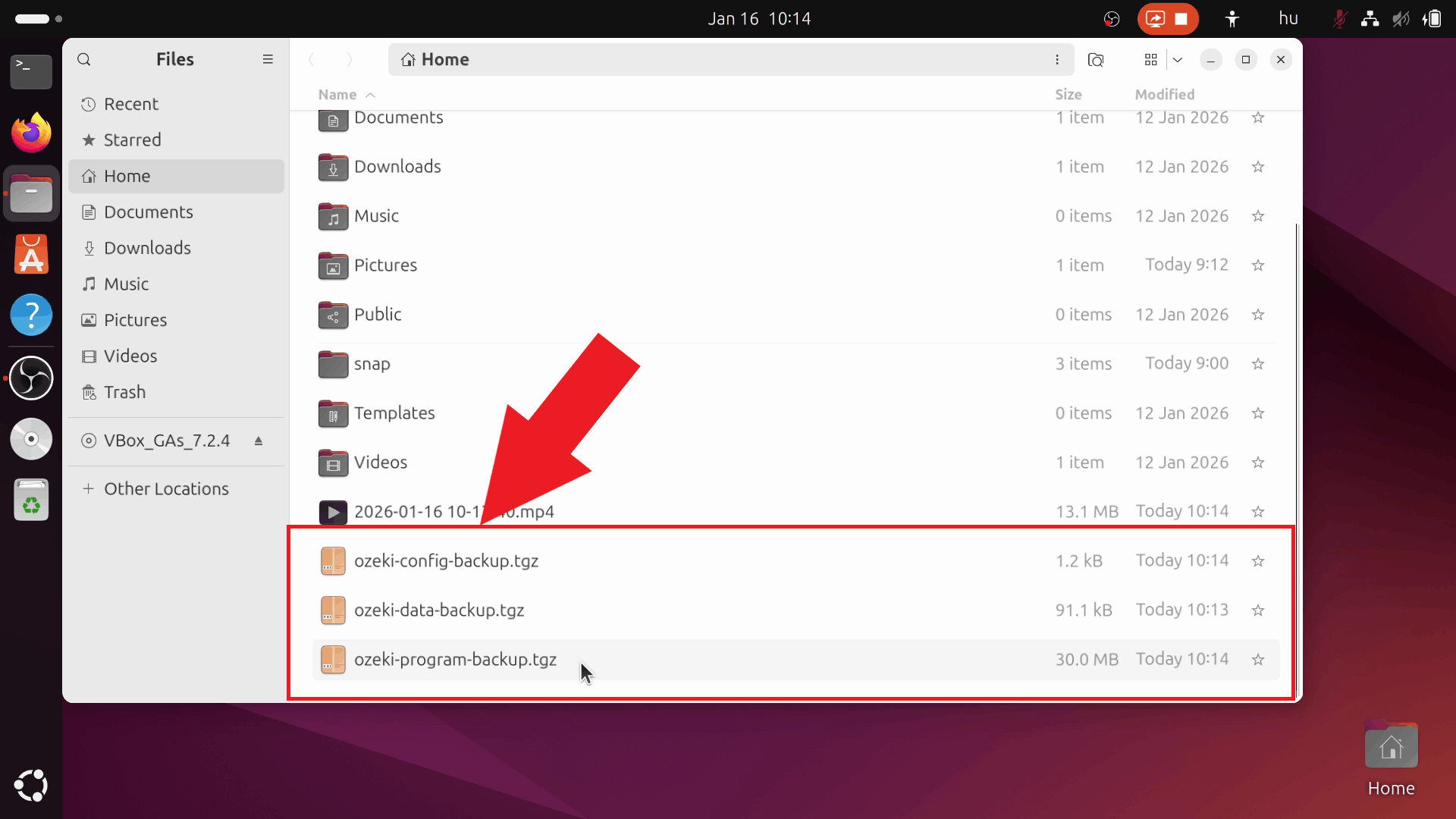
After completing all backup commands, verify that the three backup files were created successfully. Open "Files" or use the "ls" command to list the backup files in your current directory. You should see ozeki-data-backup.tgz, ozeki-config-backup.tgz, and ozeki-program-backup.tgz with their respective file sizes. Store these backup files in a secure location (Figure 5).
Conclusion
You have successfully created complete backups of your Ozeki AI Gateway installation. The three backup files contain all data, configuration, and program files needed to restore your gateway to its current state. Store these backup files securely on external storage or cloud backup services.