
How to install Ozeki AI Gateway on Mac
Installing Ozeki AI Gateway on Mac requires a straightforward two-step process that begins with setting up the XAMPP web server environment and concludes with deploying the AI Gateway application files. The first phase involves downloading and installing XAMPP for Mac, which provides the essential Apache web server, PHP, and MySQL components needed to run the gateway software. Once XAMPP is properly configured and the Apache server is running, the second phase consists of extracting the Ozeki AI Gateway files and copying them to the XAMPP htdocs directory with appropriate read and write permissions. After completing the file installation and configuring the initial administrator account through the web interface, you'll have a fully functional AI Gateway dashboard ready to manage AI service providers, routes, users, and system operations on your Mac computer.
What is Ozeki AI Gateway?
Ozeki AI Gateway is a software solution that enables seamless integration with multiple AI providers and models. It acts as a unified interface for connecting applications to various AI services, providing centralized API management, user authentication, and request routing. The gateway runs on Mac systems using XAMPP and integrates with Apache web server to handle incoming API requests. Installation involves setting up XAMPP with required components, installing the Ozeki AI Gateway package, and configuring appropriate file permissions to ensure proper operation.
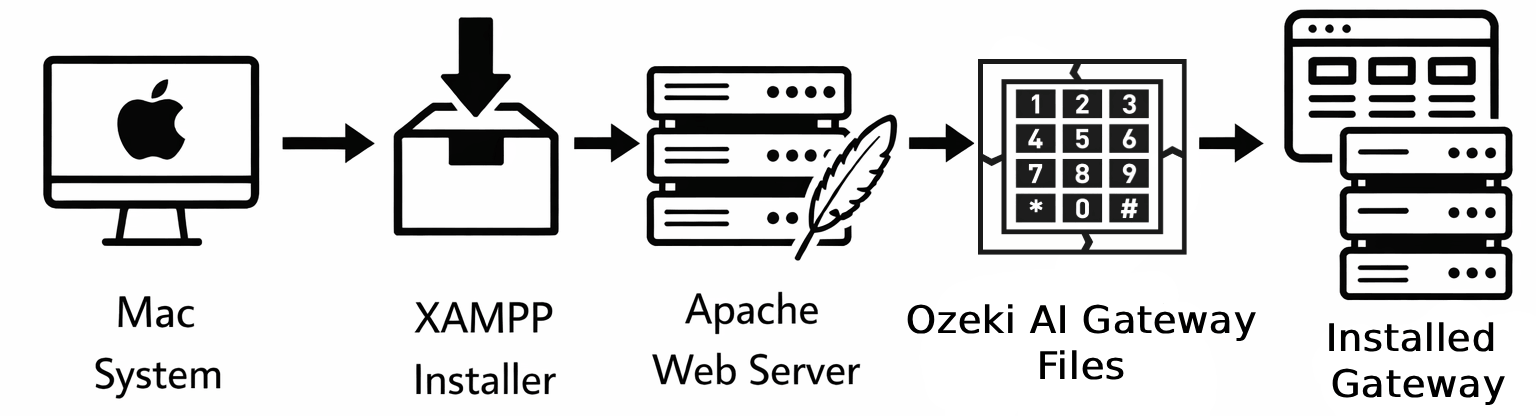
Steps to follow
- Download and install XAMPP
- Start Apache web server
- Prepare htdocs directory
- Extract Ozeki AI Gateway files
- Copy files to htdocs
- Configure file permissions
- Access gateway interface
- Create admin account
- Open AI Gateway dashboard
Download: ozeki-ai-gateway.zip
How to install XAMPP and Ozeki AI Gateway video
The following video shows how to install XAMPP and Ozeki AI Gateway on Mac step-by-step. The video covers downloading XAMPP, installing the web server, extracting the gateway files, and configuring permissions.
Step 1 - Download and install XAMPP
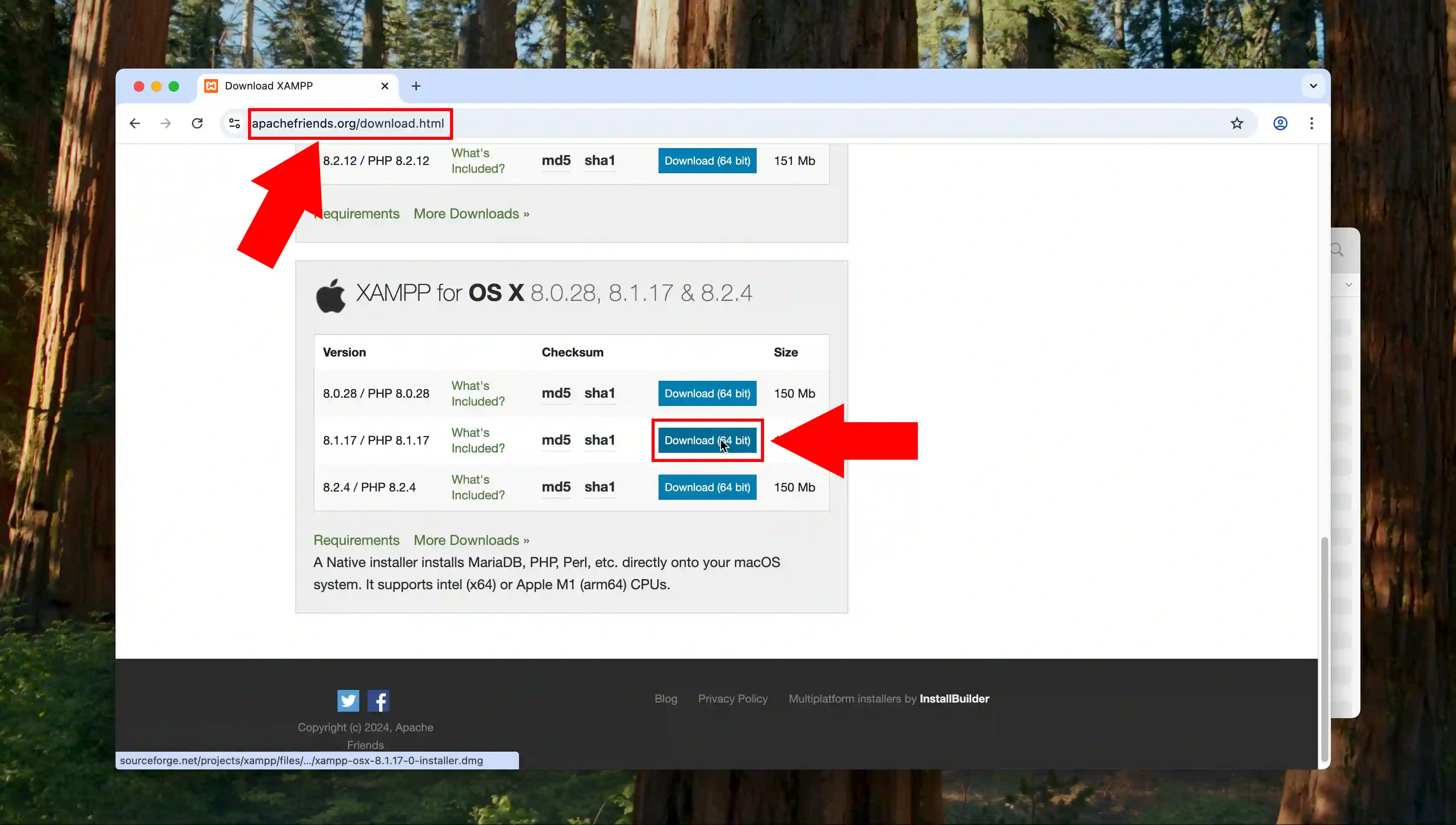
To begin the installation process, navigate to the Apache Friends website and locate the XAMPP download section for Mac. Select the appropriate version compatible with your macOS system, then click the download button to save the installer package to your computer. This XAMPP installer will provide the necessary Apache web server environment required to run Ozeki AI Gateway on your Mac.
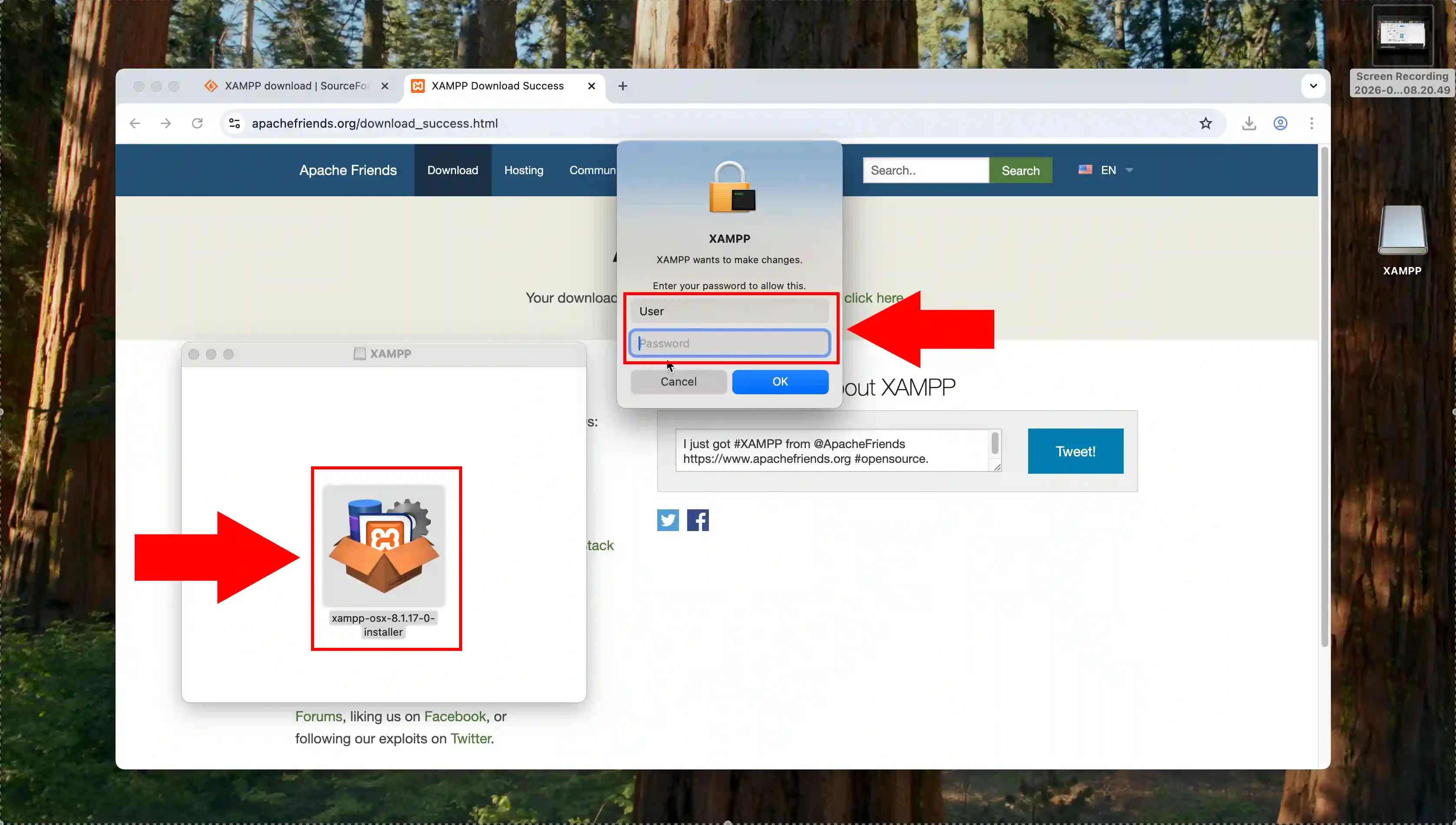
Once the XAMPP installer has been downloaded to your Mac, locate the installation package in your downloads folder and double-click it to launch. A security prompt will appear asking for permission to proceed with the installation, where you should click on the user account option to authenticate. The installer will then prepare to set up XAMPP on your system with the necessary components.
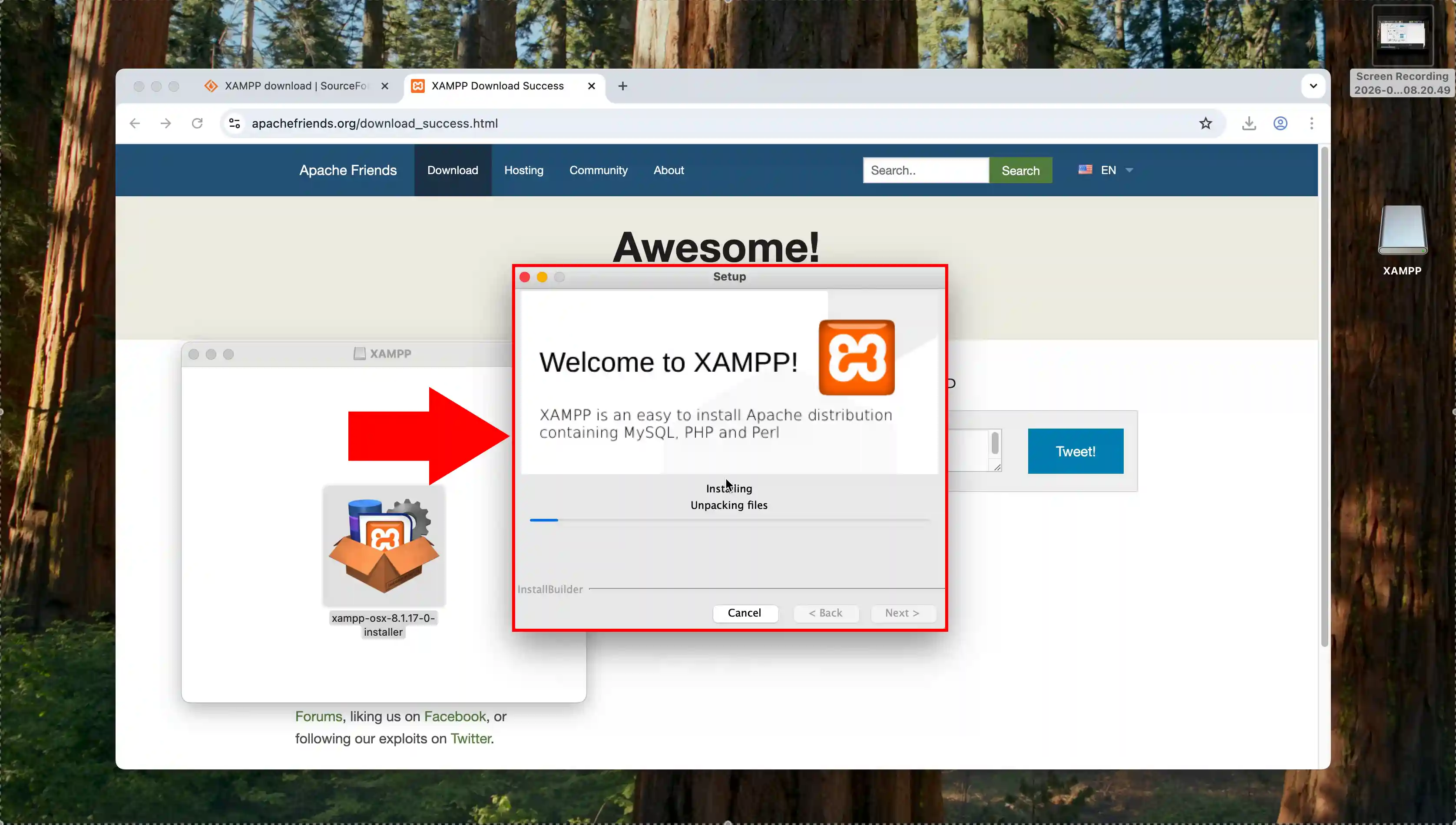
The XAMPP setup wizard displays a welcome screen with installation instructions and requirements for your Mac system. Click the "Next" button or continue through the installation process, accepting the default settings which include Apache, MySQL, PHP and Perl components. Allow the installation to complete by following the on-screen prompts until the setup finishes successfully.
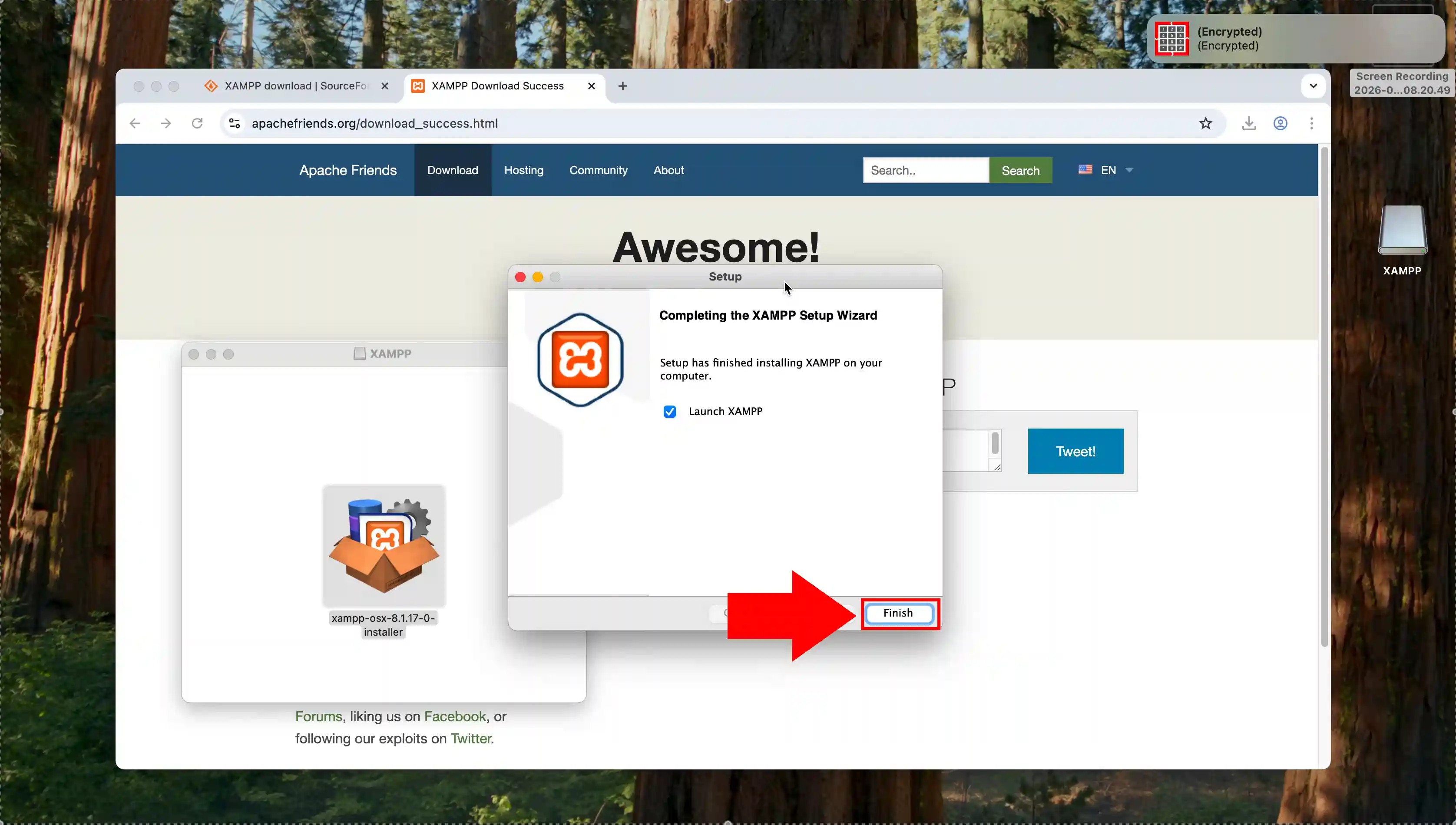
After the XAMPP installation completes, a confirmation dialog appears indicating that the setup wizard has successfully finished installing XAMPP on your computer. You can now click the "Finish" button to close the installer, and optionally check the box to launch XAMPP immediately. The XAMPP application is now ready to be configured and started for hosting the Ozeki AI Gateway.
Step 2 - Start Apache web server
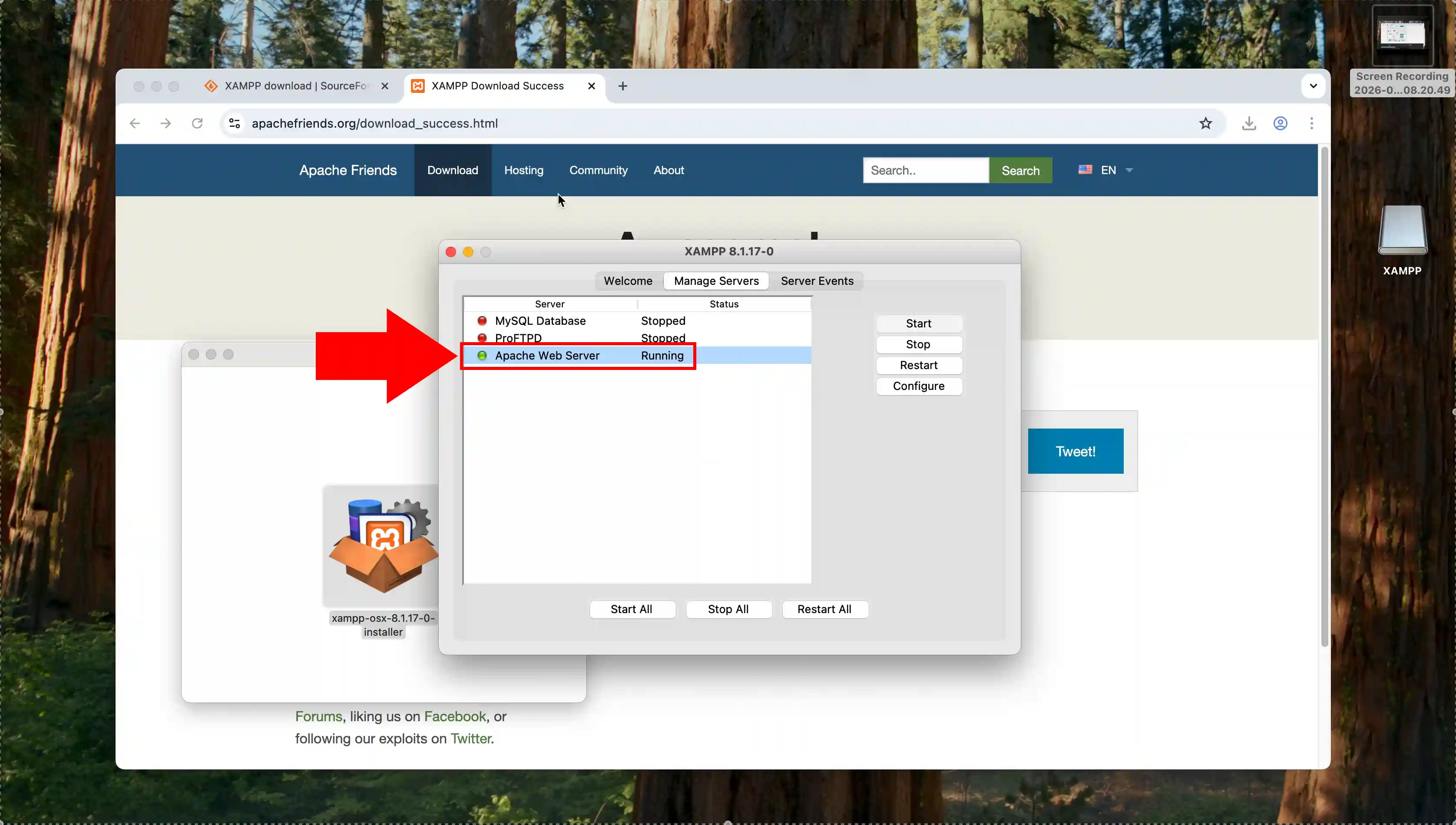
Open the XAMPP application manager which displays the control panel for managing various server components and services. Locate the Apache Web Server in the list of available modules and click the "Start" button next to it to launch the web server. Once Apache is running successfully, you'll see the status indicator change to "Running" in green, confirming that your web server is active and ready to host applications.
Step 3 - Prepare htdocs directory
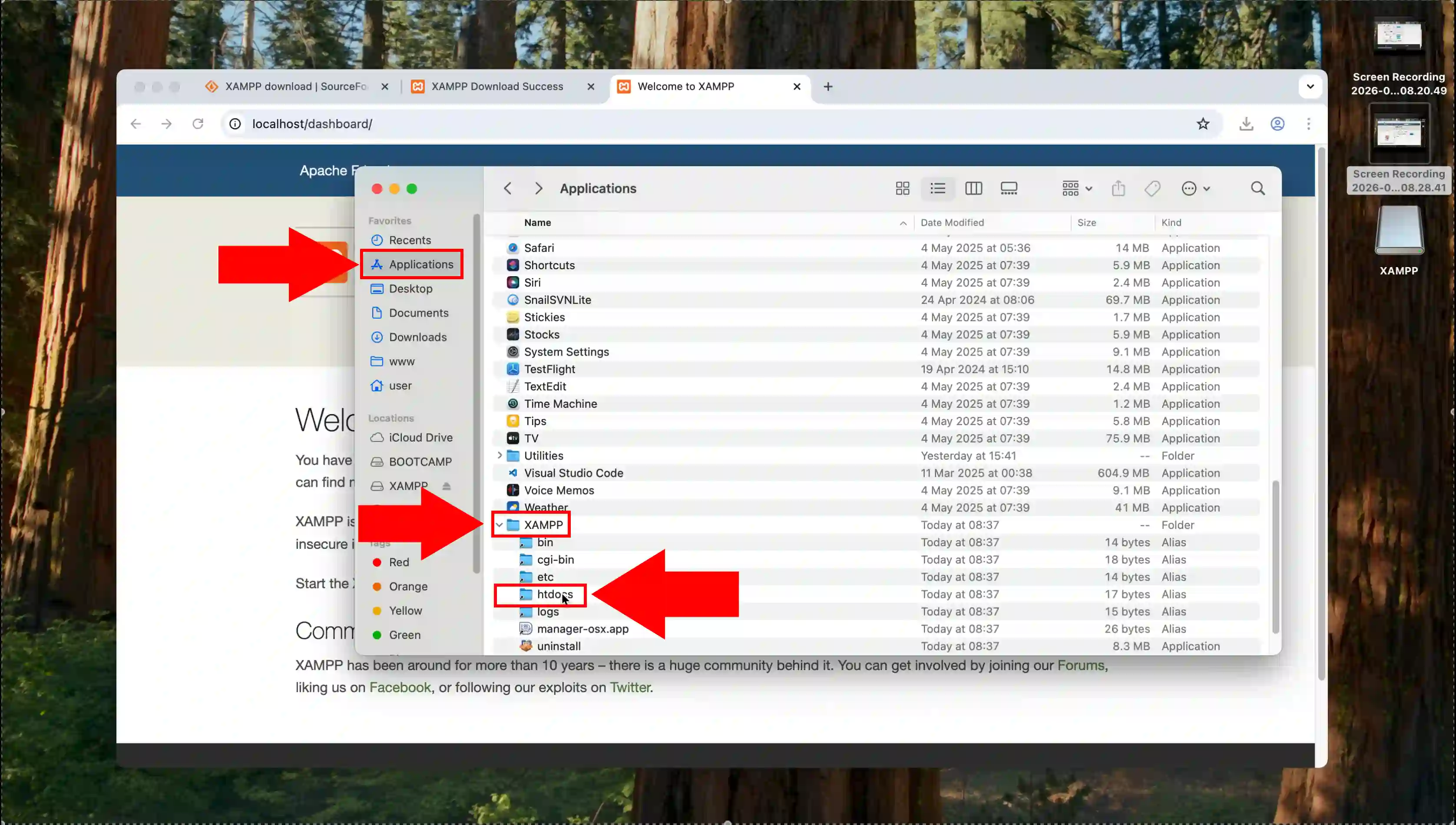
From the XAMPP manager interface, navigate to the Applications folder on your Mac and locate the XAMPP installation directory. Access the "htdocs" folder within XAMPP, which is highlighted and serves as the root directory where web applications are stored. This is where you'll need to place the Ozeki AI Gateway files to make them accessible through the Apache web server.
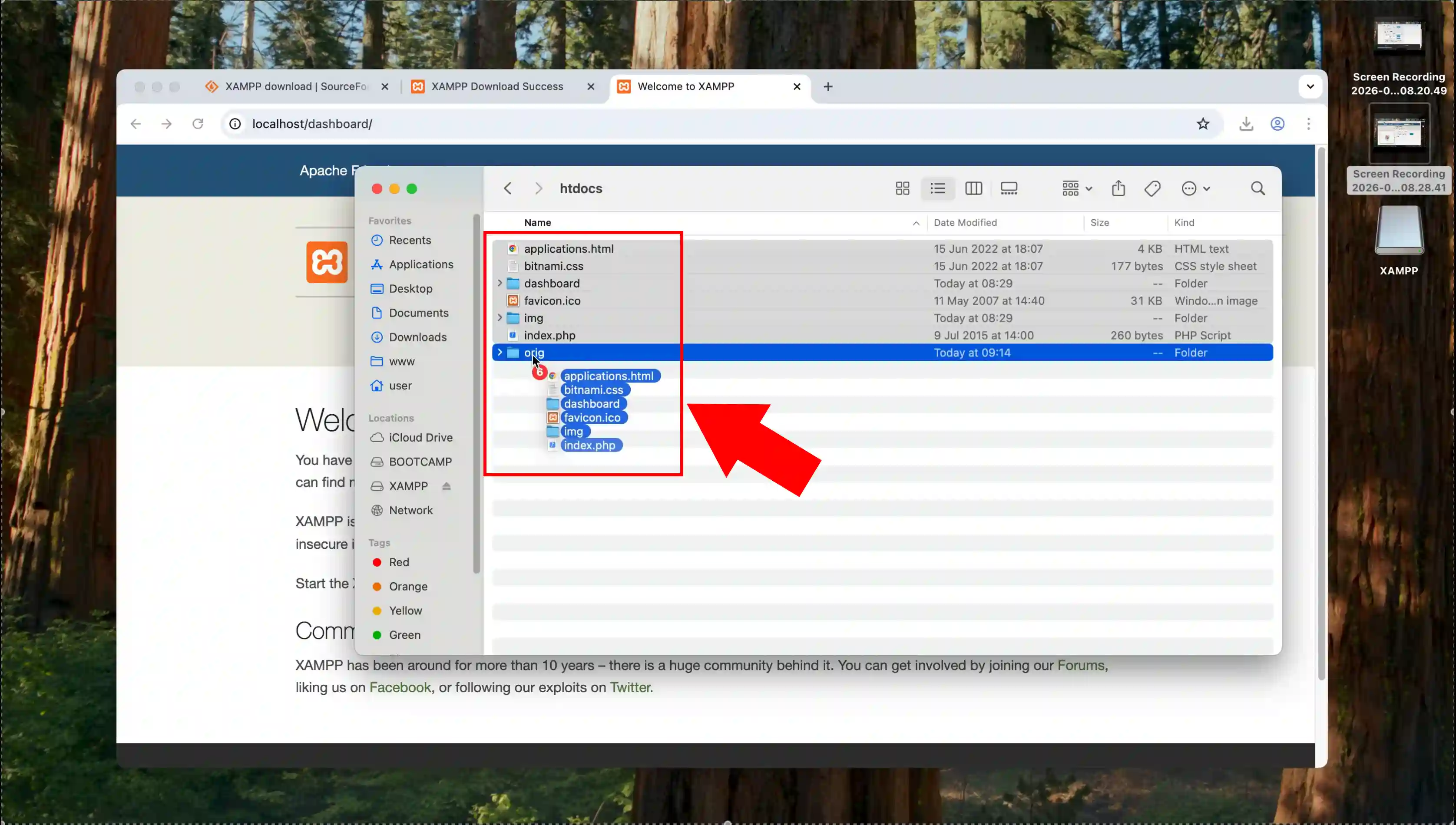
Inside the htdocs folder, you'll find default XAMPP files and folders that need to be relocated before installing Ozeki AI Gateway. Select all the existing files and folders in the htdocs directory and move them to a backup location or a newly created backup folder to preserve them. Clearing out these original files ensures a clean installation environment for the Ozeki AI Gateway without conflicts from default XAMPP content.
Step 4 - Extract Ozeki AI Gateway files
Locate the downloaded ozeki-ai-gateway.zip file in your Downloads folder and select it to begin the extraction process. Right-click on the zip file and choose "Extract" or double-click to automatically decompress the archive, which will create a new folder containing all the Ozeki AI Gateway files. The extracted folder will contain multiple directories and files that need to be copied to the XAMPP htdocs location.
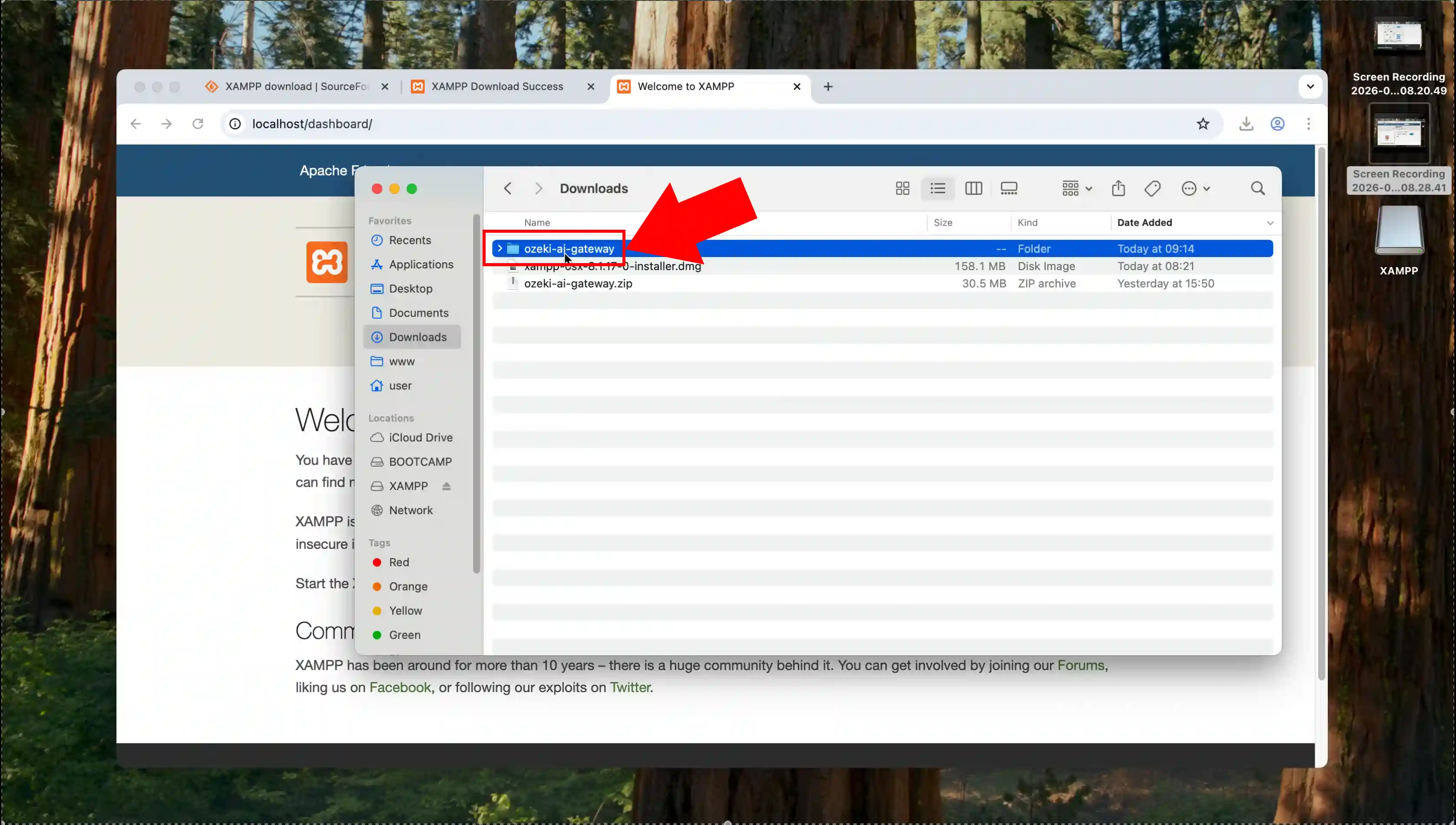
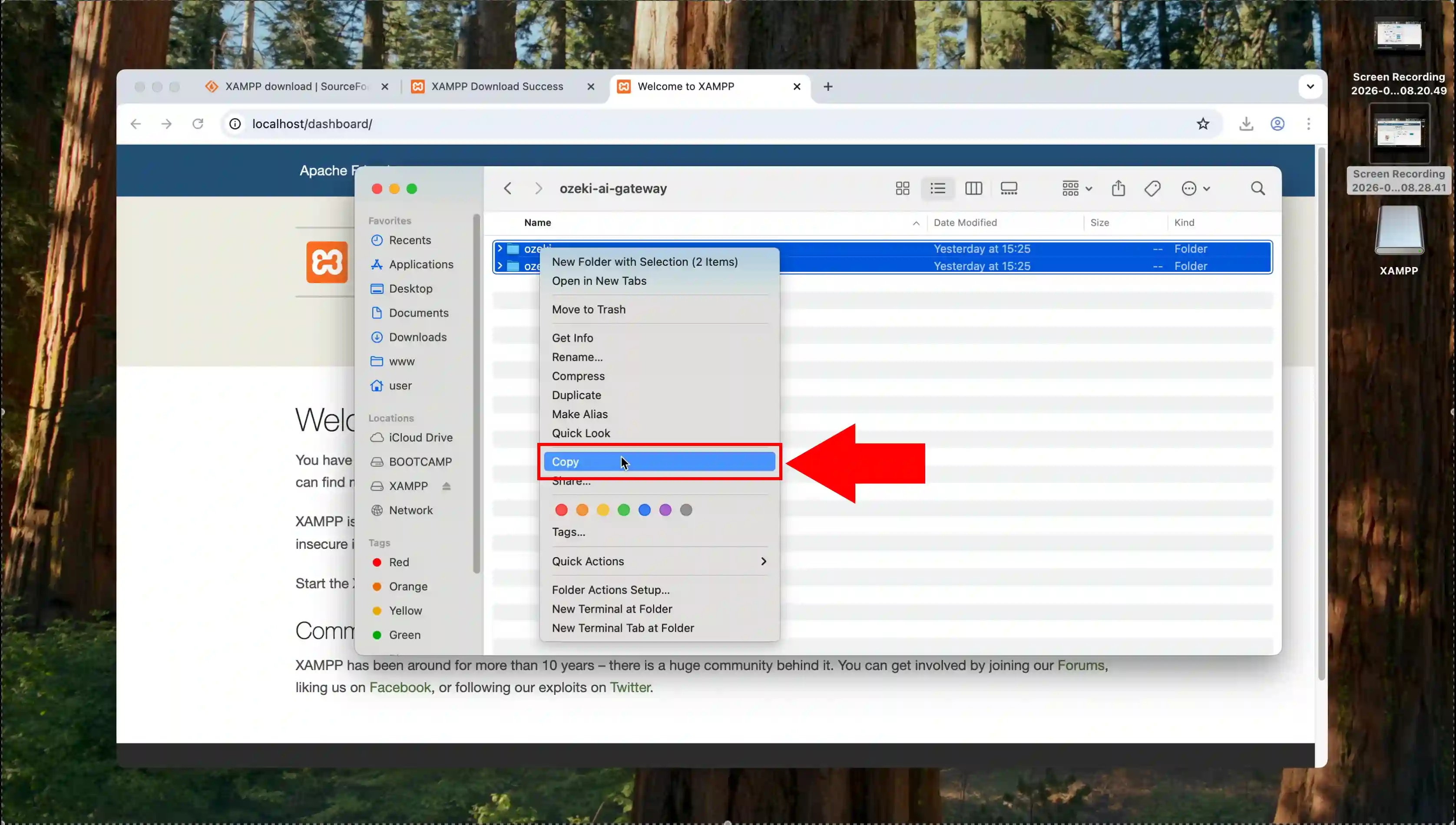
Open the extracted ozeki-ai-gateway folder and select all the contents including the Ozeki folders and files that are contained within. Right-click on the selected items and choose "Copy" from the context menu, or use the keyboard shortcut Command+C to copy them to your clipboard. These copied files are now ready to be pasted into the XAMPP htdocs directory for installation.
Step 5 - Copy files to htdocs
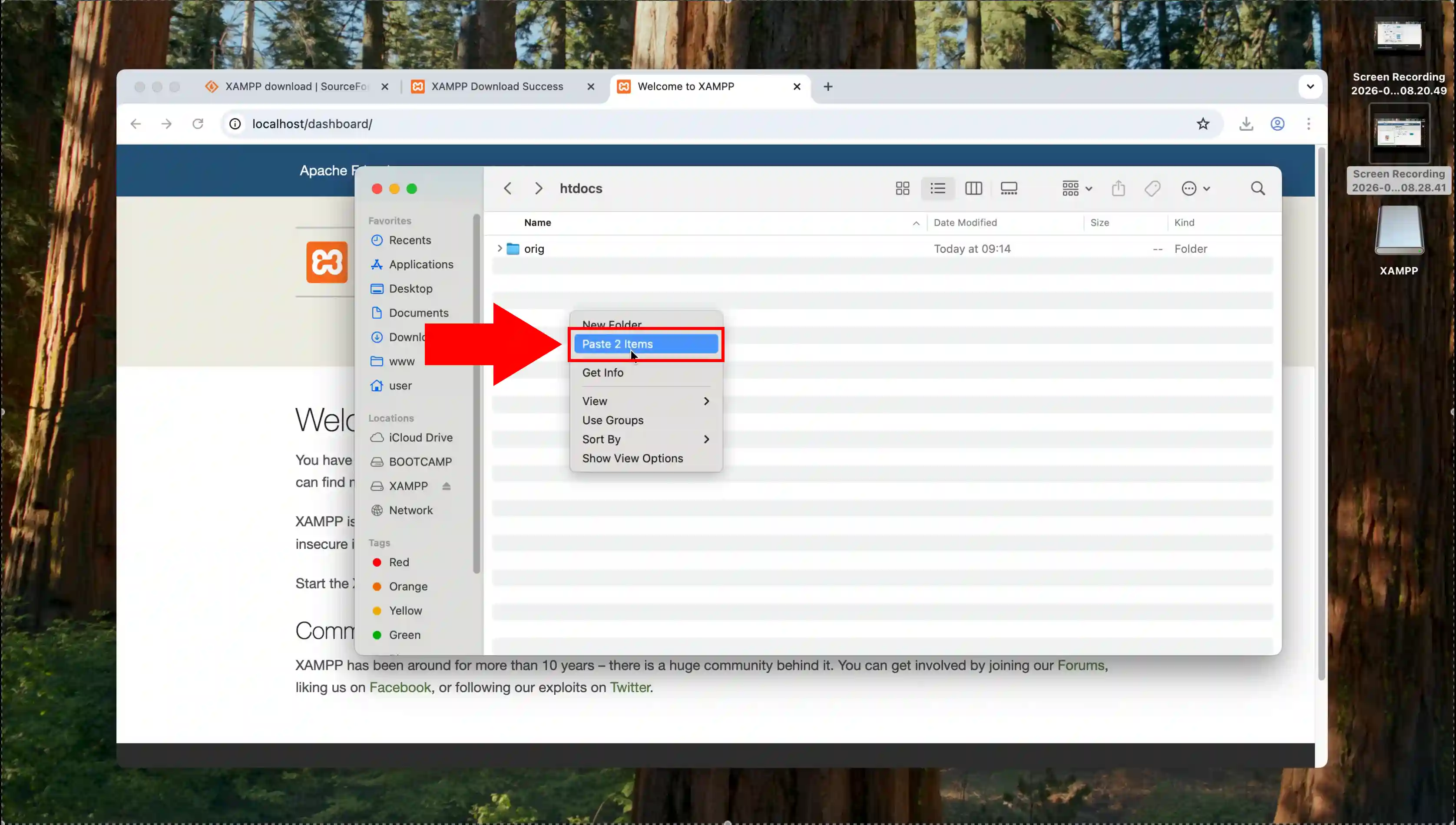
Navigate back to the XAMPP htdocs folder that you previously cleared of original files, and ensure it's open and ready to receive the Ozeki files. Right-click inside the empty htdocs directory and select "Paste" from the menu, or use Command+V to paste all the Ozeki AI Gateway files you copied earlier. The system will transfer all the necessary Ozeki folders and files into the htdocs location, making them accessible through your Apache web server.
Step 6 - Configure file permissions
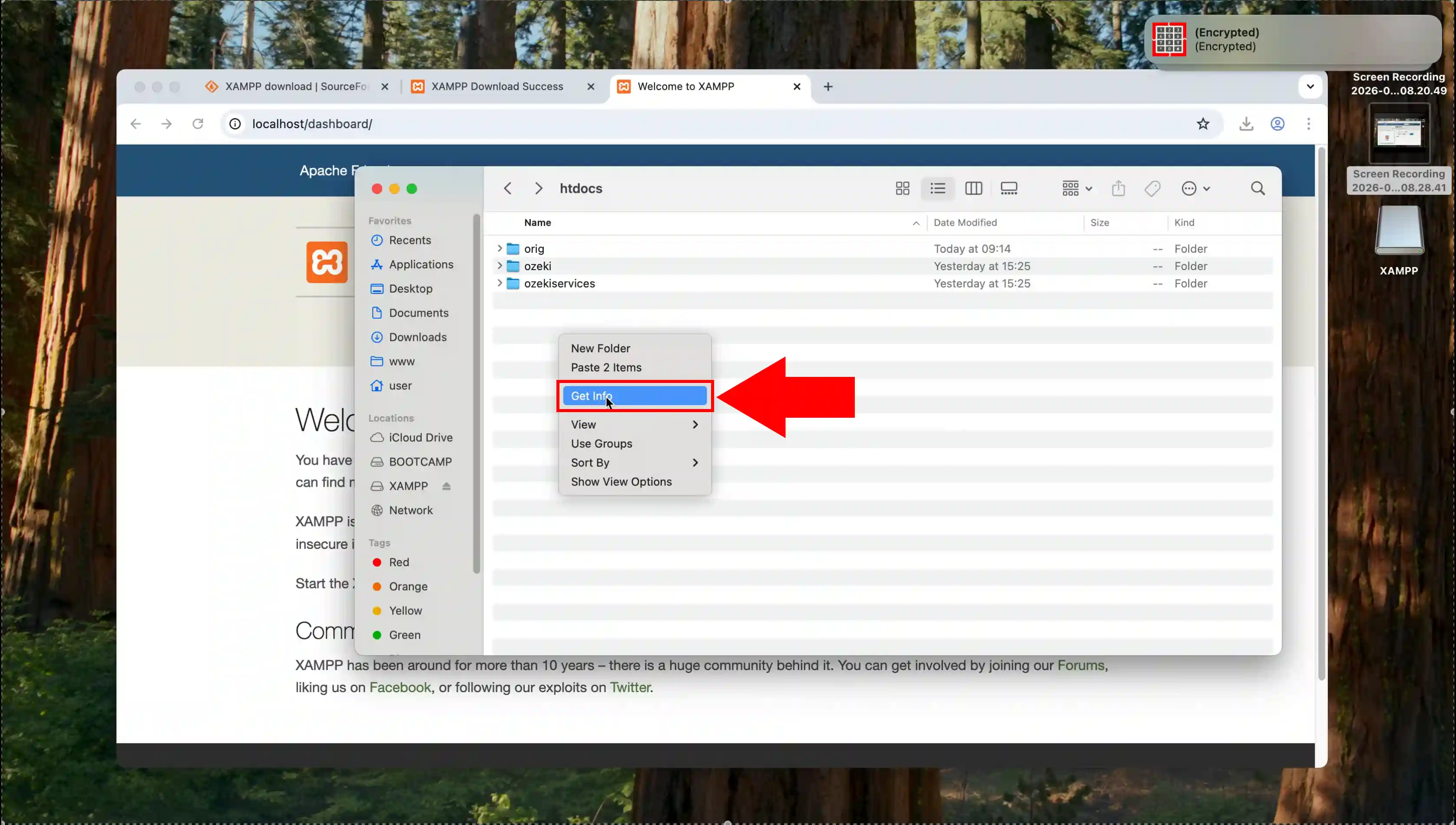
Right-click on the htdocs folder and select "Get Info" from the context menu to open the folder properties dialog. This information window displays details about the htdocs folder including its size, location, and crucially the sharing and permissions settings. You need to access these permission settings to ensure the web server has the necessary read and write access to the Ozeki AI Gateway files.
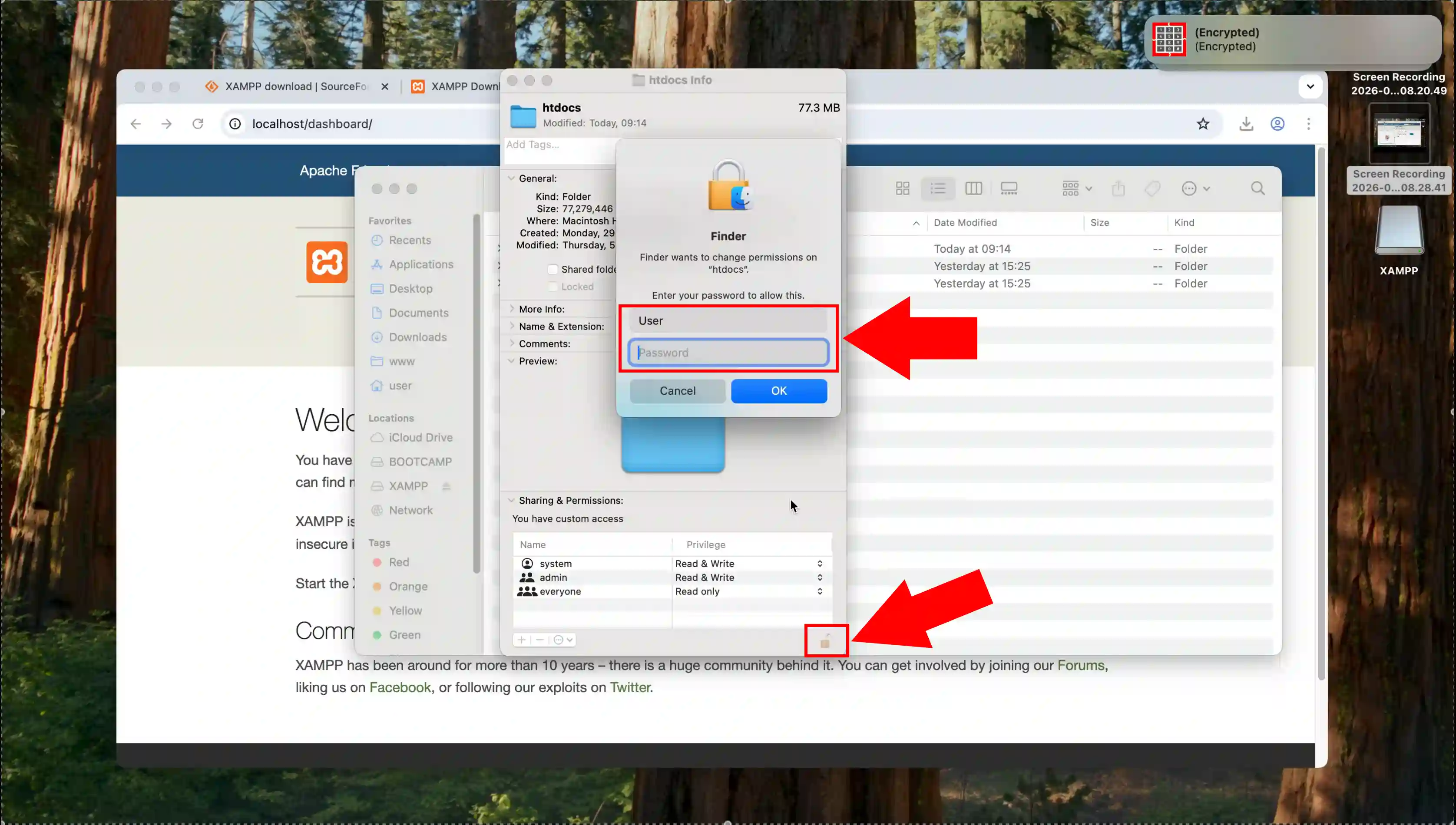
In the Get Info window for the htdocs folder, scroll down to the "Sharing & Permissions" section which shows the current access rights. Click on the padlock icon at the bottom right of the permissions section and enter your administrator password to unlock the settings. Once unlocked, you'll be able to modify the permission settings to grant appropriate access levels for the web server and other users.
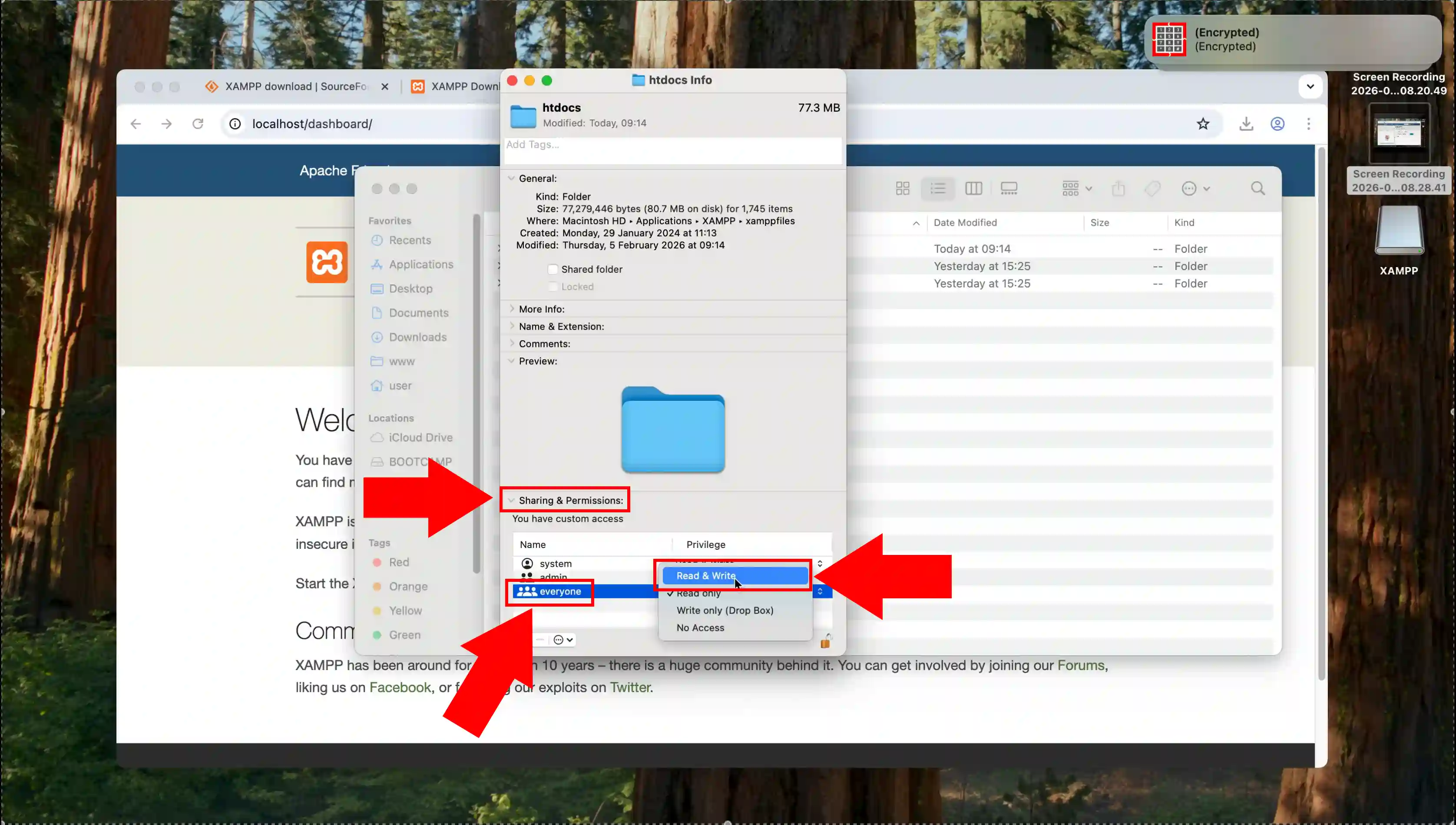
With the permissions unlocked, locate the privilege settings for different user groups in the Sharing & Permissions section. Change the access level for "everyone" from "Read only" to "Read & Write" by clicking on the privilege dropdown menu and selecting the appropriate option. Apply these changes to ensure that the Apache web server and PHP scripts have full access to create, modify, and read files within the Ozeki AI Gateway installation.
Step 7 - Access gateway interface
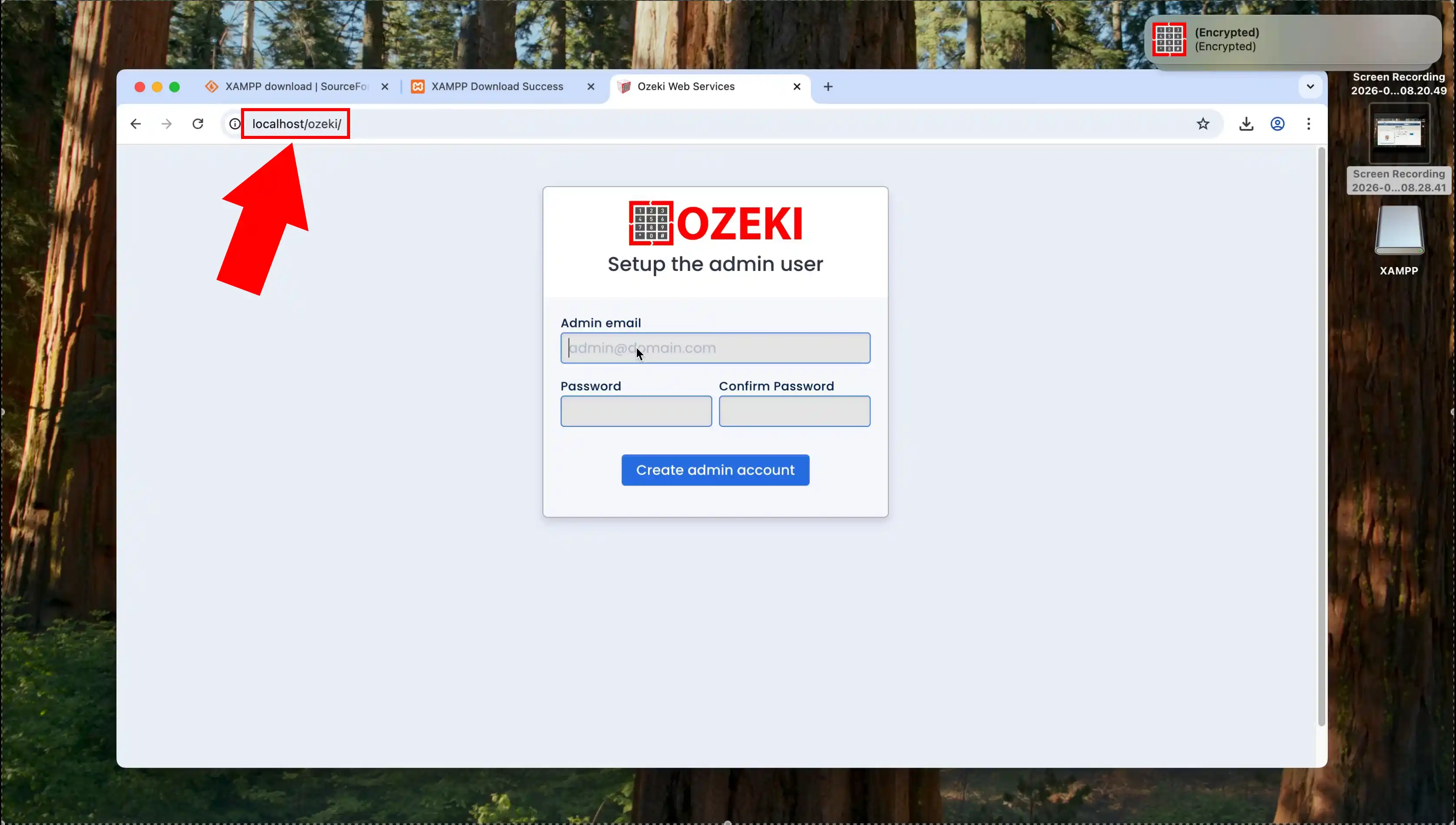
Launch your web browser and navigate to "http://localhost/ozeki" or the appropriate URL to access the Ozeki AI Gateway installation page. The initial setup page will load, displaying the Ozeki logo and prompting you to create an administrator account. This is the first-time configuration interface where you'll establish your admin credentials for managing the AI Gateway system.
Step 8 - Create admin account
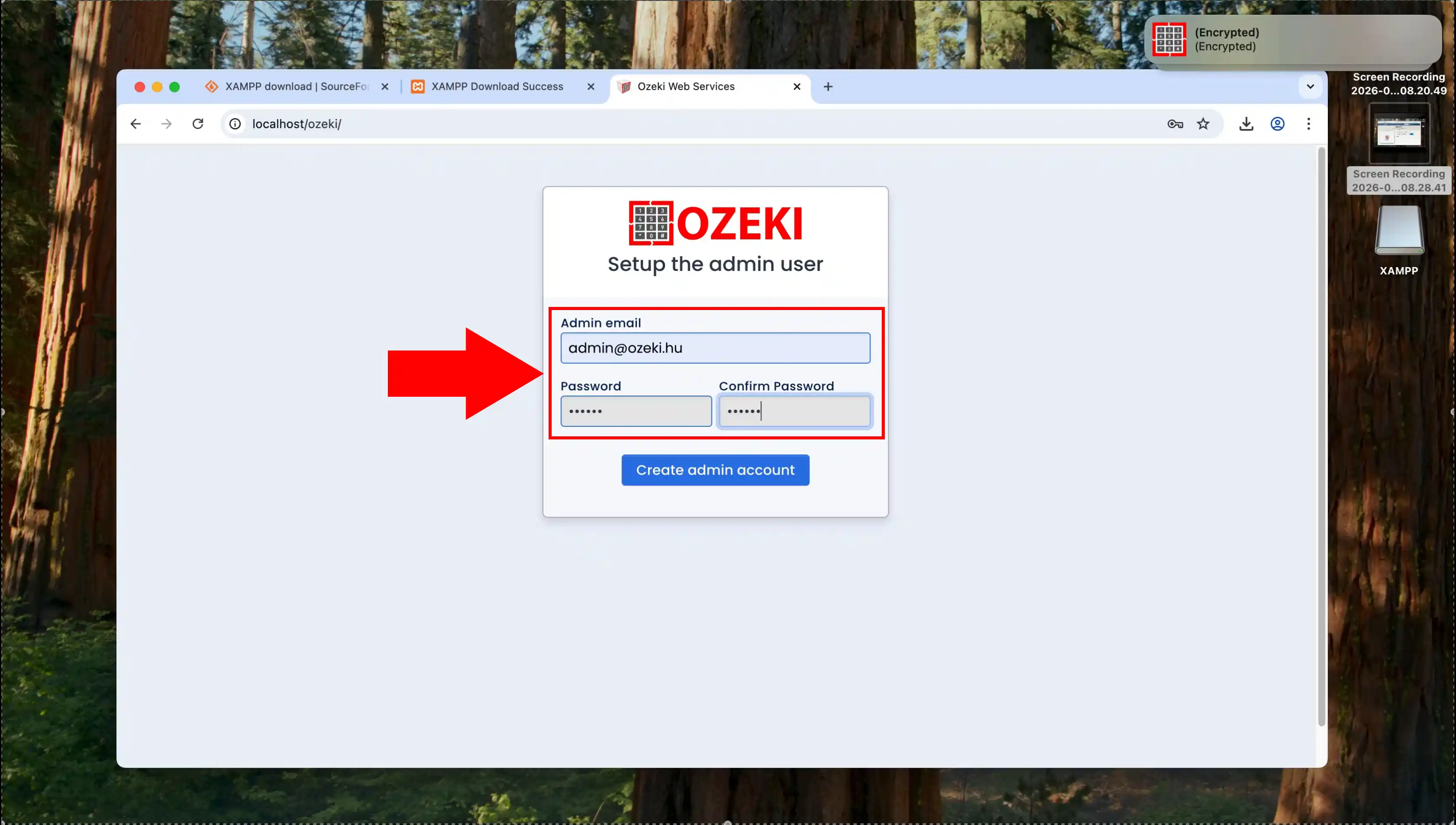
On the admin setup page, enter your desired administrator email address in the "Admin email" field, which will be used for logging into the system. Create a strong password and enter it in both the "Password" and "Confirm Password" fields to ensure they match correctly. Click the "Create admin account" button to finalize the administrator account creation and proceed with the Ozeki AI Gateway setup.
Step 9 - Open AI Gateway dashboard
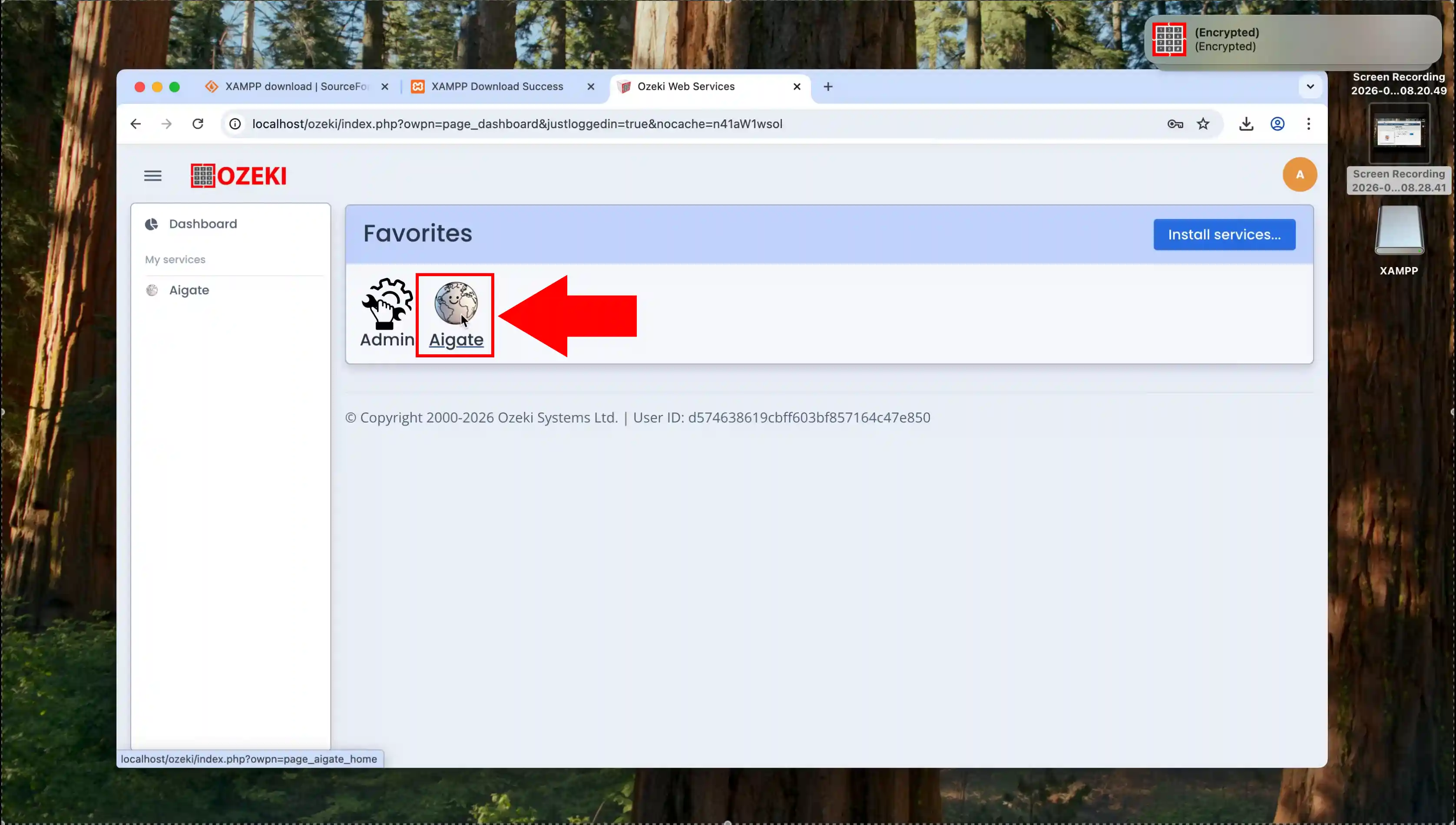
After creating your admin account, the system will redirect you to a service initialization page where the Ozeki AI Gateway components are being configured. The page displays the Ozeki logo and indicates that the system is preparing the necessary services and modules for operation. Wait for this process to complete, which may take a few moments as it sets up the database connections, API handlers, and other core functionalities.
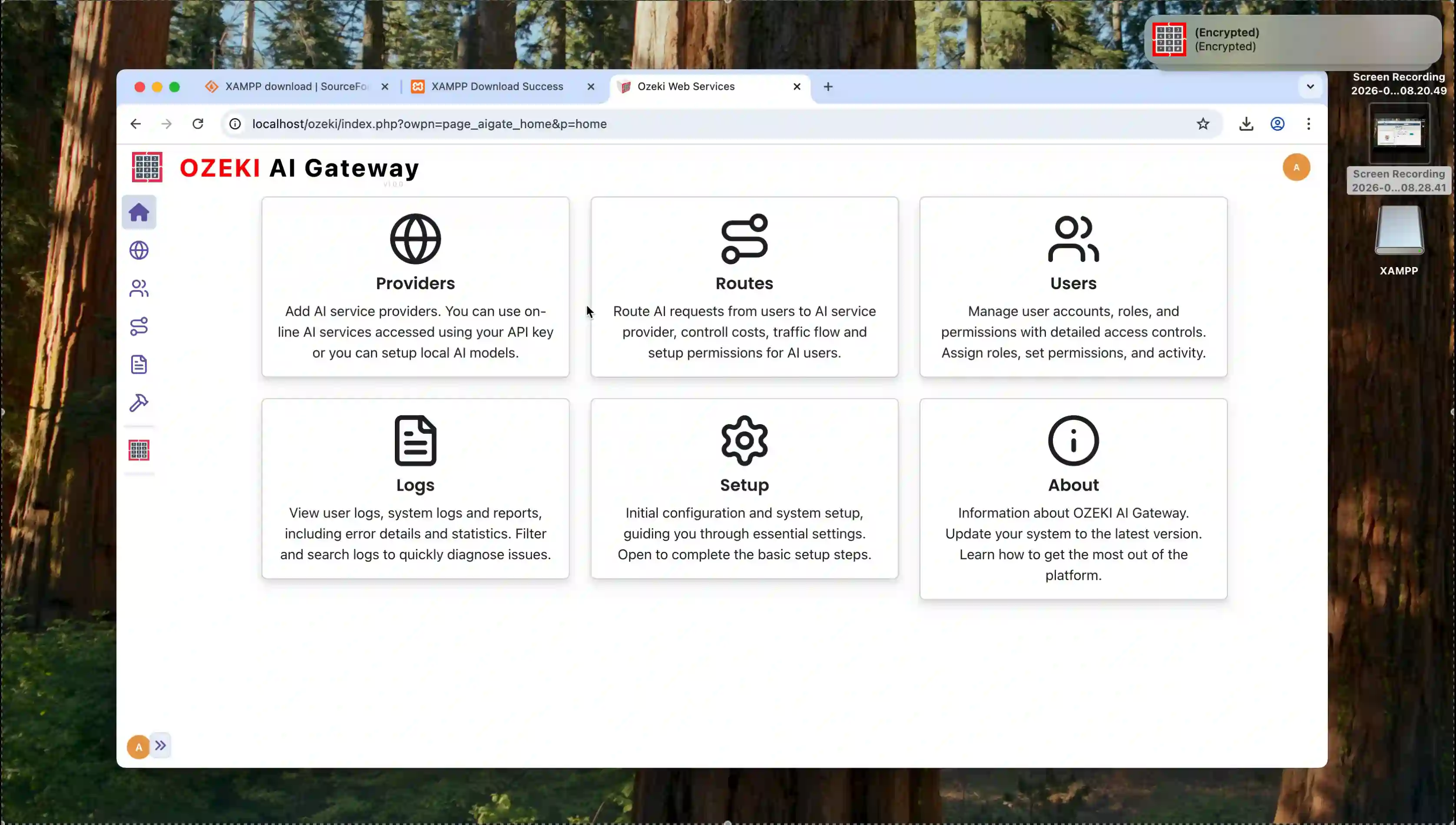
Upon successful installation and setup, you'll be presented with the main Ozeki AI Gateway dashboard showing six key management sections. The dashboard includes modules for Providers (managing AI service providers), Routes (configuring request routing), Users (managing accounts and permissions), Logs (viewing system activity), Setup (configuring core settings), and About (system information). This comprehensive interface allows you to configure AI services, manage traffic flow, monitor system activity, and administer all aspects of your AI Gateway installation.
Conclusion
You have successfully installed Ozeki AI Gateway on your Mac system. The gateway is now running with Apache web server properly configured through XAMPP. You can now proceed to configure AI providers, create user accounts, and set up API routes to connect your applications to various AI services. The admin account you created provides full access to all configuration and management features of the gateway.