
How to connect Ozeki AI Gateway to Ollama
This guide demonstrates how to install Ollama on your local system and connect it to Ozeki AI Gateway. You'll learn how to download and install Ollama, test it with a local AI model, and configure it as a provider in your gateway. By following these steps, you can run AI models locally on your machine and access them through Ozeki AI Gateway's unified interface.
API URL: http://localhost:11434/v1
Example API Key: ollama (or any value)
Default model: llama3.1
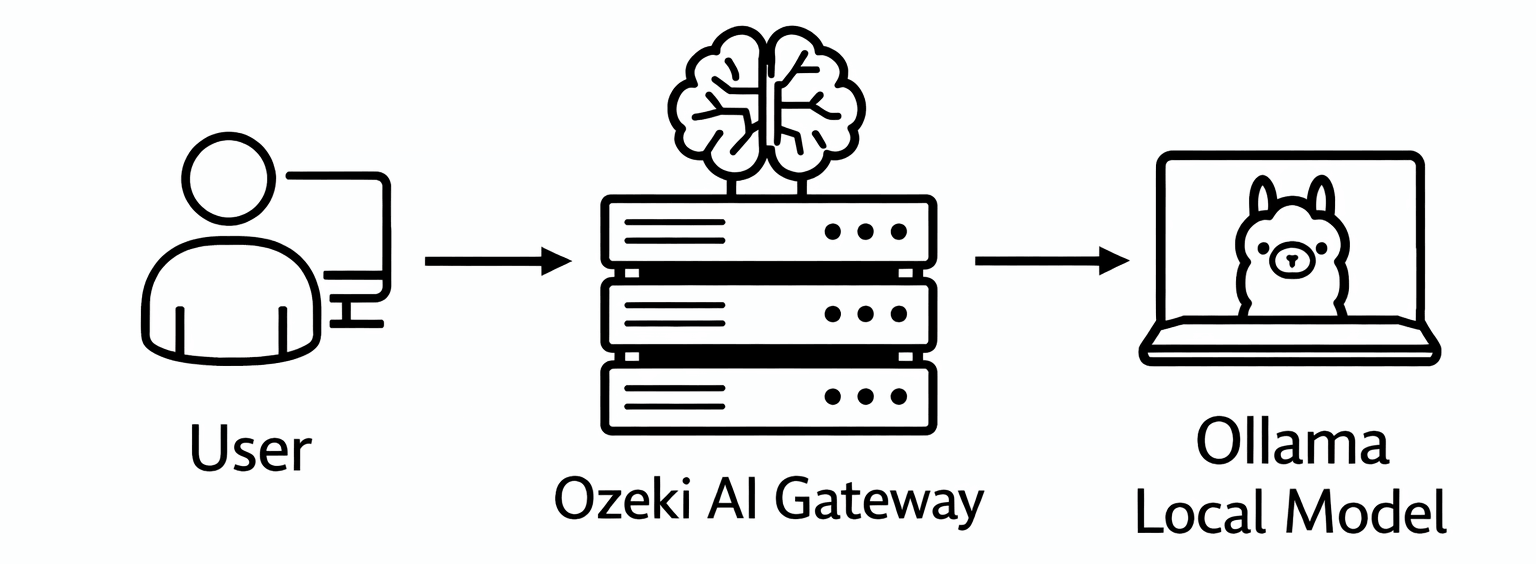
What is Ollama?
Ollama is a local AI model runtime that allows you to run large language models on your own computer without requiring external API services. It provides an OpenAI-compatible API endpoint, making it easy to integrate with Ozeki AI Gateway. Running Ollama locally gives you complete control over your AI infrastructure, eliminates API costs, and keeps your data private.
Steps to follow
We assume Ozeki AI Gateway is already installed on your system. You can install it on Linux, Windows or Mac.
- Download and install Ollama
- Launch Ollama interface
- Select and download AI model
- Test model with prompt
- Add Ollama provider in Ozeki AI Gateway
- Configure Ollama connection
- Test Ollama provider
How to install Ollama video
The following video shows how to install Ollama on Windows step-by-step. The video covers downloading the installer, running the installation, and testing Ollama with a local AI model to verify it's working correctly.
Step 1 - Download and install Ollama
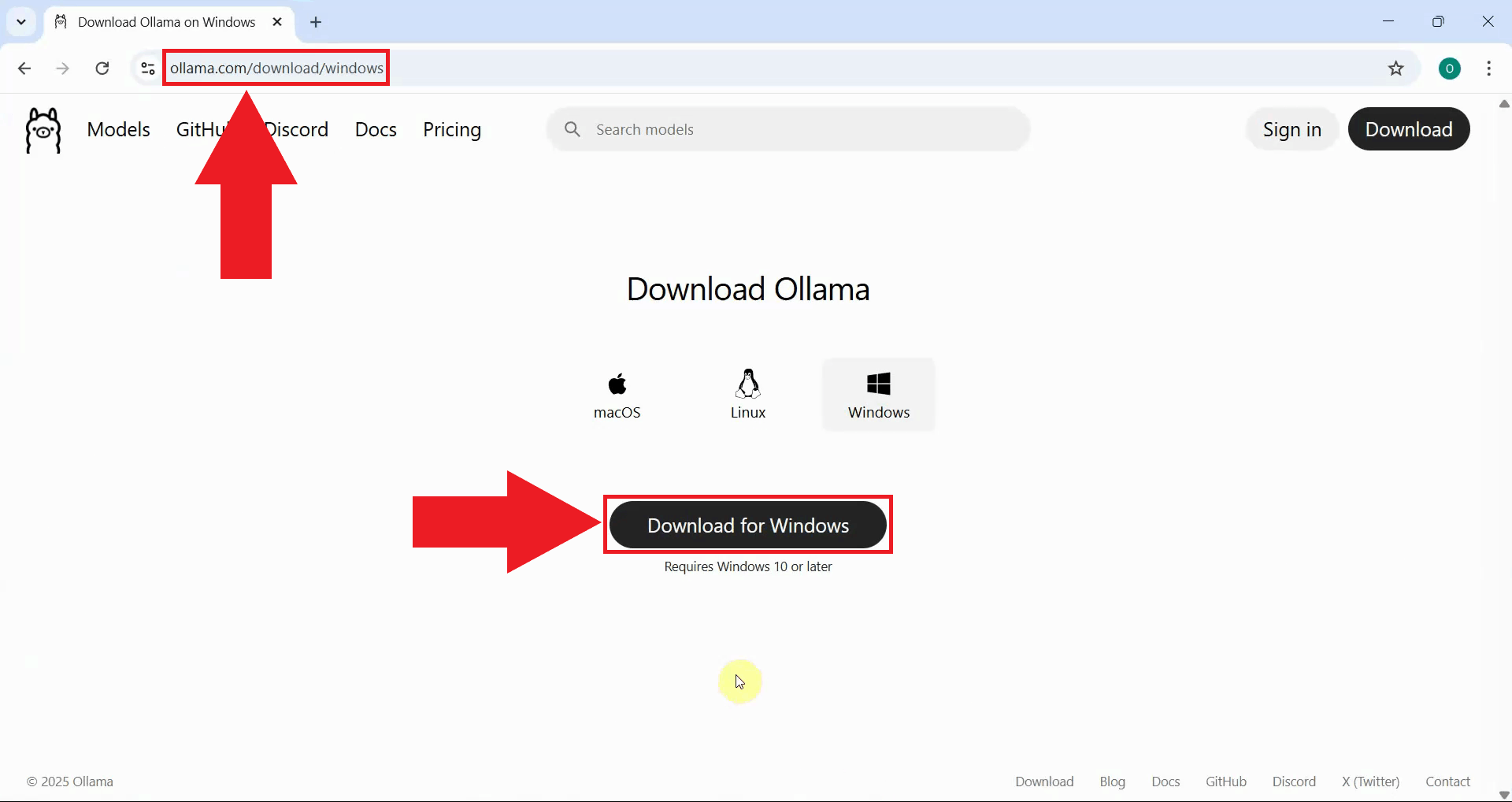
Open your web browser and navigate to the Ollama download page. Click the download button for your operating system (Windows, macOS, or Linux). The installer will begin downloading to your computer (Figure 1).
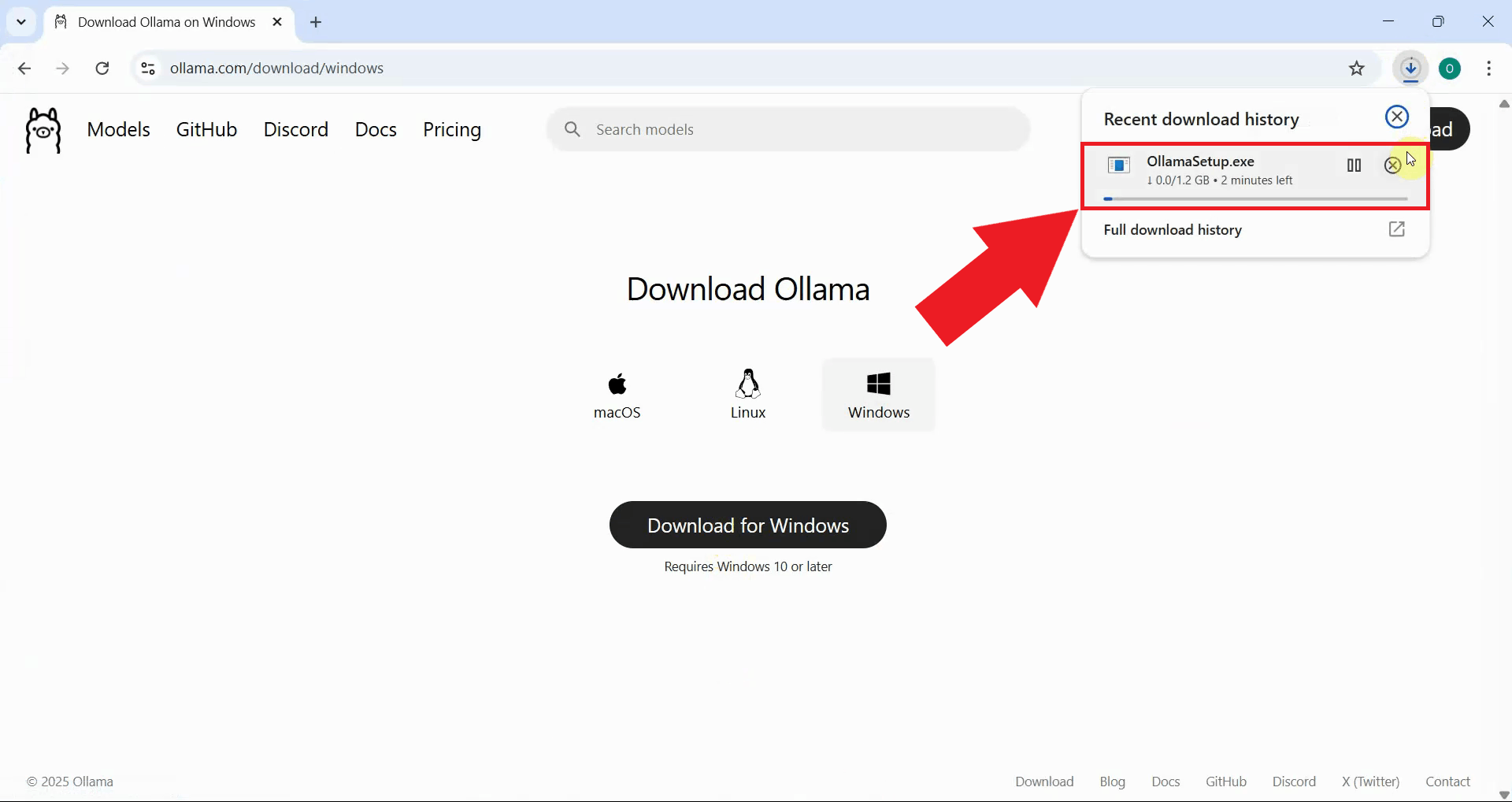
Wait for the Ollama installer to finish downloading. The download size varies depending on your operating system. Once complete, locate the installer file in your downloads folder (Figure 2).
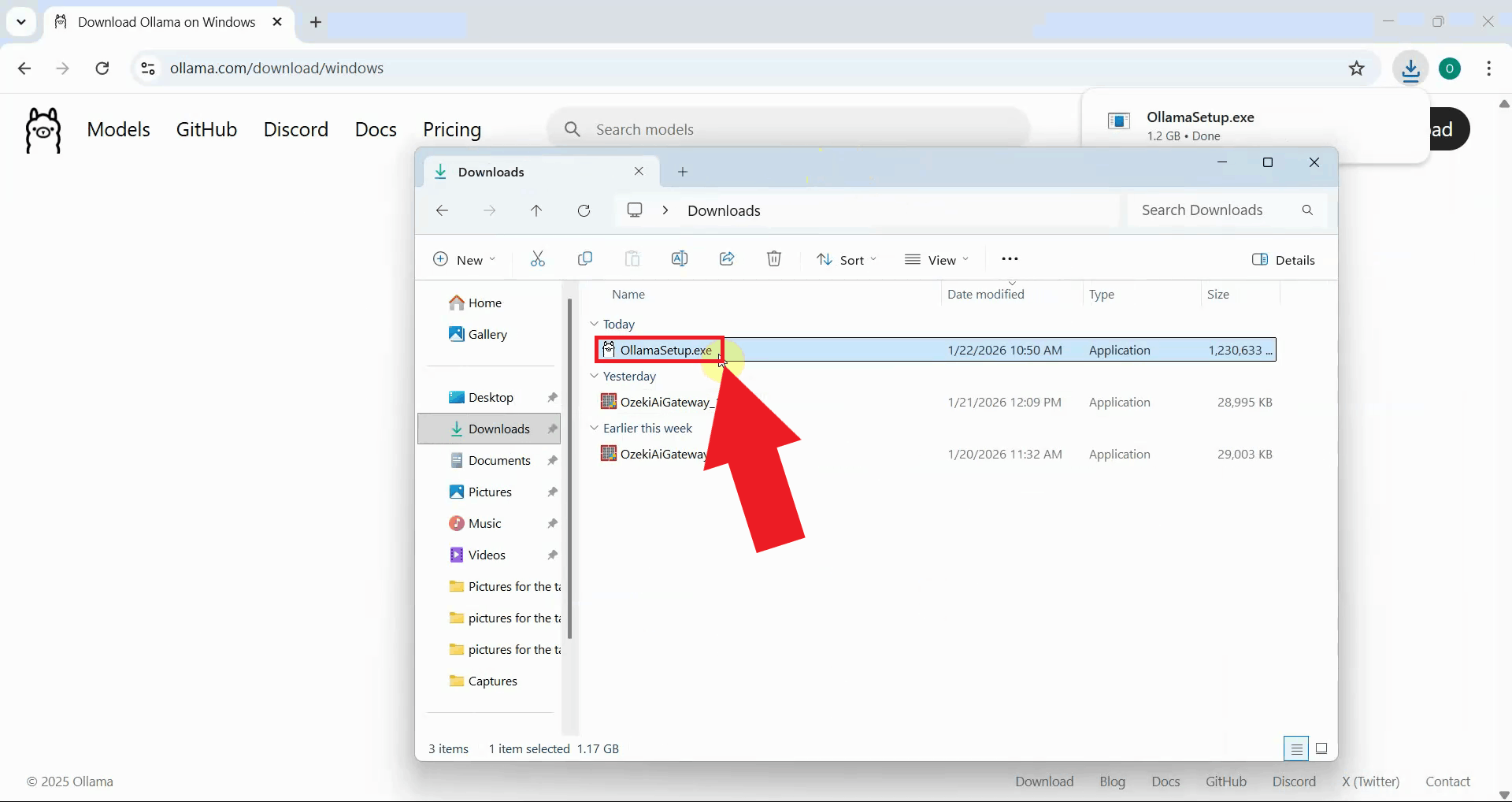
Locate the downloaded installer file and double-click it to launch the Ollama setup. This will begin the installation process (Figure 3).
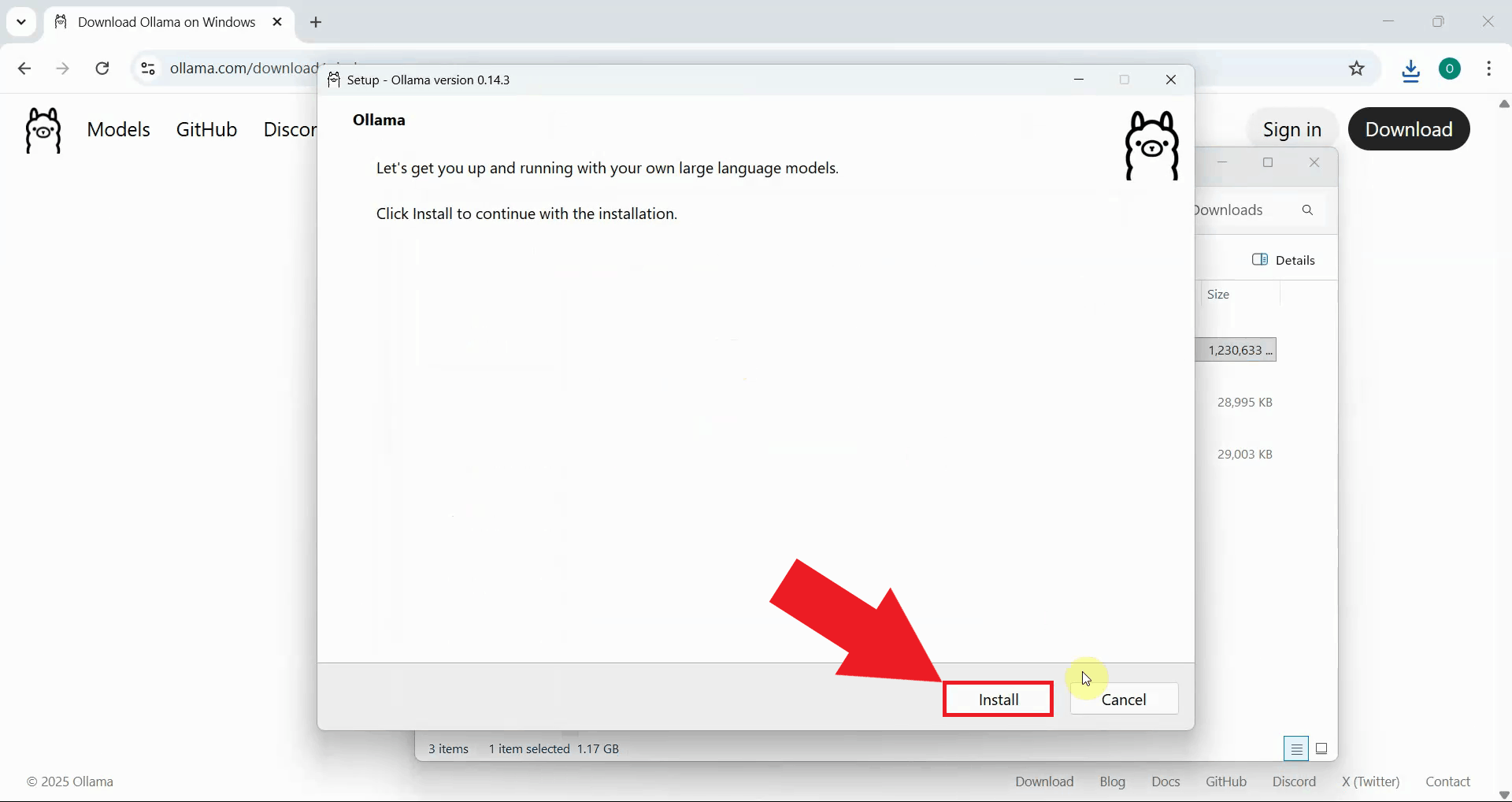
The Ollama installer displays a welcome page with information about the application. Review the welcome message and click "Install" to proceed. The software will be installed to the default system location (Figure 4).
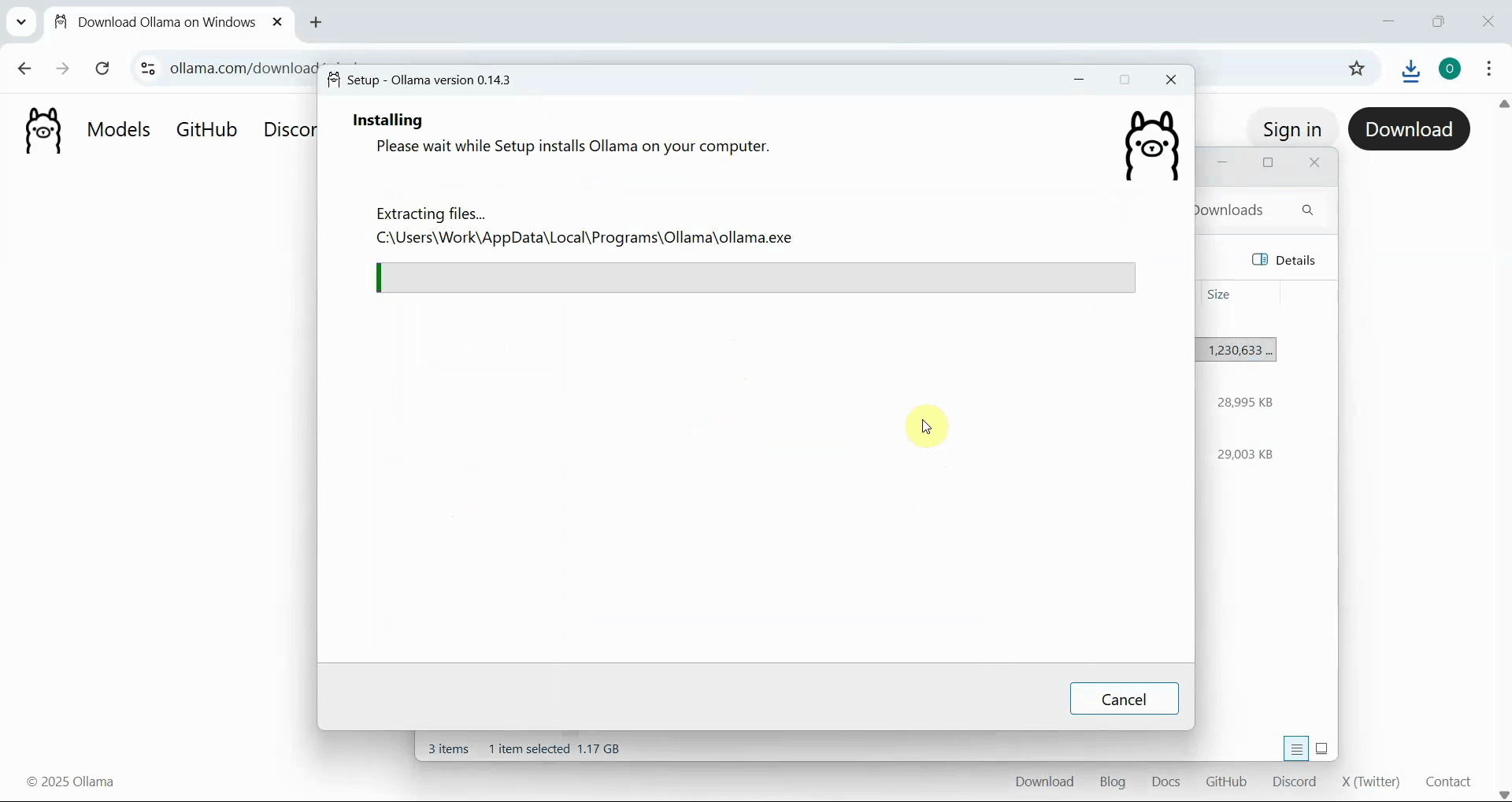
Wait for the installation process to complete as the installer copies the necessary files and configures Ollama on your system. A progress bar is displayed showing the installation status. This process typically takes a few minutes depending on your system's performance (Figure 5).
Step 2 - Launch Ollama interface
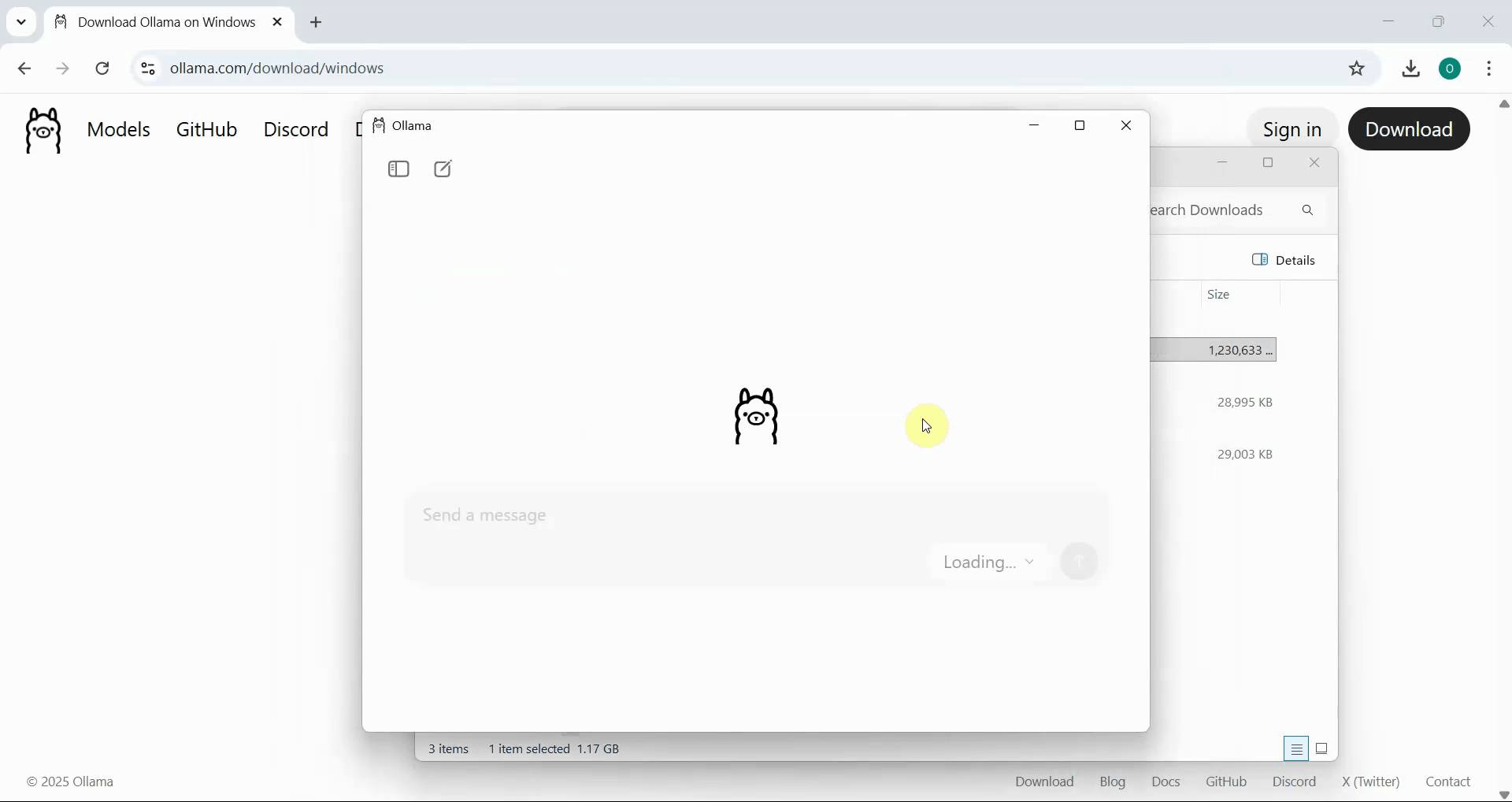
After the installation completes successfully, Ollama automatically launches and displays its chat interface. The Ollama icon appears in your system tray, indicating that the Ollama service is running in the background. The interface provides a clean, simple chat window where you can interact with AI models (Figure 6).
Step 3 - Select and download AI model
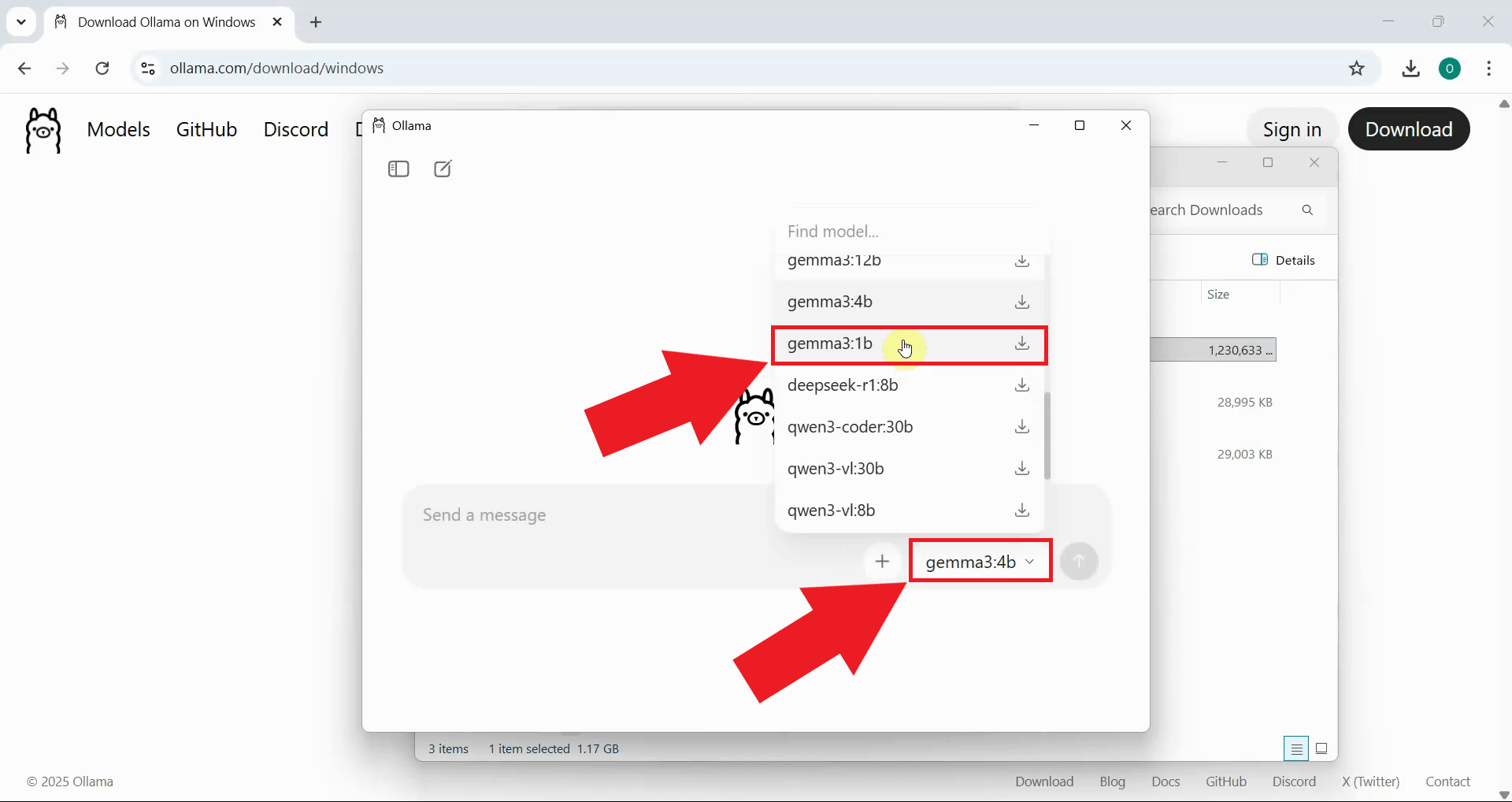
In the Ollama interface, you'll see a list of available AI models that can be downloaded and run locally. Click on a model to select it for download and testing. For initial testing purposes, it's recommended to choose a smaller model like "gemma3:1b" which downloads quickly and runs efficiently on most systems. Larger models offer better performance but require more disk space, memory, and processing power (Figure 7).
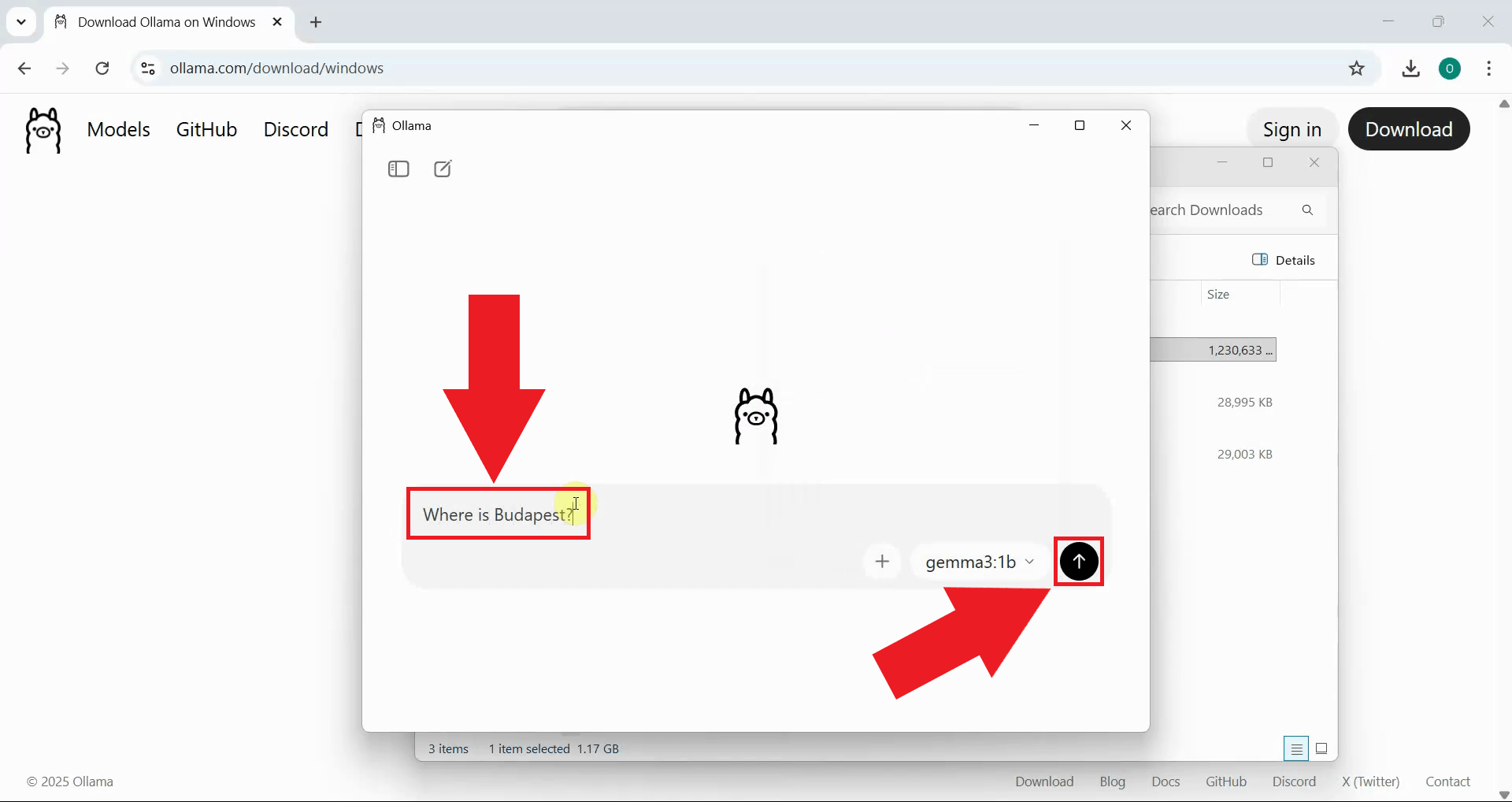
Type a test prompt in the Ollama chat interface to verify the model is working correctly. When you send the prompt, Ollama will automatically trigger the download of the selected model if it hasn't been downloaded yet (Figure 8).
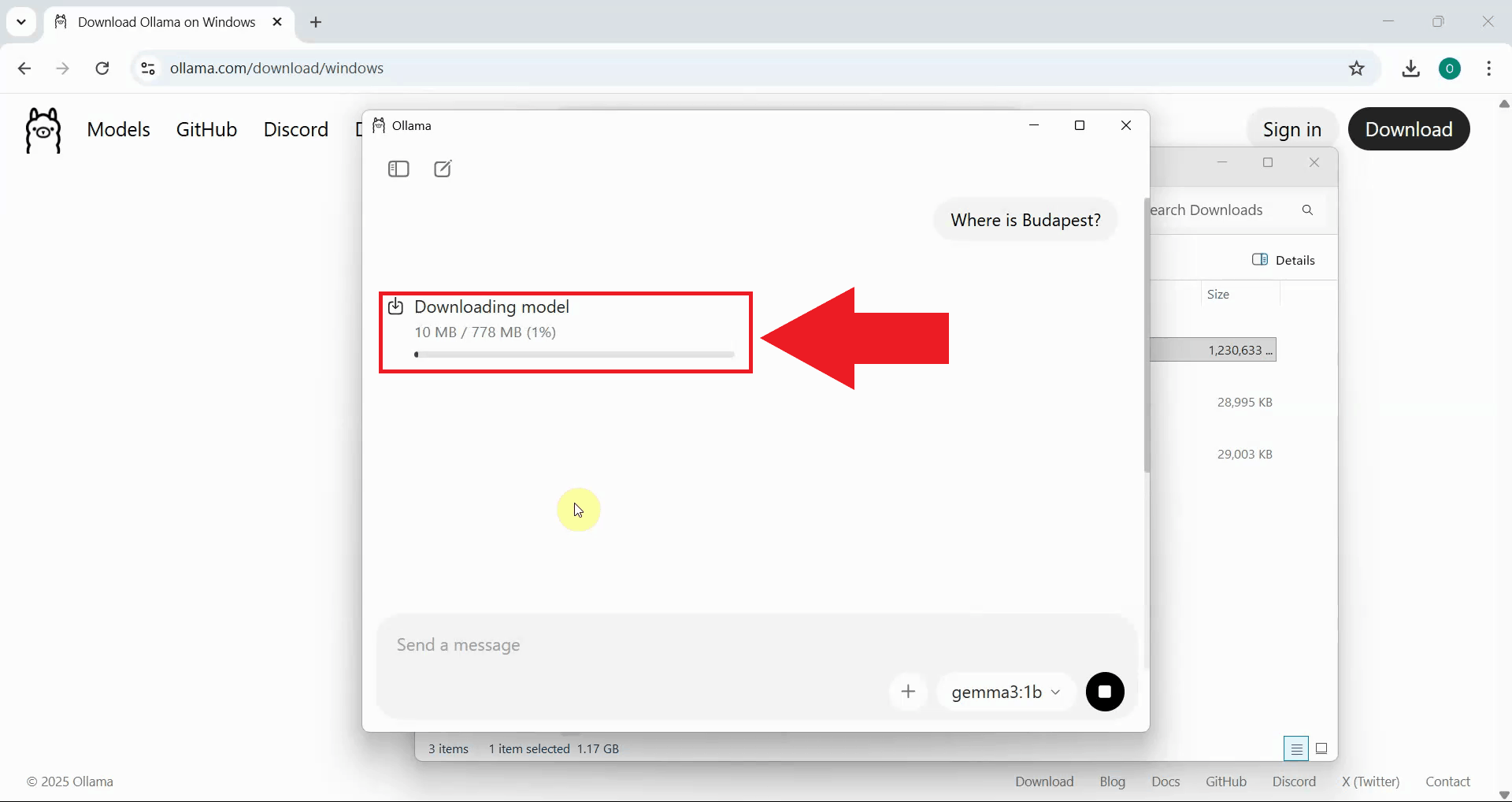
If the model hasn't been downloaded yet, Ollama will download it automatically. Wait for the download to complete. The time depends on the model size and your internet connection. Smaller models download faster (Figure 9).
Step 4 - Test model with prompt
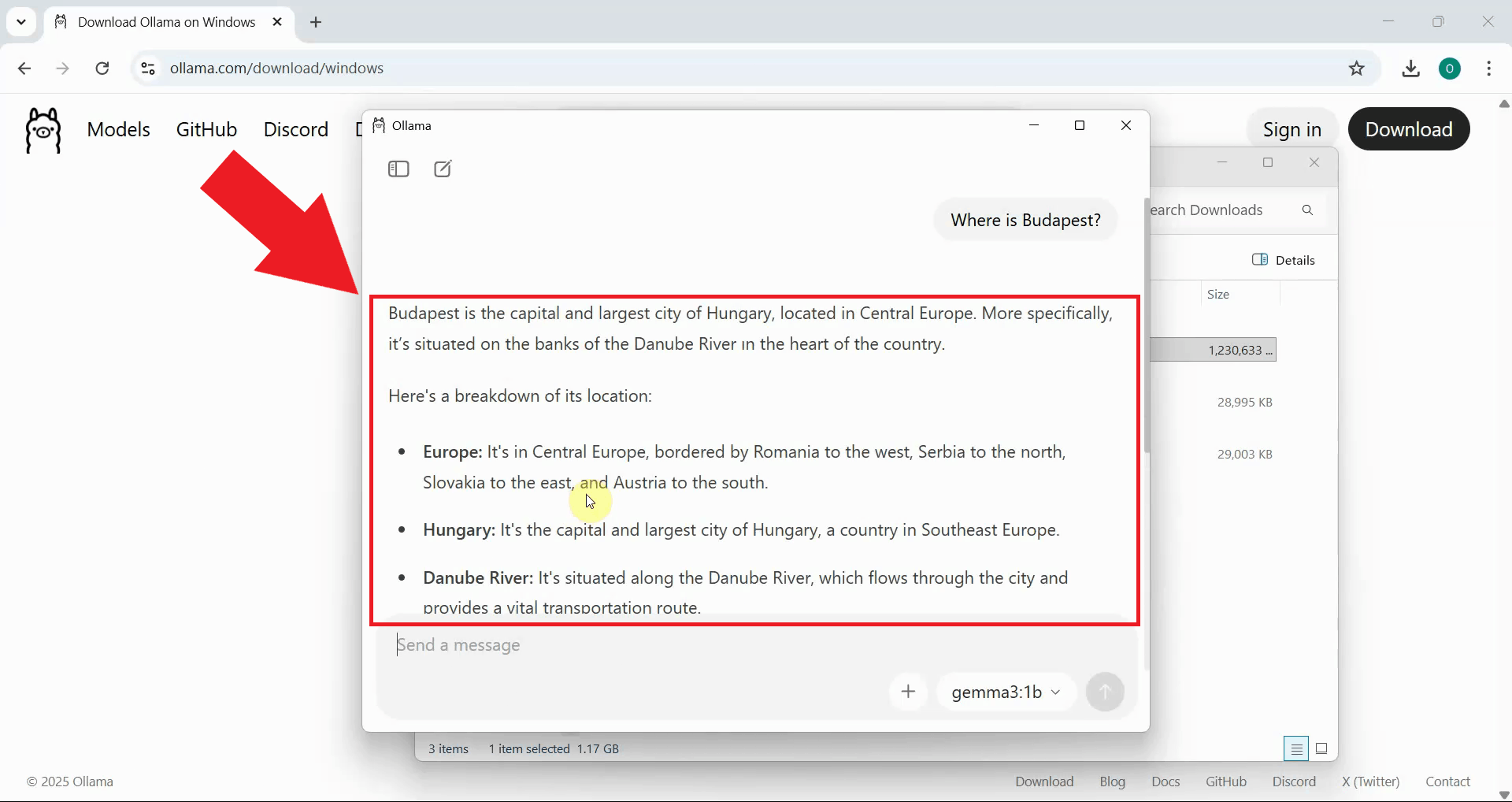
Once the model is downloaded and loaded into memory, Ollama processes your prompt and displays the AI's response in the chat interface. The response confirms that Ollama is installed correctly and can successfully run AI models on your local system (Figure 10).
Step 5 - Add Ollama provider in Ozeki AI Gateway
The following video shows how to configure Ollama as a provider in Ozeki AI Gateway step-by-step. The video covers opening the Providers page, adding Ollama with the correct endpoint, and testing the connection to verify everything is working.
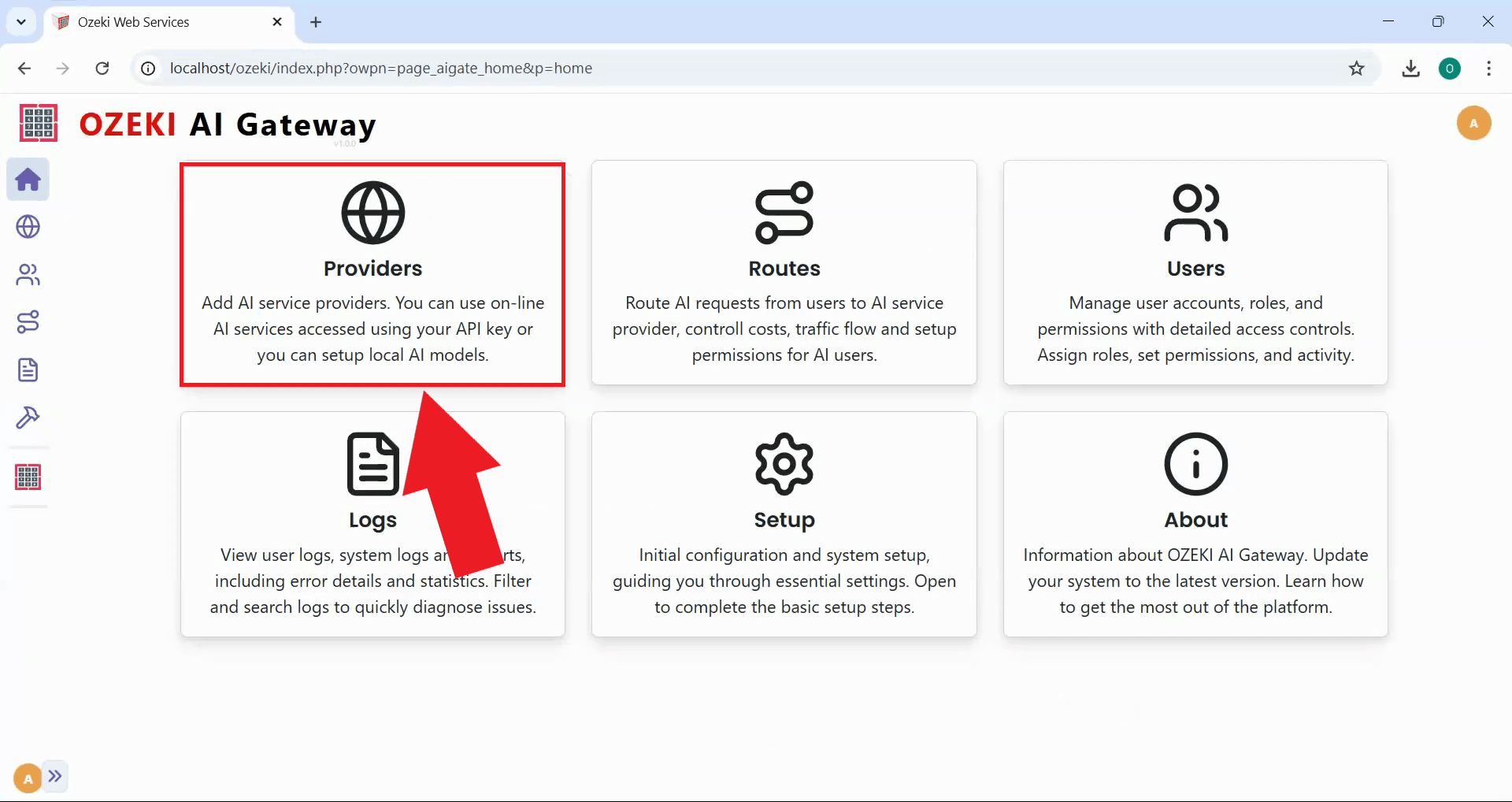
To enable your Ozeki AI Gateway to communicate with AI models, you must first configure AI provider connections on the dedicated Providers page. Open the Ozeki AI Gateway web interface and navigate to the Providers section from the main menu. The Providers page displays a list of currently configured AI providers and includes an interface for viewing and managing connections to various AI services such as OpenAI, Anthropic, local models, or other compatible AI services. This is where you'll add Ollama as a new local provider (Figure 11).
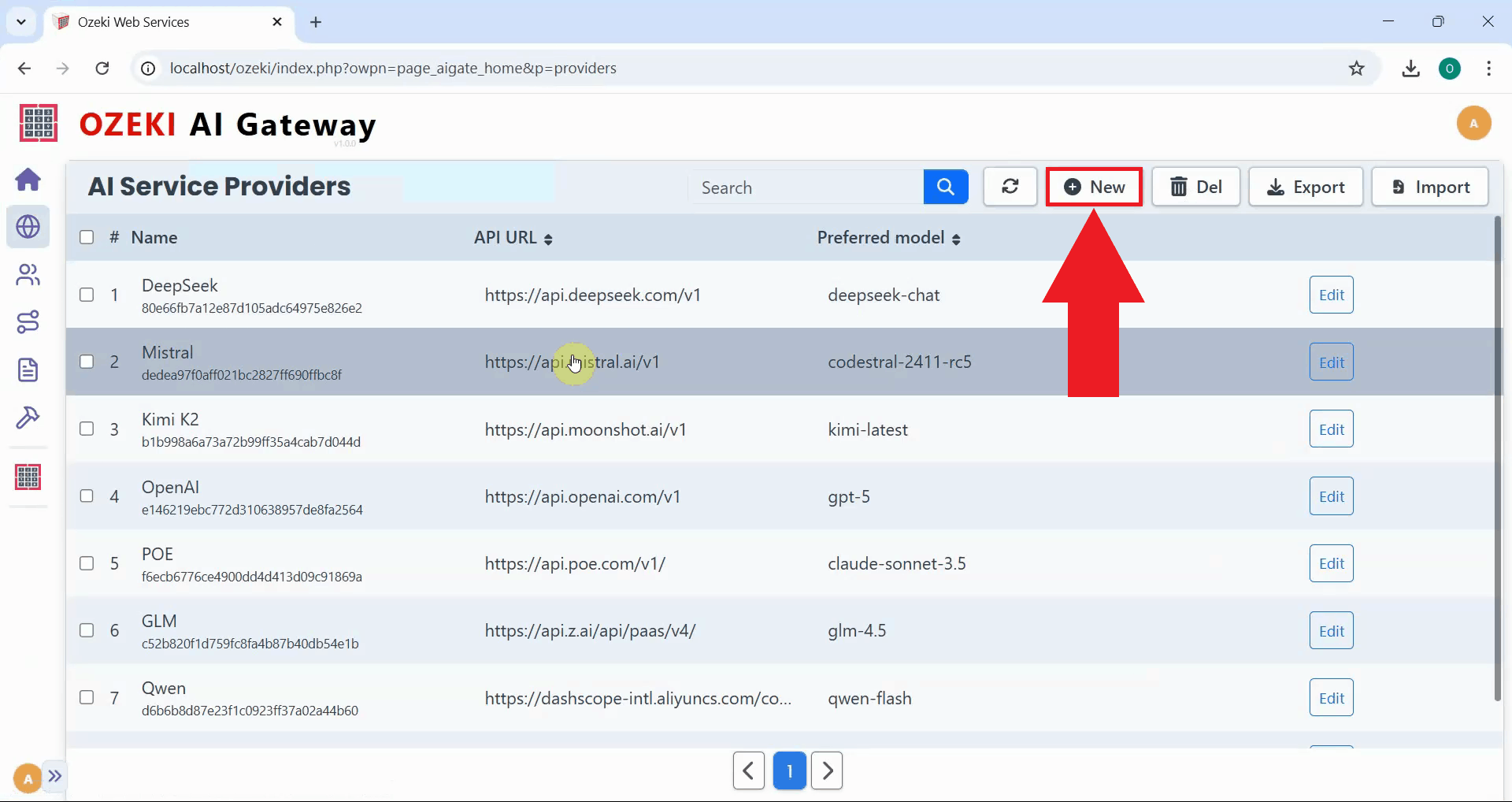
Click the "New" button on the Providers page to initiate the provider creation workflow. This opens a configuration form where you'll specify the details of your Ollama connection (Figure 12).
Step 6 - Configure Ollama connection
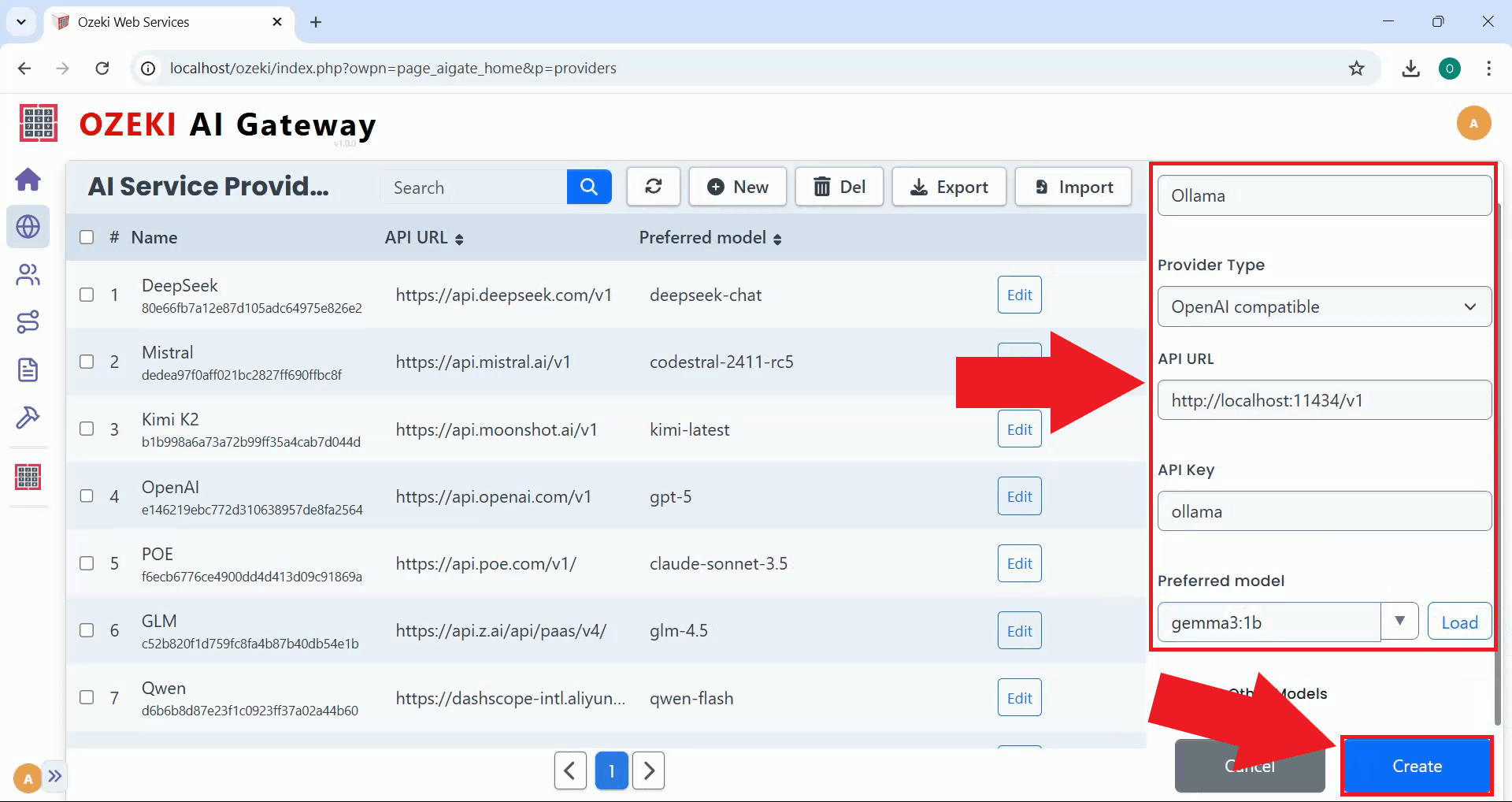
Fill in the provider configuration form with Ollama's connection details. Enter "Ollama" as the provider name, select "OpenAI compatible" as the provider type since Ollama implements the OpenAI API format, and specify the API endpoint URL as http://localhost:11434/v1. For the API key field, you can enter "ollama" or any value since Ollama doesn't require authentication for local connections. Select the model you downloaded earlier from the dropdown list, then click "Create" to save the configuration (Figure 13).
http://localhost:11434/v1
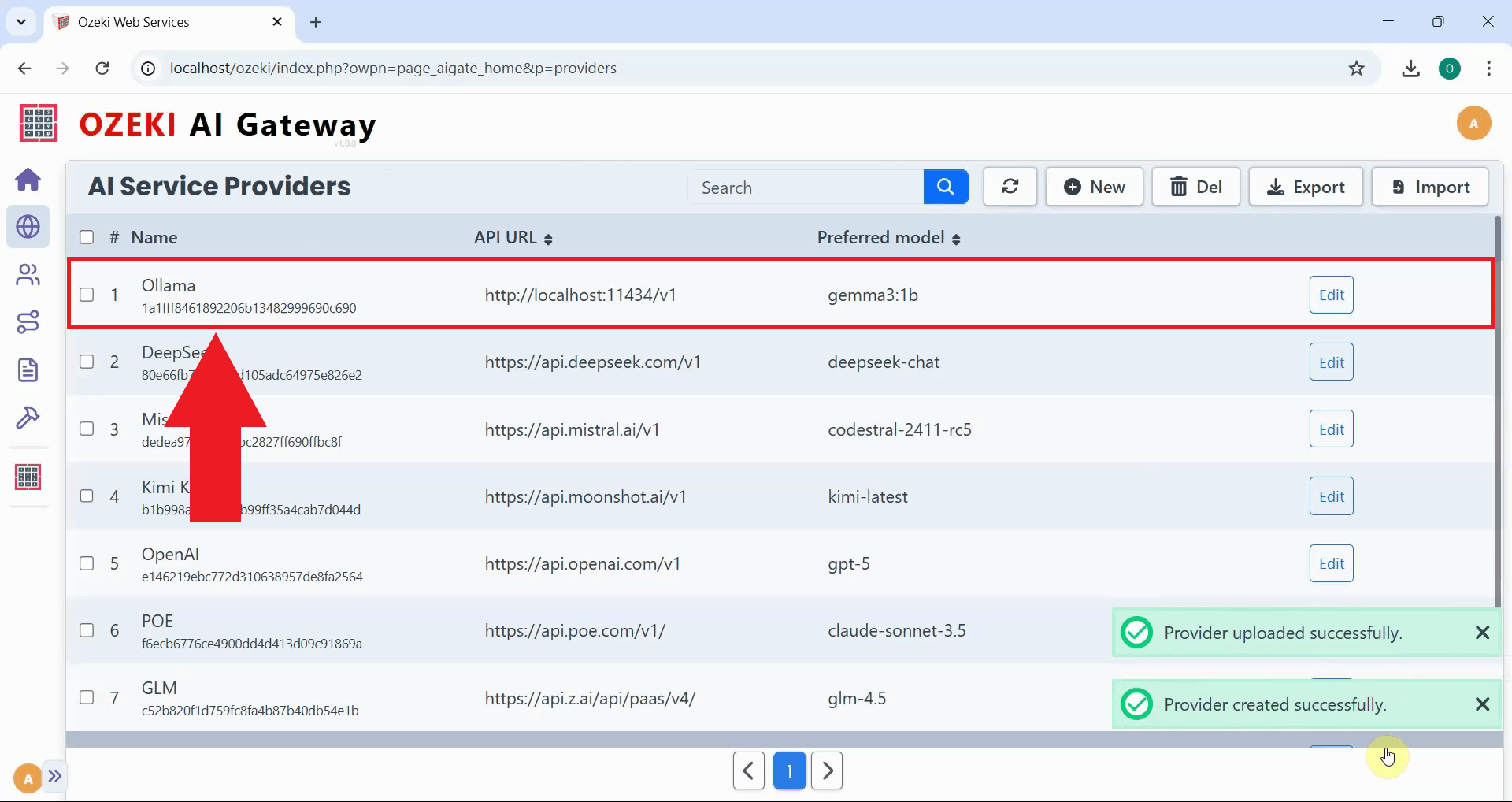
After clicking "Create", the Ollama provider is successfully added to Ozeki AI Gateway and appears in the providers list with its configuration details visible. The provider is now ready for testing and can be used to create routes that allow users to access local AI models through your gateway infrastructure (Figure 14).
Step 7 - Test Ollama provider
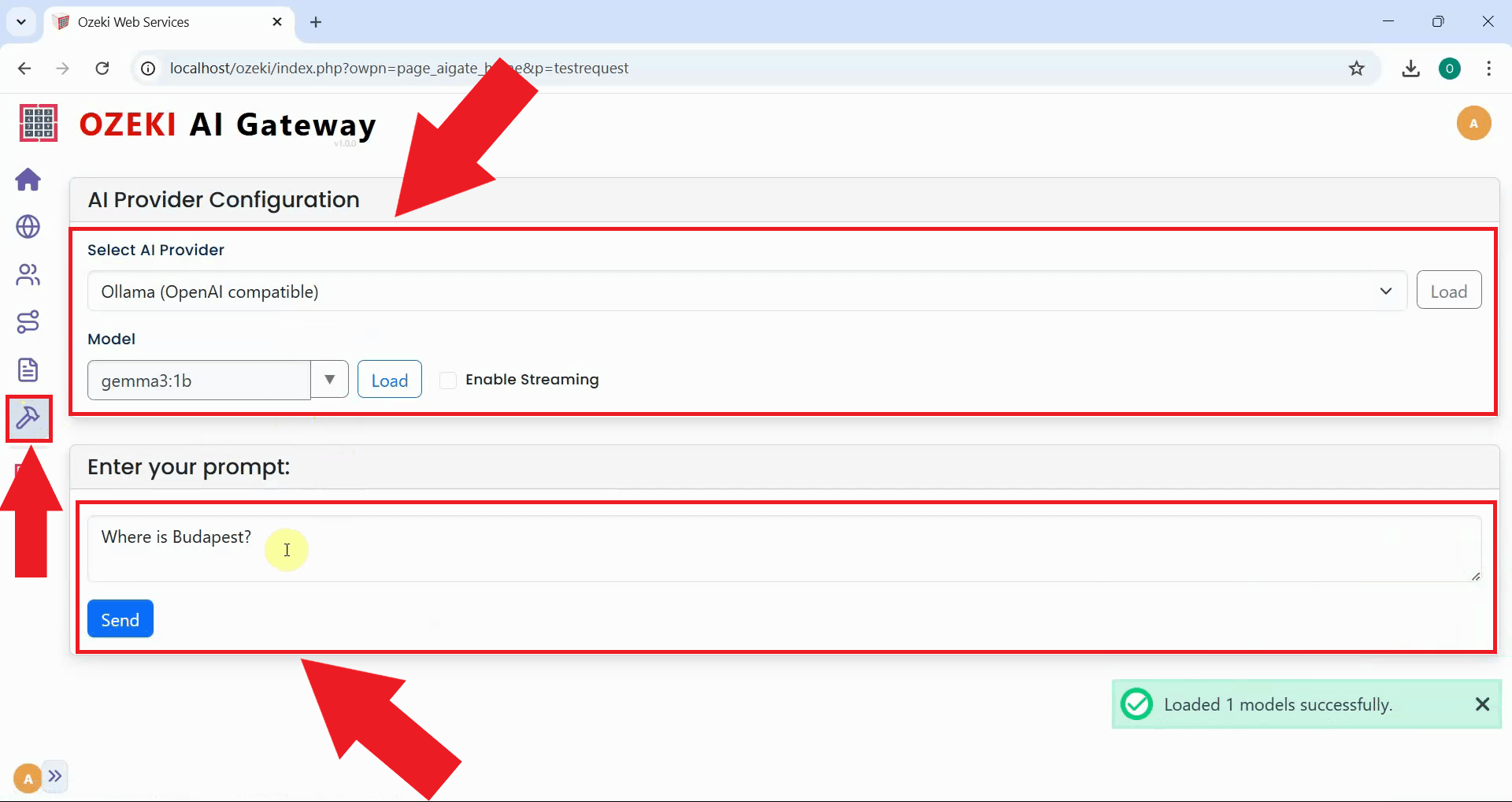
To verify that your Ollama provider connection is working correctly, navigate to the Testing tool from the left sidebar in Ozeki AI Gateway. The testing interface allows you to send sample prompts directly to the configured provider. Select "Ollama" as the provider, choose the model you downloaded earlier, enter a test prompt, and click "Send" to submit the request (Figure 15).
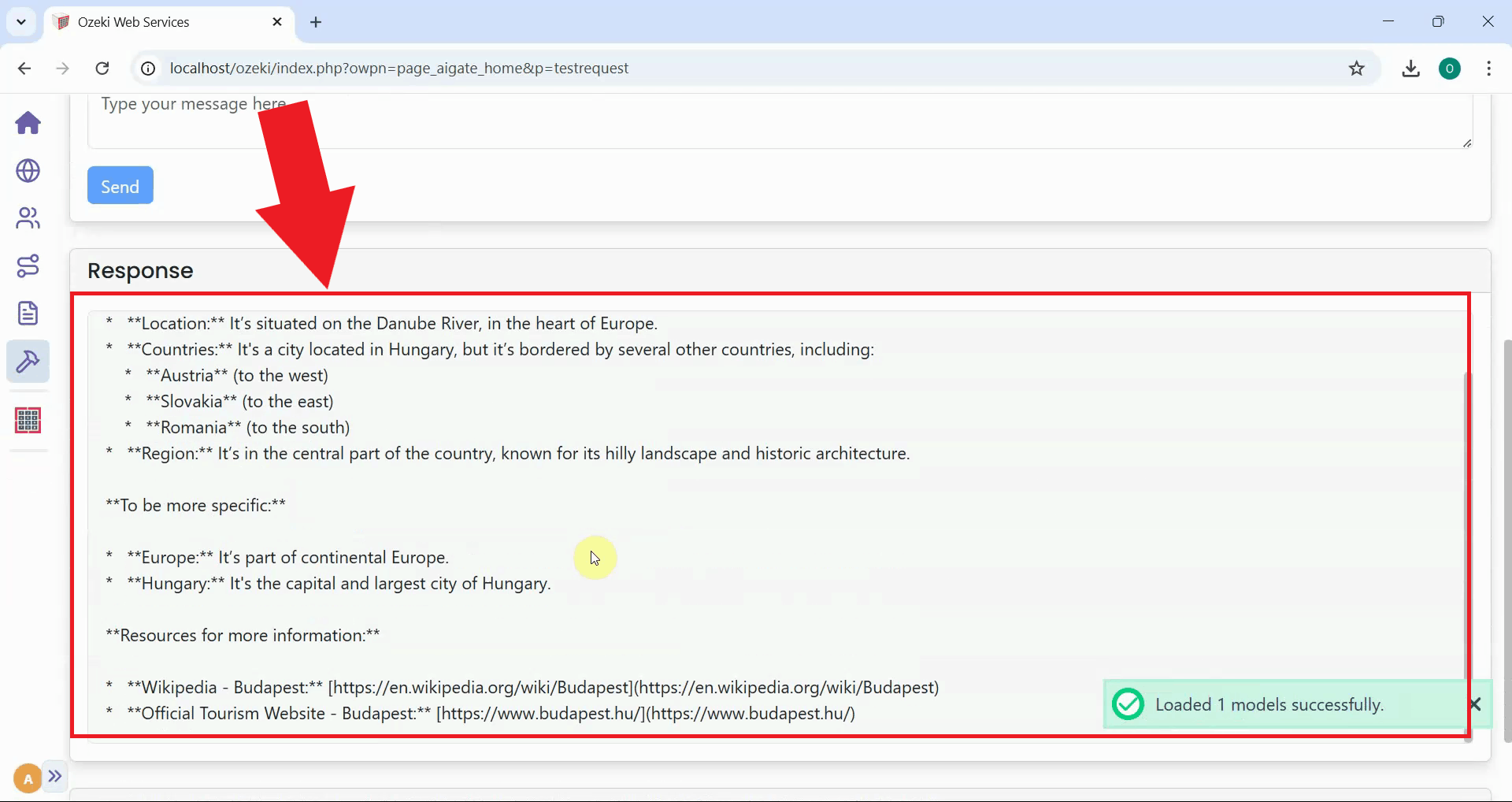
After submitting the test prompt, the AI model's response is displayed in the testing interface, confirming that the complete communication chain is functioning correctly. A successful response verifies that your Ozeki AI Gateway successfully connected to the local Ollama service, transmitted your prompt, and received a valid response from the AI model (Figure 16).
To sum it up
You have successfully installed Ollama and configured it as a provider in Ozeki AI Gateway. Your gateway can now route requests to AI models running locally on your machine, giving you complete control over your AI infrastructure without relying on external API services. This setup eliminates API costs, keeps your data private, and allows you to run AI models offline. You can now create routes that allow users to access local AI models through your gateway alongside cloud-based providers.