How to setup a VS Code proxy to debug communication problems
When working with AI coding assistants like Cline in Visual Studio Code, you may encounter communication problems between the extension and AI service providers that require detailed debugging. Setting up a proxy server using mitmproxy allows you to intercept and inspect all HTTP/HTTPS traffic flowing between VS Code and AI APIs, making it possible to diagnose connection issues, authentication errors, or malformed requests. This tutorial demonstrates how to configure mitmproxy as an intermediary proxy and route VS Code's network traffic through it to capture real-time transaction data. By following these steps, you'll be able to view complete request and response details in the mitmproxy web interface, enabling effective troubleshooting of communication problems.
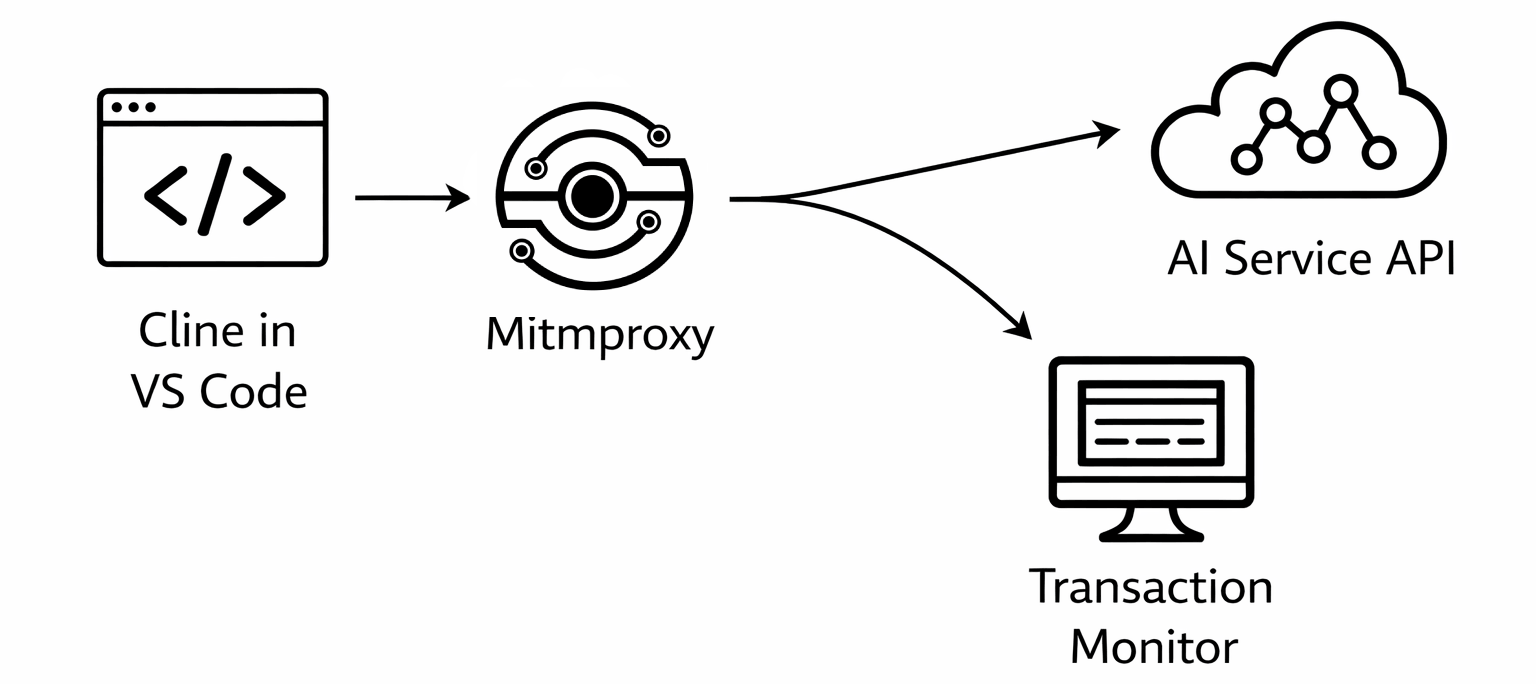
Steps to follow
- Download mitmproxy from mitmproxy.org
- Install mitmproxy on your system
- Start mitmproxy web UI using mitmweb command
- Verify mitmproxy is running in browser
- Open VS Code settings
- Configure proxy settings in VS Code
- Send a prompt to Cline
- Check captured transactions in mitmproxy
How to debug VS Code with proxy video
The following video demonstrates how to set up a VS Code proxy using mitmproxy to debug communication problems step-by-step. The video covers downloading and installing mitmproxy, launching the mitmweb interface, configuring VS Code proxy settings, and capturing transaction data. You will see how to monitor API requests from Cline to AI services by inspecting the intercepted traffic in the mitmproxy web interface.
Step 1 - Download mitmproxy
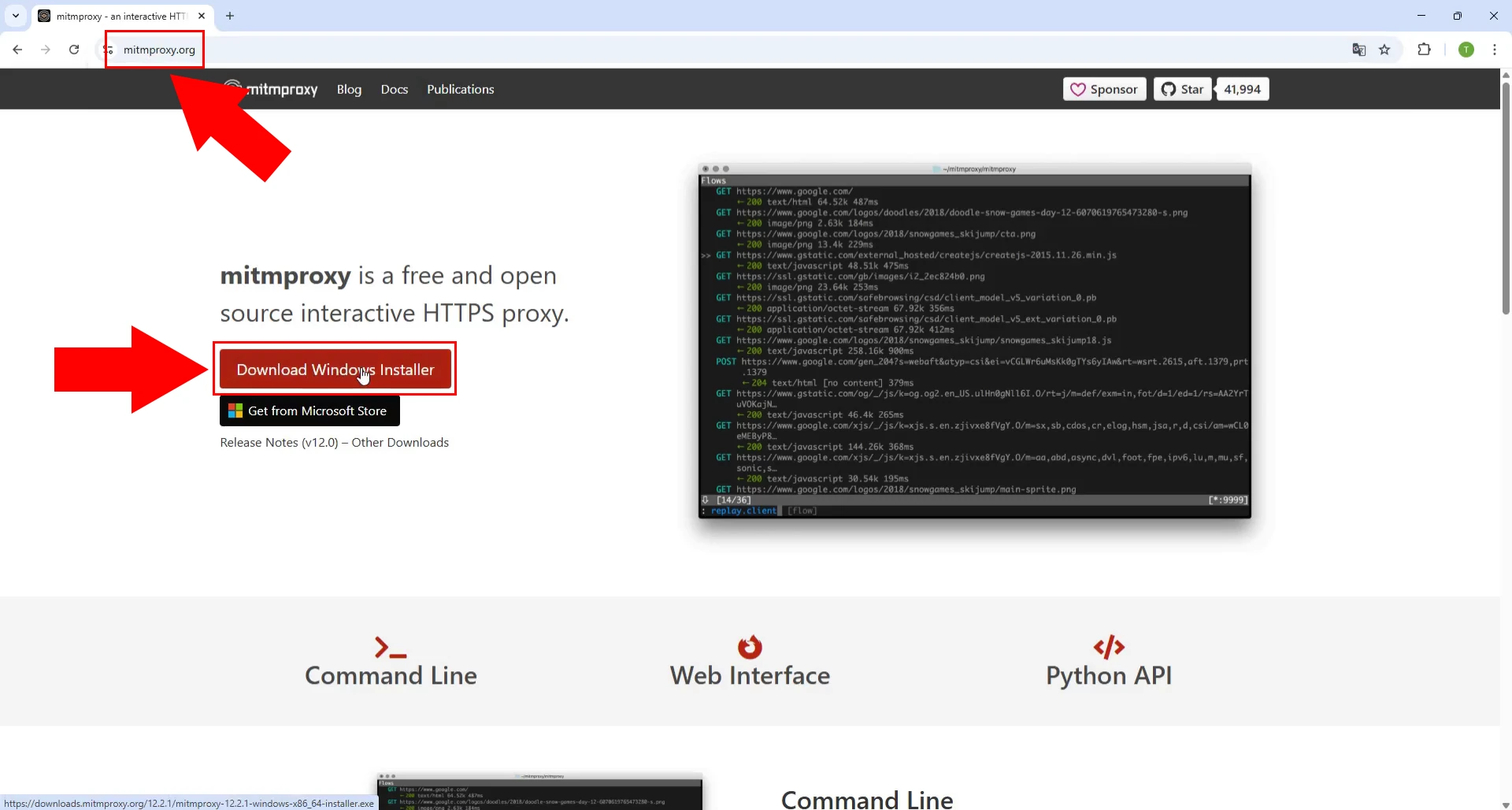
To begin setting up a proxy for debugging VS Code communication, visit the mitmproxy website by navigating to mitmproxy.org in your web browser. Mitmproxy is a free and open-source interactive HTTPS proxy tool that allows you to intercept and inspect network traffic. Click on the "Download Windows Installer" button to obtain the installation package for your Windows system, which will enable you to monitor all HTTP and HTTPS requests between VS Code and AI services.
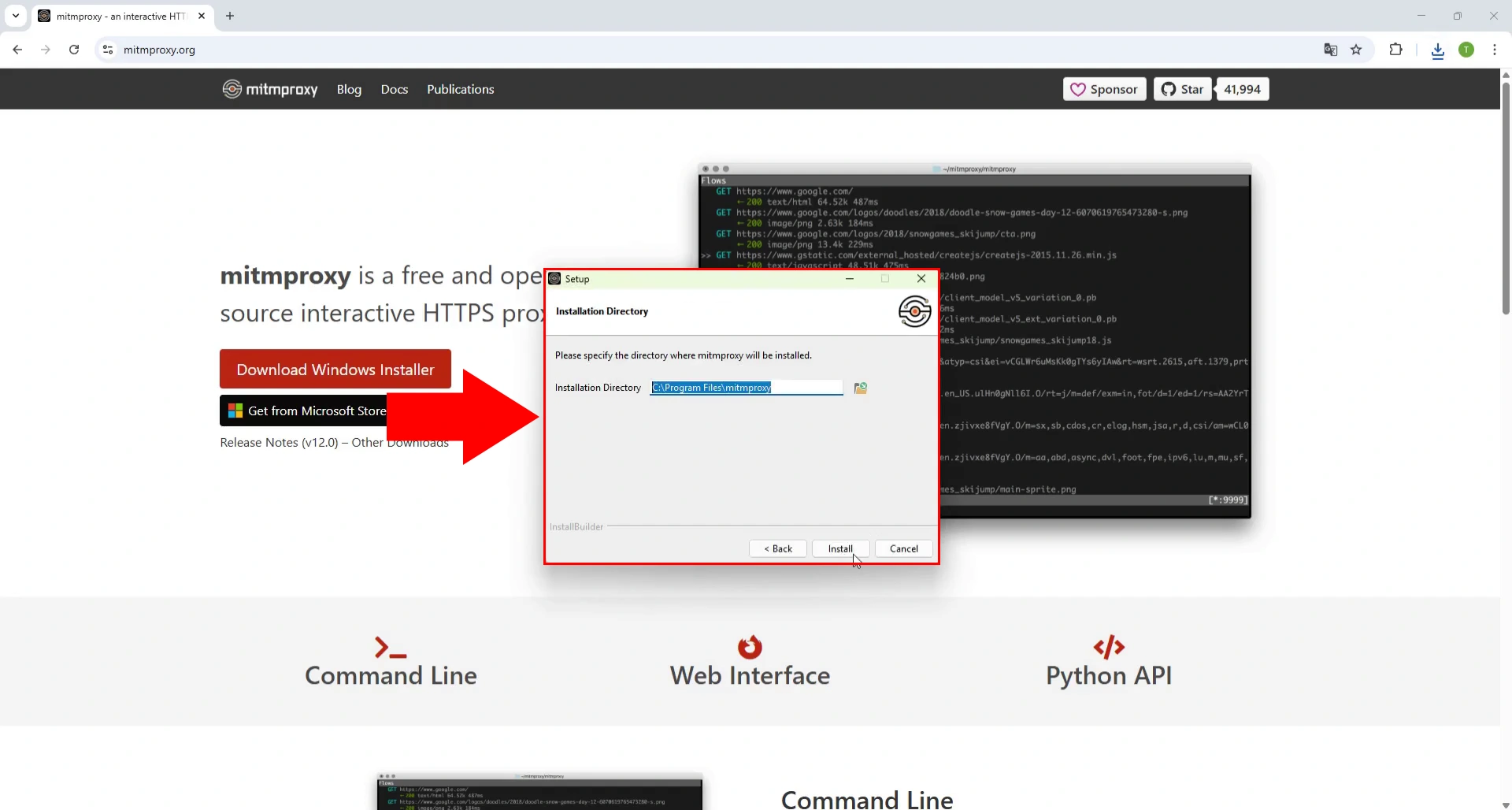
Step 2 - Install mirmproxy
After downloading the mitmproxy installer, launch the installation wizard which will guide you through the setup process. The installer displays information about the Installation Directory with a progress bar showing the installation status. Follow the on-screen prompts to complete the installation, which will place mitmproxy executable files and necessary components on your system, preparing it for use as an HTTP/HTTPS proxy server.
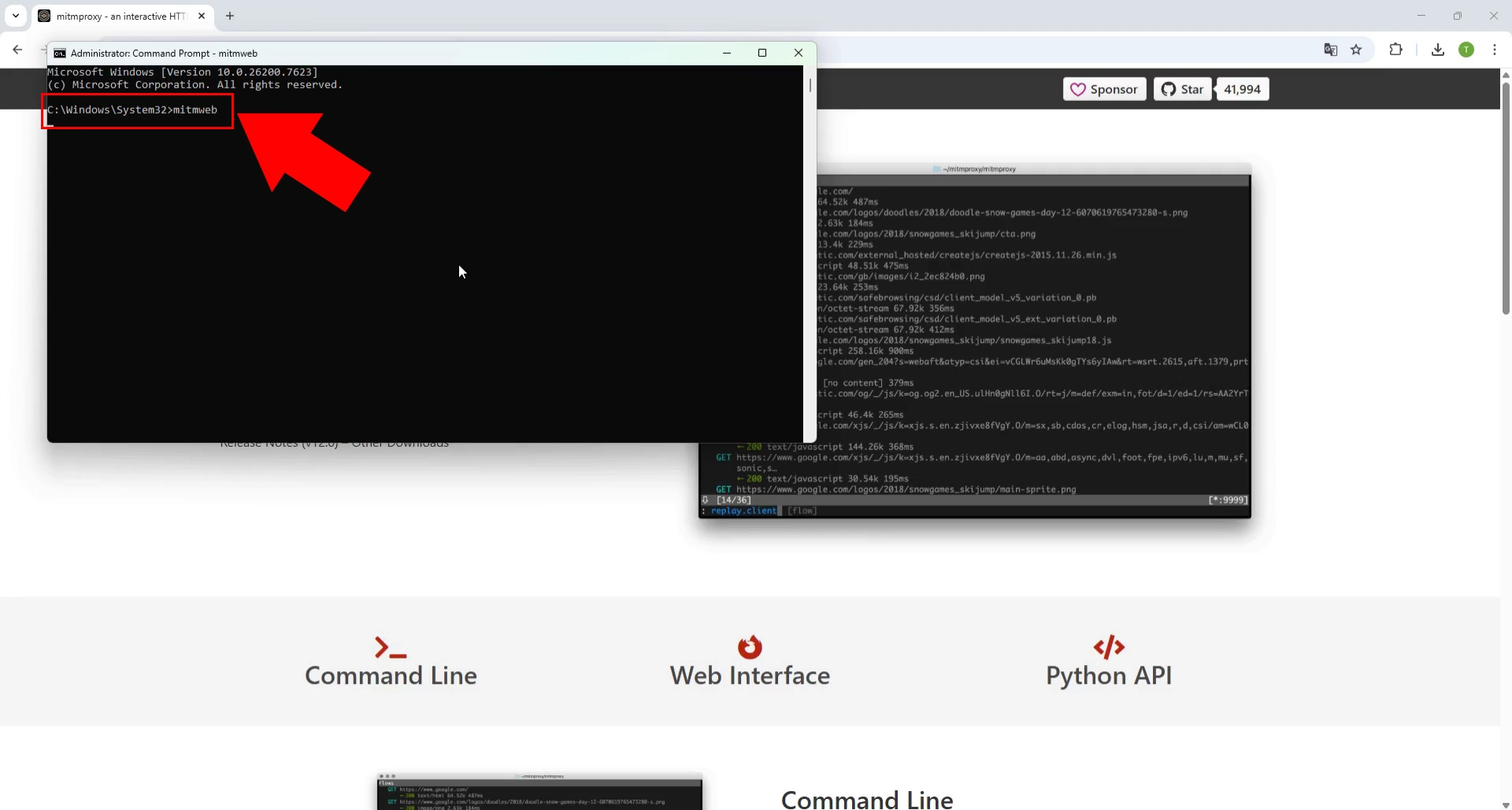
Step 3 - Start mitmproxy web UI
To launch mitmproxy's web interface, open a command prompt or terminal window and execute the command "mitmweb" which starts the proxy server with a browser-based interface. The command line will display startup information including the proxy address and port number where mitmproxy is listening for connections. Once running, the web UI becomes accessible through your browser, providing a convenient interface for monitoring and analyzing intercepted network traffic.
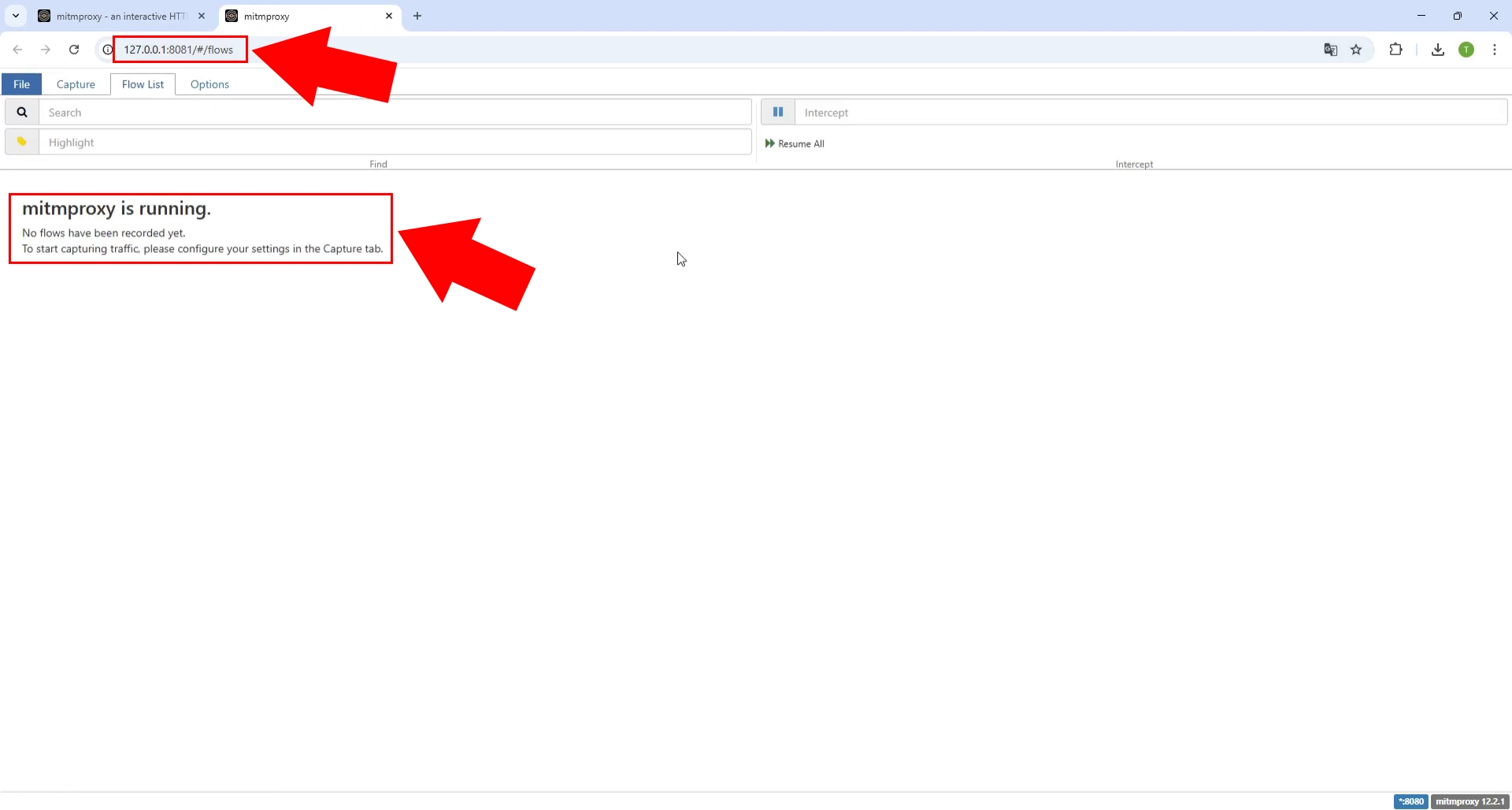
Step 4 - Mitmproxy is running
After executing the mitmweb command, your browser will automatically open to localhost:8081 showing the mitmproxy web interface. The interface displays a confirmation message stating "mitmproxy is running" along with instructions for configuring applications to route traffic through the proxy by directing them to use the specified settings in Options tab. At this point, the proxy server is active and ready to intercept traffic, but requires additional configuration in VS Code to begin capturing communication data.
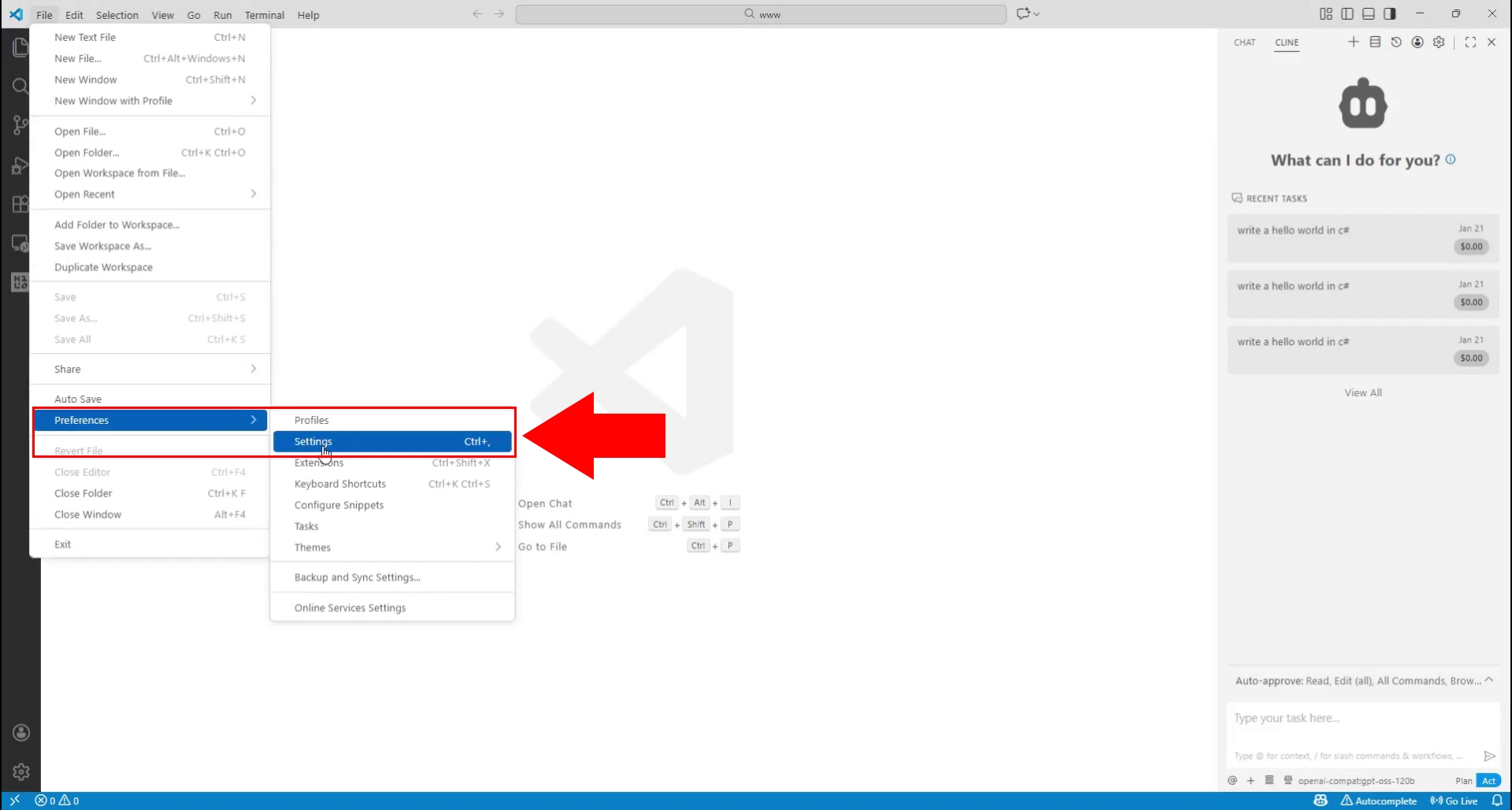
Step 5 - Open VS Code settings
To configure VS Code to use the mitmproxy, open Visual Studio Code and access the settings by clicking on "File" menu, then selecting "Preferences" followed by "Settings". Alternatively, you can use the keyboard shortcut Ctrl+, (comma) to quickly open the settings interface. In the settings window, you'll see a search bar at the top and a list of setting categories on the left side, where you need to locate the proxy configuration options to route VS Code's network traffic through mitmproxy.
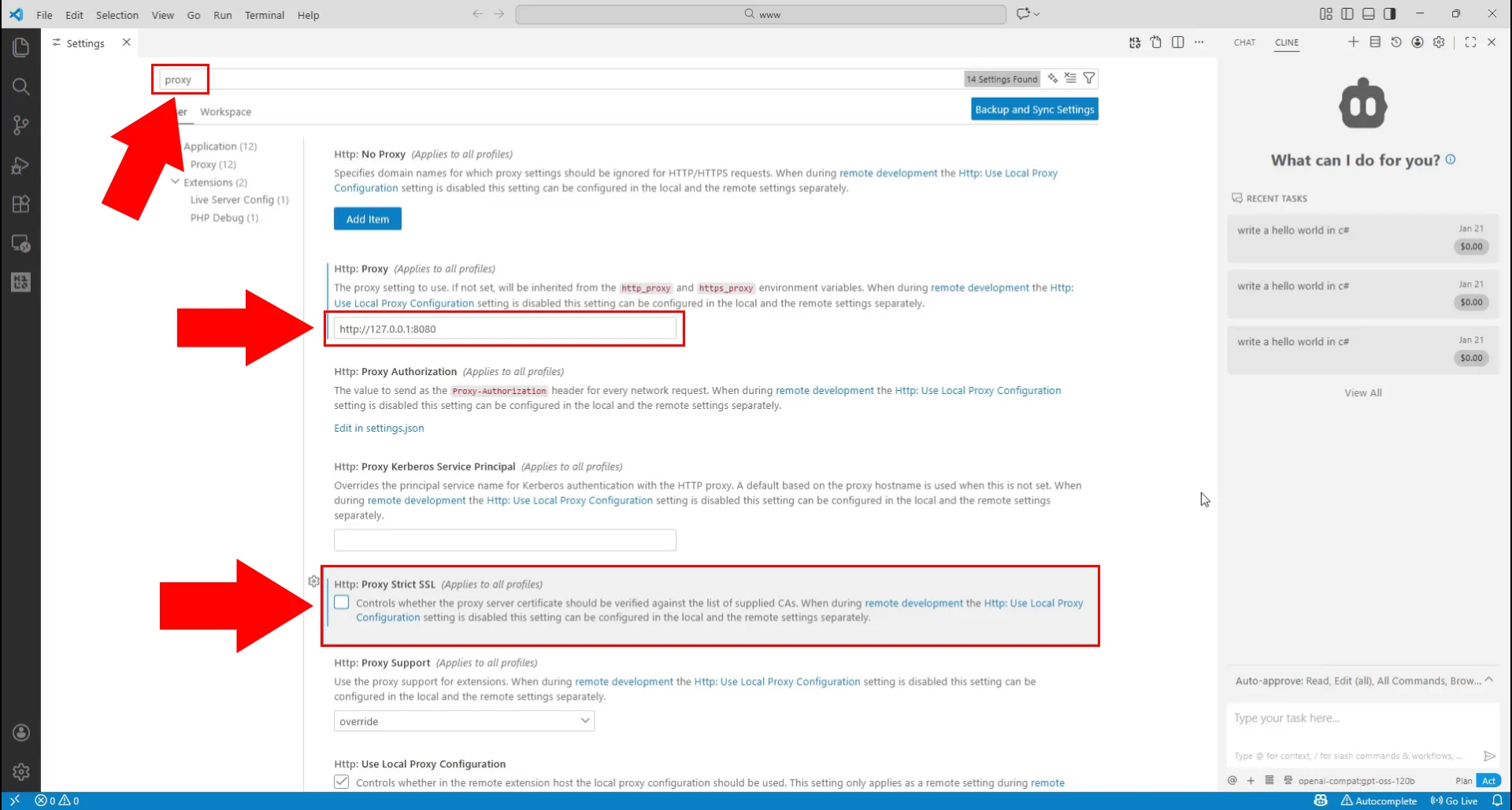
Step 6 - Open VS code settings
In the VS Code settings search bar, type "proxy" to filter and display all proxy-related configuration options. Locate the "Http: Proxy" setting and enter the mitmproxy address "http://127.0.0.1:8080" in the input field to route all HTTP/HTTPS traffic through your local mitmproxy instance. Additionally, configure the "Http: Proxy Strict SSL" setting and "Http: Proxy Web UI" setting as needed to ensure proper certificate handling and complete the proxy configuration, allowing VS Code extensions like Cline to have their API communications intercepted and monitored.
Step 7 - Send prompt to Cline
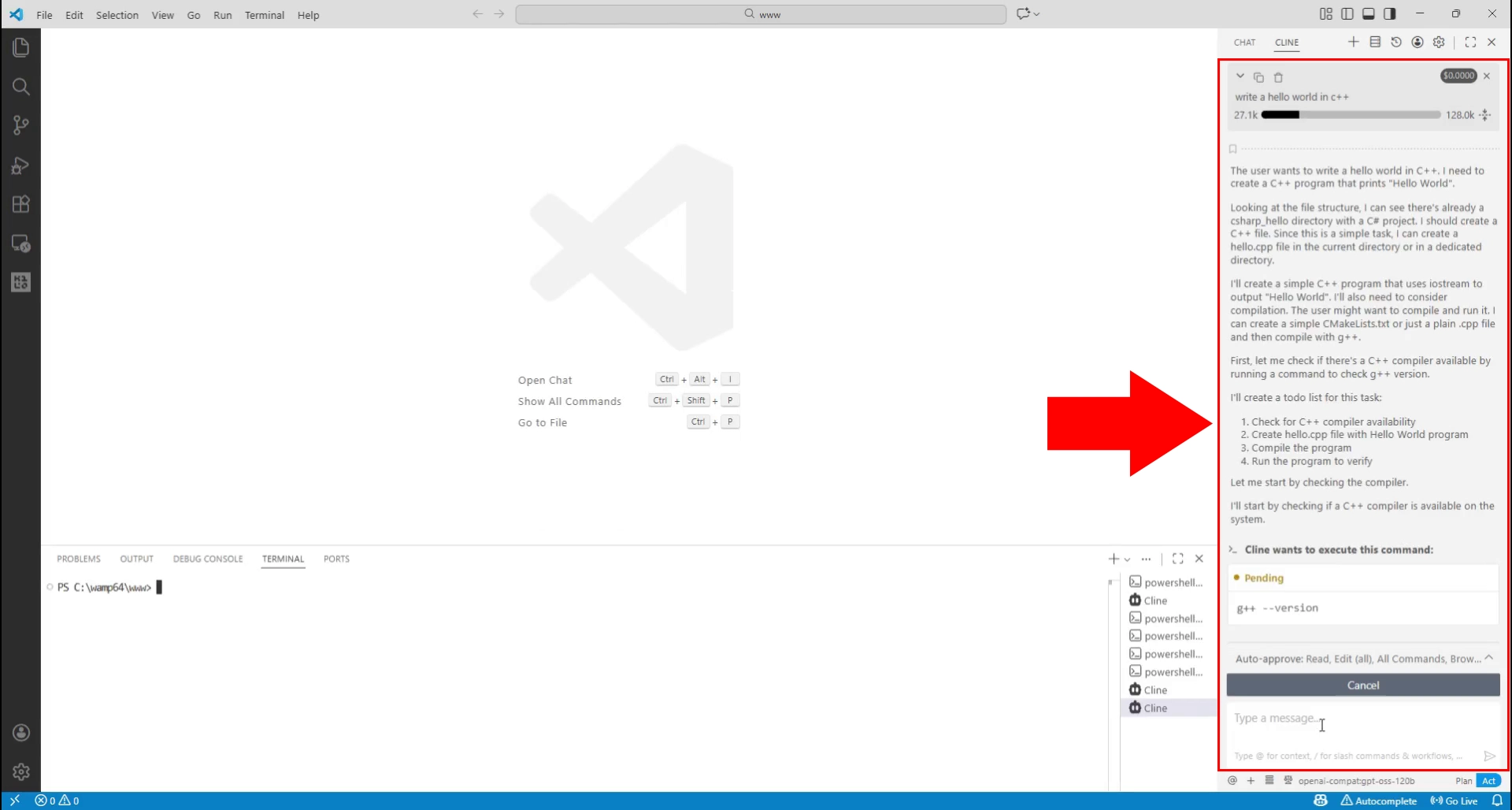
With the proxy configured, open the Cline extension in VS Code by clicking on its icon in the sidebar, which displays the "What can I do for you?" chat interface. Enter a test prompt or coding request in the Cline chat input field to trigger an API request to the AI service, such as asking it to write a hello world C++ program or perform a code-related task. When you send the prompt, Cline will make network requests to the AI API through the configured mitmproxy, allowing you to capture and inspect the complete communication including requests, responses, and any potential errors.
Step 8 - Check transactions
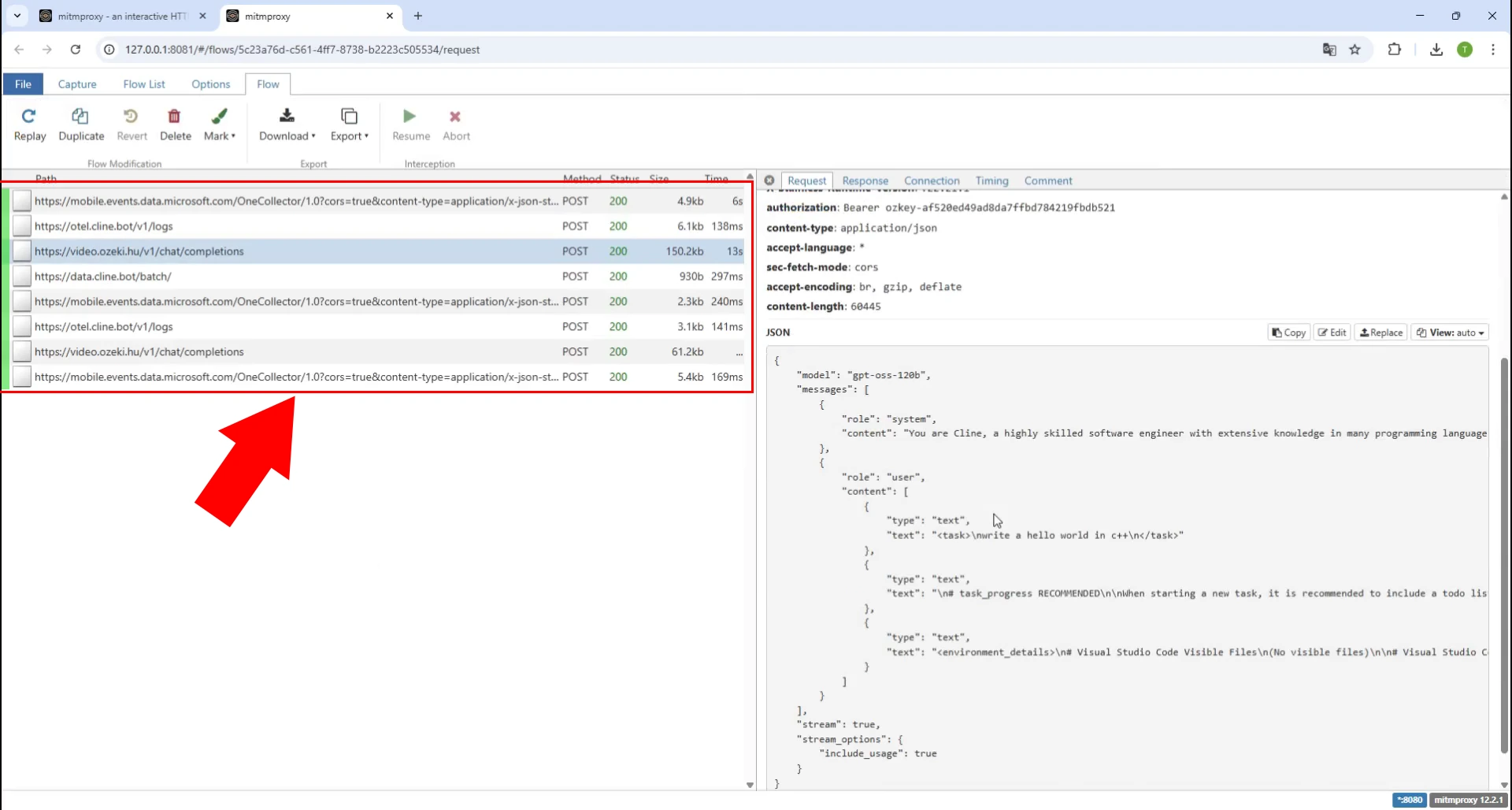
Return to the mitmproxy web interface in your browser where you'll now see a list of captured HTTP/HTTPS transactions that occurred when Cline sent the prompt to the AI service. The interface displays each request as a row showing details like the URL, method (POST), status code, size, and timing information for requests to endpoints such as anthropic API or other AI service URLs. Click on any transaction in the list to view comprehensive details including request headers, request body, response headers, and response content, enabling you to debug communication problems by examining the exact data being sent and received between VS Code and the AI services.