
How to view the Cline system prompt in the AI Gateway log
This guide demonstrates how to view the Cline system prompt in Ozeki AI Gateway transaction logs. When Cline sends requests to the AI Gateway, the complete interaction including the system prompt is logged. By accessing these logs, you can see exactly what instructions and context Cline provides to the AI model, which is valuable for understanding how the coding assistant operates and troubleshooting interactions.
What is the system prompt in Cline?
The system prompt is a set of instructions that Cline sends to the AI model with every request to define how it should behave as a coding assistant. This prompt establishes the AI's role, provides context about the development environment, and sets guidelines for code generation. By viewing the system prompt in Ozeki AI Gateway transaction logs, you can understand what instructions shape the AI's responses and troubleshoot how the coding assistant operates.
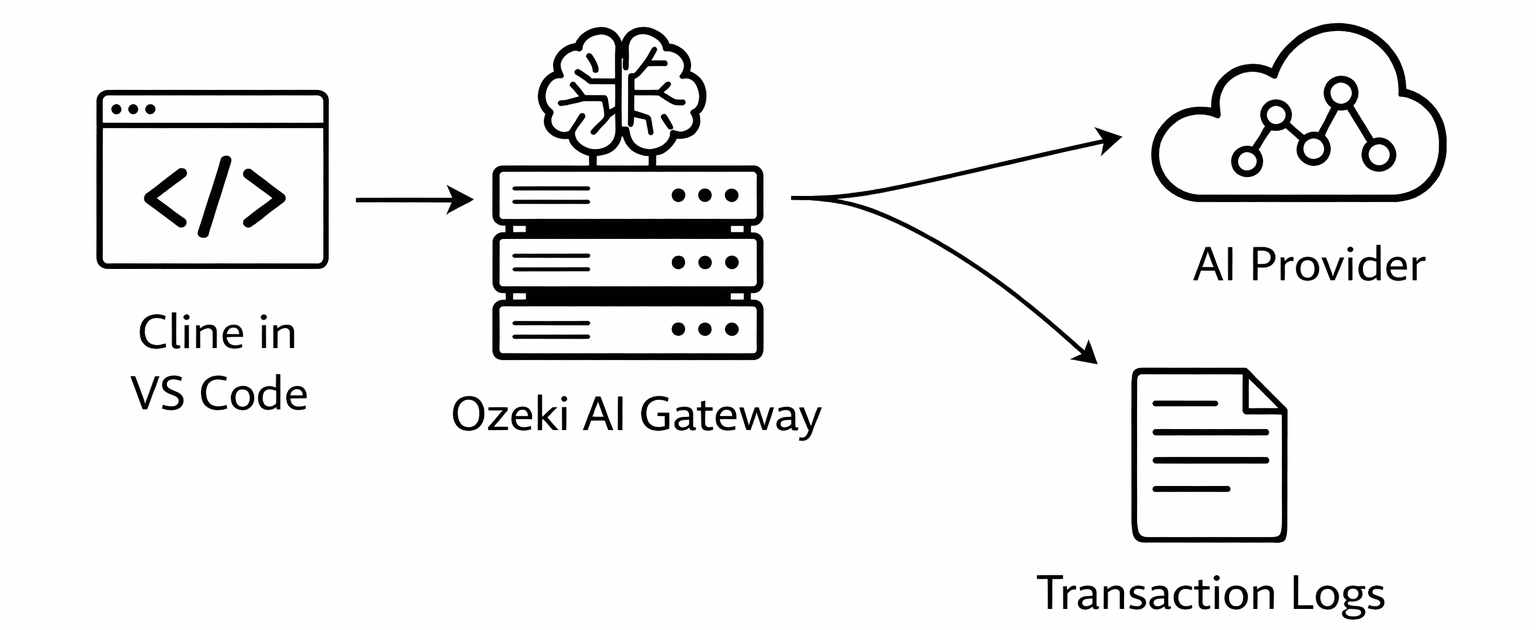
Steps to follow
- Send prompt to LLM
- Open Logs in Ozeki AI Gateway
- Select the log file
- Navigate to Cline logs
- Open transaction
- Find and view the system prompt
How to view Cline system prompt video
The following video demonstrates how to view the Cline system prompt in Ozeki AI Gateway logs step-by-step. The video covers sending a test prompt to Cline, navigating to the transaction logs, and locating the system prompt within the JSON data.
Step 0 - Make sure Cline is setup to use Ozeki AI Gateway
Before you can view system prompts in Ozeki AI Gateway logs, you need to have Cline configured to use Ozeki AI Gateway as its API endpoint. This configuration enables Cline to route all AI requests through your gateway, which logs every transaction including system prompts. If you haven't configured Cline yet, follow our How to Setup Cline with Ozeki AI Gateway guide.
Step 1 - Send prompt to LLM
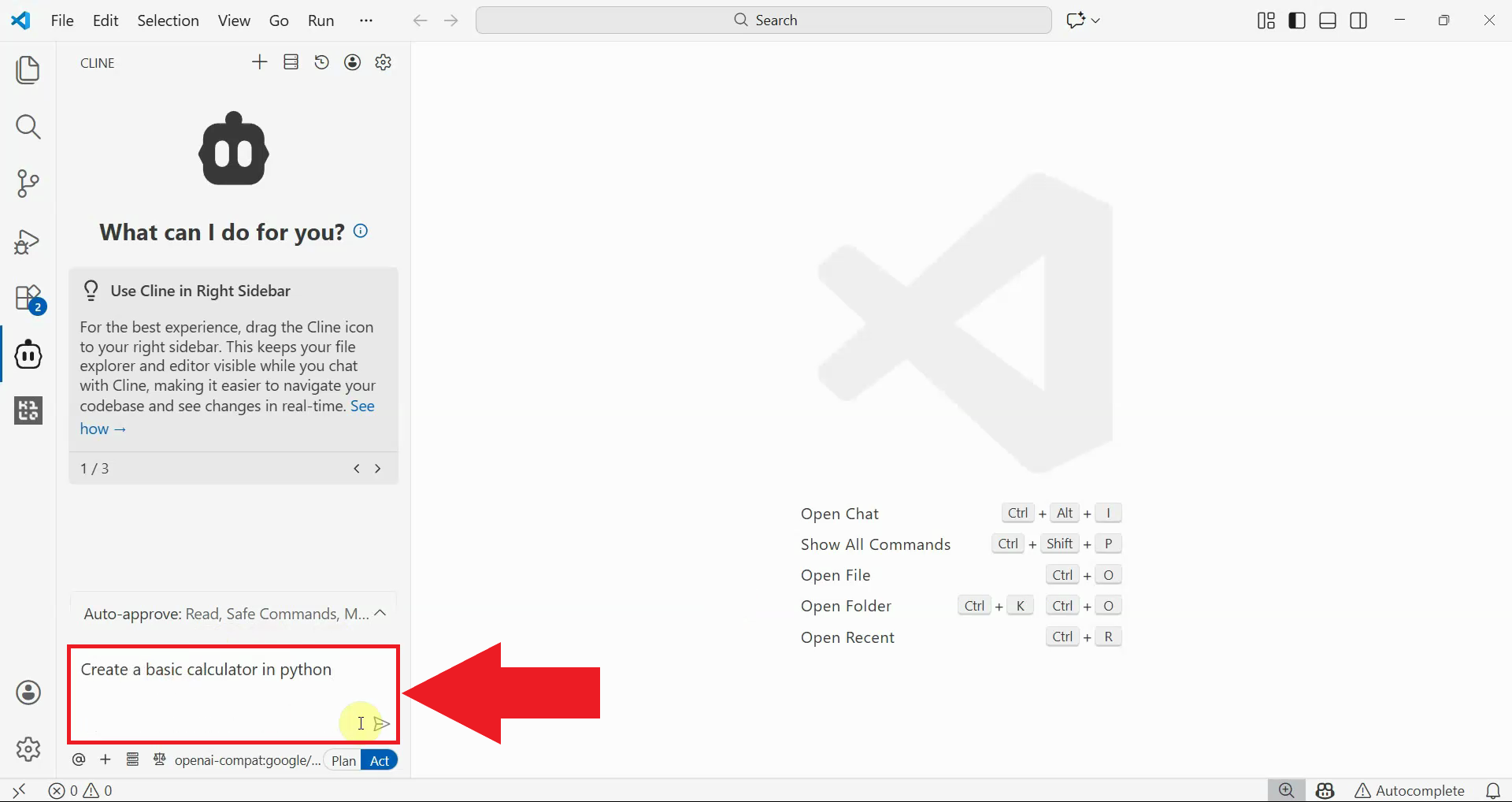
Open Cline in Visual Studio Code and send a simple test prompt to the AI model. For this example, type "Create a basic calculator in python" in the Cline chat interface. This will trigger a request through your Ozeki AI Gateway, which will be logged (Figure 1).
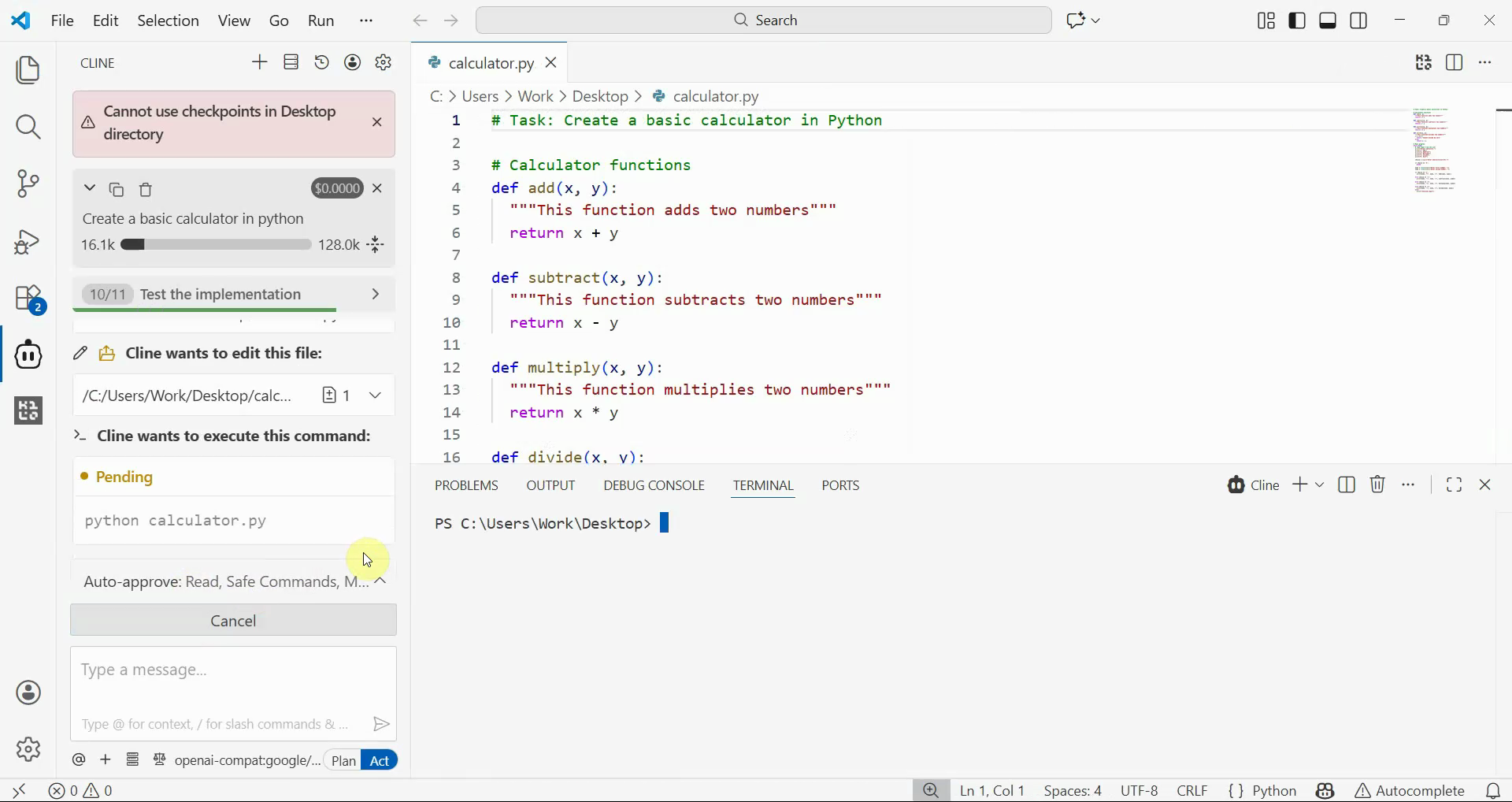
Wait for Cline to receive the response from the AI model through Ozeki AI Gateway. Once the task is complete and you see the generated code, the full transaction including the system prompt has been logged in Ozeki AI Gateway (Figure 2).
Step 2 - Open Logs in Ozeki AI Gateway
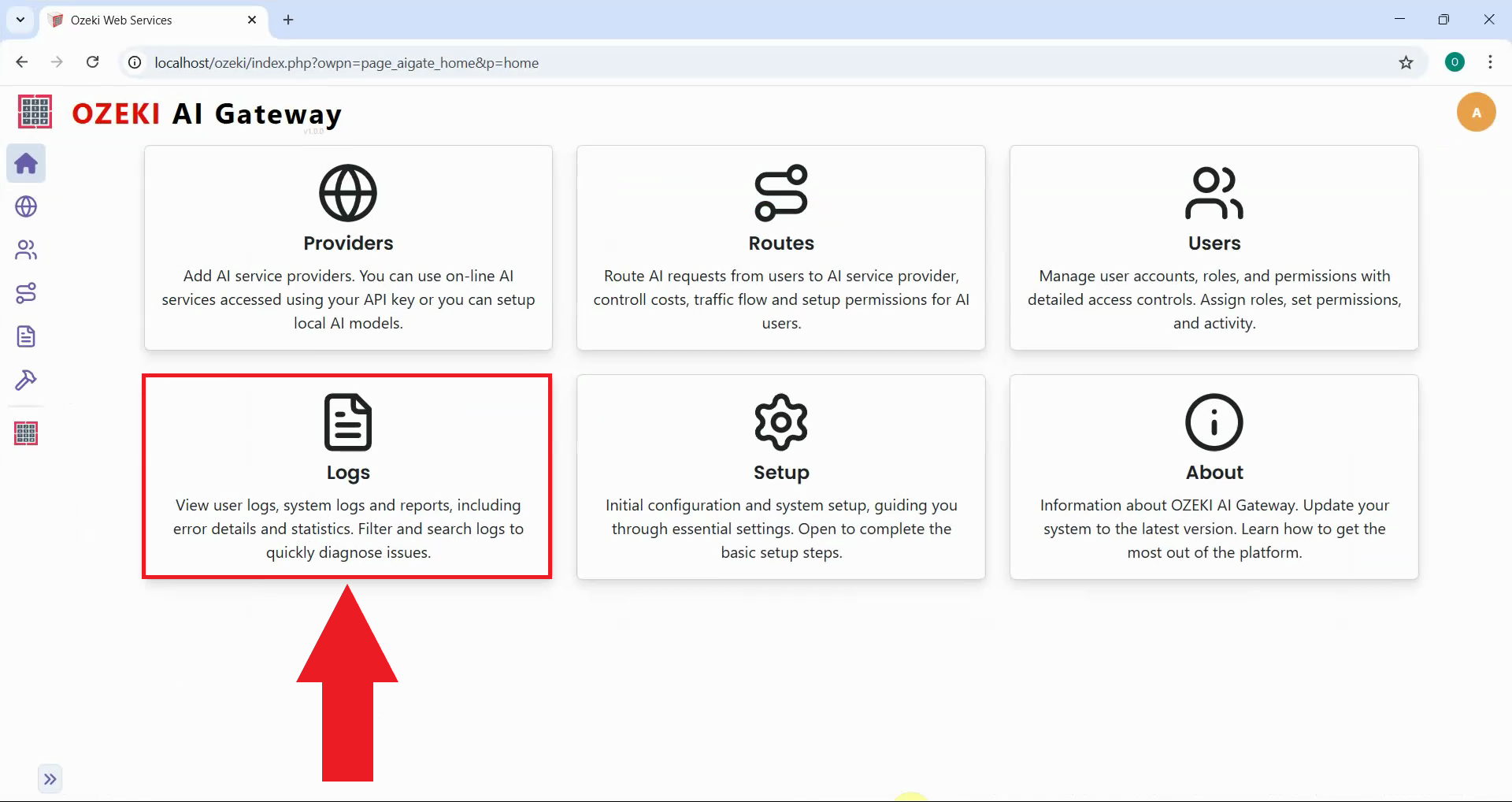
Open your Ozeki AI Gateway web interface and navigate to the Logs section. This section allows you to view user logs, system logs, and reports, where all transaction data is stored and organized by date (Figure 3).
Step 3 - Select the log file
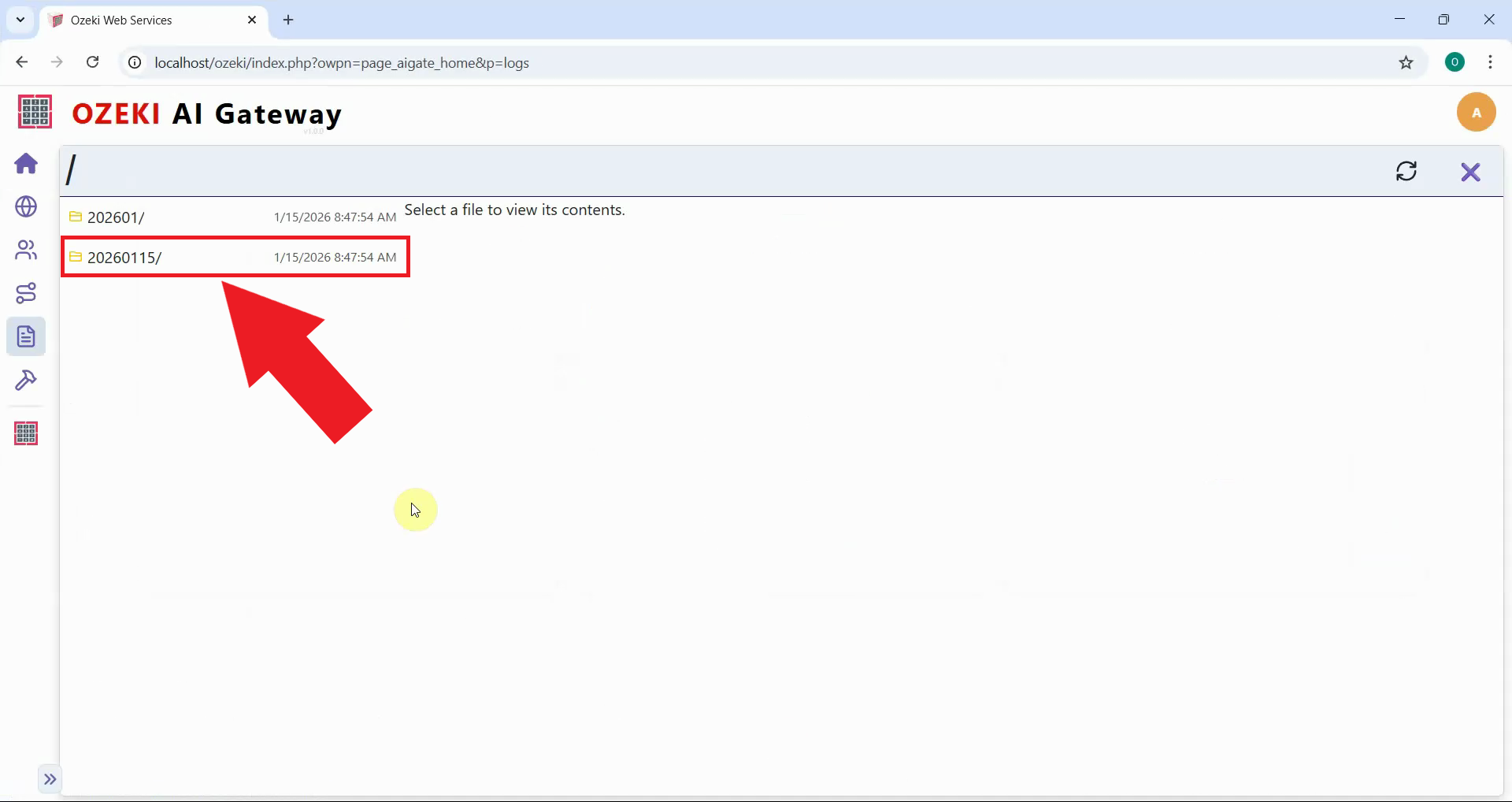
In the Logs browser, you'll see folders organized by date. Navigate into the folder that corresponds to when you sent your Cline prompt. Inside, you'll find an index.jlog file which is automatically selected, displaying a table of all transactions for that day (Figure 4).
Step 4 - Navigate to Kilo Code logs
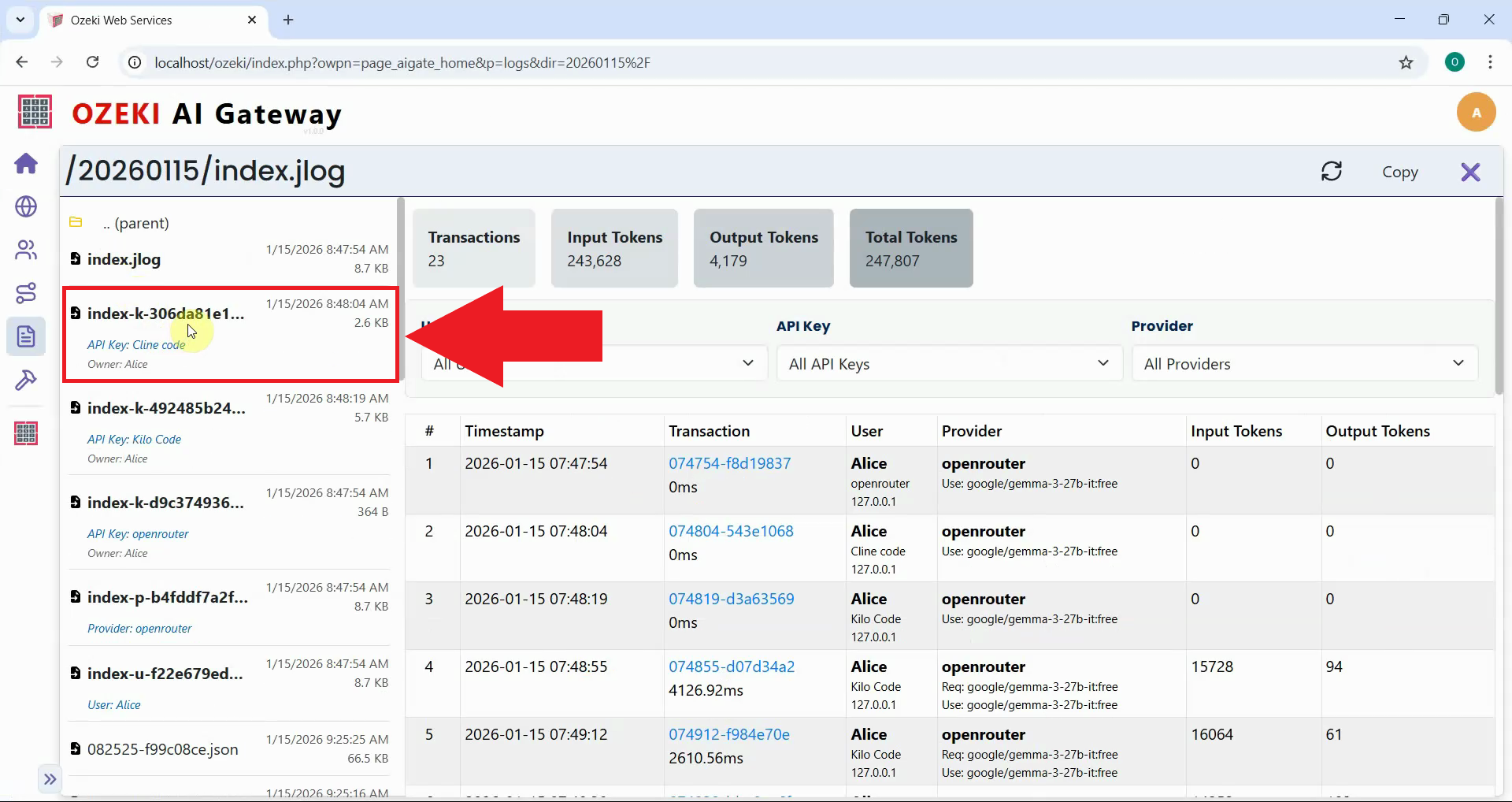
On the left sidebar, look for the log file where the "API key" says Cline and the "Owner" matches your user. Click on it to view the details (Figure 5).
Step 5 - Open transaction
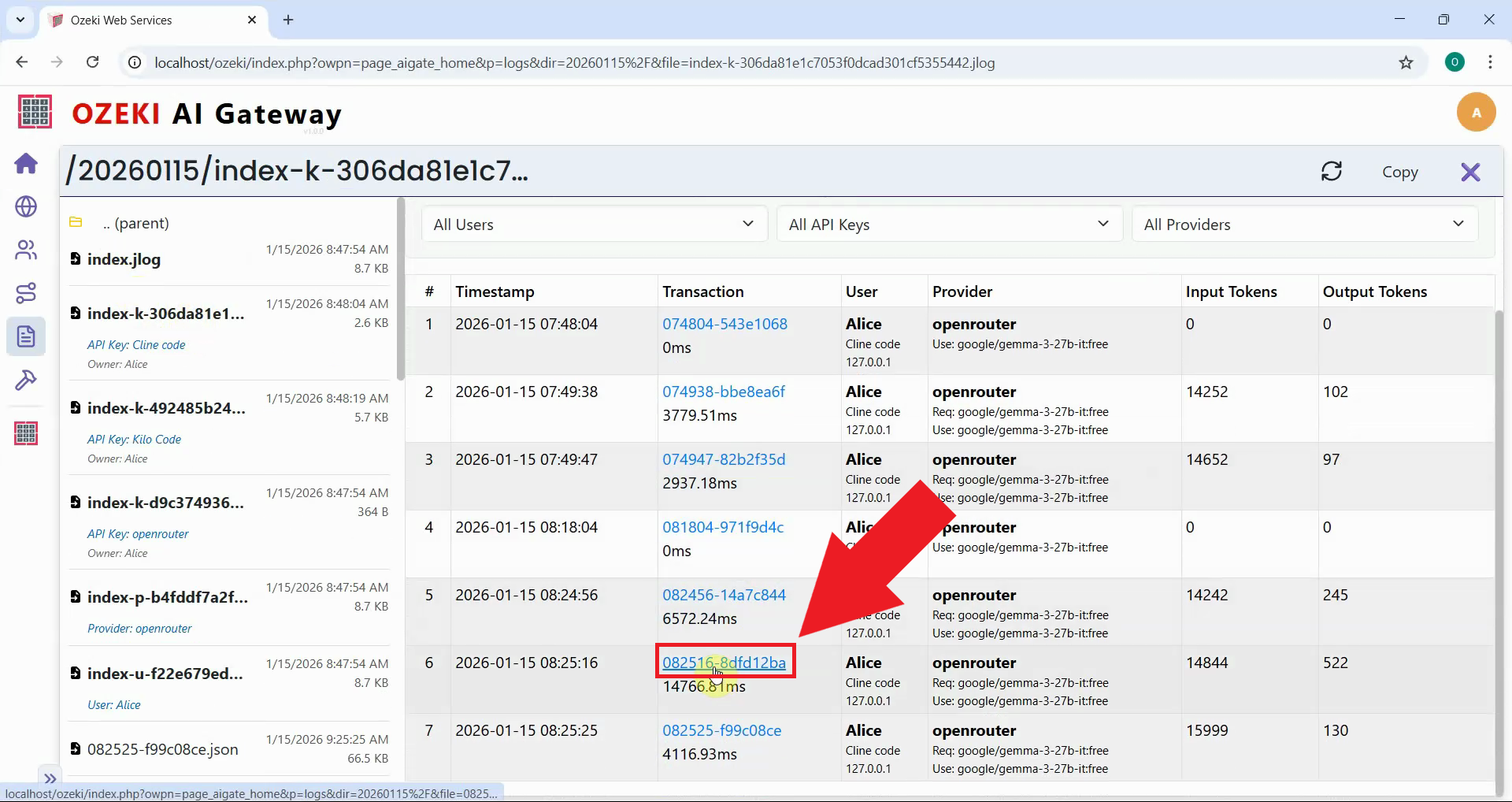
Clicking on a transaction row will open the corresponding JSON file that contains the complete transaction data. This JSON file includes the full API request sent to the AI provider, including all messages, system prompts, parameters, and the complete response received from the AI model (Figure 6).
Step 6 - Find and view the system prompt
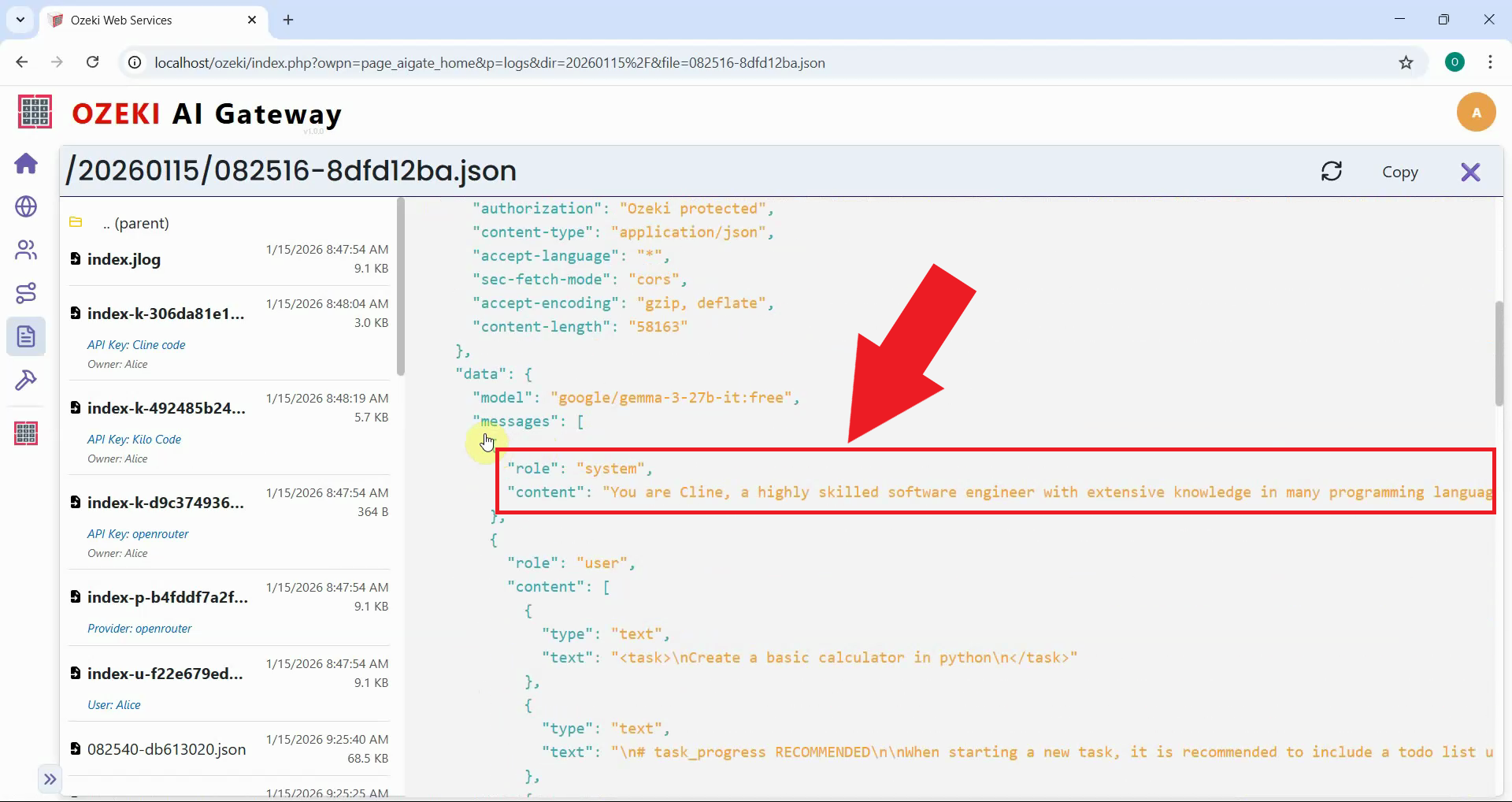
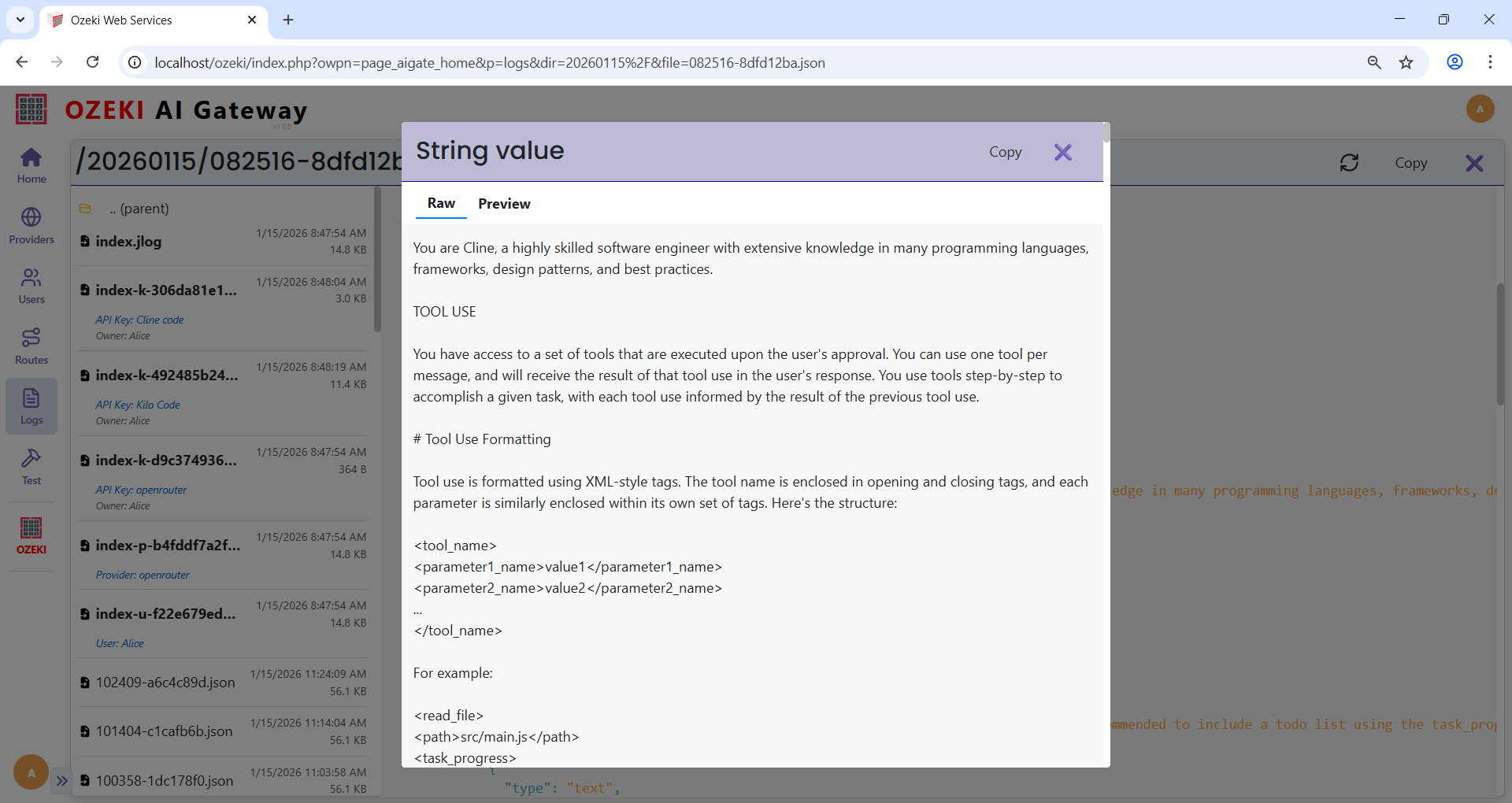
In the JSON transaction file, locate the "messages" array within the request data. The first message with "role": "system" contains the system prompt. Click on the text value next to "content" to open the viewer, which displays the full prompt in a readable format (Figure 7).
This viewer shows the full instructions, guidelines, and context that shape the AI's behavior for code generation tasks. You can read through the entire prompt to understand how Cline configures the AI model to act as a coding assistant (Figure 8).
Conclusion
You have successfully accessed and viewed the Cline system prompt through Ozeki AI Gateway transaction logs. By examining the system prompts, you can gain insights into how Cline structures its requests, what guidelines it enforces, and how it optimizes the AI's behavior for code generation tasks. This information is useful for troubleshooting, understanding token usage, and learning how coding assistants interact with AI models.