
How to setup Playwright MCP to control browsers
This guide shows you how to set up Playwright MCP to control Chrome and Firefox browsers through the Model Context Protocol. You'll install Playwright, connect the MCP Inspector, and run automation commands to open tabs and navigate websites.
What is Playwright MCP?
Playwright MCP is a Model Context Protocol server that provides programmatic access to Playwright's browser automation capabilities. It is a powerful framework developed by Microsoft that enables reliable end-to-end testing and automation for web applications across Chromium, Firefox, and WebKit browsers.
Steps to follow
Playwright Documentation: https://playwright.dev/docs/intro
- Open terminal
- Install Playwright
- Run MCP Inspector with Chrome
- Connect to Playwright MCP server
- List available tools
- Test Chrome tools
Quick reference commands
Install Playwright:
npx playwright install
Run MCP Inspector with Playwright for Chrome
npx -y @modelcontextprotocol/inspector npx -y @playwright/mcp@latest --browser chrome
Read more about the MCP inspector at: Model Context Protocol (MCP) Inspector
Playwright installation video
The following video shows how to install Playwright browsers on your system. Playwright requires browser binaries to be downloaded before it can automate them.
Step 1 - Open terminal
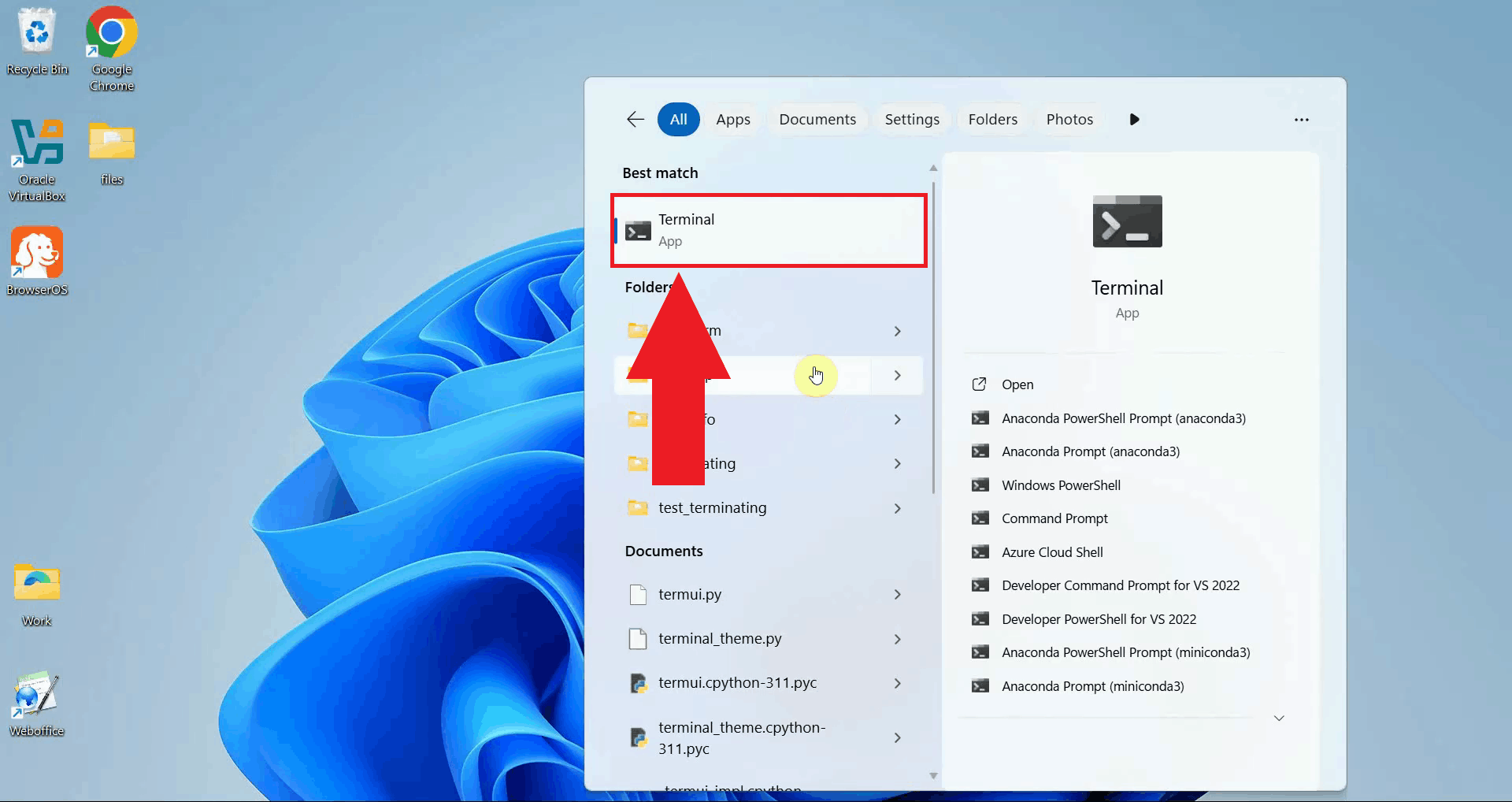
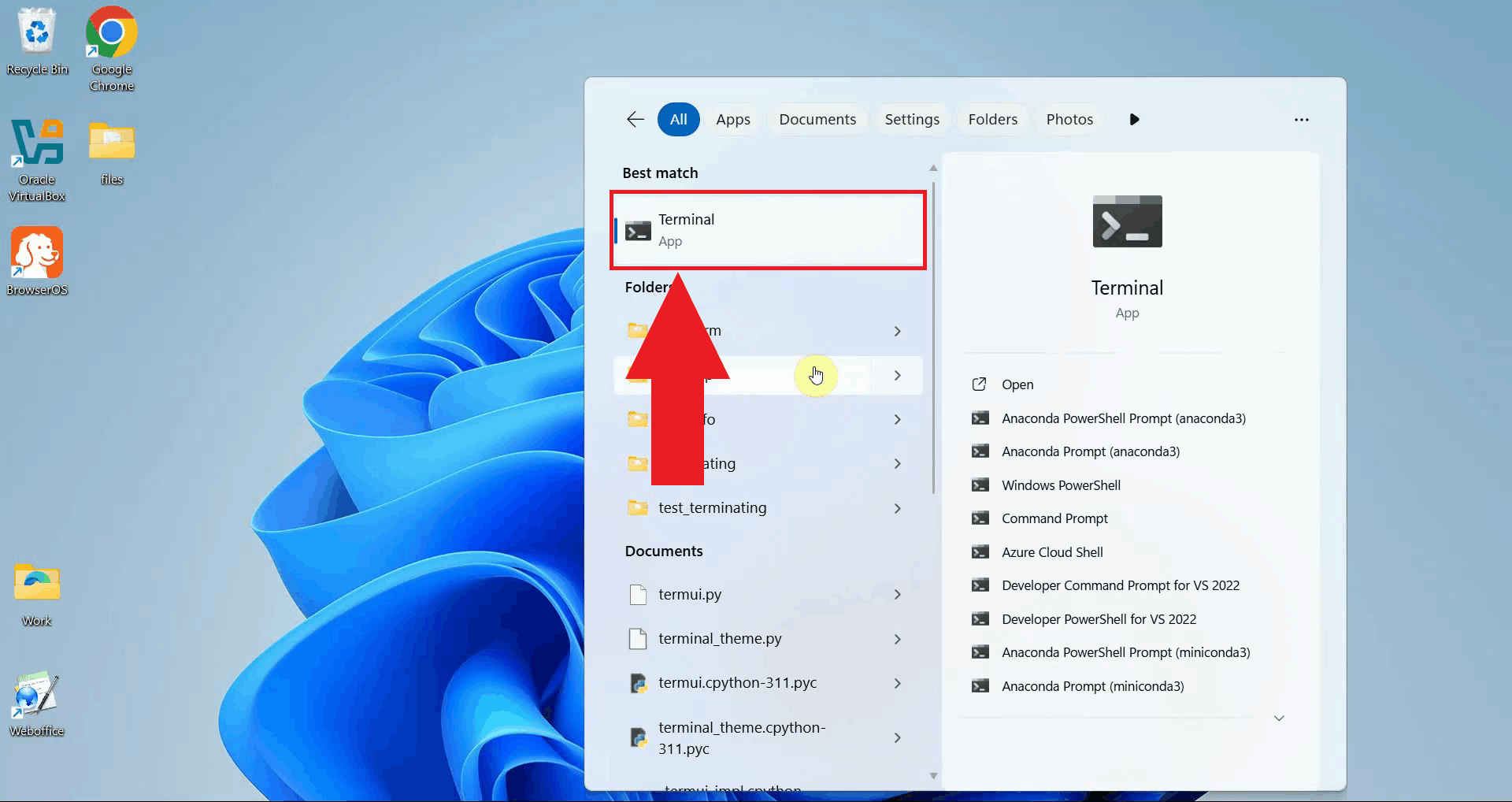
Open a terminal window by searching for "Terminal" in the start menu and clicking on the application. The terminal provides a command-line interface where you'll install Playwright and run the MCP Inspector (Figure 1).
Step 2 - Install Playwright
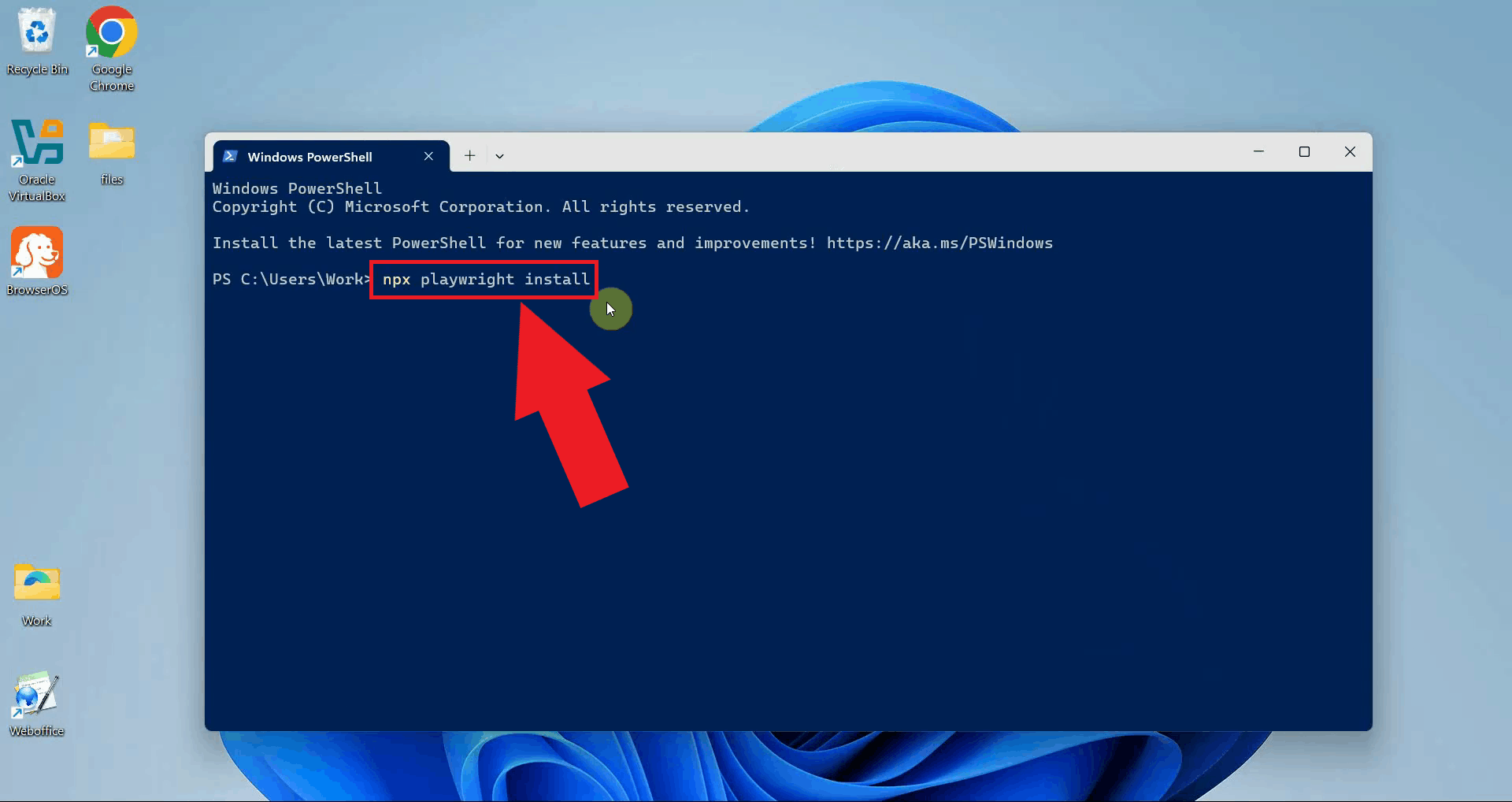
In the terminal, execute the command npx playwright install to download and install
all browser binaries. This command installs Chromium, Firefox, and WebKit browsers that
Playwright can automate (Figure 2).
npx playwright install
You need Node.js and NPM installed on your system to run this command. If you don't have Node.js installed, download it from nodejs.org before proceeding.
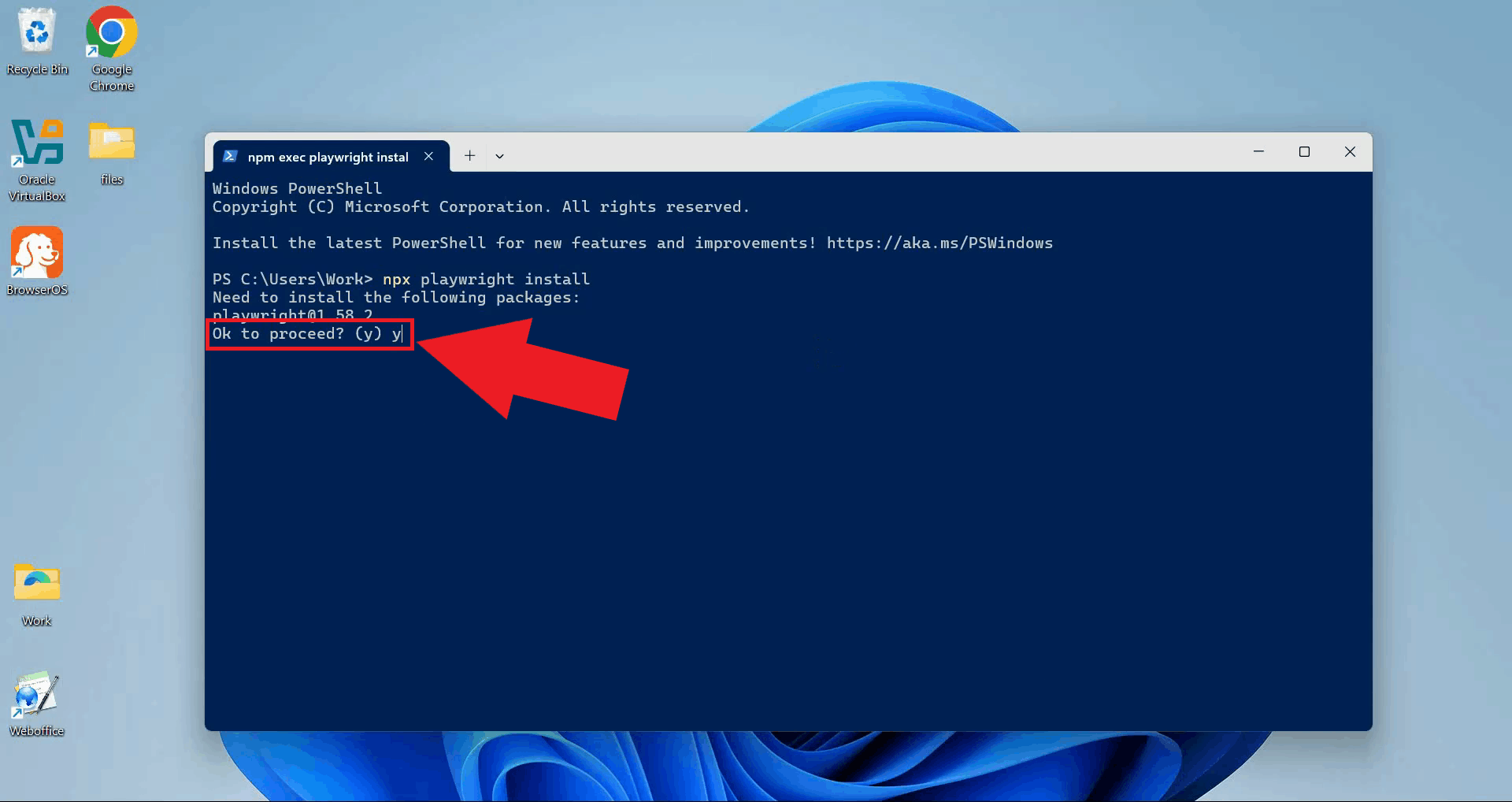
When prompted, confirm that you want to proceed with the package installation by typing "y" or pressing Enter to accept (Figure 3).
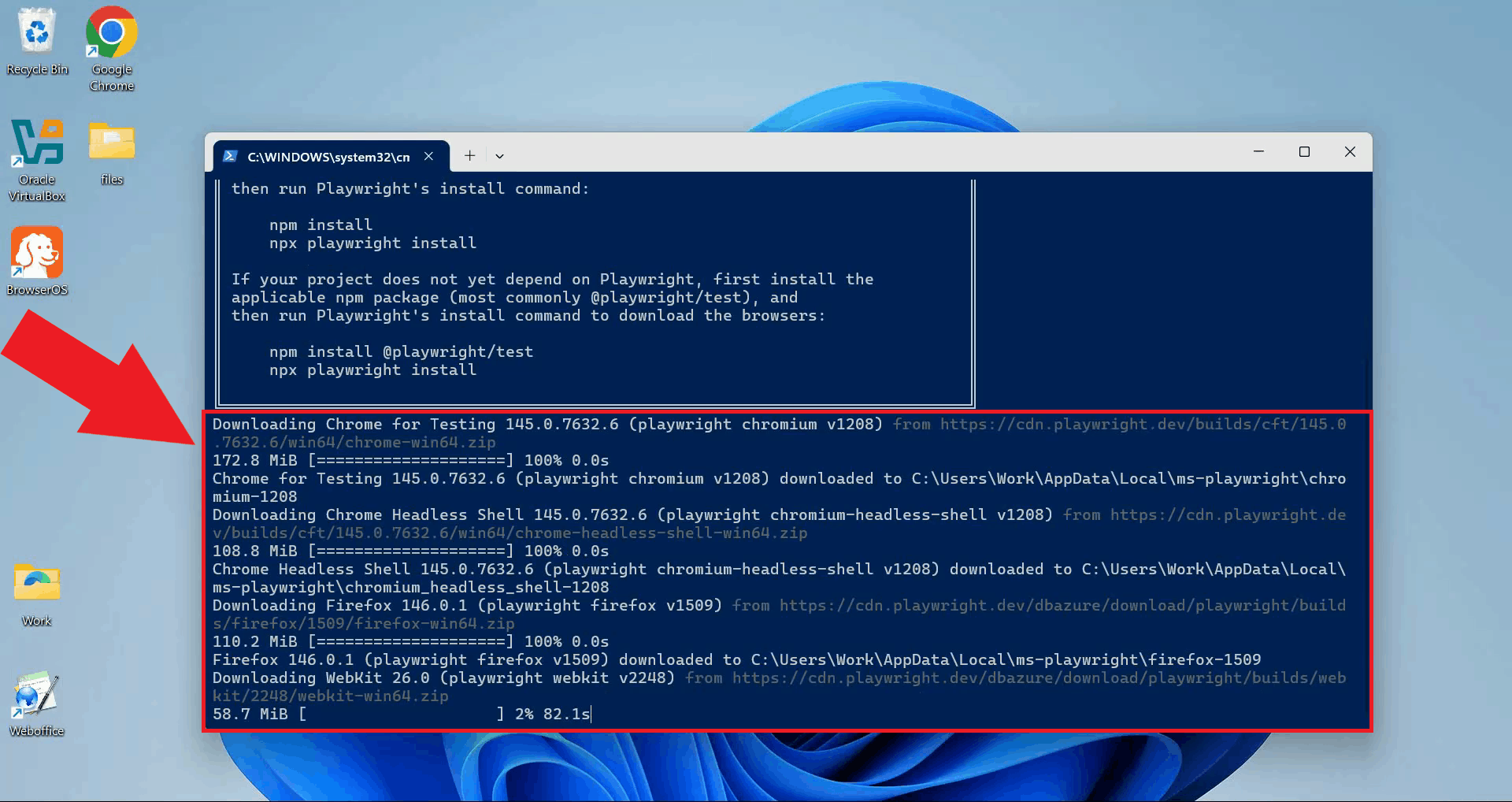
Wait for the installation to complete. Playwright will download browser binaries for Chromium, Firefox, and WebKit (Figure 4).
Step 3 - Run MCP Inspector with Chrome
The following video shows how to control Chrome browser using Playwright MCP step-by-step. The video covers launching the MCP Inspector with Playwright configured for Chrome, connecting to the server, and executing browser control commands.
Open a terminal window if you don't already have one open (Figure 5).
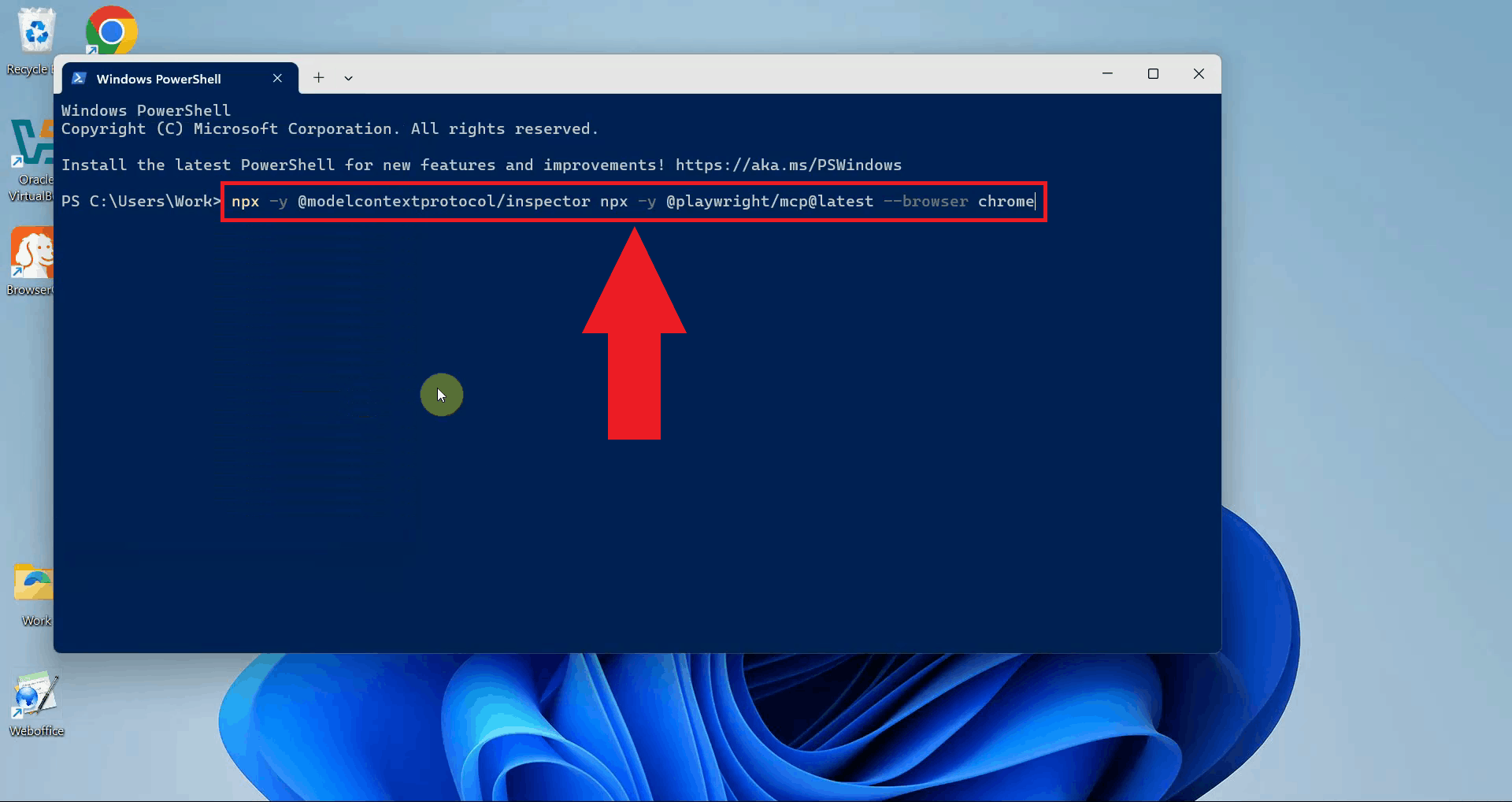
Execute the command npx -y @modelcontextprotocol/inspector npx -y @playwright/mcp@latest --browser chrome
to launch the MCP Inspector with Playwright MCP server configured for Chrome (Figure 6).
npx -y @modelcontextprotocol/inspector npx -y @playwright/mcp@latest --browser chrome
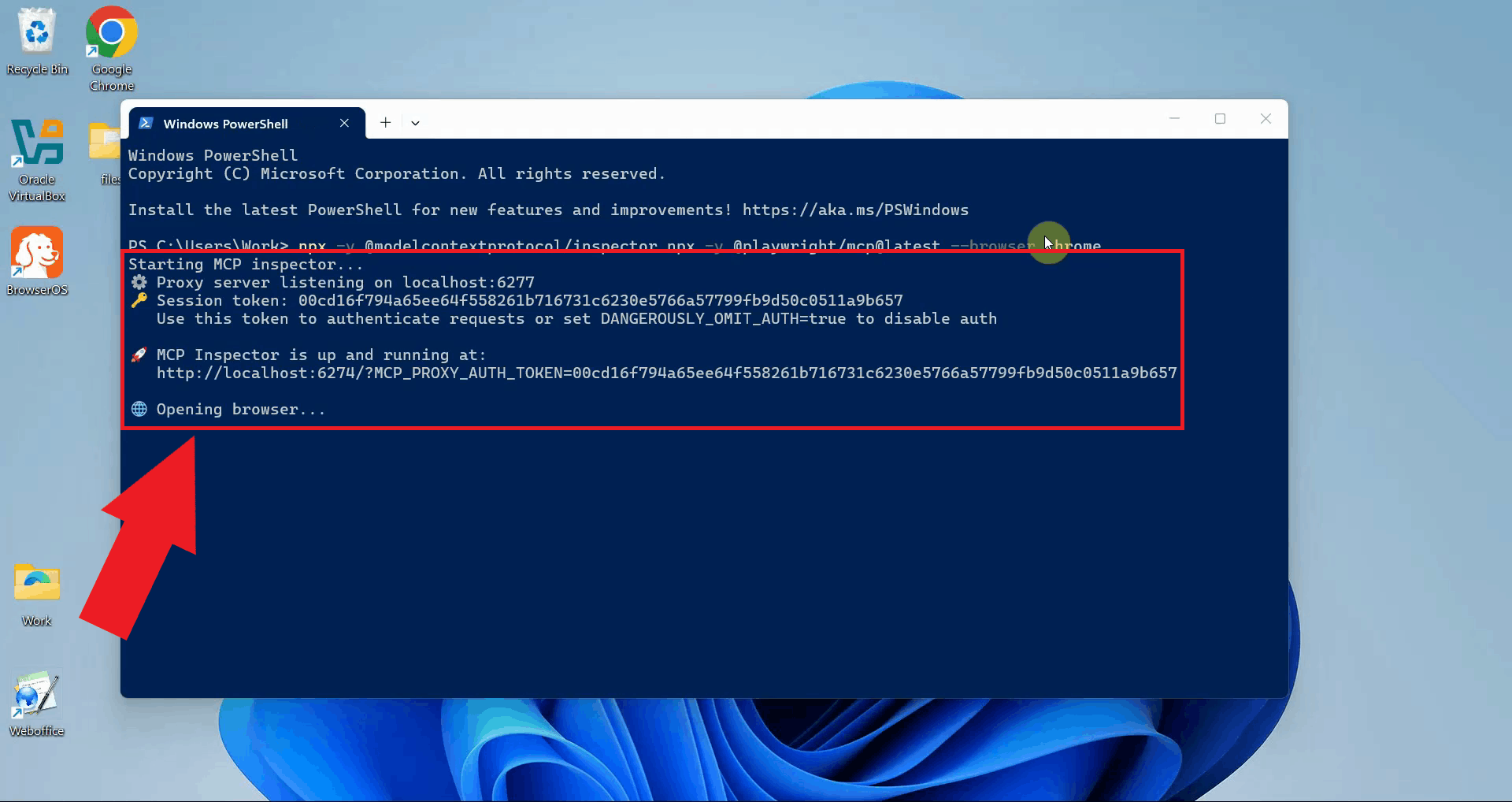
Wait for the MCP Inspector to download dependencies and initialize. Once ready, it will automatically open in your default web browser showing the connection interface (Figure 7).
Step 4 - Connect to Playwright MCP server
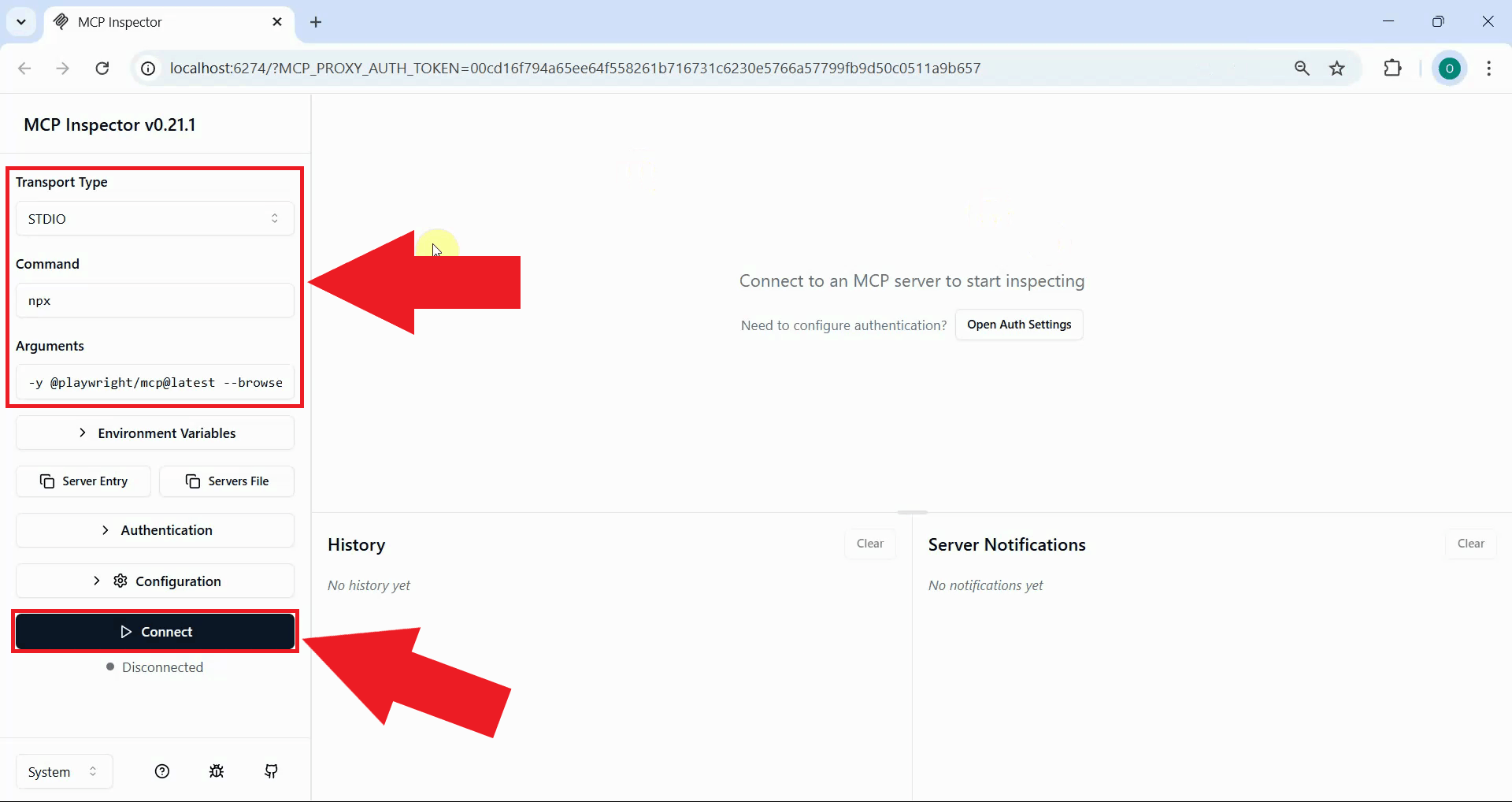
In the Inspector interface, the connection settings should be pre-configured for the Playwright MCP server. The transport type should be set to stdio. Click the Connect button to establish the connection to the Playwright automation server (Figure 8).
Step 5 - List available tools
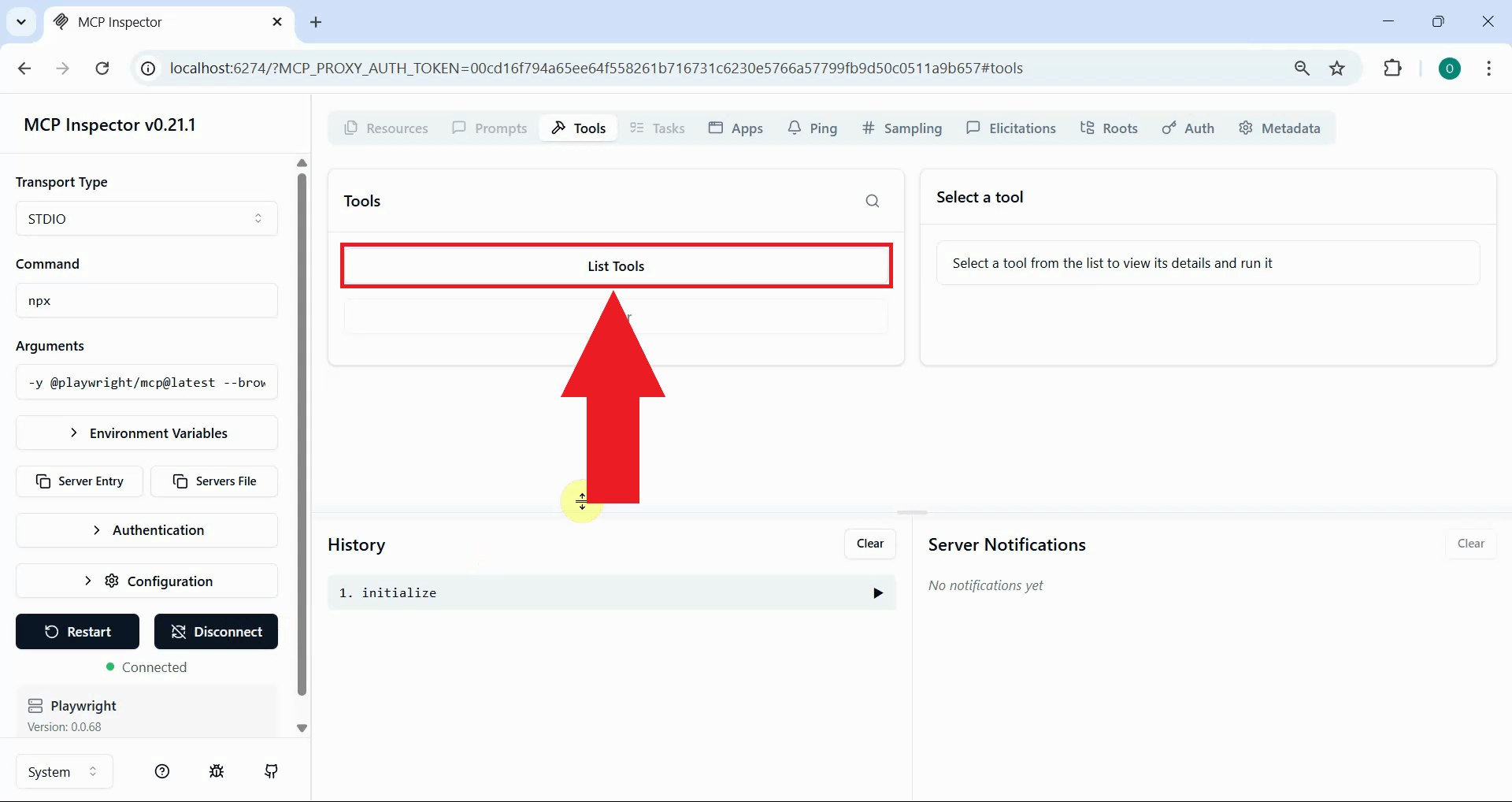
Once the connection is successful, click the List Tools button to display all available browser automation tools provided by the Playwright MCP server (Figure 9).
Step 6 - Test Chrome tools
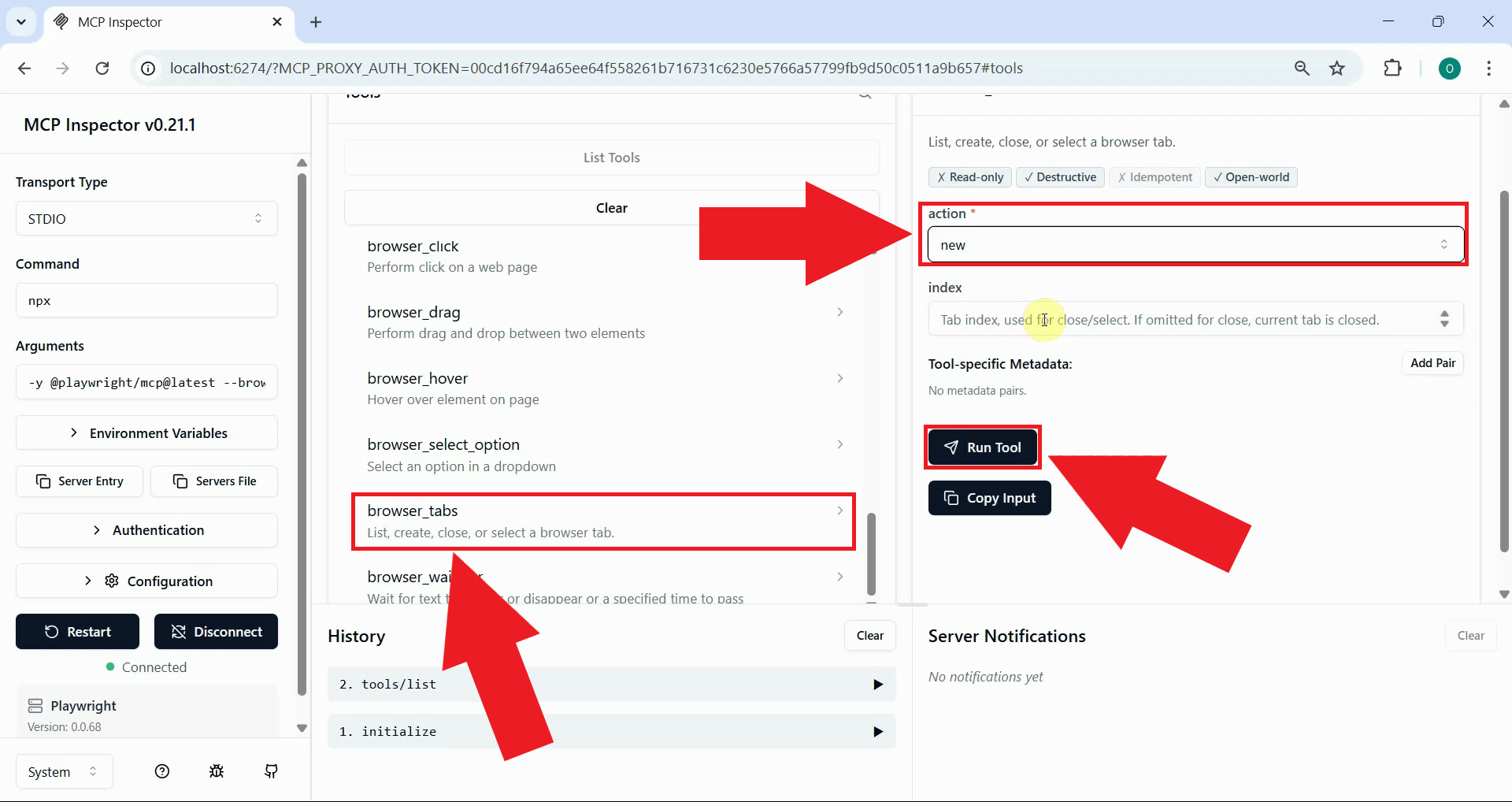
Locate and select the browser_tabs tool from the available tools list. Execute this tool to open a new Chrome browser window (Figure 10).
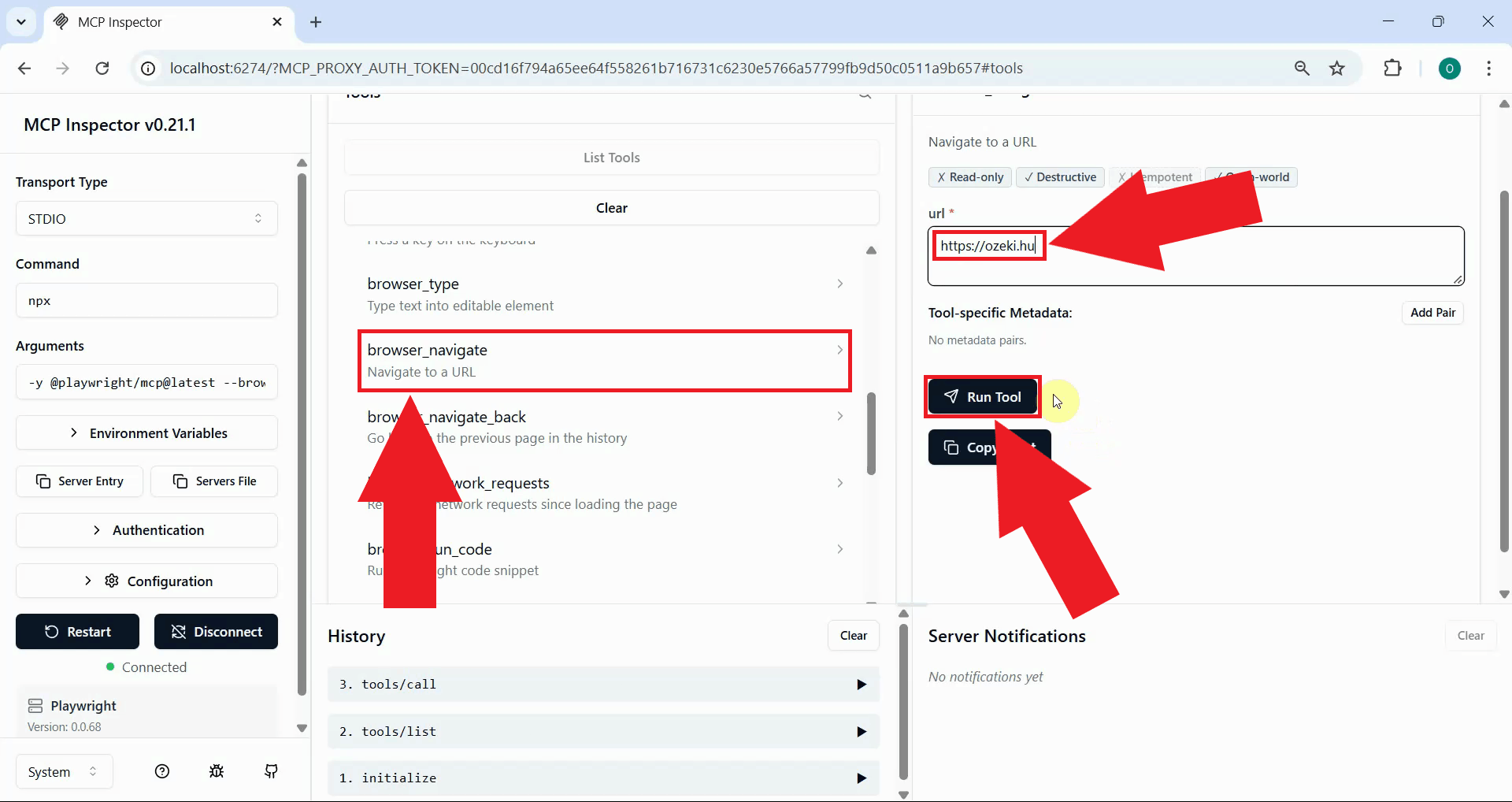
Select the browser_navigate tool and enter a target URL such as https://ozeki.hu
in the parameter field. Click the Run Tool button to execute the navigation command (Figure 11).
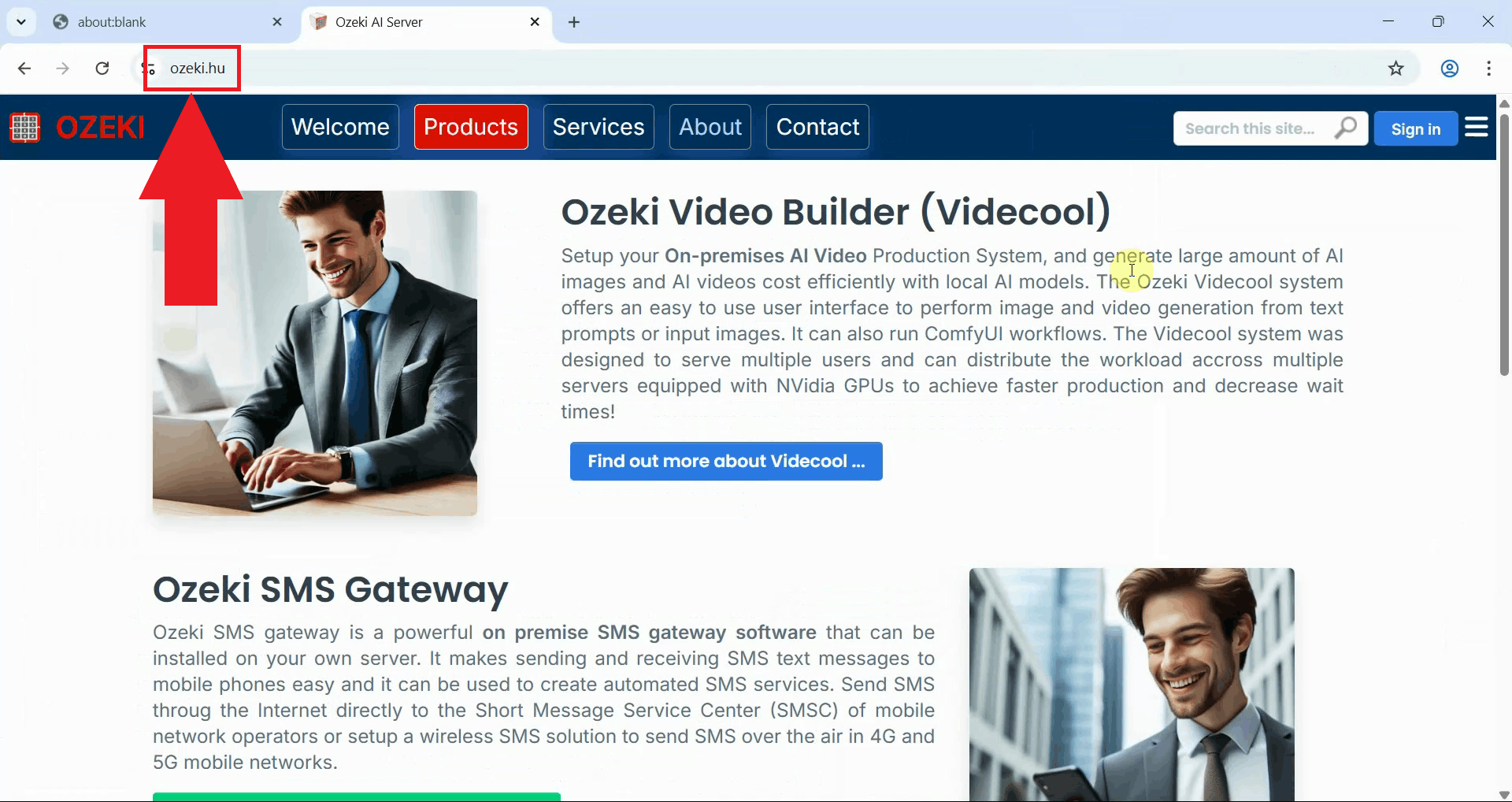
Switch to the Chrome browser window to verify the result. The browser has successfully navigated to the specified website, confirming that Playwright MCP can control Chrome browser (Figure 12).
- Open terminal
- Install Playwright
- Run MCP Inspector with Firefox
- Connect to Playwright MCP server
- List available tools
- Test Firefox tools
Quick reference commands
Install Playwright:
npx playwright install
Run MCP Inspector with Playwright for Firefox
npx -y @modelcontextprotocol/inspector npx -y @playwright/mcp@latest --browser firefox
Read more about the MCP inspector at: Model Context Protocol (MCP) Inspector
Playwright installation video
The following video shows how to install Playwright browsers on your system. Playwright requires browser binaries to be downloaded before it can automate them.
Step 1 - Open terminal
Open a terminal window by searching for "Terminal" in the start menu and clicking on the application. The terminal provides a command-line interface where you'll install Playwright and run the MCP Inspector (Figure 1).
Step 2 - Install Playwright
In the terminal, execute the command npx playwright install to download and install
all browser binaries. This command installs Chromium, Firefox, and WebKit browsers that
Playwright can automate (Figure 2).
npx playwright install
You need Node.js and NPM installed on your system to run this command. If you don't have Node.js installed, download it from nodejs.org before proceeding.
When prompted, confirm that you want to proceed with the package installation by typing "y" or pressing Enter to accept (Figure 3).
Wait for the installation to complete. Playwright will download browser binaries for Chromium, Firefox, and WebKit (Figure 4).
Step 3 - Run MCP Inspector with Firefox
The following video shows how to control Firefox browser using Playwright MCP step-by-step. The video covers launching the MCP Inspector with Playwright configured for Firefox, connecting to the server, and executing browser control commands.
Open a terminal window if you don't already have one open (Figure 13).
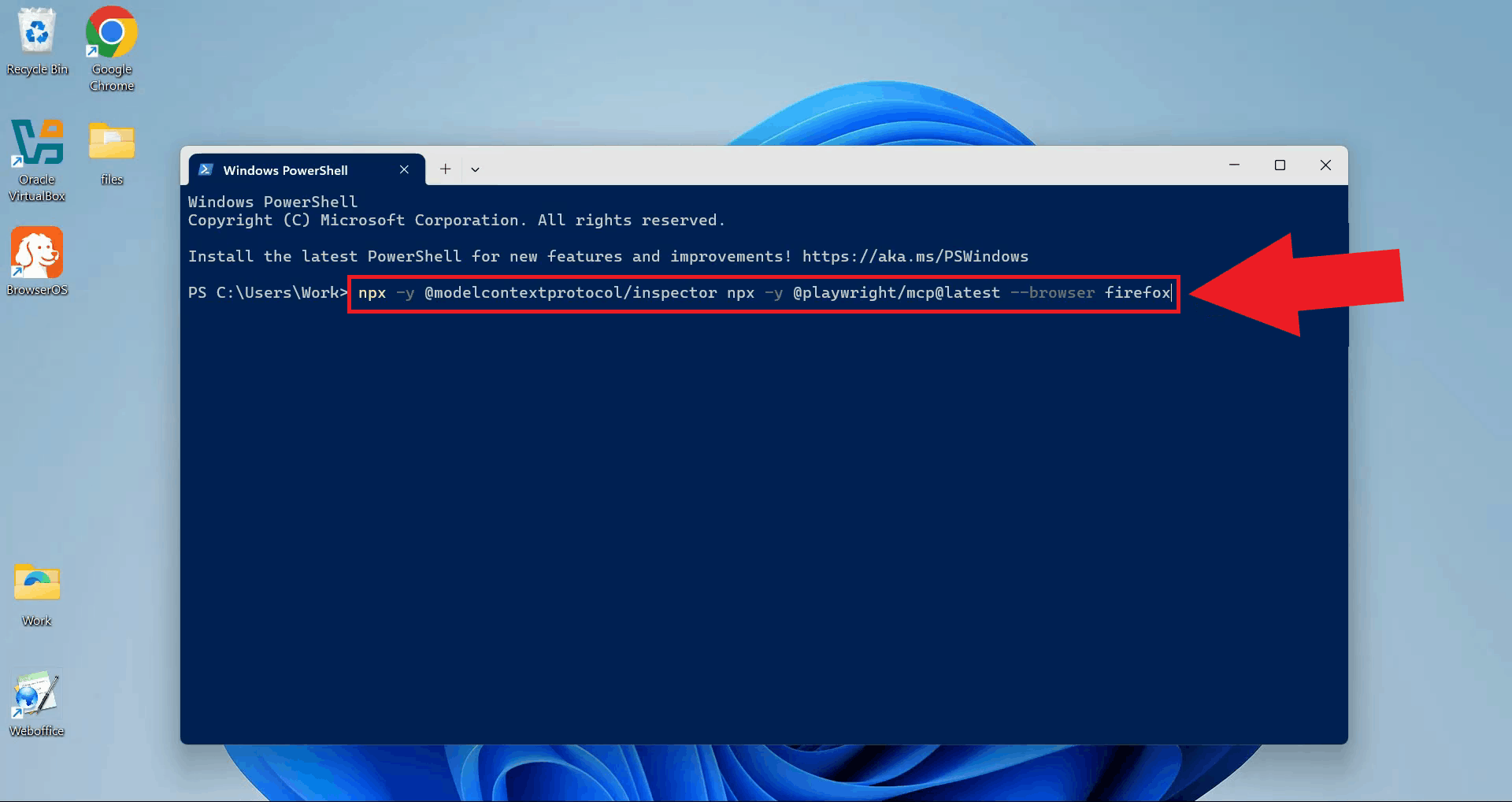
Execute the command npx -y @modelcontextprotocol/inspector npx -y @playwright/mcp@latest --browser firefox
to launch the MCP Inspector with Playwright MCP server configured for Firefox automation (Figure 14).
npx -y @modelcontextprotocol/inspector npx -y @playwright/mcp@latest --browser firefox
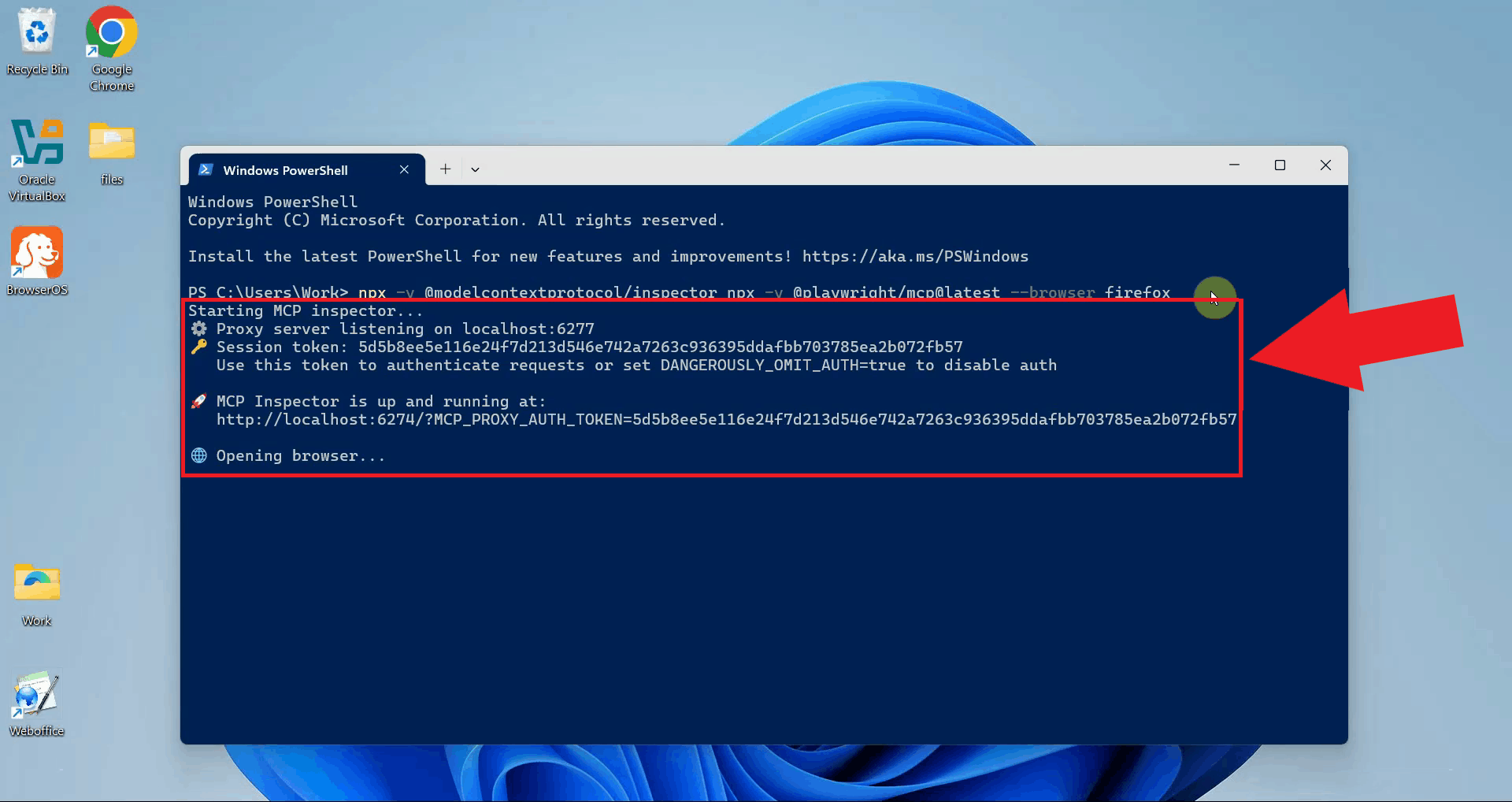
Wait for the MCP Inspector to initialize. Once ready, it will automatically open in your default web browser showing the connection interface (Figure 15).
Step 4 - Connect to Playwright MCP server
In the Inspector interface, the connection settings should be pre-configured for the Playwright MCP server. Click the Connect button to establish the connection (Figure 16).
Step 5 - List available tools
Once connected successfully, click the List Tools button to display all available browser automation tools (Figure 17).
Step 6 - Test Firefox tools
Locate and select the browser_tabs tool from the available tools list. Execute this tool to open a new Firefox browser window (Figure 18).
Select the browser_navigate tool and enter a target URL in the parameter field. Click the Run Tool button to execute the navigation command (Figure 19).
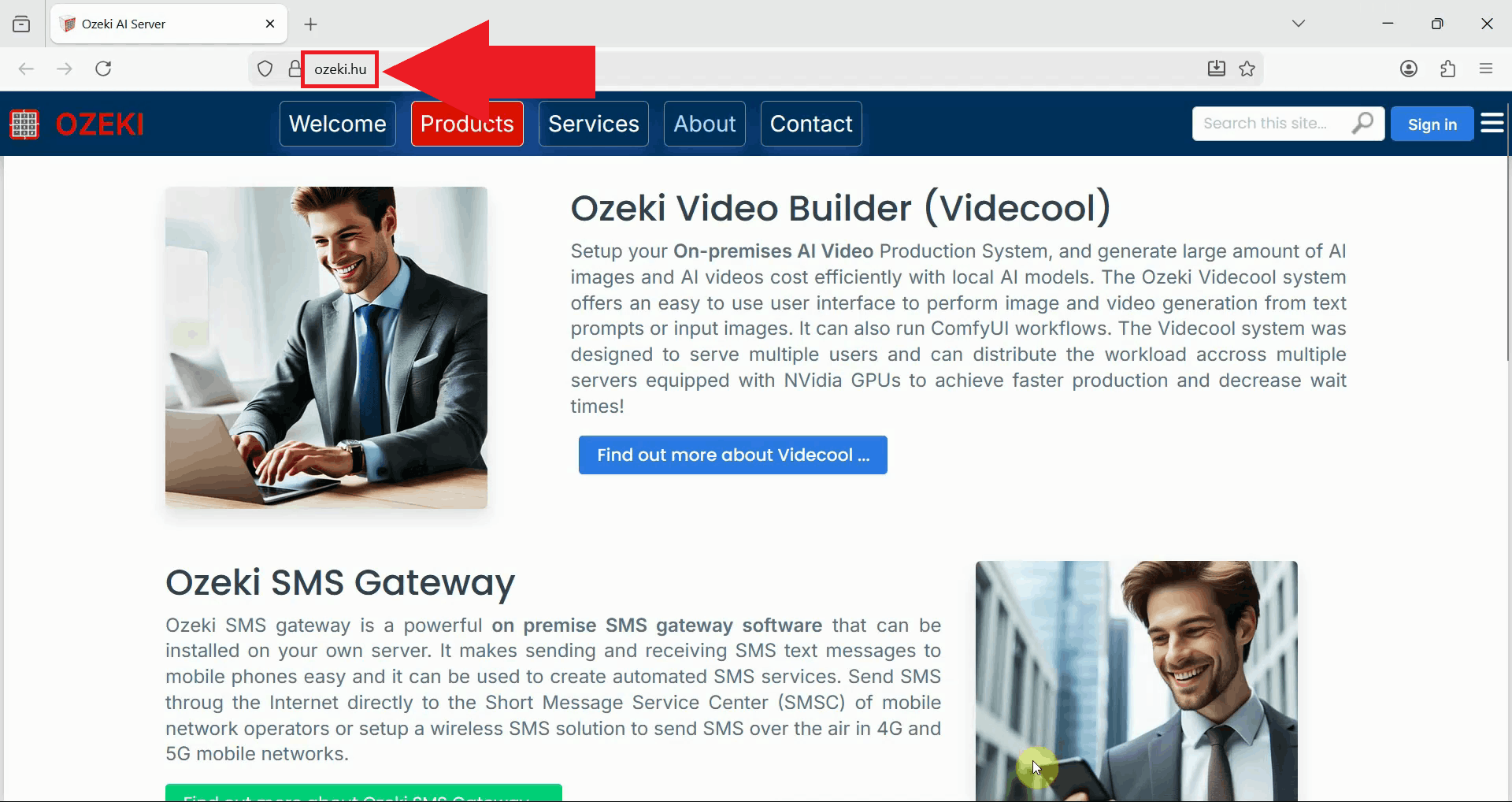
Switch to the Firefox browser window to verify the result. The browser has successfully navigated to the specified website, confirming that Playwright MCP can control Firefox browser (Figure 20).
Final thoughts
You have successfully set up Playwright MCP and tested it with both Chrome and Firefox. You can now use MCP commands to control these browsers for testing, web scraping, or building AI tools that need browser automation.