
How to choose which models to offer users
This guide demonstrates how to configure which AI models are available to users in Open WebUI through Ozeki AI Gateway. By controlling model availability at the gateway level, you can manage costs, ensure appropriate model selection, and provide a curated experience for your users.
What is model selection in Ozeki AI Gateway?
Model selection in Ozeki AI Gateway allows you to control which AI models are accessible to end users through the API url. This is particularly useful when working with free models or when you want to specify models for selected groups of users. The gateway acts as a filter, ensuring that only approved models appear in the Open WebUI model selection.
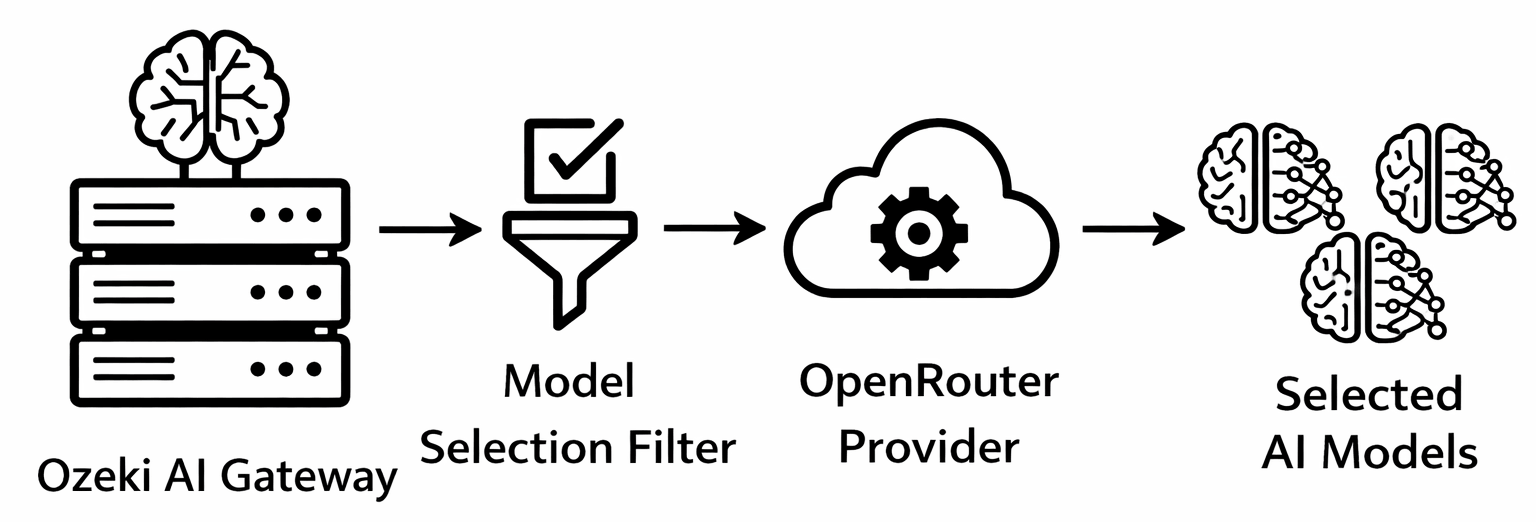
Steps to follow
We assume Ozeki AI Gateway is already installed on your system. You can install it on Linux, Windows or Mac.
- Verify gateway configuration
- Check Open WebUI connection and models
- Edit provider configuration
- Enable model selection
- Select and save models
- Test models in Open WebUI
How to choose which models to offer users video
The following video shows how to choose which models to offer users step-by-step. The video covers verifying your configuration, selecting free models from OpenRouter, and confirming they appear correctly in Open WebUI.
Step 1 - Verify gateway configuration
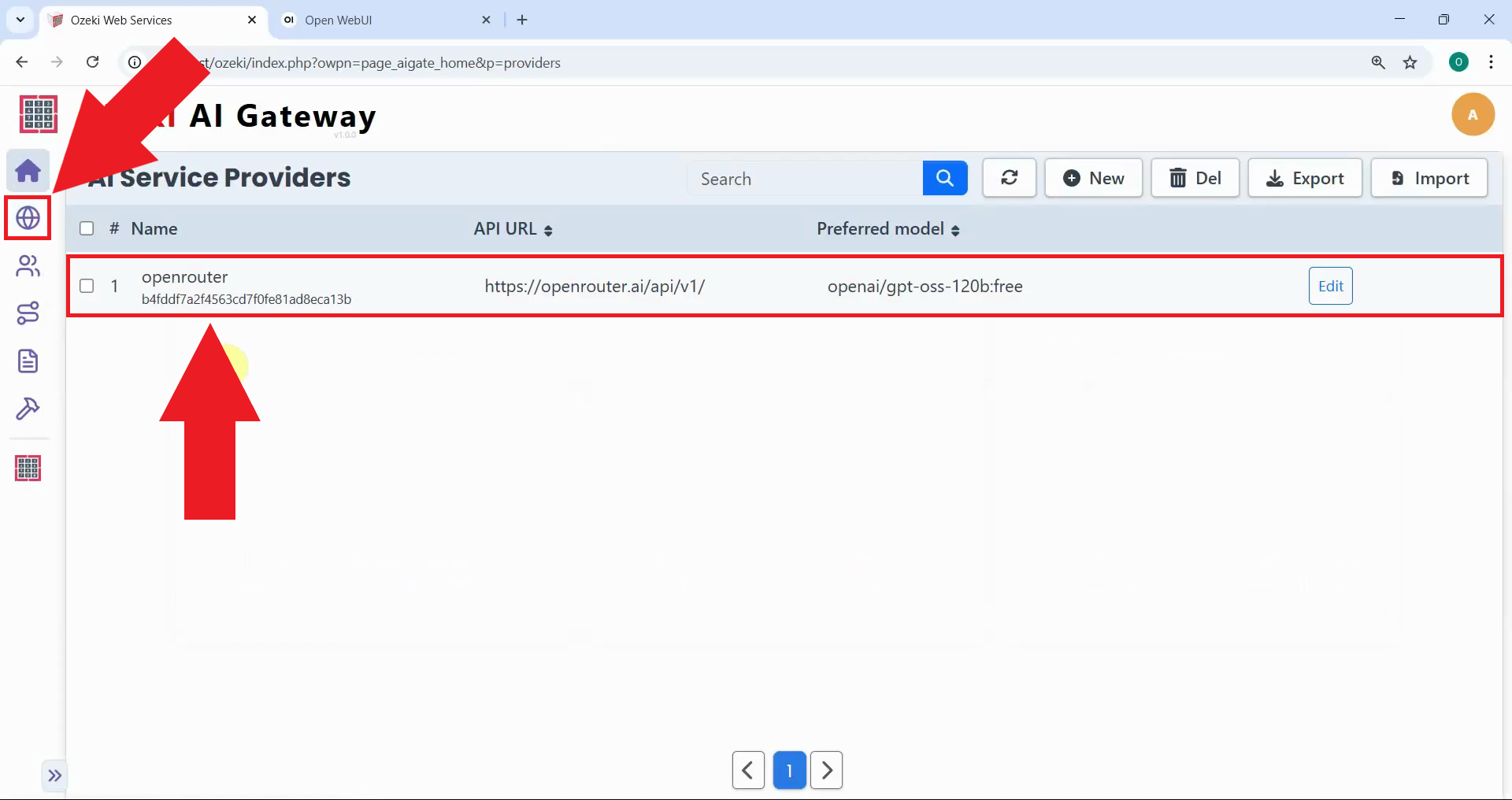
Open Ozeki AI Gateway and click "Providers" on the sidebar. Verify that your openrouter provider is properly configured with an OpenRouter API key (Figure 1).
You need a valid OpenRouter API key configured in your Ozeki AI Gateway provider settings. If you don't have an API key, see our How to Create a Free API Key for OpenRouter guide.
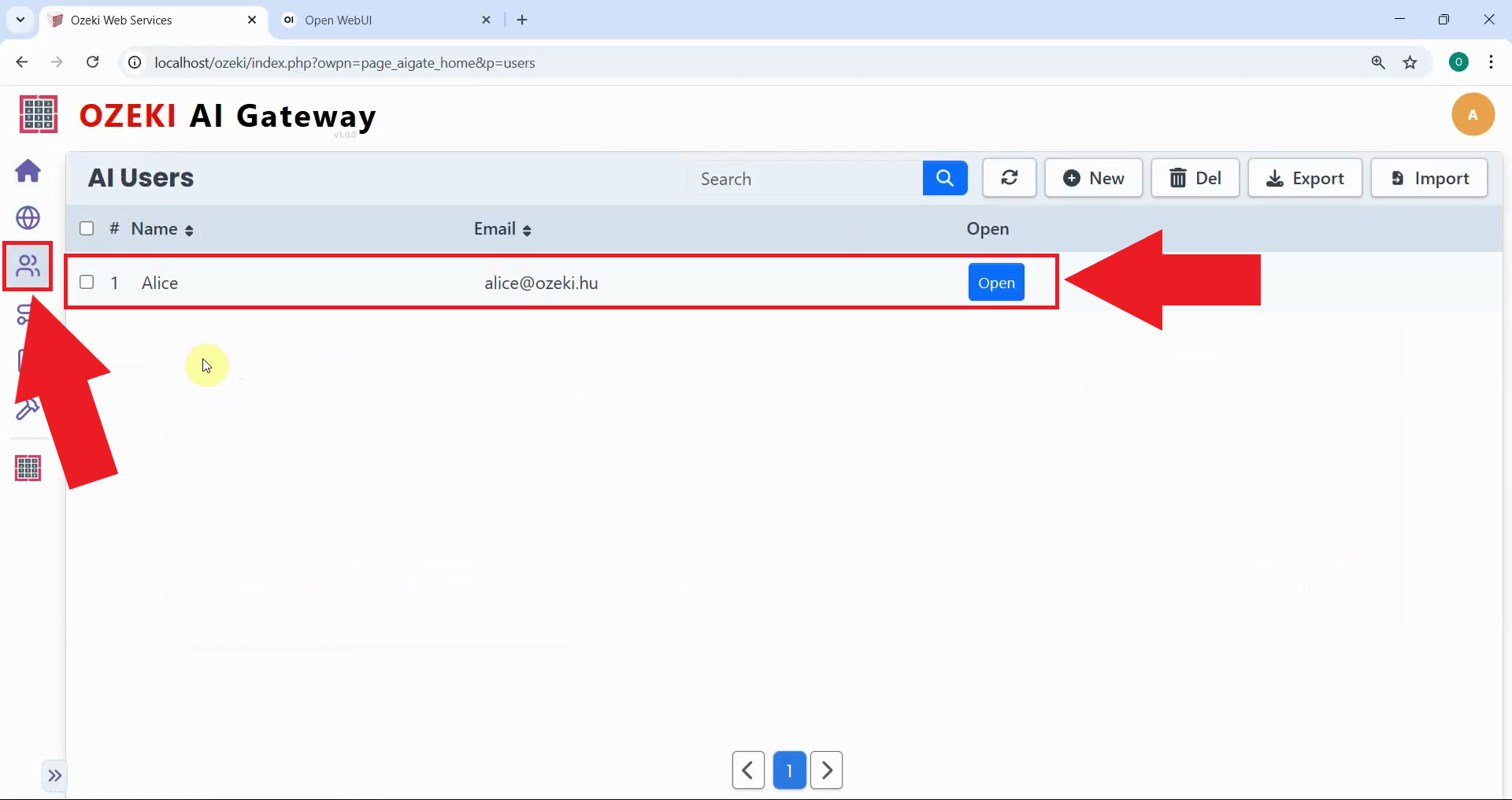
Navigate to the Users section and confirm that you have at least one user configured with an API key set up (Figure 2).
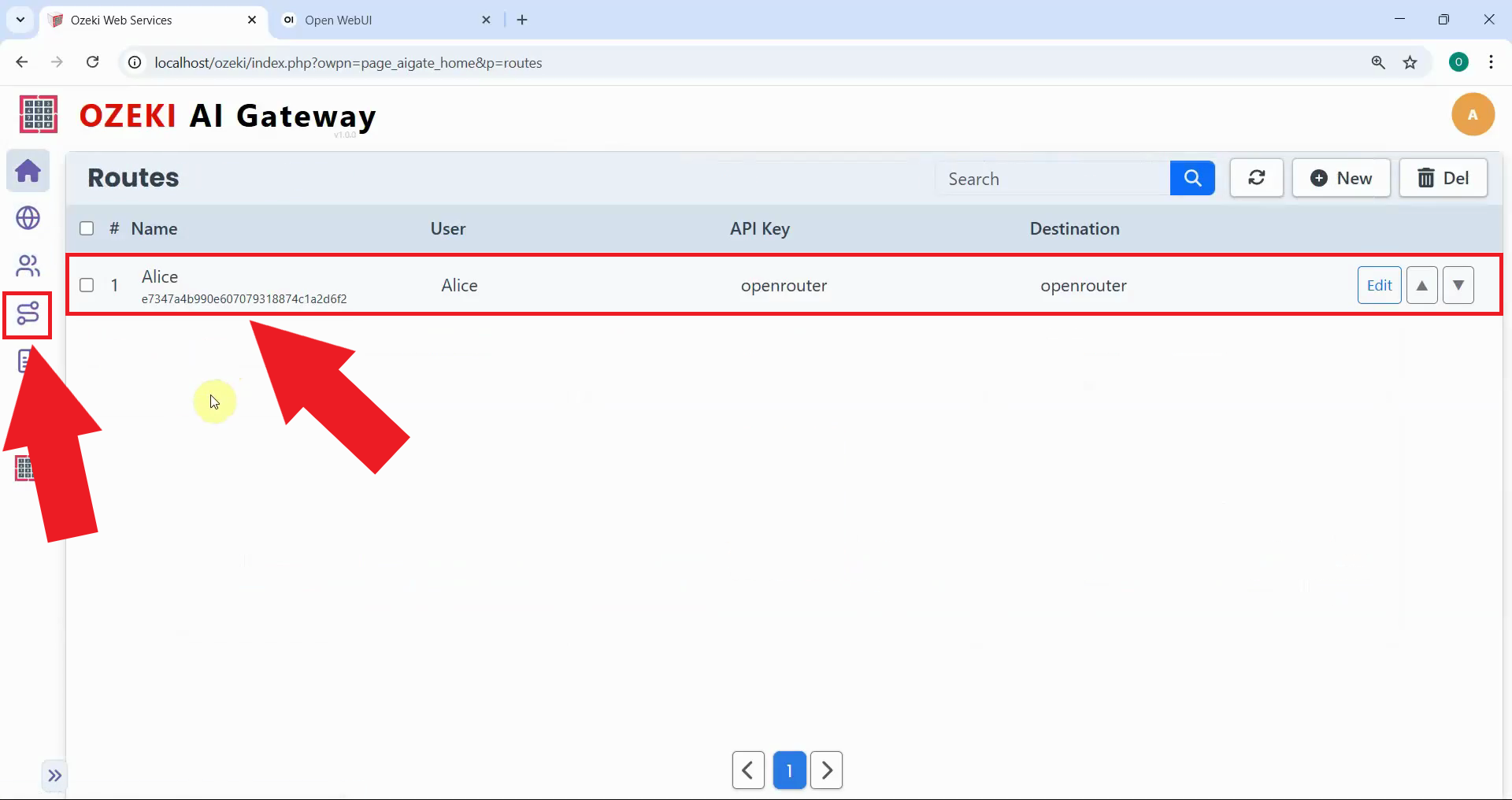
Click "Routes" on the sidebar and verify that you have a route connecting your Ozeki user to the "openrouter" provider (Figure 3).
Step 2 - Check Open WebUI connection and models
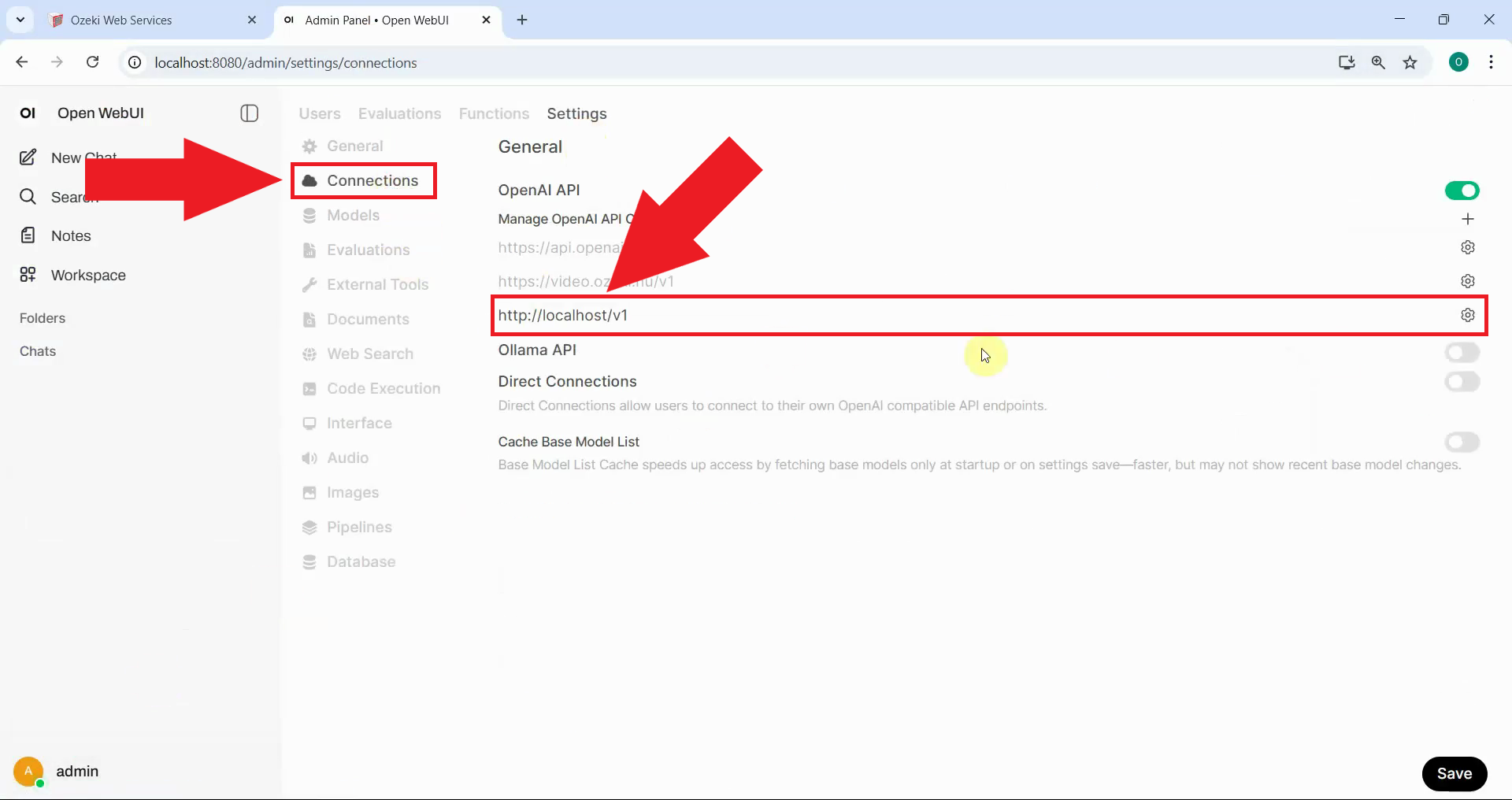
Switch to your Open WebUI interface and open the Admin Panel. Navigate to Settings > Connections to verify that your LLM API endpoint URL connection is properly set up and active (Figure 4).
If you haven't set up Open WebUI, please check out our How to Setup OpenWebUI in Windows guide.
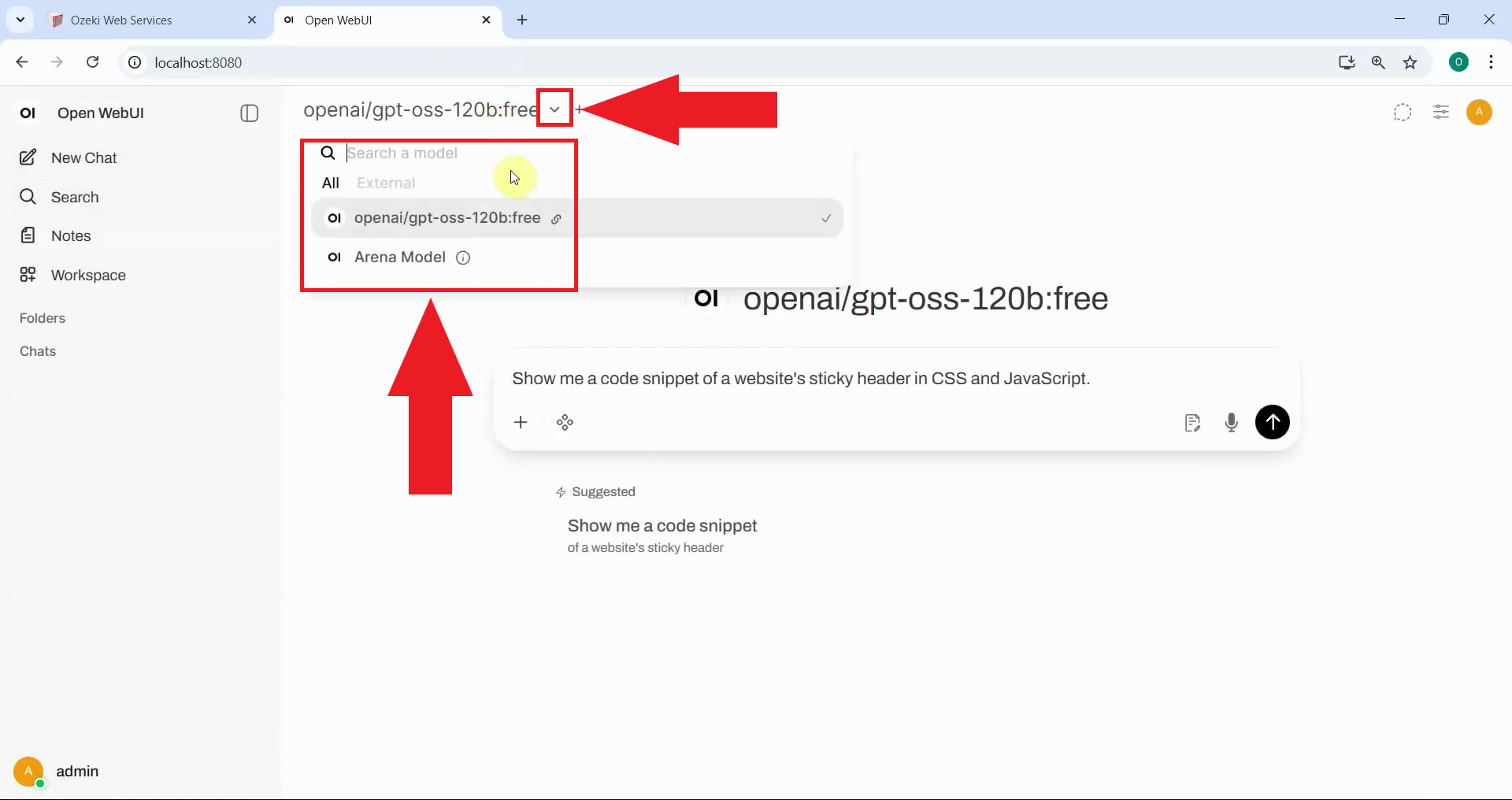
In Open WebUI, open the model selector dropdown and note which models are currently available. This step establishes your baseline before making changes to the model selection (Figure 5).
Step 3 - Edit provider configuration
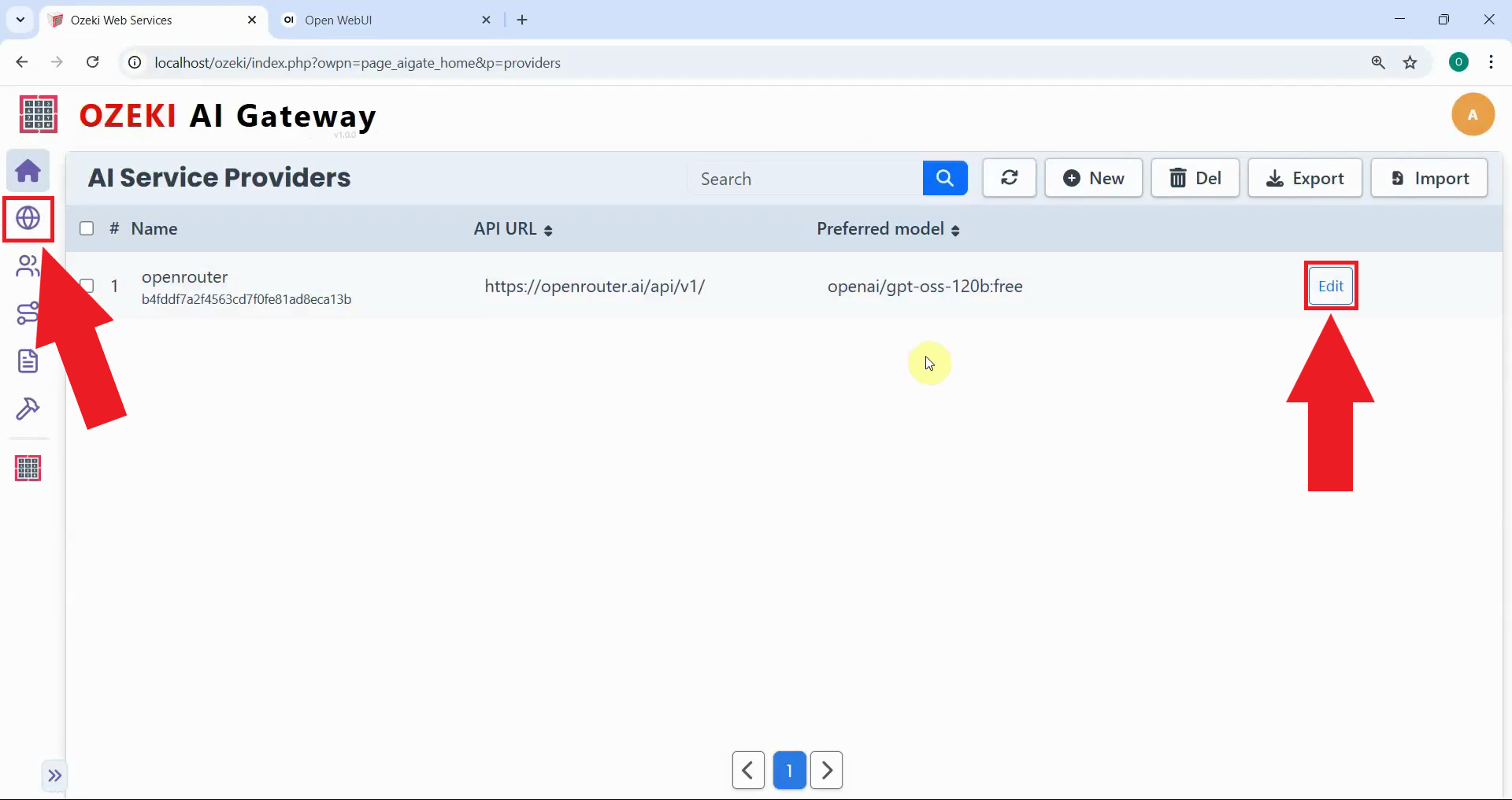
Return to Ozeki AI Gateway and navigate to the Providers section. Locate your "openrouter" provider and click the edit button. This will open the provider configuration panel (Figure 6).
Step 4 - Enable model selection
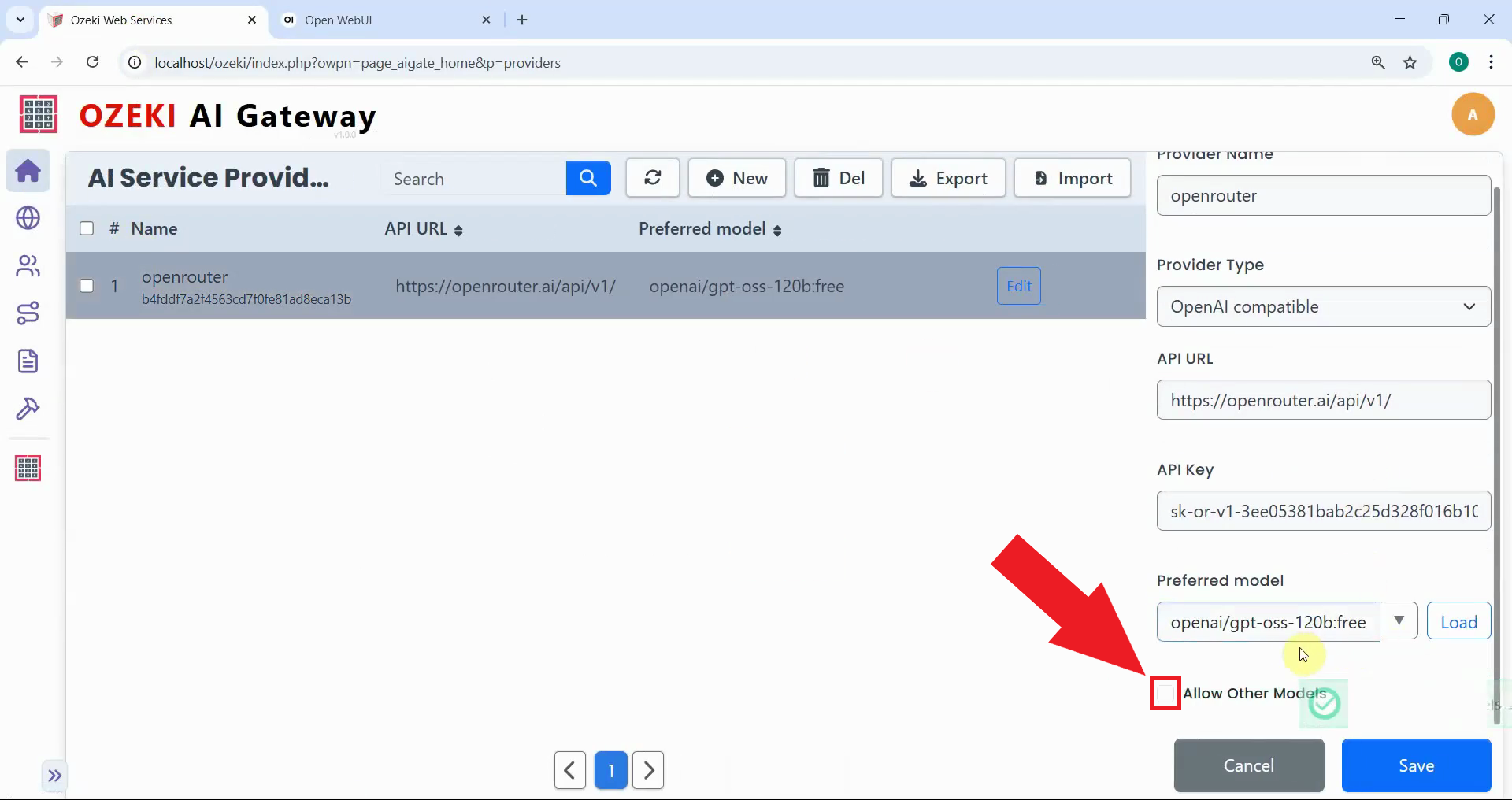
In the provider configuration panel, locate the "Allow other models" checkbox. Enable this option to access the model selection list (Figure 7).
Step 5 - Select and save models
A list of available models from OpenRouter will appear. Browse through the list and select the models you want to use by checking their corresponding checkboxes (Figure 8).
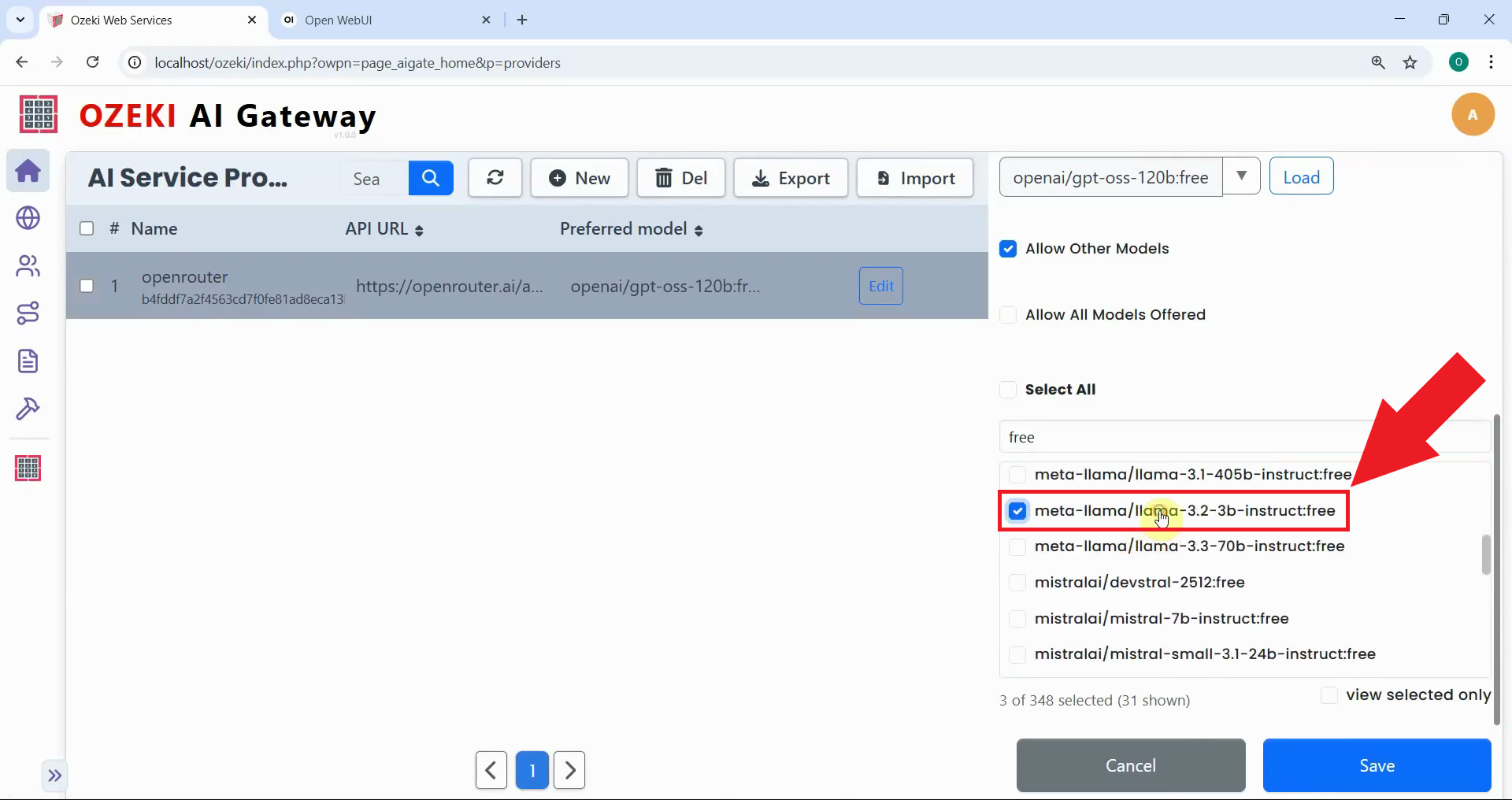
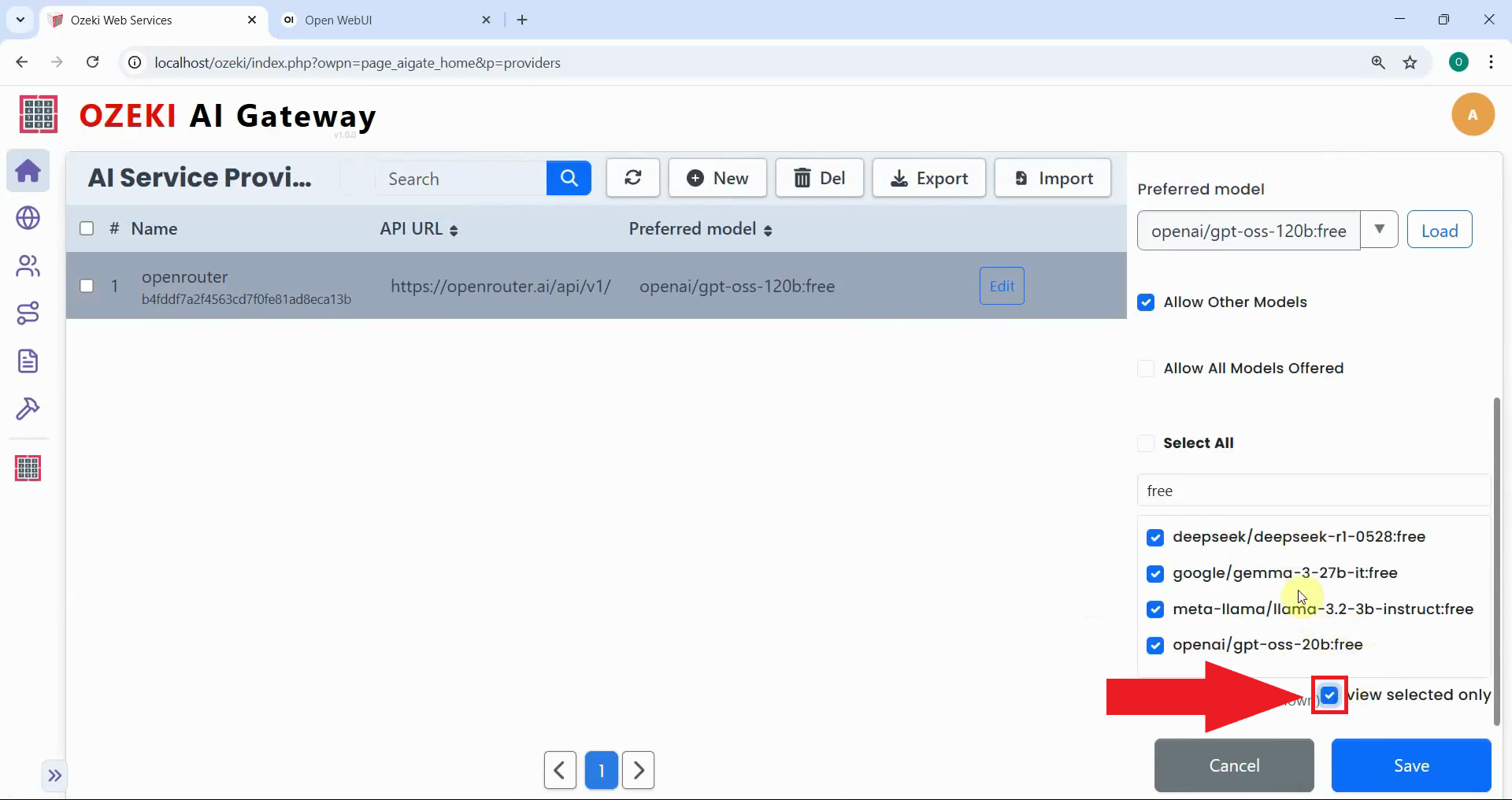
After selecting your models, review the list of checked models to confirm your selections (Figure 9).
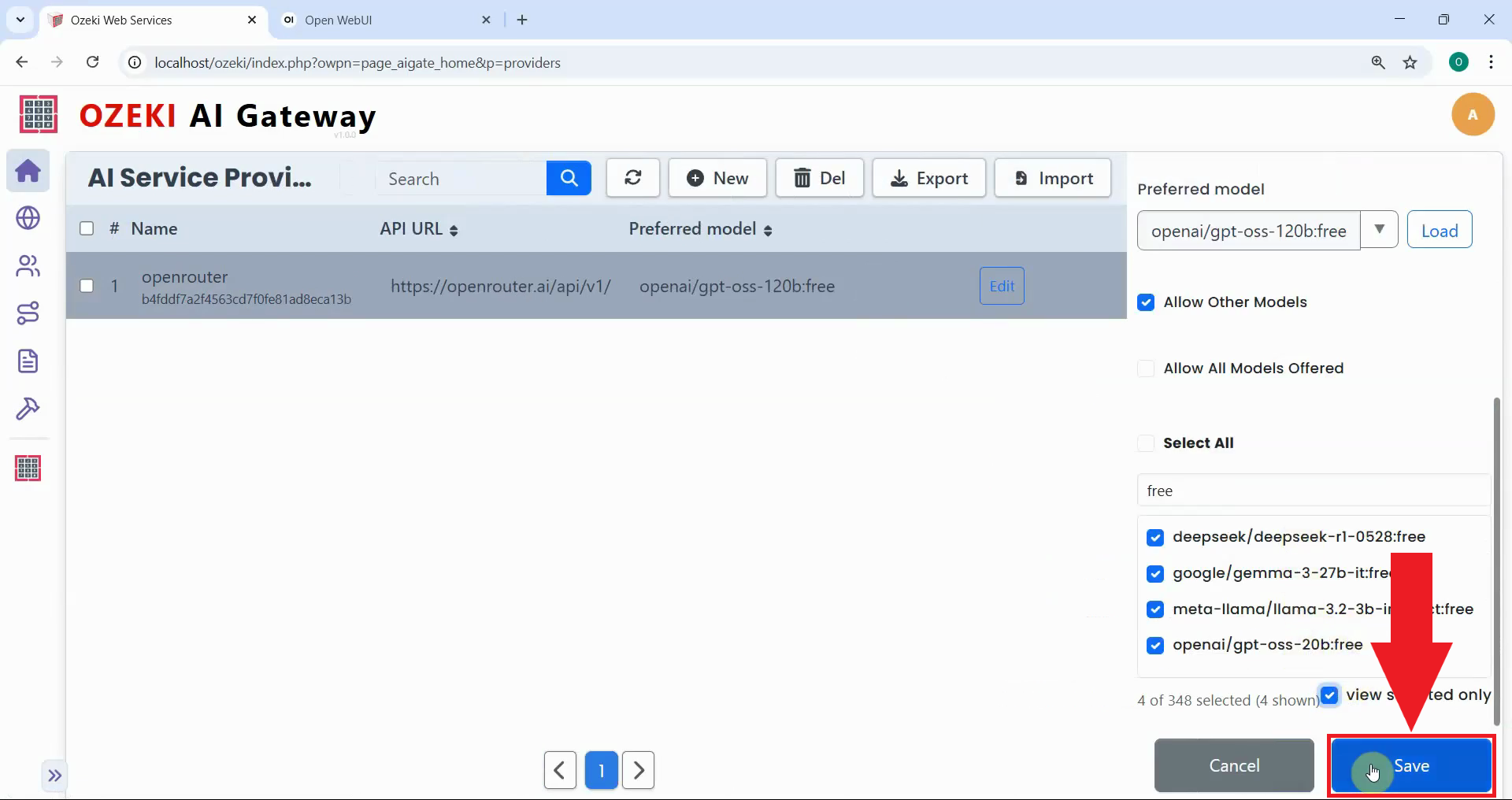
Click the "Save" button to save your provider configuration with the selected models (Figure 10).
Step 6 - Test models in Open WebUI
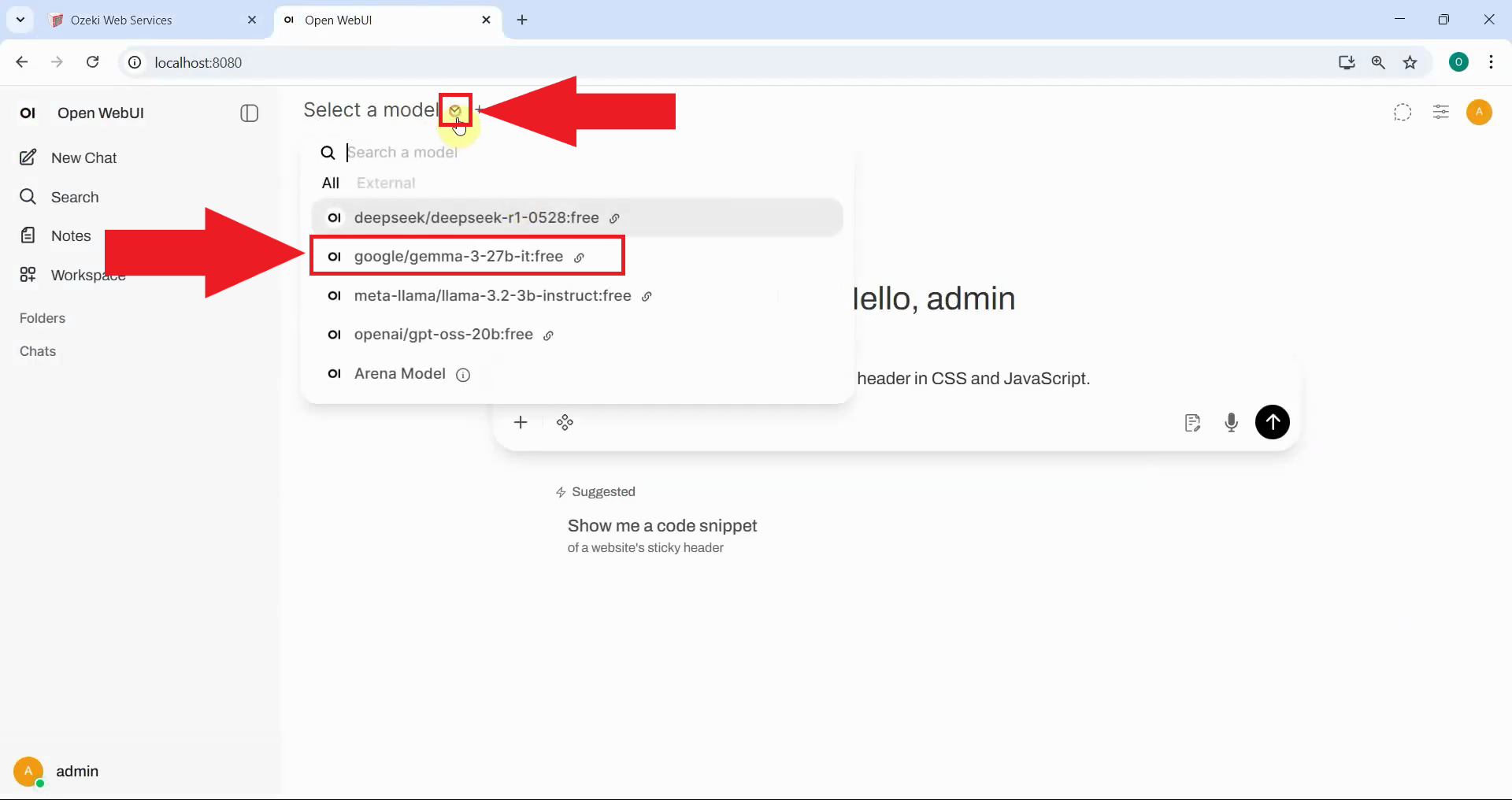
Return to Open WebUI and open the model selector dropdown menu. You should see the models you configured in Ozeki AI Gateway (Figure 11).
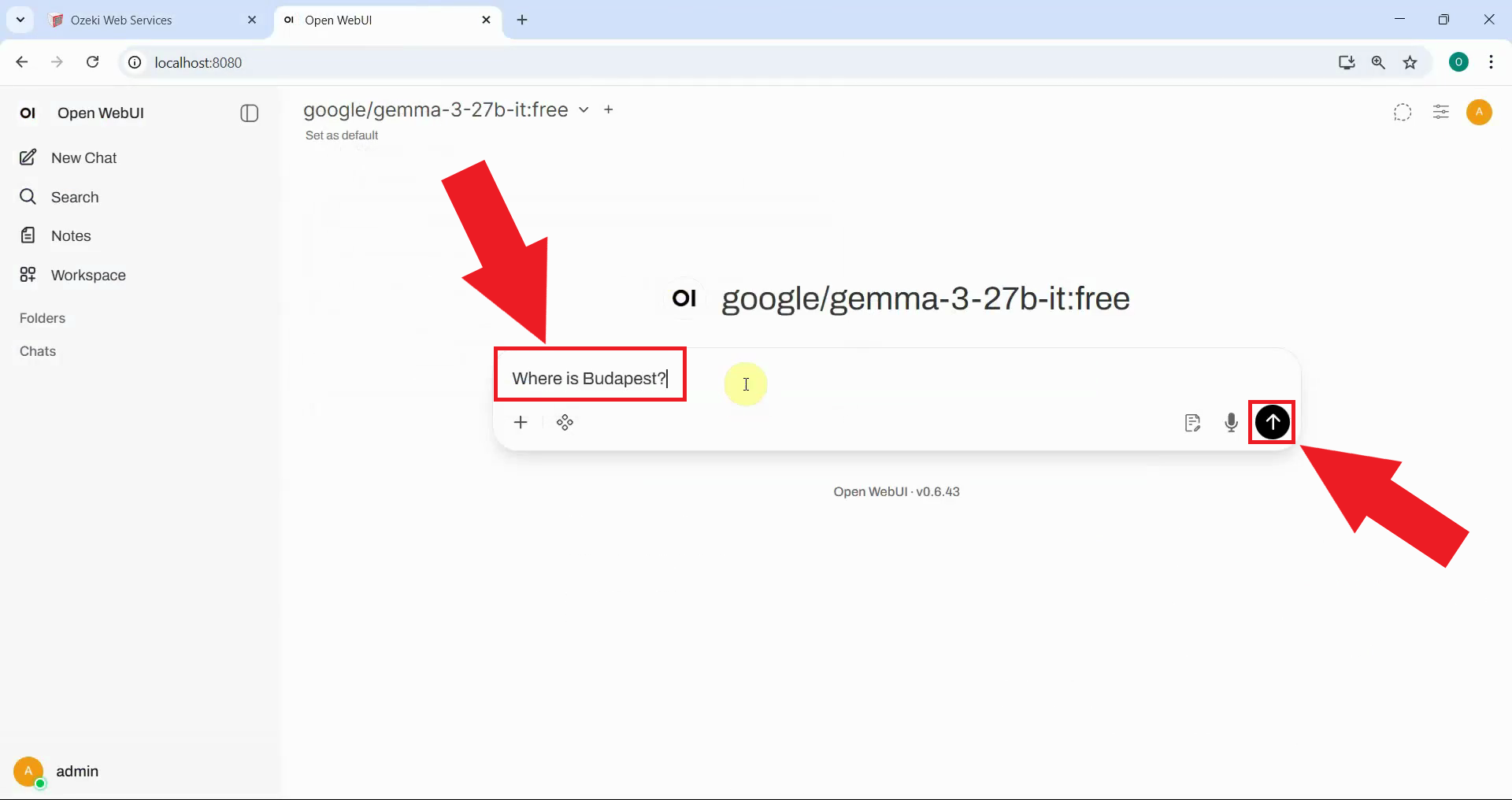
To test the LLM connection, type a question in the chat textbox and press Enter or click the send button (Figure 12).
You should see the AI's response appear in the chat window, confirming that Open WebUI is successfully connected to your LLM API and working as expected (Figure 13).

Conclusion
You have successfully configured model selection in Ozeki AI Gateway, giving you control over which AI models are available to users. You can return to the provider configuration at any time to add or remove models as your needs change, making this a flexible solution for managing AI model access.