
How to combine multiple local models into one API
This guide demonstrates how to create a provider group in Ozeki AI Gateway to combine multiple AI services running on different servers into a single unified API endpoint. You'll learn how to connect to AI services on separate machines, group them together, and route user access through one consistent interface.
What is a provider group?
A provider group in Ozeki AI Gateway is a collection of multiple AI providers that can be accessed through a single endpoint. Instead of configuring client applications to connect to each AI service individually, you create a provider group that presents all models as if they came from one API. This simplifies client configuration, enables centralized management, and allows you to combine AI services running on different servers or platforms into one cohesive offering.
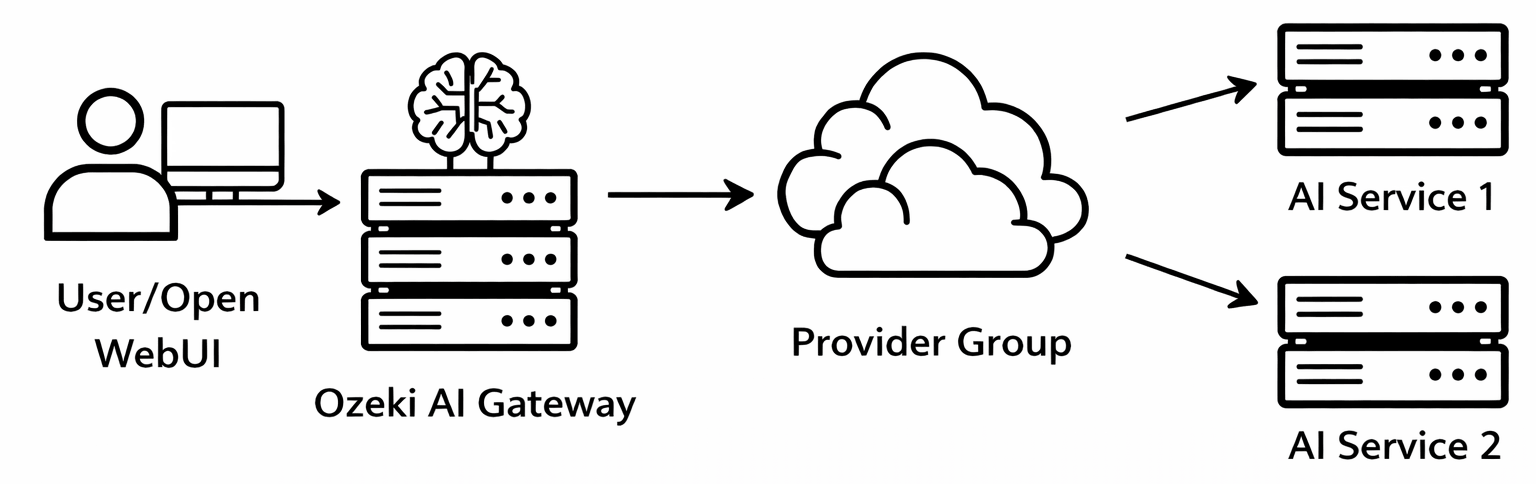
Steps to follow
We assume Ozeki AI Gateway is already installed on your system. You can install it on Linux, Windows or Mac.
- Add individual AI providers
- Create provider group
- Add providers to group
- Create route for user
- Open Open WebUI and select models
- Test first model connection
- Test second model connection
How to combine multiple local models video
The following video shows how to create a provider group in Ozeki AI Gateway step-by-step. The video covers connecting to multiple AI services on different servers, grouping them together, creating a route for user access, and testing both models through Open WebUI.
Step 1 - Add individual AI providers
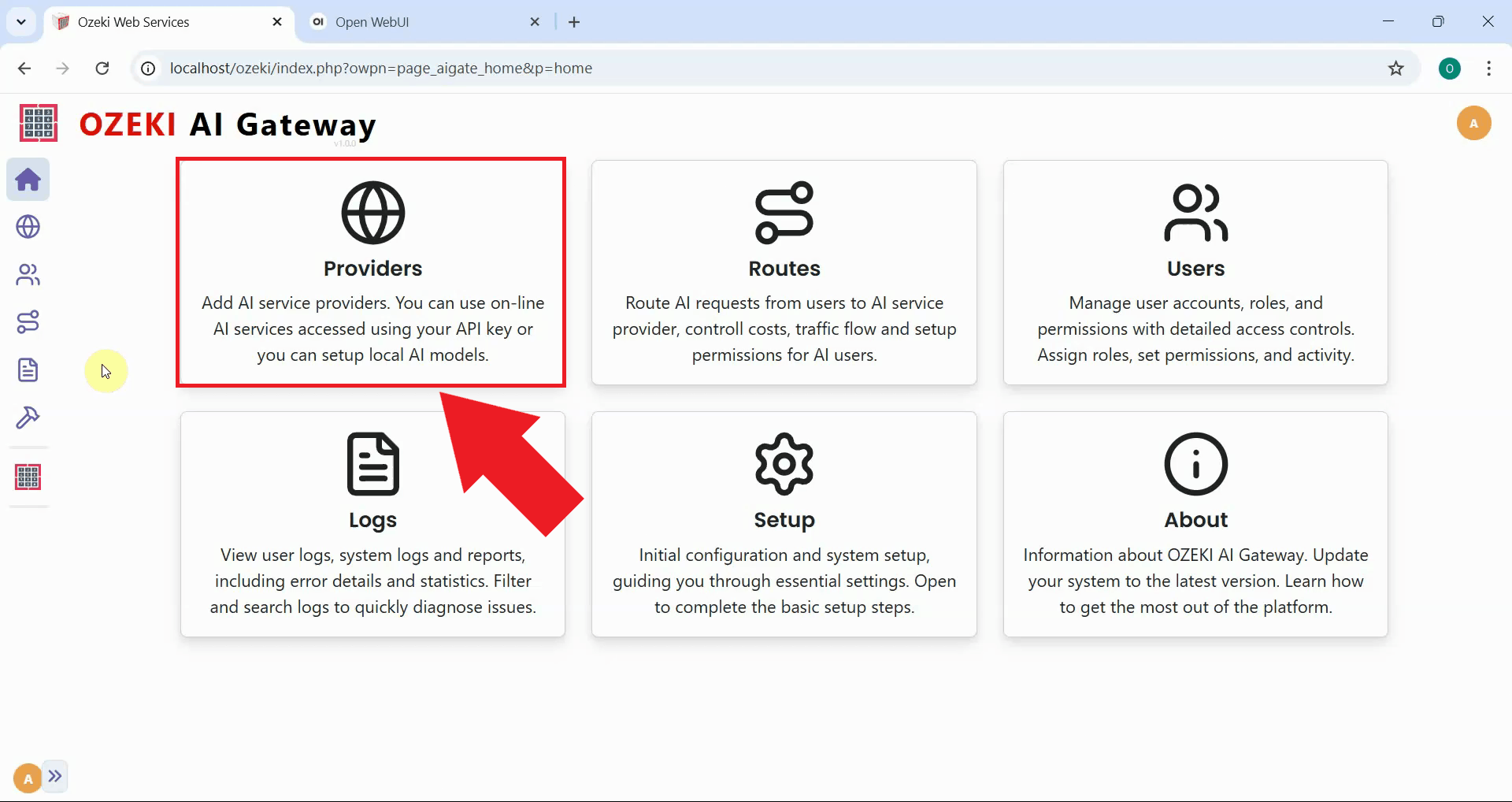
Open the Ozeki AI Gateway web interface and navigate to the Providers page. This is where you'll configure connections to the AI services running on different servers. The Providers page displays all currently configured AI providers and allows you to add new individual providers or create provider groups that combine multiple services (Figure 1).
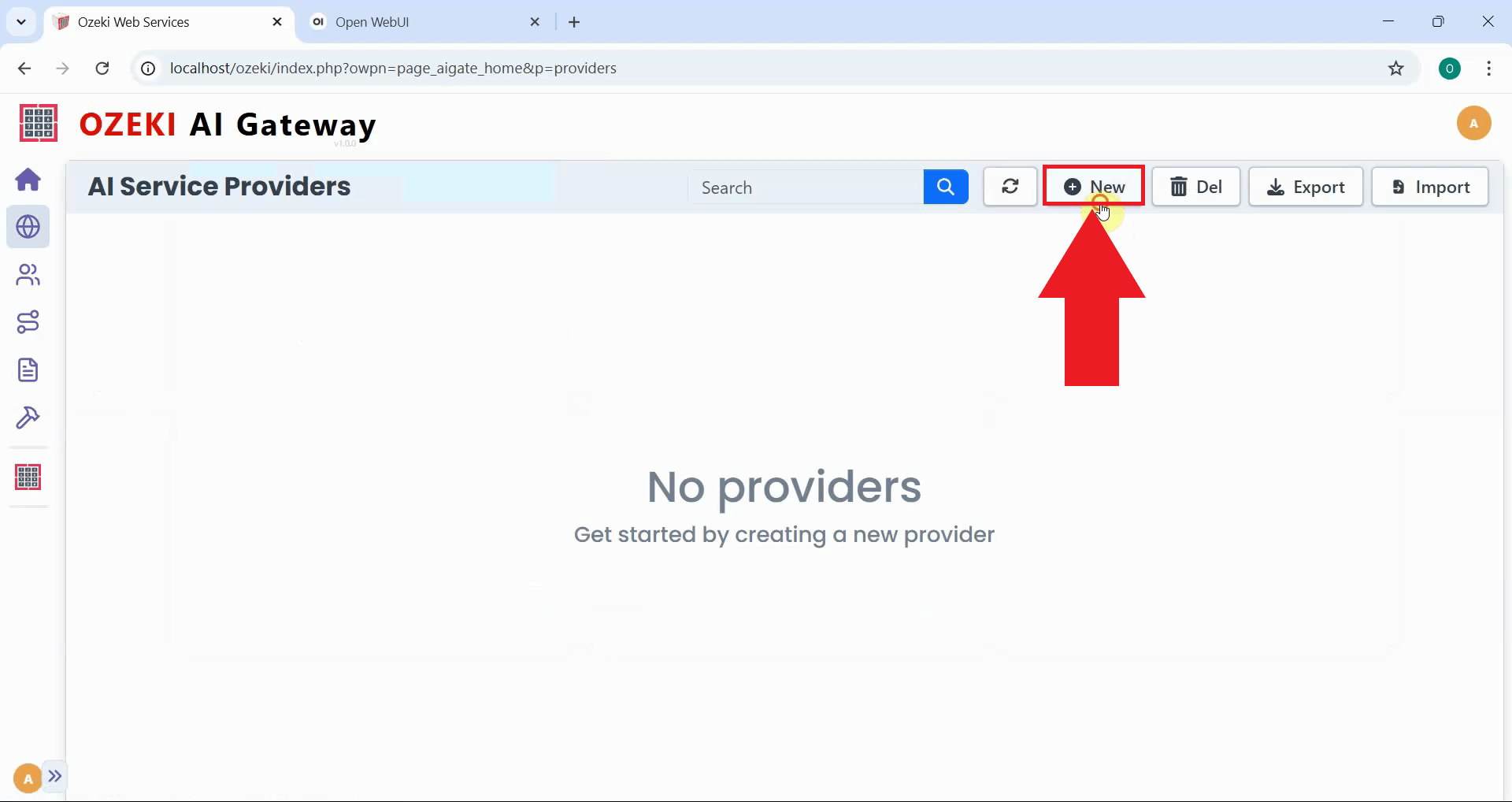
Click the "New" button to begin adding the first provider connection. This opens a configuration form where you'll enter the connection details (Figure 2).
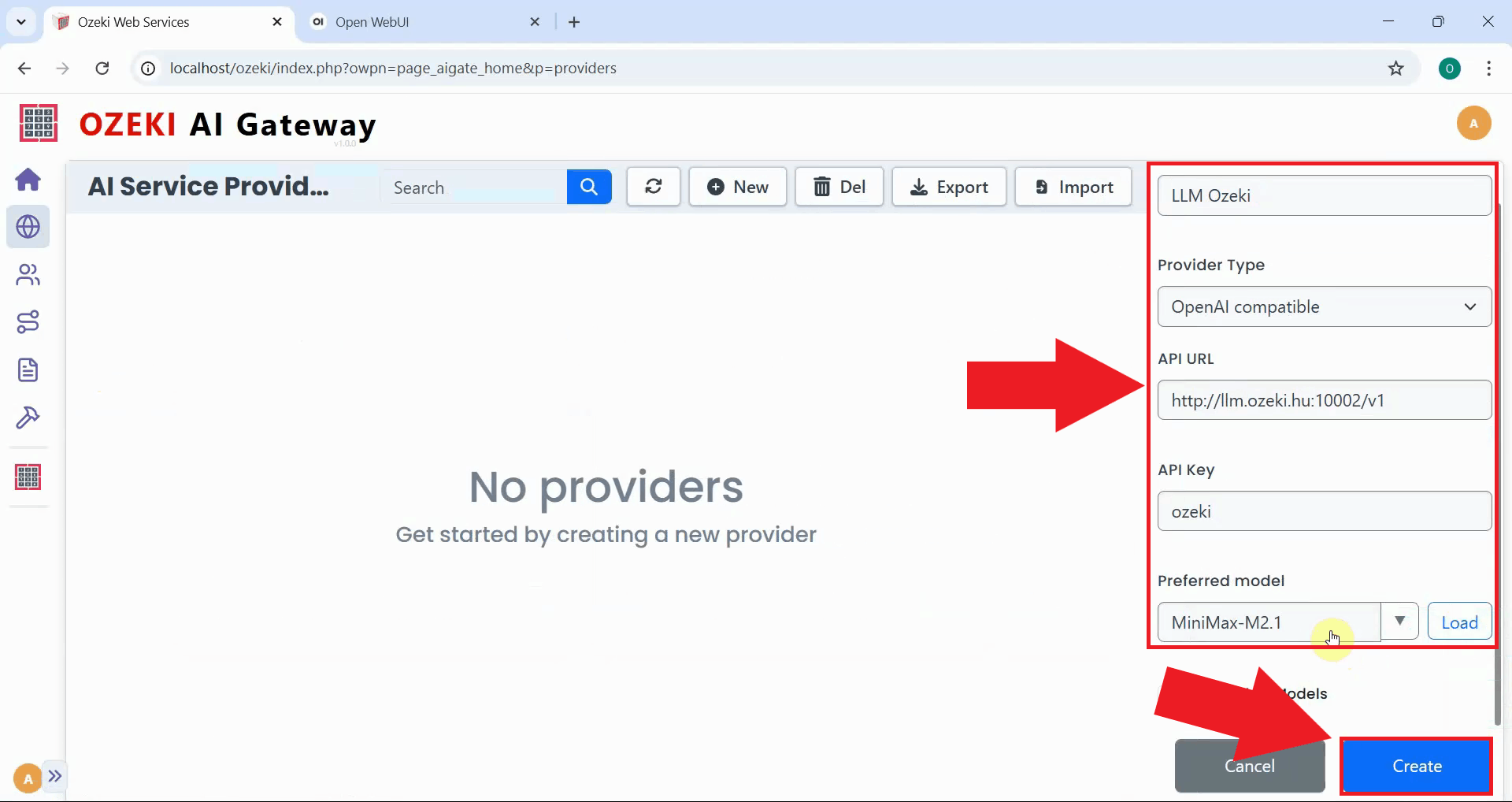
Fill in the provider configuration form with the details for the first AI service. Enter a descriptive name for the provider, select "OpenAI compatible" as the provider type, and specify the API endpoint URL. Enter the appropriate API key for authentication. Select the available model and click "Create" to save the provider configuration (Figure 3).
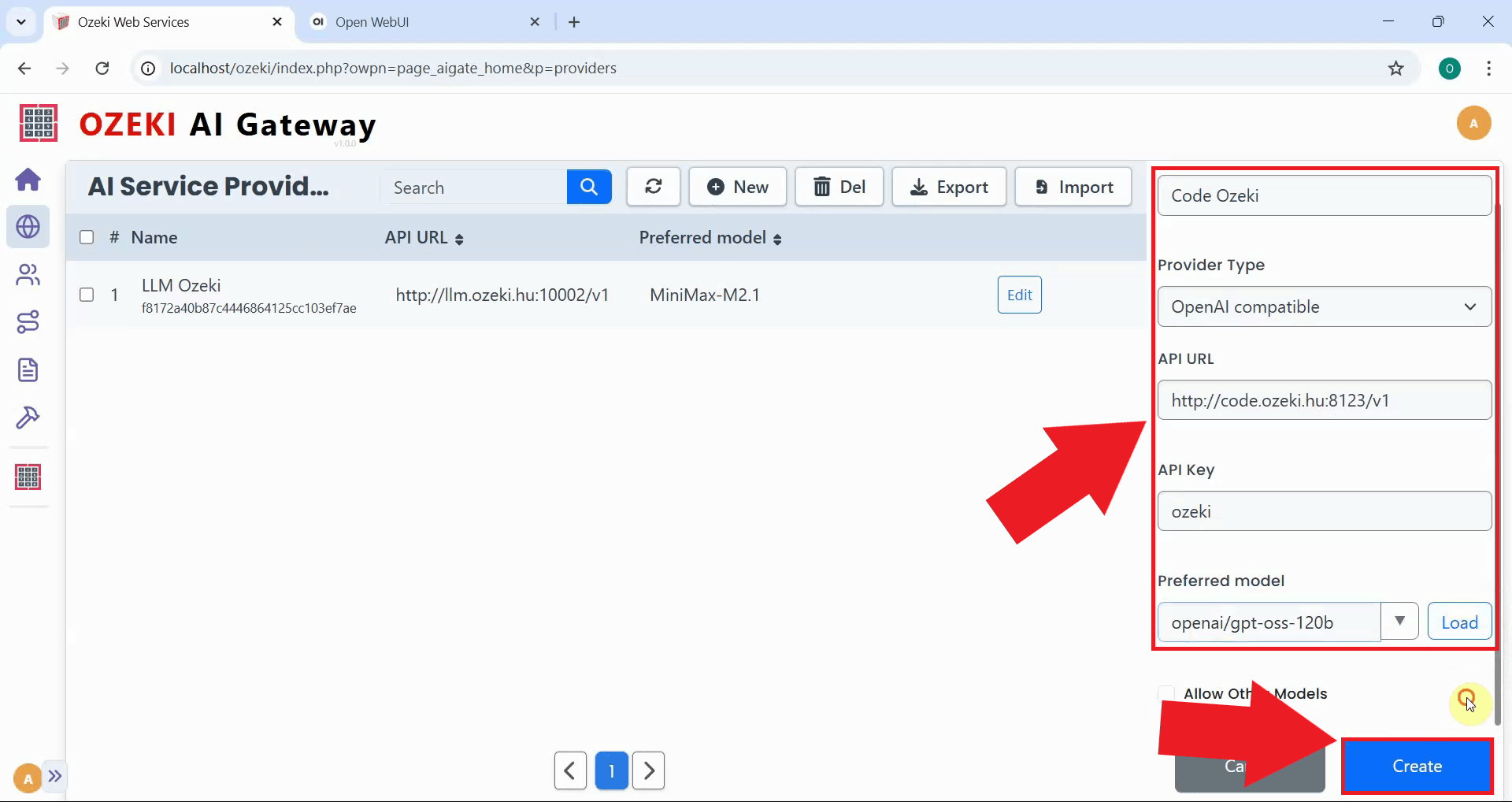
After the first provider is created successfully, click the "New" button again to add the second AI service. Fill in the provider configuration form and click "Create" to save the second provider configuration. You now have two separate AI providers configured (Figure 4).
Step 2 - Create provider group
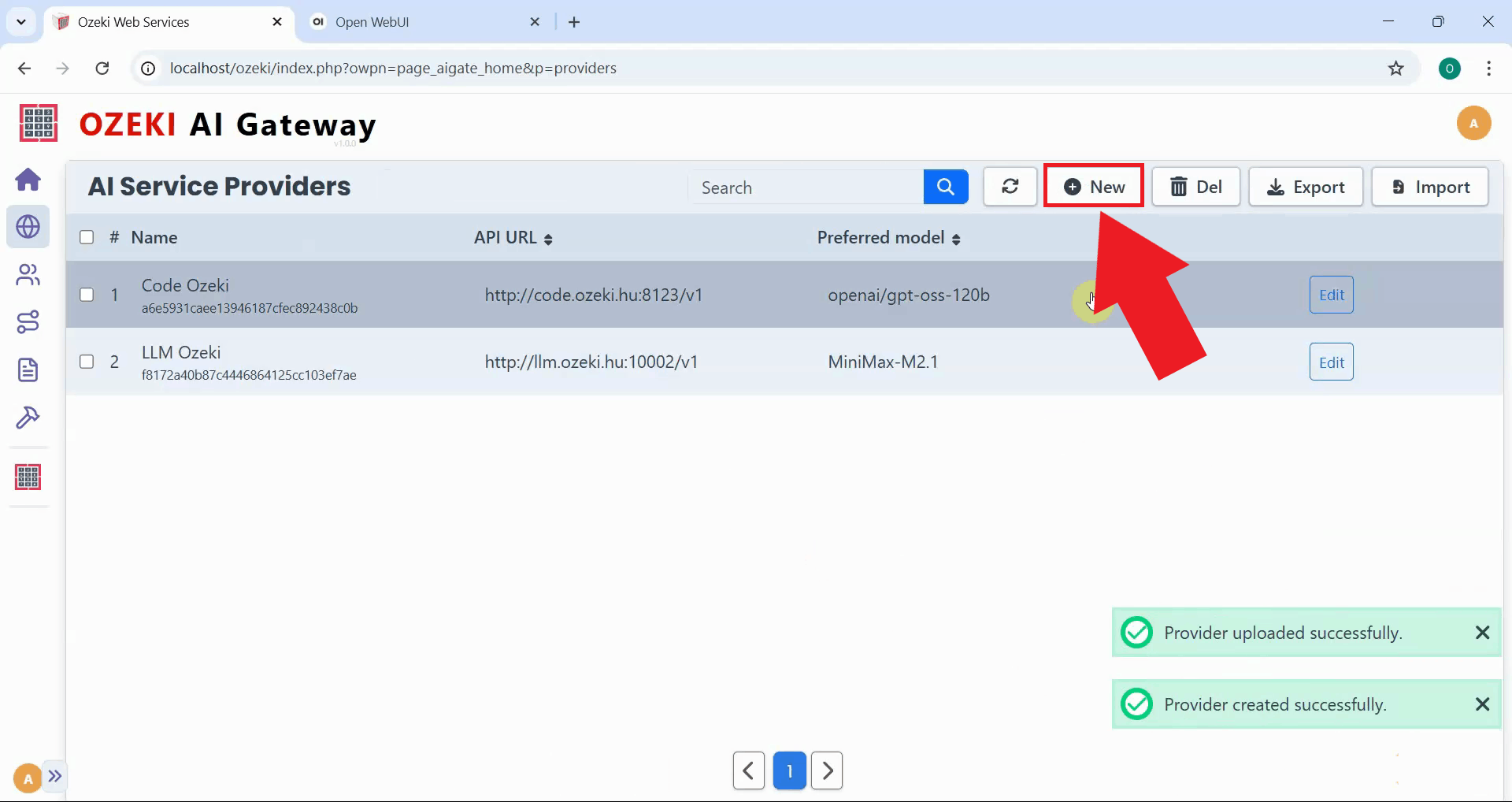
With both individual providers configured, click "New" again to create a provider group that combines them. The same provider creation form opens, but this time you'll configure it as a provider group instead of a single provider connection (Figure 5).
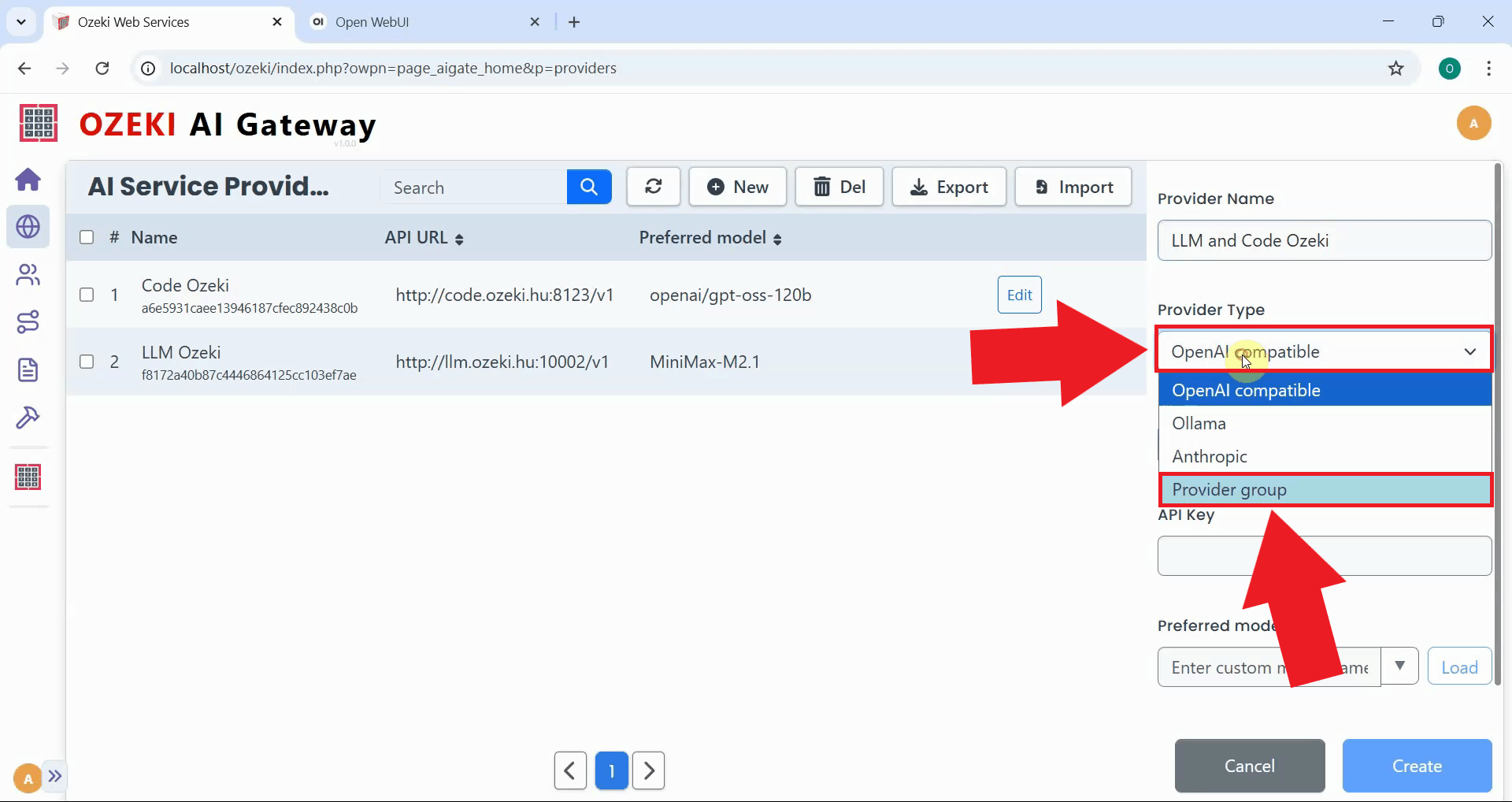
In the Provider Type dropdown, select "Provider Group". This changes the form to display provider group configuration options (Figure 6).
Step 3 - Add providers to group
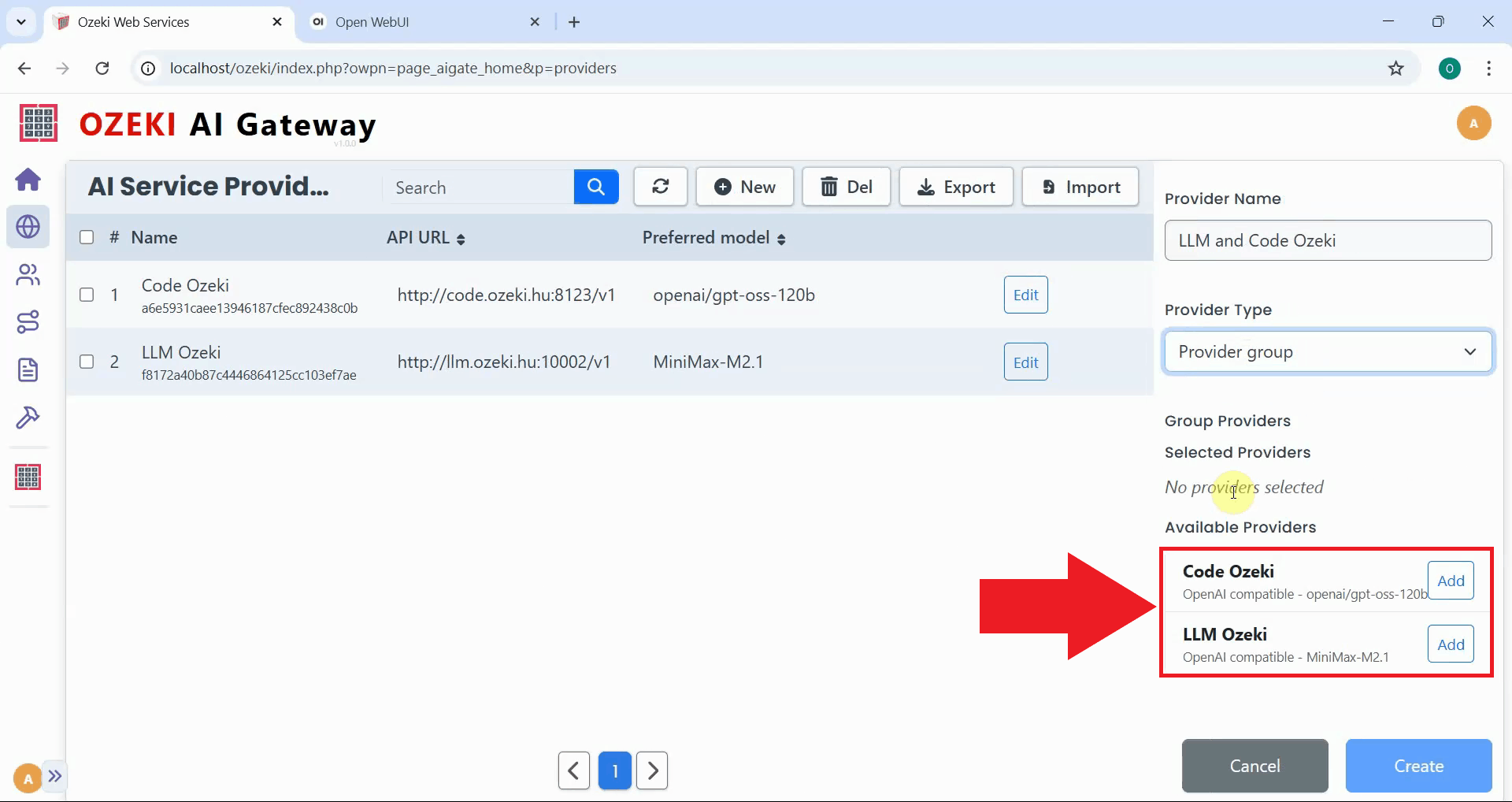
After selecting "Provider Group" as the type, the form displays a list of all available providers that you've configured. Click the "Add" button next to each provider you want to include in the group. Add both providers you created earlier (Figure 7).
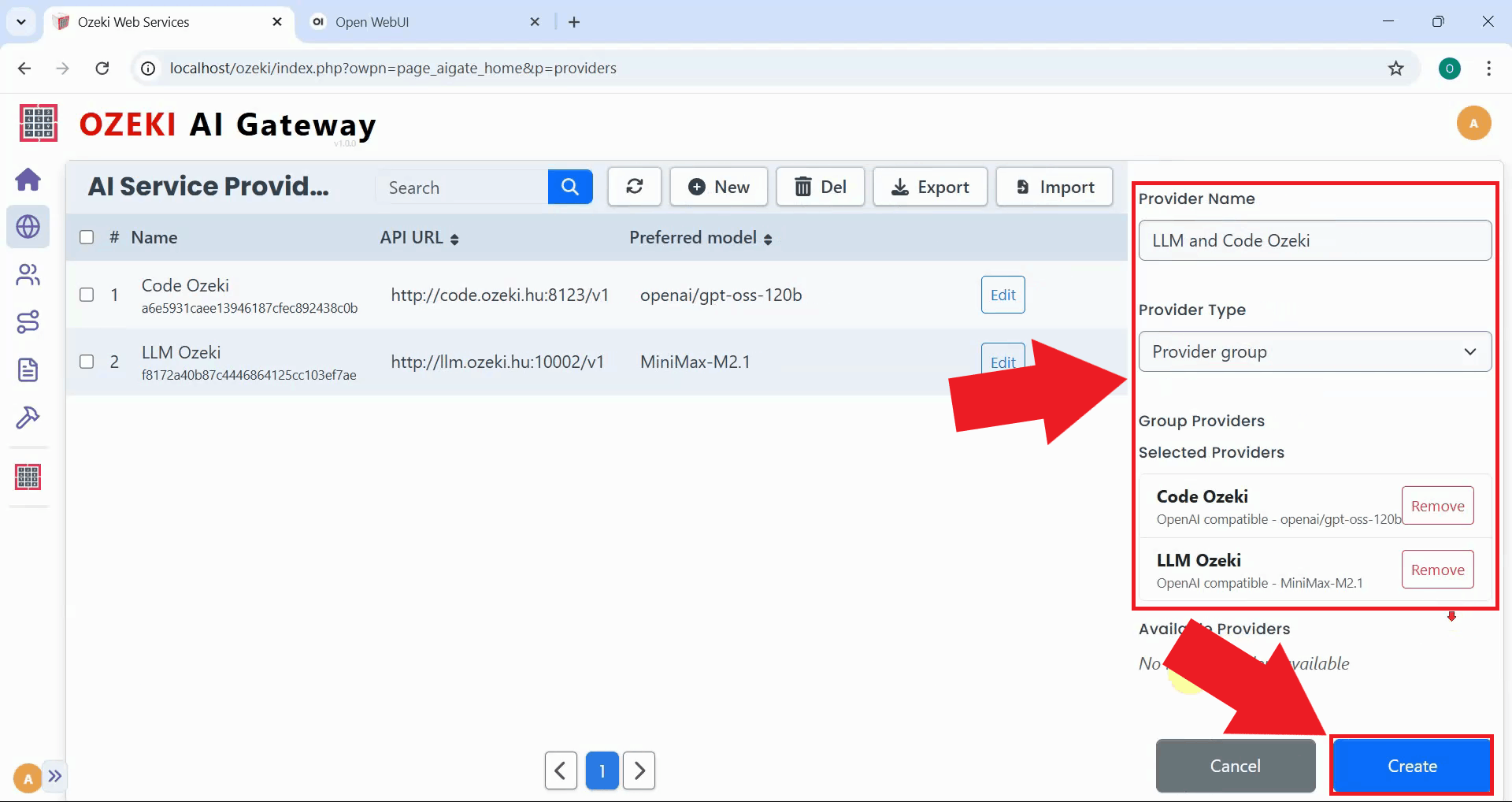
Enter a name for the provider group to identify this collection of AI services. Review the configuration showing the provider name, provider type, and the list of selected providers. Once you've verified that both providers are included, click Create to save the provider group configuration (Figure 8).
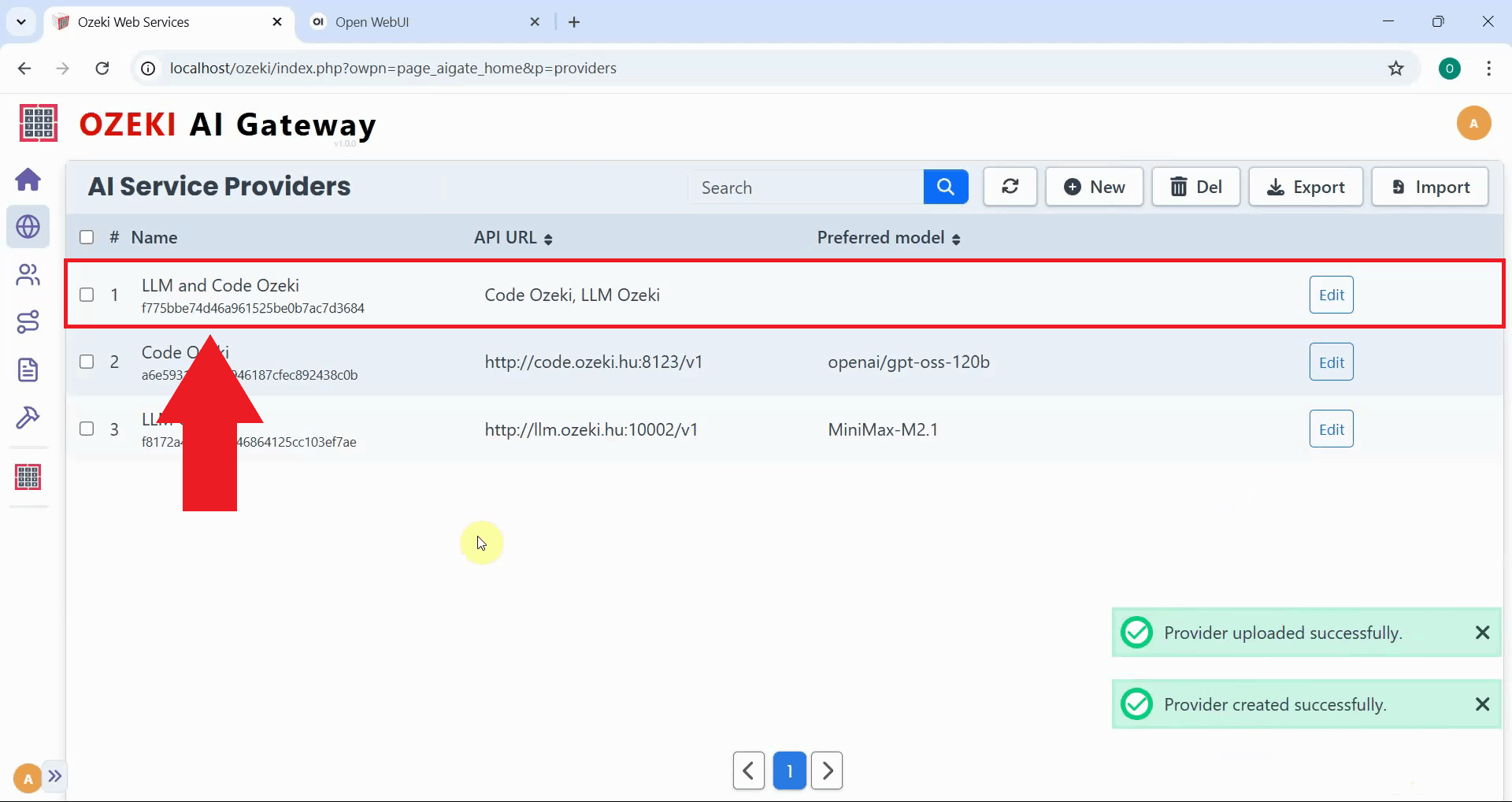
After clicking "Create", the provider group is successfully added to Ozeki AI Gateway and now appears in the providers list. This confirms that the gateway can now route requests to any of the AI services within the group. The next step is to create a route that allows users to access this provider group (Figure 9).
Step 4 - Create route for user
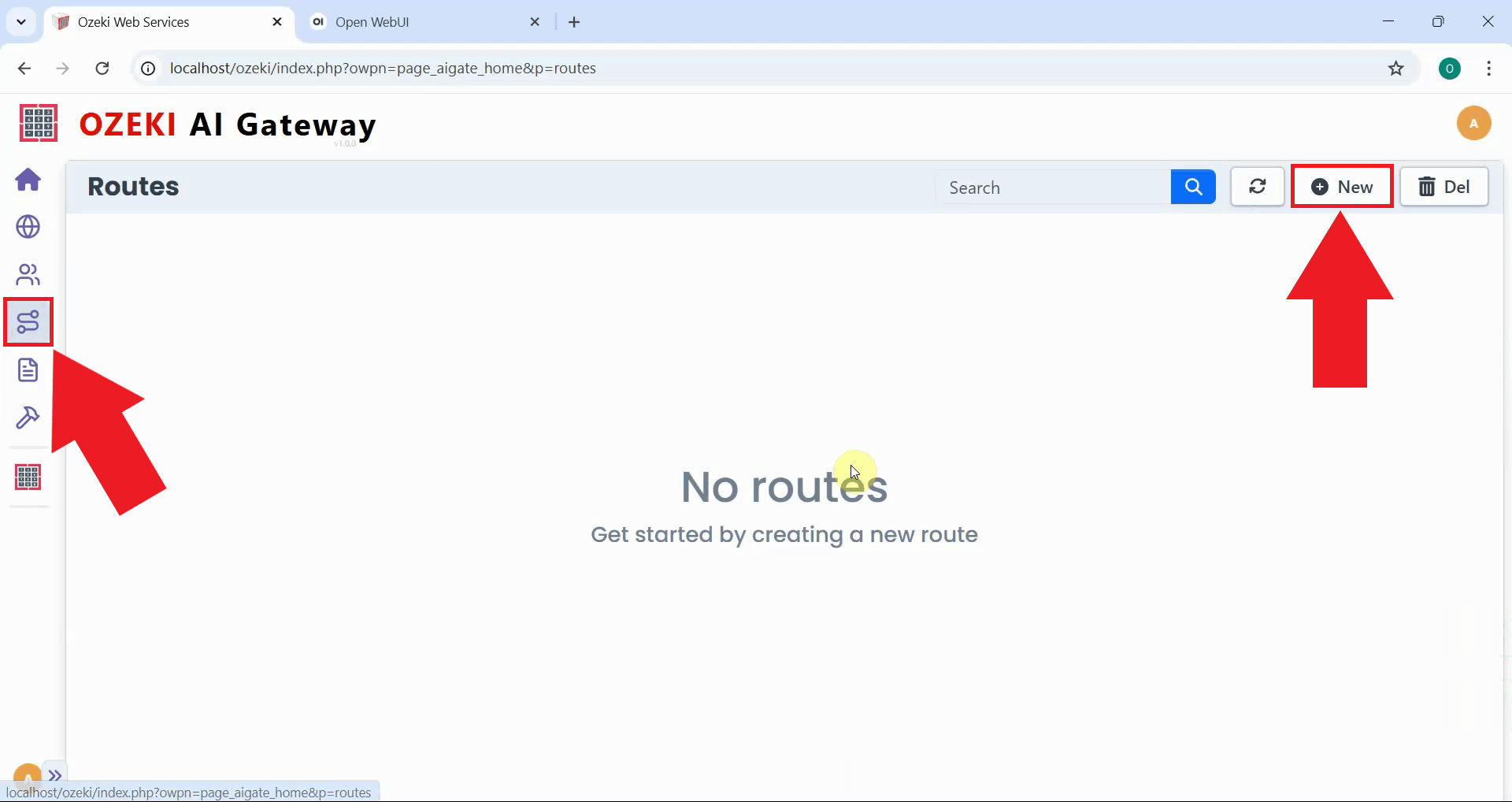
Navigate to the Routes page from the left sidebar and click New to create a route that connects a user to the provider group. Routes define which users can access which AI providers through the gateway (Figure 10).
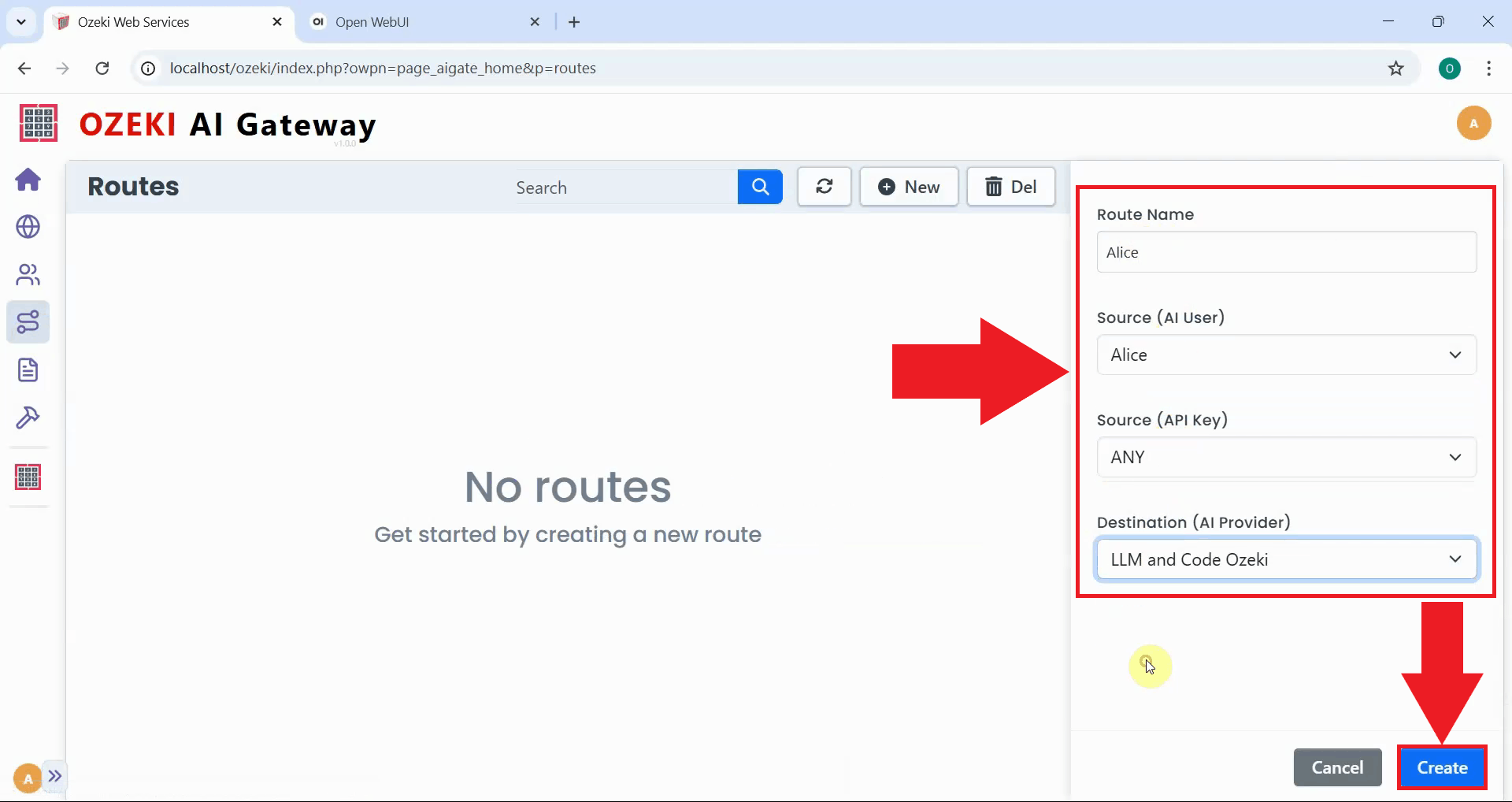
Fill in the route configuration form to connect a user to the provider group. When creating a route, specify the configuration by selecting the user account, the AI provider (choose the provider group you just created) and source API key. The route establishes an access policy that determines which user can access which AI provider through the gateway (Figure 11).
Step 5 - Open Open WebUI and select models
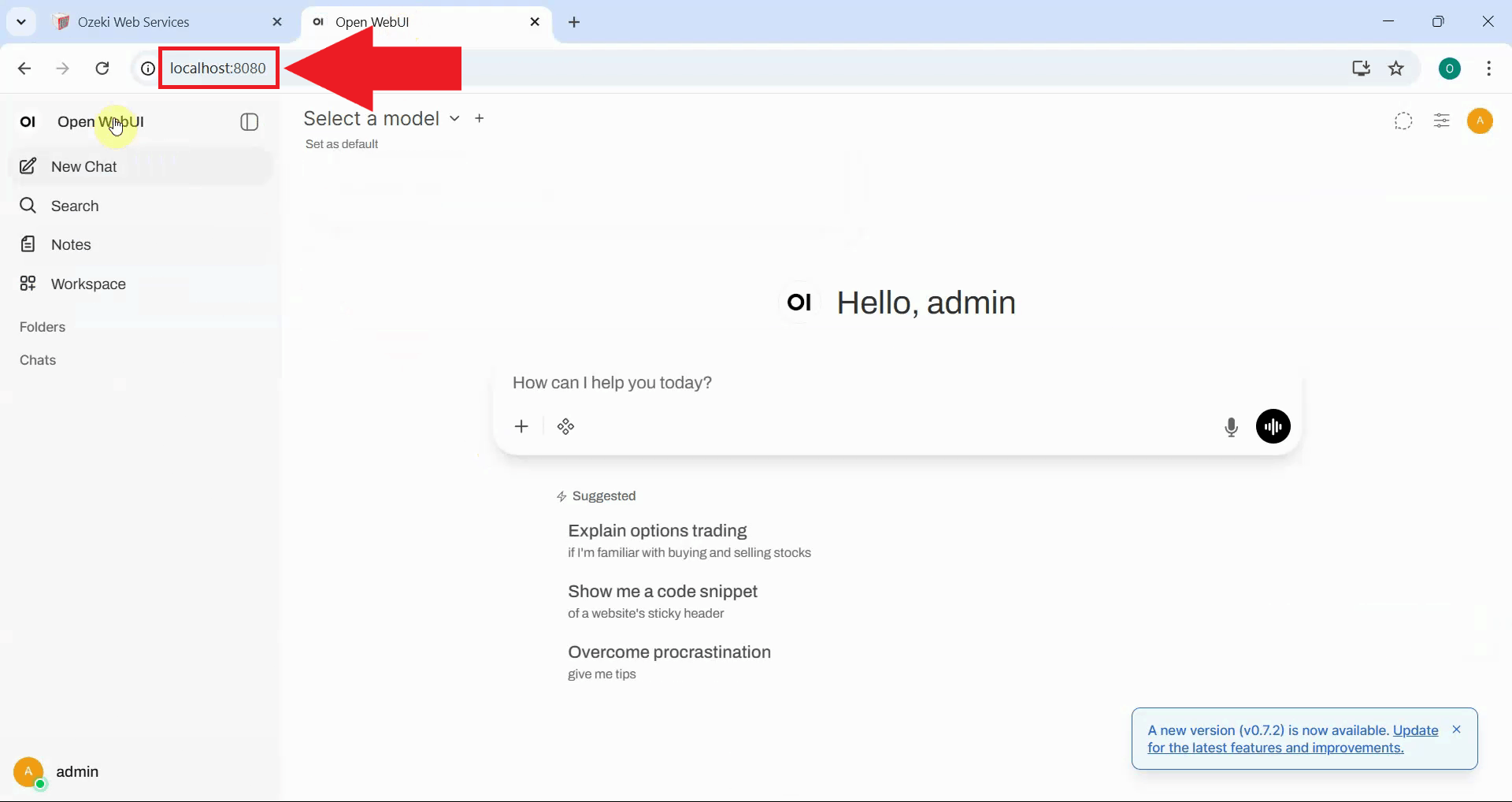
Open the Open WebUI interface in your web browser. Open WebUI is configured to connect to Ozeki AI Gateway using the user's API key. Once connected, Open WebUI automatically discovers all available models that the user has access to through the gateway. The interface should now display both AI models from the provider group as selectable options (Figure 12).
If you haven't set up Open WebUI with Ozeki AI Gateway yet, follow our How to setup Open WebUI with Ozeki AI Gateway on Windows guide to complete the setup.
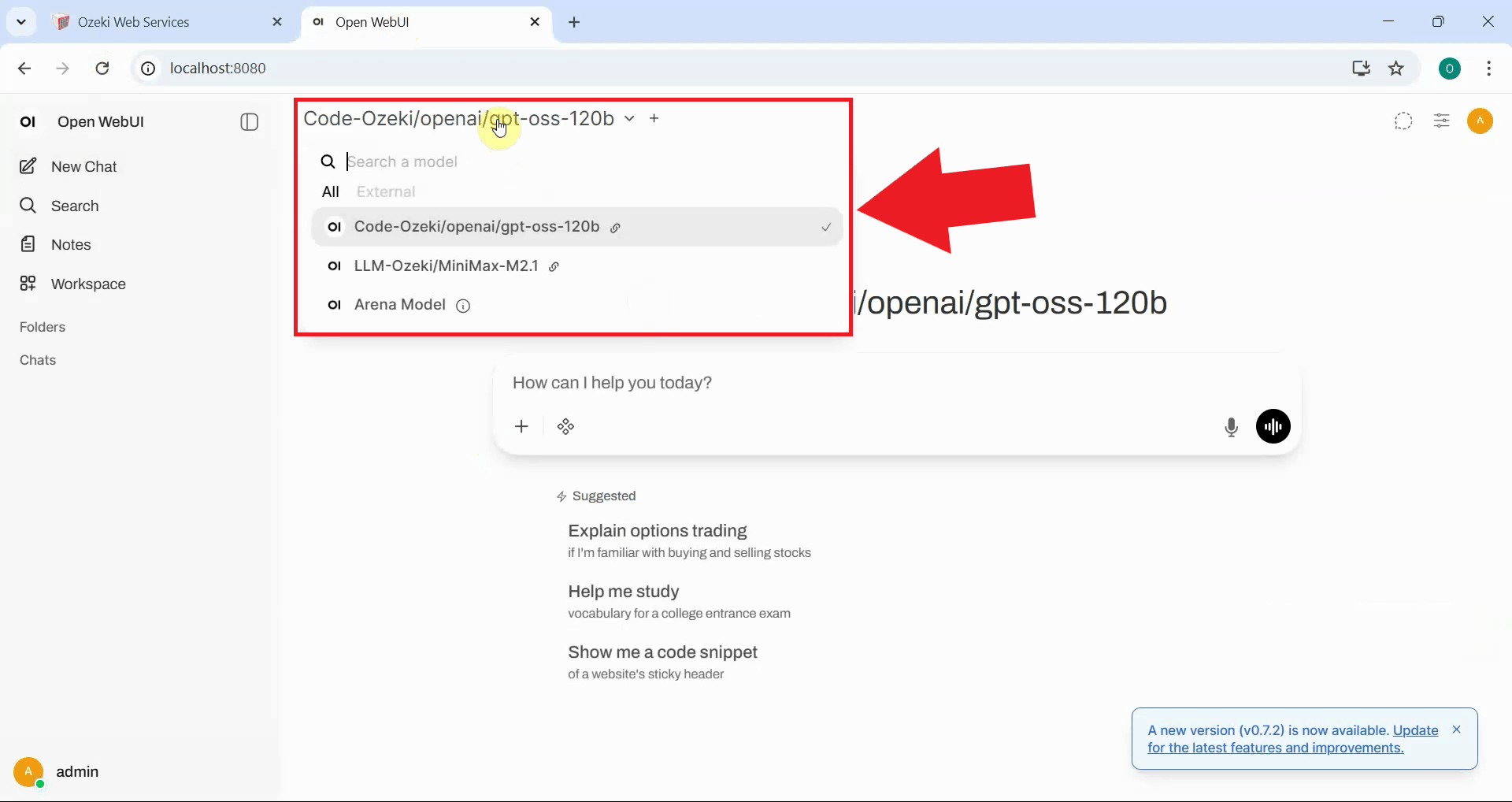
In the Open WebUI interface, click the model selector dropdown to view all available AI models. You should see both models from the provider group listed as options. Select the first model to test the connection (Figure 13).
Step 6 - Test first model connection
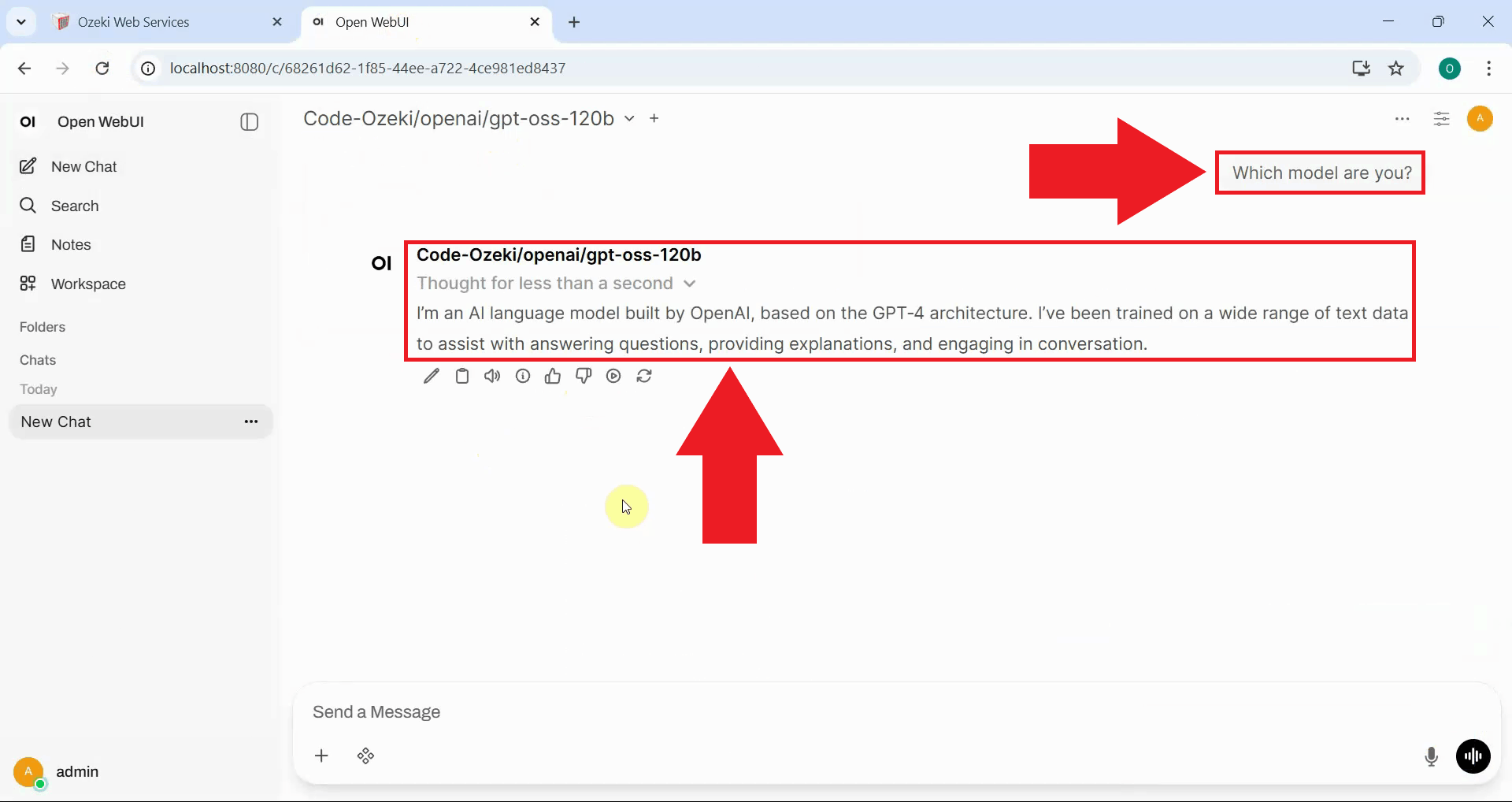
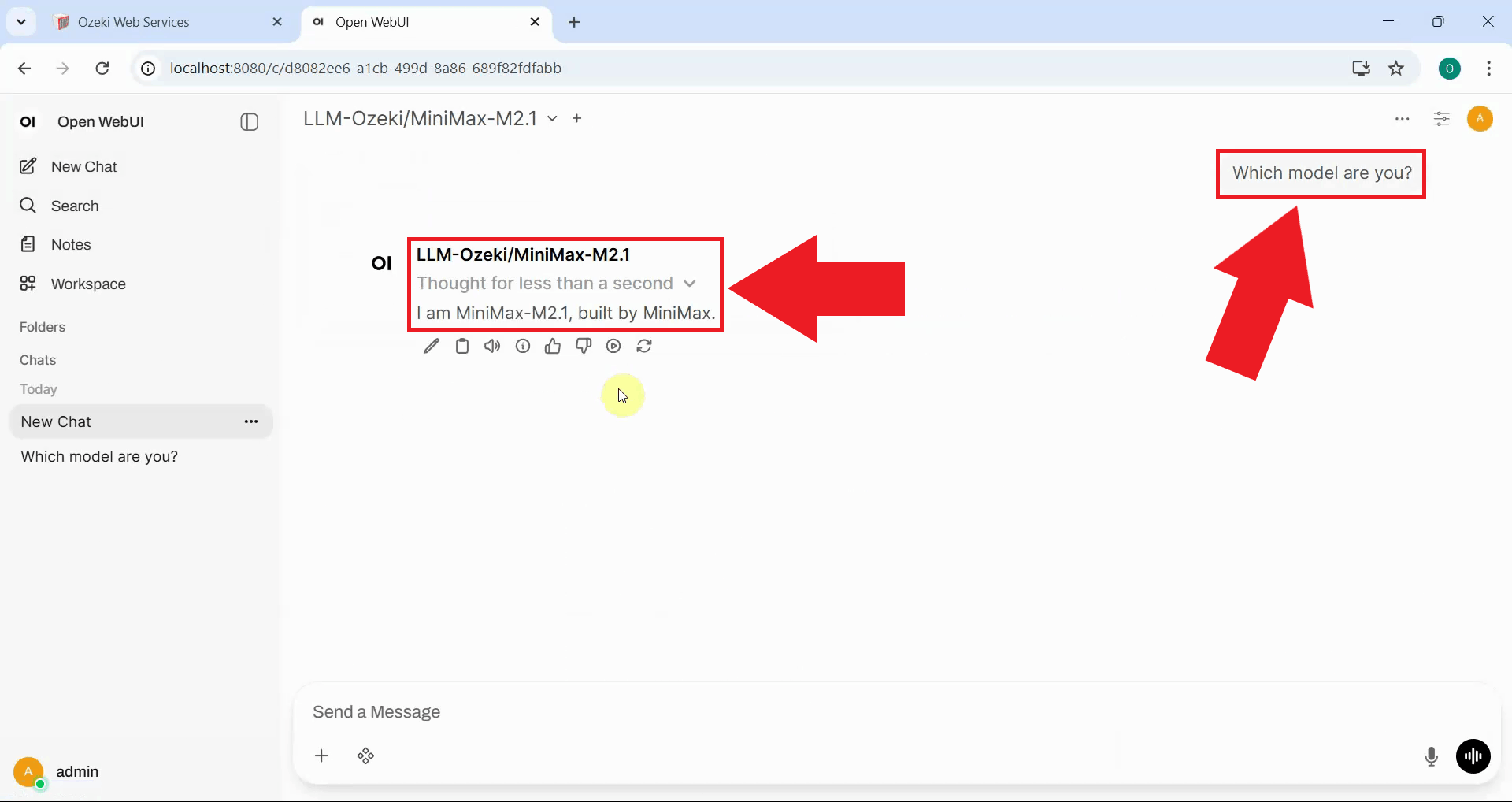
With the first model selected, enter the test prompt "Which model are you?" and send it to the AI. The model responds with its identity, confirming that the request was successfully routed through Ozeki AI Gateway to the first AI service (Figure 14).
Step 7 - Test second model connection
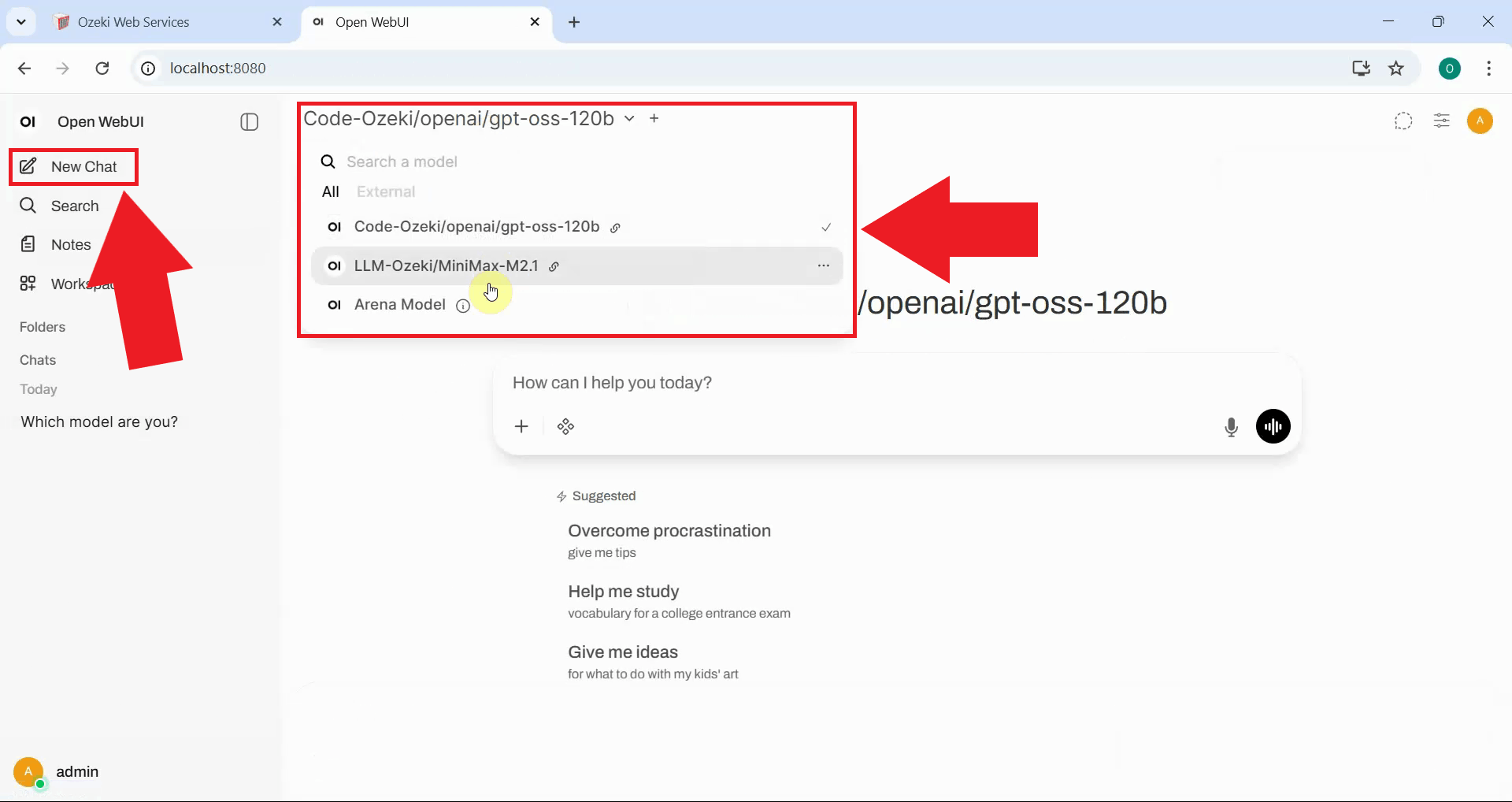
Create a new chat session in Open WebUI by clicking the new chat button. In the new chat, open the model selector dropdown and choose the second model (Figure 15).
With the second model selected, enter the same test prompt and send it. The second AI model responds with its identity, confirming that the request was successfully routed to the second AI service (Figure 16).
Conclusion
You have successfully created a provider group in Ozeki AI Gateway that combines multiple AI services running on different servers into a single unified API endpoint. Client applications like Open WebUI can now access all AI models through one consistent interface without needing to manage connections to multiple servers. This approach simplifies client configuration, enables centralized management of AI services, and provides flexibility to add or remove AI providers without changing client applications.