
How to restore Ozeki AI Gateway from backup on Windows
This guide demonstrates how to restore Ozeki AI Gateway from backup files on Windows systems. You'll learn how to extract backup archives and restore the configuration and data directories to their proper locations. By following these steps, you can recover your complete gateway installation including all providers, users, routes, and settings from previously created backups.
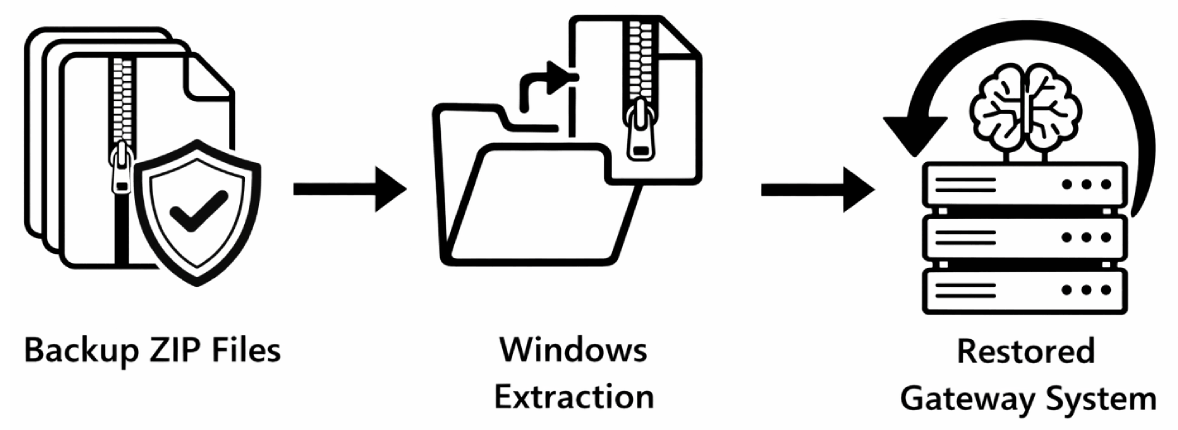
Before restoring, you need to have backup files created previously. If you haven't created backups yet, follow our How to backup Ozeki AI Gateway on Windows guide to create them first.
Ozeki config directory: C:\wamp64\www\ozekiconfig
Ozeki data directory: C:\wamp64\www\ozekidata
Steps to follow
- Open backup folder
- Extract data backup
- Extract config backup
- Open extracted data folder
- Move data to www folder
- Open extracted config folder
- Move config to www folder
- Verify restored data
How to restore Ozeki AI Gateway video
The following video shows how to restore Ozeki AI Gateway on Windows step-by-step. The video covers extracting backup files and moving the configuration and data directories to their proper locations.
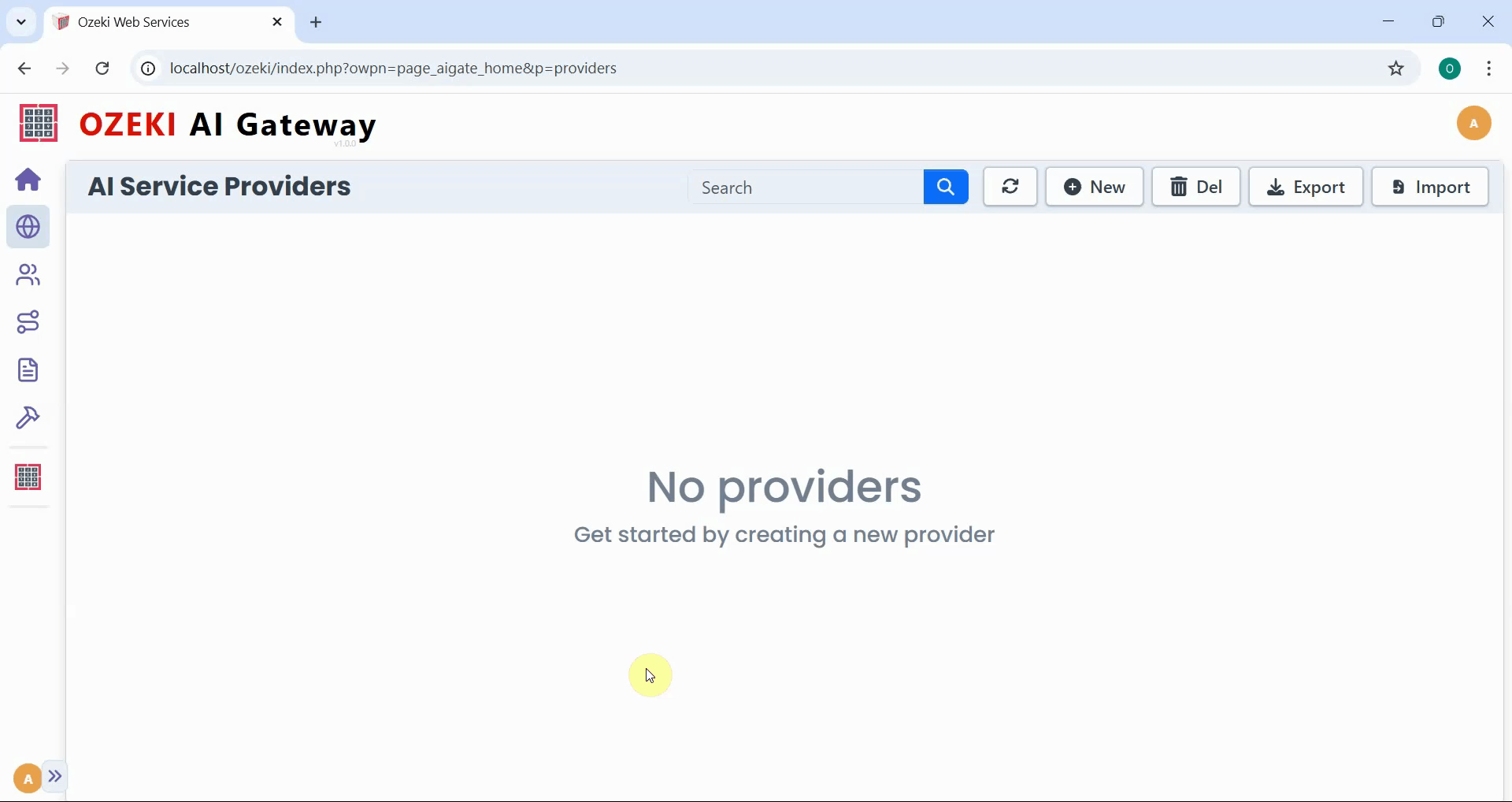
Step 0 - Providers page
Before restoring, open the Ozeki AI Gateway interface to assess the current state. You may need to restore from backup for various reasons such as data loss, system migration, or recovering from a configuration error. In this example, the Providers page is empty for demonstration purposes to clearly show the restoration results (Figure 1).
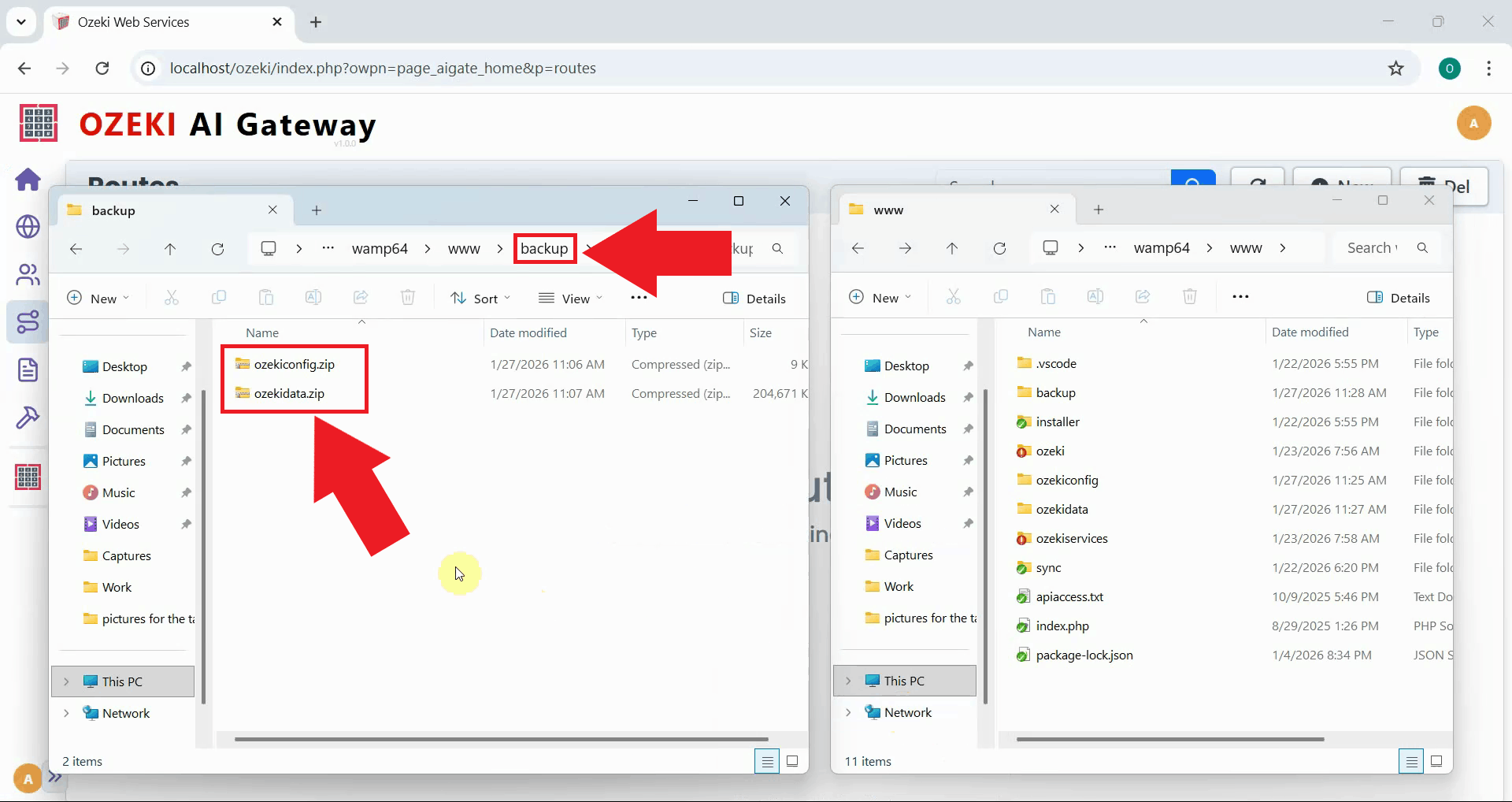
Step 1 - Open backup folder
Navigate to the location where you stored your backup files. This could be on an external drive, network storage, or local backup folder. Locate the backup zip files you created earlier for the configuration and data directories (Figure 2).
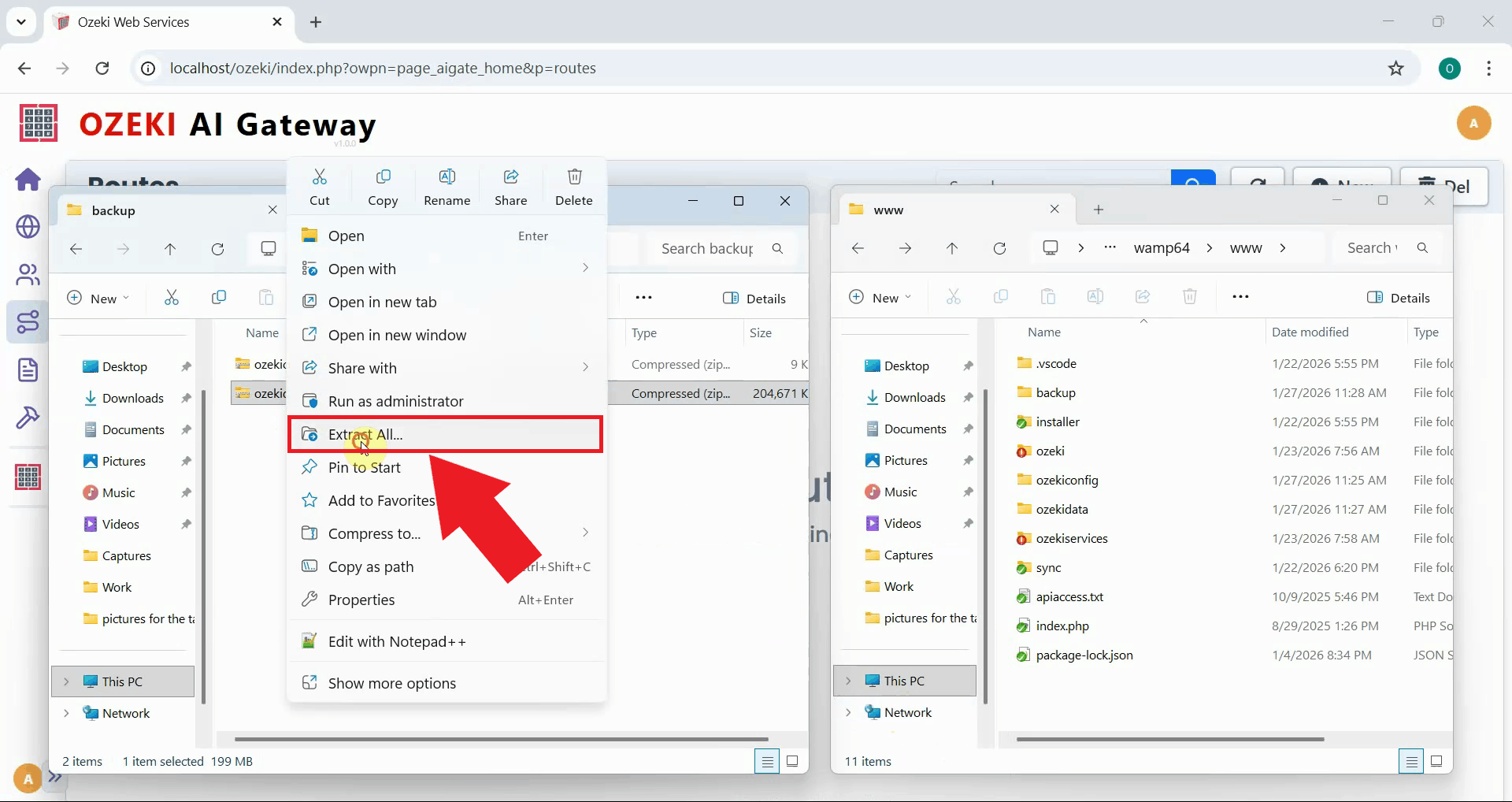
Step 2 - Extract data backup
Right-click on the ozekidata backup zip file and select "Extract All" from the context menu. Windows will extract the compressed data directory. Choose a temporary location or extract it directly in the backup folder (Figure 3).
Step 3 - Extract config backup
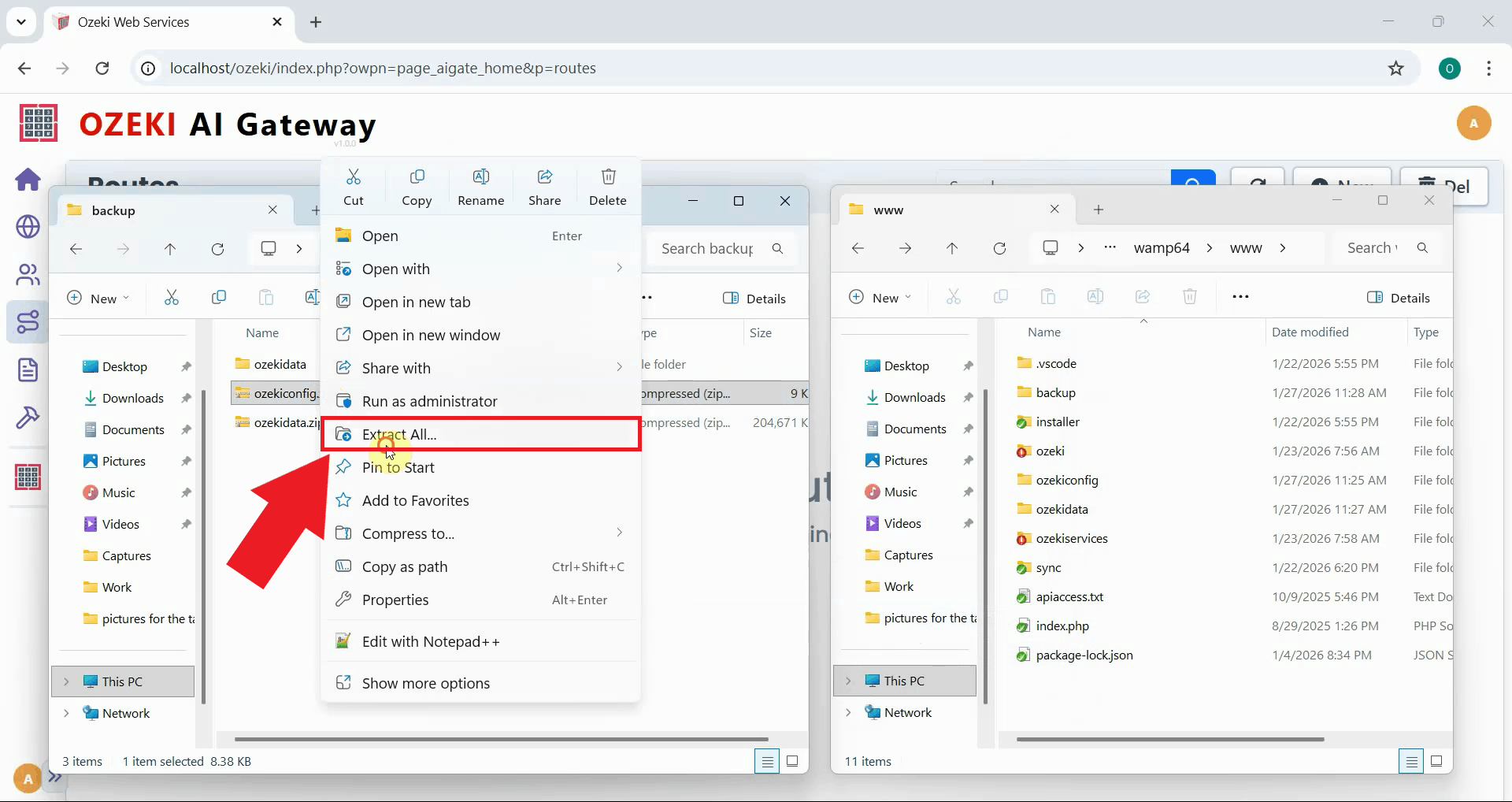
Right-click on the ozekiconfig backup zip file and select "Extract All" from the context menu. Windows will extract the compressed configuration directory. Extract it to the same temporary location as the data backup (Figure 4).
Step 4 - Open extracted data folder
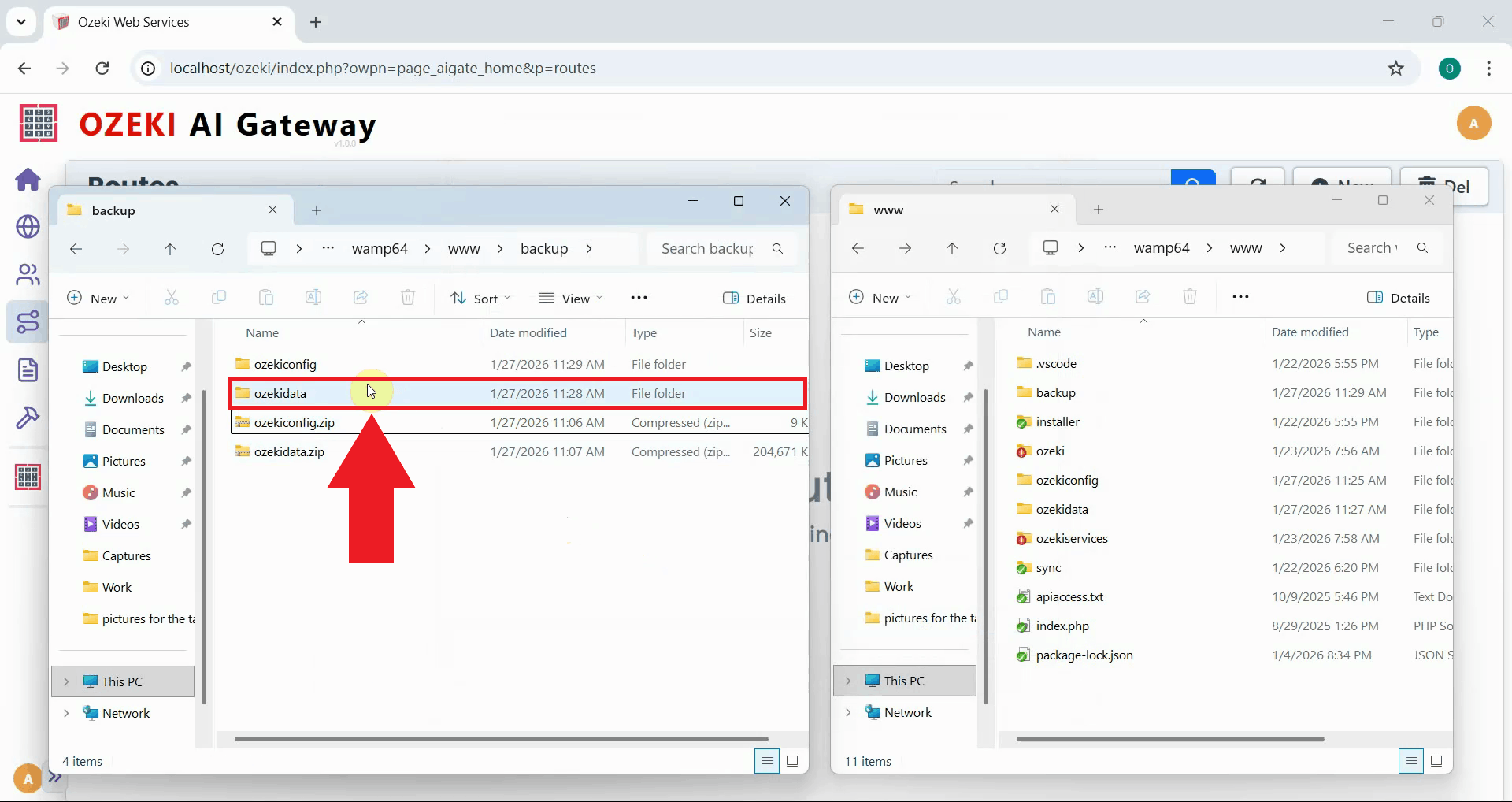
Navigate to the extracted data folder to access the ozekidata directory. Open the folder structure until you can see the actual ozekidata folder that needs to be copied to the www directory (Figure 5).
Step 5 - Move data to www folder
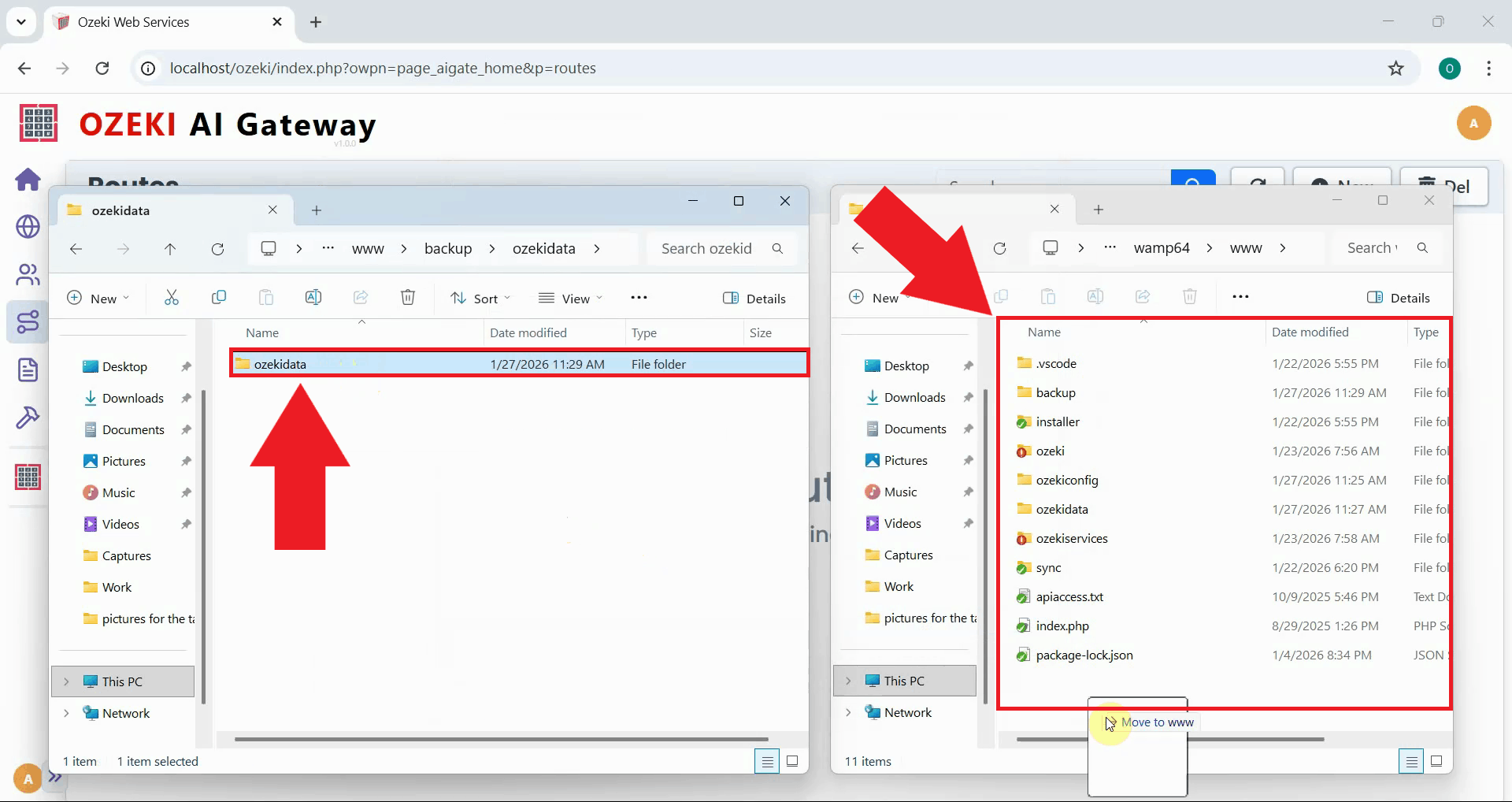
Copy or move the ozekidata folder to C:\wamp64\www\. If an ozekidata folder already exists in the www directory, you may need to delete or rename it first before moving the restored version. This replaces the existing data with your backup (Figure 6).
Step 6 - Open extracted config folder
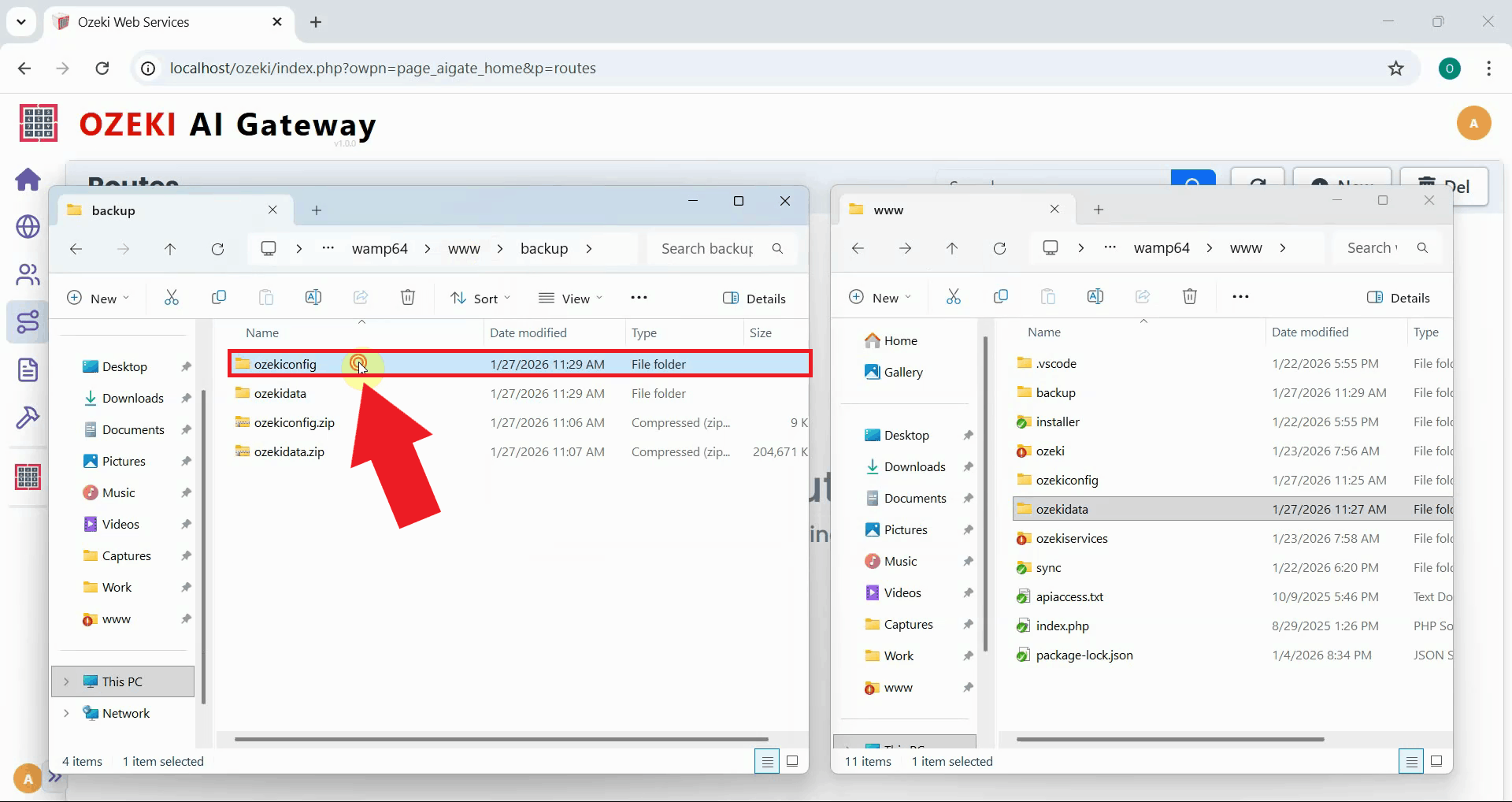
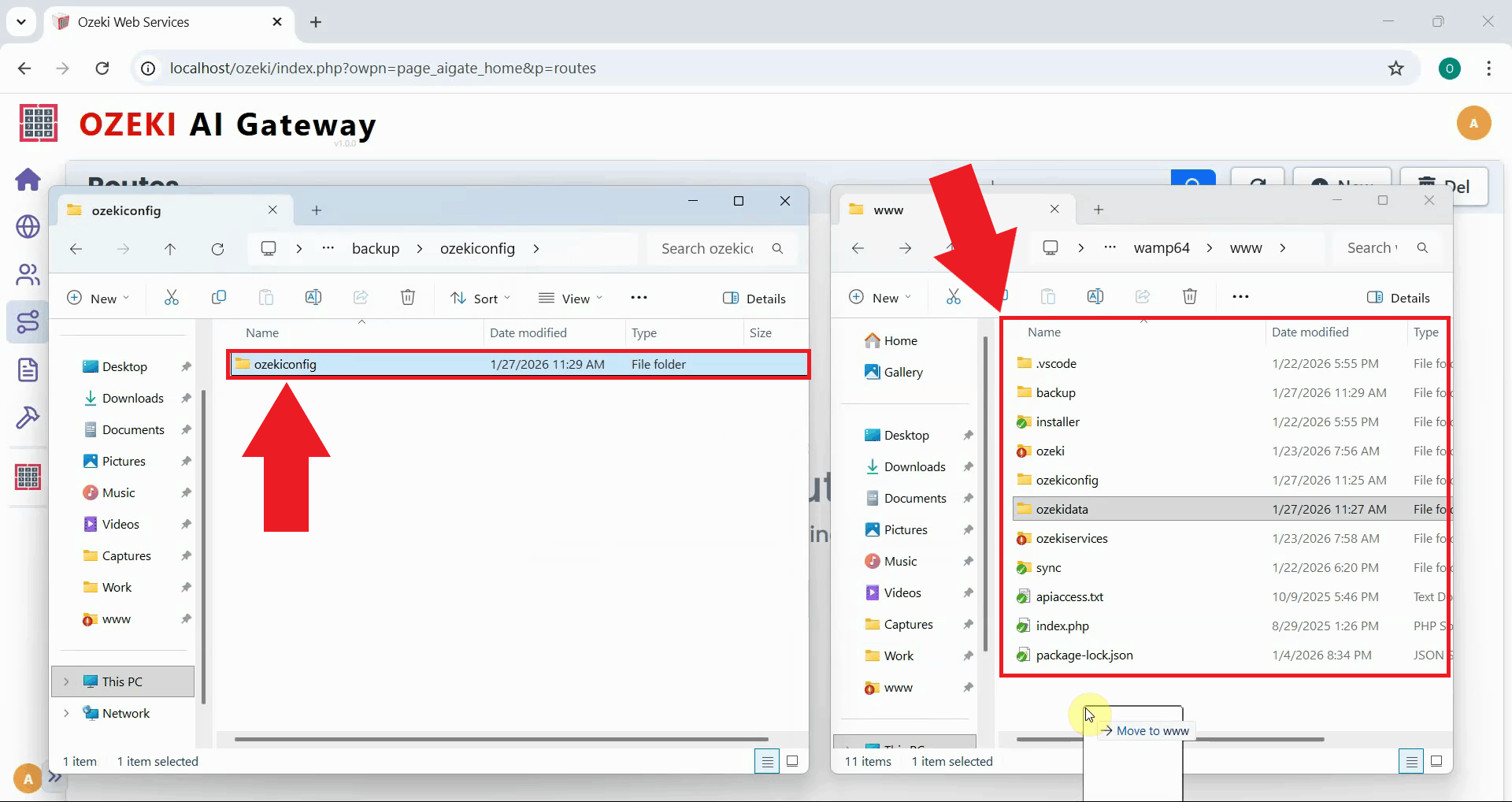
Navigate to the extracted config folder to access the ozekiconfig directory. Open the folder structure until you can see the actual ozekiconfig folder that needs to be copied to the www directory (Figure 7).
Step 7 - Move config to www folder
Copy or move the ozekiconfig folder to C:\wamp64\www\. If an ozekiconfig folder already exists in the www directory, you may need to delete or rename it first before moving the restored version. This replaces the existing configuration with your backup (Figure 8).
Step 8 - Verify restored data
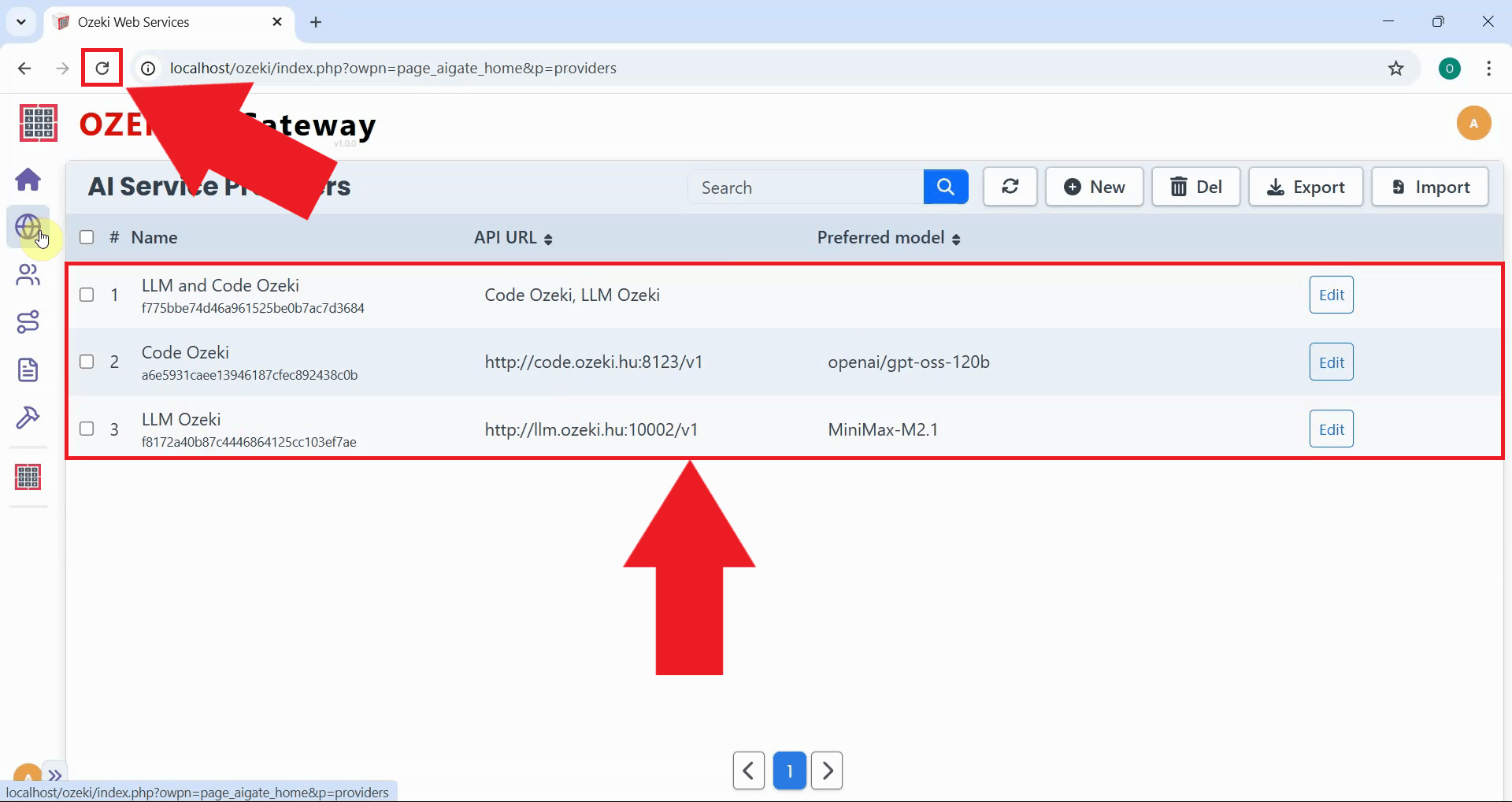
Return to the Ozeki AI Gateway web interface and refresh the page and verify that your backed-up providers, users, and routes have been successfully restored. The previously empty providers list should now show all your configured providers (Figure 9).
Conclusion
You have successfully restored your Ozeki AI Gateway installation from backup on Windows. All your providers, users, routes, and configuration settings have been recovered from the backup files. Your gateway is now operational with all previously configured settings restored.