
How to backup Ozeki AI Gateway on Windows
This guide demonstrates how to create backups of your Ozeki AI Gateway installation on Windows systems. You'll learn how to backup the configuration and data directories using Windows File Explorer's built-in compression tools. By following these steps, you can ensure your gateway configuration, user data, and system settings are safely preserved.
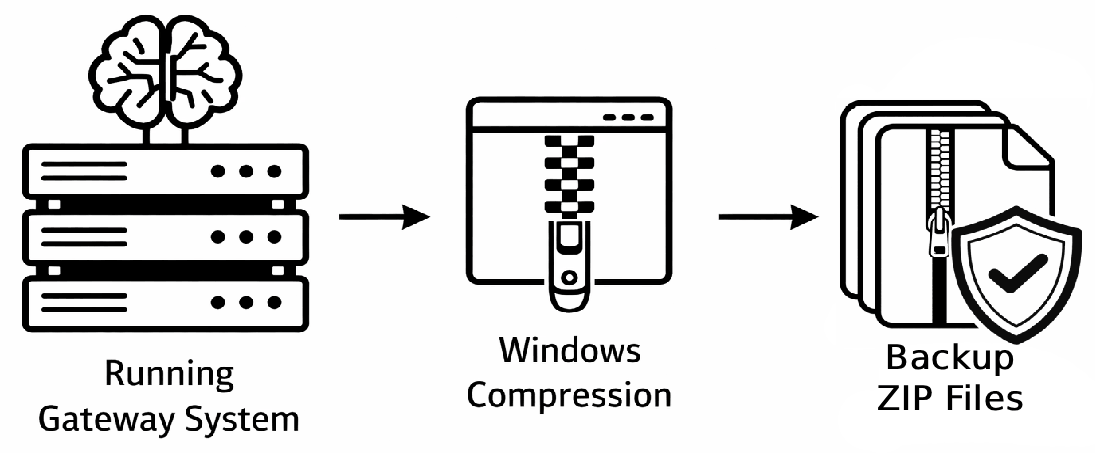
Ozeki config directory: C:\wamp64\www\ozekiconfig
Ozeki data directory: C:\wamp64\www\ozekidata
Steps to follow
- Open www directory in wamp64 folder
- Make a backup folder
- Create config backup zip file
- Create data backup zip file
- Store backups safely
How to backup Ozeki AI Gateway video
The following video shows how to backup Ozeki AI Gateway on Windows step-by-step. The video covers navigating to the Ozeki directories, compressing the configuration and data folders, and storing the backup files.
Step 1 - Open www directory in wamp64 folder
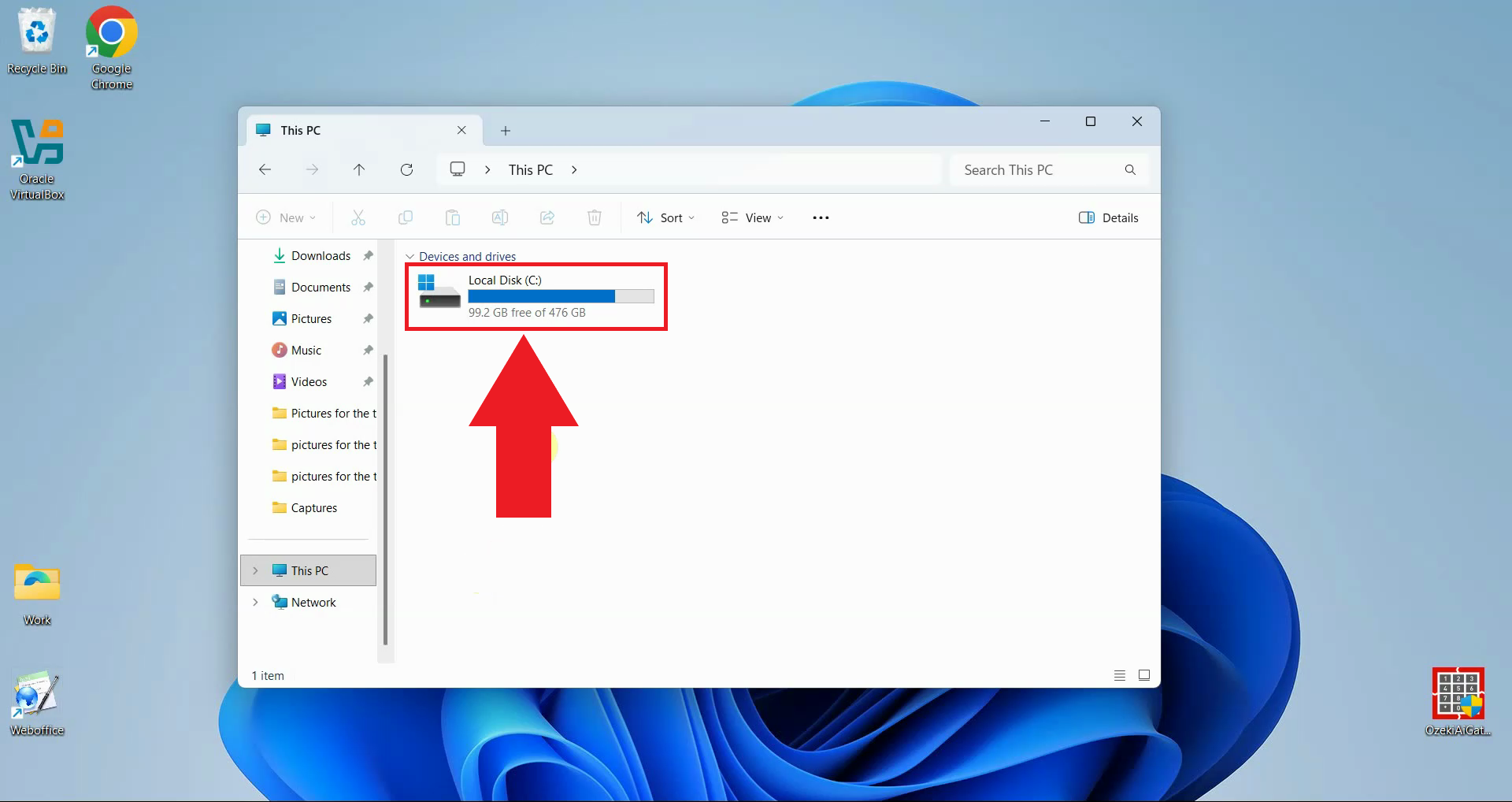
Open File Explorer and navigate to This PC, then double-click on "Local Disk" to access your system drive. This is where the Ozeki AI Gateway files are typically installed (Figure 1).
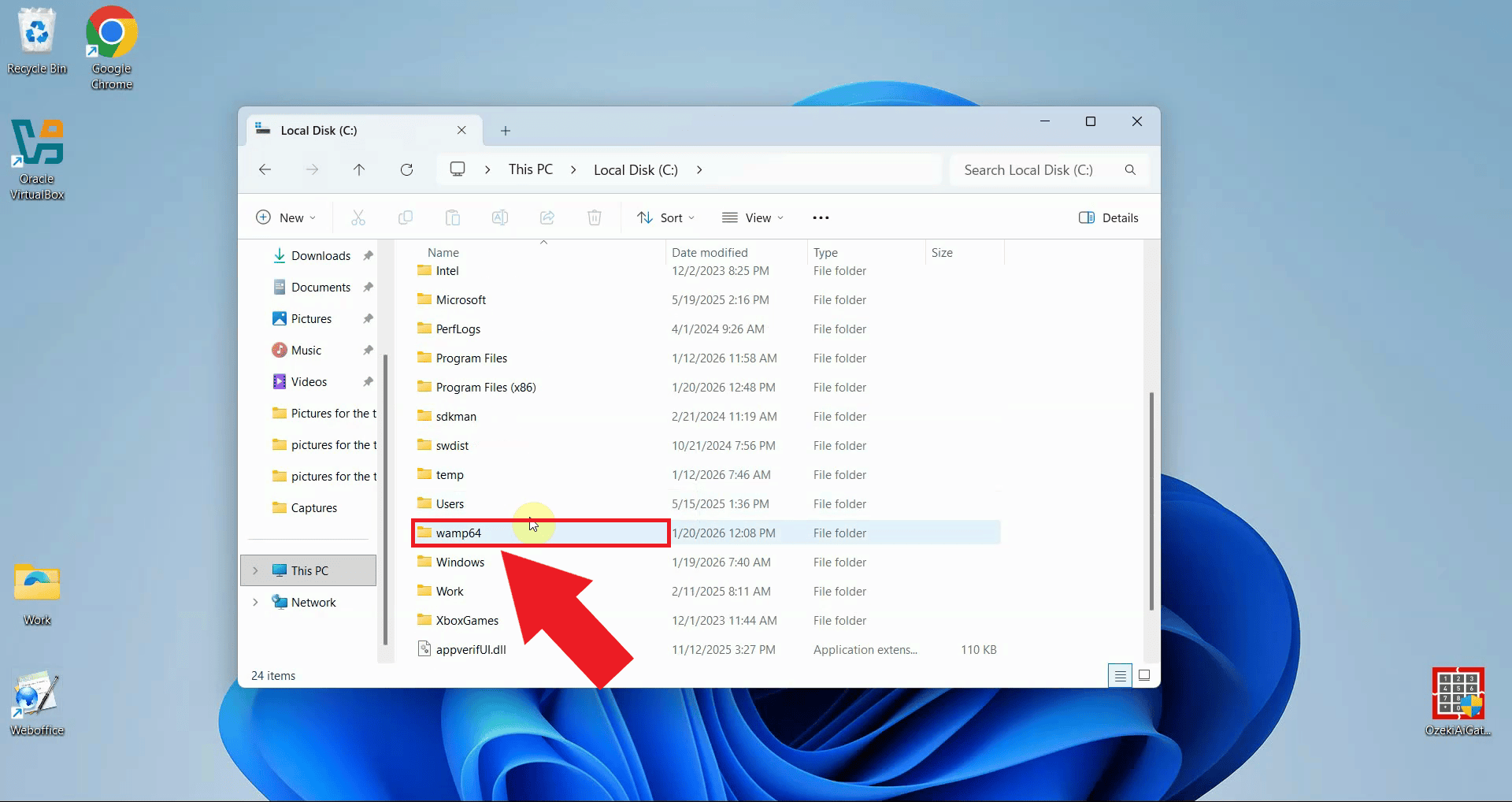
Locate and double-click the "wamp64" folder to open it. This is the WampServer installation directory that contains the web server files and the Ozeki AI Gateway installation (Figure 2).
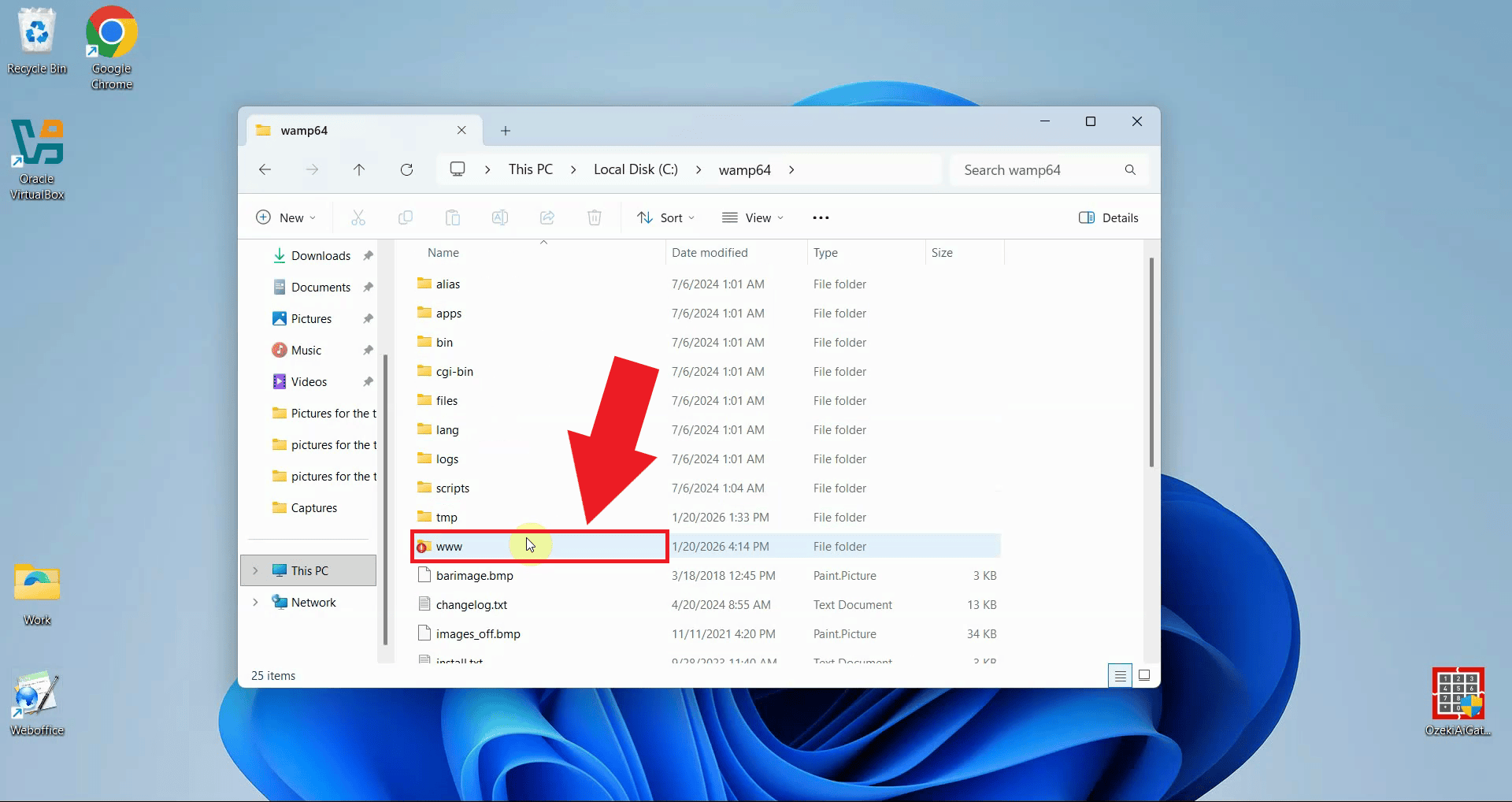
Double-click the "www" folder to open it. This directory contains the web applications including the Ozeki AI Gateway configuration and data folders that need to be backed up (Figure 3).
Step 2 - Make a backup folder
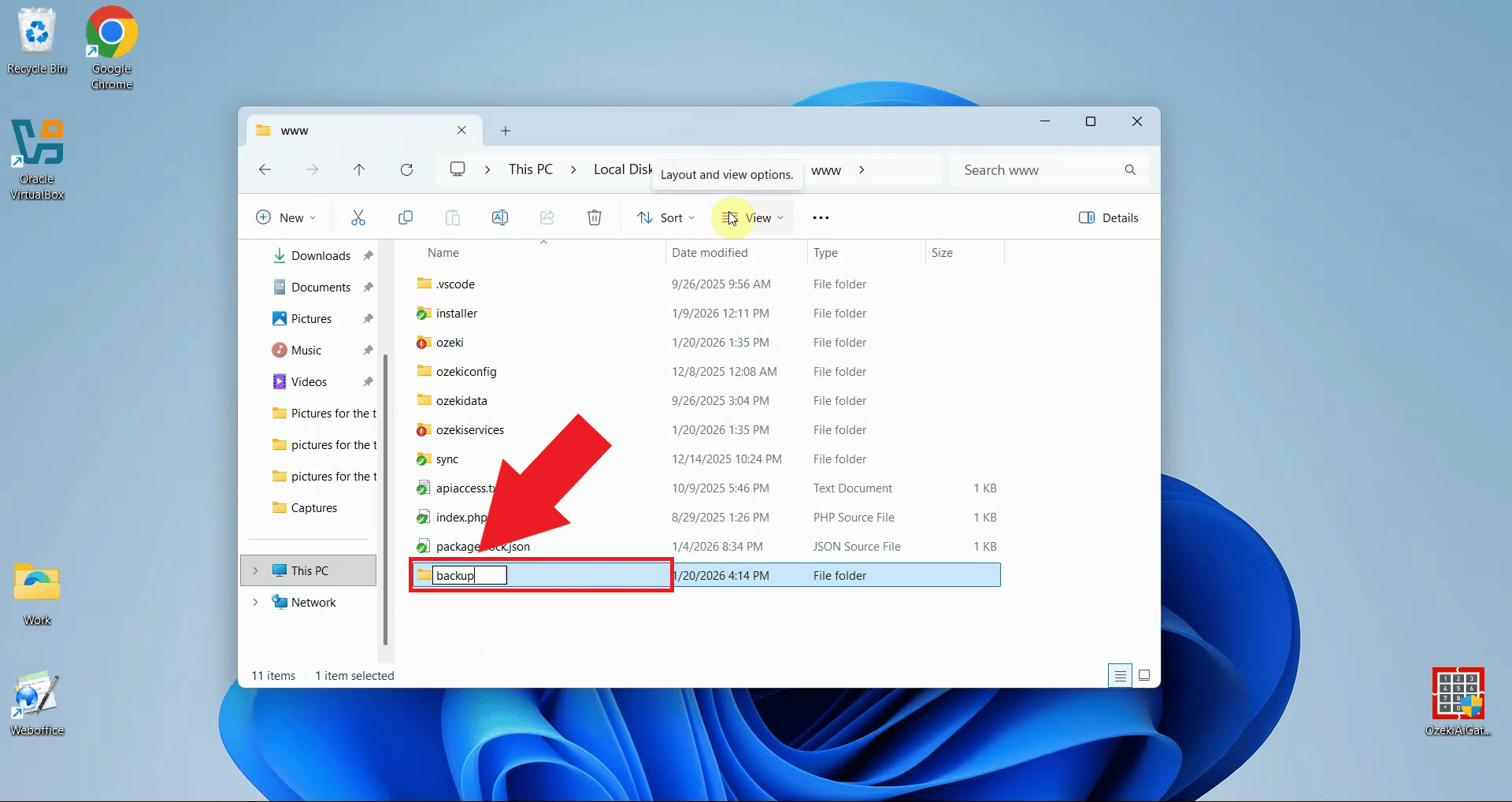
Optionally, you can create a new folder to store your backup files. Right-click in an empty area, select "New" > "Folder", and name it "backup". This helps organize your backup files in one location (Figure 4).
Step 3 - Create config backup zip file
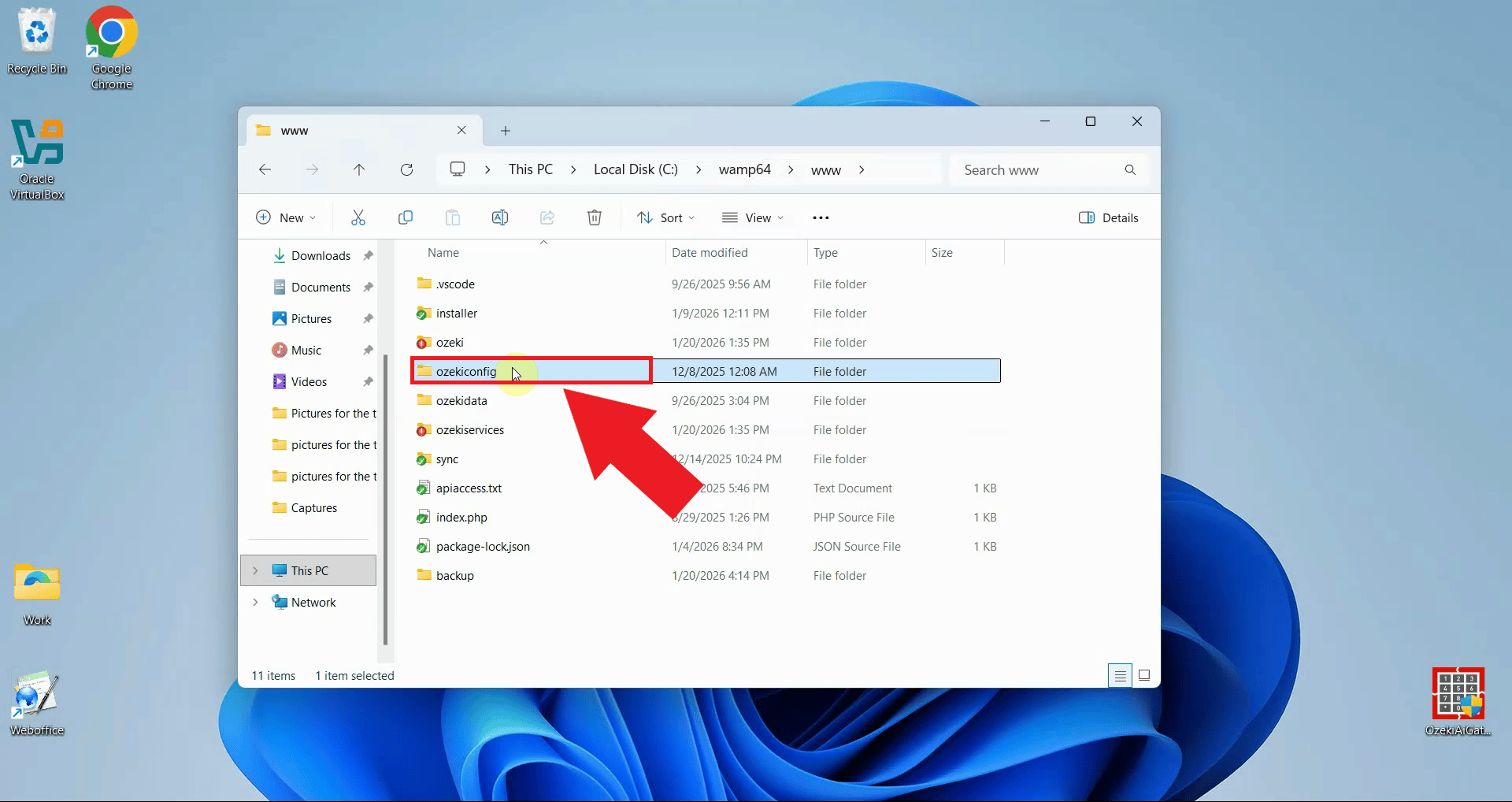
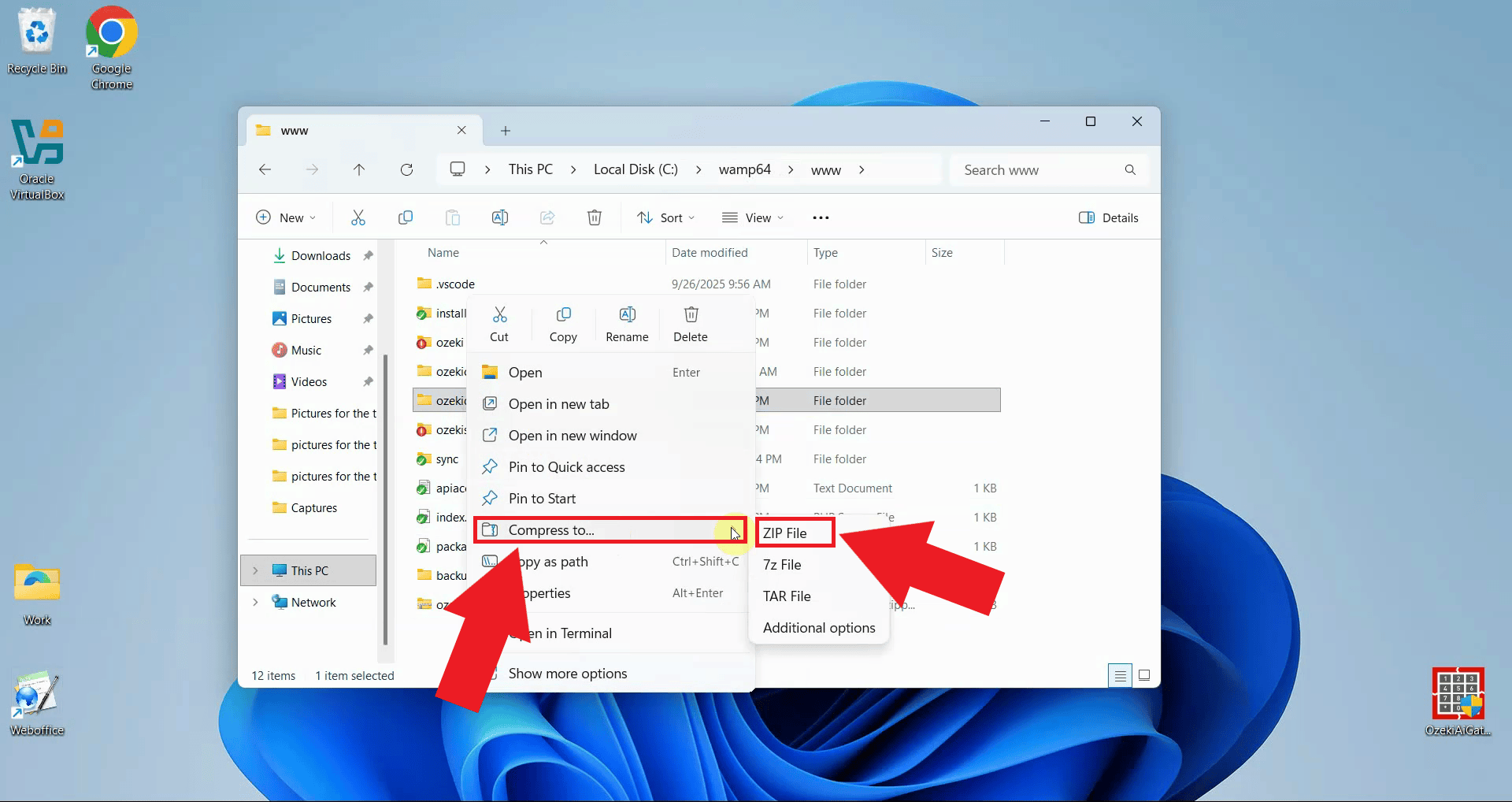
Locate the "ozekiconfig" folder in the www directory and right-click on it to open the context menu (Figure 5).
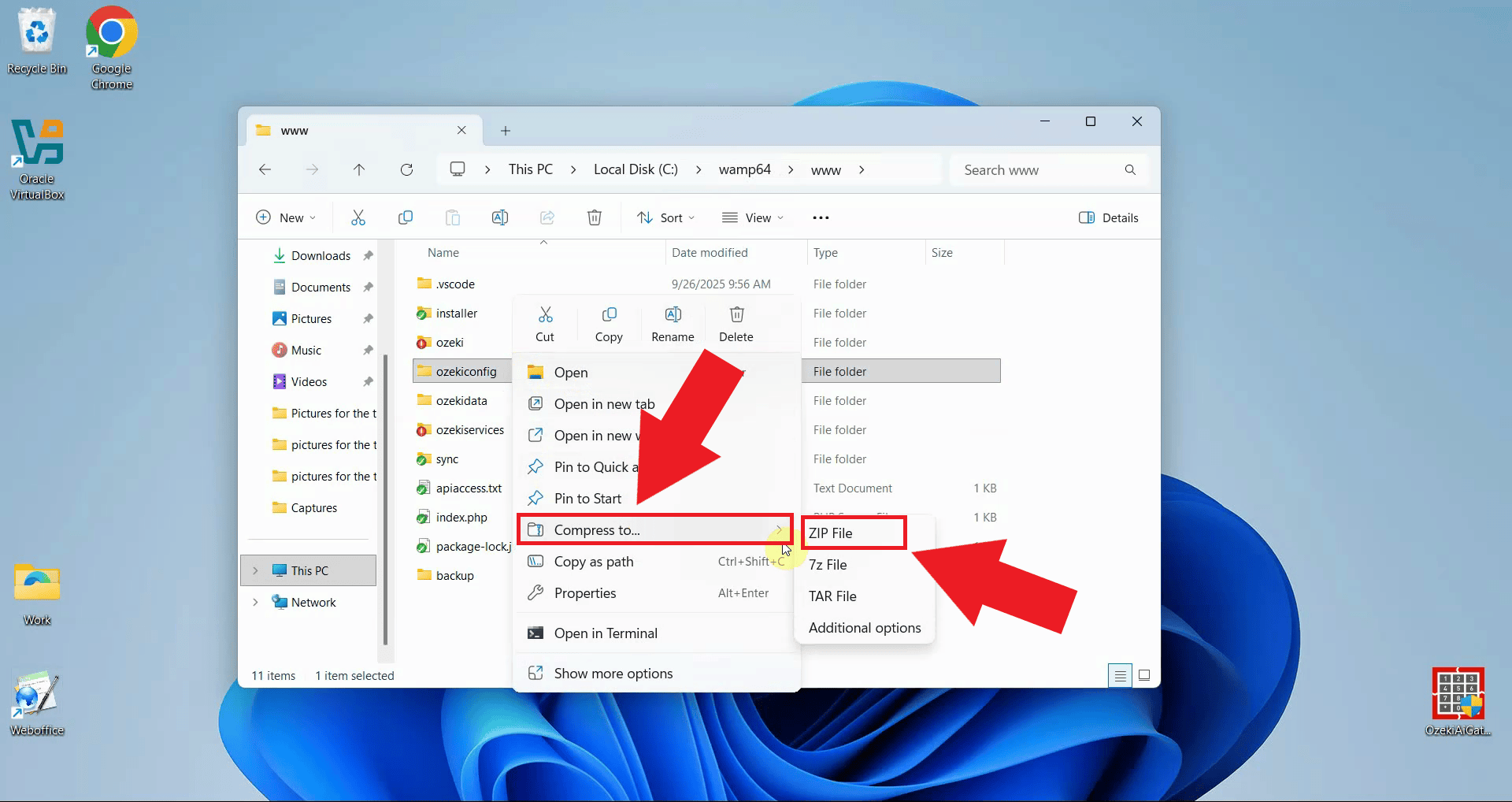
From the context menu, select "Compress to ZIP file". Windows will create a compressed archive of the ozekiconfig folder. You can rename the zip file to something descriptive like "ozekiconfig-backup.zip" (Figure 6).
Step 4 - Create data backup zip file
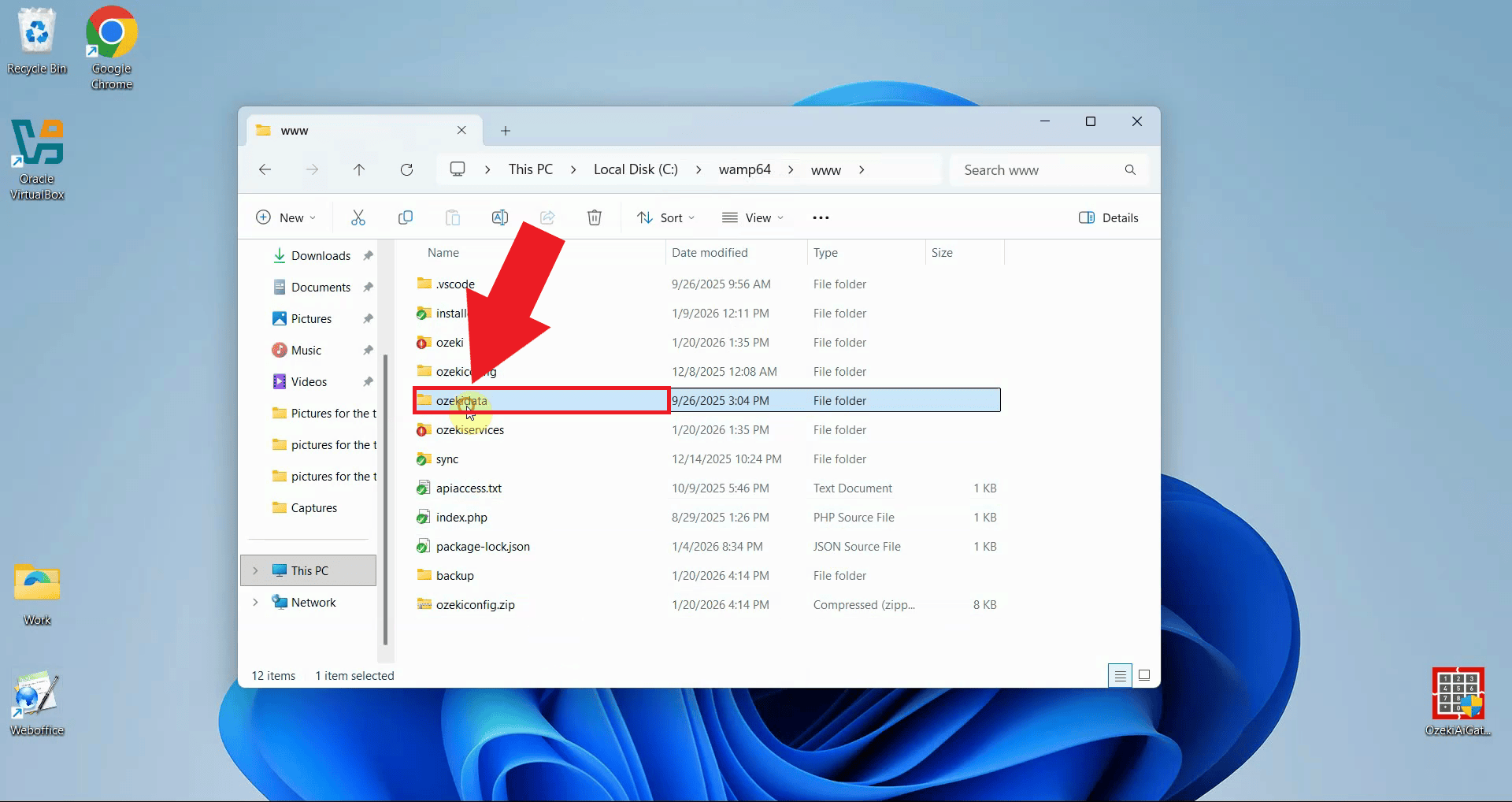
Locate the "ozekidata" folder in the www directory and right-click on it to open the context menu (Figure 7).
From the context menu, select "Compress to ZIP file". Windows will create a compressed archive of the ozekidata folder. You can rename the zip file to something descriptive like "ozekidata-backup.zip" (Figure 8).
Step 5 - Store backups safely
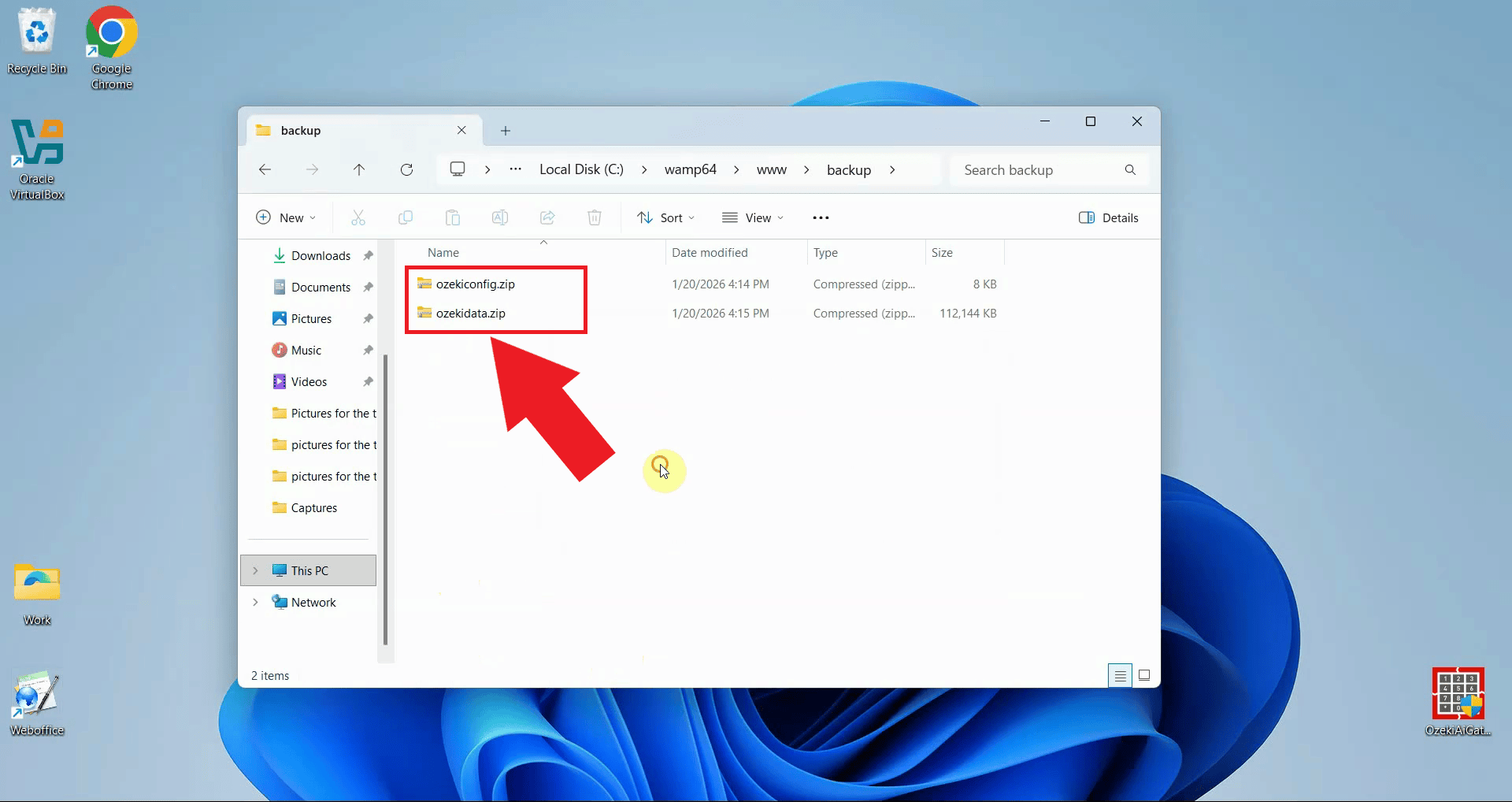
After creating both backup zip files, move them to a secure location such as an external hard drive, network storage, or cloud backup service. The two zip files contain all the necessary data and configuration to restore your Ozeki AI Gateway to its current state (Figure 9).
Final thoughts
You have successfully created backups of your Ozeki AI Gateway installation on Windows. The two zip files contain all configuration and data needed to restore your gateway to its current state. Store these backup files securely on external storage or cloud backup services to protect against data loss.