How to Download and Install Anaconda on Windows
This page provides a detailed guide on how to download and install Anaconda on Windows. Anaconda is a powerful distribution designed for data science and machine learning, providing Python, essential libraries, and package management tools. With this tool, you can easily manage Python environments and packages without requiring extensive system administration skills.
What is Anaconda?
Anaconda is the distribution you need if you want to build Python-based data science and machine learning systems. To run Python locally with all essential scientific libraries, you need the comprehensive package management functionality offered by Anaconda. With Anaconda, you can optimize your development workflow and stay up to date, because managing packages and environments is very easy with this system.
How to Download and Install Anaconda (Quick Steps)
- Open the download page
- Download Anaconda
- Start the installer
- Installer welcome page
- Accept the License Agreement
- Select installation type and location
- Choose advanced installation options
- Installation process
- Installation finished
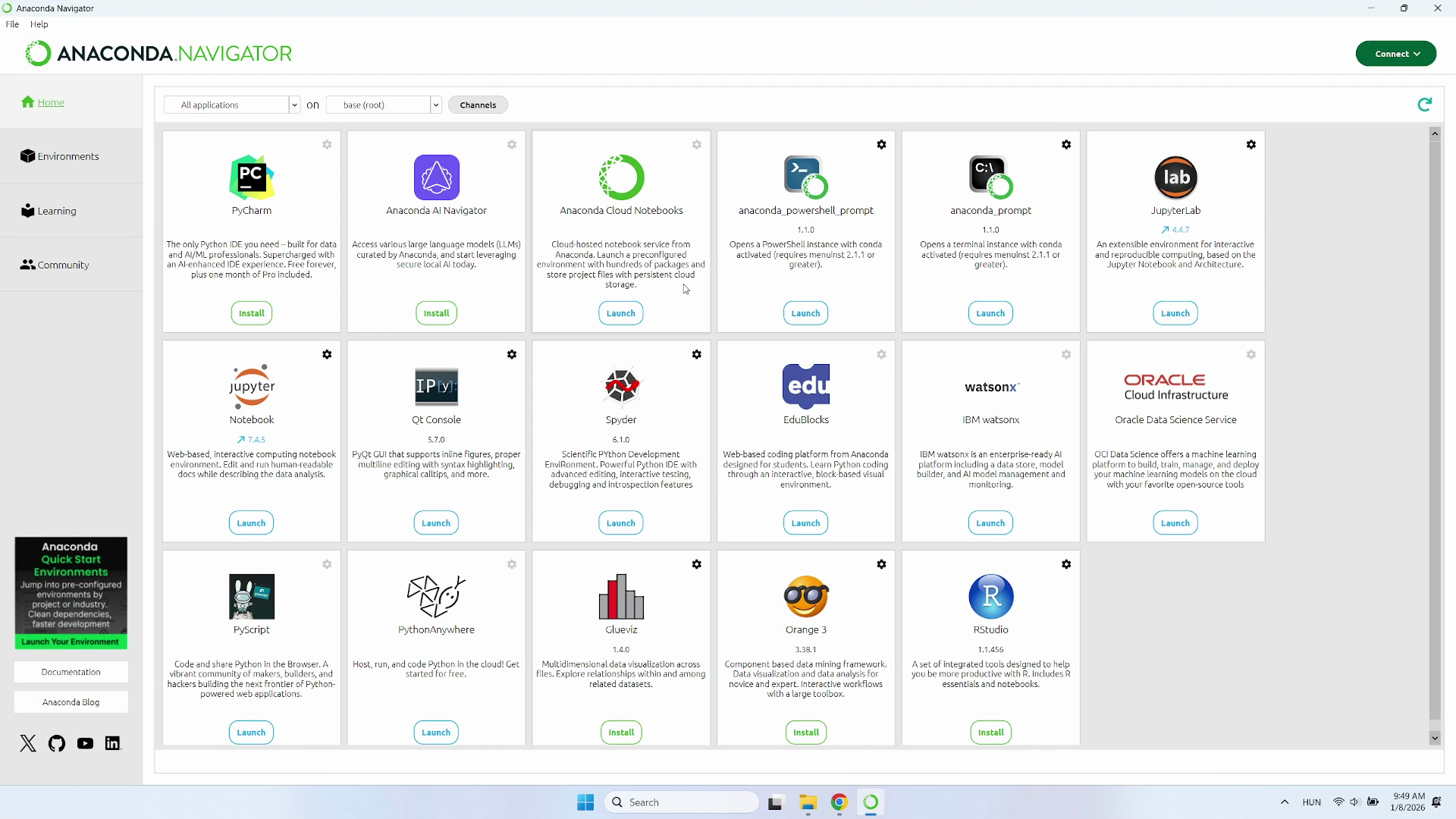
- Anaconda is ready to use
How to Download and Install Anaconda (Video tutorial)
In this video tutorial, you will learn how to download and install Anaconda step-by-step. The video will guide you through the entire process, from accessing the download page to completing the installation.
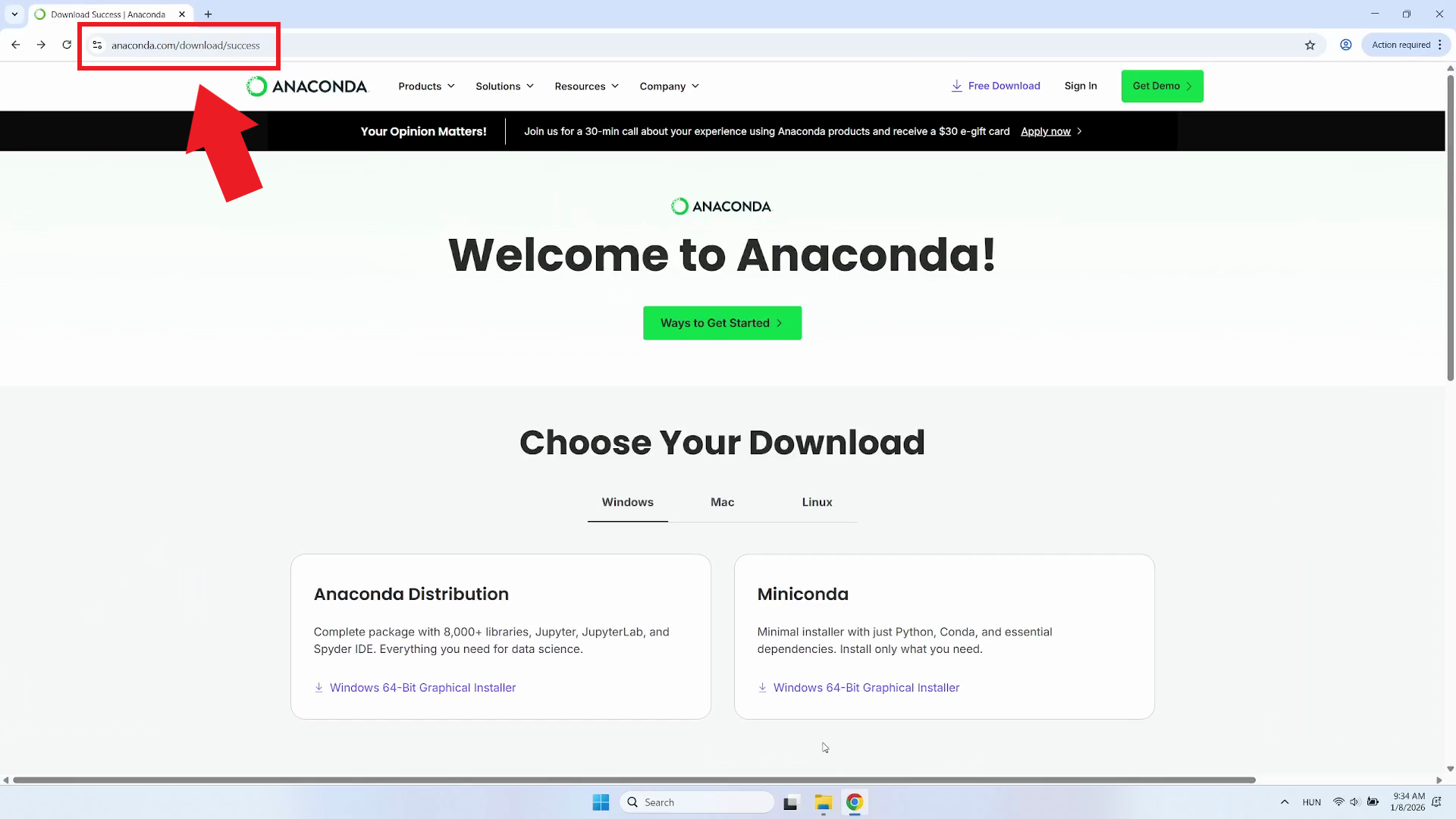
Step 1 - Open download page
Go to the official Anaconda download page. This can be found on the Anaconda website or by searching directly online (Figure 1).
Step 2 - Download Anaconda
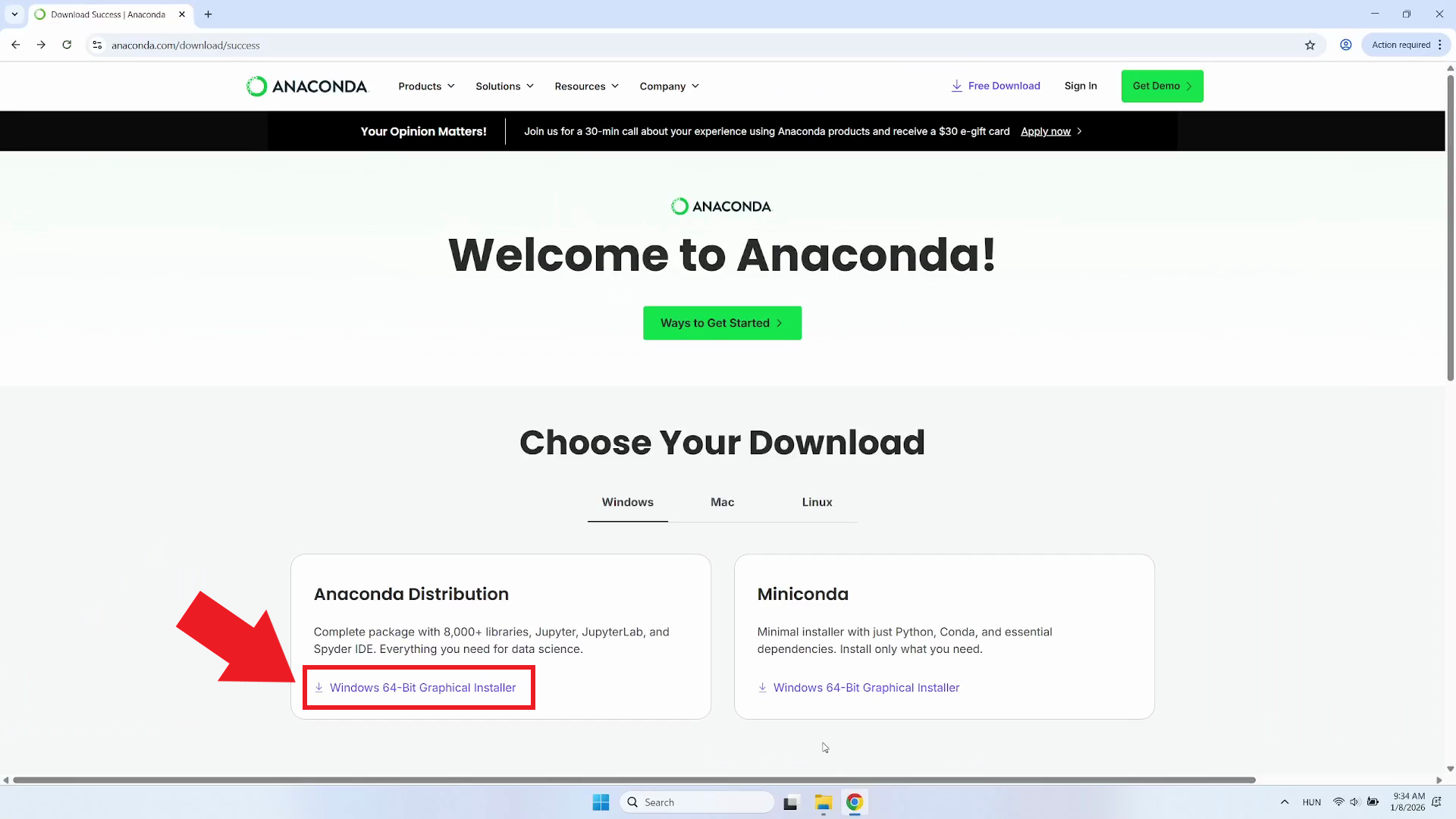
On the download page, click on the "Window 64-Bit Graphical Installer" (Figure 2).
Step 3 - Wait for download to finish
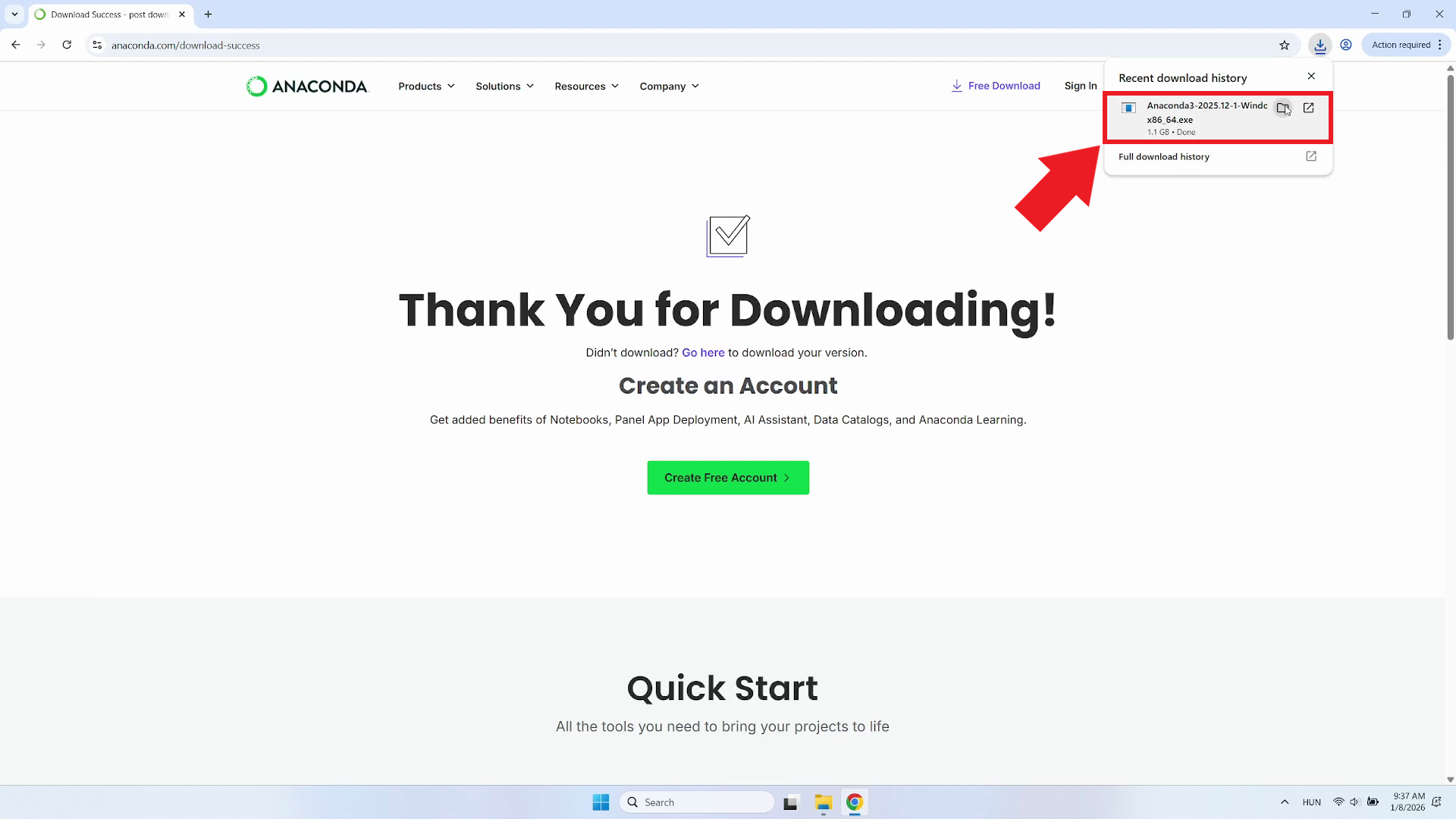
Wait for the Anaconda installer to download. The download time will depend on your internet connection speed (Figure 3).
Step 4 - Start Anaconda installer
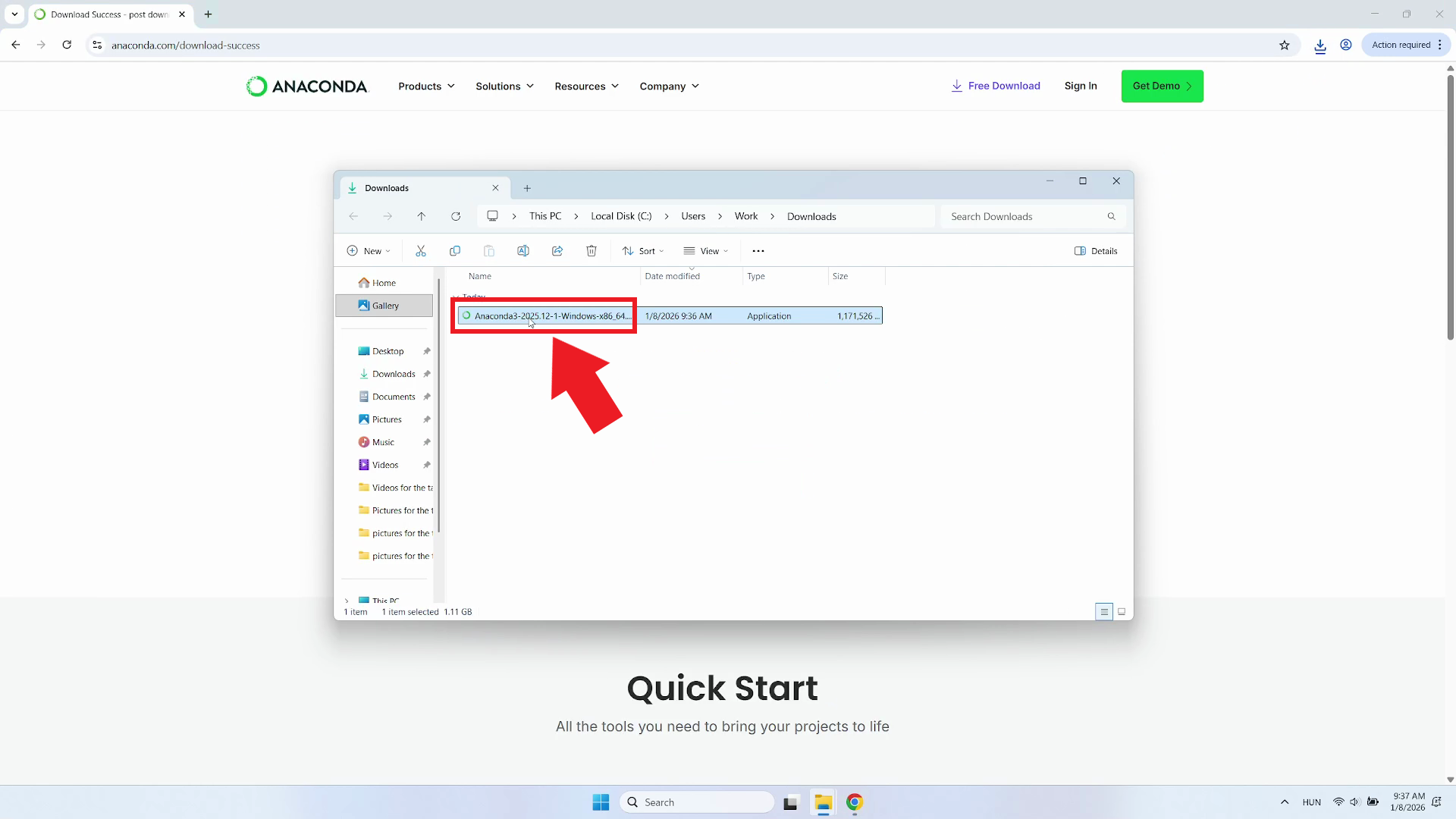
Once the download is complete, locate the installer file in your Downloads folder or the specified download location. Double-click the installer to launch the installation process (Figure 4).
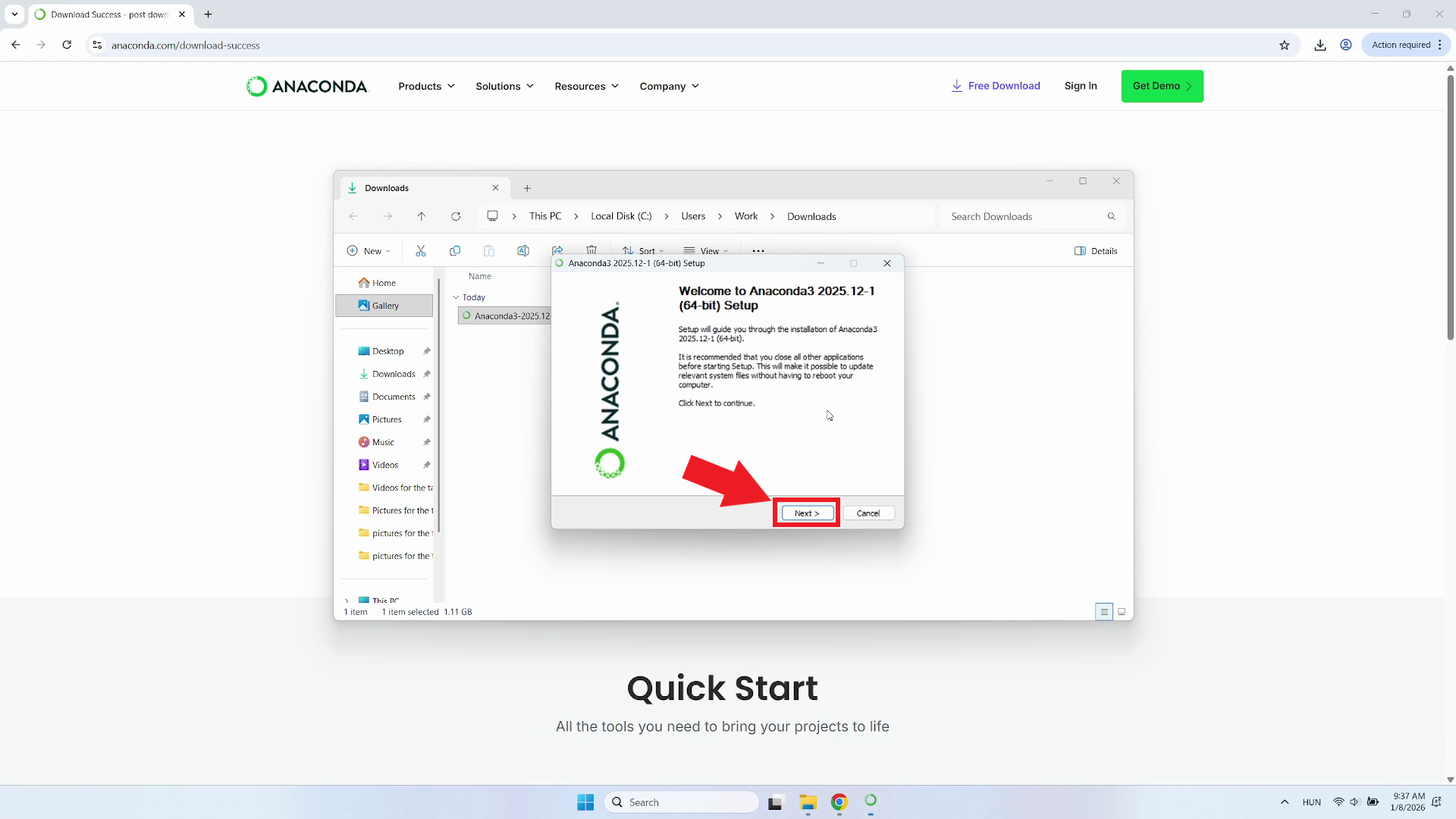
Step 5 - Installer welcome page
The installer will open with a welcome page that briefly explains the installation process. Click "Next" to proceed to the next step (Figure 5).
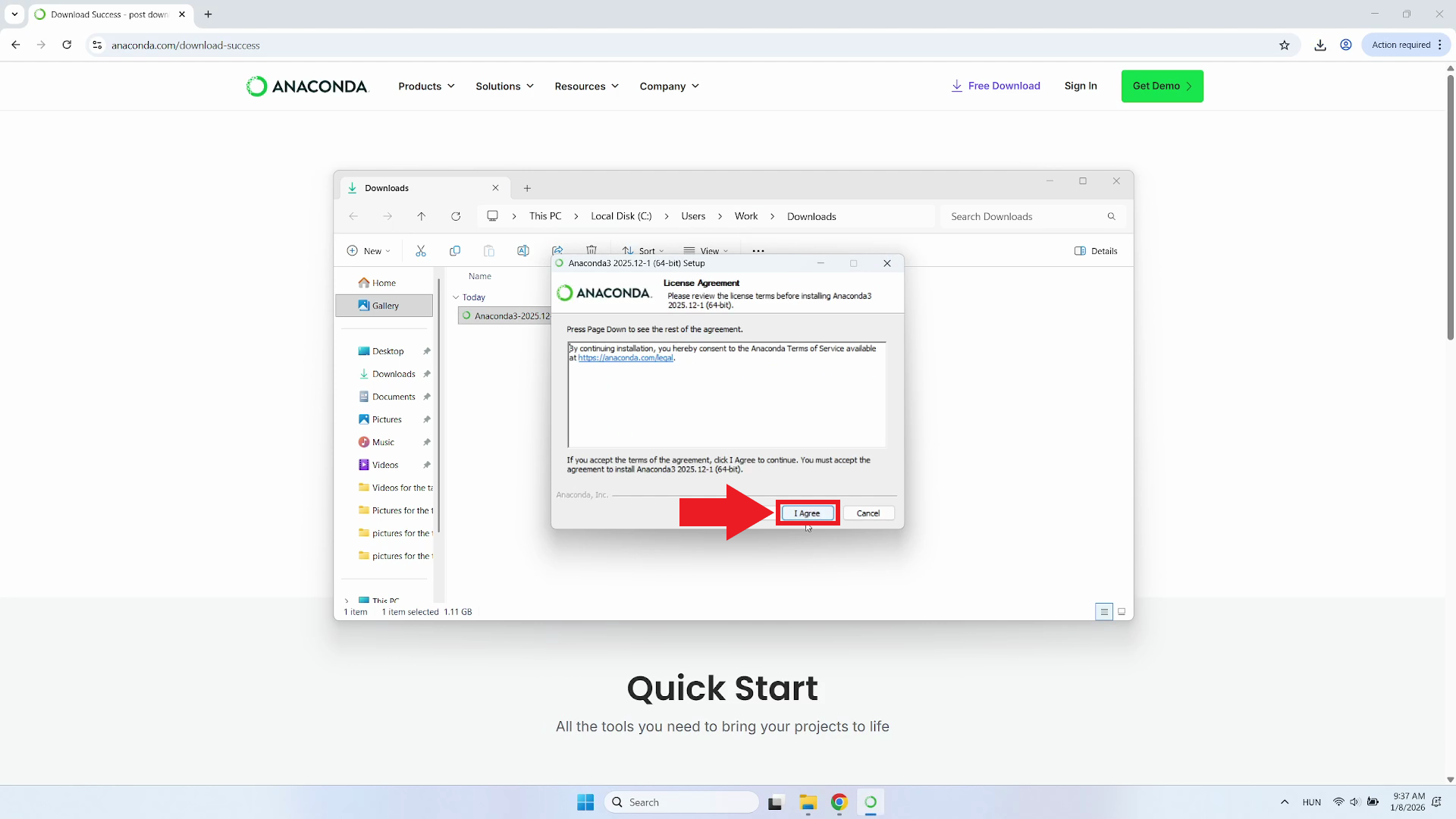
Step 6 - Accept license
You will be presented with the license agreement. Read through the agreement. Click "I Agree" to proceed if you accept the terms (Figure 6).
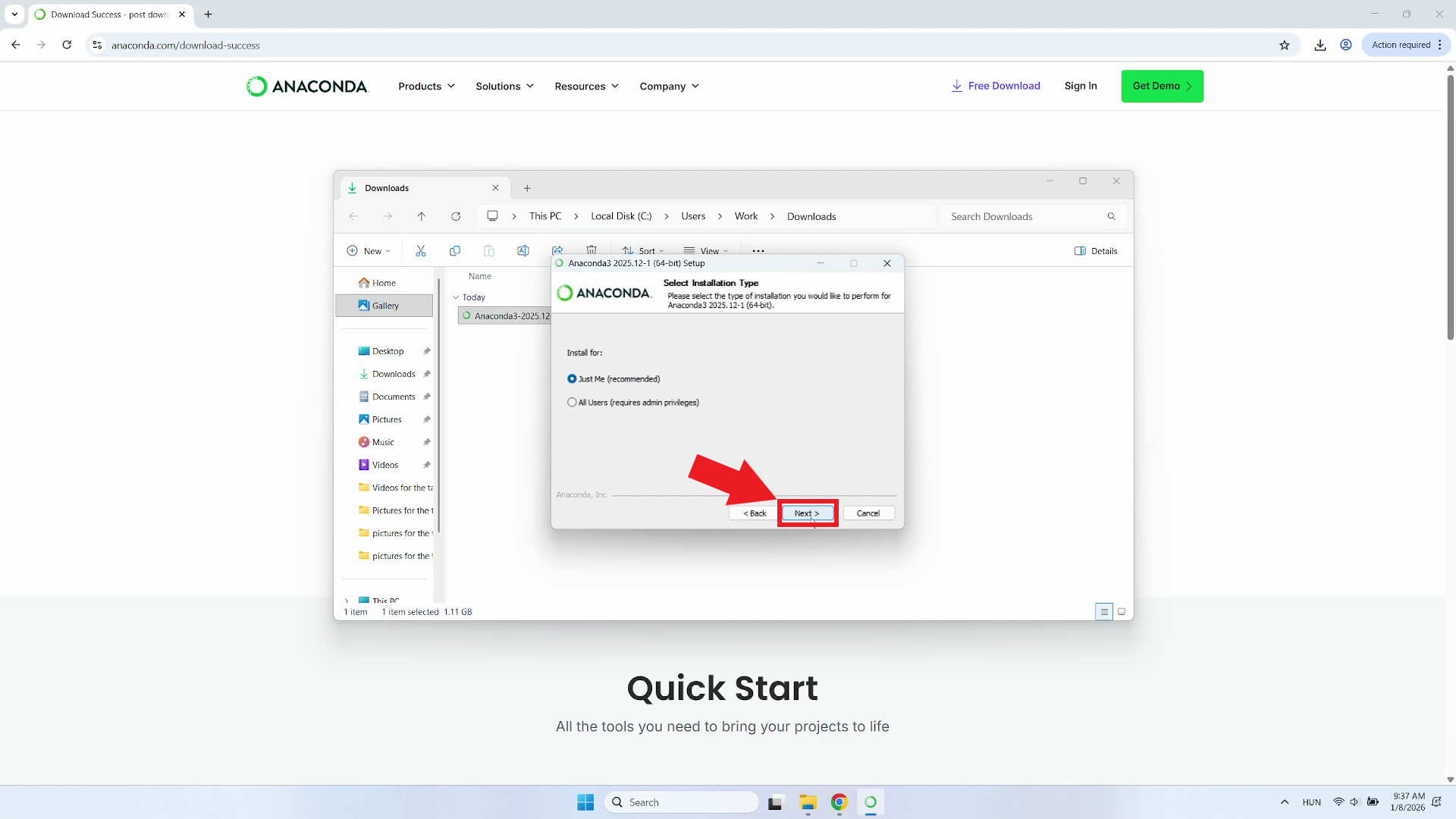
Step 7 - Select installation type
Install Anaconda for current user or every user. For most users, keeping the default "Just Me" selection is recommended. Click "Next" to continue (Figure 7).
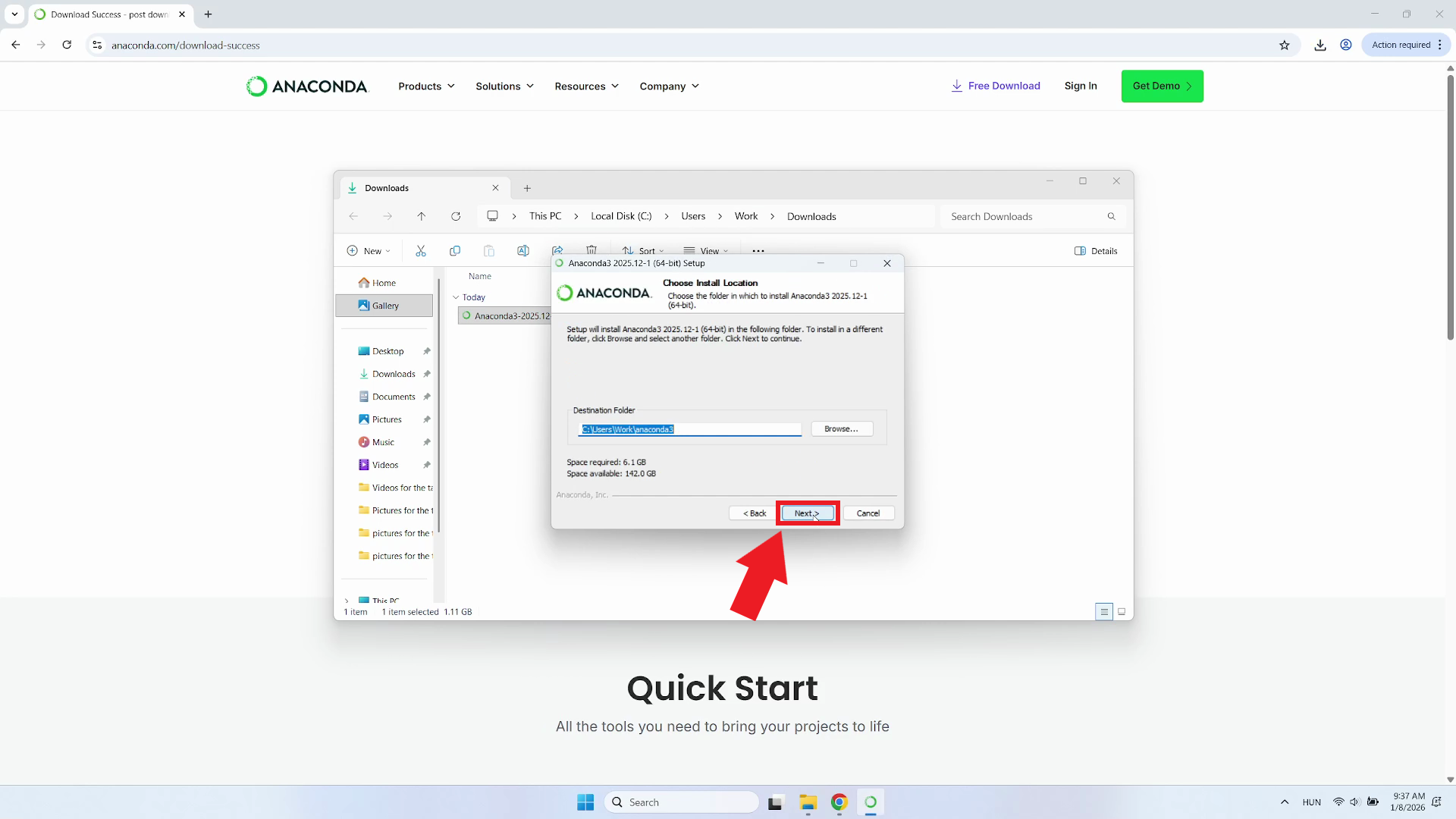
Step 8 - Choose install location
Set the destination folder where Anaconda will be installed. Accept the default location or click Browse to select a different folder. Click "Next" to proceed (Figure 8).
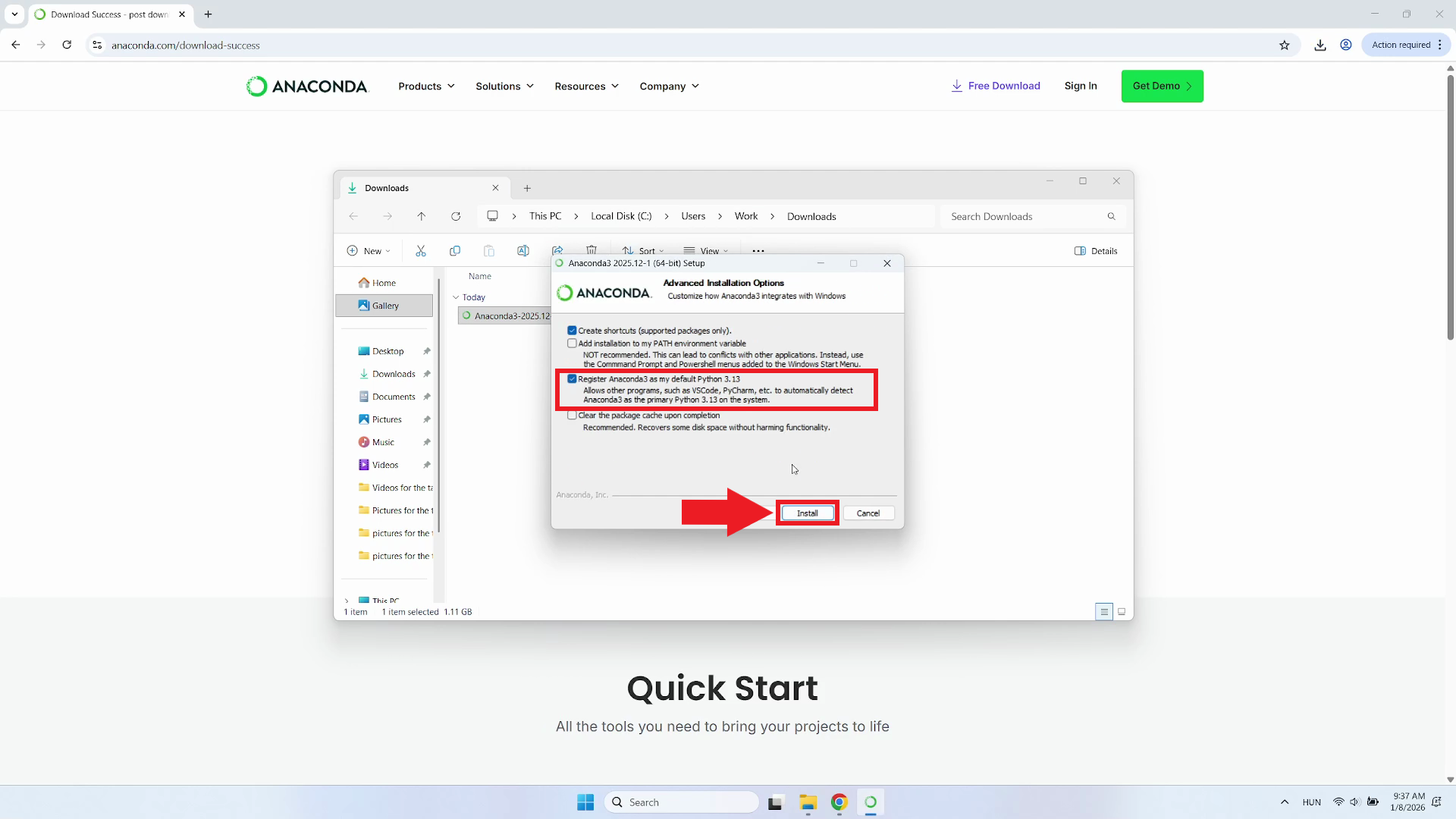
Step 9 - Advanced installation options
Configure the advanced installation options. It's recommended to check the "Register Anaconda3 as my default Python" option, which allows your system to automatically detect and use Anaconda as the primary Python installation. Click "Install" to begin the installation process (Figure 9).
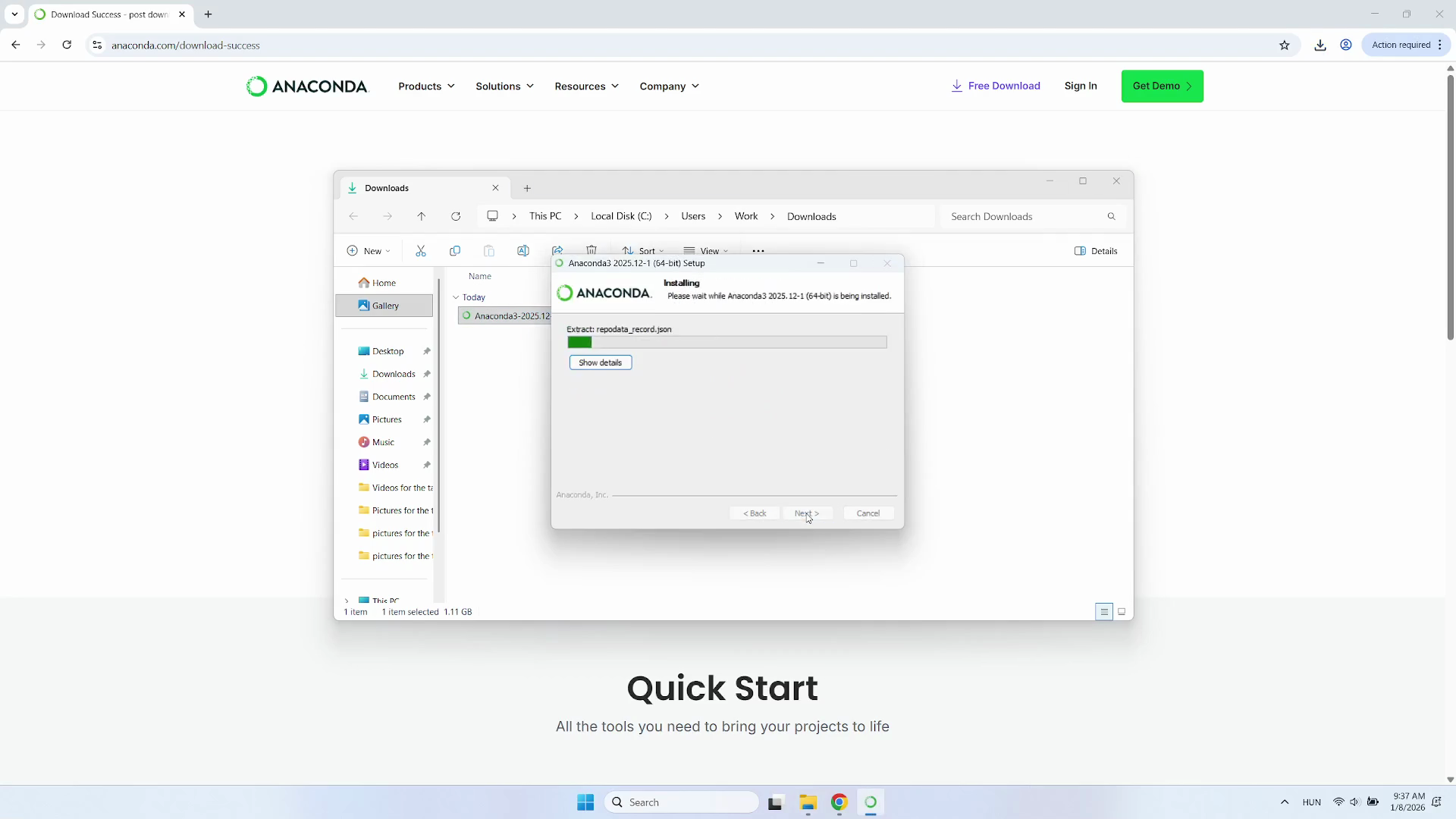
Step 10 - Installation process
The installer will begin copying the necessary files to your system. You can monitor the progress bar to see how much of the process is complete. Wait until the installation is fully completed (Figure 10).
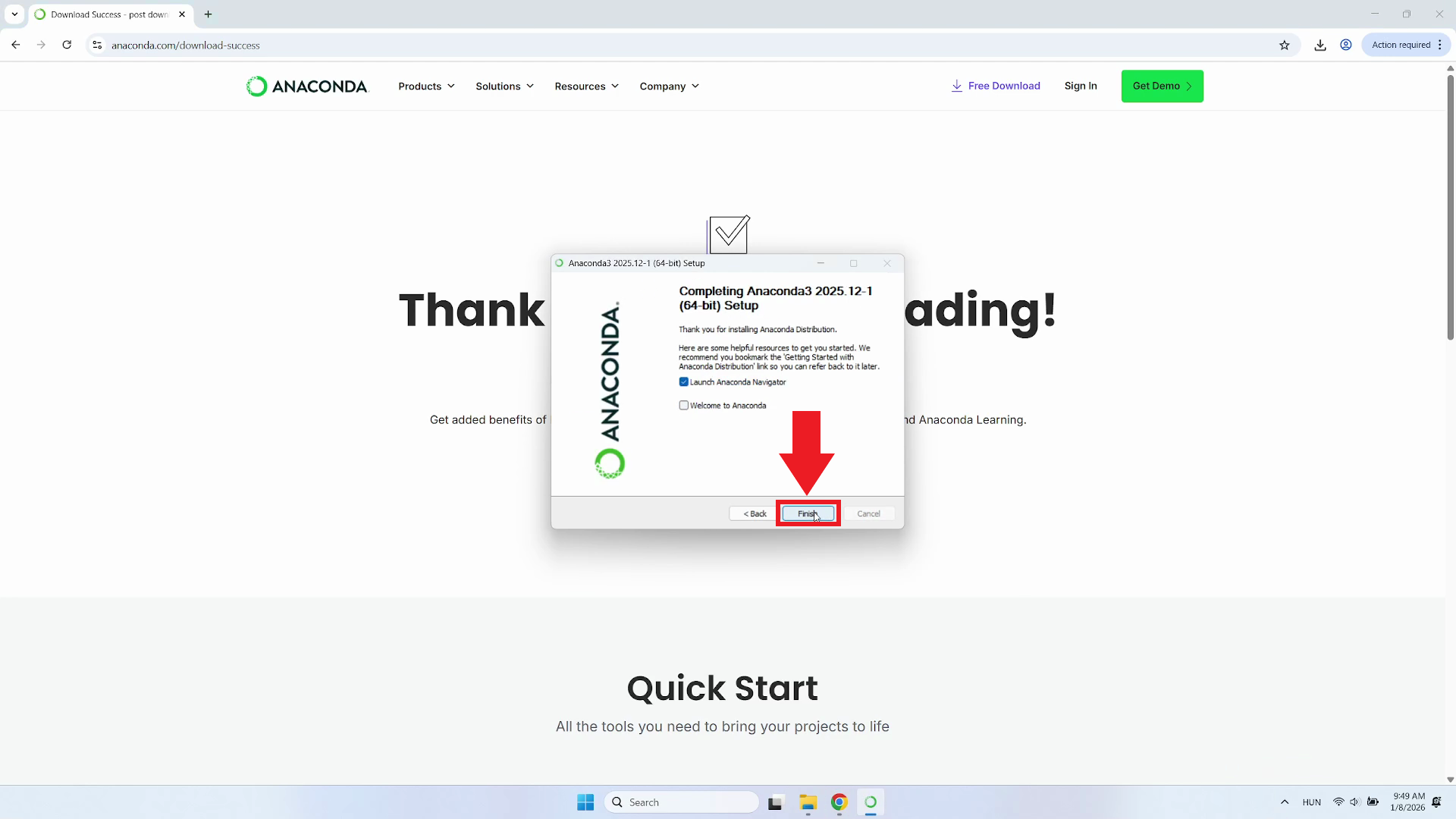
Step 11 - Installation finished
When the installation is finished, a confirmation message will appear. Check "Launch Anaconda Navigator" to start the program after closing the installer. Click "Finish" to close the installer (Figure 11).
Step 12 - Anaconda opened
Once the software is running and the interface is displayed, you are ready to manage your Python environments and launch various applications (Figure 12).