Android softphone: Auto dialer
In the following tutorial you will learn, how to create an auto dialer application in C# using the Ozeki VoIP SIP Android SDK. Let's get started!
Related: VoIP SIP auto dialer. If also you wish to build VoIP softphone on Windows, you might also be interested in a similar document, the VoIP SIP Auto Dialer in Ozeki VoIP SDK for Windows
Quick steps
- Download and install the Ozeki Andorid SDK
- Create a new Xamarin Android application in Viusal Studio
- Add the OzekiSDK.dll as a reference to our project
- Create the layout of the application
- Create a .csv file to store the numbers and the messages
- Create the CallInfo class that will be used to store the calls
- Create a Softphone class that implements the ISoftphone interface
- Create the CallHandler class that will be used for handling the call events
- Create the AutoDialer class that will be responsible for making the automated calls from a list
- Create the MainActivity.cs activity which will ask for the login details
- Create the DialingActivity.cs file which will be responsible for receiving calls.
- Run the example application and receive multiple calls in the same time.
The 08_AutoDialer.zip file
You can download the 08_AutoDialer example application bellow,
and start receiving calls with it right now, or you can build
it yourself step by step to understand the base concept of the
Ozeki VoIP SIP SDK.
Download: 08_AutoDialer.zip (2.16Mb)
Create a new Xamarin Android application in Visual Studio
To build our softphone application, we will create a new Xamarin Andorid project. In the following video I'll show you how to create a new Xamarin application in Visual Studio.
How to add the OzekiSDK.dll to our project as a reference
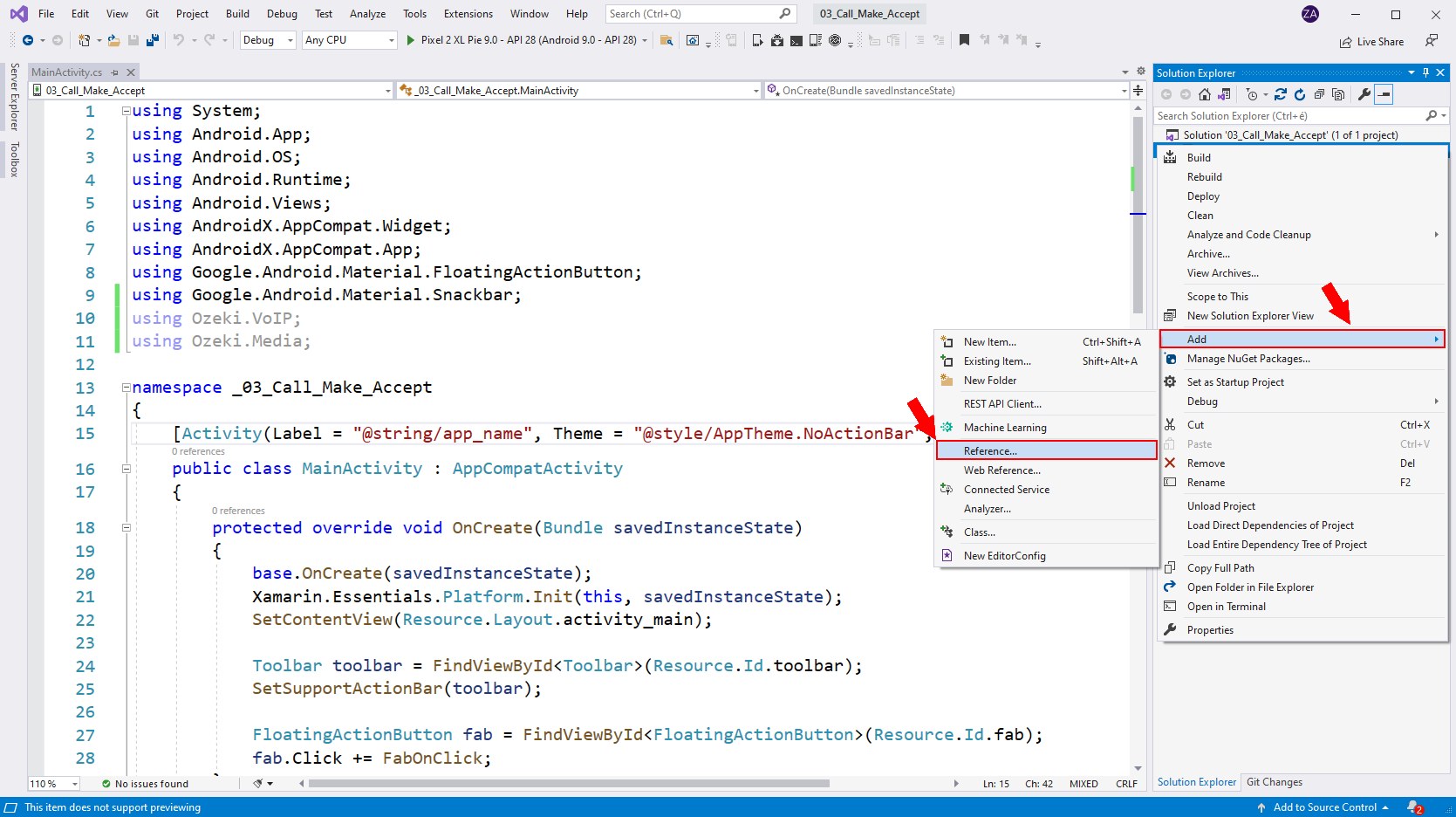
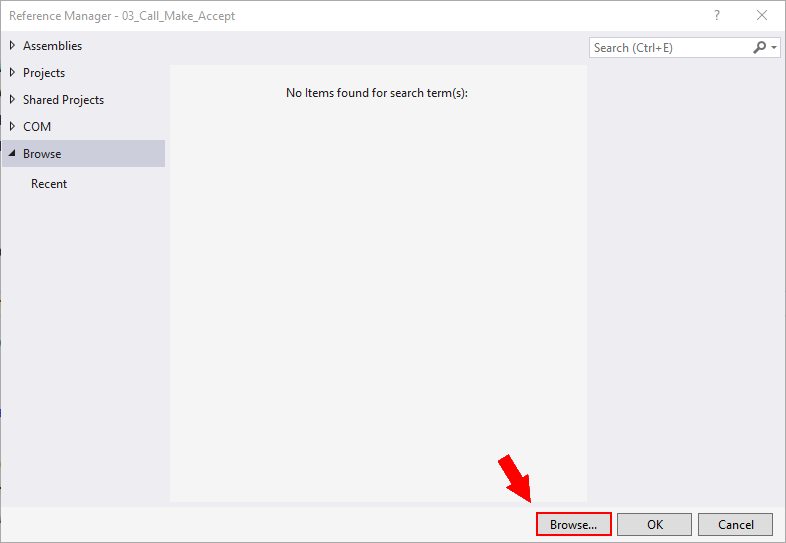
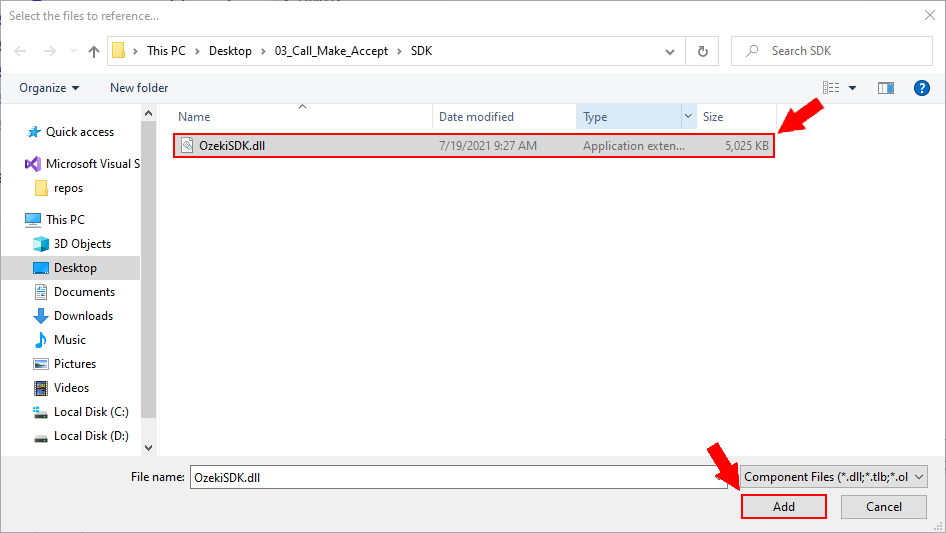
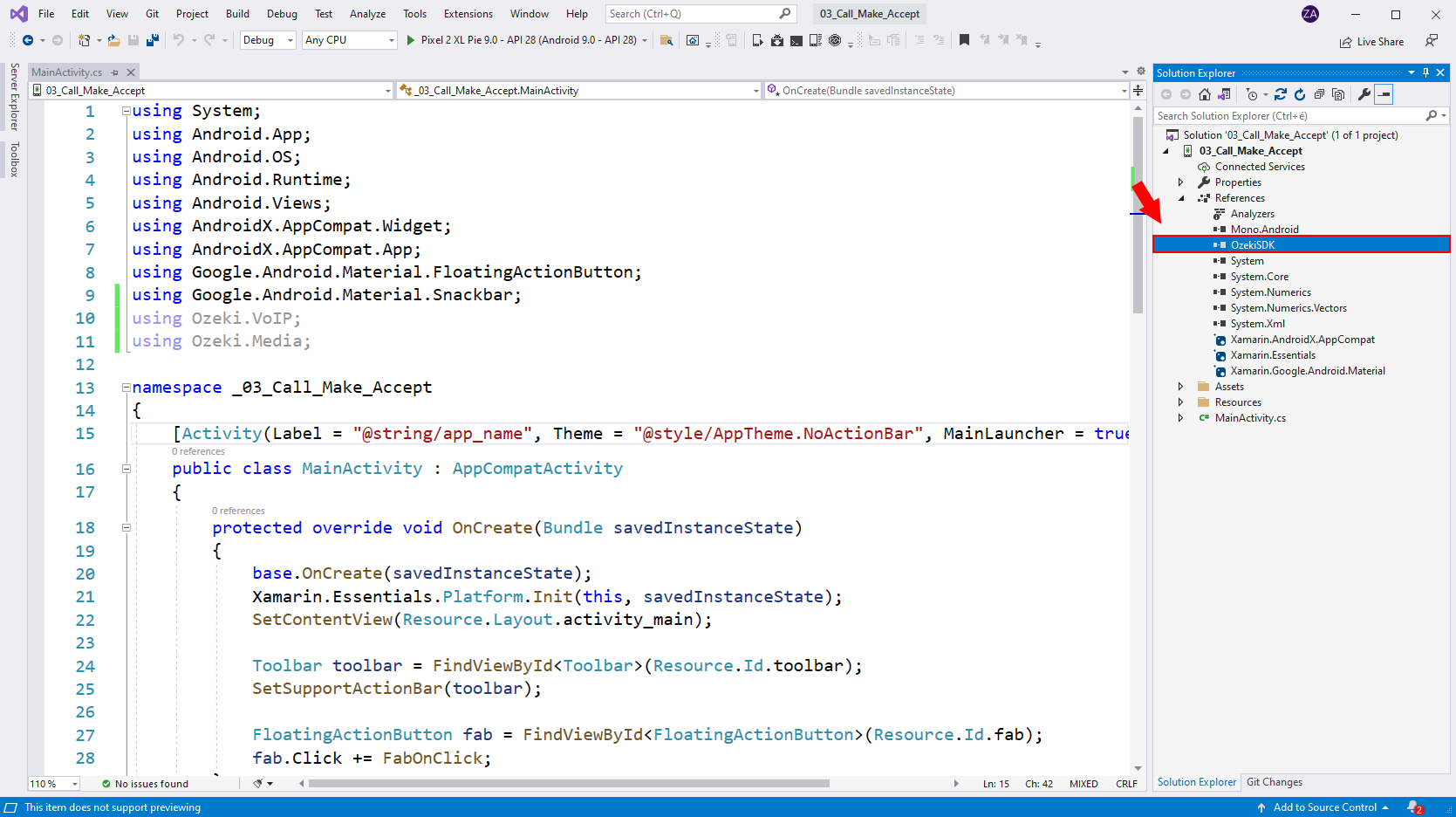
In order to use the contents of the Ozeki.VoIP namespace, we have to include the OzekiSDK.dll in our project. In the following video I'll show you how to add the OzekiSDK.dll reference to your project. You can find the OzekiSDK.dll file in the following place: C:\Program Files\Ozeki\Ozeki SDK for Android\SDK\MonoAndroid.
The layout of the application
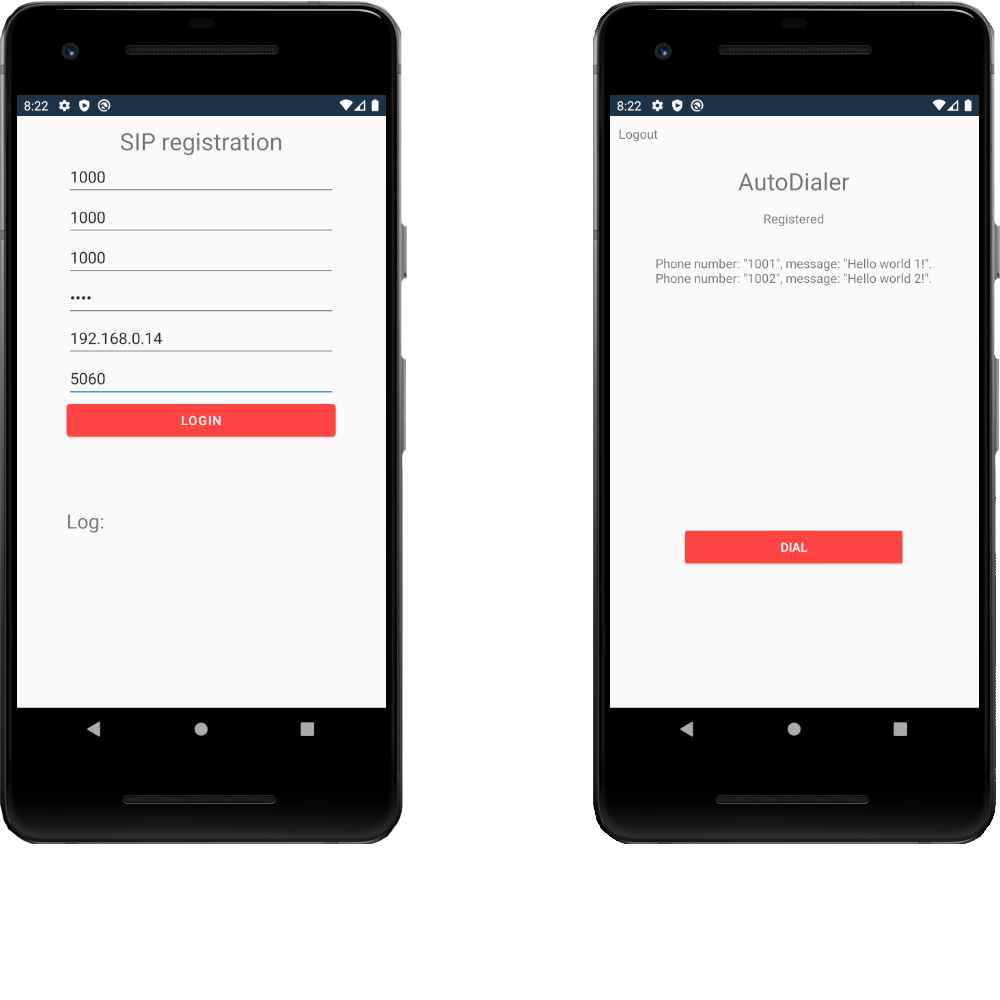
For the MainActivity activity we are going to use the layout of the Android softphone: SIP registration example. This activity will be responsible for the SIP registration. For the DialingActivity activity we have modified the layout of the Android softphone: Make calls project by removing the dialing pad.
You can simply drag and drop these .xml files into you layout folder,
or you can create your own layout.
Download: layout.zip (1.55Kb)
		<?xml version="1.0" encoding="utf-8"?>
		<androidx.coordinatorlayout.widget.CoordinatorLayout
			xmlns:android="http://schemas.android.com/apk/res/android"
		    xmlns:app="http://schemas.android.com/apk/res-auto"
		    xmlns:tools="http://schemas.android.com/tools"
		    android:layout_width="match_parent"
		    android:layout_height="match_parent">

		    <GridLayout
		        android:layout_width="match_parent"
		        android:layout_height="match_parent"
		        android:rowCount="9"
		    >

		        <TextView
		            android:layout_width="300dp"
		            android:layout_gravity="center_vertical|center_horizontal"
		            android:layout_height="wrap_content"
		            android:layout_row="0"
		            android:text="SIP registration"
		            android:textSize="12pt"
		            android:textAlignment="center"
		            android:layout_marginTop="10dp"
		        />

		        <EditText
		            android:id="@+id/inputDisplayName"
		            android:layout_width="300dp"
		            android:layout_gravity="center_vertical|center_horizontal"
		            android:layout_height="wrap_content"
		            android:layout_column="0"
		            android:layout_row="1"
		            android:hint="Display name"
		            android:inputType="text"
		        />

		        <EditText
		            android:id="@+id/inputUserName"
		            android:layout_width="300dp"
		            android:layout_gravity="center_vertical|center_horizontal"
		            android:layout_height="wrap_content"
		            android:layout_column="0"
		            android:layout_row="2"
		            android:hint="Username"
		            android:inputType="text"
		        />

		        <EditText
		            android:id="@+id/inputAuthenticationID"
		            android:layout_width="300dp"
		            android:layout_gravity="center_vertical|center_horizontal"
		            android:layout_height="wrap_content"
		            android:layout_column="0"
		            android:layout_row="3"
		            android:hint="Authentication ID"
		            android:inputType="text"
		        />

		        <EditText
		            android:id="@+id/inputRegisterPassword"
		            android:layout_width="300dp"
		            android:layout_gravity="center_vertical|center_horizontal"
		            android:layout_height="wrap_content"
		            android:layout_column="0"
		            android:layout_row="4"
		            android:inputType="textPassword"
		            android:hint="Password"
		        />

		        <EditText
		            android:id="@+id/inputDomainHost"
		            android:layout_width="300dp"
		            android:layout_gravity="center_vertical|center_horizontal"
		            android:layout_height="wrap_content"
		            android:layout_column="0"
		            android:layout_row="5"
		            android:hint="Host e.g.: 127.0.0.1"
		            android:inputType="text"
		        />

		        <EditText
		            android:id="@+id/inputDomainPort"
		            android:layout_width="300dp"
		            android:layout_gravity="center_vertical|center_horizontal"
		            android:layout_height="wrap_content"
		            android:layout_column="0"
		            android:layout_row="6"
		            android:hint="Port e.g.: 5060"
		            android:inputType="text"
		        />

		        <Button
		            android:id="@+id/btnLogin"
		            android:layout_width="300dp"
		            android:layout_gravity="center_vertical|center_horizontal"
		            android:layout_height="wrap_content"
		            android:layout_column="0"
		            android:backgroundTint="@android:color/holo_red_light"
		            android:textColor="@android:color/white"
		            android:layout_row="7"
		            android:text="Login"
		        />

		        <GridLayout
		            android:layout_width="300dp"
		            android:layout_height="wrap_content"
		            android:layout_gravity="center_vertical|center_horizontal"
		            android:layout_row="8"
		            android:layout_column="0"
		            android:rowCount="2"
		            android:columnCount="1"
		        >

		            <TextView
		                android:layout_width="match_parent"
		                android:layout_height="wrap_content"
		                android:textSize="10pt"
		                android:text="Log:"
		                android:layout_row="0"/>

		            <TextView
		                android:id="@+id/log"
		                android:layout_width="match_parent"
		                android:layout_height="120dp"/>

		        </GridLayout>

		    </GridLayout>

		</androidx.coordinatorlayout.widget.CoordinatorLayout>
		<?xml version="1.0" encoding="utf-8"?>
		<RelativeLayout xmlns:android="http://schemas.android.com/apk/res/android"
		    xmlns:app="http://schemas.android.com/apk/res-auto"
		    xmlns:tools="http://schemas.android.com/tools"
		    android:layout_width="match_parent"
		    android:layout_height="match_parent"
		    app:layout_behavior="@string/appbar_scrolling_view_behavior">

		    <GridLayout
		        android:layout_width="match_parent"
		        android:layout_height="wrap_content"
		        android:rowCount="5"
		        android:columnCount="1"
		    >

		        <TextView
		            android:id="@+id/btnLogOut"
		            android:layout_width="match_parent"
		            android:layout_marginTop="10dp"
		            android:layout_marginLeft="10dp"
		            android:layout_height="wrap_content"
		            android:text="Logout"
		            android:layout_row="0"
		            android:layout_column="0"
		        />

		        <TextView
		            android:layout_width="300dp"
		            android:layout_height="50dp"
		            android:layout_marginTop="25dp"
		            android:layout_gravity="center_vertical|center_horizontal"
		            android:textAlignment="center"
		            android:textSize="12pt"
		            android:layout_row="1"
		            android:layout_column="0"
		            android:text="AutoDialer"/>

		        <TextView
		            android:id="@+id/status"
		            android:layout_width="250dp"
		            android:layout_height="50dp"
		            android:textAlignment="center"
		            android:layout_row="2"
		            android:layout_column="0"
		            android:layout_gravity="center_vertical|center_horizontal"
		            android:text="Not registered"
		        />

		        <TextView
		            android:id="@+id/listOfNumbers"
		            android:layout_width="350dp"
		            android:layout_height="300dp"
		            android:textAlignment="center"
		            android:layout_row="3"
		            android:layout_column="0"
		            android:layout_gravity="center_vertical|center_horizontal"
		            android:text=""
		        />

		        <Button
		            android:id="@+id/btnInteractions"
		            android:layout_width="250dp"
		            android:layout_height="wrap_content"
		            android:layout_row="4"
		            android:layout_column="0"
		            android:layout_margin="2dp"
		            android:backgroundTint="@android:color/holo_red_light"
		            android:textColor="@android:color/white"
		            android:layout_gravity="center_vertical|center_horizontal"
		            android:text="Dial"
		            android:state_enabled="false"
		        />

		    </GridLayout>

		</RelativeLayout>
Create the CallInfo.cs file
We will use the CallInfo class to store the details of the call, the phone number and the message. In the following video you can see how to create the CallInfo class.
CallInfo.cs
		namespace _08_AutoDialer
		{
		    class CallInfo
		    {
		        public string PhoneNumber { get; private set; }
		        public string Message { get; private set; }

		        public CallInfo(string phoneNumber, string message)
		        {
		            PhoneNumber = phoneNumber;
		            Message = message;
		        }
		    }
		}
Create the Softphone.cs file
With the Softphone class, you can initialize a sofphone instance which will be responsible for making calls and performing a SIP account registration. In the following video you can see how to create the Softphone class.
Softphone.cs
		using System;
		using Ozeki.VoIP;

		namespace _08_AutoDialer
		{
		    class Softphone
		    {
		        ISoftPhone _softphone;
		        IPhoneLine _phoneLine;


		        public Softphone()
		        {
		            _softphone = SoftPhoneFactory.CreateSoftPhone(5000, 10000);
		        }


		        public void Register(bool registrationRequired, string displayName,
		        	string userName, string authenticationId, string registerPassword,
		        	string domainHost, int domainPort)
		        {
		            try
		            {
		                var account = new SIPAccount(registrationRequired, displayName,
			                userName, authenticationId, registerPassword,
			                domainHost, domainPort);

		                _phoneLine = _softphone.CreatePhoneLine(account);

		                _phoneLine.RegistrationStateChanged += phoneLine_RegistrationStateChanged;

		                _softphone.RegisterPhoneLine(_phoneLine);

		            }
		            catch (Exception ex)
		            {
		                Console.WriteLine("Error during SIP registration: {0}", ex.ToString());
		            }
		        }

		        public void Unregister()
		        {
		            _softphone.UnregisterPhoneLine(_phoneLine);
		        }

		        private void phoneLine_RegistrationStateChanged(object sender,
		        	RegistrationStateChangedArgs e)
		        {
		            var handler = PhoneLineStateChanged;
		            if (handler != null)
		                handler(this, e);
		        }

		        public event EventHandler<RegistrationStateChangedArgs> PhoneLineStateChanged;

		        public IPhoneCall CreateCall(string member)
		        {
		            return _softphone.CreateCallObject(_phoneLine, member);
		        }

		    }
		}
Create the CallHandler.cs file
With the CallHandler class, you can initialize a CallHandler instance which will make easier for us to collect the ongoing calls in a list and interact with them (for example stating a call or listening to its changes). In the following video you can see how to create the CallHandler class.
CallHandler.cs
		using System;
		using Ozeki.Media;
		using Ozeki.VoIP;

		namespace _08_AutoDialer
		{
		    class CallHandler
		    {
		        Softphone _softphone;
		        CallInfo _callInfo;
		        MediaConnector _connector;
		        PhoneCallAudioSender _mediaSender;


		        public CallHandler(Softphone softphone, CallInfo callInfo)
		        {
		            _softphone = softphone;
		            _callInfo = callInfo;
		            _mediaSender = new PhoneCallAudioSender();
		            _connector = new MediaConnector();
		        }

		        public event EventHandler Completed;

		        public void Start()
		        {
		            var call = _softphone.CreateCall(_callInfo.PhoneNumber);
		            call.CallStateChanged += OutgoingCallStateChanged;
		            _mediaSender.AttachToCall(call);
		            call.Start();
		            Console.WriteLine("Calling " + _callInfo.PhoneNumber);
		        }


		        void TextToSpeech(string text)
		        {
		            var textToSpeech = new TextToSpeech();
		            _connector.Connect(textToSpeech, _mediaSender);
		            textToSpeech.AddAndStartText(text);
		        }


		        private void OutgoingCallStateChanged(object sender, CallStateChangedArgs e)
		        {
		            if (e.State == CallState.Answered)
		            {
		                TextToSpeech(_callInfo.Message);
		            }
		            else if (e.State.IsCallEnded())
		            {
		                var handler = Completed;
		                if (handler != null)
		                    handler(this, EventArgs.Empty);
		            }
		        }
		    }
		}
Create the AutoDialer.cs file
With the AutoDialer class, you can initialize a AutoDialer instance In the following video you can see how to create the AutoDialer class.
AutoDialer.cs
		using System;
		using System.Collections.Generic;
		using System.Threading;

		namespace _08_AutoDialer
		{
		    class Autodialer
		    {
		        Softphone _softphone;
		        List<CallInfo> _callList;
		        int _maxConcurrentCall;
		        int _currentConcurrentCall;
		        List<CallHandler> _callHandlers;
		        AutoResetEvent _autoResetEvent;
		        object _sync;

		        public Autodialer(Softphone softphone, List<CallInfo> callList, int maxConcurrentCall)
		        {
		            _sync = new object();
		            _softphone = softphone;
		            _callList = callList;
		            _maxConcurrentCall = maxConcurrentCall;
		            _callHandlers = new List<CallHandler>();
		            _autoResetEvent = new AutoResetEvent(false);
		        }

		        public void Start()
		        {
		            ThreadPool.QueueUserWorkItem(o =>
		            {
		                foreach (var callInfo in _callList)
		                {
		                    if (_currentConcurrentCall < _maxConcurrentCall)
		                    {
		                        StartCallHandler(callInfo);
		                    }
		                    else
		                    {
		                        _autoResetEvent.WaitOne();
		                        StartCallHandler(callInfo);
		                    }
		                }
		            });
		        }

		        void StartCallHandler(CallInfo callInfo)
		        {
		            lock (_sync)
		            {
		                ++_currentConcurrentCall;
		                var callHandler = new CallHandler(_softphone, callInfo);
		                callHandler.Completed += callHandler_Completed;
		                _callHandlers.Add(callHandler);

		                callHandler.Start();
		            }
		        }

		        void callHandler_Completed(object sender, EventArgs e)
		        {
		            lock (_sync)
		            {
		                _callHandlers.Remove((CallHandler) sender);
		                --_currentConcurrentCall;
		                _autoResetEvent.Set();
		            }
		        }


		    }
		}
Create the MainActivity.cs file
This activity will be responsible for collecting the login details of the phone extension. After if have collected the credentials, it will store the values in the Xamarin.Essentials.Preferences, what you can use throughout the whole application.
MainActivty.cs
		using System;
		using Android.App;
		using Android.OS;
		using Android.Runtime;
		using Android.Views;
		using AndroidX.AppCompat.Widget;
		using AndroidX.AppCompat.App;
		using Google.Android.Material.FloatingActionButton;
		using Google.Android.Material.Snackbar;
		using Ozeki.Media;
		using Ozeki.VoIP;
		using Android.Widget;

		namespace _08_AutoDialer
		{
		    [Activity(Label = "@string/app_name", Theme = "@style/AppTheme.NoActionBar", MainLauncher = true)]
		    public class MainActivity : AppCompatActivity
		    {
		        Button _btnLogin;
		        TextView _log;
		        protected override void OnCreate(Bundle savedInstanceState)
		        {
		            base.OnCreate(savedInstanceState);
		            Xamarin.Essentials.Platform.Init(this, savedInstanceState);
		            SetContentView(Resource.Layout.activity_main);

		            TestIfUserLoggedIn();

		            _btnLogin = FindViewById<Button>(Resource.Id.btnLogin);
		            _btnLogin.Click += OnClick__btnLogin;

		            _log = FindViewById<TextView>(Resource.Id.log);
		        }

		        private void OnClick__btnLogin(object sender, EventArgs e)
		        {
		            string displayName = FindViewById<EditText>(Resource.Id.inputDisplayName).Text;
		            string userName = FindViewById<EditText>(Resource.Id.inputUserName).Text;
		            string authenticationId = FindViewById<EditText>(Resource.Id.inputAuthenticationID).Text;
		            string registerPassword = FindViewById<EditText>(Resource.Id.inputRegisterPassword).Text;
		            string domainHost = FindViewById<EditText>(Resource.Id.inputDomainHost).Text;
		            int domainPort = -1;

		            try
		            {
		                domainPort = Int32.Parse(FindViewById<EditText>(Resource.Id.inputDomainPort).Text);
		            }
		            catch (Exception exception)
		            {
		                _log.Text += "Please provide a valid PORT number!\n";
		            }

		            if (!string.IsNullOrEmpty(displayName) && !string.IsNullOrEmpty(userName)
		                && !string.IsNullOrEmpty(authenticationId) && !string.IsNullOrEmpty(registerPassword)
		                && !string.IsNullOrEmpty(domainHost) && domainPort != -1)
		            {
		                /*
		                    In this part of the code we use the Xamarin.Essentials.Preferences
		                    to store our session details.
		                */

		                Xamarin.Essentials.Preferences.Set("display_name", displayName);
		                Xamarin.Essentials.Preferences.Set("user_name", userName);
		                Xamarin.Essentials.Preferences.Set("authentication_id", authenticationId);
		                Xamarin.Essentials.Preferences.Set("register_password", registerPassword);
		                Xamarin.Essentials.Preferences.Set("domain_host", domainHost);
		                Xamarin.Essentials.Preferences.Set("domain_port", domainPort);

		                StartActivity(typeof(DialingActivity));
		            }
		            else
		            {
		                _log.Text += "Please fill all the required fields!\n";
		            }
		        }

		        /*
		            This method tests if the user logged in, by testing if the
		            Xamarin.Essentials.Preferences contains the "display_name" key.
		            If it doesn't, it means that we do not have a stored session because
		            when we press the logout button in the MessaingActivity, it clears
		            the Preferences.
		        */

		        private void TestIfUserLoggedIn()
		        {
		            if (Xamarin.Essentials.Preferences.ContainsKey("display_name"))
		            {
		                StartActivity(typeof(DialingActivity));
		            }
		        }

		        public override bool OnCreateOptionsMenu(IMenu menu)
		        {
		            MenuInflater.Inflate(Resource.Menu.menu_main, menu);
		            return true;
		        }

		        public override bool OnOptionsItemSelected(IMenuItem item)
		        {
		            int id = item.ItemId;
		            if (id == Resource.Id.action_settings)
		            {
		                return true;
		            }

		            return base.OnOptionsItemSelected(item);
		        }

		        public override void OnRequestPermissionsResult(int requestCode, string[] permissions, [GeneratedEnum] Android.Content.PM.Permission[] grantResults)
		        {
		            Xamarin.Essentials.Platform.OnRequestPermissionsResult(requestCode, permissions, grantResults);

		            base.OnRequestPermissionsResult(requestCode, permissions, grantResults);
		        }
		    }
		}
Create the DialingActivity.cs file
This activity will be responsible for making the automated calls. Above the button you can see all the phone numbers and the messages that you put in the .csv file. In the following video I'll show you how to create the DialingActivity activity.
DialingActivty.cs
using Android.App;
using Android.Content;
using Android.Content.Res;
using Android.OS;
using Android.Text.Method;
using Android.Widget;
using Ozeki.VoIP;
using System;
using System.Collections.Generic;
using System.IO;
using System.Linq;
using System.Text;

namespace _08_AutoDialer
{
    [Activity(Label = "DialingActivity")]
    public class DialingActivity : Activity
    {
        TextView _status;
        TextView _btnLogout;
        bool _registered;
        Softphone _mySoftphone;
        string _filename;
        CallInfo _callInfo;
        List<CallInfo> _callList;
        AutoDialer _autoDialer;
        int _maxConcurrentCall;
        Button _btnInteractions;
        TextView _listOfNumbers;

        protected override void OnCreate(Bundle savedInstanceState)
        {
            base.OnCreate(savedInstanceState);
            Xamarin.Essentials.Platform.Init(this, savedInstanceState);
            SetContentView(Resource.Layout.activity_dialing);

            _registered = false;
            InitSoftphone();
            Register();

            _maxConcurrentCall = 2;

            _status = FindViewById<TextView>(Resource.Id.status);
            _listOfNumbers = FindViewById<TextView>(Resource.Id.listOfNumbers);
            _listOfNumbers.MovementMethod = new ScrollingMovementMethod();

            ReadCSV();
            LoadNumbers();

            _btnLogout = FindViewById<TextView>(Resource.Id.btnLogOut);
            _btnLogout.Click += delegate
            {
                if (_registered)
                {
                    _mySoftphone.Unregister();
                }
                Xamarin.Essentials.Preferences.Clear();
                StartActivity(typeof(MainActivity));
            };

            _btnInteractions = FindViewById<Button>(Resource.Id.btnInteractions);
            _btnInteractions.Click += delegate
            {
                if (_registered)
                {
                    StartAutodialer();
                }
            };
        }

        void InitSoftphone()
        {
            _mySoftphone = new Softphone();
            _mySoftphone.PhoneLineStateChanged += mySoftphone_PhoneLineStateChanged;
            _filename = "ExampleCSV.csv";
            _callList = new List<CallInfo>();
        }

        void ReadCSV()
        {
            try
            {
                AssetManager assets = Application.Context.Assets;
                using (StreamReader reader = new StreamReader(assets.Open(_filename)))
                {
                    string line;
                    while ((line = reader.ReadLine()) != null)
                    {
                        ParseCSVLineToObjectList(line);
                    }
                }
            }
            catch (Exception ex)
            {
                Console.WriteLine("Error occured: {0}", ex.Message);
            }
        }

        void ParseCSVLineToObjectList(string line)
        {
            try
            {
                string[] parse = line.Split(',', ';');
                _callInfo = new CallInfo(parse[0], parse[1]);
                _callList.Add(_callInfo);
            }
            catch (Exception ex)
            {
                Console.WriteLine("Error occured: {0}", ex.Message);
            }
        }

        string ShowList()
        {
            StringBuilder listOfNumbers = new StringBuilder();
            foreach (var callListMember in _callList)
            {
                listOfNumbers.Append(String.Format("Phone number: \"{0}\", message:
                	\"{1}\".\n", callListMember.PhoneNumber, callListMember.Message));
            }
            return listOfNumbers.ToString();
        }

        void LoadNumbers()
        {
            _listOfNumbers.Text = ShowList();
        }

        void StartAutodialer()
        {
            _autoDialer = new AutoDialer(_mySoftphone, _callList, _maxConcurrentCall);
            _autoDialer.Start();
        }

        private void mySoftphone_PhoneLineStateChanged(object sender,
        RegistrationStateChangedArgs e)
        {
            if (e.State == RegState.Error || e.State == RegState.NotRegistered)
            {
                _registered = false;
                _status.Text = "Not registered";
            }
            else if (e.State == RegState.RegistrationSucceeded)
            {
                _registered = true;
                _status.Text = "Registered";
            }
        }

        private void Register()
        {
            bool registrationRequired = true;
            string displayName = Xamarin.Essentials.Preferences.Get("display_name", "");
            string userName = Xamarin.Essentials.Preferences.Get("user_name", "");
            string authenticationId = Xamarin.Essentials.Preferences.Get("authentication_id", "");
            string registerPassword = Xamarin.Essentials.Preferences.Get("register_password", "");
            string domainHost = Xamarin.Essentials.Preferences.Get("domain_host", "");
            int domainPort = Xamarin.Essentials.Preferences.Get("domain_port", 5060);

            _mySoftphone.Register(registrationRequired, displayName, userName, authenticationId, registerPassword,
                domainHost, domainPort);
        }

        public override void OnBackPressed()
        {
            return;
        }
    }
}
Creating the ExampleCSV.csv file
This csv file is going to store all the numbers with the messages we want to play to the recipient using the text to speech feature of the Ozeki VoIP SIP Android SDK. In the following video I'll show you how to create a new .csv file and include it in your Assets folder.
ExampleCSV.csv
1001;Hello world 1!
1002;Hello world 2!
Running the example application
After the softphone is ready we can start debugging the application on an Android device with a version that's higher than Android 8.0. If we don't have an android device we can create an android emulator in the Visual Studio Community. To run the example application you'll need 3 phone lines to be registered. You can use the example softphone of the Windows VoIP SIP SDK, to test your android application.