
How to Setup OpenWebUI in Windows
This comprehensive guide walks you through installing and configuring OpenWebUI on Windows using Anaconda. OpenWebUI is a powerful web-based interface for interacting with Large Language Models (LLMs), providing an intuitive chat interface. By following this tutorial, you'll learn how to create a dedicated Python environment, install OpenWebUI using pip, configure it to connect to your company's LLM API, and start having AI-powered conversations.
What is OpenWebUI?
OpenWebUI is an extensible, feature-rich, and user-friendly self-hosted web interface designed to work with various LLM providers. It offers a modern chat interface that supports multiple AI models, conversation history, user management, and API integrations. With OpenWebUI, you can connect to OpenAI-compatible APIs, including custom LLM endpoints, making it a versatile solution for both development and production environments.
How to Setup OpenWebUI (Quick Steps)
- Open Anaconda Navigator
- Create new Anaconda environment named OpenWebUI with Python 3.11
- Open a PowerShell terminal with the environment active
- Install OpenWebUI using pip command
- Start the web server
- Access the interface in browser
- Create admin account
- Open Admin Panel
- Add LLM service with URL and API key
- Test AI with a question
How to Setup OpenWebUI (Video tutorial)
In this video tutorial, you will learn how to setup OpenWebUI in Windows with Anaconda step-by-step. The video covers creating a Python environment, installing OpenWebUI, configuring API connections, and testing your first AI conversation.
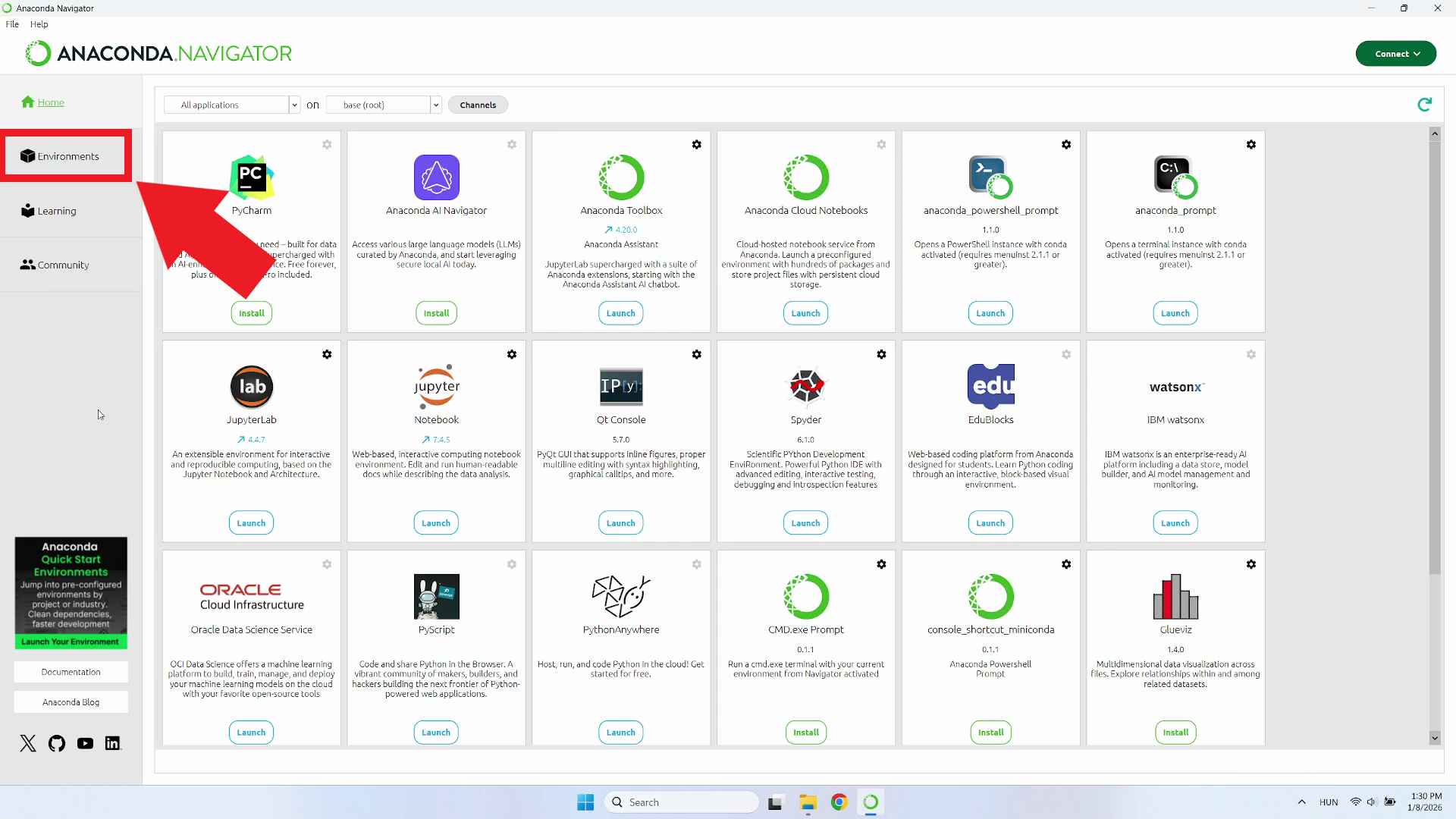
Step 1 - Open Environments
In Anaconda Navigator, click on "Environments" in the left sidebar. This section allows you to create and manage isolated Python environments for different projects (Figure 1).
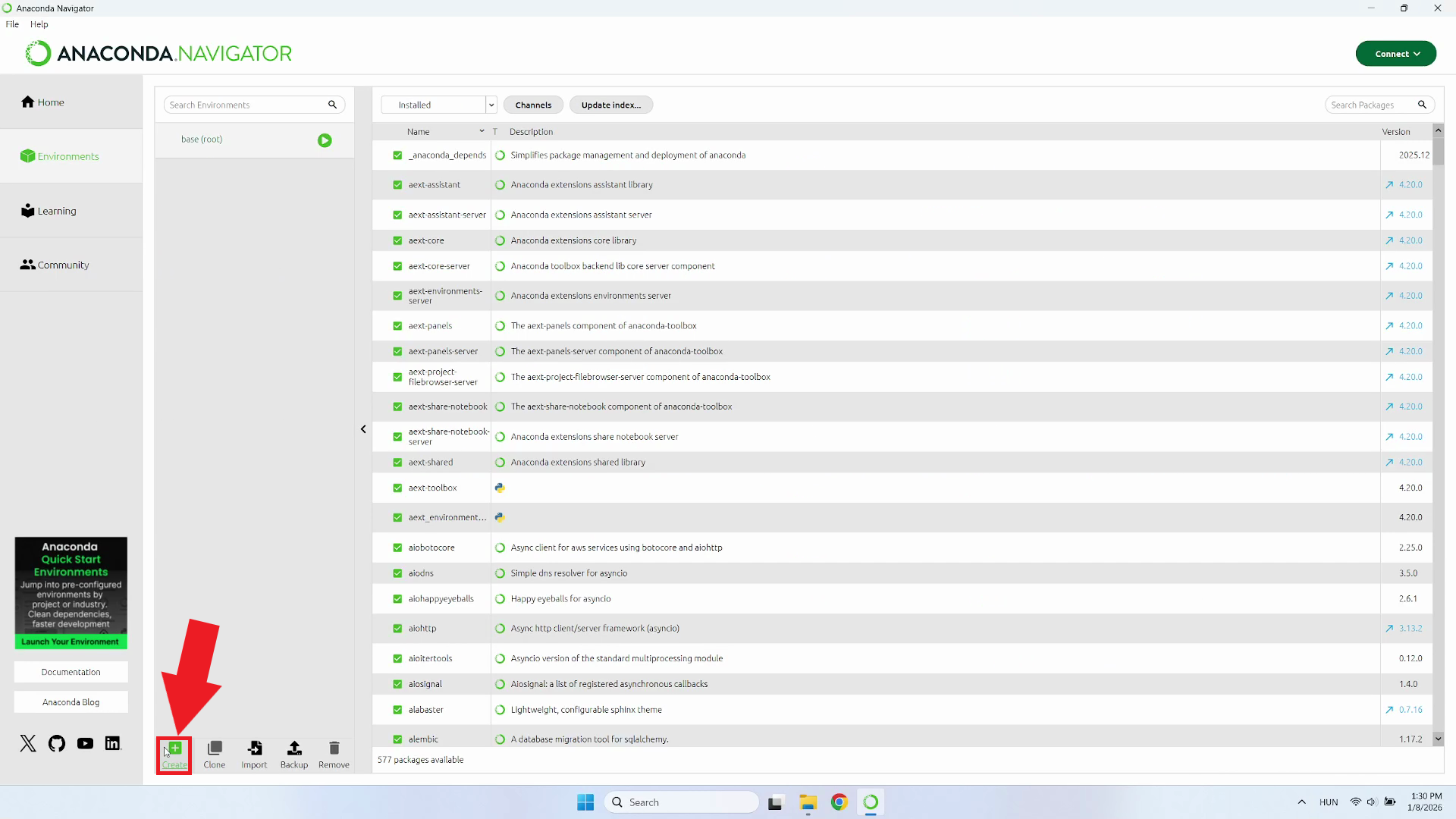
Step 2 - Click Create
In the Environments section, locate and click the "Create" button. This will open a dialog where you can configure your new Python environment specifically for OpenWebUI (Figure 2).
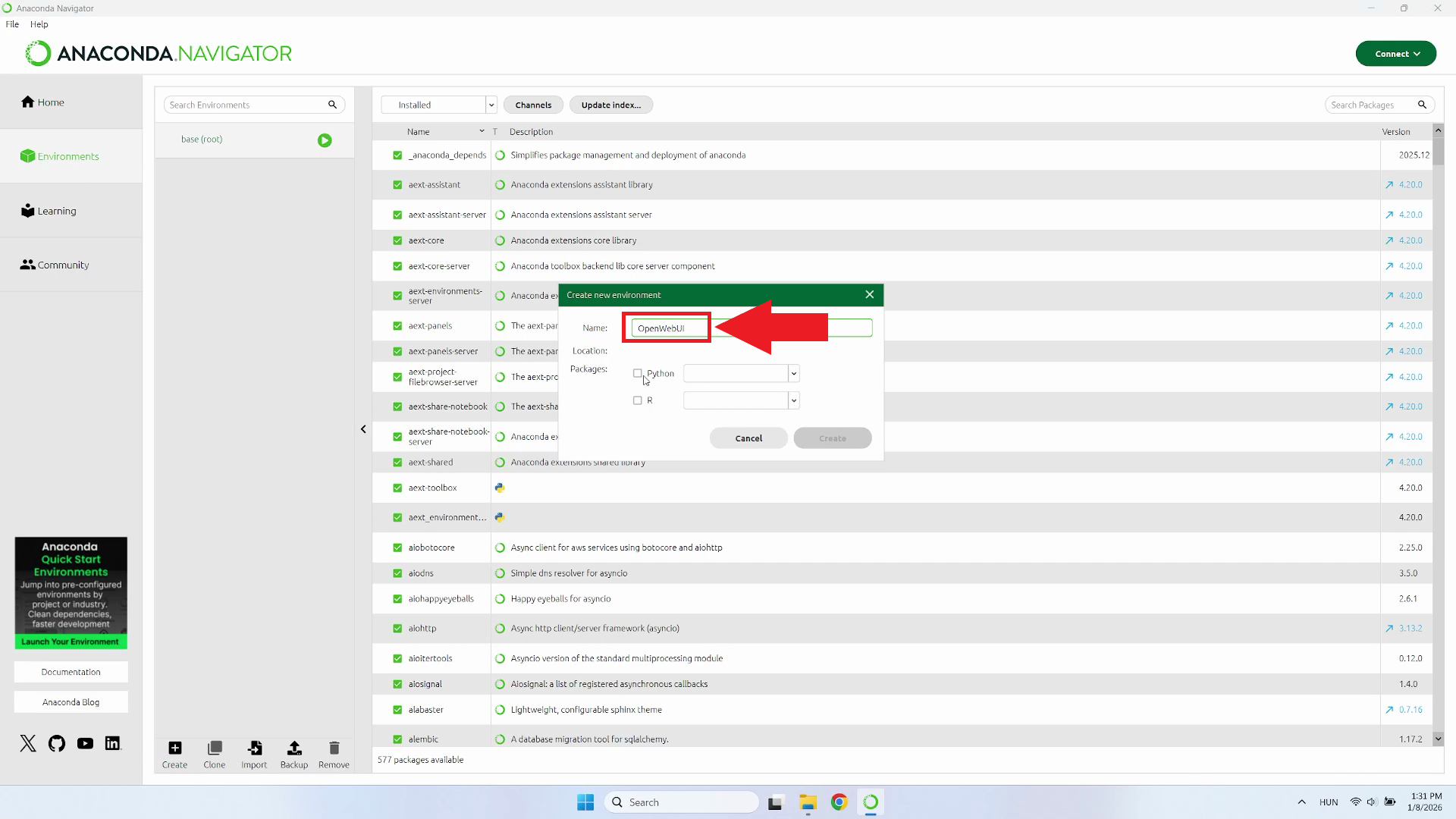
Step 3 - Name the environment
Name the new environment "OpenWebUI". After entering the environment name, proceed to the Packages section (Figure 3).
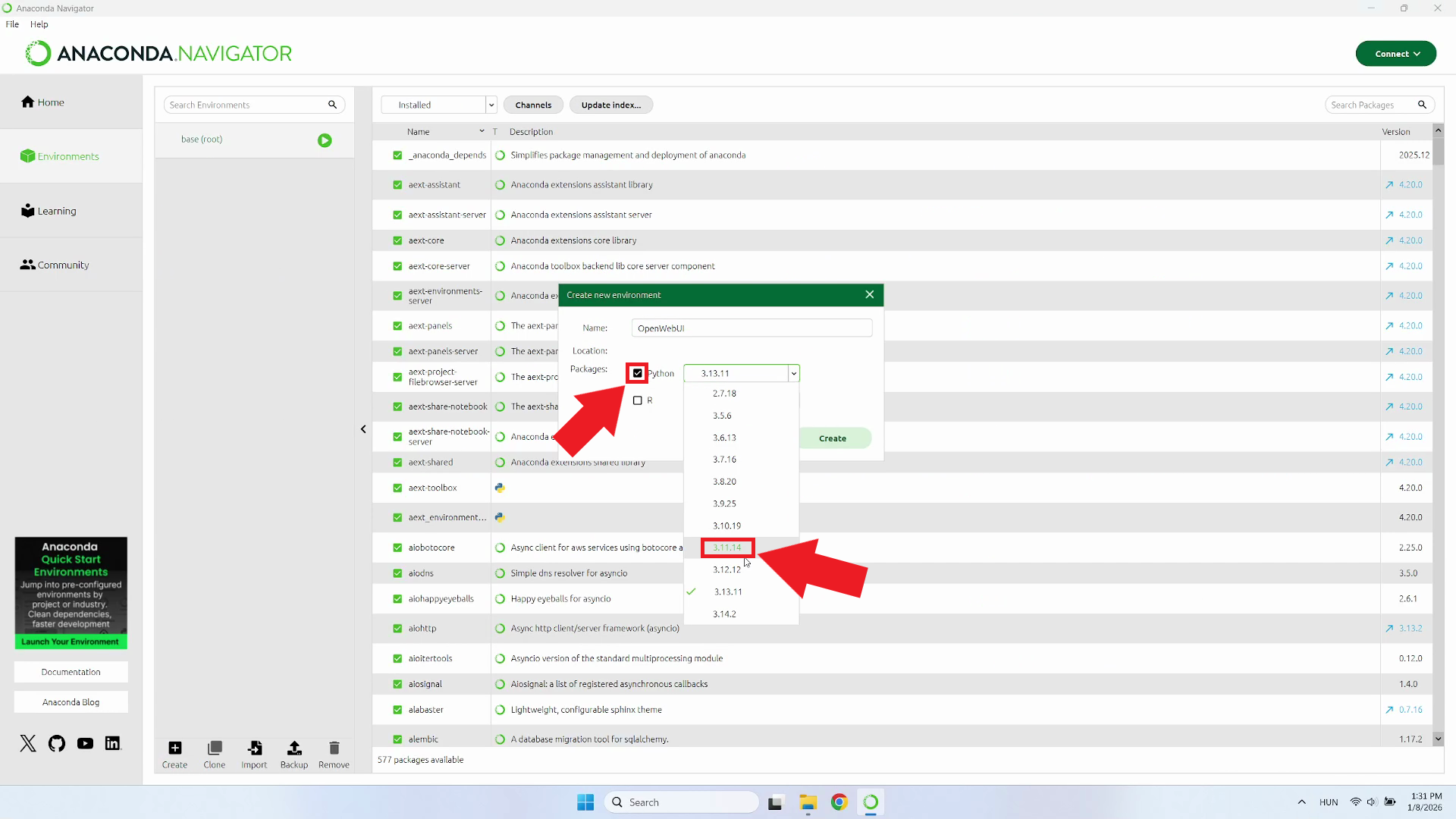
Step 4 - Enable Python package
Select Python as the package type and choose version 3.11 from the dropdown menu (Figure 4).
Step 5 - Create environment
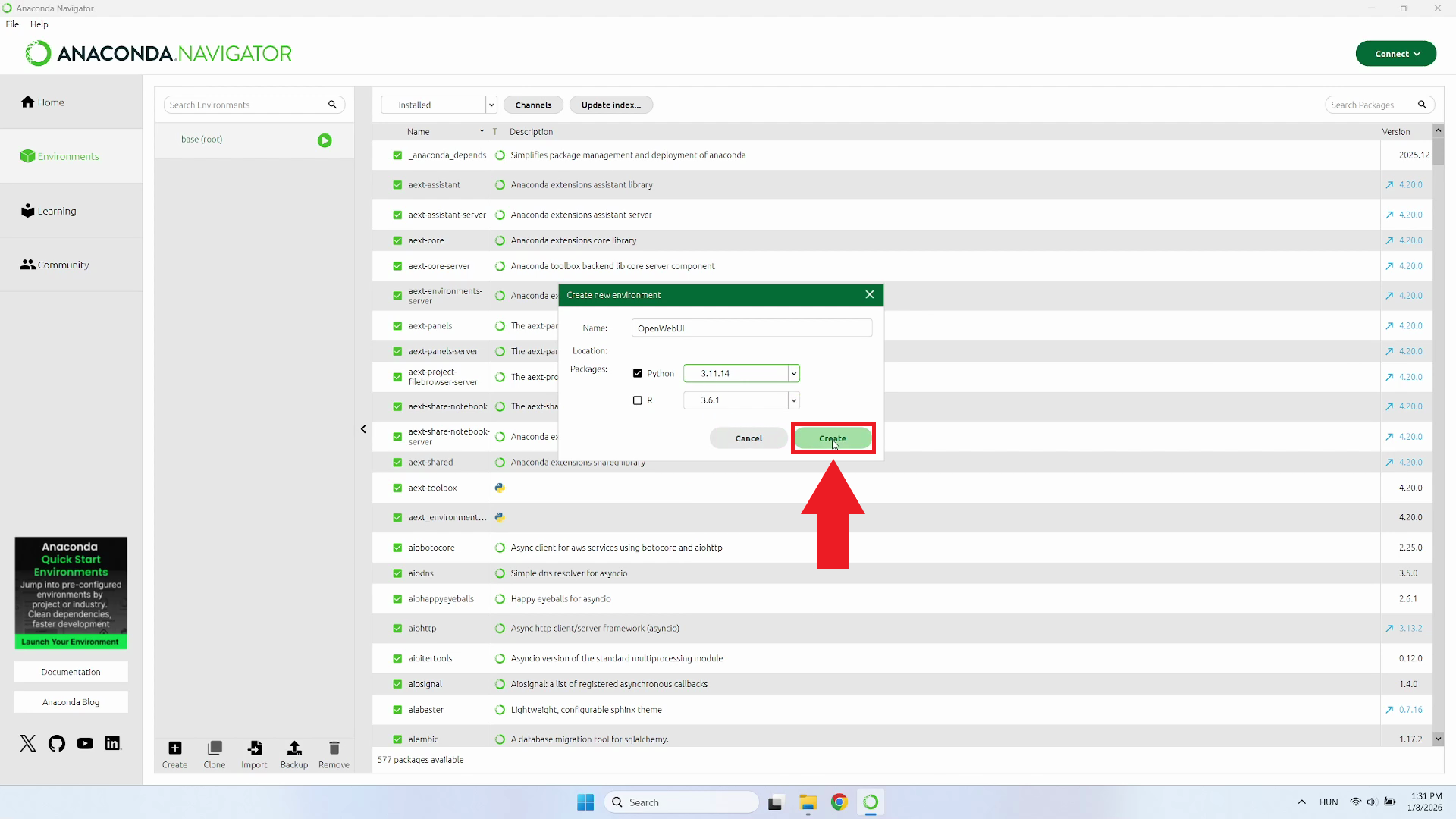
Click "Create" to initialize the environment. The system will install Python 3.11 and essential base packages required for the environment to function (Figure 5).
Step 6 - Wait for environment creation
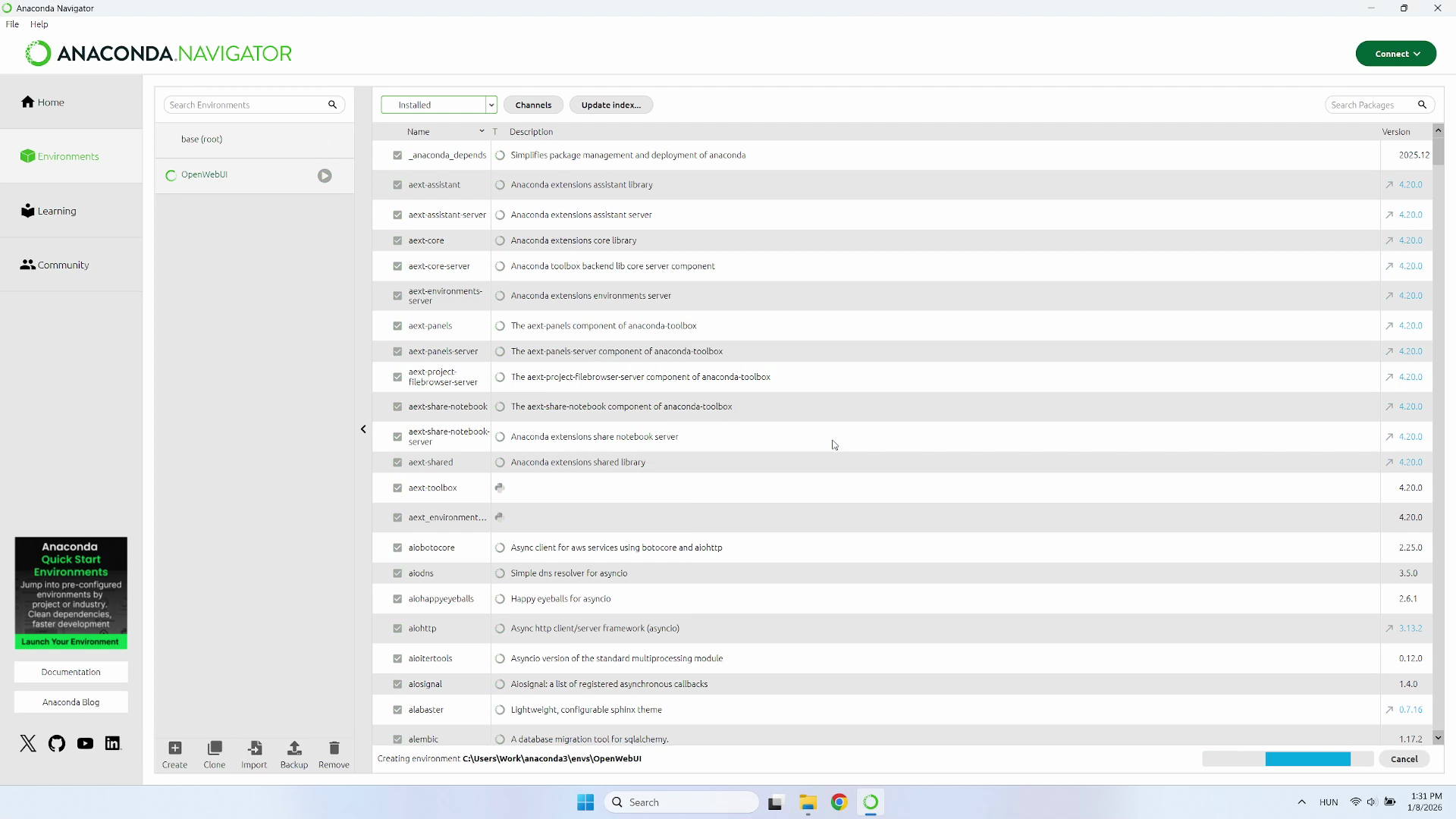
Wait as the system completes the setup. Once the environment is successfully created, it will be available for use and you can proceed with the installation (Figure 6).
Step 7 - Open environment terminal
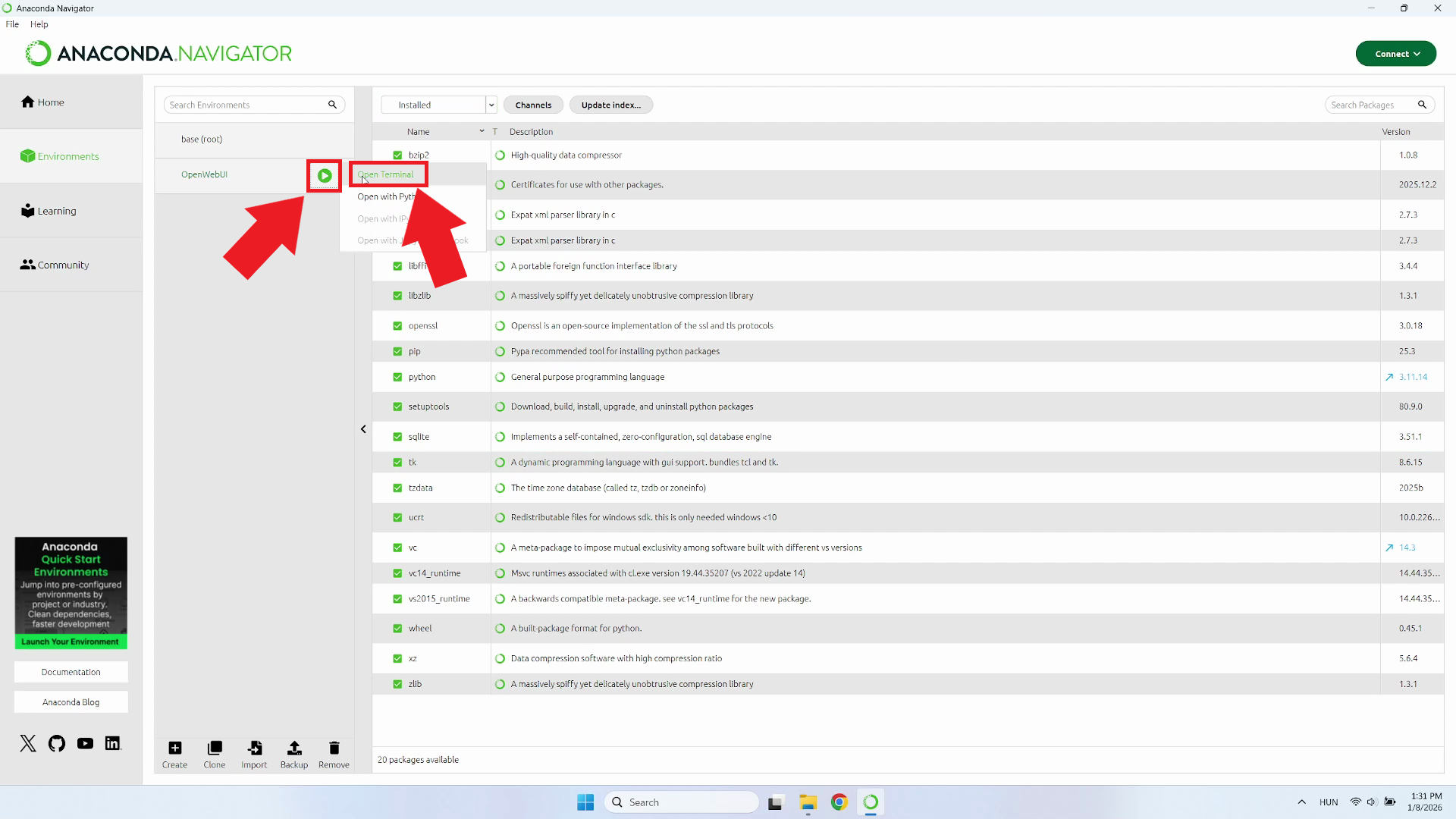
The next step is opening a terminal with the environment activated. Locate your newly created "OpenWebUI" environment and click the button next to it, then select "Open Terminal" from the dropdown menu (Figure 7).
Step 8 - Use pip to install OpenWebUI
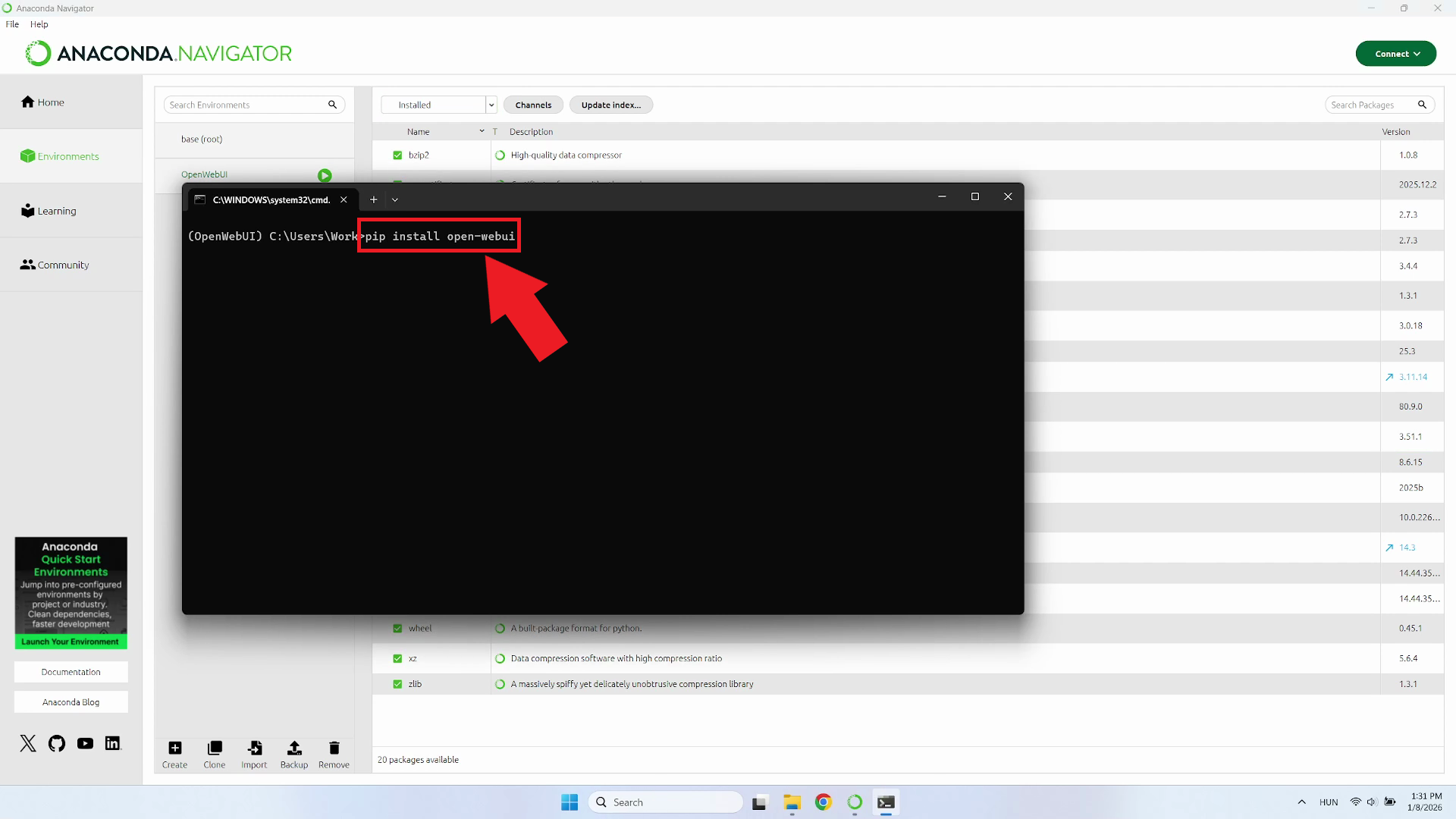
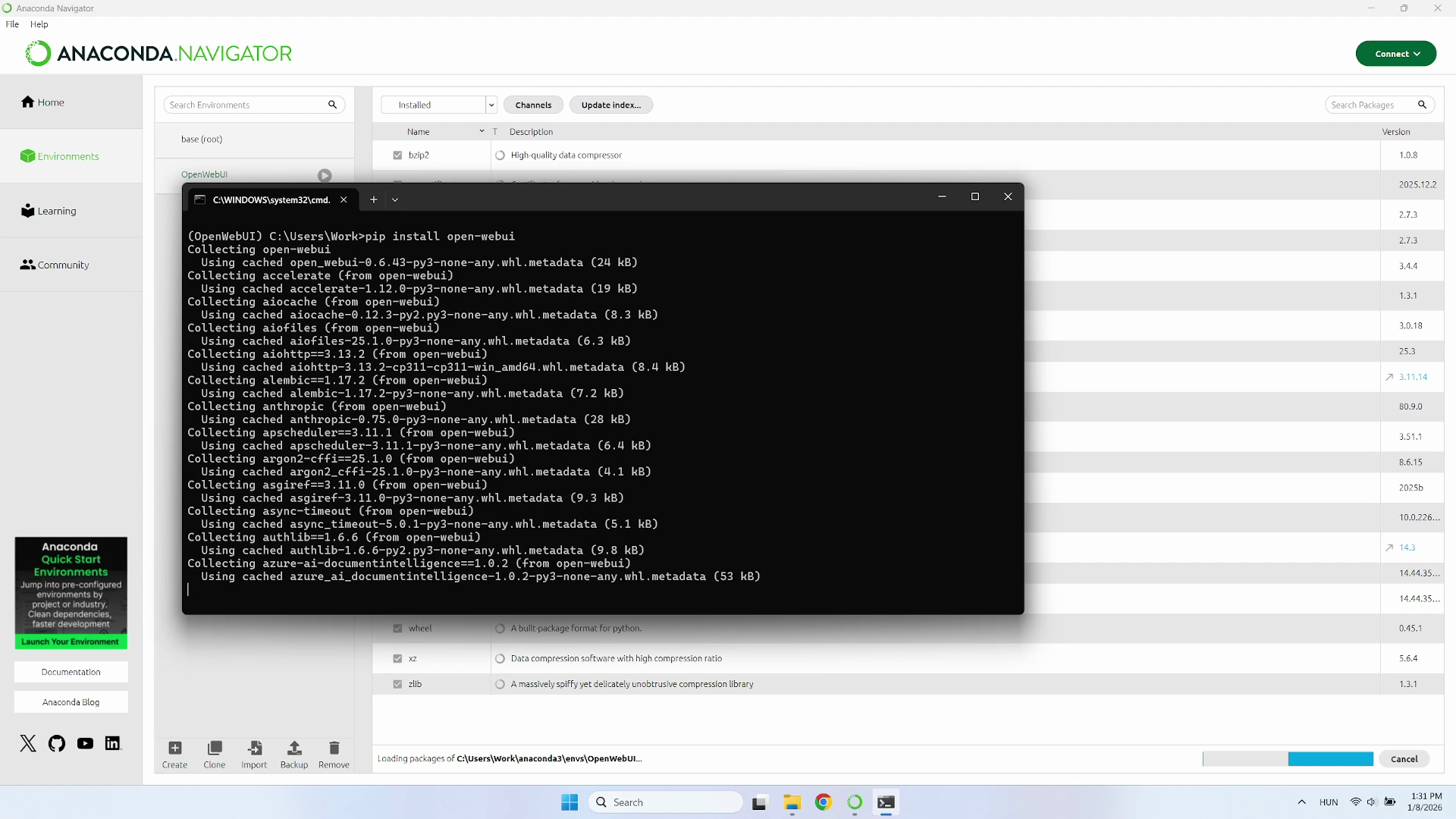
In the PowerShell terminal type the command: pip install open-webui
and press Enter. This command will use Python's package installer to download and install
OpenWebUI along with all its required dependencies (Figure 8).
Step 9 - Wait for installation to finish
The pip installation process will install the necessary dependencies for OpenWebUI. You'll see output in the terminal showing which packages are being downloaded and installed. Wait until the installation is fully completed (Figure 9).
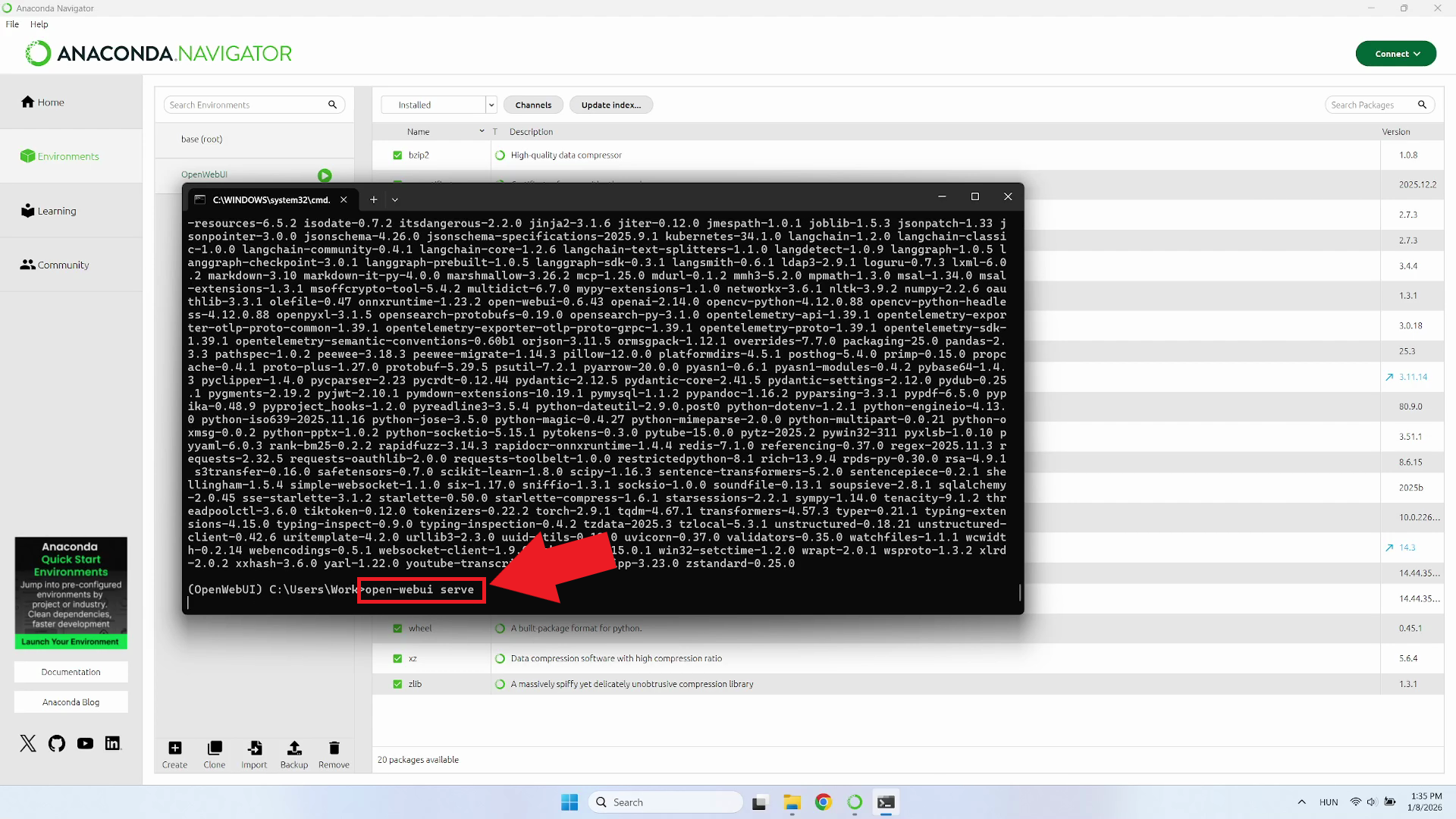
Step 10 - Start OpenWebUI
After installing, start OpenWebUI by typing open-webui serve
in the terminal and pressing Enter. This command launches the OpenWebUI web server
on your local machine. You'll see startup messages indicating that the server is
initializing, loading configurations, and starting the web interface. (Figure 10).
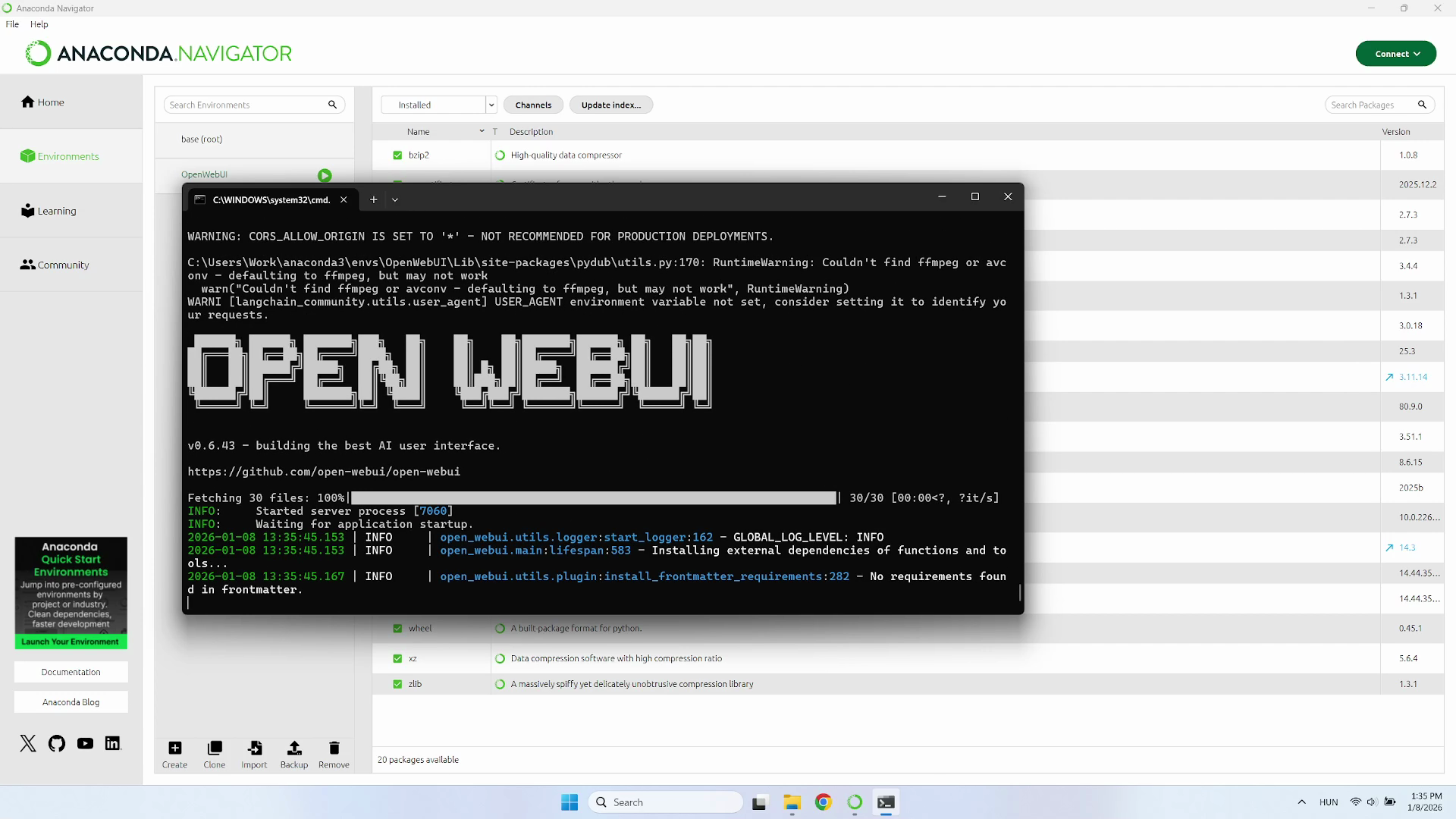
Step 11 - OpenWebUI started
You'll see messages in the terminal confirming that the web server has started successfully. The terminal will also show any incoming requests and system logs. Leave this terminal window open - closing it will stop the OpenWebUI server (Figure 11).
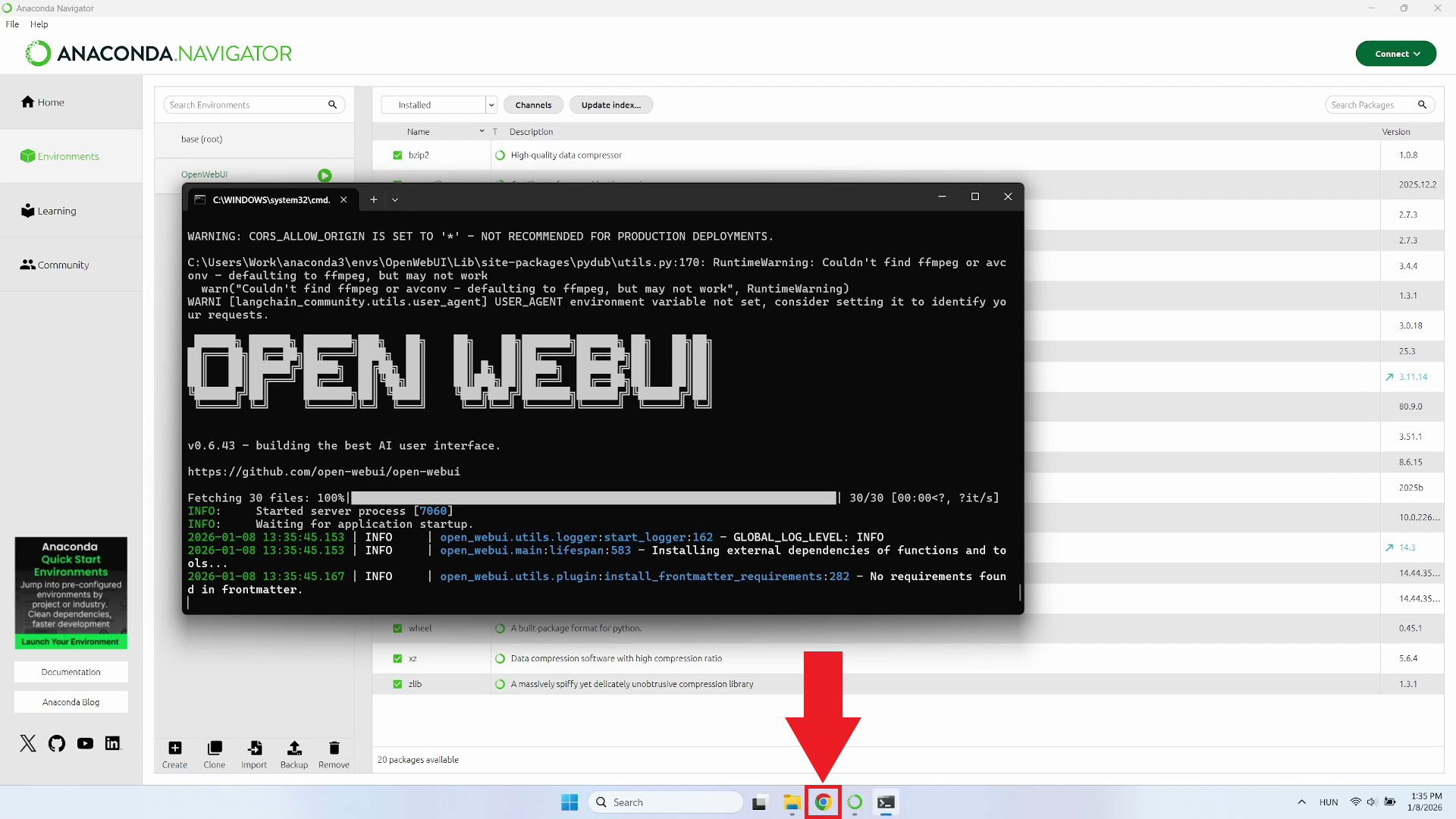
Step 12 - Open your browser
Open your preferred web browser, you'll need it to connect to the OpenWebUI interface (Figure 12).
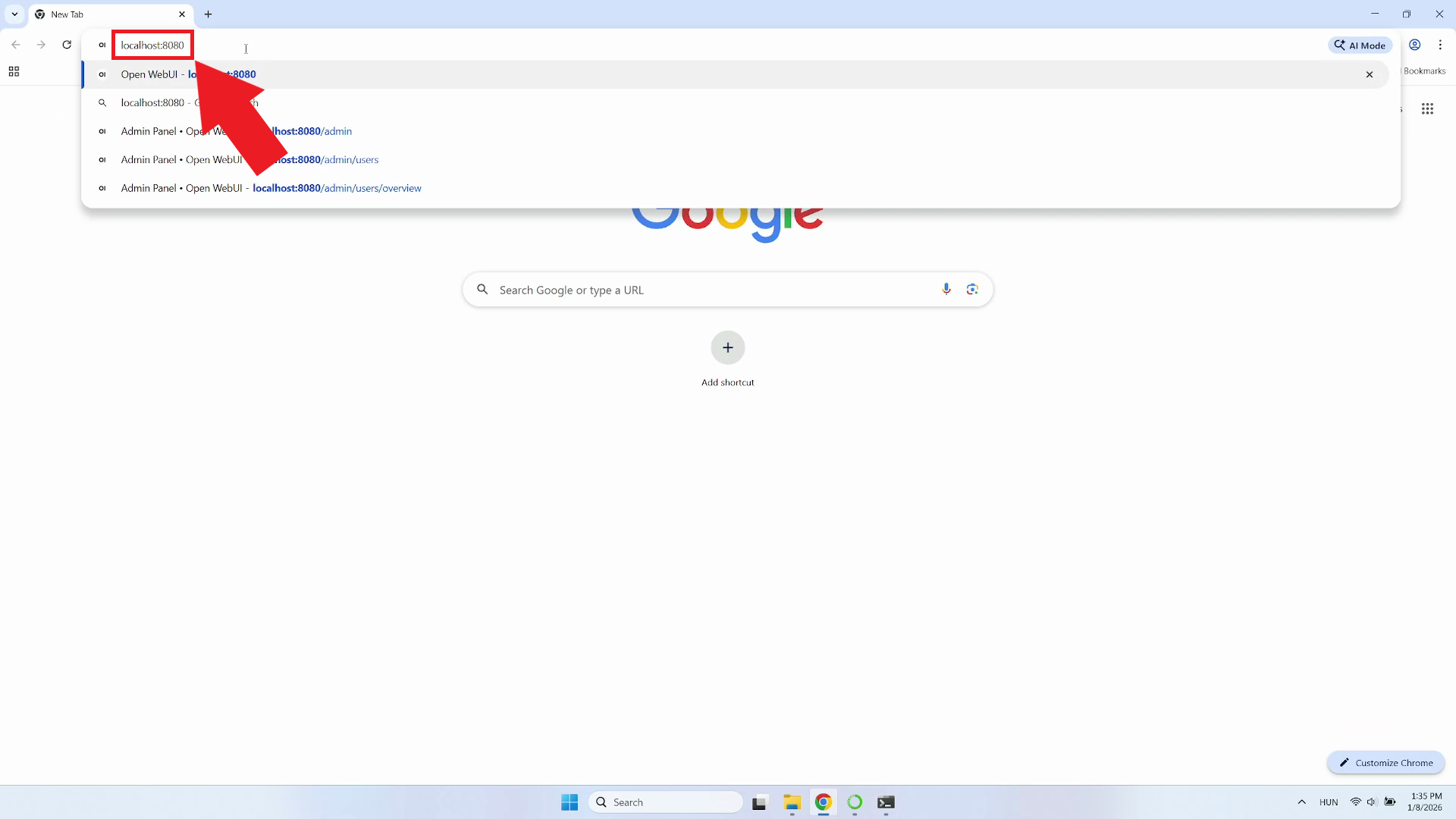
Step 13 - Navigate to OpenWebUI address
Type http://localhost:8080 into your browser's address bar
and press Enter to access the OpenWebUI interface (Figure 13).
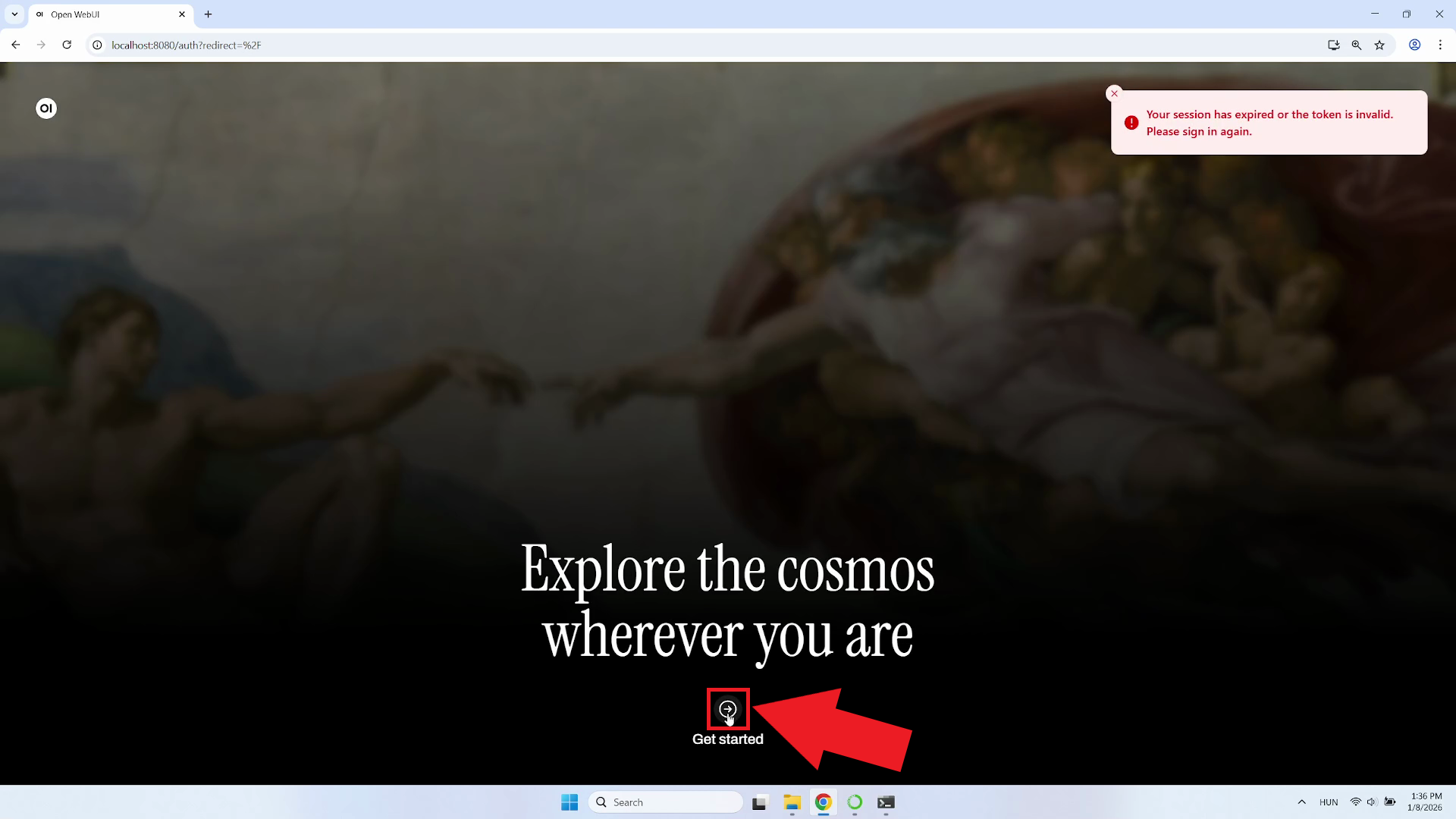
Step 14 - Click Get started
On the welcome page, you'll see a "Get Started" button. Click this button to begin the initial setup process. This will take you to the account creation page where you can register your administrator account. The first user account created in OpenWebUI automatically receives administrator privileges, giving you full access to all settings and configurations (Figure 14).
Step 15 - Create admin account
Fill in the registration form to create your administrator account. You'll need to provide a name, email address, and password. After entering all required information, click the "Create Admin Account" button (Figure 15).

Step 16 - OpenWebUI dashboard
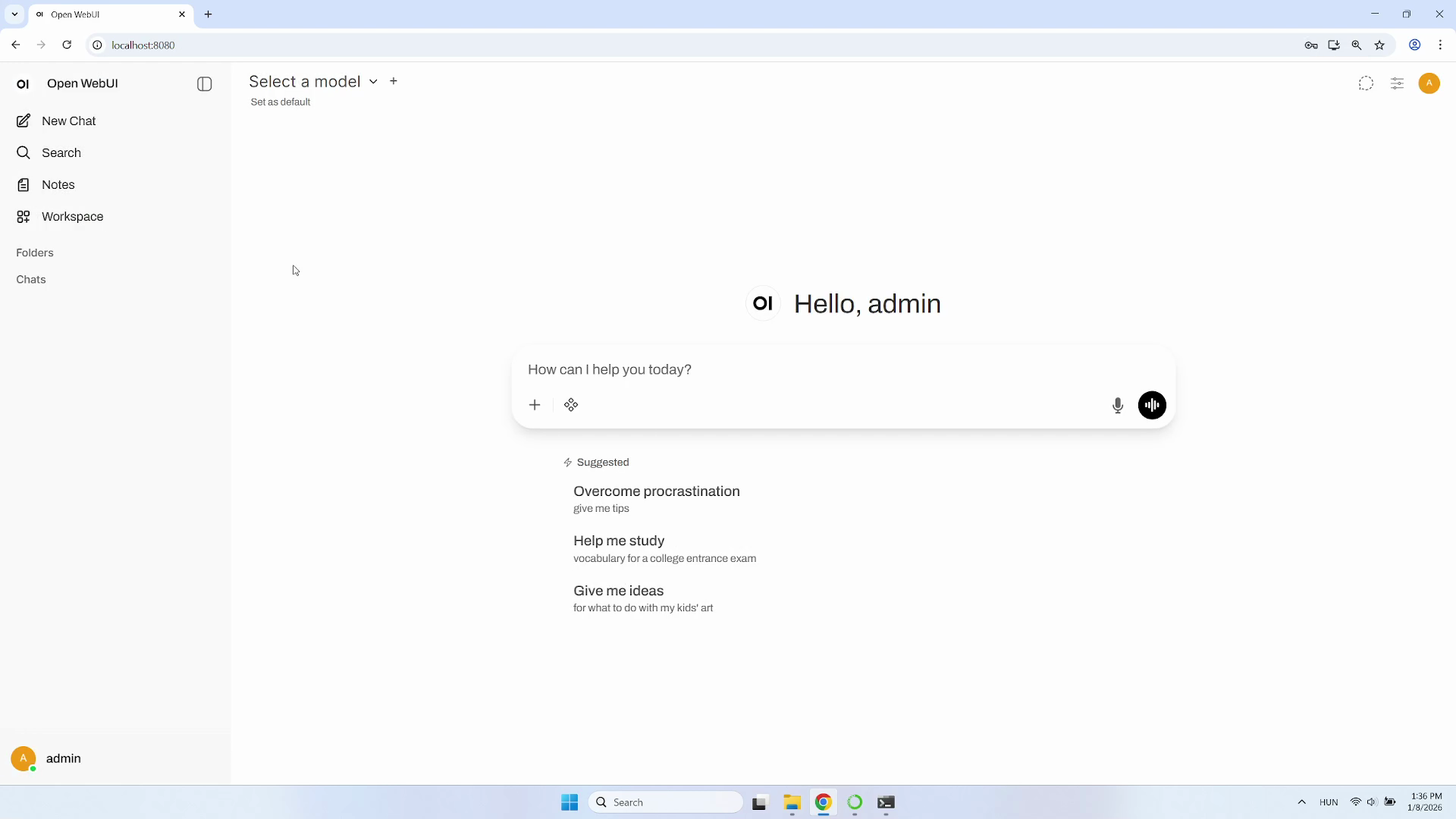
After creating your account, you'll be logged in and redirected to the OpenWebUI dashboard. This is the main chat interface where you'll interact with AI models. The interface features a clean, modern design with a chat window in the center, a sidebar for conversation history on the left, and various settings accessible through menu buttons. However, before you can start chatting, you need to configure the connection to your LLM API (Figure 16).
Step 17 - Open admin panel
To configure the LLM connection, you need to access the admin panel. Look for your profile username in the bottom-left corner of the interface. Click on it to open a dropdown menu, then select "Admin Panel" (Figure 17).

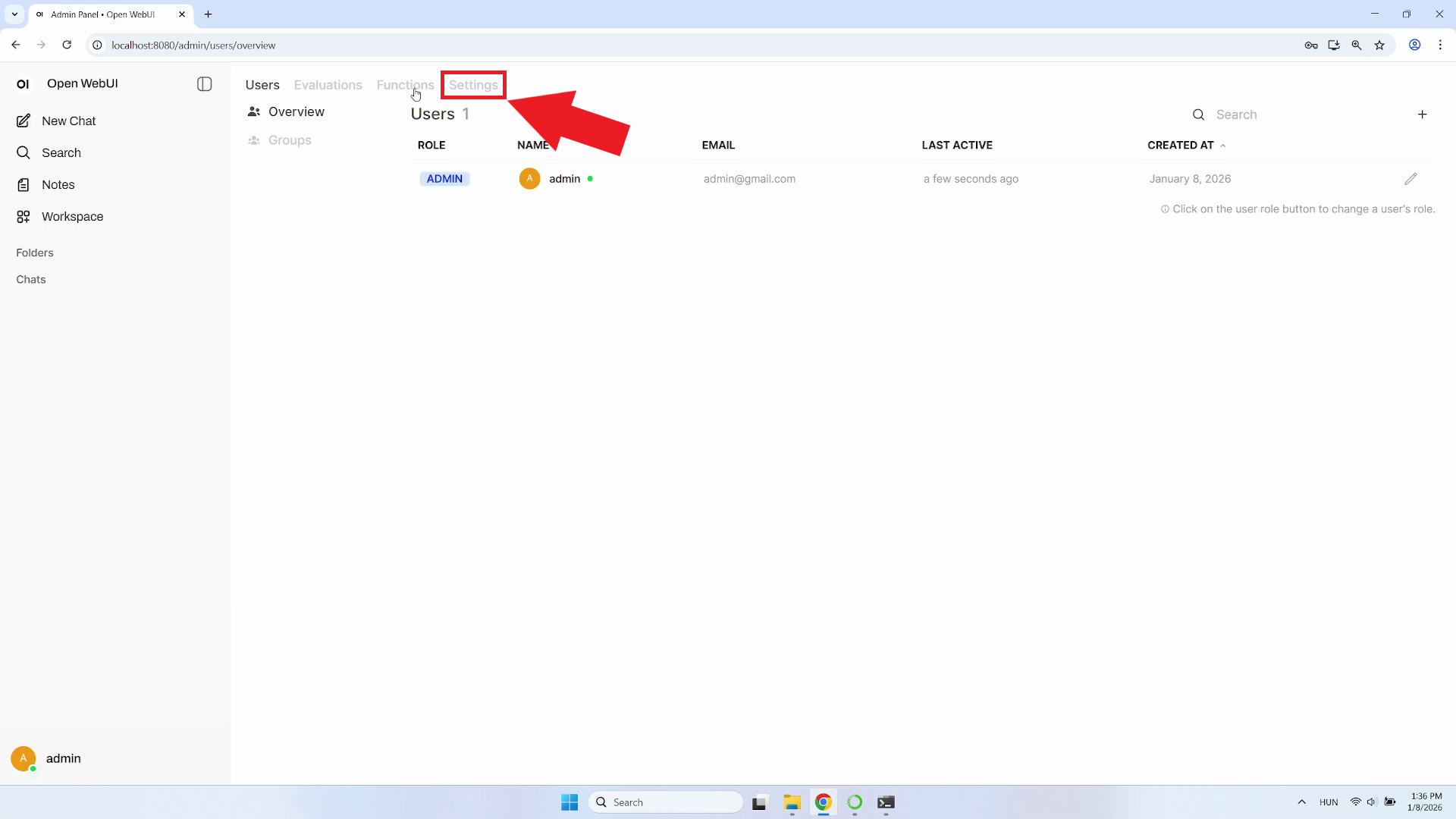
Step 18 - Choose Settings
In the admin panel, locate and click on "Settings". This will open the settings page where you can configure various options for your OpenWebUI installation, including the LLM API URLs (Figure 18).
Step 19 - Open Connections
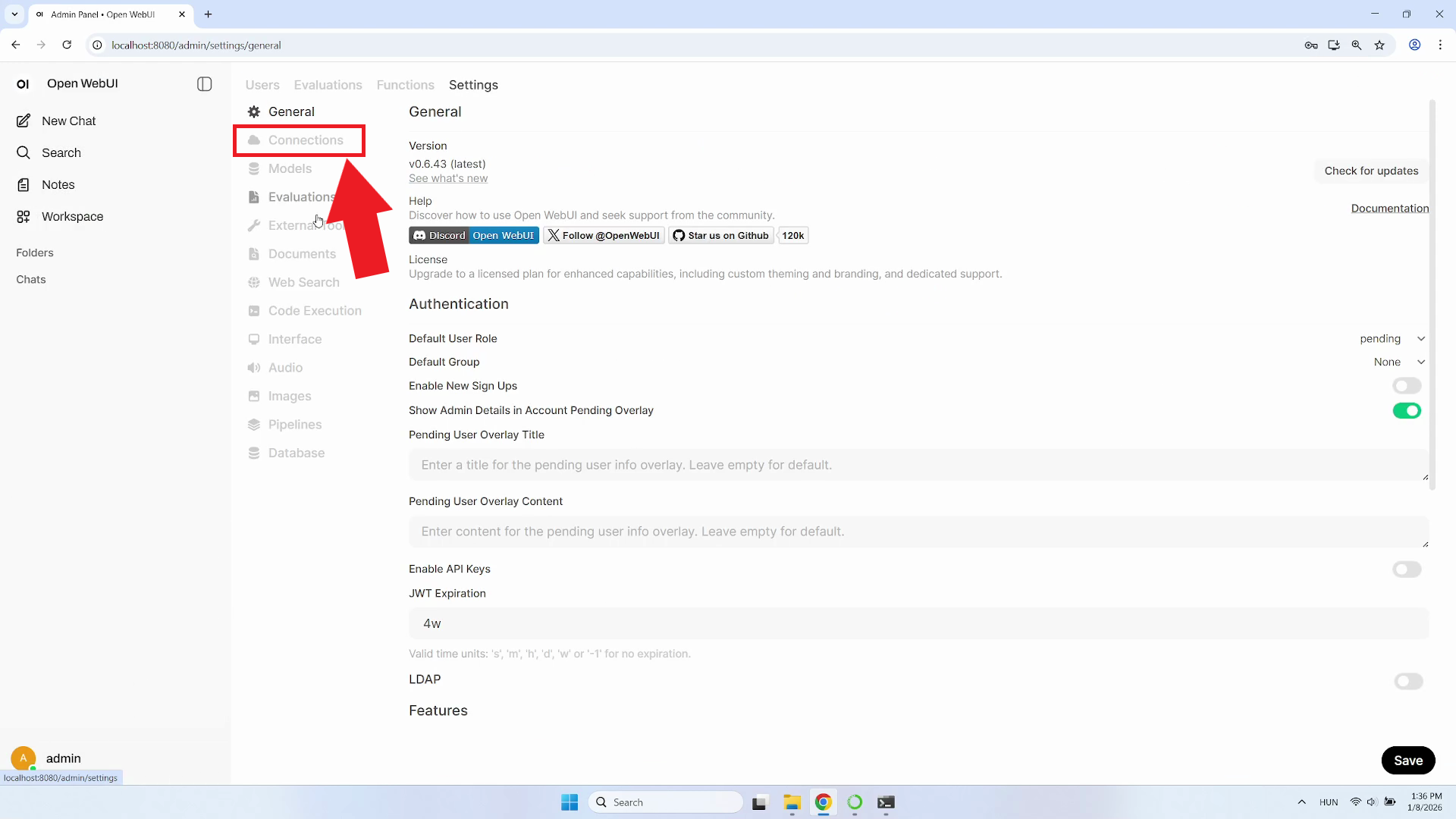
Find and click on "Connections" in the sidebar menu. This section allows you to configure connections to external LLM providers and APIs. Here you can add, edit, or remove API endpoints that OpenWebUI will use to communicate with AI models (Figure 19).
Step 20 - Add connection
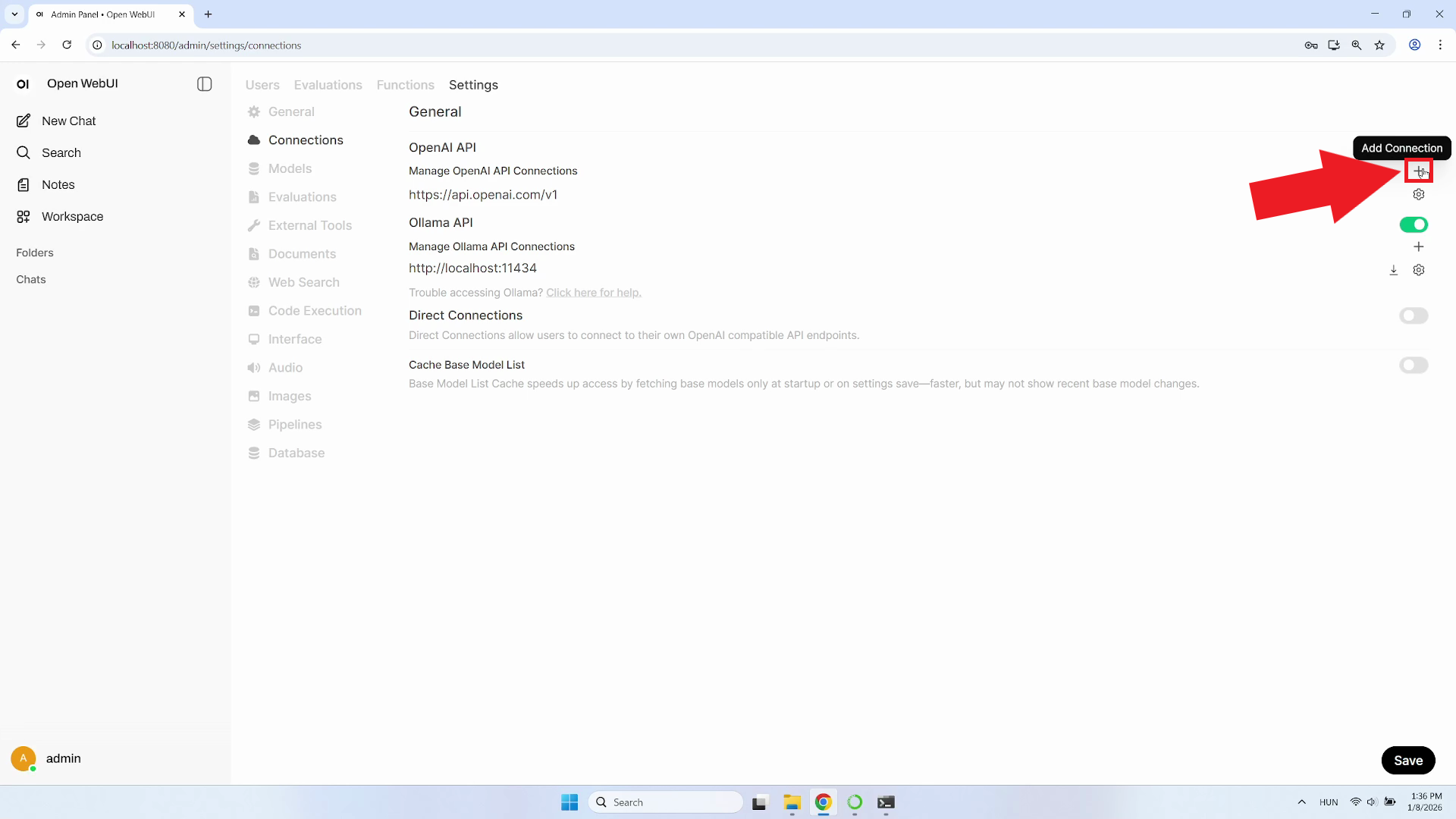
In the Connections section, click the plus (+) icon button to open the Add Connection form (Figure 20).
Step 21 - Enter URL and API key
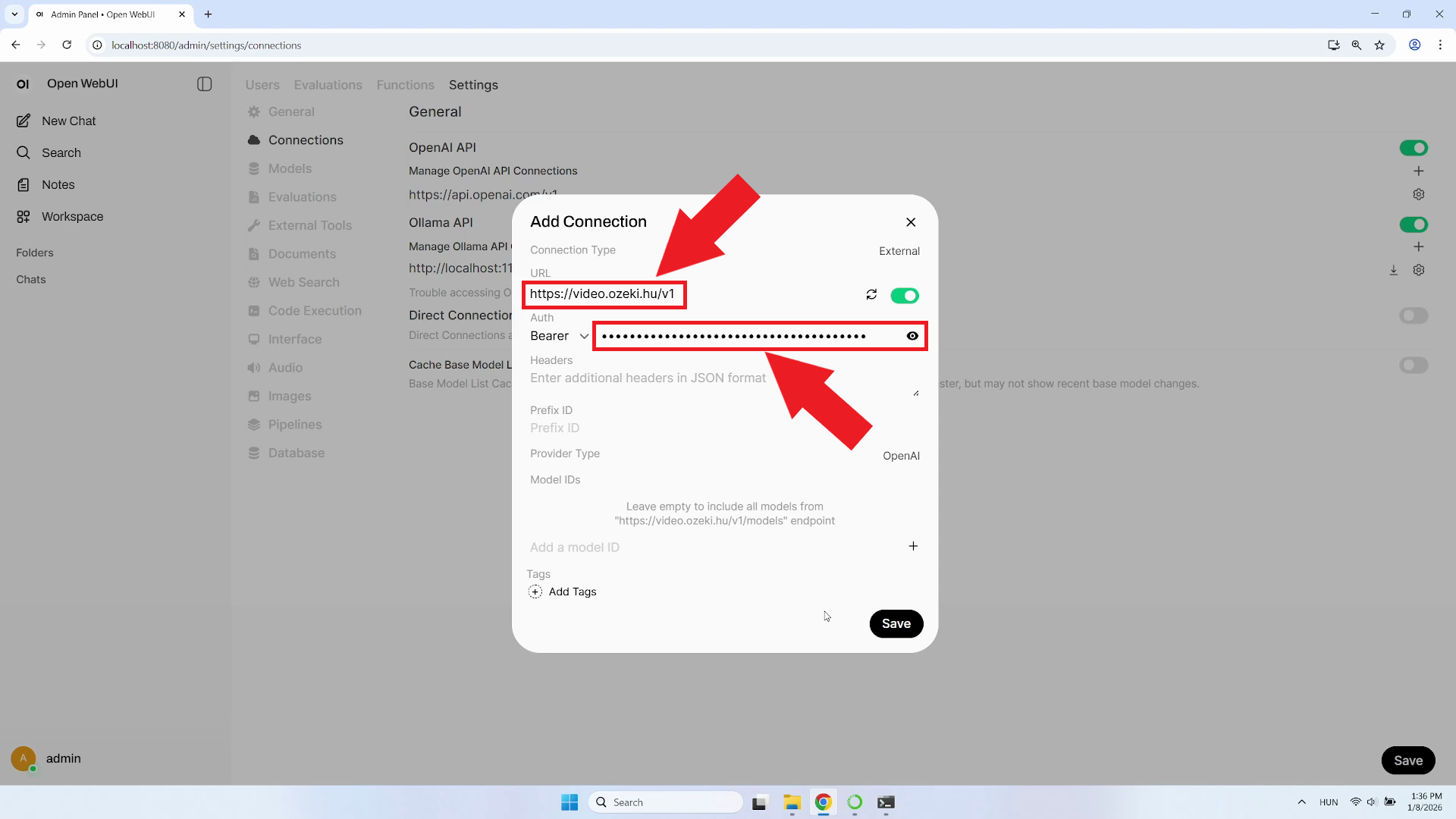
Enter your LLM API endpoint URL and the API key provided by your administrator. The API key authenticates your requests to the LLM service (Figure 21).
Step 22 - Save connection
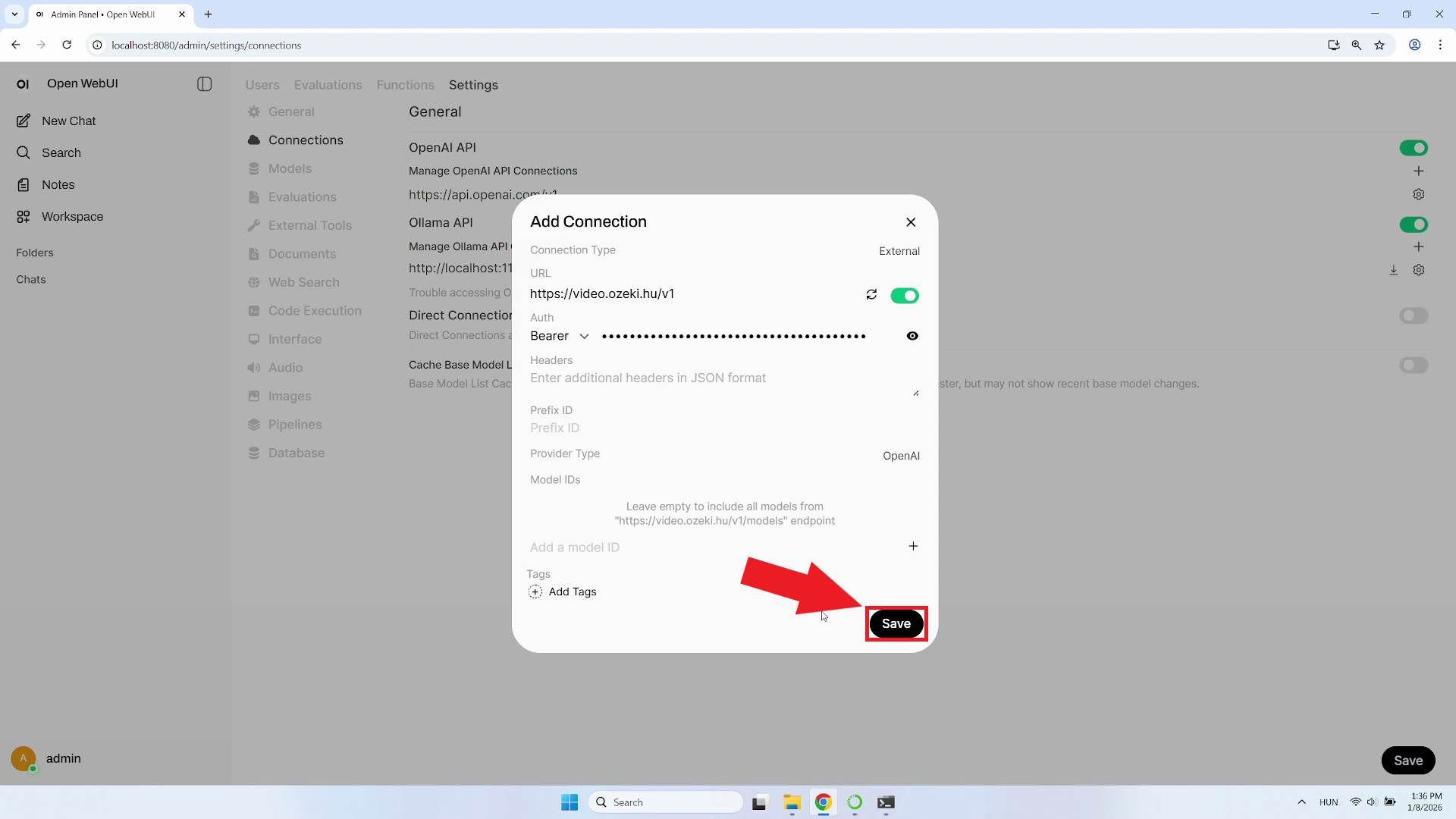
Click the "Save" button at the bottom of the form. OpenWebUI will validate the connection details and attempt to establish a connection to your LLM API. If successful, you'll see a confirmation message and the connection will appear in your list of configured APIs (Figure 22).
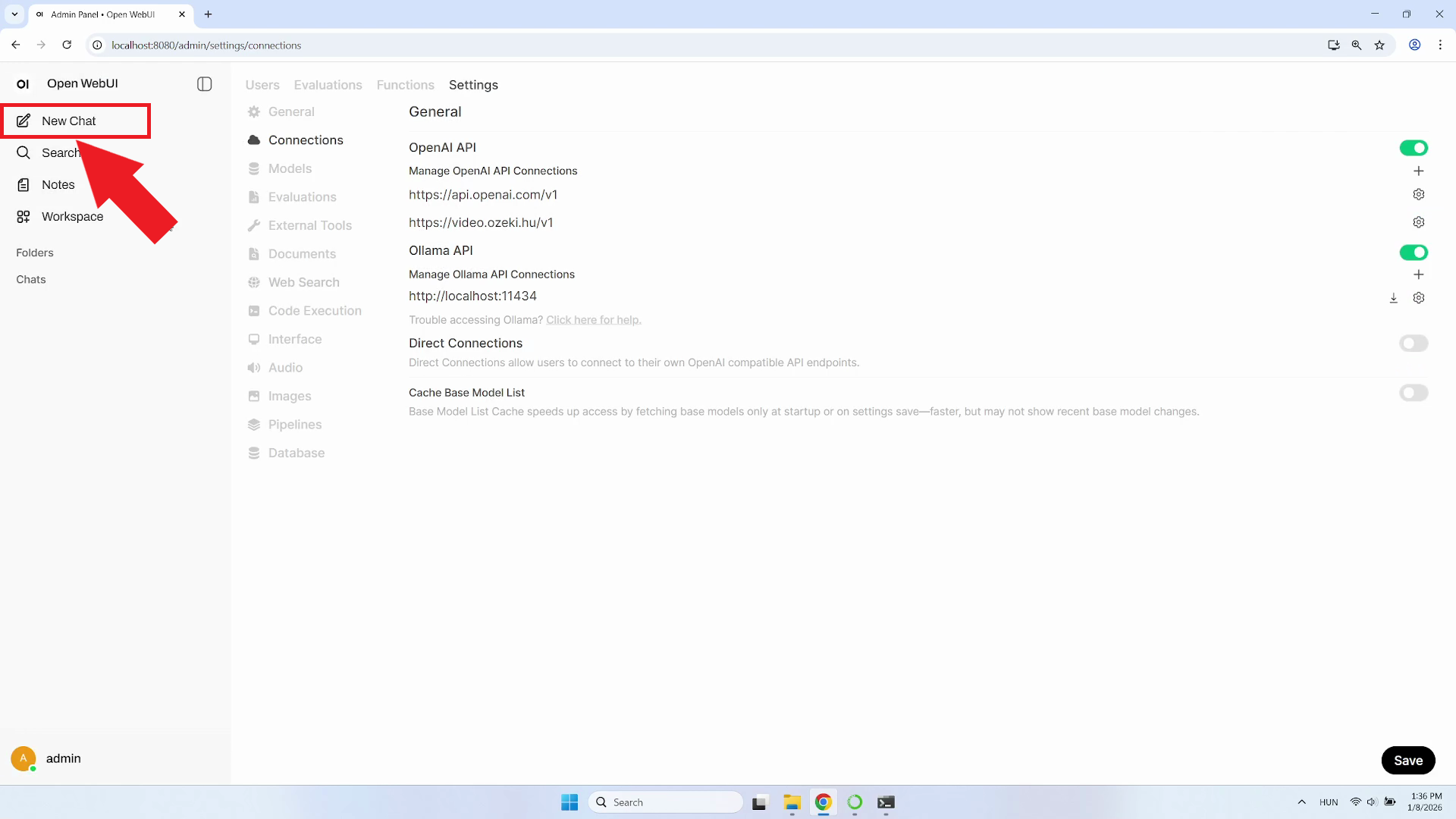
Step 23 - Press New Chat
Return to the main chat interface by clicking the "New Chat" button. This will create a fresh conversation thread where you can begin interacting with the connected LLM model (Figure 23).
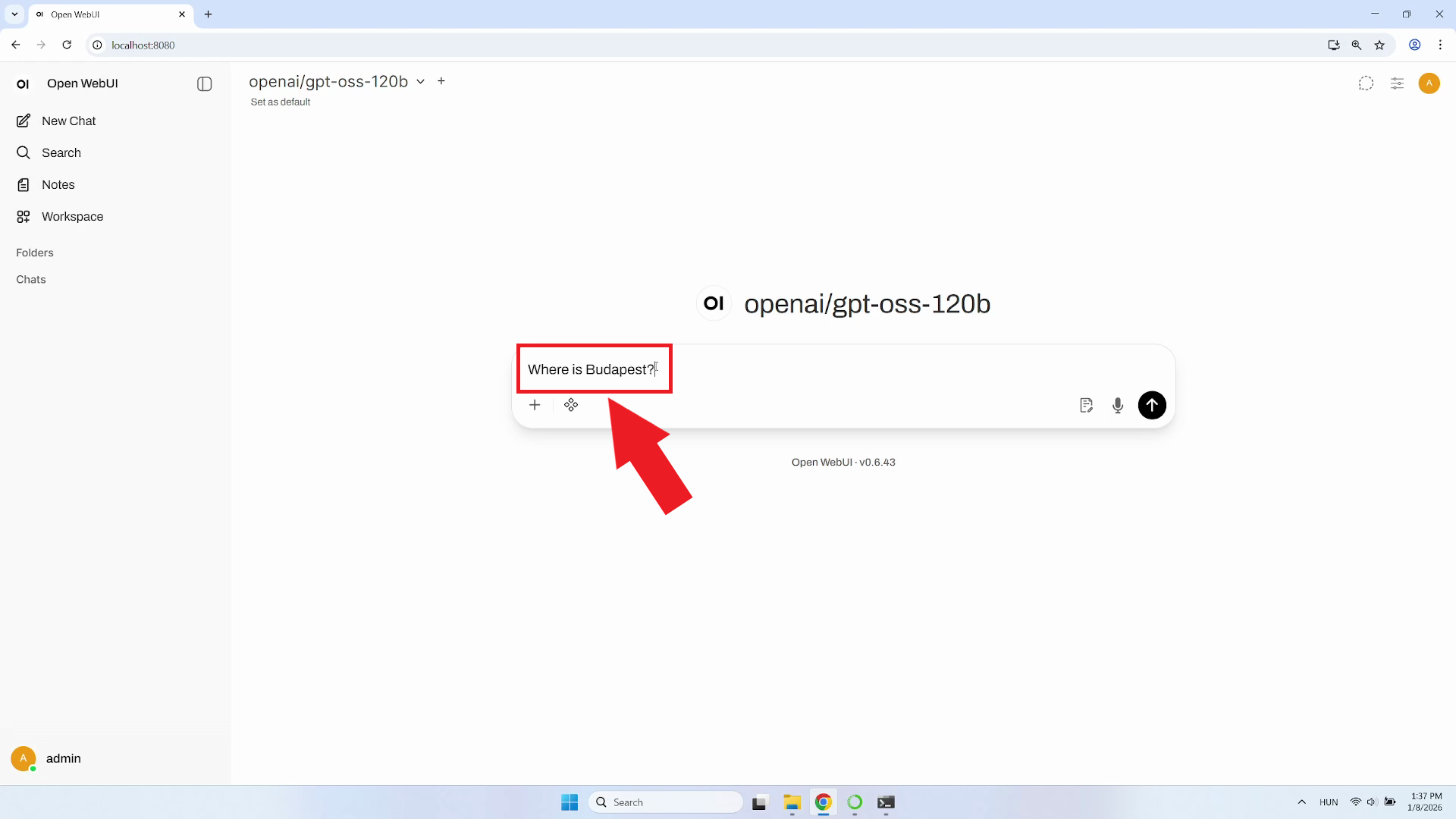
Step 24 - Test the LLM
To test the LLM connection, type a question in the chat textbox and press Enter or click the send button (Figure 24).
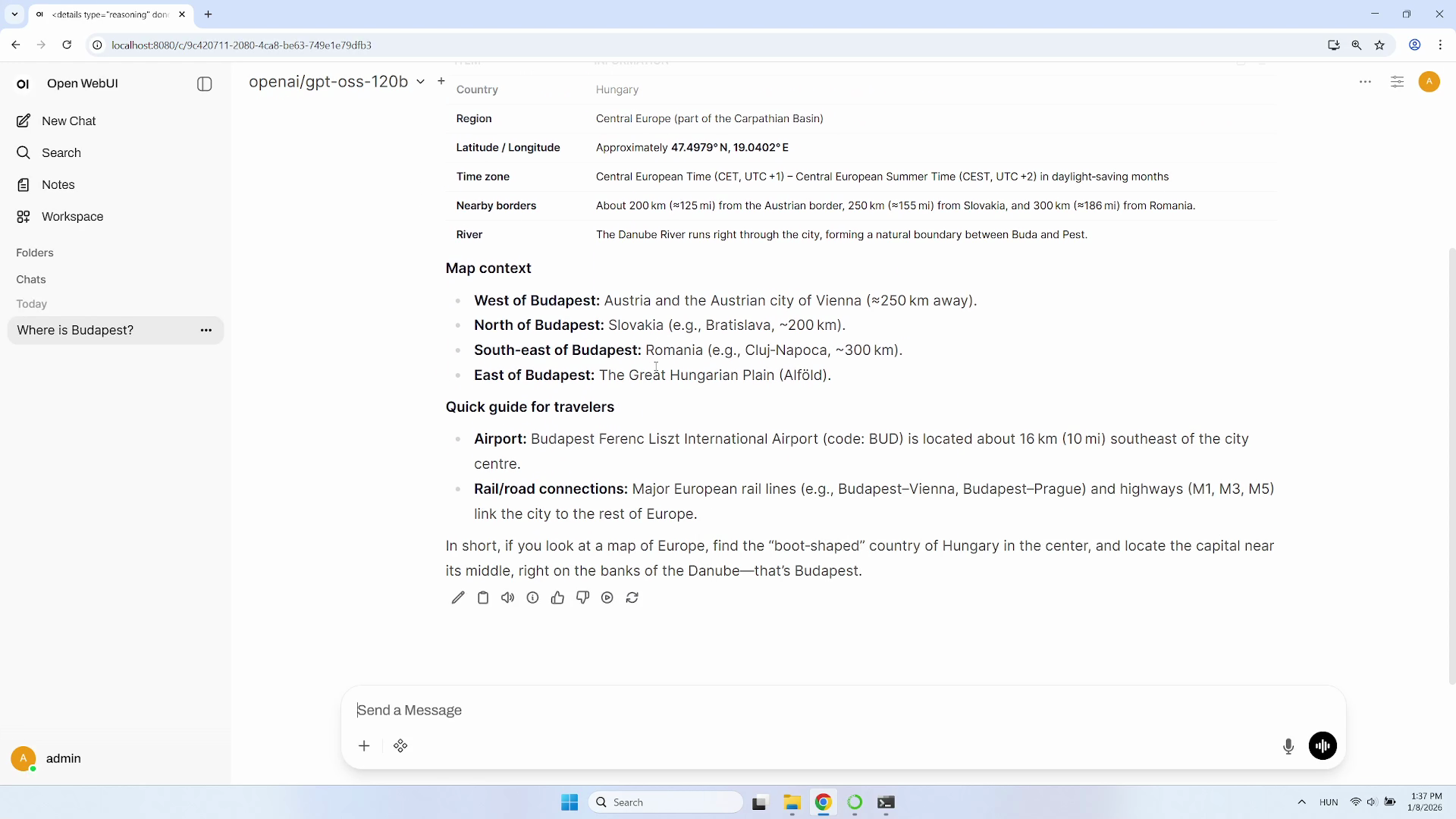
Step 25 - Response received
You should see the AI's response appear in the chat window, confirming that OpenWebUI is successfully connected to your LLM API and working as expected (Figure 25).
Conclusion
Now that OpenWebUI is set up, you're ready to start using AI-powered conversations through your own self-hosted interface. With this guide, you've completed the essential steps to create a Python environment, install OpenWebUI, and connect it to your company's LLM service. As you explore the platform, OpenWebUI will support your AI interaction needs, helping you leverage large language models for various tasks including content generation, code assistance, data analysis, and more.