
How to uninstall Ozeki AI Gateway from Windows
This guide demonstrates how to remove Ozeki AI Gateway from your Windows system. The uninstall process removes the gateway application and makes the web interface inaccessible. You'll learn how to use Windows Settings to uninstall the software and verify its removal.
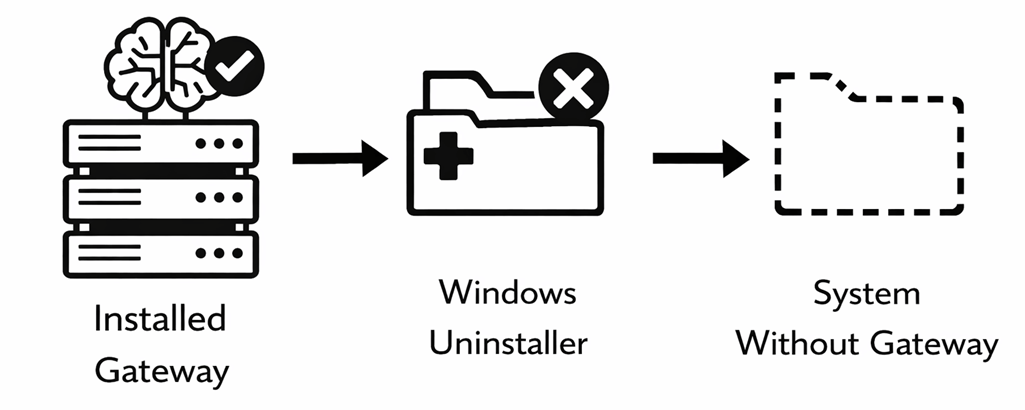
Steps to follow
- Open installed apps list
- Search for Ozeki AI Gateway
- Uninstall Ozeki AI Gateway
- Verify removal in web browser
How to uninstall Ozeki AI Gateway video
The following video shows how to uninstall Ozeki AI Gateway from Windows step-by-step. The video covers opening Windows Settings, locating the application, running the uninstaller, and verifying that the gateway has been removed.
Step 1 - Open installed apps list
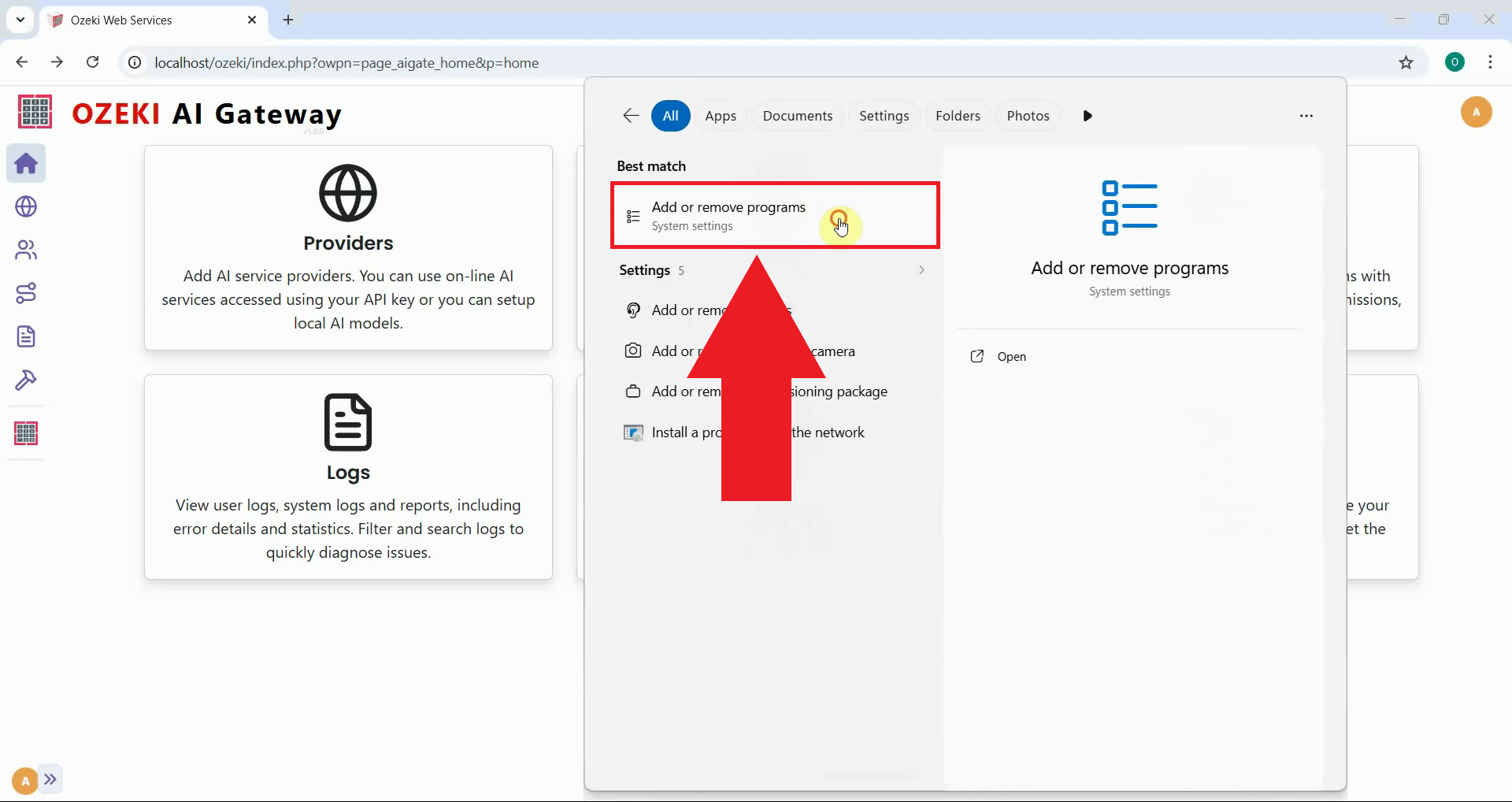
Open Windows Settings and navigate to the Apps section. You can do this by clicking the Start menu and searching for "Add or Remove Programs", or by pressing Windows+I to open Settings and selecting "Apps". This opens the installed applications list where you can manage your programs (Figure 1).
Step 2 - Search for Ozeki AI Gateway
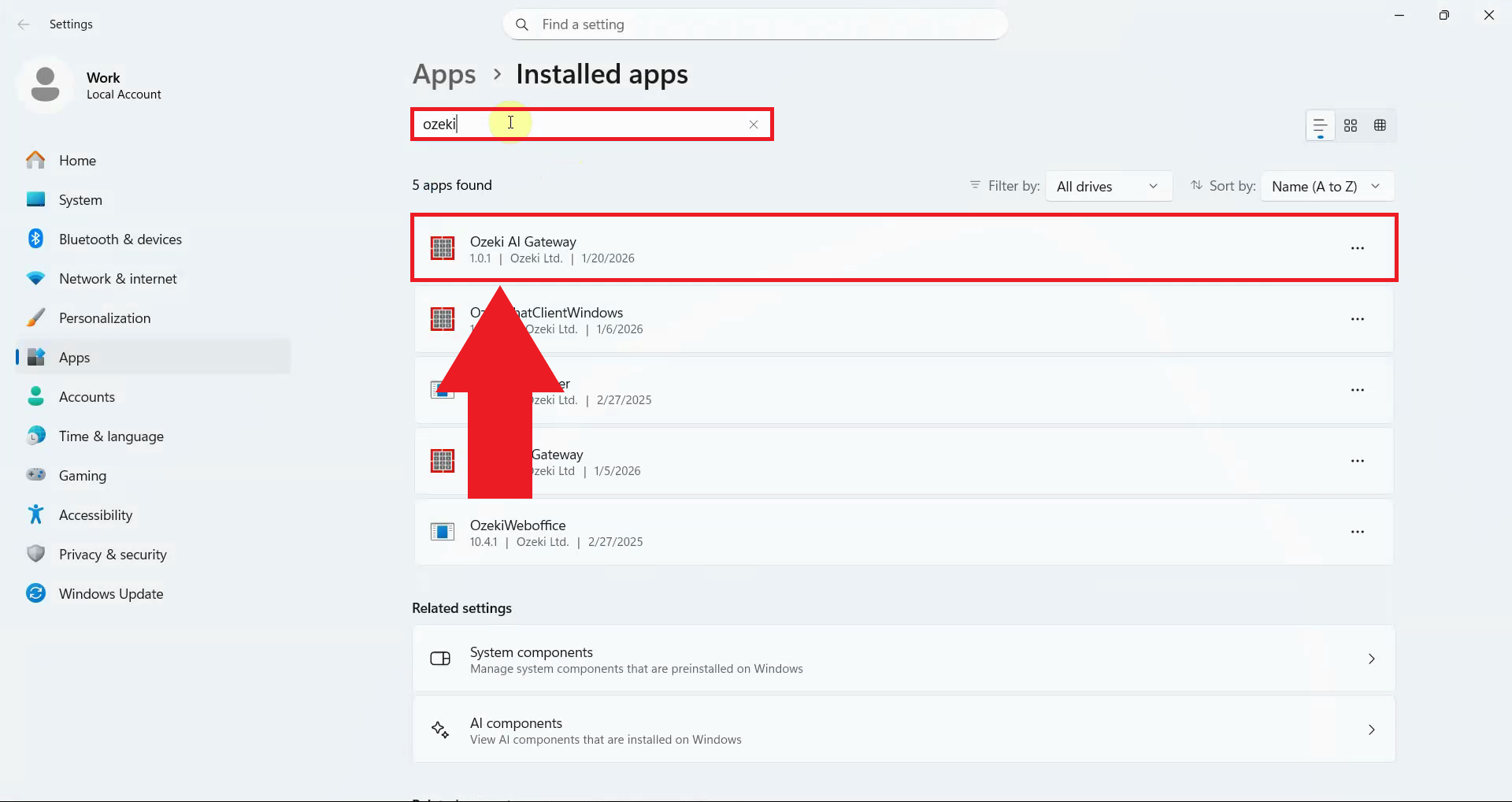
In the search box at the top of the Apps list, type "Ozeki AI Gateway" to filter the installed applications. The search will locate Ozeki AI Gateway in your installed programs list (Figure 2).
Step 3 - Uninstall Ozeki AI Gateway
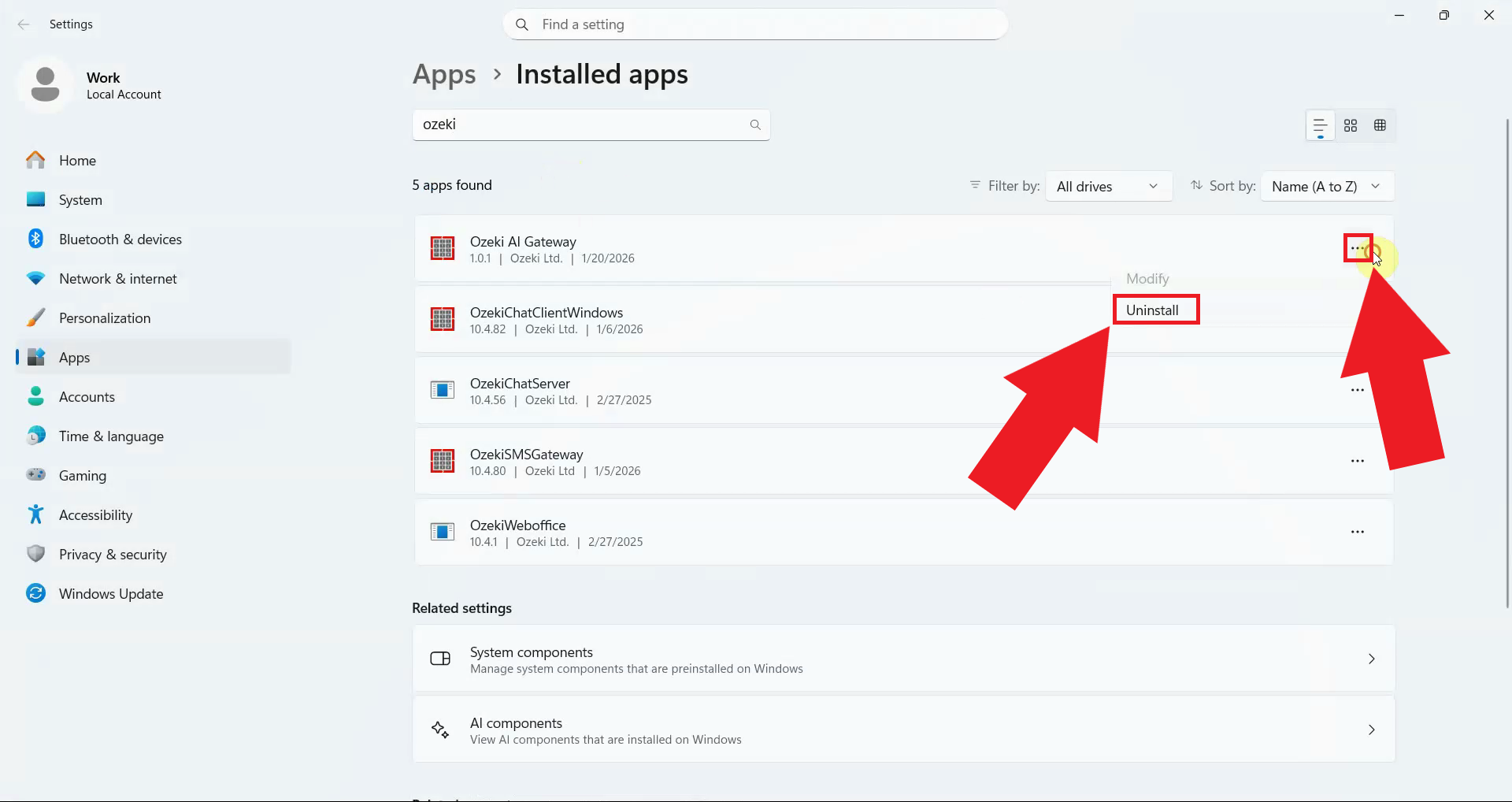
Click on the three dots next to "Ozeki AI Gateway" in the list to open the options menu, then click the "Uninstall" button. Windows will prepare to launch the Ozeki AI Gateway uninstaller (Figure 3).
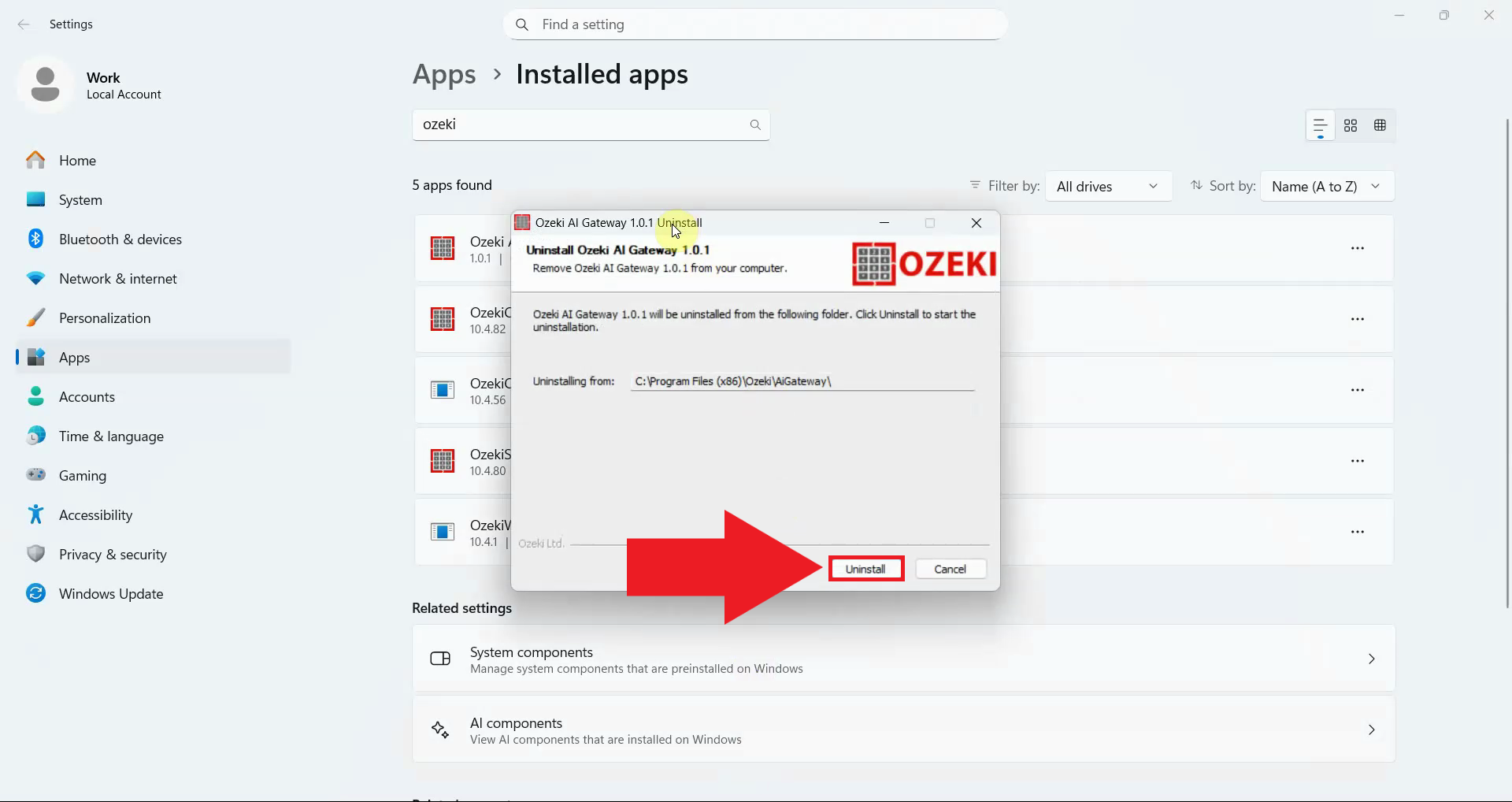
The Ozeki AI Gateway uninstaller window opens, displaying information about the application that will be removed. Click the "Uninstall" button in the uninstaller window to confirm that you want to remove Ozeki AI Gateway from your system (Figure 4).
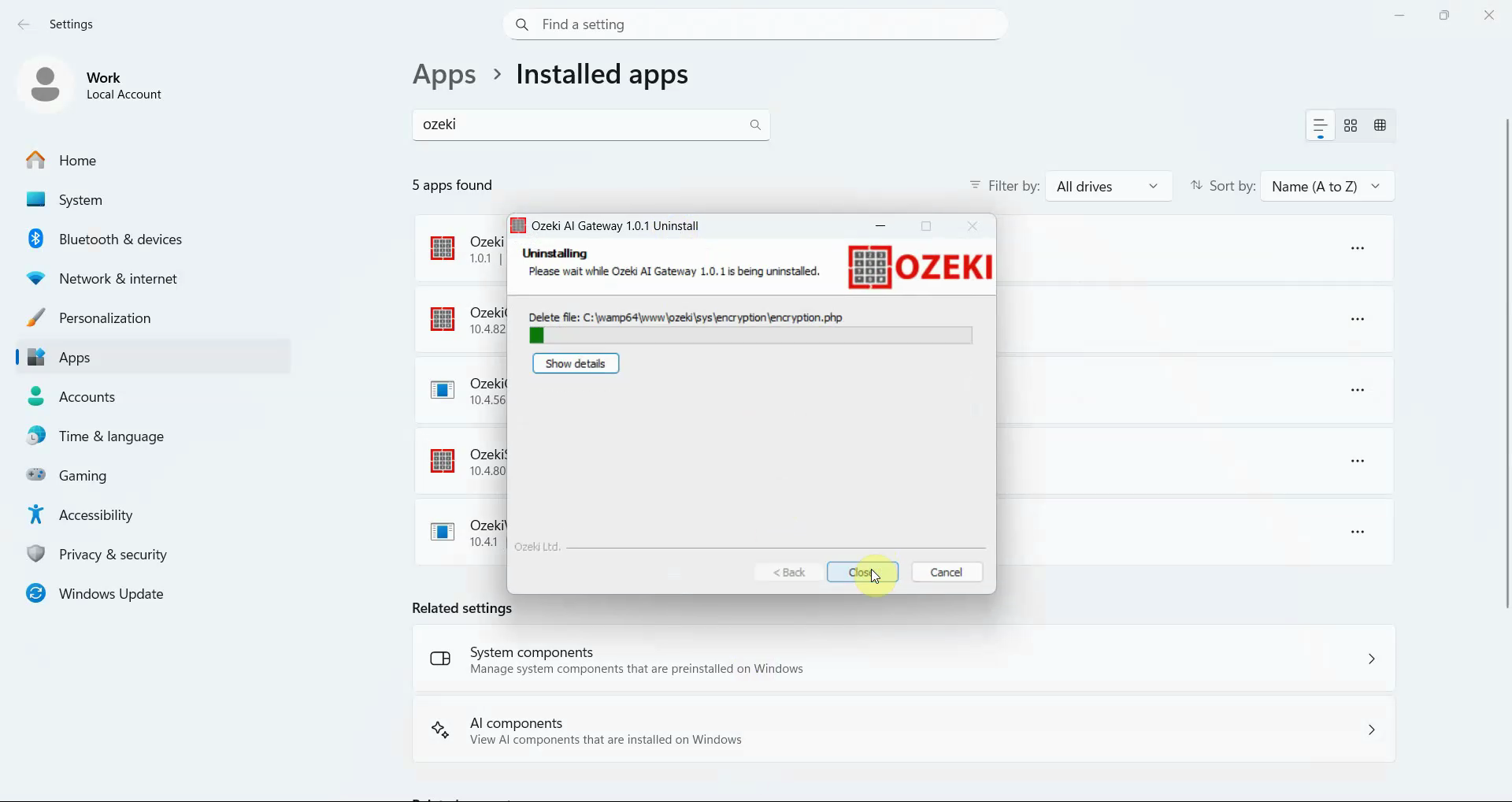
Wait for the uninstallation process to complete. The uninstaller displays progress information as it removes Ozeki AI Gateway files and components from your system (Figure 5).
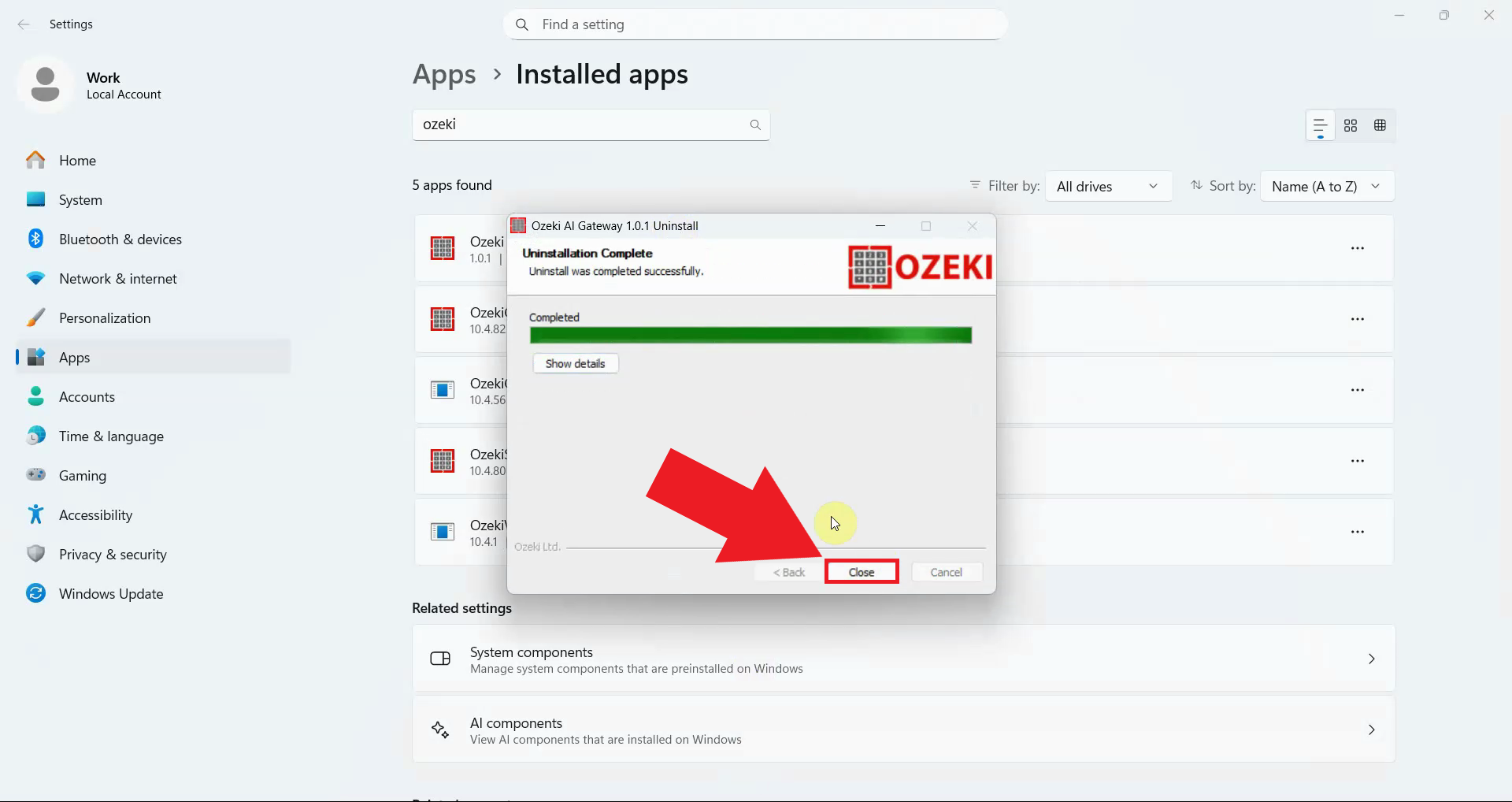
A completion message confirms that Ozeki AI Gateway has been successfully removed from your system. Click "Close" to exit the uninstaller (Figure 6).
Step 4 - Verify removal in browser
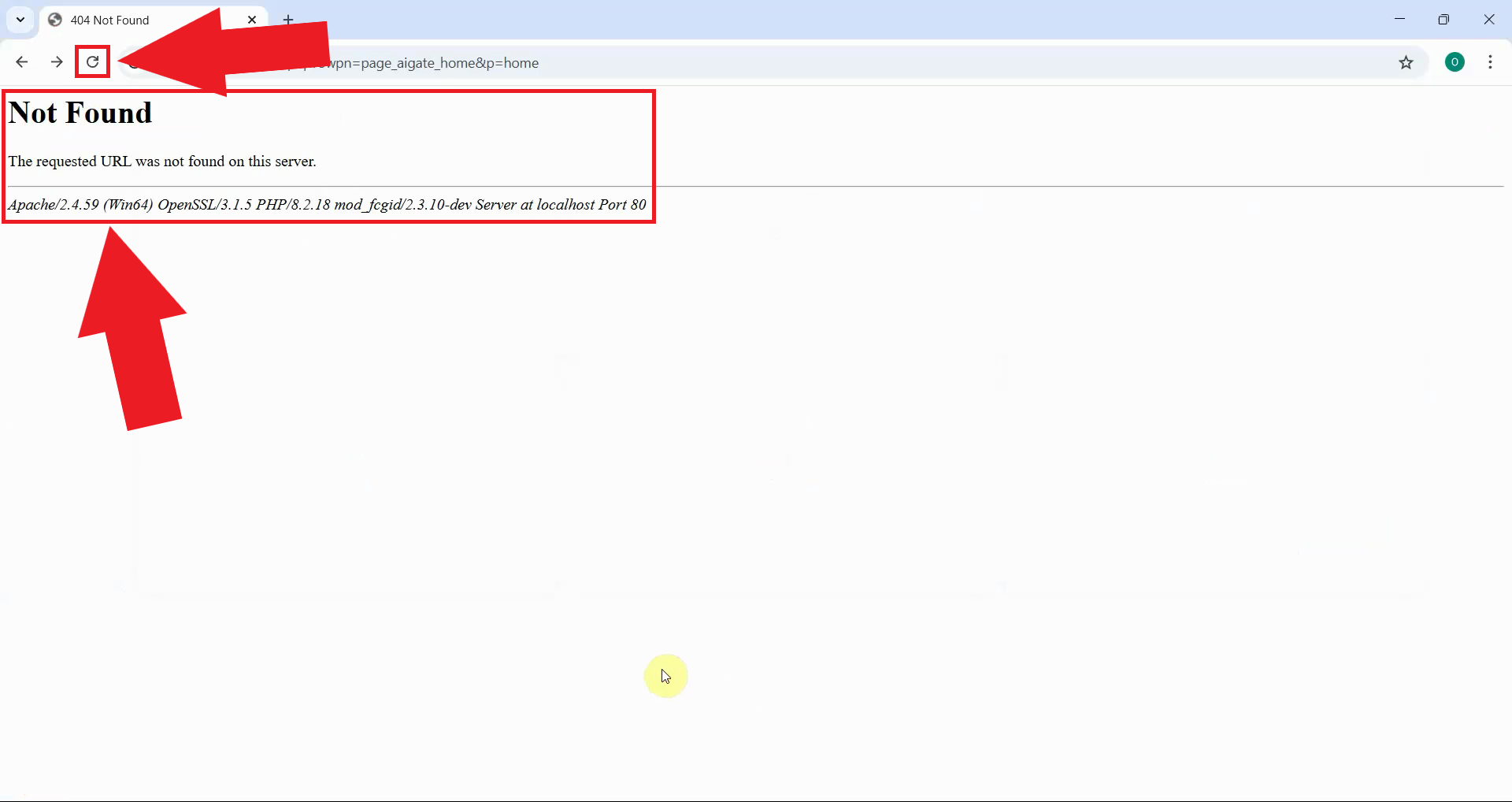
Open your web browser and navigate to the Ozeki AI Gateway URL. The page should now be inaccessible or display an error, confirming that Ozeki AI Gateway has been successfully removed from your system (Figure 7).
To sum it up
You have successfully uninstalled Ozeki AI Gateway from your Windows system. The gateway application has been removed and the web interface is no longer accessible. If you need to reinstall Ozeki AI Gateway in the future, you can download and run the installer again to set it up.