
How to upgrade Ozeki AI Gateway on Windows
This guide demonstrates how to upgrade Ozeki AI Gateway to the latest version on Windows systems. The upgrade process automatically removes the old version and installs the new one while preserving all your configuration data, including providers, users, routes, and API keys. You'll learn how to run the new installer and complete the upgrade process.
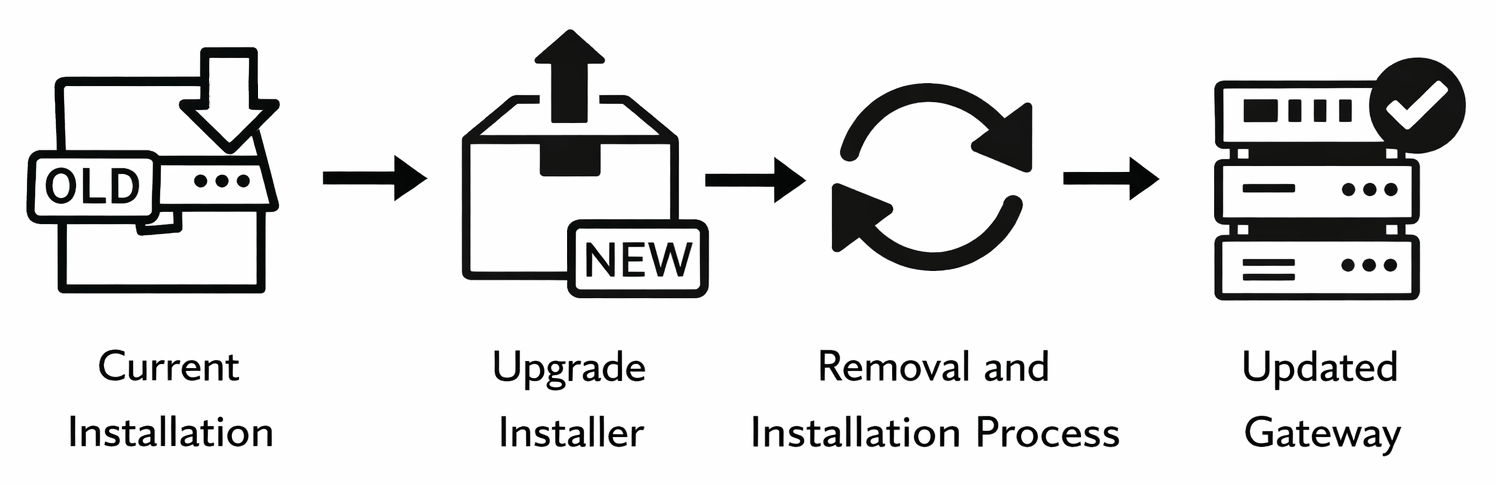
Steps to follow
- Check current version
- Run installer and confirm removal
- Accept license and choose location
- Complete installation
- Verify new version
How to upgrade Ozeki AI Gateway video
The following video shows how to upgrade Ozeki AI Gateway on Windows. The video covers checking your current version, running the new installer, and verifying the upgrade was successful while your data remains intact.
Step 1 - Check current version
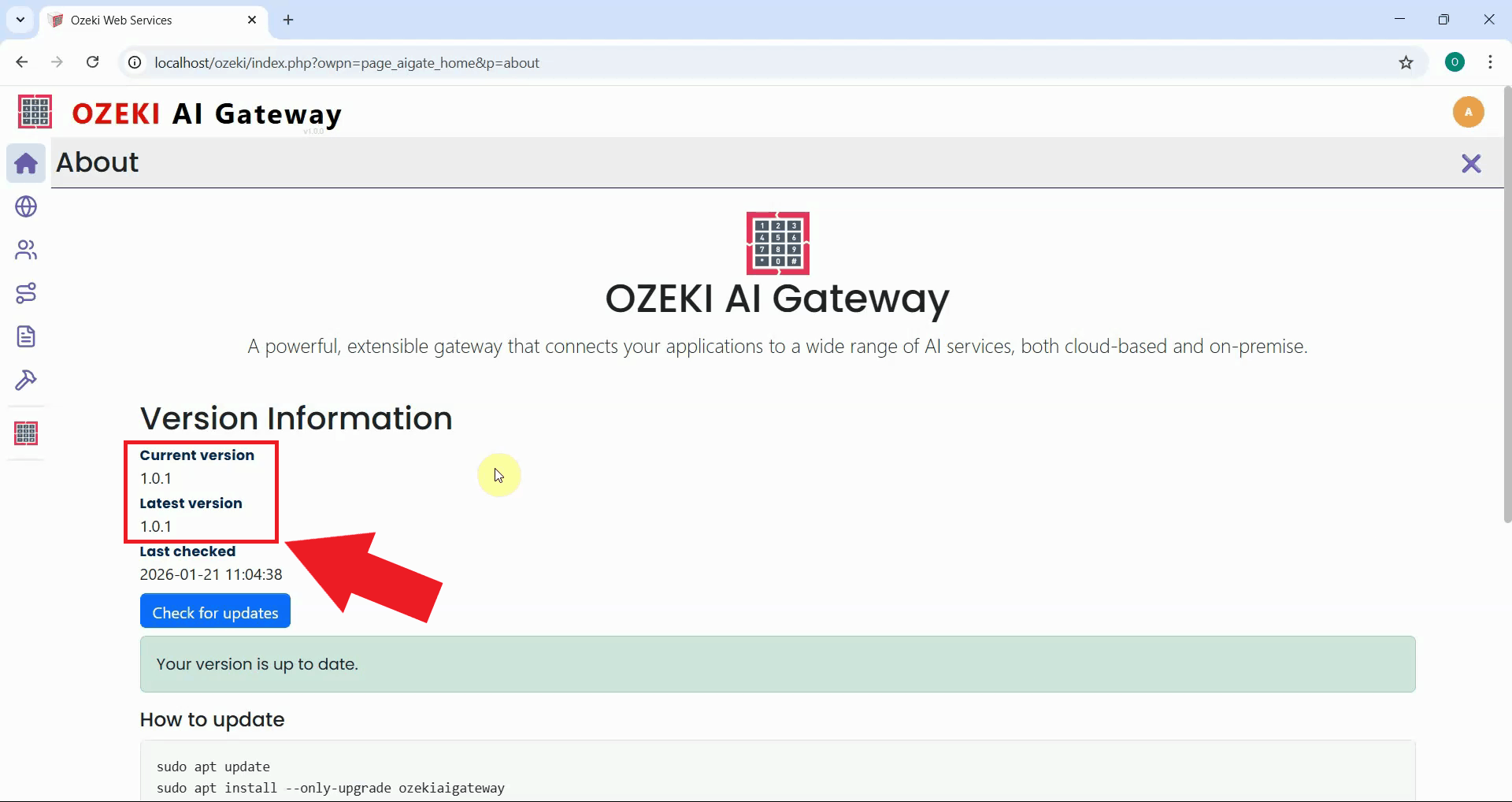
Before upgrading, open the Ozeki AI Gateway web interface and check the current version number displayed on the "About" page. This helps you confirm the upgrade was successful later. Note your current version number (Figure 1).
Step 2 - Run installer and confirm removal
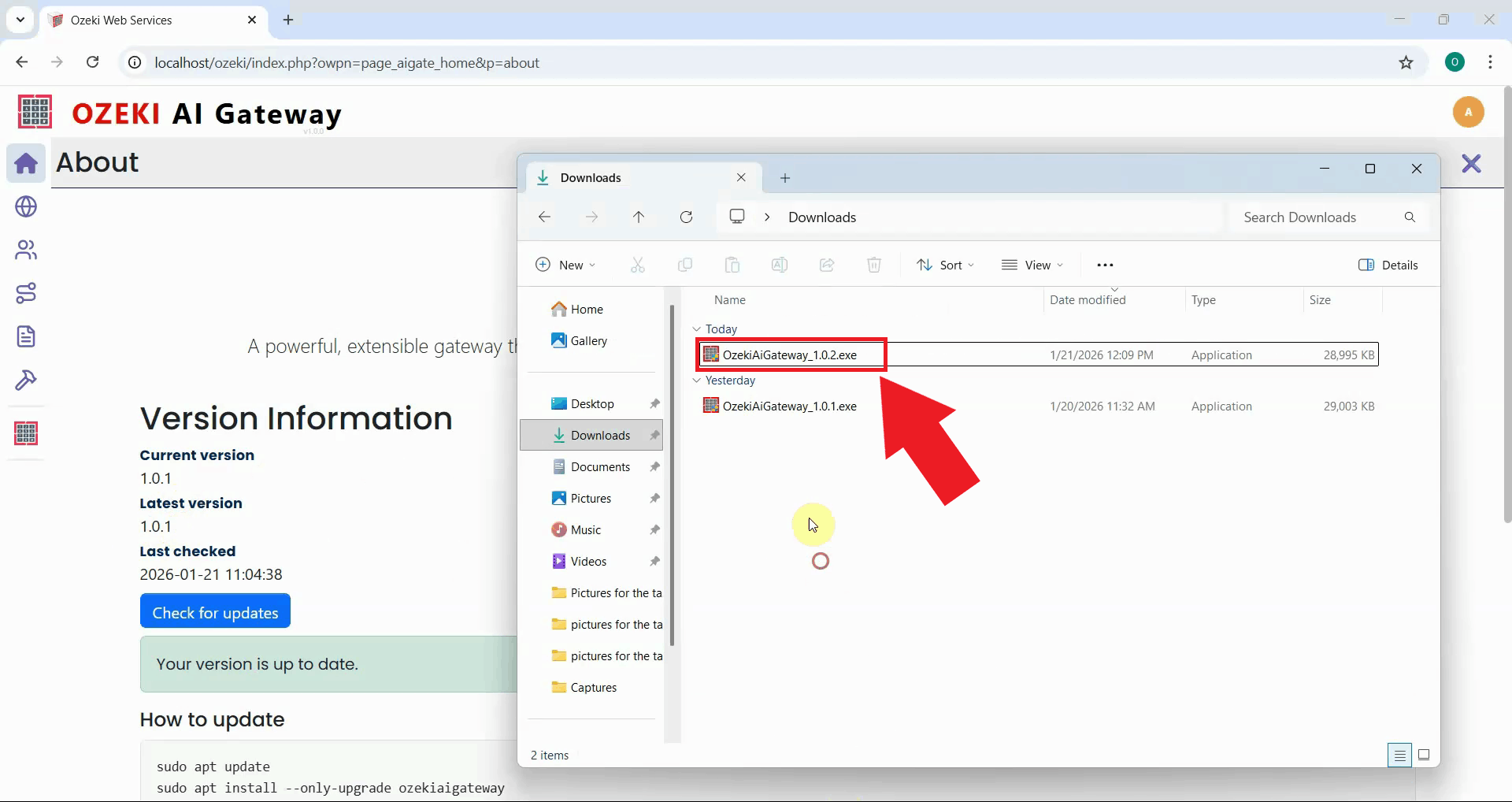
Download the latest Ozeki AI Gateway installer from the website and run it. Double-click the installer file to launch the upgrade process (Figure 2).
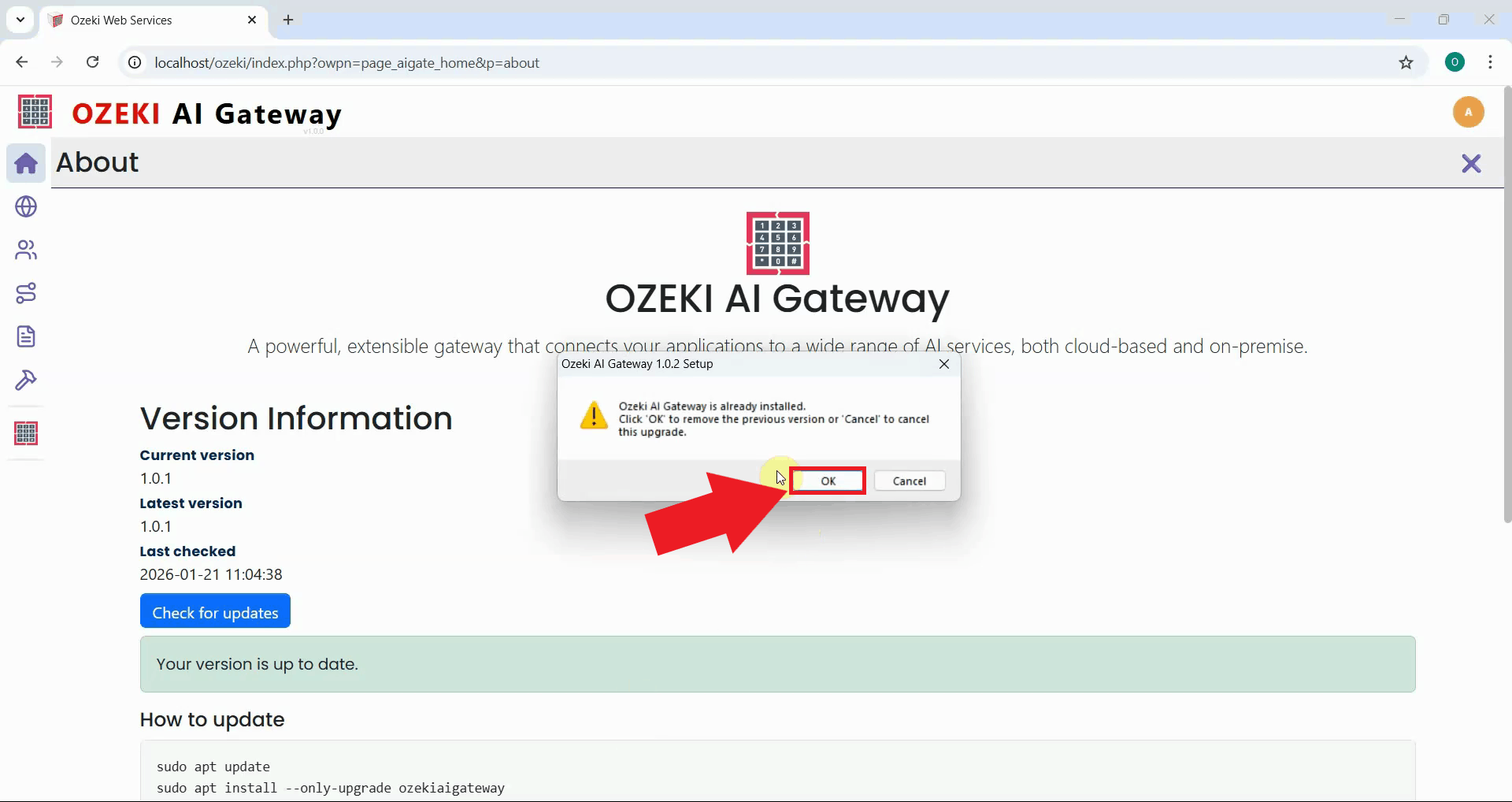
The installer detects the existing Ozeki AI Gateway installation and prompts you to confirm the removal of the old version. Click "OK" to proceed. The installer will automatically remove the old version while preserving your configuration data (Figure 3).
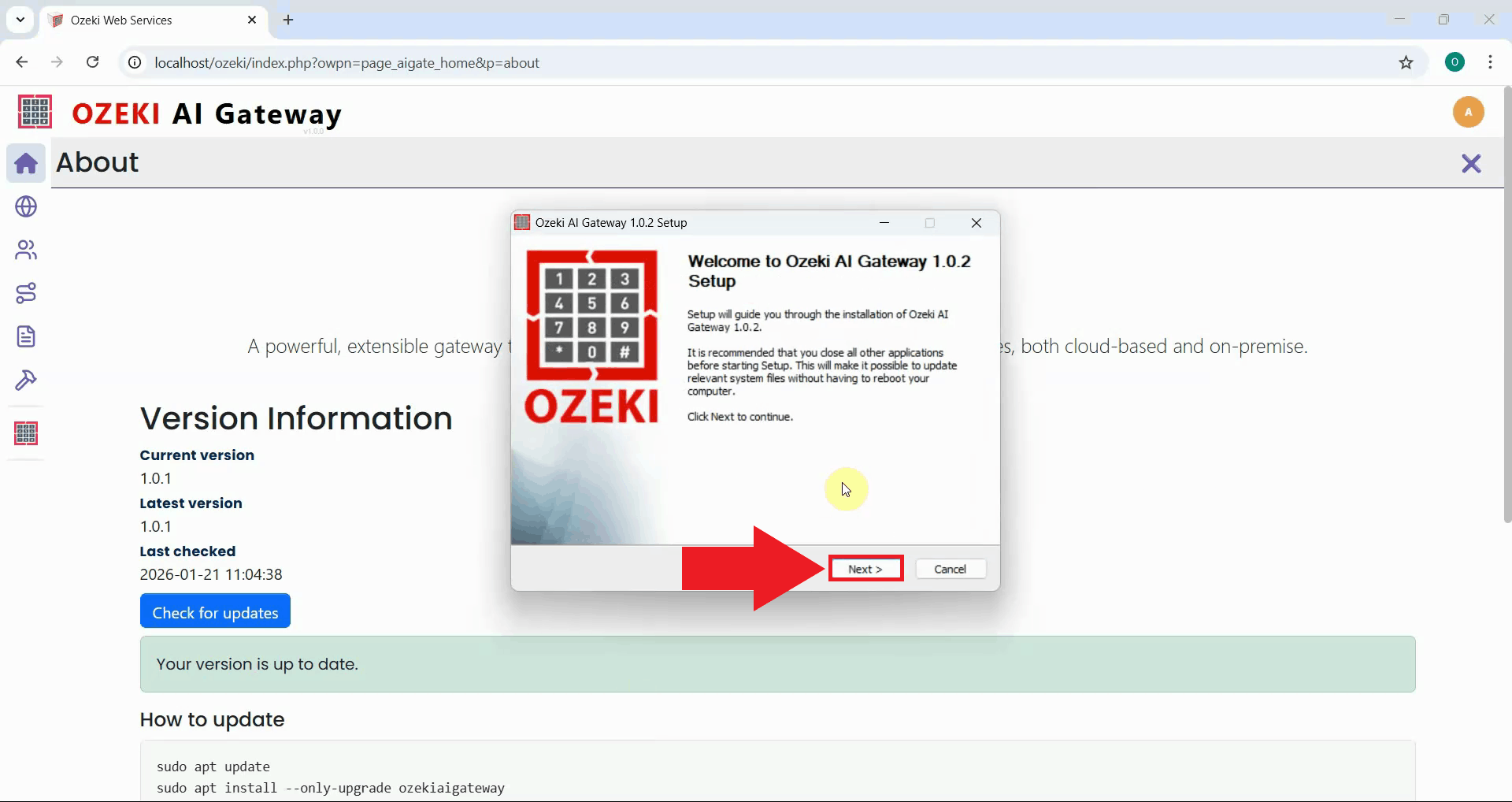
After removing the old version, the installer displays the welcome page for the new version. Click "Next" to continue with the installation of the upgraded version (Figure 4).
Step 3 - Accept license and choose location
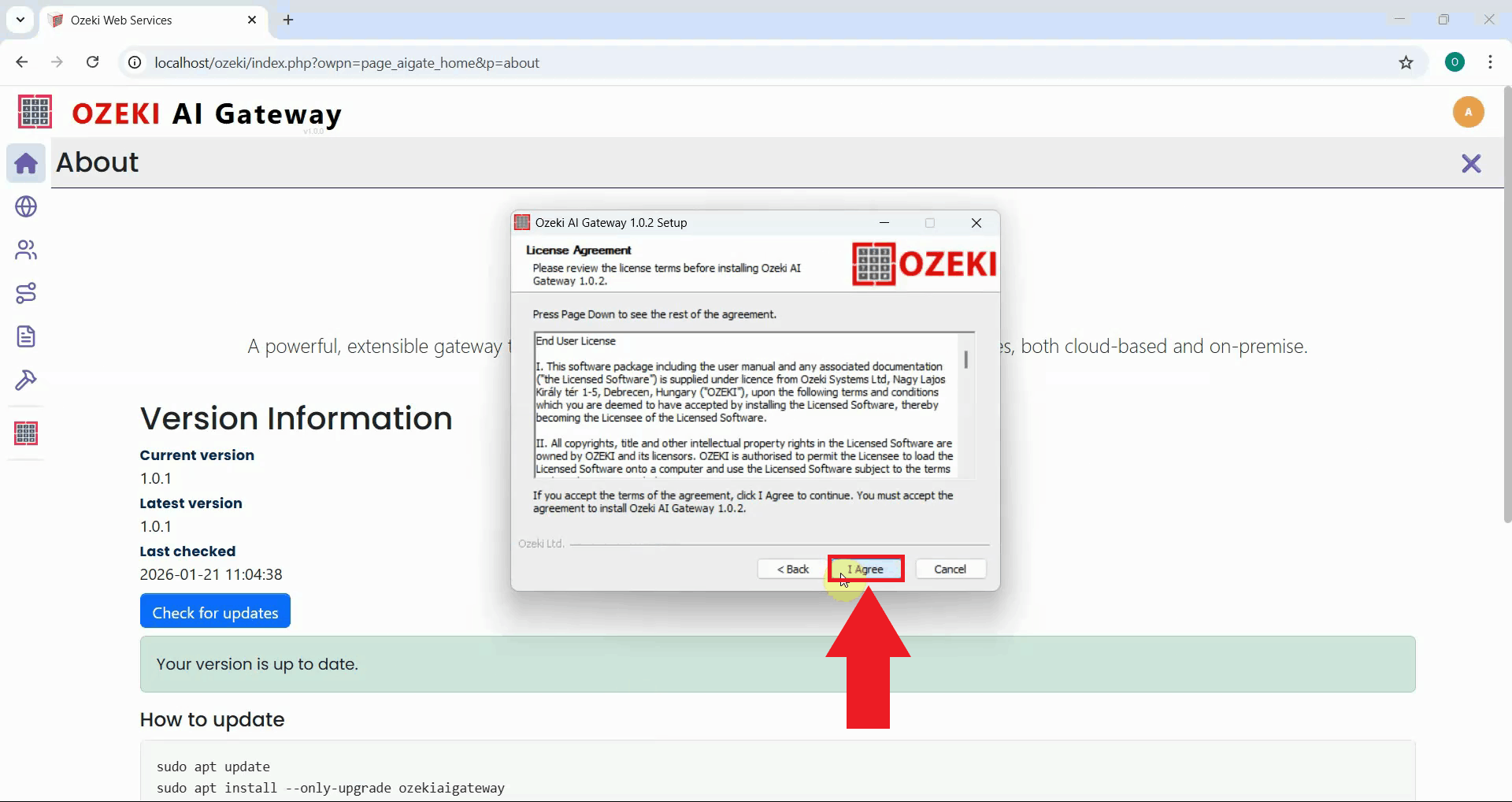
You will be presented with the license agreement. Read through the agreement. Click "I Agree" to proceed if you accept the terms (Figure 5).
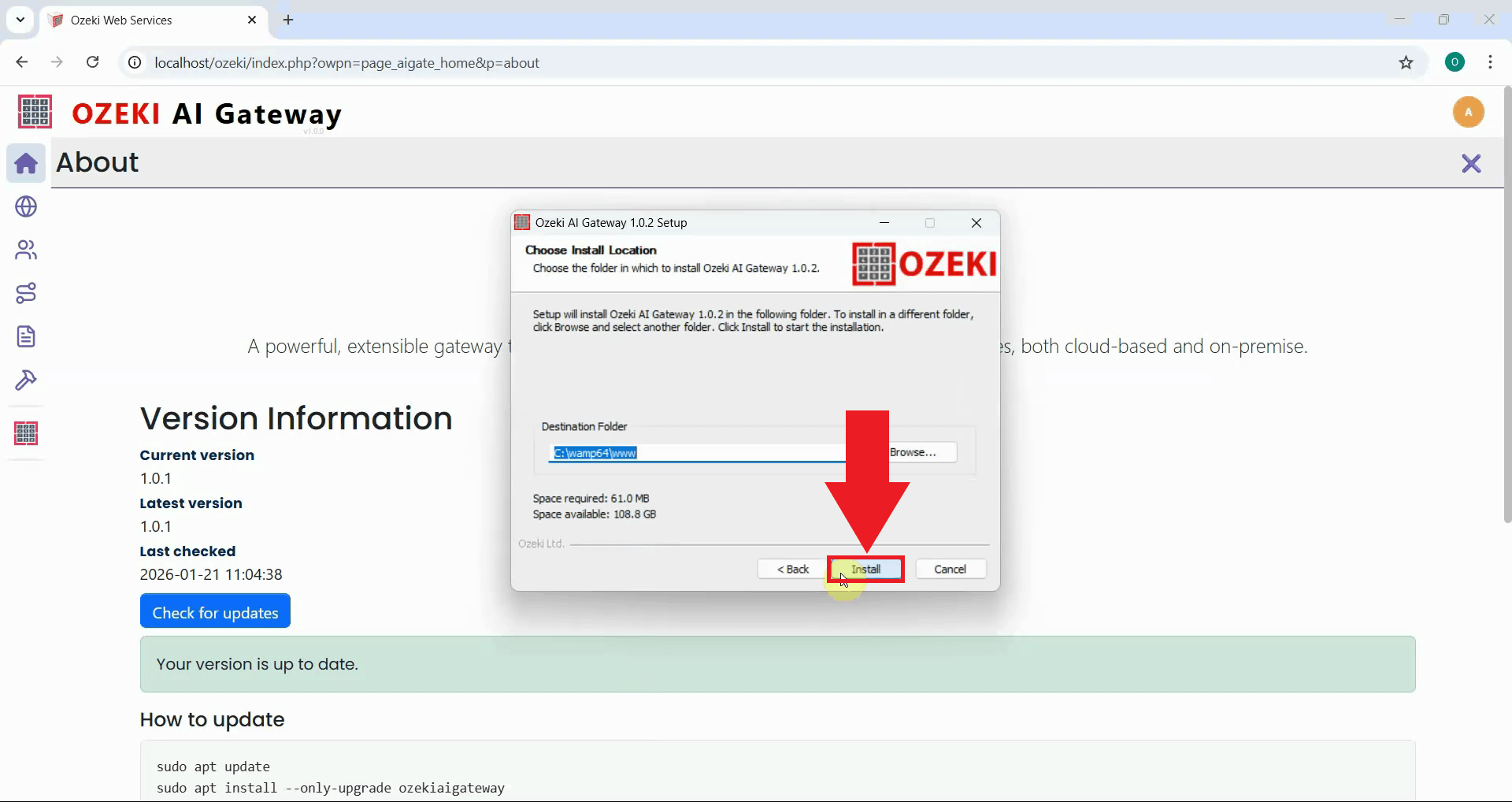
The installer shows the installation directory. It's recommended to use the same location as the previous installation (typically the default path). Click "Install" to proceed with the installation (Figure 6).
Step 4 - Complete installation
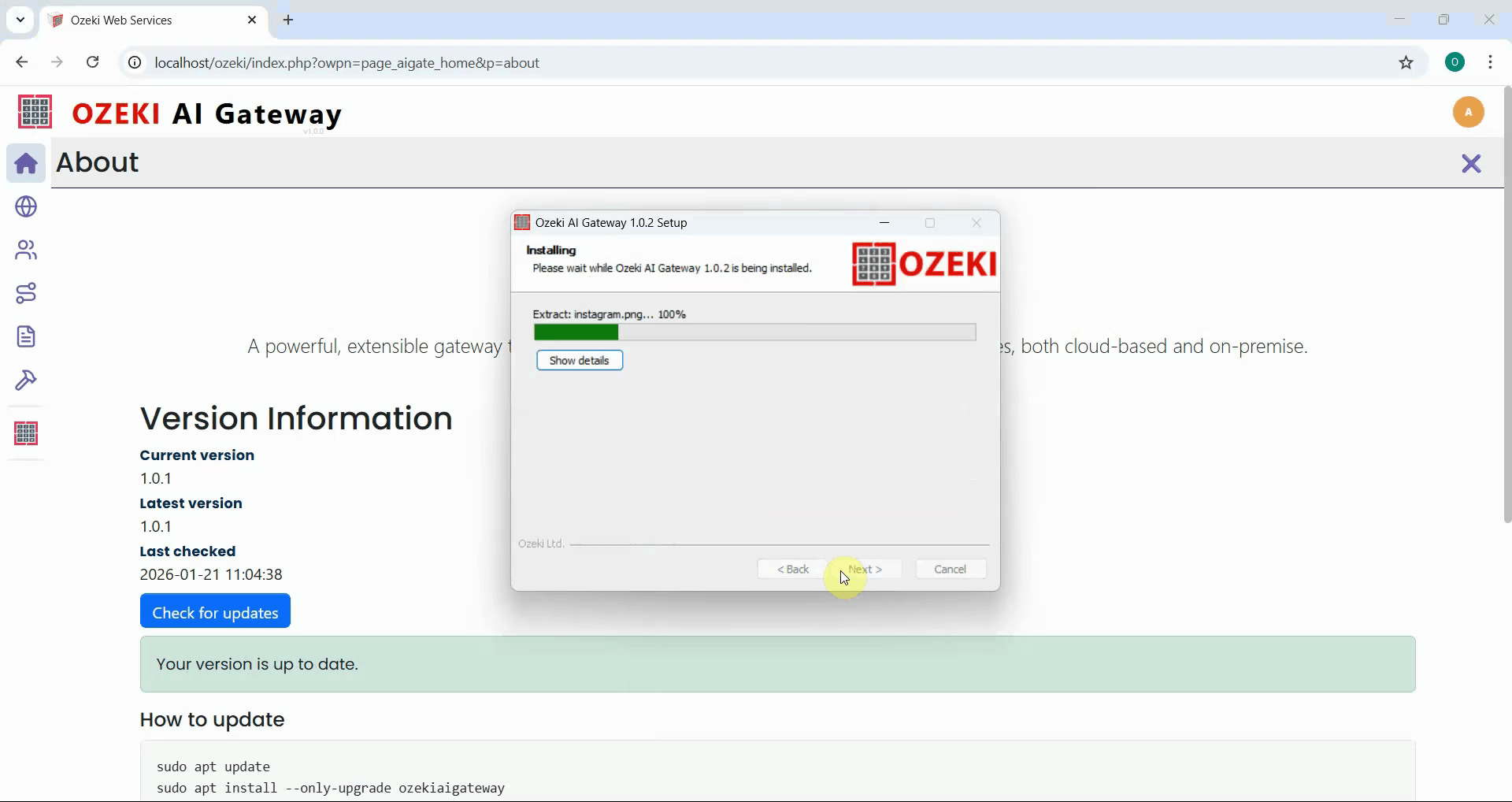
Wait for the installation process to complete. The installer displays progress information as it installs the new version of Ozeki AI Gateway (Figure 7).
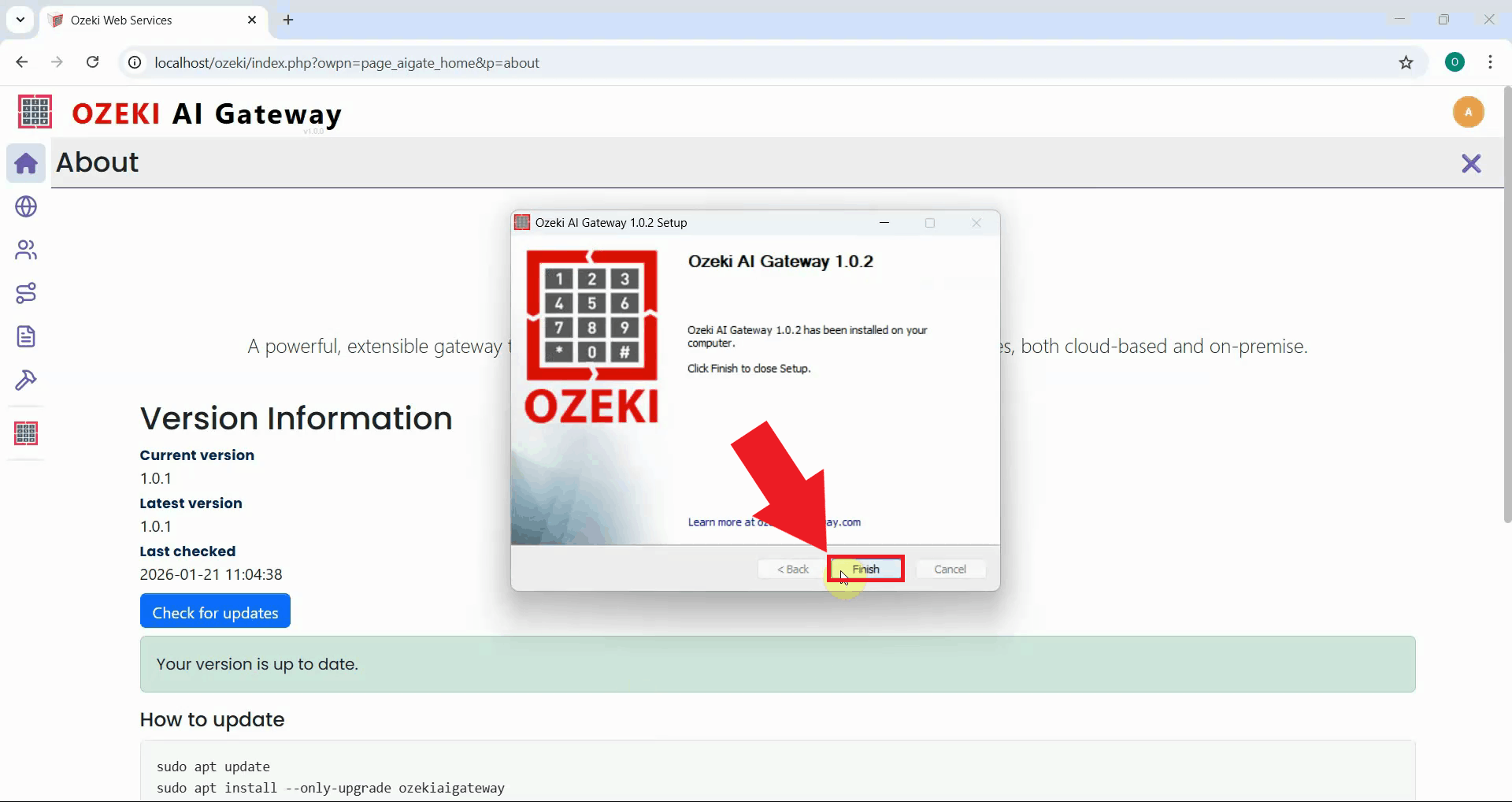
The installer displays a completion message when the upgrade is finished. Click "Finish" to exit the installer. Your Ozeki AI Gateway has been successfully upgraded to the new version (Figure 8).
Step 5 - Verify new version
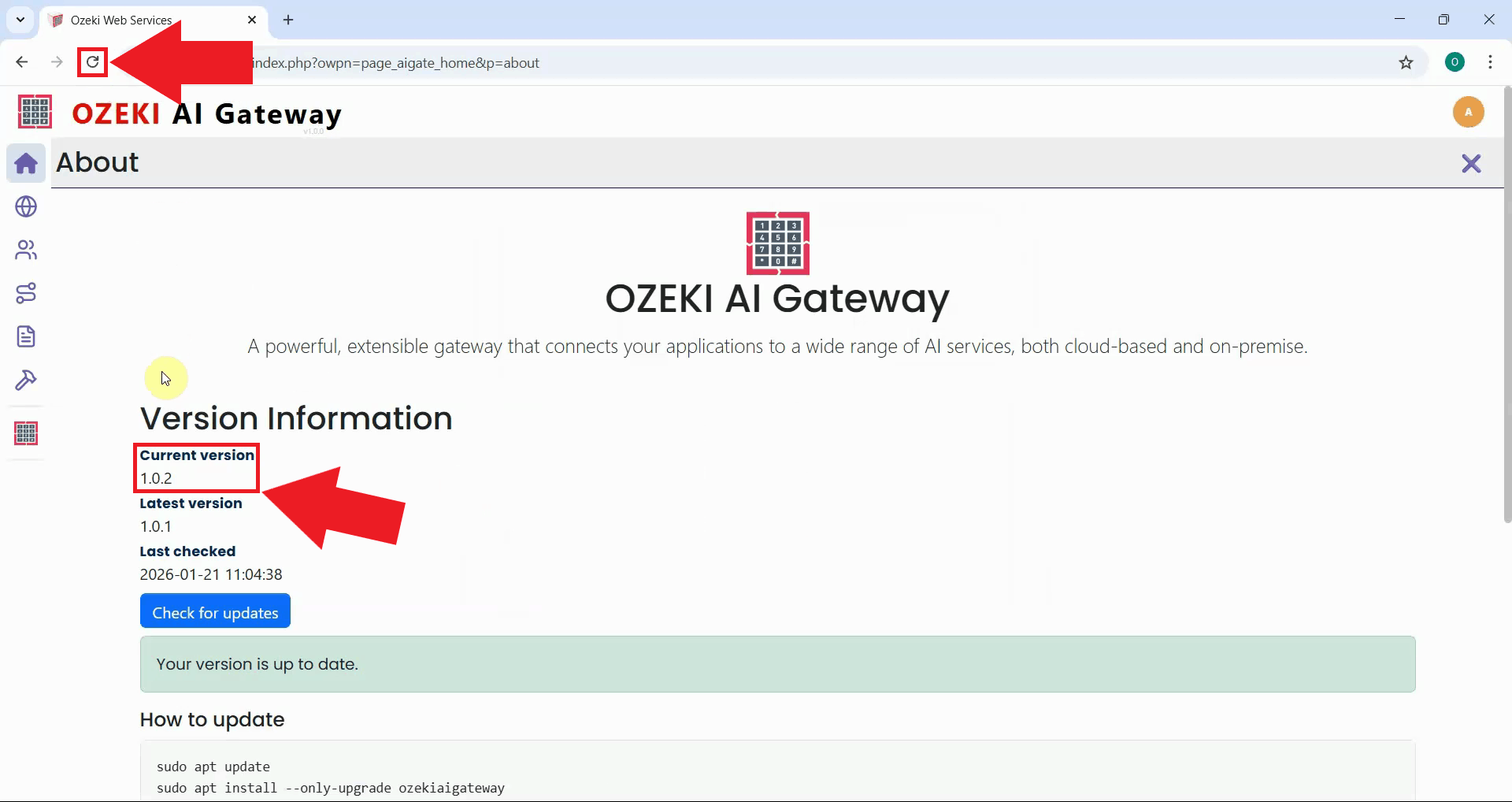
Open your web browser and navigate to the Ozeki AI Gateway interface. Refresh the page and check the version number on the "About" page. Confirm that the new version number is displayed, indicating a successful upgrade. All your providers, users, routes, and configuration data remain intact (Figure 9).
Final thoughts
You have successfully upgraded Ozeki AI Gateway to the latest version on Windows. The upgrade process preserved all your existing configuration, including providers, users, API keys, and routes. Your gateway is now running the latest version with all new features and improvements while maintaining your existing setup.